








In this tutorial, you will learn:
- What Paperclip is and what it offers as an open-source AI orchestration platform for company management.
- Why giving Paperclip agents access to the web can make the entire company more capable.
- How Bright Data supports Paperclip through MCP and Agent Skills.
- How to integrate Bright Data into your Paperclip company.
Let’s dive in!
What Is Paperclip?
Paperclip is an open-source platform for managing and orchestrating teams of AI agents. Its goal is to let you run agents as a coordinated company rather than as isolated tools. It is available on GitHub, where it boasts 78k+ stars.
In Paperclip, you can define business goals, create organizational structures, and assign roles and tasks. This work is then delegated across agents connected to local AI agent CLI harnesses, such as Claude Code, Codex CLI, and Gemini CLI.
Paperclip also provides scheduled heartbeats, goal alignment, budgets and cost controls, governance workflows, persistent task tracking, and detailed audit logs. Its use cases span software development, marketing, content creation, research, sales, support, QA, and more.
Why Your Paperclip Team of AI Agents Needs Web Access
Employees use the internet every day to do their jobs. They search for information, research competitors, check the latest news, find potential customers, compare products, and gather data before making decisions.
AI agents working in a company need to do the same. Without web access, your Paperclip agents are limited to the information available in their existing knowledge. This is where Bright Data comes in!
Bright Data provides AI-ready tools for live web search, source discovery, structured data extraction, browser automation, and dataset retrieval.
What makes Bright Data unique is its design for real-world workloads. Its global infrastructure includes more than 400 million residential IPs, providing the scale and anti-bot capabilities needed to access websites reliably. It supports unlimited concurrency, 99.99% uptime, and a 99.95% success rate.
How Bright Data Supports Paperclip: MCP + Agent Skills
Bright Data integrates with Paperclip via:
- Bright Data MCP: An MCP server that gives AI agents access to 70+ tools for web search, scraping, data extraction, and browser automation.
- Bright Data skills: A collection of Agent Skills that teach agents when and how to use Bright Data products.
Important: These two integrations are complementary and work best together. For instance, a specific skill helps Paperclip agents understand which Bright Data MCP tools to use for a given task and how to use them properly.
Bright Data MCP
The Bright Data MCP exposes 70+ tools. Even in Rapid mode (free tier with 5,000 requests per month), these include options for common web tasks:
| Tool | Description |
|---|---|
search_engine + batch version |
Retrieves results from search engines such as Google, Bing, and Yandex. |
scrape_as_markdown + batch version |
Converts web pages into clean Markdown while handling bot protection. |
discover |
Performs AI-powered searches and returns ranked, relevant web results. |
The remaining tools are more premium and include:
- Web data feed tools to get structured data from Amazon, LinkedIn, Yahoo Finance, YouTube, Zillow, Instagram, Google Maps, and 40+ other domains.
- Browser automation tools to interact with web pages.
Bright Data Agent Skills
The Bright Data agent skills give Paperclip agents specialized knowledge for using Bright Data products and web data workflows.
The available skills include:
| Skill | Description |
|---|---|
agent-onboarding |
Helps agents configure Bright Data integrations and choose the appropriate setup. |
brightdata-cli |
Guides agents in using the Bright Data CLI for web scraping and extraction. |
data-feeds |
Extracts structured data from 40+ websites. |
bright-data-mcp |
Explains how to use Bright Data MCP tools for web tasks. |
bright-data-best-practices |
Provides guidance on Bright Data APIs and integrations. |
competitive-intel |
Performs competitor analysis using live web data. |
brand-listening |
Analyzes brand mentions and audience sentiment. |
price-comparison |
Compares prices across online retailers. |
Paperclip + Bright Data: Integration Approaches
Paperclip acts as the control plane for your AI company, organizing agents, goals, tasks, budgets, and governance. Bright Data can extend those agents with enterprise-grade web access tools.
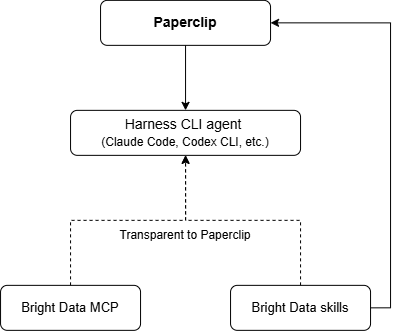
At the AI harness level, there are two main options:
- MCP: Connect the agent to the Bright Data MCP server to gain access to 70+ web tools.
- Agent Skills: Install Bright Data agent skills to give the agent the knowledge and instructions it needs to get the most from Bright Data’s products.
Paperclip will then manage these Bright Data-enhanced agents, without being aware of the integration.
At the Paperclip level, you can also install the Bright Data skills and assign them directly to some agents.
How to Integrate Bright Data into Paperclip
In this guide, you will see how to connect your Paperclip agent to Bright Data through both MCP and Agent Skills integrations.
Prerequisites
Before you start, make sure you have the following installed and configured.
For Paperclip:
- A UNIX-based operating system (Linux, macOS, WSL 2).
- Node.js 20+ installed locally.
- pnpm installed locally.
- One or more coding agents supported by Paperclip installed locally (e.g., Claude Code, OpenAI Codex CLI, Gemini CLI, Grok Build, Hermes, OpenCode, Pi, or Cursor CLI). In this guide, we will use Claude Code.
For the Bright Data MCP integration:
- A Bright Data account with an API key configured. Follow the official guide to generate your Bright Data API key.
For the Bright Data agent skills integration:
- The Bright Data CLI installed and configured locally. For a guided setup, read the dedicated blog post “Meet the Bright Data CLI: Extract Data and Interact with the Web from Your Terminal.”
While not strictly required, it is also helpful to have the following knowledge:
- How Paperclip works.
- How MCP works.
- The tools provided by the Bright Data MCP.
- How the Agent Skills standard works.
- What the Bright Data skills provide.
Step #1: Install and Set Up Paperclip
To start the Paperclip CLI installation wizard, run:
npx paperclipai onboard --yesThis single command handles the entire installation process:
- Downloads Paperclip.
- Creates a configuration directory at
~/.paperclip/. - Initializes an embedded database.
- Starts the Paperclip server at
http://localhost:3100.
Note: The --yes flag accepts all default options automatically. If you run the command without --yes, you can customize options such as the deployment mode, database, and storage.
In the terminal, you will see output similar to:
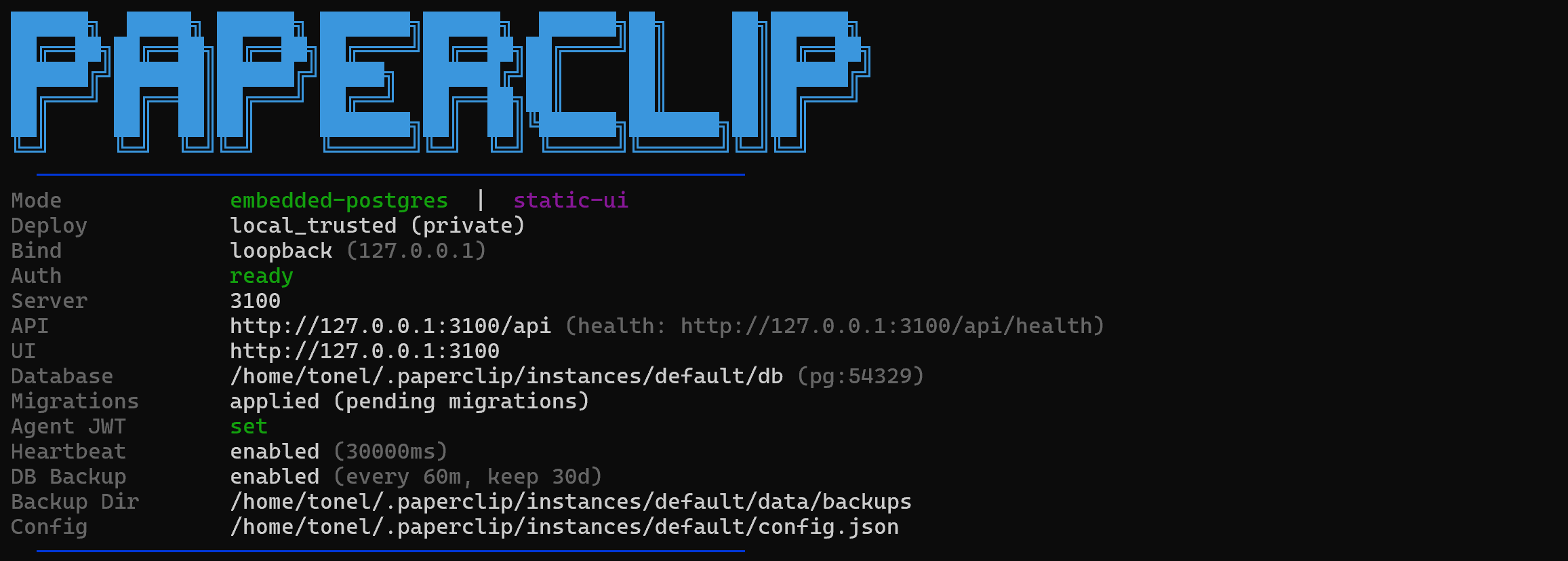
Your default browser will open a new page at:
http://127.0.0.1:3100/onboardingThe Paperclip onboarding process will begin. This asks for some basic information about your company so Paperclip can manage your organization.
Start by entering your company name, such as “AwesomeAI Inc”:

Next, describe your company’s mission. For example:
Democratize AI by delivering powerful SaaS products that automate routine work and make cutting-edge technology accessible to everyone
Note: If you are not sure what to write, consider switching to the “Help me figure it out” section and answering the questions provided. Paperclip will use your answers to help define the mission.
Finally, specify your company’s team lead, who represents the company CEO. By default, Paperclip calls this role “Chief of Staff”:

Click “Next.” Your company is now configured.
The final step is to connect your Chief of Staff to an AI agent CLI harness. If you are not familiar with this technology, read our article on AI harnesses.
Select the AI agent CLI harness you installed locally (in this example, Claude Code):
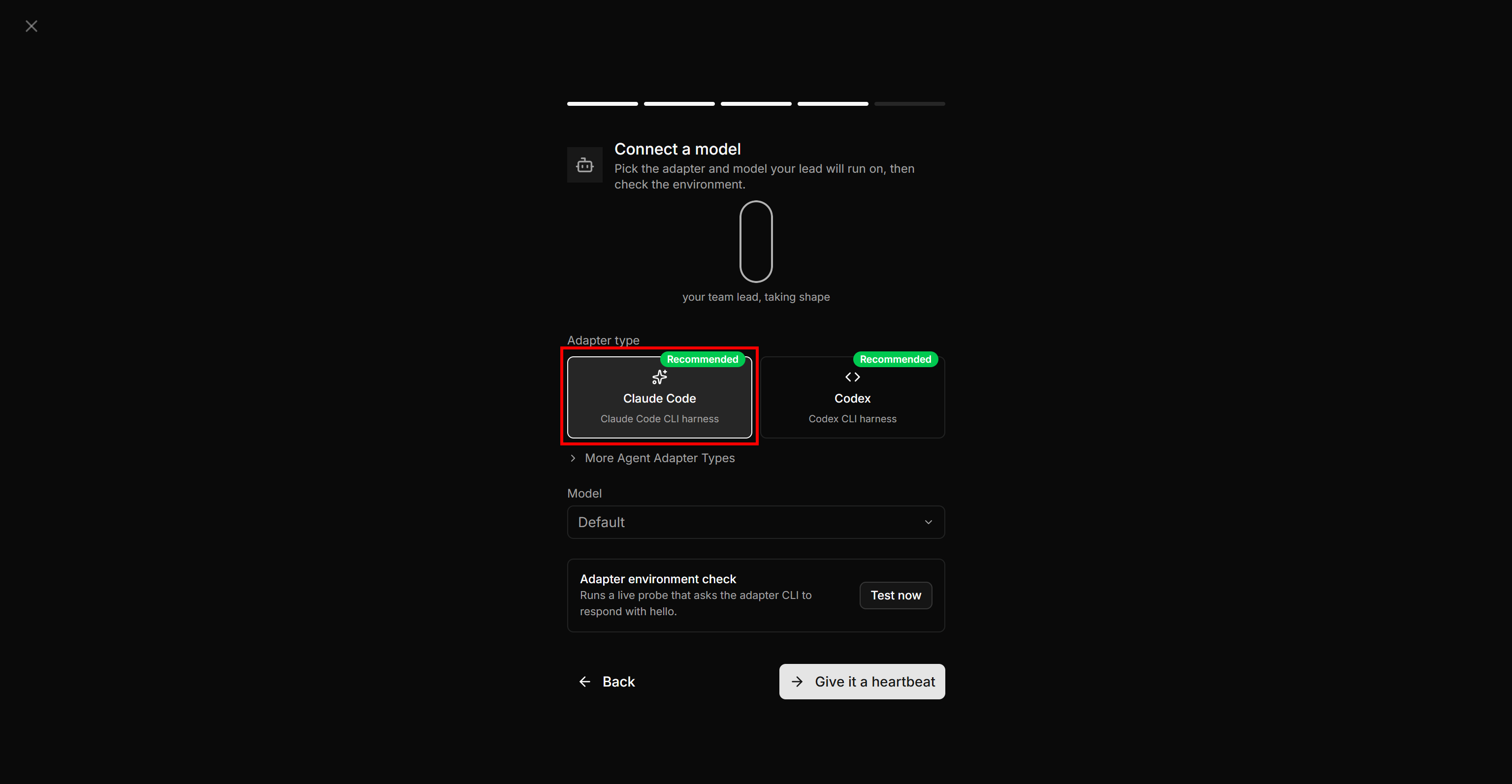
Click “Give it a heartbeat” to verify that Paperclip can connect to the selected AI CLI harness. If everything works correctly, you will see:
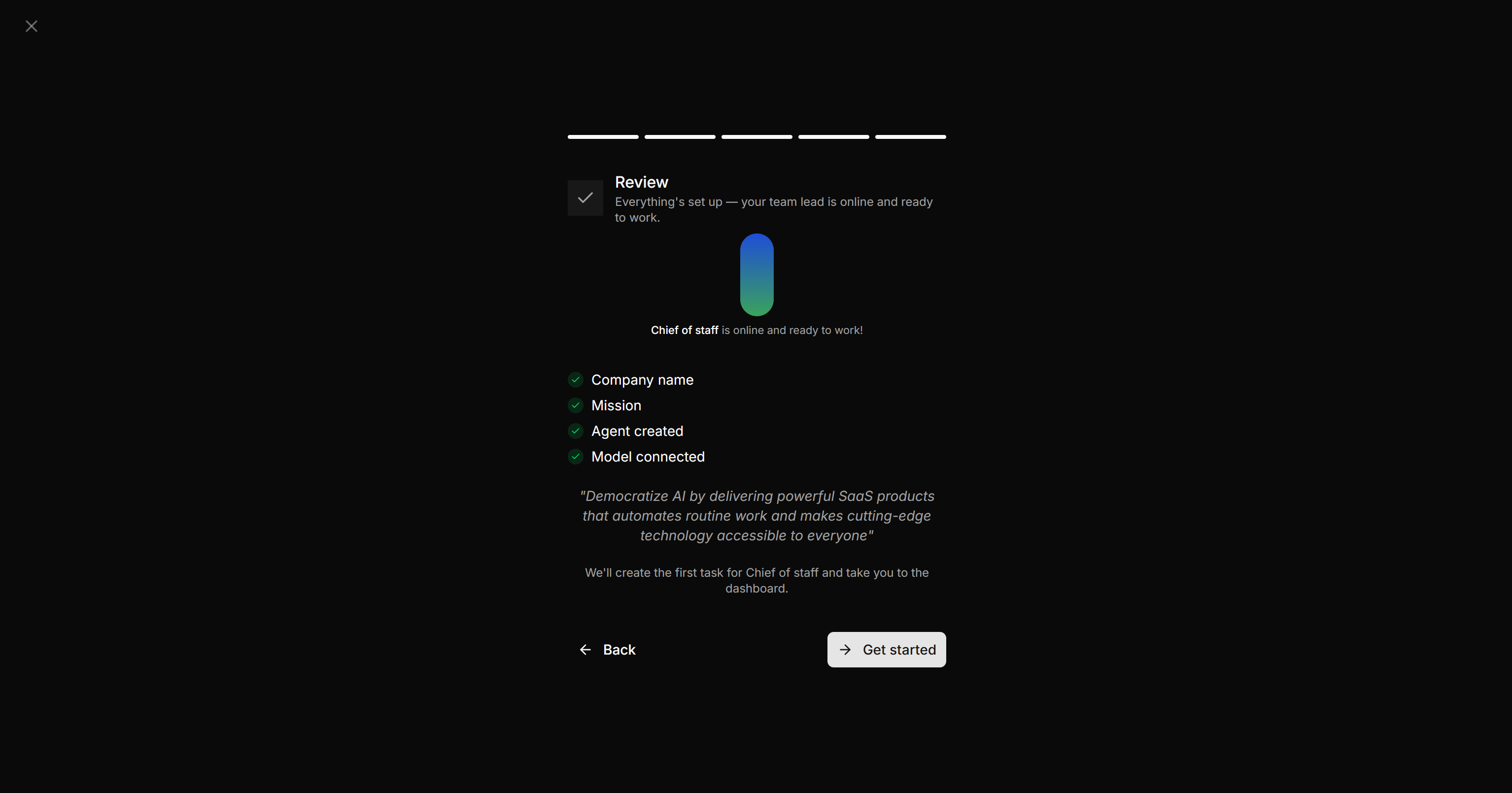
Next, you will be redirected to your company’s Paperclip dashboard URL. In this example, that is:
http://127.0.0.1:3100/AWE/dashboard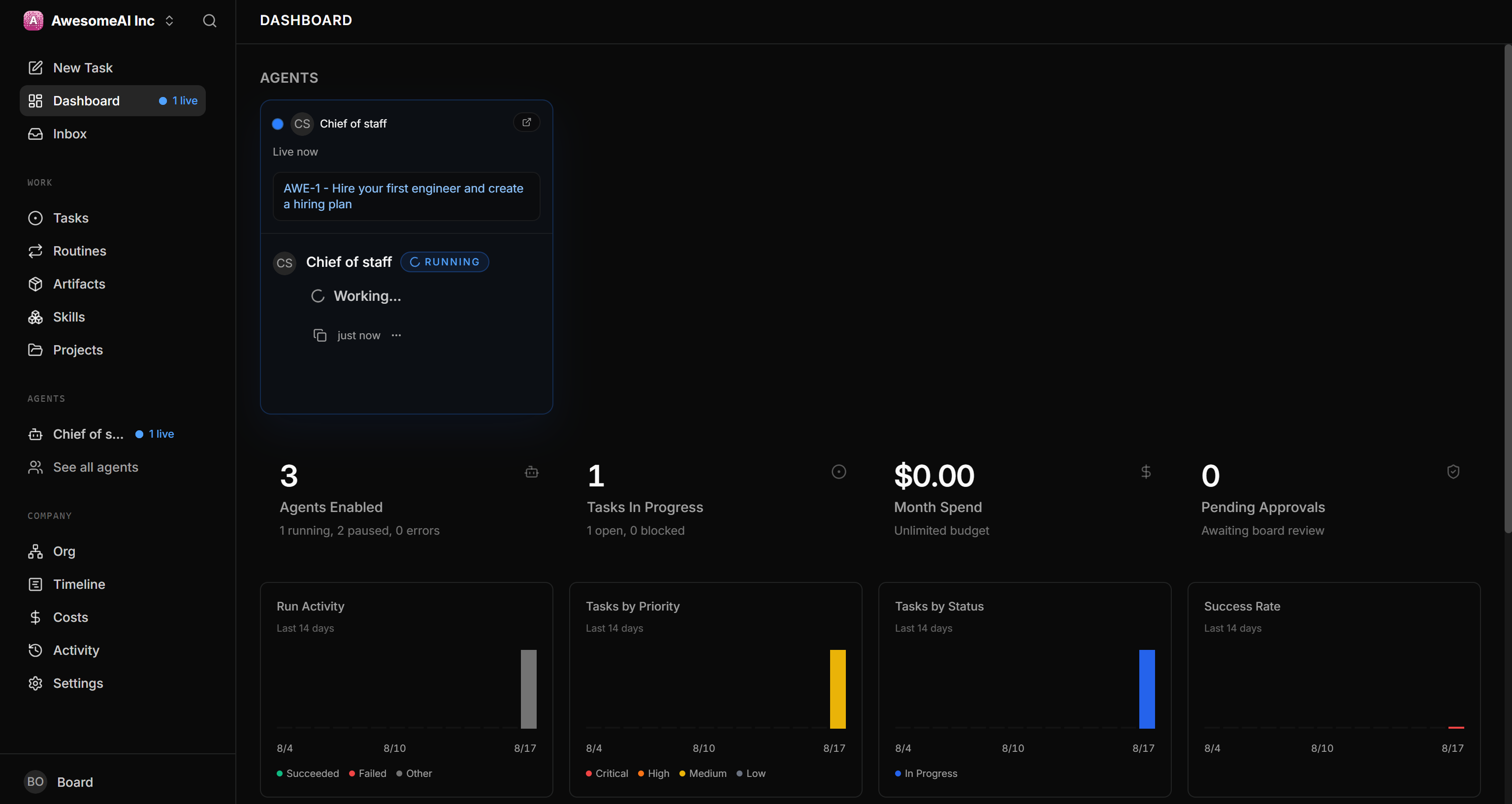
The Chief of Staff will start hiring new agents (employees) based on your company’s mission. These agents will fill different roles and gradually build out your company’s organizational structure.
Well done! Paperclip is now installed and configured locally.
Step #2: Configure Bright Data MCP in Your Agent CLI Harness
Paperclip runs on top of an AI agent CLI harness installed locally, which means it does not support MCP configurations. If you want the agents orchestrated by Paperclip to access Bright Data MCP, configure it in the underlying AI agent CLI harness.
For more guidance, refer to these official guides:
- Integrating Claude Code with Bright Data MCP
- OpenAI Codex CLI with the Bright Data MCP Server
- Gemini CLI with Bright Data MCP Server
- Hermes Agent + Bright Data: Building the Definitive Web-Aware AI Assistant
- Give Pi Agent the Tools to Explore and Interact with the Web via Bright Data MCP
- opencode with the Bright Data MCP in Your CLI
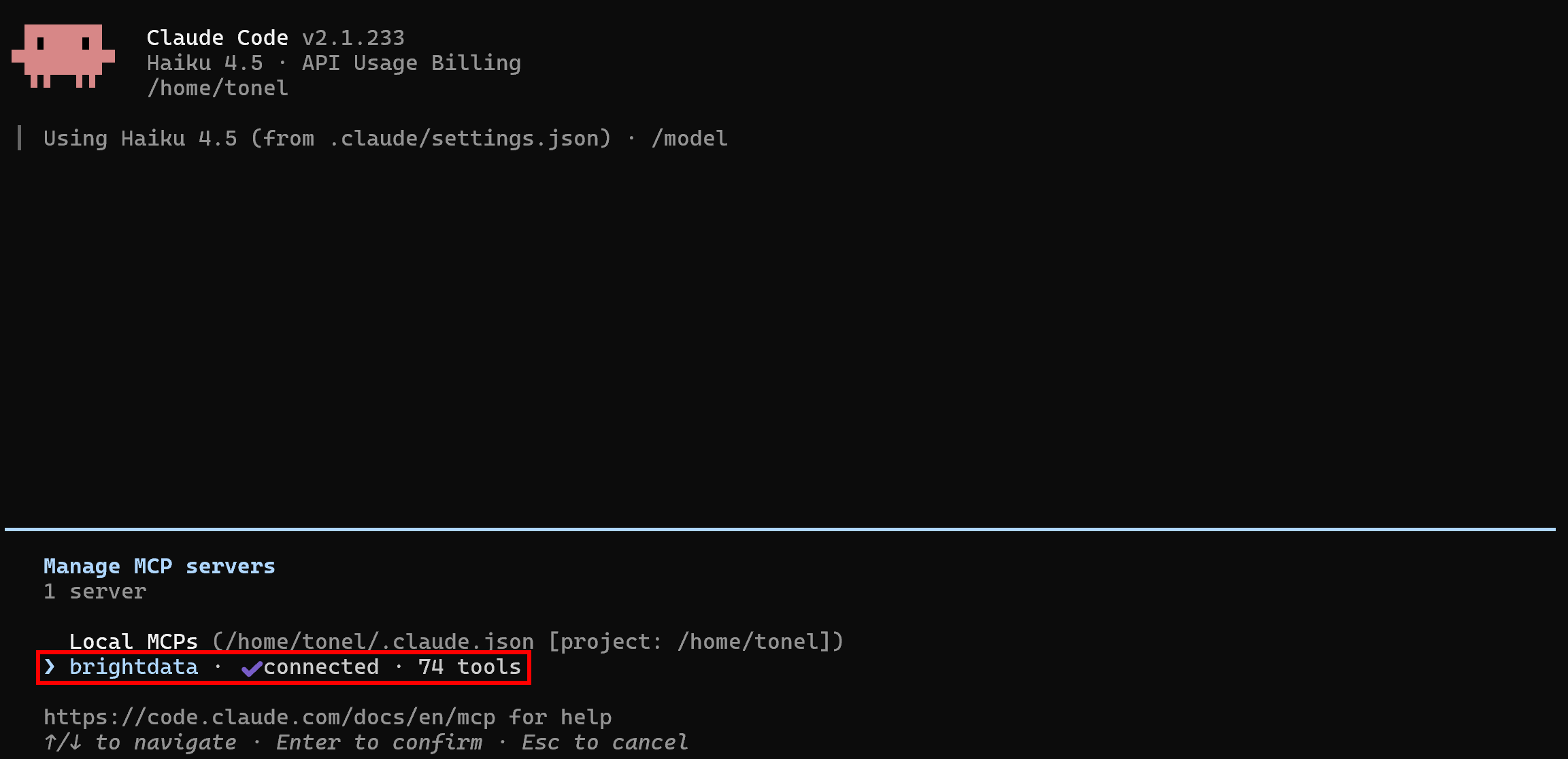
For instance, when setting up the Bright Data MCP in Pro mode in Claude Code, you should see:
You can also configure the Bright Data skills directly at the AI CLI harness level. Still, remember that Paperclip supports agent skills natively. So, see how to configure the Bright Data skills in Paperclip in the next steps!
Step #3: Install the Bright Data Agent Skills in Paperclip
Start by selecting the “Skills” option from the left sidebar:
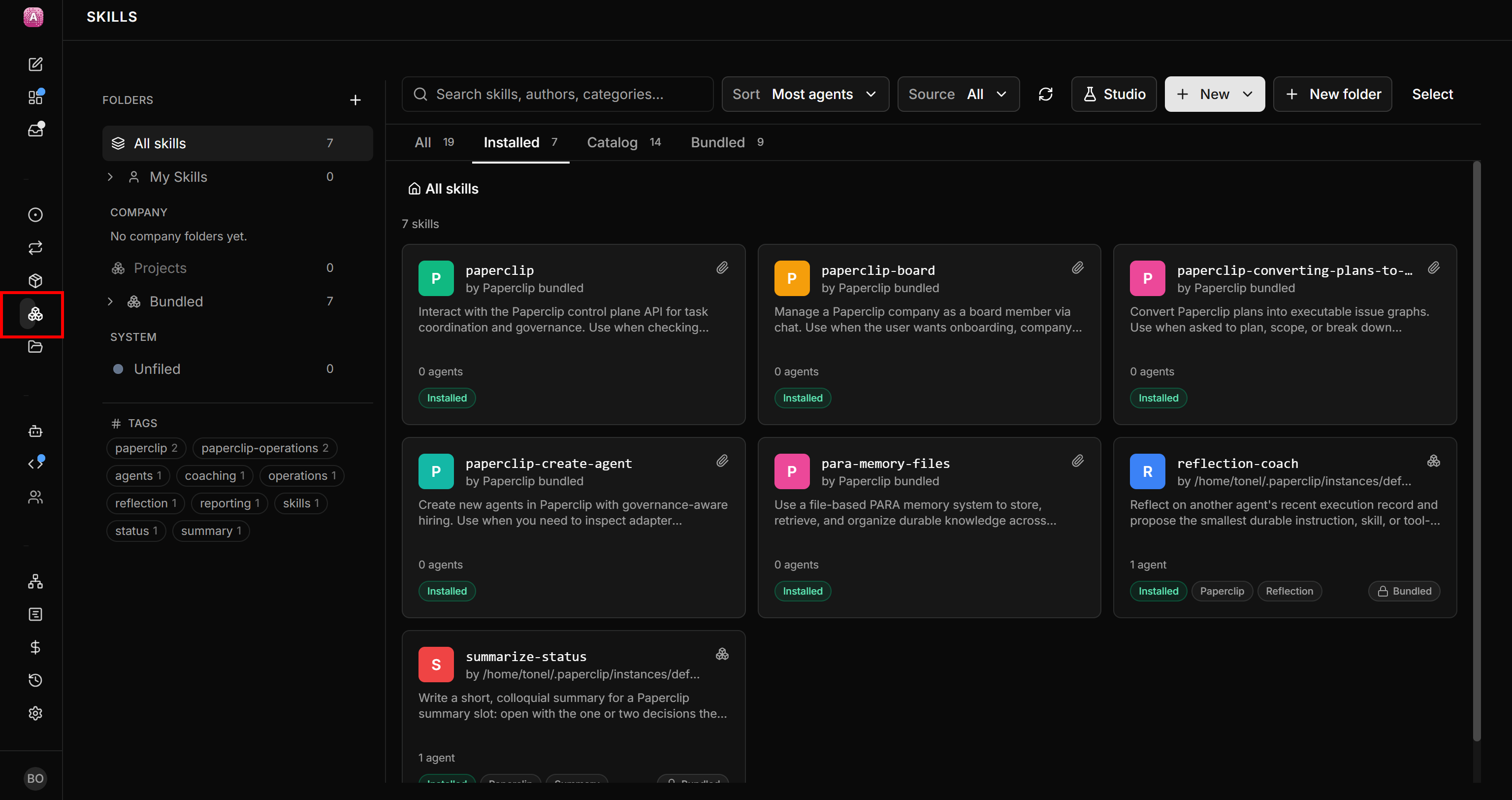
On the “Skills” page, click “New” and select “Import from path or URL”:

The “Import a skill” modal will open. Enter the following skills.sh URL:
https://www.skills.sh/brightdata/skillsThat is the URL for Bright Data skills on skills.sh.
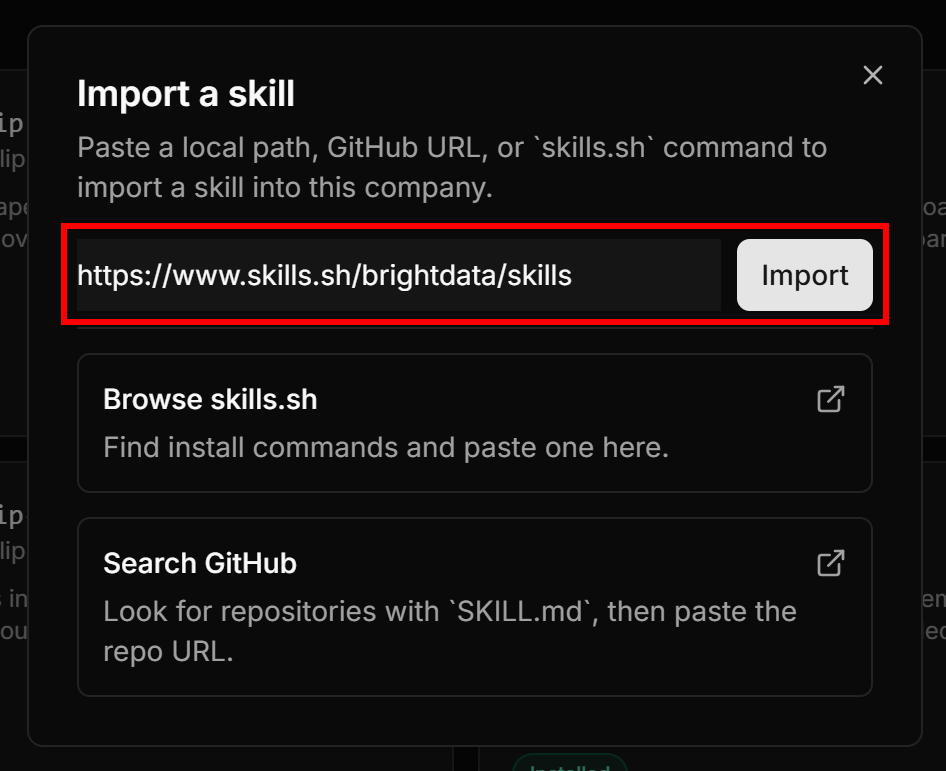
Click “Import” to add the skills to Paperclip. Most Bright Data skills rely on custom executable shell scripts. Paperclip does not currently support these scripts, so only a subset of the Bright Data skills will be imported:
agent-onboardingbrand-listeningbrd-browser-debugbright-data-best-practicesbright-data-mcpbrightdata-clicompetitive-inteldata-feeds
On the Paperclip “Skills” page, you should now see the aforementioned skills:
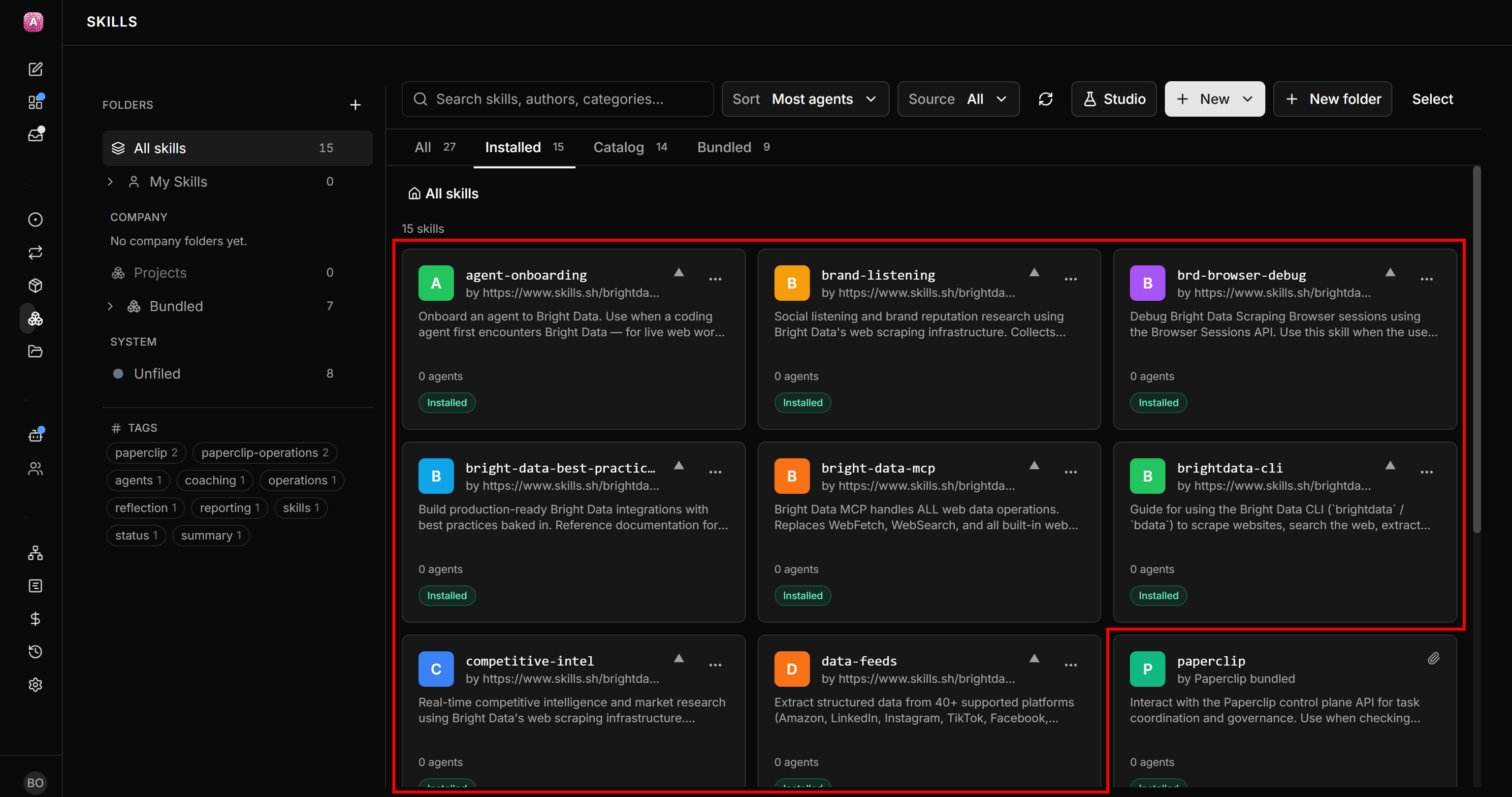
Great! The Bright Data skills are now available in Paperclip.
Step #4: Assign Bright Data Skills to an Agent
The brightdata-cli skill teaches an agent how to use the Bright Data CLI. The CLI exposes commands for web scraping, search, discovery, and browser automation powered by Bright Data products.
Since you have already installed the Bright Data CLI, you can assign this skill directly to a Paperclip agent. Start by clicking the brightdata-cli skill card. On the skill page, click “Add to agent” and select “Chief of Staff”:
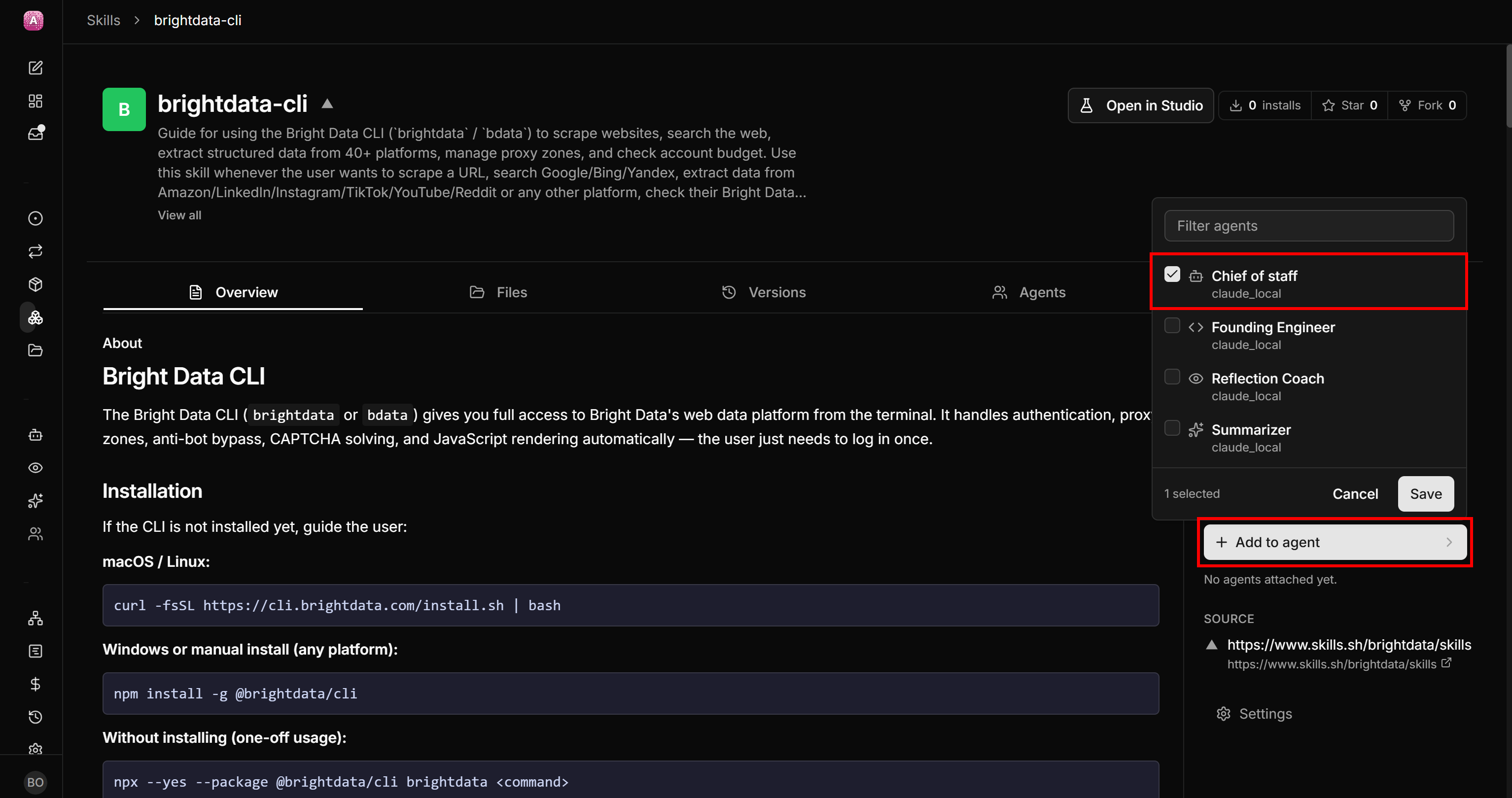
The CEO of the Paperclip company can now use the Bright Data CLI for web access, regardless of the tools available in the underlying AI CLI harness integration.
Fantastic! Time to see how your Chief of Staff can use Bright Data.
Step #5: Test the Integration
To verify that the Paperclip + Bright Data integration works, give the Chief of Staff a task that requires web search and scraping.
Click “New Task” and specify a task like this:
- Title: “Identify AI C-Level Roles”
- Description: “Use Bright Data CLI to search online for the most relevant AI-related C-level roles a SaaS company like AwesomeAI Inc. should have and hire for.”
- For: “Chief of Staff”
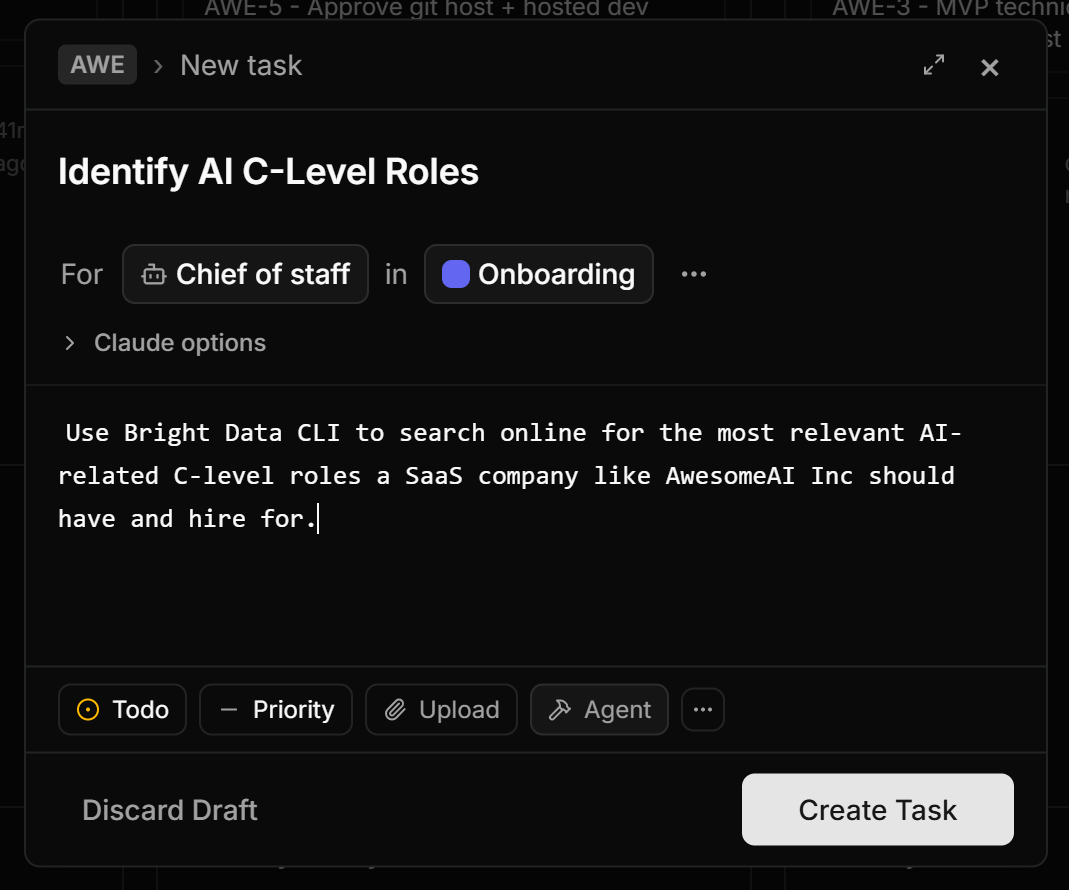
To proceed, press the “Create Task” button to launch the task.
The log shows that the Chief of Staff loaded the brightdata-cli skill and used it to complete the task:
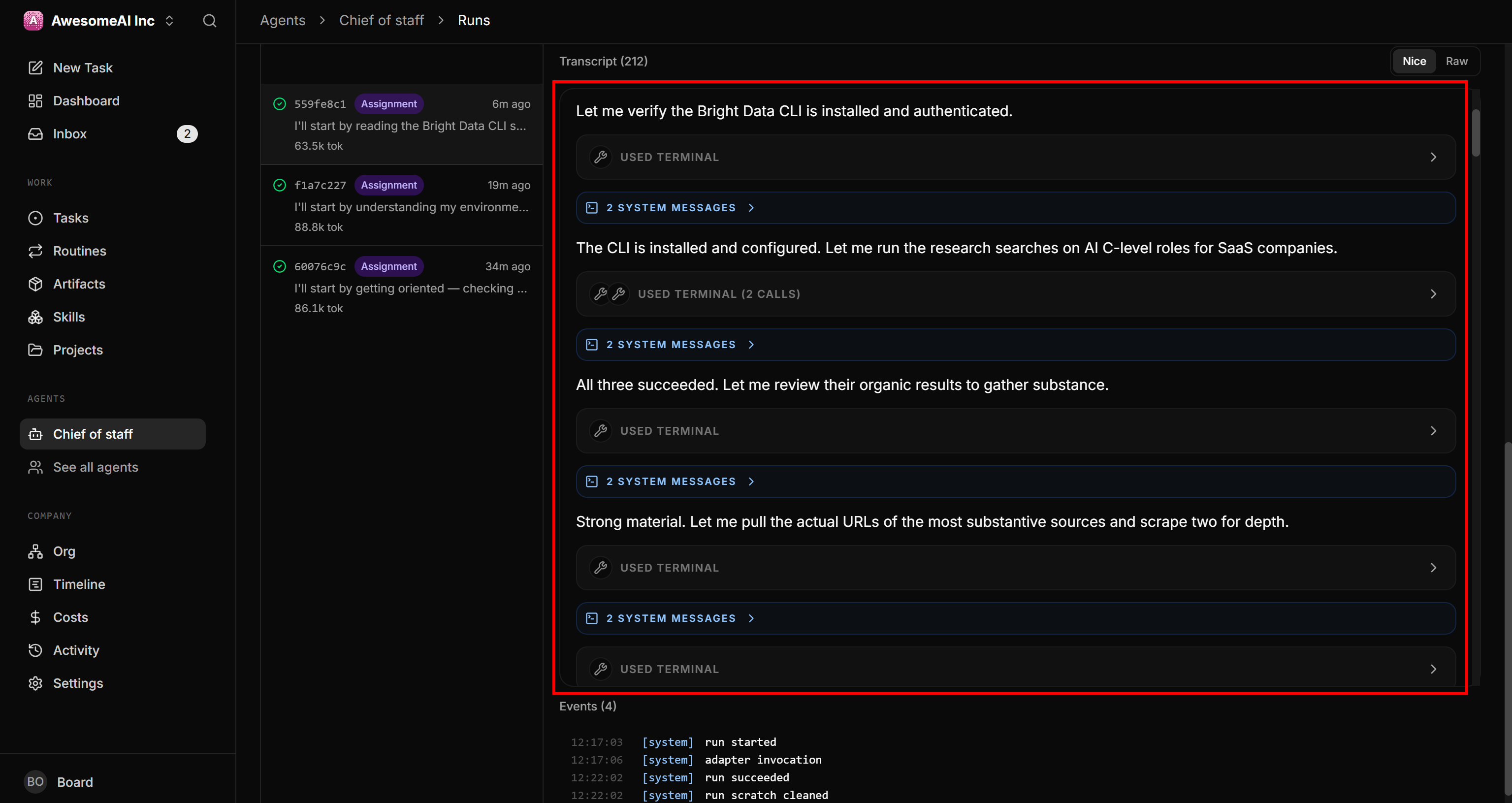
In detail, the agent:
- Called the Bright Data CLI
searchcommand (powered by SERP API) to perform relevant search queries on Google (e.g., “most important AI C-level executive roles for a saas company”). - From the retrieved structured SERPs, selected the most interesting sources.
- Retrieved their content in Markdown by calling the Bright Data CLI
scrapecommand (via Web Unlocker API)
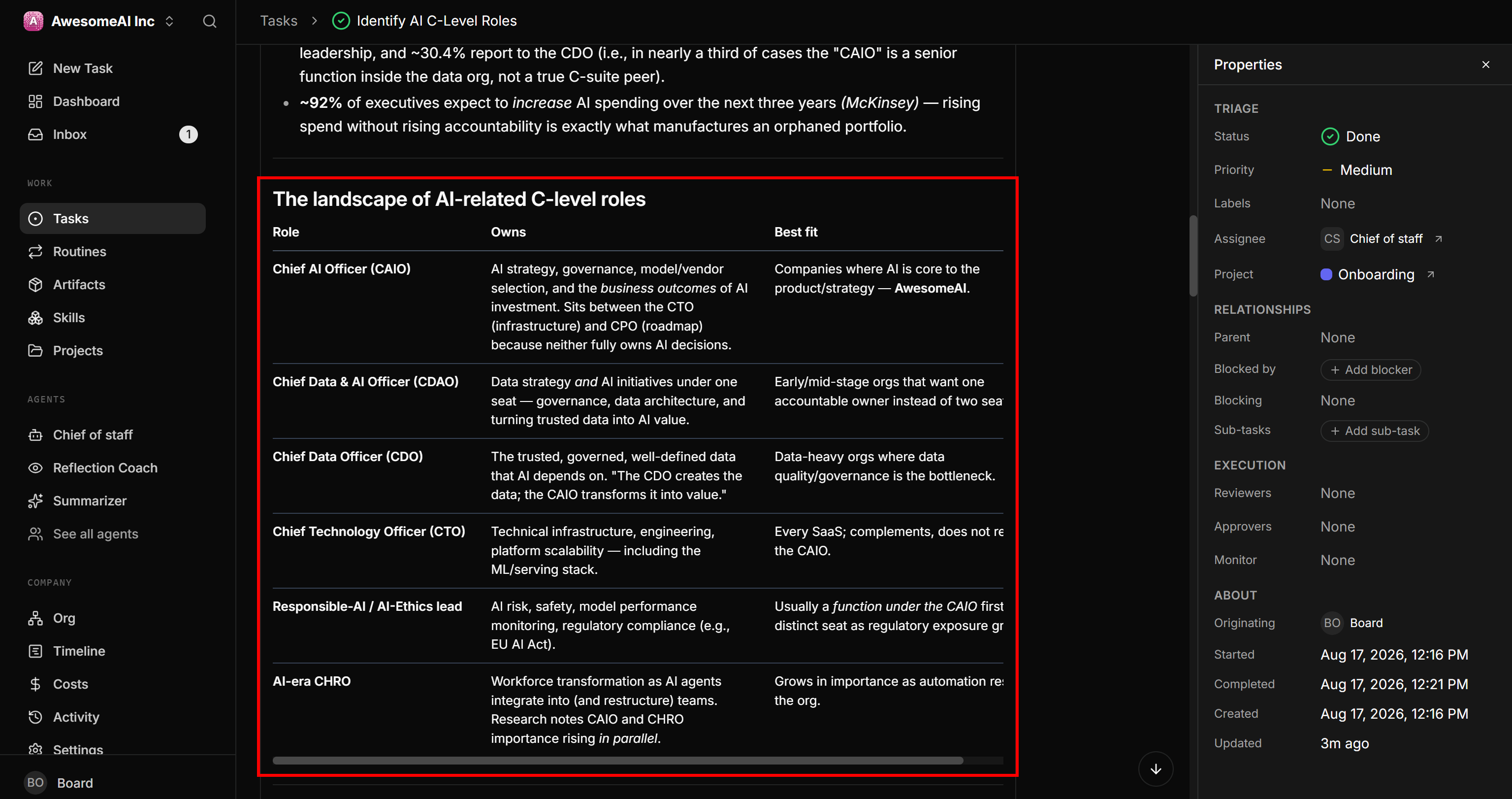
From the task document, you can see that the agent identified six potential C-level roles from the discovered web pages:
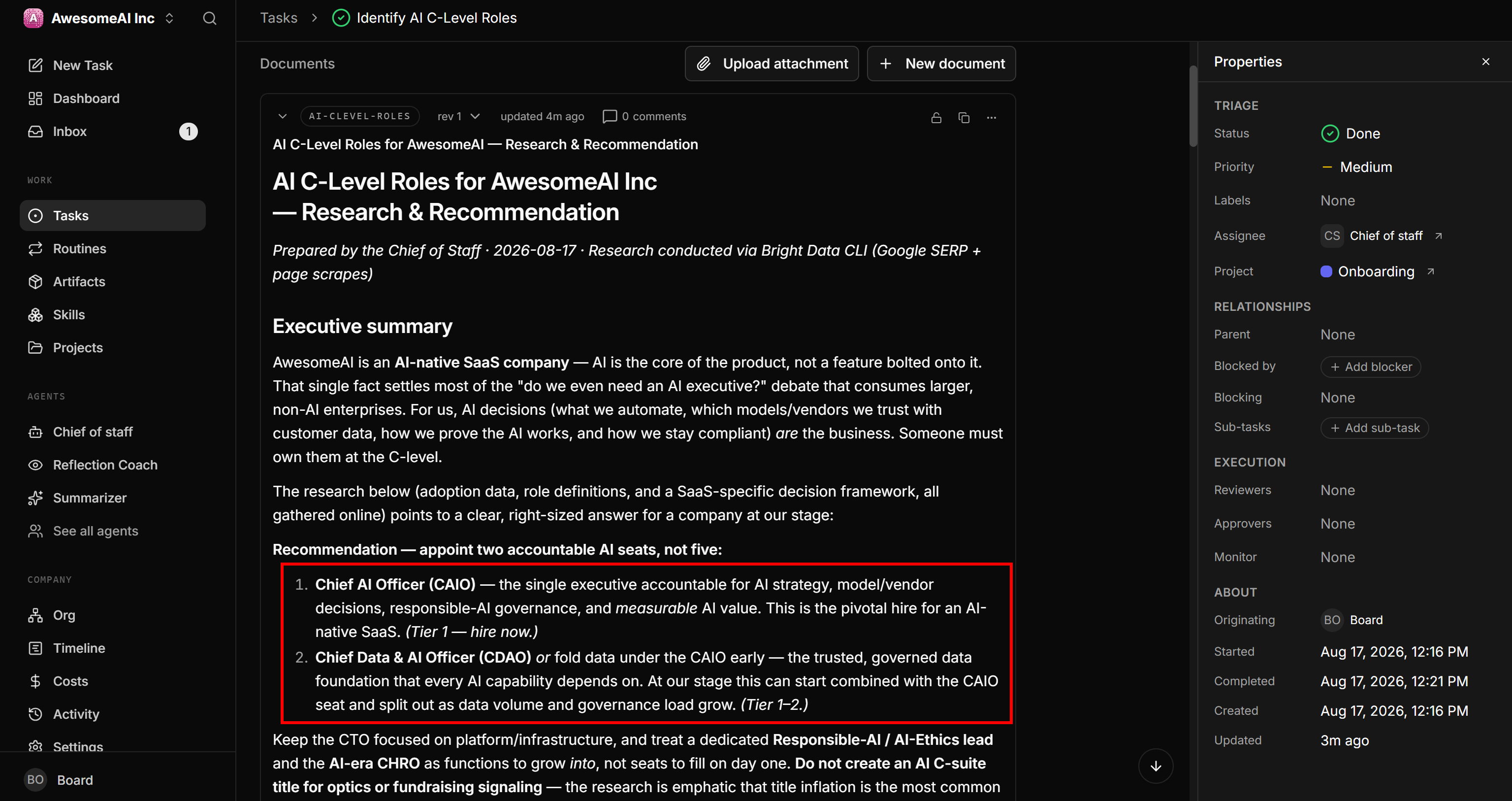
After analyzing these roles, the agent decided that only two should be hired:
Et voilà! This simple test shows how Paperclip agents can use Bright Data skills (and MCP tools) to complete web-related tasks.
Conclusion
In this blog post, you learned what Paperclip is and how it enables you to orchestrate AI agents as a company. You saw two ways to integrate Bright Data:
- Connect the underlying AI harnesses to Bright Data’s MCP and Agent Skills.
- Install Bright Data skills directly in Paperclip and assign them to specific agents.
Just as employees need access to the web to complete their work, AI agents in Paperclip require the same capabilities. Integrating Bright Data with Paperclip gives your agents reliable, scalable access to the public web.
Sign up for a free account today and explore our full range of AI-ready web services available in the Bright Data ecosystem.



Technical Writer
 5.5 years experience
Antonello Zanini is a technical writer, editor, and software engineer with 5M+ views. Expert in technical content strategy, web development, and project management.