Naver ended its Shopping search API on July 31, 2026, with no official replacement. Teams still needed prices, rankings, and seller names from Naver Shopping and SmartStore, so their main option was to scrape Naver’s pages.
In our tests, plain HTTP clients got complete results from Naver’s search pages. Naver’s shopping pages, however, returned a block page, a CAPTCHA, or a login redirect. The data was still there, embedded in those pages as JSON.
This guide shows you how to read that JSON in Python, which Bright Data tool fetches each page type, and how each tool is billed.
TL;DR
- Scrape Naver search pages with Bright Data’s SERP API. Read prices from
discountedSalePrice, becausesalePricewas 0 on 6 of 8 price comparison cards for 아이폰 17. - Use Web Unlocker for Plus Store results and Browser API for pagination. Flag ads: none of the first 6 listings for 코카콜라 제로 was organic.
- Rebuild most Shopping API fields from price comparison search. Web Unlocker returned the page’s JSON, with
lowPrice,brand, and categories, for 10 of 10 queries. - Send SmartStore product URLs to the Naver Shopping Scraper API. A batch of 10 returned every public listing, with prices matching each page.
The end of Naver’s Shopping search API
Naver’s Open API was the official data source for price and digital shelf monitoring. Its Shopping search endpoint returned up to 100 products per call and allowed 25K calls a day with a free key.
Naver’s developer center notice announced that the Shopping, Book, and research document search APIs would end on July 31, 2026. The notice said existing keys would stop working without a grace period. It also said Naver would provide no replacement API, not even on NAVER API HUB:
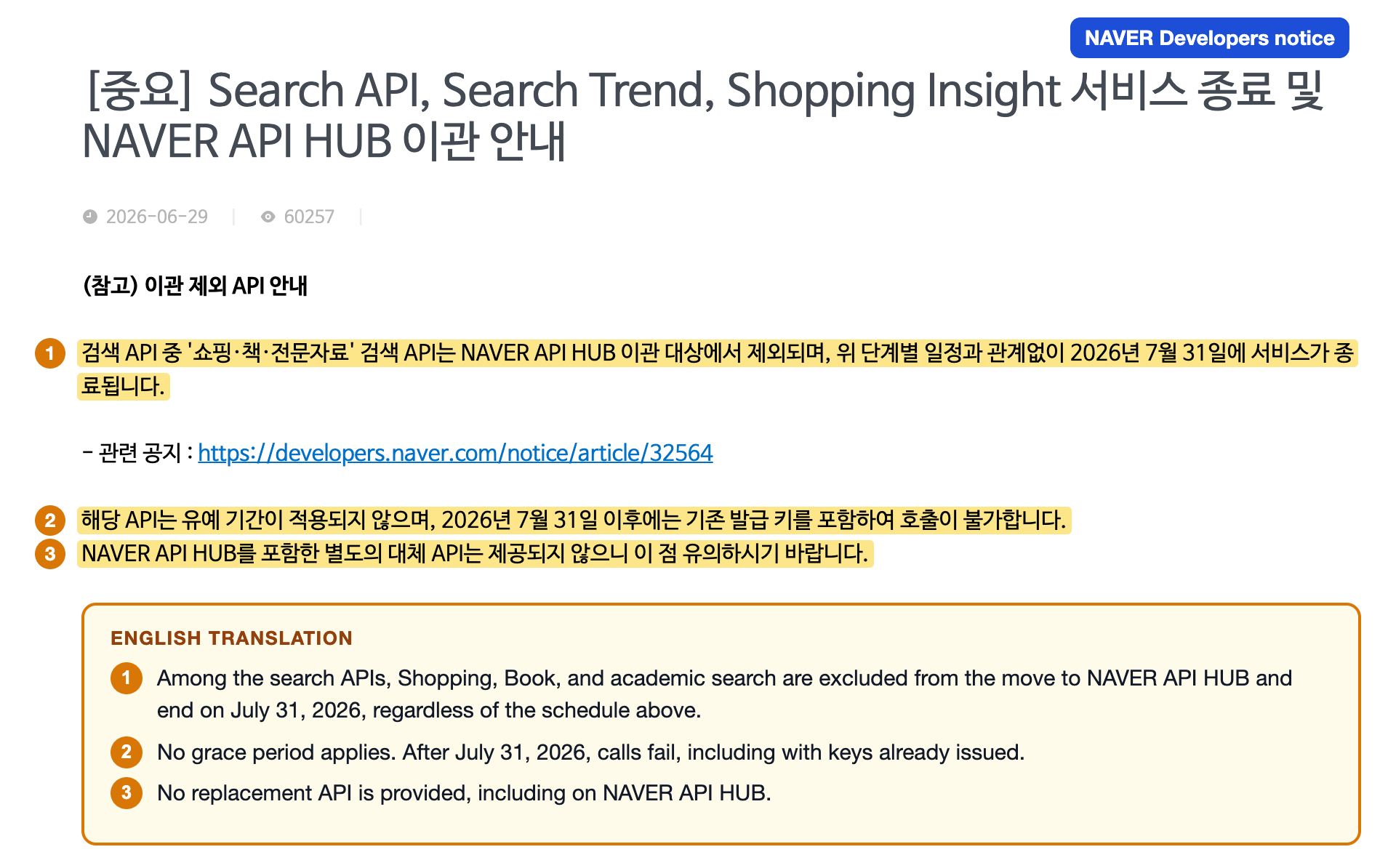
With a fixed end date and no grace period, feeds that called this API needed a new source by July 31, 2026.
The same notice said the other search APIs, including blog, news, and web document search, would move to NAVER API HUB on NAVER Cloud Platform. Developer center keys issued before July 31, 2026, would keep working for these APIs until June 30, 2027.
Under Naver’s Open API terms, those APIs weren’t meant to be used as a monitoring feed either. The terms prohibited copying, storing, or caching results, except temporary caching for service continuity. They also prohibited providing or selling results to third parties and using them as AI input or training data.
Naver’s DataLab Shopping Insight API returned click trends by category and keyword. It scaled each trend so that its highest point was 100. These trends showed whether interest rose or fell, but no prices. Naver’s public pages showed the prices, rankings, and seller names, so collect them there.
How each Naver property responded to scrapers
We tested 4 plain HTTP clients on each of 4 Naver properties from one residential connection in India. Search and hotel pages returned complete HTML, but shopping and product pages blocked those clients. For the blocked pages, the table also includes browsers and unblockers:
| Naver property | Plain HTTP clients got | Browsers and unblockers got |
|---|---|---|
Search (search.naver.com) |
The complete results page, about 1.5 MB, even with the default python-requests User-Agent | Not needed to load the page |
Shopping search (search.shopping.naver.com) |
An HTTP 418 block page, an HTTP 405 CAPTCHA page, or a 307 redirect to Naver’s login page | Headless Chrome got the 418, headful Chrome got the CAPTCHA, and Web Unlocker got the results |
SmartStore products (smartstore.naver.com) |
An HTTP 429 page titled “시스템오류” (“system error”) on the first request | Web Unlocker and Browser API got the product page |
Hotels (hotels.naver.com) |
The complete page with its Next.js data | Not needed to load the page |
Naver search returned results for all 500 test requests, with no CAPTCHA or block. The first 200 were sequential, spaced about 2 seconds apart. The other 300 were sent as a burst at 4.9 requests per second from 8 concurrent workers, and each burst request used a new session.
The 418 page on shopping search said access was temporarily restricted. The page listed 4 triggers: visits from external promotions unrelated to shopping, bursts of requests from a single IP, VPN IPs, and certain browser extensions. The 405 page loaded Naver’s own CAPTCHA script from ncpt.naver.com.
In headful Chrome, the 405 page loaded a WebAssembly module from wtm.pstatic.net and posted an encrypted payload to ncpt.naver.com/v2/tokens. The page then showed a receipt CAPTCHA: a generated shop receipt with a fill-in-the-blank question about it.
A plain HTTP client with Chrome’s User-Agent got the 405 CAPTCHA instead of the 418. The 405 CAPTCHA still appeared after curl_cffi matched Chrome’s TLS and HTTP/2 fingerprint. Headless Chrome got the 418 on its first document request, after 0.5 seconds and before any page script ran. None of the 6 clients, from python-requests to headful Chrome, got shopping results.
SmartStore’s 429 appeared on the first request from each new client, so it behaved more like a block than a typical rate limit. Its error text said the cause was heavy traffic or an unstable network.
Collect only pages that load without a login. Data behind a login redirect isn’t public, because accessing it requires automating a Naver account. Bright Data’s acceptable use policy also excludes data behind a login.
Treat each property as a separate target.
The JSON embedded in each Naver page
Every Naver page we tested had its data in the HTML as JSON or a JavaScript object, so the parsers need no CSS selectors. On the search results page, each shopping block’s data was assigned to its own JavaScript variable:
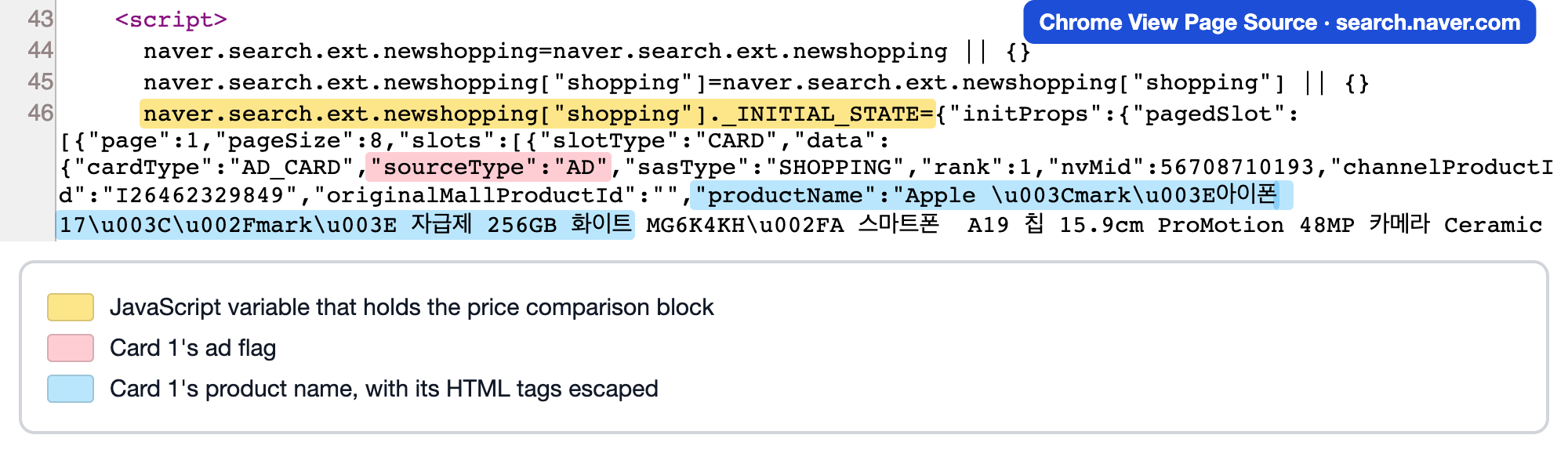
The price comparison block’s data was one JSON object, so a single decoder call reads every card in it. In View Page Source, that assignment was a single line of 32,182 characters.
Each page stored its JSON in a different place, and each page had its own parsing problem:
| Page | JSON location | Parsing problem |
|---|---|---|
| Search results | An _INITIAL_STATE object on naver.search.ext.newshopping["shopping"], and another on ["nstore"] |
salePrice was 0 on 6 of the 8 price comparison cards for 아이폰 17. The displayed price was in discountedSalePrice. |
Plus Store search (/ns/search) |
React Server Component chunks pushed with self.__next_f.push, under the key initPagedCompositeCards |
The JSON’s quotes were escaped inside the HTML, so join and decode the chunks before you search them. |
Price comparison search (/search/all) |
__NEXT_DATA__, at props.pageProps.compositeList.list[].item |
price was a string, while lowPrice was an integer, so cast price to a number before you use it. |
| SmartStore product | window.__PRELOADED_STATE__, at simpleProductForDetailPage |
The object wasn’t strict JSON, and the top-level product key held zeros. |
When a parser starts returning nothing, check these paths first.
Parse the JSON even when the rendered page looks easier to read. Naver’s page capped the displayed review count of an Apple listing at “9,999+”. The embedded JSON for the same listing held the exact count, 13,971.
SmartStore’s state needed 3 extra checks. On one product page, the state was a JavaScript object literal with 34 bare undefined values, so json.loads raised an error. The product’s id matched the number in the URL, but the internal productNo was a different number, so use id as the product ID. The page also had 2 review counts, one for the product and a larger one for its product group.
The function below normalizes the object and separates live listings from dead ones:
import json
import re

MARKER = "window.__PRELOADED_STATE__="


def smartstore_product(html: str) -> dict | None:
    start = html.index(MARKER) + len(MARKER)
    # The state is a JavaScript object literal, and bare undefined values break json
    text = re.sub(r"(?<=[:\[,])undefined(?=[,\]}])", "null", html[start:])
    state, _ = json.JSONDecoder().raw_decode(text)
    product = state["simpleProductForDetailPage"]
    # None for a deleted listing, an empty id for one behind an authorization check
    return product if product and product.get("id") else None
A deleted product’s URL still returned a normal page, titled “상품이 존재하지 않습니다” (“the product does not exist”). So a status-code check treated that page as a live listing. The function returns None for that page and for listings behind an authorization check. Treat a None result as the signal to drop the URL from your watch list.
Set up Bright Data for Naver
Four scripts call Bright Data’s REST APIs with requests, and the pagination script drives a cloud browser with Playwright. You need:
- A Bright Data account and an API key from the account settings.
- A SERP API zone, a Web Unlocker zone, and a Browser API zone. A zone is one product’s configuration in the control panel, and the scripts use its name. The Naver Shopping Scraper API needs only the API key.
- Python 3.10 or newer with
requestsandplaywright. The pagination script connects Playwright to a remote browser, so you don’t need to download a local one.
For security, a zone can accept requests only from the addresses on its IP Allowlist. If requests to your zone return ip_forbidden, add your machine’s IP to that list.
Install the packages and export your credentials:
pip install requests playwright
export BRIGHTDATA_API_KEY="your_api_key"
export BRIGHTDATA_SERP_ZONE="your_serp_zone"
export BRIGHTDATA_UNLOCKER_ZONE="your_unlocker_zone"
export BRIGHTDATA_BROWSER_WSS="wss://brd-customer-<id>-zone-<zone>-country-kr:<password>@brd.superproxy.io:9222"
The BRIGHTDATA_BROWSER_WSS value is the WebSocket URL shown under Puppeteer / Playwright in your zone’s Access details:

The URL already embeds the zone’s username and password.
Add -country-kr after the zone name to route requests through Korean IPs. If you prefer an SDK over raw HTTP, install the Bright Data Python SDK, brightdata-sdk.
To check a single URL before you write code, use the Bright Data CLI, which fetches the URL through Web Unlocker:
bdata scrape "https://smartstore.naver.com/acnope/products/10444371682" --country kr -f html -o product.htmlThe command saved the complete SmartStore product page, so smartstore_product(open("product.html", encoding="utf-8").read()) returns its product data.
Scrape shopping results from Naver search with the SERP API
For 아이폰 17 (iPhone 17), Naver’s desktop results page showed 2 shopping blocks, one with price comparison cards and one with Naver Plus Store products:
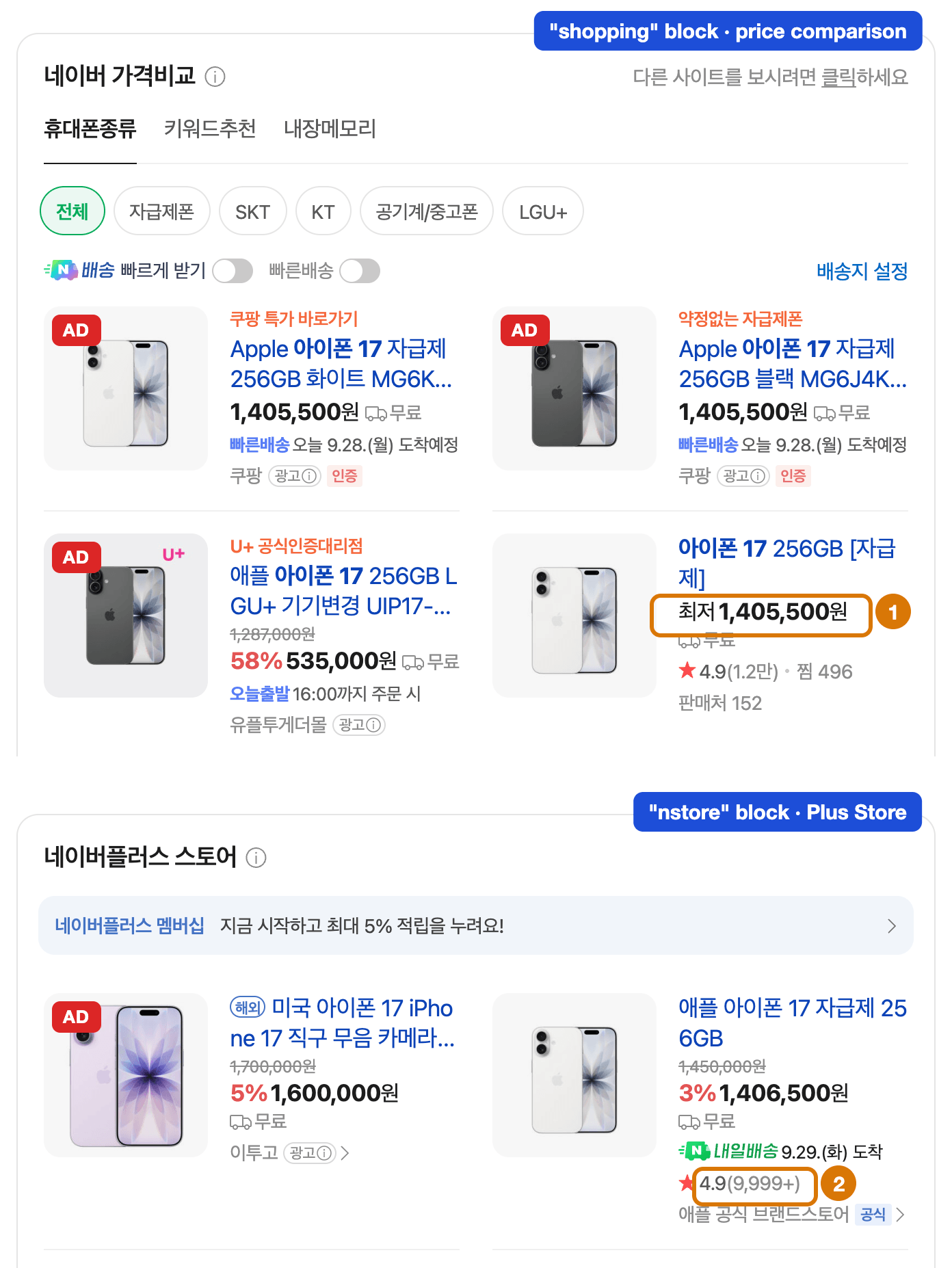
Red tags mark the cards Naver labeled 광고 (ad), which the parser flags as is_ad. At marker 1, the card showed 1,405,500원, while its salePrice field was 0. At marker 2, the review count showed 9,999+, while the JSON held 13,971.
Use the SERP API for search engine results pages (SERPs), Naver included, and Web Unlocker for other sites. The SERP API bills per successful request.
Naver geolocated SERP API requests to Korea. Its embedded JSON recorded KR for those requests, and it recorded IN with an Indian city for direct requests from India.
For Naver, set the zone’s data format to Raw HTML, or pass "data_format": "html" in each request:
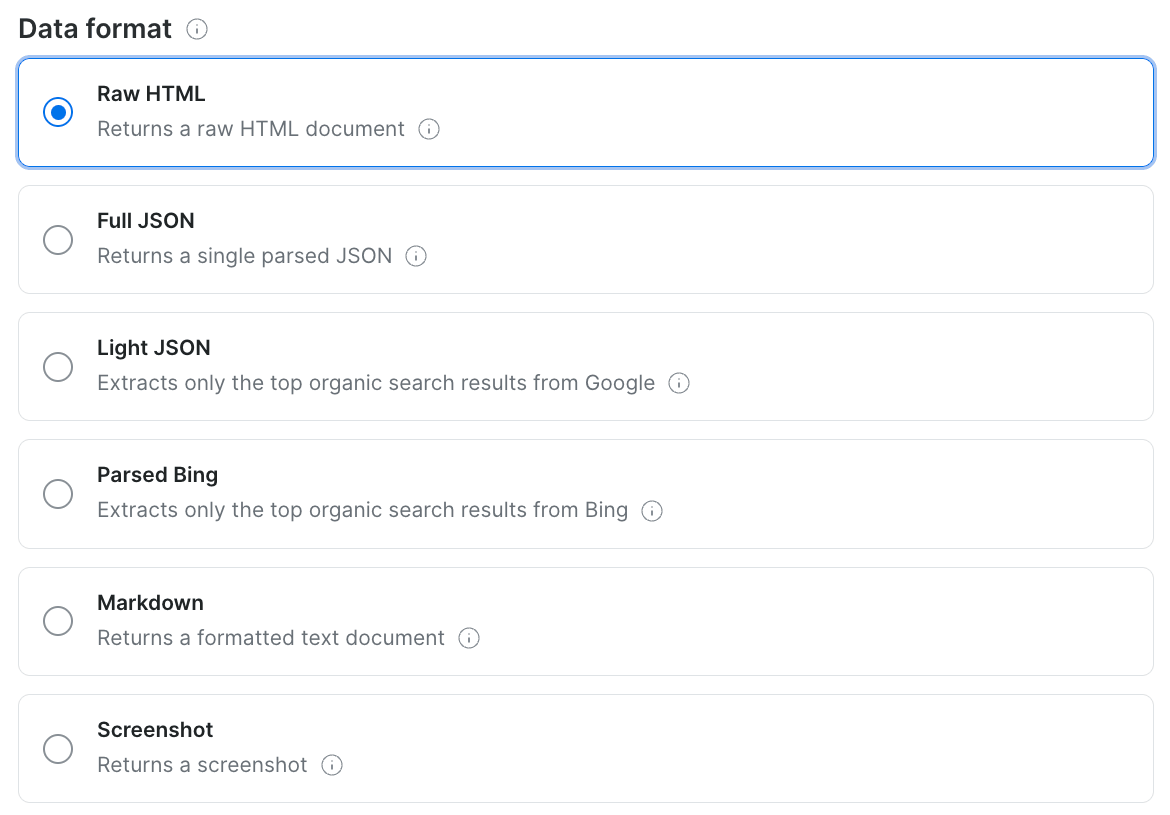
Raw HTML returned the complete results page, including Naver’s embedded shopping JSON.
The script below fetches a results page and returns every card from both shopping blocks, with ads flagged:
import json
import os
import re
from urllib.parse import quote

import requests

API_URL = "https://api.brightdata.com/request"
HEADERS = {"Authorization": f"Bearer {os.environ['BRIGHTDATA_API_KEY']}"}
SERP_ZONE = os.environ["BRIGHTDATA_SERP_ZONE"]

# Each shopping block on the results page assigns its data to a JS global
STATE = re.compile(r'naver\.search\.ext\.newshopping\["(\w+)"\]\._INITIAL_STATE\s*=\s*')


def fetch_naver_serp(query: str) -> str:
    url = f"https://search.naver.com/search.naver?where=nexearch&query={quote(query)}"
    resp = requests.post(
        API_URL,
        headers=HEADERS,
        # Request the raw page, which contains Naver's embedded shopping JSON
        json={"zone": SERP_ZONE, "url": url, "format": "raw", "data_format": "html"},
        timeout=120,
    )
    resp.raise_for_status()
    if resp.headers.get("x-brd-error") or "_INITIAL_STATE" not in resp.text:
        raise RuntimeError(f"No shopping state for {query!r}: {resp.headers.get('x-brd-error')}")
    return resp.text


def parse_shopping_blocks(html: str) -> list[dict]:
    decoder = json.JSONDecoder()
    rows = []
    for match in STATE.finditer(html):
        block = match.group(1)  # "shopping" = price comparison, "nstore" = Plus Store
        state, _ = decoder.raw_decode(html, match.end())
        props = state["initProps"]
        if block == "shopping":
            items = [slot["data"] for page in props["pagedSlot"] for slot in page["slots"]]
        else:
            items = props["products"]
        for position, item in enumerate(items, start=1):
            rows.append({
                "block": block,
                "position": position,
                "is_ad": item.get("sourceType") == "AD",
                "name": re.sub(r"<[^>]+>", "", item.get("productName", "")),
                # discountedSalePrice holds the displayed price, and salePrice can be 0
                "price": item.get("discountedSalePrice") or item.get("salePrice"),
                "mall": item.get("mallName") or None,
                "reviews": item.get("totalReviewCount"),
                "nv_mid": item.get("nvMid"),
                "channel_product_id": item.get("channelProductId"),
            })
    return rows


if __name__ == "__main__":
    for row in parse_shopping_blocks(fetch_naver_serp("아이폰 17")):
        label = "ad" if row["is_ad"] else "  "
        print(f'{row["block"]:<8} {row["position"]} {label} {row["price"]:>9,} KRW  '
              f'{row["mall"] or "(catalog)":<12} {row["name"][:24]}')
For 아이폰 17, the script printed 8 price comparison cards and 4 Plus Store products:
shopping 1 ad 1,405,500 KRW  쿠팡           Apple 아이폰 17 자급제 256GB 화
shopping 2 ad 1,405,500 KRW  쿠팡           Apple 아이폰 17 자급제 256GB 블
shopping 3 ad   535,000 KRW  유플투게더몰       애플 아이폰 17 256GB LGU+ 기기변
shopping 4    1,405,500 KRW  (catalog)    아이폰 17 256GB [자급제]
shopping 5    1,713,000 KRW  (catalog)    아이폰 17 프로 256GB [자급제]
shopping 6    2,006,400 KRW  (catalog)    아이폰 17 프로 512GB [자급제]
shopping 7       29,600 KRW  로트박스         [대여] 애플 아이폰 17 프로 대여 렌탈
shopping 8    2,294,400 KRW  (catalog)    아이폰 17 프로 1TB [자급제]
nstore   1 ad 1,600,000 KRW  이투고          미국 아이폰 17 iPhone 17 직구 무
nstore   2    1,406,500 KRW  애플 공식 브랜드스토어 애플 아이폰 17 자급제
nstore   3    1,790,000 KRW  애플 공식 브랜드스토어 애플 아이폰 17 프로 자급제
nstore   4    1,697,500 KRW  애플 공식 브랜드스토어 애플 아이폰 17 자급제
The first 3 cards were ads, and the third showed a price that required a carrier contract, not the unlocked phone’s price. Catalog product cards had no mall value and an empty channel_product_id, because they pointed to Naver’s price comparison pages instead of a single store. Across 10 queries, the SERP API returned a page with the shopping JSON 10 of 10 times.
Between 2 runs on the same day, 2 Plus Store positions swapped. Store a timestamp and the ad flag with every row, and sample a keyword more than once before your rank tracking reports a change.
Scrape Naver Plus Store search results with Web Unlocker
Naver launched Plus Store, a shopping platform, in 2024. On its search page, plain HTTP clients got the 418 block page, the 405 CAPTCHA, or the login redirect.
Web Unlocker, Bright Data’s automated web unblocker, fetches a URL and bills per successful request. With Korean IPs, it returned the search page with its first 50 cards embedded. Across 10 queries, Web Unlocker returned a Plus Store page containing the result data 10 of 10 times.
The fetch function below requests Korean IPs, confirms that the response contains the result data, and retries with backoff:
import json
import os
import re
import time
from collections import Counter
from urllib.parse import quote

import requests

API_URL = "https://api.brightdata.com/request"
HEADERS = {"Authorization": f"Bearer {os.environ['BRIGHTDATA_API_KEY']}"}
UNLOCKER_ZONE = os.environ["BRIGHTDATA_UNLOCKER_ZONE"]

FLIGHT = re.compile(r"self\.__next_f\.push\((\[.*?\])\)</script>", re.S)
KEY = '"initPagedCompositeCards":'
MARKER = "initPagedCompositeCards"  # quotes are escaped inside the raw HTML


def fetch_plus_store_search(query: str, attempts: int = 3) -> str:
    url = f"https://search.shopping.naver.com/ns/search?query={quote(query)}"
    for attempt in range(1, attempts + 1):
        resp = requests.post(
            API_URL,
            headers=HEADERS,
            json={"zone": UNLOCKER_ZONE, "url": url, "format": "raw", "country": "kr"},
            timeout=180,
        )
        # Naver can redirect to a login page, so check for the result data, not the status
        if resp.ok and MARKER in resp.text:
            return resp.text
        reason = resp.headers.get("x-brd-error") or ("login wall" if "nidlogin" in resp.text else "no data")
        print(f"attempt {attempt} failed: {reason}")
        time.sleep(5 * attempt)
    raise RuntimeError(f"Plus Store search failed for {query!r}")


def parse_search(html: str) -> dict:
    # The page streams React Server Component data in string chunks
    chunks = [json.loads(m.group(1)) for m in FLIGHT.finditer(html)]
    flight = "".join(c[1] for c in chunks if len(c) == 2 and isinstance(c[1], str))
    start = flight.index(KEY) + len(KEY)
    result, _ = json.JSONDecoder().raw_decode(flight, start)
    products = []
    for card in result["data"]:
        item = card.get("card", {}).get("product")
        if not item:
            continue  # banners and promotion slots have no product
        products.append({
            "rank": len(products) + 1,
            "type": item.get("cardType") or "ORGANIC",
            "name": item.get("productName"),
            "price": item.get("discountedSalePrice"),
            "list_price": item.get("salePrice"),
            "mall": item.get("mallName"),
            "reviews": item.get("totalReviewCount"),
            "url": (item.get("productUrl") or {}).get("pcUrl"),
        })
    return {"total": result["total"], "next_cursor": result["cursor"], "products": products}


if __name__ == "__main__":
    page = parse_search(fetch_plus_store_search("코카콜라 제로"))
    mix = Counter(p["type"] for p in page["products"])
    print("total results:", page["total"], "| next cursor:", page["next_cursor"], "| page 1 mix:", dict(mix))
    for p in page["products"][:3] + [p for p in page["products"] if p["type"] == "ORGANIC"][:2]:
        print(json.dumps(p, ensure_ascii=False))
For 코카콜라 제로 (Coke Zero), page 1 had 47 products among its 50 cards, and the first organic listing was at rank 7:
total results: 7746 | next cursor: 33 | page 1 mix: {'AD': 12, 'SUPER_POINT': 2, 'ORGANIC': 31, 'SME_SLOT': 2}
{"rank": 1, "type": "AD", "name": "코카-콜라 제로 CAN 350ml 24개", "price": 21600, "list_price": 35290, "mall": "코카콜라직영몰", "reviews": 96956, "url": "https://smartstore.naver.com/main/products/4660954096"}
{"rank": 2, "type": "AD", "name": "코카-콜라 제로 CAN 190ml 30개", "price": 18000, "list_price": 24790, "mall": "코카콜라직영몰", "reviews": 46451, "url": "https://smartstore.naver.com/main/products/4609271837"}
{"rank": 3, "type": "AD", "name": "코카-콜라 제로 레몬라임 CAN 350ml 48개(2x24입) + 코크 큐브 블럭캘린더 (옵션선택)", "price": 38720, "list_price": 70580, "mall": "코카콜라직영몰", "reviews": 440, "url": "https://smartstore.naver.com/main/products/13689352448"}
{"rank": 7, "type": "ORGANIC", "name": "코카-콜라 제로 라벨프리 PET 370ml 24개", "price": 22880, "list_price": 35300, "mall": "코카콜라직영몰", "reviews": 25197, "url": "https://smartstore.naver.com/main/products/6006925665"}
{"rank": 8, "type": "ORGANIC", "name": "코카-콜라 제로 제로 라벨프리 PET 370ml 18개", "price": 16720, "list_price": 20900, "mall": "코카콜라직영몰", "reviews": 3676, "url": "https://smartstore.naver.com/main/products/11574172085"}
On the page itself, none of the first 6 ranks was an organic listing:
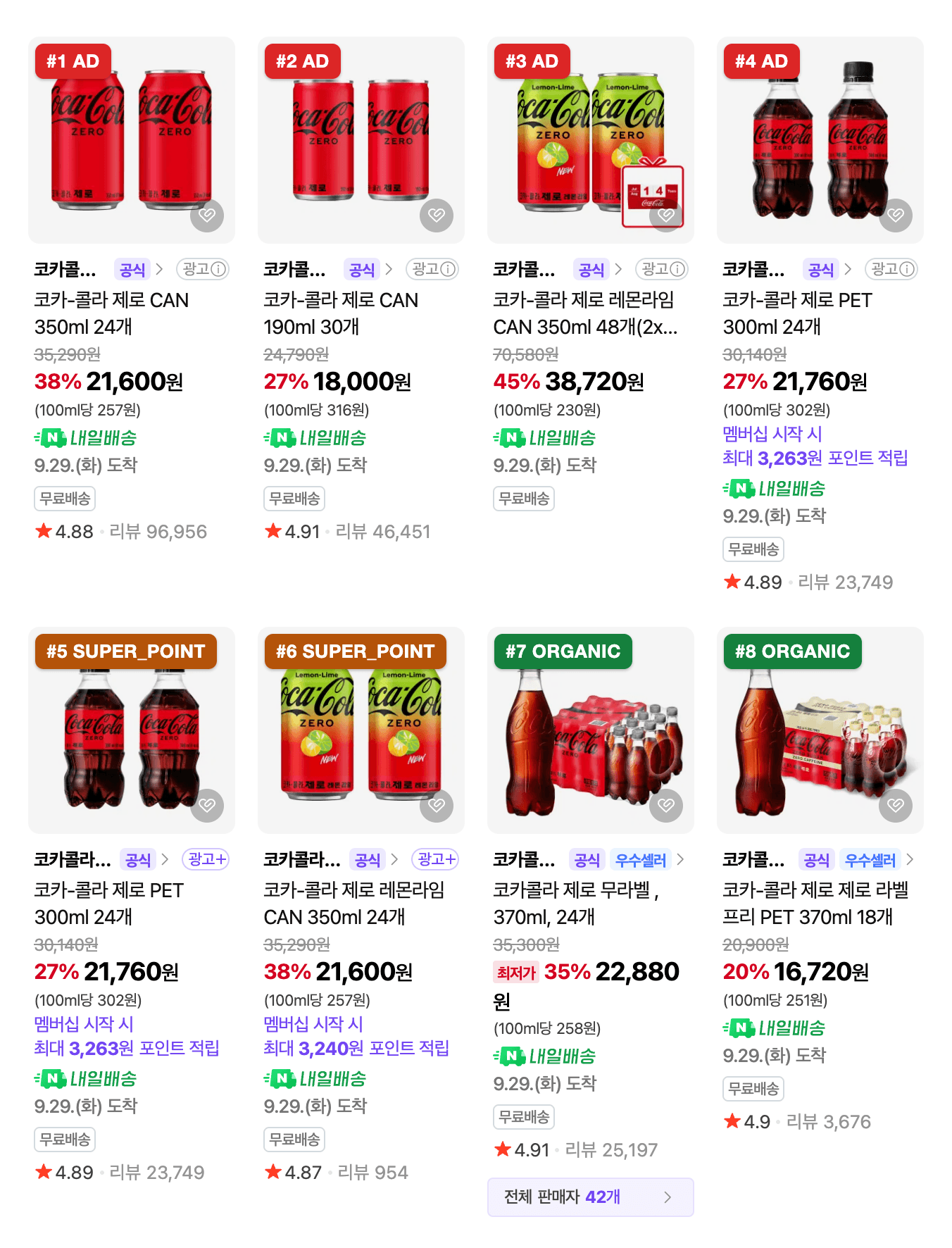
Naver marked ranks 1 to 6 with 광고 (ad) labels, and the parser set their type to AD or SUPER_POINT.
Keep type with every row, so a share-of-shelf report separates ads and promotions from organic listings. Use the product number in each listing’s URL as the product ID. Names are unreliable IDs, because on this page, all 8 cards linked to a Naver catalog displayed catalogName, not the stored productName.
Paginate Plus Store search results with Browser API
Page 1 of Plus Store results was embedded in the HTML, and the site loaded pages 2 and beyond with infinite scroll. That’s the difference between Web Unlocker and Browser API: Web Unlocker returns a page, and Browser API can scroll it. When a shopper scrolled, the page requested /ns/v1/search/paged-composite-cards with a cursor, and each request carried an x-wtm-ncaptcha-token header. The page generated a new token for every call:
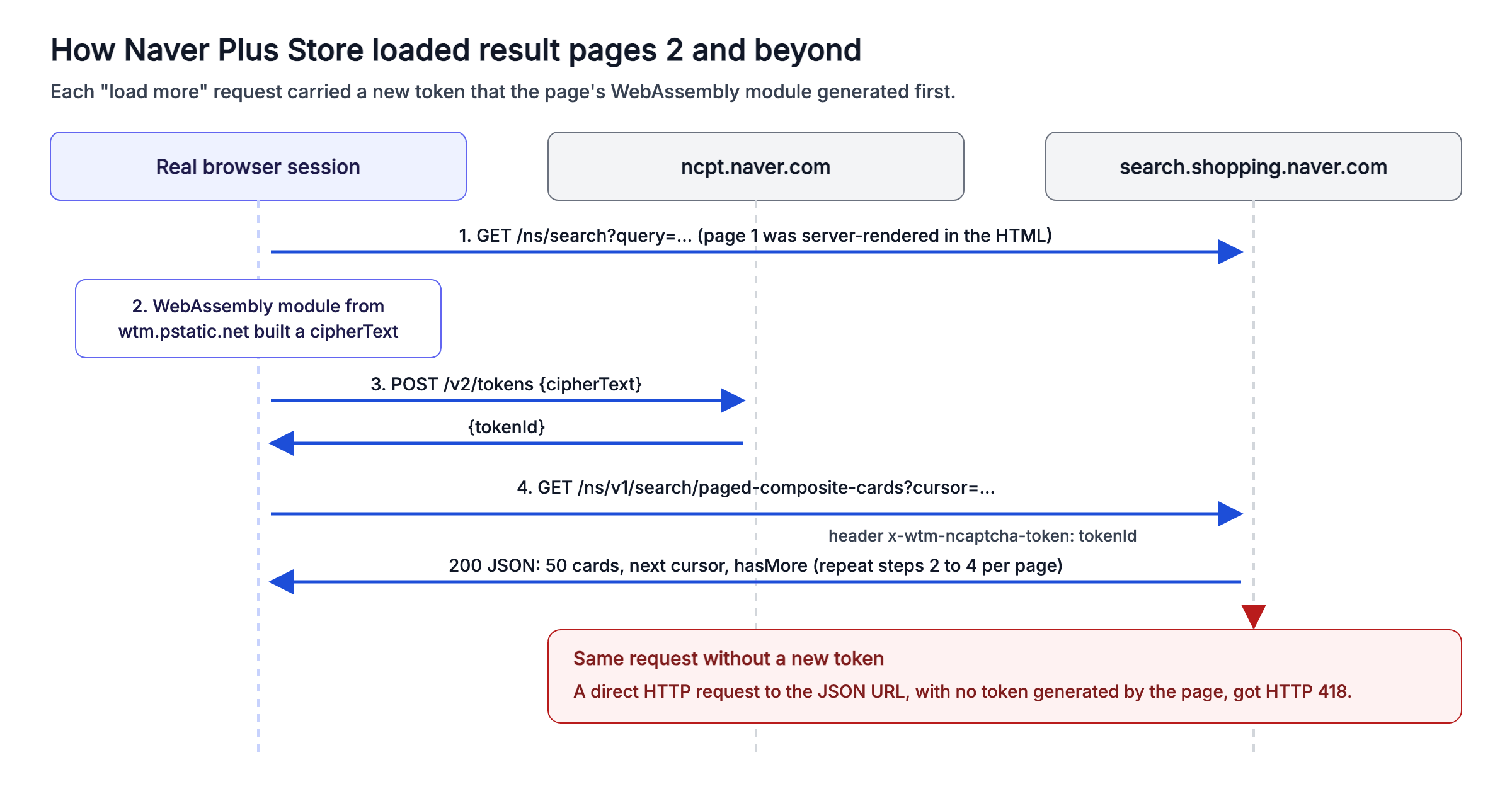
A direct request to the endpoint without a new token got HTTP 418. Running the page in a real browser let its own scripts generate each token.
Browser API runs Chrome in Bright Data’s cloud and bills by bandwidth. In that browser, the page’s own WebAssembly generated each token, and the code only had to read the JSON responses. The script below connects over the Chrome DevTools Protocol (CDP), scrolls in uneven steps with pauses, and captures each page of results:
import asyncio
import os
import random
import time
from urllib.parse import quote

from playwright.async_api import async_playwright

# wss://brd-customer-<id>-zone-<zone>-country-kr:<password>@brd.superproxy.io:9222
BROWSER_WSS = os.environ["BRIGHTDATA_BROWSER_WSS"]
PAGED_API = "/ns/v1/search/paged-composite-cards"


async def plus_store_pages(query: str, extra_pages: int = 5, budget_s: int = 120) -> list[dict]:
    """Return result pages 2..N as JSON. The page generates each request's token itself."""
    pages = []
    async with async_playwright() as p:
        browser = await p.chromium.connect_over_cdp(BROWSER_WSS)
        page = await browser.new_page()

        async def on_response(response):
            # The page fetches each new set of cards as JSON while it scrolls
            if PAGED_API in response.url and response.ok:
                pages.append((await response.json())["data"])

        page.on("response", on_response)
        first = await page.goto(f"https://search.shopping.naver.com/ns/search?query={quote(query)}",
                                wait_until="domcontentloaded", timeout=120_000)
        if first.status != 200:
            raise RuntimeError(f"landing page returned {first.status}")
        deadline = time.time() + budget_s
        while len(pages) < extra_pages and time.time() < deadline:
            if pages and not pages[-1]["hasMore"]:
                break
            # Scroll in uneven steps with pauses
            await page.mouse.wheel(0, random.randint(900, 1500))
            await page.wait_for_timeout(random.randint(2500, 4500))
        await browser.close()
    return pages


if __name__ == "__main__":
    result = asyncio.run(plus_store_pages("캠핑의자"))
    for data in result:
        products = [c["card"]["product"] for c in data["data"] if c.get("card", {}).get("product")]
        print(f"page {data['data'][0]['page']}: {len(products)} products, next cursor {data['cursor']}")
For 캠핑의자 (camping chair), the session collected pages 2 to 6:
page 2: 50 products, next cursor 74
page 3: 50 products, next cursor 112
page 4: 50 products, next cursor 151
page 5: 50 products, next cursor 189
page 6: 50 products, next cursor 239
In 3 more sessions with this scroll pattern, each one collected all 5 extra pages. Keep the uneven steps and pauses when you adapt the script, so your sessions match the tested pattern.
Rebuild the Shopping API’s fields from price comparison search
Of the pages we tested, Naver’s price comparison search, at /search/all, was the most similar to the retired API. Its __NEXT_DATA__ contained 12 of the 14 fields the Shopping search API returned, so a broken feed can keep most of its schema:
| Shopping search API field | Price comparison search field |
|---|---|
productId |
id |
title |
productTitle |
link |
mallProductUrl for single-store products, or crUrl, Naver’s tracking link, for catalog products |
image |
imageUrl |
lprice |
lowPrice, the lowest price across stores for a catalog product |
hprice |
Leave unmapped: highPrice was empty or “0” in every result checked |
mallName |
mallName, empty for catalog products because many stores sell them |
productType |
Partly from mallCount: above 0 marked a catalog product |
brand and maker |
brand and maker |
category1 to category4 |
category1Name to category4Name |
Web Unlocker returned this page with its result list for 10 of 10 test queries. The script below fetches the page through Web Unlocker, tries up to 3 times, and renames each result’s fields to the API’s names:
import json
import os
import re
import time
from urllib.parse import quote

import requests

API_URL = "https://api.brightdata.com/request"
HEADERS = {"Authorization": f"Bearer {os.environ['BRIGHTDATA_API_KEY']}"}
UNLOCKER_ZONE = os.environ["BRIGHTDATA_UNLOCKER_ZONE"]
NEXT_DATA = re.compile(r'<script id="__NEXT_DATA__" type="application/json">(.*?)</script>', re.S)


def fetch_price_comparison(query: str, attempts: int = 3) -> str:
    url = f"https://search.shopping.naver.com/search/all?query={quote(query)}"
    for attempt in range(1, attempts + 1):
        resp = requests.post(
            API_URL,
            headers=HEADERS,
            json={"zone": UNLOCKER_ZONE, "url": url, "format": "raw", "country": "kr"},
            timeout=180,
        )
        # A login page also returns 200, so check for the result list
        if resp.ok and "compositeList" in resp.text:
            return resp.text
        print(f"attempt {attempt} failed: {resp.headers.get('x-brd-error') or 'no result list'}")
        time.sleep(5 * attempt)
    raise RuntimeError(f"Price comparison search failed for {query!r}")


def as_api_items(html: str) -> list[dict]:
    """Rename each result's fields to the ones the Shopping search API returned."""
    data = json.loads(NEXT_DATA.search(html).group(1))
    rows = []
    for entry in data["props"]["pageProps"]["compositeList"]["list"]:
        item = entry["item"]
        rows.append({
            "productId": item.get("id"),
            "title": item.get("productTitle"),
            "link": item.get("mallProductUrl") or item.get("crUrl"),  # catalog products have no store URL
            "lprice": item.get("lowPrice"),  # the lowest price across stores for a catalog product
            "mallName": item.get("mallName") or None,
            "mallCount": item.get("mallCount"),  # above 0 marks a price comparison catalog product
            "brand": item.get("brand"),
            "maker": item.get("maker"),
            **{f"category{i}": item.get(f"category{i}Name") for i in range(1, 5)},
            # adId marks an ad, and entry types other than "product" are promoted slots
            "is_ad": bool(item.get("adId")) or entry["type"] != "product",
        })
    return rows


if __name__ == "__main__":
    rows = as_api_items(fetch_price_comparison("코카콜라 제로"))
    first = next(i for i, row in enumerate(rows) if not row["is_ad"])
    print(f"{len(rows)} results, {sum(r['is_ad'] for r in rows)} ads or promoted slots, first organic at rank {first + 1}")
    print(json.dumps({k: v for k, v in rows[first].items() if k != "link"}, ensure_ascii=False))
For 코카콜라 제로, the first 8 results were ads or promoted slots, and the first organic result was a catalog product:
56 results, 16 ads or promoted slots, first organic at rank 9
{"productId": "54166199731", "title": "코카콜라 콜라 , 190ml, 30개", "lprice": 13400, "mallName": null, "mallCount": 8702, "brand": "코카콜라", "maker": "코카콜라", "category1": "식품", "category2": "음료", "category3": "청량/탄산음료", "category4": "콜라", "is_ad": false}
The page’s JSON also marks ads, a signal the retired API didn’t return, so filter on is_ad before you compare old and new rankings.
Get SmartStore product records with the Naver Shopping Scraper API
For product details, request structured records rather than HTML. The Naver Shopping Scraper API, part of Bright Data’s Web Scraper API, runs a SmartStore scraper on each URL you send. In the control panel, its Collect by URL endpoint takes a list of product URLs:
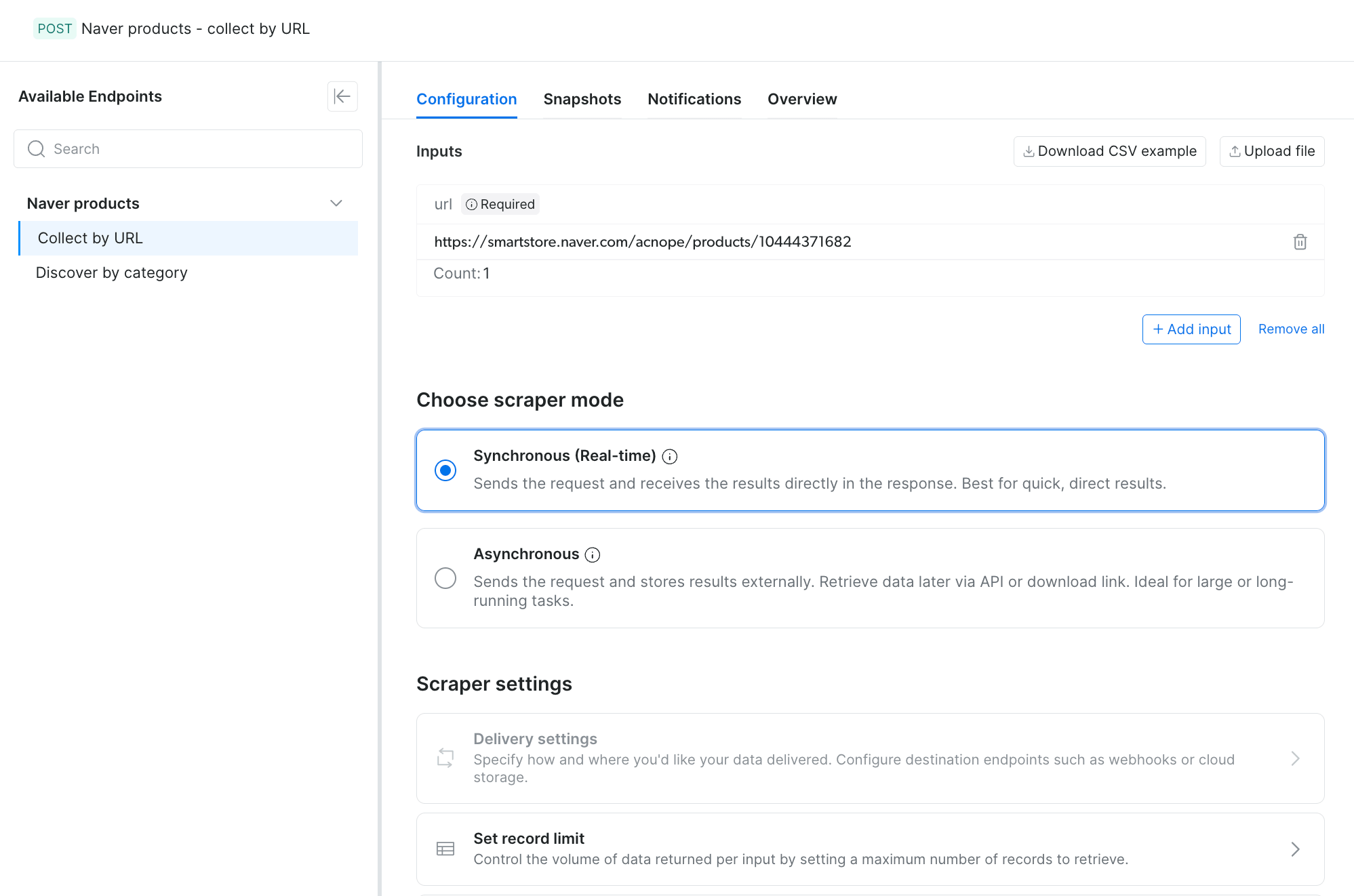
The same endpoint is available through the REST API, with the dataset ID gd_m9qqjxxr1hab7okefj.
The script relies on 3 details of the API. If a job takes longer than the synchronous timeout limit, the /scrape endpoint returns HTTP 202 with a snapshot ID that you poll. Use /scrape for small batches, and send larger jobs to the asynchronous /trigger endpoint, whose docs give the current batch-size limit. And custom_output_fields returns only the fields you list, so add input, error, and error_code to see why a URL returned no product.
The script below sends a batch, switches to snapshot polling when needed, and validates each record:
import json
import os
import sys
import time

import requests

API = "https://api.brightdata.com/datasets/v3"
HEADERS = {"Authorization": f"Bearer {os.environ['BRIGHTDATA_API_KEY']}"}
NAVER_PRODUCTS = "gd_m9qqjxxr1hab7okefj"
# custom_output_fields returns only what you list, so include input and the error fields
FIELDS = ("input|error|error_code|url|product_id|title|original_price|final_price"
          "|discount_rate|total_reviews|sold_out|breadcrumbs|timestamp")


def collect_products(urls: list[str]) -> list[dict]:
    params = {"dataset_id": NAVER_PRODUCTS, "format": "json",  # a JSON array instead of the default NDJSON
              "include_errors": "true", "custom_output_fields": FIELDS}
    body = {"input": [{"url": u} for u in urls]}
    resp = requests.post(f"{API}/scrape", params=params, json=body, headers=HEADERS, timeout=180)
    if resp.status_code == 202:  # the job took longer than the synchronous timeout limit
        snapshot_id = resp.json()["snapshot_id"]
        while True:
            status = requests.get(f"{API}/progress/{snapshot_id}", headers=HEADERS, timeout=60).json()["status"]
            if status == "ready":
                break
            if status == "failed":
                raise RuntimeError(f"snapshot {snapshot_id} failed")
            time.sleep(10)
        while True:  # the snapshot endpoint returns 202 until the file is built
            resp = requests.get(f"{API}/snapshot/{snapshot_id}", params={"format": "json"},
                                headers=HEADERS, timeout=120)
            if resp.status_code != 202:
                break
            time.sleep(10)
    resp.raise_for_status()
    records = resp.json()
    # Keep a list shape even if the API returns a single object
    return records if isinstance(records, list) else [records]


def validate(record: dict) -> dict:
    if record.get("error_code"):
        # dead_page means the listing is gone: drop it from the watch list, don't retry
        return {"url": record["input"]["url"], "ok": False, "reason": record["error_code"]}
    list_price = int(record["original_price"]) if record.get("original_price") else None  # int() also accepts the string form
    price = record.get("final_price")
    ok = isinstance(price, int) and price > 0 and (list_price is None or price <= list_price)
    return {"product_id": record.get("product_id"), "ok": ok, "price": price, "list_price": list_price,
            "reviews": record.get("total_reviews"), "title": (record.get("title") or "")[:40]}


if __name__ == "__main__":
    urls = json.load(open(sys.argv[1])) if len(sys.argv) > 1 else [
        "https://smartstore.naver.com/acnope/products/10444371682"]
    records = collect_products(urls)
    print(f"{len(records)} records")
    for row in map(validate, records):
        print(json.dumps(row, ensure_ascii=False))
A batch of 10 SmartStore URLs returned records for all 7 public listings and flagged the other 3 with error codes:
10 records
{"url": "https://smartstore.naver.com/bestymall/products/9824862314", "ok": false, "reason": "dead_page"}
{"url": "https://smartstore.naver.com/wonliveshopm/products/12177447319", "ok": false, "reason": "dead_page"}
{"url": "https://smartstore.naver.com/dajunemall/products/12725077707", "ok": false, "reason": "wait_element_timeout"}
{"product_id": "11219337734", "ok": true, "price": 16890, "list_price": null, "reviews": null, "title": "TROLLI 트롤리 올인원 젤리 1kg  사우어 구미캔디"}
{"product_id": "11499596414", "ok": true, "price": 615340, "list_price": null, "reviews": null, "title": "LG전자 2도어 344L 몽블랑 네이처 (M344MB14) 2도어 냉장고"}
{"product_id": "12465433420", "ok": true, "price": 17900, "list_price": 35000, "reviews": 41, "title": "[국산 100%] 꿈에그린X알파플러스 KF94 새부리형 마스크 100매("}
{"product_id": "12332341407", "ok": true, "price": 299000, "list_price": 608000, "reviews": 12, "title": "마이크로소프트  MS office 2024 Home & Business "}
{"product_id": "12385071329", "ok": true, "price": 277000, "list_price": null, "reviews": null, "title": "-ku- 일렉트로룩스 WELL Q8 무선스틱청소기 WQ81-3OMBF"}
{"product_id": "5494837526", "ok": true, "price": 31490, "list_price": null, "reviews": 1, "title": "로슈 아큐첵 인스턴트 혈당계+시험지50매"}
{"product_id": "9280411528", "ok": true, "price": 32200, "list_price": 32250, "reviews": 33, "title": "오딧세이 남성2종 로맨틱 레드 스페셜세트+아이오페 포케터블 토트백 증 정"}
Every price, review count, and flag matched the same product page fetched through Web Unlocker. The 3 flagged URLs were 2 deleted listings and 1 listing behind Naver’s authorization check. Remove dead_page URLs from your watch list after each run. Fetch any other flagged URL through Web Unlocker, and parse each page with smartstore_product.
Each URL in the batch began with the store’s URL, like the script’s default smartstore.naver.com/acnope/products/10444371682. To build one from a Plus Store card, read the store URL from the url parameter of mallUrl.pcUrl and append /products/<channelProductId>.
Check the data contract before you load records into a warehouse:
original_pricewas a string, andfinal_pricewas an integer, in all 930 records of a Naver products dataset sample and in real-time records. Cast both to integers before you compare them, asvalidatedoes.- In this batch, a null
original_pricemeant no discount, and a nulltotal_reviewsmeant no reviews yet. total_reviewsmatched the review count on the product page, 19,581 for the script’s default URL. That count was for the product’s whole group, and the page state also held 15,422 for the single product.- In this batch,
product_idmatched the product number in each input URL, so you can use it to join records to Plus Store results. custom_output_fieldscontrols which fields you store, so keep only the fields you monitor and don’t store seller personal details.
For history or bulk coverage instead of real-time collection, get the Naver products dataset, priced per record. Teams that want price and promotion insights instead of raw records can use the Naver Shopping Price Tracker.
Bright Data also has dedicated scrapers for SmartStore reviews, Naver Shopping reviews, and Naver Hotels.
Compare tools and costs for each Naver page type
Each job in Naver price and digital shelf monitoring pairs with one Bright Data product:
| Job | Bright Data product | Test result | How it bills |
|---|---|---|---|
| Shopping results on Naver search for a keyword | SERP API with Raw HTML | 10 of 10 queries | Per successful request (SERP API pricing) |
| First page of Plus Store results, 50 cards | Web Unlocker | 10 of 10 queries | Per successful request (Web Unlocker pricing) |
| Plus Store pages 2 and beyond | Browser API | 5 of 5 extra pages in each of 4 sessions with scroll pauses | Per GB of bandwidth (Browser API pricing) |
| Shopping API fields for a keyword, from price comparison search | Web Unlocker | 10 of 10 queries | Per successful request |
| Complete records for known product URLs | Naver Shopping Scraper API | 7 of 7 public listings, with prices and reviews matching each page | Per record (Web Scraper API pricing) |
| History or bulk product data | Naver products dataset | Price field types in a 930-record sample matched real-time records | Per record (dataset pricing) |
Through Web Unlocker, a Plus Store results page bills as 1 request. The Naver Shopping Scraper API bills per record, so the cost scales with the number of product URLs you send. In our test, a Browser API session that loaded 5 extra pages of 50 products used about 18 MB. Multiply these units by the current rates on each pricing page to estimate your budget.
Use the search pages to find products and track their search rank. Then send the URLs you monitor to the Naver Shopping Scraper API, so you pay for records only on products you track.
Final thoughts
Naver’s shopping and product pages blocked plain HTTP clients, but its price comparison search still contained most of the retired API’s fields. Read the embedded JSON and check its contents, not the status code, because Naver’s login redirects and deleted listings returned as ordinary pages.
Use the SERP API and Web Unlocker for discovery, Browser API for pagination, and the Naver Shopping Scraper API for structured product records. Real-time collection shows current prices and ranks, and the Naver products dataset provides history or bulk product data. Start by running the price comparison script on the 5 keywords you monitor most, and load its rows into your existing feed tables.
FAQ
Does Naver still have a shopping API?
Naver ended its Shopping search API on July 31, 2026, with no replacement on NAVER API HUB. A similar alternative was its price comparison search, whose embedded data contained most of the API’s fields, including lowest price, brand, and categories. Bright Data’s Web Unlocker returned it for 10 of 10 queries.
Why does Naver Shopping return a 418 error?
HTTP 418 was Naver Shopping’s block page for temporarily restricted access. It listed 4 triggers: visits from external promotions unrelated to shopping, request bursts from one IP, VPN IPs, and some browser extensions. Python’s requests and headless Chrome got it, while Bright Data’s Web Unlocker got the results.
Can you scrape Naver from outside Korea?
Yes, with an unblocker for the shopping pages. From India, plain HTTP clients got complete pages from Naver search, while Naver Shopping returned block pages, CAPTCHAs, or login redirects. Bright Data’s Web Unlocker returned 10 of 10 Plus Store pages there. Use Korean IPs, since Naver recorded each requester’s country.
How do you scrape Naver with Python?
Fetch the page, then parse the JSON embedded in the HTML instead of using CSS selectors. Search pages stored shopping data in _INITIAL_STATE objects, and SmartStore used window.__PRELOADED_STATE__. Naver Shopping blocked Python HTTP clients, so route those requests through Bright Data’s Web Unlocker.
How much does it cost to scrape Naver?
Bright Data’s SERP API and Web Unlocker bill per successful request, the Naver Shopping Scraper API bills per record, and Browser API bills per GB. In our tests, a results page was 1 request, and 5 extra pages through Browser API used about 18 MB. Current rates are on the pricing page.


Technical Writer
 5 years experience
Satyam Tripathi helps SaaS and data startups turn complex tech into actionable content, boosting developer adoption and user understanding.