In this tutorial, you will explore:
- A complete step-by-step workflow for client identification.
- How to generate a Crunchbase dataset specifically tailored to your needs using Bright Data’s Filter API.
- How to process this dataset for client prospecting, leveraging Bright Data APIs and AI for data enrichment and analysis.
Let’s dive in!
Presenting the New Client Identification Workflow
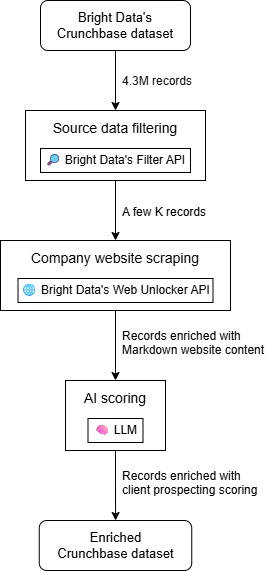
At a high level, you can build an AI-powered client prospecting workflow in three main steps:
- Source data filtering: Start with a Crunchbase dataset and filter it according to your unique needs.
- Company website scraping: Retrieve the homepage content for each company in the dataset.
- AI scoring: Employ AI to evaluate each company based on its website content (and potentially other fields in the company record) to generate a client prospecting score tailored to your products or services.
The output will be an enriched dataset, where each Crunchbase company record includes additional columns containing client prospecting scores and other additional info. You can then filter the resulting dataset or sort by score to determine which companies to contact first.
Learn more about each step and how to implement them!
1. Source Data Filtering
The ideal source for this workflow is a dataset containing company information. Bright Data is the best company data provider, offering rich datasets covering platforms like LinkedIn, Crunchbase, Indeed, and many others.
For client prospecting, Crunchbase is particularly valuable thanks to its specialized fields such as CB Rank, Heat Score, and other metrics that let you quickly evaluate a company’s impact in the industry.
Bright Data provides a Crunchbase dataset with over 4.3 million records. Working directly with such a large dataset would be challenging, so you can use the Filter API to narrow it down to companies that meet your specific criteria. For example, you can get only companies within a specific employee range, currently active, and that meet other relevant aspects.
2. Company Website Scraping
The data fields in the filtered Crunchbase dataset are certainly interesting. Still, on their own, they are generally not enough for accurate client identification. To truly evaluate a company, analyzing its website is one of the top approaches. This gives you insight into what the company does and whether it could benefit from your services.
Programmatically retrieving content from each company’s website is challenging. That is because every site has a different structure and may be protected by anti-bot measures, such as IP bans, geolocation restrictions, CAPTCHAs, and so on. Some sites also require JavaScript rendering.
To handle these challenges consistently and obtain website content in a format optimized for LLM analysis, the best solution is to rely on Bright Data’s Web Unlocker API. This endpoint allows you to scrape any website, no matter how protected it is.
3. AI Scoring
Finally, once you have the filtered Crunchbase dataset enriched with each company’s website content, feed each record to AI. Provide a description of your services/products and ask the AI to score whether each company is a good match for your offerings.
Retrieving a Crunchbase Dataset Specifically Adapted to Your Needs via Bright Data’s Filter API
Let’s start the AI-powered client prospecting workflow by retrieving the source data. This will be a filtered Crunchbase dataset containing companies that match criteria relevant to your prospecting hypothesis.
This initial step ensures you only work with data that matters, saving both time and cost compared to processing a much larger dataset. As you are about to see, this is where Bright Data shines thanks to its advanced filtering capabilities—especially through its Filter API.
Follow the instructions below to retrieve your tailored Crunchbase dataset!
Prerequisites
To follow along with this section, you should have:
- A Bright Data account with an API key set up.
- A local Python environment with
requestsinstalled. - A basic understanding of how Bright Data datasets and snapshot generation work.
To configure a Bright Data API key, go through the official guide.
Step #1: Filter the Crunchbase Dataset
Start by logging into your Bright Data account. In the control panel, navigate to the “Web Datasets” page and select the “Dataset Marketplace” tab. On the “Dataset Marketplace” page, search for “crunchbase” and select the “Crunchbase companies information” dataset: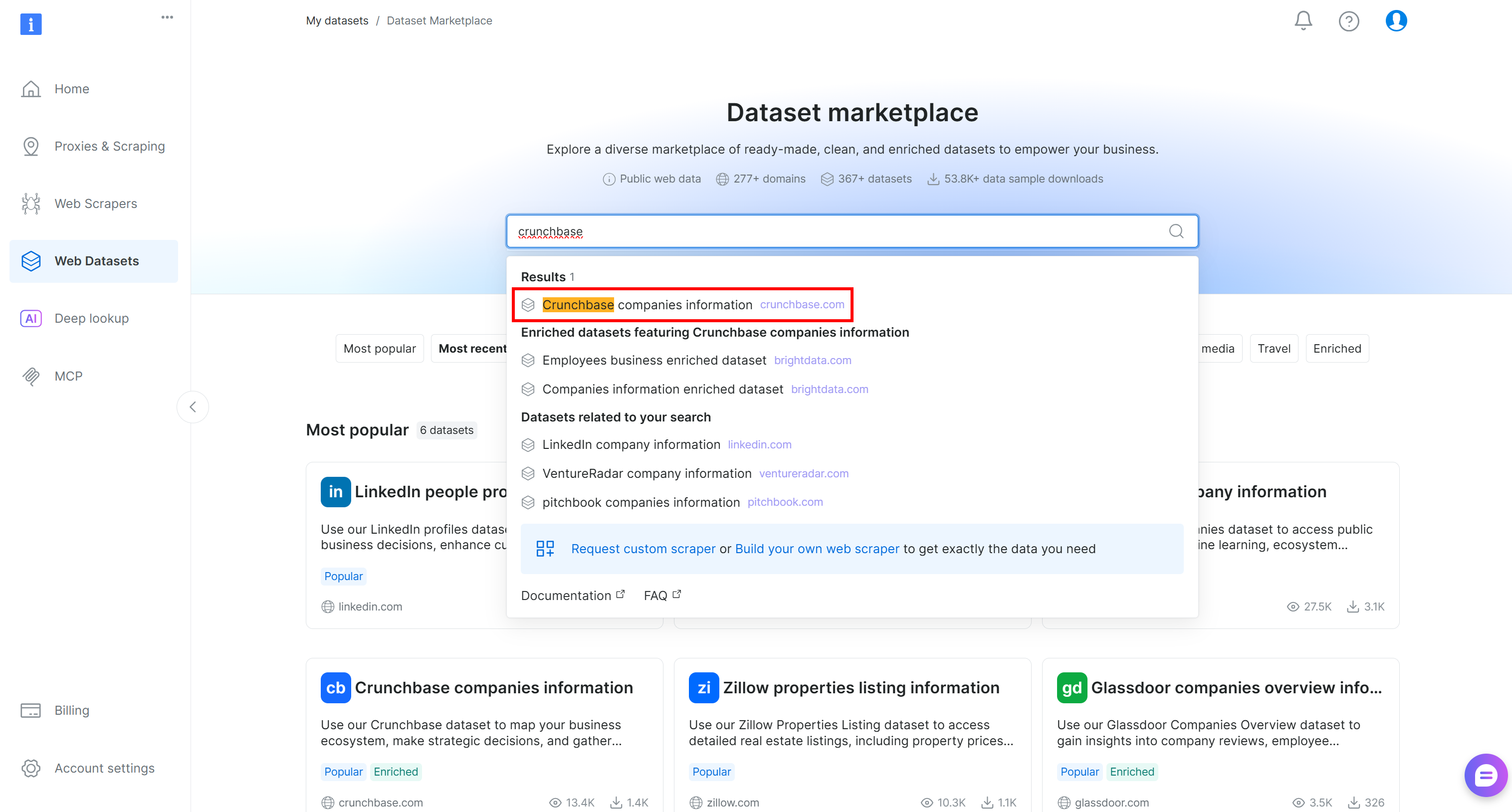
You will be redirected to the “Crunchbase companies information” dataset page. There, you can apply data filtering directly in the control panel by pressing the “Filters” button on the left: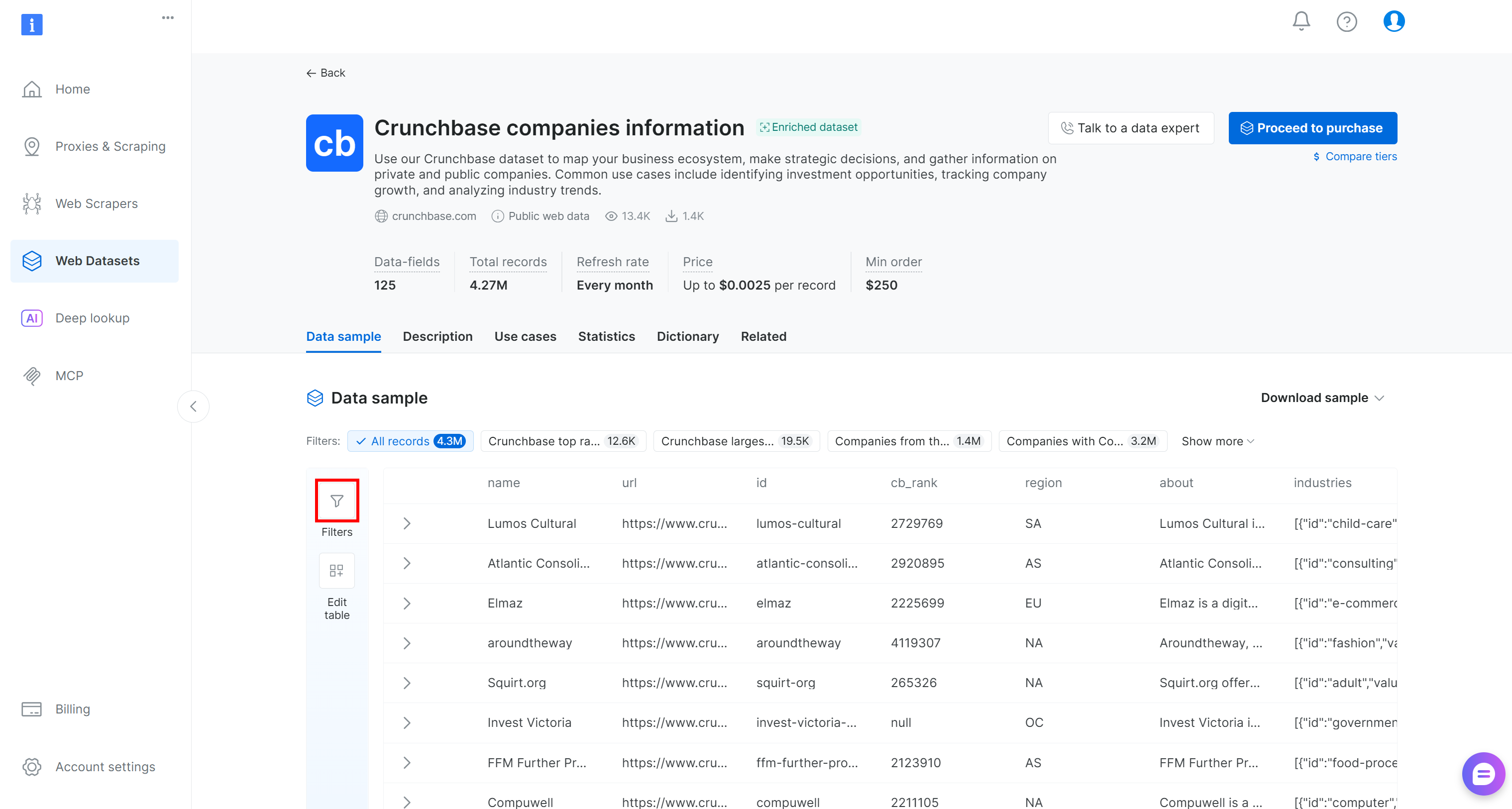
In detail, you have the ability to add one or more filters for each of the 125+ data fields. Apply filters to more easily identify potentially good clients from the full list of 4.3 million company entries.
For instance, assume you want to find companies that:
- Are located in North America or Europe.
- Are in business.
- Operate in the AI industry.
- Have a CB Rank less than or equal to 10,000.
- Have fewer than 250 employees.
- Have the
websitefield populated. - Have a heat score less than or equal to 60.
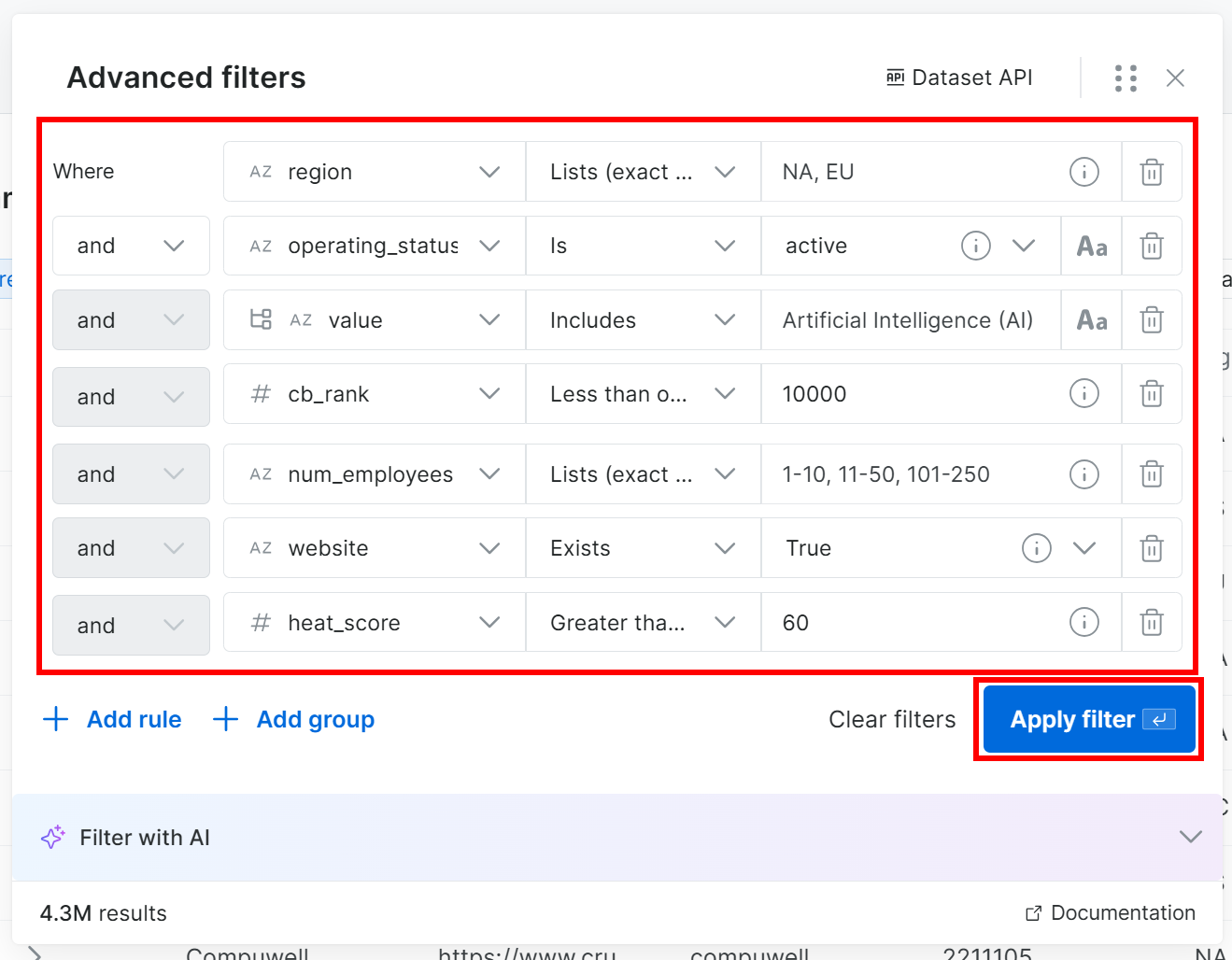
Note: If you do not want to add filters manually, click the “Filter with AI” button and describe the data you want using a prompt in plain English.
Press the “Apply Filter” button and be patient, as filtering may take some time. Bright Data will show a preview of the first 30 records so you can verify that the filters match your expectations.
You will also see the total number of records in the filtered dataset:
In this example, from 4.3 million records, you got 1.3k potential clients for prospecting. That is the power of Bright Data’s filtering capabilities, which helps you extract precisely the data you need from a large initial dataset. Cool!
Step #2: Call the Filter API
Now, you have two options: click “Proceed to purchase” to download the dataset directly, or use the Filter API to generate it programmatically. Calling the Filter API (part of Bright Data’s Dataset API) gives you repeatability and more control, so we will go with that approach.
In the filters modal, click the “Dataset API” button. This will display the code needed to call the Filter API on the given dataset with your selected filters applied. Choose the “Python” option to get a Python snippet: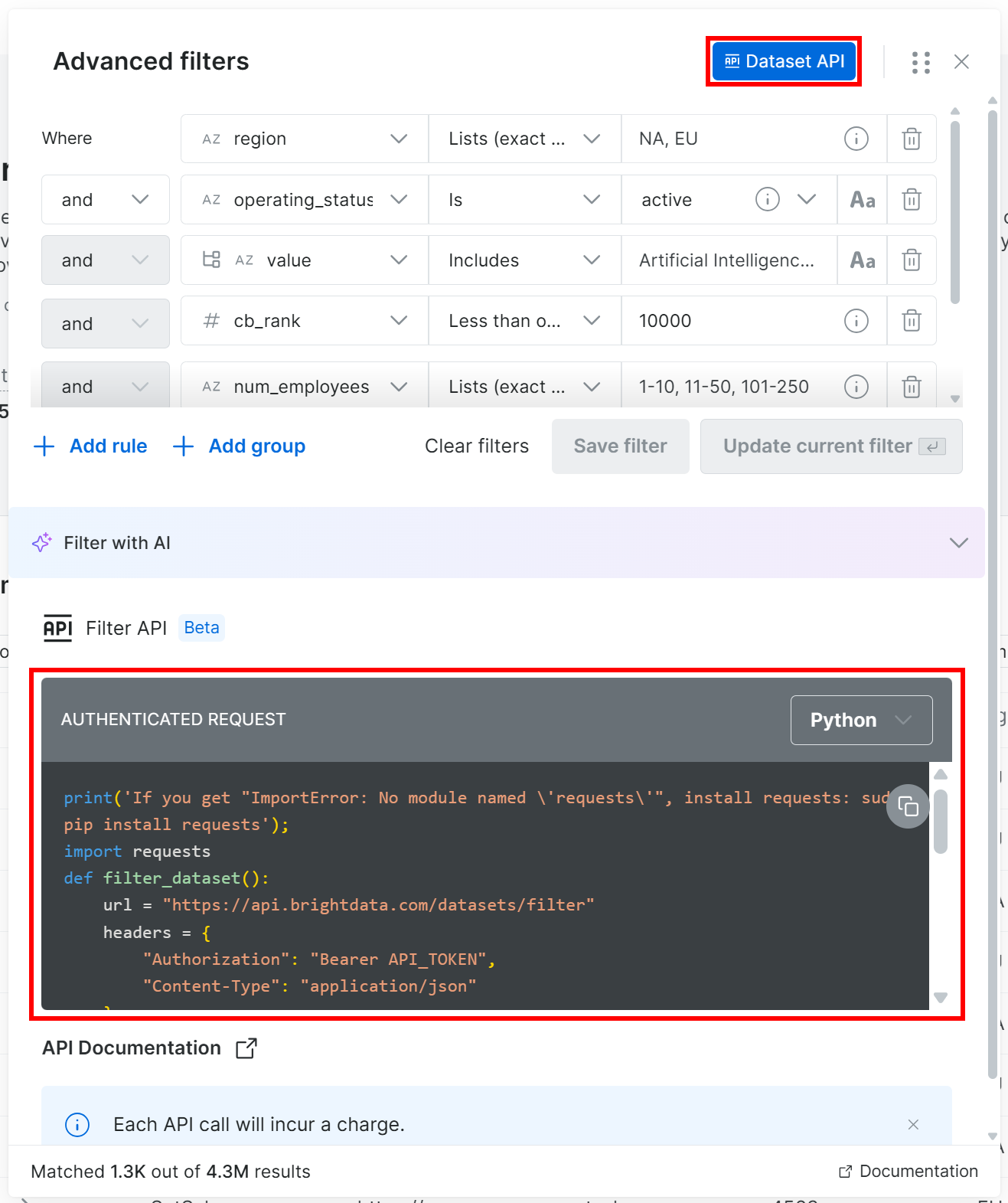
This time, you will get a Python snippet like:
    print('If you get "ImportError: No module named \'requests\'", install requests: sudo pip install requests');
    import requests
    def filter_dataset():
        url = "https://api.brightdata.com/datasets/filter"
        headers = {
            "Authorization": "Bearer API_TOKEN",
            "Content-Type": "application/json"
        }
        payload = {
            "dataset_id": "gd_l1vijqt9jfj7olije",
            "filter": {"operator":"and","filters":[{"name":"region","value":["NA","EU"],"operator":"in"},{"name":"operating_status","value":"active","operator":"="},{"name":"industries:value","value":"Artificial Intelligence (AI)","operator":"includes"},{"name":"cb_rank","value":10000,"operator":"<="},{"name":"num_employees","value":["1-10","11-50","101-250"],"operator":"in"},{"name":"website","operator":"is_not_null"},{"name":"heat_score","value":60,"operator":">="}]}
        }
        response = requests.post(url, headers=headers, json=payload)
        if response.ok:
            print("Request succeeded:", response.json())
        else:
            print("Request failed:", response.text)
    filter_dataset()
Replace the API_TOKEN placeholder with your Bright Data API key, save the script locally, and run it in your Python environment.
If everything works correctly, you should see:
Request succeeded: {'snapshot_id': 'snap_XXXXXXXXXXXXXXXXXXX'}This means that the task to generate a new dataset snapshot has started.
At this point, you can either:
- Check the status and download it via the Dataset API, or
- Download it manually from the control panel (which is what we will do in the next step!)
Step #3: Retrieve the Filtered Data
Once the snapshot generation task is complete, you will receive an email notifying you that your snapshot is ready: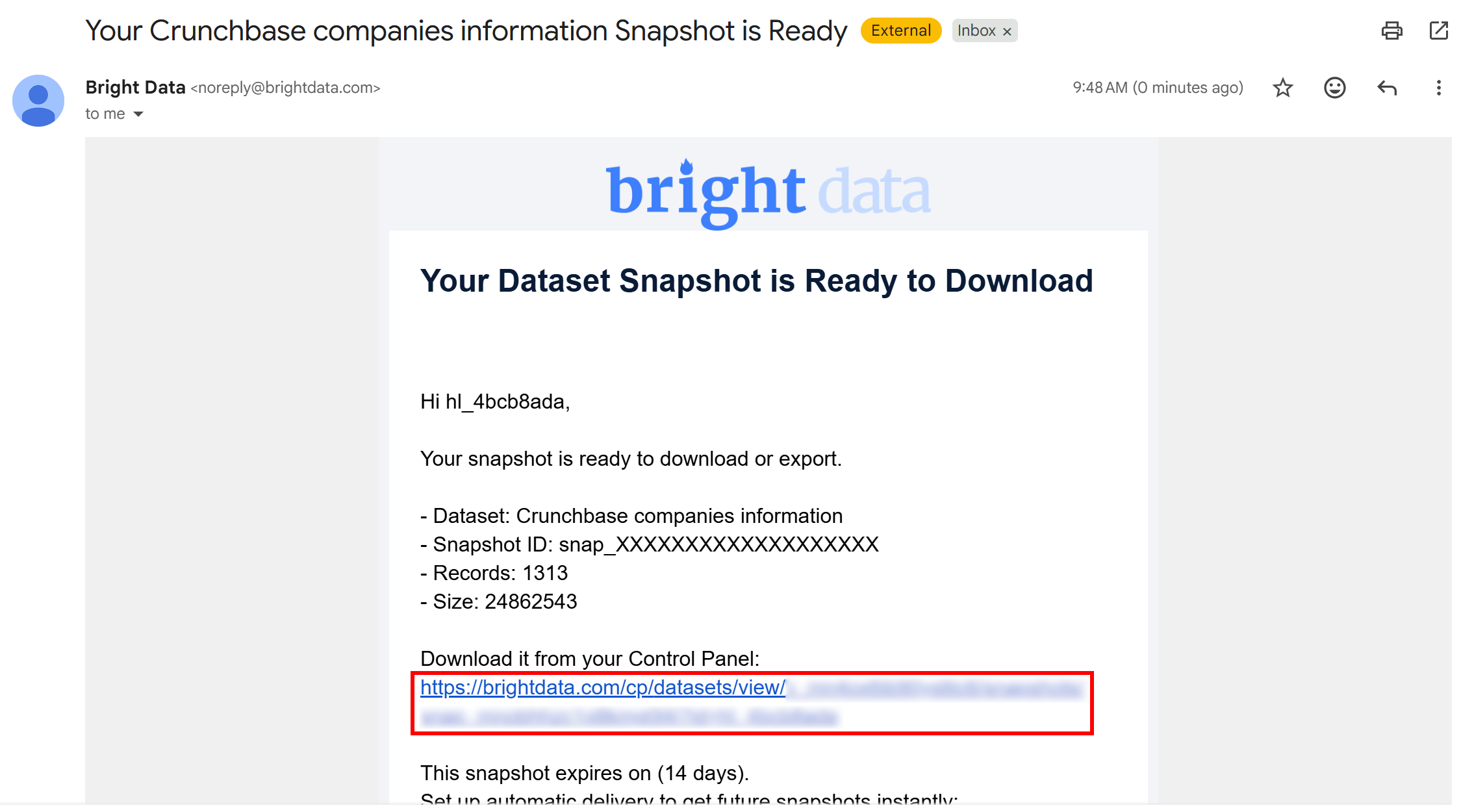
Click the URL in the email, and you will reach the snapshot page in the Bright Data control panel: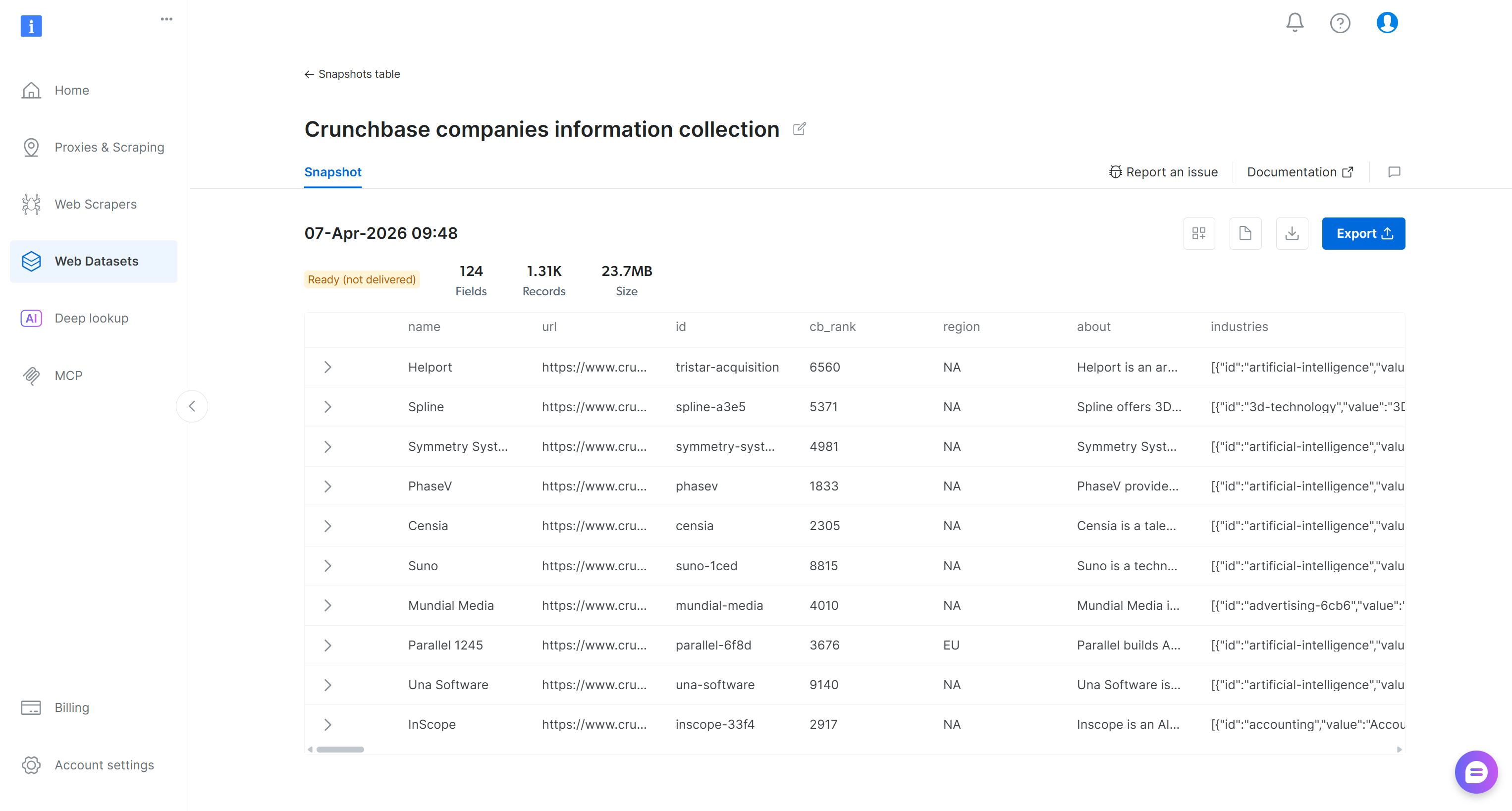
Here, you have options to explore the filtered dataset, download it, and access additional details. For example, you can download a report containing insights such as the number of records and the total cost. In this case, the report shows that you spent $3.29 and retrieved 1,313 records (Remember: The pricing is $2.50 per 1,000 records):

To retrieve the snapshot, click the “Download” icon and select the “CSV” option: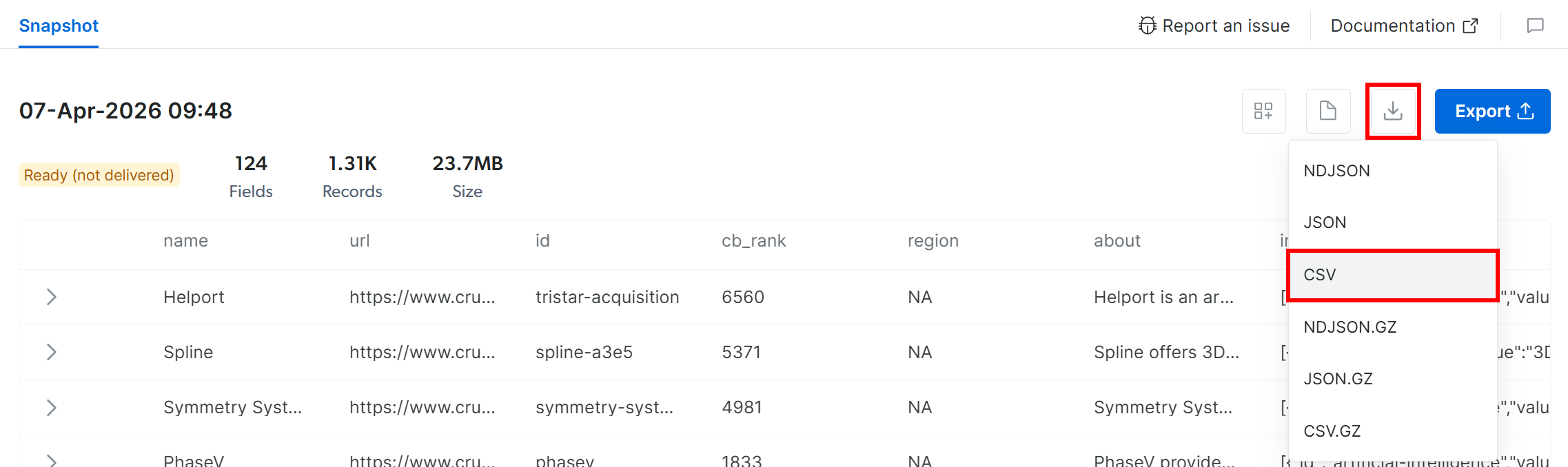
Your browser will download a file named snap_XXXXXXXXXXXXXXXXXXX.csv containing the filtered Crunchbase data. Perfect!
Step #4: Explore the Filtered Dataset
Open the snap_XXXXXXXXXXXXXXXXXXX.csv file, and this is what you should see:
Notice how the downloaded dataset contains the 1,313 Crunchbase company entries (each with 133 columns) that match the specified filters.
Mission complete! You now have the source data to perform client prospecting via AI-powered data transformation and enrichment.
Note: Before proceeding, review the dataset and consider applying additional filtering steps to narrow down the content even further, as demonstrated in the “Crunchbase Data Analysis for Client Prospecting” Kaggle notebook supporting this article.
How to Prospect New Clients with AI Starting with a Tailored Crunchbase Dataset
The filtered Crunchbase dataset will serve as the source for the data processing and enrichment workflow. For each row, this process will:
- Visit the company’s website and retrieve its content in Markdown format using the Web Unlocker API.
- Pass the company’s content to an AI model, asking it to understand what the company does and provide a score indicating how good a potential client it is for your business.
See how to implement this!
Prerequisites
To follow this section, make sure you meet the previous prerequisites, as well as:
- A Web Unlocker API zone (e.g.,
web_unlocker) set up in your Bright Data account. - Knowledge of how the Web Unlocker API works and the features it supports.
- An OpenAI API key.
To create a Web Unlocker zone, read the “Create Your First Unlocker API” guide in the Bright Data documentation. Below, we will assume your Web Unlocker zone is named web_unlocker.
For simplicity and to keep this tutorial concise, we will assume you already have a local Jupyter Notebook environment ready.
Step #1: Upload the Source Filtered Dataset to Your Notebook
Launch Jupyter Notebook and create a new notebook (e.g., name it client_prospecting.ipynb). Then, upload the snap_XXXXXXXXXXXXXXXXXXX.csv file: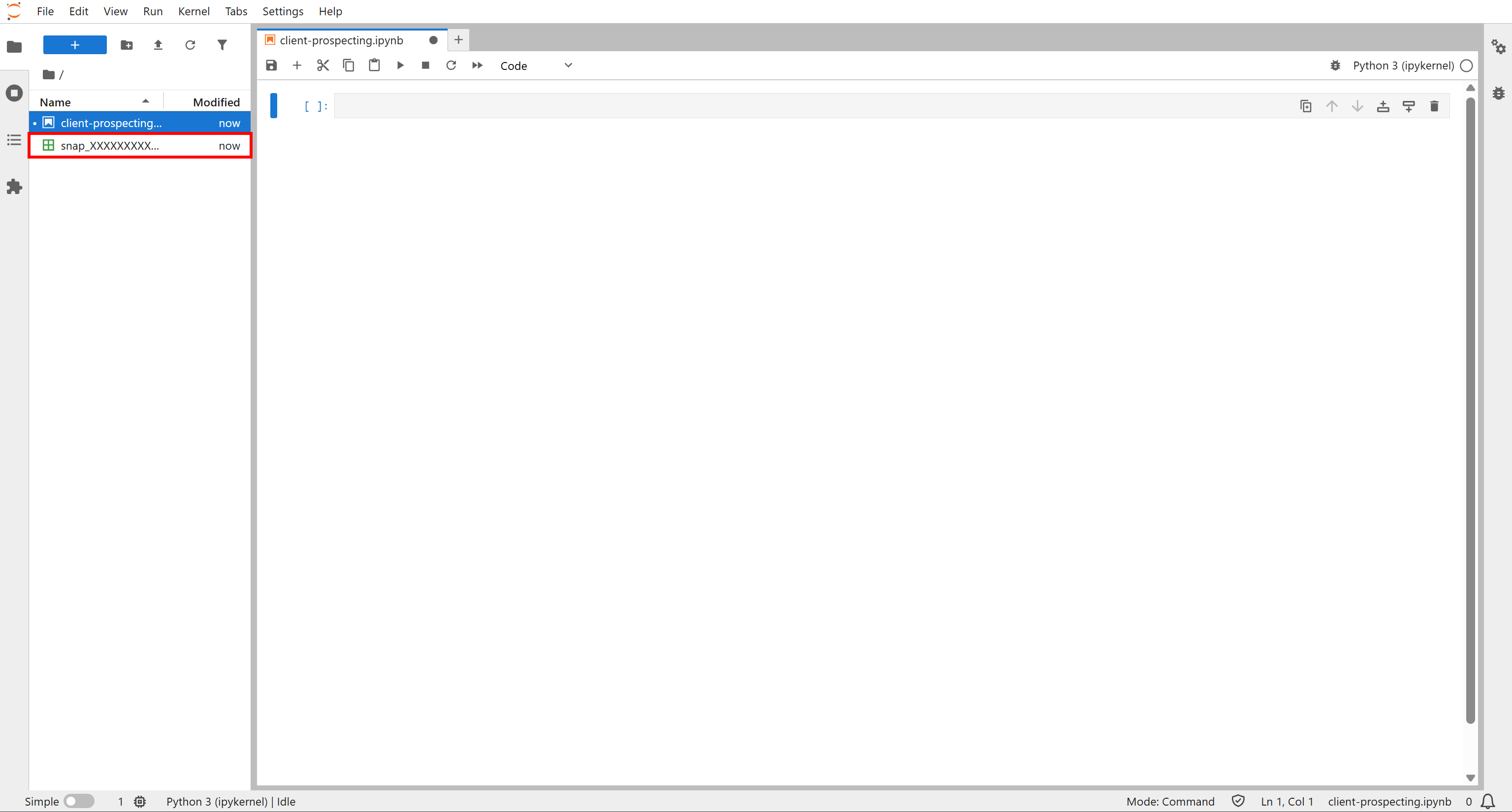
This file will be employed as the source data for your AI-powered client prospecting workflow. Well done!
Step #2: Install the Required Libraries
Before diving into the data enrichment logic, install the dependencies required by this workflow. To do so, add a cell containing:
!pip install pandas requests pydantic openaiThis will install the following libraries:
pandas: To load the source CSV with the Crunchbase data and work with it as a DataFrame.requests: To connect to the Bright Data Web Unlocker API for downloading company homepages.pydantic: To define structured output for the OpenAI tasks.openai: To interact with an OpenAI model to rank the given homepages for client prospecting.
Execute the cell by pressing the “▶” button to install these libraries. Great! Your notebook now contains all the dependencies required for AI-powered client prospecting, starting from a filtered Crunchbase dataset.
Step #3: Set Up the Initial Cell
To avoid spreading your imports, secrets, and constants throughout your code, place them all in the first cell of your notebook, like this:
import os
import pandas as pd
import requests
import datetime
import concurrent.futures
from typing import Optional
from pydantic import BaseModel, Field
from openai import OpenAI

# Secrets to connect to third-party services (replace them with the actual values)
BRIGHT_DATA_API_KEY="<YOUR_BRIGHT_DATA_API_KEY>"
OPENAI_API_KEY="<YOUR_OPENAI_API_KEY>"

# Define the required constants
SOURCE_CSV_PATH = "snap_XXXXXXXXXXXXXXXXXXX.csv"
ENRICHED_CSV_PATH = "crunchbase_analyzed_companies.csv"

# Initialize the OpenAI client
openai_client = OpenAI(api_key=OPENAI_API_KEY)
Make sure to:
- Replace
<YOUR_BRIGHT_DATA_API_KEY>with your Bright Data API key. - Replace
<YOUR_OPENAI_API_KEY>with your OpenAI API key. - Update the names of the source file (
SOURCE_CSV_PATH) and the enriched file path (ENRICHED_CSV_PATH) as needed.
Keep in mind that ENRICHED_CSV_PATH defines the output file path where your enriched data will be saved.
Sweet! With this setup, you now have all the building blocks to get started.
Step #4: Load the Dataset
In a new cell, add the logic to load the source dataset into a DataFrame and display its main information:
# Load the CSV file containing the filtered Crunchbase dataset
df = pd.read_csv(SOURCE_CSV_PATH, keep_default_na=False)

# Print the basic info about the dataset
df.info()

# Print the first rows
df.head()Note: The keep_default_na=False option is required. Otherwise, the region columns containing "NA" would be interpreted as a NaN by pandas by default.
Run the cell, and you should see an output like this: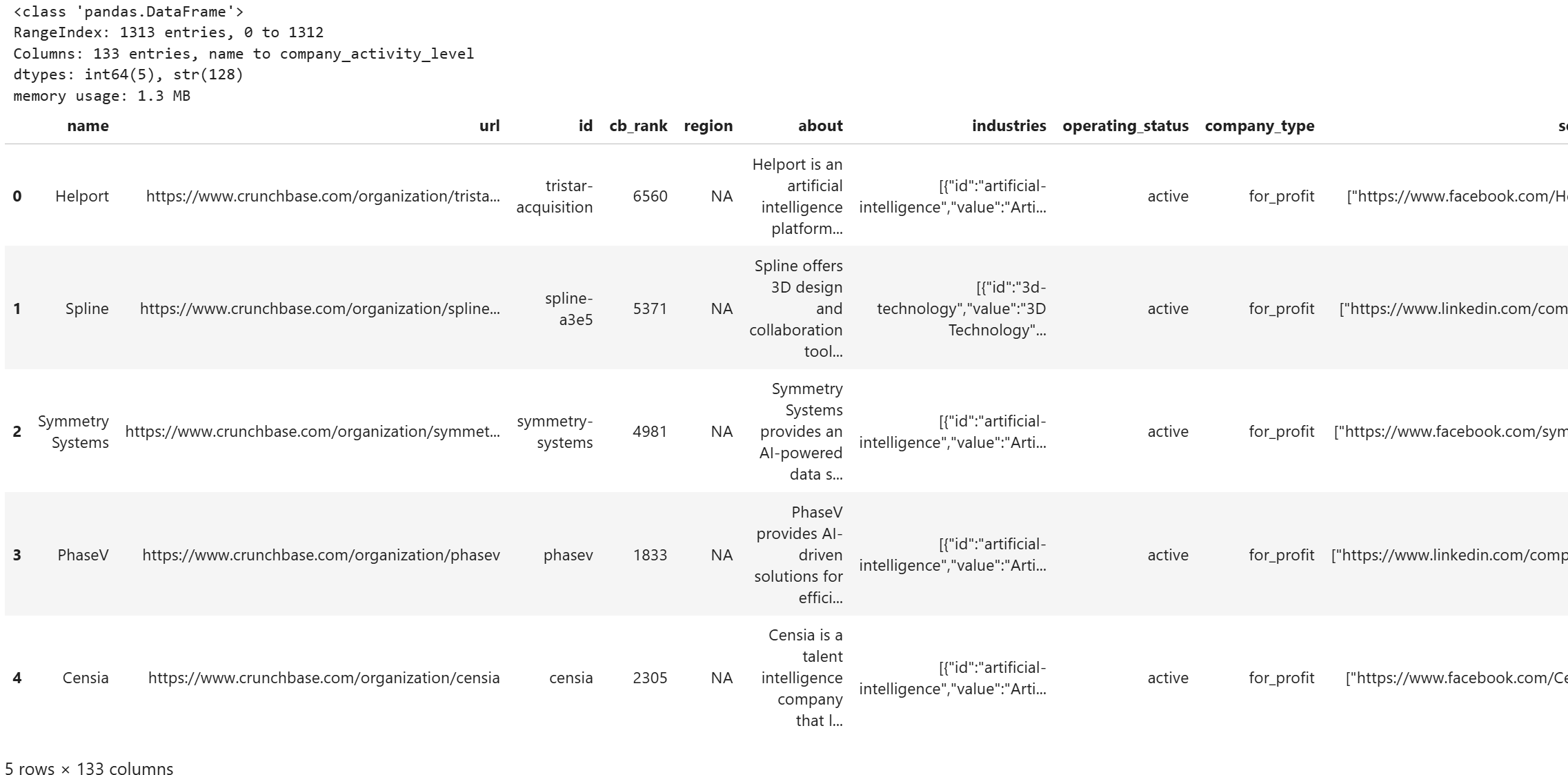
Notice how the DataFrame stores all 1,313 entries, each with 133 columns from the filtered Crunchbase dataset. Excellent!
Step #5: Define the Function for Website Scraping
Now, define a function to call the Web Unlocker API and scrape a company’s website:
def fetch_website(url, zone = "web_unlocker"):
    headers = {
        "Authorization": f"Bearer {BRIGHT_DATA_API_KEY}",
        "Content-Type": "application/json"
    }

    data = {
        "zone": zone,
        "url": url,
        "format": "raw",           # Get the response directly in the body
        "data_format": "markdown"  # Get the webpage in Markdown format (ideal for LLM ingestion)
    }

    api_url = "https://api.brightdata.com/request"

    try:
        response = requests.post(api_url, json=data, headers=headers)
        # Raise an error if the response is 4xx/5xx
        response.raise_for_status()

        return response.text
    except requests.RequestException as e:
        print(f"Error fetching '{url}' via Web Unlocker API: {e}")
        return None
If you are not familiar with how the Web Unlocker API works, refer to the official documentation.
The fetch_website() function calls your Bright Data Web Unlocker API zone (replace "web_unlocker" with the name of your own zone) on the provided URL. Because of the data_format: "markdown" parameter, the response will be an AI-ready Markdown version of the website. That data format is perfect for LLM ingestion, which is exactly what you will do soon.
That function will be applied to each company entry to enrich it with the Markdown version of its homepage. See how to do that in the next step!
Step #6: Fetch All Company Homepages in Parallel
The Web Unlocker API, like any other API-based product from Bright Data, is backed by an enterprise-grade infrastructure with over 400 million residential IPs. Thanks to this, you can call the API with unlimited concurrency and no concerns about rate limits or scaling issues.
Since our dataset contains thousands of companies, it makes sense to scrape multiple websites simultaneously. The following cell does exactly that:
batch_size = 5
total = len(df)

defprocess_row_for_scraping(idx):
    url = df.at[idx, "website"]
    # Skip the row if the "website" field is missing
    if pd.isna(url):
        return None

    # Retrieve the website homepage in Markdown
    markdown = fetch_website(url)
    timestamp = datetime.datetime.now(datetime.UTC)
    return idx, markdown, timestamp

for start in range(0, total, batch_size):
    # Get the current batch
    end = min(start + batch_size, total)
    batch_indices = df.index[start:end]
    print(f"Processing Crunchbase records {start} to {end-1}")

    # Fetching website homepages in parallel for the batch
    with concurrent.futures.ThreadPoolExecutor(max_workers=batch_size) as executor:
        results = list(executor.map(process_row_for_scraping, batch_indices))

    # Update the DataFrame with the results
    for r in results:
        # Skip
        if r is None:
            continue
        idx, markdown, timestamp = r
        df.at[idx, "website_markdown"] = markdown
        df.at[idx, "website_markdown_fetching_timestamp"] = timestamp

    # Save the updated CSV after each batch
    df.to_csv(ENRICHED_CSV_PATH, index=False)
    print(f"Batch {start}-{end-1} saved to disk.")
This snippet processes a Crunchbase dataset to enrich each company entry with the Markdown version of its website, ready for AI-powered analysis. It works in batches of 5 rows at a time, fetching websites in parallel to speed up I/O-bound operations.
The process_row() function handles each company: it fetches the homepage using the Web Unlocker API and records a timestamp. Skipping missing URLs ensures efficiency and avoids unnecessary API calls. Also, keeping track of the timestamp is important because a company’s website can change frequently. So, it is good to know when it was last scraped.
Batches are processed with a thread pool, allowing multiple requests to run concurrently. After each batch, the DataFrame is updated and saved to disk. Saving incrementally is fundamental, as it prevents data loss if the process is interrupted and enables you to resume without starting over.
Pro tip: On your first run, limit the number of rows to 5 or 10 to confirm the workflow works as expected before processing the full dataset.
After running this, you will get output messages as in the image below:
A crunchbase_analyzed_companies.csv file will appear in the notebook’s directory. This will contain all the original Crunchbase data, plus two new columns:
website_markdown: The AI-ready Markdown version of each company’s homepage.website_markdown_fetching_timestamp: The exact time each page was fetched.
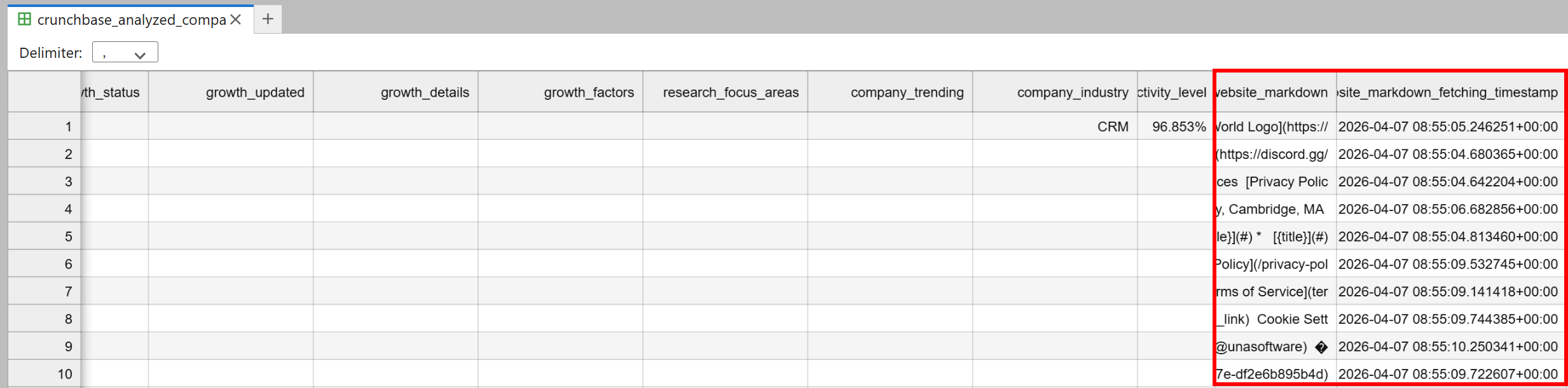
Fantastic! This dataset is now ready for AI-powered analysis and client prospecting.
Step #7: Specify the Function for AI Client Prospecting
The next step is to add a function that instructs the AI to perform client prospecting. The idea is to describe what your company does and let the AI evaluate each Crunchbase company entry to produce:
- A score indicating how strong a potential client this company could be.
- A short comment explaining the reasoning behind the score (useful, since the number alone might not give the full picture).
- A short description of the company’s core business based on the website content (helpful for understanding whether it is a good fit).
Note: The following prompt uses the company’s website as the sole input, but you could pass the entire record for more advanced and nuanced analysis.
Implement the process with this cell:
# Define the structured output schema
class AIProspectingResult(BaseModel):
    ai_client_prospecting_score: float
    ai_client_prospecting_comment: str
    ai_core_business: str

def analyze_website(markdown):
    # Ask the AI to perform the client prospecting task
    system_prompt = (
        "You are a business intelligence analyst specialized in identifying potential clients "
        "for a cybersecurity firm. We are a specialized cybersecurity firm providing adversarial testing "
        "for AI-powered ecosystems. Our mission is to proactively identify vulnerabilities by attempting to 'break' "
        "AI models through sophisticated attack simulations. Following our assessment, we deliver a comprehensive "
        "Vulnerability & Patch Report, detailing specific weaknesses discovered and providing actionable technical "
        "strategies to remediate these risks and fortify the system’s integrity.\n\n"
        "Analyze the provided website content and produce a structured JSON with:\n"
        "- `ai_client_prospecting_score`: 0-10 float indicating how good a potential client this company could be.\n"
        "- `ai_client_prospecting_comment`: short comment (<=30 words) explaining the score.\n"
        "- `ai_core_business`: short description (<= 50 words) of what the company does based on the website.\n"
    )

    user_prompt = f"WEBSITE CONTENT:\n{markdown}"

    try:
        response = openai_client.responses.parse(
            model="gpt-5.4-mini",
            input=[
                {"role": "system", "content": system_prompt},
                {"role": "user", "content": user_prompt},
            ],
            text_format=AIProspectingResult,
        )

        # Return the parsed result
        return response.output_parsed
    except Exception as e:
        print("Error analyzing website with AI:", e)
        return None
To ensure the chosen OpenAI model (GPT-5.4 Mini, in this case) responds with a structured output, call the responses.parse() method. This accepts a Pydantic data model and ensures that the generated response follows that format. For more information, see it in action in our guide on web scraping with ChatGPT.
Wonderful! The next step is to call this function in parallel for each company record.
Step #8: Prospect All Companies in Parallel
Just like before, add a cell to let AI process multiple entries in parallel:
batch_size = 5
total = len(df)

def process_row(idx):
    markdown = df.at[idx, "website_markdown"]

    # Skip rows with missing markdown
    if pd.isna(markdown):
        return None

    # Call the AI prospecting function
    result = analyze_website(markdown)
    if result is None:
        return None

    return idx, result.ai_client_prospecting_score, result.ai_client_prospecting_comment, result.ai_core_business

for start in range(0, total, batch_size):
    end = min(start + batch_size, total)
    batch_indices = df.index[start:end]
    print(f"Processing AI prospecting for records {start} to {end-1}")

    # Run AI analysis in parallel
    with concurrent.futures.ThreadPoolExecutor(max_workers=batch_size) as executor:
        results = list(executor.map(process_row, batch_indices))

    # Update the DataFrame with the results (if the array is not full of None values)
    for r in results:
        if r is None:
            continue # Skip
        idx, score, comment, core_business = r
        df.at[idx, "ai_client_prospecting_score"] = score
        df.at[idx, "ai_client_prospecting_comment"] = comment
        df.at[idx, "ai_core_business"] = core_business

    # Save CSV after each batch
    df.to_csv(ENRICHED_CSV_PATH, index=False)
    print(f"Batch {start}-{end-1} saved to disk.")
Run it, and it will print messages like these:
Good! The Crunchbase dataset has now been enriched with Bright Data extraction and AI-powered analysis for client prospecting.
Time to explore the results!
Step #9: Analyze the Enriched Data
In the final cell, add the logic to present the enriched data:
relevant_columns = [
    "name",
    "cb_rank",
    "region",
    "ai_client_prospecting_score",
    "ai_client_prospecting_comment",
    "ai_core_business"
]

pd.set_option("display.max_columns", None)    # Show all columns
pd.set_option("display.max_colwidth", None)   # Do not truncate text

# Print only the relevant fields
df[relevant_columns].head(10)
The resulting dataset will contain:
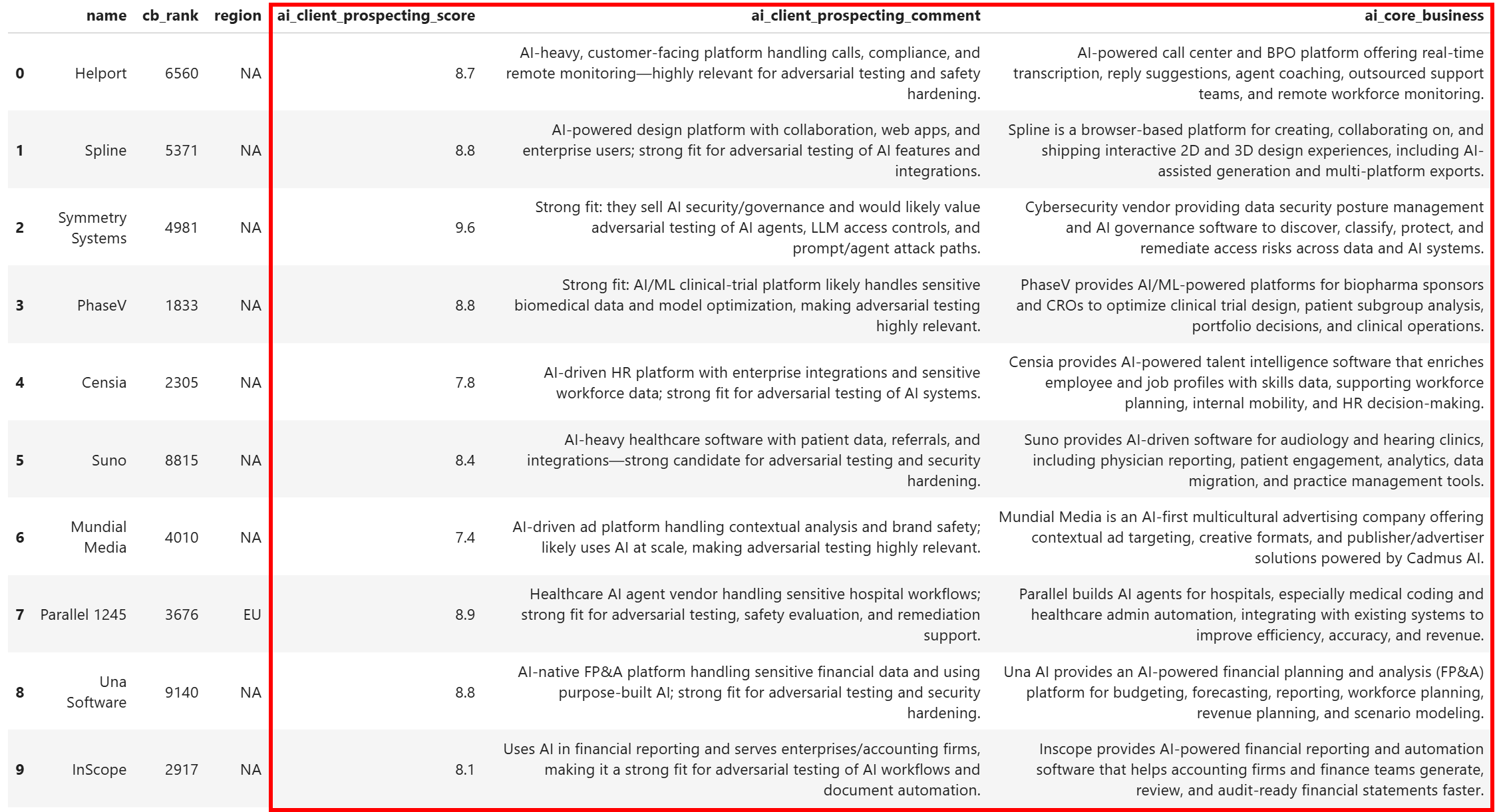
Notice how each company has been enriched with a clear prospecting score, a short comment explaining the score, and a concise description of what the company does. This would not have been possible without:
- Bright Data’s Filter API: To retrieve a targeted, filtered Crunchbase dataset.
- Web Unlocker API: To scrape any company websites reliably, without blocks.
Et voilà! You can now apply further data analysis and processing to select only the best candidates to contact.
Conclusion
In this article, you learned how to leverage Bright Data’s datasets, along with Bright Data APIs and AI, to build a complete, production-ready, automated client prospecting workflow. This workflow:
- Starts with a Crunchbase dataset containing over 4.3 million records.
- Filters it programmatically using Bright Data’s Filter API to include only companies that meet your specific criteria.
- Uses the Web Unlocker API to retrieve the website content for each company.
- Passes that content to AI for programmatic scoring, assessing how good a potential client each company is.
The result is an enriched dataset, where each company has a score and a brief comment indicating whether it makes sense to contact them for your products or services. Thanks to the high-quality data from Bright Data’s marketplace, advanced filtering capabilities, and AI enrichment, finding new clients has never been easier!
Create a free Bright Data account today and start experimenting with our AI-ready web tools!



Technical Writer
 5.5 years experience
Antonello Zanini is a technical writer, editor, and software engineer with 5M+ views. Expert in technical content strategy, web development, and project management.