







In this blog post, you will learn:
- What Boomi AI agents are and what Boomi AgentStudio brings to the table.
- Why Boomi AI agents are limited without web access and how the Bright Data MCP addresses that.
- How to connect the Bright Data MCP to a Boomi AI agent through a step-by-step tutorial.
Let’s dive in!
What Are Boomi AI Agents?
Boomi is a cloud-native iPaaS that helps enterprises connect applications, APIs, data sources, and workflows across fragmented systems. Specifically, it enables organizations to automate processes and synchronize tools like CRMs, ERPs, and databases.
Boomi also supports AI agents through Boomi AgentStudio, a no-code solution for designing, testing, deploying, and governing intelligent agents. In AgentStudio, you can define agent instructions, personalities, and guardrails using natural language. You can also connect agents to external tools and enterprise systems, and monitor their behavior via observability features.
The main capabilities Boomi provides for AI agent development and management include:
- Prebuilt AI agents: Access ready-to-use agents for documentation, troubleshooting, integrations, and knowledge retrieval.
- Natural language automation: Convert plain English instructions into integrations, workflows, API definitions, and mappings.
- Enterprise integrations: Connect agents to apps, APIs, databases, and business systems through built-in connectors.
- Conversational memory: Maintain context across interactions for more coherent reasoning and task execution.
- Structured inputs and outputs: Exchange predictable, machine-readable data for reliable automation and agent chaining.
- Security and governance: Enforce policies, monitor decisions, manage access, and support enterprise compliance requirements.
- Cross-environment deployment: Run agents across cloud, hybrid, and on-premises environments to support data sovereignty needs.
The Problem with Regular Boomi AI Agents
Boomi AI agents share limitations common to most LLM-powered solutions:
- Outdated knowledge: LLMs are trained on static datasets, meaning their knowledge represents a snapshot of the past and does not reflect recent events.
- No interaction with the external world: Without tools, LLMs can only generate responses based on their existing knowledge. They cannot browse the web or interact with third-party services on their own.
To overcome these limitations, AI agents need web access tools for grounding as well as integrations with third-party systems. This is why Boomi natively supports connectors to external services.
In detail, you can address both the knowledge gap and web interaction limitations by connecting your Boomi AI agent to a real-time web data infrastructure. This is exactly where Bright Data comes in!
The Solution: Bright Data MCP
Bright Data supports Boomi through a remote connection to its official Bright Data MCP server.
Bright Data MCP exposes 70+ tools designed to simplify interaction with Bright Data’s web data infrastructure. These tools enable web search, discovery, scraping, browser interaction, automation, and much more.
Even on the free tier (5,000 requests per month for free), you get access to these helpful tools:
| Tool | Description |
|---|---|
search_engine + its batch version |
Retrieve Google, Bing, or Yandex results in JSON or Markdown format |
scrape_as_markdown + its batch version |
Convert any webpage into clean Markdown while bypassing anti-scraping and anti-bot protections |
discover |
Execute an AI-powered web search with ranked, relevant results |
Nonetheless, [Pro mode](https://github.com/brightdata/brightdata-mcp?tab=readme-ov-file#-pricing, modes) is what truly unlocks the full capabilities of Bright Data MCP. It provides advanced tools for structured data extraction from 40+ platforms, such as Amazon, LinkedIn, Yahoo Finance, YouTube, Zillow, GitHub, NPM, and Google Maps. It also includes browser automation capabilities for interacting with web pages.
Together, these tools significantly extend the capabilities of a Boomi AI agent to overcome the knowledge and web access limitations of LLMs.
How to Connect a Boomi Agent to the Bright Data MCP
In this step-by-step chapter, you will learn how to create a Boomi Agent and connect it to the Bright Data MCP remote server. This will equip the agent with 70+ tools for web search, scraping, and automated interaction.
Follow the instructions below!
Prerequisites
To follow this tutorial section, make sure you have:
- A Boomi account (even on a free trial).
- A Bright Data account with an API key configured. For more guidance, refer to the official guide.
- Familiarity with the tools exposed by the Bright Data MCP and its modes.
- An understanding of how MCP works.
Step #1: Create a New Boomi AI Agent
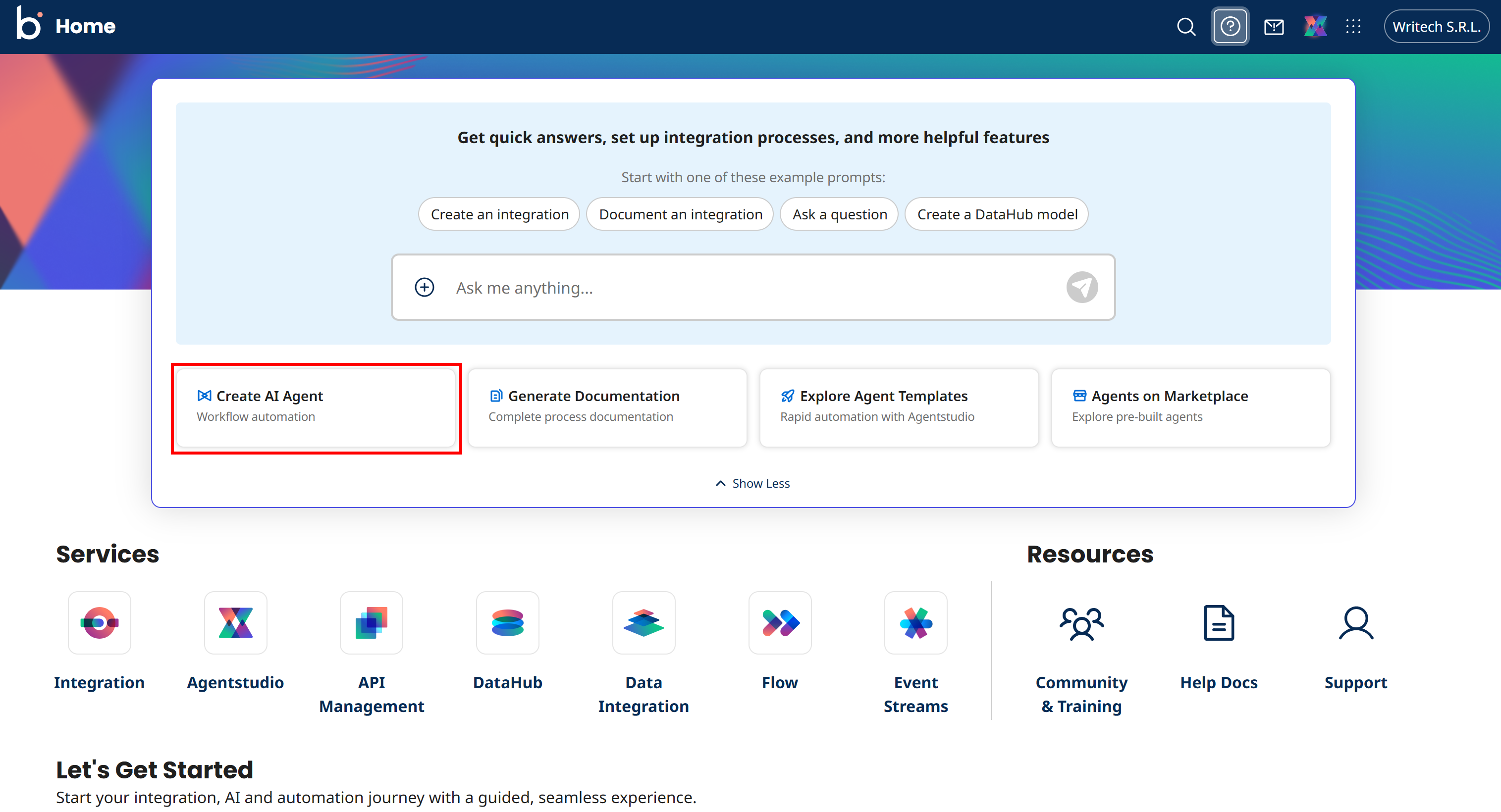
Start by logging into your Boomi account and clicking “Create AI Agent” to get started:
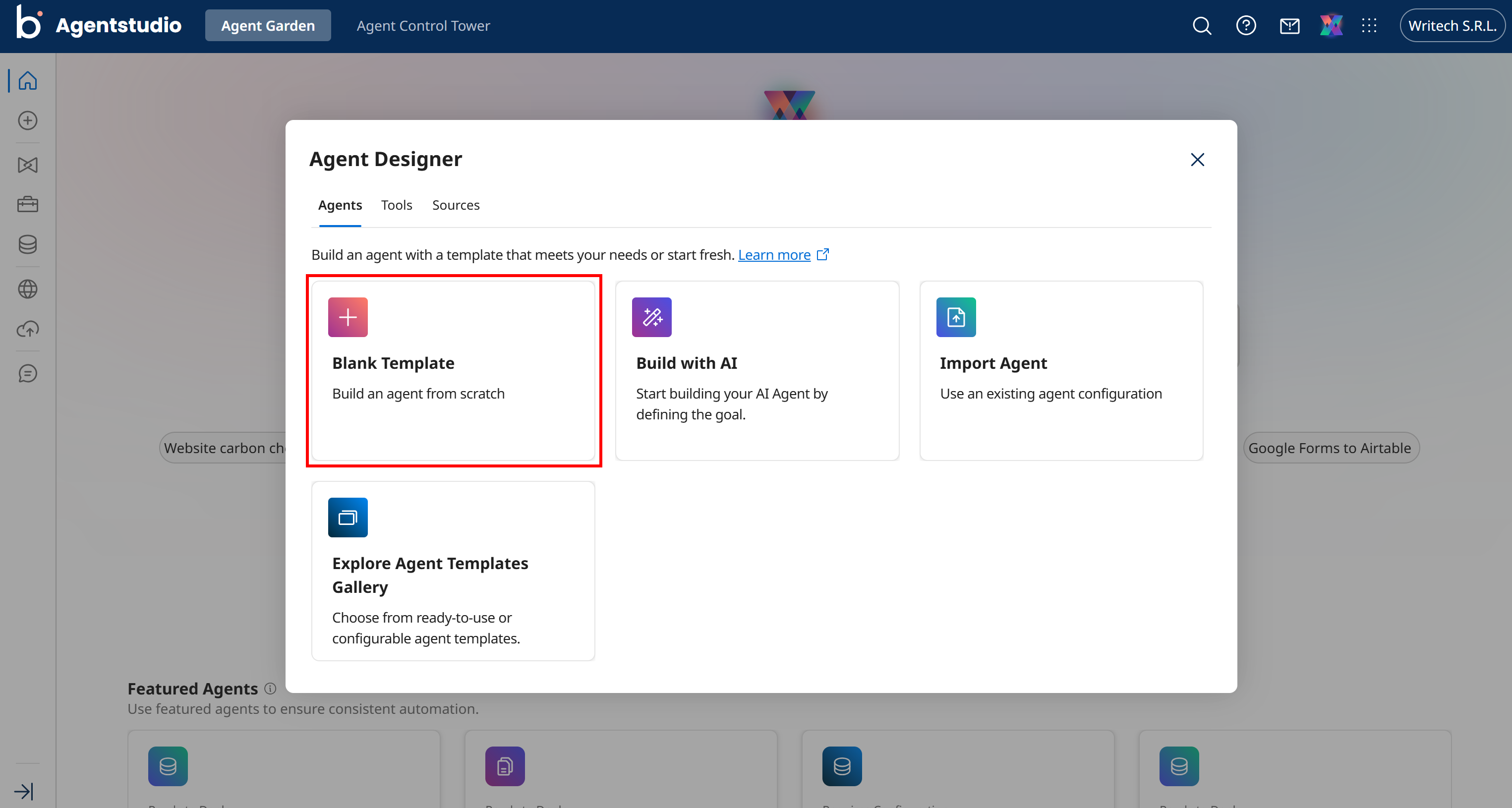
Proceed by selecting the “Blank Template” option:
You will be redirected to Boomi Agentstudio, where you can configure and customize your AI agent through a setup wizard:
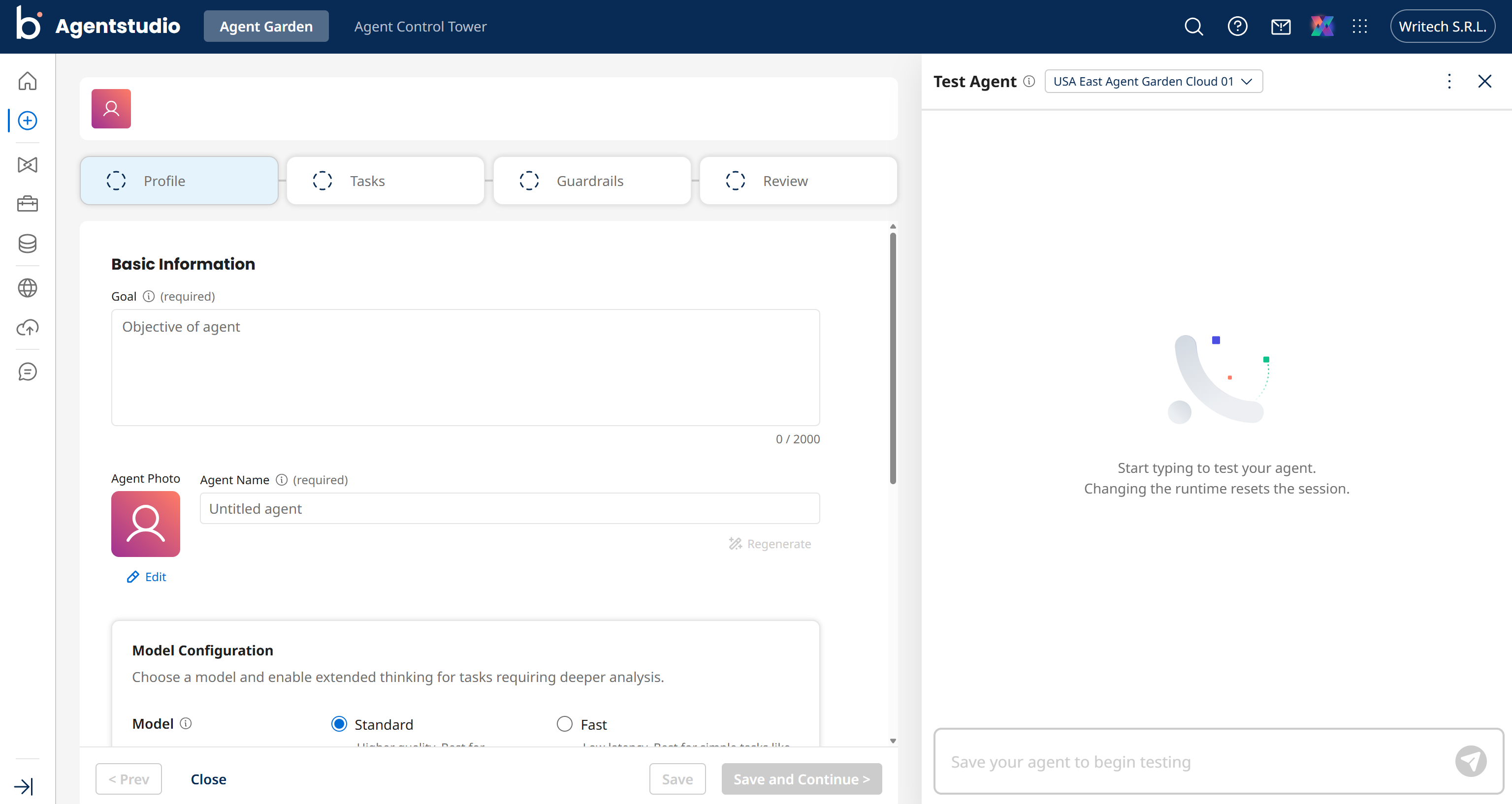
Well done! You now have a blank Boomi AI agent ready for Bright Data integration.
Step #2: Configure the AI Agent Profile
Start by giving your AI agent a clear goal. In this case, assume you want to build a general-purpose assistant for web-related tasks. For example:
Research, retrieve, and analyze web information using connected tools to provide more accurate responses and support decision-making.Next, give your agent a name, such as “Web Access Agent”.
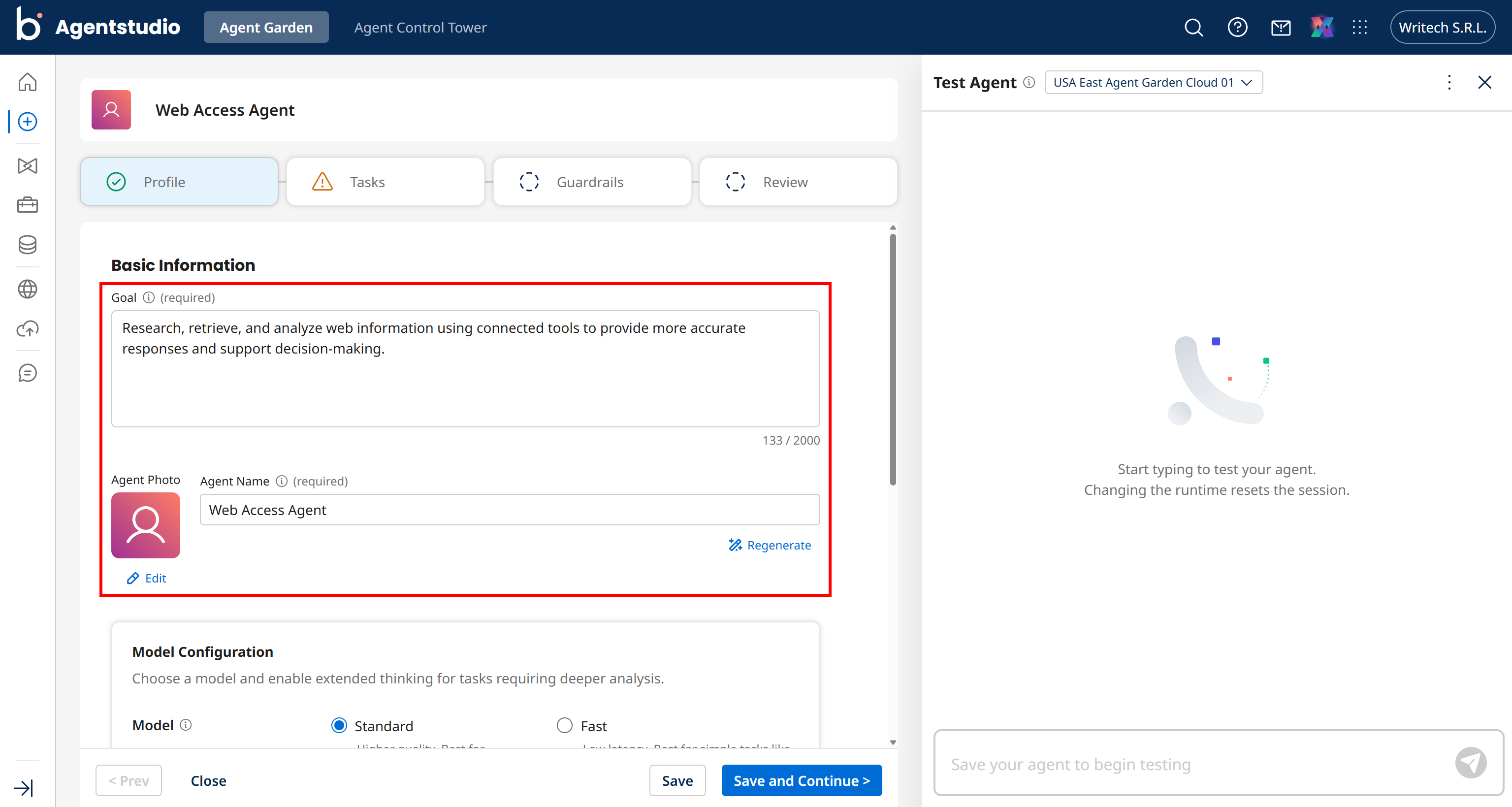
For more detailed behavior configuration, consider changing the model configuration and agent mode, as well as setting personality, voice, and conversation starter.
Once done, press the “Save and continue” button at the bottom center to proceed to the next step. Great!
Step #3: Get Started with Bright Data MCP
Before moving on to the “Tasks” step of the setup wizard, take a moment to familiarize yourself with the Bright Data MCP server. Since Boomi runs in the cloud, you must connect to the remote version of Bright Data MCP.
Important: The Bright Data MCP remote server is enterprise-ready. It supports unlimited concurrent connections and high scalability, building upon a residential proxy network of over 400 million IPs.
This is what the Bright Data MCP remote connection URL via the Streamable HTTP protocol looks like:
https://mcp.brightdata.com/mcp?token=<YOUR_BRIGHT_DATA_API_KEY>&pro=1Remember that the &pro=1 parameter is optional:
- With
&pro=1: You get access to the full suite of 70+ tools and advanced capabilities, but usage charges apply. - Without
&pro=1: You get access only to the free tools (5,000 requests/month) in Rapid mode.
If you want more granular control, such as enabling only specific tools or tool groups, you can generate a custom remote MCP URL directly from the Bright Data dashboard.
Log in to your Bright Data account and navigate to the “AI Gateways > MCP” page. Follow the setup wizard to configure your MCP server access. At the end of the process, you will get a customized connection URL as in the screenshot below:
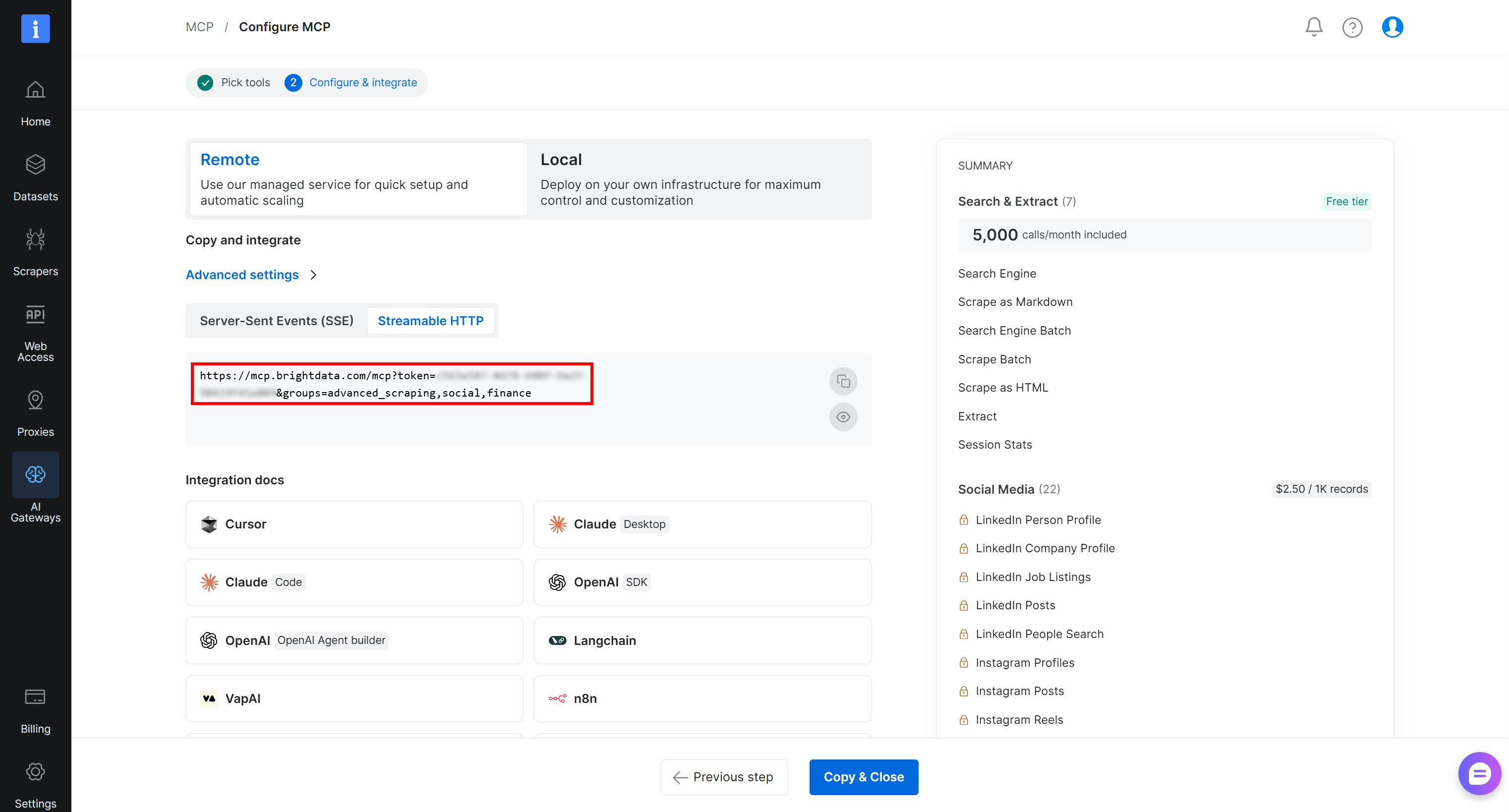
Copy the “Streamable HTTP” connection URL, as you will need it shortly to configure the Bright Data MCP connection in Boomi. Terrific!
Step #3: Add the Bright Data MCP Source in Boomi
To provide access to the Bright Data MCP tools in Boomi AgentStudio, you first need to define a new MCP source. To do so, open the agent wizard and click the “Sources” icon on the left:
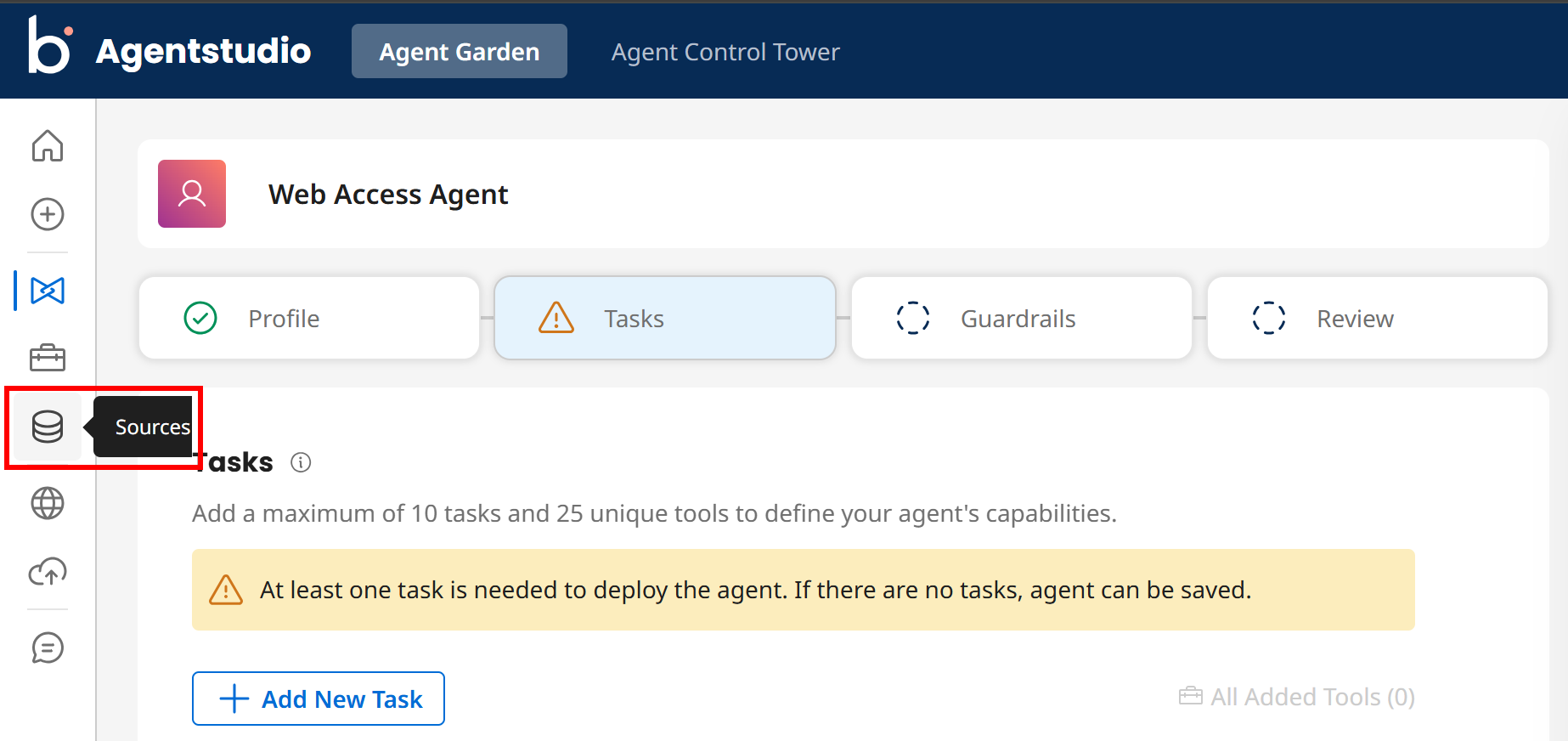
Note: Do not worry about leaving the wizard. All configurations are automatically saved as you go.
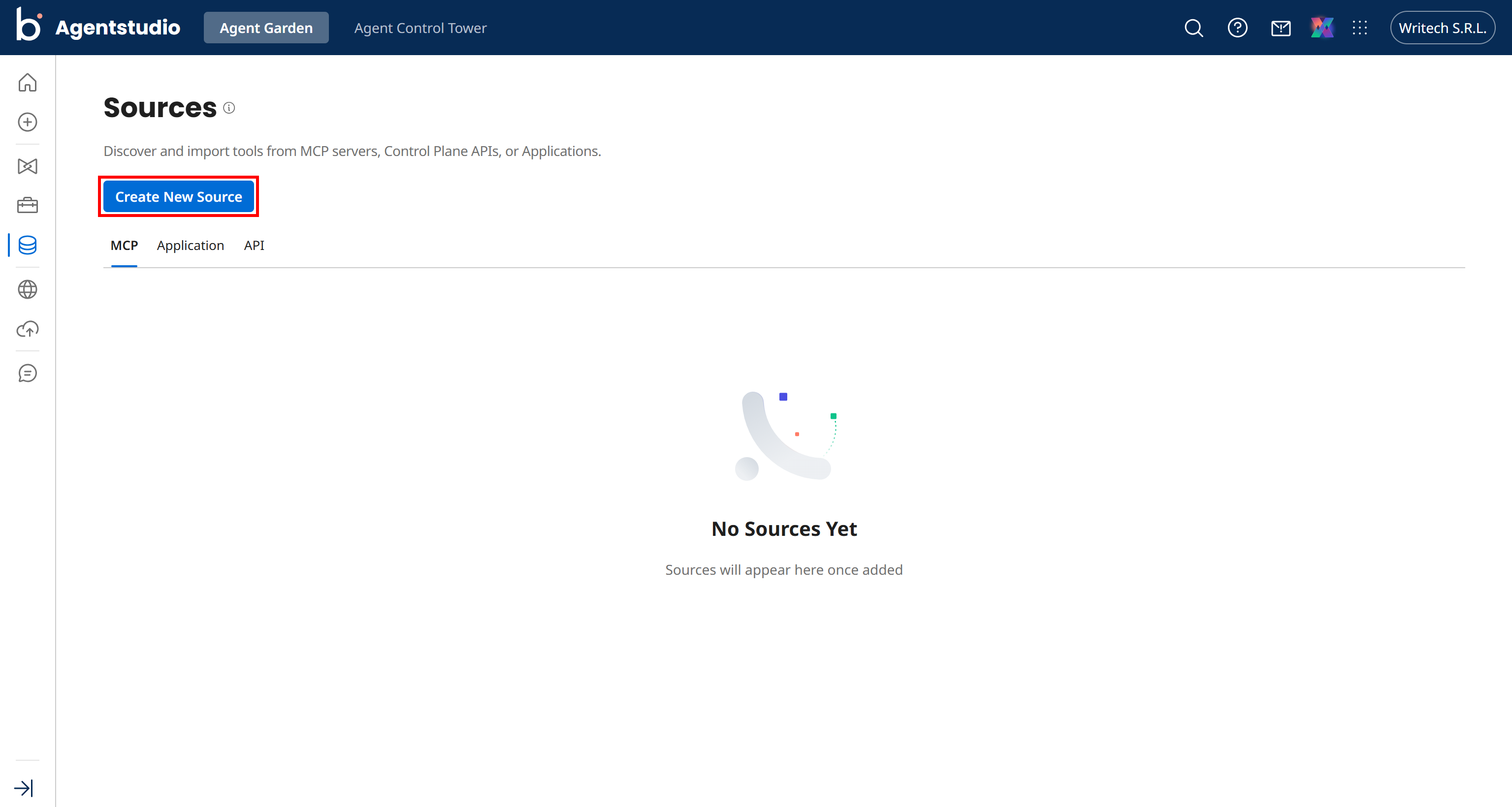
On the “Sources” page, click “Create New Source”:
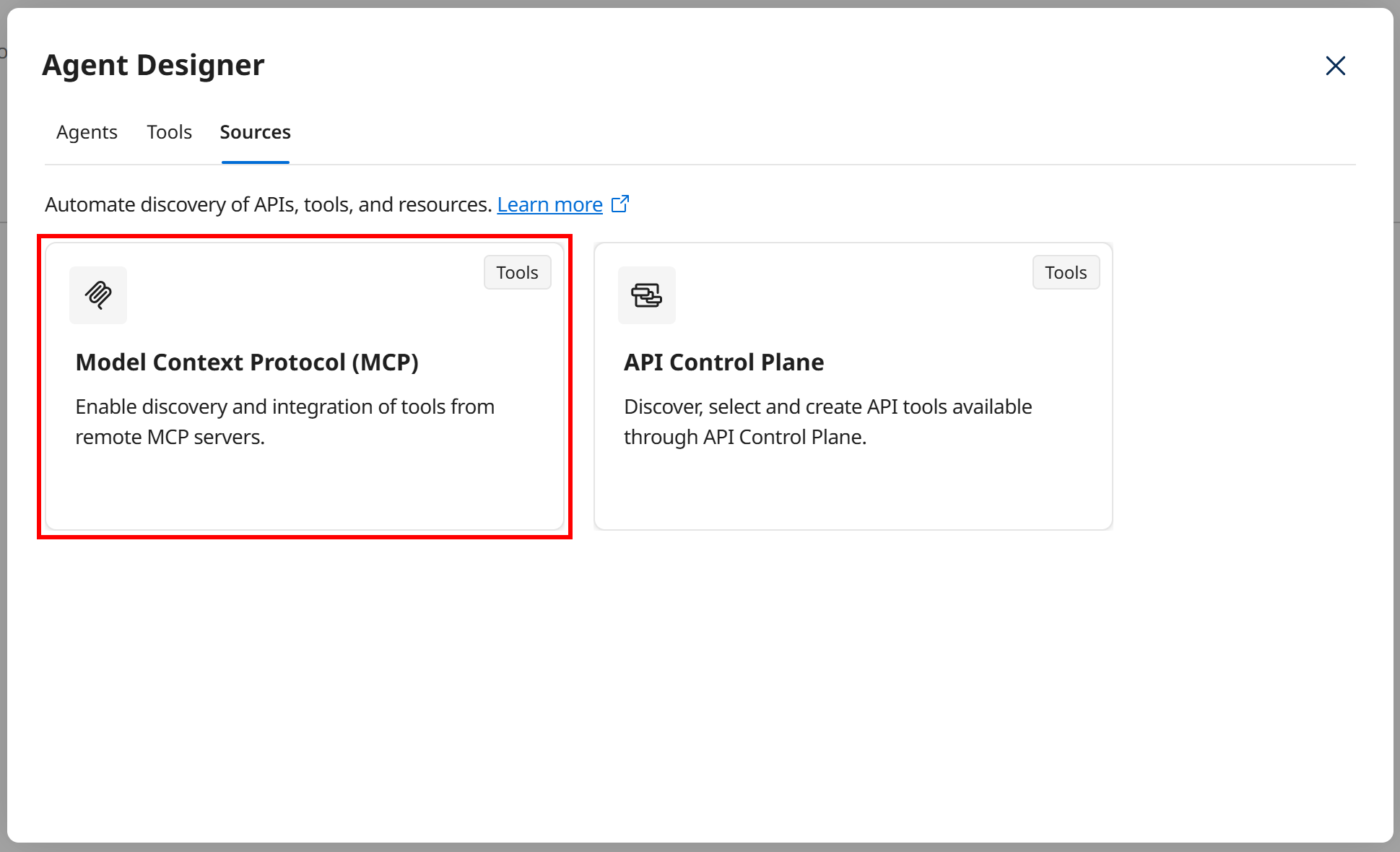
Select the “Model Context Protocol (MCP)” option:
Fill in the form as follows:
- Name:
Bright Data MCP - Description:
An MCP server that gives AI agents real-time access to public web data - Transport Type:
Streamable HTTP - URL: Paste the Bright Data MCP remote URL retrieved earlier
- Authentication:
None
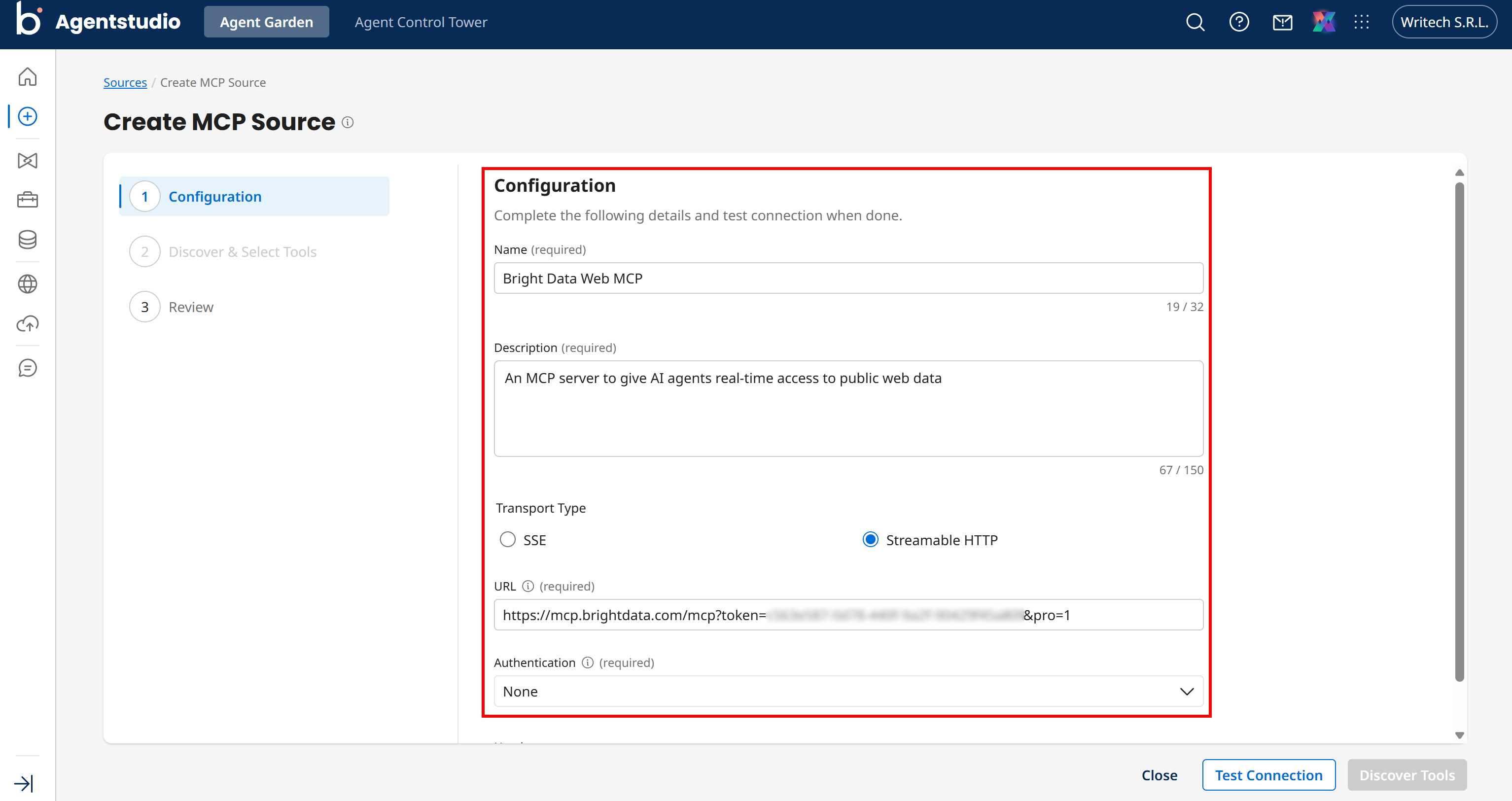
Then, press the “Test Connection” button. If everything is set up correctly, you should see a “Successfully connected” message. Next, click “Discover Tools” to load the tools from the remote MCP server.
If you are in Pro mode, you will see all 70+ tools. Otherwise, in Rapid mode, you will see only the free tools. In either case, select all available tools and click “Continue” to import them:
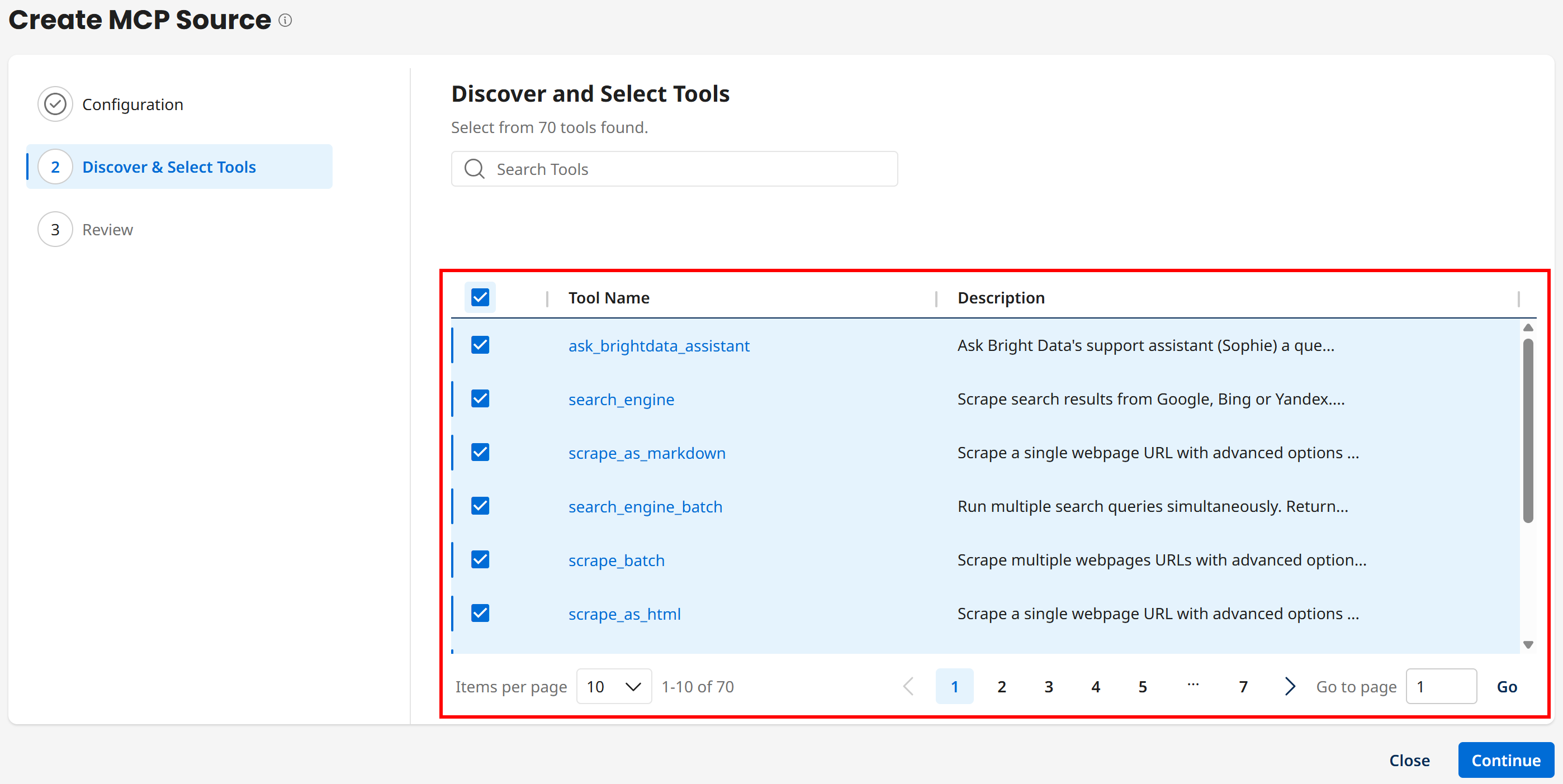
Note: Make sure to select all tools across all pages. Otherwise, only the first 10 will be selected.
Finally, review the information and click “Save”. The Bright Data MCP will now appear as a source:
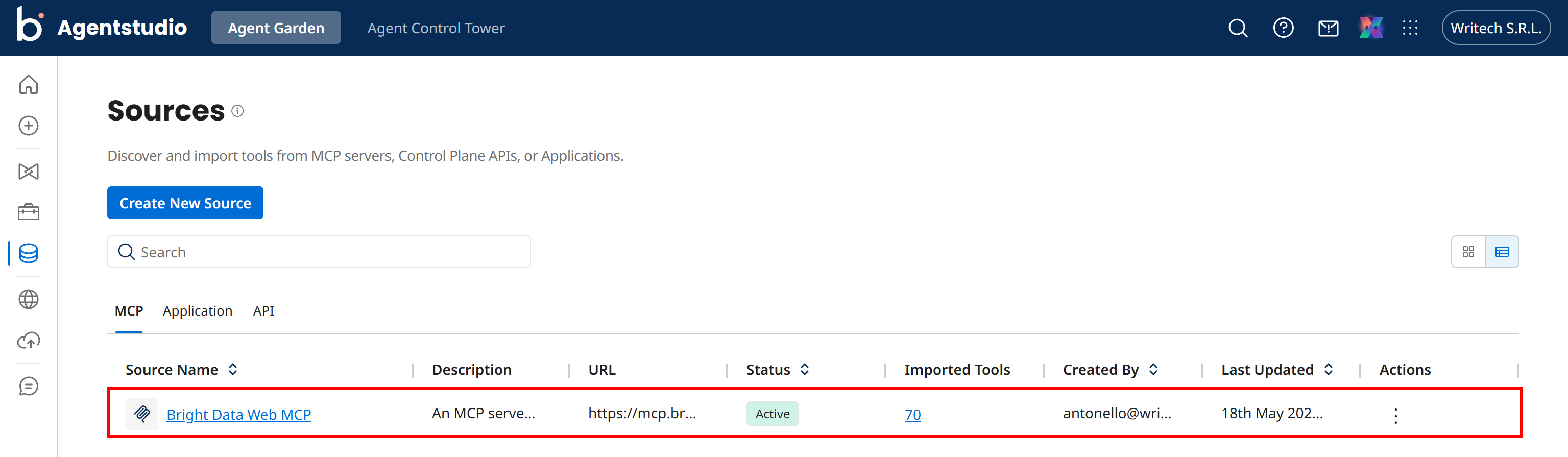
Fantastic! The Bright Daa Bright Data MCP tools are now available for integration in all your Boomi agents.
Step #4: Connect the Bright Data MCP Tools to Your Agent
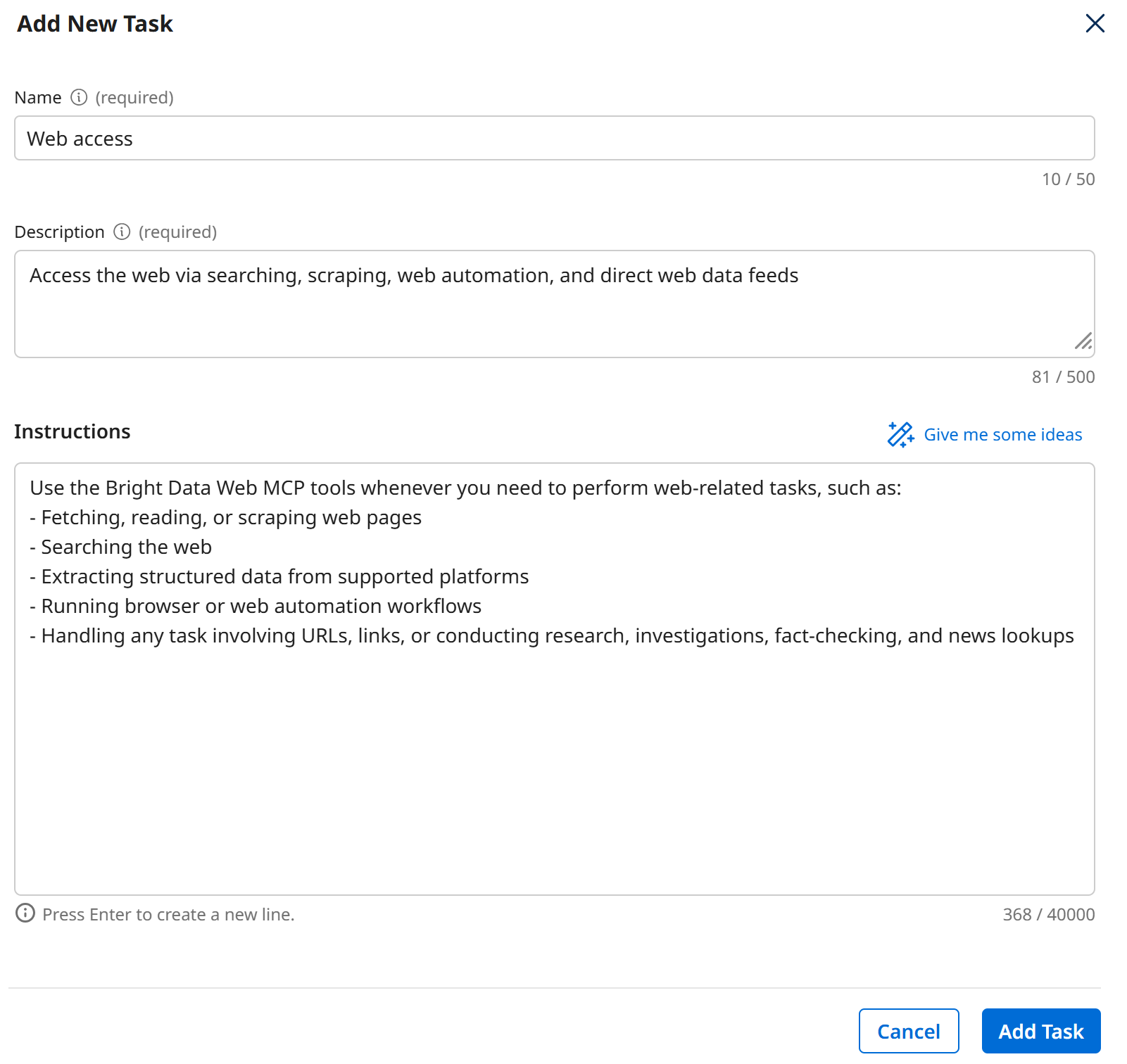
Go back to your “Web Access Agent” by opening the “Agent” page from the left menu, clicking the agent name, and selecting “Edit”. Then navigate to the Tasks tab and click “Add New Task”:
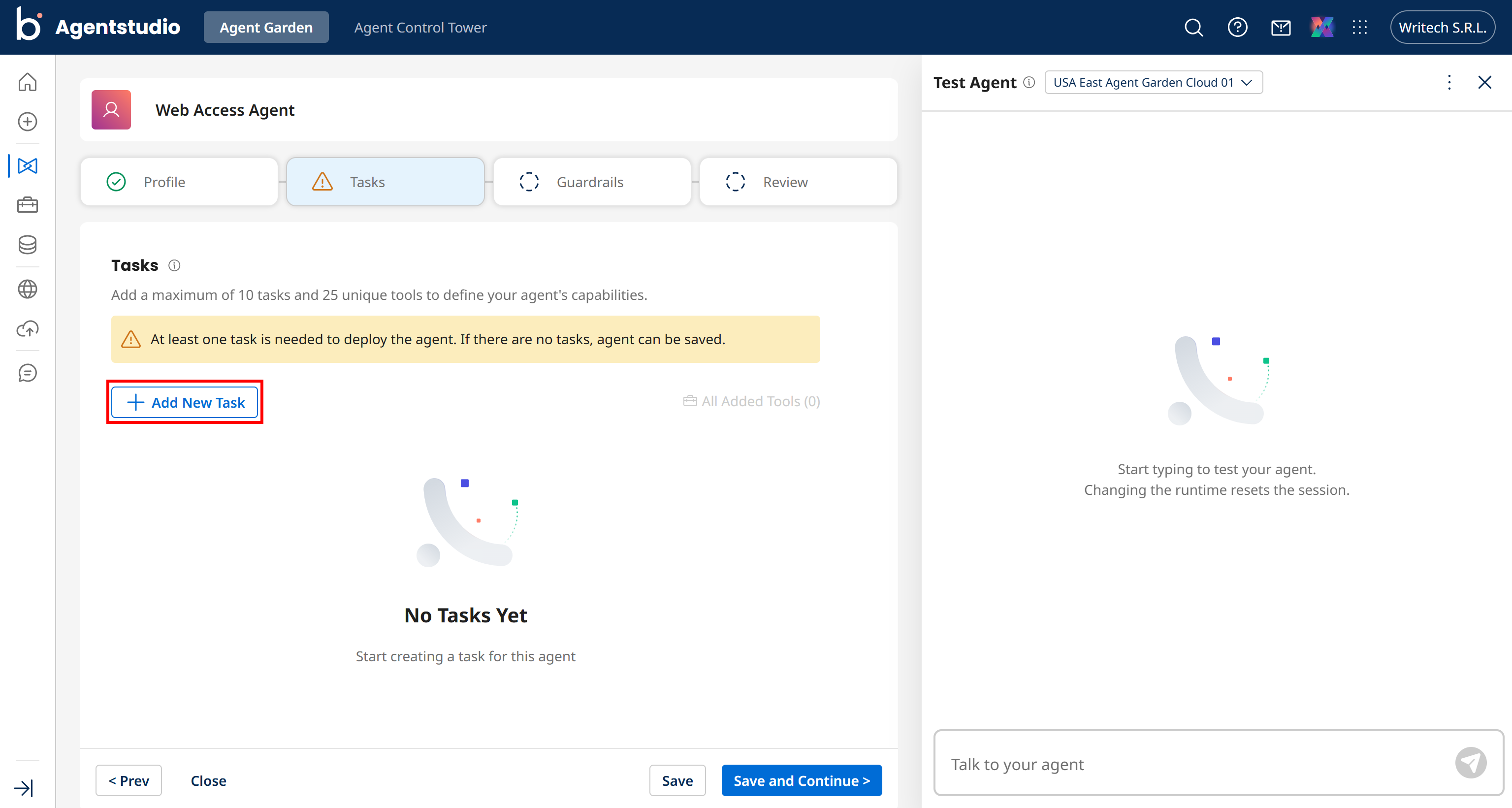
Fill in the task details as follows:
- Name:
Web access - Description:
Access the web via searching, scraping, web automation, and direct web data feeds. - Instructions:
Use the Bright Data MCP tools whenever you need to perform web-related tasks, such as:
- Fetching, reading, or scraping web pages
- Searching the web
- Extracting structured data from supported platforms
- Running browser or web automation workflows
- Handling any task involving URLs, links, or conducting research, investigations, fact-checking, and news lookups
Confirm by pressing “Add Task”:
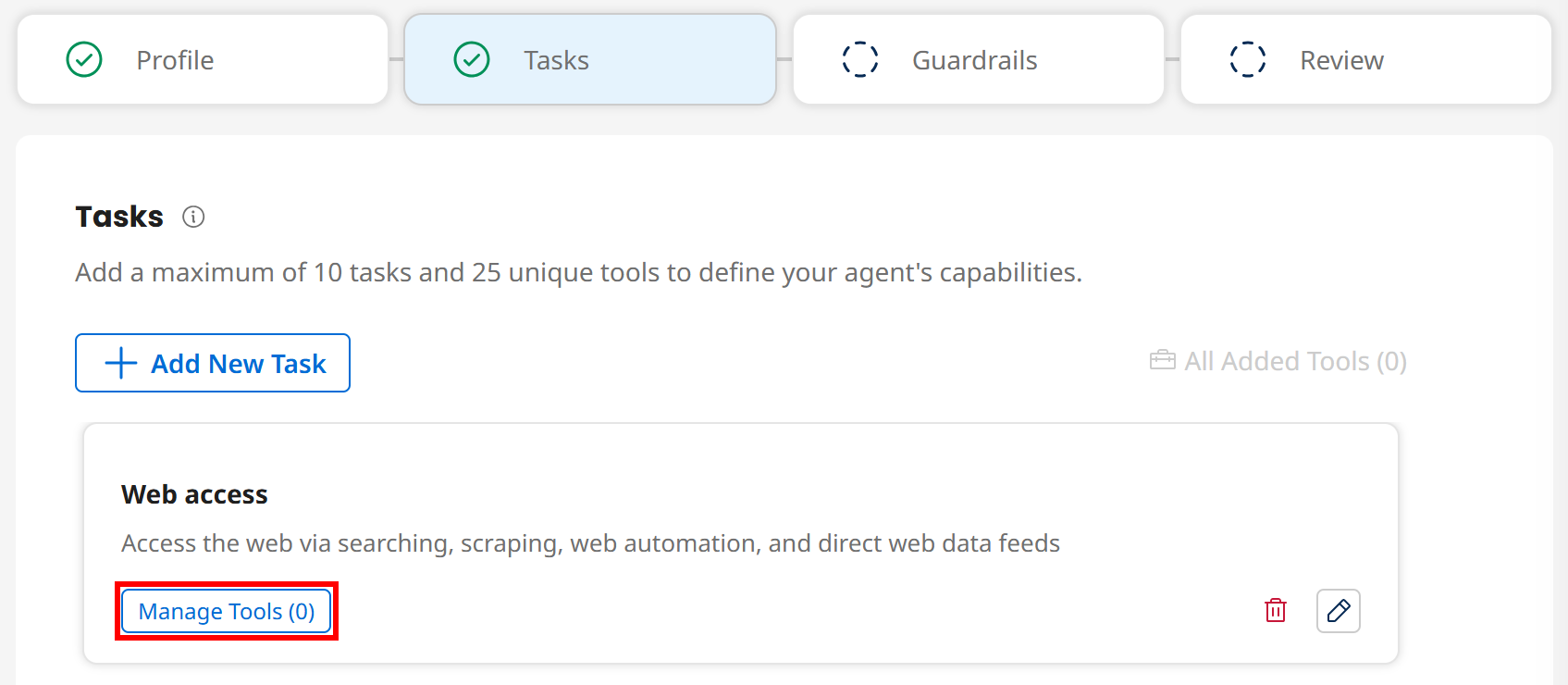
The “Web access” task will now appear in the “Tasks” section of your agent. Click the “Manage Tools (0)” button to connect it to the Bright Data MCP tools:
Click “Add New Tool”, then select the relevant Bright Data MCP tools:
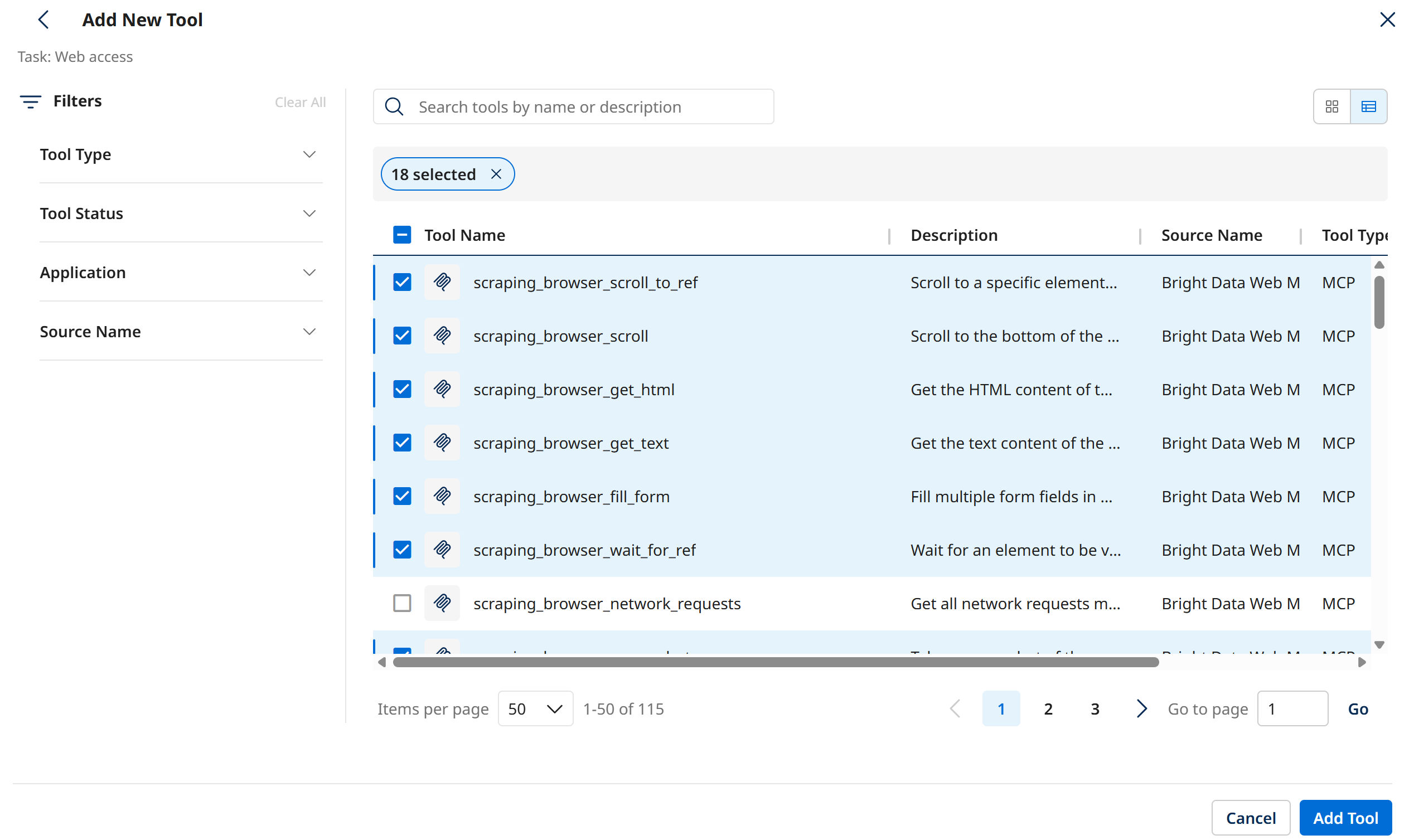
Note: A Boomi AI agent supports up to 25 tools, so choose only the ones useful to your use case. In this example, we selected tools for general-purpose searching, scraping, discovery, and web automation.
Review the imported tools, confirm their permissions and data pass-through settings, and click “Save”:
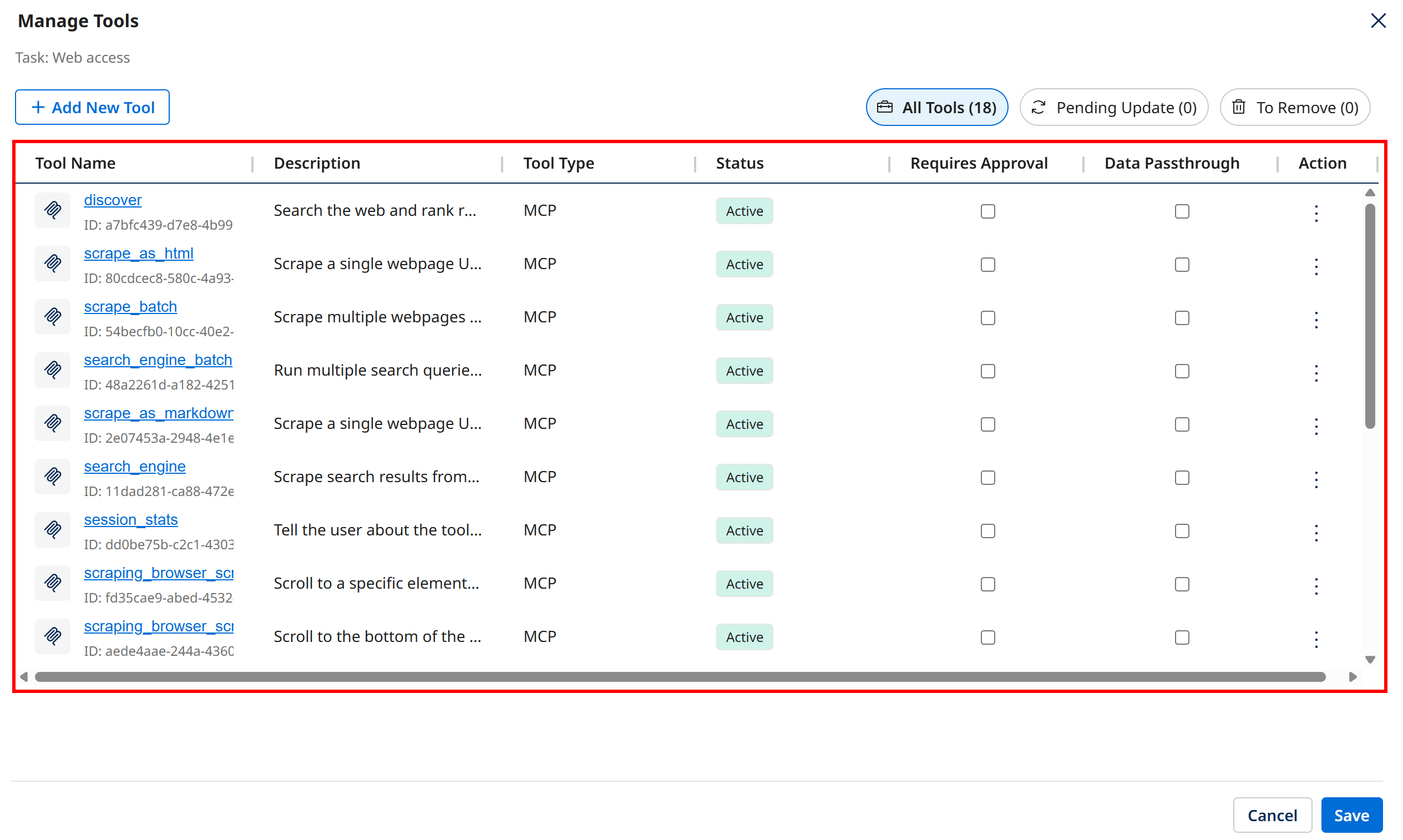
The Bright Data MCP tools are now connected to the task:
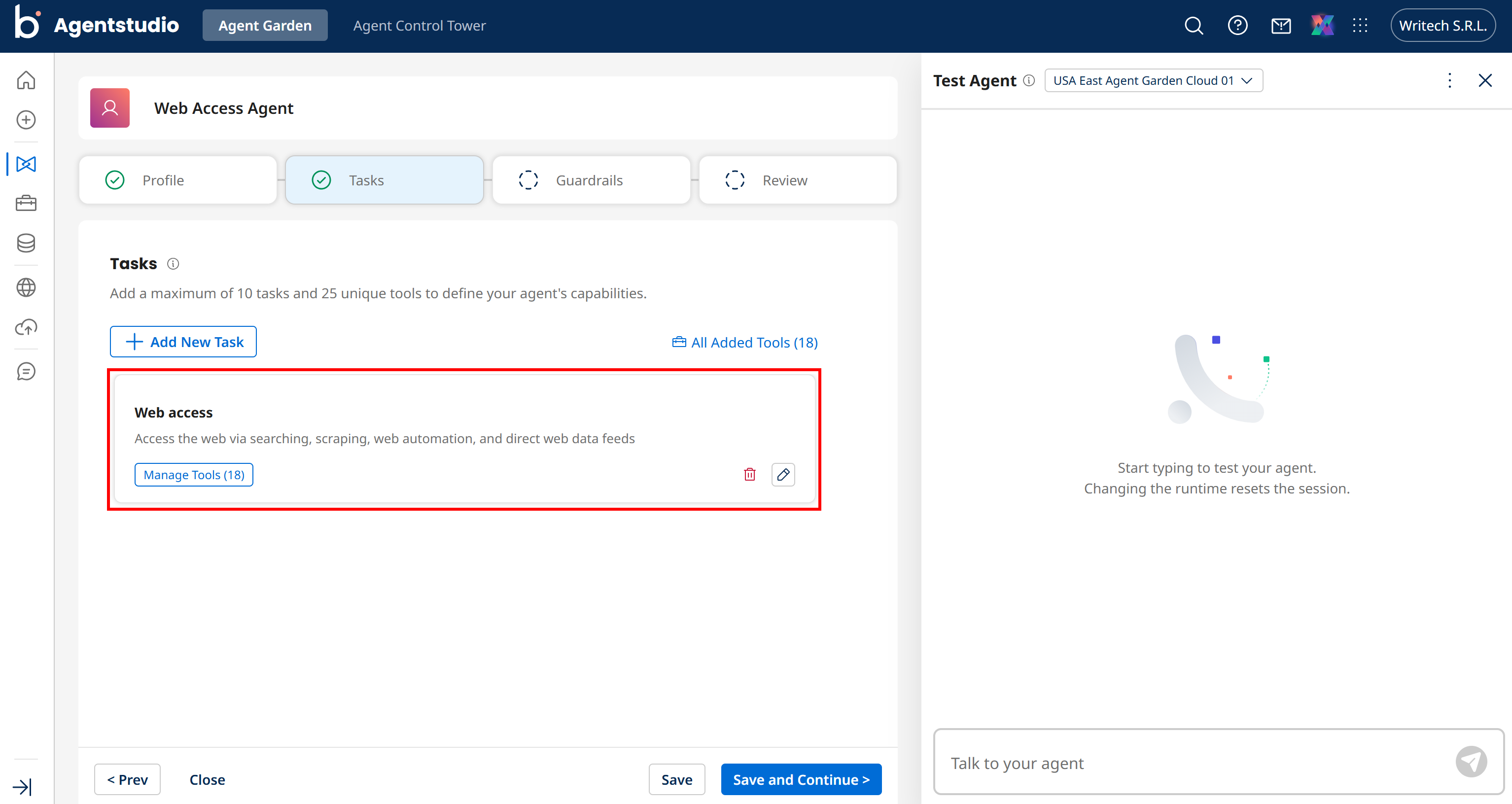
Mission complete! Press ”Save and Continue”, and you have now successfully integrated Bright Data into your Boomi AI agent.
Step #5: Complete the Agent Definition
Complete the Boomi AI agent wizard setup by going through the “Guardrails” section. If not required, you can leave it empty.
Then, reach the “Review” tab, where you will see all the information for your agent. Make sure everything is correct, and finally press “Save” one last time:
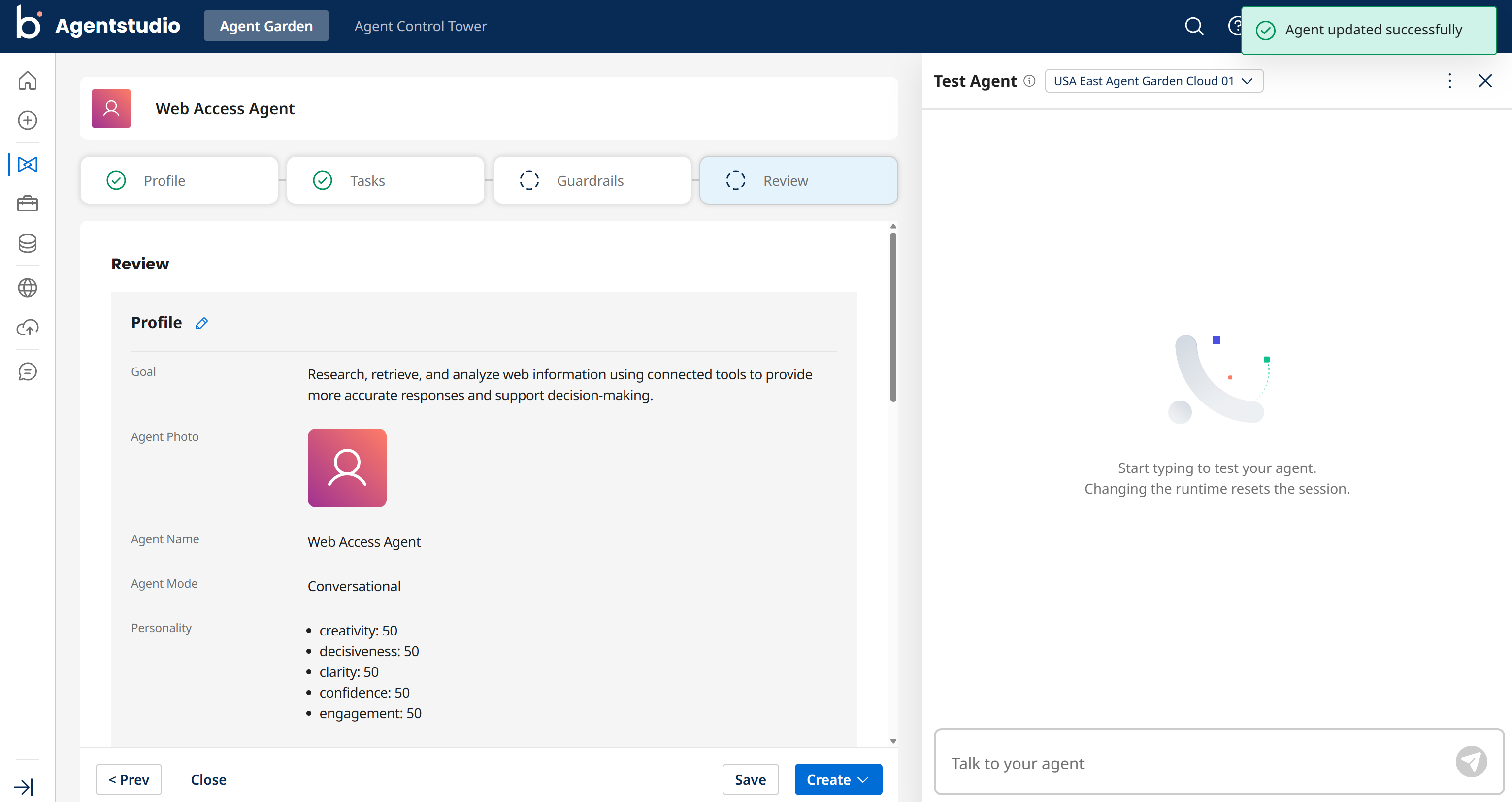
Amazing! It only remains to test the AI agent with a web-related task.
Step #6: Test the Agent
Your Bright Data-powered Boomi AI agent can cover a wide range of use cases. Assume Nike is your competitor and you want to monitor what they are doing.
Test your AI agent by launching the prompt below in the “Talk to your agent” section:
What are the latest news articles about Nike today? Search for the 3 most relevant news articles from trusted sources, access them, and provide a summary with original links to learn more.This is the result you should get:
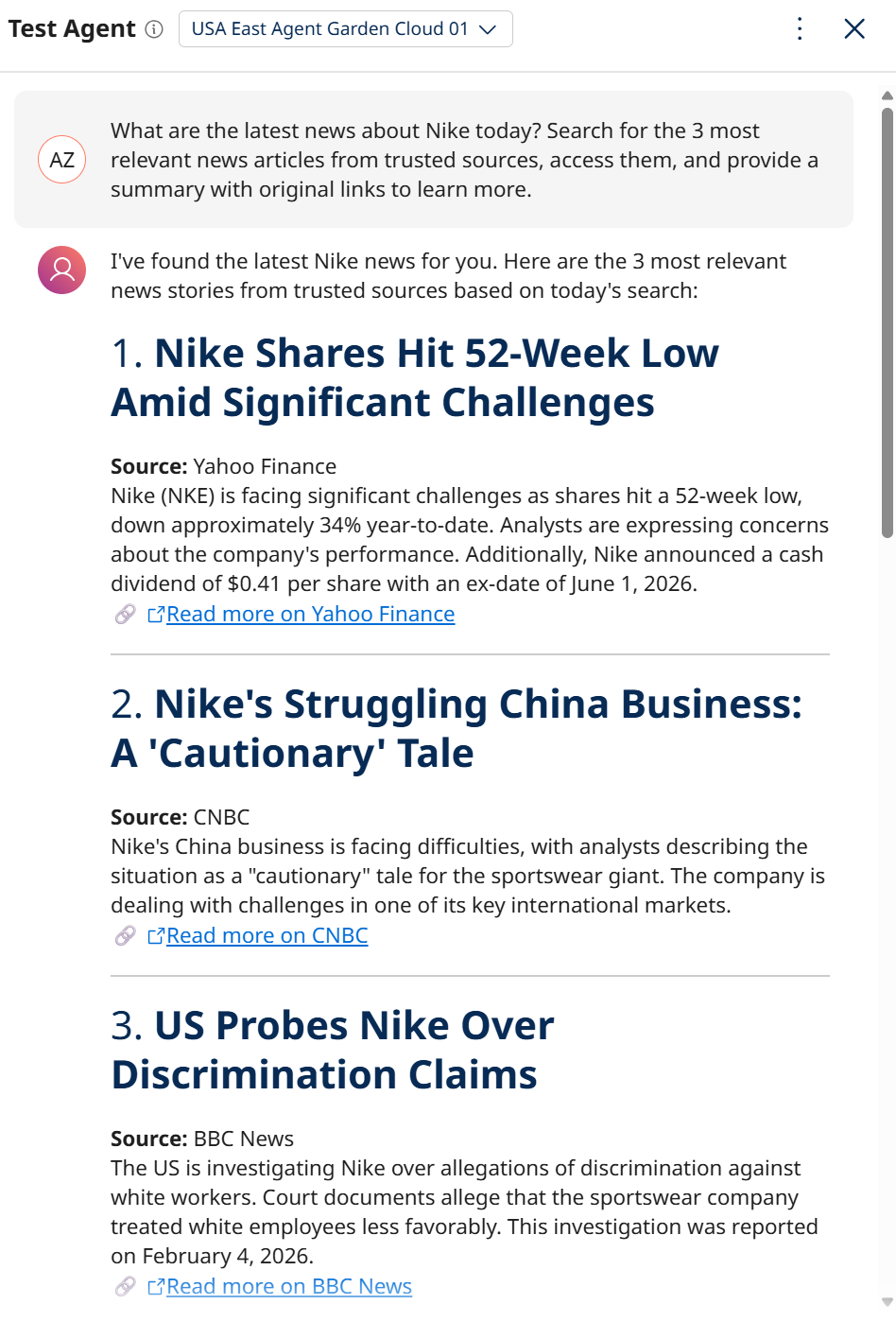
If you inspect the agent’s traces, you will see the workflow that led to that result:
- The AI agent starts by creating a plan to achieve the goal.
- It calls the
search_enginetool from the Bright Data MCP to search for the latest Nike news. The tool returns structured JSON representing an actual Google SERP. - It analyzes the JSON response and selects the three most relevant articles.
- It scrapes those articles using the
scrape_as_markdowntool (powered by Bright Data Web Unlocker API). - It aggregates the collected information into a final report, including links to the original sources for further reading.
If you inspect the search_engine tool call, you will see something like this:
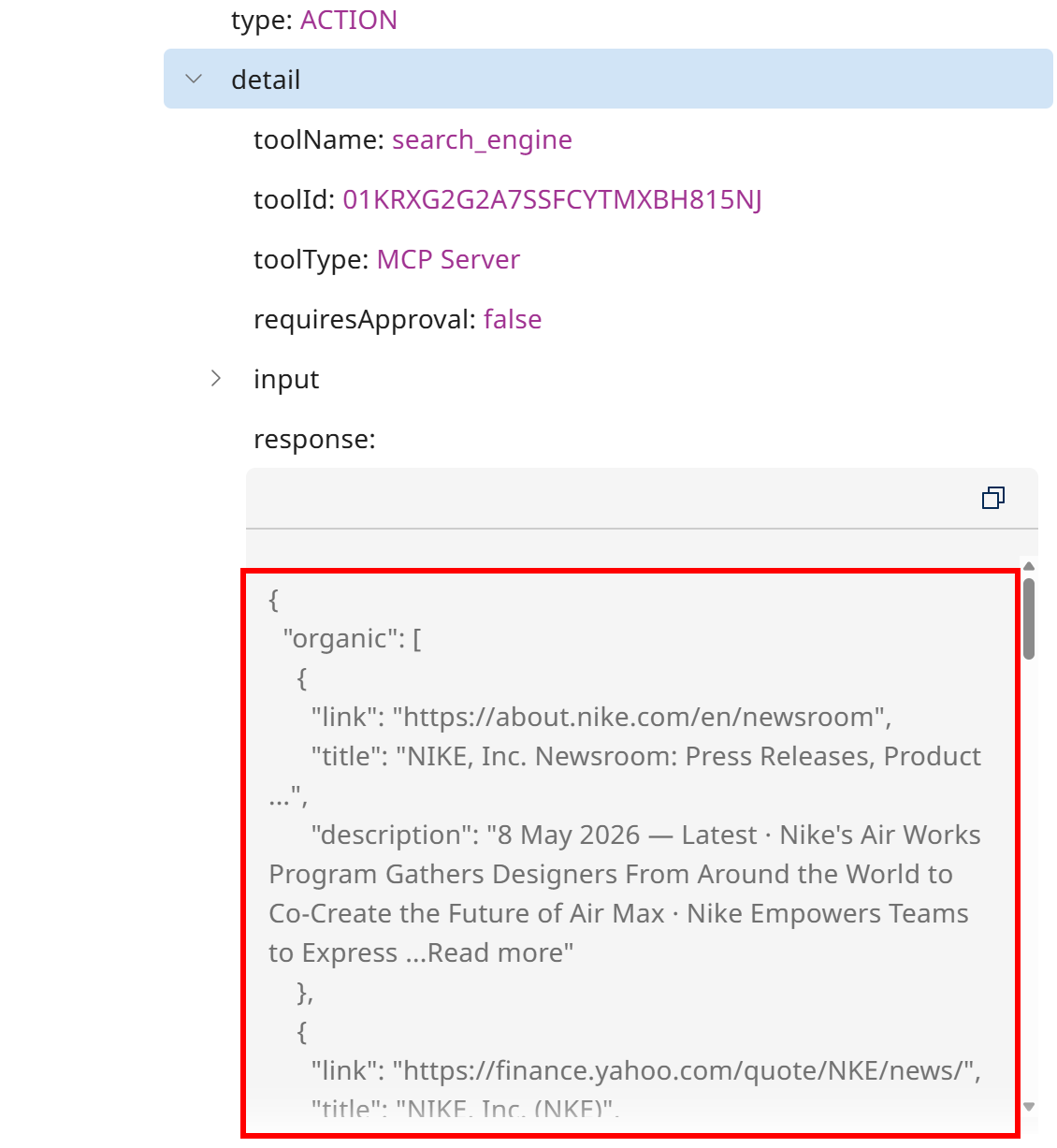
Notice the JSON-structured SERP response returned by the tool, which connects to the Bright Data SERP API behind the scenes.
Now, suppose you also want information about Nike’s latest best-selling products. Try the following prompt:
Now visit Nike’s Women’s Best Sellers page and return a report of the best-selling products of the month.Just like before, the Boomi AI agent will use the Bright Data MCP tools to complete the task:
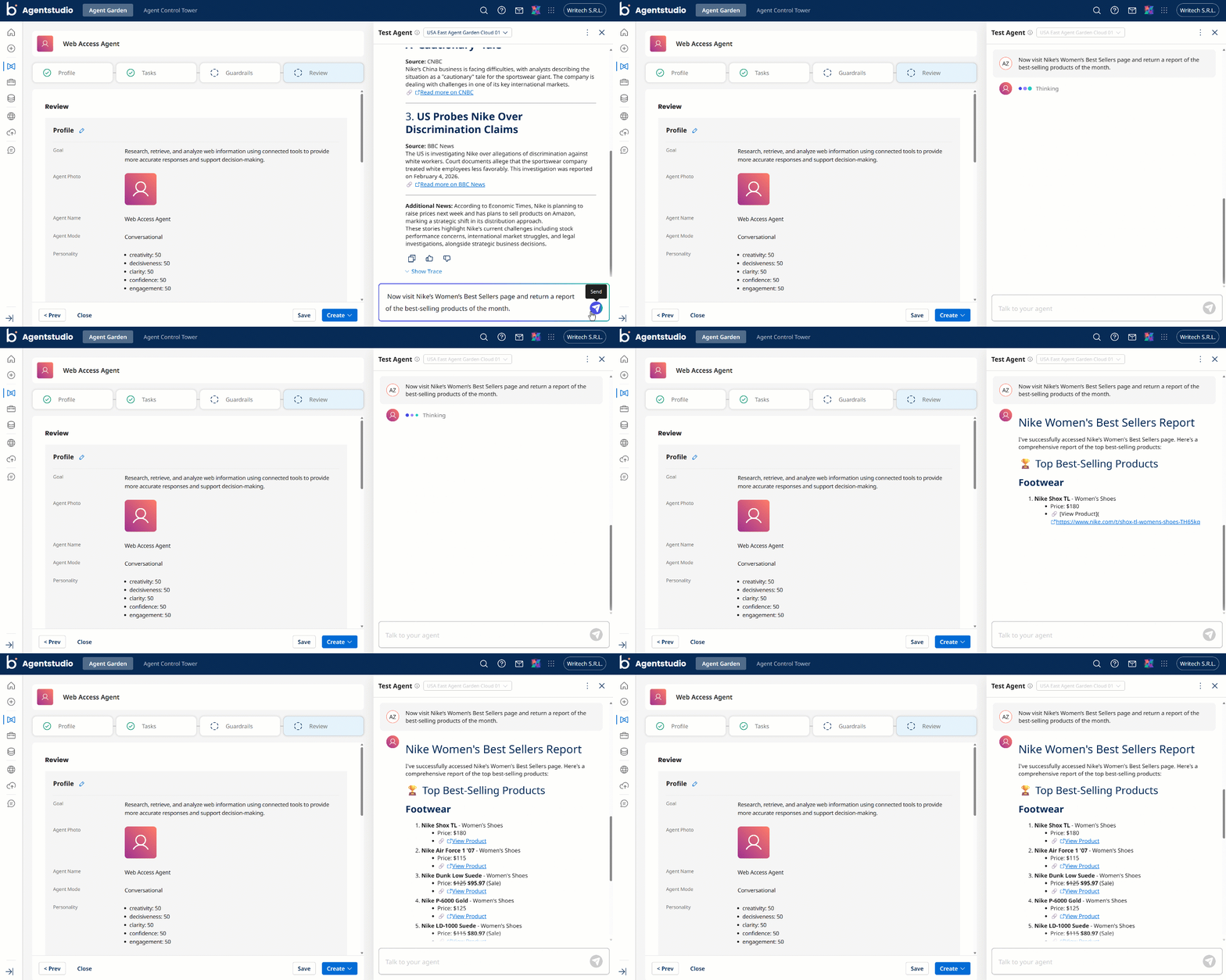
Note that the generated report includes the same products currently listed on Nike’s official “Womens Best Sellers” page:
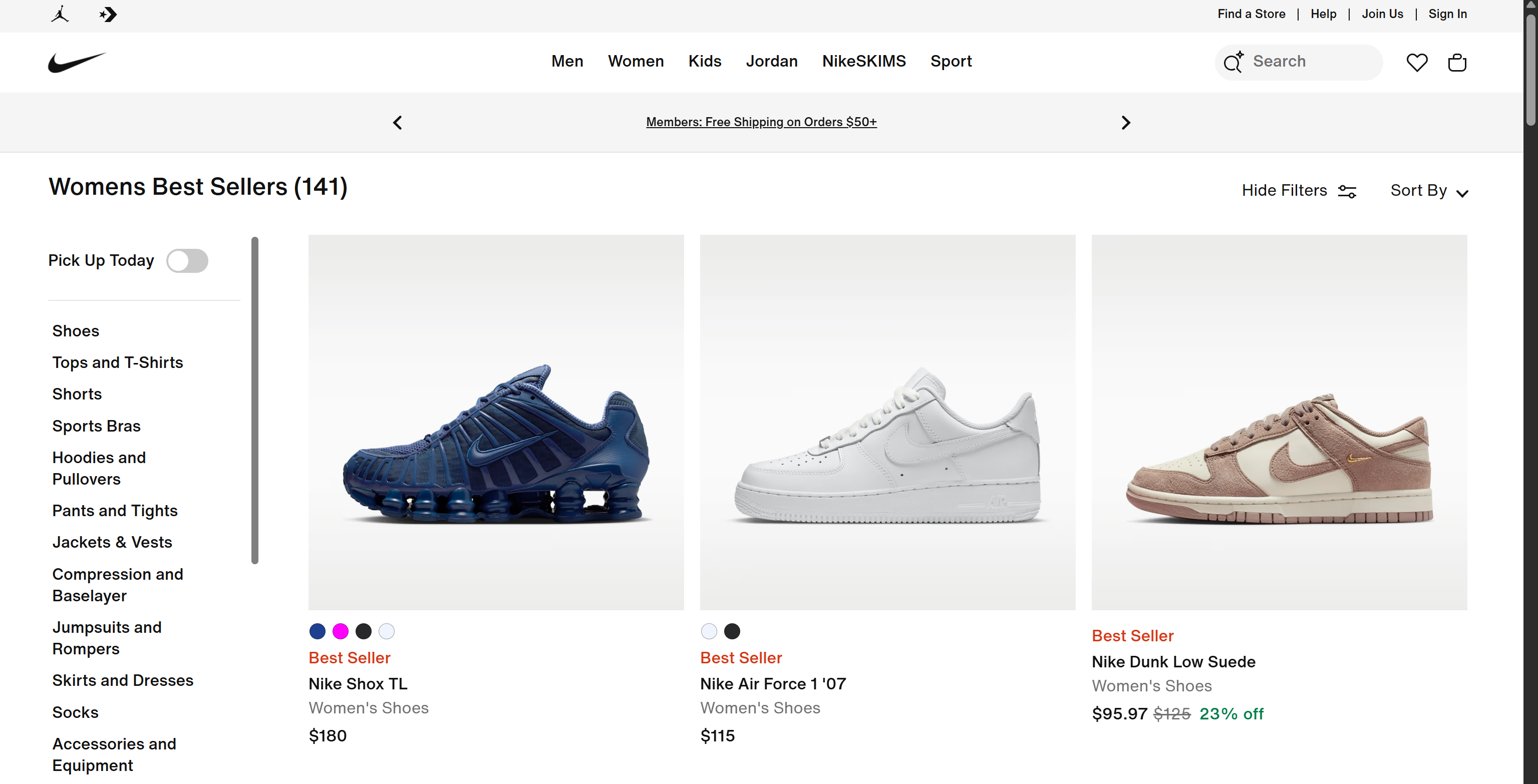
The report also contains pricing information and direct links to the Nike products.
Important: These are tasks a standard LLM cannot complete on its own, as they require web search, discovery, and scraping capabilities. The agent is able to handle them thanks to the integration with the Bright Data MCP.
Et voilà! The Boomi + Bright Data integration works like a charm. This was just one example, so feel free to test your AI agent with many other web-related scenarios.
Conclusion
In this blog post, you learned how Boomi supports AI agent development through its no-code AgentStudio solution. In particular, you saw how and why to extend a Boomi AI agent using the Bright Data MCP.
This integration takes Boomi agents to the next level. It enables them to search the web, discover and extract structured data, and interact with real-world websites in real time.
Create a free Bright Data account today and start integrating our AI-ready web data tools!



Technical Writer
 5.5 years experience
Antonello Zanini is a technical writer, editor, and software engineer with 5M+ views. Expert in technical content strategy, web development, and project management.