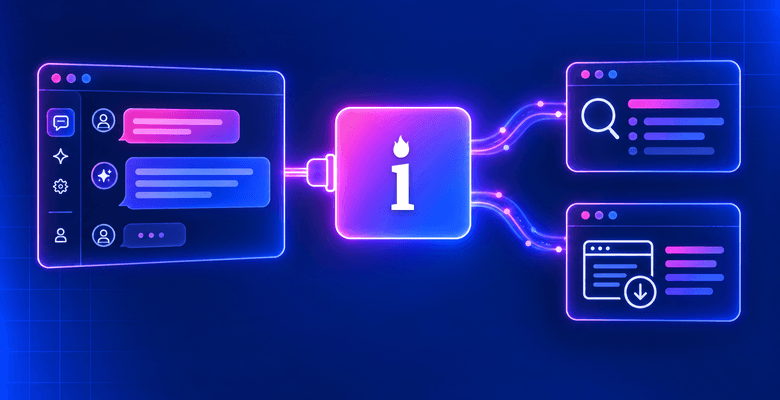







In this article, you will see:
- What makes multimodal web scraping difficult and how Bright Data and MiniMax help you deal with these challenges.
- What you need to set up before building a MiniMax web scraper.
- How to retrieve multimodal web sources.
- How to process these sources with MiniMax M3 for automated data extraction.
- The final MiniMax web scraping script.
Let’s dive in!
Main Challenges with Multimodal Web Scraping
Multimodal web scraping involves extracting data from images, audio, video, and other visual or media-based web content. This procedure involves two main challenges:
- Retrieve the multimodal content from the target website without getting blocked.
- Accurately interpret that content and convert it into structured data.
Learn how to address both!
Effective Source Retrieval with Bright Data
Accessing the target multimodal content with automated requests might not be easy. This is because most websites rely on anti-bot systems such as CAPTCHAs, IP bans, rate limits, and other mechanisms.
Bright Data’s Web Unlocker API addresses these obstacles by providing consistent access to web content. It handles anti-bot and access restrictions by solving CAPTCHAs, rotating IPs, and more. It renders JavaScript-heavy pages and can return content in formats suitable for AI processing.
Web Unlocker API can take screenshots of web pages. This way, you can retrieve visual content that may not be available through the page’s HTML. The API can also directly download multimodal resources, such as PDF files, slides, audio, and video hosted on web servers.
What makes the Web Unlocker API special is that it runs on Bright Data’s enterprise-ready infrastructure. This includes 400+ million IPs, 99.99% uptime, and a 99.95% success rate. Such an architecture offers a solid foundation for retrieving web sources from any website at scale.
Intelligent Data Parsing with MiniMax Models
Once you have retrieved the required multimodal source, you need a reliable way to turn it into structured data. This is where multimodal AI models such as MiniMax M3 come in.
MiniMax M3 is a natively multimodal LLM designed to understand visual and textual information. You can provide the source together with a simple extraction prompt. MiniMax M3 can then identify the relevant information and return it in a structured format, such as JSON.
Common Steps Before Getting Started
At a high level, effective multimodal web scraping with MiniMax involves two steps:
- Retrieve the multimodal source from the web using the Bright Data Web Unlocker API.
- Process the source with MiniMax M3 (or any other MiniMax multimodal model) to automatically extract the desired structured data.
In the following two chapters, you will learn how to perform these operations. For now, focus on the prerequisites you need to get started.
Step #1: Initialize Your Python Project
Make sure Python 3.10+ is installed on your machine. Create a new folder for your MiniMax web scraping project:
mkdir minimax-scrapingNavigate to the folder and add a Python virtual environment:
cd minimax-scraping
python -m venv .venv
Inside the project folder, create a script.py file. This is where you will add the Python logic for web data extraction with MiniMax. Also, add two folders:
input/: To keep track of the web content retrieved through the Bright Data Web Unlocker API. These files serve as inputs for MiniMax.output/: To store the structured JSON data generated by MiniMax.
Your project should now have this structure:
minimax-scraping/
├── .venv/
├── input/
├── output/
└── script.py
Open the project in your preferred Python IDE, such as Visual Studio Code or PyCharm.
Next, activate the virtual environment in your terminal. On Linux or macOS, run:
source .venv/bin/activateOn Windows, run:
.venv\Scripts\activateWith the virtual environment active, install the required dependencies:
pip install python-dotenv requests openai pydanticThe main packages are:
python-dotenv: To read API secrets from the.envfile.requests: To send requests to the Bright Data Web Unlocker API.openai: To connect to the OpenAI-compatible MiniMax API.
Well done! You now have the basic Python environment for building the MiniMax-powered web scraping workflow.
Step #2: Set Up Environment Variable Reading
The scraper connects to third-party services, including Bright Data and MiniMax. Both use API keys for authentication. Never hardcode these credentials in your source code. Instead, consider storing them in a .env file that you can then load through the python-dotenv package.
In script.py, import load_dotenv() and call it:
from dotenv import load_dotenv

# Load the environment variables from the .env file
load_dotenv()
Then, add a .env file to the project folder:
minimax-scraper/
├── .venv/
├── .env # <-----
├── input/
├── output/
└── script.py
Here we go! You can now load your API keys from the environment without exposing them directly in your code.
Tip: If you use Git to version the project, add .env to your .gitignore file. This prevents you from accidentally committing your API keys.
How to Retrieve the Multimodal Web Source with Bright Data
In this section, you will see how to use the Bright Data Web Unlocker API to retrieve multimodal sources from the web. You will then pass these sources to MiniMax for automated data extraction.
Prerequisites
Before going through the two sections below, make sure you have:
- A Bright Data account with an API key configured. Follow the official guide to set up your Bright Data API key.
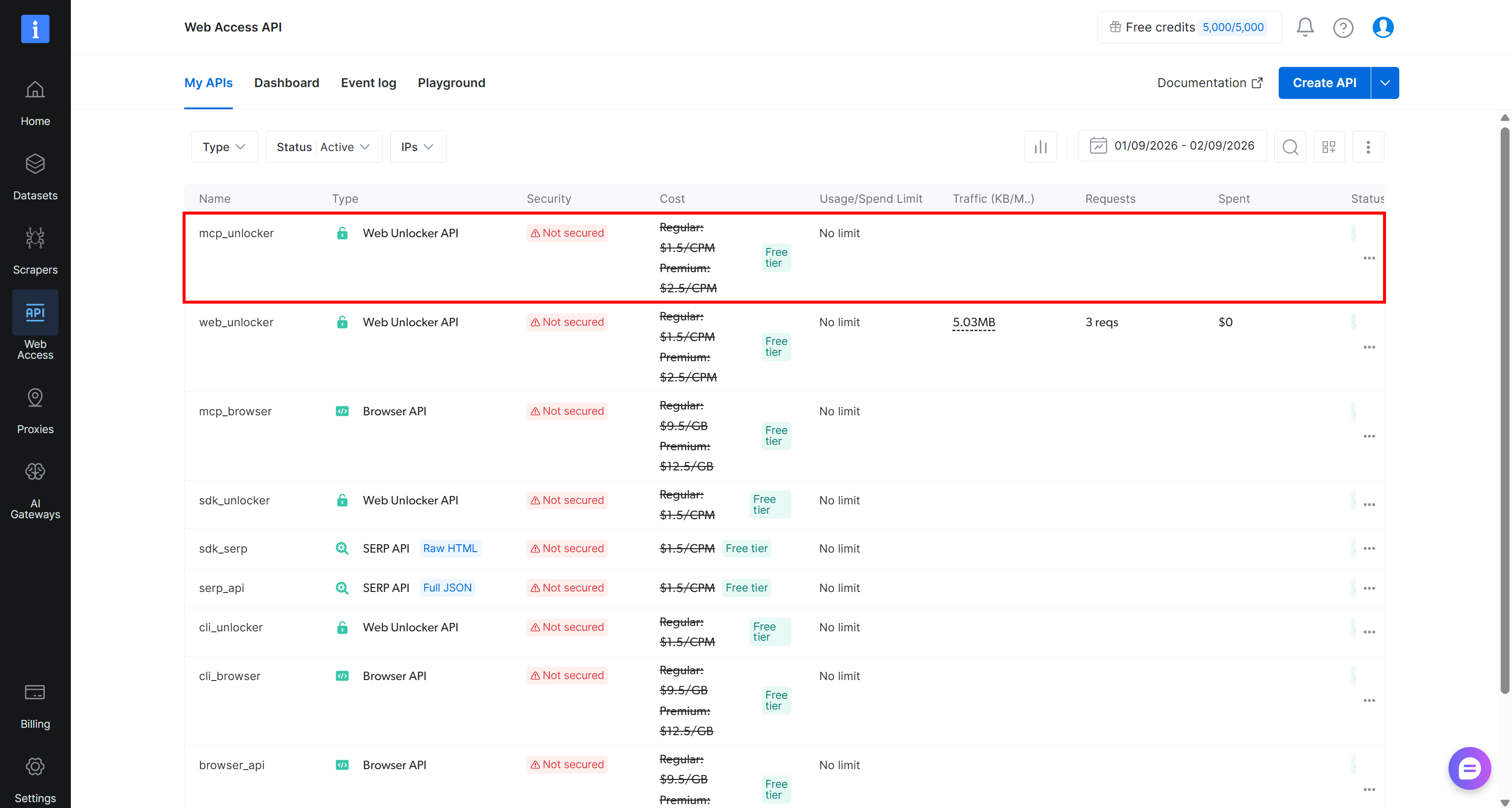
- A Web Unlocker API configured in your Bright Data account. For guidance, refer to the “Create your first Web Unlocker API” guide.
In this example, we will assume that your Web Unlocker API is named web_unlocker:
Remember to add your Bright Data API key to your .env file as below:
BRIGHT_DATA_API_KEY="<YOUR_BRIGHT_DATA_API_KEY>"Scenario #1: Download an Image
Assume you want to extract structured data from an image, such as this infographic from Statista:

Open the image in your browser and look at its URL in the address bar. You should see:
https://media.brightdata.com/2026/09/36569.jpegThis corresponds to the URL to feed to Web Unlocker API.
First, you need to download the image successfully while bypassing any anti-bot challenges that the web server may use. Achieve that through the Web Unlocker API by adding the following logic to script.py:
import os
import requests

# Loading the Bright Data API key from the envs
BRIGHT_DATA_API_KEY = os.environ.get("BRIGHT_DATA_API_KEY")

# Set up the authentication headers for the Web Unlocker API
headers = {
    "Content-Type": "application/json",
    "Authorization": f"Bearer {BRIGHT_DATA_API_KEY}"
}

# The target URL of the infographic resource
target_url = "https://media.brightdata.com/2026/09/36569.jpeg"
# Define the request payload for the Web Unlocker API call
payload = {
    "zone": "web_unlocker", # Replace with your Web Unlocker zone name
    "url": target_url,
    "format": "raw",
    "country": "us",
}

# Fetch the unlocked content of the infographic
web_unlocker_response = requests.post(
    "https://api.brightdata.com/request",
    json=payload,
    headers=headers
)
infographic_image = web_unlocker_response.content

# Export the infographic image to a PNG file
with open("input/infographic.png", "wb") as f:
    f.write(infographic_image)
This code snippet:
- Loads your Bright Data API key from the environment (
.envfile, in this case). - Sends a request to the Web Unlocker API with the infographic URL as the target. The
rawargument tells the Web Unlocker API to return the destination resource directly in the response body rather than as processed text or HTML. - Accesses the response body as bytes using
web_unlocker_response.content. Since the image is returned as raw bytes, you can write it directly to a file. - Saves the downloaded image as
infographic.pnginside theinputs/folder.
Run the script. The inputs/ folder should now contain the downloaded image:
minimax-scraping/
├── .venv/
├── input/
│   └── infographic.png # <-----
├── output/
├── .env
└── script.py
Open infographic.png to verify that it matches the infographic shown above. Terrific! You have successfully retrieved an image from the web using the Web Unlocker API.
Note: Storing the result in a file is useful for debugging, running repeated tests, and processing the output in downstream workflows.
Scenario #2: Take a Screenshot of a Web Page
The data you want to extract may be embedded in one or more images on a web page. A good example is a restaurant menu, which can consist of multiple images displayed directly on the page. Consider the menu below:
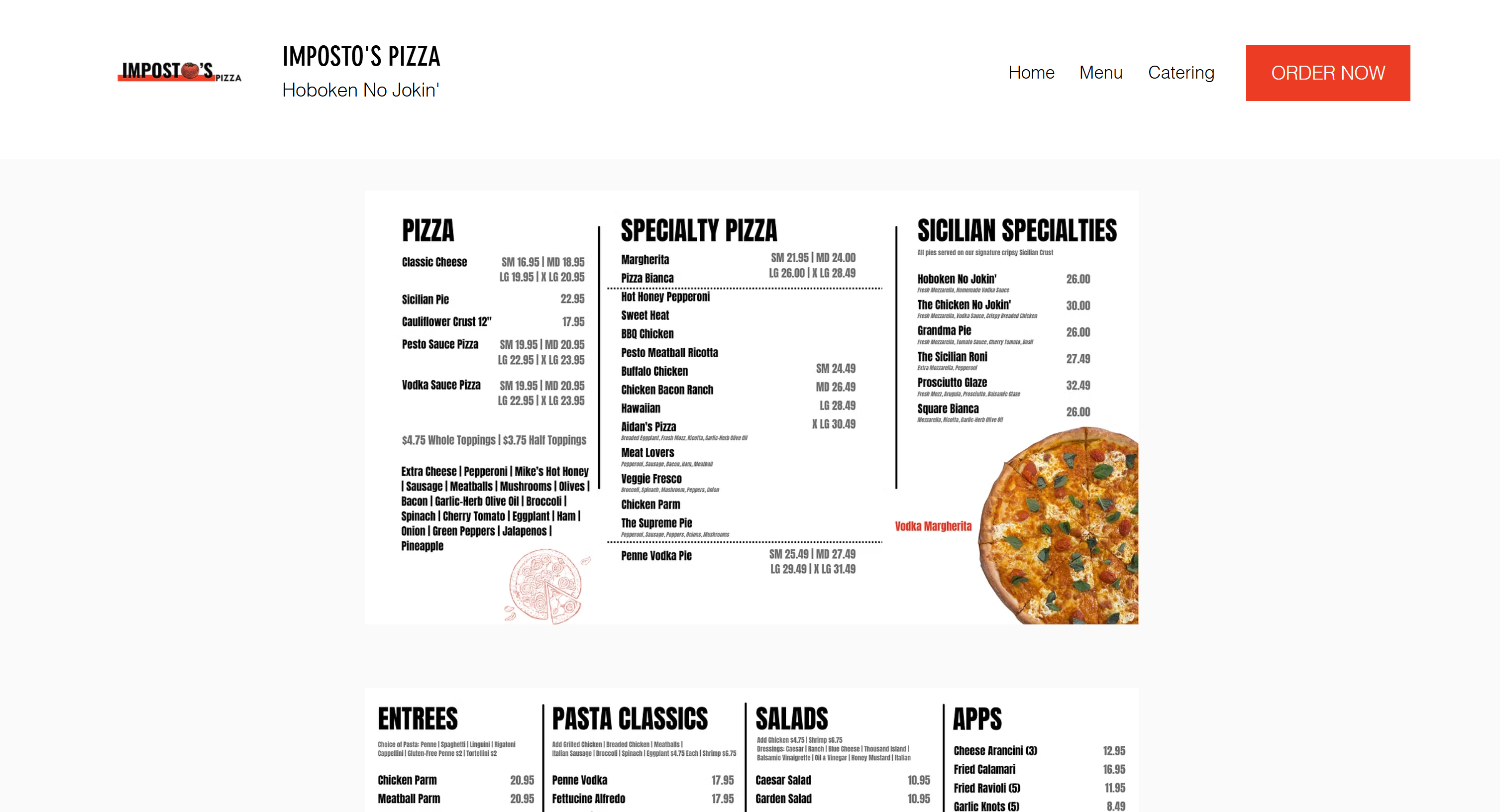
In this scenario, the web page screenshot becomes the source data for further processing with MiniMax. The Web Unlocker API can capture screenshots of any website, including pages protected by anti-bot measures. You can do that with:
import os
import requests

# Loading the Bright Data API key from the envs
BRIGHT_DATA_API_KEY = os.environ.get("BRIGHT_DATA_API_KEY")

# Set up the authentication headers for the Web Unlocker API
headers = {
    "Content-Type": "application/json",
    "Authorization": f"Bearer {BRIGHT_DATA_API_KEY}"
}

# The target URL of the page you want to capture
target_url = "https://www.impostospizza.com/menu"
# Define the request payload for the Web Unlocker API call
payload = {
    "zone": "web_unlocker", # Replace with your Web Unlocker zone name
    "url": target_url,
    "format": "raw",
    "country": "us",
    "data_format": "screenshot" # To get the full screenshot of the web page
}

# Fetch the screenshot from the unlocked target page
web_unlocker_response = requests.post(
    "https://api.brightdata.com/request",
    json=payload,
    headers=headers
)
page_screenshot = web_unlocker_response.content

# Export the screenshot to a PNG file
with open("input/screenshot.png", "wb") as f:
    f.write(page_screenshot)
Note the data_format="screenshot" parameter. It tells the Web Unlocker API to return a screenshot of the target web page.
Run the script, and you will get a screenshot.png file inside the input/ folder:
minimax-scraping/
├── .venv/
├── input/
│   └── screenshot.png # <-----
├── output/
├── .env
└── script.py
Open it, and you will see:
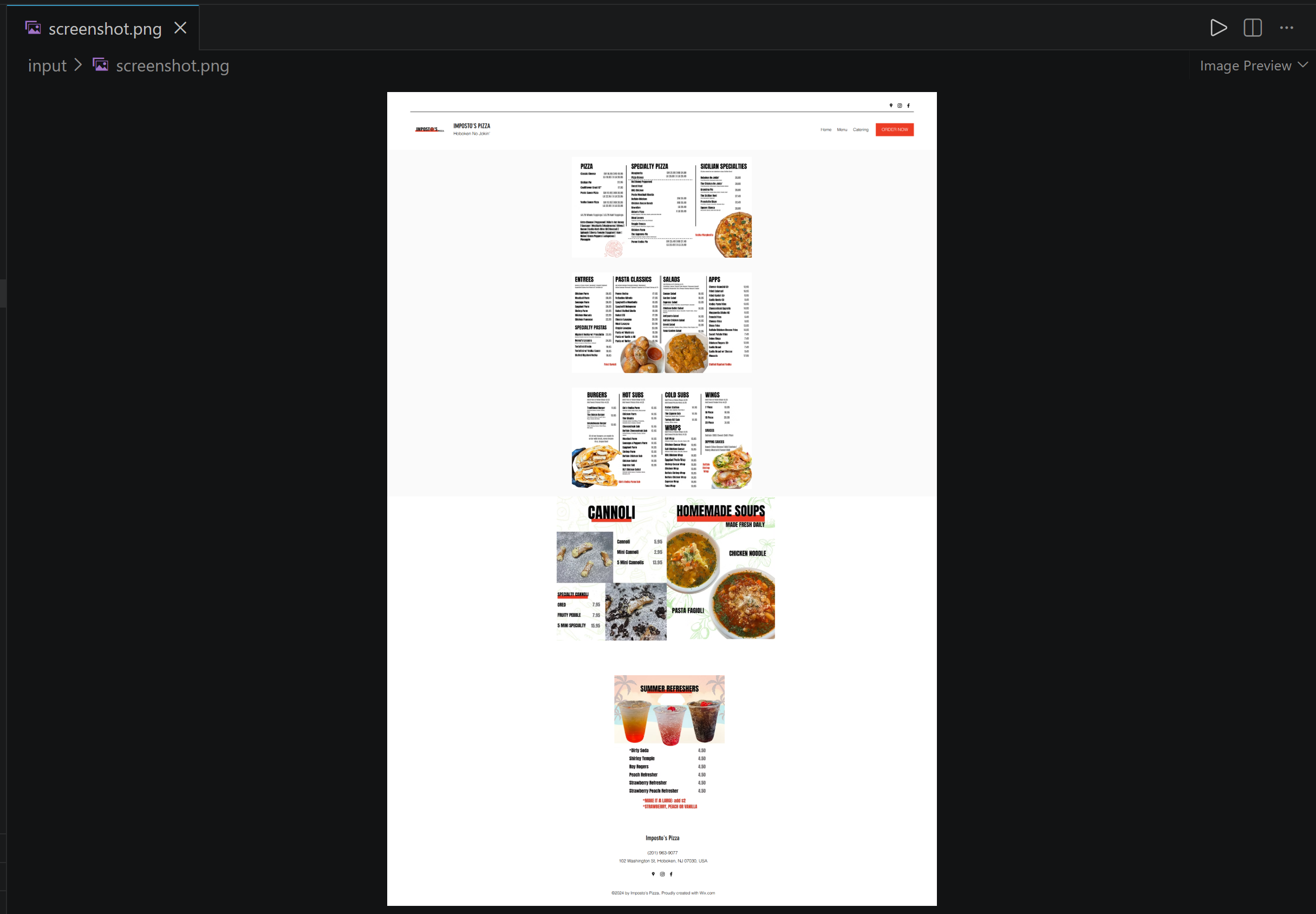
Wonderful! The screenshot contains the full target page (including information beyond the viewport) and is ready to be passed to MiniMax for data extraction.
How to Perform Visual-Based Scraping with MiniMax M3
Below, you will learn how to use MiniMax M3 to extract data from multimodal web sources.
Prerequisites
To follow this section, create a MiniMax account and fund it with some credits for pay-as-you-go usage through the TokenPlan:
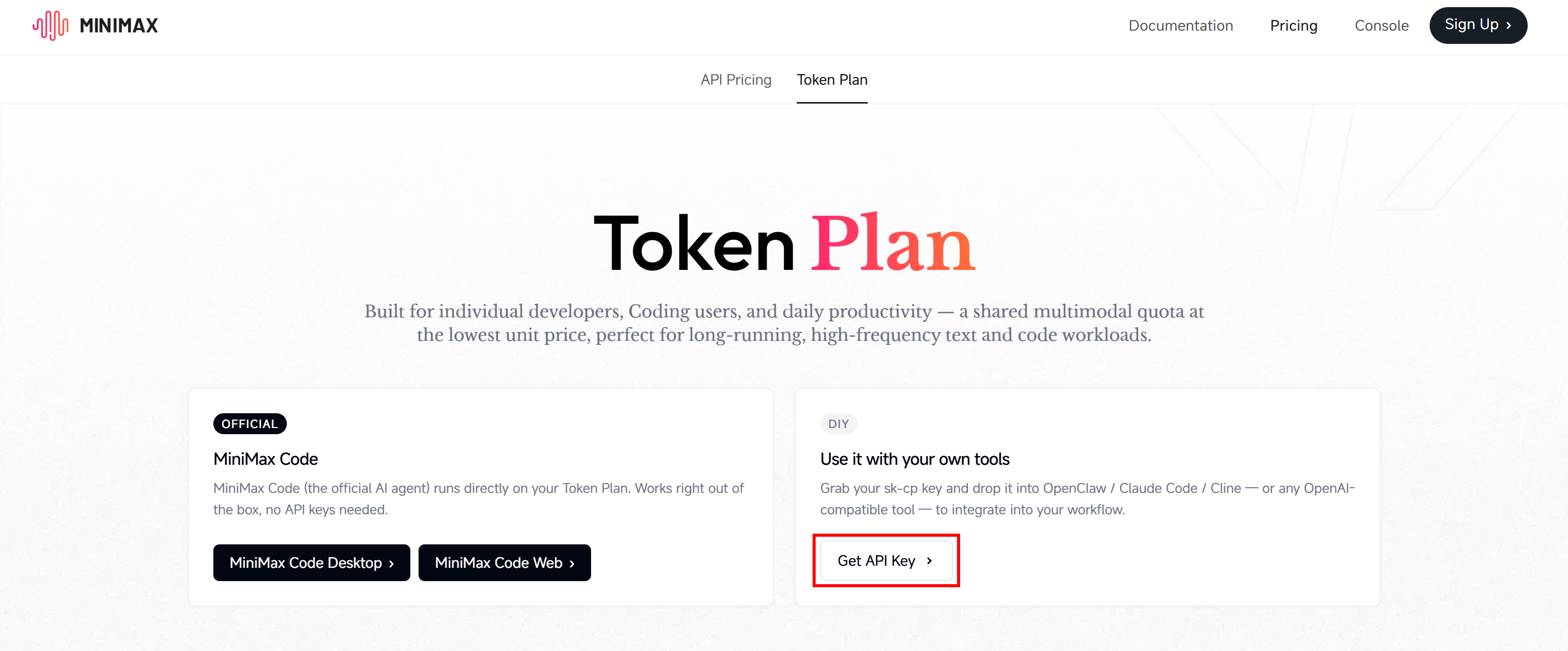
This lets you access the MiniMax model through an API key using its OpenAI-compatible endpoint.
Store your MiniMax API key in your project’s .env file as follows:
MINIMAX_API_KEY="<YOUR_MINIMAX_API_KEY>"Step #1: Load the Source File
Start by loading the source file you want to pass to MiniMax for AI-powered data extraction:
import base64

with open("input/<file_name>.<file_extension>", "rb") as screenshot_file:
  screenshot_base64 = base64.b64encode(screenshot_file.read()).decode("utf-8")
The file is converted to Base64, as that is the format supported for image inputs by the OpenAI-compatible endpoints.
For the infographic scenario, use:
with open("input/infographic.png", "rb") as infographic_file:
  infographics_base64 = base64.b64encode(infographic_file.read()).decode("utf-8")

Instead, for the web page screenshot, write:

with open("input/screenshot.png", "rb") as screenshot_file:
  screenshot_base64 = base64.b64encode(screenshot_file.read()).decode("utf-8")
Cool! You now have the source image loaded and encoded in the format required by MiniMax.
Step #2: Pass the Source File to MiniMax M3 for LLM-Powered Web Scraping
Employ the OpenAI SDK to send the encoded image to MiniMax M3 along with a prompt describing the data you want to extract:
from openai import OpenAI

# Load the MiniMax API key from the envs
MINIMAX_API_KEY = os.environ.get("MINIMAX_API_KEY")

# Initialize the OpenAI client for MiniMax
minimax_client = OpenAI(
    api_key=MINIMAX_API_KEY,
    base_url="https://api.minimax.io/v1",
)

# The data extraction prompt
prompt = """
<YOUR_PROMPT_FOR_DATA_EXTRACTION>
"""

# Perform visual data parsing with MiniMax
response = minimax_client.responses.create(
    model="MiniMax-M3",
    input=[
        {
            "role": "user",
            "content": [
                {
                    "type": "input_image",
                    "image_url": {
                        "url": f"data:image/png;base64,{screenshot_base64}",
                    },
                },
                {
                    "type": "input_text",
                    "text": prompt,
                },
            ],
        }
    ],
)
The code above:
- Loads your MiniMax API key from the environment.
- Initializes the OpenAI client with MiniMax’s OpenAI-compatible endpoint, on the M3 model.
- Sends the source image and extraction prompt to MiniMax M3 through the Responses API.
Note: To ensure that MiniMax returns structured data, explicitly tell it in the prompt to format the output as JSON.
For the infographic scenario, you can use a simple prompt:
prompt = "Analyze the attached infographics and return a JSON object containing all visible metadata and data points."For the restaurant menu screenshot, it is better to utilize a more specific prompt:
prompt = """
Analyze the provided screenshot and return the menu data in a clean, structured JSON format.

**Guidelines**:
- Ignore all non-menu elements such as navigation bars, header logos, contact details, social media icons, addresses, phone numbers, and website footers.
- Group items under their respective category headers as seen on the menu.
- Capture item variations or sizes accurately.
"""
Perfect! With this, the MiniMax M3 data extraction step is complete. Time to read the model’s response and export the generated structured data as JSON.
Step #3: Retrieve the Structured Response
Access the model’s response with:
minimax_response_text = response.output_textAt the time of writing, MiniMax M2.5 and M3 do not support OpenAI’s JSON Mode or structured response features. For more information on how to use them, refer to our guide on visual web scraping with GPT Vision.
In other words, the model returns the result as plain text rather than as a directly parseable JSON object. You can verify this by printing minimax_response_text. You will see something similar to:
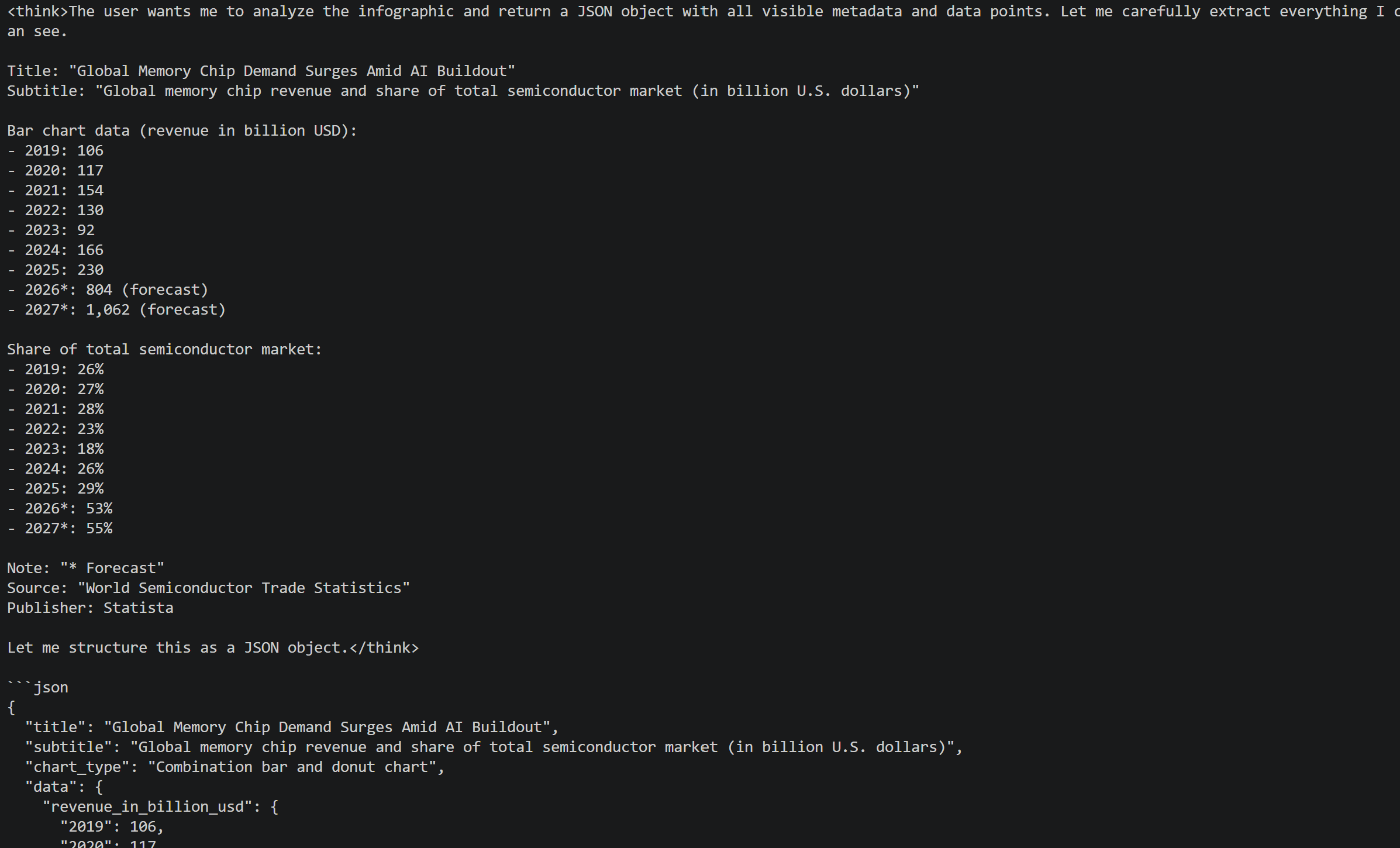
As you can tell, the response contains:
- The model’s
<think>context. - Some text.
- A code block containing the JSON structure requested in the prompt.
To extract the JSON data, use a regular expression to locate the code block. Then, validate the extracted string with Python’s built-in json module:
import re
import json

# Extract JSON string inside ```json ... ``` or ``` ... ``` code blocks
match = re.search(r"```(?:json)?\s*([\s\S]*?)\s*```", minimax_response_text)

if match:
    json_string = match.group(1).strip()
else:
    # Fallback to the raw response text if no code blocks are found
    json_string = minimax_response_text

try:
    # Parse the extracted string to ensure it is valid JSON
    parsed_json = json.loads(json_string)

    # Save the formatted JSON to a file
    with open("output/<file_name>.json", "w", encoding="utf-8") as f:
        json.dump(parsed_json, f, indent=2, ensure_ascii=False)

except json.JSONDecodeError as e:
    print(f"Error: Extracted text is not valid JSON - {e}")
For the infographic scenario, replace the export section with:
with open("output/infographic_data.json", "w", encoding="utf-8") as f:
    json.dump(parsed_json, f, indent=2, ensure_ascii=False)
For the restaurant menu one, write:
with open("output/menu.json", "w", encoding="utf-8") as f:
    json.dump(parsed_json, f, indent=2, ensure_ascii=False)
Amazing! This will produce a JSON file in the output/ folder. It will contain the structured data that MiniMax M3 extracted from the source image through its multimodal capabilities.
Step #4: Explore the Output
Execute the MiniMax scraping script for the infographic use cases. An infographic_data.json file in the output/ folder will appear:
minimax-scraping/
├── .venv/
├── input/
│   └── infographic.png
├── output/
│    └── infographic_data.json # <-----
├── .env
└── script.py
Open it, and you will see:
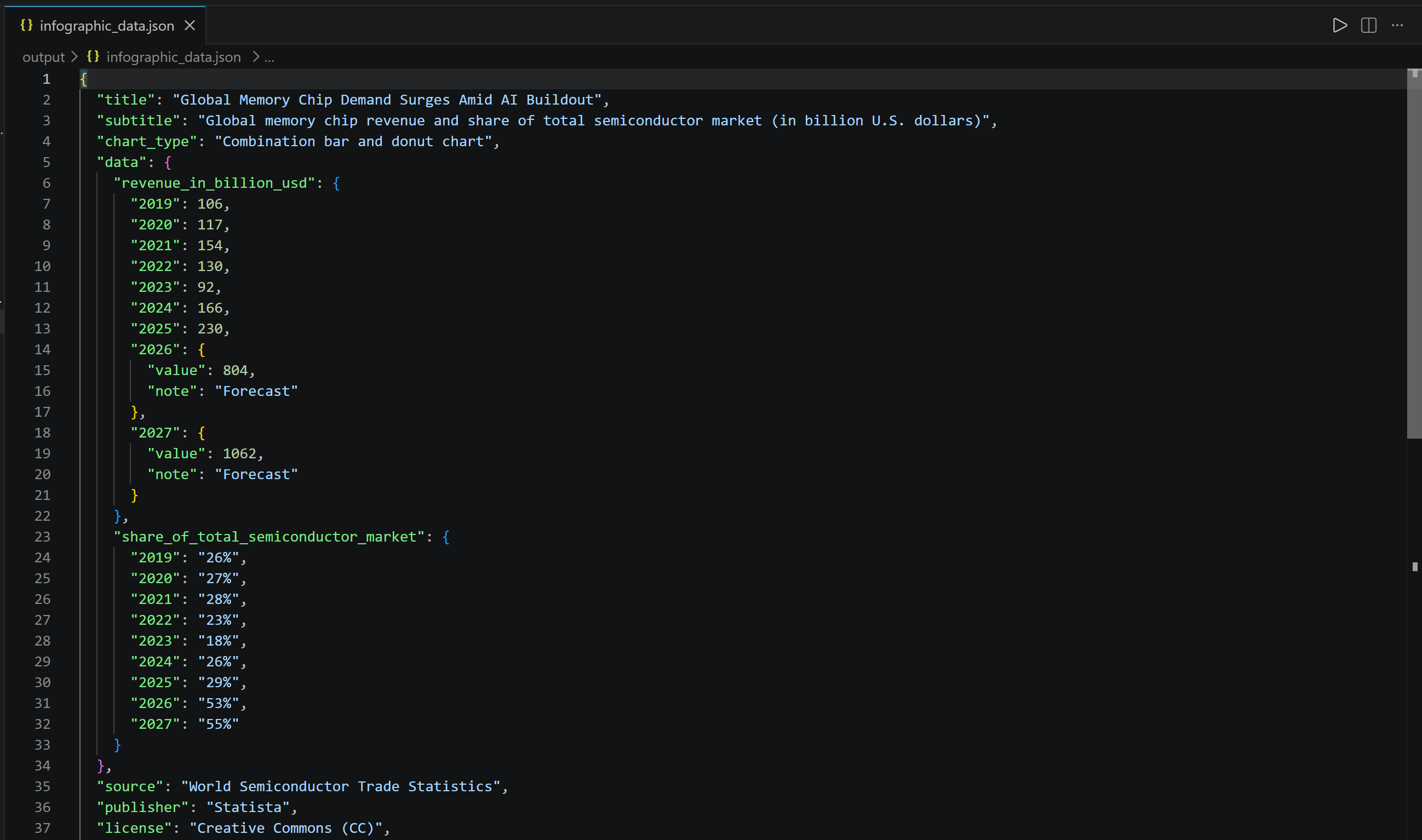
Notice how the data extracted by MiniMax M3 matches the information presented in the Statista infographic retrieved through the Web Unlocker API. The difference is that it is now available in a structured JSON format. Mission complete!
Final Scripts: Scraping with MiniMax
This is the final MiniMax-powered extraction script for the screenshot scenario. The source is retrieved through the Bright Data Web Unlocker API:
# pip install python-dotenv openai requests

from dotenv import load_dotenv
import os
import requests
import base64
from openai import OpenAI
import re
import json

# Load the environment variables from the .env file
load_dotenv()

# Loading the required secrets from the envs
BRIGHT_DATA_API_KEY = os.environ.get("BRIGHT_DATA_API_KEY")
MINIMAX_API_KEY = os.environ.get("MINIMAX_API_KEY")

# Set up the authentication headers for the Web Unlocker API
headers = {
    "Content-Type": "application/json",
    "Authorization": f"Bearer {BRIGHT_DATA_API_KEY}"
}

# The target URL of the page you want to capture
target_url = "https://www.impostospizza.com/menu"
# Define the request payload for the Web Unlocker API call
payload = {
    "zone": "web_unlocker", # Replace with your Web Unlocker zone name
    "url": target_url,
    "format": "raw",
    "country": "us",
    "data_format": "screenshot" # To get the full screenshot of the web page
}

# Fetch the screenshot from the unlocked target page
web_unlocker_response = requests.post(
    "https://api.brightdata.com/request",
    json=payload,
    headers=headers
)
page_screenshot = web_unlocker_response.content

# Export the screenshot to a PNG file
with open("input/screenshot.png", "wb") as f:
    f.write(page_screenshot)

# Convert the screenshot to base64 for MiniMax processing
with open("input/screenshot.png", "rb") as screenshot_file:
  screenshot_base64 = base64.b64encode(screenshot_file.read()).decode("utf-8")

# Initialize the OpenAI client for MiniMax
minimax_client = OpenAI(
    api_key=MINIMAX_API_KEY,
    base_url="https://api.minimax.io/v1",
)

# The data extraction prompt
prompt = """
Analyze the provided screenshot and return the menu data in a clean, structured JSON format.

**Guidelines**:
- Ignore all non-menu elements such as navigation bars, header logos, contact details, social media icons, addresses, phone numbers, and website footers.
- Group items under their respective category headers as seen on the menu.
- Capture item variations or sizes (e.g., Small/Large prices, slice vs. whole pie) accurately.
"""

# Perform visual data parsing with MiniMax
response = minimax_client.responses.create(
    model="MiniMax-M3",
    input=[
        {
            "role": "user",
            "content": [
                {
                    "type": "input_image",
                    "image_url": {
                        "url": f"data:image/png;base64,{screenshot_base64}",
                    },
                },
                {
                    "type": "input_text",
                    "text": prompt,
                },
            ],
        }
    ],
)

# Get the parsed data
minimax_response_text = response.output_text

# Extract JSON string inside ```json ... ``` or ``` ... ``` code blocks
match = re.search(r"```(?:json)?\s*([\s\S]*?)\s*```", minimax_response_text)

if match:
    json_string = match.group(1).strip()
else:
    # Fallback to the raw response text if no code blocks are found
    json_string = minimax_response_text

try:
    # Parse the extracted string to ensure it is valid JSON
    parsed_json = json.loads(json_string)

    # Save the formatted JSON to a file
    with open("output/menu.json", "w", encoding="utf-8") as f:
        json.dump(parsed_json, f, indent=2, ensure_ascii=False)

except json.JSONDecodeError as e:
print(f"Error: Extracted text is not valid JSON - {e}")Note: You can simply adapt the code to the infographic use case.
With the virtual environment activated, run the script with:
python script.pyThis creates a menu.json file in the output/ folder:
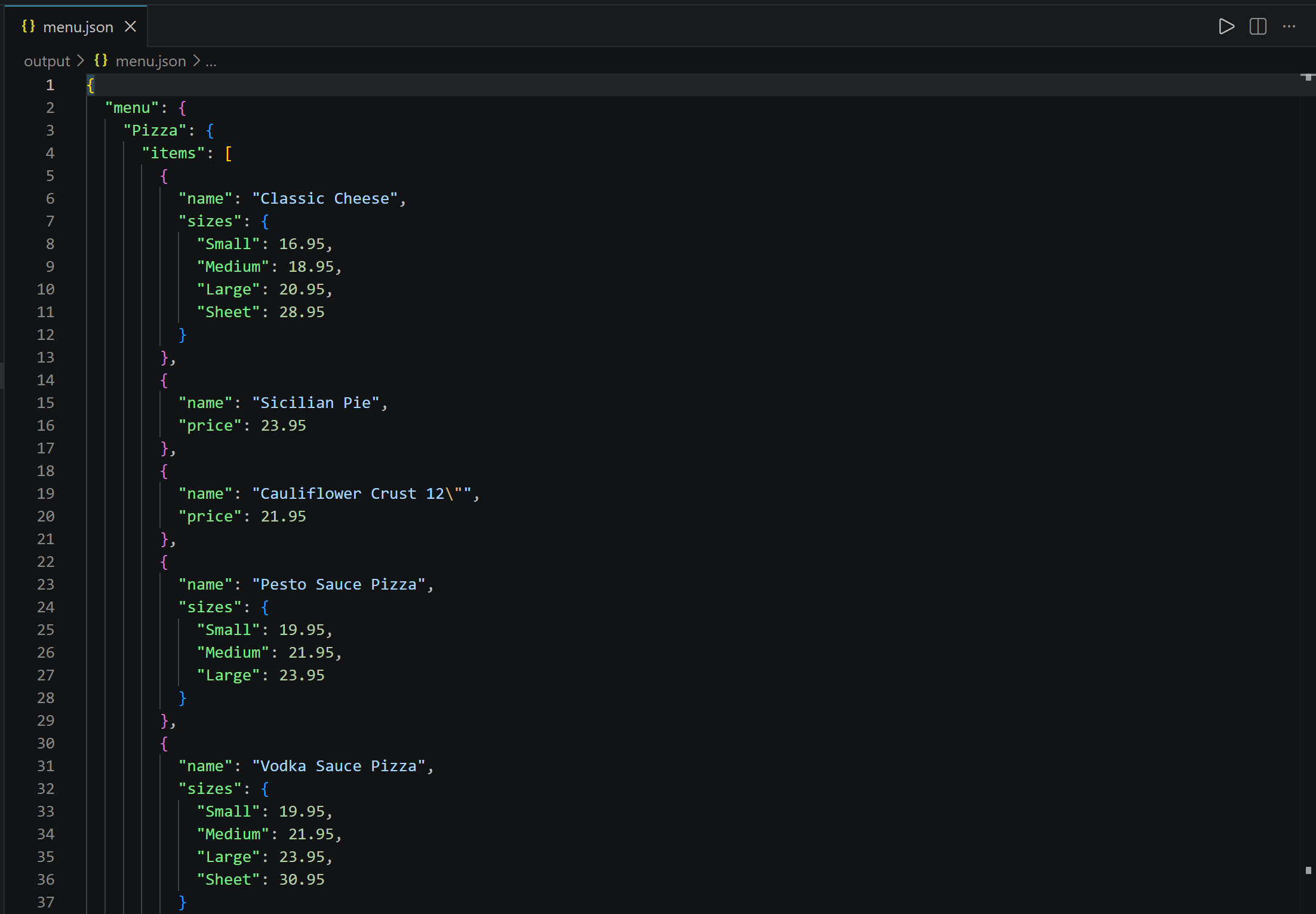
Notice how it contains the restaurant’s menu information extracted from the images embedded on the website.
Et voilà! This simple example shows how MiniMax M3 can perform multimodal data extraction, while Bright Data handles the retrieval of the visual source through the Web Unlocker API.
Further Reading
If you are interested in web scraping with other LLMs, check out these blog posts:
- Web Scraping with ChatGPT in 2026: Step-By-Step Tutorial
- Web Scraping With Claude in 2026
- Web Scraping With Gemini in 2026: Complete Tutorial
- Web Scraping Using Perplexity in 2026: Step-By-Step Guide
- Web Scraping With Qwen3 in 2026: Complete Tutorial
- Web Scraping with Kimi: Step-by-Step Guide
- Web Scraping with LLaMA 3: Turn Any Website into Structured JSON
Conclusion
In this tutorial, you understood how to use MiniMax M3 to build an AI-powered web scraper for multimodal content. One of the biggest challenges is retrieving web sources while avoiding blocks. Bright Data’s Web Unlocker API can handle this part of the workflow.
By combining MiniMax M3 with the Web Unlocker API, you can extract structured data from images and page screenshots using simple prompts. This is just one of the many use cases supported by Bright Data’s AI-ready services.
Create a Bright Data account and start experimenting with our web scraping APIs for free!



Technical Writer
 5.5 years experience
Antonello Zanini is a technical writer, editor, and software engineer with 5M+ views. Expert in technical content strategy, web development, and project management.