






In this article, you will learn:
- Why Kimi K3 is a great model for LLM-powered web scraping.
- The main obstacles in AI-powered web scraping and why the Bright Data Web Unlocker API is the solution.
- How to perform AI-powered web scraping with Kimi in a Python script.
- How to use Kimi K3 for visual web scraping.
Let’s dive in!
Why Use Kimi for Web Scraping?
LLMs introduce a new approach to web scraping. Instead of writing complex parsing logic to get data from raw HTML, you can let the AI model handle the extraction. This means your scraper does not have to rely on brittle CSS selectors or XPath expressions.
All you need is a well-designed prompt that tells the model what data to extract. With just a few lines of code, you can instruct Kimi to scrape structured data from any web page. This AI-powered approach can make web scrapers more flexible and easier to maintain.
Kimi K3, the latest Kimi model, is well-suited for text-based data extraction. It also provides vision capabilities, allowing you to extract information from web page screenshots, images, and other visual elements.
For more details, follow our guides on:
- Using AI for web scraping.
- Using vision AI for web scraping.
Biggest Challenges in AI Web Scraping and How to Overcome Them
The biggest challenges in AI-powered web scraping are largely the same as those you face with traditional web scraping. While AI makes page structure changes less problematic thanks to its flexible extraction capabilities, you still need to deal with JavaScript rendering, anti-bot systems, fingerprinting, rate limits, CAPTCHAs, and other access restrictions.
After all, AI scraping does not eliminate the obstacles to retrieving web pages at scale. Before an LLM can parse a page, your scraper must first fetch its content, which means dealing with all the measures that prevent automated requests from succeeding.
On top of that, token usage matters. Sending large HTML documents to a powerful model like Kimi K3 can quickly become expensive. In this case, the solution is converting the raw HTML to LLM-optimized Markdown.
Converting web pages to clean Markdown preserves the relevant content and structure while significantly reducing unnecessary tokens compared with raw HTML. It can also preserve information such as headings, lists, links, and other page elements in a format that is easier for LLMs to process. Refer to our tutorial on how to scrape a website to Markdown.
Bright Data Web Unlocker API: The Solution
Bright Data’s Web Unlocker API provides a practical solution to the main challenges of AI-powered web scraping.
This endpoint accepts a web page URL and returns its content while handling common anti-bot and anti-scraping mechanisms. It can solve CAPTCHAs, render JavaScript-heavy pages, help overcome browser fingerprinting issues, manage rate limits, and more.
Web Unlocker can also return the retrieved content in different formats, including:
The output of the Web Unlocker API request can then serve as the input for either text-based or visual extraction with Kimi K3.
Note: Web Unlocker API is included in Bright Data’s free tier, which provides 5,000 free requests per month.
What makes the Web Unlocker API stand out is that it runs on Bright Data’s large-scale proxy infrastructure, which includes 400+ million residential IPs and supports unlimited concurrency. That provides a reliable and highly scalable foundation for programmatic web scraping.
How to Perform Web Scraping with Kimi K3 in Python
In this guided section, you will learn how to build a Python script that uses Kimi for AI-powered web scraping. The target page will be an Amazon product page.
Specifically, you will see how to scrape the “Amazon Basics 20-Pack AA Alkaline Batteries, 1.5 Volt, 10-Year Leak-Free Shelf Life, for Everyday and Household Devices” product. Still, the benefit of this approach is that it works with any other Amazon product page, regardless of its structure or layout.
Note: For production-ready structured Amazon product data retrieval, consider using the Amazon Scraper API.
The workflow is straightforward:
- Bright Data Web Unlocker API retrieves the target page and returns its content in Markdown format.
- Kimi K3 receives the Markdown content and gathers the product information through the Kimi API.
- The extracted data is returned as structured JSON based on a predefined schema.
- The scraped product data is exported to disk.
Follow the instructions below!
Prerequisites
Before getting started, make sure you have:
- Python 3.10+ installed locally.
- A funded Kimi account with an API key configured.
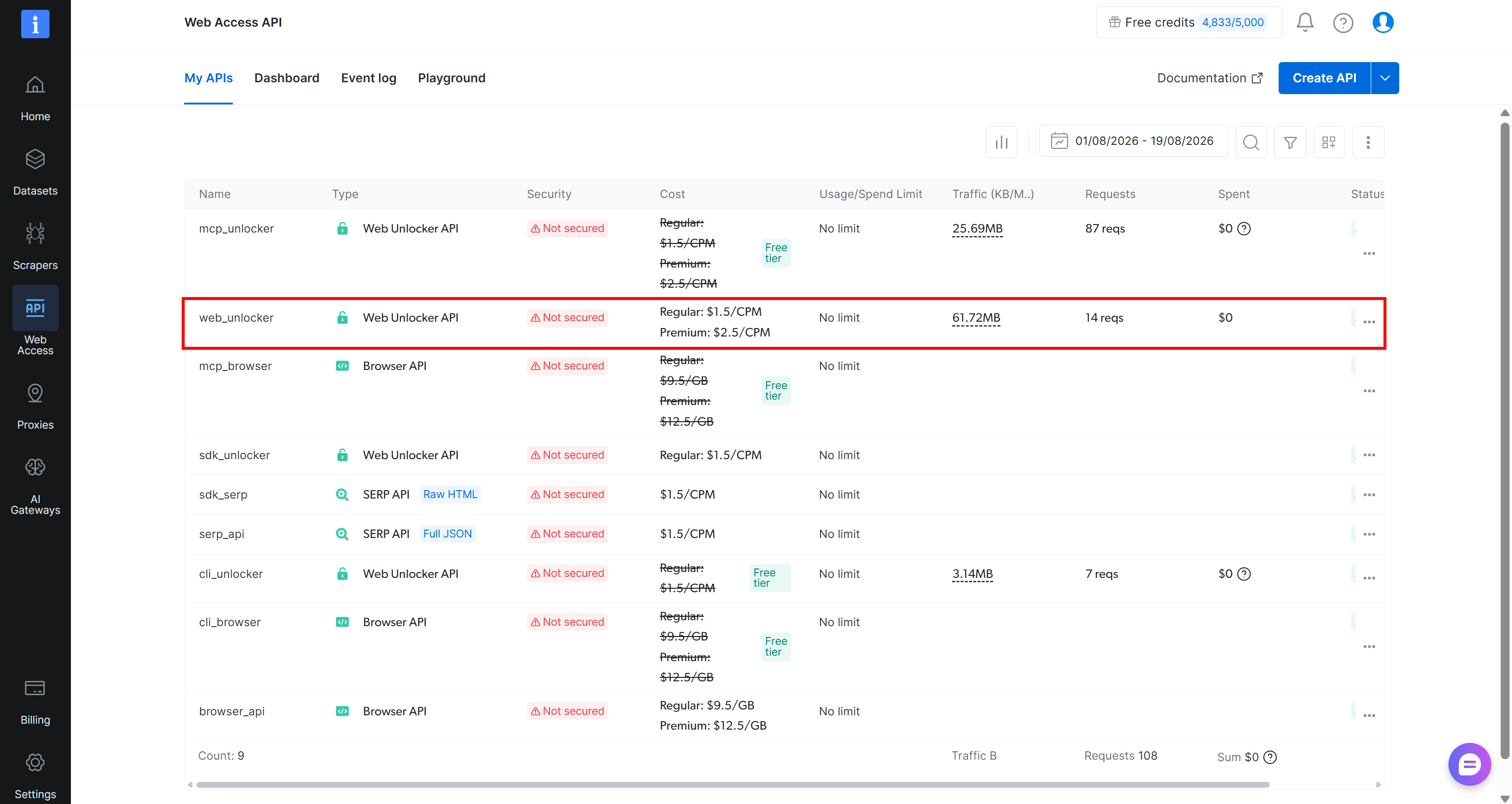
- A Bright Data account with a Web Unlocker API zone configured. Follow the official Web Unlocker documentation to set up your Web Unlocker API zone.
Here, we will assume your Web Unlocker API zone is named web_unlocker:
Step #1: Initialize Your Python Project
Start by creating a new folder for your Kimi web scraping project:
mkdir kimi-scraperThe kimi-scraper directory will serve as the project folder for web scraping with Kimi.
Navigate to the folder and create a Python virtual environment inside it:
cd kimi-scraper
python -m venv .venv
Load the project folder in your favorite Python IDE, such as Visual Studio Code with the Python extension or PyCharm Community Edition.
In the project folder, create a scraper.py file:
kimi-scraper
├─── .venv/
└─── scraper.py # <-----
scraper.py will soon contain the Python logic for LLM web scraping via Kimi.
Next, activate the virtual environment in your terminal. On Linux or macOS, run:
source .venv/bin/activateEquivalently, on Windows, execute:
.venv\Scripts\activateWith the virtual environment activated, install all project dependencies with:
pip install dotenv requests openai pydanticThe required packages are:
dotenv: To read API secrets from the.envfile.requests: To send web page retrieval requests to the Bright Data Web Unlocker API.openai: To connect to the OpenAI-compatible Kimi API and process the retrieved web page.pydantic: To define the output model for the web scraping Kimi requests.
Well done! You now have a Python project for web scraping with Kimi.
Step #2: Set Up Environment Variable Reading
Your Kimi web scraper will connect to third-party services, including Bright Data and Kimi. These services use API keys for authentication, and you should never hardcode such secrets in your source code.
Instead, store your API keys in an environment file and load them at runtime. For that, use the python-dotenv package to read environment variables from a .env file.
In scraper.py, import load_dotenv() and call it:
from dotenv import load_dotenv

# Load the environment variables from the .env file
load_dotenv()
Then, add a .env file in your project folder:
kimi-scraper
├─── .venv/
├─── .env       # <-----
└─── scraper.py
Populate it with your API keys:
MOONSHOT_API_KEY="<YOUR_MOONSHOT_API_KEY>"
BRIGHT_DATA_API_KEY="<YOUR_BRIGHT_DATA_API_KEY>"
Replace:
<YOUR_MOONSHOT_API_KEY>with your Kimi API key.<YOUR_BRIGHT_DATA_API_KEY>with your Bright Data API key.
Next, use Python’s os.getenv() to read these environment variables:
import os

MOONSHOT_API_KEY = os.environ.get("MOONSHOT_API_KEY")
BRIGHT_DATA_API_KEY = os.environ.get("BRIGHT_DATA_API_KEY")
Great! Your API keys are now available to the scraper without exposing them.
Tip: In a versioned repository, add .env to your .gitignore file to prevent accidentally committing your API keys.
Step #3: Retrieve the Target Web Page with Web Unlocker API
The first step in the Kimi-powered scraping script is to get the target web page in an LLM-optimized Markdown format. The easiest way to do this is with the Bright Data Web Unlocker API.
To learn more about how to connect to Web Unlocker, refer to the official documentation or check out the Python example in the Bright Data repository.
Use the requests library to send an HTTP POST request to the Web Unlocker API and retrieve the target page in Markdown:
import requests

# Set up the authentication headers for Web Unlocker
headers = {
    "Content-Type": "application/json",
    "Authorization": f"Bearer {BRIGHT_DATA_API_KEY}"
}

# Define the request payload for the Web Unlocker API call
payload = {
    "zone": "web_unlocker", # Replace with your Web Unlocker API name
    "url": "https://www.amazon.com/Amazon-Basics-Batteries-Leak-Free-Household/dp/B00NTCH52W/",
    "format": "raw",
    "country": "us",
    "data_format": "markdown" # To get the web page in Markdown
}

# Fetch the unlocked content of the target page
web_unlocker_response = requests.post(
    "https://api.brightdata.com/request",
    json=payload,
    headers=headers
)
markdown_page = web_unlocker_response.text
If you are not familiar with this code, read our Python Requests guide.
Notice the data_format="markdown" field in the request payload. This tells the Web Unlocker API to return the web page as Markdown instead of raw HTML.
If you print markdown_page, you will get:
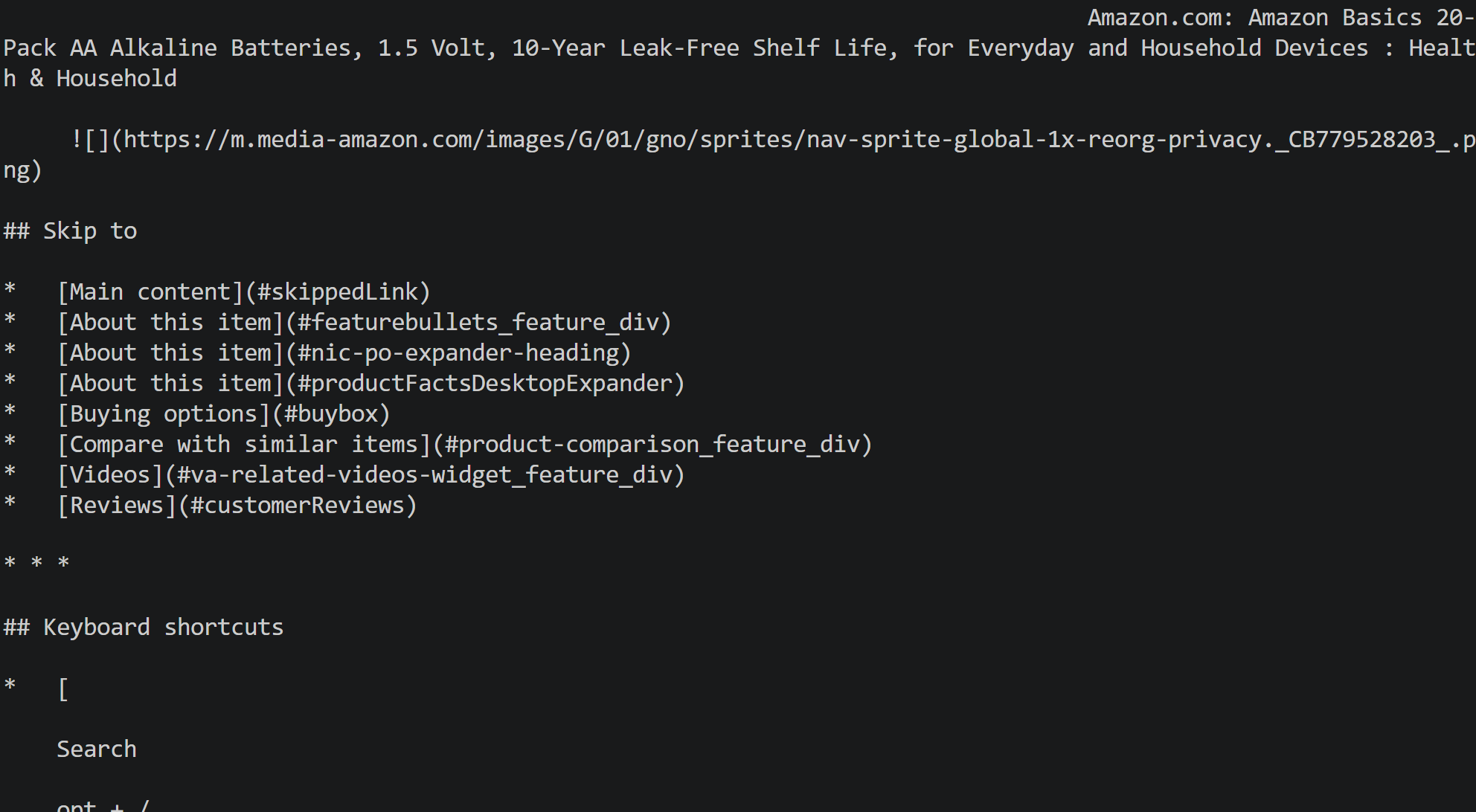
This corresponds to the Markdown representation of the target Amazon product page.
As you can see, Web Unlocker handles the difficult parts of retrieving the page for you by:
- Accessing the target Amazon page through Bright Data’s residential proxy infrastructure.
- Handling common anti-bot challenges, including the Amazon CAPTCHA.
- Retrieving the rendered page content.
- Converting the page into clean Markdown and returning it.
You now have the page content in a format that you can pass to Kimi for AI-powered data extraction. Before doing that, let’s define the target output model that Kimi will produce!
Step #4: Define the Output Data Model
Kimi, like other LLMs, returns text-based responses by default. That is not ideal for web scraping, where you typically want to transform unstructured web page content into structured data.
The Kimi API supports structured output through JSON mode. This lets you define the structure of the response and instruct the model to return data that conforms to that schema.
One of the easiest ways to define a JSON Schema in Python is with Pydantic, a popular library for data validation and parsing. Pydantic lets you define the expected structure and types of your data using Python classes, which can then be converted into a JSON Schema object for the Kimi API.
First, inspect the target page and identify the fields you want to collect. For the Amazon product page used in this tutorial, you can define a Pydantic model as follows:
from pydantic import BaseModel, Field
from typing import List, Optional

class Product(BaseModel):
    asin: Optional[str] = Field(None, description="The Amazon Standard Identification Number (e.g., B00NTCH52W)")
    title: Optional[str] = Field(None, description="The full product title")
    brand: Optional[str] = Field(None, description="Brand name (e.g., Amazon Basics)")
    price: Optional[float] = Field(None, description="One-time purchase price")
    rating: Optional[float] = Field(None, description="Average customer rating out of 5")
    review_count: Optional[int] = Field(None, description="Total number of customer reviews")
    size_options: Optional[List[str]] = Field(None, description="Available pack sizes or variants")
    about_item: Optional[List[str]] = Field(None, description="Bullet points under 'About this item'")
    images: Optional[List[str]] = Field(None, description="URLs for product images")
    category_path: Optional[List[str]] = Field(None, description="Breadcrumb navigation list")
    is_in_stock: Optional[bool] = Field(True, description="Availability status")
This model maps the most relevant fields from the Amazon product page to typed Python fields. Kimi K3 will then fetch the corresponding values from the page content and return them in a predictable JSON Schema.
Great! You now have everything you need to use Kimi for web scraping.
Step #5: Use Kimi for Data Parsing
The Kimi API is OpenAI-compatible, which means you can access it using the OpenAI Python SDK. You only need to configure the OpenAI client with your Kimi API key (MOONSHOT_API_KEY env) and Moonshot’s API base URL.
Then, use the Chat Completions API to send the scraped Markdown content to Kimi K3 and extract the product data according to your Pydantic schema:
from openai import OpenAI

# Initialize the OpenAI client for Kimi
kimi_client = OpenAI(
    api_key=MOONSHOT_API_KEY,
    base_url="https://api.moonshot.ai/v1",
)

# Perform web data parsing with Kimi
response = kimi_client.chat.completions.create(
    model="kimi-k3",
    messages=[
        {
            "role": "user",
            "content": [
                {
                    "type": "text",
                    "text":
                        f"""
                        Extract the product information from the following Markdown document
                        and return it according to the provided schema.

                        MARKDOWN:
                        {markdown_page}
                        """,
                },
            ],
        }
    ],
    response_format={
        "type": "json_schema",
        "json_schema": {
            "name": "product",
            "strict": True,
            "schema": Product.model_json_schema(), # Transform the Pydantic schema in a JSON Schema object
        },
    },
)

# Get the parsed data in the defined schema format
product_data = response.choices[0].message.content
The user prompt contains the Markdown page retrieved with Bright Data’s Web Unlocker API and instructs Kimi to return the relevant product information.
The response_format parameter enables json_schema mode. Here, Product.model_json_schema() converts the Pydantic model into a JSON Schema that Kimi will use to structure its response.
As a result, product_data contains a JSON string with the extracted product data in the structure defined by your Product model. Parse this JSON string into a Python object and save the structured data to disk as the final step!
Step #6: Export the Scraped Data
Save the scraped product data as a JSON file with:
import json

with open("product.json", "w", encoding="utf-8") as f:
json.dump(json.loads(product_data), f, indent=2, ensure_ascii=False)Note: json.dump(json.loads(...)) ensures that the output produced by Kimi is valid JSON.
This creates a product.json file containing the structured product data collected with Kimi according to the Product Pydantic schema. Perfect!
Step #7: Put It All Together
Below is the final code for your Kimi scraper:
# pip install dotenv requests openai pydantic

from dotenv import load_dotenv
import os
import requests
from pydantic import BaseModel, Field
from typing import List, Optional
from openai import OpenAI
import json

# Load the environment variables from the .env file
load_dotenv()

# Loading the required secrets from the envs
MOONSHOT_API_KEY = os.environ.get("MOONSHOT_API_KEY")
BRIGHT_DATA_API_KEY = os.environ.get("BRIGHT_DATA_API_KEY")

# The output schema for the product information
class Product(BaseModel):
    asin: Optional[str] = Field(None, description="The Amazon Standard Identification Number (e.g., B00NTCH52W)")
    title: Optional[str] = Field(None, description="The full product title")
    brand: Optional[str] = Field(None, description="Brand name (e.g., Amazon Basics)")
    price: Optional[float] = Field(None, description="One-time purchase price")
    rating: Optional[float] = Field(None, description="Average customer rating out of 5")
    review_count: Optional[int] = Field(None, description="Total number of customer reviews")
    size_options: Optional[List[str]] = Field(None, description="Available pack sizes or variants")
    about_item: Optional[List[str]] = Field(None, description="Bullet points under 'About this item'")
    images: Optional[List[str]] = Field(None, description="URLs for product images")
    category_path: Optional[List[str]] = Field(None, description="Breadcrumb navigation list")
    is_in_stock: Optional[bool] = Field(True, description="Availability status")

# Set up the authentication headers for Web Unlocker
headers = {
    "Content-Type": "application/json",
    "Authorization": f"Bearer {BRIGHT_DATA_API_KEY}"
}

# Define the request payload for the Web Unlocker API call
payload = {
    "zone": "web_unlocker", # Replace with your Web Unlocker API name
    "url": "https://www.amazon.com/Amazon-Basics-Batteries-Leak-Free-Household/dp/B00NTCH52W/",
    "format": "raw",
    "country": "us",
    "data_format": "markdown" # To get the web page in Markdown
}

# Fetch the unlocked content of the target page
web_unlocker_response = requests.post(
    "https://api.brightdata.com/request",
    json=payload,
    headers=headers
)
markdown_page = web_unlocker_response.text

# Initialize the OpenAI client for Kimi
kimi_client = OpenAI(
    api_key=MOONSHOT_API_KEY,
    base_url="https://api.moonshot.ai/v1",
)

# Perform web data parsing with Kimi
response = kimi_client.chat.completions.create(
    model="kimi-k3",
    messages=[
        {
            "role": "user",
            "content": [
                {
                    "type": "text",
                    "text":
                        f"""
                        Extract the product information from the following Markdown document
                        and return it according to the provided schema.

                        MARKDOWN:
                        {markdown_page}
                        """,
                },
            ],
        }
    ],
    response_format={
        "type": "json_schema",
        "json_schema": {
            "name": "product",
            "strict": True,
            "schema": Product.model_json_schema(), # Transform the Pydantic schema in a JSON Schema object
        },
    },
)

# Get the parsed data in the defined schema format
product_data = response.choices[0].message.content

# Export the scraped data to a JSON file
with open("product.json", "w", encoding="utf-8") as f:
    json.dump(json.loads(product_data), f, indent=2, ensure_ascii=False)
Execute the Python script with:
python scraper.pyThe execution, from retrieving the page with the Web Unlocker API to processing it with the Kimi LLM, will take some time. So, be patient.
The result will be a product.json file containing the scraped product data returned by Kimi:
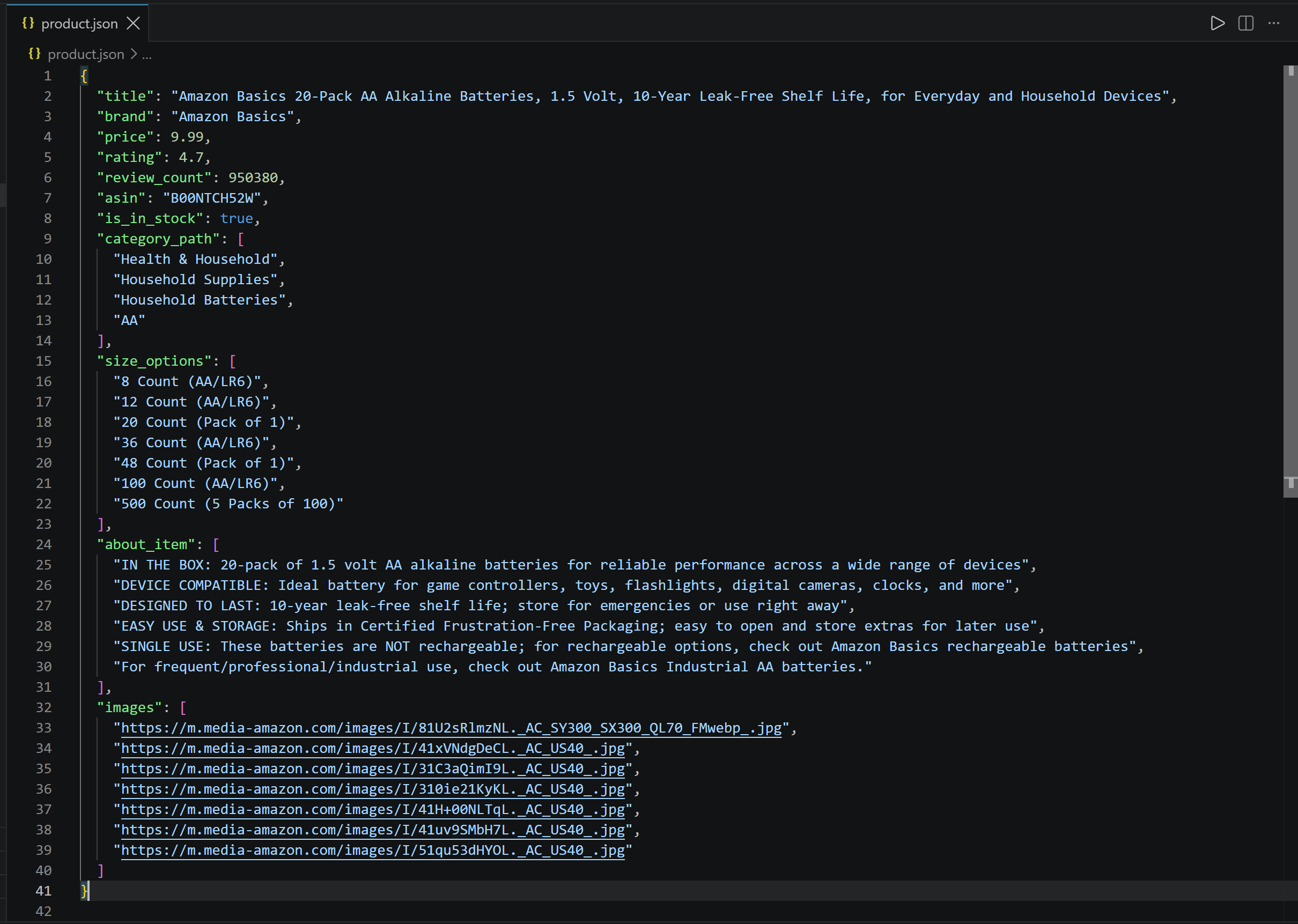
Note how the extracted data closely matches the information available on the target Amazon product page:
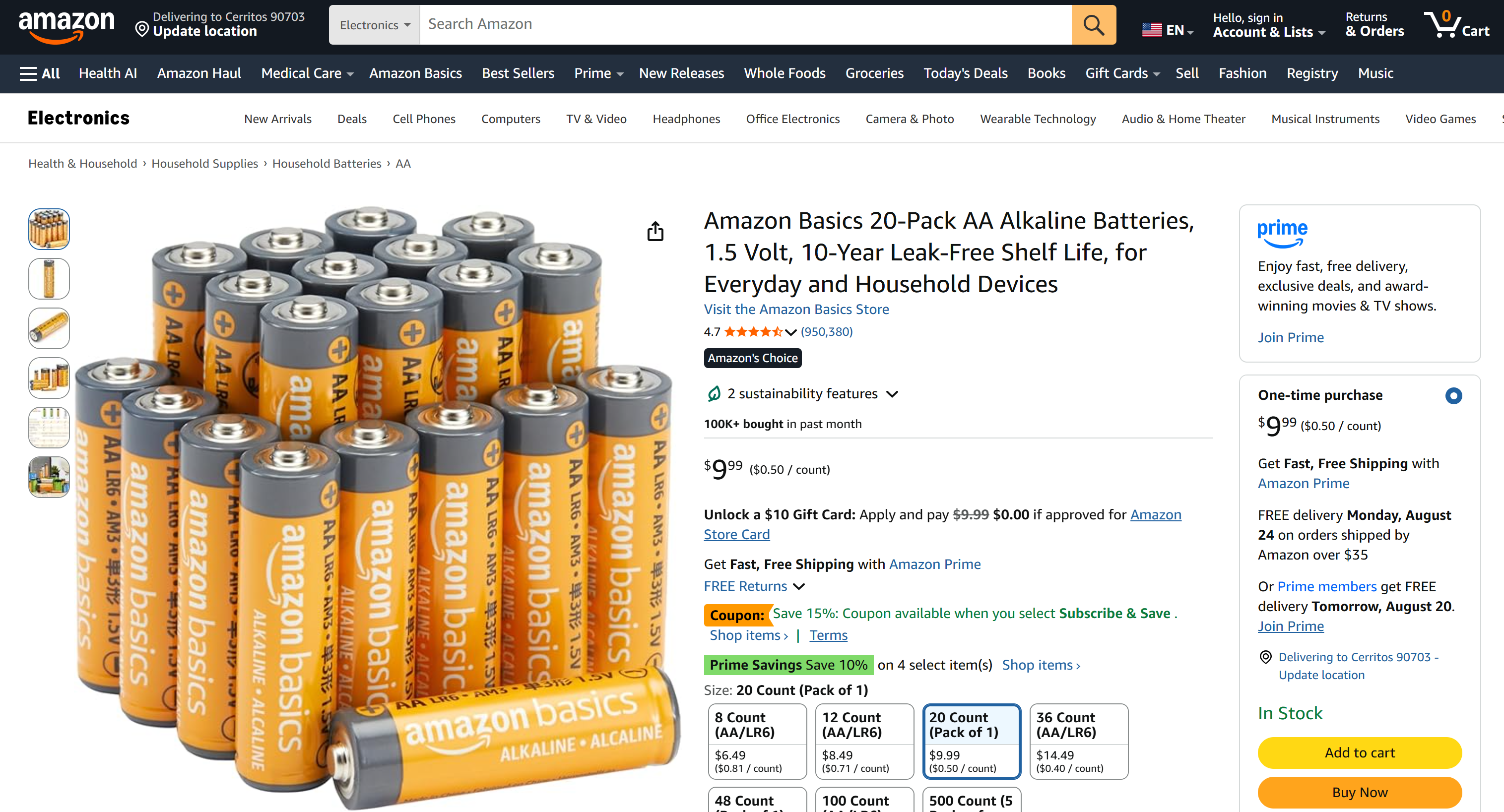
Web Unlocker API handled Amazon’s anti-bot measures and retrieved the LLM-optimized Markdown page content, while Kimi K3 successfully parsed that content and converted it into structured data. Mission complete!
How to Perform Visual Web Scraping with Kimi K3 Vision Capabilities
Kimi K3 is also a vision model, which means it can perform visual web scraping. Instead of providing the LLM with the text content of a web page, you can provide a screenshot or an image and let Kimi K3 extract structured data from it.
Again, the approach is simple:
- Bright Data Web Unlocker API retrieves a screenshot of the target web page (the same Amazon product page as before).
- Kimi K3 receives the screenshot through the Kimi API and collects the product information according to a predefined schema.
- The scraped data is saved to disk as structured JSON.
Note: Most of the workflow remains unchanged, so this section only covers the steps that need to be updated for visual web scraping. All previously described prerequisites and setup steps still apply.
Step #1: Retrieve the Page Screenshot
Update the Web Unlocker API request to return a screenshot instead of the page content in Markdown format:
# Set up the authentication headers for Web Unlocker
headers = {
    "Content-Type": "application/json",
    "Authorization": f"Bearer {BRIGHT_DATA_API_KEY}"
}

# Define the request payload for the Web Unlocker API call
payload = {
    "zone": "web_unlocker", # Replace with your Web Unlocker API name
    "url": "https://www.amazon.com/Amazon-Basics-Batteries-Leak-Free-Household/dp/B00NTCH52W/",
    "format": "raw",
    "country": "us",
    "data_format": "screenshot" # <----- To get the screenshot of the web page
}

# Fetch the unlocked content of the target page
web_unlocker_response = requests.post(
    "https://api.brightdata.com/request",
    json=payload,
    headers=headers
)
page_screenshot = web_unlocker_response.content
The key change is the data_format field, which is now set to "screenshot". This tells the Web Unlocker API to return a screenshot. In particular, the API response will contain the screenshot as PNG image bytes, representing the full rendered page.
For visual debugging, export the screenshot to disk:
with open("screenshot.png", "wb") as f:
    f.write(page_screenshot)
This is optional but useful for visually inspecting the retrieved page and troubleshooting the Kimi scraping workflow.
The result is a screenshot.png file:
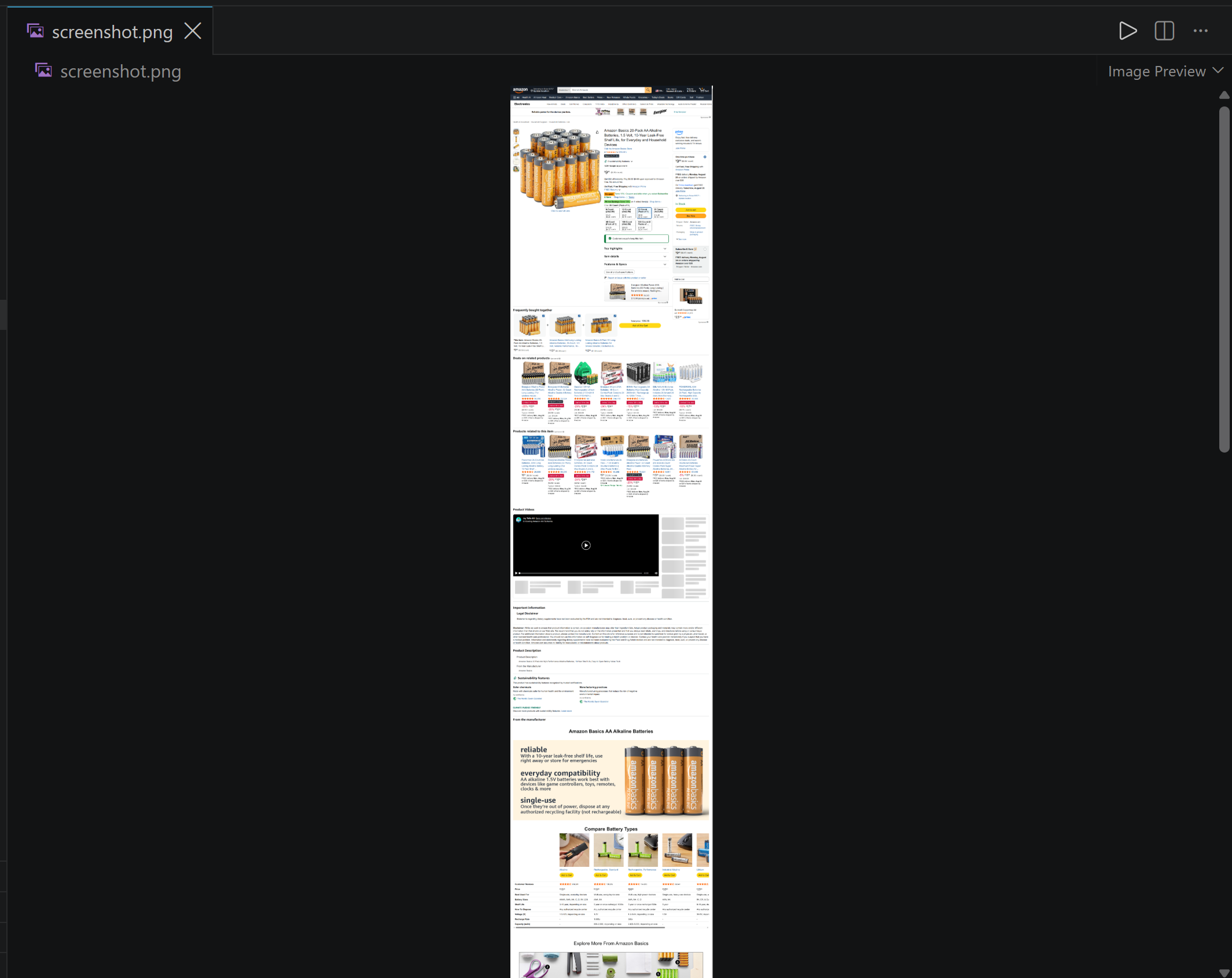
Note how this contains a screenshot of the entire Amazon product page, captured by the Bright Data Web Unlocker API. Here we go!
Step #2: Update the Pydantic Model
By analyzing a screenshot of the target page, Kimi K3 can retrieve visual information that is not available in the page’s Markdown content. For example, it can read text embedded in images, such as the text in the “From the manufacturer” section:
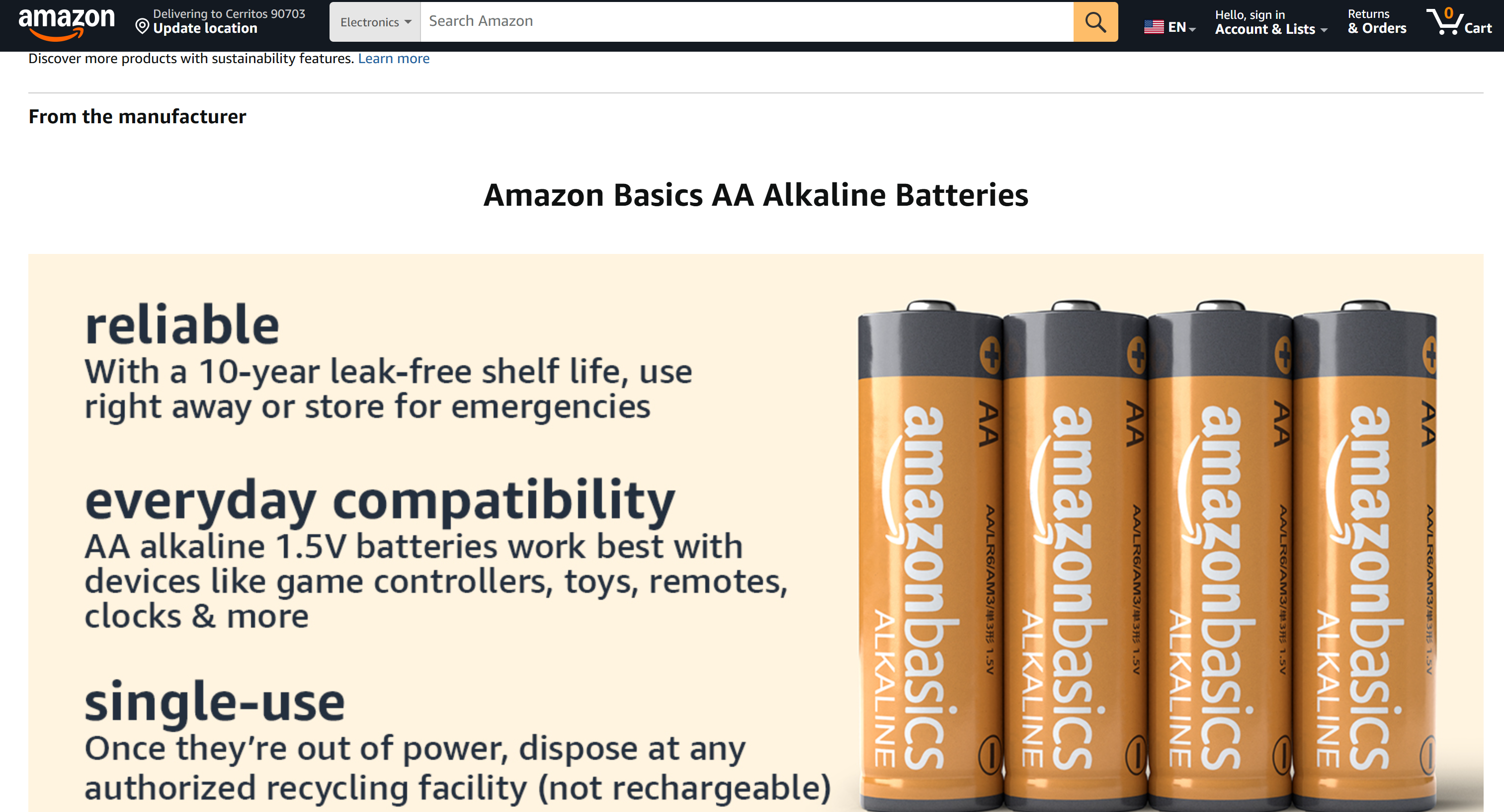
At the same time, a screenshot does not provide the underlying image URLs. Therefore, fields such as images, which were available in the previous text-based Kimi K3 scraping workflow, cannot be populated.
Thus, adapt the Product Pydantic model like this:
class Product(BaseModel):
    asin: Optional[str] = Field(None, description="The Amazon Standard Identification Number (e.g., B00NTCH52W)")
    title: Optional[str] = Field(None, description="The full product title")
    brand: Optional[str] = Field(None, description="Brand name (e.g., Amazon Basics)")
    price: Optional[float] = Field(None, description="One-time purchase price")
    rating: Optional[float] = Field(None, description="Average customer rating out of 5")
    review_count: Optional[int] = Field(None, description="Total number of customer reviews")
    size_options: Optional[List[str]] = Field(None, description="Available pack sizes or variants")
    from_the_manufacturer_info: Optional[str] = Field(None, description="Text of the image in the 'From the manufacturer' section")
    category_path: Optional[List[str]] = Field(None, description="Breadcrumb navigation list")
    is_in_stock: Optional[bool] = Field(True, description="Availability status")
Notice the new from_the_manufacturer_info field. It specifically instructs Kimi to read and extract the text displayed within the image in the “From the manufacturer” section of the product page.
Wonderful! Pass the new Pydantic model and the web page screenshot to the Kimi API for web scraping.
Step #3: Scrape Data from an Image with Kimi K3 Vision
Kimi accepts images through the image_url type, which supports either a publicly accessible image URL or a Base64-encoded representation of the image.
Since the screenshot is stored locally as image bytes, you first need to encode it as Base64. Achieve that with the base64 package from the Python Standard Library:
import base64

screenshot_base64 = base64.b64encode(page_screenshot).decode("utf-8")
You can then pass the encoded screenshot to Kimi K3 along with your extraction prompt:
response = kimi_client.chat.completions.create(
    model="kimi-k3",
    messages=[
        {
            "role": "user",
            "content": [
                {
                    "type": "image_url",
                    "image_url": {
                        "url": (
                            f"data:image/png;base64,{screenshot_base64}"
                        ),
                    },
                },
                {
                    "type": "text",
                    "text":
                        """
                        Extract the product information from this Amazon product page screenshot.
                        Return the information according to the provided schema.
                        """,
                },
            ],
        }
    ],
    response_format={
        "type": "json_schema",
        "json_schema": {
            "name": "product",
            "strict": True,
            "schema": Product.model_json_schema(), # Transform the Pydantic schema in a JSON Schema object
        },
    },
)

# Get the parsed data in the defined schema format
product_data = response.choices[0].message.content
The request contains two pieces of information:
- The page screenshot.
- A text prompt instructing Kimi to extract the product information using the specified Pydantic schema.
The result is a product_data variable containing a JSON string with the visually scraped product information. You can save it to disk using the same approach described in the previous section. This is it!
Step #4: Test the Visual AI Scraper
Your visual web scraping Kimi script will contain:
# pip install dotenv requests openai pydantic

import os
import requests
from pydantic import BaseModel, Field
from typing import List, Optional
from dotenv import load_dotenv
from openai import OpenAI
import base64
import json

# Load the environment variables from the .env file
load_dotenv()

# Loading the required secrets from the envs
MOONSHOT_API_KEY = os.environ.get("MOONSHOT_API_KEY")
BRIGHT_DATA_API_KEY = os.environ.get("BRIGHT_DATA_API_KEY")

# The output schema for the product information
class Product(BaseModel):
    asin: Optional[str] = Field(None, description="The Amazon Standard Identification Number (e.g., B00NTCH52W)")
    title: Optional[str] = Field(None, description="The full product title")
    brand: Optional[str] = Field(None, description="Brand name (e.g., Amazon Basics)")
    price: Optional[float] = Field(None, description="One-time purchase price")
    rating: Optional[float] = Field(None, description="Average customer rating out of 5")
    review_count: Optional[int] = Field(None, description="Total number of customer reviews")
    size_options: Optional[List[str]] = Field(None, description="Available pack sizes or variants")
    from_the_manufacturer_info: Optional[str] = Field(None, description="Text of the image in the 'From the manufacturer' section")
    category_path: Optional[List[str]] = Field(None, description="Breadcrumb navigation list")
    is_in_stock: Optional[bool] = Field(True, description="Availability status")

# Set up the authentication headers for Web Unlocker
headers = {
    "Content-Type": "application/json",
    "Authorization": f"Bearer {BRIGHT_DATA_API_KEY}"
}

# Define the request payload for the Web Unlocker API call
payload = {
    "zone": "web_unlocker", # Replace with your Web Unlocker zone name
    "url": "https://www.amazon.com/Amazon-Basics-Batteries-Leak-Free-Household/dp/B00NTCH52W/",
    "format": "raw",
    "country": "us",
    "data_format": "screenshot" # To get the screenshot of the web page
}

# Fetch the unlocked content of the target page
web_unlocker_response = requests.post(
    "https://api.brightdata.com/request",
    json=payload,
    headers=headers
)
page_screenshot = web_unlocker_response.content

# Export the screenshot to a PNG file
with open("screenshot.png", "wb") as f:
    f.write(page_screenshot)

# Convert the screenshot to base64 for Kimi processing
screenshot_base64 = base64.b64encode(page_screenshot).decode("utf-8")

# Initialize the OpenAI client for Kimi
kimi_client = OpenAI(
    api_key=MOONSHOT_API_KEY,
    base_url="https://api.moonshot.ai/v1",
)

# Perform visual web data parsing with Kimi
response = kimi_client.chat.completions.create(
    model="kimi-k3",
    messages=[
        {
            "role": "user",
            "content": [
                {
                    "type": "image_url",
                    "image_url": {
                        "url": (
                            f"data:image/png;base64,{screenshot_base64}"
                        ),
                    },
                },
                {
                    "type": "text",
                    "text":
                        """
                        Extract the product information from this Amazon product page screenshot.
                        Return the information according to the provided schema.
                        """,
                },
            ],
        }
    ],
    response_format={
        "type": "json_schema",
        "json_schema": {
            "name": "product",
            "strict": True,
            "schema": Product.model_json_schema(), # Transform the Pydantic schema in a JSON Schema object
        },
    },
)

# Get the parsed data in the defined schema format
product_data = response.choices[0].message.content

# Export the scraped data to a JSON file
with open("image_product.json", "w", encoding="utf-8") as f:
    json.dump(json.loads(product_data), f, indent=2, ensure_ascii=False)
Launch it, and it will produce an image_product.json file as follows:
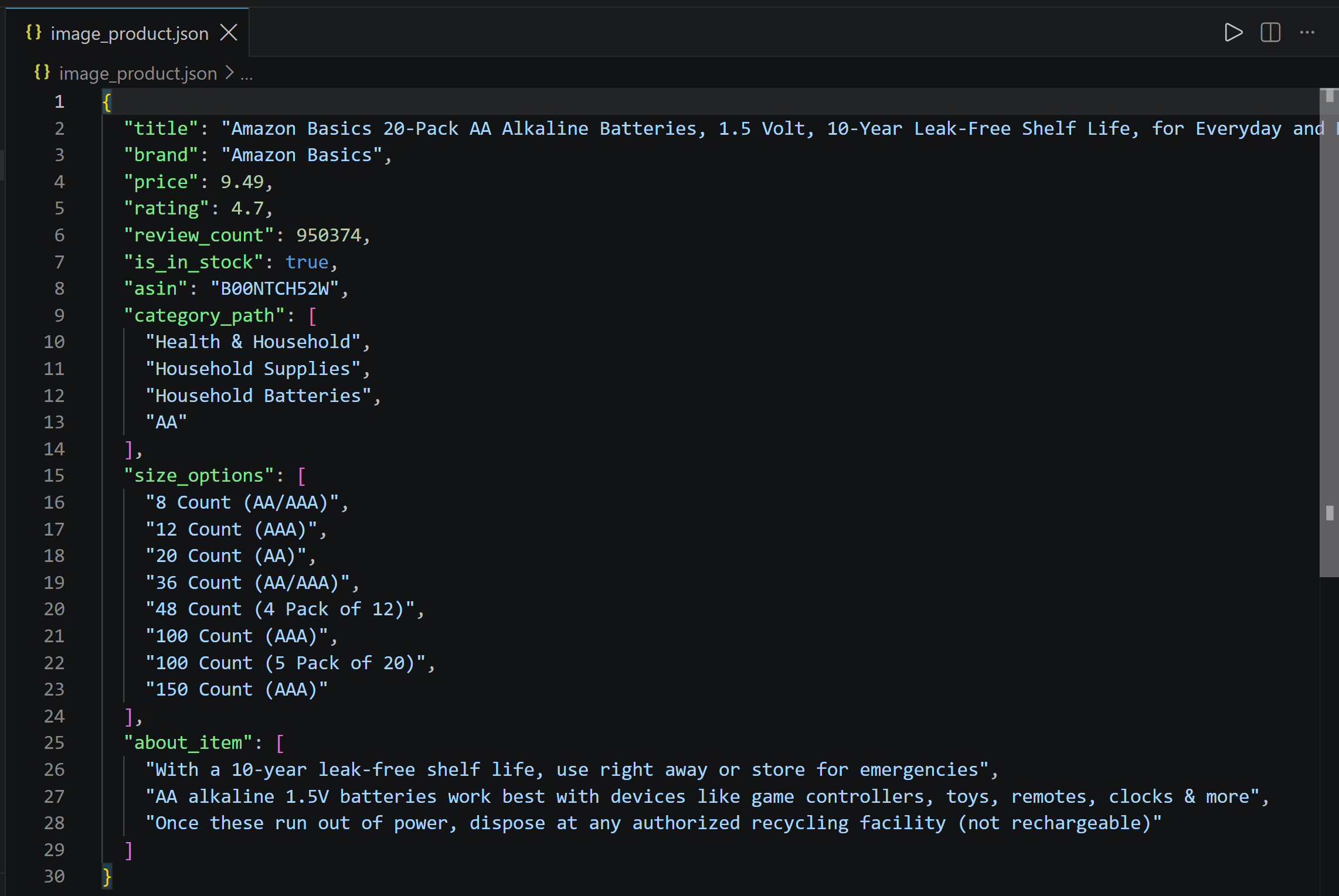
See how Kimi K3 retrieved the product data from the screenshot, including the text embedded in the “From the manufacturer” image. Terrific!
Conclusion
In this blog post, you learned how to use Kimi K3 to build an AI-powered web scraper. The biggest challenges, reliably retrieving web content and obtaining LLM-optimized data without getting blocked, have been addressed with Bright Data’s Web Unlocker API.
As discussed, combining Kimi K3 with the Web Unlocker API lets you extract structured data from web pages or page screenshots using simple prompts, without writing custom parsing logic. This is just one of the many use cases supported by Bright Data’s AI-ready services.
Sign up for Bright Data and start experimenting with our web scraping APIs for free!



Technical Writer
 5.5 years experience
Antonello Zanini is a technical writer, editor, and software engineer with 5M+ views. Expert in technical content strategy, web development, and project management.