








In this article, you will discover:
- Why GLM-5.3 and GLM-5.3-Flash represent a significant advancement for LLM-powered web scraping tasks.
- The core obstacles in building web data extraction systems and how the Bright Data Web Unlocker API addresses them.
- A step-by-step implementation of AI-powered web scraping using GLM in Python.
- How to perform vision-based web scraping with GLM-5.3’s multimodal capabilities.
Let’s dive in!
Advantages of GLM Models for Web Data Extraction
Modern LLMs have revolutionized the approach to web scraping. Rather than implementing manual parsing routines to process raw HTML markup, you can leverage an AI model to handle the extraction automatically. This eliminates the fragility inherent in CSS selector-based approaches and XPath expression matching.
All that you need is a well-crafted prompt that specifies the data elements you need to retrieve. Within just a few code statements, you can instruct the LLM to identify and extract organized data from any web page. This AI-driven methodology produces web scrapers that are substantially more robust when page structures change.
In this context, GLM-5.3 is exceptionally proficient at text-based information retrieval and structured data generation. Then, GLM-5.3-Flash comes with vision functionality, permitting you to analyze web page screenshots and graphical elements.
For additional context, consult these related resources:
- General principles of AI-driven web scraping methodology.
- Application of AI for visual data extraction via GPT Vision.
Primary Challenges in AI Web Scraping
AI-based extraction reduces sensitivity to changes in page markup. Still, the main technical challenges encountered in AI web scraping are largely consistent with those found in traditional web scraping.
The main issues remain JavaScript rendering, anti-bot detection systems, device fingerprinting techniques, request rate limitations, CAPTCHAs, and IP reputation issues. After all, before an LLM can process a web page, you must first acquire its content. This requires handling the various protective measures designed to prevent programmatic access.
Thus, AI-powered extraction does not eliminate the fundamental difficulty of obtaining web page content at scale. What is certain is that adding AI to the process introduces additional considerations. In particular, token consumption becomes a critical factor.
Transmitting extensive HTML documents to advanced models like GLM-5.3 can quickly accumulate considerable costs. The optimal solution involves transforming raw HTML into an LLM-optimized Markdown format.
Converting web pages into structured Markdown preserves essential information and layout hierarchy while dramatically reducing unnecessary token consumption. This transformation keeps headers, enumerated lists, image URLs and captions, and hyperlinks in a format that LLMs can process efficiently. For more details, read our tutorial on HTML to Markdown conversion.
Bright Data Web Unlocker API: The Solution
Bright Data’s Web Unlocker API delivers an all-in-one solution to the underlying challenges of web scraping. That is true whether you want to apply traditional parsing or AI-powered parsing.
Web Unlocker API works as an endpoint that accepts a target URL and returns its rendered content, while handling all anti-bot protections. In particular, it bypasses CAPTCHA protections, processes JavaScript-intensive pages, circumvents browser fingerprinting detection, rotates IPs for you, and more. Learn more about Bright Data’s approach to anti-bot bypass.
On top of that, Web Unlocker API provides the flexibility to return retrieved data in multiple output formats, including:
As a result, the response data from Web Unlocker API requests serves as the ideal input for subsequent text-based or vision-based data extraction with LLMs, such as GLM-5.3 and GLM-5.3-Flash.
Note: The Web Unlocker API is included within Bright Data’s free tier, which grants 5,000 free extraction requests per calendar month.
What sets Web Unlocker API apart from other web scraping APIs is the underlying enterprise-grade infrastructure provided by Bright Data. This includes 400+ million residential IP addresses, unlimited concurrency, 99.99% uptime, and a 99.95% success rate. Such an infrastructure enables reliable, highly scalable programmatic data extraction.
How to Build an AI-Powered Web Scraper with GLM-5.3 in Python
In this guided section, you will learn how to develop a Python script that leverages GLM-5.3 for AI-powered data parsing.
The script focuses on collecting data from this specific IKEA product page:
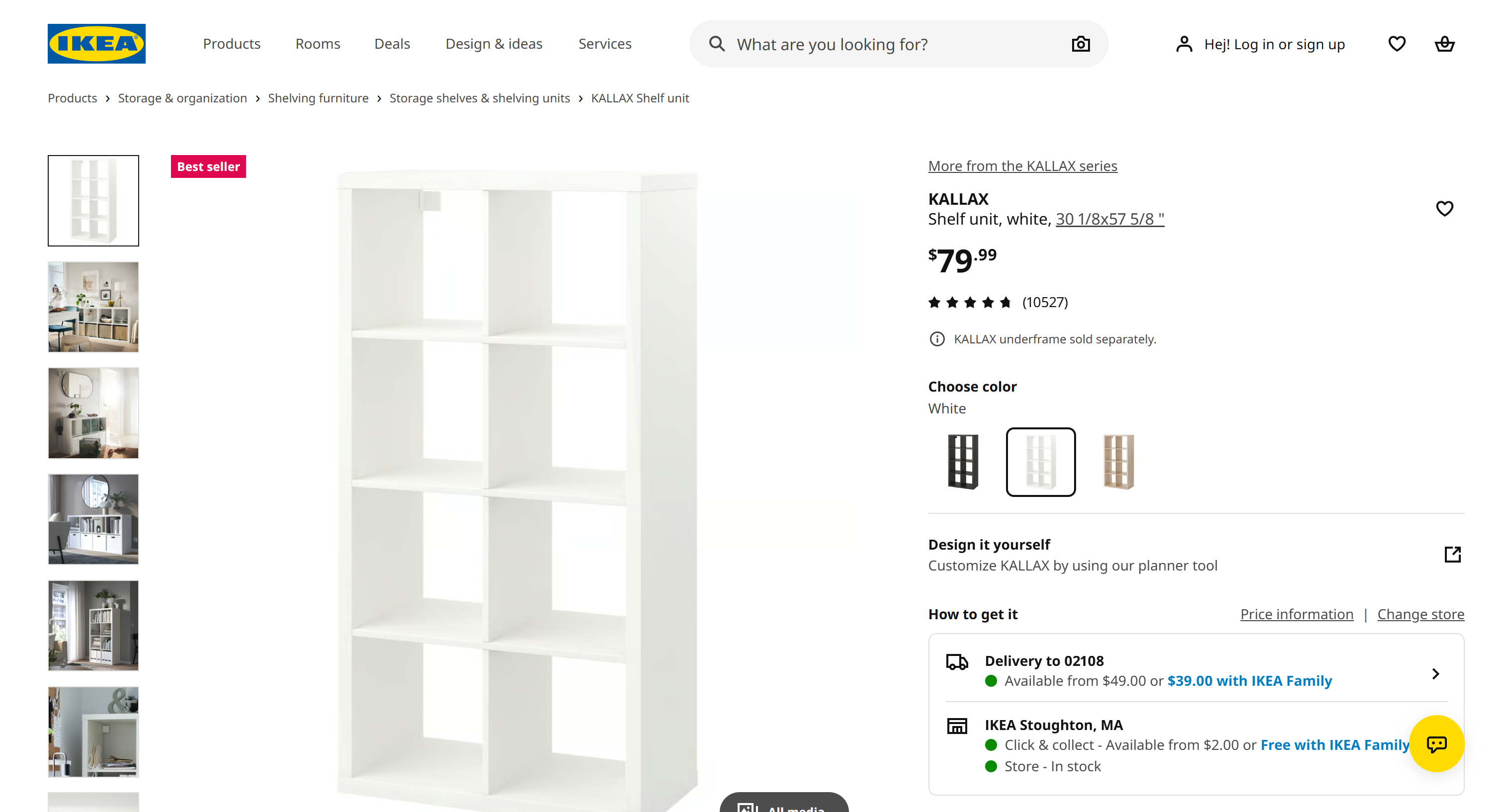
Yet, the key advantage of AI-based data parsing is that the same code can be applied across all IKEA product pages. That is true regardless of their individual layouts or design variations.
The workflow will be:
- The Bright Data Web Unlocker API retrieves the target IKEA product page and outputs its content as LLM-optimized Markdown.
- GLM-5.3 receives the Markdown content through the OpenAI-compatible Z.ai API and extracts the product information.
- The resulting output, which conforms to a predefined JSON schema, is exported to disk.
Note: For production systems that require structured IKEA product data at scale, consider using Bright Data’s IKEA Scraper API.
Follow the instructions below!
Prerequisites
Ensure the availability of:
- Python 3.10 or later installed on your system.
- A funded GLM account with an API key configured.
- A Bright Data account with a Web Unlocker API and an API key set up.
– Consult the Web Unlocker setup documentation.
– Follow the official guide to retrieve your Bright Data API key.
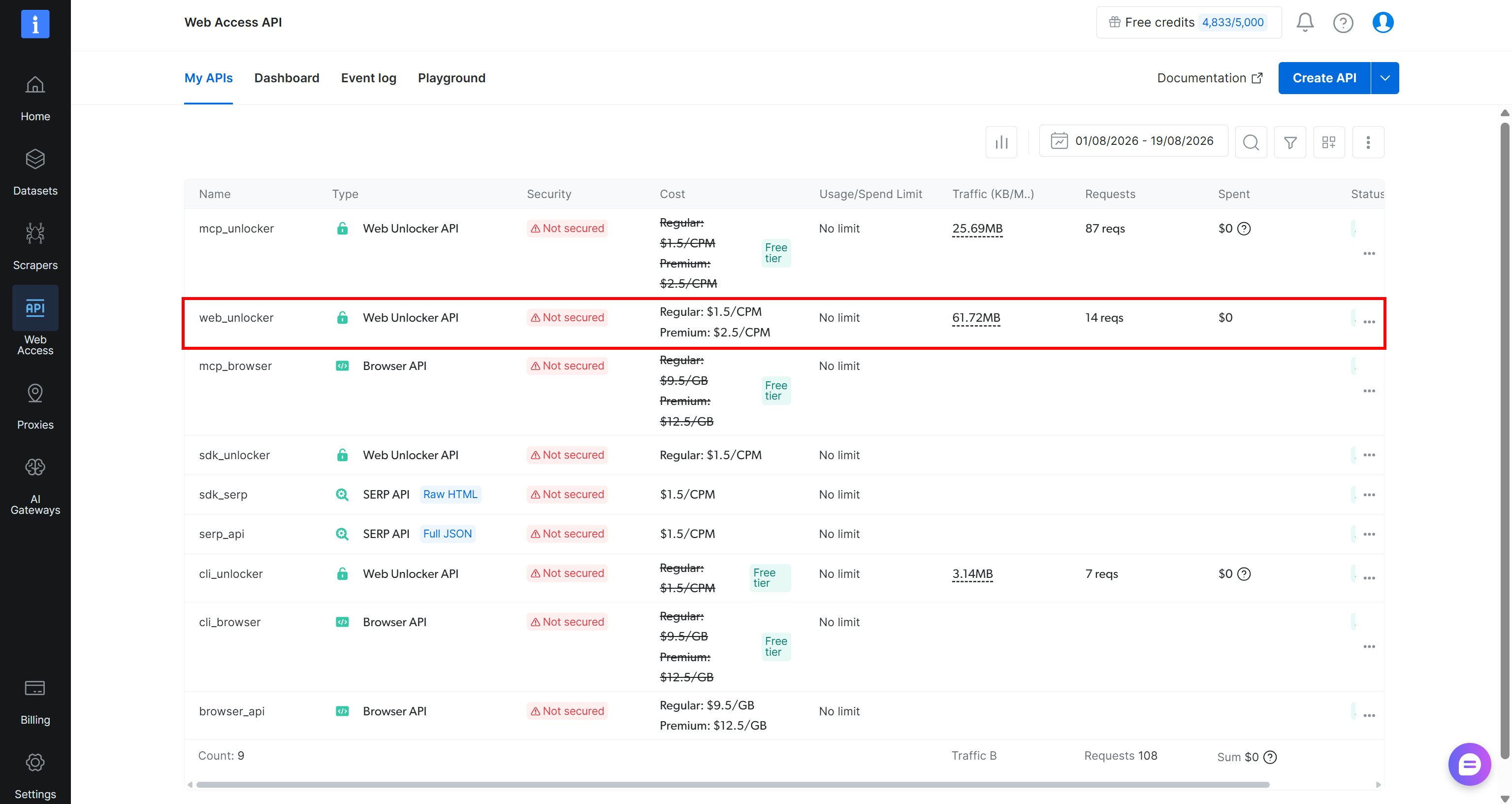
Throughout this guide, we will assume your Web Unlocker API zone is named web_unlocker:
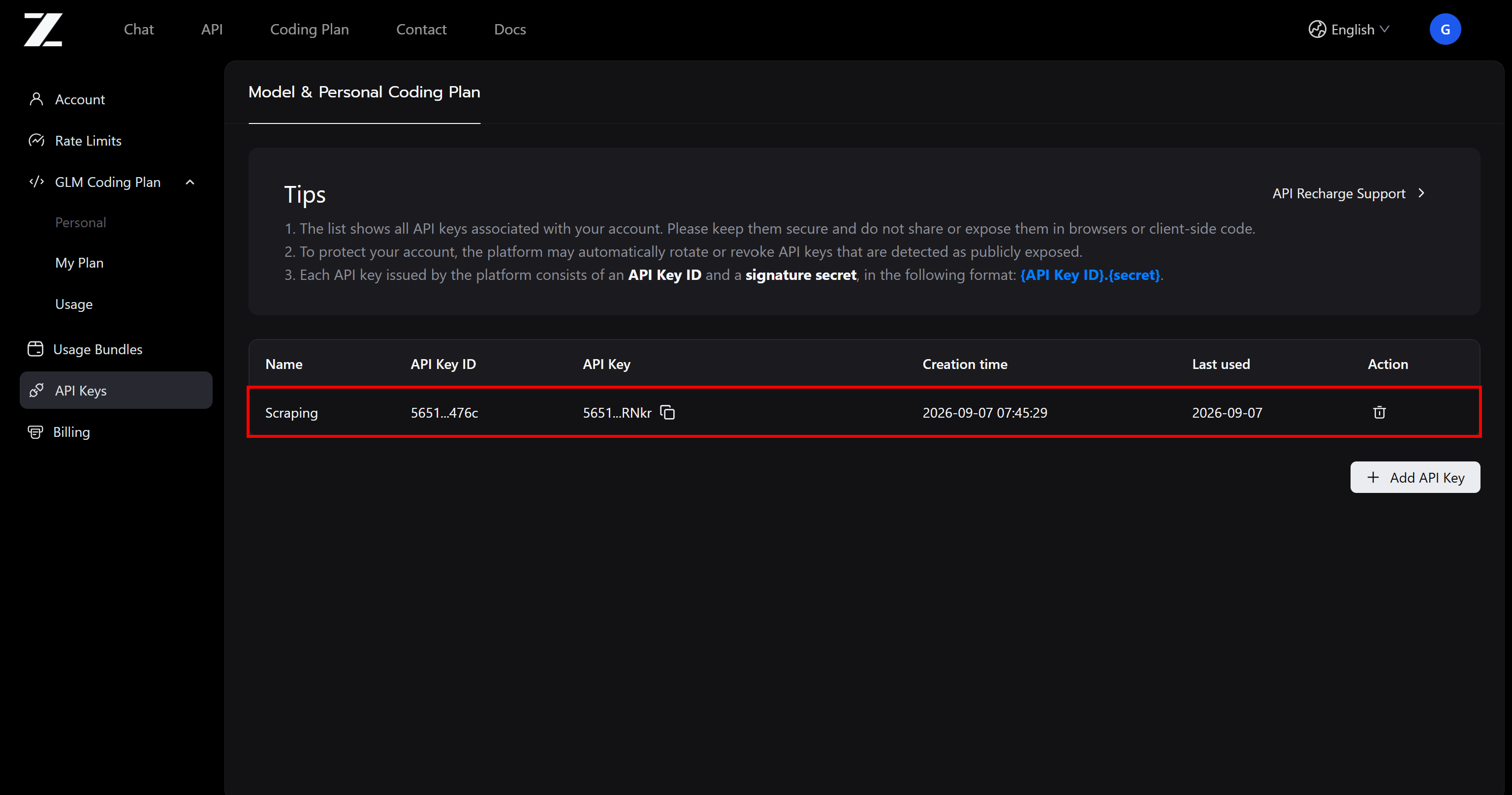
Also, your Z.ai API key will look like this:
Step #1: Initialize a Python Project
Establish a new directory for your GLM scraping project:
mkdir glm-scraperMove into this directory and add a Python virtual environment inside it:
cd glm-scraper
python -m venv .venv
Load the project directory in your preferred Python editor, such as Visual Studio Code or PyCharm.
Within the project root, add a scraper.py file:
glm-scraper
├─── .venv/
└─── scraper.py # <-----
This file will contain the Python code for AI-powered data extraction using GLM models.
Next, enable the virtual environment. On Linux or macOS systems, run:
source .venv/bin/activateOn Windows platforms, execute:
.venv\Scripts\activateWith activation complete, install all necessary project dependencies:
pip install dotenv requests openai pydanticThese required packages are:
dotenv`: Environment variable management for storing API keys.requests: HTTP client for communicating with the Bright Data Web Unlocker API.openai: OpenAI-compatible client for accessing the OpenAI-compatible Z.ai APIs for GLM access.pydantic: Data model definition and validation framework for the output schema.
Well done! Your Python project is now ready for web scraping with GLM.
Step #2: Add Environment Variable Reading
Your GLM scraper requires authentication with external services, including Bright Data and Z.ai’s APIs. These integrations demand API keys, which you should never expose within your source code for security reasons.
Instead, maintain your API keys in an environment configuration file and load them during execution. The python-dotenv package simplifies this process by letting you read environment variables from a .env file.
To get started with python-dotenv, add this code to the beginning of scraper.py:
from dotenv import load_dotenv

# Load the environment variables from the .env file
load_dotenv()
Then, create a .env file at the project root:
glm-scraper
├─── .venv/
├─── .env       # <-----
└─── scraper.pyTip: In a real-world repository, include .env in your .gitignore configuration to prevent accidental credential exposure.
Populate it with your API credentials:
BRIGHT_DATA_API_KEY="<YOUR_BRIGHT_DATA_API_KEY>"
ZAI_API_KEY="<YOUR_ZAI_API_KEY>"
Replace:
<YOUR_BRIGHT_DATA_API_KEY>with your Bright Data API credentials.<YOUR_ZAI_API_KEY>with your Z.ai API key.
Next, load these environment variables into your script using Python’s os.getenv():
import os

# Loading the required secrets from the envs
ZAI_API_KEY = os.environ.get("ZAI_API_KEY")
BRIGHT_DATA_API_KEY = os.environ.get("BRIGHT_DATA_API_KEY")
Fantastic! You now have secure access to your API keys in your Python script.
Step #3: Get the Target Web Page in Markdown Format with Web Unlocker API
The first phase of AI-powered scraping involves obtaining the target page, ideally in LLM-ready Markdown format. Bright Data’s Web Unlocker API provides the simplest way to accomplish that.
For more guidance on Web Unlocker integration, consult the official documentation or examine Bright Data’s Python integration examples.
Utilize the requests library to send an HTTP POST request to Web Unlocker and retrieve the target page rendered as Markdown:
import requests

# Set up the authentication headers for Web Unlocker
headers = {
    "Content-Type": "application/json",
    "Authorization": f"Bearer {BRIGHT_DATA_API_KEY}"
}

# Define the request payload for the Web Unlocker API call
payload = {
    "zone": "web_unlocker", # Replace with your Web Unlocker zone name
    "url": "https://www.ikea.com/us/en/p/kallax-shelf-unit-white-20631663/", # The IKEA product page URL you want to scrape
    "format": "raw",
    "country": "us",
    "data_format": "markdown" # Request Markdown-formatted output
}

# Retrieve the unlocked content of the target page
web_unlocker_response = requests.post(
    "https://api.brightdata.com/request",
    json=payload,
    headers=headers
)
markdown_page = web_unlocker_response.text
If you are not familiar with the Python HTTP syntax, review our comprehensive Requests guide.
Notice the data_format="markdown" parameter in the body. This configuration directs the Web Unlocker API to output the web page in Markdown format rather than supplying raw HTML.
Print markdown_page, and you will see:
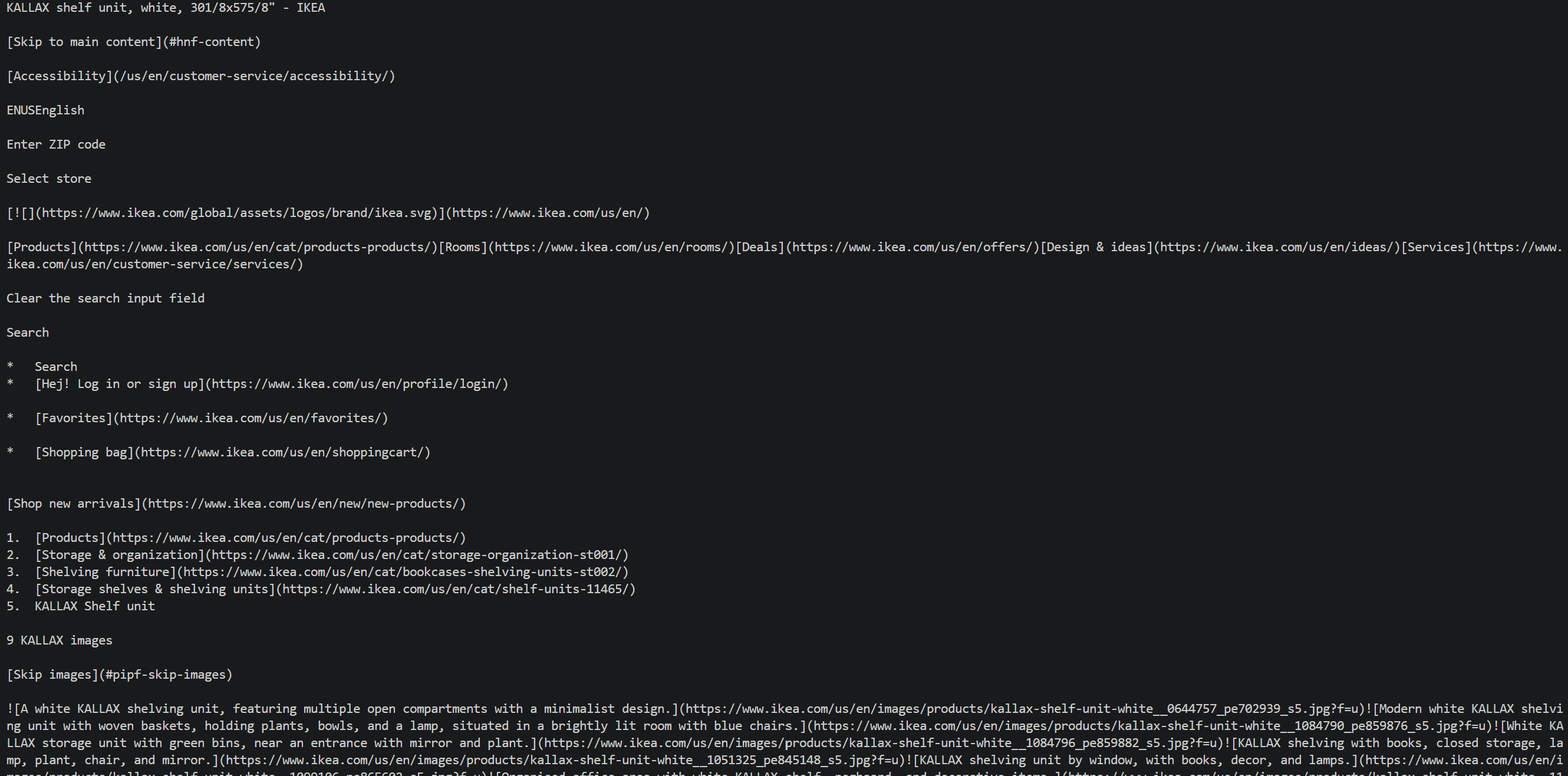
The returned output represents the Markdown-converted version of your target IKEA product page.
Observe how the Web Unlocker API takes care of the obstacles of web page retrieval:
- Accessing the target IKEA infrastructure through Bright Data’s residential proxy network.
- Managing typical anti-bot countermeasures, such as IKEA’s anti-scraping systems.
- Obtaining the fully rendered page markup.
- Transforming the HTML into LLM-optimized Markdown and returning the result.
You now have page information in a perfect format for GLM-5.3 text-based data parsing. Before proceeding, establish the output structure that GLM will generate!
Step #4: Define the Output JSON Schema
GLM-5.3, like most other LLMs, produces text output by default. This is suboptimal for data extraction workflows, where the objective is converting raw web content into structured data.
Fortunately, the GLM-5.3 API supports structured output through JSON mode. This functionality allows the model to return a plain JSON string.
Note: While you cannot specify the schema directly in the json_schema argument as you can with OpenAI’s structured outputs, you can mention the desired response structure in the prompt. This will mandate the model to produce a JSON string that conforms to that format.
The most convenient method for defining structured JSON schemas in Python is through Pydantic, the most popular data modeling framework. Pydantic helps you represent data structures via Python classes, which can be converted into JSON Schema format for the Z.ai API.
Start by examining the target IKEA page to identify required information fields. For this example, define a Pydantic model capturing IKEA product details:
from pydantic import BaseModel, Field
from typing import List, Optional

class IkeaProduct(BaseModel):
    title: Optional[str] = Field(None, description="Full product title as displayed on the IKEA website")
    product_number: Optional[str] = Field(None, description="IKEA product article number, such as 304.247.75")
    product_type: Optional[str] = Field(None, description="General type of IKEA product, such as armchair, shelf unit, cabinet, or table")
    price: Optional[float] = Field(None, description="Current one-time purchase price")
    currency: Optional[str] = Field(None, description="Currency used for the displayed price, such as USD")
    color: Optional[str] = Field(None, description="Product color or finish, such as birch veneer or dark gray")
    dimensions: Optional[str] = Field(None, description="Overall product dimensions as displayed by IKEA, including width, depth, and height")
    materials: Optional[List[str]] = Field(None, description="Main materials used to manufacture the product")
    rating: Optional[float] = Field(None, description="Average customer rating, typically on a 5-point scale")
    review_count: Optional[int] = Field(None, description="Total number of customer reviews")
    series: Optional[str] = Field(None, description="IKEA product series the item belongs to, such as POÄNG")
    assembly_required: Optional[bool] = Field(None, description="Whether the product requires assembly")
    is_in_stock: Optional[bool] = Field(True, description="Whether the product is currently available for purchase")
This model organizes IKEA product information into Pydantic fields with explicit typing. GLM-5.3 will retrieve matching values from the page content and deliver them as a JSON string response respecting this schema.
Pro tip: Pass the Markdown retrieved from the page by the Web Unlocker API to an LLM and ask it to generate a Pydantic model containing all the data points you are interested in.
Wonderful! You now possess all necessary components for GLM web scraping.
Step #5: Use GLM-5.3 for Automated Data Parsing
The Z.ai API is compatible with the OpenAI Chat Completions and Responses interfaces, permitting access via the OpenAI Python SDK. Configure the OpenAI client with your Z.ai API credentials and the appropriate API base URL.
from openai import OpenAI

# Initialize the OpenAI client for interacting with Z.ai API
glm_client = OpenAI(
    api_key=ZAI_API_KEY,
    base_url="https://api.z.ai/api/paas/v4/", # OpenAI Chat Completions-compatible GLMM API base URL
)
Then, employ the Chat Completions endpoint to transmit the extracted Markdown to GLM-5.3:
import json

# Prepare the scraping prompt with the output schema
scraping_prompt = f"""
Extract the IKEA product information from the given Markdown document and
return it as structured data that conforms to the provided JSON schema.

SCHEMA:
{json.dumps(IkeaProduct.model_json_schema(), indent=2)}

MARKDOWN:
{markdown_page}
"""

# Perform web data parsing with GLM-5.3
response = glm_client.chat.completions.create(
    model="glm-5.3",
    messages=[
        {
            "role": "user",
            "content": [
                {
                    "type": "text",
                    "text": scraping_prompt,
                },
            ],
        }
    ],
    response_format={"type": "json_object"}
)

# Get the parsed data in a string matching the defined schema format
product_data = response.choices[0].message.content
Note that the prompt needs to include:
- Your web data extraction instructions.
- The target JSON schema.
- The Markdown content from Bright Data’s Web Unlocker API.
The response_format parameter enables JSON mode with {"type": "json_object"}. Remember that GLM-5.3 supports json_object format rather than json_schema. That is a critical distinction from some alternative models, such as when performing web scraping with Kimi.
Note: The optional thinking and reasoning_effort parameters activate GLM-5.3’s extended reasoning capabilities. Set reasoning_effort to "max" to enable deep reasoning for highly complex data parsing tasks. This is particularly valuable when pages contain ambiguous or non-standard layouts.
The result is product_data, containing a JSON string with the extracted information structured according to your IkeaProduct model. Print it, and you will see:
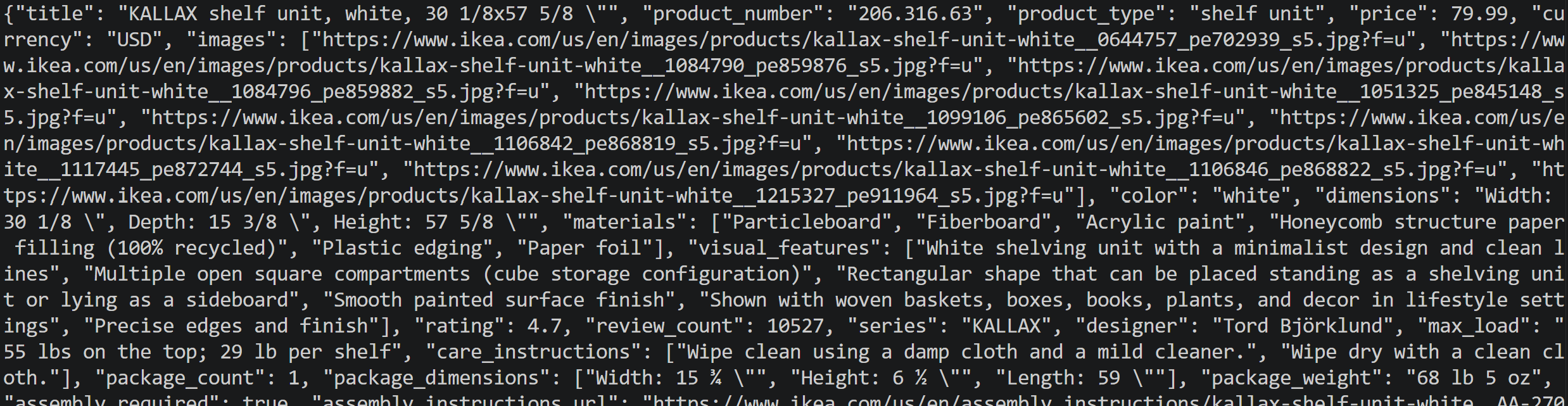
Cool! The only remaining step is to persist this JSON data to disk.
Step #6: Save the Scraped Data to Disk
Before storing product_data to a product.json file, validate the response against the IkeaProduct Pydantic model:
# Get the parsed data in the defined schema format
product_data = response.choices[0].message.content

# Validate the JSON string against the IkeaProduct schema
product = IkeaProduct.model_validate_json(product_data)
The model_validate_json() method verifies that the LLM response conforms to the expected Pydantic schema. If the response contains invalid data or does not match the defined field types, Pydantic raises a validation error instead of silently saving malformed data.
Then, persist it to disk:
# Export the validated IkeaProduct object to a JSON file
with open("product.json", "w", encoding="utf-8") as f:
    f.write(product.model_dump_json(indent=2))
This snippet uses product.model_dump_json() to serialize the validated IkeaProduct object and then writes it to product.json. The resulting file will contain the structured IKEA product data extracted by GLM-5.3. Mission complete!
Step #7: Put It All Together
Below is the complete implementation of your GLM web scraper for IKEA product pages:
# pip install dotenv requests openai pydantic

from dotenv import load_dotenv
import os
import requests
from pydantic import BaseModel, Field
from typing import List, Optional
from openai import OpenAI
import json

# Load the environment variables from the .env file
load_dotenv()

# Loading the required secrets from the envs
BRIGHT_DATA_API_KEY = os.environ.get("BRIGHT_DATA_API_KEY")
ZAI_API_KEY = os.environ.get("ZAI_API_KEY")

# The output schema for the product information
class IkeaProduct(BaseModel):
    title: Optional[str] = Field(None, description="Full product title as displayed on the IKEA website")
    product_number: Optional[str] = Field(None, description="IKEA product article number, such as 304.247.75")
    product_type: Optional[str] = Field(None, description="General type of IKEA product, such as armchair, shelf unit, cabinet, or table")
    price: Optional[float] = Field(None, description="Current one-time purchase price")
    currency: Optional[str] = Field(None, description="Currency used for the displayed price, such as USD")
    images: Optional[List[str]] = Field(None, description="URLs of product images from the IKEA website")
    color: Optional[str] = Field(None, description="Product color or finish, such as birch veneer or dark gray")
    dimensions: Optional[str] = Field(None, description="Overall product dimensions as displayed by IKEA, including width, depth, and height")
    materials: Optional[List[str]] = Field(None, description="Main materials used to manufacture the product")
    visual_features: Optional[List[str]] = Field(None, description="Physical characteristics visible in the supplied product images, such as shape, components, finish, or configuration")
    rating: Optional[float] = Field(None, description="Average customer rating, typically on a 5-point scale")
    review_count: Optional[int] = Field(None, description="Total number of customer reviews")
    series: Optional[str] = Field(None, description="IKEA product series the item belongs to, such as POÄNG")
    designer: Optional[str] = Field(None, description="Designer credited by IKEA for the product")
    max_load: Optional[str] = Field(None, description="Maximum supported load, such as maximum load on a seat, shelf, or tabletop")
    care_instructions: Optional[List[str]] = Field(None, description="IKEA-recommended care and cleaning instructions")
    package_count: Optional[int] = Field(None, description="Number of packages included with the product")
    package_dimensions: Optional[List[str]] = Field(None, description="Dimensions of the product packaging")
    package_weight: Optional[str] = Field(None, description="Weight of the packaged product")
    assembly_required: Optional[bool] = Field(None, description="Whether the product requires assembly")
    assembly_instructions_url: Optional[str] = Field(None, description="URL to the official IKEA assembly instructions")
    safety_information: Optional[List[str]] = Field(None, description="Important safety information, such as wall anchoring or tipping requirements")
    good_to_know: Optional[List[str]] = Field(None, description="Additional IKEA product information and usage recommendations")
    compatible_series: Optional[List[str]] = Field(None, description="IKEA product series or furniture lines that the product is described as coordinating with")
    accessories: Optional[List[str]] = Field(None, description="Accessories or complementary IKEA products shown or recommended on the product page")
    category_path: Optional[List[str]] = Field(None, description="IKEA category breadcrumb path leading to the product")
    available_colors: Optional[List[str]] = Field(None, description="Other color or finish options available for the same product")
    is_in_stock: Optional[bool] = Field(True, description="Whether the product is currently available for purchase")

# Set up the authentication headers for the Web Unlocker API
headers = {
    "Content-Type": "application/json",
    "Authorization": f"Bearer {BRIGHT_DATA_API_KEY}"
}

# Define the request payload for the Web Unlocker API scraping request
payload = {
    "zone": "web_unlocker", # Replace with your Web Unlocker zone name
    "url": "https://www.ikea.com/us/en/p/kallax-shelf-unit-white-20631663/", # The IKEA product page URL you want to scrape
    "format": "raw",
    "country": "us",
    "data_format": "markdown" # To get the web page in Markdown
}

# Retrieve the Markdown content of the unlocked target page
web_unlocker_response = requests.post(
    "https://api.brightdata.com/request",
    json=payload,
    headers=headers
)
markdown_page = web_unlocker_response.text

# Initialize the OpenAI client for Z.ai models
glm_client = OpenAI(
    api_key=ZAI_API_KEY,
    base_url="https://api.z.ai/api/paas/v4/",
)

# Prompt to LLM-powered web data parsing
scraping_prompt = f"""
Extract the IKEA product information from the given Markdown document and
return it as structured data that conforms to the provided JSON schema.

SCHEMA:
{json.dumps(IkeaProduct.model_json_schema(), indent=2)}

MARKDOWN:
{markdown_page}
"""

# Perform web data scraping with GLM-5.3
response = glm_client.chat.completions.create(
    model="glm-5.3",
    messages=[
        {
            "role": "user",
            "content": [
                {
                    "type": "text",
                    "text": scraping_prompt,
                },
            ],
        }
    ],
    response_format={"type": "json_object"},
)

# Get the parsed data in the defined schema format
product_data = response.choices[0].message.content

# Convert the JSON string into a validated IkeaProduct object
product = IkeaProduct.model_validate_json(product_data)

# Export the IkeaProduct object to a JSON file
with open("product.json", "w", encoding="utf-8") as f:
    f.write(product.model_dump_json(indent=2))
In your activated virtual environment, execute the Python script using:
python scraper.pyPage retrieval via the Web Unlocker API and subsequent processing through GLM-5.3 take time. So, be patient while the product.json file is produced.
Once it appears in your project’s folder, open it, and you will see:
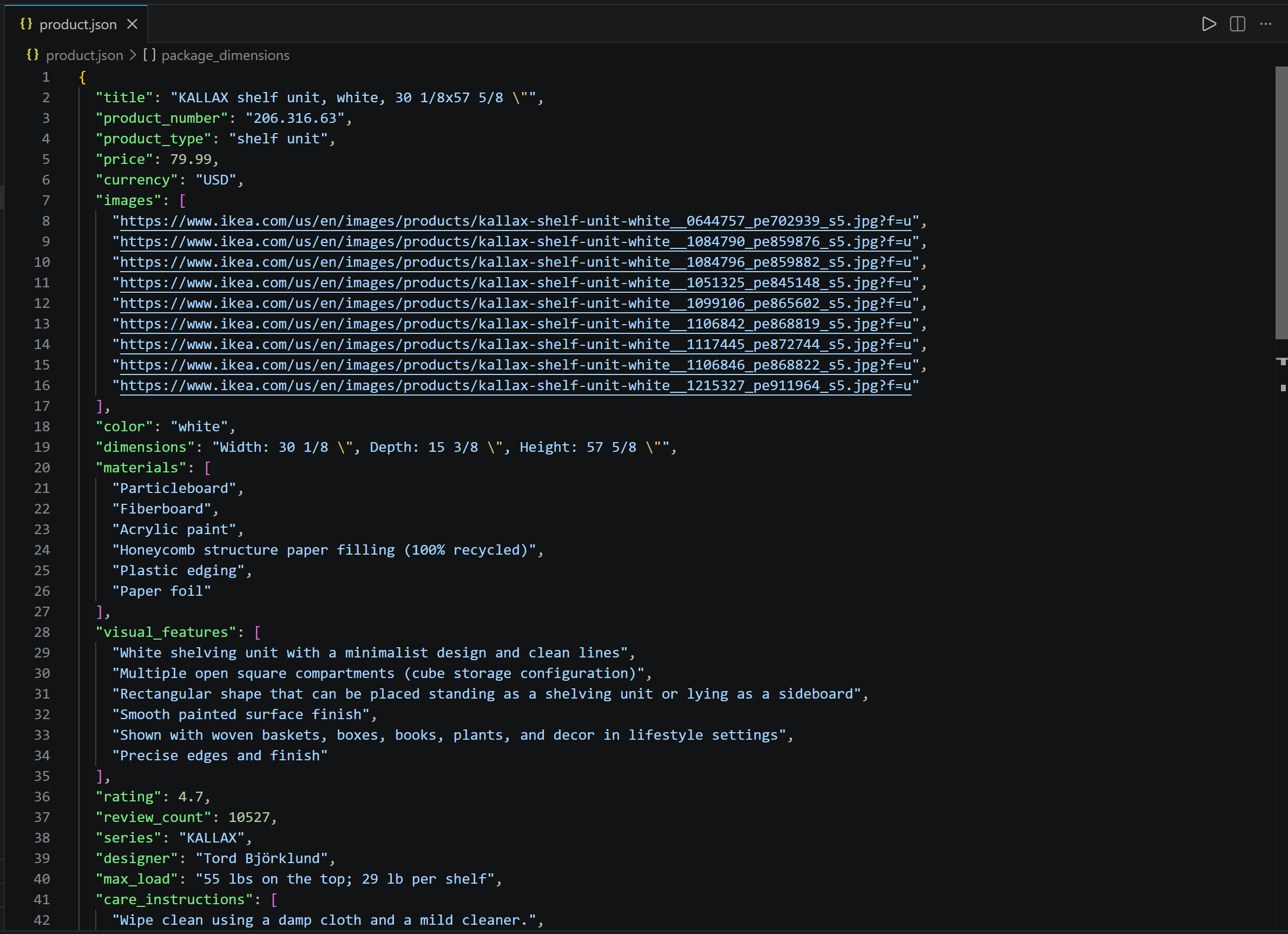
Notice the alignment between extracted data and the information available on the original IKEA product page.
Et voilà! The Web Unlocker API handled IKEA’s anti-bot protections and delivered the LLM-optimized Markdown content, while GLM-5.3 successfully processed that content and transformed it into well-organized, structured data.
How to Perform Vision-Based Web Data Extraction with GLM-5.3-Flash
GLM-5.3 does not natively support multimodal input, meaning it can only process text-based inputs. However, other models in the GLM family support multimodal input, including GLM-5.3-Flash (as well as GLM-4.6V and others).
Instead of supplying the LLM with textual page content, you can provide a screenshot or image and ask GLM-5.3-Flash to extract structured information from it.
The scraping procedure remains largely the same:
- The Bright Data Web Unlocker API captures a screenshot of the target IKEA page.
- GLM-5.3-Flash receives the screenshot through the Z.ai APIs and extracts product information according to a predefined schema.
- The extracted data is validated and saved as structured JSON.
Note: The core workflow changes very little, so this section focuses on the modifications needed for visual data extraction. All prerequisite and setup steps described earlier remain valid.
Step #1: Retrieve the Page Screenshot
Adjust the Web Unlocker API request to obtain a page screenshot instead of Markdown:
# Set up the authentication headers for Web Unlocker
headers = {
    "Content-Type": "application/json",
    "Authorization": f"Bearer {BRIGHT_DATA_API_KEY}"
}

# Define the request payload for the Web Unlocker API call
payload = {
    "zone": "web_unlocker", # Replace with your Web Unlocker zone name
    "url": "https://www.ikea.com/us/en/p/kallax-shelf-unit-white-20631663/", # The IKEA product page URL you want to visually scrape
    "format": "raw",
    "country": "us",
    "data_format": "screenshot" # Get a screenshot of the web page
}

# Retrieve the screenshot of the unlocked target page
web_unlocker_response = requests.post(
    "https://api.brightdata.com/request",
    json=payload,
    headers=headers
)

page_screenshot = web_unlocker_response.content
The essential modification is the data_format field, now configured to "screenshot". This instructs Web Unlocker to return a page screenshot. The API response will comprise screenshot image data in PNG format, representing the completely rendered page.
Export the screenshot to disk:
with open("screenshot.png", "wb") as f:
    f.write(page_screenshot)
This optional step proves beneficial for visual inspection of the retrieved page and troubleshooting extraction workflows.
The output will be a screenshot.png file:
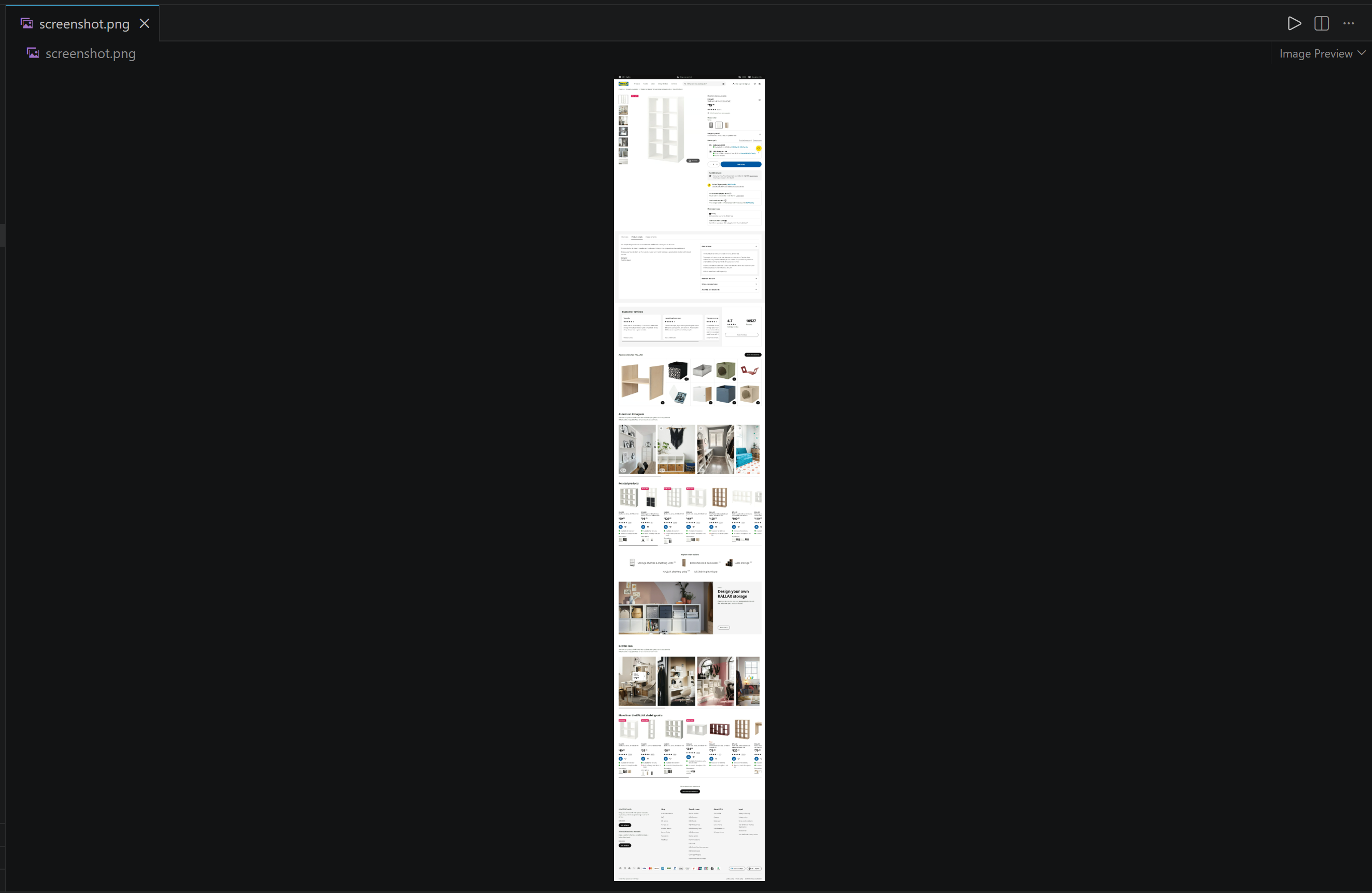
Note how Bright Data’s Web Unlocker API captured a screenshot of the full IKEA product page. Proceeding forward!
Step #2: Update the Pydantic Model
Through analysis of a page screenshot, GLM-5.3-Flash can identify visual information unavailable in the page’s Markdown representation. For instance, it can interpret text embedded in visual labels (e.g., the “Best seller” tag):
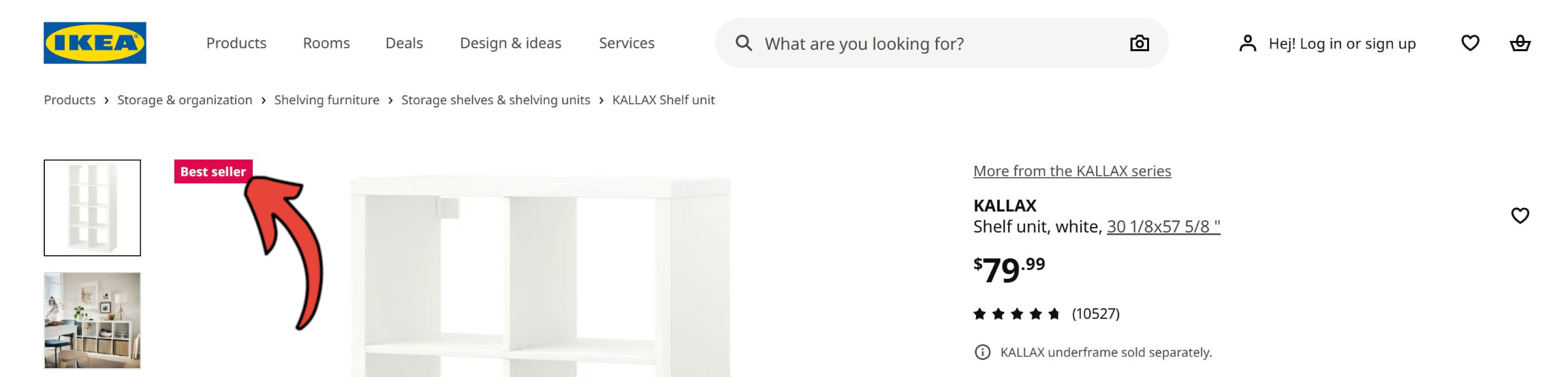
Simultaneously, a screenshot does not deliver all the page information. For instance, fields like images or assembly_instructions_url, which were accessible through the Markdown-based extraction workflow, cannot be populated from visual data.
Accordingly, adapt the IkeaProduct Pydantic model for visual processing:
class IkeaProduct(BaseModel):
    title: Optional[str] = Field(None, description="Full product title as displayed on the IKEA website")
    product_type: Optional[str] = Field(None, description="General type of product, such as an armchair, shelf unit, cabinet, or table")
    price: Optional[float] = Field(None, description="Current displayed numerical price")
    currency: Optional[str] = Field(None, description="Currency used for the displayed price, such as USD")
    is_best_seller: Optional[bool] = Field(False, description="Whether a best-seller or top-seller badge is displayed")
    badge_label: Optional[str] = Field(None, description="Promotional or product badge displayed on the page, such as Top Seller")
    delivery_options: Optional[List[str]] = Field(None, description="Delivery or fulfillment options displayed on the page")
    color: Optional[str] = Field(None, description="Selected product color or finish, such as white or birch veneer")
    visual_aspects: Optional[str] = Field(None, description="Description of the physical characteristics visible in the product images, such as shape, components, finish, or configuration")
    dimensions: Optional[str] = Field(None, description="Overall product dimensions as displayed on the IKEA website")
    rating: Optional[float] = Field(None, description="Average customer rating, typically on a 5-point scale")
    review_count: Optional[int] = Field(None, description="Total number of customer reviews displayed")
Observe the introduction of the visual_aspects field. This field directs GLM to document physical characteristics visible within product images, enabling extraction of information unavailable through text-based parsing. Also, focus on the new is_best_seller and badge_label fields.
Great! Send the updated Pydantic model and the web page screenshot to the Z.ai API for visual web scraping with GLM-5.3-Flash.
Step #3: Scrape Data from an Image with GLM-5.3 Vision
Just like OpenAI models with vision capabilities, GLM-5.3-Flash accepts images via the image_url field. This accepts either publicly accessible image URLs or Base64-encoded image representations.
Since the screenshot exists locally as image bytes, encoding it as Base64 is required. To do so, employ Python’s base64 module:
import base64

screenshot_base64 = base64.b64encode(page_screenshot).decode("utf-8")
Now, transmit the Base64-encoded screenshot to GLM-5.3-Flash alongside your extraction instructions:
# Perform visual web data parsing with GLM-5.3-Flash
response = glm_client.chat.completions.create(
    model="glm-5.3-flash",
    messages=[
        {
            "role": "user",
            "content": [
                {
                    "type": "image_url",
                    "image_url": {
                        "url": f"data:image/png;base64,{screenshot_base64}"
                    },
                },
                {
                    "type": "text",
                    "text": f"""
Extract the IKEA product information from the provided webpage screenshot
and return it as structured data that conforms to the provided JSON schema.

SCHEMA:
{json.dumps(IkeaProduct.model_json_schema(), indent=2)}
""",
                },
            ],
        }
    ],
    response_format={"type": "json_object"},
)

# Get the parsed data in the defined schema format
product_data = response.choices[0].message.content
The request to the Z.ai API comprises two components:
- The page screenshot image.
- A text instruction directing GLM-5.3 to retrieve product information using the designated Pydantic schema.
Note: This time, the target model is glm-5.3-flash, not glm-5.3 as before. This change is required as GLM-5.3 does not have vision capabilities.
The result is a product_data variable storing a JSON string with the visually scraped data. Store it to disk as described previously. Impressive!
Step #4: Test the Visual-Based GLM Scraping Script
The final code of your visual GLM web scraping script will be:
# pip install dotenv requests openai pydantic

from dotenv import load_dotenv
import os
import requests
import base64
import json
from pydantic import BaseModel, Field
from typing import List, Optional
from openai import OpenAI

# Load the environment variables from the .env file
load_dotenv()

# Loading the required secrets from the envs
BRIGHT_DATA_API_KEY = os.environ.get("BRIGHT_DATA_API_KEY")
ZAI_API_KEY = os.environ.get("ZAI_API_KEY")

class IkeaProduct(BaseModel):
    title: Optional[str] = Field(None, description="Full product title as displayed on the IKEA website")
    product_type: Optional[str] = Field(None, description="General type of product, such as an armchair, shelf unit, cabinet, or table")
    price: Optional[float] = Field(None, description="Current displayed numerical price")
    currency: Optional[str] = Field(None, description="Currency used for the displayed price, such as USD")
    is_best_seller: Optional[bool] = Field(False, description="Whether a best-seller or top-seller badge is displayed")
    badge_label: Optional[str] = Field(None, description="Promotional or product badge displayed on the page, such as Top Seller")
    delivery_options: Optional[List[str]] = Field(None, description="Delivery or fulfillment options displayed on the page")
    color: Optional[str] = Field(None, description="Selected product color or finish, such as white or birch veneer")
    visual_aspects: Optional[str] = Field(None, description="Description of the physical characteristics visible in the product images, such as shape, components, finish, or configuration")
    dimensions: Optional[str] = Field(None, description="Overall product dimensions as displayed on the IKEA website")
    rating: Optional[float] = Field(None, description="Average customer rating, typically on a 5-point scale")
    review_count: Optional[int] = Field(None, description="Total number of customer reviews displayed")

# Set up the authentication headers for Web Unlocker
headers = {
    "Content-Type": "application/json",
    "Authorization": f"Bearer {BRIGHT_DATA_API_KEY}"
}

# Define the request payload for the Web Unlocker API call
payload = {
    "zone": "web_unlocker", # Replace with your Web Unlocker zone name
    "url": "https://www.ikea.com/us/en/p/kallax-shelf-unit-white-20631663/", # The IKEA product page URL you want to visually scrape
    "format": "raw",
    "country": "us",
    "data_format": "screenshot" # Get a screenshot of the web page
}

# Retrieve the screenshot of the unlocked target page
web_unlocker_response = requests.post(
    "https://api.brightdata.com/request",
    json=payload,
    headers=headers
)

page_screenshot = web_unlocker_response.content

# Export the screenshot to a PNG file
with open("screenshot.png", "wb") as f:
    f.write(page_screenshot)

# Convert the screenshot to Base64 for vision processing
screenshot_base64 = base64.b64encode(page_screenshot).decode("utf-8")

# Initialize the OpenAI-compatible client for Z.ai
glm_client = OpenAI(
    api_key=ZAI_API_KEY,
    base_url="https://api.z.ai/api/paas/v4/",
)

# Perform visual web data parsing with GLM-5.3-Flash
response = glm_client.chat.completions.create(
    model="glm-5.3-flash",
    messages=[
        {
            "role": "user",
            "content": [
                {
                    "type": "image_url",
                    "image_url": {
                        "url": f"data:image/png;base64,{screenshot_base64}"
                    },
                },
                {
                    "type": "text",
                    "text": f"""
Extract the IKEA product information from the provided webpage screenshot
and return it as structured data that conforms to the provided JSON schema.

SCHEMA:
{json.dumps(IkeaProduct.model_json_schema(), indent=2)}
""",
                },
            ],
        }
    ],
    response_format={"type": "json_object"},
)

# Get the parsed data in the defined schema format
product_data = response.choices[0].message.content

# Convert the JSON string into a validated IkeaProduct object
product = IkeaProduct.model_validate_json(product_data)

# Export the IkeaProduct object to a JSON file
with open("visual_product.json", "w", encoding="utf-8") as f:
    f.write(product.model_dump_json(indent=2))
Launch the script, and this will generate a visual_product.json file containing:
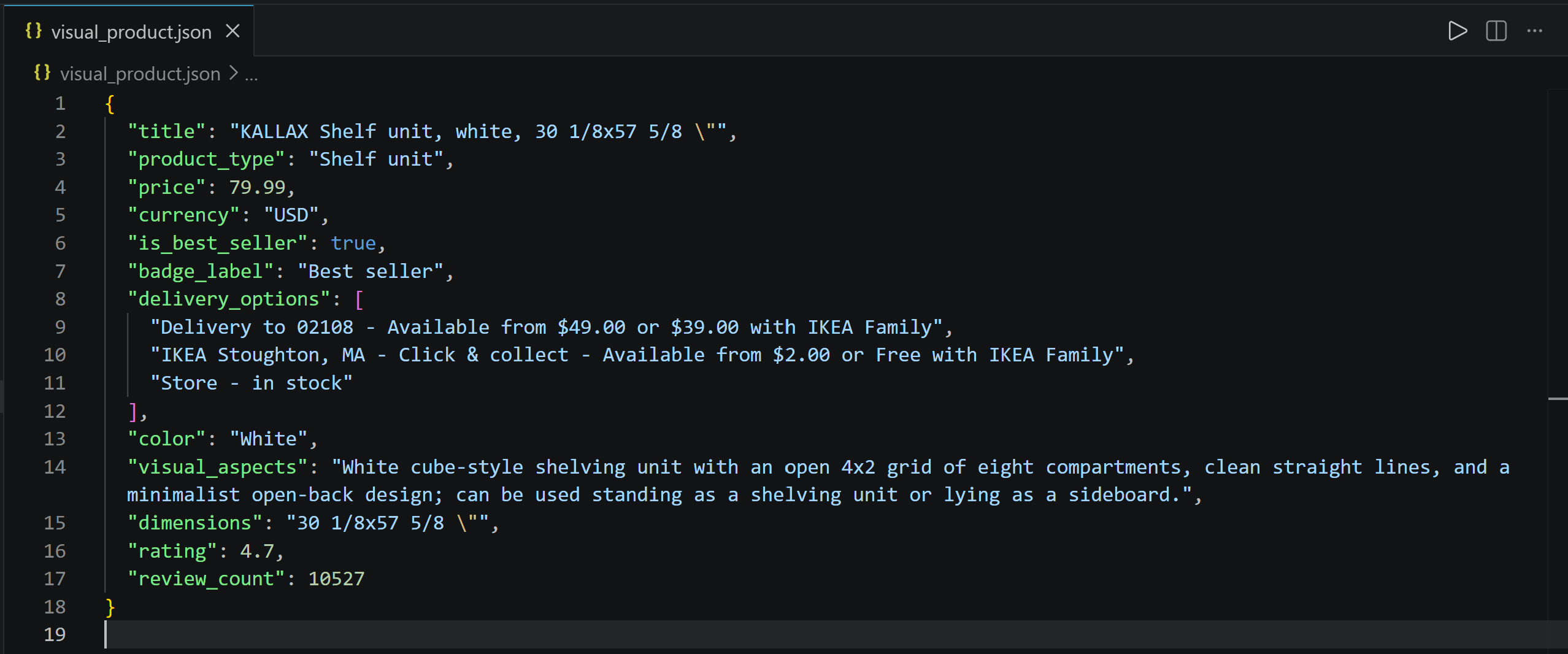
Notice the successful retrieval of product information from the page screenshot, including visual aspects and the “Best seller” label. Amazing!
Conclusion
In this tutorial, you learned how to build an LLM-powered web data extraction system using GLM-5.3 and GLM-5.3-Flash. The main challenges of AI web scraping (i.e., accessing web content without getting blocked and converting it into an LLM-ready format) have been easily addressed with Bright Data’s Web Unlocker API.
As demonstrated here, combining GLM-5.3 and GLM-5.3-Flash with the Web Unlocker API allows you to extract structured information from both web pages and their visual representations. This is just one of many use cases supported by Bright Data’s AI-compatible web access solutions.
Register with Bright Data today and start experimenting with our web scraping APIs for free!



Technical Writer
 5.5 years experience
Antonello Zanini is a technical writer, editor, and software engineer with 5M+ views. Expert in technical content strategy, web development, and project management.