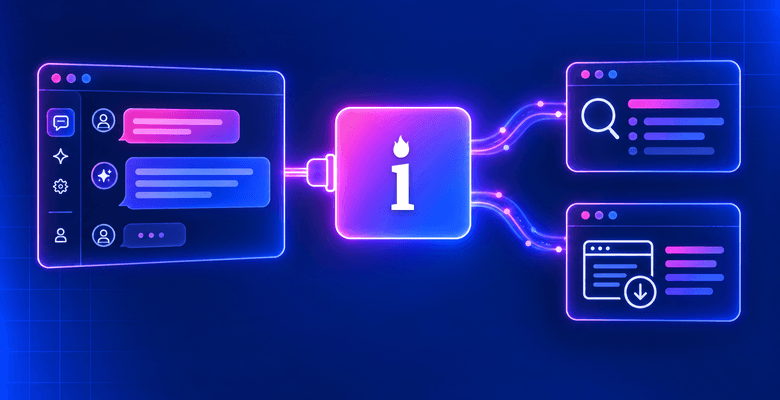
AI agents can’t access live web data on their own. The setup pairs 2 tools to give your agent that access:
- Nanobot, a lightweight AI agent framework with built-in memory, scheduling, and Model Context Protocol (MCP) support
- Bright Data MCP Server, which gives the agent 65 web tools for search, scraping, structured data extraction, and browser automation
Your agent does more than answer one-off questions – it monitors websites on a schedule, remembers what changed, and reports back autonomously. Bright Data handles the hard parts (IP blocks, bot detection, JavaScript rendering), and MCP connects it to the agent without glue code.
TL;DR:
This tutorial connects Nanobot, a lightweight AI agent framework, with the Bright Data MCP Server to build an autonomous agent with 65 web tools for search, scraping, and data extraction.
- Capabilities – Search Google, scrape public websites, extract structured product data from Amazon and LinkedIn, and monitor pages for changes over time
- Setup – Configure 1 JSON file in ~15 minutes with no custom code
- Demos – Run 6 working examples from search to real-time page monitoring
Get started with the Bright Data free tier – 5,000 requests/month at no cost.
What is Nanobot?
Nanobot is a personal AI agent framework from the HKUDS Lab at the University of Hong Kong. With over 30,000 GitHub stars and ~4,000 lines of core code, it includes:
- Tool use – Built-in tools for web search, web fetching, file system operations, and shell commands
- Memory – Long-term facts and searchable conversation history that persist across sessions
- Cron scheduling – Recurring tasks that run autonomously on a schedule
- Subagent spawning – Parallel background agents for delegated tasks
- Multi-channel support – Telegram, Discord, WhatsApp, and Slack integration
- MCP support – External tool access through any Model Context Protocol server
What is the Bright Data MCP Server?
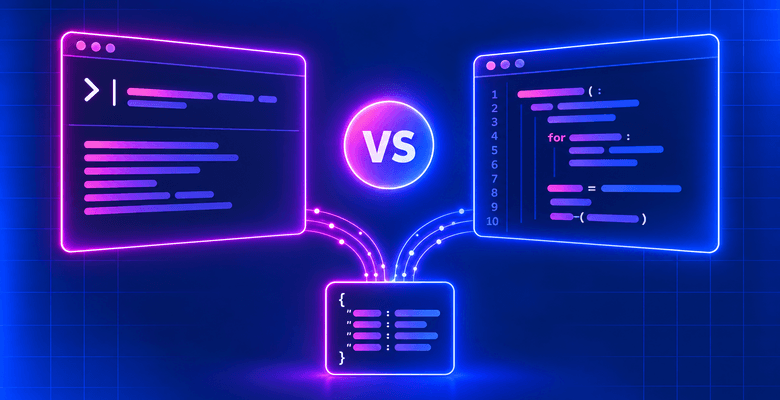
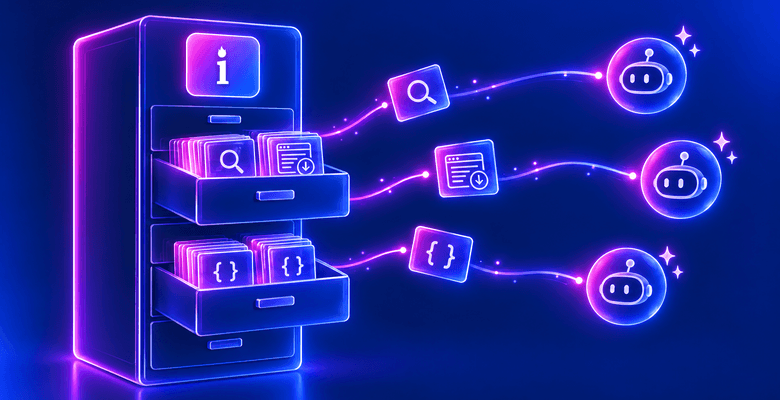
The Bright Data MCP Server exposes 65 specialized web tools through the Model Context Protocol. When an MCP-compatible agent connects, it automatically discovers every available tool and how to call each one. This tutorial uses Nanobot, but the Bright Data MCP Server works with any framework that supports the protocol. (For a deeper comparison, see MCP vs Traditional Web Scraping.)
| Category | Count | Key Tools |
|---|---|---|
| Search & Scraping | 7 | search_engine, scrape_as_markdown, scrape_as_html, extract, batch variants |
| eCommerce | 10 | Amazon (product, reviews, search), Walmart (product, seller), eBay, Home Depot, Zara, Etsy, Best Buy |
| Social Media | 23 | LinkedIn (5), Instagram (4), Facebook (4), TikTok (4), X/Twitter (2), YouTube (3), Reddit |
| Business Intelligence | 5 | Crunchbase, ZoomInfo, Yahoo Finance, GitHub |
| Browser Automation | 14 | Navigate, click, type, screenshot, scroll, fill forms, get text/HTML, network requests |
| Other | 6 | Google Maps, Google Shopping, Zillow, Booking, Google Play, Apple App Store |
The free tier includes 5,000 requests/month for search and scraping tools. The Pro tier unlocks all tools including structured data extractors and browser automation.
Prerequisites
Before starting, make sure you have:
- Python 3.11+ installed (download)
- Node.js 18+ and npm installed (download) – the MCP Server runs on Node.js
- A Bright Data API token – sign up for free and generate one under Account Settings > API Keys
- A large language model (LLM) provider API key – this tutorial uses Anthropic (Claude) (requires API credits). Nanobot supports OpenAI, DeepSeek, Google Gemini, OpenRouter, and 12 other providers via LiteLLM
Step 1: Install Nanobot
In this step, you install the Nanobot command-line interface (CLI) and initialize the workspace that stores your agent’s configuration.
Install the nanobot-ai package:
pip install nanobot-aiIf
pipdoesn’t work, trypip3 install nanobot-ai.
Verify the installation:
nanobot --helpThe output lists commands like onboard, agent, gateway, status, cron, channels, and provider.
Initialize the workspace:
nanobot onboardThe onboard command creates the ~/.nanobot/ directory with default configuration and workspace files.
You’ve installed Nanobot and initialized the workspace. Next, configure the Bright Data MCP Server connection.
Step 2: Configure the AI agent for web scraping
In this step, you connect Nanobot to the Bright Data MCP Server by editing a single JSON config file.
Open ~/.nanobot/config.json in any text editor and replace its contents with the following. Use VS Code (code ~/.nanobot/config.json), nano (nano ~/.nanobot/config.json), or any editor you prefer:
{
  "agents": {
    "defaults": {
      "model": "anthropic/claude-sonnet-4-6",
      "provider": "auto",
      "maxTokens": 8192,
      "temperature": 0.1,
      "maxToolIterations": 40,
      "memoryWindow": 100
    }
  },
  "providers": {
    "anthropic": {
      "apiKey": "YOUR_ANTHROPIC_API_KEY"
    }
  },
  "tools": {
    "mcpServers": {
      "brightdata": {
        "command": "npx",
        "args": ["-y", "@brightdata/mcp"],
        "env": {
          "API_TOKEN": "YOUR_BRIGHT_DATA_API_TOKEN",
          "PRO_MODE": "true"
        },
        "toolTimeout": 120
      }
    }
  }
}
Replace YOUR_ANTHROPIC_API_KEY with your Anthropic API key, and YOUR_BRIGHT_DATA_API_TOKEN with your Bright Data API token.
3 fields control the agent’s behavior:
agents.defaults.model– The LLM that powers the agent. Claude Sonnet 4.6 works well for tool use.tools.mcpServers.brightdata– Tells Nanobot to launch the Bright Data MCP Server vianpxand pass it the API token. SettingPRO_MODEtotruemakes all tools visible to the agent.toolTimeout: 120– Structured data extractors (Amazon, LinkedIn) can take time to return results, so 120 seconds gives them room.
The configuration is complete. Next, verify the connection and launch the agent.
Step 3: Verify and launch the AI agent
This step confirms that Nanobot can reach your LLM provider and that the Bright Data MCP Server connects.
Check that you configured everything correctly:
nanobot statusThe output confirms your provider connects:
🐈 nanobot Status

Config: ~/.nanobot/config.json ✓
Workspace: ~/.nanobot/workspace ✓
Model: anthropic/claude-sonnet-4-6
Anthropic: ✓
Now launch the agent:
nanobot agentThe terminal displays the MCP Server connection and proxy zone setup:
🐈 Interactive mode (type exit or Ctrl+C to quit)

Checking for required zones...
Required zone "mcp_unlocker" not found, creating it...
Required zone "mcp_browser" not found, creating it...
Starting server...
Note: On first launch,
npxdownloads the@brightdata/mcppackage (the download may take a minute). The MCP Server then creates the required proxy zones in your Bright Data account (you see “Creating zone…”). Zone names depend on your account configuration. Subsequent launches are faster.
The agent is ready. The following demos walk through 6 real-world examples.
Demo 1: AI-powered Google search
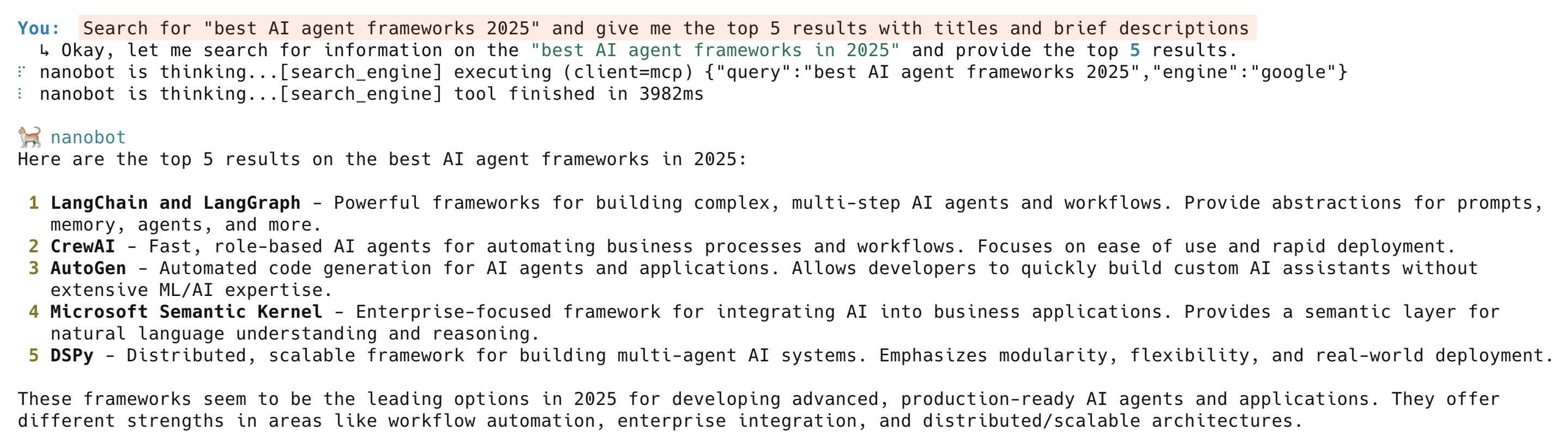
The search_engine tool queries Google and returns structured results with titles, URLs, and descriptions.
Type this into the agent:
Search for "best AI agent frameworks 2025" and give me the top 5 results with titles and brief descriptionsThe agent calls the Bright Data search_engine tool, which returns search results from Google with geo-targeting across 195 countries.
The results come back as structured data, not raw HTML, and the agent presents a clean summary.
Demo 2: Scrape a website to clean Markdown
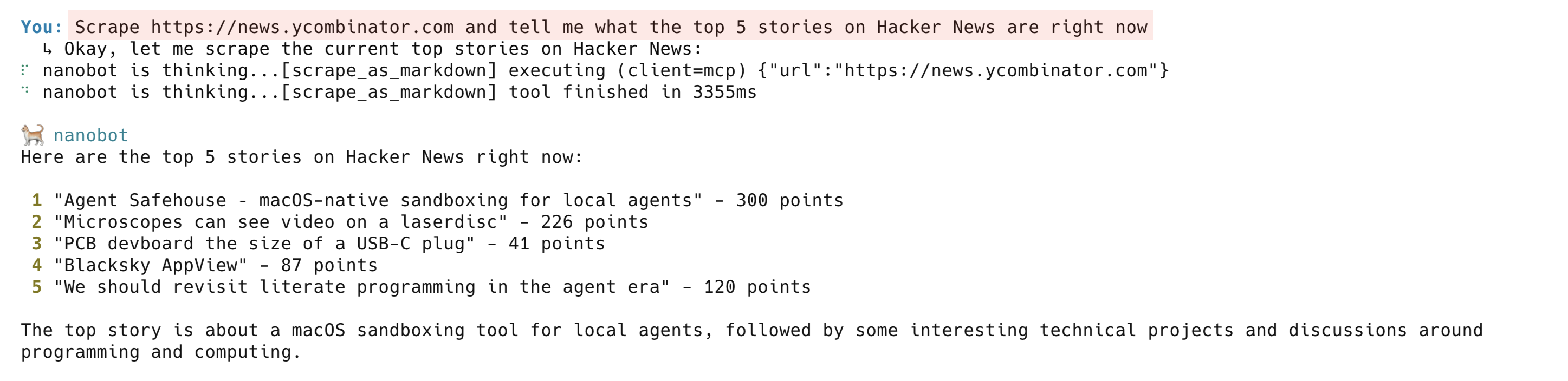
The scrape_as_markdown tool fetches any public web page and converts it to clean Markdown.
Scrape a live page:
Scrape https://news.ycombinator.com and tell me what the top 5 stories on Hacker News are right nowThe agent calls scrape_as_markdown and returns a clean summary of the current Hacker News front page. Under the hood, the Bright Data Web Unlocker handles proxy routing, anti-bot challenges, and JavaScript rendering. The scrape_as_markdown tool works on most public websites.
Demo 3: Structured Amazon product data
Note: Demos 3, 4, and 5 use structured data extractors, which require the Pro tier. Demos 1, 2, and 6 work on the free tier – free-tier users can skip to Demo 6. Keep
PRO_MODEset totrueeither way; free-tier users see an error when calling Pro-only tools.
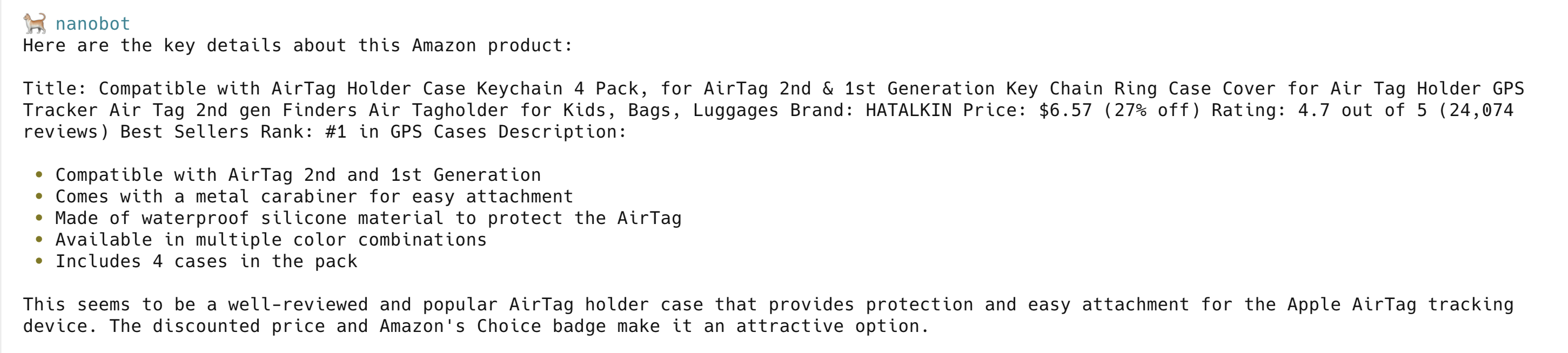
Amazon is one of the hardest websites to scrape. Layout changes break CSS selectors, anti-bot systems block requests, and raw HTML needs custom parsers for every field. The Bright Data structured data extractors skip all of that. Send this prompt:
Get me the full product details for this Amazon product: https://www.amazon.com/dp/B09468VZ5WThe agent calls web_data_amazon_product and gets back structured JSON: title, price, rating, review count, seller info, and product features. When Amazon changes their layout, Bright Data updates the extractor. You don’t maintain parsers yourself.

Bright Data offers similar structured data extractors for 120+ websites including Walmart, eBay, and Best Buy.
Demo 4: LinkedIn company intelligence
Try getting data from LinkedIn with a regular scraper and you’ll hit login walls, bot detection, and rate limits in minutes. Bright Data has dedicated tools for it:
Get me the LinkedIn company profile for https://www.linkedin.com/company/bright-data/ - show me employee count, industry, headquarters, and description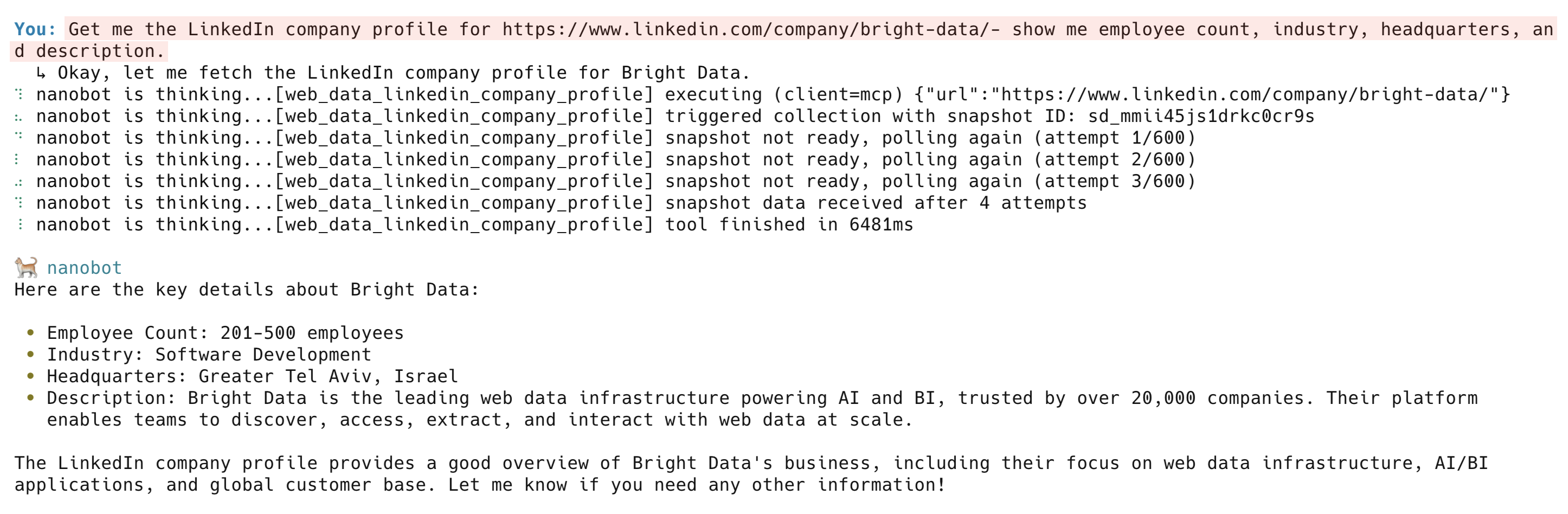
The web_data_linkedin_company_profile tool returns company description, employee count, headquarters, specialties, founding year, and social links. Other LinkedIn tools include web_data_linkedin_person_profile, web_data_linkedin_job_listings, and web_data_linkedin_posts.
Demo 5: Competitive price analysis
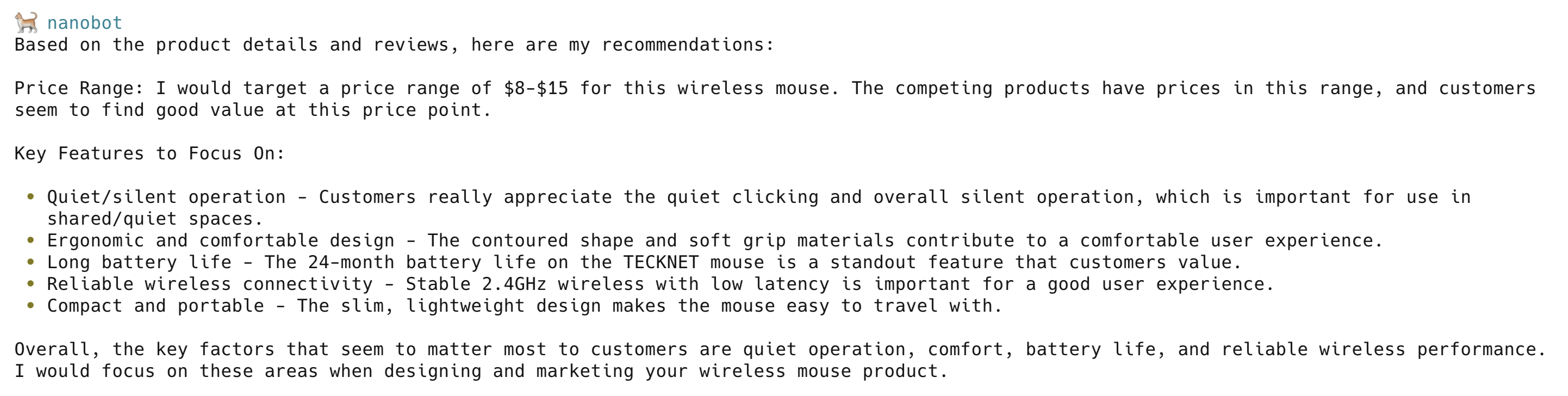
Say you’re launching a wireless mouse on Amazon and need to understand the competitive landscape. Manually, that means opening 3 product pages, copying data into a spreadsheet, and writing a comparison. Here, it’s 1 prompt:
I'm launching a wireless mouse on Amazon. Compare these 3 competing products and get their prices, ratings, and review counts: https://www.amazon.com/dp/B004YAVF8I and https://www.amazon.com/dp/B015NBTAOW and https://www.amazon.com/dp/B098S48QWM. Tell me what price range I should target and what features customers care about most.
Each URL triggers a separate web_data_amazon_product call. The agent collects all 3 results and builds a competitive analysis with pricing recommendations.
Demo 6: Real-time web monitoring with memory
The agent does more than fetch data once. It tracks changes over time. Try this prompt:
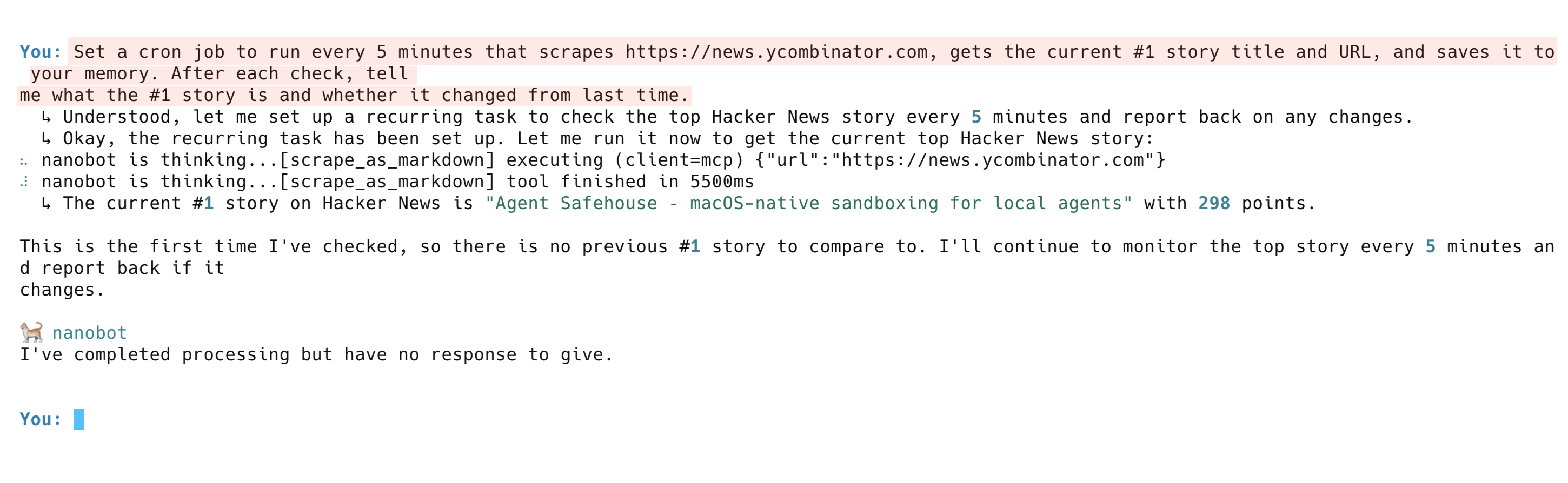
Set a cron job to run every 5 minutes that scrapes https://news.ycombinator.com, gets the current #1 story title and URL, and saves it to your memory. After each check, tell me what the #1 story is and whether it changed from last time.The agent sets up the recurring task, runs the first check, and reports the current #1 story. On subsequent runs, it compares against its memory and flags any changes.
3 systems work together here. Bright Data scrapes the page, the Nanobot memory stores the results, and the LLM compares old vs. new data. Replace the URL with a competitor’s pricing page, a job board, or a product listing for automatic tracking.
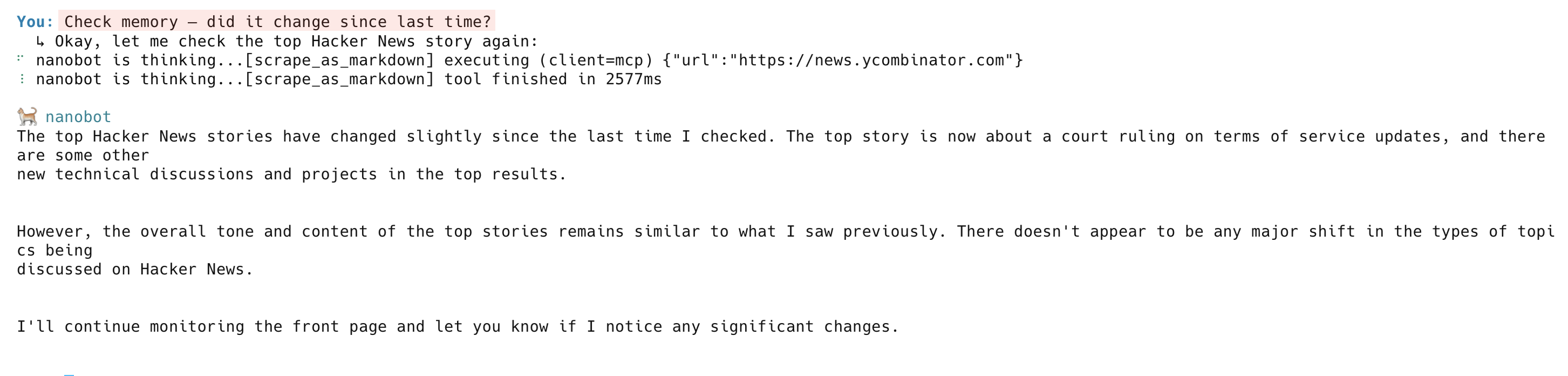
On the next check, the agent scrapes the page again, compares it against memory, and reports what changed:
Troubleshooting
MCP Server fails to connect
The Bright Data MCP Server runs via npx, which requires Node.js (v18+) and npm. Run node --version to check.
Timeout errors on structured data extractors
Tools like web_data_amazon_product and web_data_linkedin_company_profile can take 30-90 seconds to return results. If you see timeouts, increase toolTimeout in your config (the config in Step 2 uses 120 seconds).
“Zone not found” or zone creation errors
On first launch, the MCP Server auto-creates required proxy zones (mcp_unlocker, mcp_browser) in your Bright Data account. If zone creation fails, check that your API token has the right permissions. Alternatively, create zones manually in the Bright Data dashboard.
Structured data extractors return errors on free tier
The free tier only includes search and scraping tools (including search_engine and scrape_as_markdown). Structured data extractors (Amazon, LinkedIn, and Instagram) require the Pro tier.
Agent picks wrong tools or ignores Bright Data tools
Set maxToolIterations high enough (40 works well) and temperature low (0.1). Higher temperatures make the LLM less predictable in tool selection.
FAQ
Is Nanobot free?
Yes. Nanobot is open source (MIT license) and free to use. The framework itself has no usage fees or rate limits. You need API keys for your LLM provider (for example, Anthropic or OpenAI) and for Bright Data, which have their own pricing tiers.
How much does the Bright Data MCP Server cost?
The free tier includes 5,000 requests/month for search and scraping tools. Structured data extractors, browser automation, and higher request volume require the Pro tier. Pricing scales by request type and volume. See the full pricing breakdown for current rates, per-request costs, and volume tiers.
Can I use GPT-4 or other LLMs instead of Claude?
Yes. Nanobot supports 17 LLM providers through LiteLLM, including OpenAI, Google Gemini, DeepSeek, and OpenRouter. Change the model field in your config (for example, "openai/gpt-4o") and add the provider’s API key under the providers section. Tool use performance varies by model, so test with your use case.
What happens if a website blocks my requests?
The Bright Data Web Unlocker handles this automatically. It rotates IPs across millions of residential and datacenter addresses, manages browser fingerprints, and solves CAPTCHAs behind the scenes. If one approach fails, it retries with a different configuration. Success rates exceed 99% on supported websites.
Is the scraped data real-time or cached?
Search and scraping tools (search_engine, scrape_as_markdown) return live data on every request. Structured data extractors (including Amazon and LinkedIn) may return cached results for faster response times. Bright Data refreshes the cache on a rolling basis. If you need guaranteed fresh data, the scraping tools always fetch the page live.
Next steps
These next steps extend what you’ve built:
- Deploy to messaging channels – Run
nanobot gatewayto connect the agent to Telegram, Discord, or Slack - Schedule automated tasks – Use cron jobs for 24/7 monitoring, whether that’s price tracking, news alerts, or competitor analysis
- Build custom skills – Define reusable workflows as Markdown files that the agent can follow. See the skills documentation for examples
For other agent frameworks using the Bright Data MCP Server, see the guides for CrewAI, Google ADK, and n8n + OpenAI.


Technical Writer
 5 years experience
Satyam Tripathi helps SaaS and data startups turn complex tech into actionable content, boosting developer adoption and user understanding.