








In this tutorial, you will learn:
- What Mistral Vibe is and what it offers.
- Why extending it with web access lets you overcome its biggest limitations.
- How Bright Data supports Vibe integration for web scraping, web search, and browser automation.
- How to connect Bright Data to the Mistral Vibe coding agent via MCP.
- How to give the Mistral Vibe knowledge of Bright Data solutions via Agent Skills.
- The benefits of the Bright Data + Mistral Vibe integration, with a complete example.
Let’s dive in!
What Is Mistral Vibe?
Mistral Vibe is an open-source CLI coding assistant powered by Mistral’s AI models. In detail, it provides a conversational interface to explore, modify, and interact with codebases using natural language.
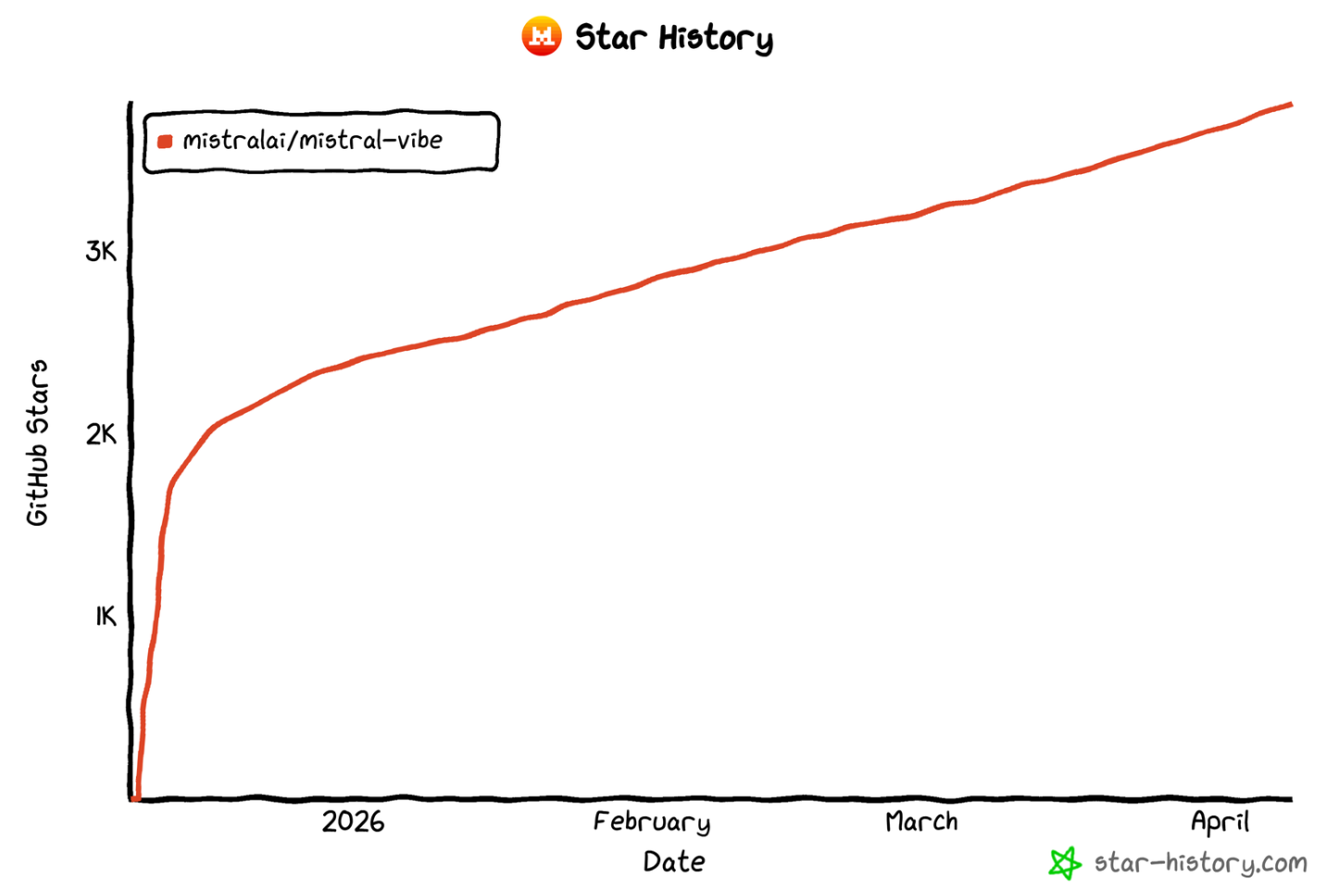
Vibe helps developers automate repetitive tasks, refactor code, run shell commands, and delegate work to subagents. It has an open-source nature, boasting over 3.8k stars on GitHub.
Its main features include:
- Interactive chat with Mistral AI models for code exploration and modification.
- File read/write, search/replace, and shell command execution.
- Task delegation to subagents for parallel workflows.
- Project-aware context and Git integration.
- Custom skills and slash commands system.
- Auto-completion, persistent history, and configurable UI themes.
- Safety features like tool execution approval and trusted folders.
Why Mistral Vibe Needs Access to the Web
Regardless of how formidable your configured Mistral model is, the Vibe coding agent encounters a critical constraint common to every LLM: stagnant information! Ultimately, an LLM solely produces output derived from the datasets used during training. The issue lies in how this training material constitutes a static snapshot of history…
Considering how rapidly the technical world advances, that restriction proves substantial. LLMs might recommend obsolete programming habits, utilize deprecated functions, or entirely overlook recently launched updates.
To address such limitations, you must enhance your AI software tool with live web access. That is precisely what Bright Data delivers!
Bright Data’s AI-ready web access infrastructure enables your agent to autonomously:
- Discover up-to-date information from relevant online sources and perform web searches on Google and other engines, just like a regular user.
- Learn from documentation pages, Stack Overflow, forums, and other sources to stay current and self-correct when needed.
- Retrieve real, structured web data for tasks like populating databases or mocking responses.
- Suggest relevant links for further reading or to enhance your
README.mdfiles. - Handle a wide range of other real-world use cases.
What sets Bright Data apart is its large network infrastructure, supported by over 400M residential proxy IPs in 195 countries. This allows for unlimited scalability while achieving 99.99% uptime and a 99.95% success rate.
How to Extend Mistral Vibe with Web Scraping, Search, and Exploration Capabilities
Bright Data supports Mistral Vibe through two possible integrations:
- Bright Data MCP: The official Bright Data MCP server, exposing 60+ tools to interact with Bright Data’s API-based products and services.
- Bright Data skills: A set of skills aligned with the Agent Skills standard, providing AI agents with the knowledge needed to use Bright Data products effectively.
Important: These two approaches are not mutually exclusive. Quite the opposite, they are complementary and synergic! That is because the Bright Data skills include a skill to help AI coding agents make the most out of the Web MPC tools.
Bright Data MCP
The Bright Data MCP offers 60+ tools, supporting automated web data collection, structured data extraction, and browser interactions.
Even on the free tier, it exposes interesting tools:
| Tool | Description |
|---|---|
search_engine |
Retrieve Google, Bing, or Yandex results in JSON or Markdown format. |
scrape_as_markdown |
Convert any webpage into clean Markdown, bypassing anti-bot measures. |
discover |
Search the web and rank results using AI-driven relevance. |
You also get access to the batch versions of the search_engine and scrape_as_markdown tools.
However, Pro mode is where Bright Data MCP truly shines. This unlocks advanced tools for structured data extraction from platforms like Amazon, GitHub, LinkedIn, YouTube, TikTok, Yahoo Finance, Zillow, Google Maps, and more. Also, you get tools for browser automation.
Bright Data Skills
The Bright Data skills are:
| Skill | Description |
|---|---|
search |
Search Google and get structured JSON results with titles, links, and descriptions. Supports pagination. |
scrape |
Scrape any webpage as clean Markdown with bot bypass, CAPTCHA solving, and JavaScript rendering. |
data-feeds |
Extract structured data from 40+ sites including Amazon, LinkedIn, TikTok, YouTube, eBay, and Walmart, and more. |
bright-data-mcp |
Orchestrate the Bright Data MCP tools for better search, scraping, extraction, and browser automation. |
scraper-builder |
Guide agents to build production-ready scrapers, from site analysis to full implementation. |
bright-data-best-practices |
Reference for using Bright Data’s Web Unlocker, SERP API, Scraper API, and Browser API. |
python-sdk-best-practices |
Guide for the brightdata-sdk Python package, covering async/sync clients, scrapers, datasets, and errors. |
brightdata-cli |
Instructions to use Bright Data CLI for scraping, search, data extraction, proxies, and monitoring. |
competitive-intel |
Provides real-time competitive insights: pricing, reviews, hiring signals, content, SEO, and market maps. |
design-mirror |
Replicates design system patterns, tokens, and components for consistent UI. |
brd-browser-debug |
Debug Bright Data browser sessions with failure triage, bandwidth tracking, CAPTCHA reporting, and patterns. |
Common Steps
Before showing how to integrate Bright Data into Vibe via MCP or skills, there are some common preliminary actions you need to take care of.
Prerequisites
To follow this tutorial, make sure you have:
- A Unix-based operating system, such as Linux, macOS, or the WSL configured in Windows.
- Node.js installed locally. This required for setting up MCP locally and installing skills via the
skillspackage. If you plan to install skills manually and connect remotely to the Bright Data MCP, you can skip this prerequisite. - A Mistral account, ideally with an API key already in place.
- A Bright Data account with an API key defined.
To generate a Bright Data API key, follow the official guide.
Step #1: Install Mistral Vibe
Open the terminal and run the following command to download and execute the Vibe installation script:
curl -LsSf https://mistral.ai/vibe/install.sh | bashThis will start the Mistral Vibe installation tool, which will retrieve and install all required packages: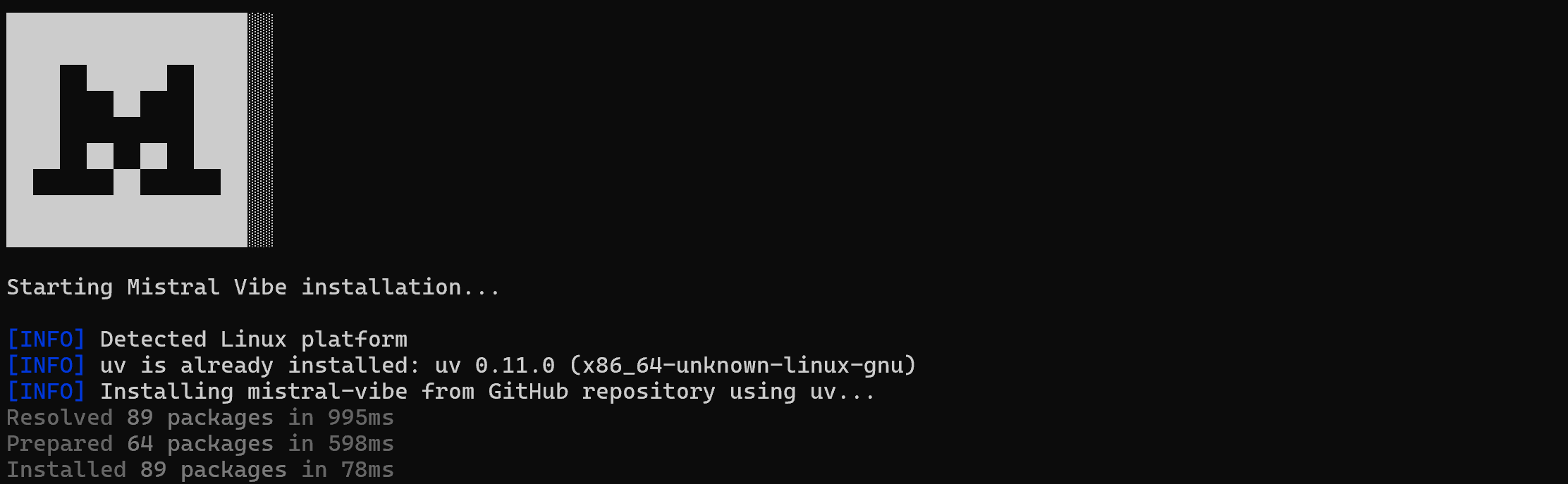
Once the installation is complete, you should see an output like this:
!Note the “[SUCCESS]” messages
Now, you can run Mistral Vibe on your system via:
vibeWell done! Vibe has been installed successfully.
Step #2: Complete the Setup
Create a folder for your project (or navigate to an existing one) in the terminal. In this example, we will assume your project directory is mistral-bright-data-example:
mkdir mistral-bright-data-example
cd mistral-bright-data-example
Inside your project folder, start Mistral Vibe:
vibeThe first time you run the tool, you will see a welcome message like this: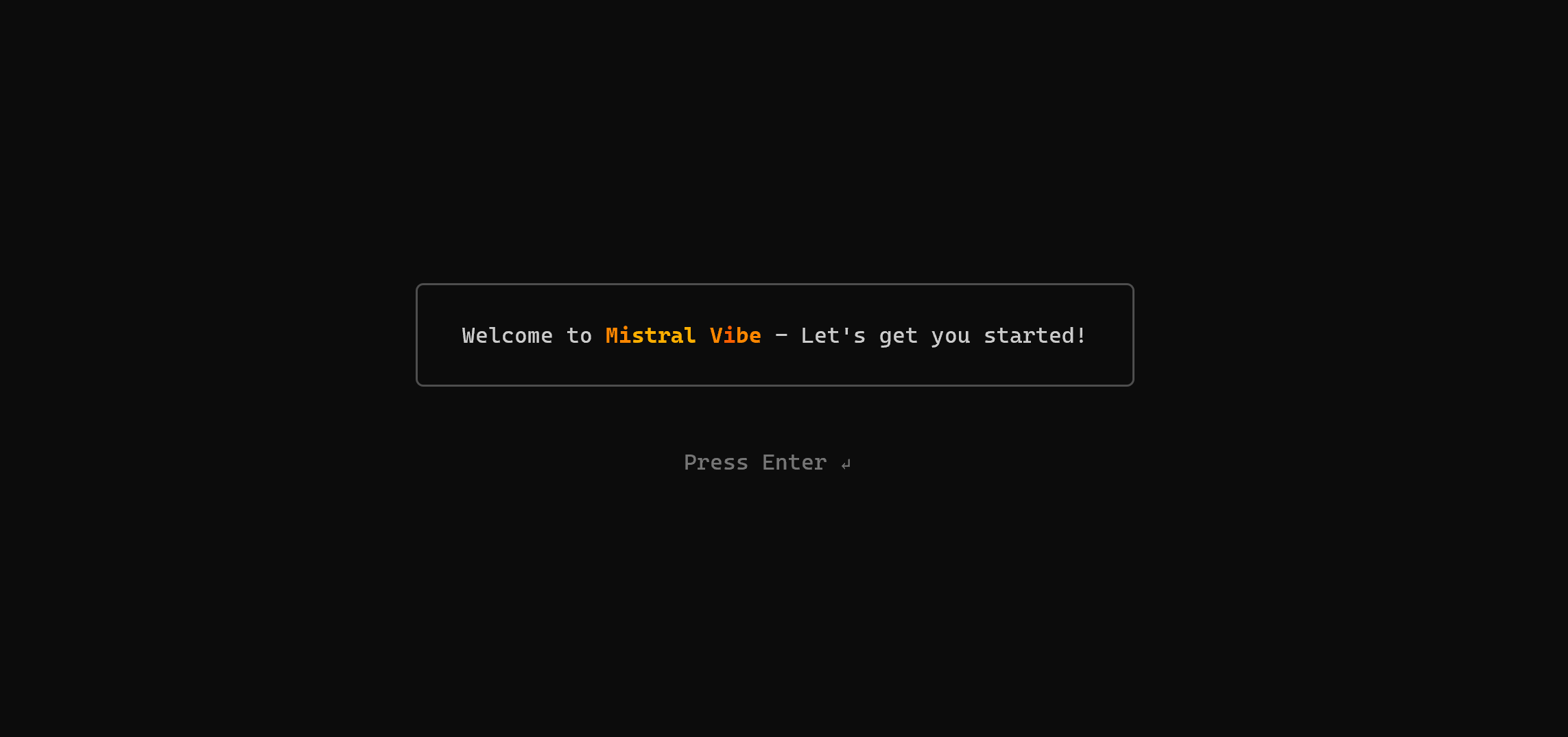
Press Enter, and you will be prompted to enter your Mistral API key. If you do not already have one, go to the Mistral Vibe CLI page in your account and click “Generate your API key” button under the “Start for free with your API plan” dropdown: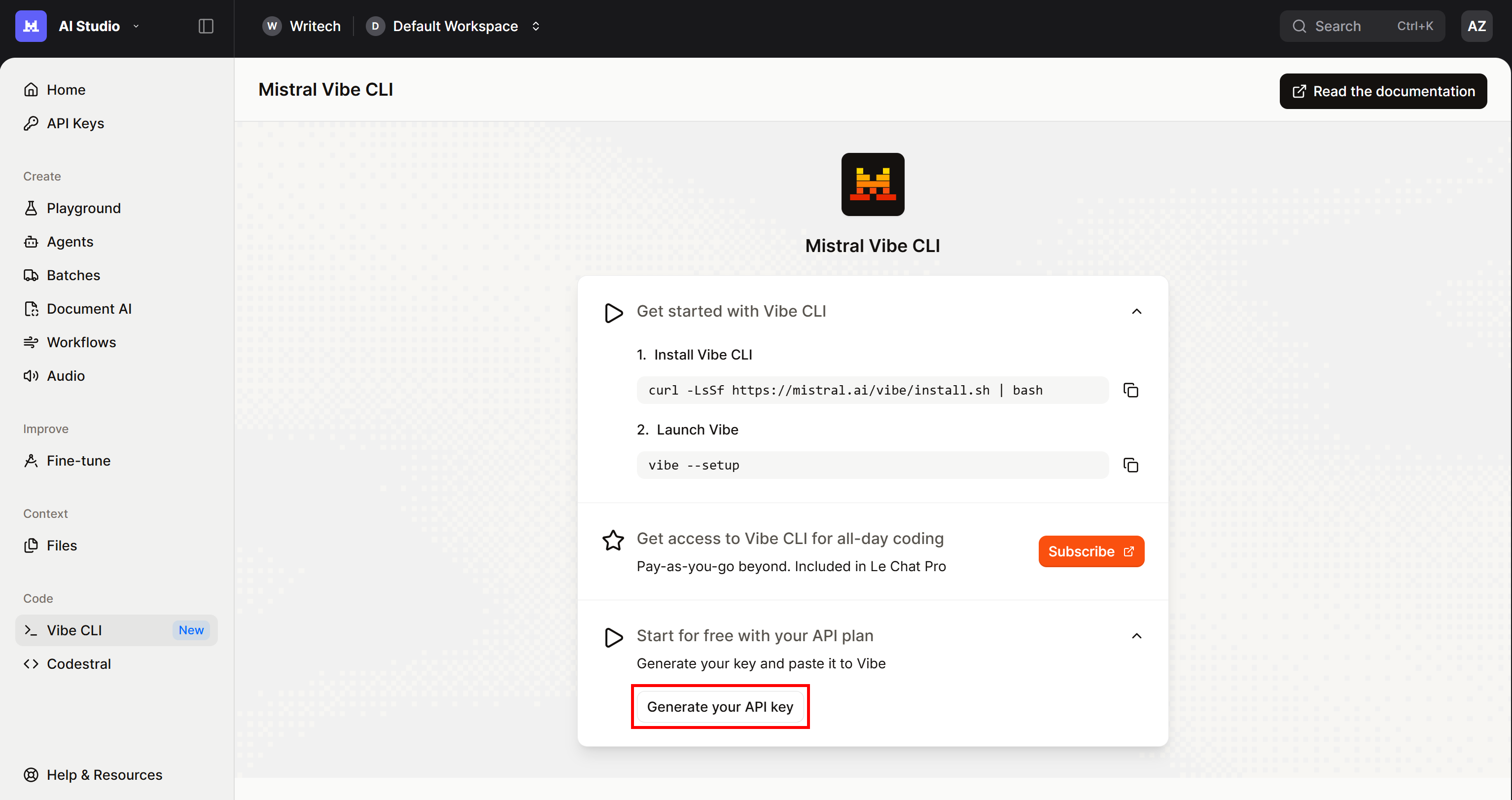
Follow the instructions, subscribe to a plan (even the free “Experiment” plan works), and generate your API key.
Once you have the Mistral API key, paste it into the field and press Enter: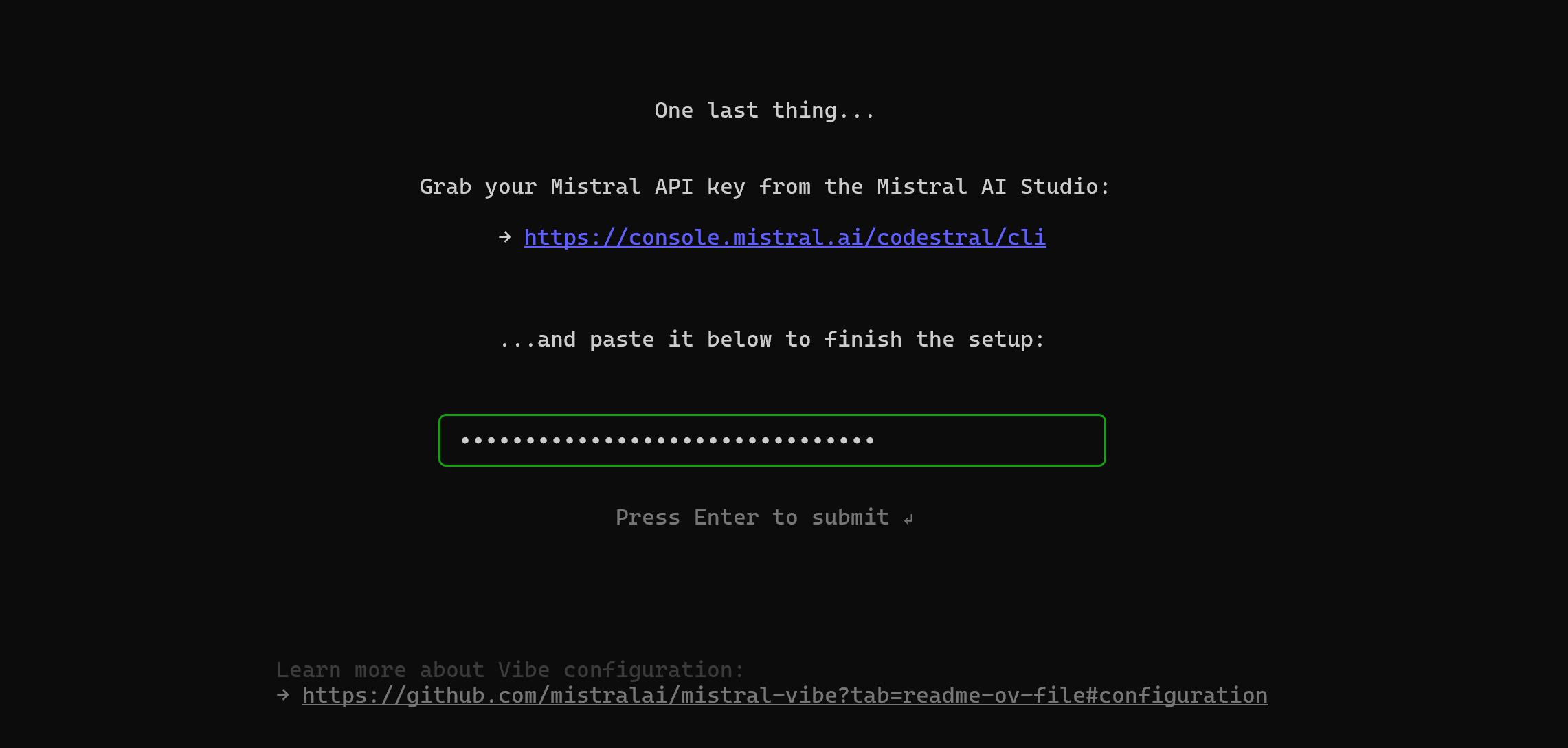
After entering your API key, you will reach the Mistral Vibe terminal UI: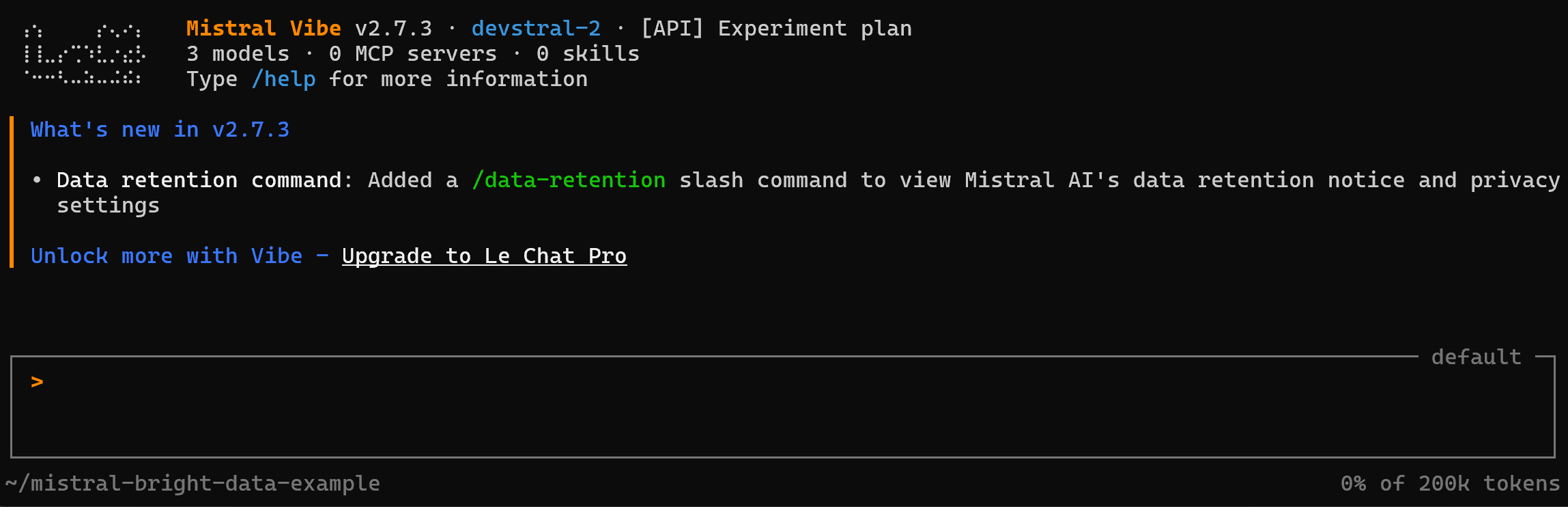
From here, you can configure the model, system prompts, and more. That is also where you will launch prompts.
Fantastic! Mistral Vibe is now configured and ready to operate on your system.
Connecting Bright Data MCP to Mistral Vibe
This section will guide you through the process of configuring a local instance of the Bright Data MCP in Mistral Vibe.
Prerequisites
To follow along with this section more easily, it is recommended to have:
- A basic understanding of how MCP works.
- Some knowledge of the tools exposed by the Bright Data MCP.
Also, remember that the prerequisites listed in the “Common Steps” chapter apply here as well.
Step #1: Get Started with Bright Data MCP
Before configuring Bright Data MCP in Mistral Vibe, you need to verify that the MCP server runs on your machine. Alternatively, you can skip this step and configure a remote connection to Bright Data MCP.
Start by logging in to your Bright Data account. For a quick setup, follow the wizard in the “MCP” section of the control panel: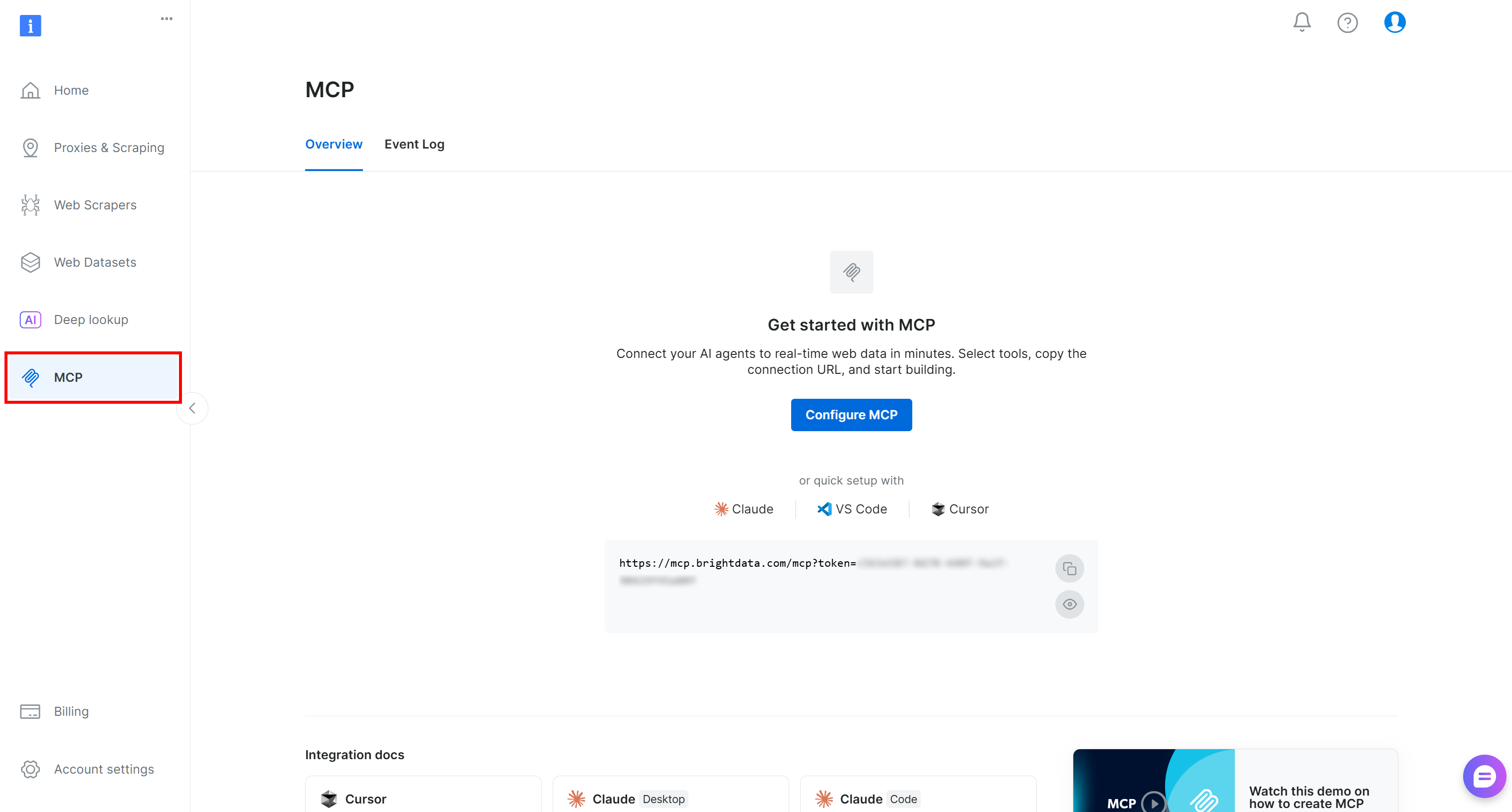
Otherwise, for additional guidance, refer to the instructions below.
First, install the Bright Data MCP globally via the @brightdata/mcp package:
npm install -g @brightdata/mcpVerify that the MCP server starts locally with:
API_TOKEN="<YOUR_BRIGHT_DATA_API>" npx -y @brightdata/mcpReplace <YOUR_BRIGHT_DATA_API> with your actual Bright Data API key. This command sets the required API_TOKEN environment variable and launches the Bright Data MCP server locally.
If successful, you should see output similar to:
On the first launch, the @brightdata/mcp package automatically creates two zones in your Bright Data account:
mcp_unlocker: A zone for Web Unlocker.mcp_browser: A zone for Browser API.
These two zones power the 60+ tools available in Bright Data MCP. Note that you can also configure your own custom zones, as explained in the docs.
To confirm that the standard zones were created, go to the “Proxies & Scraping Infrastructure” page in the Bright Data control panel. You should see both zones listed in the table: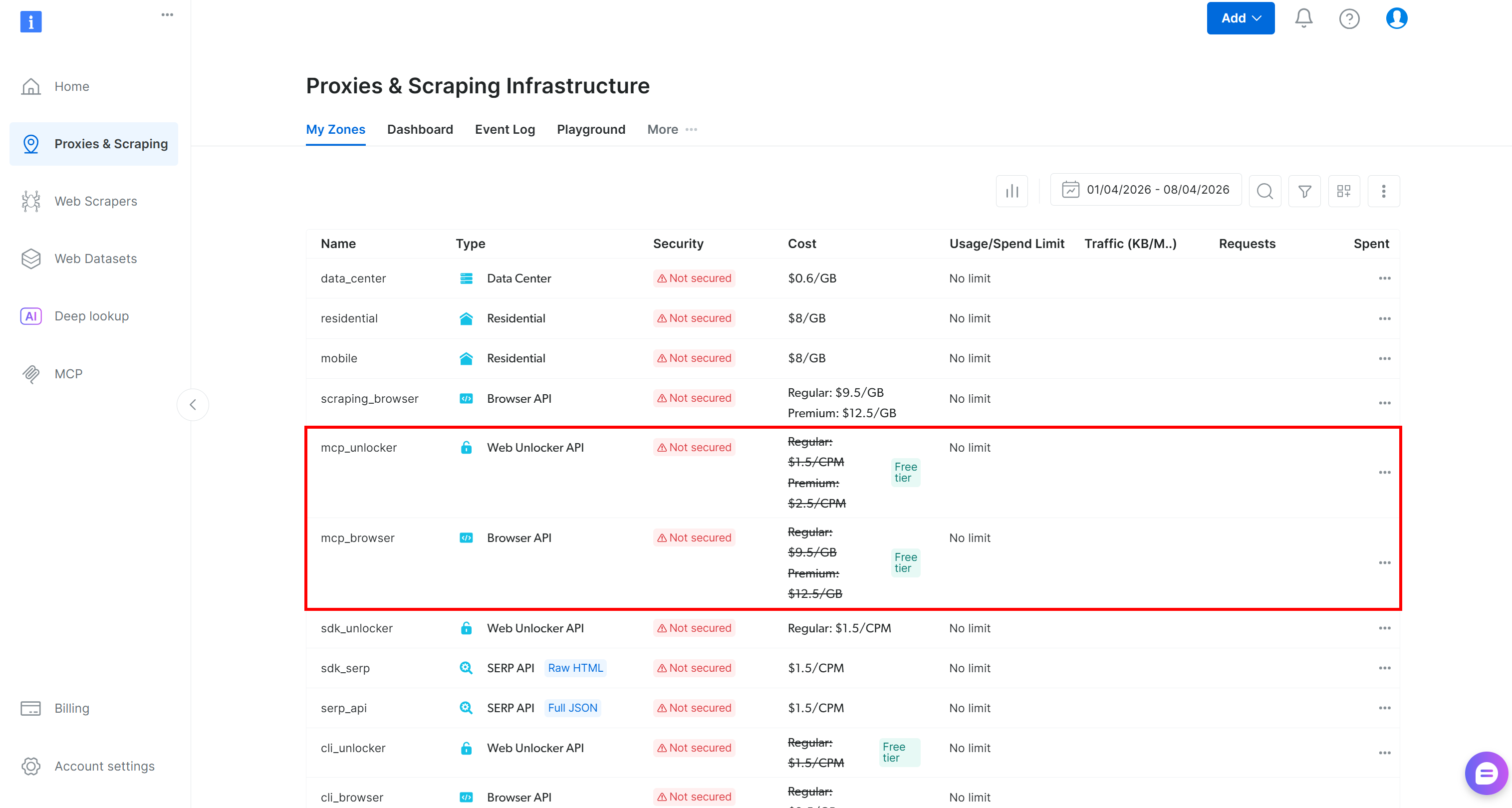
On the Bright Data MCP free tier, only the search_engine and scrape_as_markdown tools (+ their batch versions), as well as the discover tool, are available.
To unlock all 60+ tools, enable Pro mode by setting the PRO_MODE="true" environment variable:
API_TOKEN="<YOUR_BRIGHT_DATA_API>" PRO_MODE="true" npx -y @brightdata/mcpNote: Pro mode is not included in the free tier and incurs additional charges.
Amazing! You just verified that the Bright Data MCP server can run on your machine. Next, you will configure Mistral Vibe to start the server autonomously and connect to it.
Step #2: Configure Bright Data MCP in Mistral Vibe
In your project directory, create a config.tomlfile inside the .vibe directory:
mistral-bright-data-example/
├── .vibe/
│   └── config.toml
└── ...
That represents the file for local Mistral Vibe configuration in your project. To configure the Bright Data MCP connection, make sure the ./.vibe/config.toml file contains the following:
[[mcp_servers]]
name = "bright-data"
transport = "stdio"
command = "npx"
args = ["@brightdata/mcp"]
env = { "API_TOKEN" = "<YOUR_BRIGHT_DATA_API_KEY>", "PRO_MODE" = "true" }
This setup mirrors the npx command you tested earlier, using environment variables for credentials and configuration:
API_TOKEN: Required. Set it to your Bright Data API key.PRO_MODE: Optional. Remove it (or set it to"false") if you are not planning to use Pro mode.
If you want to configure the Bright Data MCP globally for all projects, add the same configuration to your ~/.vibe/config.toml file.
Note: With a similar configuration (transport = "http"), you can connect to the remote Bright Data MCP via Streamable HTTP. This approach is better suited for enterprise-grade scenarios.
Fantastic! The Bright Data MCP should now be available in Mistral Vibe.
Step #3: Verify the Connection
Launch Mistral Vibe again:
vibeThis time, you should see that one MCP server is connected: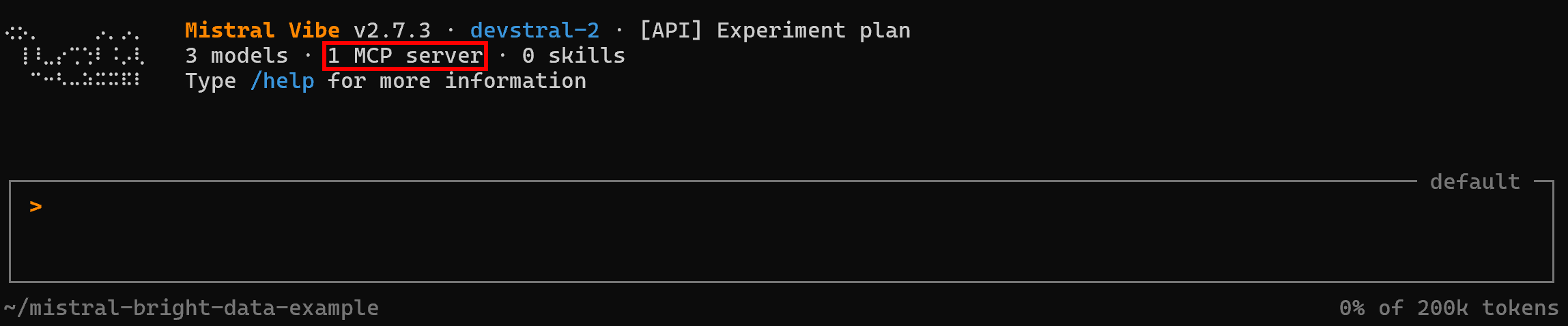
Since there is no direct command to check MCP connections, ask a question like:
Which MCP tools do you have access to?In Rapid (free tier) mode (PRO_MODE omitted or set to false), you will see the five free tools: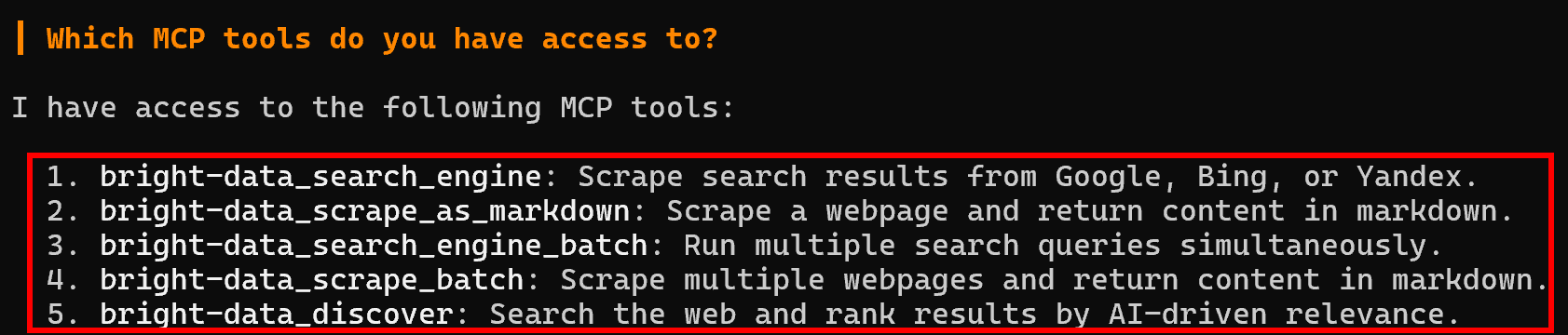
Instead, in Pro mode, you will have access to all 60+ tools: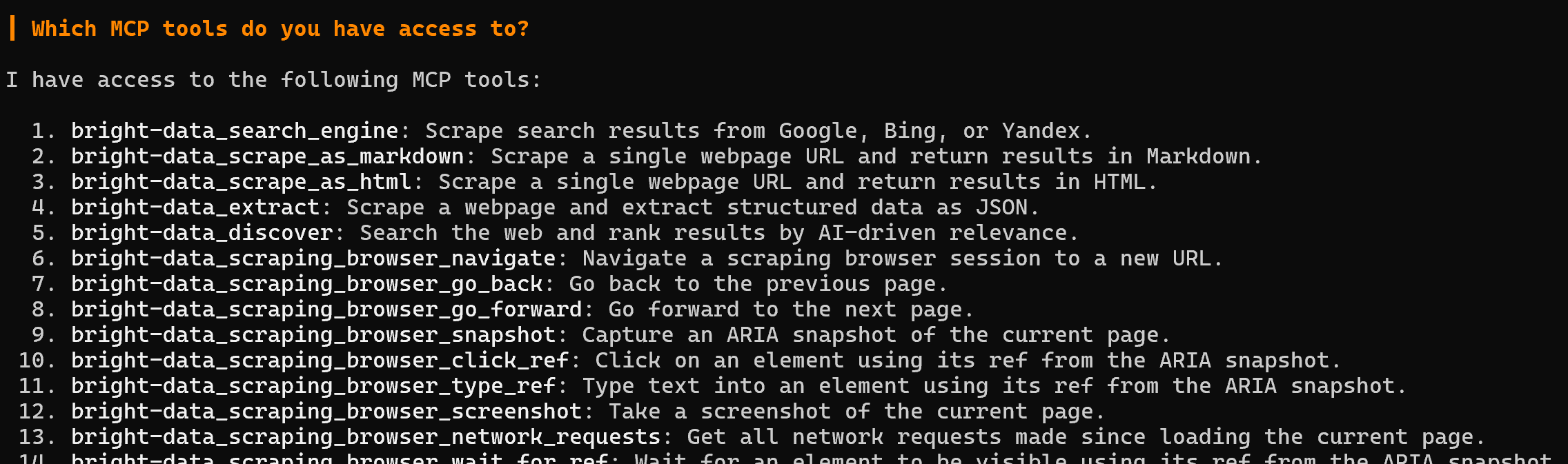
Congratulations! This confirms that the Bright Data MCP is correctly exposing tools to Mistral Vibe. (Later in this blog post, we will showcase the Bright Data MCP in action together with Bright Data skills.)
Adding Bright Data Skills to Mistral Vibe
Here, you will be guided through adding Bright Data skills to your Vibe project via the guided experience provided by Vercel’s skills tool.
Note: For a manual approach, clone the Bright Data Skills repository. Next, just copy the contents of the skills/skills/ folder into the .vibe/skills directory of your project:
git clone https://github.com/brightdata/skills
cp -r skills/skills/* <PATH_TO_YOUR_PROJECT>/.vibe/skills/
Now, let’s look at a simplified and more reliable procedure!
Prerequisites
To progress through this tutorial section, make sure you have:
- An understanding of how Agent Skills standards work.
- Basic familiarity with Vercel’s
skillstool, a dedicated CLI for managing skills in AI coding agent solutions. - Some knowledge of the Bright Data skills.
In addition to the prerequisites listed in the “Common Steps” chapter, you will also need:
- A Web Unlocker API zone set up in your Bright Data account.
- The
jqpackage installed locally.
To install jq (a tool for processing JSON, similar to sed) on Debian-based operating systems, run:
sudo apt-get install curl jqEquivalently, on macOS, execute:
brew install curl jqFor a quick setup of the Web Unlocker API zone, refer to the “Create Your First Unlocker API” guide. Alternatively, follow the next chapter.
Step #1: Add a Web Unlocker API Zone in Your Bright Data Account
Log in to your Bright Data account. From the control panel, navigate to the “Proxies & Scraping” page and check the “My Zones” table: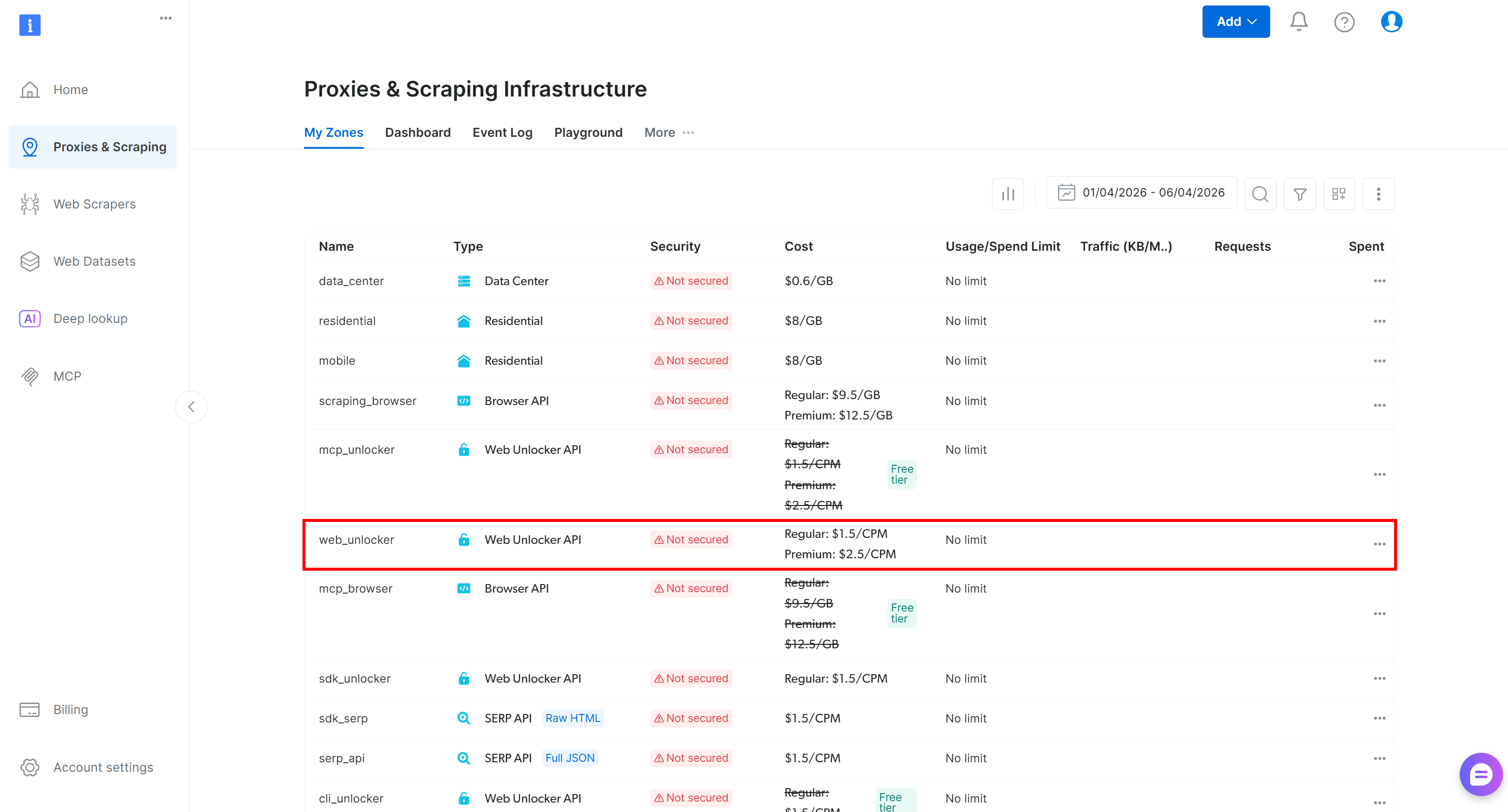
If a Web Unlocker API zone (for example, web_unlocker) already exists, you can proceed to the next step.
If it does not exist, create one by scrolling to the “Unblocker API” card and clicking the “Create zone” button: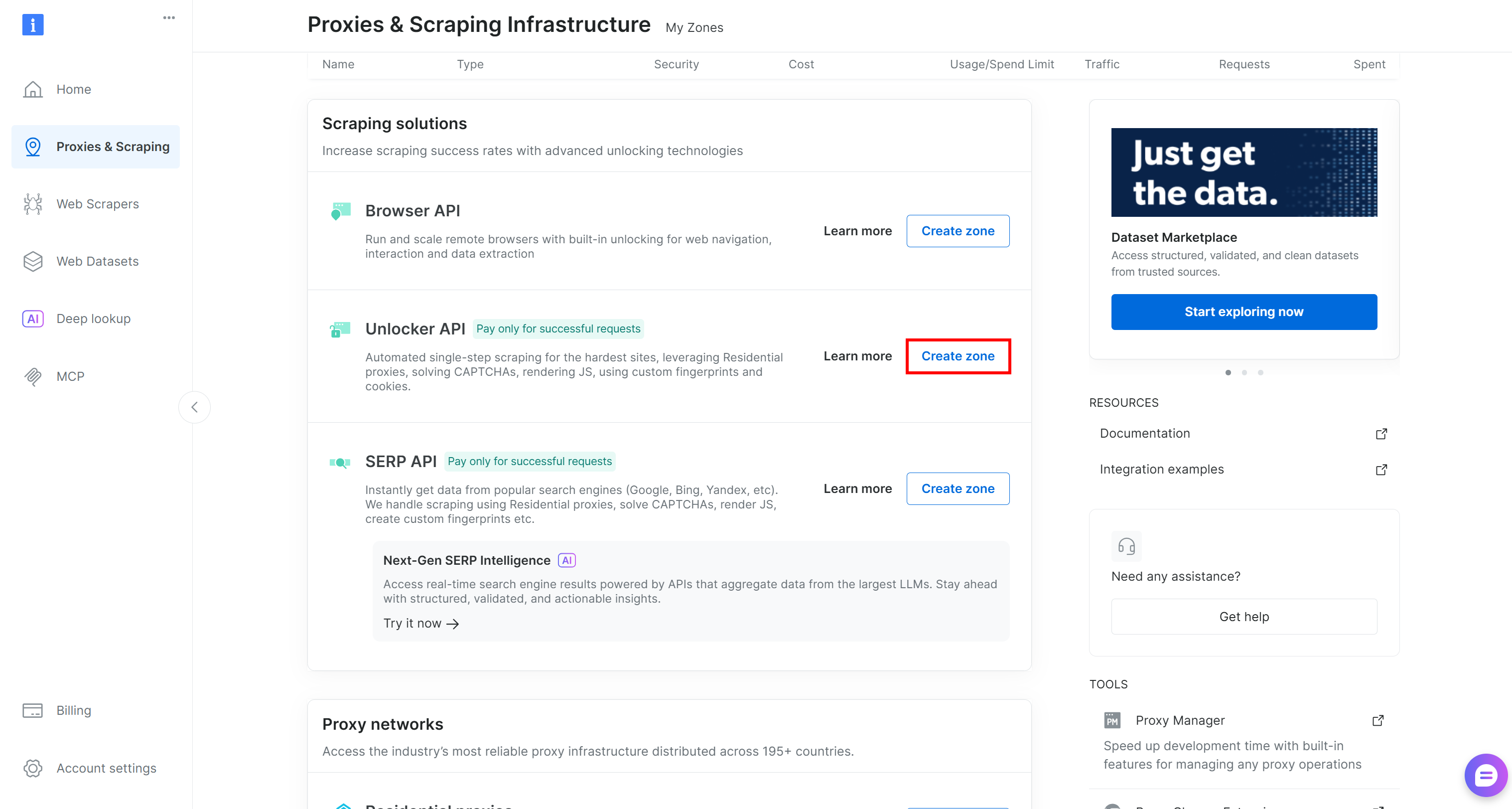
Choose a clear name for your zone and complete the setup wizard until the zone becomes active. Perfect!
Step #2: Complete the Bright Data Skills Setup
Bright Data Skills require the following two environment variables to work:
BRIGHTDATA_API_KEY: Used to authenticate requests to Bright Data APIs.BRIGHTDATA_UNLOCKER_ZONE: Specifies your Web Unlocker API zone, enabling web scraping (and search capabilities, acting as a SERP API).
Define these variables in your system with:
export BRIGHTDATA_API_KEY="<YOUR_BRIGHT_DATA_API_KEY>"
export BRIGHTDATA_UNLOCKER_ZONE="<YOUR_BRIGHT_DATA_WEB_UNLOCKER_API_ZONE_NAME>"
Replace the placeholders with the values you just configured, and you are good to go!
Step #3: Install the Bright Data Skills
In your project folder, run the following command:
npx skills add brightdata/skills -a mistral-vibeThis command installs the skills package and launches the setup process, which will:
- Download the Bright Data skills from the official Agent Skills Directory.
- Configure them for use in Mistral Vibe.
Initially, you will see a screen where you can select which skills to install: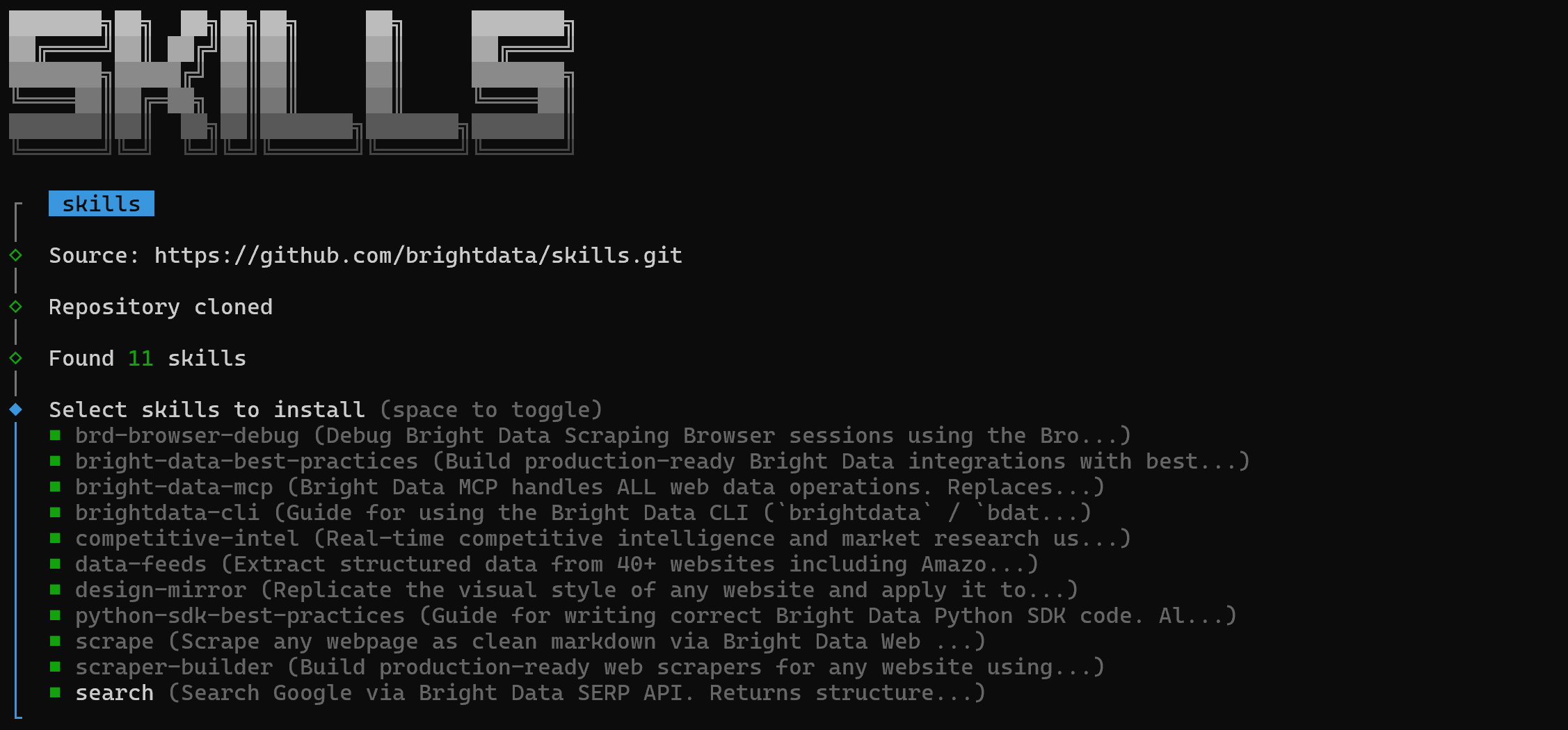
To install them all, toggle each one using the spacebar, then press Enter.
Next, select the installation scope and continue:
You will then see the “Installation Summary” and “Security Risk Assessment” reports. Review them and press Enter to confirm. Finally, you will get a confirmation message like this: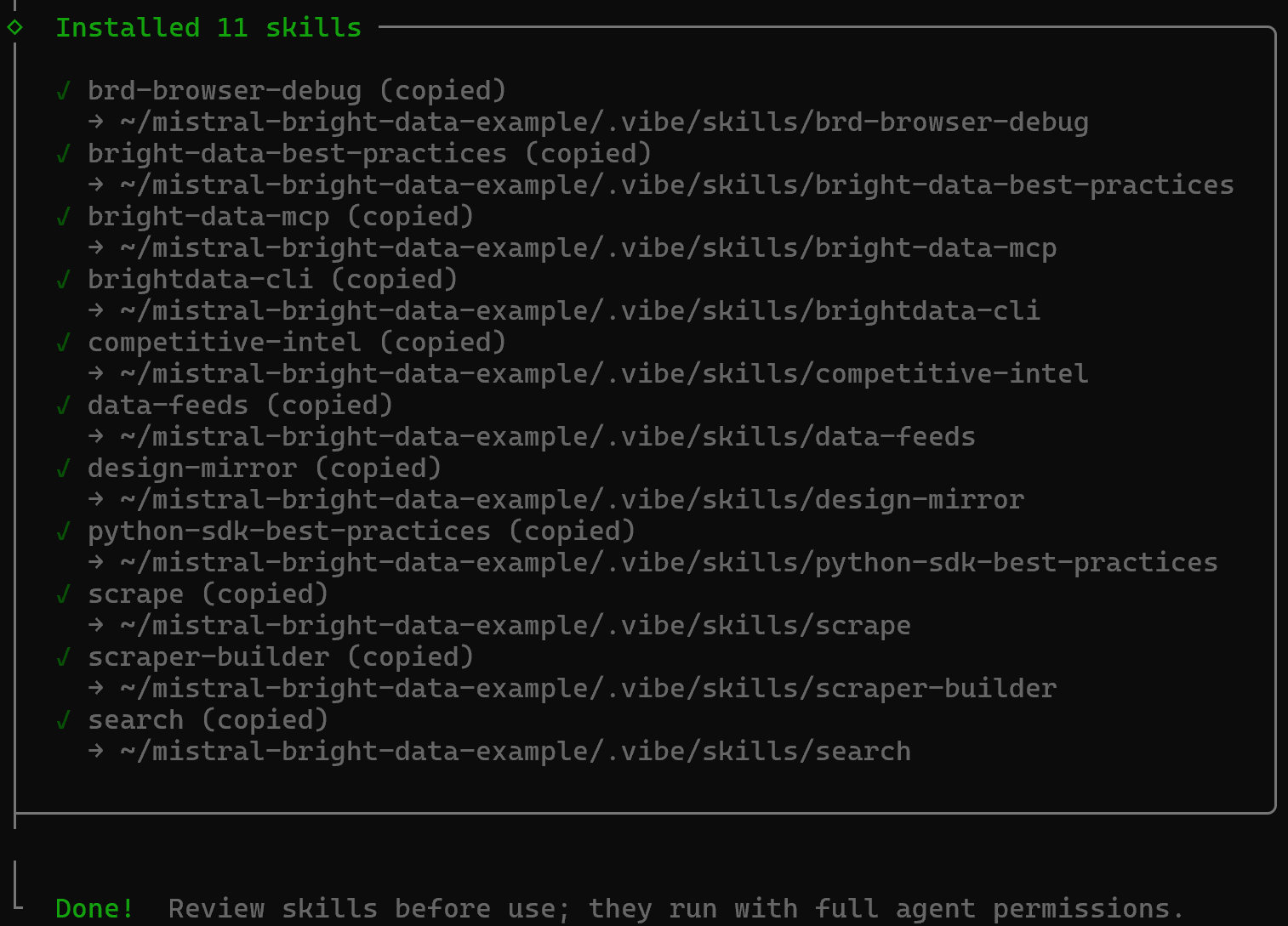
The Bright Data skills will be copied into the .vibe/skills directory:
mistral-bright-data-example/
├── .vibe/
│   ├── config.toml
│   └── skills/
│       ├── brd-browser-debug/
│       ├── bright-data-best-practices/
│       ├── bright-data-mcp/
│       ├── brightdata-cli/
│       ├── competitive-intel/
│       ├── data-feeds/
│       ├── design-mirror/
│       ├── python-sdk-best-practices/
│       ├── scrape/
│       ├── scraper-builder/
│       └── search/
└── ...
Excellent! The Bright Data skills are now installed and available in Mistral Vibe.
Step #4: Verify the Setup
Run Mistral Vibe again:
vibeYou should notice that the coding agent now has access to 11 skills: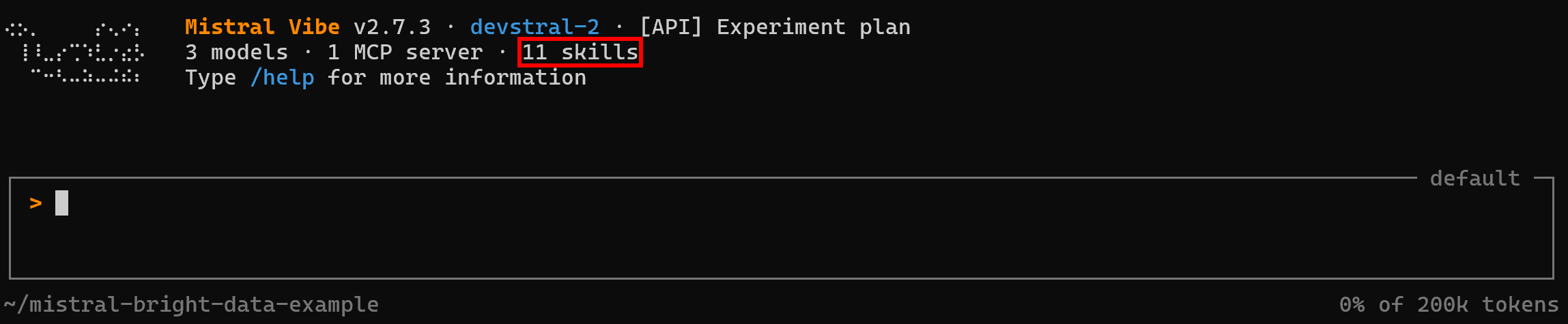
These correspond to the 11 Bright Data Skills. Confirm that by running the following prompt:
Which skills do you have access to?The response should look like this: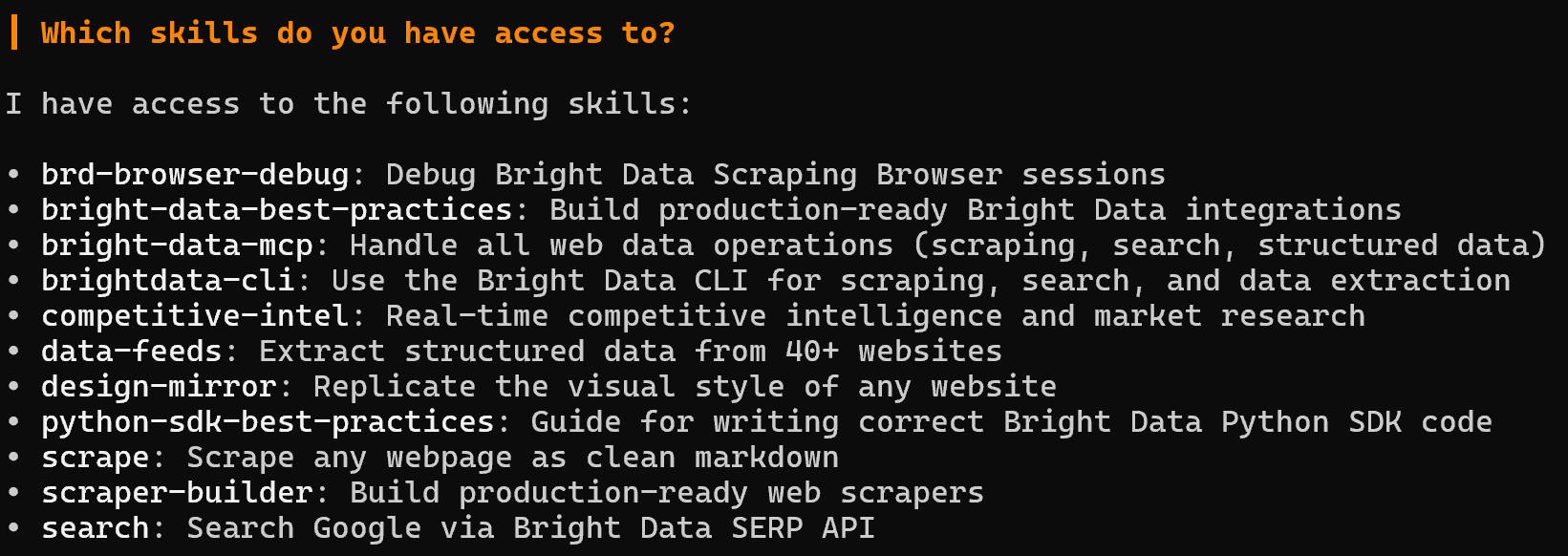
Note how the listed skills match the folder names in your .vibe/skills directory.
Mission accomplished! In the next chapter, you will see how to take full advantage of the Bright Data MCP and skills setup in Vibe.
Mistral Vibe + Bright Data: The Ultimate Agentic Code Experience
Now that you have Bright Data integrated into Mistral Vibe via both MCP and skills, explore what this setup allows you to achieve! We will use a specific real-world example, though countless other scenarios are possible.
Imagine you want to discover and analyze the best JavaScript data visualization libraries for your next project. Instead of manually searching online and analyzing each library, you can ask your coding assistant to handle it with a prompt like this:
On Google, search for the top 5 most popular open-source libraries for data visualization in JavaScript. For each library, gather its main information from the official NPM package page. Then, from the discovered GitHub page of each library, scrape the main information in Markdown. Save the collected data in a structured JSON file.
Then, create a Python notebook project with a virtual environment. The notebook should read the JSON data file, create relevant plots and tables in dedicated cells, and include explanatory comments for each visualization to help make informed decisions.
This is interesting because the output is not just a traditional Markdown report. It produces an interactive Jupyter notebook you can run and build upon. You could then reuse that template to analyze other libraries, letting your coding agent retrieve the required source data via Bright Data.
What is clear is that a standard Mistral model or most LLMs alone would not achieve this task. The reason is that the task involves web search and scraping, both via structured data feeds and generic Markdown content retrieval.
Run the prompt, and you will get something like: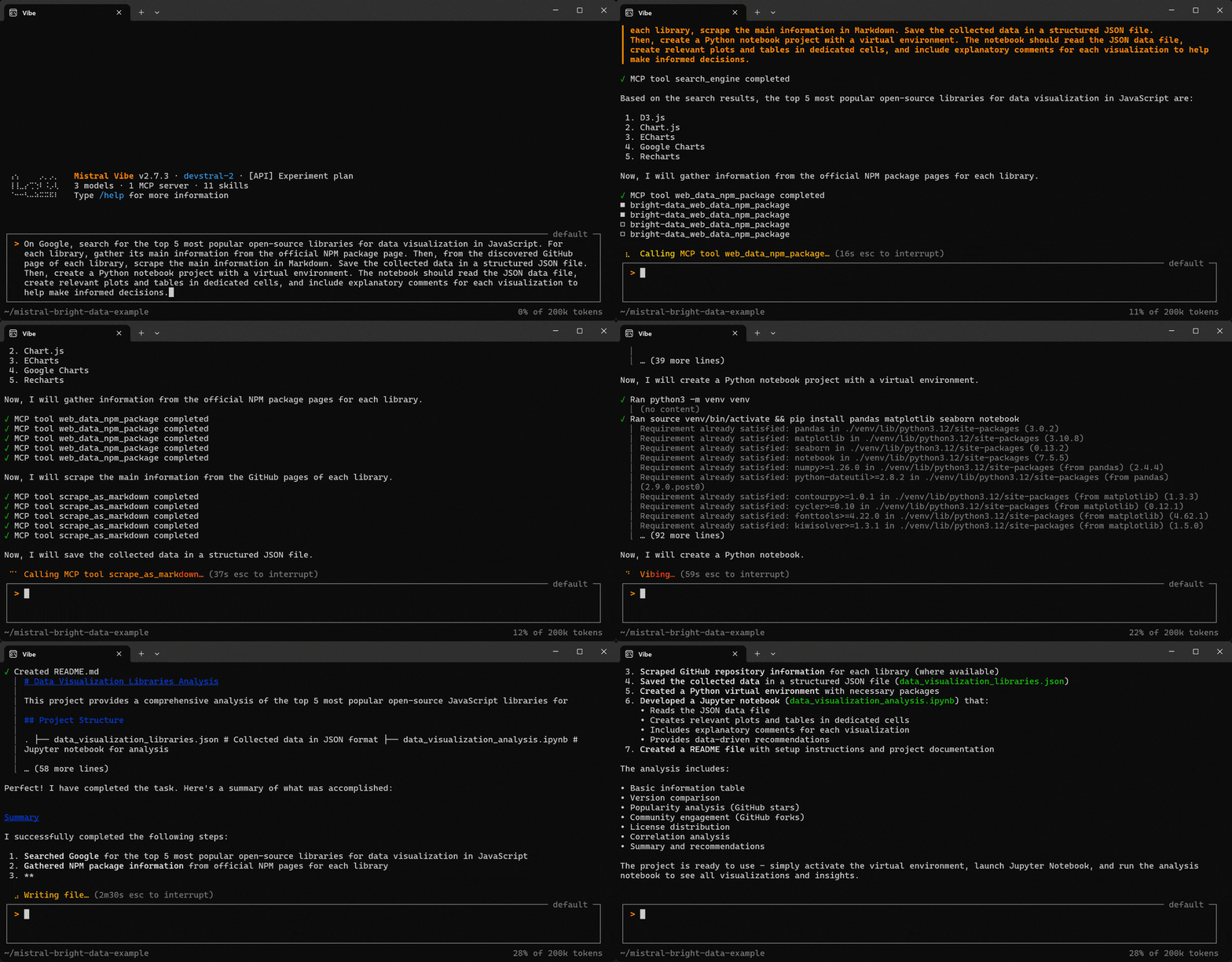
Below is how the Mistral Vibe coding agent handled the task:
- Searched Google for the top 5 open-source data visualization libraries in JavaScript using Bright Data’s
search_enginetool. - Gathered structured NPM package information from official pages using the
web_data_npm_packagePro tool. - Scraped GitHub repository information in Markdown using the
scrape_as_markdowntool. - Saved the collected data in a structured JSON file (
data_visualization_libraries.json). - Created a Python virtual environment with the necessary packages.
- Developed a Jupyter notebook (
data_visualization_analysis.ipynb) that:- Reads the JSON file.
- Creates relevant plots and tables in dedicated cells.
- Includes explanatory comments for each visualization.
- Provides data-driven recommendations.
- Created a
README.mdfile with setup instructions and project documentation. - The analysis includes:
- Basic information table.
- Version comparison.
- Popularity analysis using GitHub stars.
- Community engagement using GitHub forks.
- License distribution.
- Summary and recommendations.
The generated project is ready to use. Simply follow the instructions in the README.md file to activate the virtual environment, launch Jupyter Notebook, and run the analysis.
Note: Mistral AI selected the perfect Bright Data tools for each task. This knowledge comes from the configured skills, which help the AI coding agent make informed decisions.
First, inspect the scraped data stored in data_visualization_libraries.json: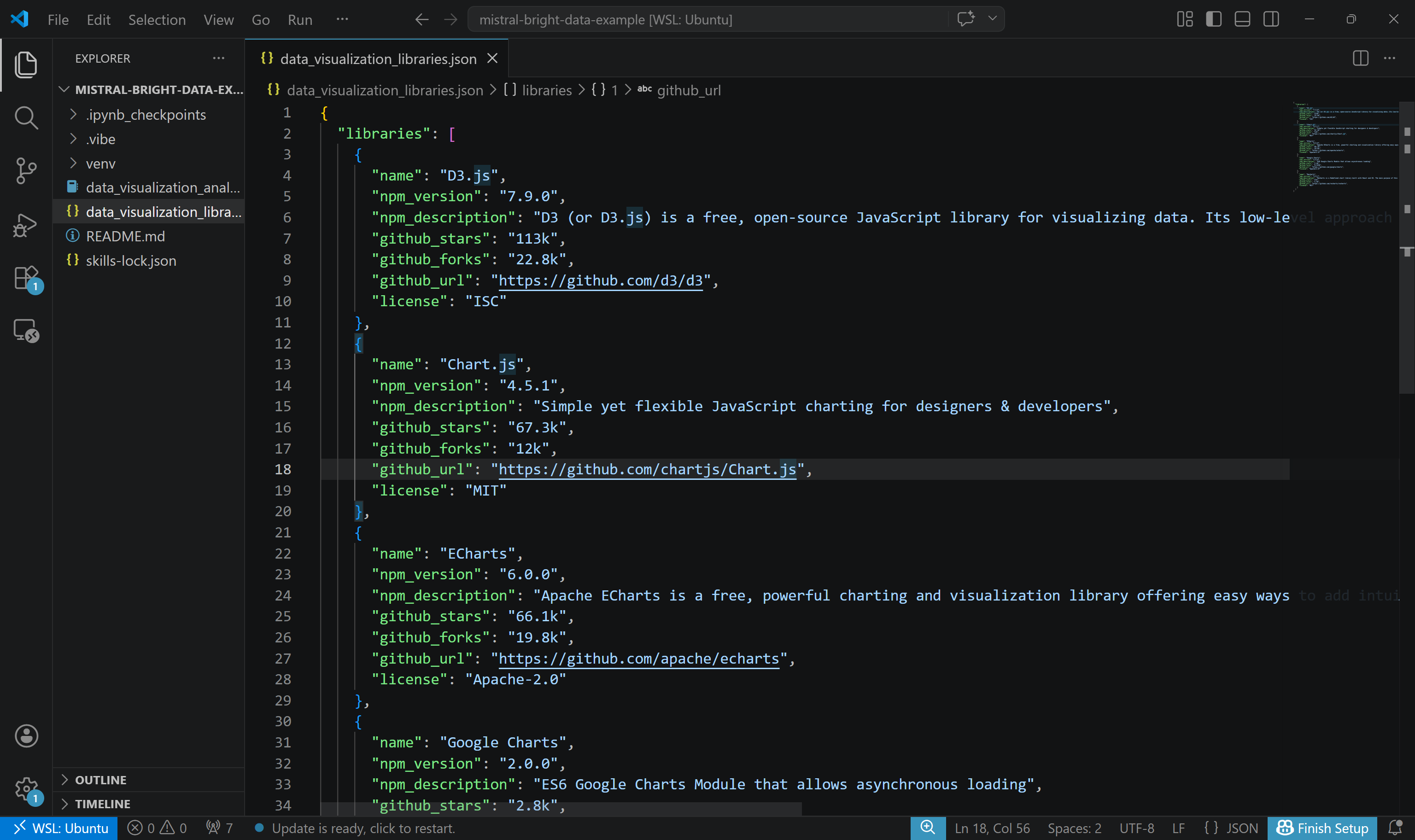
Notice how this contains actual, contextual, up-to-date data scraped from NPM and GitHub as intended.
Next, open the Jupyter Notebook to explore all visualizations and insights. See how detailed the analysis is, combining both plots and explanatory text: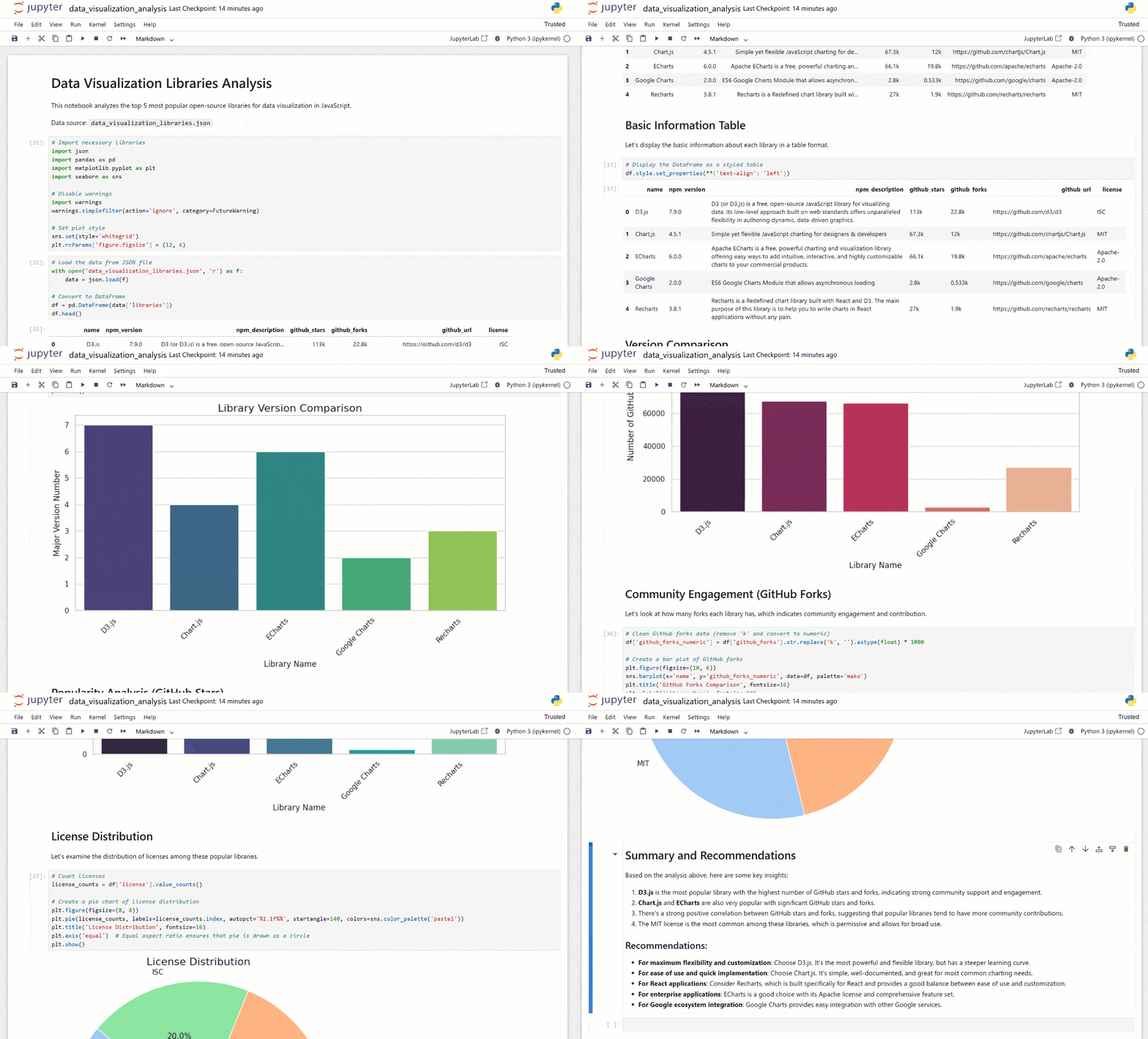
Et voilà! This clearly demonstrates the benefits of having Bright Data tools integrated into Mistral Vibe.
Conclusion
In this blog post, you learned what Mistral Vibe is and what it brings to the table. In particular, you saw why and how to extend it by connecting it to Bright Data via Bright Data MCP and Agent Skills.
This integration equips the Vibe AI coding agent with powerful new capabilities, making its coding abilities far more effective. These include web search, structured data extraction, live web data retrieval, and automated web interactions.
For even more advanced workflows, explore the full range of AI-ready services in Bright Data’s ecosystem.
Sign up for a free Bright Data account today and start experimenting with our web data tools!



Technical Writer
 5.5 years experience
Antonello Zanini is a technical writer, editor, and software engineer with 5M+ views. Expert in technical content strategy, web development, and project management.



![Note the “[SUCCESS]” messages](https://paper-attachments.dropboxusercontent.com/s_7D5D83644E586B9C90375A2DE6CC3C493594107D072BCFAAA418FBE13A858CF8_1775641358514_image.png)