In this blog post, you will learn:
- What Databricks Agent Bricks is and the value it brings to AI agent development.
- Why Databricks AI agents become much more powerful when they can combine internal business data with external web intelligence.
- How to equip an AI agent in Agent Bricks with these capabilities by connecting it to Bright Data MCP.
Let’s dive in!
What Is Databricks Agent Bricks?
Agent Bricks is a Databricks service for building, deploying, and governing production-grade AI agents grounded in your company’s data. By combining enterprise context, AI models, and external tools, it lets organizations create reliable, scalable, and governed AI agents.
It is especially useful for scenarios such as document analysis, customer support, research, workflow automation, and business intelligence. The main features it provides are:
- Enterprise-aware AI agents: Uses business schemas, definitions, and semantic context to generate more accurate and grounded responses.
- Multiple agent types: Supports knowledge assistants, information extraction pipelines, supervisor agents for multi-step workflows, and fully custom Python agents.
- Multi-model support: Access models from OpenAI, Anthropic, Google, Meta, and open-source providers through a single platform with model switching and fallback logic.
- External integrations: Connects to MCP servers, APIs, and enterprise systems to extend agent capabilities beyond internal data.
- Governance and security: Integrates with Unity Catalog to enforce permissions, lineage, ownership, and fine-grained access control.
- Evaluation and observability: Includes automated benchmarking, LLM-as-a-judge evaluation, and MLflow tracing for debugging and monitoring.
Why Databricks AI Agents Need Access to the Web
No matter which platform you use to build them, enterprise AI agents are only as capable as the tools they can access. This is because all LLMs share two core limitations:
- Limited knowledge: LLMs are trained on static datasets that represent only a snapshot of the past.
- No native access to external systems: By default, LLMs cannot interact with the web or other services in your technology stack.
This gap is solved by equipping AI agents with tools, typically through MCP or custom integrations. Here is why Databricks Agent Bricks supports MCP.
To address both limitations, you need an MCP that enables AI agents to search the web, discover relevant information, and extract content from websites. That is exactly what Bright Data MCP provides.
Bright Data MCP as the Solution
Bright Data MCP exposes tools that connect to Bright Data’s APIs. It is one of the officially supported integrations in Databricks, which means you can even find it directly in the Databricks Marketplace:
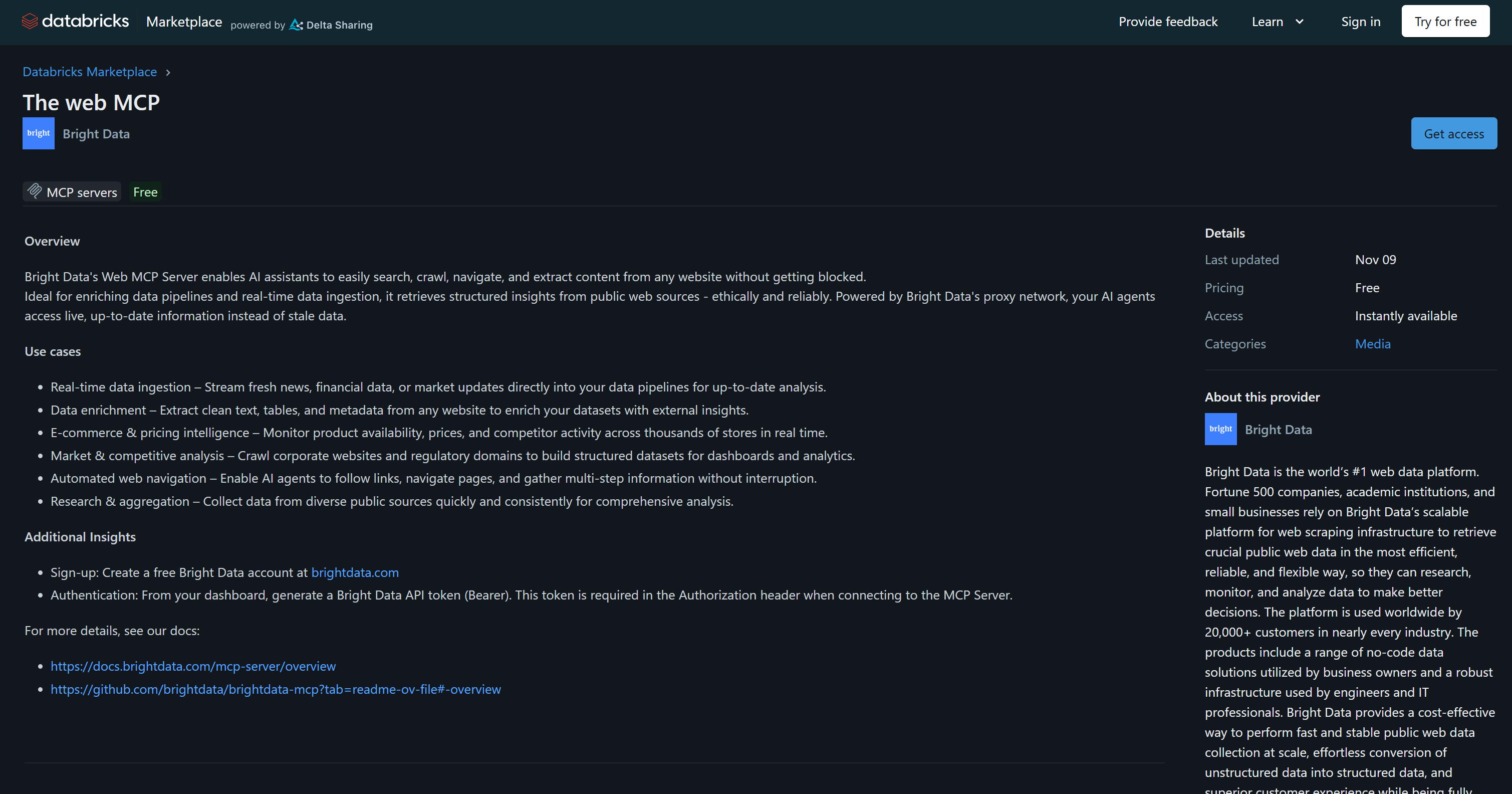
On the free Rapid mode tier (which includes 5,000 free requests per month), the Bright Data MCP available tools include:
| Tool | Description |
|---|---|
search_engine + batch version |
Retrieve structured search engine results in JSON or Markdown from Google, Bing, Yandex, and more |
scrape_as_markdown + batch version |
Convert any webpage into clean Markdown while bypassing anti-bot protections |
discover |
AI-powered web discovery that returns ranked, relevant results |
[Pro mode](https://github.com/brightdata/brightdata-mcp?tab=readme-ov-file#-pricing, modes) unlocks advanced structured extraction capabilities for platforms such as Amazon, LinkedIn, Yahoo Finance, YouTube, Zillow, Google Maps, and more than 40 sources. It also includes tools for browser automation. Discover all Bright Data MCP tools.
What makes Bright Data stand out is its enterprise-grade infrastructure, backed by a proxy network of over 400 million residential IPs. This supports unlimited scalability and concurrency while achieving a 99.95% success rate and delivering SLA-backed 99.99% uptime.
How to Connect Databricks Agent Bricks to Bright Data MCP
In this step-by-step chapter, you will be guided through the process of configuring Bright Data MCP in Databricks. Then, you will learn how to integrate it into a Databricks AI agent in Agent Bricks to enable web search, discovery, and scraping capabilities.
Note: If you are looking for how to access and query Bright Data datasets in Databricks, read our dedicated blog post instead.
Follow the instructions below!
Prerequisites
To complete this tutorial section, make sure you have:
- A Databricks account (a free trial via Express setup with a credit card configured is required).
- A Bright Data account with an API key configured. Refer to the official guide to generate your Bright Data API key.
For a smoother experience, it is recommended that you also have:
- Basic understanding of how MCP works.
- Familiarity with the tools exposed by Bright Data MCP.
Step #1: Install Bright Data MCP
Log in to your Databricks account. You should see the home workspace dashboard:
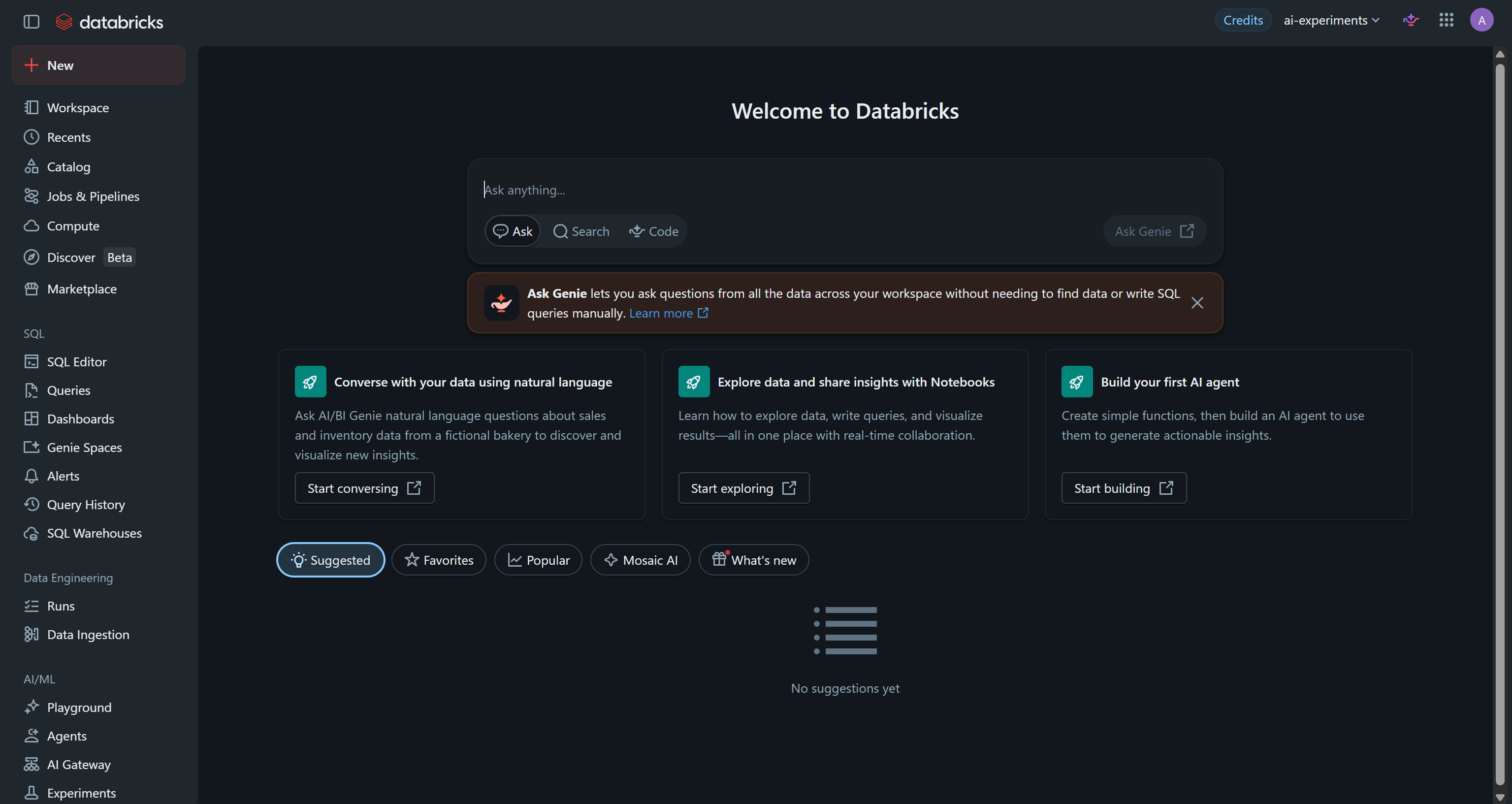
Remember that the Bright Data MCP is an officially supported integration available in the Databricks Marketplace. From the left sidebar, select the “Marketplace” option, then press “View MCP listings”:
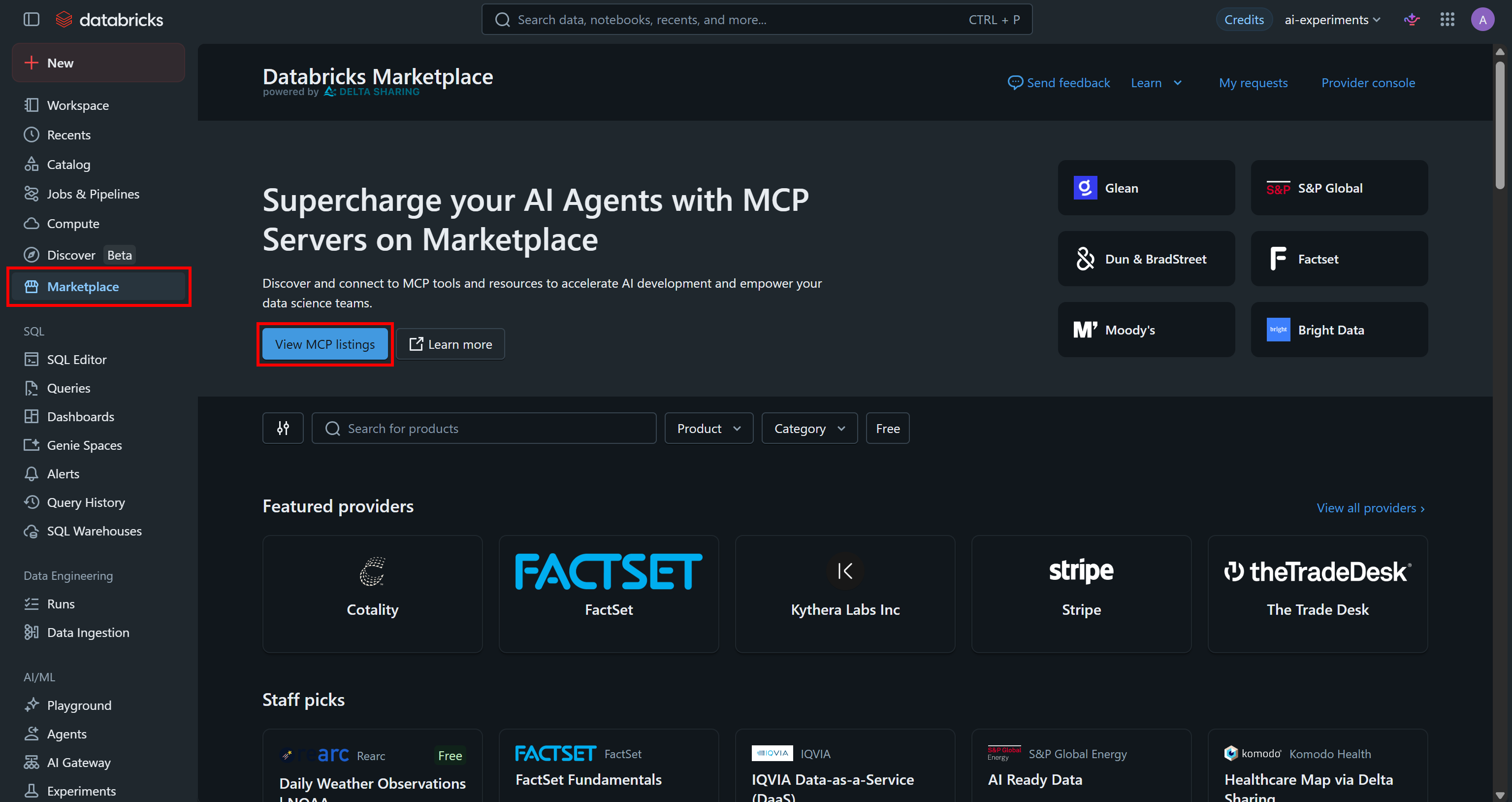
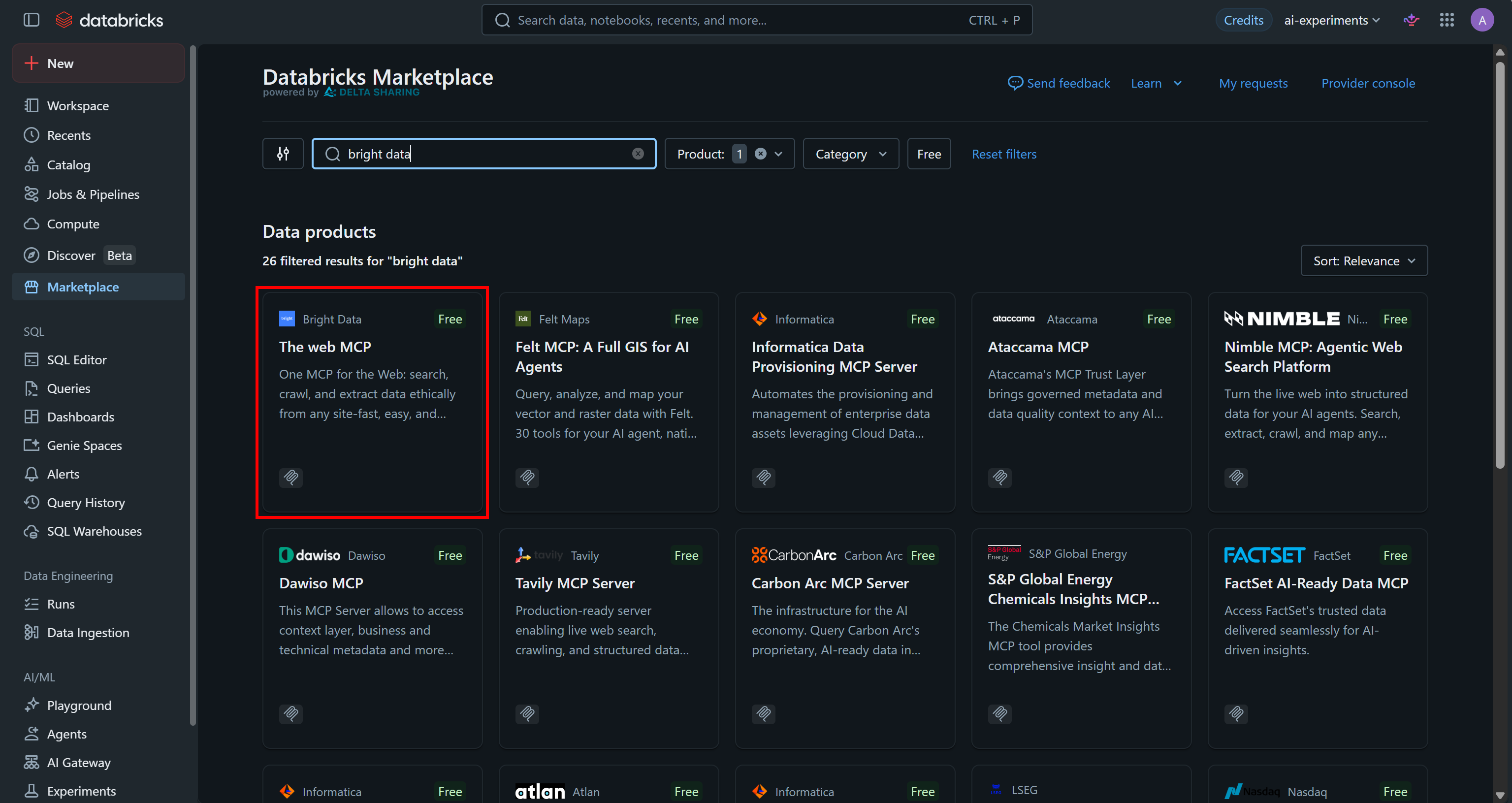
You will be redirected to the Databricks Marketplace. In the search bar, type “bright data” and select “The web MCP” listing:
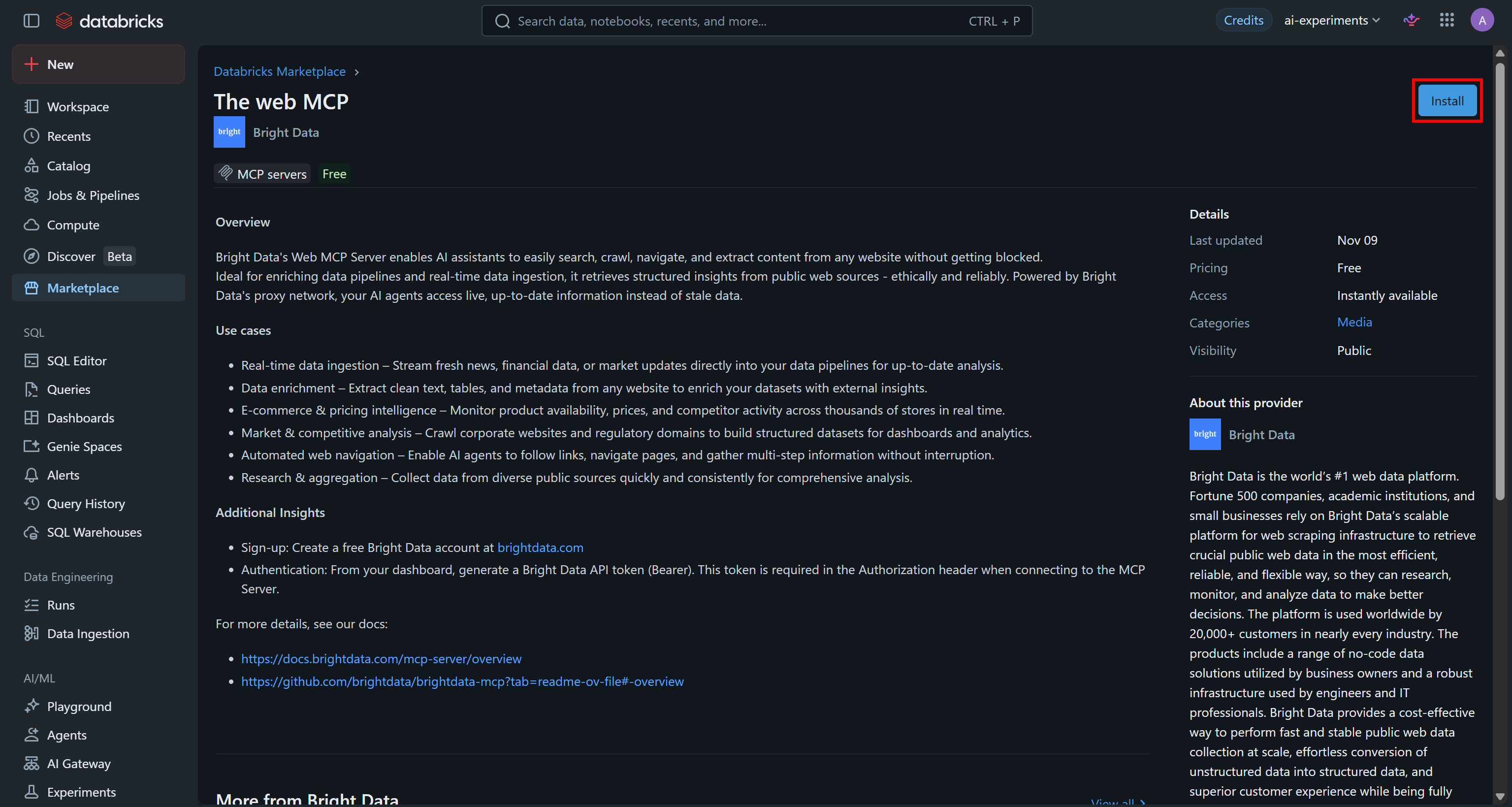
On the Bright Data “The web MCP” page, review the details and click “Install” to add it to your workspace:
Make sure to fill out the installation form with the following details:
- Connection name:
bright-data-web-mcp(or the name you prefer) - Host:
https://mcp.brightdata.com(Important: Check that the proposed URL matches this one) - Base path:
/mcp - Bearer token: Paste your Bright Data API key
- Credential type: Bearer token
- Port: 433
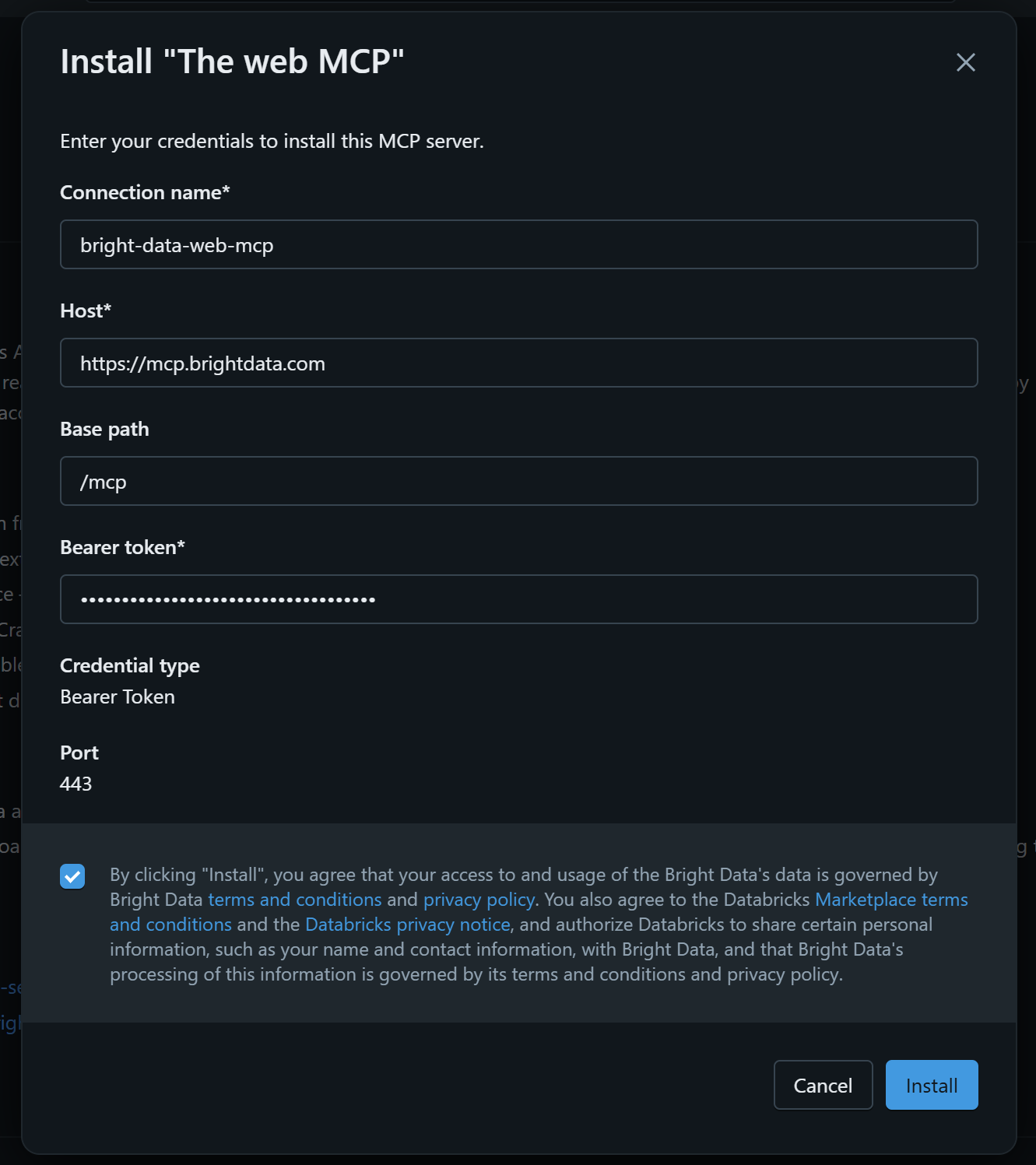
Finally, click “Install” to add Bright Data MCP to your Databricks workspace via the official integration. Awesome!
Step #2: Allow Connections to Bright Data Servers
After installation, you will be redirected to the bright-data-web-mcp page. However, you may notice that no tools are detected for the configured MCP server:
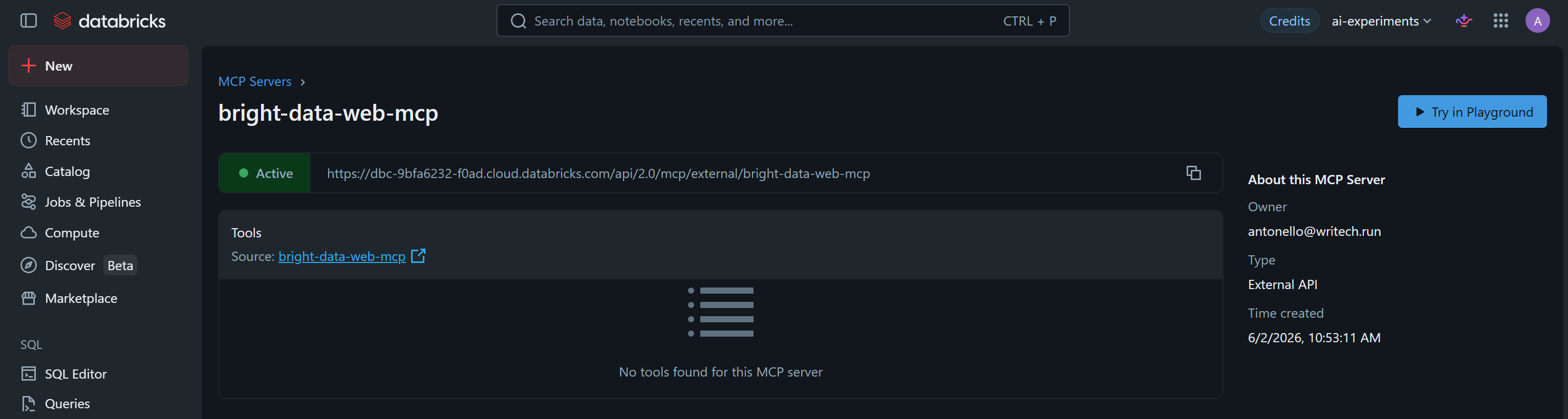
This happens because Databricks blocks outbound connections to external domains by default, including mcp.brightdata.com (which is required for the Bright Data MCP server).
For reference, the underlying technical error is:
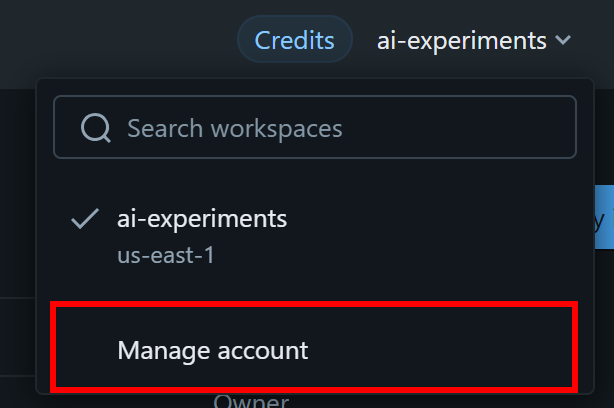
"Failed request to https://mcp.bringthdata.com:443/mcp. Error: Access to mcp.bringthdata.com is denied because of serverless network policy."To fix that, you must explicitly allow access to mcp.brightdata.com for serverless egress traffic in your Databricks account settings. Start by opening the workspace dropdown in the top-right corner and selecting “Manage account”:
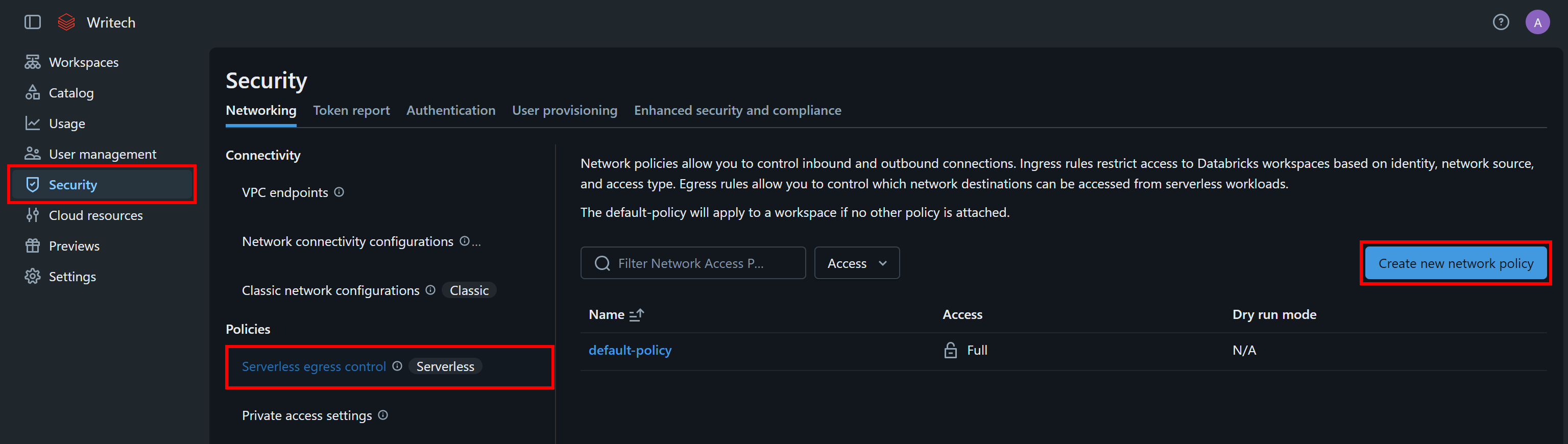
Move to the “Security” section, select “Serverless egress control”, and click “Create new network policy”:
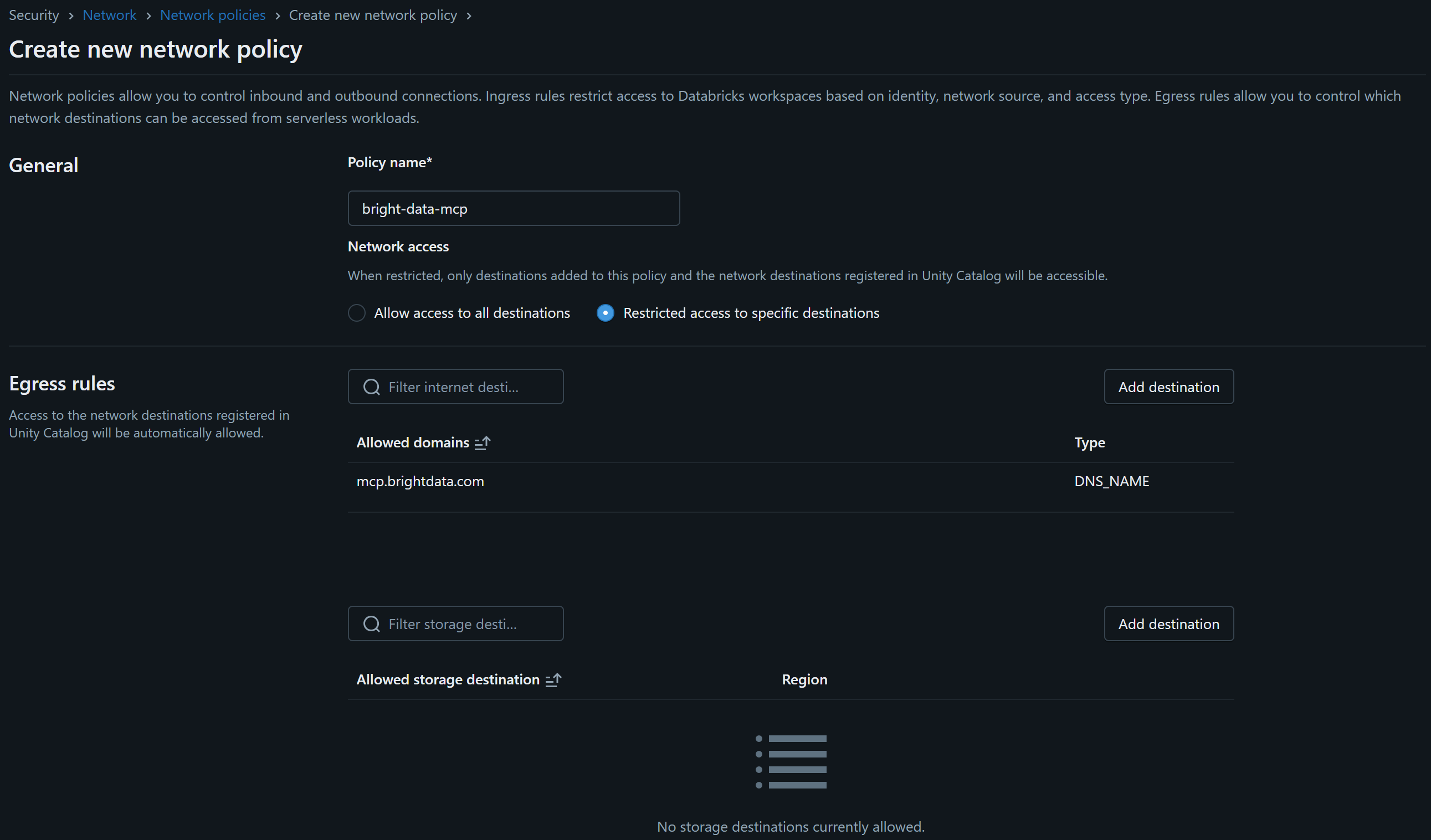
Give the policy a name (for example, bright-data-mcp) and choose the “Restricted access to specific destinations” option. Then add mcp.brightdata.com as an allowed destination using the “Add destination” button:
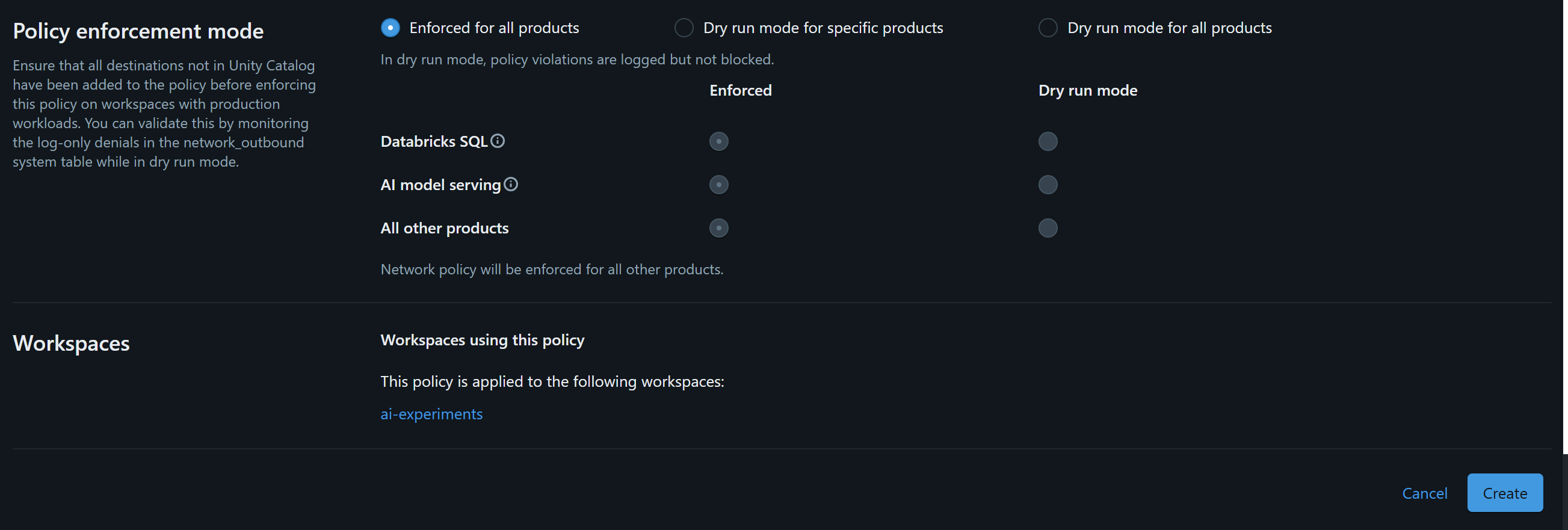
Enable the policy for all Databricks serverless products and click “Create”:
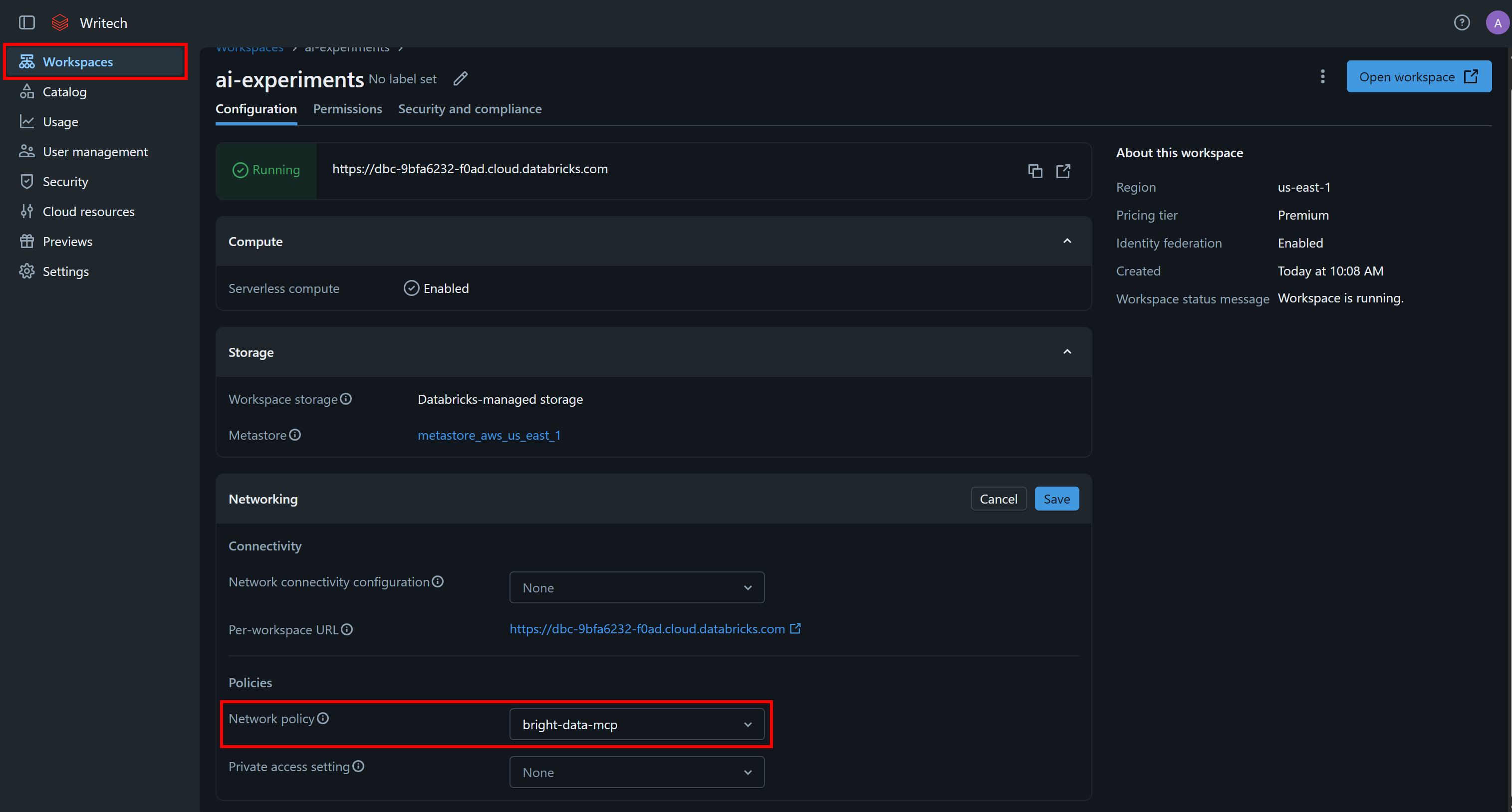
Next, go to the Workspaces page, select your workspace, and click the edit icon in the “Networking” dropdown section. Set the network policy to bright-data-mcp, then click “Save”:
Return to the bright-data-web-mcp page and refresh it. You should now see Databricks successfully loading the Bright Data MCP tools:
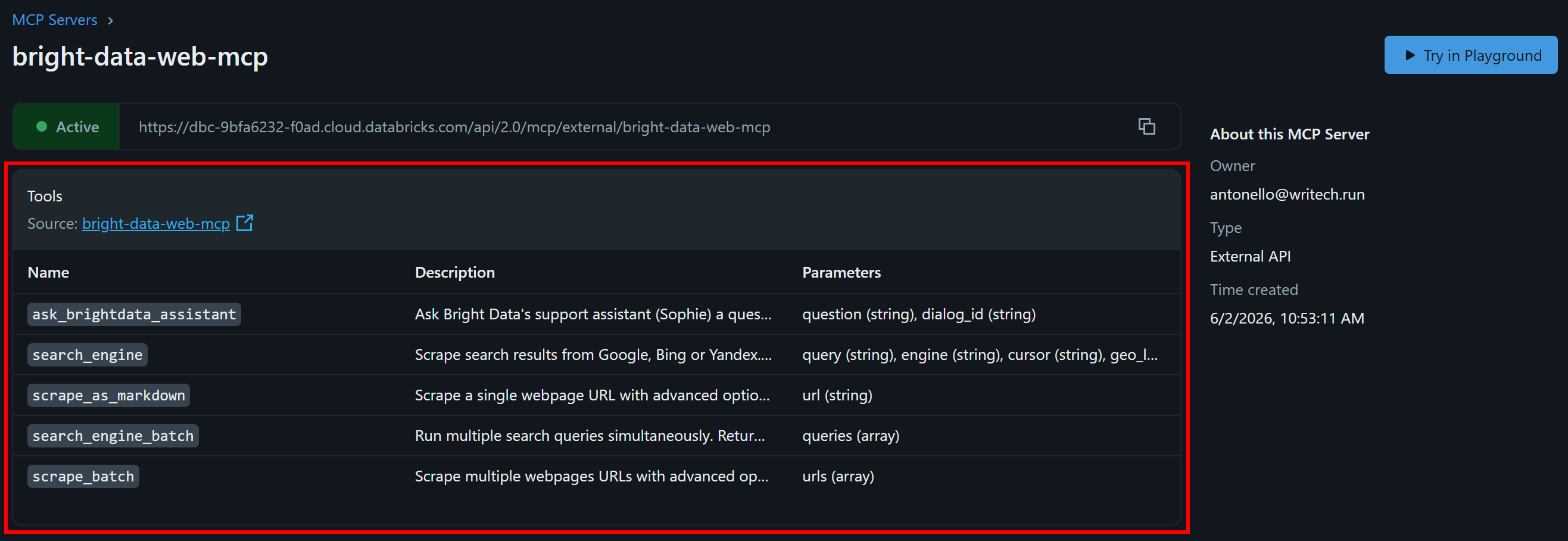
These tools correspond to the capabilities exposed by Bright Data MCP in Rapid (free) mode. Well done!
Step #3: Verify the Bright Data MCP Connection Works
On the bright-data-web-mcp page, click “Try in Playground”. This opens an AI chat interface with the MCP server already configured.
Ask a simple question, such as:
Scrape the https://example.com page as MarkwonYou should see the AI autonomously calling the Bright Data MCP tool scrape_as_markdown on the specified URL to complete the task:
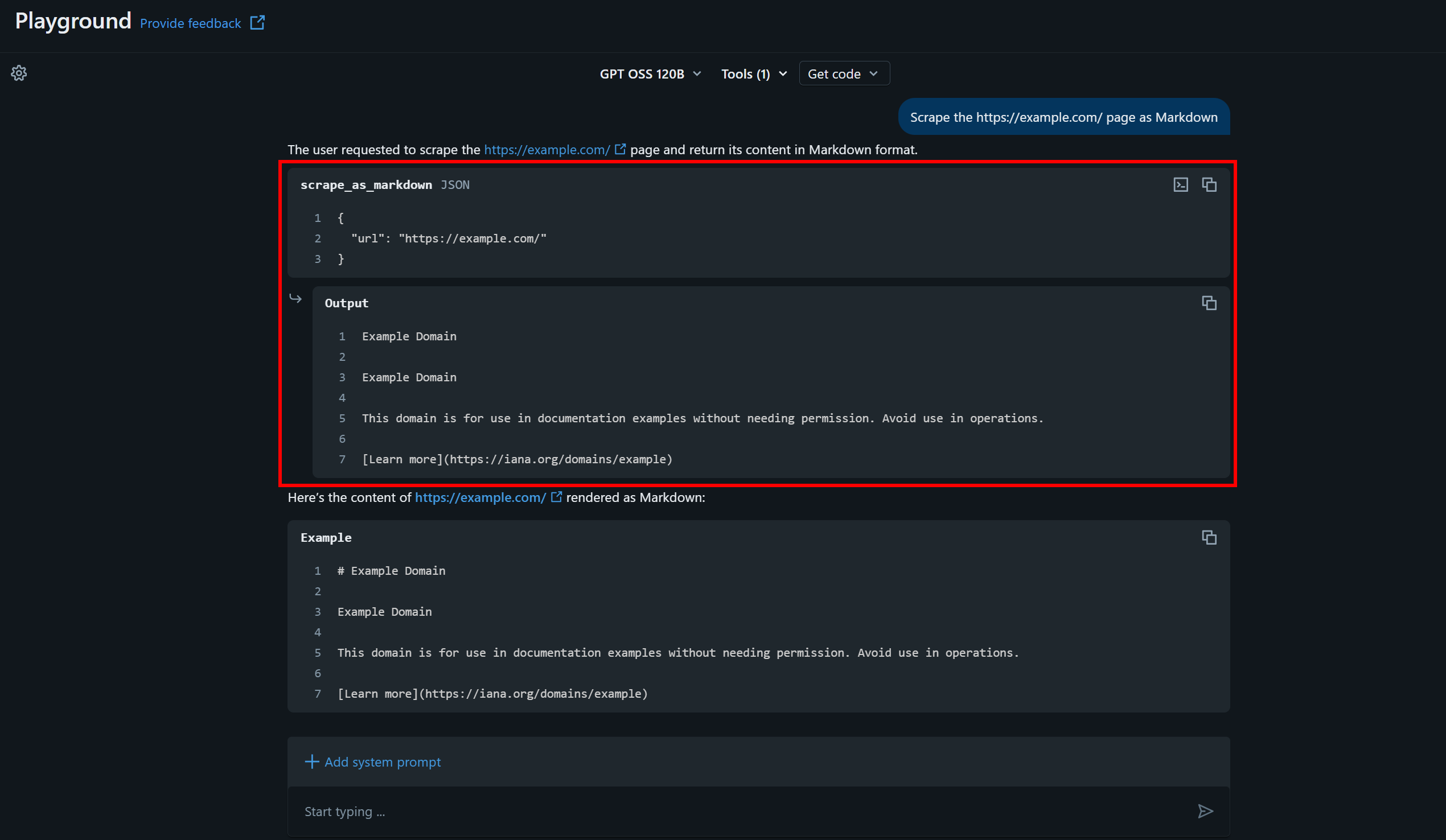
The returned Markdown (retrieved via the scrape_as_markdown tool backed by Bright Data’s Web Unlocker API) matches the content visible on the target page:
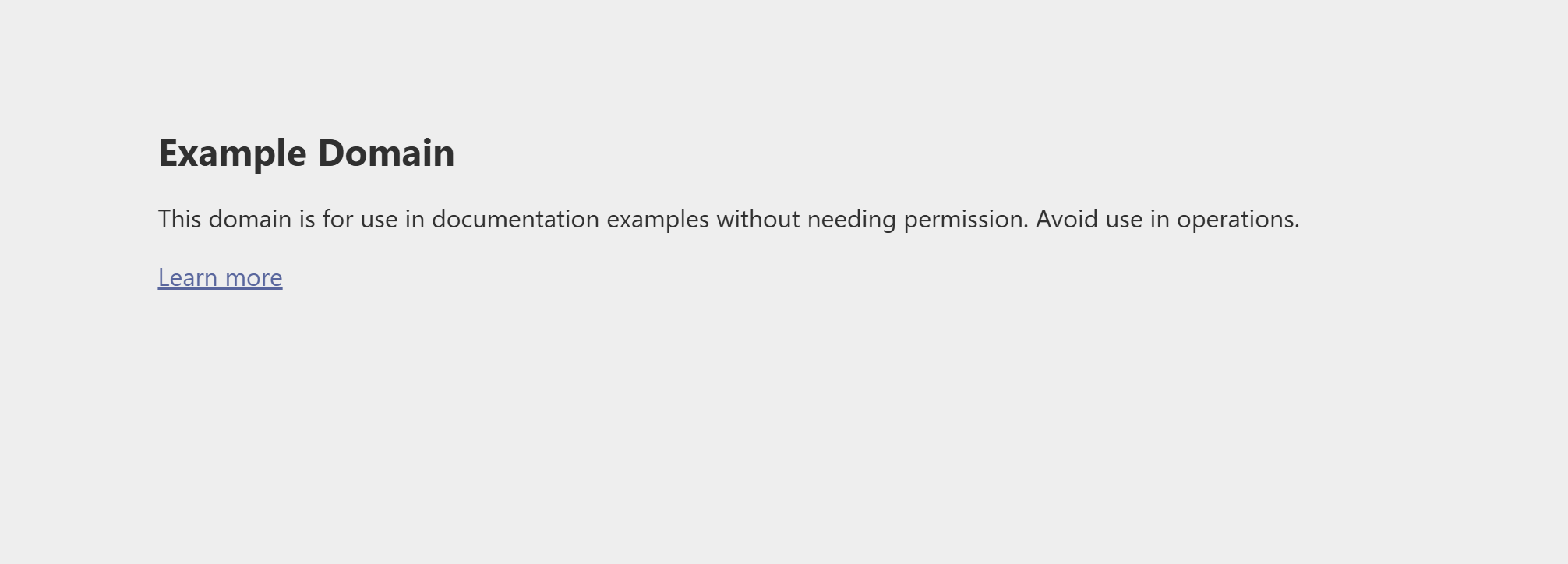
This confirms that the AI is correctly using the Bright Data MCP tools and that the integration is working as expected. Perfect!
Step #4: Define Your Databricks AI agent
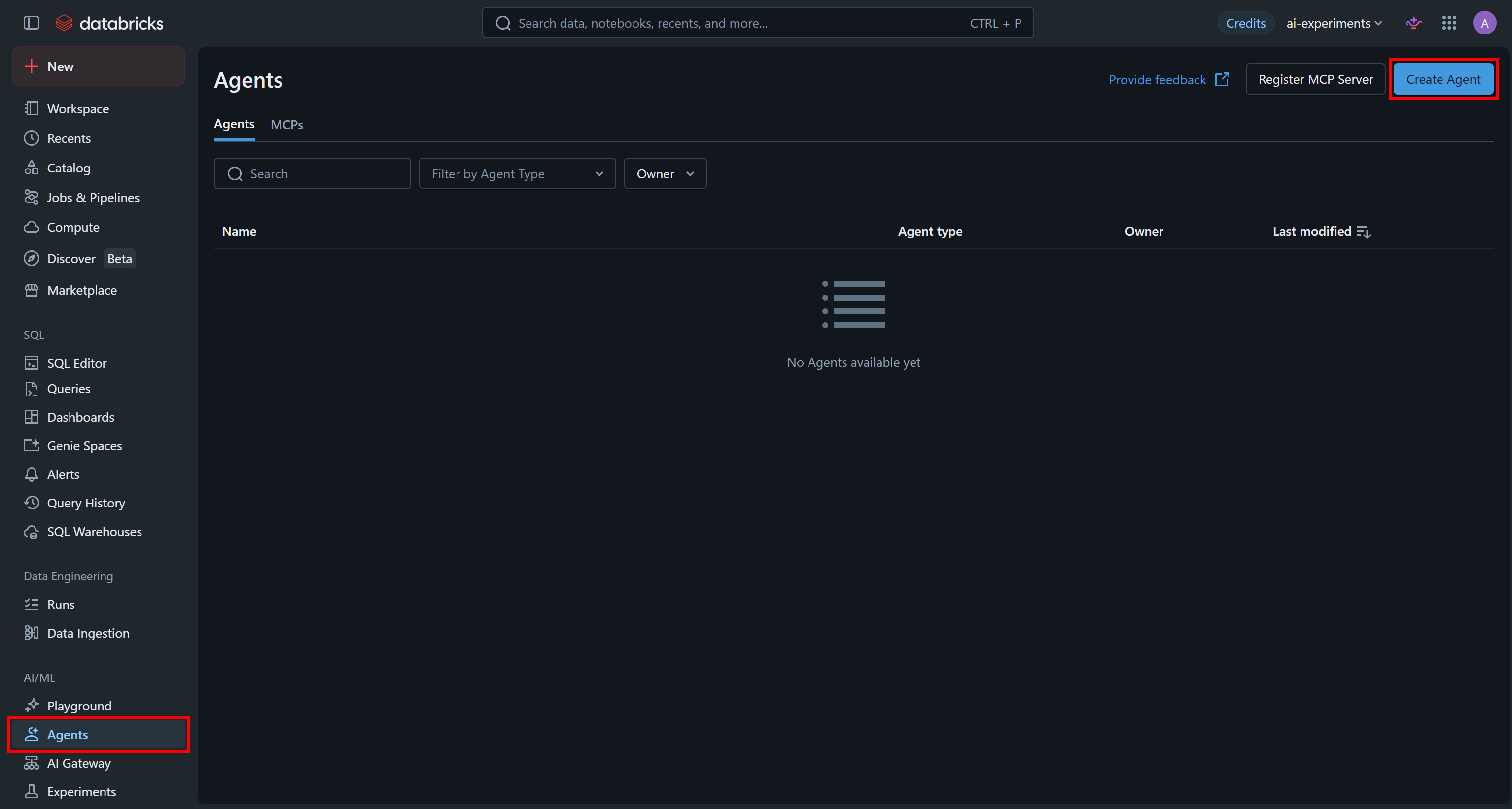
To access the Databricks Agent Bricks service, click “Agents” in the left sidebar. Then, add a new AI agent by pressing “Create Agent”:
You will be asked to choose the type of agent you want to create. For this tutorial, select “Supervisor Agent”:
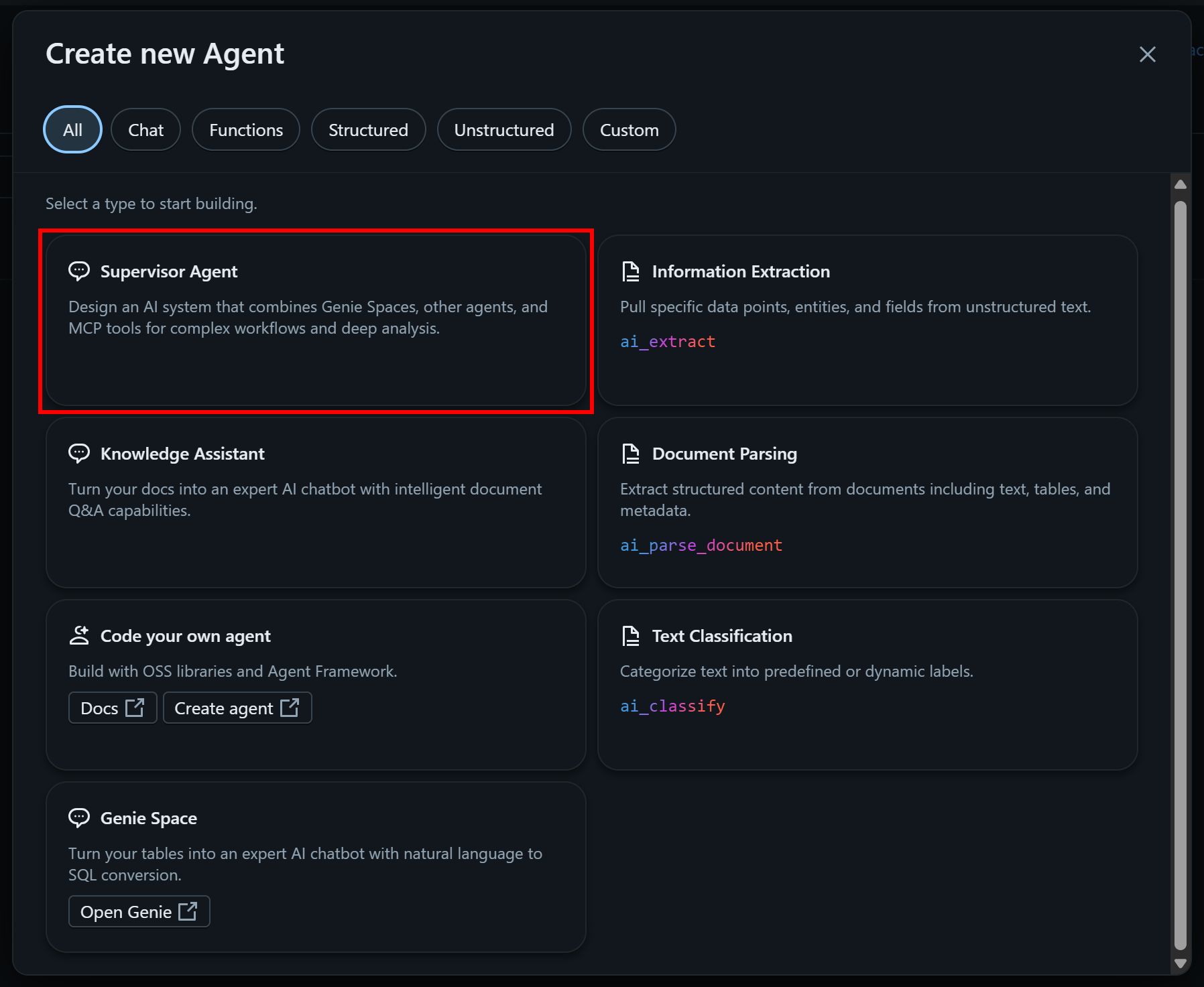
A supervisor agent is a multi-agent orchestration system that coordinates AI agents and tools to solve more complex tasks.
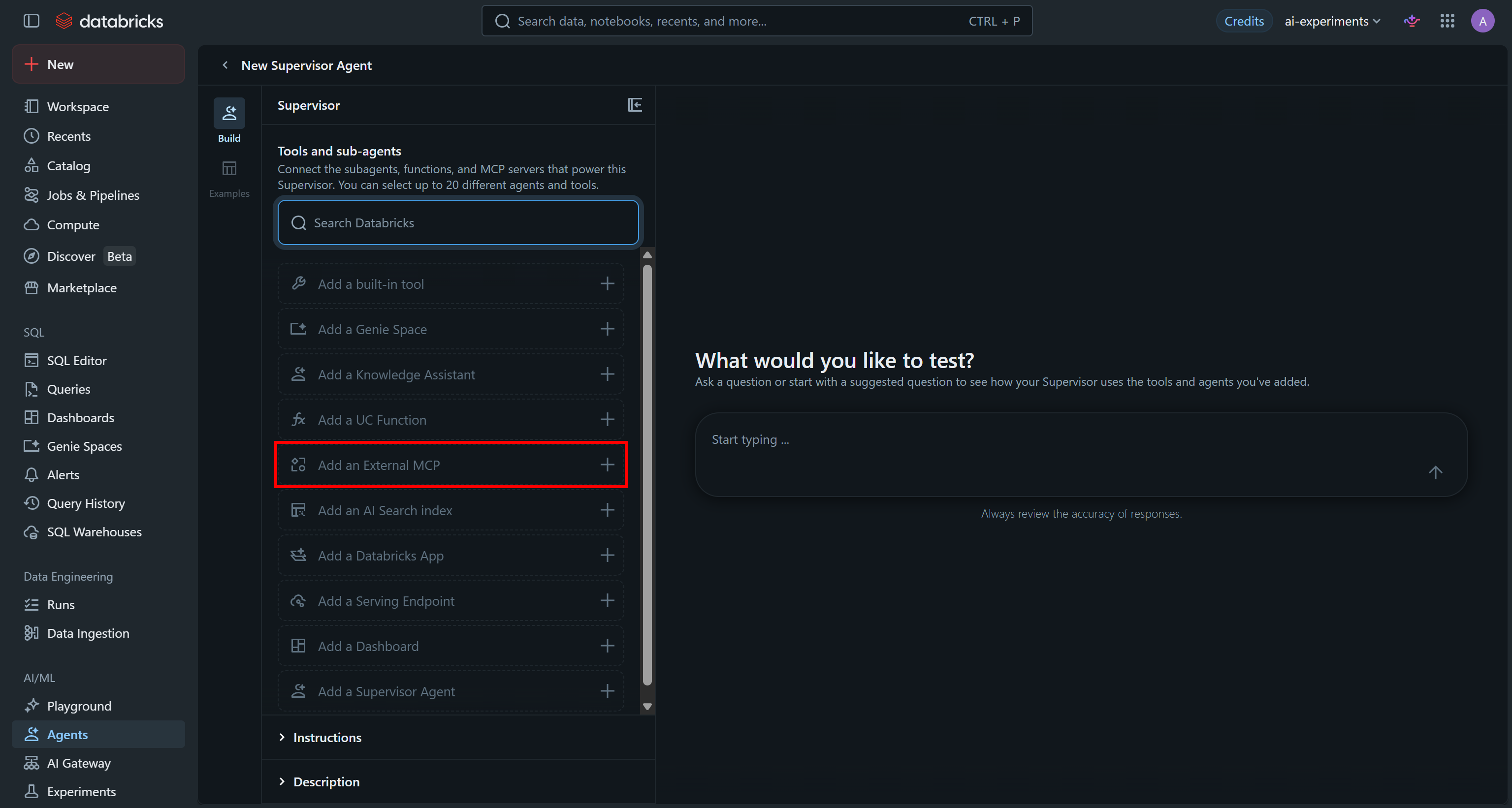
To connect Bright Data MCP, click “Add an External MCP” under the “Tools and subagents” section:
Next, select the bright-data-web-mcp connection you configured earlier:
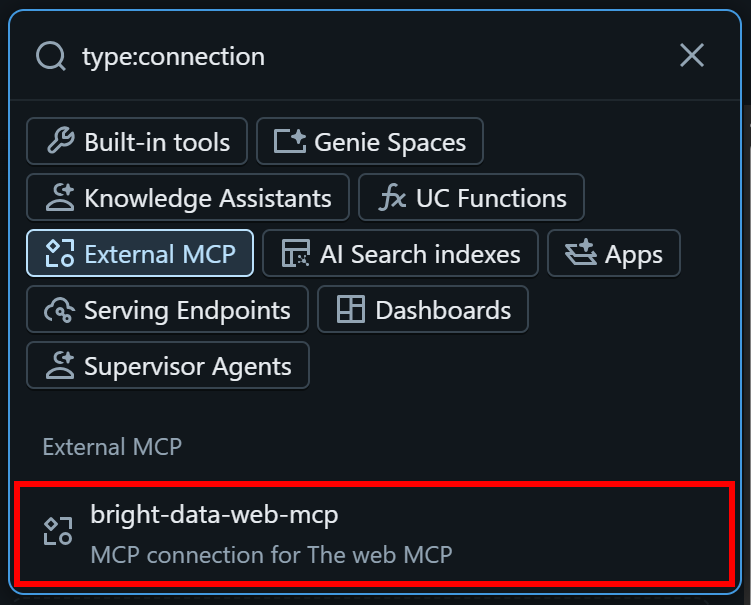
Your agent will now have access to the Bright Data MCP tools. You can repeat the same process to add additional tools, MCP servers, Genie Spaces, or other integrations.
In this example, the agent was also connected to “Bakehouse Sales Starter Space”, a built-in Genie Space linked to the sample samples.bakehouse Delta dataset.
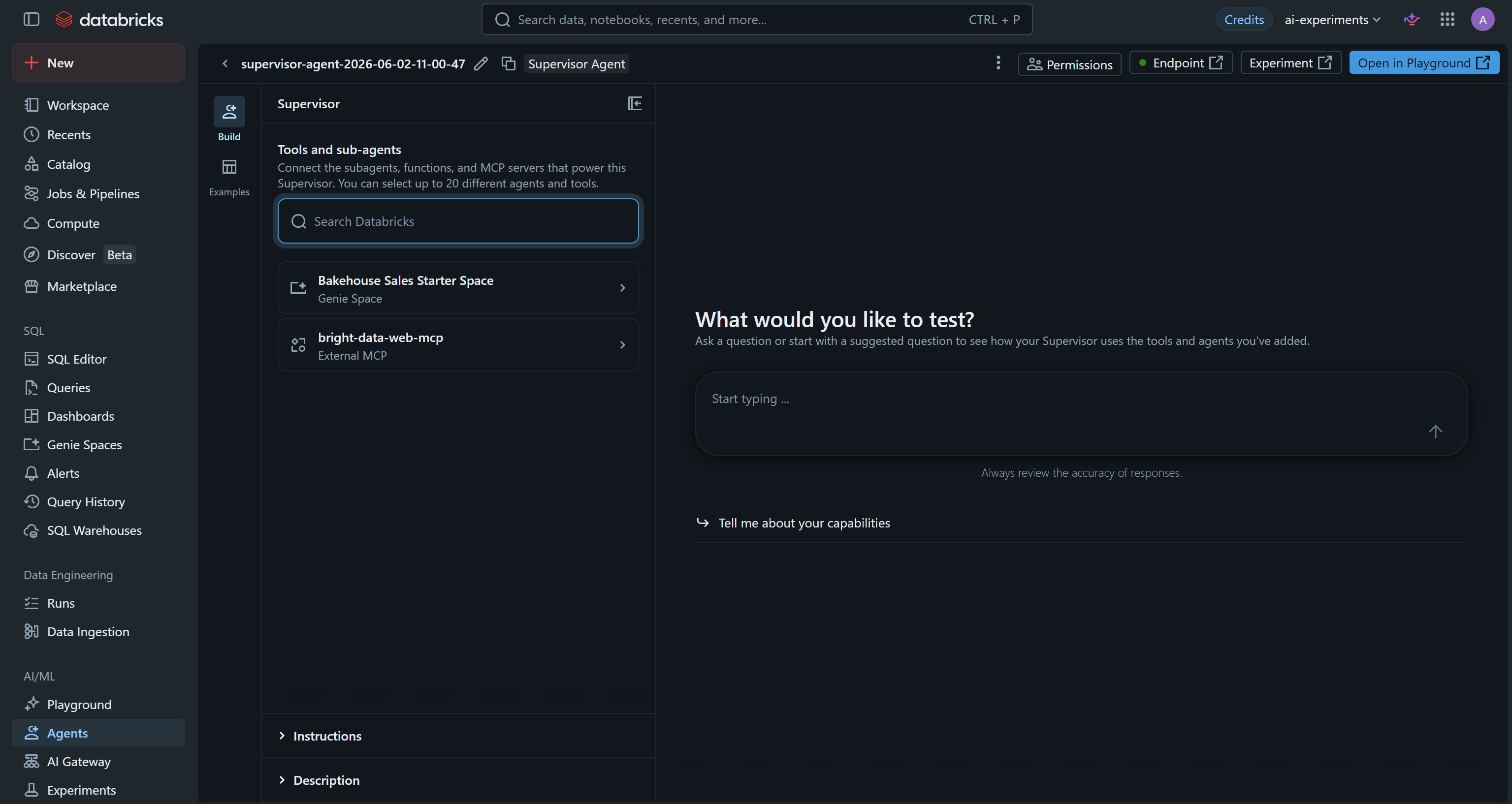
Important: In production, set up the agent to use custom Genie Spaces connected to your own Databricks datasets. You should also customize the agent name, instructions, and description to better align with your specific use case.
Great! The only remaining step is to test your Bright Data MCP-powered Databricks AI agent.
Step #5: Test the Agent
To verify that your Databricks AI agent is working correctly, try a task that combines internal business data with external web intelligence. For example, write:
Retrieve our revenue for May 2024. Then search online for bakery industry revenue data for the same period. Scrape the most relevant sources and produce a report highlighting both internal revenue performance and external market insights, including trends, expectations, and overall industry conditions.Run the prompt, and you should see something like this:
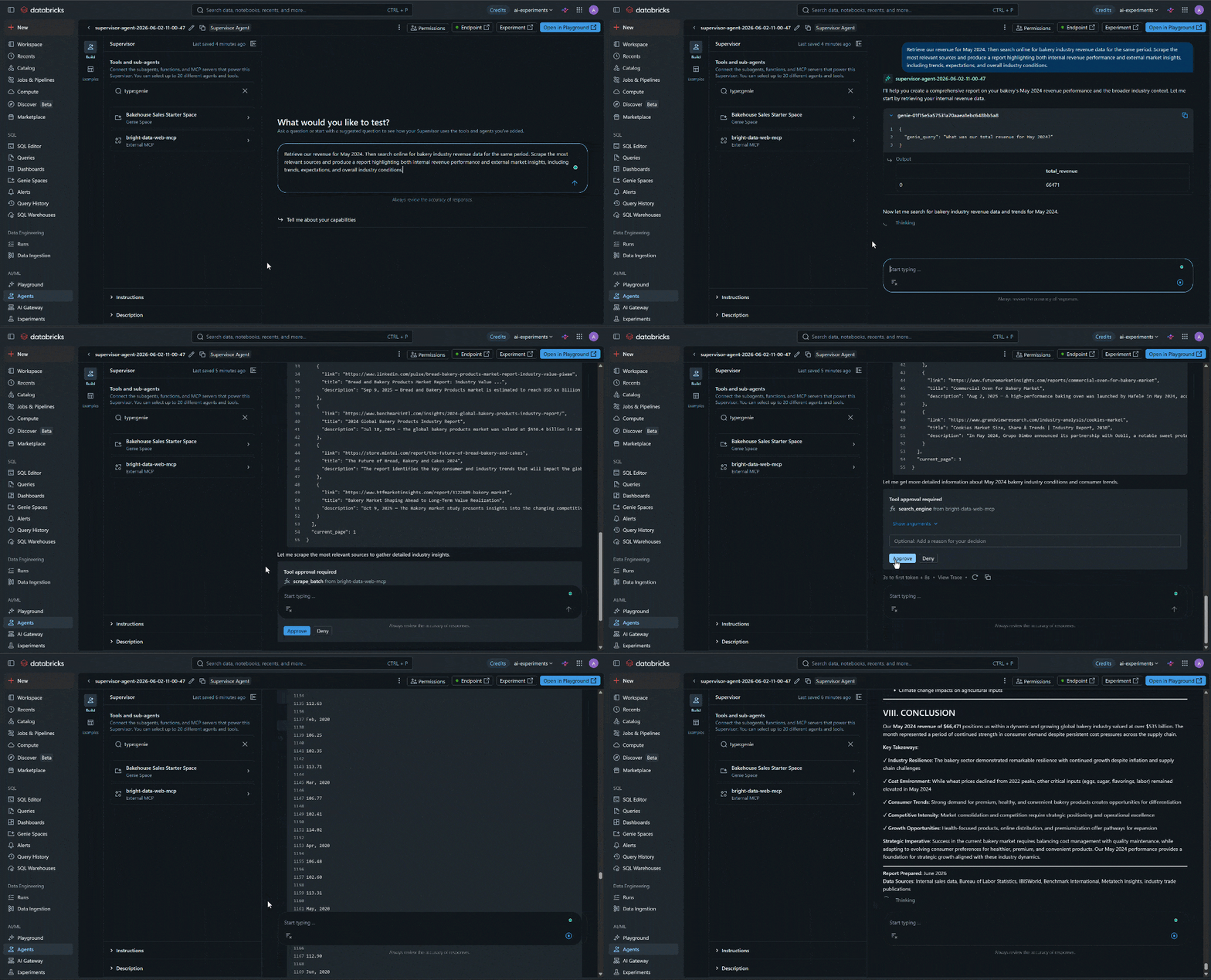
Specifically, the Databricks AI agent:
- Queried “Bakehouse Sales Starter Space” to retrieve revenue data for the requested period.
- Called the
search_enginetool from Bright Data MCP (powered by Bright Data’s SERP API) to gather relevant search results from Google about bakery industry performance. - Identified the most relevant sources from the returned results.
- Extracted content from those pages using the
scrape_as_markdowntool. - Combined external insights with internal business data to generate a unified report.
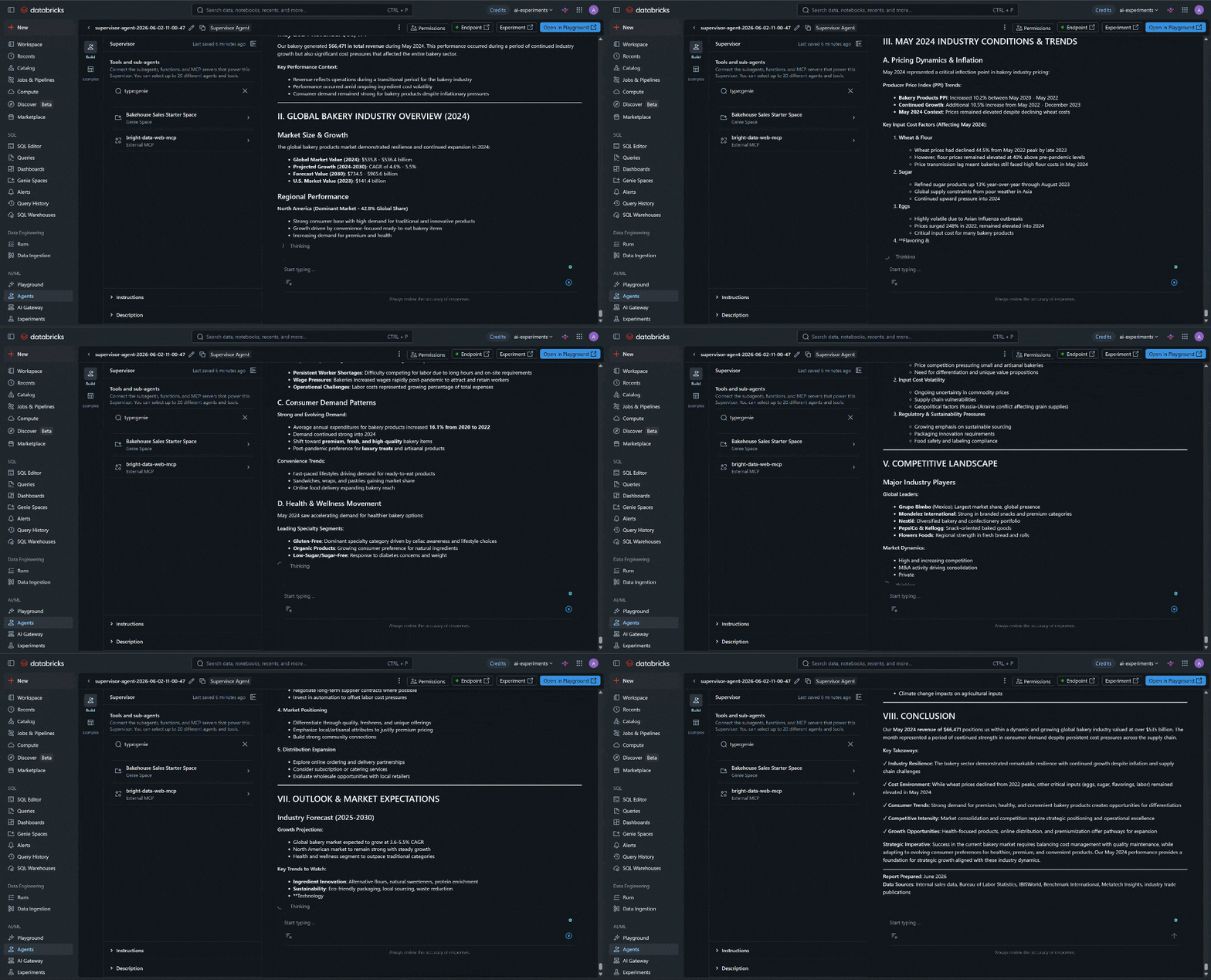
Notice that the final output blends proprietary business information with up-to-date market intelligence. Without Bright Data MCP, that would not be possible, as the LLMs do not have native web access.
Bright Data MCP closes that gap, enabling your Databricks AI agent to search the web, discover relevant sources, and extract information from websites, including complex or protected pages. All of this runs on Bright Data’s enterprise-grade infrastructure built for scalability and concurrency.
Et voilà! This example only scratches the surface of what you can build. By combining Databricks AI agents with Bright Data MCP, you can create far more advanced workflows that integrate internal analytics with real-time web data for a wide range of use cases.
Conclusion
In this tutorial, you learned what Databricks Agent Bricks is and the features it supports. In particular, you saw how to build a Databricks AI agent and connect it to Bright Data MCP.
Thanks to this integration, Databricks AI agents gain access to the web for research, grounding, data enrichment, and many other tasks. This helps you combine internal Databricks data with enterprise-ready external intelligence, opening the door to deeper and richer analysis.
For more advanced scenarios, explore the full range of Bright Data solutions built for AI ecosystems.
Create a Bright Data account today and start building with AI-ready web data tools!



Technical Writer
 5.5 years experience
Antonello Zanini is a technical writer, editor, and software engineer with 5M+ views. Expert in technical content strategy, web development, and project management.