







In this guide, you will see:
- What AionUi is and what it offers as a multi-agent AI desktop platform.
- Why AionUi needs robust web access capabilities and how Bright Data provides them.
- How to connect Bright Data MCP to AionUi.
- How to extend AionUi AI agents’ knowledge with Bright Data Agent Skills.
Let’s dive in!
What Is AionUi?
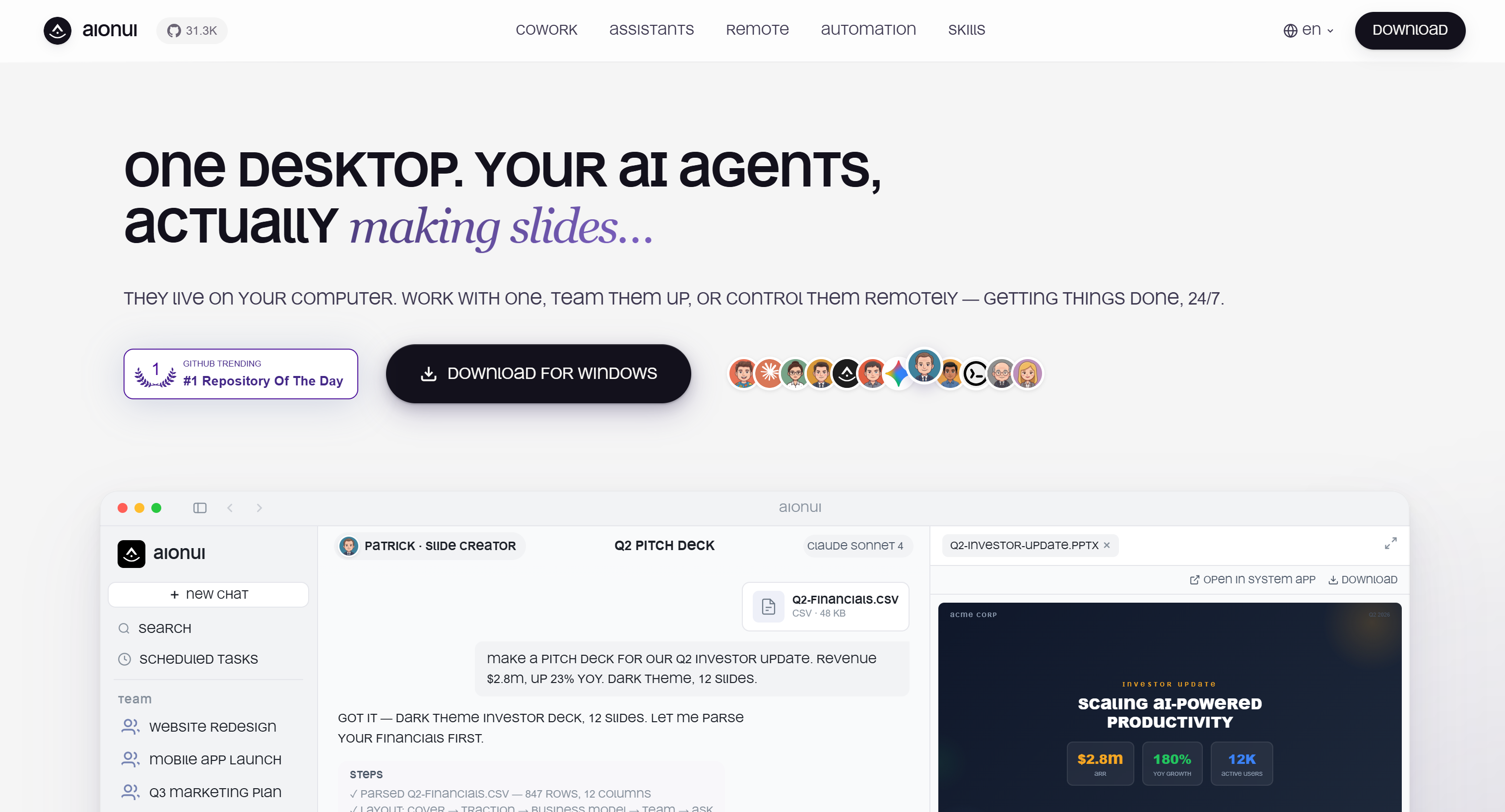
AionUi is a desktop application that serves as a unified workspace and local control room for running and coordinating multiple AI agents. It supports coding, document creation, research, automation, file management, and multi-agent workflows. AionUi
The solution combines built-in assistants, external CLI agents, remote access, scheduled tasks, and MCP integrations in a unified workspace. AionUi is open-source, and the project boasts over 31k GitHub stars.
Main Features
The core features supported by AionUi are:
- Multi-agent cowork: Run and coordinate multiple AI agents, including Claude Code, Codex, Gemini CLI, and more.
- Built-in assistants: Access specialized agents for writing, presentations, spreadsheets, research, and design tasks.
- 24/7 automation: Schedule AI agents to execute recurring workflows using cron-based tasks.
- Remote control: Manage agents remotely through WebUI, Telegram, WeChat, Lark, and other channels.
- LLM flexibility: Connect any model provider, API key, endpoint, or local model deployment.
- Skills marketplace: Extend agent capabilities with built-in, custom, and community-created skills.
- Unified MCP support: Configure MCP servers once and share them across agents.
- Office generation: Create editable Word, Excel, PowerPoint, and PDF files locally via the.
- File operations: Automate file organization, editing, analysis, and content generation.
Specifically, AionUi integrates natively with OfficeCLI, an open-source command-line office suite designed for AI agents. OfficeCLI provides direct control over Word, Excel, and PowerPoint files through a single binary, without requiring Microsoft Office or additional external dependencies.
Why Extend AionUi with Solid Tools for Web Search, Scraping, Sourcing, and Interaction
Like any AI agent, AionUi’s capabilities are influenced by two main factors:
- The static knowledge of the underlying LLM: AI models are trained on large datasets, which leads to a knowledge cutoff. As a result, they have no awareness of recent events, breaking news, newly published content, or evolving market information.
- The available tools and skills: An AI agent is only as powerful as the tools, skills, and integrations it can access.
To overcome these limitations, AionUi offers extensive customization options through support for MCP, skills, external agents, and more. In particular, it comes with more than 40 built-in agents and 25 skills.
The AionUi extensions include a built-in web search tool, which helps overcome LLM knowledge limitations by retrieving information from the internet. However, these built-in web access methods usually struggle with dynamic content, rate limits, and anti-bot protections.
To operate without interruptions across a long list of tasks, AI agents need more than basic search tools. They need the ability to discover sources, extract information from any website, and interact with online platforms at scale.
This is where Bright Data comes in!
Bright Data as the Solution
Bright Data can extend AionUi through its official Bright Data MCP server. This represents a simple integration layer between AI agents and Bright Data’s enterprise-grade web infrastructure.
What makes Bright Data stand out is its global-scale infrastructure, including more than 400 million residential IPs. This architecture supports unlimited concurrency, achieves 99.99% uptime, and reaches a 99.95% success rate.
By connecting AionUi with Bright Data, AI agents gain access to production-ready tools for web search, scraping, structured data extraction, source discovery, and browser automation.
In Rapid mode (free tier with 5k requests per month), Bright Data MCP exposes essential tools for web research and extraction workflows, including:
| Tool | Description |
|---|---|
search_engine (and search_engine_batch for parallel requests) |
Retrieves structured search results from Google, Bing, and other search engines. |
scrape_as_markdown (and scrape_batch for parallel requests) |
Extracts webpage content as clean Markdown while handling anti-scraping challenges. |
discover |
Uses AI-powered discovery to identify relevant sources and retrieve enriched web results. |
With [Pro mode enabled](https://github.com/brightdata/brightdata-mcp#-pricing, modes), AionUi gains access to all 70+ Bright Data MCP tools. These include dedicated tools for structured data extraction from platforms such as Amazon, LinkedIn, YouTube, Google Maps, and 40+ other domains. Pro mode also unlocks advanced browser automation features.
Together, AionUi and Bright Data create a richer AI workspace where agents can combine local files, internal workflows, and web intelligence.
How to Integrate the Bright Data MCP into AionUi
In this step-by-step section, you will learn how to connect AionUi to a local instance of the Bright Data MCP server.
Follow the instructions below!
Prerequisites
Before getting started, make sure you have:
- A machine that meets the AionUi system requirements.
- An API key from one of the many LLM providers supported by AionUi (this article will mention OpenAI models, so an OpenAI API key will be used).
- Node.js 20+ installed locally (the latest LTS version is recommended).
- A Bright Data account with an API key configured. Follow the official guide to generate your Bright Data API key.
A basic understanding of how MCP works and familiarity with the tools exposed by Bright Data MCP will also be helpful.
Step #1: Initial AionUi Setup
Start by downloading AionUi from the official website. Launch the installer for your operating system and wait for the installation process to complete. Then, open the AionUi desktop app:
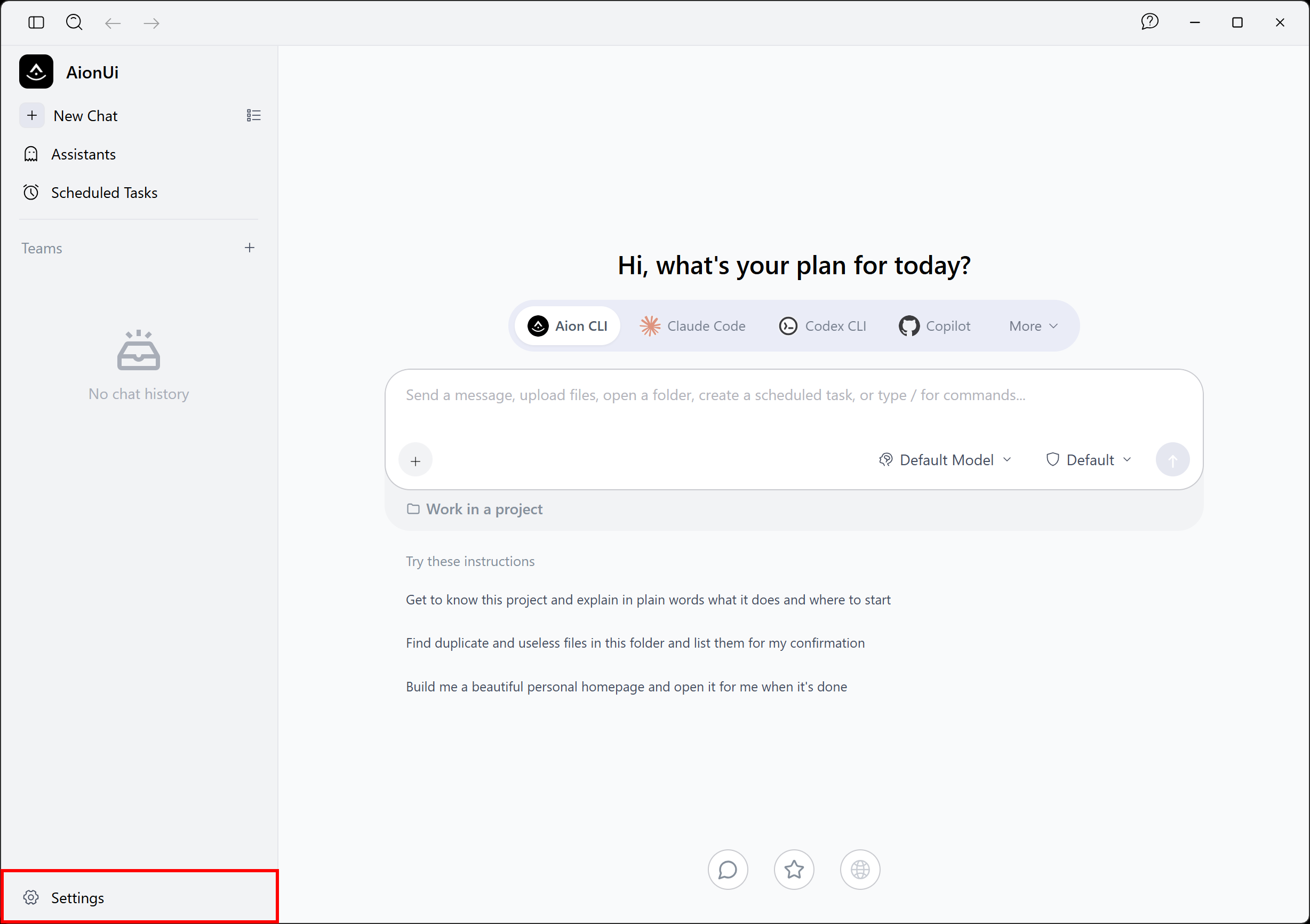
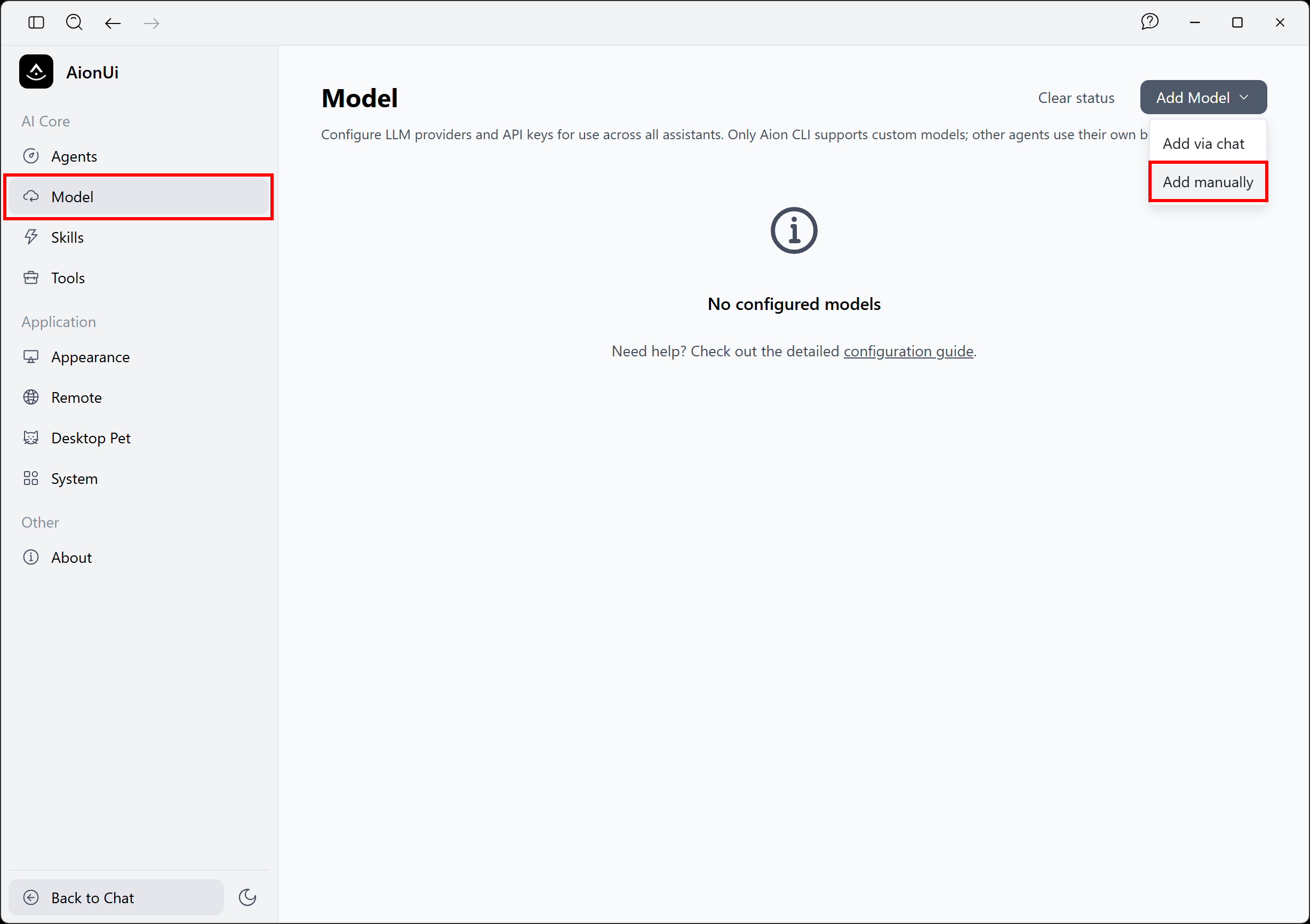
By default, AionUi is not connected to any LLM. To configure one, click the “Settings” button in the bottom-left corner. In the “Settings” section, open the “Model” page and select the “Add Model > Add manually” option:
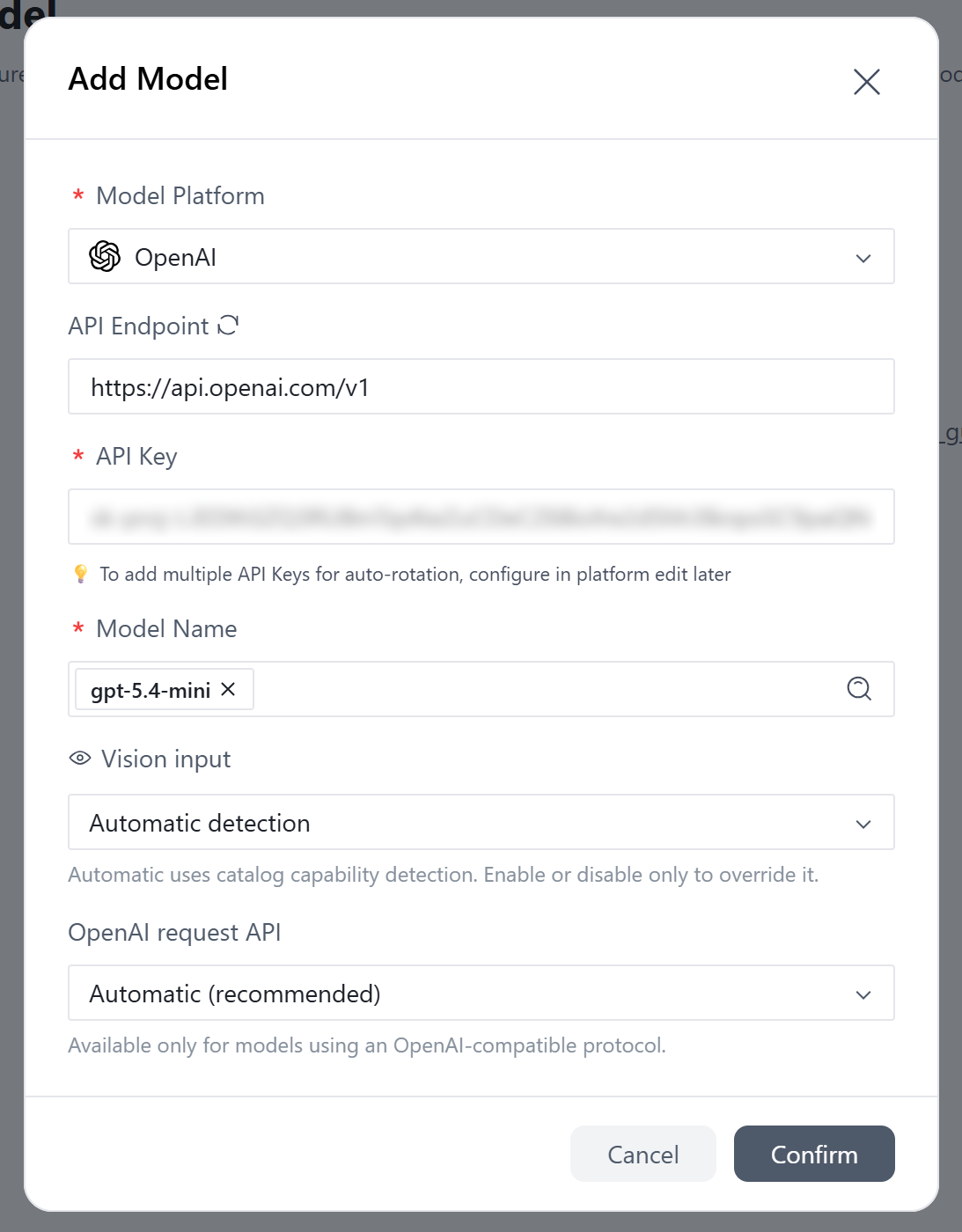
In the “Add Model” dialog, select the LLM provider from the “Model Platform” dropdown. In this example, we will configure an OpenAI model. So, select “OpenAI”, paste your OpenAI API key into the corresponding field, and choose the model you want to use (e.g., gpt-5.4-mini):
Click “Confirm”, and the configured LLM will now appear on the “Model” page:
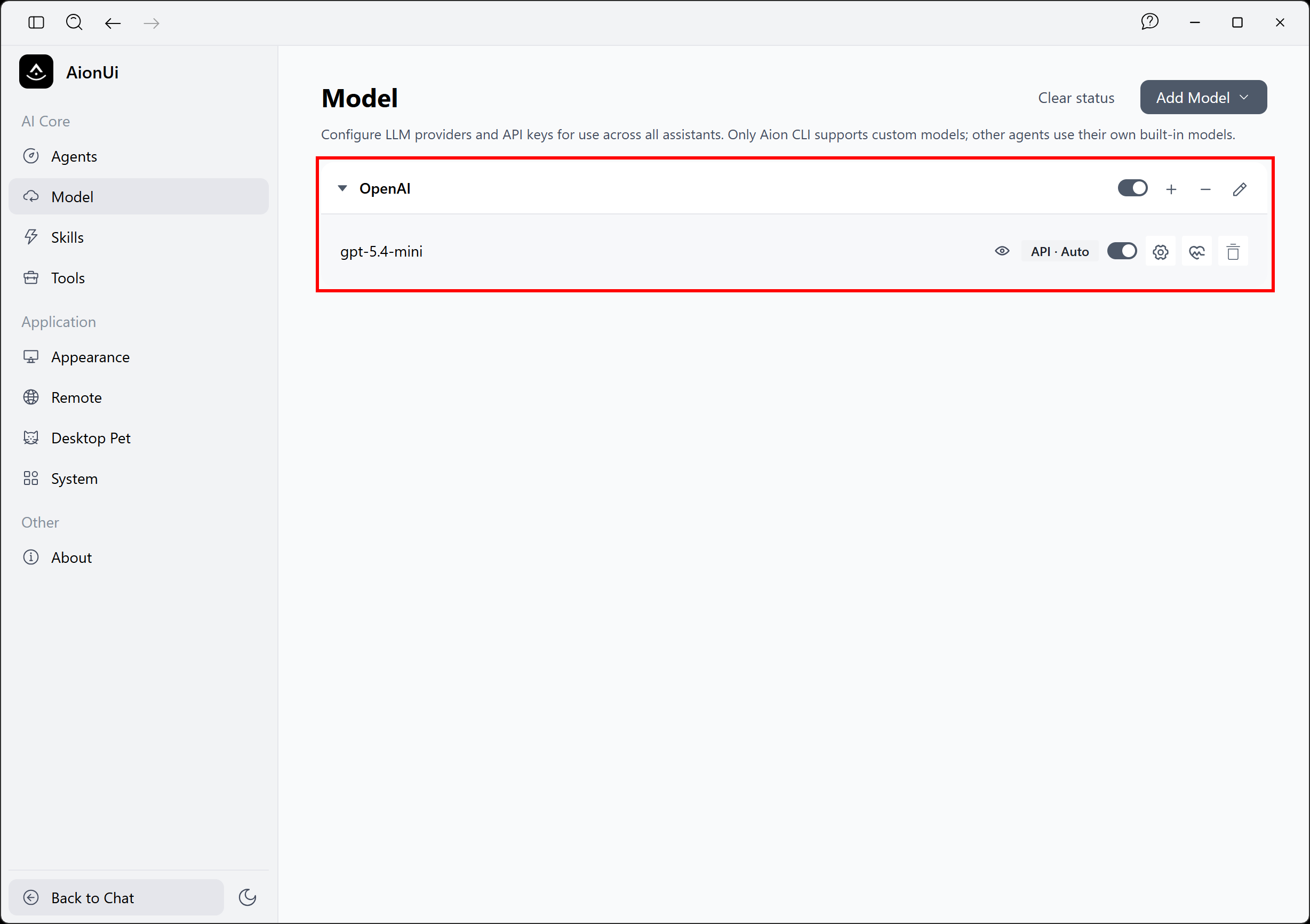
Well done! You can now chat with an LLM directly from AionUi.
Step #2: Test Bright Data MCP
Before connecting the Bright Data MCP to AionUi, verify that the MCP server can run on your machine.
First, install the Bright Data MCP globally via the @brightdata/mcp npm package:
npm install -g @brightdata/mcpOn Linux, macOS, or WSL, check that the MCP server starts with:
API_TOKEN="<YOUR_BRIGHT_DATA_API_KEY>" npx -y @brightdata/mcpOn PowerShell, run:
$Env:API_TOKEN="<YOUR_BRIGHT_DATA_API_KEY>"; npx -y @brightdata/mcpReplace <YOUR_BRIGHT_DATA_API_KEY> with your actual Bright Data API key. These equivalent commands set the required API_TOKEN environment variable and start the Bright Data MCP server locally. For more information, check out the official Bright Data MCP documentation.
If the server started correctly, you should see an output similar to this:

During the first run, the @brightdata/mcp package set up two APIs in your Bright Data account:
mcp_unlocker: Connects to the Bright Data Web Unlocker API (and SERP API).mcp_browser: Enables interaction with the Bright Data Browser API.
These APIs power the 70+ tools exposed by Bright Data MCP.
Note: To configure custom API names, refer to the instructions in the official repository.
To verify that these APIs were created, log in to the Bright Data control panel. Open the “Web Access > Web Access API” section, where you will see two APIs listed in the “My APIs” table:
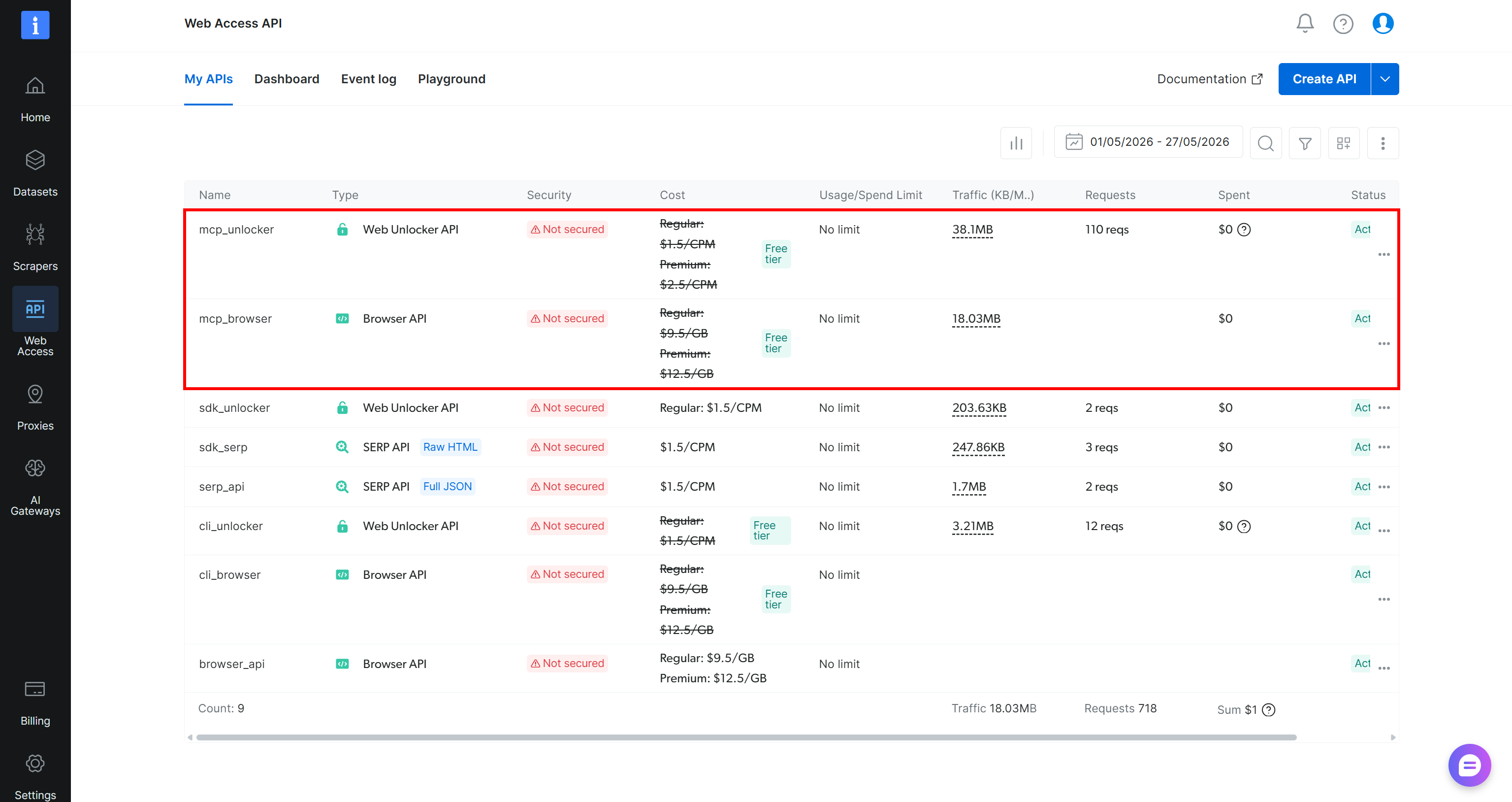
Important: By default, the local Bright Data MCP instance runs in Rapid mode (free tier), which provides access to a limited set of tools. To unlock all 70+ tools, enable Pro mode by setting the PRO_MODE=true environment variable:
API_TOKEN="<YOUR_BRIGHT_DATA_API>" PRO_MODE="true" npx -y @brightdata/mcpOr, on PowerShell:
$Env:API_TOKEN="<YOUR_BRIGHT_DATA_API>"; $Env:PRO_MODE="true"; npx -y @brightdata/mcpRemember that Pro mode is not included in the free tier and [incurs additional charges](https://github.com/brightdata/brightdata-mcp?tab=readme-ov-file#-pricing, modes).
Cool! You have verified that Bright Data MCP runs on your machine. Next, configure it in AionUi.
Step #3: Configure the Bright Data MCP in AionUi
To connect AionUi to the Bright Data MCP, begin by reaching the “Settings” section. Navigate to the “Tools” page and select the “Add MCP > Import from JSON” option:
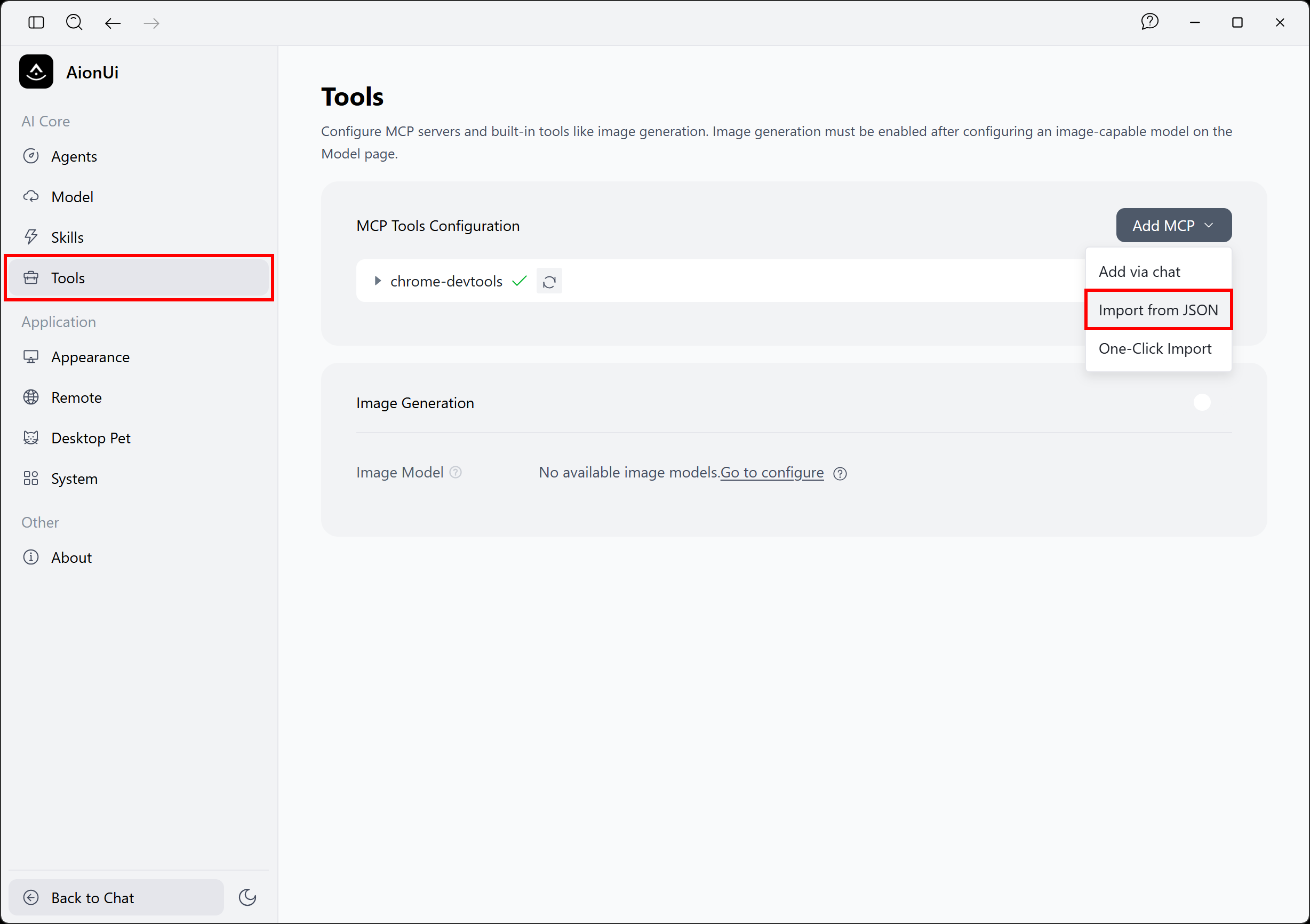
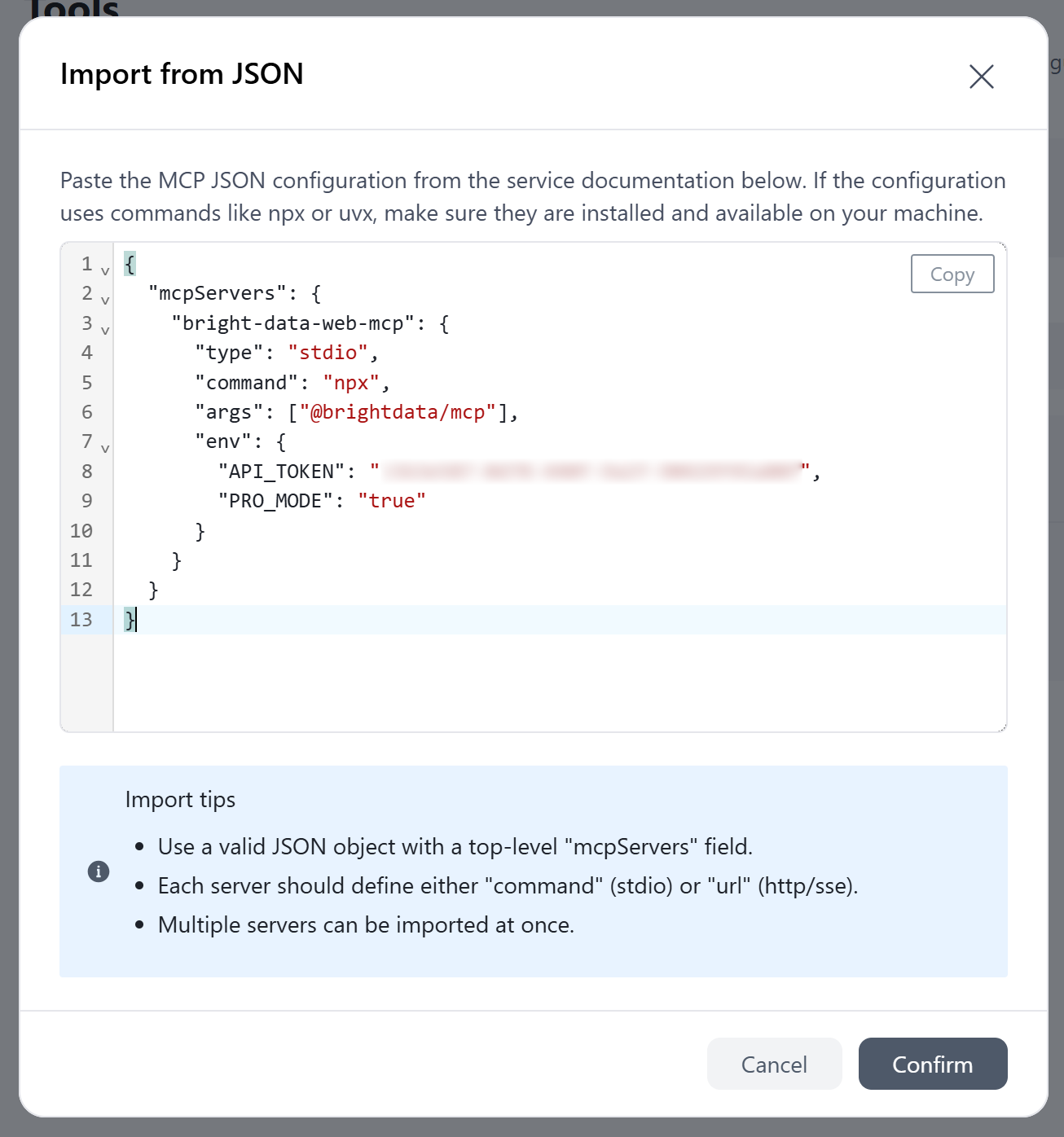
A modal window will appear asking you to add the MCP configuration in JSON format. To configure the Bright Data MCP in STDIO mode, paste this JSON:
{
  "mcpServers": {
    "bright-data-web-mcp": {
      "type": "stdio",
      "command": "npx",
      "args": ["@brightdata/mcp"],
      "env": {
        "API_TOKEN": "<YOUR_BRIGHT_DATA_API_KEY>",
        "PRO_MODE": "true"
      }
    }
  }
}
The config defines the bright-data-web-mcp server via the npx @brightdata/mcp command, while setting these environment variables:
API_TOKEN(required): Your Bright Data API key.PRO_MODE(optional): Set to"true"to enable Pro Mode features. Remove this environment variable or set it to"false"to run Bright Data MCP in Rapid Mode.
In other words, the above JSON configuration instructs AionUi to launch the Bright Data MCP server using the same command tested in the previous step.
Click “Confirm” and wait for AionUi to start the MCP server and establish the connection. Once the connection succeeds, a “bright-data-web-mcp” entry will appear on the “Tools” page.
Expand the entry to view all the tools provided by Bright Data MCP:
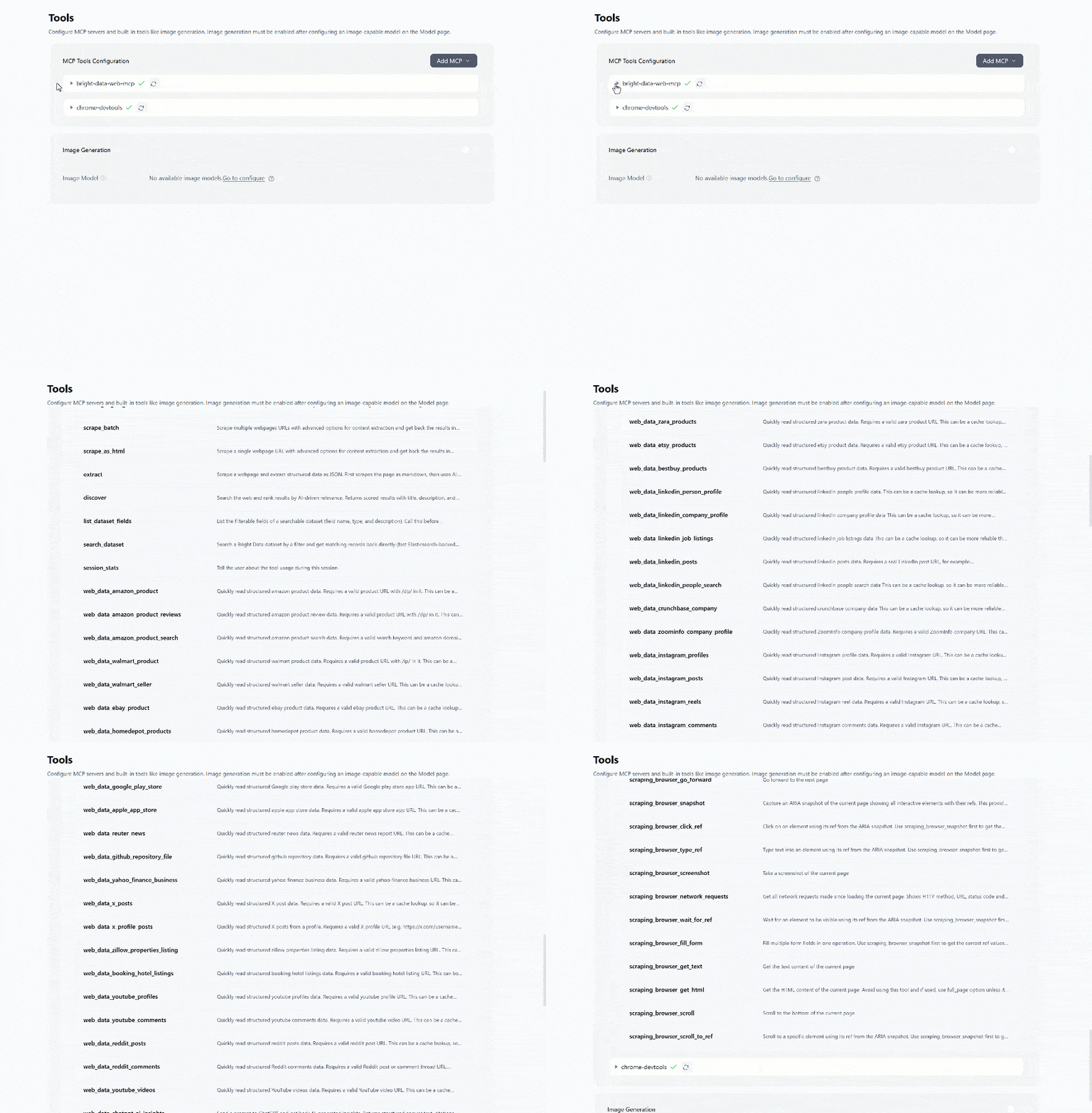
When configured in Pro Mode, the Bright Data MCP connection will expose more than 70 tools. In Rapid mode, only the tools available in the free tier will be displayed.
Terrific! AionUi is now integrated with Bright Data via MCP.
Step #4: Test the Integration
Assume you have a draft of your company’s Q2 financial performance report stored in a Word document:
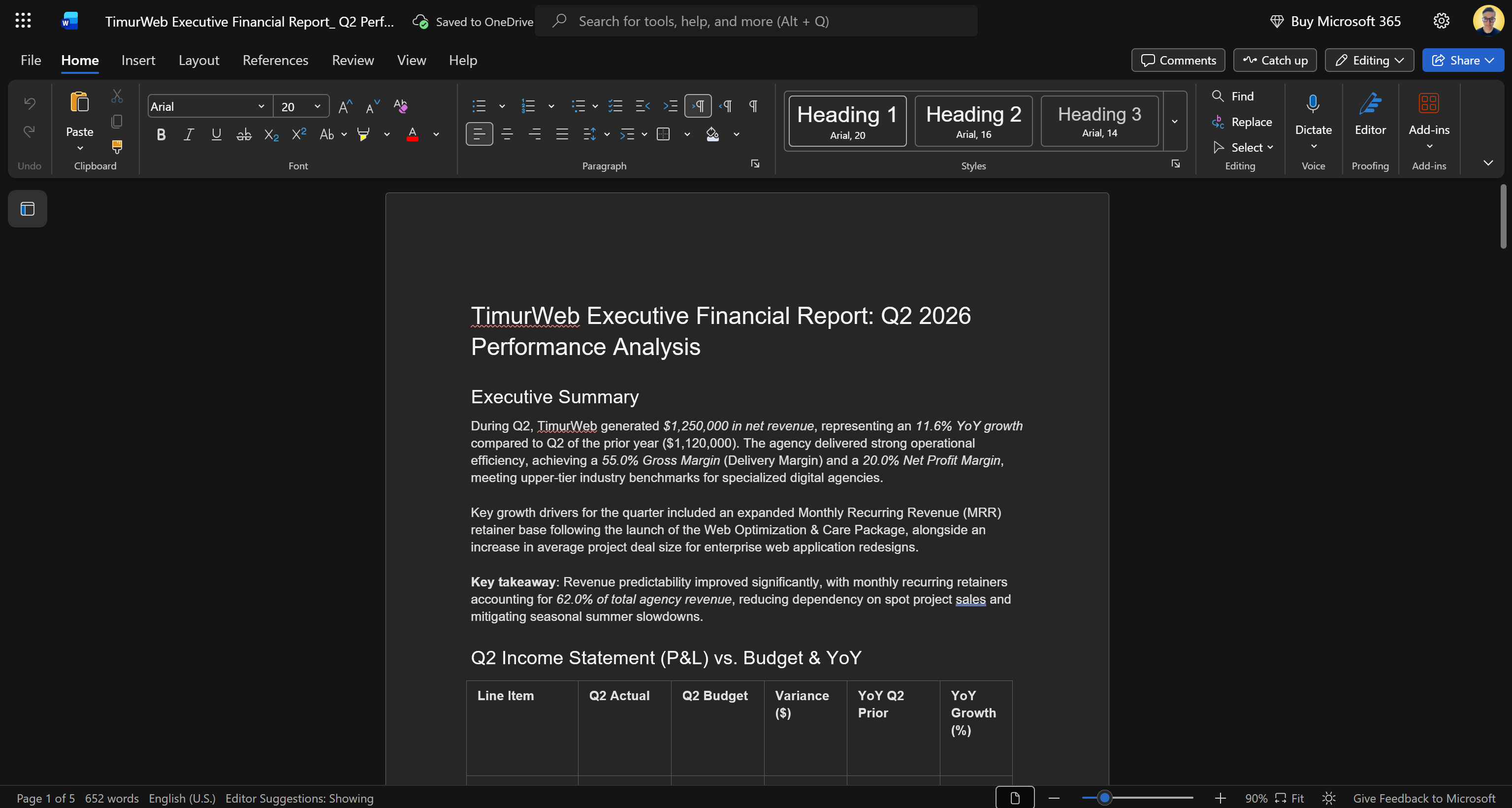
This document contains all the information needed to describe your company’s Q2 results. However, it does not include a market perspective or comparison with industry benchmarks.
You can add such insights by asking AionUi to use Bright Data MCP tools. The AI agent will research useful information online and leverage the integrated OfficeCLI skills to autonomously update the Word .docx document.
Start by setting up OfficeCLI in AionUi with this prompt:
Set up officecli AionUi will launch the built-in officecli skill and use it to install the OfficeCLI command-line tool:
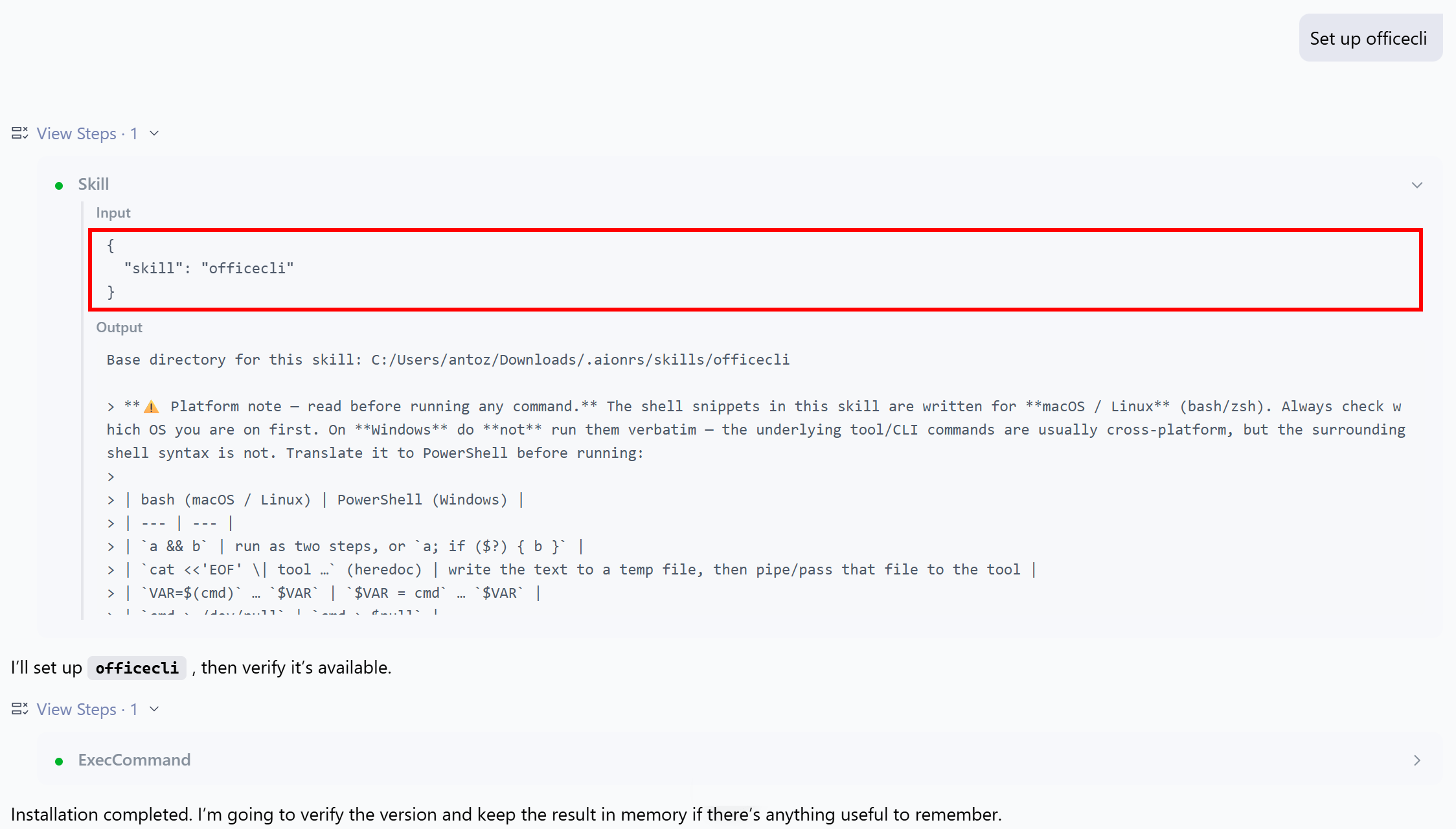
Restart AionUi to ensure that the internal shell can access the newly configured officecli command.
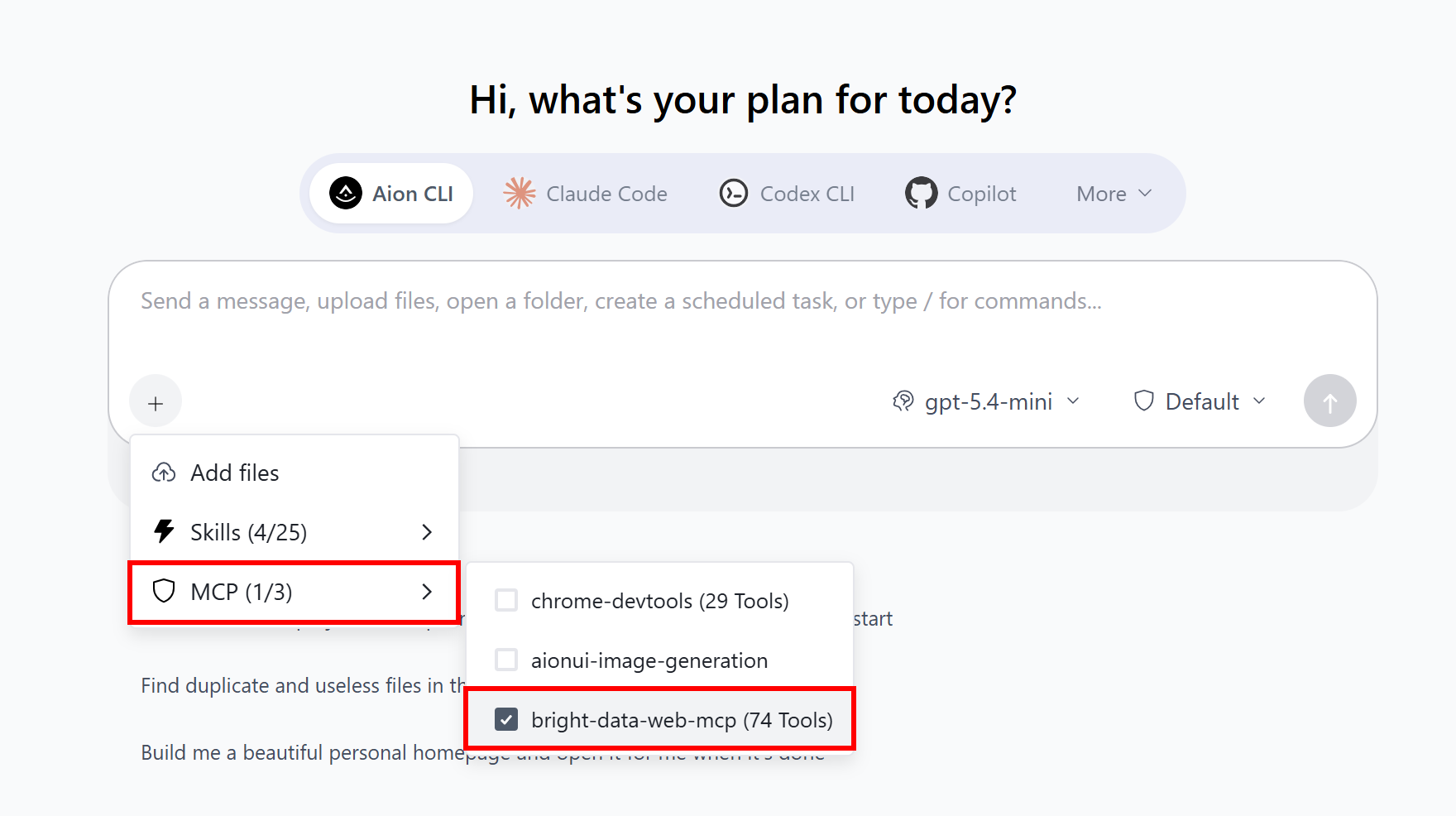
Next, start a new chat. By default, the chat is not connected to the Bright Data MCP. Enable the integration by clicking the “+” button and checking “MCP > bright-data-web-mcp”:
Next, in the AionUi chat section, click “Work in a project” and select the folder containing your Word document. Once you have done that, paste a prompt like the following:
Load the Word report from the current directory.

Using the Bright Data MCP, research the latest Q2 2026 statistics, trends, and market insights related to the web agency industry and the other related industries in which the company operates. Search for authoritative and up-to-date sources, then scrape the most relevant pages and extract the key findings.

Analyze the collected information and compare it with the data already available in the report.

Add a new, detailed yet concise chapter that:
- Compares the company's performance against industry averages and benchmarks.
- Highlights strengths, weaknesses, opportunities, and areas where the company is outperforming or lagging behind its competitors.
- Supports every claim with relevant statistics and insights gathered from the web.

Finally, add another chapter that:
- Summarizes where the industry is heading during the remainder of 2026.
- Identifies emerging trends, risks, and opportunities.
- Provides actionable recommendations for the company to improve its performance and capitalize on upcoming market developments in Q3 and Q4 2026.

Integrate both new chapters into the existing report using the same writing style, tone, and formatting. Include citations or links to the sources used whenever possible.
This involves advanced research and scraping tasks that AionUi’s built-in skills and tools cannot handle on their own. AionUi will be able to complete the task anyway thanks to the tools provided by the Bright Data MCP.
Time to launch the prompt and explore the results!
Step #5: Run the Prompt
Run the prompt, and you should see:
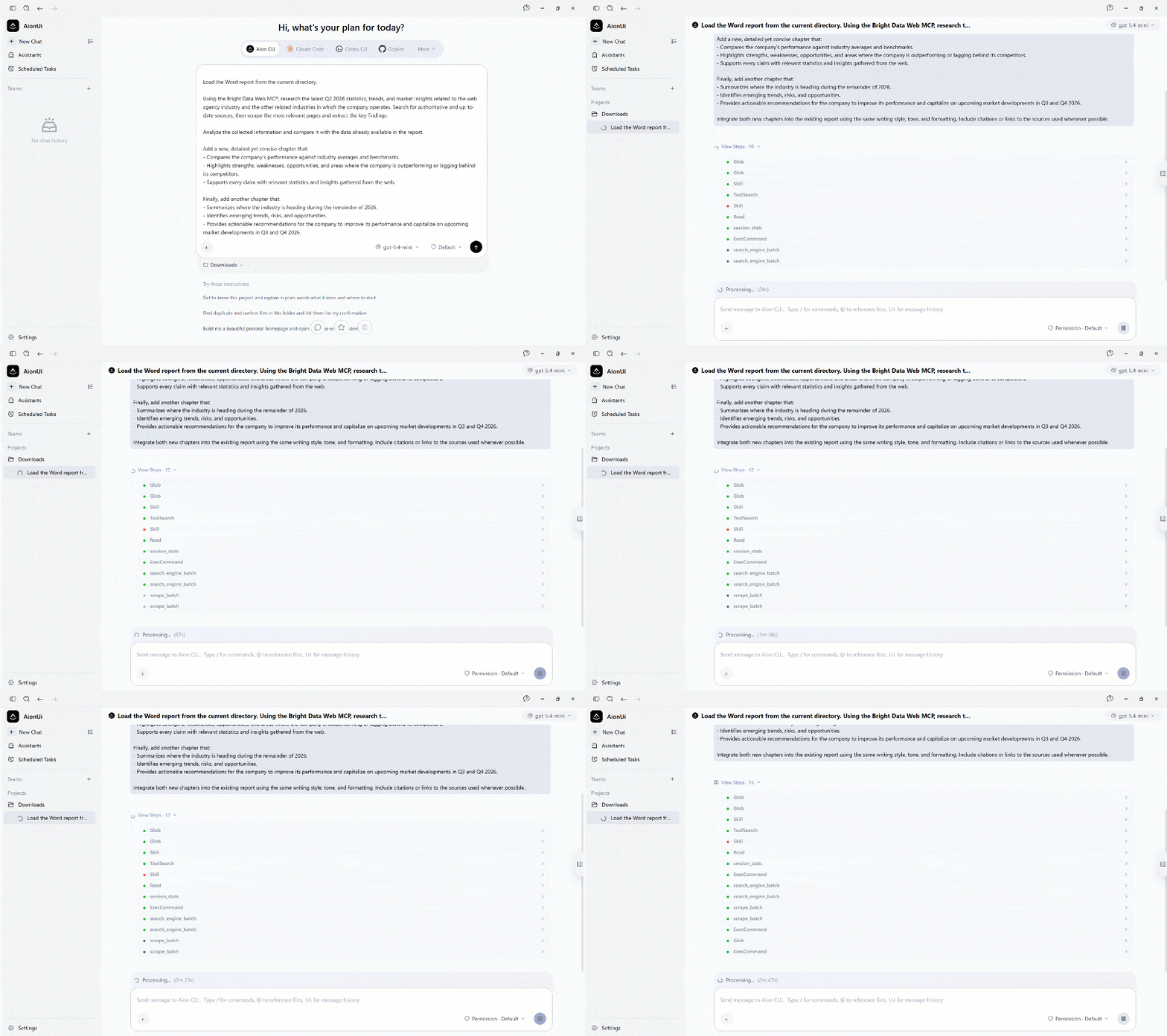
AionUi begins by locating the Word document in the project directory using some glob commands. It then loads the built-in officecli skill and reads the .docx report. The configured LLM analyzes its contents to understand the company’s financial performance, the industry it operates in, and the overall business context.
Next, AionUi invokes the search_engine_batch tool from the Bright Data MCP. That tool calls Bright Data’s SERP API to execute multiple Google searches in parallel, returning parsed SERPs as structured JSON objects in an array:
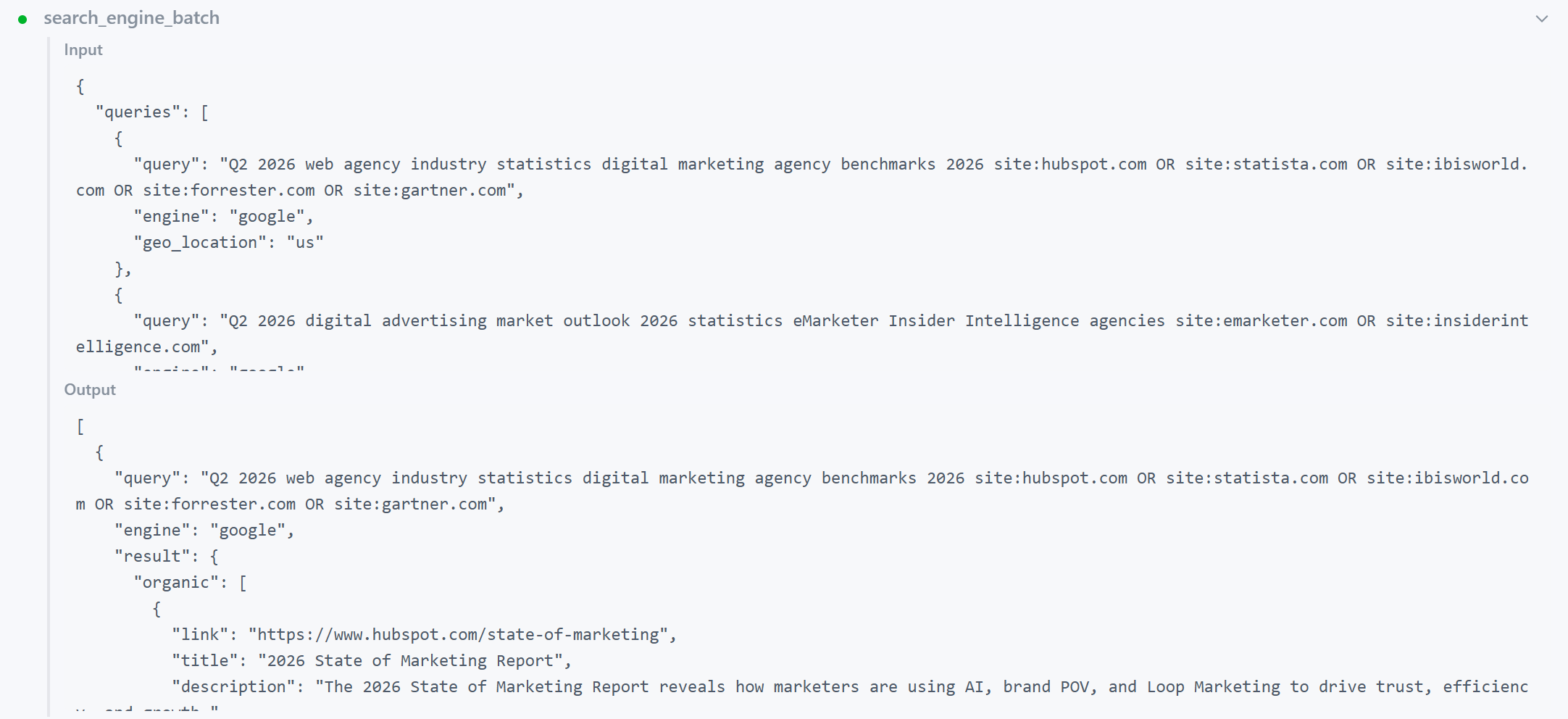
After analyzing the search results, the LLM identifies the most interesting pages to gather additional information.
It then calls the scrape_batch tool to retrieve the contents of those pages. Behind the scenes, this uses Bright Data’s Web Unlocker API to access the selected pages and return their contents in an LLM-optimized Markdown format.
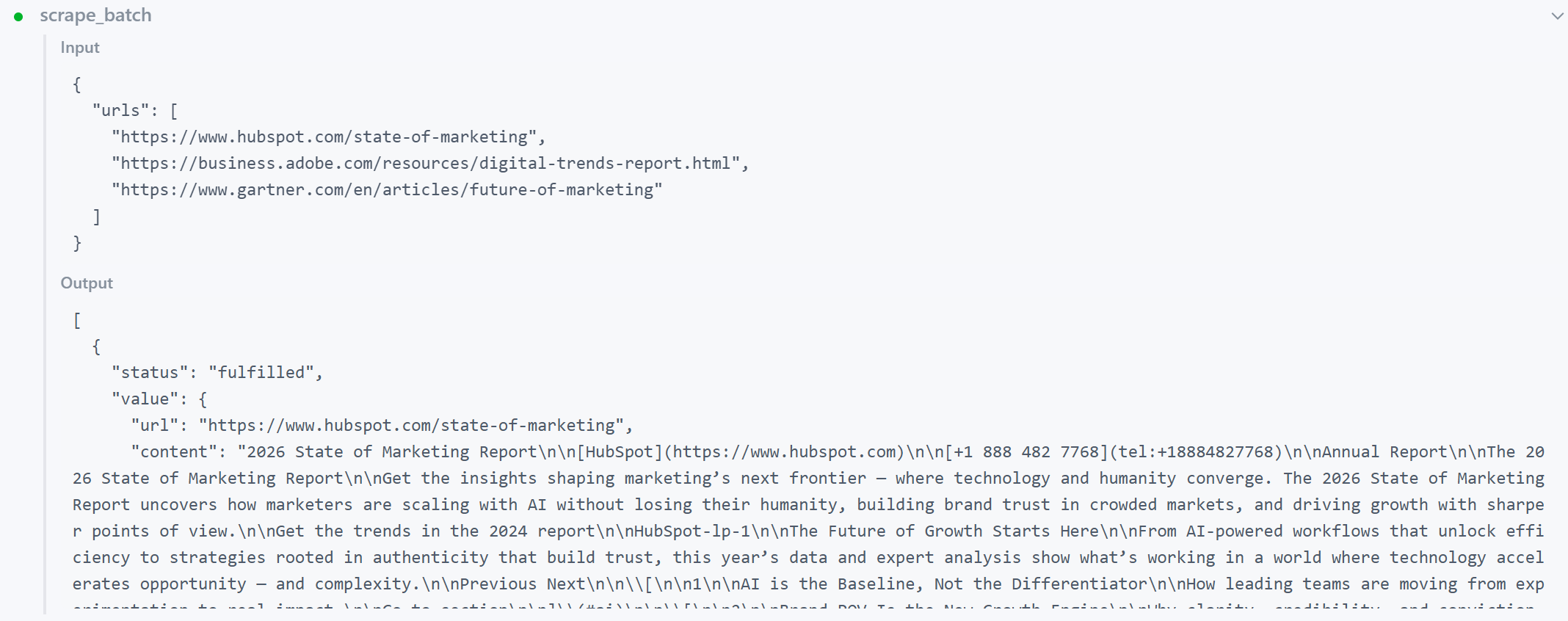
Finally, the LLM analyzes the retrieved data and updates the .docx document by adding the two new chapters requested in the prompt.
In this run, here is the final output produced by the AI agent:
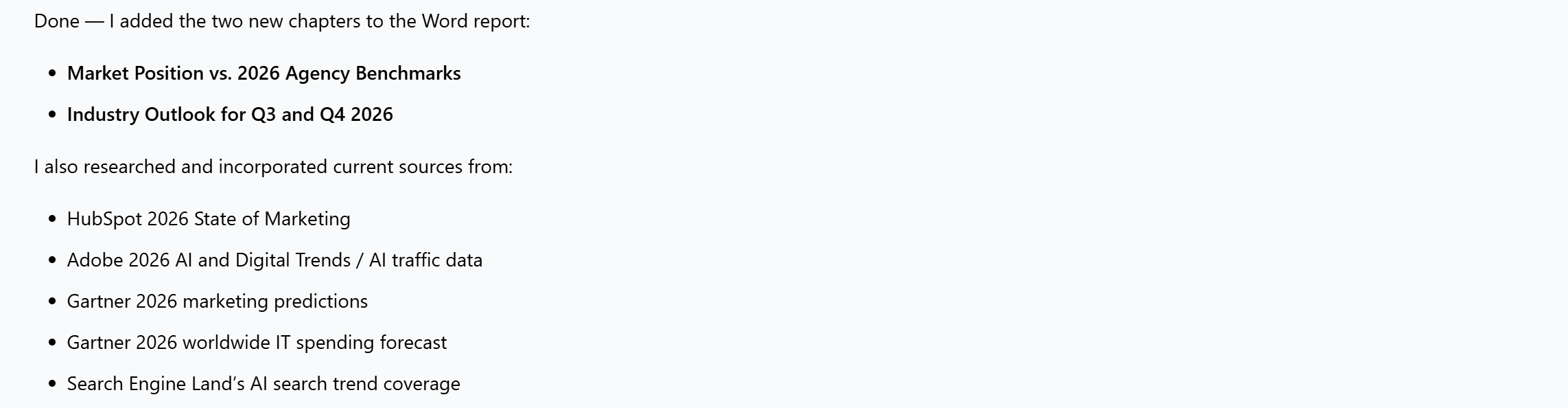
Mission complete! The result is an enriched Word report that now includes industry benchmarks and forward-looking recommendations.
Step #6: Explore the Updated Word Report
The Word report has now been automatically enhanced with two additional chapters.
The first chapter, “Market Position vs. 2026 Agency Benchmarks,” compares your company’s performance against industry benchmarks using the latest market data gathered from the web.
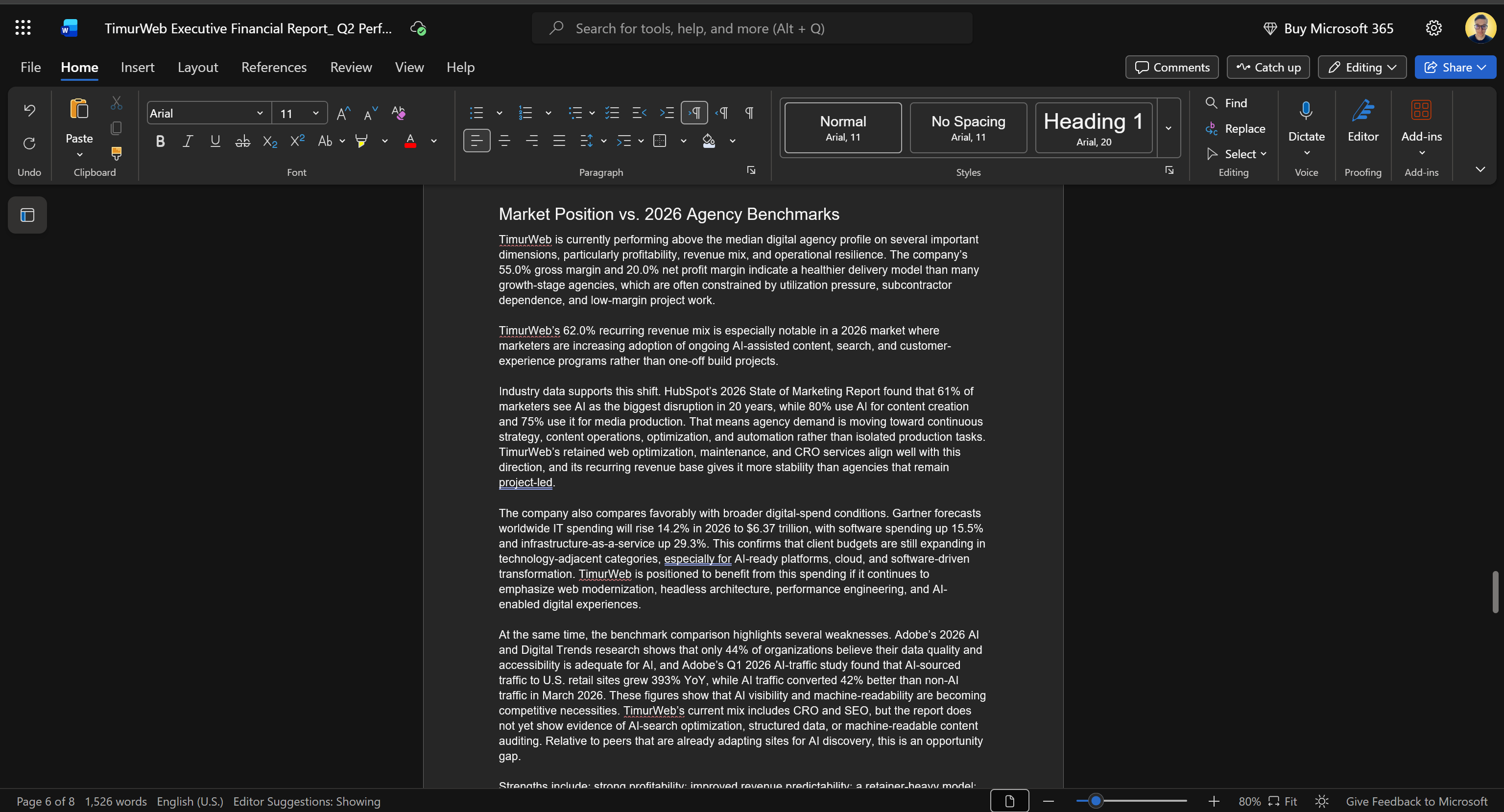
The second chapter, “Industry Outlook for Q3 and Q4 2026,” summarizes the industry’s expected direction for the remainder of the year.
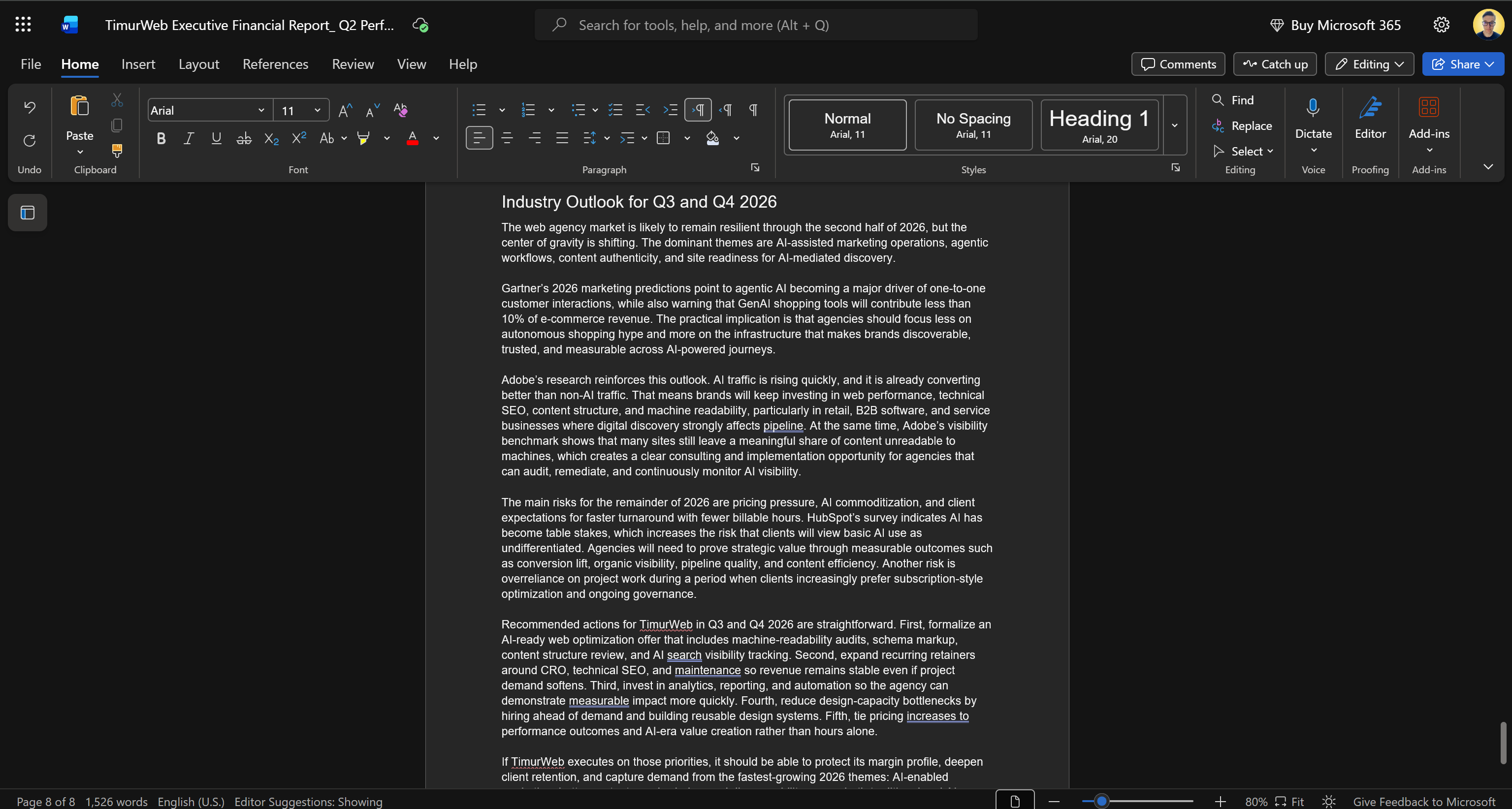
This last chapter highlights key trends, emerging opportunities, potential risks, and actionable recommendations for the company.
Notice that all the information in these new chapters is grounded in real, verifiable, and up-to-date web data retrieved through the Bright Data MCP.
The Bright Data integration enables AionUi to produce reports that combine your internal business data with external market intelligence, resulting in richer and more informed analyses.
Now, AionUi supports a wide range of features. Thus, giving it reliable access to the web through Bright Data enables far more than document enrichment. Your AI agent can now search, scrape, and interact with websites, unlocking a wide range of use cases.
Et voilà! Your AionUi AI agent is now more powerful than ever thanks to the Bright Data MCP integration.
[Extra] Extend AionUi with Bright Data Skills
Bright Data also provides an official collection of Agent Skills. These skills teach the AI agent how to integrate and use Bright Data’s web infrastructure. They can be used with any AI tool that supports the Agent Skills specification, including AionUi.
Important: The Bright Data Agent Skills complement the Bright Data MCP integration rather than replace it. Bright Data MCP provides simplified access to Bright Data’s APIs, while the skills help the AI agent use those tools more effectively. They also cover additional Bright Data products and include best practices and product-specific knowledge to support the agent’s decision-making.
Let’s see how to add the Bright Data Agent Skills to AionUi!
Prerequisites
To follow this section, make sure:
- You are operating on a UNIX-based system (Linux, macOS, or WSL).
- The Bright Data CLI installed and configured locally. This is the main requirement for using the Bright Data skills. For a quick setup, refer to the “Bright Data CLI: Installation & Setup” guide or read the dedicated blog post.
- You have a basic understanding of what the Bright Data skills provide. For more information, take a look at the Bright Data skills article on our blog.
While not strictly required, some familiarity with the Agent Skills standard will also be helpful.
Step #1: Download the Bright Data Skills
AionUi supports Agent Skills installation through manual file import. Start by downloading the Bright Data Agent Skills repository as a ZIP file.
Open the Bright Data Agent Skills repository, click the “Code” button, and select the “Download ZIP” option:
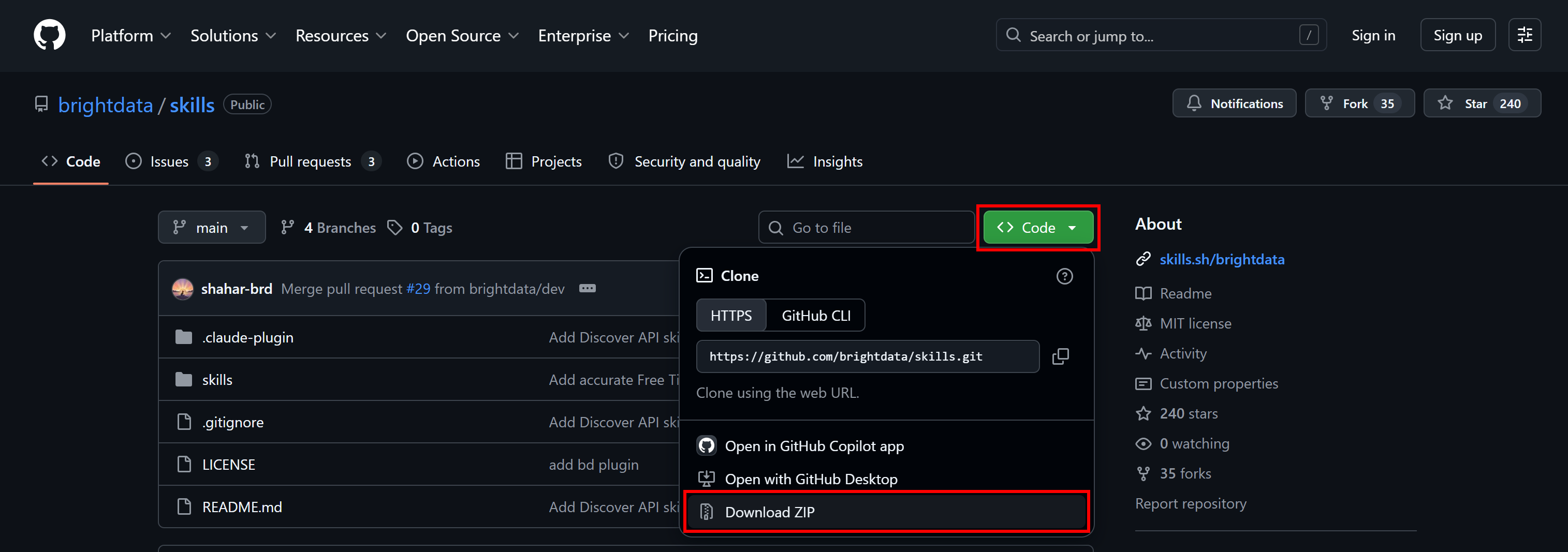
This downloads a skills-main.zip file. Extract the archive, and you will see the following structure:
skills-main/
├── .gitignore
├── LICENSE
├── README.md
├── .claude-plugin/
│   ├── marketplace.json
│   └── plugin.json
└── skills/
    ├── agent-onboarding/
    ├── brand-listening/
    ├── brd-browser-debug/
    ├── bright-data-best-practices/
    ├── bright-data-mcp/
    ├── brightdata-cli/
    ├── competitive-intel/
    ├── data-feeds/
    ├── design-mirror/
    ├── discover-api/
    ├── js-sdk-best-practices/
    ├── live-research/
    ├── price-comparison/
    ├── proxy/
    ├── python-sdk-best-practices/
    ├── rag-pipeline/
    ├── scrape/
    ├── scraper-builder/
    ├── scraper-studio/
    ├── search/
    └── seo-audit/
Wonderful! Notice that the skills/ folder contains all Bright Data Agent Skills. You can now import them into AionUi.
Step #2: Add the Bright Data Skills
Open AionUi and navigate to the “Settings” section. Reach the “Skills” page and select the “Add Skills > Import Skills” option:
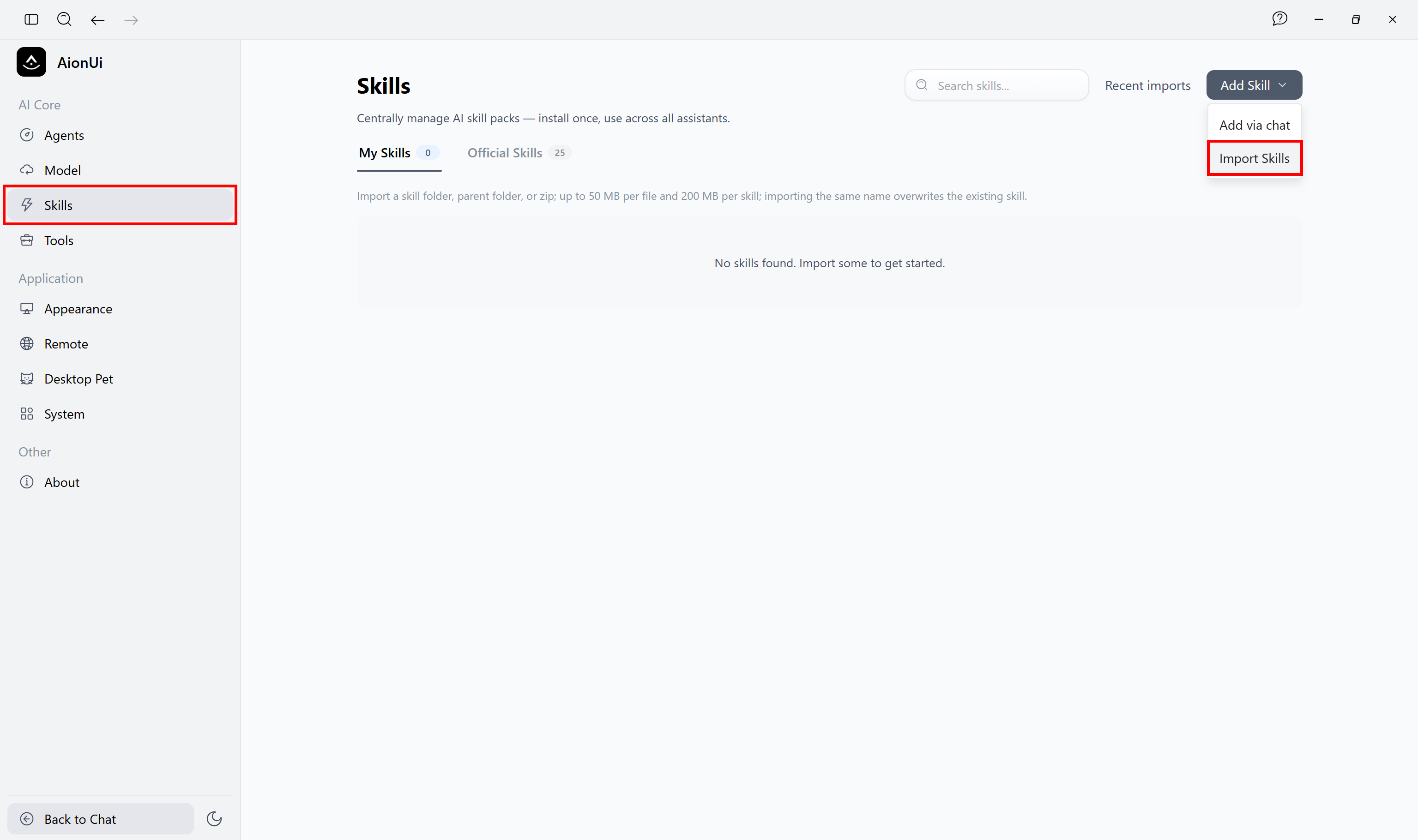
In the file explorer window, select the skills-main/skills folder and click “Open”. AionUi will import all Bright Data skills:
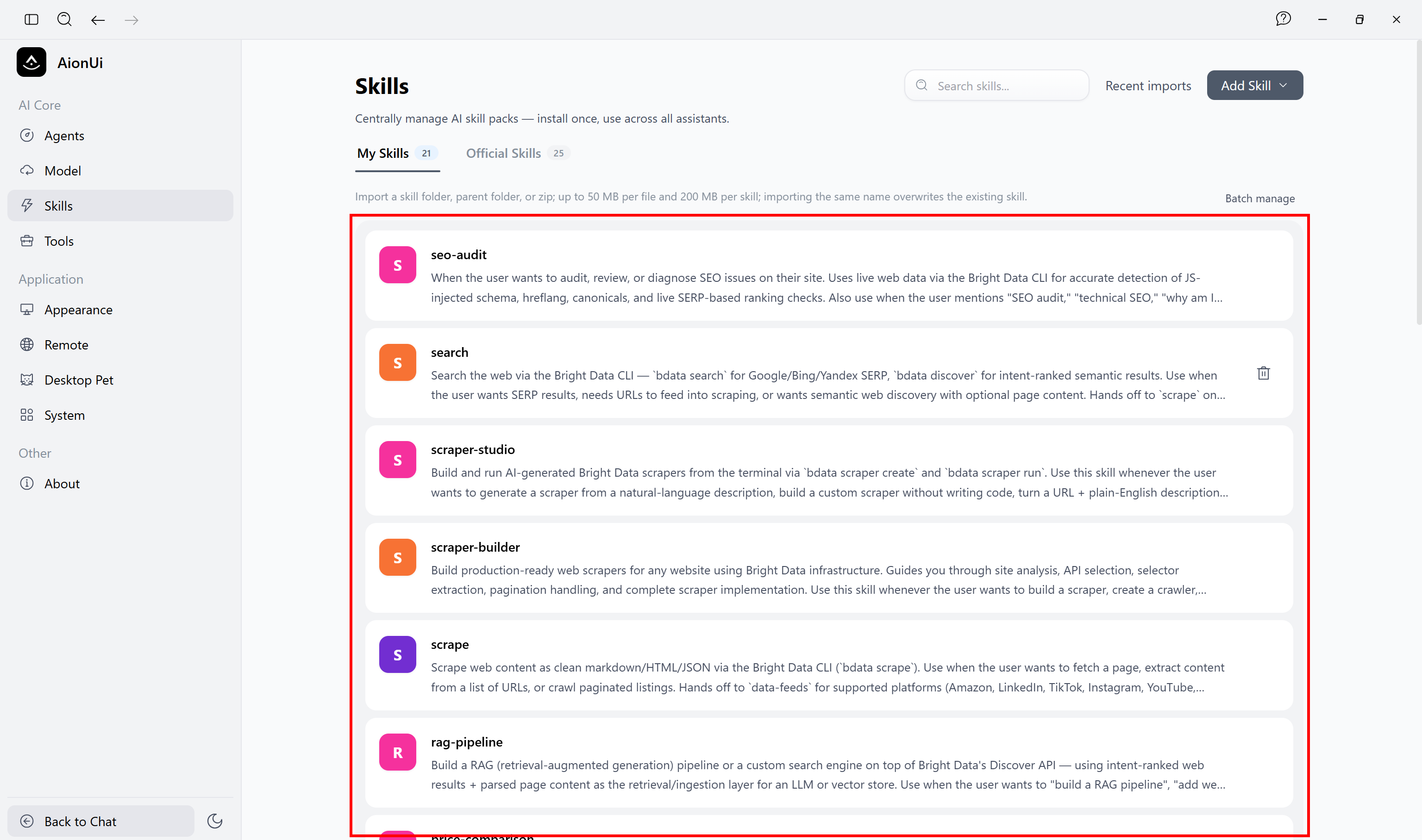
The newly imported skills will become selectable in the AI chat page. Perfect!
Step #3: Use the Bright Data Skills
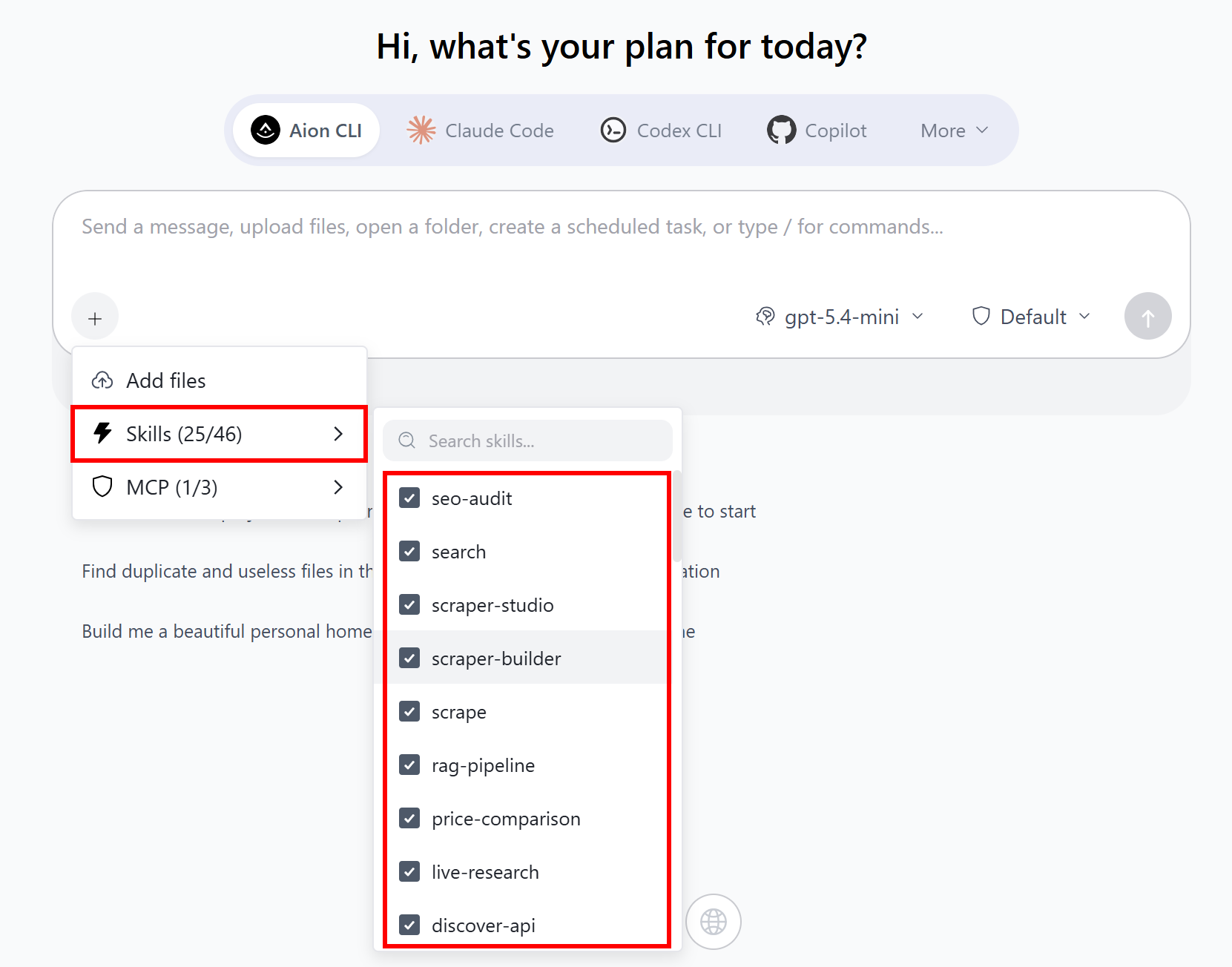
To enable Bright Data skills in an AionUi chat, click the “+” button, expand “Skills”, and select the skills you want to enable:
Note that Agent Skills are also invokable as slash commands:
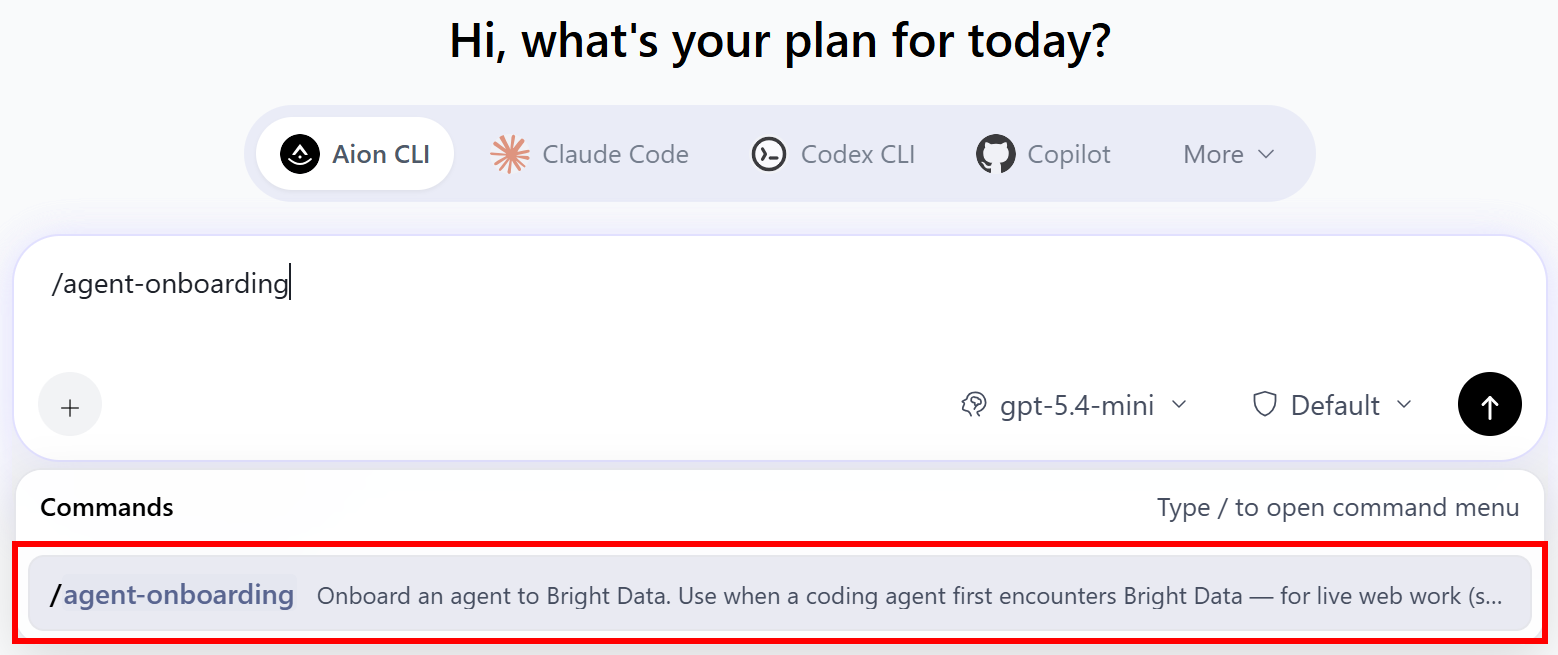
For example, try running:
/agent-onboardingThis onboarding skill guides the AI agent through the required setup process and helps it choose the right Bright Data products based on the task requirements.
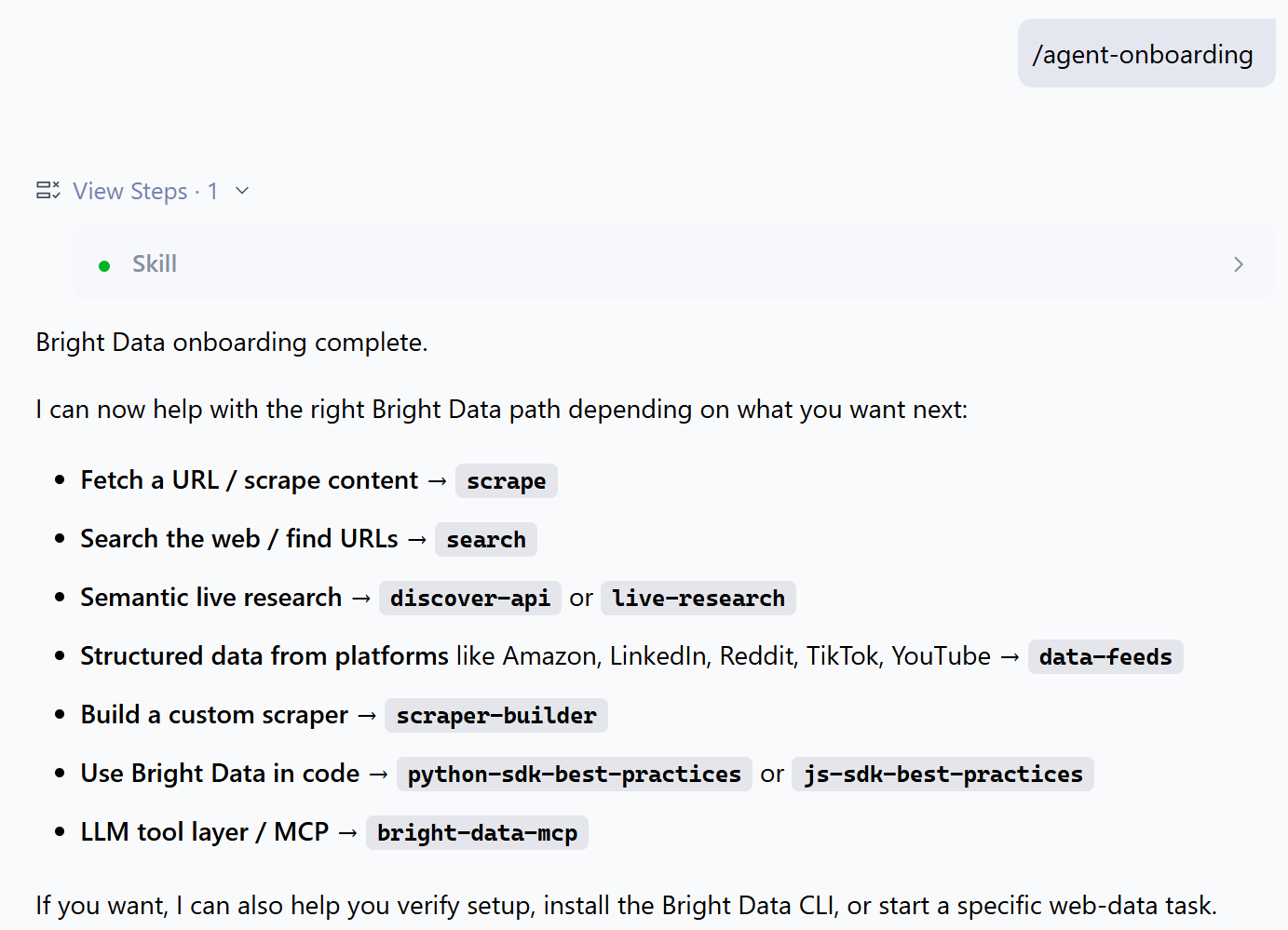
Great! Your AionUi AI agent now has access to specialized knowledge about Bright Data solutions for enterprise-grade web access.
Conclusion
In this blog post, you learned what AionUi is and the capabilities it provides. More specifically, you explored how to enhance its functionality by connecting it with Bright Data through Bright Data MCP and the official Agent Skills collection.
Thanks to the Bright Data integration, AionUi can access real-time web data and automate interactions with web pages. This enables the underlying AI agent to deliver more accurate results and perform advanced web automation workflows.
Explore the complete range of solutions available in the Bright Data AI ecosystem.
Create a Bright Data account for free today and start exploring our AI-ready web tools built for AI agents!



Technical Writer
 5.5 years experience
Antonello Zanini is a technical writer, editor, and software engineer with 5M+ views. Expert in technical content strategy, web development, and project management.