









In this guide, you will learn:
- What the Bright Data Python SDK is.
- How it works under the hood, including how authentication works.
- What it offers, including synchronous and asynchronous modes, key features, and methods.
- How to install the SDK and run your first requests step by step.
- Advanced topics such as polling, concurrent scraping, and more.
- Real-world use cases, from comparing search engine results to parsing web pages with BeautifulSoup for manual data extraction.
Let’s dive in!
What Is the Bright Data Python SDK?
The Bright Data Python SDK is a Python library designed to simplify interactions with Bright Data products.
The SDK is available through the PyPI brightdata-sdk package. It provides a unified interface for scraping websites, retrieving search engine results, accessing ready-made datasets, and working with Bright Data solutions.
In detail, the Python SDK includes ready-to-use integrations with 100+ Bright Data Scraper APIs, helping you access fresh, structured, publicly available data from platforms such as Amazon, LinkedIn, Instagram, TikTok, and many others.
Note: If you prefer working in the terminal, the Bright Data CLI equips you with many of the same capabilities through command-line commands. Learn how to use the Bright Data CLI with AI agents.
Further reading:
How the Python SDK Works
Under the hood, the SDK wraps Bright Data APIs in Python classes. That way, you can interact with Bright Data services without manually constructing HTTP requests, calling API endpoints, and parsing responses. Instead, you can just call developer-friendly Python methods.
The library is fully typed and thoroughly documented, making it easier to explore its capabilities in your IDE.
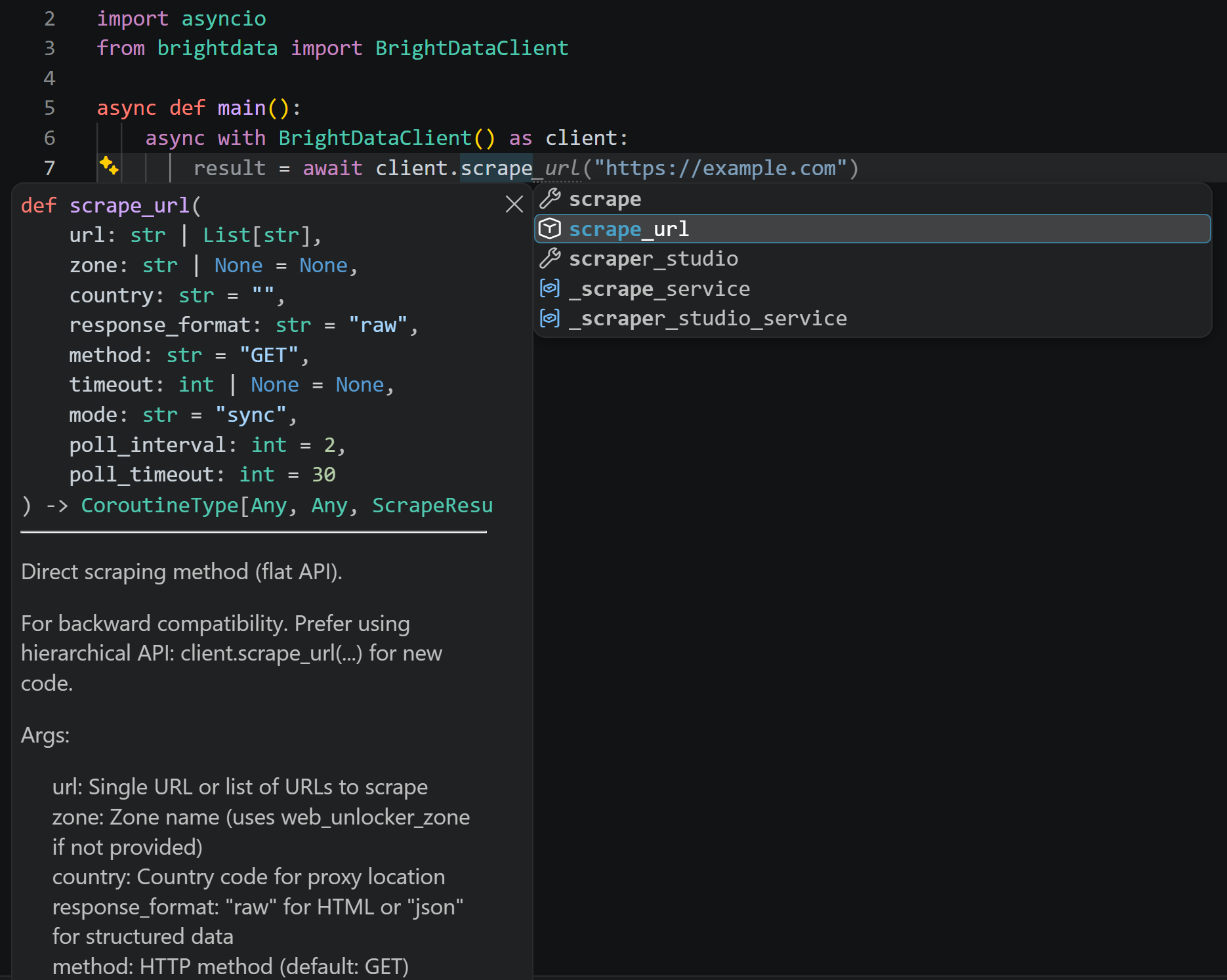
You get autocompletion, type hints, and usage examples to help you understand the available parameters and how to use each method. The returned objects are typed as well, allowing you to access response fields easily.
Authentication is handled through the Bright Data API token or, if you have already authenticated via the Bright Data CLI, the credentials saved by brightdata login. Note that if your Bright Data account does not have the required APIs the SDK calls behind the scenes, the library automatically sets them up for you.
What the SDK Provides
Now that the core model is clear, the next step is exploring what the Python SDK brings to the table.
Main Features
The Bright Data Python SDK covers a broad set of capabilities, including:
- Web scraping: Scrape individual or multiple URLs concurrently and retrieve website content with minimal code.
- Search engine results: Retrieve results from Google, Bing, and Yandex, with support for location-specific queries and batch searches.
- Platform-specific scrapers: Extract structured data from Amazon, LinkedIn, Instagram, Facebook, TikTok, YouTube, Reddit, Pinterest, ChatGPT, Perplexity, and other platforms.
- Platform-specific search: Discover profiles, jobs, posts, and other content using search parameters instead of URLs alone.
- Scraper Studio integration: Run custom scrapers, trigger collection jobs, monitor their status, and retrieve results.
- Typed methods and responses: Benefit from type hints, IDE autocompletion, parameter suggestions, and structured response objects for easier development.
- Account and API management: Check connectivity, inspect account information and usage, list APIs, and manage API configurations.
- Data export: Save collected web dataset results in JSON, CSV, or JSONL formats.
Main SDK Methods
Start by installing the Bright Data Python SDK:
pip install brightdata-sdkOnce installed, import the SDK, and you will gain access to many methods, such as:
| Method | What it does | Bright Data product |
|---|---|---|
client.scrape_url(url) |
Fetches the content of one URL or a list of URLs, bypassing any anti-bot system | Unlocker API |
client.search.google(query=...) |
Runs a Google search and returns parsed organic results | SERP API |
client.search.bing(query=...) |
Runs a Bing search and returns parsed organic results | SERP API (see the migration guide for the Bing Web Search API) |
client.scrape.<platform>.<method>(url=...) |
Extracts structured data from a target platform, such as client.scrape.amazon.products |
Scraper APIs |
client.search.linkedin.jobs(...) |
Search through a platform by parameters instead of URLs | Specific Scraper APIs |
client.datasets.<name>(filter=...) |
Requests a filtered snapshot from a pre-collected dataset | Dataset APIs |
client.scraper_studio.run(collector=..., input=...) |
Triggers a custom web scraping collector and returns its records | Scraper Studio |
client.browser.get_connect_url() |
Builds the CDP endpoint to connect Playwright or Puppeteer to a cloud browser | Browser API |
client.list_zones() |
Lists the zones available in your account | None |
Sync and Async Clients
The SDK provides two clients with the same method names but different execution models:
BrightDataClient: The asynchronous client, designed for applications that useasyncioand need to handle high-concurrency workloads.SyncBrightDataClient: The synchronous client, ideal for simple scripts and straightforward, sequential requests.
This is how to call scrape_url() using SyncBrightDataClient:
from brightdata import SyncBrightDataClient

with SyncBrightDataClient() as client:
    result = client.scrape_url("https://example.com")
    print(result.data)
Equivalently, with BrightDataClient, you need to use async with to manage the client and await to call asynchronous methods:
import asyncio
from brightdata import BrightDataClient

async def main():
    async with BrightDataClient() as client:
        result = await client.scrape_url("https://example.com")
        print(result.data)

asyncio.run(main())
Both examples return the target page’s HTML in result.data:

Keep in mind that although BrightDataClient is asynchronous, scrape_url() uses mode="sync" by default. This means the call waits until the scraping result is available before returning. To use the scrape_url() in purely asynchronous mode, pass mode="async":
import asyncio
from brightdata import BrightDataClient

async def main():
    async with BrightDataClient() as client:
        result = await client.scrape_url(
            url="https://example.com",
            mode="async",
            poll_interval=5,   # Check every 5 seconds
            poll_timeout=180,  # Allow up to 3 minutes
        )
        print(result.data)

asyncio.run(main())
In asynchronous scraping mode, the SDK:
- Sends a request to the Web Unlocker API endpoint.
- Receives a
response_idthat identifies the pending request. - Polls the result endpoint using that ID until the data is ready or the timeout is reached.
- Returns the result data when it becomes available.
For more information on choosing between synchronous and asynchronous request modes, see the Sync vs. Async documentation.
Notes:
- The
poll_intervalandpoll_timeoutparameters control how often the SDK checks for results and how long it waits. Forscrape_url(), their defaults are2seconds and30seconds, respectively. - Web Unlocker asynchronous requests can take around two minutes to complete, so set
poll_timeoutaccordingly.
Automatic Bright Data APIs Setup
Requests made through the SDK rely on Bright Data APIs configured in your account:
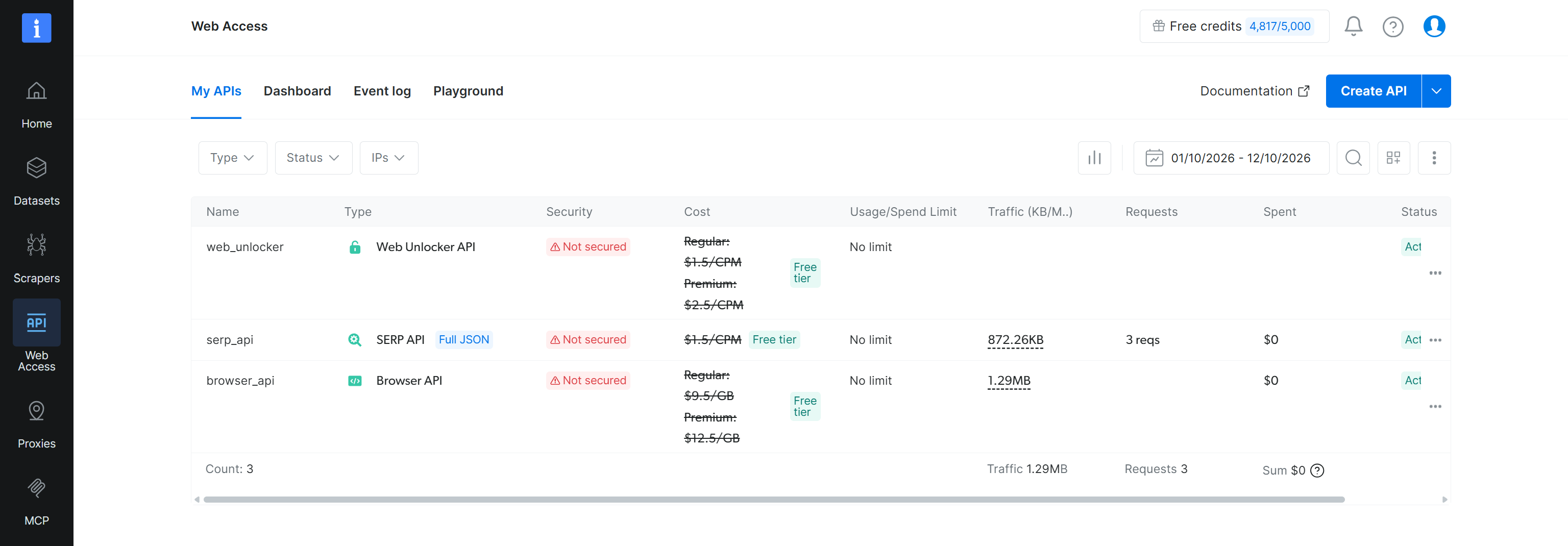
By default, both SyncBrightDataClient and BrightDataClient set auto_create_zones=True. This option controls whether the SDK creates the required API zones if they do not already exist.
When automatic creation is enabled, the SDK ensures the following zones are available before making the first API request:
sdk_unlockerfor the Web Unlocker APIsdk_serpfor the SERP API
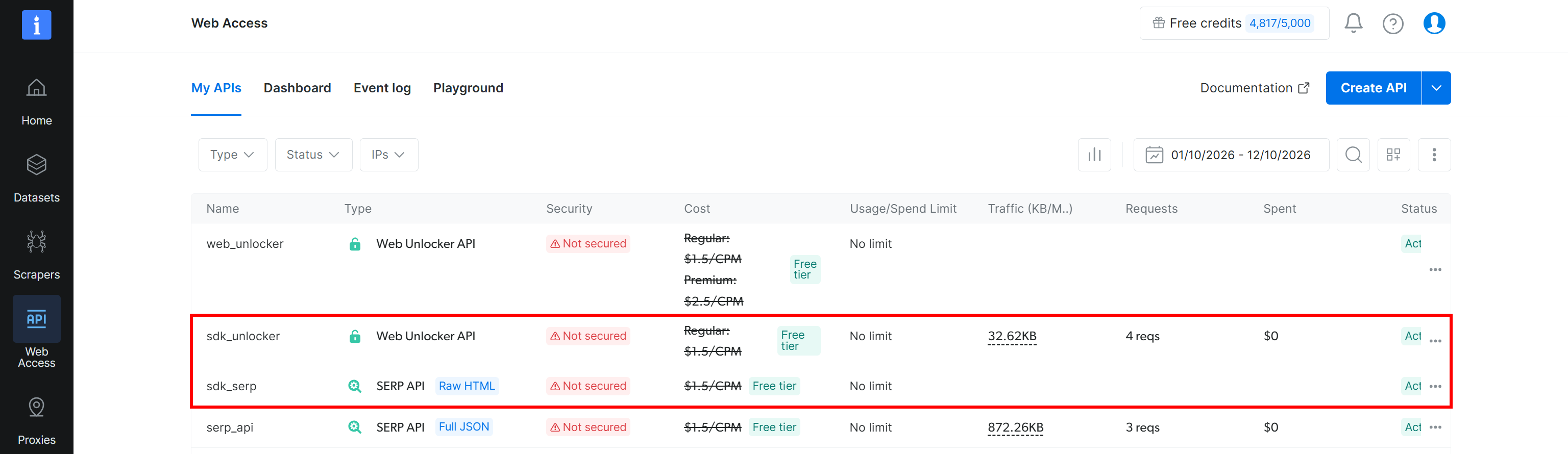
If you prefer to manage your API zones yourself, set auto_create_zones=False. The SDK will not create the APIs, so you must provide the names of your existing zones via web_unlocker_zone and serp_zone.
To use a custom Unlocker API zone, write:
import asyncio
from brightdata import BrightDataClient

async def main():
    async with BrightDataClient(
        auto_create_zones=False,
        web_unlocker_zone="web_unlocker", # Replace with your custom Unlocker API zone
    ) as client:
        result = await client.scrape_url("https://example.com")
        print(result.data)

asyncio.run(main())
Get Started with the Bright Data Python SDK: Step-by-Step Guide
With the concepts clear, it is time to install, authenticate, and test the SDK methods.
Prerequisites
Before you start, make sure you have:
- Python 3.9+ installed locally.
- A Bright Data account.
- A Bright Data API token, which you can generate in the Bright Data Control Panel.
Step #1: Install the SDK
Install the Bright Data Python SDK via pip with:
pip install brightdata-sdkIf you already have an older version installed, upgrade it with:
pip install -U brightdata-sdkImportant: This guide refers to SDK versions later than 2.5.0.
Well done! Move on to authentication right away.
Step #2: Authenticate with Your Bright Data API Token
The Bright Data Python SDK reads the BRIGHTDATA_API_KEY environment variable to authenticate requests to Bright Data APIs.
On Linux or macOS, set the required env to your Bright Data API key with:
export BRIGHTDATA_API_KEY="<YOUR_BRIGHT_DATA_API_KEY>"On Windows PowerShell, run:
$Env:BRIGHTDATA_API_KEY = "<YOUR_BRIGHT_DATA_API_KEY>"Once the environment variable is set, the default asynchronous client picks up your API key automatically:
from brightdata import BrightDataClient

async with BrightDataClient() as client:
    # ...
You can also pass your API key directly when creating the client via the token argument:
from brightdata import BrightDataClient

async with BrightDataClient(token="<YOUR_BRIGHT_DATA_API_KEY>") as client:
    # Make API requests here
    ...
Passing the token directly can be useful for quick tests. Yet, avoid hardcoding API keys in source files.
The SDK checks for credentials in the following order:
- The
tokenargument passed toBrightDataClientorSyncBrightDataClient. - The
BRIGHTDATA_API_TOKENenvironment variable. - The
BRIGHTDATA_API_KEYenvironment variable. - Credentials saved by the Bright Data CLI using
brightdata login, if available.
You are all set! You can now employ the Python SDK to scrape web pages, retrieve search results, and access other Bright Data APIs.
Step #3: Run Your First Web Data Collection Task
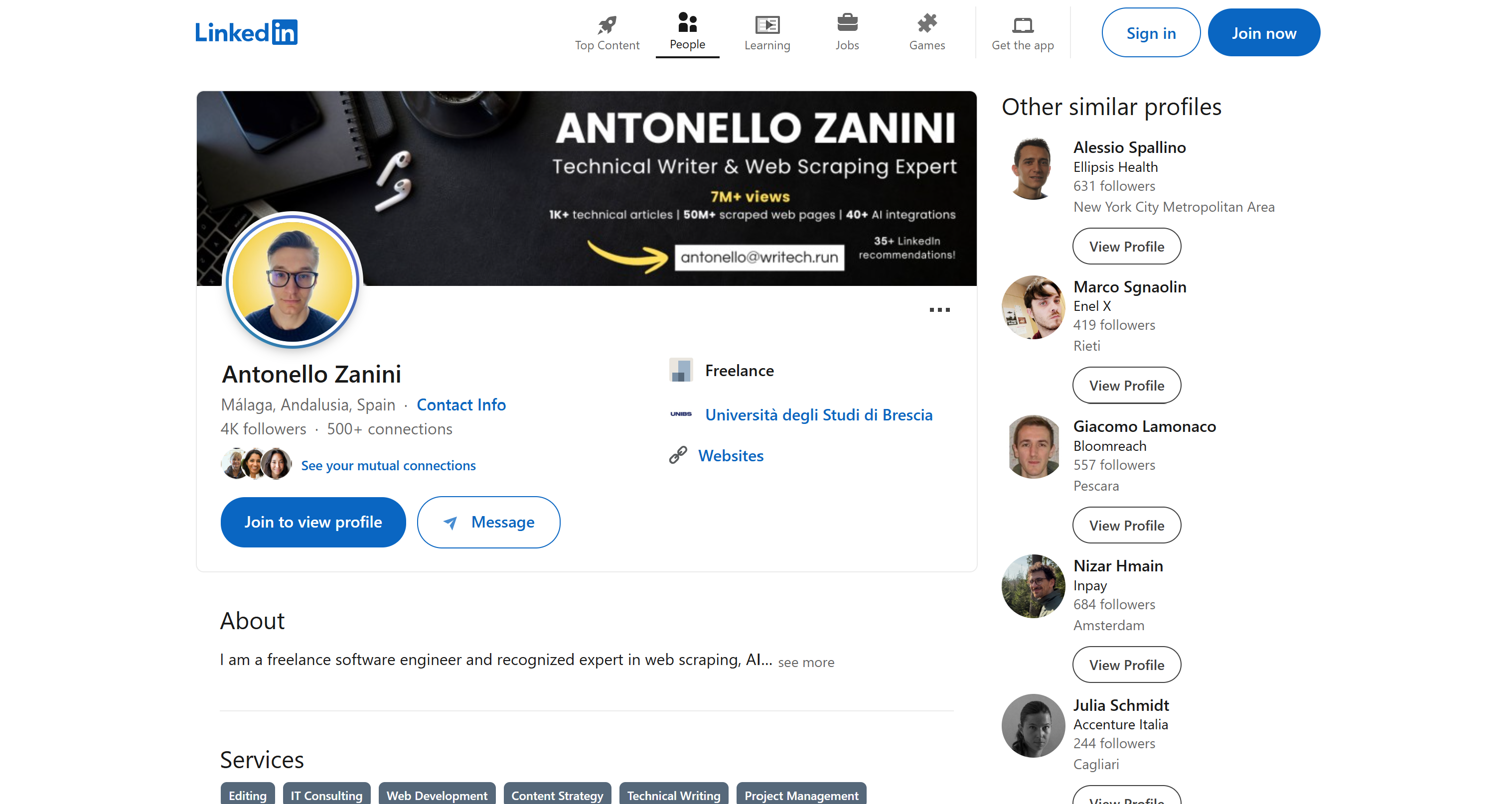
With the SDK installed and authenticated, run your first scrape. Assume you want to collect structured data from a specific LinkedIn profile.
For this task, you can use the Bright Data LinkedIn Profiles Scraper API, which is available via the client.scrape.linkedin.profiles() method. That returns the profile’s data in a structured object:
import asyncio
from brightdata import BrightDataClient
from pprint import pprint

async def main():
    async with BrightDataClient() as client:
        result = await client.scrape.linkedin.profiles(
            url="https://linkedin.com/in/antonello-zanini" # Target LinkedIn profile to scrape
        )

        print(f"Success: {result.success}")
        print("\nScraped profile data:")
        pprint(result.data, indent=2, sort_dicts=False)

asyncio.run(main())
The result will be:
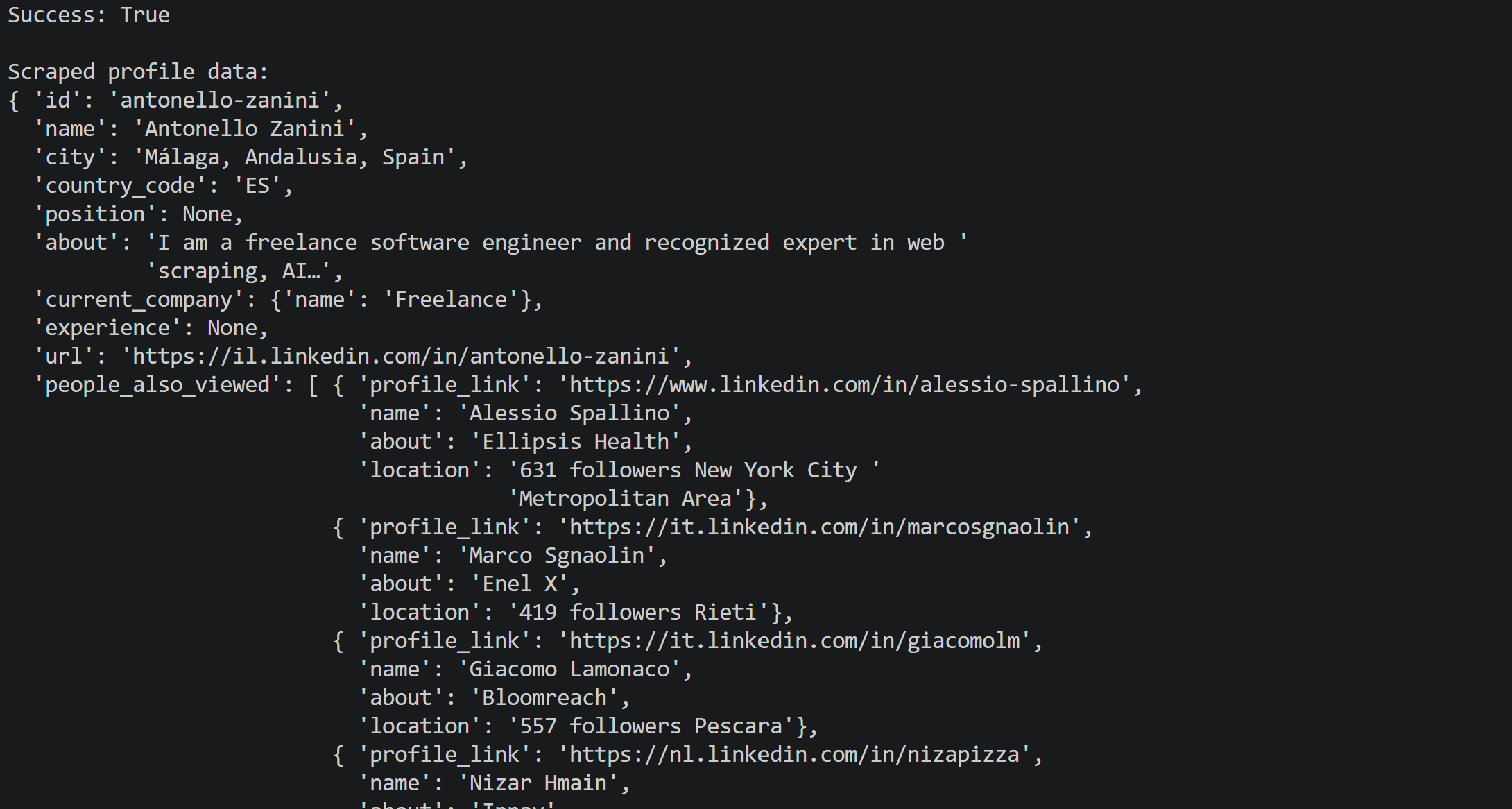
Notice how the method returns freshly scraped, structured, public data from the given LinkedIn profile, just as expected:
Mission accomplished!
Advanced Usage
Now that you are comfortable with the basics, you are ready to explore more advanced topics.
Polling Mechanism
Some scraping jobs take longer than a few seconds, and you might want control over what is going on while they run. For these situations, Bright Data lets you run Scraper APIs as asynchronous jobs.
The idea is to trigger the scrape and get a job back immediately. Then, you check its status, wait for it to finish, and fetch the results when they have been produced. Normally, this would require custom polling logic, but the SDK already provides methods that simplify the process.
The following script achieves async scraping for a LinkedIn profile:
import asyncio
from brightdata import BrightDataClient

async def main():
    async with BrightDataClient() as client:
        # Start the scraping task and return a job right away
        job = await client.scrape.linkedin.profiles_trigger(
            url="https://es.linkedin.com/in/antonello-zanini"
        )
        print(f"Job triggered: {job.snapshot_id}")  # The ID that identifies this job

        # Check the current state of the job, such as "running" or "ready"
        status = await job.status()
        print(f"Status: {status}")

        # Poll the job until it is "ready"
        await job.wait(timeout=180, verbose=True)

        # Download the records once the job is ready
        data = await job.fetch()
        print(f"Got {len(data) if isinstance(data, list) else 1} records")

asyncio.run(main())
Below is what each SDK method does:
profiles_trigger()starts the scraping job and returns a job object without waiting for the scrape to finish.job.status()checks the current job status.job.wait()polls the job status at regular intervals until the job is ready or the timeout is reached. By default, it checks the status every 10 seconds. If the timeout is reached first, it raises aTimeoutError.job.fetch()retrieves the scraped records once the job is ready.
Setting verbose=True prints each status check so you can follow the job’s progress:

If you do not need to manage each step yourself, to_result() combines waiting, fetching, and wrapping the data into a result object:
import asyncio
from brightdata import BrightDataClient
from pprint import pprint

async def main():
    async with BrightDataClient() as client:
        # Start the scraping task and return a job right away
        job = await client.scrape.linkedin.profiles_trigger(
            url="https://es.linkedin.com/in/antonello-zanini"
        )
        print(f"Job triggered: {job.snapshot_id}")  # The ID that identifies this job

        result = await job.to_result(timeout=180) # Poll, fetch, and get the data

        print(f"Success: {result.success}")
        print("\nScraped profile data:")
        pprint(result.data, indent=2, sort_dicts=False)

asyncio.run(main())
This returns the same result object as the scrape.linkedin.profiles() method shown earlier in this tutorial.
If you need more control over polling, consider implementing your own loop by repeatedly calling job.status() and adjusting your logic based on the returned status (i.e., "running", "ready", or "error").
Scrape Multiple Pages Concurrently
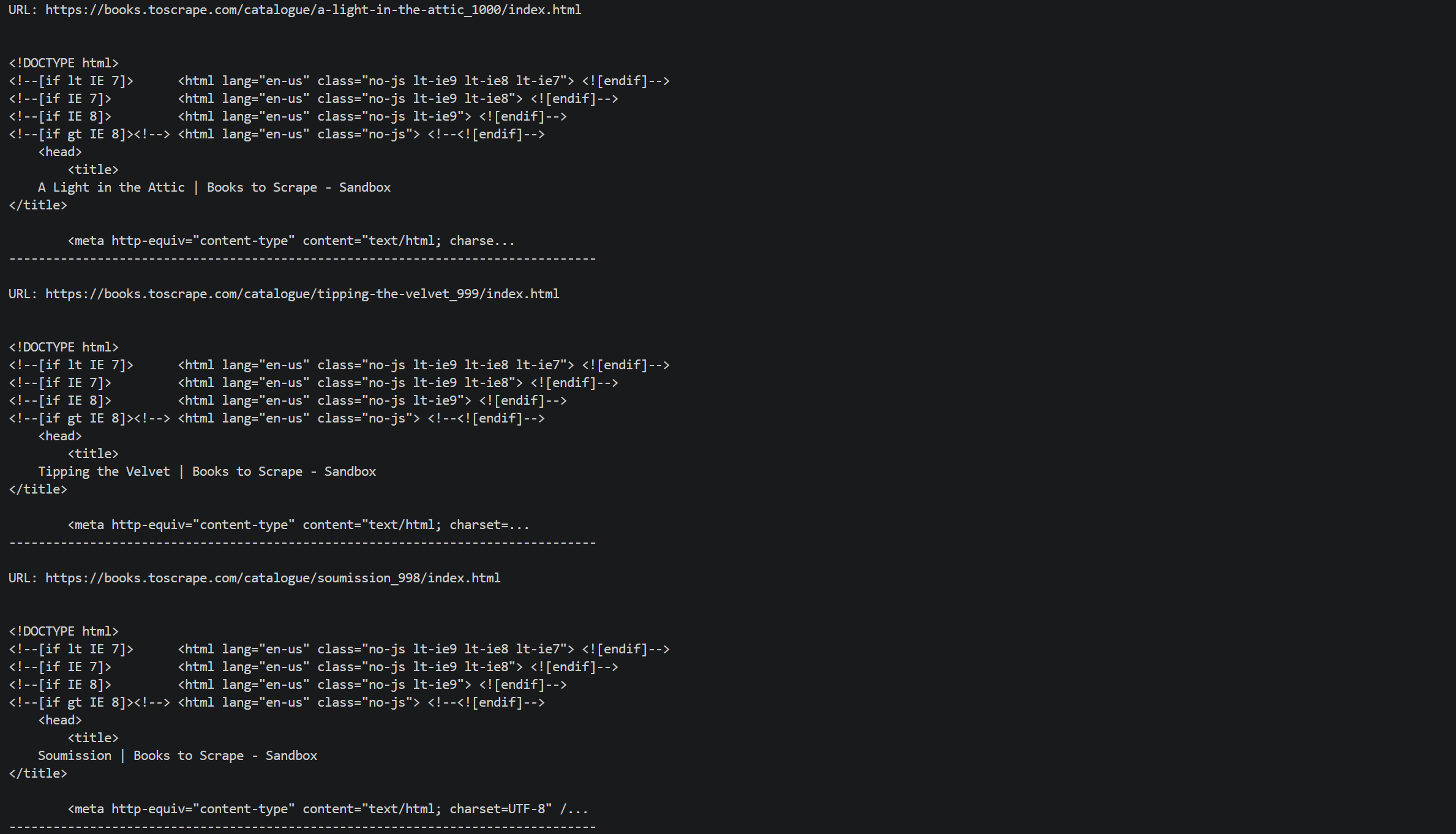
When you need to fetch several pages, pass a list of URLs to the Bright Data Python SDK scraping method. The SDK fetches them concurrently and returns one result object per URL. Take a look at the sample below:
import asyncio
from brightdata import BrightDataClient

urls = [
    "https://books.toscrape.com/catalogue/a-light-in-the-attic_1000/index.html",
    "https://books.toscrape.com/catalogue/tipping-the-velvet_999/index.html",
    "https://books.toscrape.com/catalogue/soumission_998/index.html",
]

async def main():
    async with BrightDataClient() as client:
        # Fetch all the URLs concurrently
        results = await client.scrape_url(urls)

        # Each item in results is a result object for one URL
        for i, r in enumerate(results):
            if r.success:  # Skip the URLs that failed
                print(f"URL: {urls[i]}")
                print(f"{r.data[:500]}...")  # First 500 characters of the raw HTML
                print("-" * 80 + "\n")

asyncio.run(main())
The script prints one line per successful URL, showing the first 500 characters of its raw HTML:
The same idea applies to the platform scrapers. The following script collects two LinkedIn profiles at the same time:
import asyncio
from brightdata import BrightDataClient

PROFILE_URLS = [
    "https://es.linkedin.com/in/antonello-zanini",
    "https://it.linkedin.com/in/federico-trotta",
]

async def main():
    async with BrightDataClient() as client:
        linkedin = client.scrape.linkedin

        # Trigger every profile first, so all the jobs start before you wait on any of them
        job = await linkedin.profiles_trigger(url=PROFILE_URLS)

        # Poll the job until it is "ready"
        await job.wait(timeout=180, verbose=True)

        # Download the records once the job is ready
        data = await job.fetch()
        print(f"Got {len(data) if isinstance(data, list) else 1} records")

asyncio.run(main())
The output will be a dataset containing two profiles, scraped concurrently:

Export Retrieved Data
The SDK can save two kinds of data: dataset records and scrape method results. Dataset records can be exported with the export() helper, while a scrape result has the save_to_file() helper.
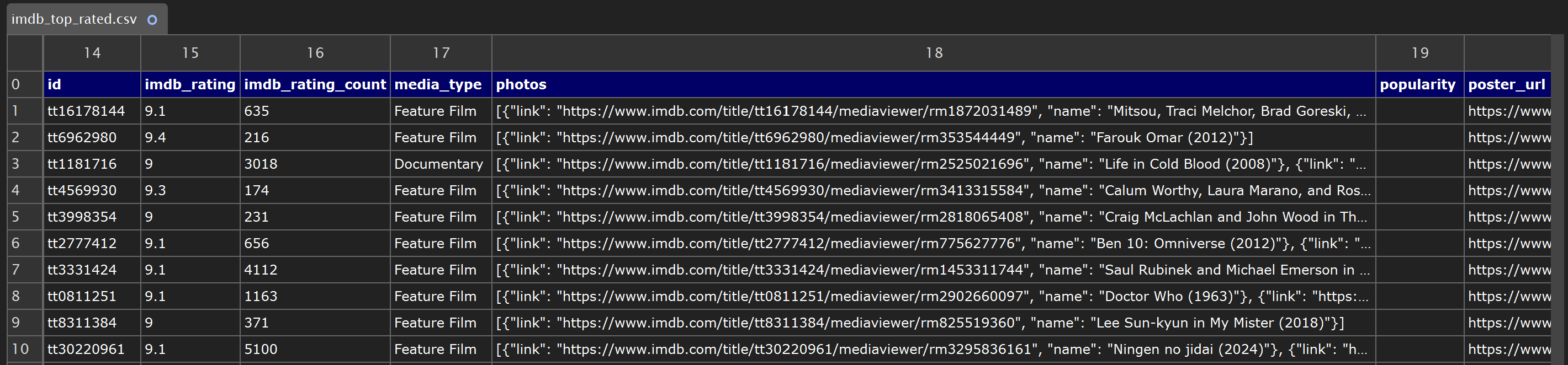
Datasets are useful when you need pre-collected data rather than fresh scrapes. To export dataset records, create a snapshot and download the records, then pass them to the export() helper, which writes them to a file:
import asyncio
from brightdata import BrightDataClient
from brightdata.datasets import export

async def main():
    async with BrightDataClient() as client:
        imdb = client.datasets.imdb_movies

        # Create a snapshot for the filtered records
        # (movies with an IMDB rating of 9+ and 100+ ratings)
        # then download them as a list
        snapshot_id = await imdb(
            filter={
                "operator": "and",
                "filters": [
                    {"name": "imdb_rating", "operator": ">=", "value": 9},
                    {"name": "imdb_rating_count", "operator": ">", "value": 100},
                ],
            },
            records_limit=10,
        )
        data = await imdb.download(snapshot_id)

        export(data, "imdb_top_rated.csv")  # The .csv extension selects the CSV format

asyncio.run(main())Note: The output format is picked from the extension, and .json, .jsonl, and .csv are supported.
The above script will create the following imdb_top_rated.csv file in your project’s folder:
To export a scrape method result to a file, call save_to_file():
import asyncio
from brightdata import BrightDataClient

async def main():
    async with BrightDataClient() as client:
        result = await client.scrape.linkedin.profiles(
            url="https://es.linkedin.com/in/antonello-zanini"
        )

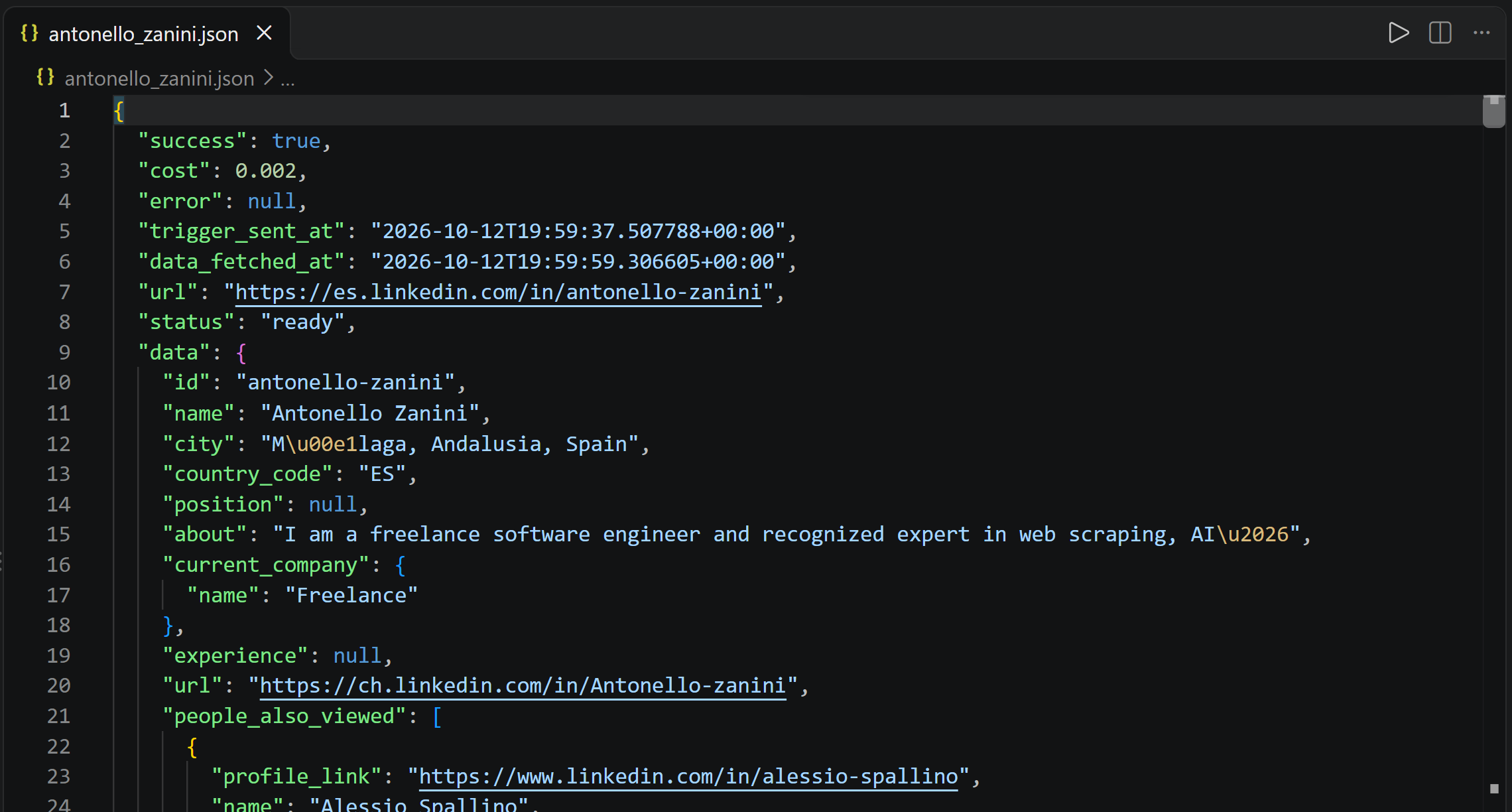
        result.save_to_file("antonello_zanini.json", format="json")  # Written to disk

asyncio.run(main())Note: Only the JSON format is supported.
This will produce an antonello_zanini.json file as follows:
Bright Data Python SDK in Action: Use Cases
After exploring more advanced scenarios, you now have the background needed to tackle real-world use cases.
Compare Search Engine Results
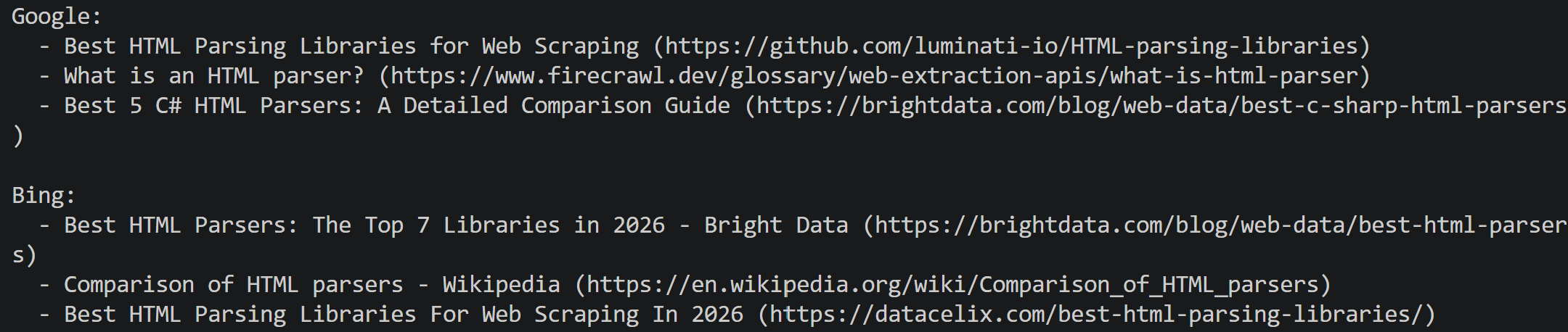
When it comes to SERP tracking, it is important to understand how different search engines handle the same query. The following script runs the same query on Google and Bing:
# pip install brightdata-sdk

import asyncio
from brightdata import BrightDataClient

# The query to run on multiple search engines
query = "best HTML parsers"

async def main():
    async with BrightDataClient() as client:
        # Get parsed search results from Google and Bing
        google = await client.search.google(query=query, num_results=10)
        bing = await client.search.bing(query=query, num_results=10)

        # Print the top three results from each search engine
        for name, result in [("Google", google), ("Bing", bing)]:
            print(f"\n{name}:")
            for item in result.data[:3]:
                print(f"  - {item['title']} ({item['url']})")

asyncio.run(main())
Google and Bing return parsed organic search results with fields such as title and url. You can access this data directly, for example, to print the top three results:
Get Full Amazon Product Info
Scraping Amazon is more than collecting structured data from a product page. It can also involve extracting product reviews, which provide valuable information for product evaluation, sentiment analysis, monitoring, and more.
Thanks to the different Bright Data Scraper APIs, you can retrieve both product information and reviews through the SDK, as shown below:
# pip install brightdata-sdk

import asyncio
from brightdata import BrightDataClient

product_url = "https://www.amazon.com/dp/B0DCH8VDXF/"

async def main():
    async with BrightDataClient() as client:
        # Retrieve both the product and reviews data
        product = await client.scrape.amazon.products(url=product_url)
        reviews = await client.scrape.amazon.reviews(url=product_url, pastDays=30, keyWord="quality")

        # Print the scraped data
        print(f"Title: {product.data['title']}")
        print(f"Price: {product.data['final_price']}")
        print(f"Rating: {product.data['rating']}")
        print(f"Reviews fetched: {len(reviews.data)}")

asyncio.run(main())
The script relied on the filtering options of client.scrape.amazon.reviews() to retrieve only reviews from the past 30 days that contain the keyword “quality”.
The output will look like this:

Note: The returned values depend on the product and the time of the request.
Parse an Unblocked Page with BeautifulSoup
A common web scraping roadmap involves:
- Retrieving a web page.
- Parsing it with an HTML parser.
- Extracting the required data.
The problem is that many websites use anti-scraping measures that can block automated requests for HTML content. A possible solution is to access these pages through a service such as the Bright Data Web Unlocker API, which handles browser fingerprinting, proxy rotation, CAPTCHA solving, and other challenges.
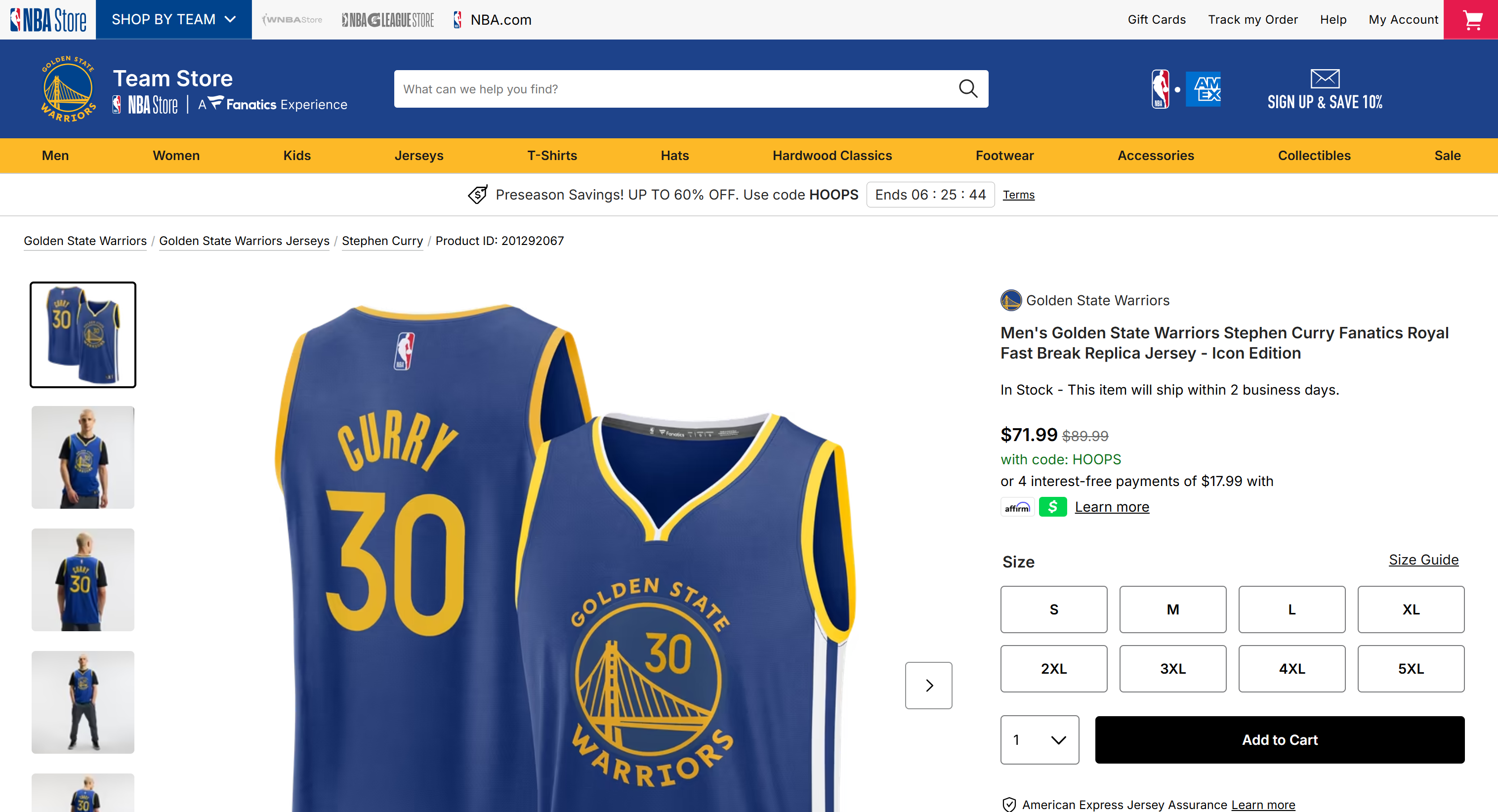
For instance, suppose you want to retrieve a product page from the NBA Store for a Stephen Curry Golden State Warriors jersey and gather its name, brand, price, availability, and available sizes.
The following script uses the SDK’s scrape_url() method to fetch the page, loads the returned HTML into BeautifulSoup, and extracts the product fields:
# pip install brightdata-sdk beautifulsoup4

import asyncio
from brightdata import BrightDataClient
from bs4 import BeautifulSoup
import json


NBA_PRODUCT_URL = (
    "https://store.nba.com/golden-state-warriors/mens-golden-state-warriors-stephen-curry-"
    "fanatics-royal-fast-break-replica-jersey-icon-edition/t-14140641+p-138834682113177+z-9-2551128663"
    "?_ref=p-SFLP:m-GRID:i-r0c0:po-0"
)

async def main():
    # Fetch the page via scrape_url() to avoid anti-bots
    async with BrightDataClient() as client:
        result = await client.scrape_url(NBA_PRODUCT_URL)

    # Load the HTML into BeautifulSoup to parse it
    soup = BeautifulSoup(result.data, "html.parser")

    # Extract the product name from the page's main heading
    title = soup.find("h1", attrs={"data-talos": "labelPdpProductTitle"}).get_text(strip=True)

    # Find the JSON-LD block that describes the product
    product_ld_data = None
    for script in soup.find_all("script", type="application/ld+json"):
        data = json.loads(script.string)
        if data.get("@type") == "Product":
            product_ld_data = data
            break

    # Access some data from it
    brand = product_ld_data["brand"]
    images = product_ld_data["image"]

    # Read the price and availability from the first offer
    offer = product_ld_data["offers"][0]
    price = offer["priceSpecification"]["price"]
    currency = offer["priceSpecification"]["priceCurrency"]
    availability = offer["availability"].rsplit("/", 1)[-1]

    # Extract the sizes, which are buttons, and their visible text is the size label (S, M, L, ...)
    sizes = [b.get_text(strip=True) for b in soup.find_all("button", attrs={"data-talos": "buttonSize"})]

    # Collect the scraped data
    product = {
        "title": title,
        "brand": brand,
        "images": images,
        "price": price,
        "currency": currency,
        "availability": availability,
        "sizes": sizes,
    }

    # Print the scraped data
    print(json.dumps(product, indent=2))

asyncio.run(main())
The output will look like this:
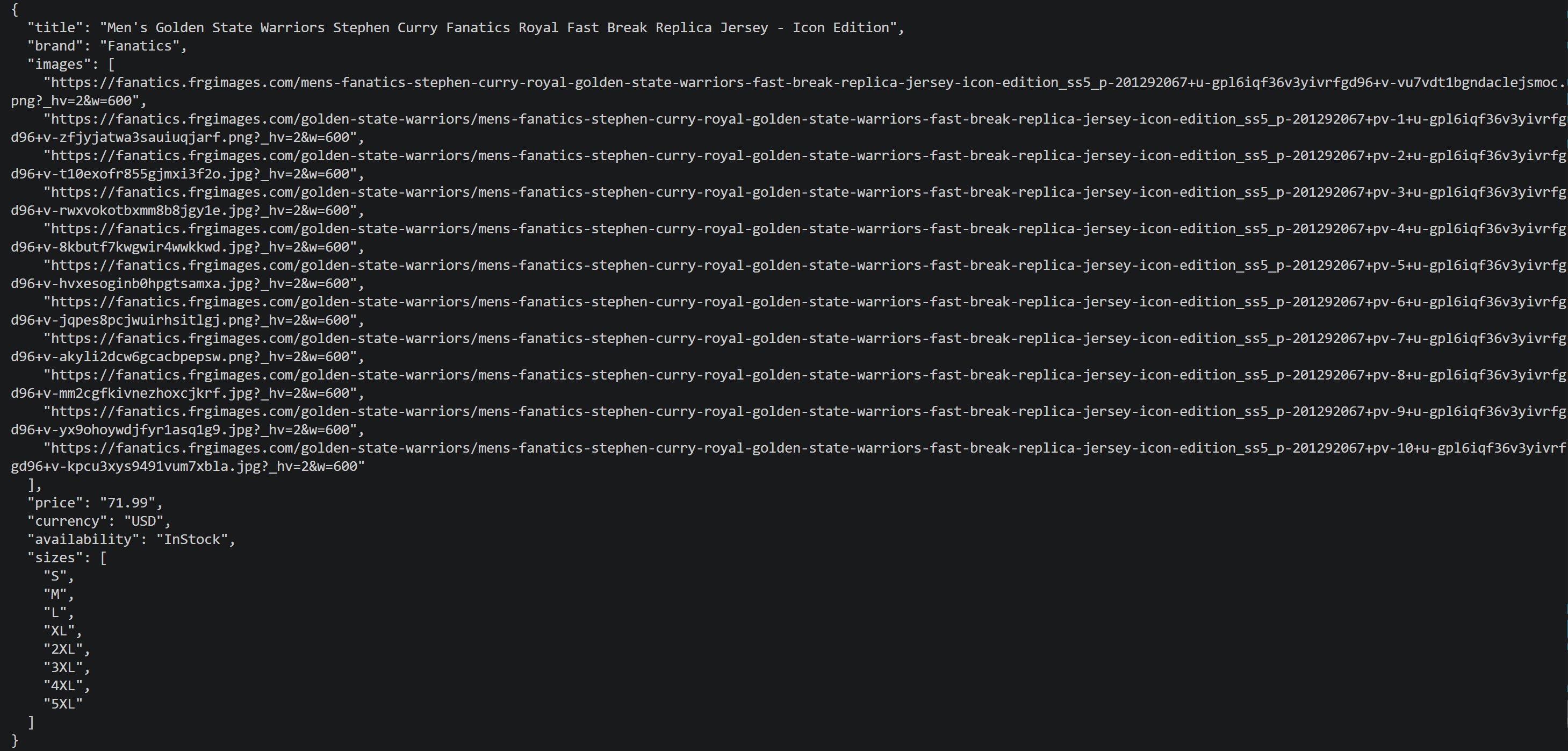
Those fields correspond to information displayed on the target page.
Conclusion
In this blog post, you learned how the Bright Data Python SDK provides a single Python package for accessing Bright Data scraping, search, and datasets products. You also saw how to install the SDK and use it in real-world scenarios.
To learn more, explore the official documentation, the GitHub repository, and the examples directory, which contains working scripts for each feature. If you find the SDK useful, consider giving the repository a star!
Create a Bright Data account today and try the Python SDK to simplify access to Bright Data APIs.
FAQ
Why is the Bright Data Python SDK useful?
It gives Python developers one consistent package to scrape websites, run search engine queries, bypass bot detection and CAPTCHAs, extract structured platform data, and access over 100 ready-made datasets. Thanks to it, you do not have to build that infrastructure yourself.
Do I need the Bright Data CLI to use the SDK?
No. The SDK works with an API token set in BRIGHTDATA_API_KEY or BRIGHTDATA_API_TOKEN. If you have already run brightdata login, the SDK falls back to the credentials the CLI stored, so you do not need to configure anything else.
What is the difference between the Bright Data CLI, the Python SDK, the MCP, and Agent Skills?
The CLI runs Bright Data commands from your terminal. The Python SDK lets your Python code call the APIs. The Bright Data MCP server gives AI agents scraping and search tools, and Agent Skills teach coding agents how to use Bright Data.
What is the difference between the Bright Data Python SDK and the Bright Data JavaScript SDK?
The Python SDK (brightdata-sdk, installed with pip) offers sync and async clients with snake_case methods such as scrape_url(). The JavaScript SDK (@brightdata/sdk, installed with npm) runs on Node.js and uses camelCase methods such as scrapeUrl().
When should I use sync or async mode?
Use the synchronous client for simple scripts and quick checks, since each call blocks until the result is ready. Use the async client for high-concurrency workloads, batch jobs, and background processing.



Technical Writer
 5.5 years experience
Antonello Zanini is a technical writer, editor, and software engineer with 5M+ views. Expert in technical content strategy, web development, and project management.