In this article, you will learn:
- What Azure Logic Apps are and what they offer.
- Why integrating with Bright Data’s SERP API in Azure Logic Apps is a winning strategy.
- How to build a Azure Logic App workflow connecting to the Bright Data’s SERP API.
Let’s jump in!
What Is Azure Logic Apps?
Azure Logic Apps is a cloud-based integration platform for creating and running automated workflows with little or no code. It provides a visual designer along with 1,400+ prebuilt connectors that let you connect services, systems, apps, and data sources across cloud and on-premises environments.
Its main goal is to help you automate business processes and integrate disparate systems. This is achieved by supplying a low-code/no-code drag-and-drop workflow builder, event-based triggers, and a massive connector ecosystem that covers services such as Gmail, Office 365, Salesforce, SAP, SQL, and Azure.
Azure Logic Apps vs Azure AI Foundry: What’s the Difference?
If you have already read our guide on integrating SERP API with Azure AI Foundry, you might be wondering how Logic Apps differs. The two serve fundamentally different purposes:
- Azure AI Foundry is a unified AI development platform focused on building, deploying, and managing AI applications, agents, and prompt flows. It provides access to a catalog of LLMs (from Azure OpenAI, Meta, Mistral, etc.) and is designed for AI-first development involving prompt engineering, model fine-tuning, and RAG workflows.
- Azure Logic Apps is a workflow automation and integration platform focused on connecting systems, automating business processes, and orchestrating tasks across hundreds of services. It excels at event-driven automation, data forwarding, and API integration with no code required.
In short, Azure AI Foundry is where you build AI-powered applications and prompt flows, while Azure Logic Apps is where you build automated, event-driven business workflows that connect systems.
They actually complement each other perfectly. Azure Logic Apps can act as actions for agents in Azure AI Foundry, and you can trigger Logic Apps workflows from AI agents. For this tutorial, you will see how Logic Apps on its own can integrate with Bright Data’s SERP API to build powerful, automated web search workflows without writing a single line of Python or deploying an LLM.
Why Integrate Bright Data’s SERP API into Azure Logic Apps
Azure Logic Apps provides a powerful HTTP connector that lets you call any REST API. This opens the door to linking your workflows with external data sources. However, to inject real-time web search data into your automated workflows, you need a reliable, scalable, and structured data source.
This is where Bright Data’s multi-engine search results API comes in. SERP API lets you programmatically search queries on search engines, including Google, Bing, DuckDuckGo, Yandex, and more, and retrieve the full SERP content. It returns data in multiple formats, including parsed JSON, raw HTML, and AI-ready Markdown, giving you a reliable source of fresh, verifiable data.
This approach is especially useful for:
- Automated monitoring workflows to track news about your brand, competitors, or industry topics and receive email alerts.
- Lead generation pipelines to search for specific business listings and route the results to your CRM.
- Content curation systems to fetch trending articles on a topic and store them in SharePoint or a database.
- Price and product monitoring for periodically check search results for pricing data and trigger alerts on changes.
By combining Azure Logic Apps’ no-code automation capabilities with Bright Data’s web access infrastructure for AI agents, you can create workflows that react to real-time web data without maintaining any scraping infrastructure.
How to Retrieve Web Search Context in an Azure Logic App with SERP API
In this guided section, you will see how to integrate Bright Data’s SERP API into an Azure Logic App workflow as part of a news monitoring and alerting system. This workflow consists of four main steps:
- Schedule trigger: The workflow runs on a recurring schedule (e.g., daily).
- News fetching: An HTTP action calls Bright Data’s SERP API to fetch news articles from Google for a predefined topic.
- Response parsing: A Parse JSON action structures the SERP results for downstream processing.
- Alert delivery: A “For each” loop iterates through the results and sends an email for each top news article via the Gmail connector.
Note: This is just an example, and you can take advantage of the SERP API in many other scenarios and use cases. For example, you could also build a RAG chatbot powered by SERP data or a brand reputation monitoring workflow.
Follow the instructions below to build an automated web search workflow powered by Bright Data’s SERP API within Azure Logic Apps!
Prerequisites
To follow along with this tutorial section, make sure you have:
- A Microsoft account.
- An Azure subscription (even the free trial is sufficient).
- A Bright Data account with an active SERP API zone and API key (with Admin permissions).
Follow the official Bright Data documentation to set up your SERP API zone and get your API key. Store both your API key and zone name in a safe place, as you will need them shortly.
Step 1: Create a New Logic App
Log in to your Azure account and search for “Logic Apps” in the search bar at the top of the Azure Portal: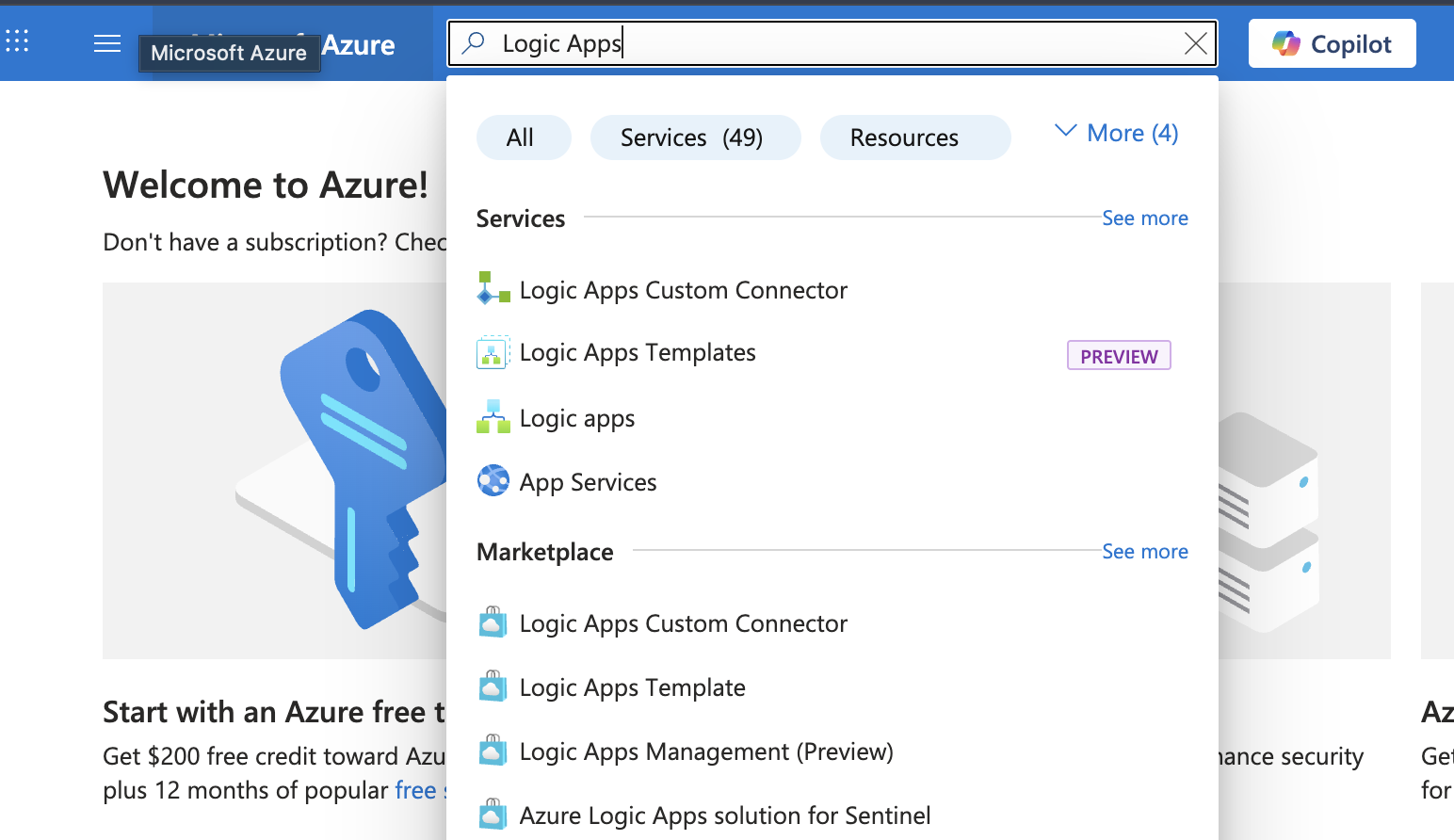
On the Logic Apps management page, click the Create button. Fill out the creation form:
- Select Consumption for the plan type: (pay-per-execution, ideal for this tutorial).
- Select your Azure subscription.
- Select an existing resource group or create a new one.
- Give it a descriptive name, such as
bright-data-serp-news-monitor. - Choose a region close to you.
Click Review + Create, then Create to deploy your Logic App.
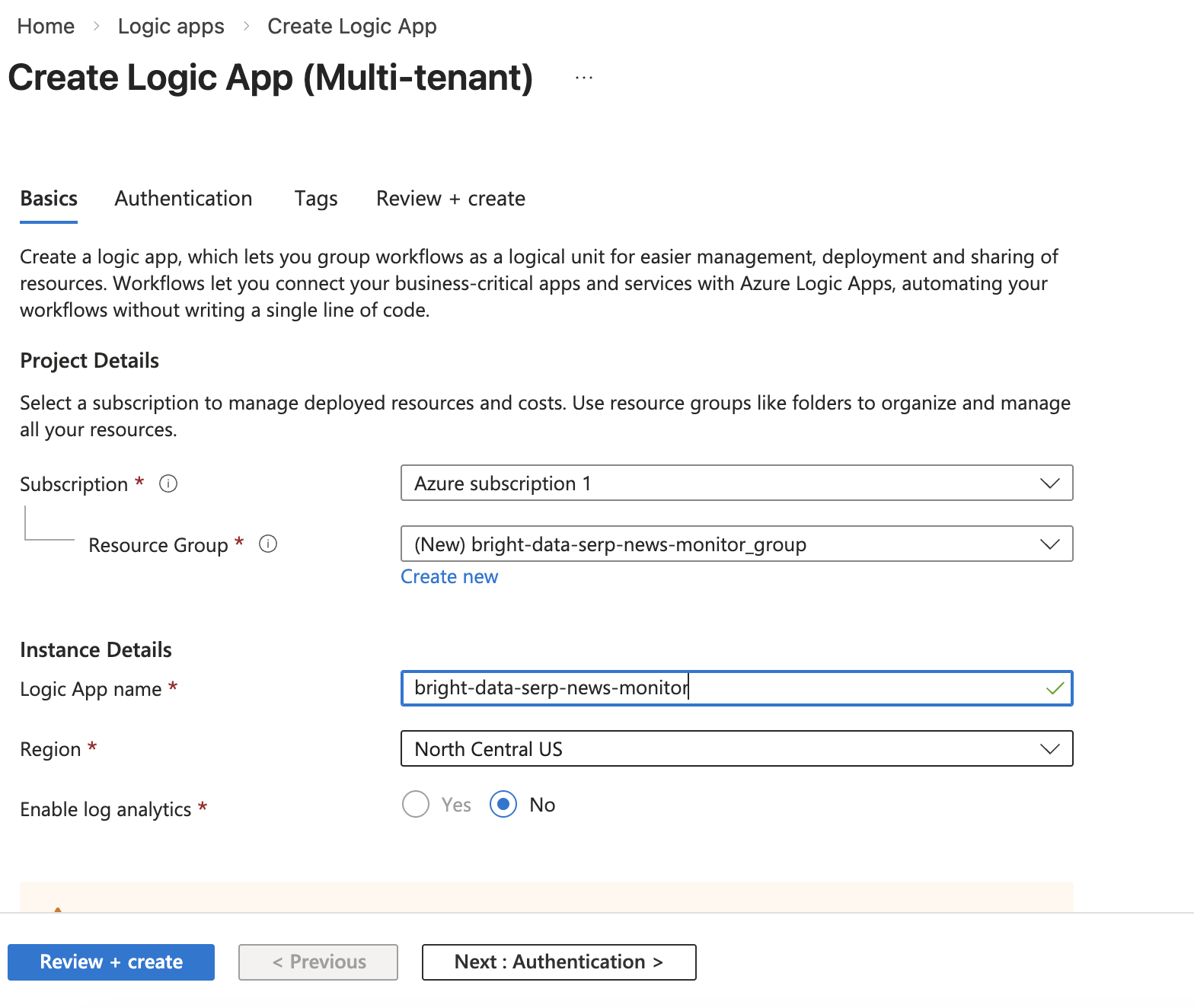
Wait for the deployment to complete. Once ready, click Go to resource to open your new Logic App.
Step 2: Initialize the Workflow with a Recurrence Trigger
Once deployment is complete:
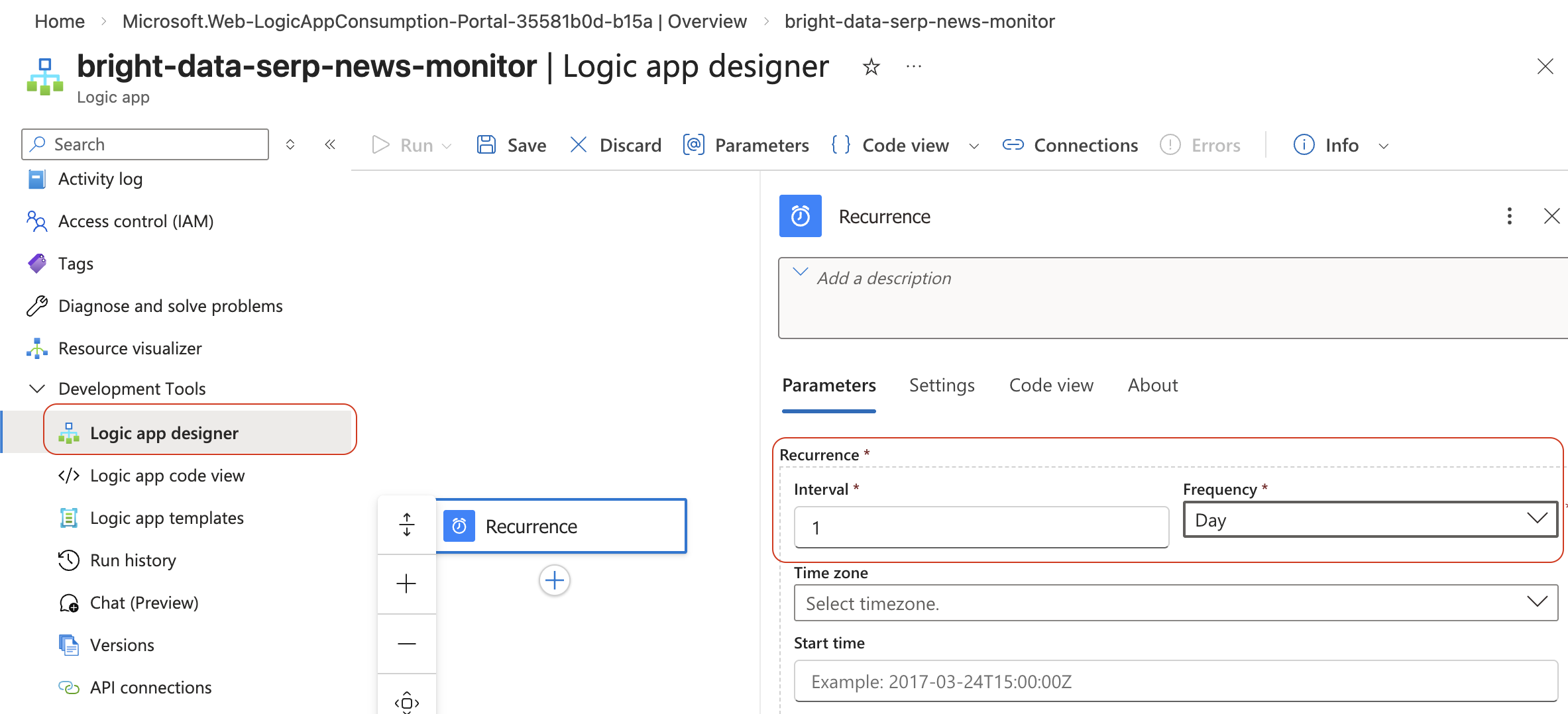
- Open the Designe under Development Tools, select Logic App Designer.
- Select a Trigger Every logic app must start with a trigger.
- Select the Recurrence trigger to start your workflow on a schedule. Configure it as follows:
- Interval:
1 - Frequency:
Day
This means the workflow will automatically run once per day. You can adjust the frequency based on your needs, for instance, setting it to every hour for more immediate monitoring.
Step 3: Add an HTTP Action to Call the SERP API
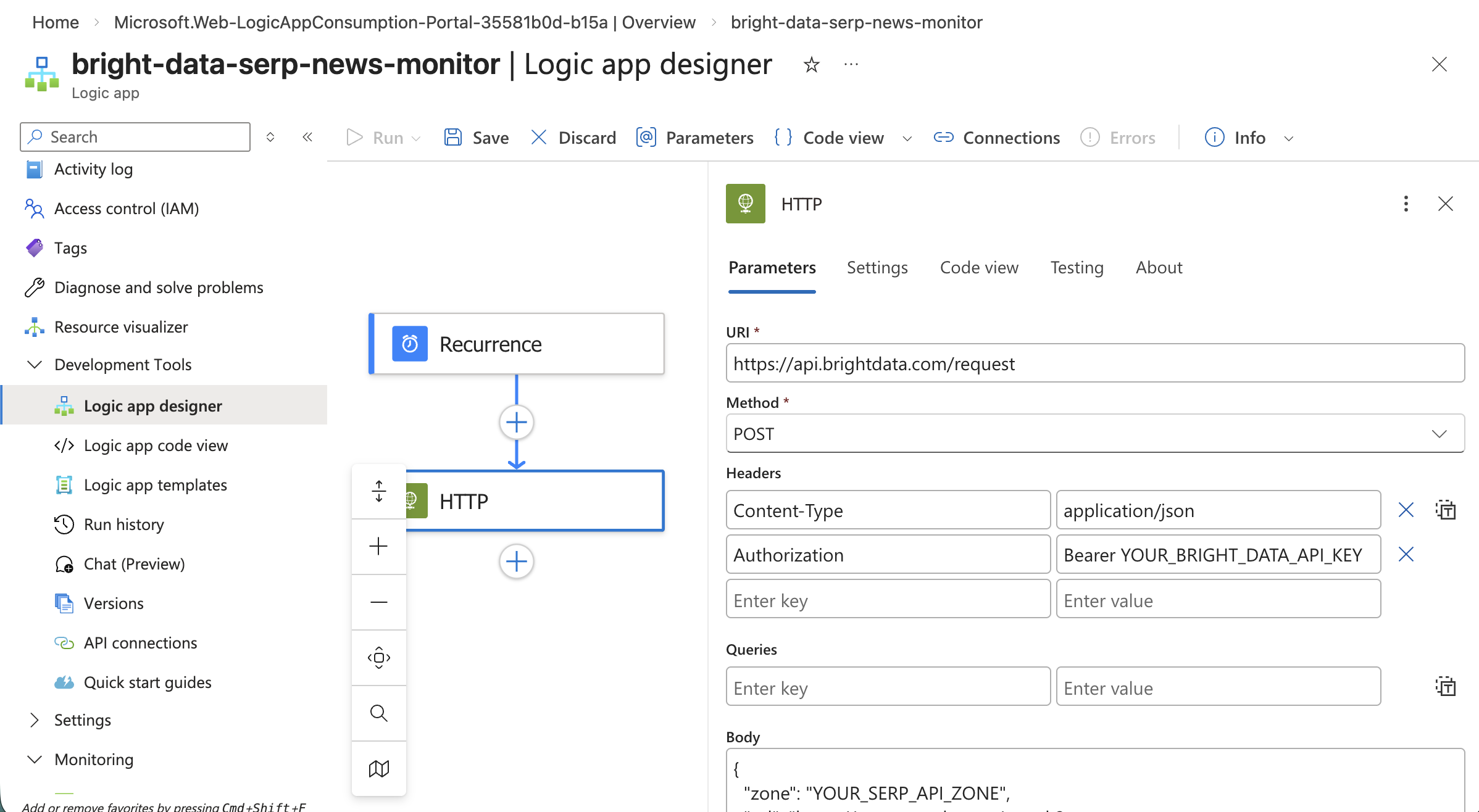
Next, add the action that will call Bright Data’s SERP API. Click the +, Select Add an action and search for HTTP in the actions list. Select the HTTP action (the built-in one, not a connector).
Configure the HTTP action with the following settings:
- Method:
POST - URI:
https://api.brightdata.com/request - Headers:
Content-Type:application/json.Authorization:Bearer YOUR_BRIGHT_DATA_API_KEY- Body:
{
  "zone": "YOUR_SERP_API_ZONE",
  "url": "https://www.google.com/search?q=stock+market+news&tbm=nws&hl=en&gl=us",
  "format": "raw",
  "data_format": "markdown"
}
Let’s break down what this request does:
zone: Your SERP API zone name from the Bright Data dashboard.url: The Google search URL for news results (tbm=nwsspecifies Google News). You can customize theqquery parameter to monitor any topic you want.format: Set to"raw"to get the raw response.data_format: Set toparsed_lightto return a JSON array of organic results with titles, URLs, and descriptions.
Tip: To receive the SERP content in a clean, you can use
"data_format": "markdown"instead. This returns a structured Markdown format, ideal for both human readability and LLM processing. See the SERP API documentation for all available options.Security Tip: In a production workflow, avoid hardcoding your API key directly in the HTTP action. Instead, store it in Azure Key Vault and reference it using the Key Vault connector in your Logic App. This ensures your credentials are encrypted and managed securely.
Step 4: Parse the SERP API Response
After the HTTP action retrieves the SERP data, you need to parse the response to use it in subsequent steps.
If you used data_format: "markdown", the response body will be a Markdown string. You can use this directly in an email body or store it in a file.
However, if you prefer structured data, change the SERP API request to use data_format: "parsed_light". In that case, add a Parse JSON action after the HTTP step:
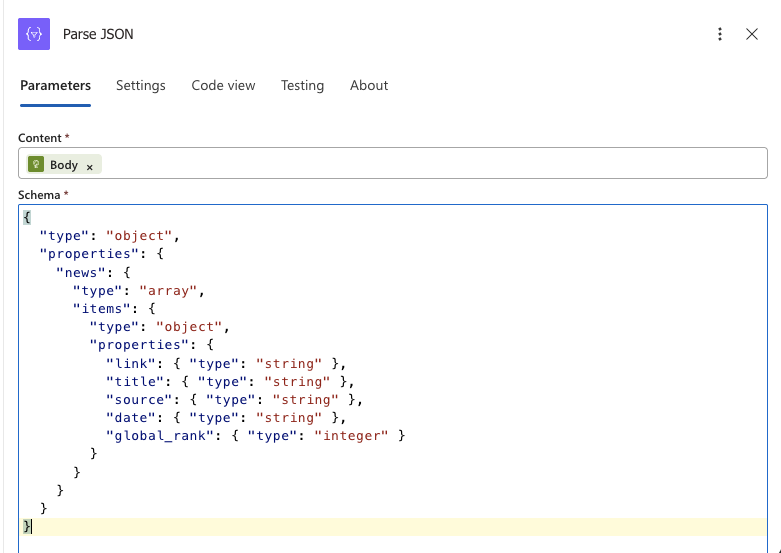
- Click the +, select Add an action and search for Parse JSON.
- In the Content field, select the Body output from the HTTP action.
- In the Schema field, paste a JSON schema that corresponds to the SERP API response structure. You can generate this by running a test request against the SERP API and using the Use sample payload to generate schema option.
Here is an example schema for the parsed_light format:
{
  "type": "object",
  "properties": {
    "news": {
      "type": "array",
      "items": {
        "type": "object",
        "properties": {
          "link": { "type": "string" },
          "title": { "type": "string" },
          "source": { "type": "string" },
          "date": { "type": "string" },
          "global_rank": { "type": "integer" }
        }
      }
    }
  }
}
This makes the individual search result fields, such as title, link, and description, available as dynamic content in subsequent actions.
Step 5: Iterate Over Results and Send Email Alerts
Now that you have parsed the SERP results, you can loop through each news article and send an email alert.
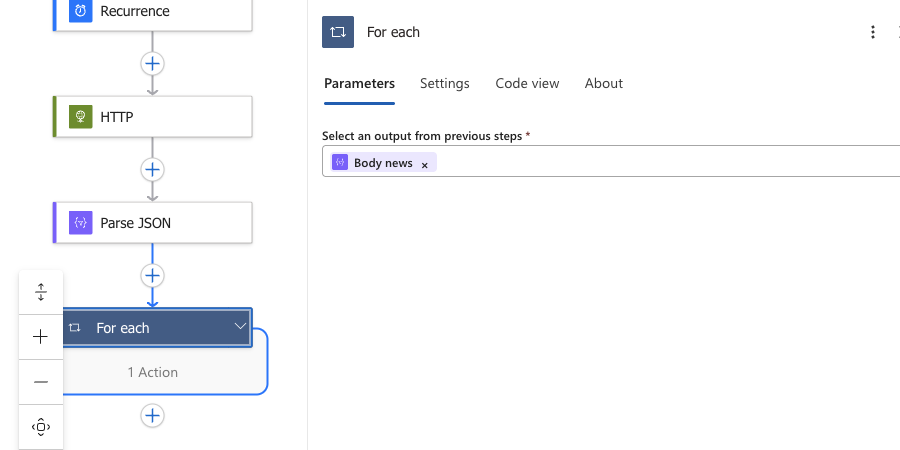
- Click the +, select Add an action and add a For each control action.
- In the Select an output from previous steps field, choose the
newsarray from the Parse JSON output. - Inside the For each loop, click Add an action and search for Gmail and connect to it.
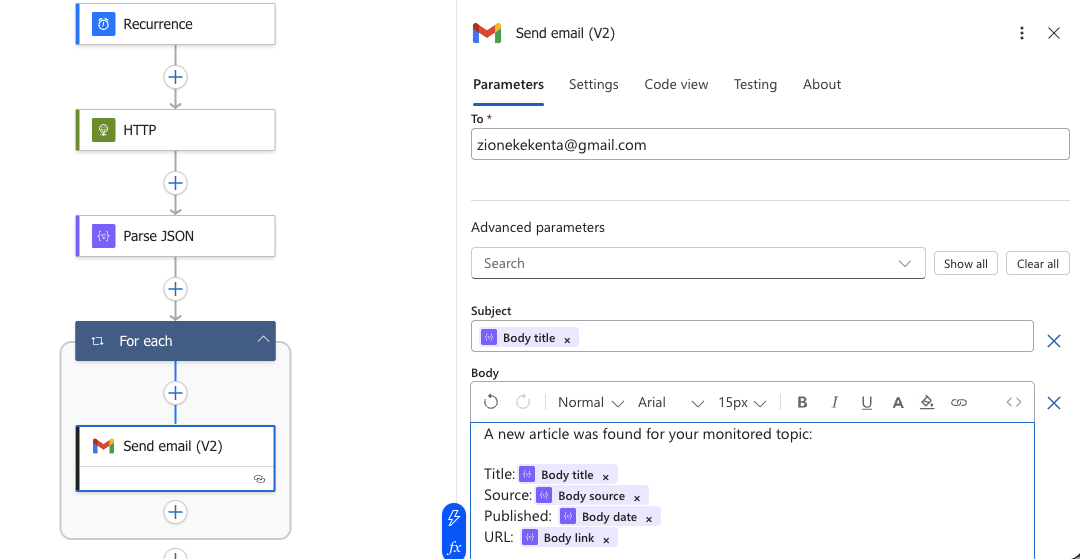
- Configure the email action:
- To: Your email address (or a distribution list).
- Subject: Click in the Subject field, then click Add dynamic content (the lightning bolt icon). Select
titlefrom the dynamic content panel. - Body: Build the body by mixing static text with dynamic content tokens. Click in the Body field, type your static label text, and use the Add dynamic content panel to insert each field from the parsed JSON.
Step 6: Save and Test Your Workflow
With all the steps configured, your Logic App workflow should look like this in the designer (from top to bottom):
- Recurrence → Triggers daily
- HTTP → Calls Bright Data SERP API
- Parse JSON → Structures the response
- For each → Loops through each news result
- Send an email → Sends an alert for each article
Click Save at the top of the designer to save your workflow.
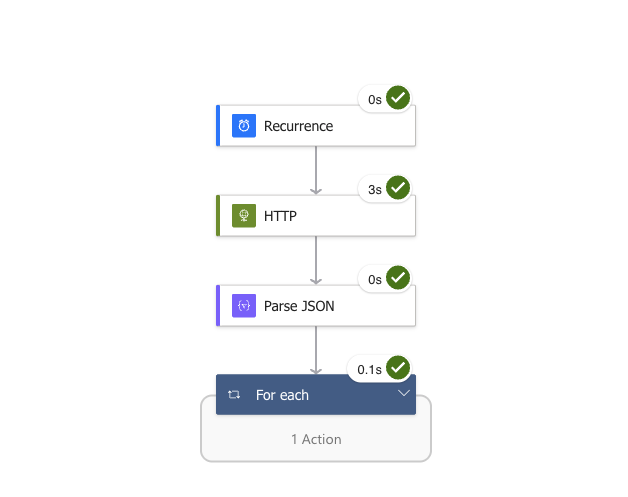
To test it immediately without waiting for the next scheduled run, click the Run Trigger button and select Run. The workflow will execute in real time.
Step 7: Inspect the Results
After the workflow runs, navigate to the “Runs history” section (visible on your Logic App’s overview page) and click on the most recent run to inspect it.
You will see a visual representation of each step, showing:
- The Recurrence trigger (succeeded).
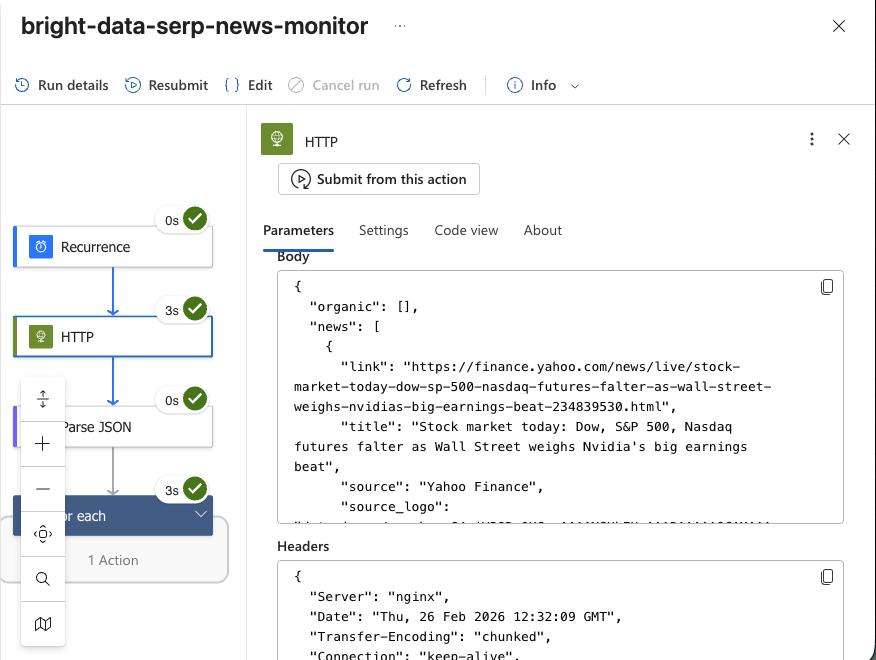
- The HTTP action with the full request and response from Bright Data’s SERP API.
- The Parse JSON action with the structured output.
- The For each loop with each iteration and the email sent.
Expand the HTTP action to verify that the SERP data was successfully retrieved. The response body will contain the Markdown or JSON content of the Google News SERP for your topic.
Check your inbox, you should see individual emails for each news article that appeared in the search results for “stock market news” (or whatever topic you configured).
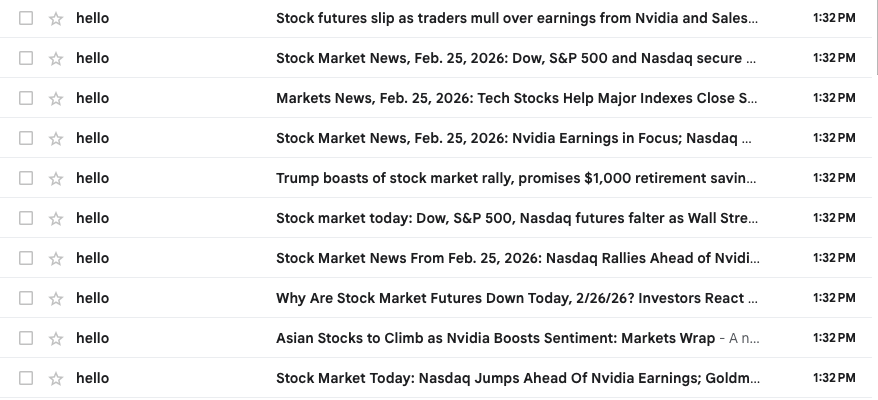
The SERP API returned fresh, real-time results from Google, and your Logic App automatically delivered them to your inbox, no code, no servers, no scraping infrastructure required. Scraping Google search results manually is notoriously difficult due to anti-bot measures and rate limiters. By using the Google Search API, you can reliably fetch Google (or any other supported search engine) results from different regions in AI-ready Markdown or structured JSON format, with no scalability limitations.
Taking It Further
This example demonstrates a simple use case, but you can extend your Logic App in many directions:
- Forward the SERP data to an Azure OpenAI action within the same Logic App to summarize or evaluate the news articles, similar to what we built in the Azure AI Foundry tutorial.
- Use the Azure SQL or Cosmos DB connector to log SERP results for historical analysis.
- Replace the email step with a Slack or MS Teams connector to notify your team in real time.
- Add parallel HTTP actions to query Bright Data’s Bing search engine endpoint or other search engines simultaneously, then merge the results.
- Integrate Bright Data’s Web Unlocker to fetch full article content from the URLs returned by the SERP API, enabling deeper analysis within the same workflow.
- Use the SERP data to power agentic RAG workflows or feed results into frameworks like CrewAI or LangChain.
The possibilities are virtually endless!
Conclusion
In this blog post, you learned how to use Bright Data’s SERP API to fetch fresh search results from Google and integrate them into an automated workflow in Azure Logic Apps.
The workflow demonstrated here is perfect for anyone who wants to build a no-code news monitoring and alerting system that automatically delivers relevant content directly to their inbox. Unlike the Azure AI Foundry approach, which is ideal for AI-first prompt engineering and RAG workflows, Azure Logic Apps excels when you need event-driven automation, multi-system integration, and zero-code workflow orchestration.
To create more advanced automated workflows, explore Bright Data’s full suite of search and extraction tools for retrieving, validating, and transforming live web data.
Sign up for a free Bright Data account today and start experimenting with our AI-ready web data solutions!



Technical Writer
Amitesh Anand is a developer advocate and technical writer sharing content on AI, software, and devtools, with 10k followers and 400k+ views.