









In this article, you will learn:
- What Alteryx One is and the features it offers.
- Why connecting it to web data from Bright Data makes workflows more insightful.
- How to define an automated workflow in Alteryx One using structured, fresh web data sourced from Bright Data web scraping.
Let’s dive in!
What Is Alteryx One?
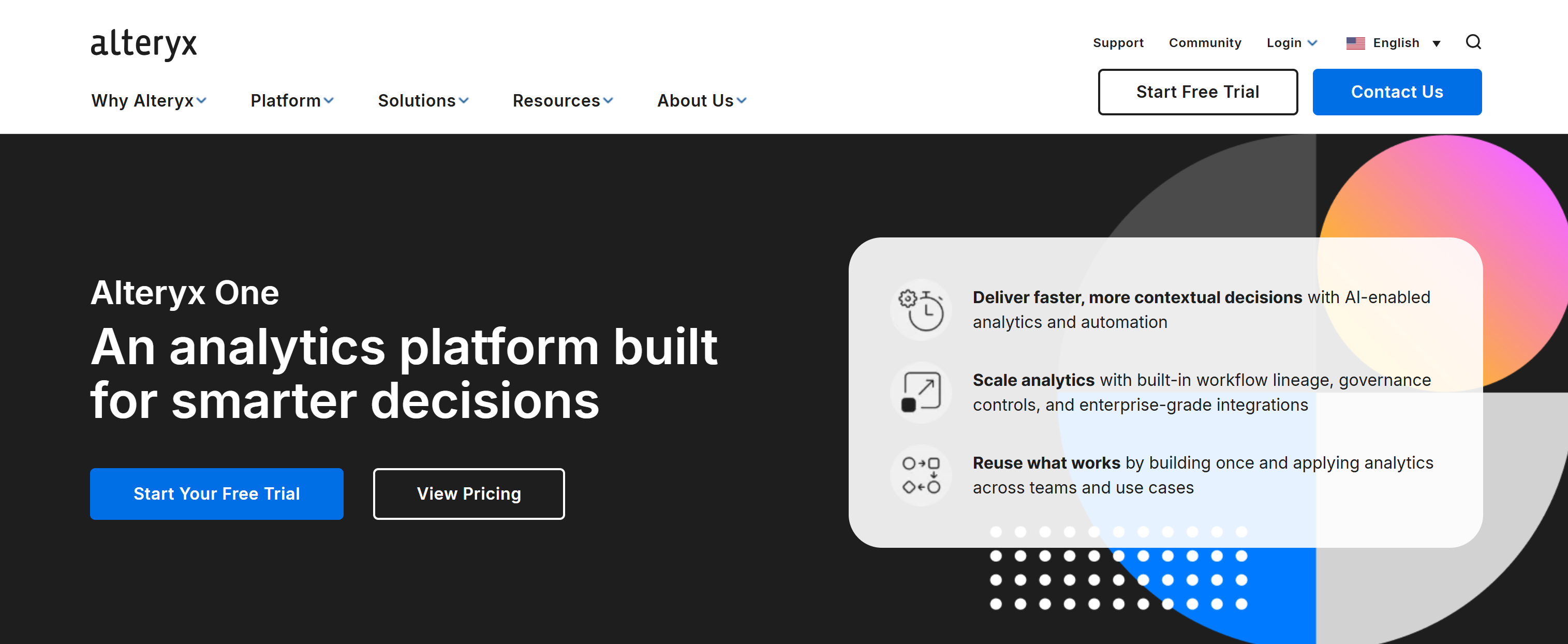
Alteryx One is a unified, AI-powered analytics platform. It brings together data preparation, analytics, automation, and AI in a single environment. In detail, it helps organizations connect to multiple data sources, build reusable workflows, and operationalize insights at scale.
The main features provided by Alteryx One are:
- AI-native analytics: Integrate AI into analytics workflows to detect patterns, generate insights, and support predictive modeling without separate tools.
- AI-ready data preparation: Connect, clean, and transform data from multiple sources into trusted, analysis-ready datasets with built-in governance.
- Workflow automation: Automate repetitive analytics tasks and end-to-end processes, reducing manual effort and improving consistency.
- Unified analytics workspace: Provide a single environment where teams can build, run, and manage analytics workflows collaboratively.
- Enterprise governance and security: Ensure compliance, lineage tracking, and controlled access so analytics can scale safely across large organizations.
- Extensible integrations: Connect with enterprise systems and LLMs to embed analytics directly into existing data ecosystems.
How Bright Data Supports Alteryx One
Alteryx One workflows are only as powerful as the data they consume. Sure, the platform provides robust capabilities for data preparation, analytics, and automation. Yet, the quality, freshness, and reliability of the input data ultimately determine the accuracy of the outputs. This is where Bright Data plays a pivotal role as an enterprise-grade web data provider!
Bright Data delivers large-scale, structured web data through a global proxy infrastructure of over 400 million IPs across 195 countries. With 99.99% uptime and a 99.95% success rate, it provides the reliability needed for production-grade analytics pipelines.
For a direct integration with Alteryx One, you can start by retrieving fresh web data using Bright Data’s Web Scraping APIs or by accessing static web data via Bright Data datasets. This data can be automatically delivered to Amazon S3 (or any other common delivery destination) in a structured format.
Alteryx One can then import that dataset directly from S3, where it is processed through a no-code workflow. Finally, the processed results are written back to S3 (or any preferred destination) for downstream use.
The result is an automated, end-to-end analytics pipeline. Here, Bright Data ensures reliable, enterprise-grade data ingestion, while Alteryx One transforms that data into actionable insights.
Build an Automated Data Analysis Workflow in Alteryx One with Web Data from Bright Data
In this step-by-step chapter, you will be guided through the setup of an automated workflow in Alteryx One.
To demonstrate this type of web automation workflow, you will rely on the following components:
- The Bright Data Yahoo Finance Scraper to collect fresh stock data, configuring it for Amazon S3 delivery.
- An Alteryx One workflow that imports the data, sorts it by volume, and splits it into two datasets: one for positive stocks and one for negative stocks. Then, it writes the processed outputs back to Amazon S3.
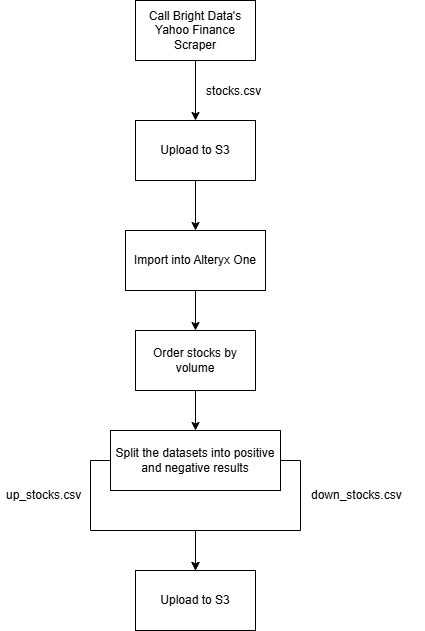
Follow the instructions below to build this workflow!
Prerequisites
To follow this section, make sure you have:
- An Alteryx One account (even one on a free trial is fine).
- An S3 bucket defined in your AWS account.
- A Bright Data account with an API key configured. Follow the official instructions to generate your API key.
In this tutorial, we will assume your S3 bucket is named bright-data-datasets. However, any other bucket name will work as well.
Step #1: Set Up the Bright Data Scraping API
The first step in your web data automation pipeline is retrieving source data from the web. To do so, you will rely on the Bright Data Yahoo Finance Scraper to collect real-time financial data. Let’s get started with it!
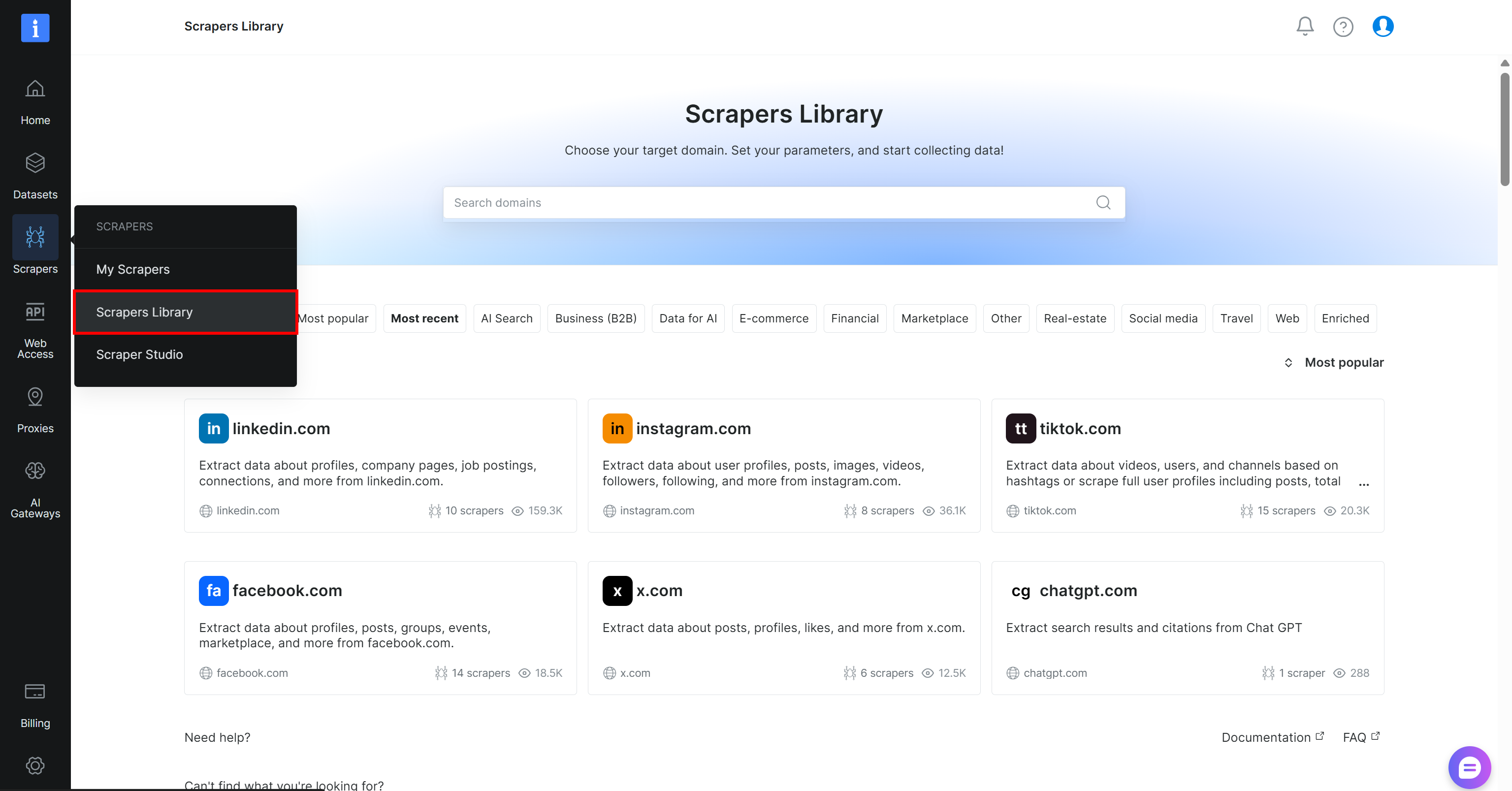
Begin by creating a Bright Data account, if you do not have one already. Otherwise, log in to your existing account. In the control panel, navigate to the “Scrapers > Scrapers Library” page:
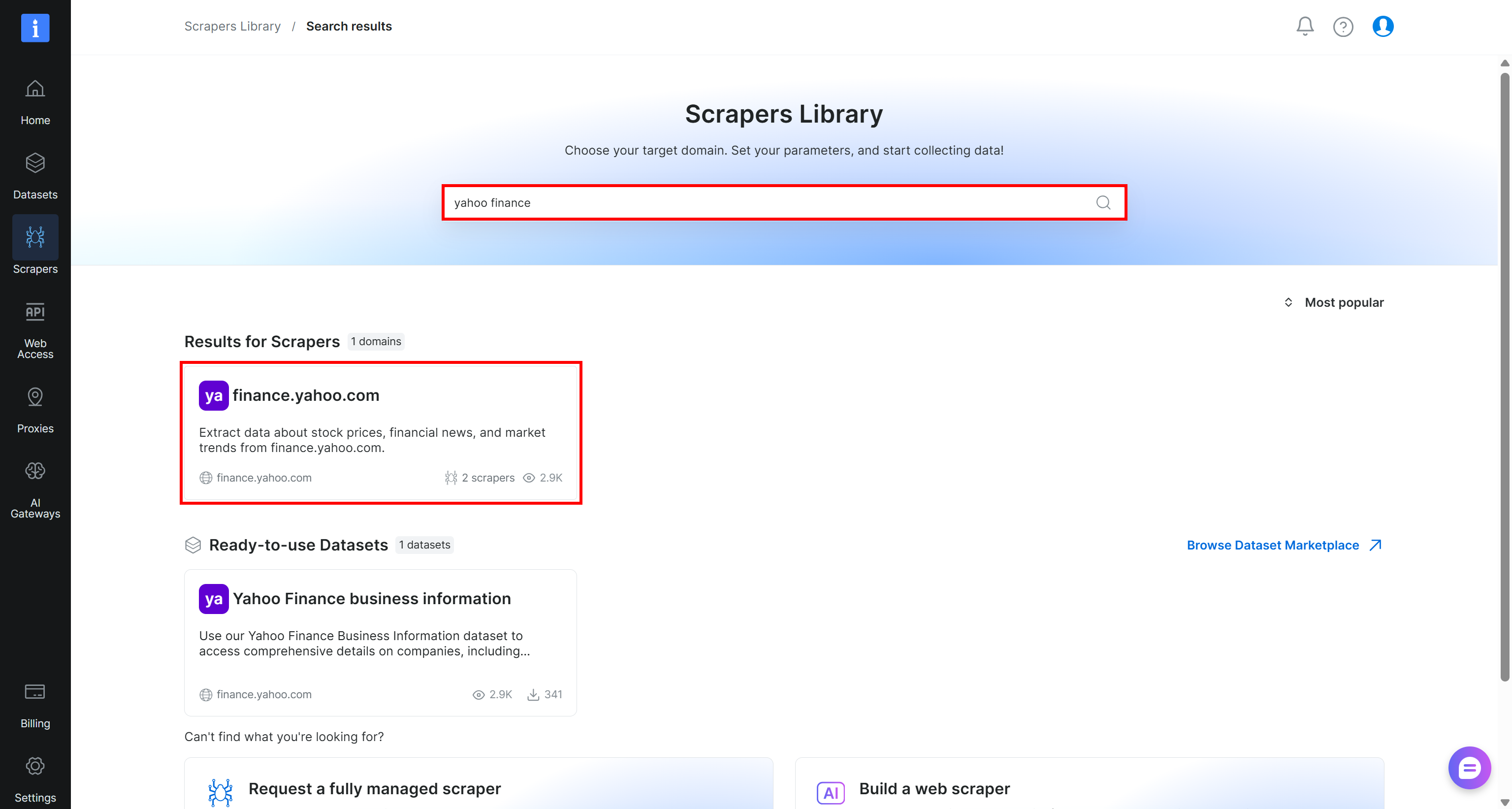
Search for “yahoo finance” and select the “finance.yahoo.com” scraper:
On the Yahoo Finance Scraper page, review the scraper’s input requirements and output schema:
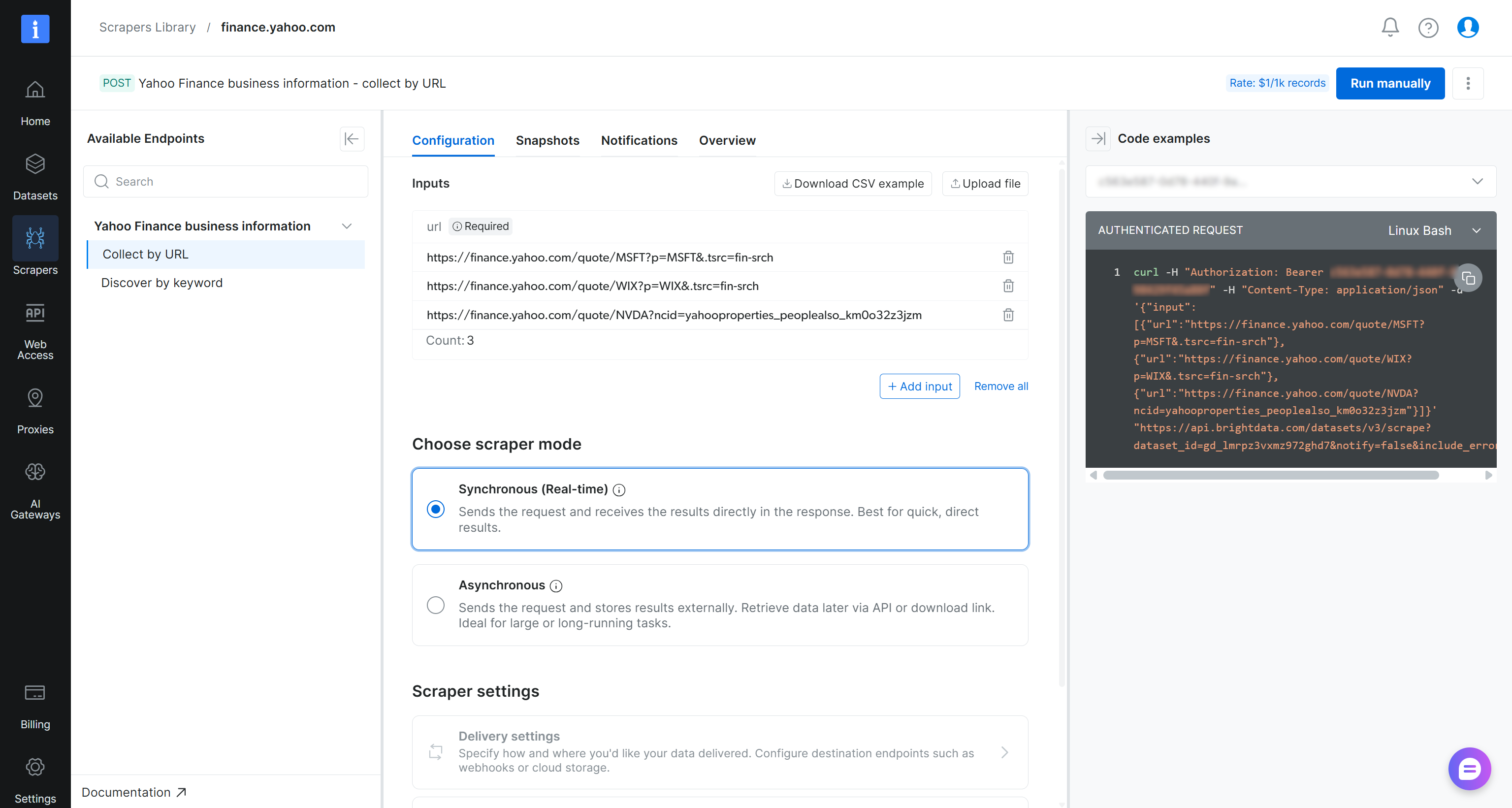
At a high level, the scraper accepts one or more Yahoo Finance stock page URLs as input and returns structured, real-time financial data. Exactly what we need!
Step #2: Configure the S3 Delivery
Bright Data Web Scraping APIs support automatic delivery of scraped data to Amazon S3 (along with several other cloud storage providers and delivery methods). To enable delivery to Amazon S3, you first need to switch the scraper to asynchronous mode.
In the “Configuration” tab, select the “Asynchronous” option. Then, press “Delivery settings”:
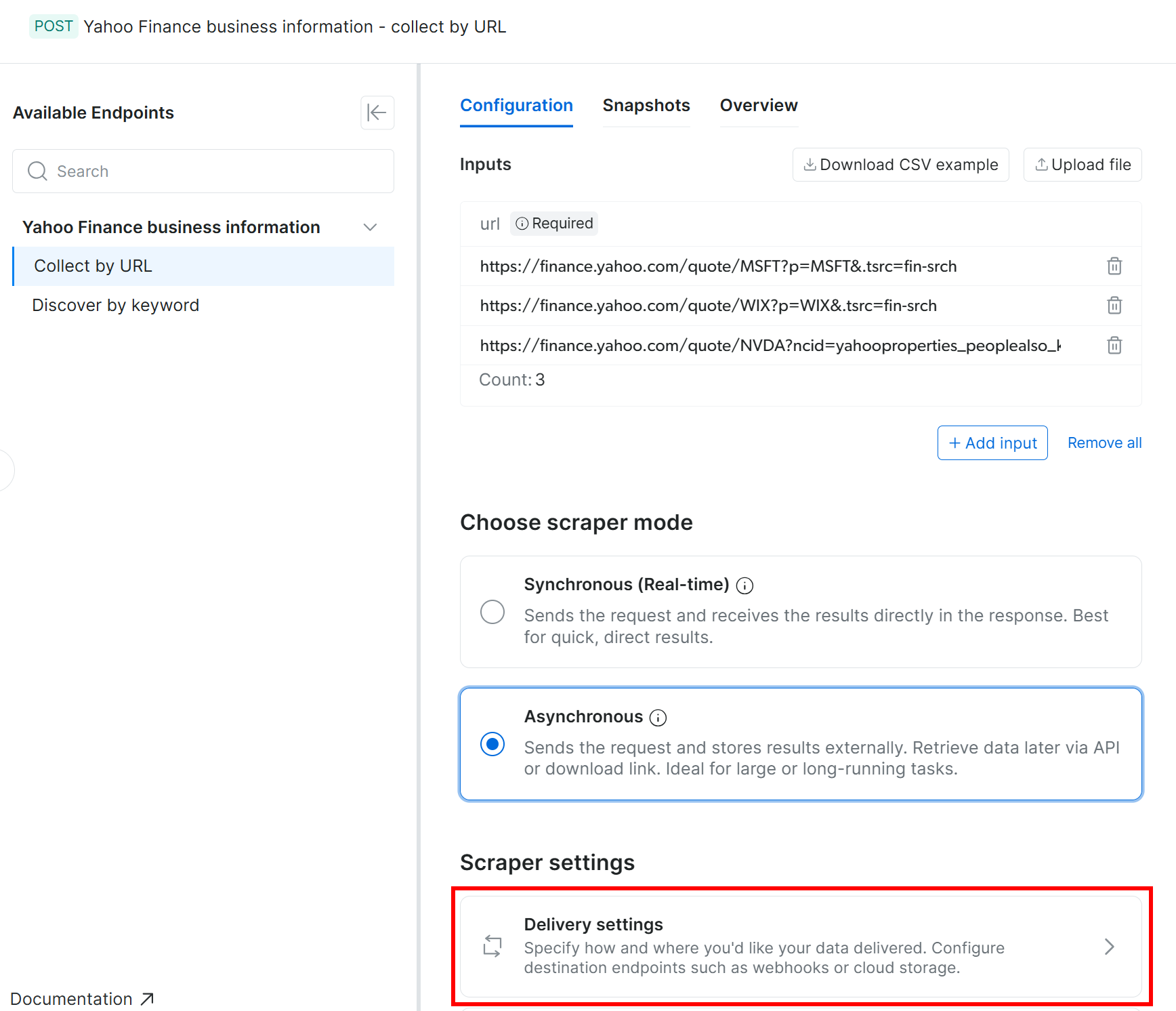
Next, configure delivery to your Amazon S3 bucket using the following settings:
- Enable the “Enable delivery” toggle.
- Set the output data format to CSV.
- Select “Amazon S3” as the storage destination.
- Enter your S3 bucket name (in this example,
bright-data-datasets). (You can leave the “Endpoint URL” field empty.) - Leave the “Target path” empty to upload the file to the root folder of the bucket.
- Set the “Authentication type” option to “Access keys”.
- Paste your AWS Access Key ID and AWS Secret Access Key.
- Set the filename to
stocks.
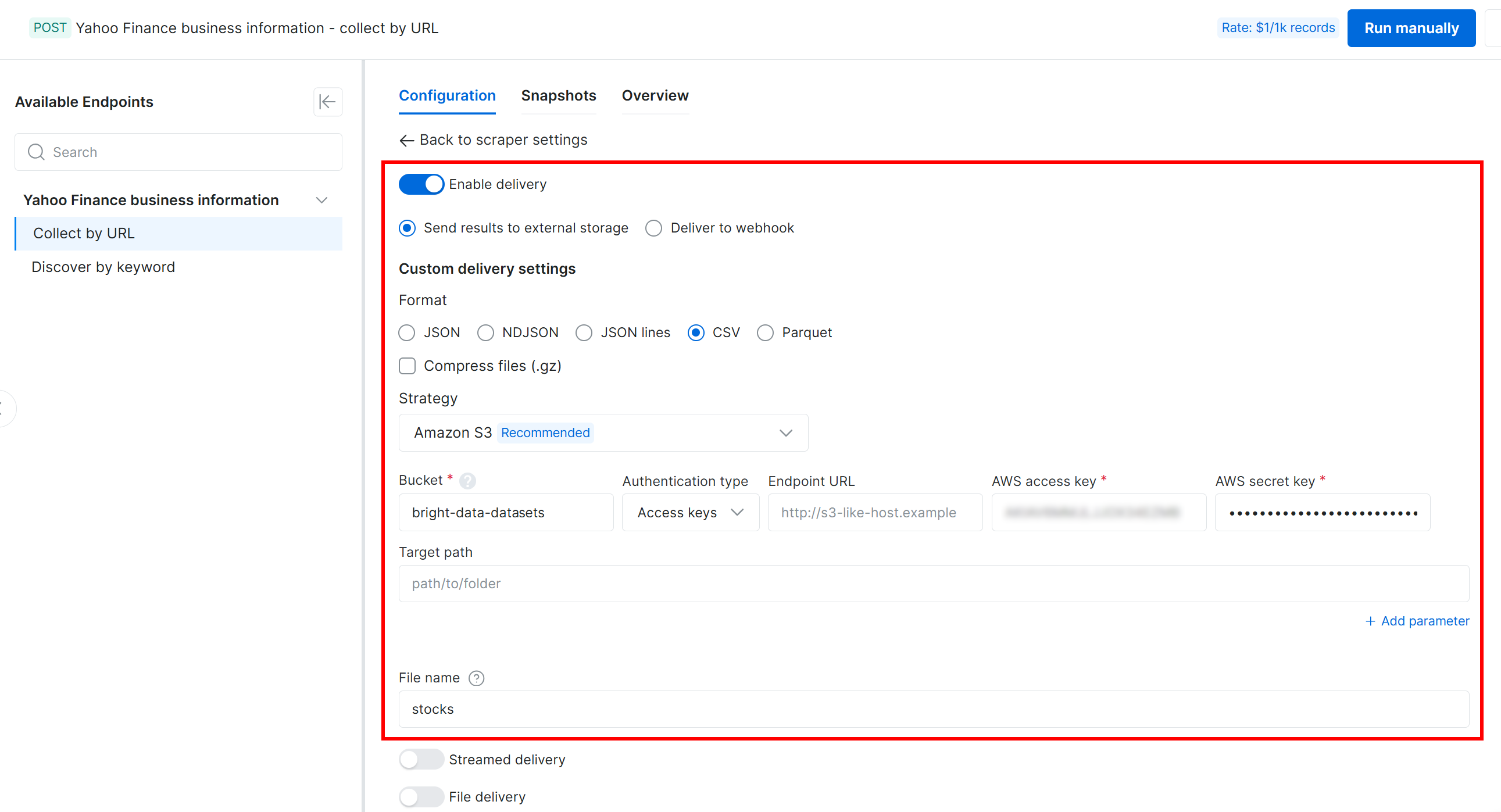
With this configuration, the Web Scraping API runs in asynchronous mode. Instead of returning data immediately, Bright Data creates a scraping job that executes on its infrastructure. Once the job is complete, the scraped data is automatically uploaded to your Amazon S3 bucket. Nice and hands-free!
Step #3: Run the Web Data Retrieval Task
To verify that the web data extraction workflow works correctly, add a few Yahoo Finance stock URLs as input. In this example, we will assume you want to track the top 10 Nasdaq stocks (i.e., NVDA, AAPL, GOOGL, MSFT, AMZN, TSLA, META, AVGO, WMT, and AMD).
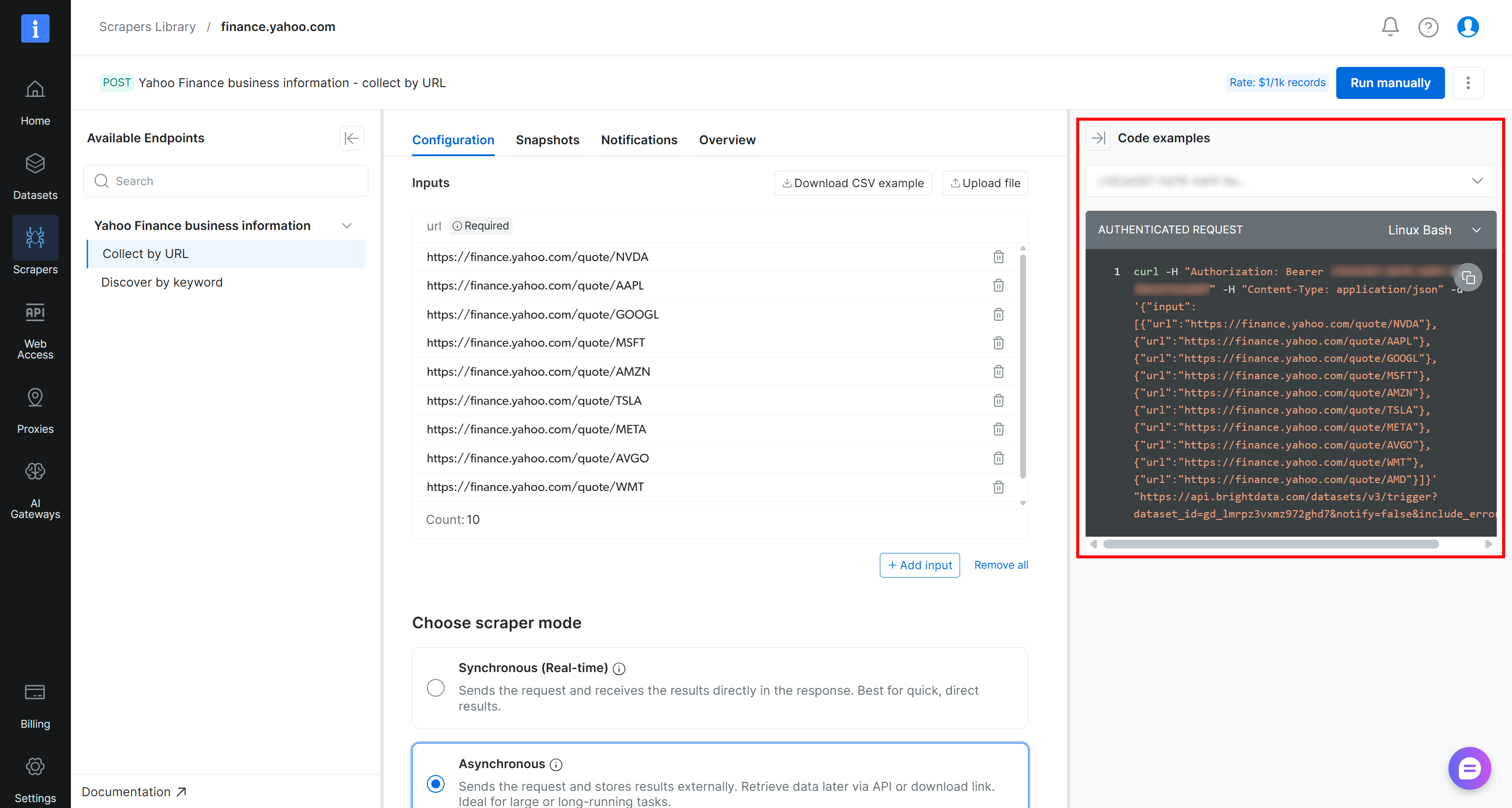
To trigger the scraping task programmatically, you can use the cURL snippet provided on the scraper page:
curl -H "Authorization: Bearer <YOUR_BRIGHT_DATA_API_KEY>" -H "Content-Type: application/json" -d '{"input":[{"url":"https://finance.yahoo.com/quote/NVDA"},{"url":"https://finance.yahoo.com/quote/AAPL"},{"url":"https://finance.yahoo.com/quote/GOOGL"},{"url":"https://finance.yahoo.com/quote/MSFT"},{"url":"https://finance.yahoo.com/quote/AMZN"},{"url":"https://finance.yahoo.com/quote/TSLA"},{"url":"https://finance.yahoo.com/quote/META"},{"url":"https://finance.yahoo.com/quote/AVGO"},{"url":"https://finance.yahoo.com/quote/WMT"},{"url":"https://finance.yahoo.com/quote/AMD"}]}' "https://api.brightdata.com/datasets/v3/trigger?dataset_id=gd_lmrpz3vxmz972ghd7¬ify=false&include_errors=true"Alternatively, you can run the following Python script:
# pip install requests
import requests
import json
headers = {
"Authorization": "Bearer <YOUR_BRIGHT_DATA_API_KEY>",
"Content-Type": "application/json",
}
data = json.dumps({
"input": [{"url":"https://finance.yahoo.com/quote/NVDA"},{"url":"https://finance.yahoo.com/quote/AAPL"},{"url":"https://finance.yahoo.com/quote/GOOGL"},{"url":"https://finance.yahoo.com/quote/MSFT"},{"url":"https://finance.yahoo.com/quote/AMZN"},{"url":"https://finance.yahoo.com/quote/TSLA"},{"url":"https://finance.yahoo.com/quote/META"},{"url":"https://finance.yahoo.com/quote/AVGO"},{"url":"https://finance.yahoo.com/quote/WMT"},{"url":"https://finance.yahoo.com/quote/AMD"}],
})
response = requests.post(
"https://api.brightdata.com/datasets/v3/trigger?dataset_id=gd_lmrpz3vxmz972ghd7¬ify=false&include_errors=true",
headers=headers,
data=data
)
print(response.json())In both cases, make sure to replace <YOUR_BRIGHT_DATA_API_KEY> with your Bright Data API key.
Note: For an even simpler approach, run the task by clicking the “Run manually” button directly from the control panel.
Once triggered, the scraping request will be sent to Bright Data’s cloud infrastructure, where the extraction task will begin. You can monitor its status in real time from the Bright Data control panel:
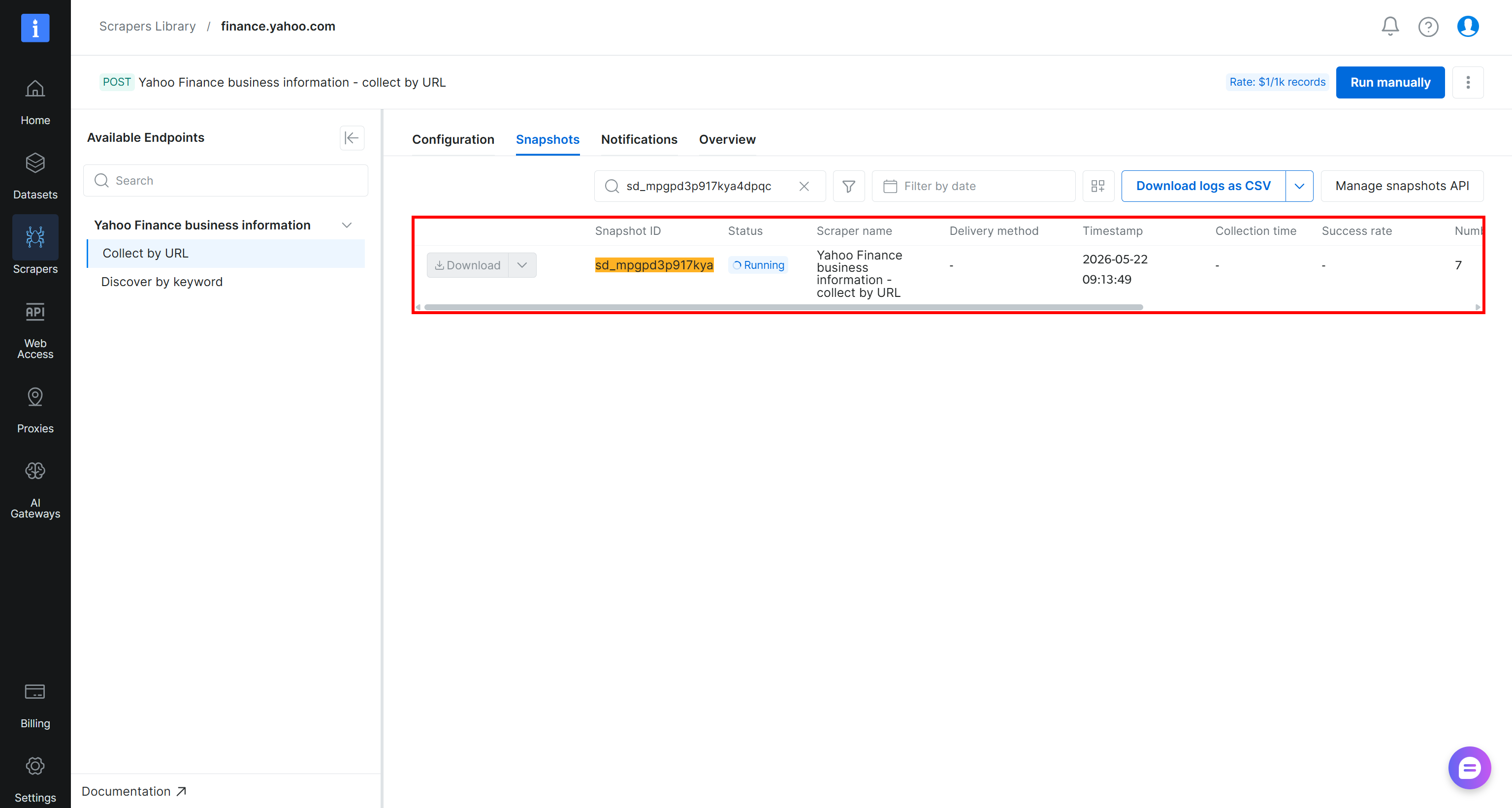
When the task status changes to “Ready”, open your Amazon S3 bucket. You should notice a new file named stocks.csv:

Download the stocks.csv file and open it. You will see something like this:
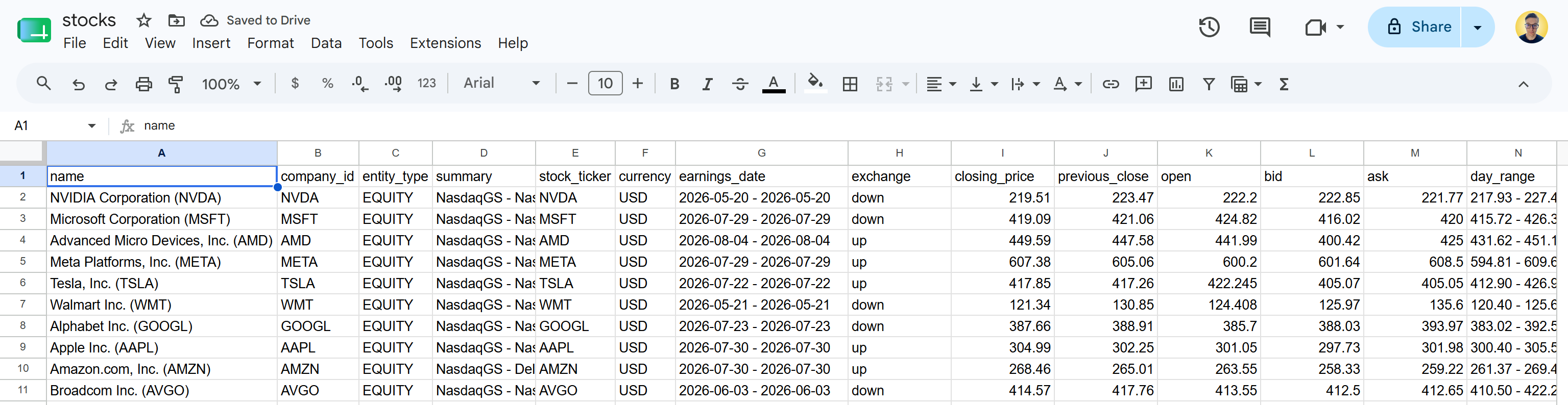
This is the same stock data available on the specified Yahoo Finance pages. The Bright Data Yahoo Finance Scraper API retrieved the stock data and transformed it into a structured CSV format.
To better understand how the scraped data is structured and which columns are available, take a look at the “Dictionary” section in the “Overview” tab of the Yahoo Finance scraper page:
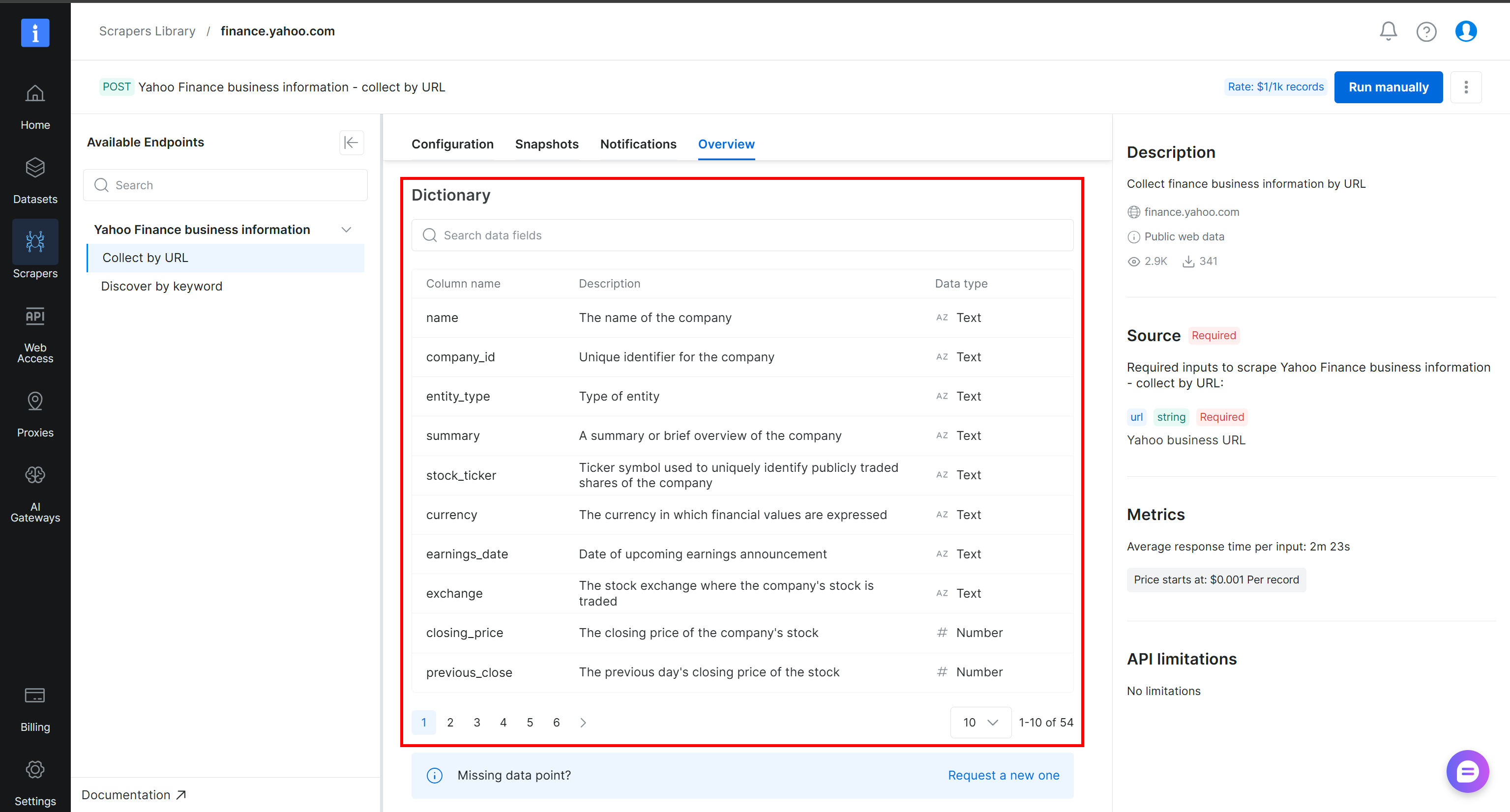
Cool! You now have the data required to build your Alteryx One web data pipeline.
Step #4: Connect Alteryx One to the S3 Data Source
Currently, the scraped source data is delivered to Amazon S3. The next step is to connect your Alteryx One account to that S3 bucket so that workflows can access and analyze the data as needed.
To create a connection to your Amazon S3 bucket, log in to Alteryx One. Navigate to the “Data” page and open the “Connections” tab. Then click “New Connection”:
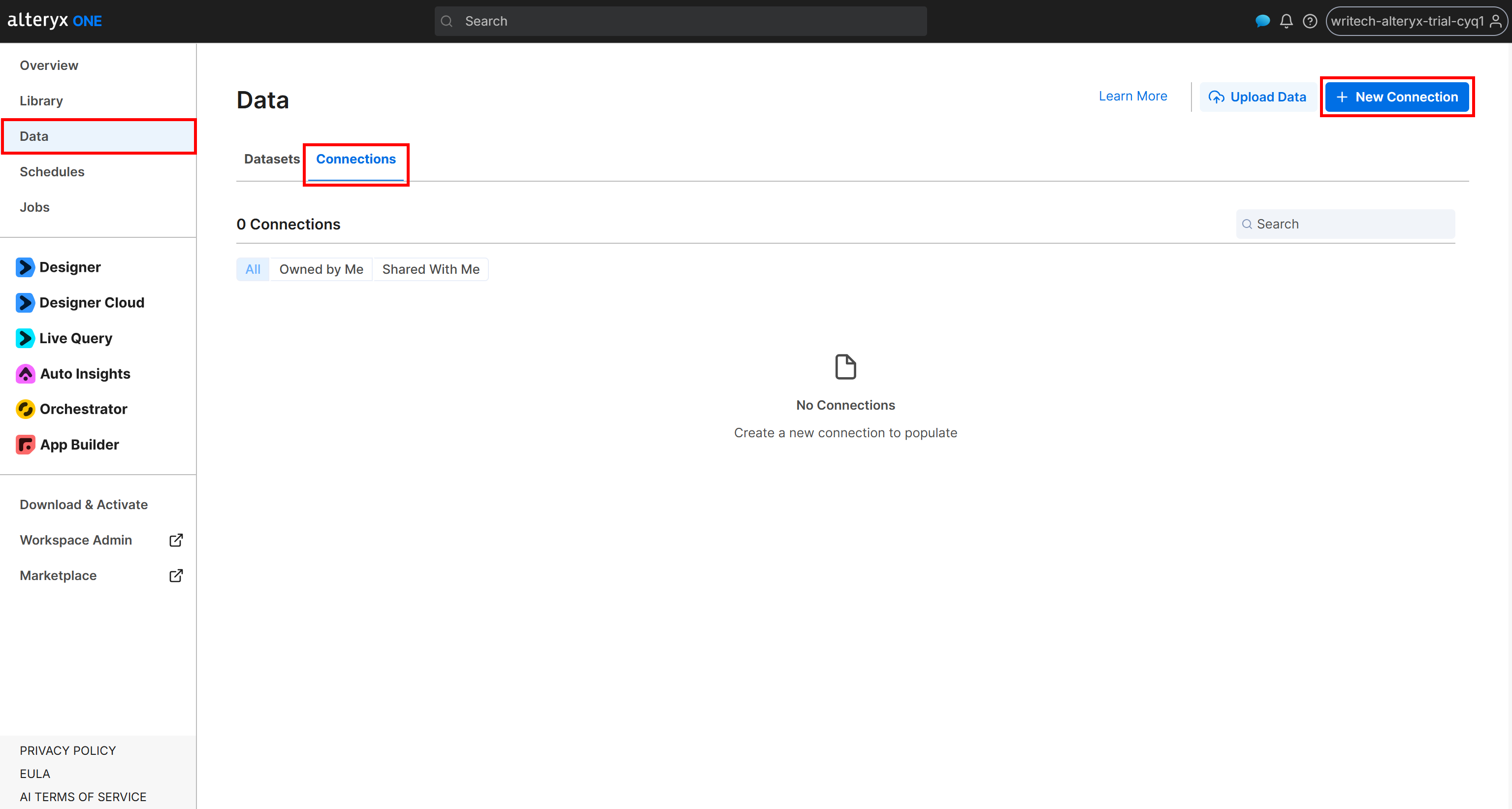
Next, configure the “External Amazon S3” connection form as follows:
- Connection Name: Bright Data S3 (or any name you prefer).
- Default Bucket:
bright-data-datasets(or your actual bucket name). - Access Key ID and Secret Access Key: Your AWS Access Key ID and AWS Secret Access Key.
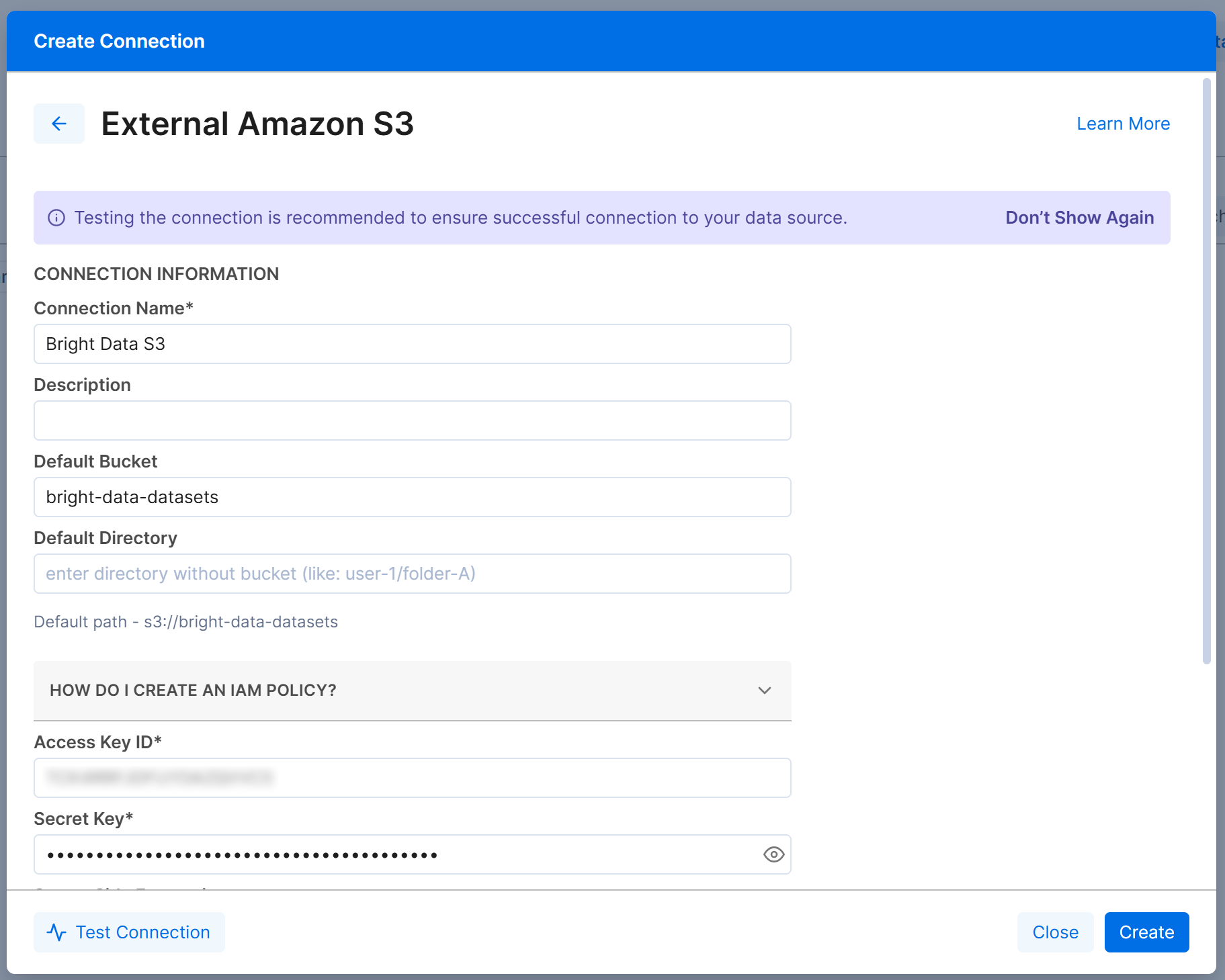
Click “Create”, and the Amazon S3 connection will appear in the “Connections” tab:
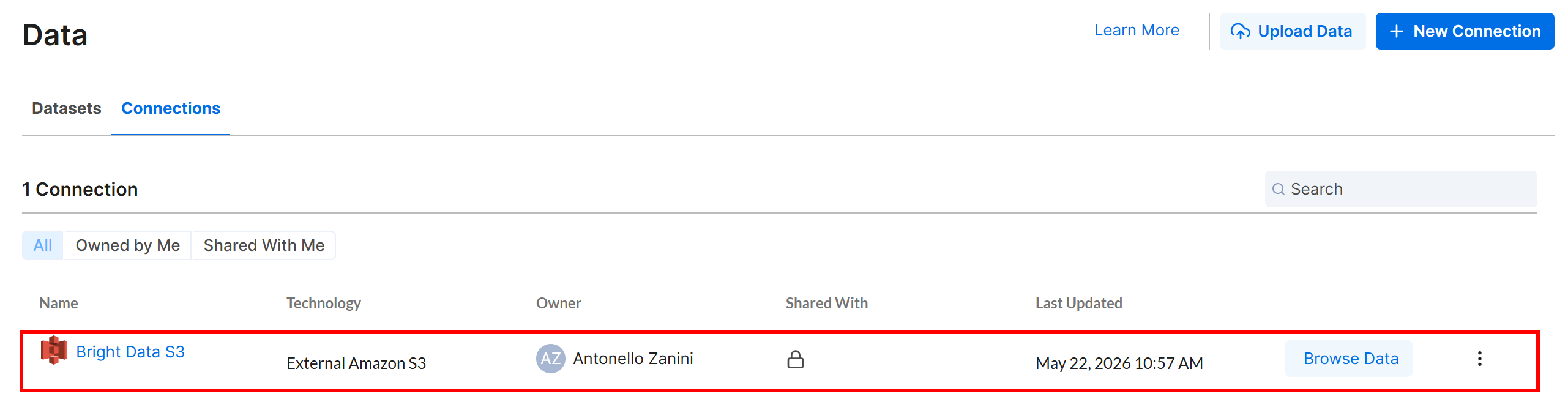
Excellent! Time to define an Alteryx One workflow that reads input data from your Amazon S3 bucket, where the Yahoo Finance Scraper API stores its output.
Step #5: Initialize the Alteryx One Workflow
Go to the “Overview” page and click the “New Workflow with Designer Cloud” button:
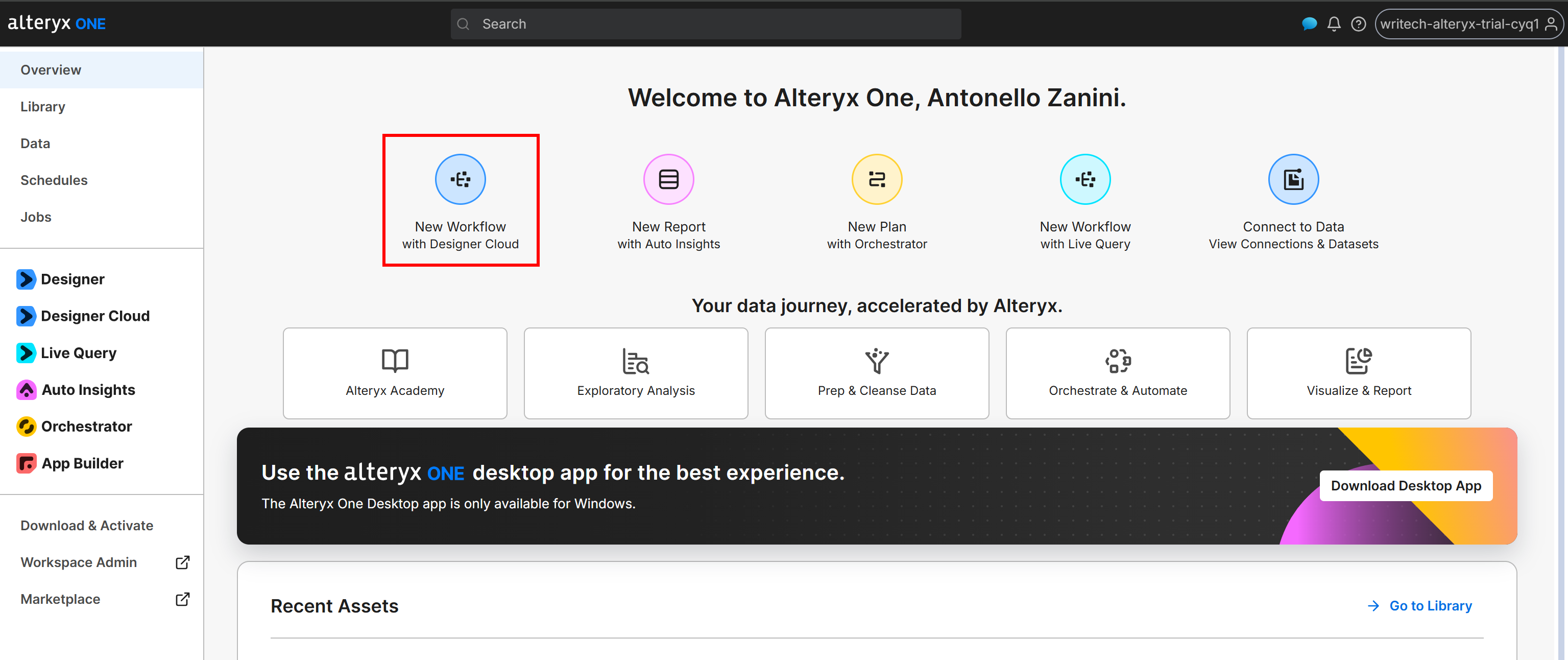
Alternatively, you can create the workflow from the Alteryx One desktop app.
Give your workflow a name, such as “Automated Stock Analyzer”:
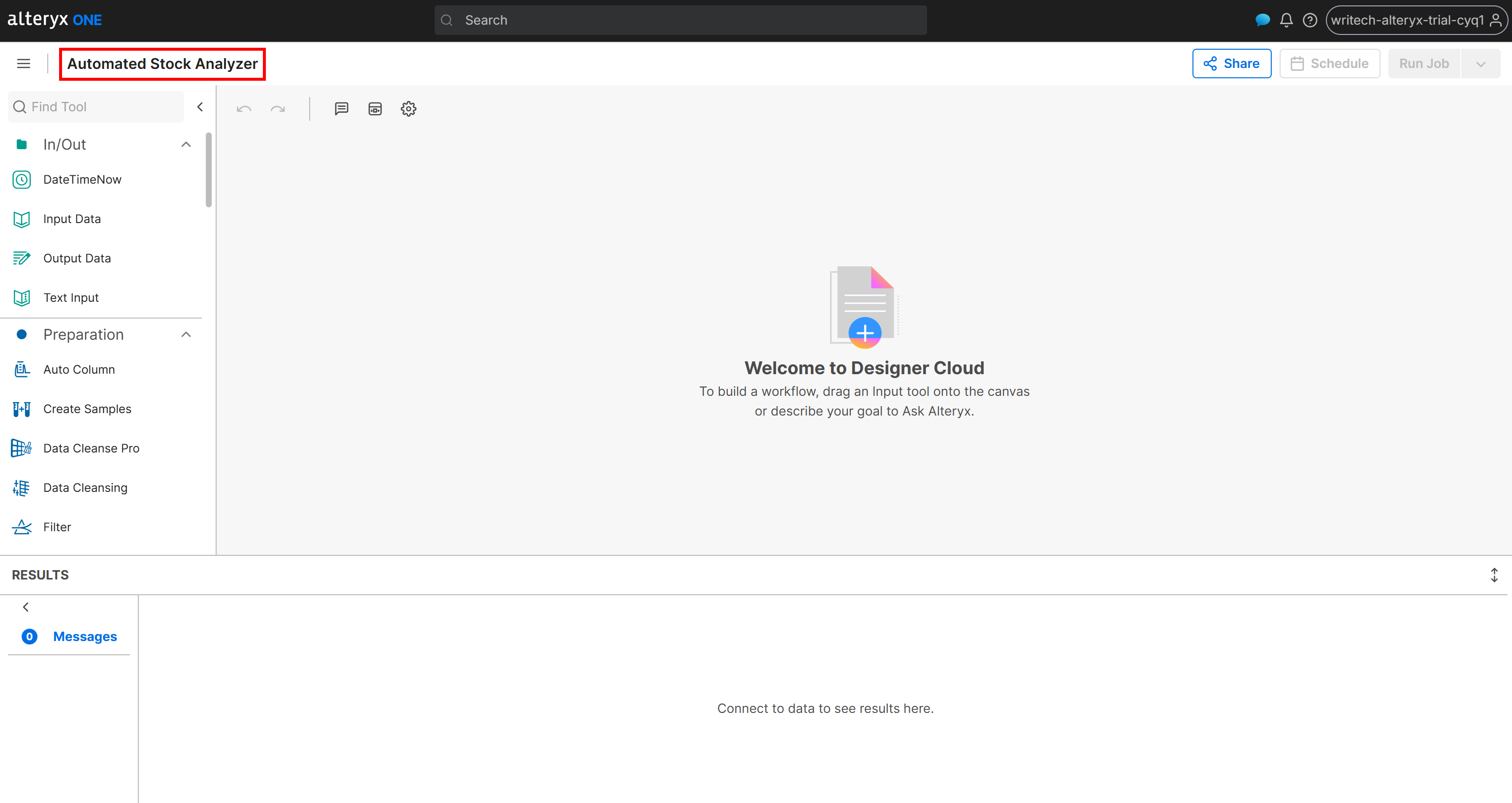
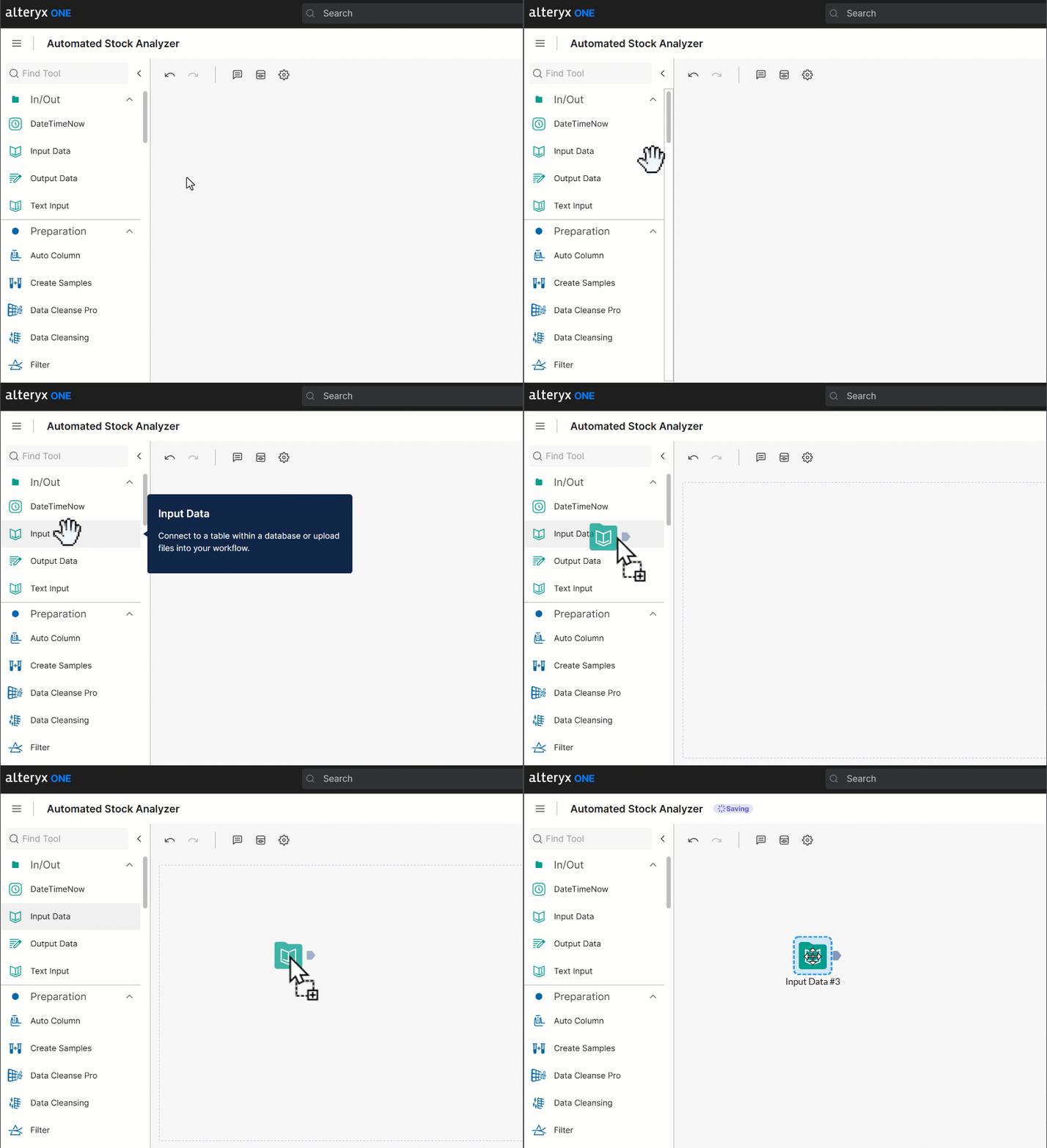
The first step in building the workflow is to load the source data. To do this, drag the “Input Data” node onto the workflow canvas:
Then double-click the node to configure it and connect it to your Amazon S3 bucket, selecting the stocks.csv file. Follow the setup wizard to import the dataset. Once completed, you should see the data loaded successfully:
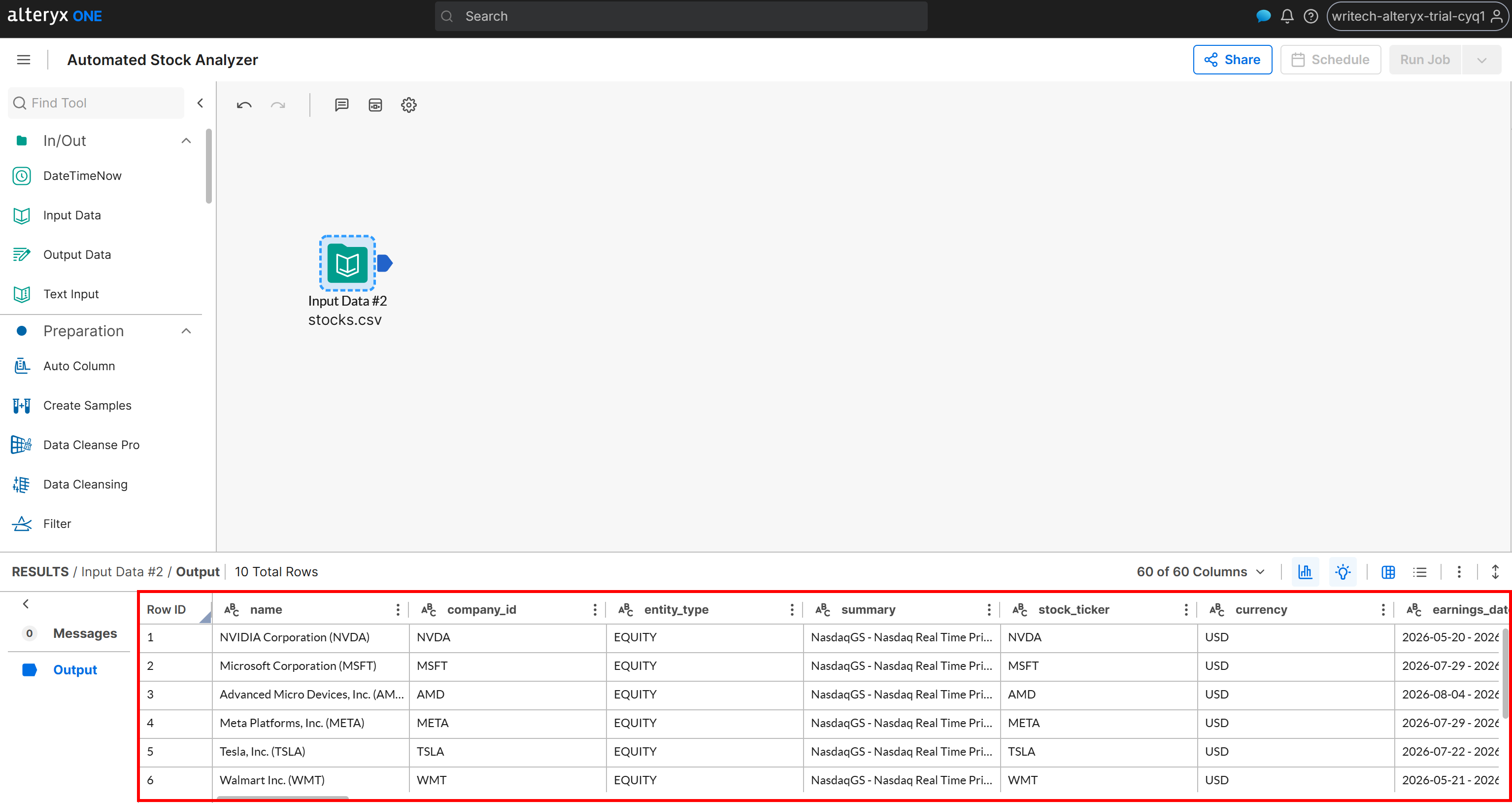
At this point, the workflow has access to the scraped web data. Great! Now, you can start adding the data analysis logic.
Step #6: Define the Data Analysis Logic
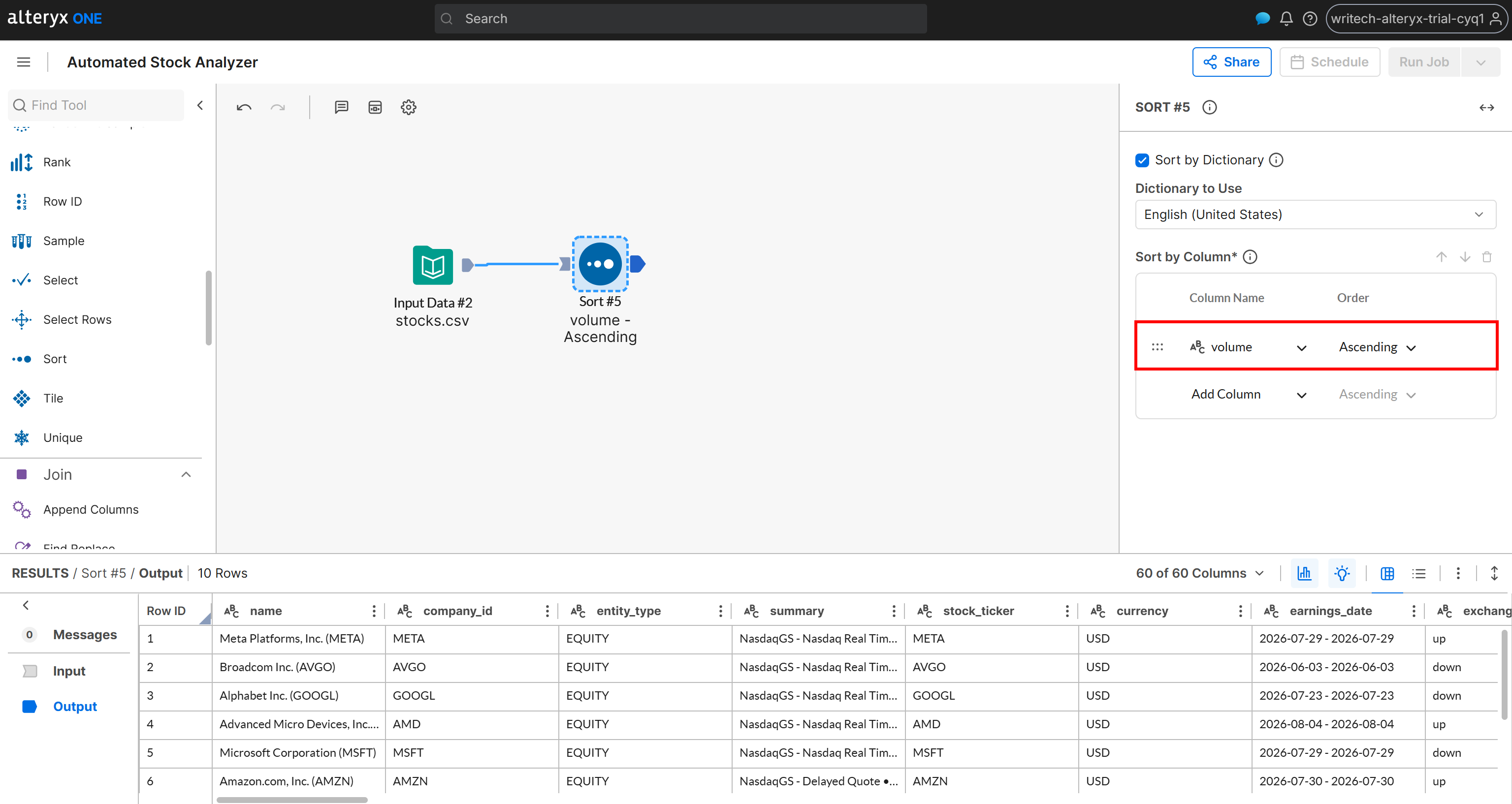
Assume you want the results to be ordered by a specific criterion, such as daily trading volume. Add a “Sort” node, and in the sort configuration, select the volume column and set the order to Ascending:
Now, suppose you want to split the dataset into two groups:
- Stocks that closed the day in positive territory.
- Stocks that closed the day in negative territory.
To do so, classify stocks based on whether their exchange field contains “up” or “down”. Add a “Filter” node and connect it to the output of the “Sort” node. Then define a filter condition such as:
- Column Name:
exchange - Operator: Equals
- Value:
up
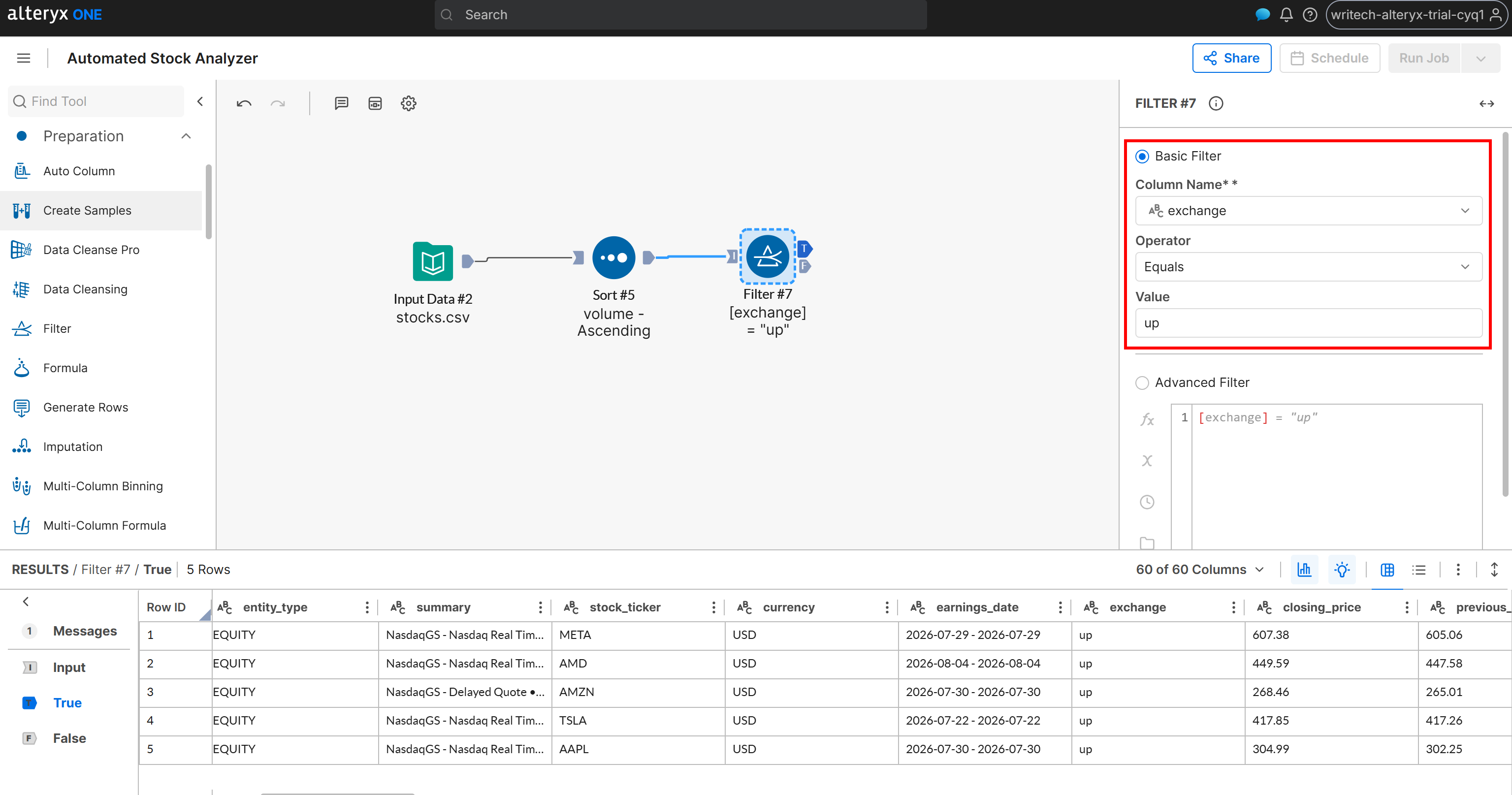
The Filter node produces two outputs:
T(True): Contains stocks where theexchangefield is “up”.F(False): Contains stocks where theexchangefield is not “up” (i.e., it is “down”).
The final step in this simple web automation workflow is to define the output destinations. Take care of it!
Step #7: Specify the Output Files
Add an “Output Data” node to the canvas and connect it to the T output of the “Filter” node. Configure the “Output Data” node to write the data to your Amazon S3 bucket (or any other connected data source). For example, create a file named up_stocks.csv:
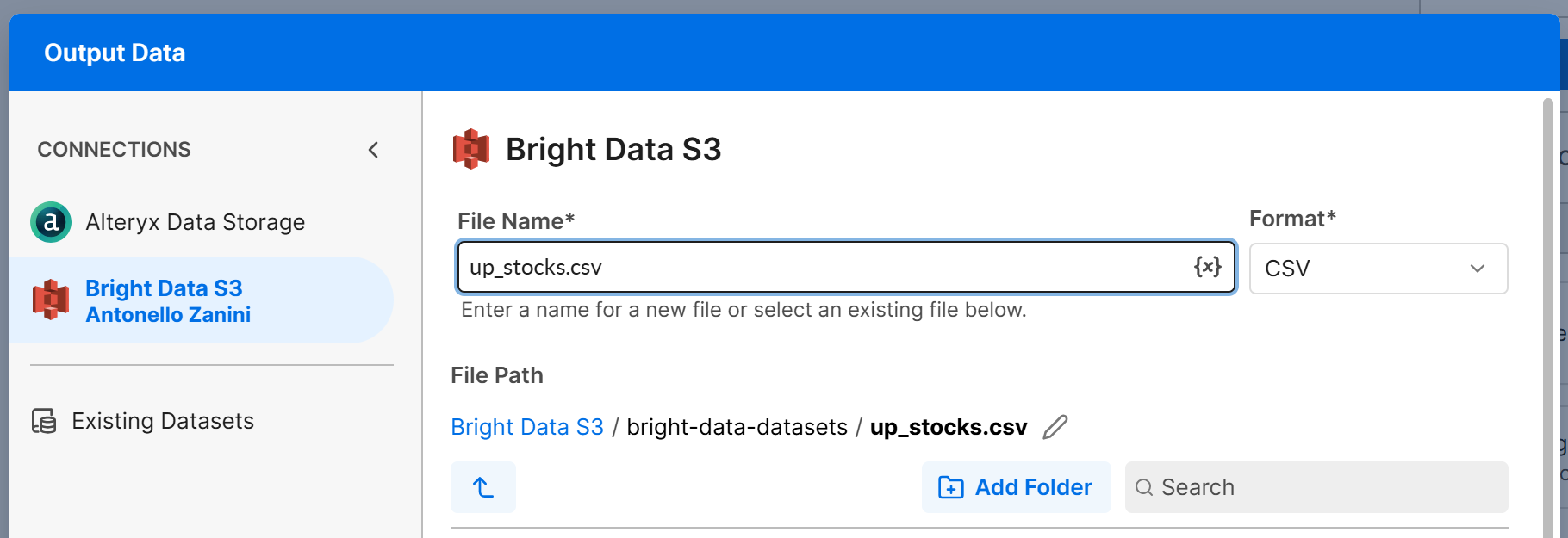
Click “Next” and then “Confirm” to save the output configuration for the T branch. Repeat the same process for the F branch, and configure it to write to a down_stocks.csv file.
This is what the final workflow will look like:
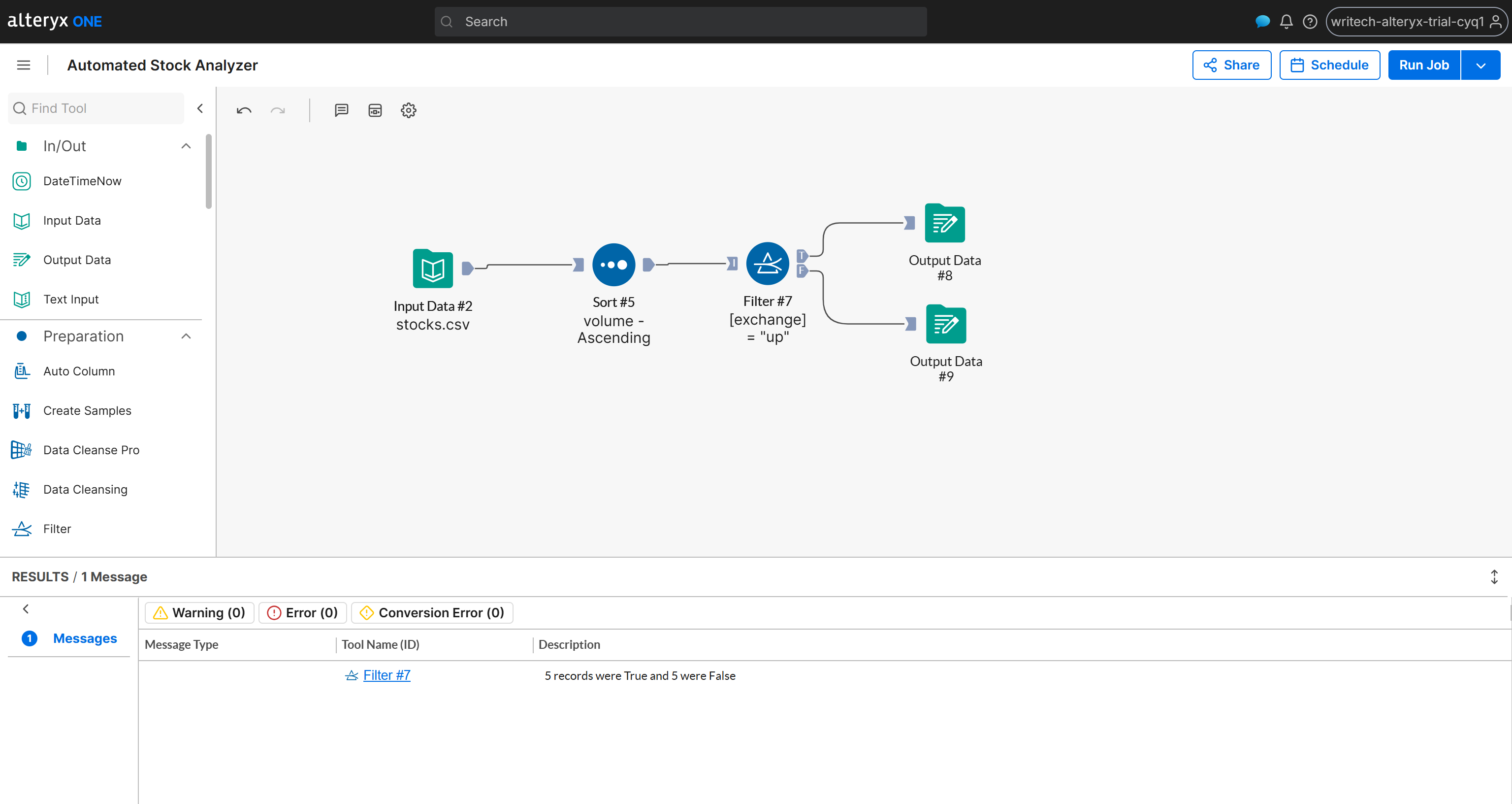
Mission complete! Now you only need to run the workflow to test that everything works as expected.
Step #8: Launch the Workflow
Click the “Run Job” button and wait for the Bright Data-powered automated web data analysis workflow to complete:

Once the execution is complete, you will receive a success notification in Alteryx One, along with a confirmation email.
Now, inspect the generated output for the T scenario:
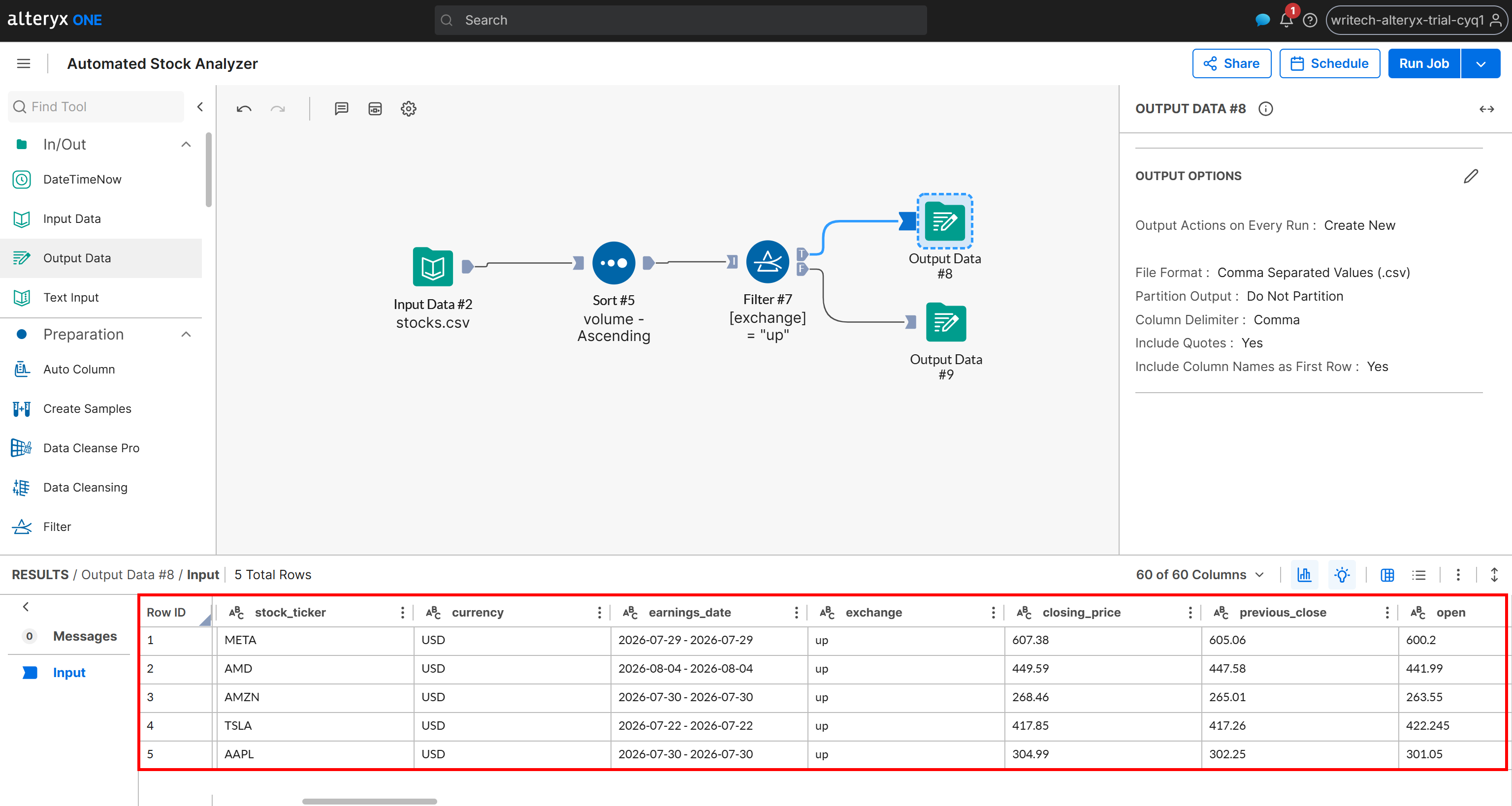
Notice that this output contains only the stocks whose change status is “up”, sorted by volume in ascending order. The same data is also available in the up_stocks.csv file generated by the pipeline and stored in your Amazon S3 bucket.
Next, inspect the generated output for the F scenario:
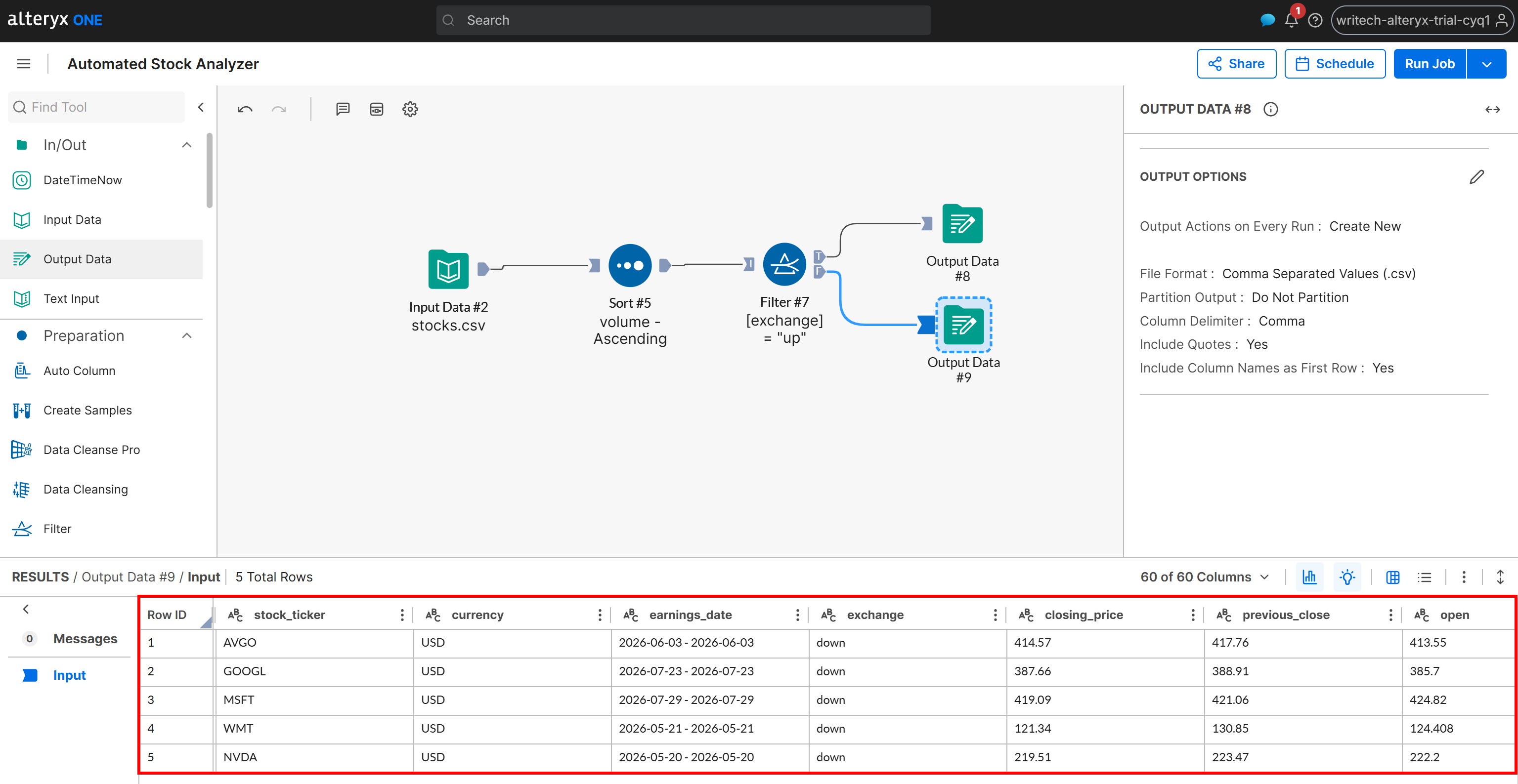
This output contains only the stocks whose change status is “down”, again sorted by volume in ascending order. The same results are written to the down_stocks.csv file in your Amazon S3 bucket.
Et voilà! You just built a web data analysis pipeline in Alteryx One powered by Bright Data. Note that this was just an example, and many other web data automation scenarios are possible.
Next Steps
Keep in mind that this was just a simple data analysis pipeline with a few sample steps. In practice, you can make it much more complex by adding additional processing nodes (including AI nodes) and even introducing multiple data sources.
For example, you can configure other Bright Data Web Scraping APIs to write into the same Amazon S3 bucket. The resulting datasets can then be combined for enrichment and more advanced analysis using join operations.
Also, to build a fully automated, always up-to-date data pipeline:
- Trigger the Bright Data Web Scraping APIs to update the source data in Amazon S3.
- In Bright Data, configure a webhook that calls the Alteryx One workflow run API.
Conclusion
In this tutorial, you learned what Alteryx One brings to automated data analysis. Specifically, you saw how data retrieved via Bright Data’s Web Scraping APIs can be integrated into Alteryx One through Amazon S3. High-quality web data greatly improves the accuracy and value of insights, leading to better analysis results.
Create a free Bright Data account today and start exploring our enterprise-ready web data solutions!



Technical Writer
 5.5 years experience
Antonello Zanini is a technical writer, editor, and software engineer with 5M+ views. Expert in technical content strategy, web development, and project management.