In this guide, you will learn:
- What the Model Context Protocol (MCP) is and why it matters for AI agents
- How to configure Bright Data’s MCP Server with Augment Code
- How to use web search, markdown scraping, and SERP API tools
- How to navigate dynamic websites using the Scraping Browser
- How to combine AI coding with live web data for practical workflows
Before diving into the setup, it helps to understand the two technologies you’ll be connecting.
What Is the Model Context Protocol (MCP)?
MCP is a standardized way for AI models to connect to external tools and data sources. Think of MCP as the USB-C port for LLMs. Just as USB-C lets you connect any peripheral to any device with a single standard, MCP lets AI models connect to any data source or tool through a unified protocol.
Before MCP, connecting an LLM to external tools meant building custom integrations for each combination. Want your Claude-powered agent to search the web? Build an integration. Switch to GPT? Rebuild it. Add a new data source? More custom code.
MCP eliminates this complexity. It defines a standard way for AI models to discover, invoke, and receive results from external tools. Build an MCP server once, and any MCP-compatible client can use it.
For a deeper technical dive, check out our guide on MCP servers for web scraping.
Now that you understand how MCP standardizes tool connections, let’s look at the AI coding assistant you’ll be enhancing with web access.
What Is Augment Code?
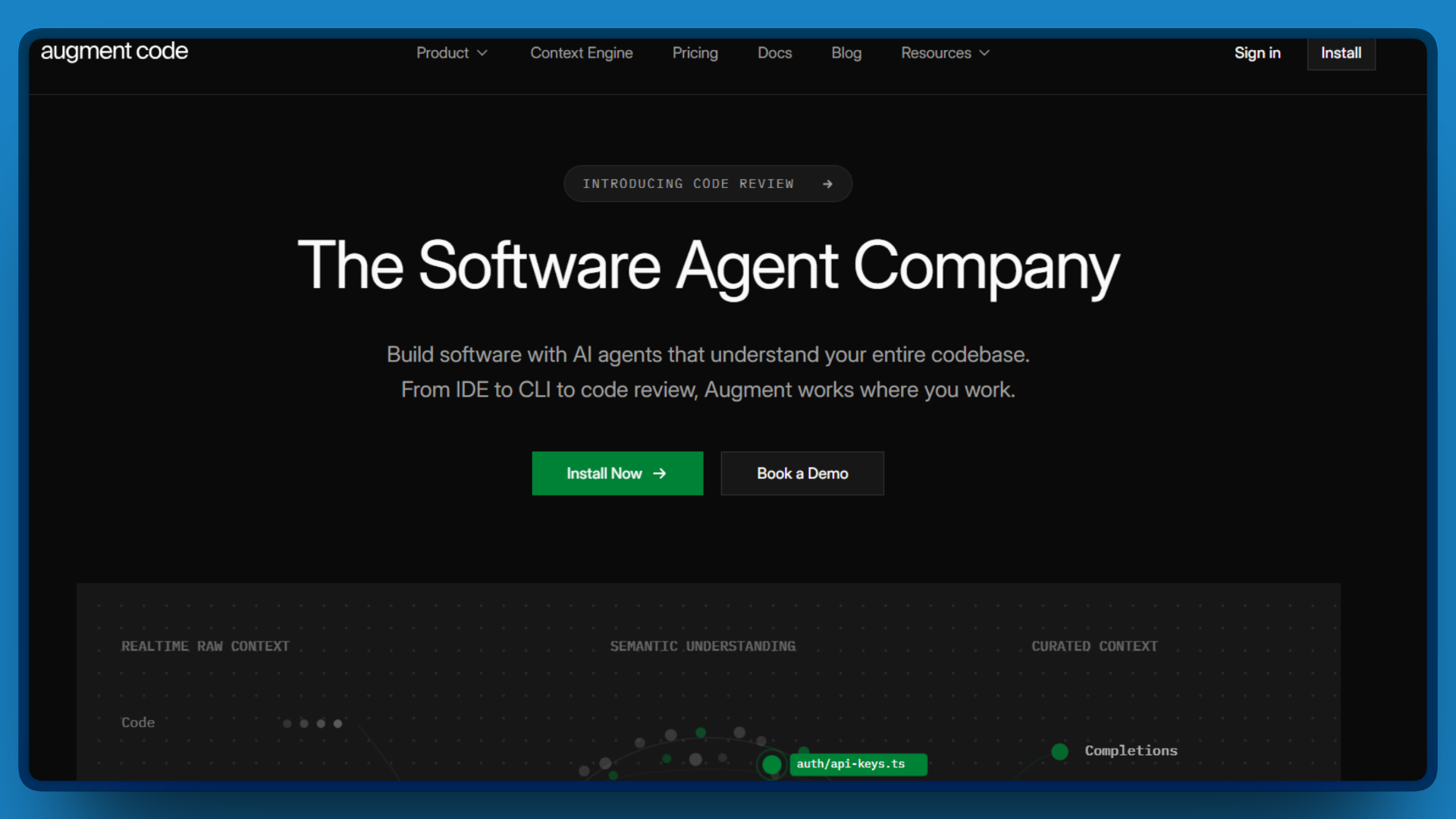
Augment Code is an AI coding assistant designed for large, complex codebases. Unlike tools that focus on line-by-line autocomplete, Augment Code indexes your entire project and understands cross-file dependencies.
The key differentiator is what they call the Context Engine. Rather than just offering a large context window (over 200K tokens), it actively indexes your codebase and maintains awareness of your project’s architecture. Ask it to refactor a function, and it identifies which other files import that function and need updates.
Key Capabilities
- Full codebase indexing. Augment indexes your entire project, including dependencies across multiple repositories. Questions pull relevant context from anywhere in your codebase.
- Agent mode. Beyond chat and autocomplete, Augment can autonomously execute multi-step tasks. You can tell it to add error handling to all API calls, and it applies it to your codebase file by file.
- IDE flexibility. Works with VS Code, all JetBrains IDEs (IntelliJ, PyCharm, WebStorm), Vim/Neovim, and offers a CLI tool called Auggie for terminal workflows.
- Security certifications. SOC 2 Type II certified and ISO/IEC 42001 compliant.
Augment Code excels at understanding your codebase, but it has one significant limitation: it can’t see what’s happening on the live web. That’s where Bright Data comes in.
Why Combine Bright Data MCP with Augment Code?
Augment Code’s context window and agent capabilities make it effective at complex, multi-step tasks. But it can’t access the live web on its own. It can’t check if an API endpoint changed last week, verify current library versions, or gather competitive intelligence.
Bright Data’s MCP Server fills this gap. The MCP Server provides 60+ tools for web access. According to Bright Data’s documentation, this includes access to over 150 million residential IPs across 195 countries.
When you connect them, you get:
| Category | What It Does | Example Tools |
|---|---|---|
| Web Search | Query search engines programmatically | search_engine, search_engine_batch |
| Page Scraping | Extract content from any URL | scrape_as_markdown, scrape_as_html |
| Browser Automation | Navigate, click, type, scroll | scraping_browser_navigate, scraping_browser_click_ref |
| Structured Extraction | Get clean JSON from 60+ platforms | web_data_amazon_product, web_data_linkedin_profile |
The Scraping Browser tools deserve attention. Unlike simple fetch requests, these tools control a real browser that handles JavaScript rendering, login flows, infinite scroll, and multi-step navigation. This matters for agentic systems that need to interact with modern web applications.
When I first tested this setup, I asked Augment to check whether the OpenAI API had any recent changes to their rate limiting. Within about eight seconds, it pulled the current documentation, compared it to what I had cached locally, and flagged that the token-per-minute limits had changed for the GPT-4 Turbo endpoint. That single query saved me from deploying code that would have hit rate limits in production.
With the benefits clear, let’s walk through the actual setup process.
Connecting Bright Data with Augment Code
Prerequisites
Before starting, make sure you have:
- Node.js 18+ installed
- Augment Code extension installed in VS Code (or your preferred IDE)
- A Bright Data account (setup covered below)
Don’t worry if you don’t have a Bright Data API token yet. We’ll guide you through creating one in the next section.
Step 1: Create Your Bright Data Account and Get an API Token
To get started, you’ll need a Bright Data account and an API token for authentication with the MCP server, which takes about two minutes.
- Head to brightdata.com and click “Start for free” to create your account.
- Once logged into the dashboard, navigate to Settings (the gear icon) in the left sidebar, then click API tokens.
- Click “Create token” and give it a descriptive name, such as “Augment Code MCP.”
- Copy your new token and store it securely. You’ll need it for the next step.
Step 2: Configure Bright Data MCP in Augment Code
This tutorial uses the Augment Code extension for Visual Studio Code.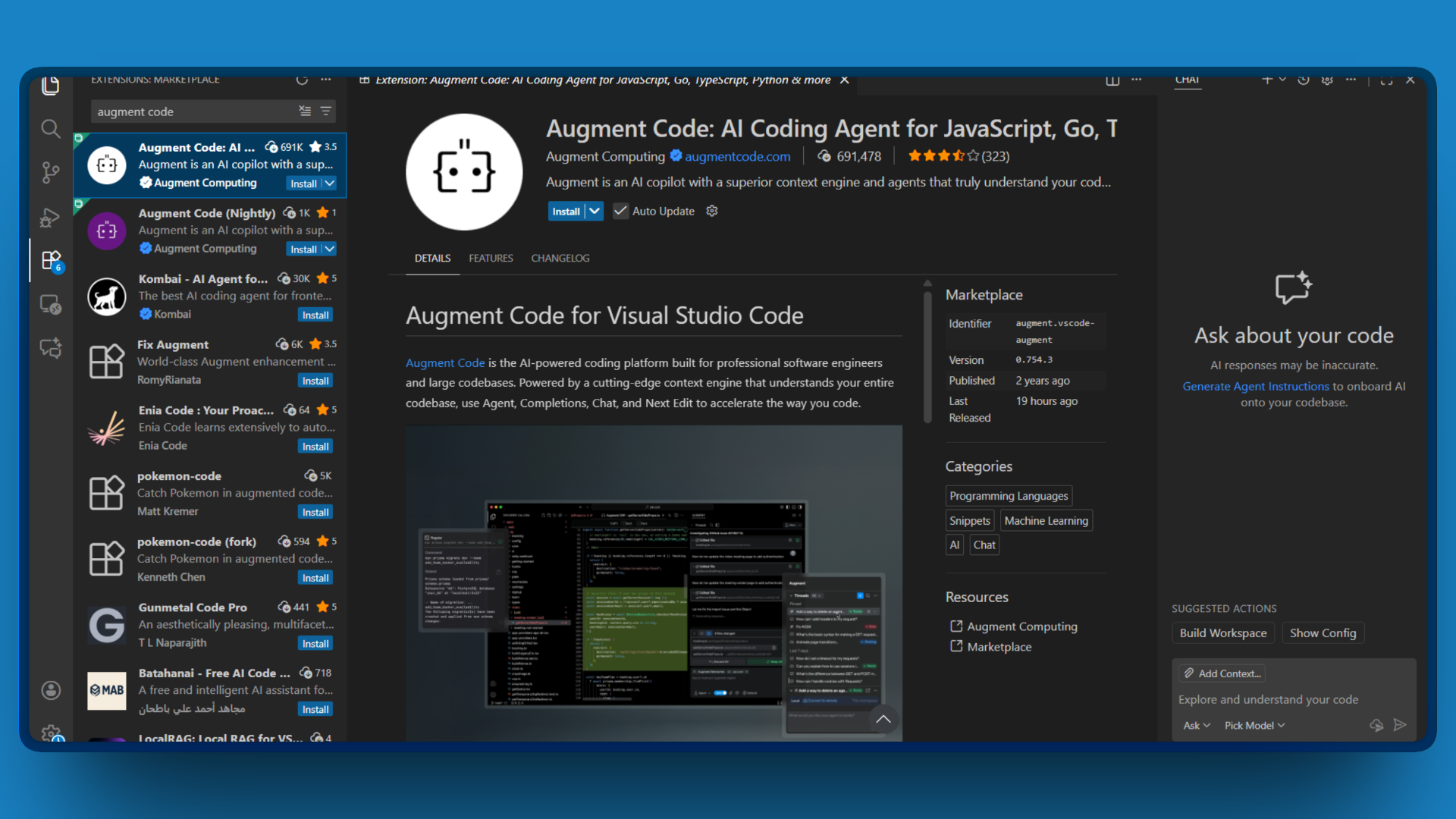
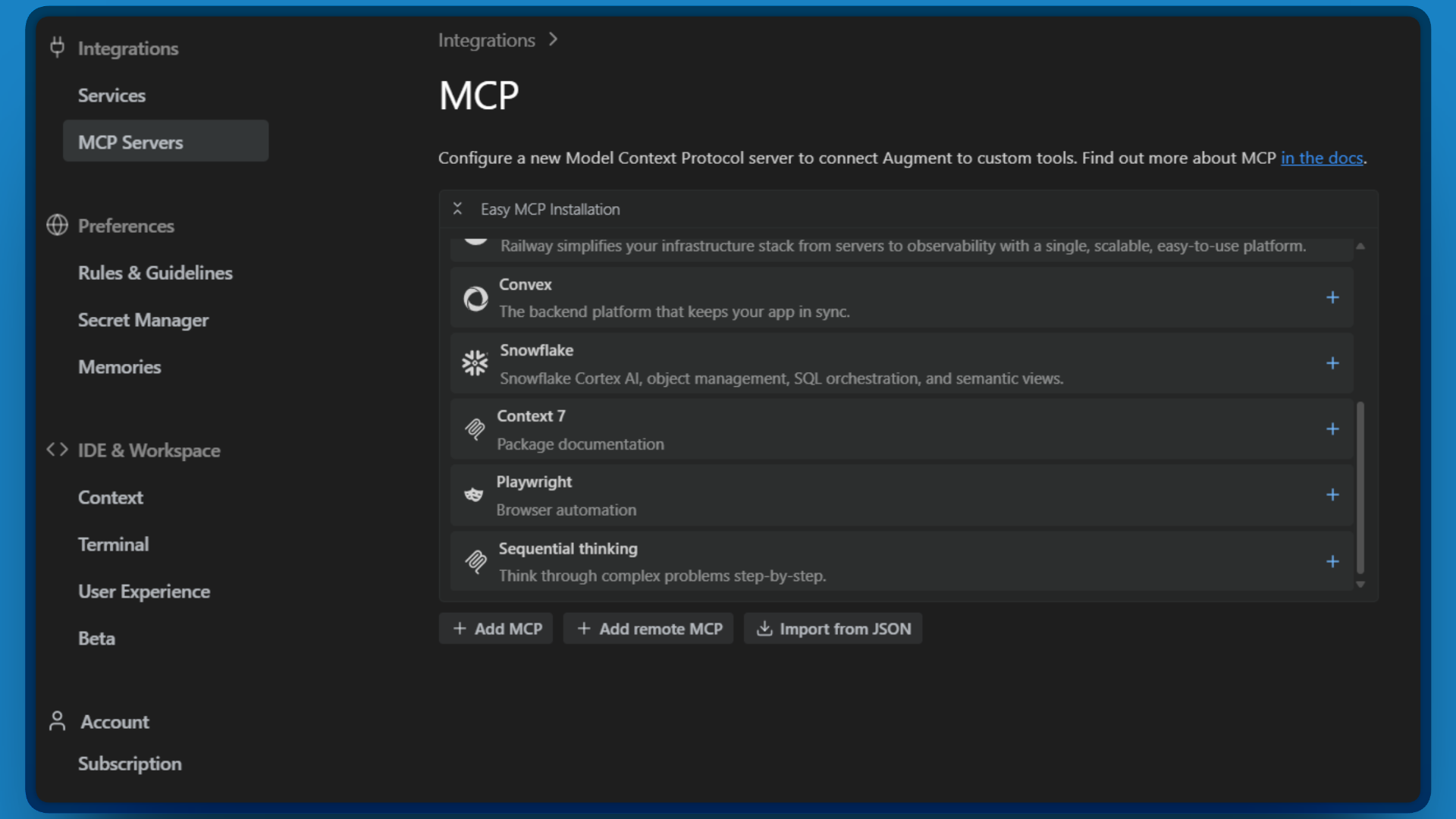
Augment supports three methods for adding MCP servers: Easy MCP (one-click setup), the Settings Panel GUI, and JSON import. We’ll use JSON import since it provides full control over configuration options.
- Open VS Code and click the Augment Code icon in your Activity Bar (left sidebar).

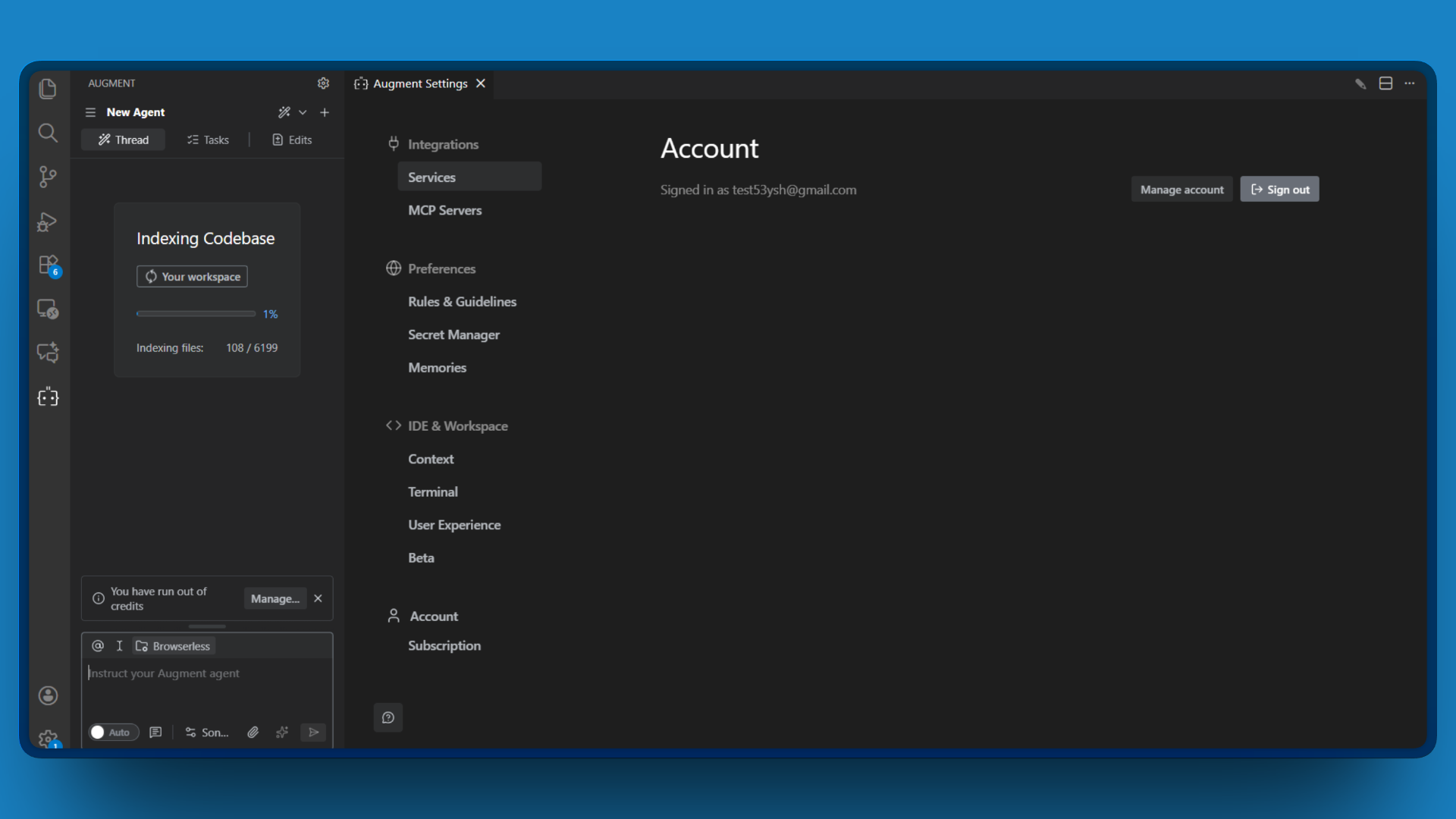
- In the Augment panel, click the gear icon (Settings) in the top-right corner. This opens Augment’s settings page in a new tab.
- Click the MCP Servers section.
- Click “Import from JSON.”
Now it’s time to paste your configuration. Copy the JSON below, replacing<YOUR_API_TOKEN>with the Bright Data token you created in Step 1:
{
  "mcpServers": {
    "Bright Data": {
      "command": "npx",
      "args": ["@brightdata/mcp"],
      "env": {
        "API_TOKEN": ""
      }
    }
  }
}
Restart VS Code to ensure the MCP server initializes properly, and then your Augment will have full access to Bright Data’s web scraping infrastructure.
Alternative: Remote Server Configuration
If you’d prefer not to run anything locally, you can connect directly to Bright Data’s hosted server using SSE (Server-Sent Events):
{
  "mcpServers": {
    "Bright Data": {
      "url": "https://mcp.brightdata.com/sse?token=&pro=1",
      "type": "sse"
    }
  }
}
This remote approach requires zero local setup. The MCP server runs entirely on Bright Data’s infrastructure, which can be useful if you’re working on a machine where you can’t install npm packages or prefer to minimize local dependencies.
Step 3: Verify the Connection
To verify the connection, let’s confirm everything is working before diving into advanced features.
- Open the Augment Code panel in VS Code by clicking the Augment icon in the Activity Bar.
- Start a new chat and type a simple request that requires web access, such as:
“Search the web for ‘Python 3.13 new features’ and summarize the top results.”
- Watch as Augment Code invokes the
search_enginetool and returns current search results.
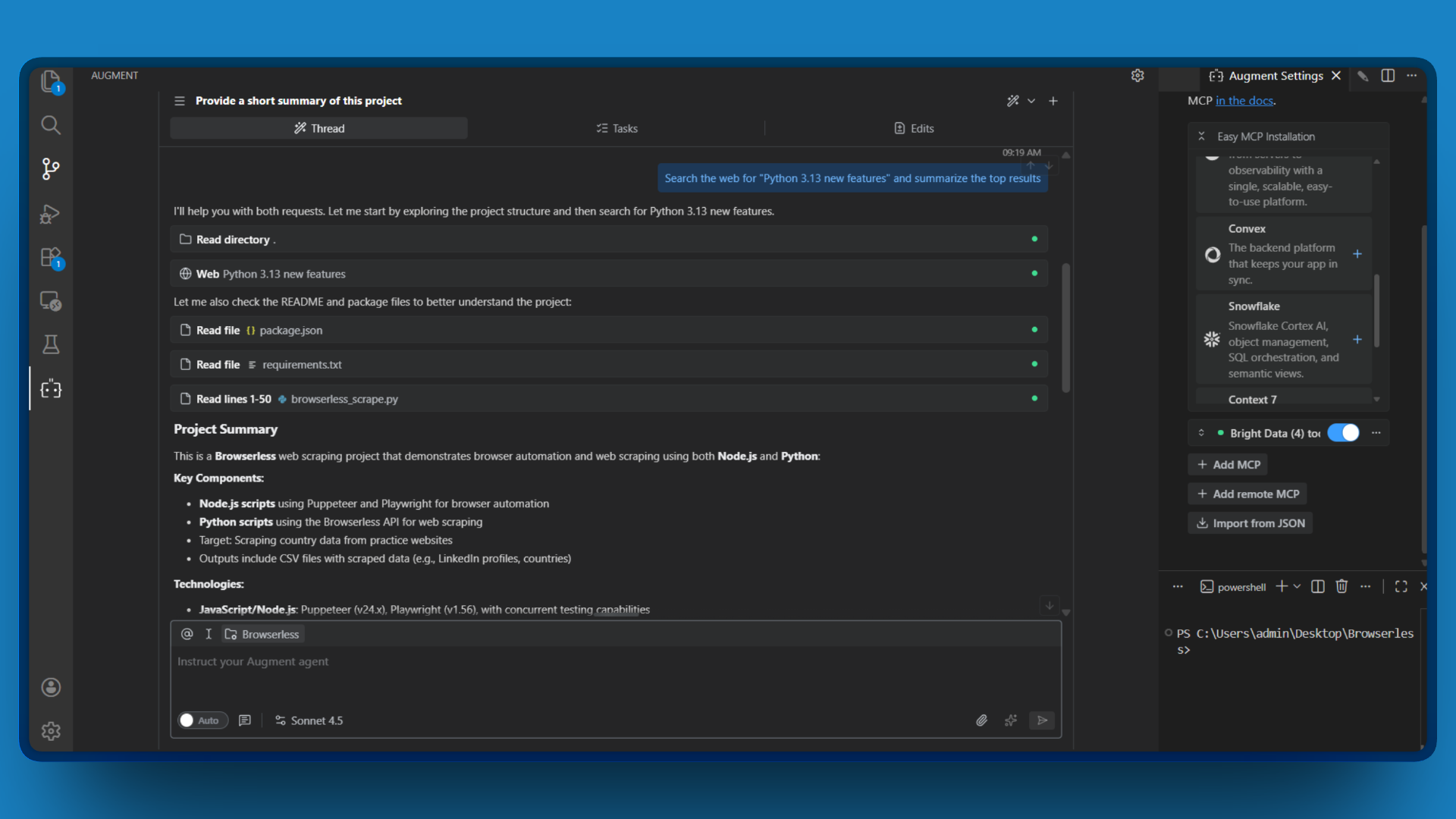
If you see search results pulled from the live web, congratulations! Your Bright Data MCP connection is working.
When you ask Augment Code to search the web, here’s the flow:
- Augment Code analyzes your request and determines it needs web data
- MCP Client (built into Augment) queries the Bright Data MCP Server for available tools
- MCP Server returns the tool list, including search_engine
- Augment Code invokes search_engine with your query
- Bright Data executes the search using its SERP API, handling geo-targeting and anti-bot measures automatically
- Results flow back through MCP to Augment Code, which formats them for you
This entire process happens in seconds. You never leave your IDE.
With the connection verified, you’re ready to explore what these tools can actually do.
Using the Classic Bright Data MCP Tools
Now that the connection is established, let’s explore the foundational tools that work in both Rapid Mode (free) and Pro Mode.
Web Search with search_engine
The search_engine tool queries Google, Bing, or Yandex and returns structured results. It’s perfect for:
- Researching current API documentation when you need the latest endpoints
- Finding recent tutorials or Stack Overflow answers for unfamiliar libraries
- Checking current versions of packages before adding dependencies
- Gathering competitive intelligence on similar products or services
For example, if you tell Augment to:
Search for the latest Next.js 15 breaking changes and list them
Augment Code invokes search_engine, processes the results, and gives you a summary of breaking changes with sources. No tab switching required.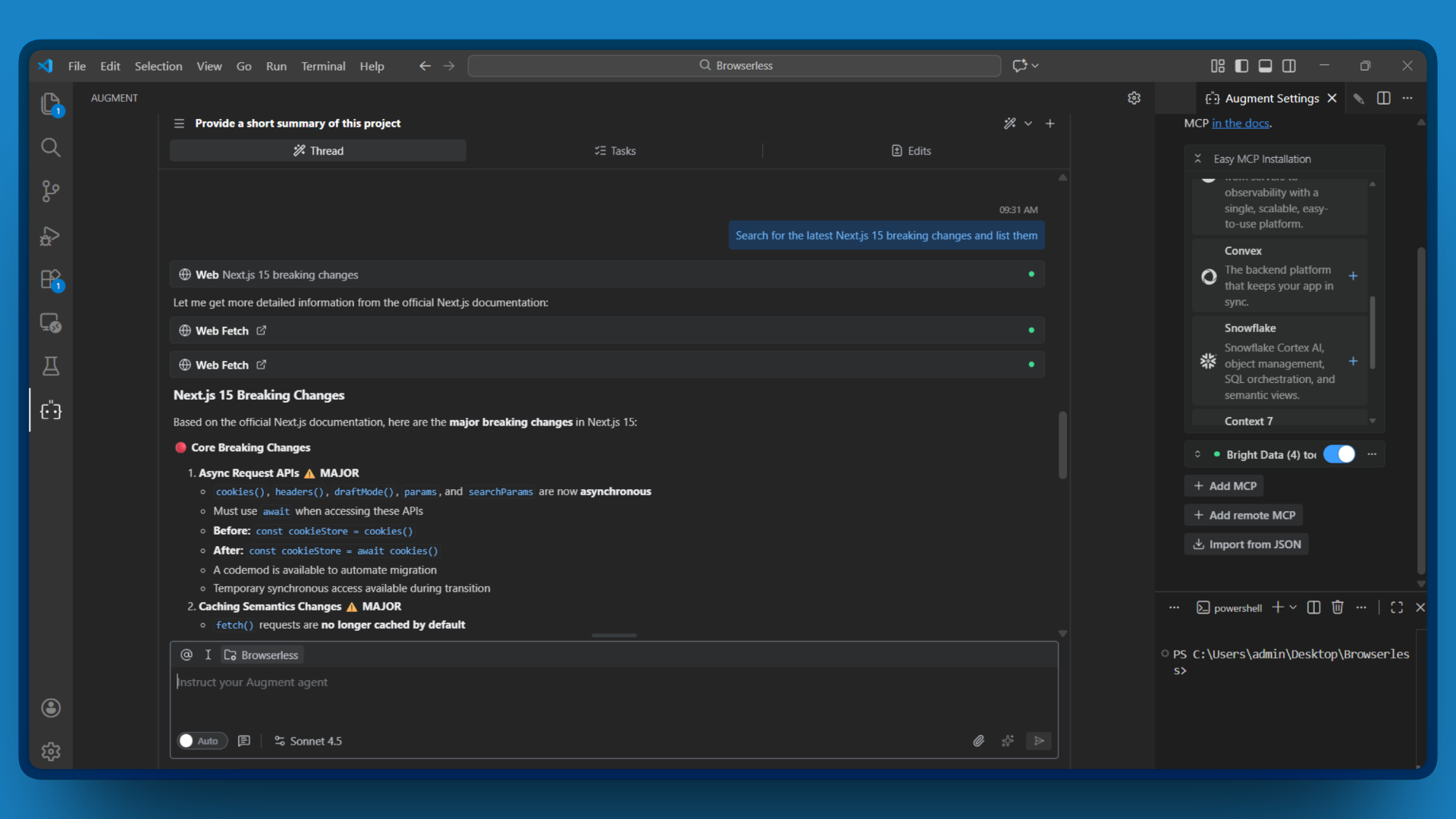
For batch searches (up to 10 queries at once), Pro Mode unlocks search_engine_batch.
Page Scraping with scrape_as_markdown
When you need the full content of a specific page, scrape_as_markdown fetches it and converts the HTML to clean Markdown. This tool uses Web Unlocker technology to bypass CAPTCHAs and anti-bot measures automatically.
Example prompt:
Scrape the Stripe API documentation at https://stripe.com/docs/api and explain their authentication methods
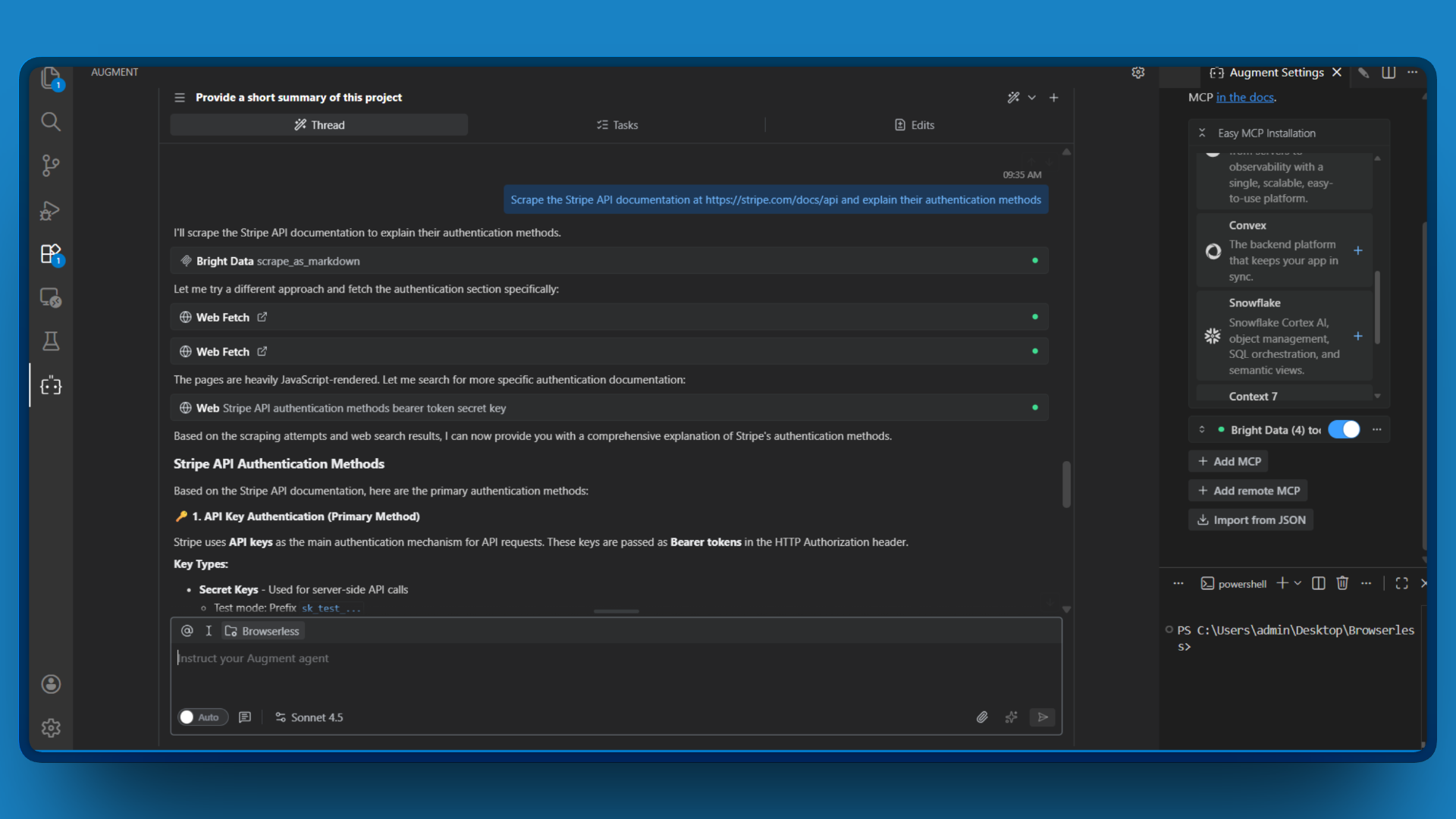
The tool returns the page content as Markdown, which Augment Code analyzes and summarizes. You get the information you need without manually reading through dense documentation.
Structured Data with Web Data APIs
For popular platforms, manually parsing HTML is unnecessary. Pro Mode includes pre-built extractors that return clean, structured JSON.
Example prompt:
Get the product details for this Amazon listing: https://www.amazon.com/dp/B0CHX3QBCH
The web_data_amazon_product tool returns structured data including title, price, ratings, reviews, and specifications. No parsing code required.
Available extractors cover 60+ platforms including:
- E-commerce: Amazon, Walmart, eBay, Etsy, Best Buy, Google Shopping
- Social: LinkedIn, Instagram, Facebook, TikTok, X/Twitter, YouTube, Reddit
- Business: Crunchbase, ZoomInfo, Zillow, Google Maps
- Finance: Yahoo Finance
See the complete list in the MCP tools documentation.
With multiple tools available, knowing which one to reach for in different situations will help you work more efficiently.
Choosing the Right Tool
Different tools suit different situations. Use this table to pick the right one:
| Situation | Recommended Tool | Why |
|---|---|---|
| Quick factual lookup | search_engine |
Fast, returns structured results, low cost |
| Need full page content | scrape_as_markdown |
Handles anti-bot measures, returns clean text |
| Page requires JavaScript | scraping_browser_navigate |
Renders JS, waits for dynamic content |
| Login or multi-step flow | Scraping Browser tools | Can click, type, handle auth |
| Amazon, LinkedIn, etc. | web_data_* APIs |
Returns structured JSON, no parsing needed |
| Multiple searches at once | search_engine_batch |
Up to 10 queries, more efficient |
Rule of thumb: Start with the simplest tool that might work. Move to browser automation only when simpler methods fail.
Even with the right tool selected, you may occasionally run into issues. Here’s how to diagnose and fix the most common problems.
Troubleshooting Common Issues
Running into problems? Here are solutions to the most common issues:
“Tool not found” Error
If Augment Code can’t find Bright Data tools, start by verifying your API token is correct and hasn’t expired. Next, check that the MCP configuration was saved properly, and try restarting Augment Code completely rather than just reloading. If the issue persists, check the Augment logs for connection errors.
Slow Responses
Browser automation naturally takes longer than simple scraping, so if responses seem slow, there are a few things to keep in mind. JavaScript rendering takes time because the Scraping Browser needs to fully render pages before interacting with them. Complex pages with many interactive elements require larger snapshots, which also increases processing time.
For simpler pages that don’t require interaction, consider using scrape_as_markdown as a faster alternative.
Rate Limiting
If you hit rate limits, start by checking your usage in the Bright Data dashboard. You can also adjust the RATE_LIMIT environment variable in your configuration to better manage request frequency. For demanding projects that require higher limits, consider upgrading your plan.
Beyond technical issues, connecting AI agents to the web introduces security considerations worth keeping in mind.
Security Best Practices
When connecting AI agents to the web, security matters. Keep these principles in mind:
- Treat scraped content as untrusted. Never execute code from scraped pages or pass raw content to eval().
- Use structured extraction when available. The web_data_* tools return validated JSON, reducing injection risks compared to raw HTML parsing.
- Store API tokens securely. Use environment variables, not hardcoded values in your codebase.
- Review agent actions. Monitor what your agent is doing, especially in production environments.
With these practices in place, you’re ready to start building.
Conclusion
Bright Data’s MCP Server transforms Augment Code from a code-focused assistant into a web-aware agent capable of gathering real-time information. With 60+ tools for search, scraping, browser automation, and structured extraction (backed by 400M+ residential IPs and 99.95% success rates), your AI coding assistant can now:
- Research current documentation and live APIs
- Gather competitive intelligence automatically
- Automate complex data collection workflows
- Navigate dynamic websites with multi-step interactions
The Scraping Browser tools are particularly powerful for agentic systems. Using ARIA snapshots and stable element refs, your agent handles login flows, multi-step forms, and dynamic content that would stump simpler scraping approaches.
Ready to give your AI coding assistant real-time web access?
For more advanced techniques, check out our guides on building AI agents with LlamaIndex and integrating MCP with CrewAI.



Technical Writer
Arindam Majumder is a developer advocate, YouTuber, and technical writer who simplifies LLMs, agent workflows, and AI content for 5,000+ followers.