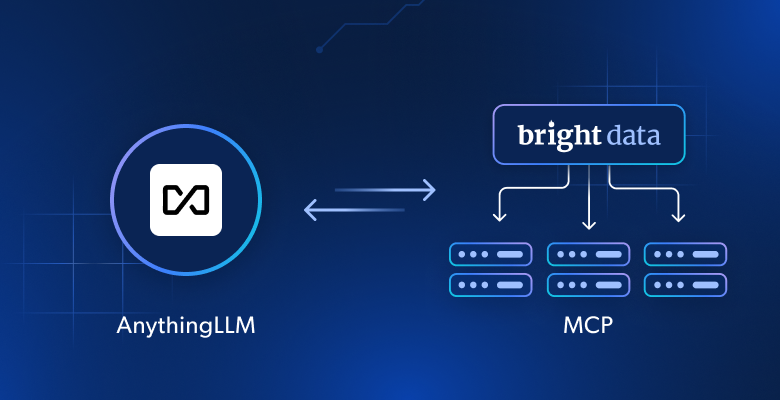
In this article, you will learn:
- What AnythingLLM is and what makes it stand out.
- Why integrating Bright Data MCP into AnythingLLM can greatly improve its capabilities.
- How to connect Bright Data MCP to AnythingLLM and use it with any supported AI model.
Let’s dive in!
What Is AnythingLLM?
AnythingLLM is an open-source, all-in-one AI platform for building private, local AI assistants that let you chat with your own documents (PDFs, text files, and more) using any LLM. It also supports RAG, AI agents, and several other workflows.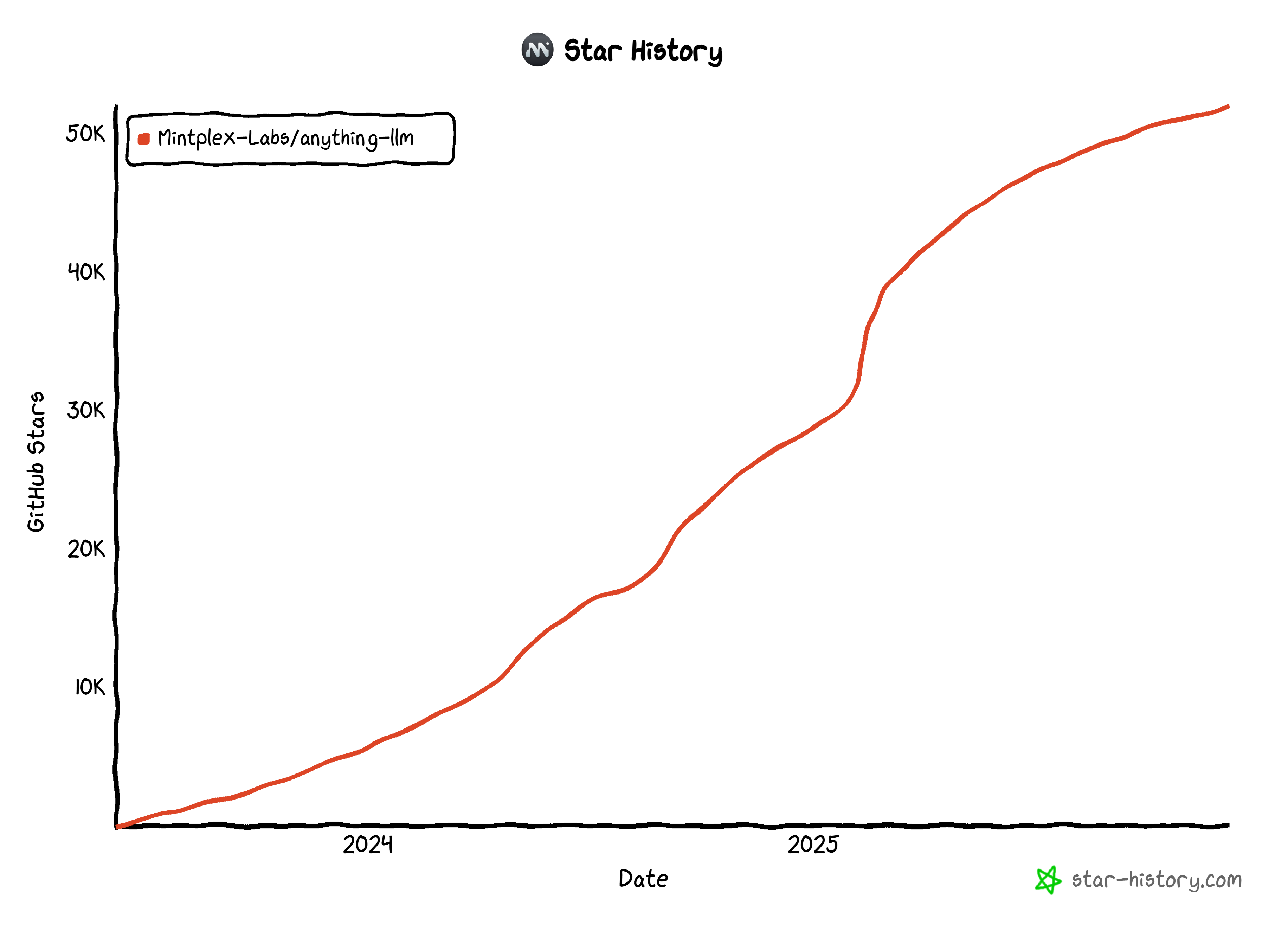
With over 52k stars on GitHub, AnythingLLM has become one of the most popular open-source AI solutions available. Its popularity comes from its rich feature set, which includes:
- Document interaction: Upload and chat with files such as PDF, TXT, and PPTX.
- Local and cloud LLMs: Use open-source models (Llama, Mistral, etc.) or commercial APIs (OpenAI, Anthropic, Gemini, and many others).
- RAG and citations: Retrieve relevant context from documents with cited sources.
- Privacy-focused: Desktop and mobile apps run locally to keep your data private.
- Multi-user and workspaces: Configure user management, permissions, and shared spaces.
- AI agents and tools: Built-in agents for research, scraping, and tool-based workflows, with support for MCP integration.
- Vector database support: Integrate with local or cloud vector stores for efficient retrieval.
Why Extend AnythingLLM with Bright Data MCP
AnythingLLM makes it easy to extend your AI models with external tools through MCP servers. Once you connect an MCP server at the workspace level, its tools immediately become available to any AI agent you configure. Then, when you switch models in your workspace, the new model will still have full access to the same MCP tools.
This flexibility is one of AnythingLLM’s greatest strengths. You can experiment with different models, compare their outputs, or upgrade to a more capable LLM without ever touching your MCP configuration.
Now, which MCP server delivers the most value? The one that addresses the biggest limitations of LLMs: outdated knowledge and the inability to interact with websites!
That is exactly what Bright Data MCP is engineered to solve. This Bright-Data-powered open-source MCP server allows any AI model in AnythingLLM to search the web, retrieve live data, and interact with websites programmatically.
Bright Data MCP includes more than 60 AI-ready tools built on top of Bright Data’s web automation and data collection infrastructure. Even on the free tier, it gives you access to two useful tools:
| Tool | Description |
|---|---|
search_engine |
Fetch Google, Bing, or Yandex results in JSON or Markdown format. |
scrape_as_markdown |
Scrape any webpage into clean Markdown while bypassing anti-bot measures. |
Then, in the premium tier (Pro mode), Bright Data MCP unlocks structured data extraction from popular platforms like Amazon, Zillow, LinkedIn, YouTube, TikTok, Google Maps, and Yahoo Finance. It also provides tools for automated browser actions and many other advanced workflows.
Let’s walk through how to use Bright Data MCP inside AnythingLLM!
How to Integrate Bright Data MCP into AnythingLLM
In this tutorial section, you will learn how to use Bright Data MCP inside AnythingLLM through its built-in AI agents. This setup delivers an enhanced AI experience, regardless of which model you configure.
Follow the instructions below!
Prerequisites
To follow this tutorial, make sure you have:
- Node.js installed locally (required to run Bright Data MCP on your machine).
- A Bright Data account with an active API key.
- A machine that meets AnythingLLM’s system requirements.
- An LLM API key from one of the supported providers (here, we will target Gemini, so you will need a Google Gemini API key).
No need to set up the Bright Data account just yet, as you will be guided through that in the next steps. Having some familiarity with how MCP works and the tools available in Bright Data MCP will also be helpful.
Step #1: Install AnythingLLM Locally
Download the AnythingLLM Desktop installer, execute it, and follow the installation wizard. Otherwise, proceed with the AnythingLLM Docker setup.
Note: For AnythingLLM to use your GPU (NVIDIA or AMD) or even your NPU, it needs to install some additional dependencies. You will be prompted to install these packages. Select “Yes” to avoid reduced performance when running local LLMs.
Once it is set up on your machine, start AnythingLLM.
You now have AnythingLLM running locally as expected. Time to continue the setup wizard.
Step #2: Complete the Setup
First, AnythingLLM will ask you to integrate one of the supported LLMs.
If you have Ollama installed locally, the models you downloaded through it will appear as “suggested models.” This happens because the AnythingLLM desktop app includes a built-in local LLM powered by Ollama. If you want to use Ollama directly, see how to integrate Bright Data MCP into Ollama.
Select the model that best fits your needs. We will use Gemini in this example: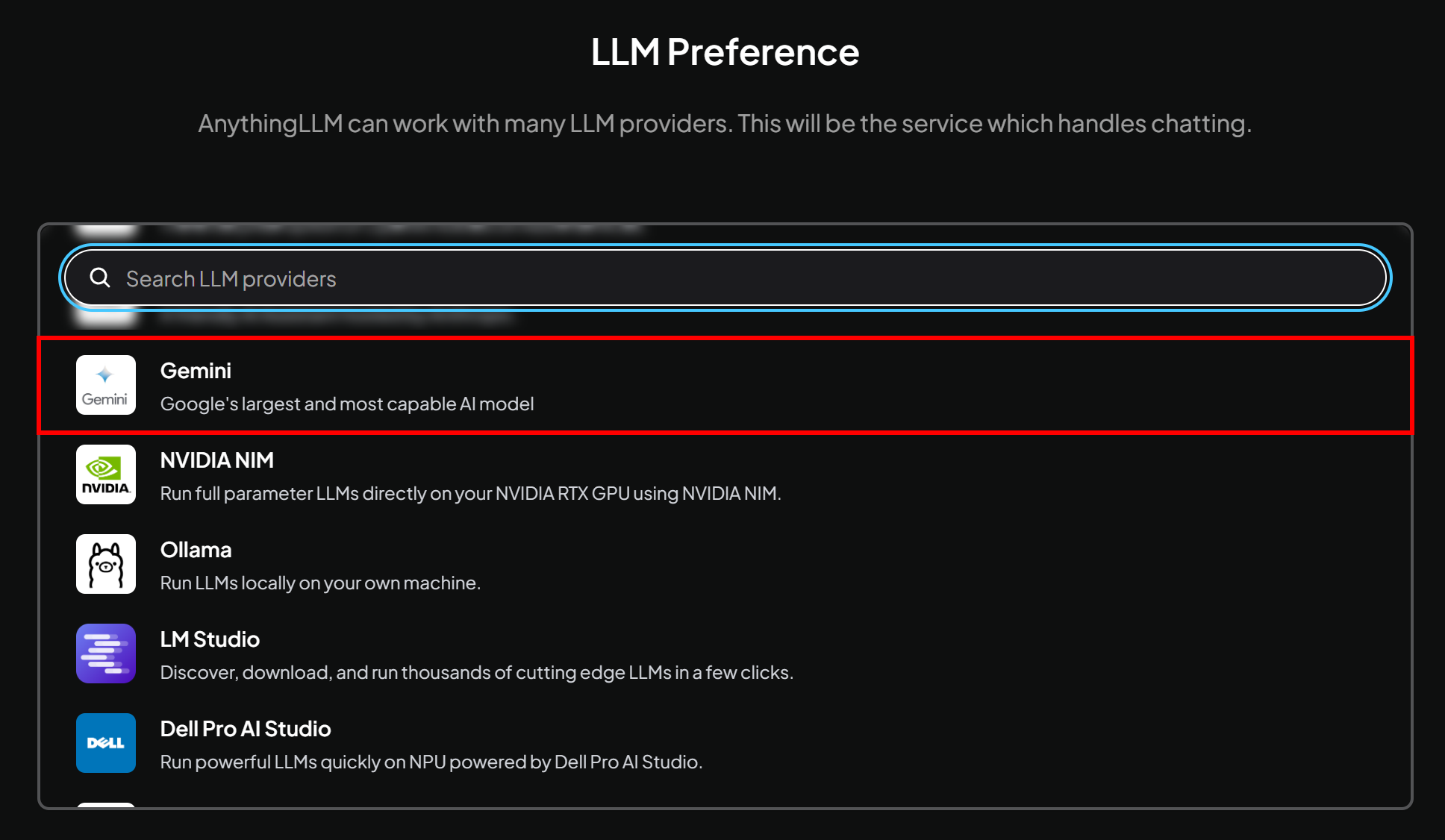
Note: Any LLM that supports tool calling via MCP will work for this integration, so feel free to choose any other LLM available in AnythingLLM.
You will be asked for a Gemini API key and to select the specific model you want to use. Paste your API key and, for this example, choose the gemini-2.5-flash model.
Again, any other Gemini model will also work.
Press the “→” arrow on the right to continue the wizard: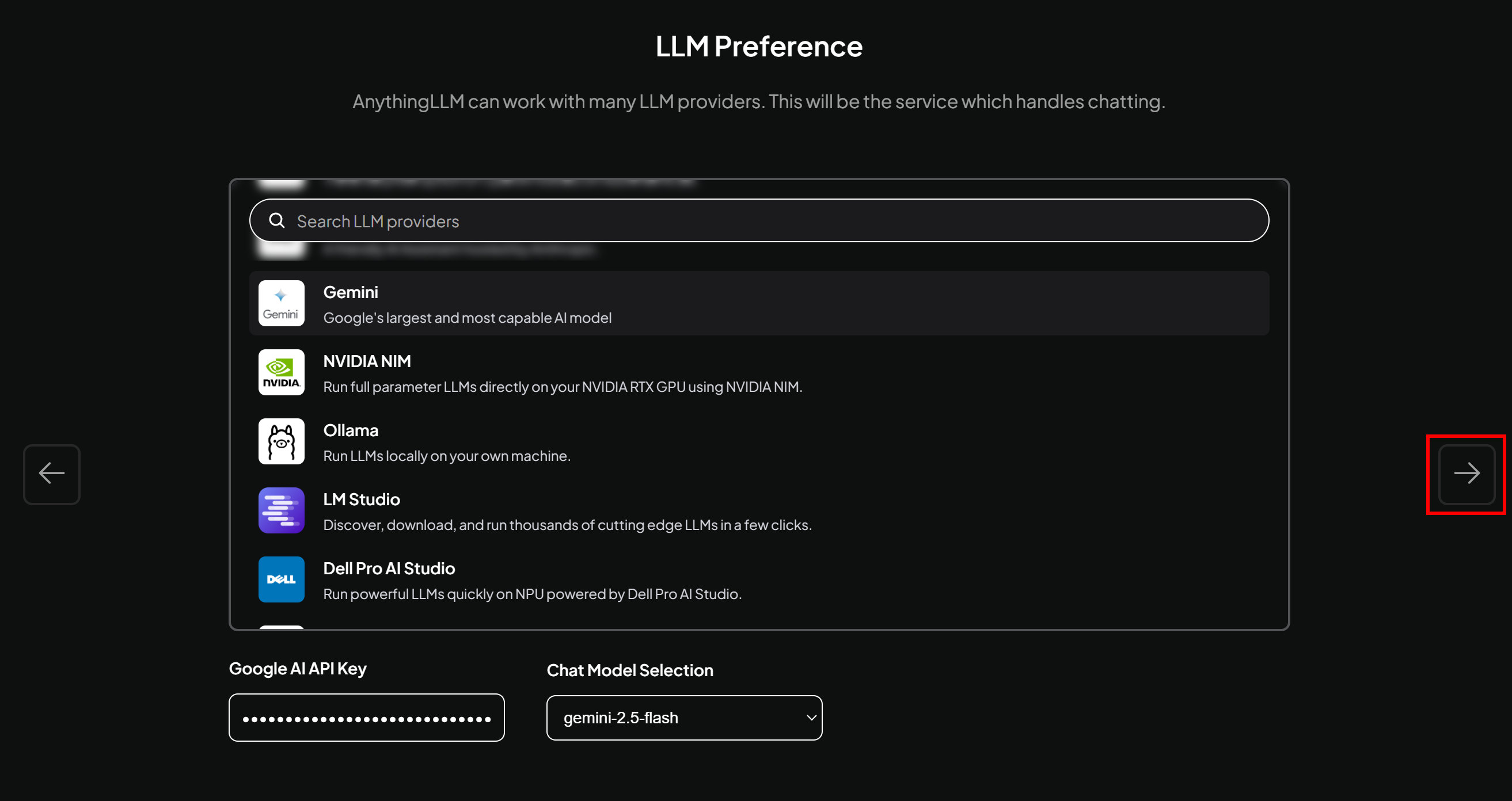
Acknowledge the “Data Handling & Privacy” statement and continue with the “→” button: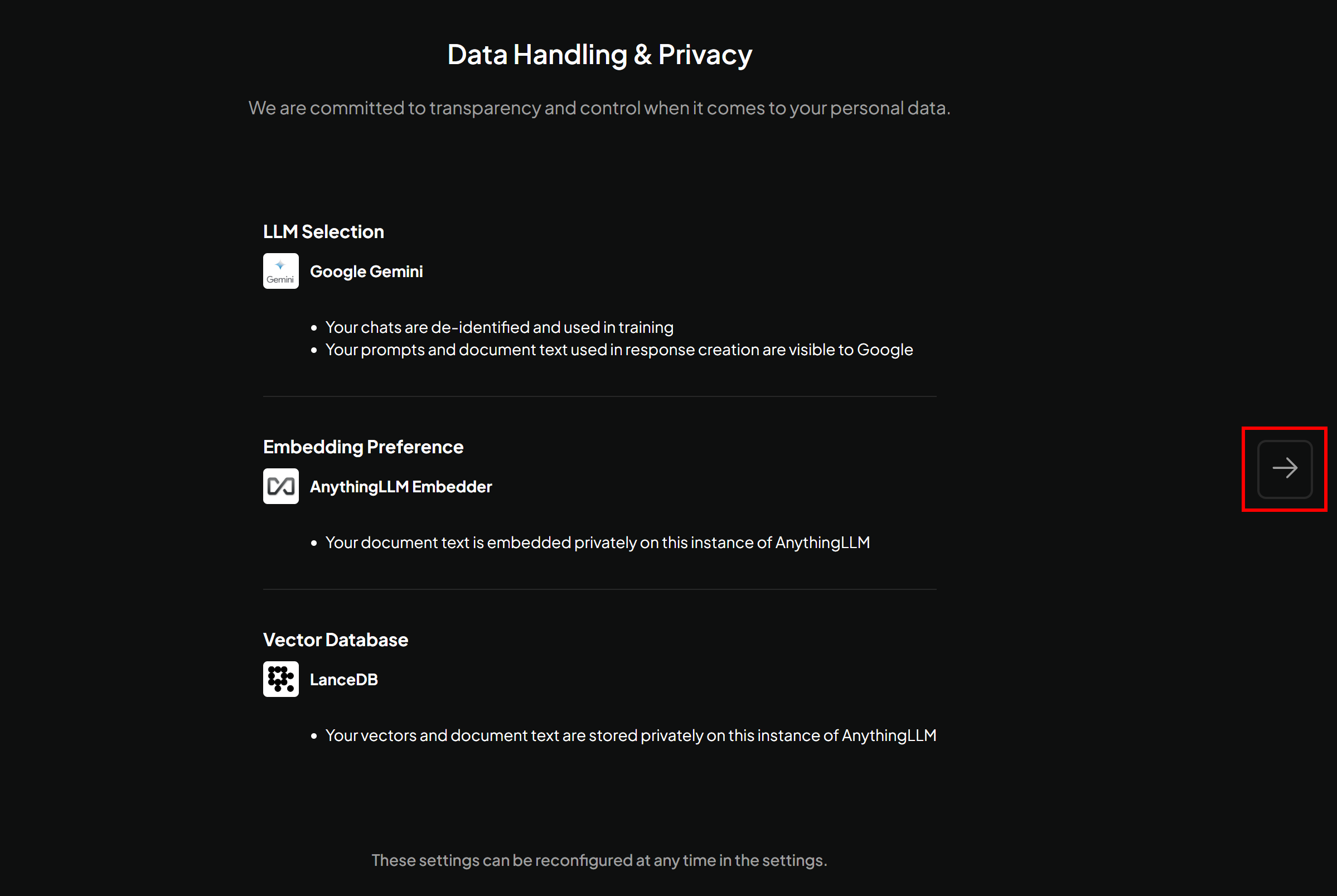
Next, choose to participate in the optional AnythingLLM survey or simply skip it.
Then, you will be prompted to create a workspace. Give your workspace a meaningful name based on your use case. In this example, for simplicity, we will name it “Bright Data MCP + AnythingLLM”: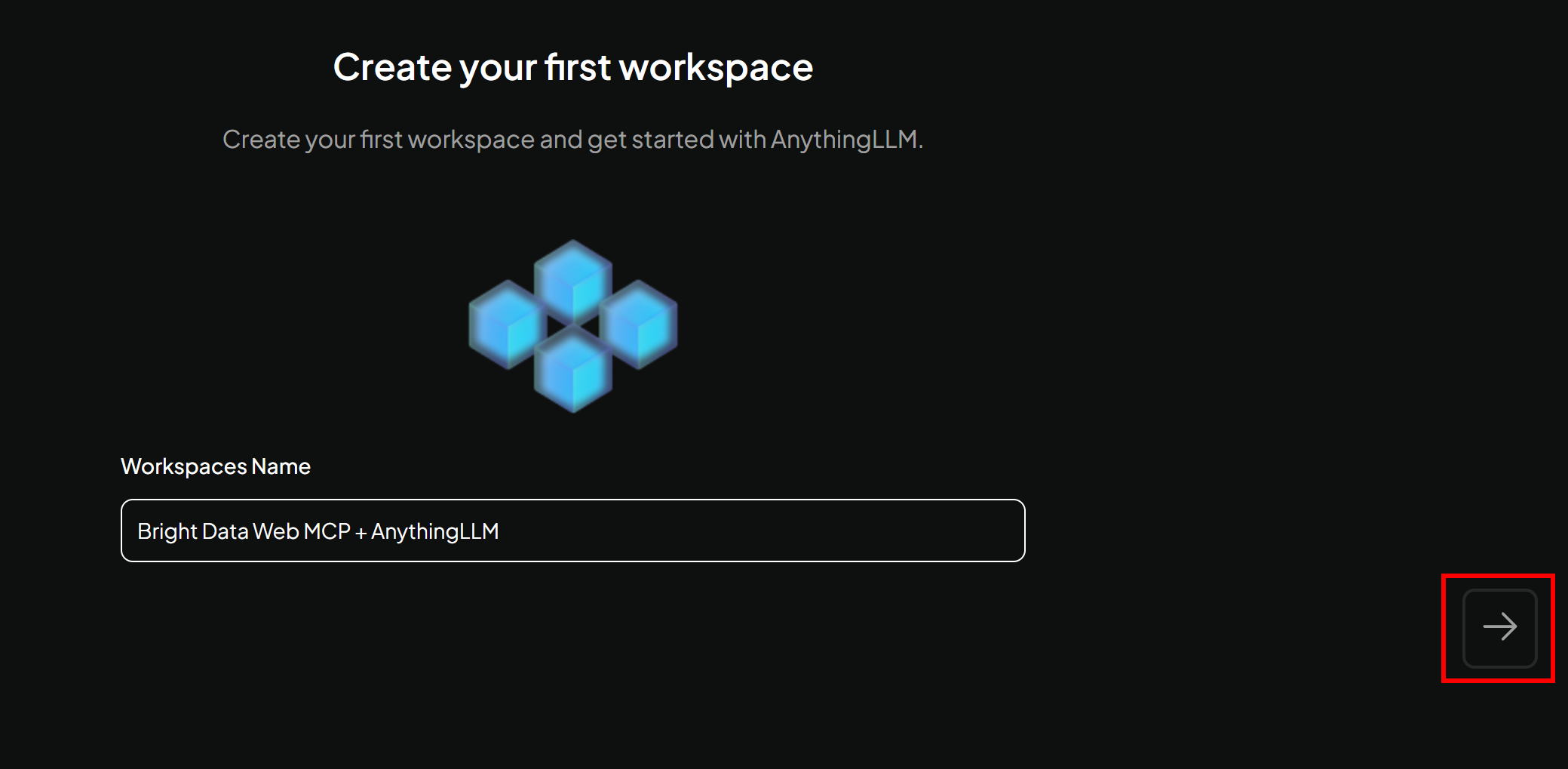
You will finally reach the AnythingLLM home page: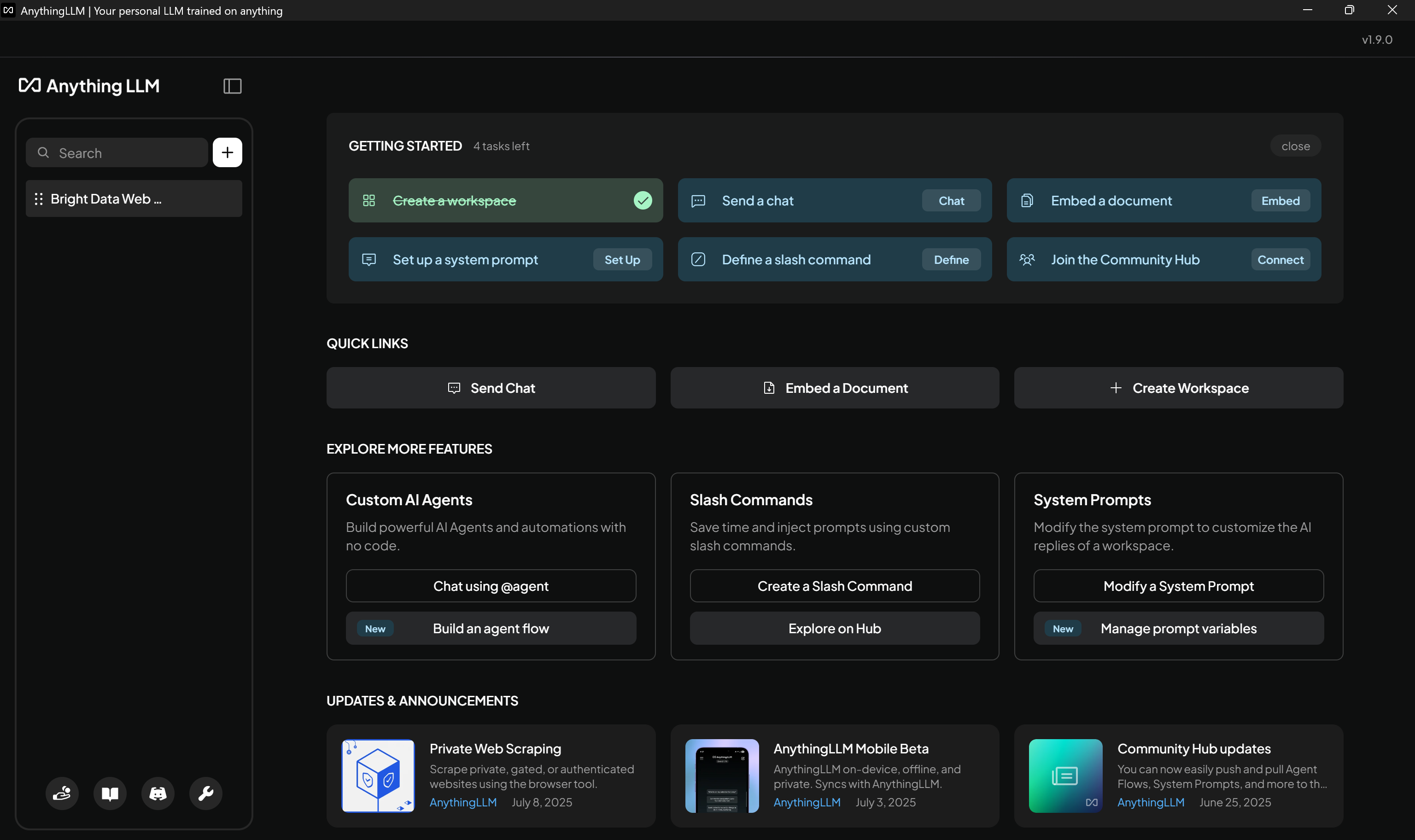
From here, you can access all the AnythingLLM features and options. Well done!
Step #3: Set Up Bright Data MCP
Before connecting AnythingLLM to Bright Data MCP, make sure your local machine can run the MCP server. This is important because we will demonstrate connecting to the Bright Data MCP server locally.
Note: Bright Data MCP is also available as a remote server via SSE and Streamable HTTP. This option is better suited for enterprise-grade use cases.
First, you need a Bright Data account. If you already have one, simply log in. For a quick setup, follow the instructions in the “MCP” section of your dashboard: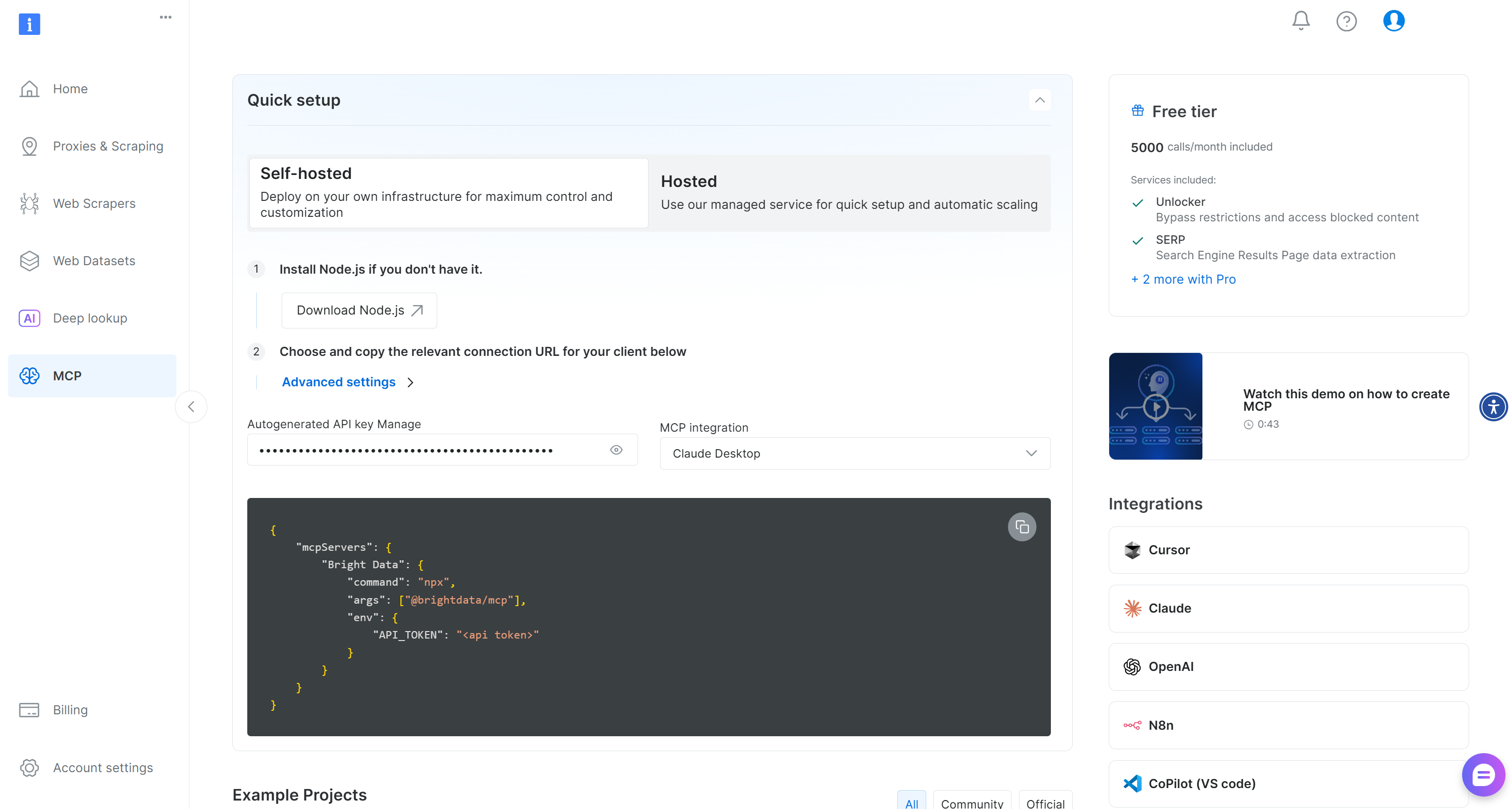
Follow the instructions on that page, or for additional guidance, refer to the instructions below.
Start by generating your Bright Data API key. Store it in a safe place, as you will use it shortly to authenticate your local Bright Data MCP instance with your Bright Data account.
Next, install the Bright Data MCP globally on your machine using the @brightdata/mcp package:
npm install -g @brightdata/mcpVerify that the MCP server runs locally by executing:
API_TOKEN="<YOUR_BRIGHT_DATA_API>" npx -y @brightdata/mcpOr, equivalently, in PowerShell:
$Env:API_TOKEN="<YOUR_BRIGHT_DATA_API>"; npx -y @brightdata/mcpReplace the <YOUR_BRIGHT_DATA_API> placeholder with your Bright Data API token. The two (equivalent) commands set the required API_TOKEN environment variable and start the Bright Data MCP server locally.
If successful, you should see output similar to this:
By default, on the first launch, Bright Data MCP creates two zones in your Bright Data account:
mcp_unlocker: A zone for Web Unlocker.mcp_browser: A zone for Browser API.
These services power the 60+ tools available in Bright Data MCP.
To verify that the zones were created, go to the “Proxies & Scraping Infrastructure” page in your Bright Data dashboard. You should see both zones listed in the table: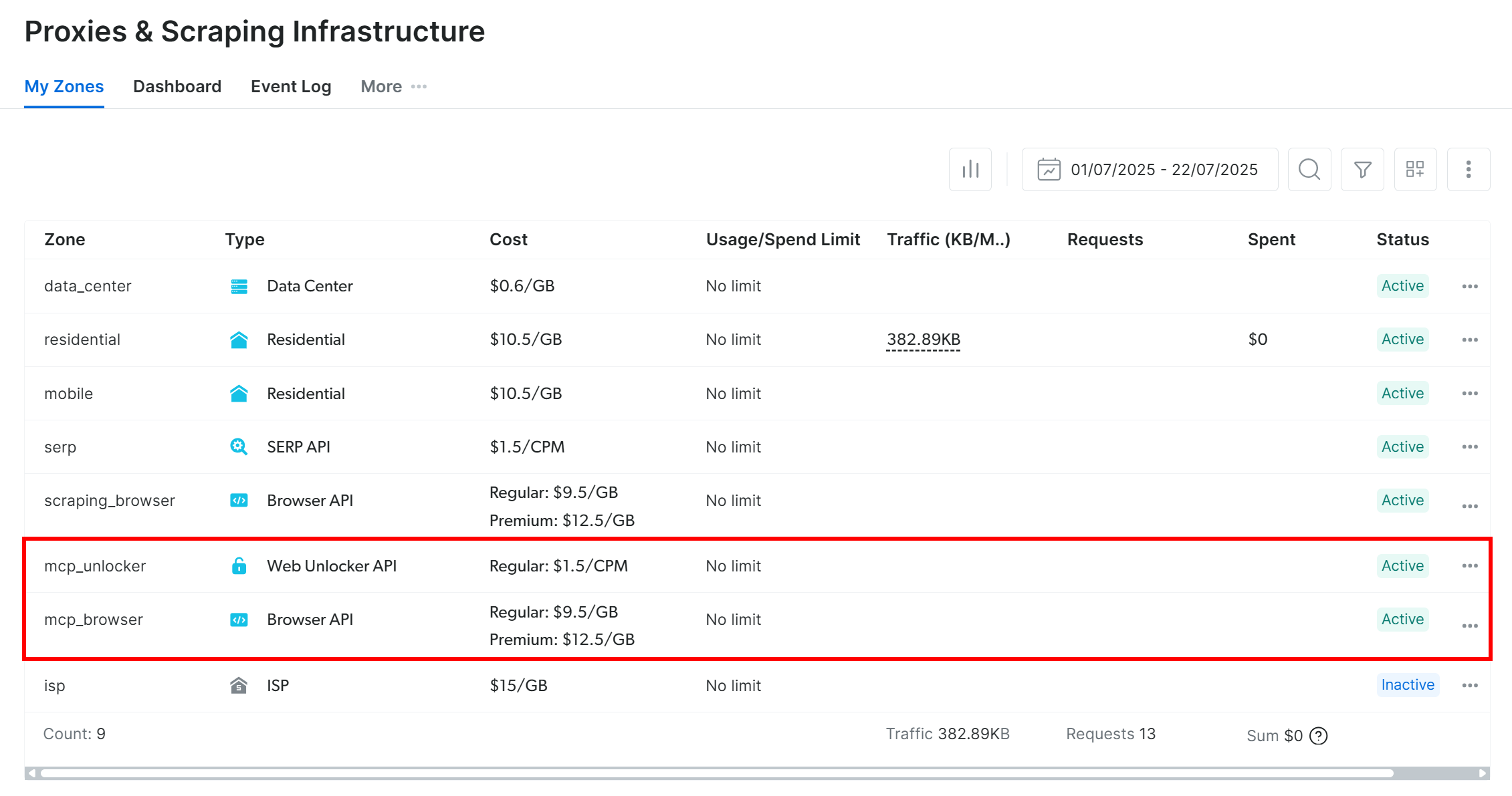
On the Bright Data MCP free tier, only the search_engine and scrape_as_markdown tools (and their batch versions) are available.
To unlock all tools, enable Pro mode by setting the PRO_MODE="true" environment variable:
API_TOKEN="<YOUR_BRIGHT_DATA_API>" PRO_MODE="true" npx -y @brightdata/mcpOr, on Windows:
$Env:API_TOKEN="<YOUR_BRIGHT_DATA_API>"; $Env:PRO_MODE="true"; npx -y @brightdata/mcpPro mode unlocks all 60+ tools, but it is not included in the free tier and may incur additional charges.
Amazing! You have now verified that the Bright Data MCP server runs on your machine. Stop the MCP process, as you will next configure AnythingLLM to start the server locally and connect to it.
Step #4: Integrate Bright Data MCP into AnythingLLM
To configure an MCP server in AnythingLLM, edit the mcpServers object in the anythingllm_mcp_servers.json configuration file. If you are using AnythingLLM via Docker, follow the dedicated guide.
That configuration file is automatically created, the first time you open the “Agent Skills” page in the AnythingLLM UI. So, get ready to reach “Agent Skills” in the UI.
Begin by pressing the “Open settings” icon in the bottom-left corner.
Then, proceed by clicking the “Agent Skills” option in the left menu: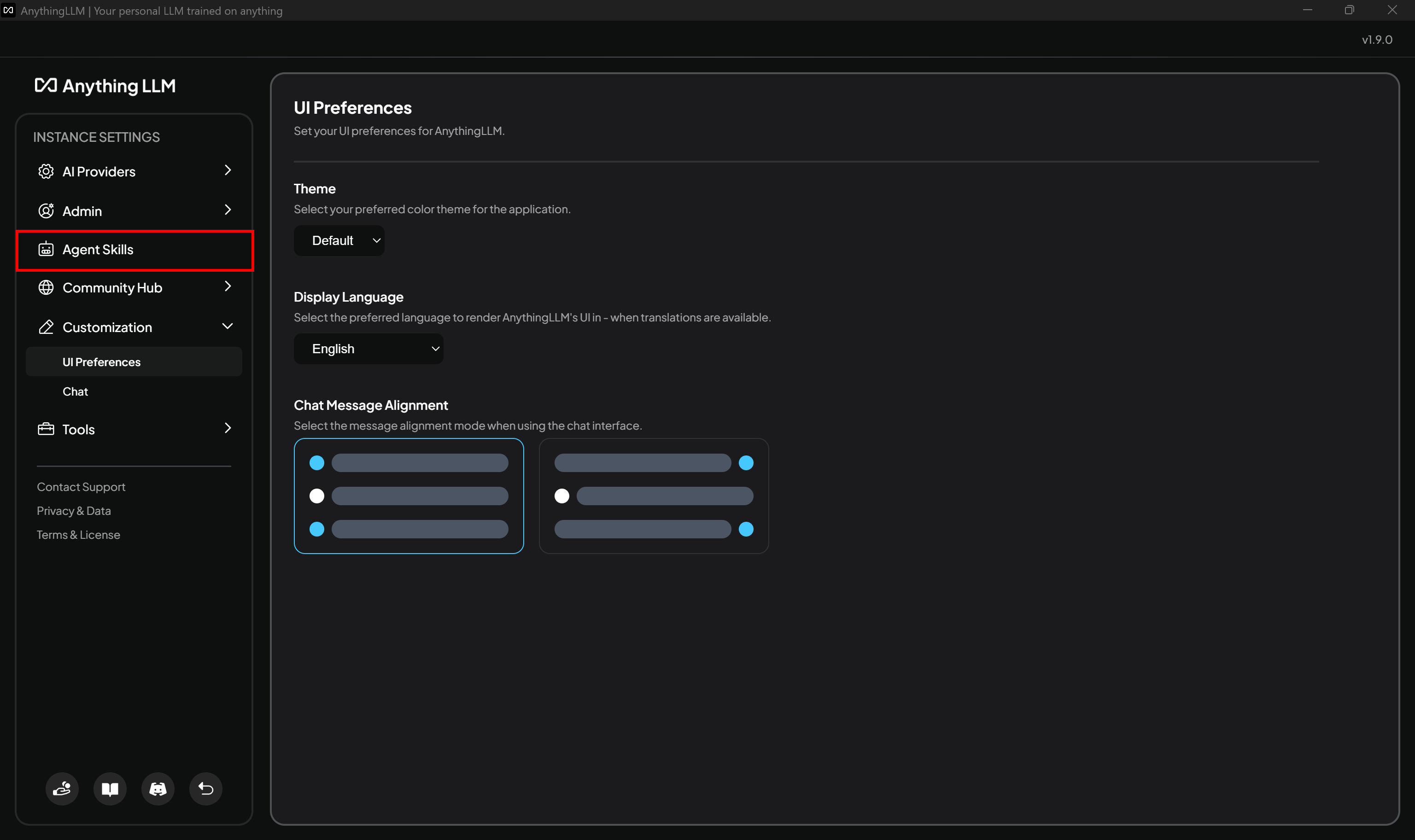
You will reach the “Agent Skills” page:
Contextually, the anythingllm_mcp_servers.json configuration file will be created at the following paths:
- On Mac:
/Users/<user>/Library/Application Support/anythingllm-desktop/storage/plugins/ - On Linux:
~/.config/anythingllm-desktop/storage/plugins/ - On Windows:
C:\Users\<user>\AppData\Roaming\anythingllm-desktop\storage\plugins\
Replace <user> with your actual username.
Now, locate the anythingllm_mcp_servers.json file: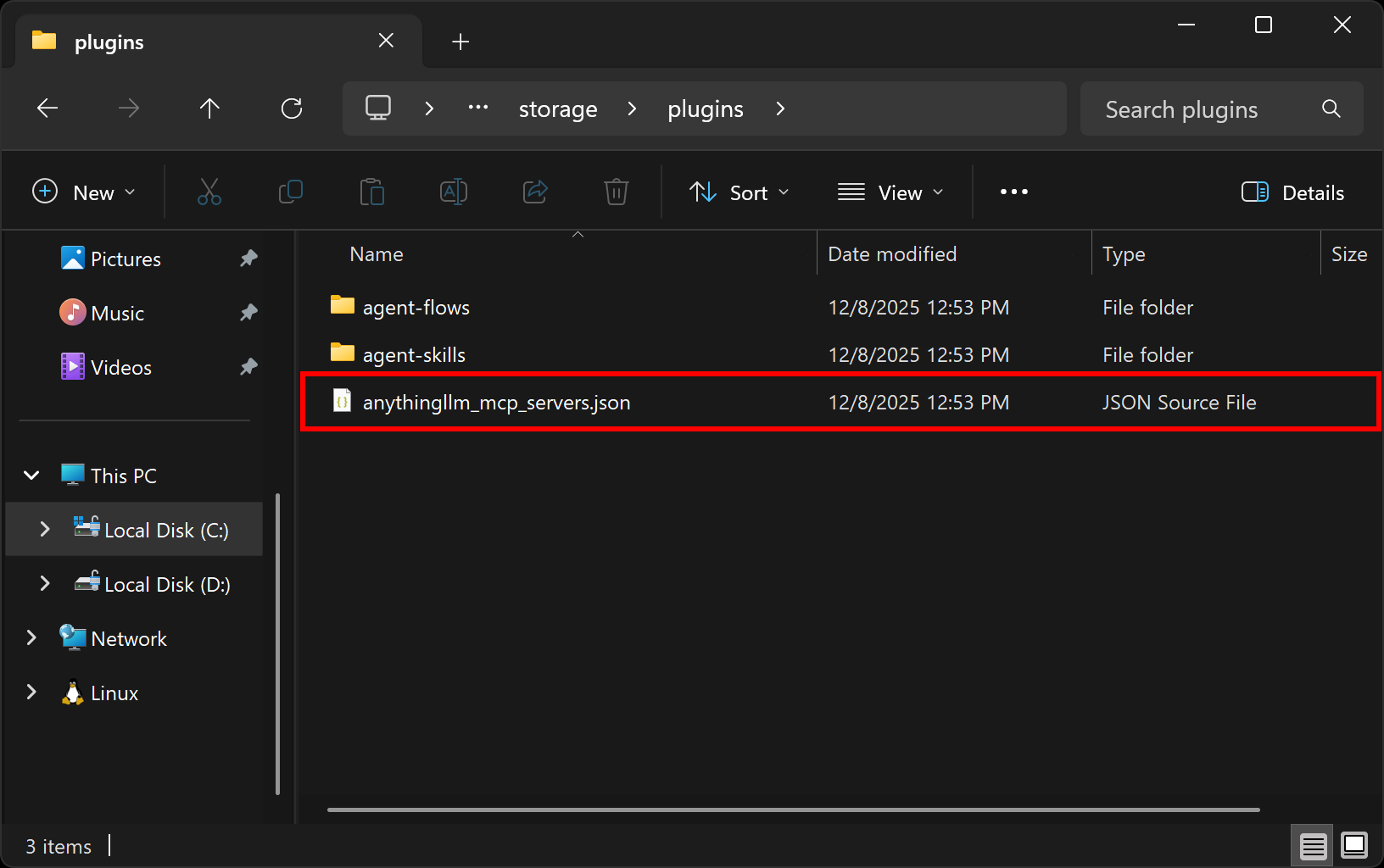
Open it in your favorite IDE and make sure it contains:
{
  "mcpServers": {
    "bright-data": {
      "command": "npx",
      "args": [
        "-y",
        "@brightdata/mcp"
      ],
      "env": {
        "API_TOKEN": "<YOUR_BRIGHT_DATA_API_KEY>",
        "PRO_MODE": "true"
      }
    }
  }
}
This setup mirrors the npx command you tested earlier, using environment variables for credentials and settings:
API_TOKENis required. Set it to the Bright Data API key you generated earlier.PRO_MODEis optional. Remove it if you want to stay on the free tier and use only thesearch_engineandscrape_as_markdowntools.
For more information on how to populate that configuration file, refer to the documentation.
Save the anythingllm_mcp_servers.json file, and AnythingLLM should now be able to communicate with your local Bright Data MCP instance. Let’s test the connection!
Step #5: Verify the Bright Data MCP Connection
To confirm that AnythingLLM can connect to your Bright Data MCP server instance, click the “Refresh” button on the “Agent Skills” page: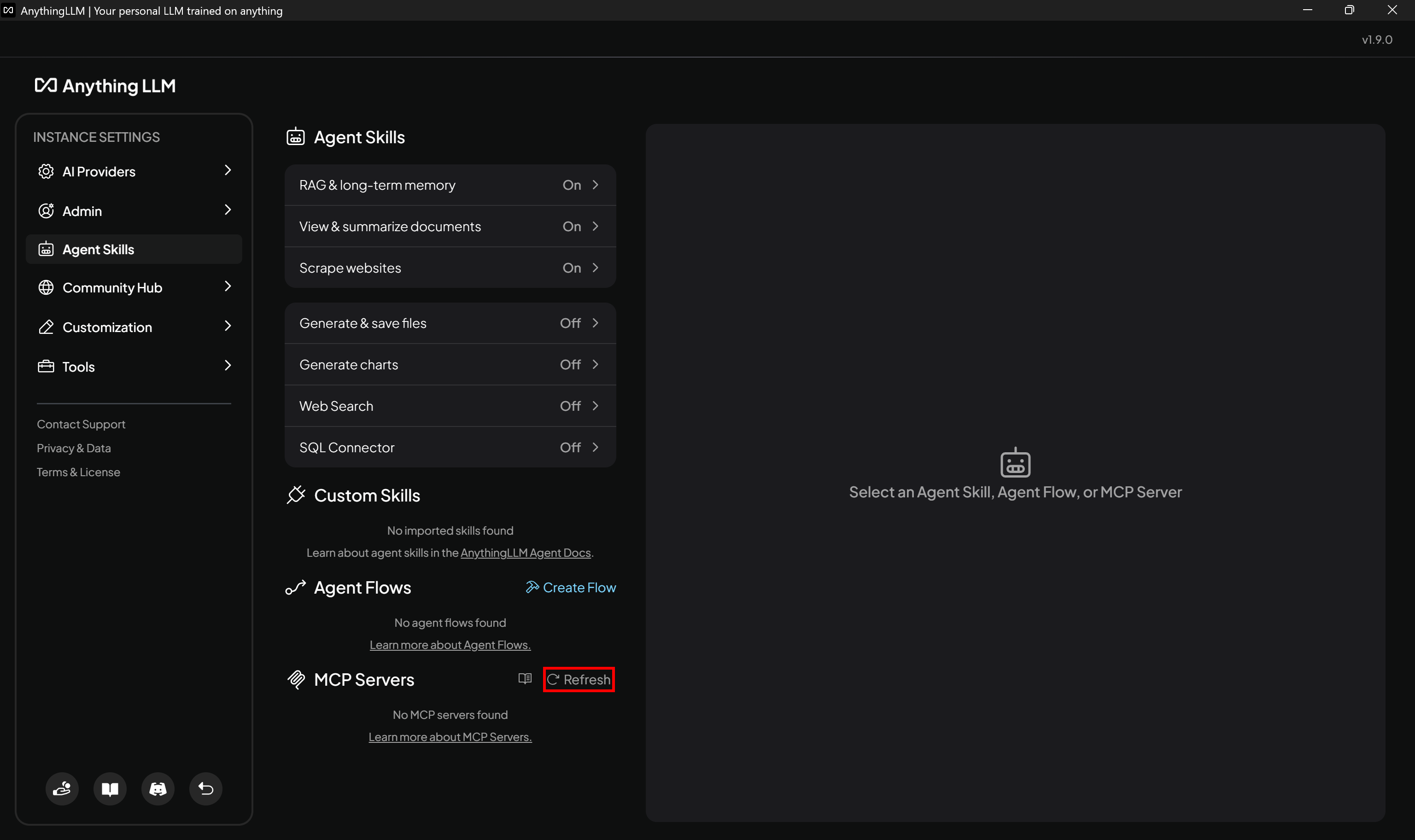
Note: You do not need to restart the AnythingLLM Desktop application, as the changes you made to the anythingllm_mcp_servers.json configuration file will be applied on the fly.
In the “MCP Servers” section, you should see a “Bright Data” entry. Click on it to view the list of all tools available via MCP: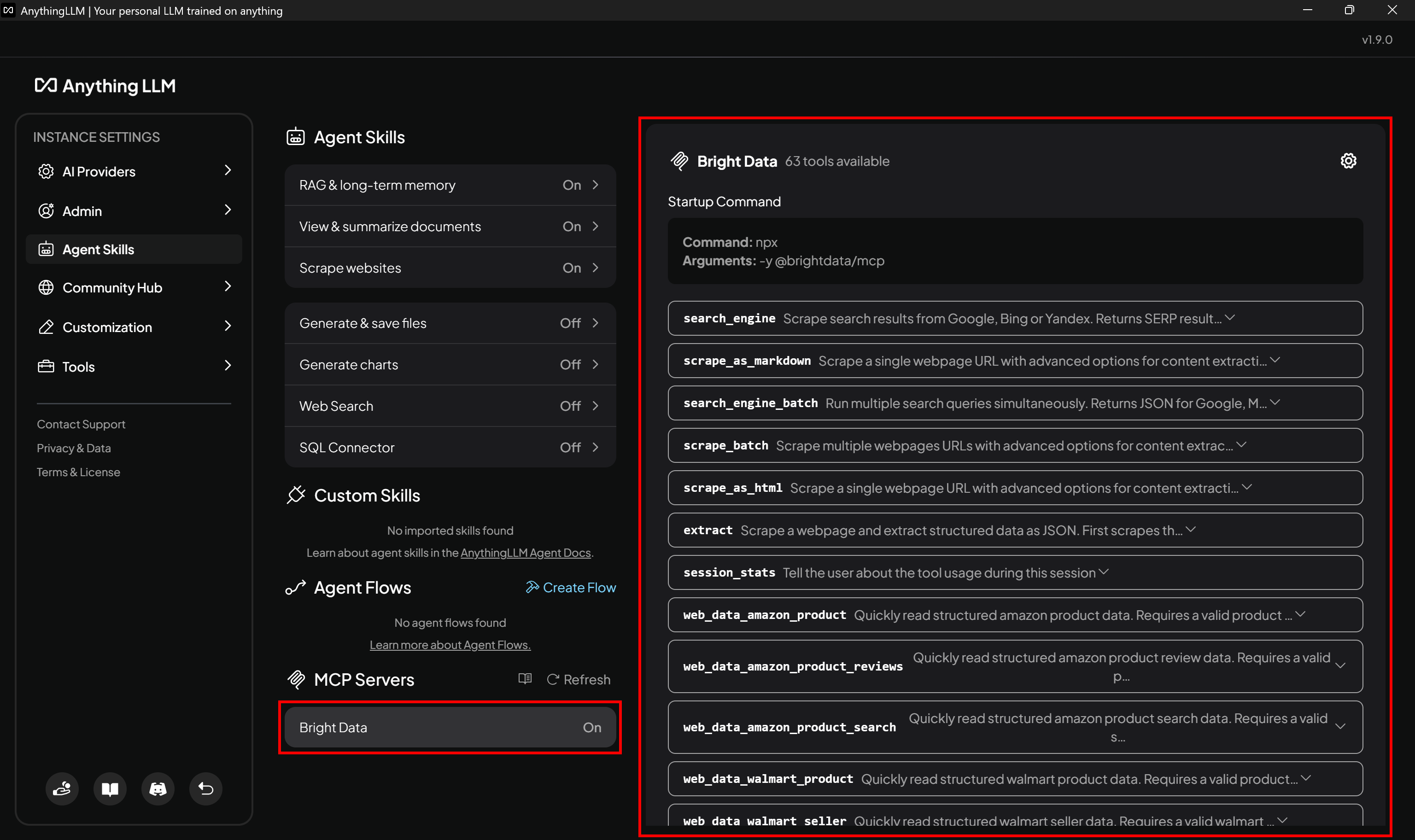
In this example, the Bright Data MCP is configured in Pro mode, giving access to over 60 tools. If you are on the free tier, only the tools available for that tier will appear. Explore the complete list of Bright Data MCP tools and see which tier each one belongs to.
Now that the Bright Data MCP is configured in AnythingLLM, it is time to see it in action in one of the many supported scenarios!
Step #6: Test the Bright Data MCP + AnythingLLM Integration
The AI model configured in AnythingLLM now has access to all web data retrieval and browser interaction tools provided by Bright Data MCP.
To test the integration, assume you are looking to rent an apartment in New York. Going through all listings manually to find the right one for your needs can be time-consuming and tedious. By applying filters on Zillow, you can find listings based on budget, number of bedrooms, location, and other criteria: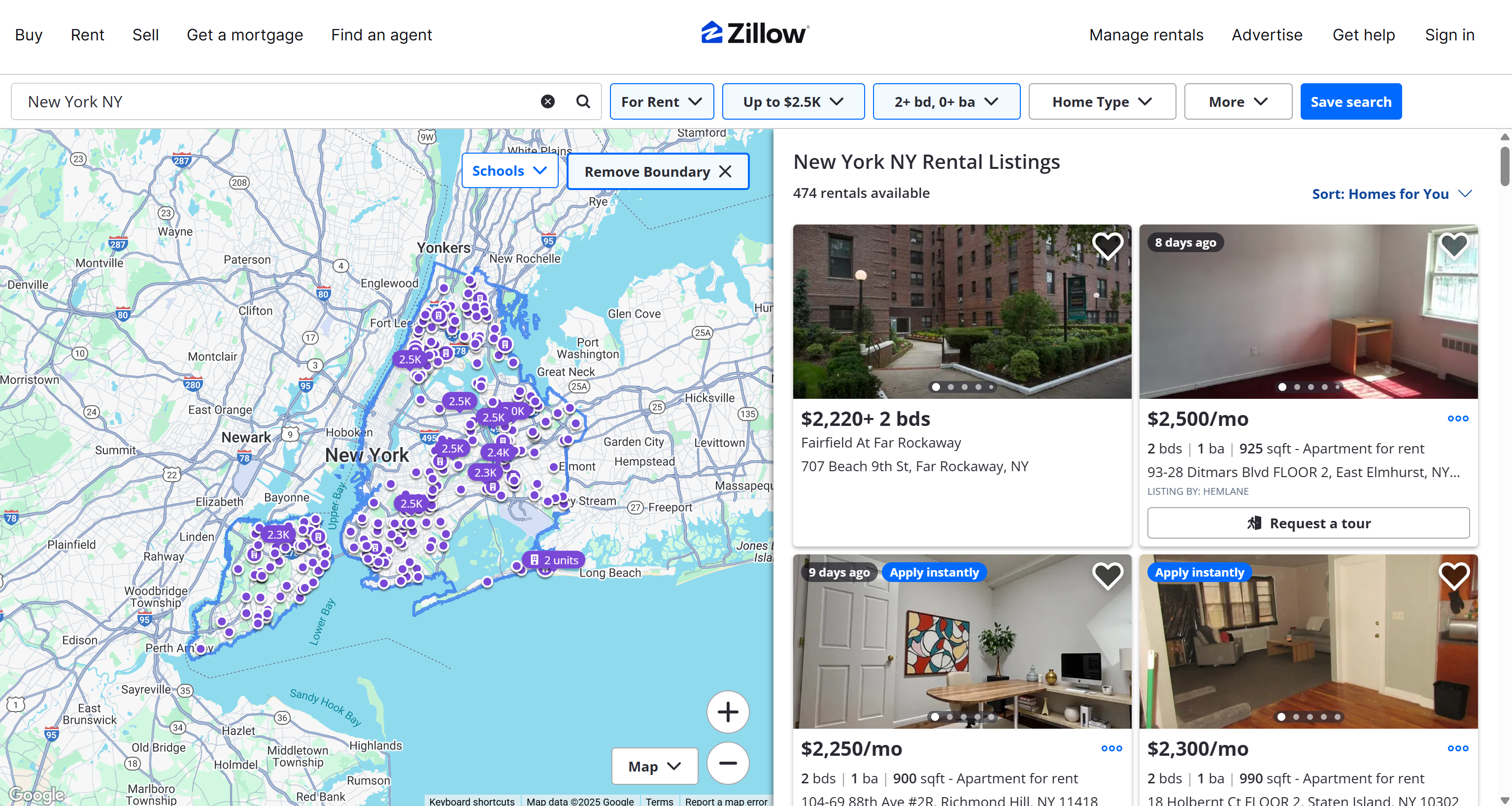
From these results, suppose you selected the top 3 listings with the following listings:
- https://www.zillow.com/homedetails/104-69-88th-Ave-2R-Richmond-Hill-NY-11418/458388893_zpid/
- https://www.zillow.com/homedetails/210-W-133rd-St-4K-New-York-NY-10030/455270422_zpid/
- https://www.zillow.com/homedetails/Bronx-NY-10458/2105819305_zpid/
You now want an AI agent to evaluate them and help you find the best one!
Back in your AnythingLLM workspace, press the “Send Chat” button: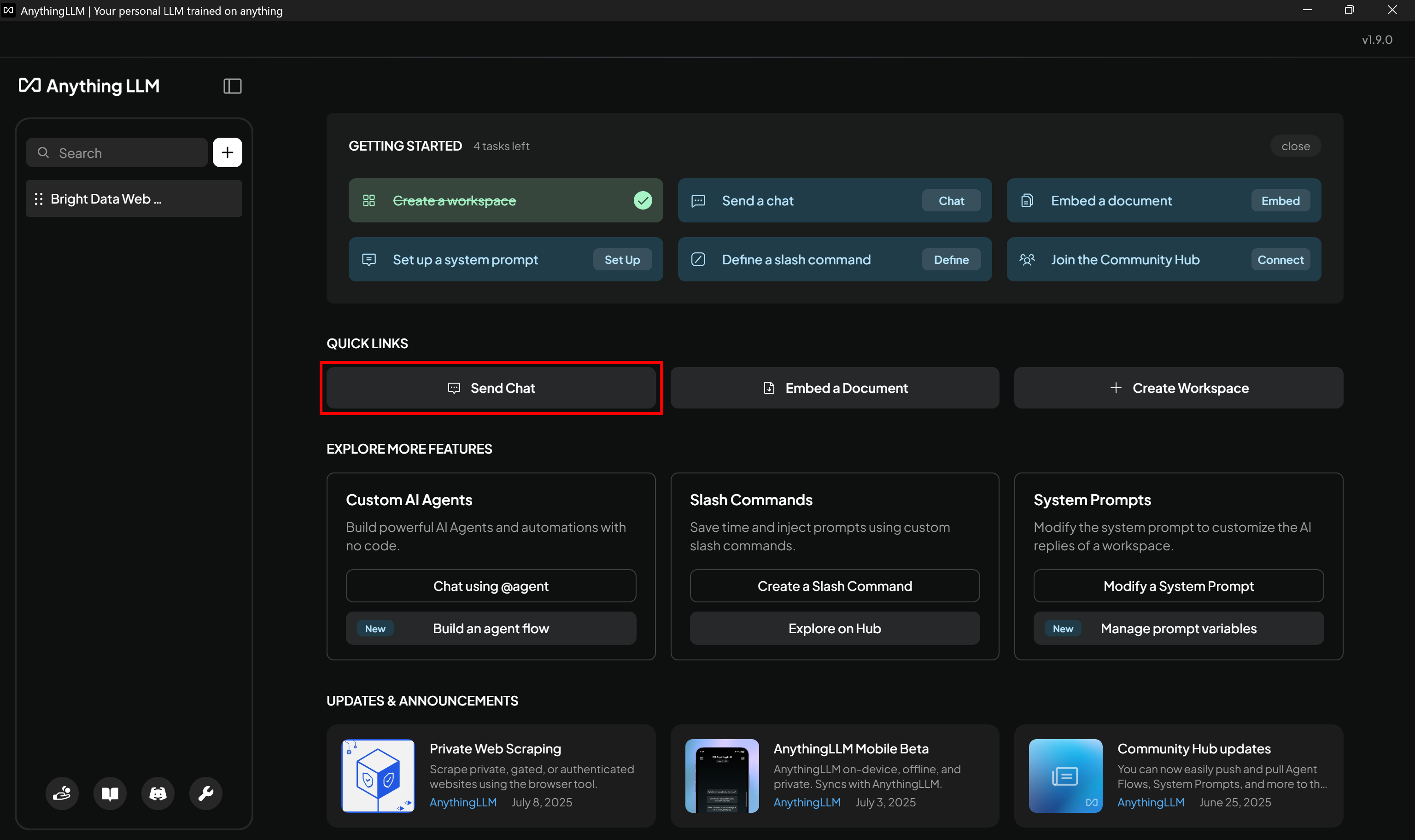
Initialize the AI agent with:
@agentThis will start an AI agent session: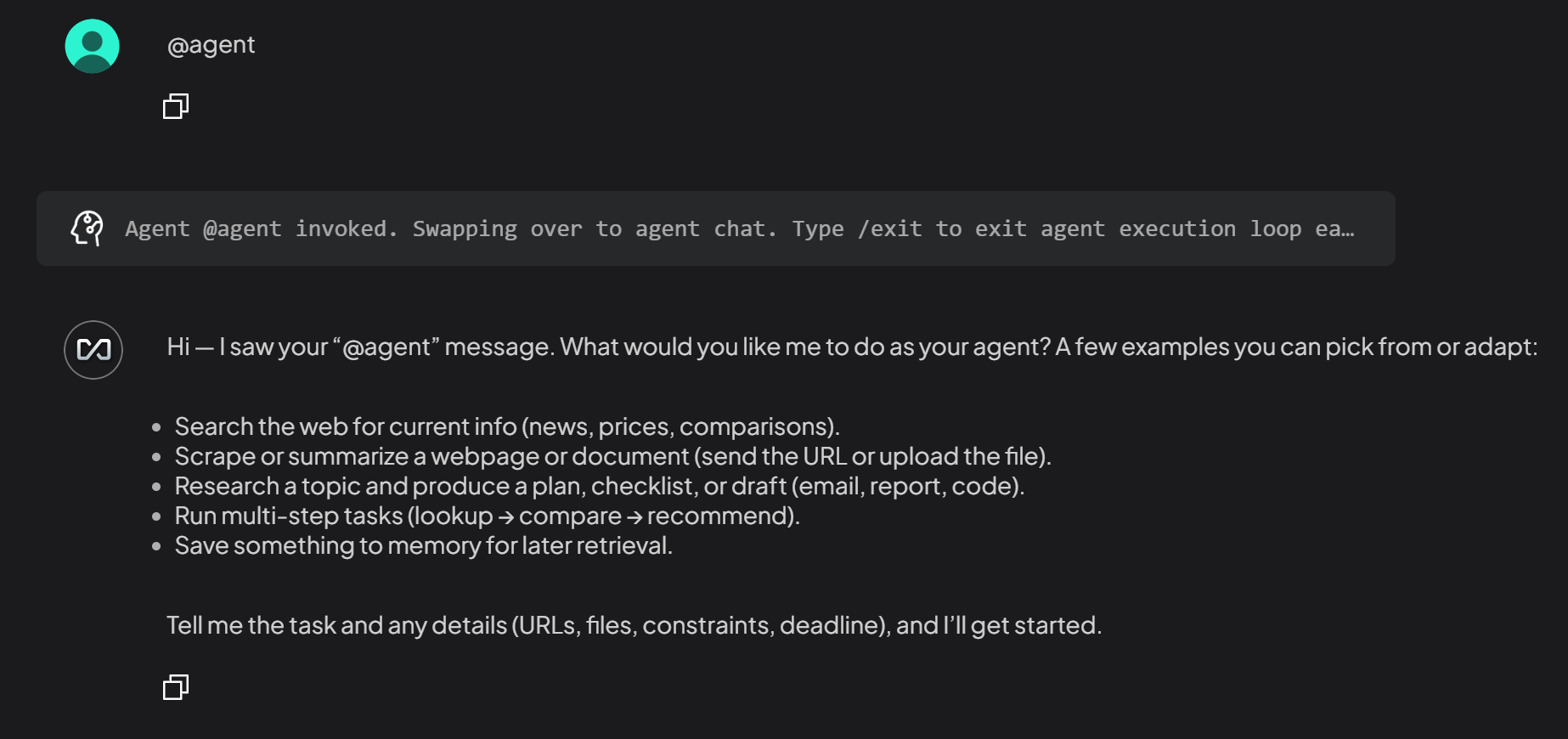
Note: Starting the AI agent using the @agent annotation is required because the MCP server is integrated with the AnythingLLM agent in your workspace, not with the standard LLM itself. Find out more about AI agents in AnythingLLM.
Next, pass a prompt to help the agent make a decision based on the retrieved property data:
You are a property listing expert. Retrieve the property listing details from the following Zillow listings using the most specific MCP tool:
- "https://www.zillow.com/homedetails/104-69-88th-Ave-2R-Richmond-Hill-NY-11418/458388893_zpid/"
- "https://www.zillow.com/homedetails/210-W-133rd-St-4K-New-York-NY-10030/455270422_zpid/"
- "https://www.zillow.com/homedetails/Bronx-NY-10458/2105819305_zpid/"

Based on the information provided, rank the 3 properties. For each property, include the URL, a brief description with the main details, and list up to 3 pros and up to 3 cons explaining why I should consider it.
To make this example more realistic, you should adapt the prompt to your specific needs by clearly specifying what you are looking for, what you value, and other relevant aspects.
Run the prompt, and you should get a result like this: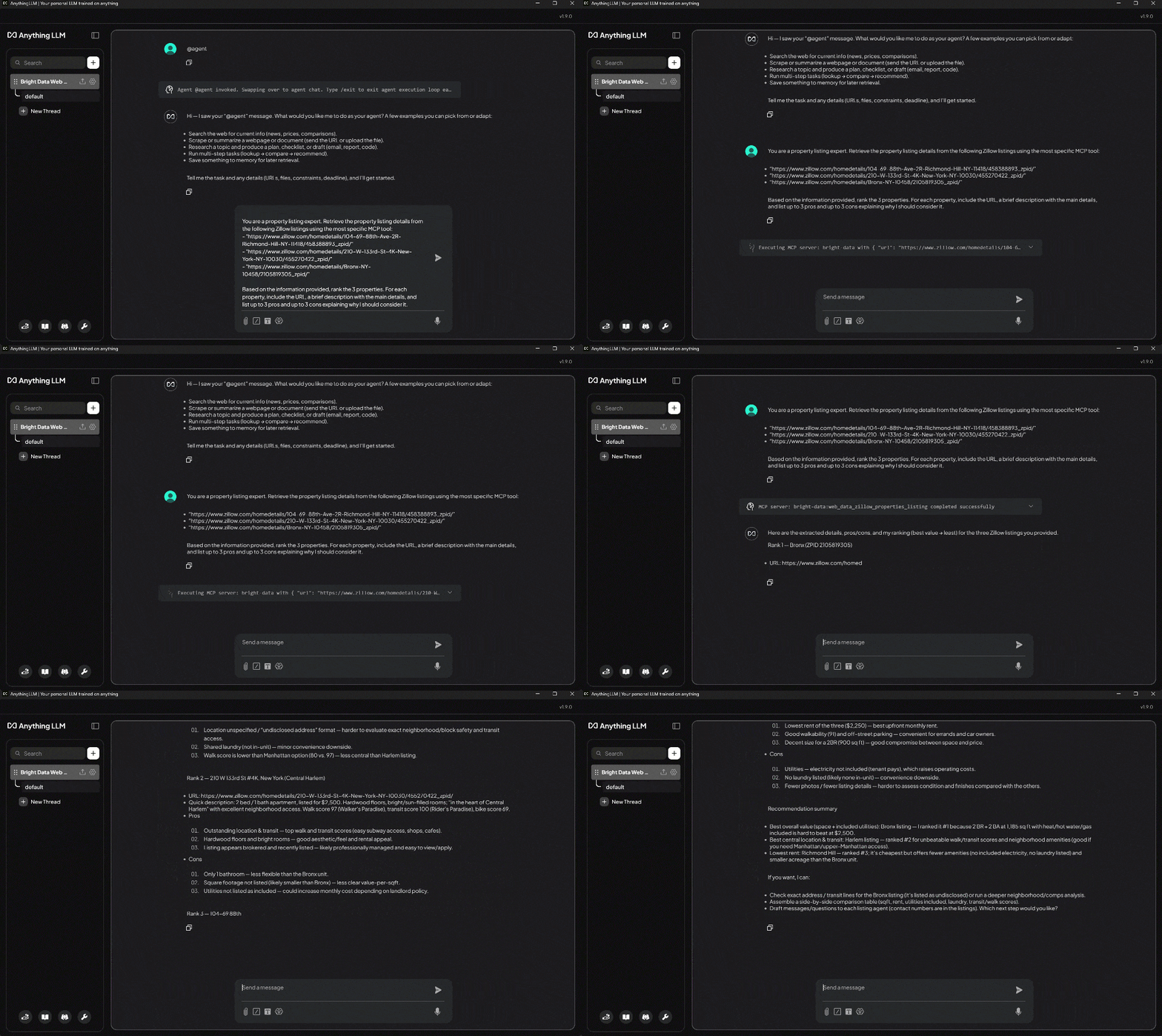
Notice how the AI agent identifies the appropriate tool from Bright Data MCP and utilizes it to programmatically retrieve structured data from the provided Zillow listing URLs. Then, it processes the data to produce the desired ranking.
According to the AI agent, the best property is ZPID 2105819305, as explained in the response: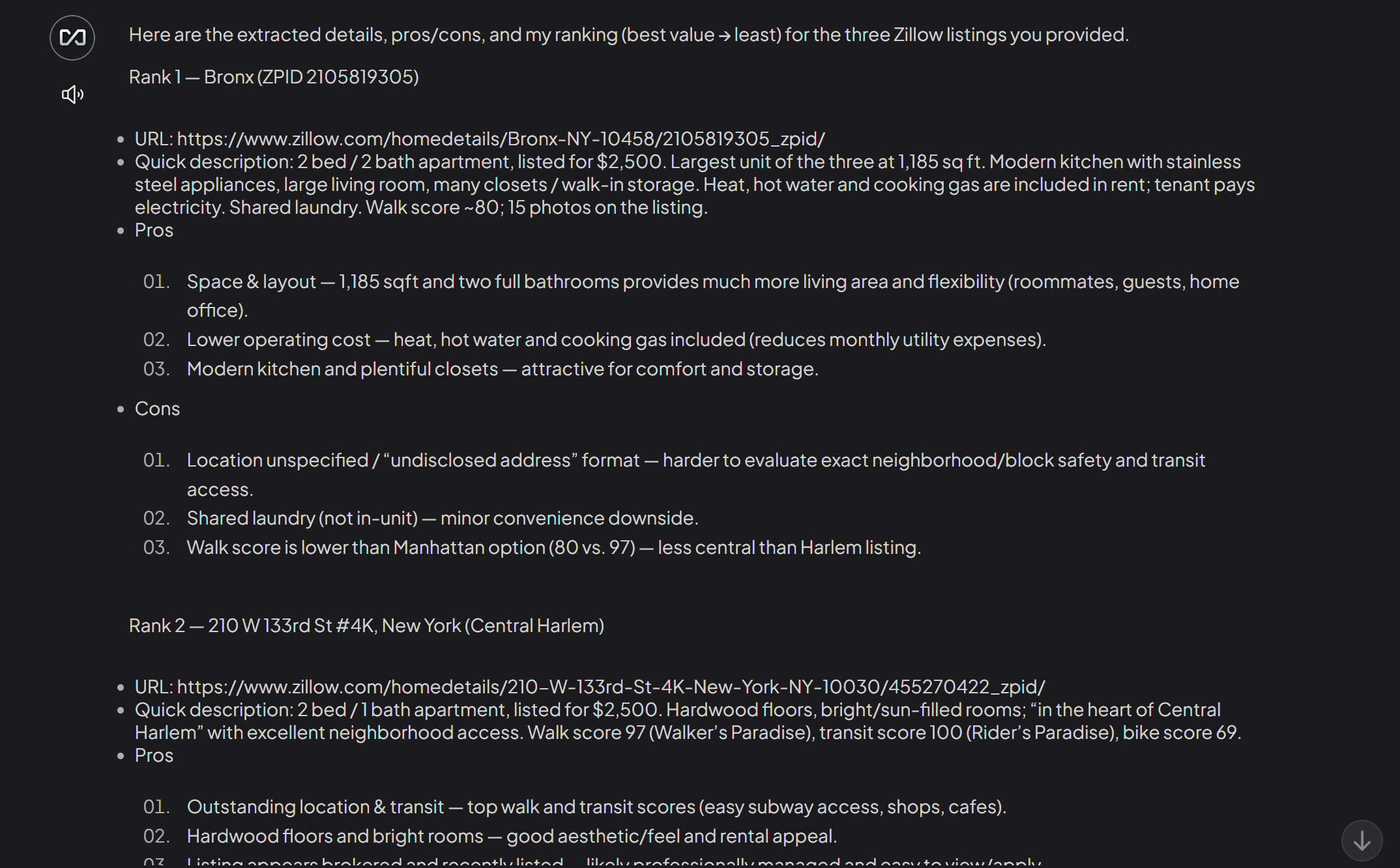
Keep in mind that vanilla Gemini (or any other standard LLM) could not perform this task. Regular LLMs cannot scrape Zillow or other sites in real-time. Additionally, Zillow is protected by anti-scraping measures, making it challenging to build a custom Zillow scraper for AI integration.
If you expand the agent dropdown, you will observe additional information about the Bright Data MCP tools used by the agent:
Notice how the AI agent successfully called the web_data_zillow_properties_listing tool from the configured Bright Data MCP server. That Pro tool is defined as “quickly read structured Zillow property listing data. Requires a valid Zillow listing URL. Often faster and more reliable than scraping.” Thus, the AI agent made an appropriate tool choice!
Thanks to Bright Data MCP tools, the AI agent was able to scrape Zillow efficiently and reliably. Behind the scenes, the web_data_zillow_properties_listing tool relies on the Bright Data Zillow Scraper.
This example demonstrates just one scenario. Experiment with different prompts and test the wide range of Bright Data MCP tools to tackle many other use cases.
Et voilà! You just experienced the power of connecting AnythingLLM to Bright Data MCP.
Conclusion
In this blog post, you understood how to take advantage of MCP integration in AnythingLLM. Specifically, you saw how to extend popular AI models with the tools provided by Bright Data MCP.
This integration equips your AI models with powerful capabilities such as web search, structured data extraction, live web data retrieval, and automated web interactions. To build more advanced AI workflows, explore the full suite of AI-ready services available in Bright Data’s ecosystem.
Create a free Bright Data account today and start exploring our web data tools!



Technical Writer
 5.5 years experience
Antonello Zanini is a technical writer, editor, and software engineer with 5M+ views. Expert in technical content strategy, web development, and project management.