







In this article, you will learn:
- What OpenHuman is and what it brings to the table as an AI agent harness.
- Why extending OpenHuman with enterprise-grade web access tools is essential.
- How Bright Data supports these capabilities through Bright Data CLI.
- How to integrate Bright Data into OpenHuman through the
brightdata-cliskill and use it in a real-world workflow.
Let’s dive in!
An Introduction to OpenHuman
Understand what OpenHuman is and what it offers.
What Is OpenHuman?
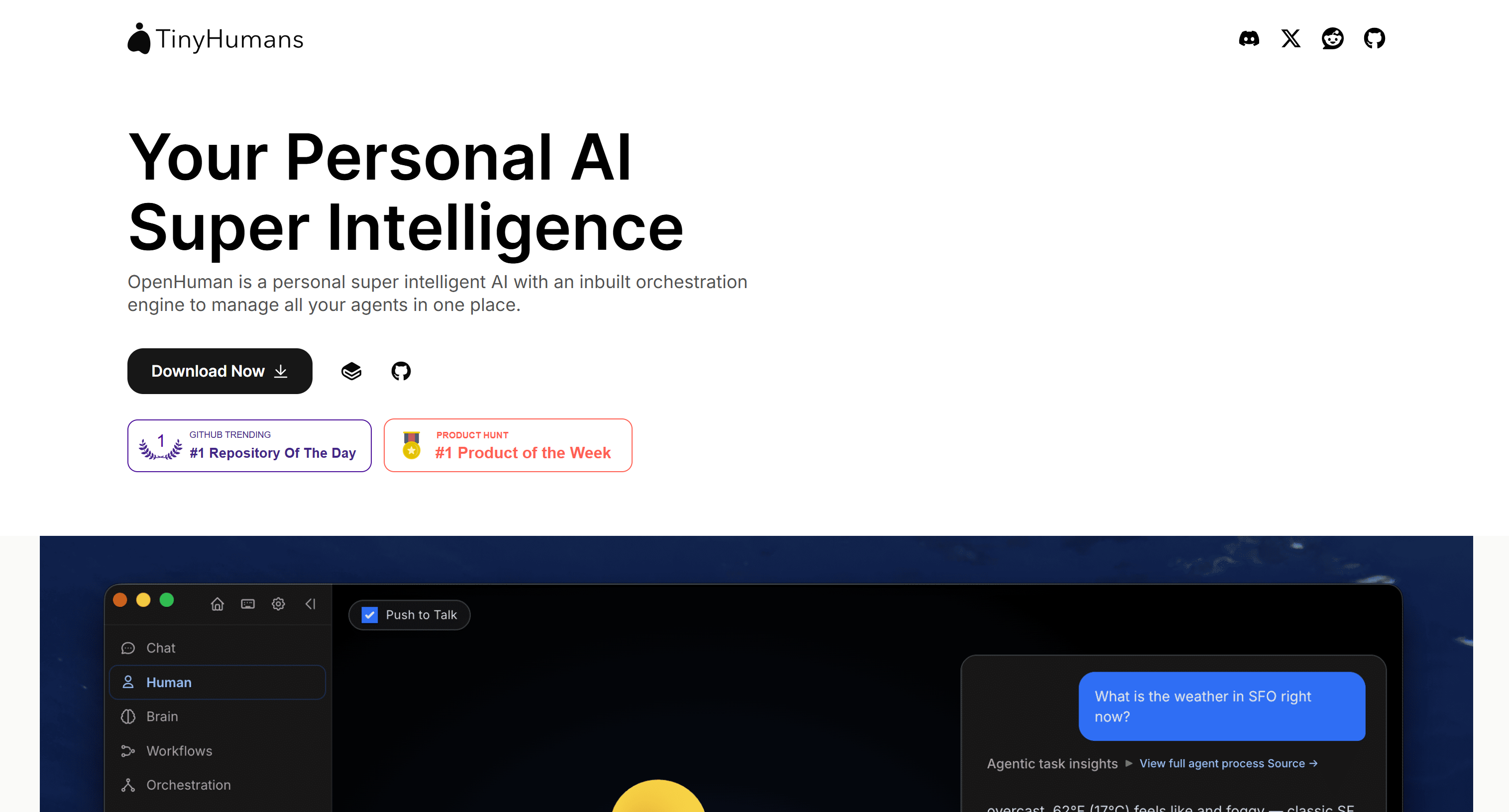
OpenHuman is an open-source, local-first AI agent harness designed to act as a personal AI assistant. It combines persistent memory, agent orchestration, workflows, web research, and integrations.
Its main use cases include researching information and managing personal data and tasks. It can also automate workflows, coordinate multiple agents, and interact with external services. The project’s GitHub repository has 39k+ stars, highlighting strong community interest and support.
Top Features
These are the main capabilities provided by OpenHuman:
- Persistent memory: Builds a local memory of your emails, documents, chats, and other data using Memory Trees and an Obsidian-compatible wiki.
- Agent orchestration: Coordinates multiple agents through durable, checkpointed graphs that can pause, resume, and delegate tasks to specialized workers.
- Visual workflows: Lets agents propose trigger-driven workflows that you can review, modify, and approve before saving.
- Integrations: Connects to 100+ OAuth services, 5K+ MCP servers, and 90K+ skills, bringing external data and capabilities into the agent.
- Multichannel communication: Supports 17 messaging channels, including Telegram, Discord, Slack, WhatsApp, Signal, iMessage, and native email.
- Privacy and local control: Stores data locally with encryption and supports a Privacy Mode that keeps inference on your device.
- Model flexibility: Provides built-in model routing while allowing you to use your own provider API keys or local Ollama models.
- Native media tools: Supports image and video generation, as well as voice capabilities with in-process Whisper.
- Observability: Provides replayable run journals and per-call cost accounting, making agent activity easier to inspect and understand.
For more information, check out the official documentation.
Why OpenHuman Needs Web Search, Scraping, and Interaction Capabilities
OpenHuman comes with built-in integration for web research. This enables its AI agents to discover online sources and ground their knowledge in fresh content.
The feature is particularly useful for overcoming the knowledge cutoff of LLMs. OpenHuman provides managed web search by default, also supporting integration with other popular web search APIs like Parallel, Exa, and more.
However, built-in web tools may not always provide the level of reliability and scalability required for enterprise-grade workflows. Agents can encounter blocked websites, anti-bot systems, CAPTCHAs, or geographic restrictions.
Also, web search is just the beginning. Structured agentic web workflows also involve browser automation and web scraping. For production scenarios, having a robust web data infrastructure with richer tools can make a huge difference. That is where Bright Data can help!
Bright Data provides enterprise-grade infrastructure for reliable web access, built on a network of 400M+ IPs across 195 countries. This infrastructure powers multiple web data solutions for search, discovery, scraping, and browser automation.
How Bright Data Supports OpenHuman
The easiest way to integrate Bright Data with OpenHuman is through the brightdata-cli skill. This skill is part of the broader set of Bright Data Agent Skills and provides AI agents with the knowledge they need to use the Bright Data CLI effectively.
If you are not familiar with it, the Bright Data CLI lets you access Bright Data’s suite of web data products through simple terminal commands. Specifically, the CLI commands include:
| Command | Description | Bright Data product |
|---|---|---|
brightdata scrape <url> |
Scrape a URL while handling JavaScript, CAPTCHAs, and anti-bot protections. | Web Unlocker API |
brightdata search <query> |
Search Google, Bing, or Yandex and return structured search results. | SERP API |
brightdata pipelines <type> |
Extract structured data from supported platforms such as Amazon, LinkedIn, Instagram, YouTube, and more. | Web Scraping API |
brightdata browser open <url> |
Open a URL in a persistent, real browser session. | Browser API |
brightdata browser snapshot |
Capture the current page as an accessibility tree for AI agents to read and interact with. | Browser API |
brightdata browser click / type / fill / scroll / etc. |
Interact with web pages by performing specific acitons on the page | Browser API |
brightdata browser screenshot |
Capture a screenshot of the current browser viewport or full page. | Browser API |
Note: Every new Bright Data account includes a recurring monthly free tier of up to 5K CLI command calls. No credit card or commitment is required to get started. See the Free Tier documentation for full details.
These CLI commands equip OpenHuman with the ability to search, discover, scrape, and interact with online content reliably (even when dealing with anti-bot protections!)
Integrating the Bright Data CLI into OpenHuman: Step-by-Step Tutorial
In this guided section, you will learn how to integrate OpenHuman with Bright Data through the brightdata-cli skill. This gives the underlying agents the knowledge they need to use the Bright Data CLI.
Follow the instructions below!
Prerequisites
Before getting started, make sure you have:
- A macOS, Windows, or Linux machine with at least 4 GB of RAM. 16GB+ is recommended if you plan to ingest very large mailboxes or repositories, or run a local model on the same machine.
- A funded OpenHuman account or an API key from one of the supported LLM providers. In this tutorial, we will use an OpenAI API key.
- Node.js installed locally, which is required to run the Bright Data CLI.
- A Bright Data account.
Some familiarity with the Agent Skills standard will also be helpful.
Step #1: Install OpenHuman
Start by downloading the OpenHuman installer for your operating system from the official website (or from the GitHub Releases page).
(Alternatively, if you prefer to install OpenHuman from the terminal, follow the official guide.)
Launch the installer and follow the wizard. Start OpenHuman, which will check your system for the required dependencies and install any that are missing.
Once the installation is complete, you will see the following screen:
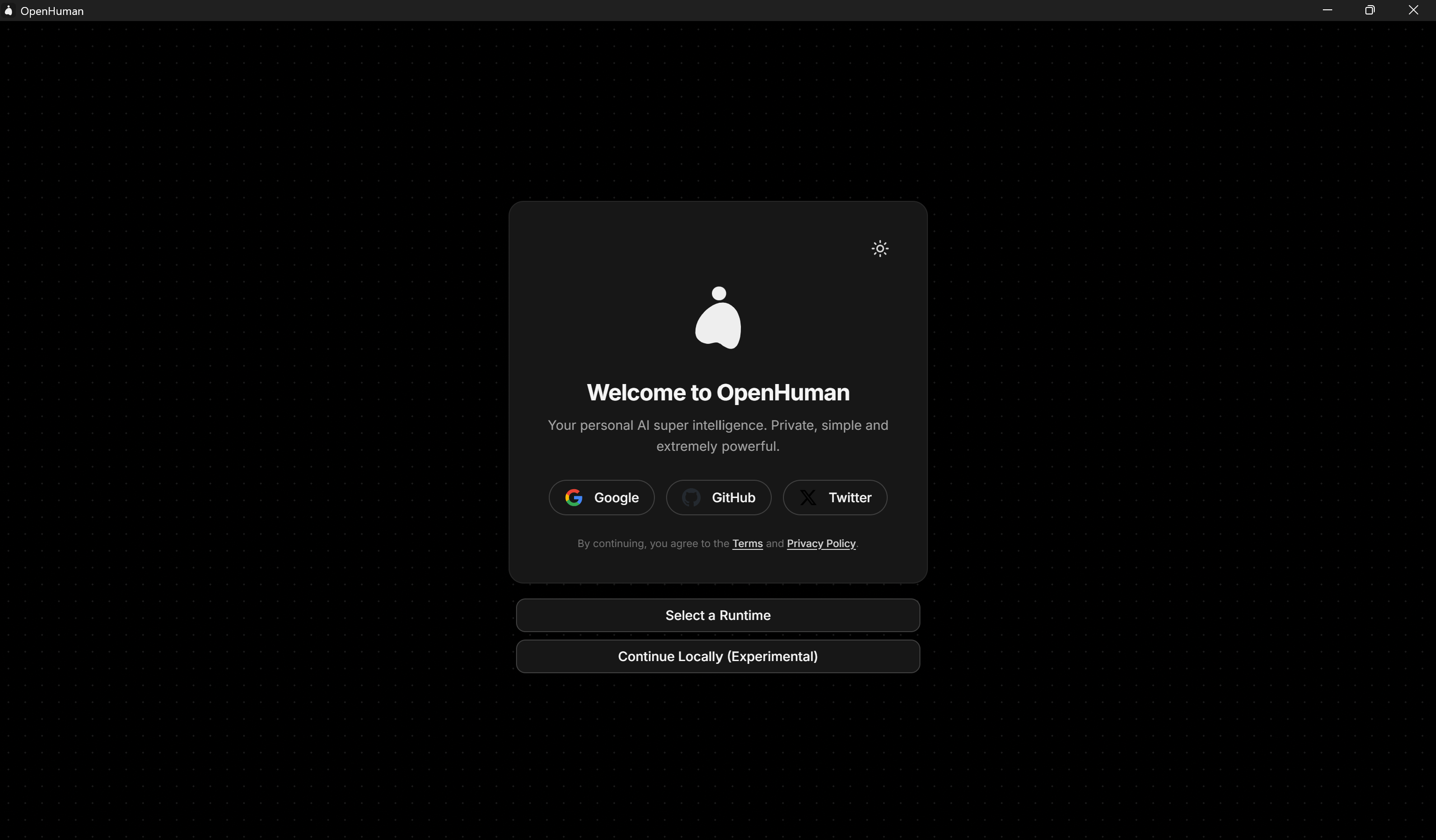
Log in to your OpenHuman account to access OpenHuman-based features (or continue with the “Continue Locally (Experimental)” option).
Well done! OpenHuman is ready to be configured.
Step #2: Configure OpenHuman
After logging in to OpenHuman, you will be asked to choose between a “Simple” setup and a “Run Custom” setup.
For more control over the configuration, select “Run Custom” and then choose “Continue with Custom”:
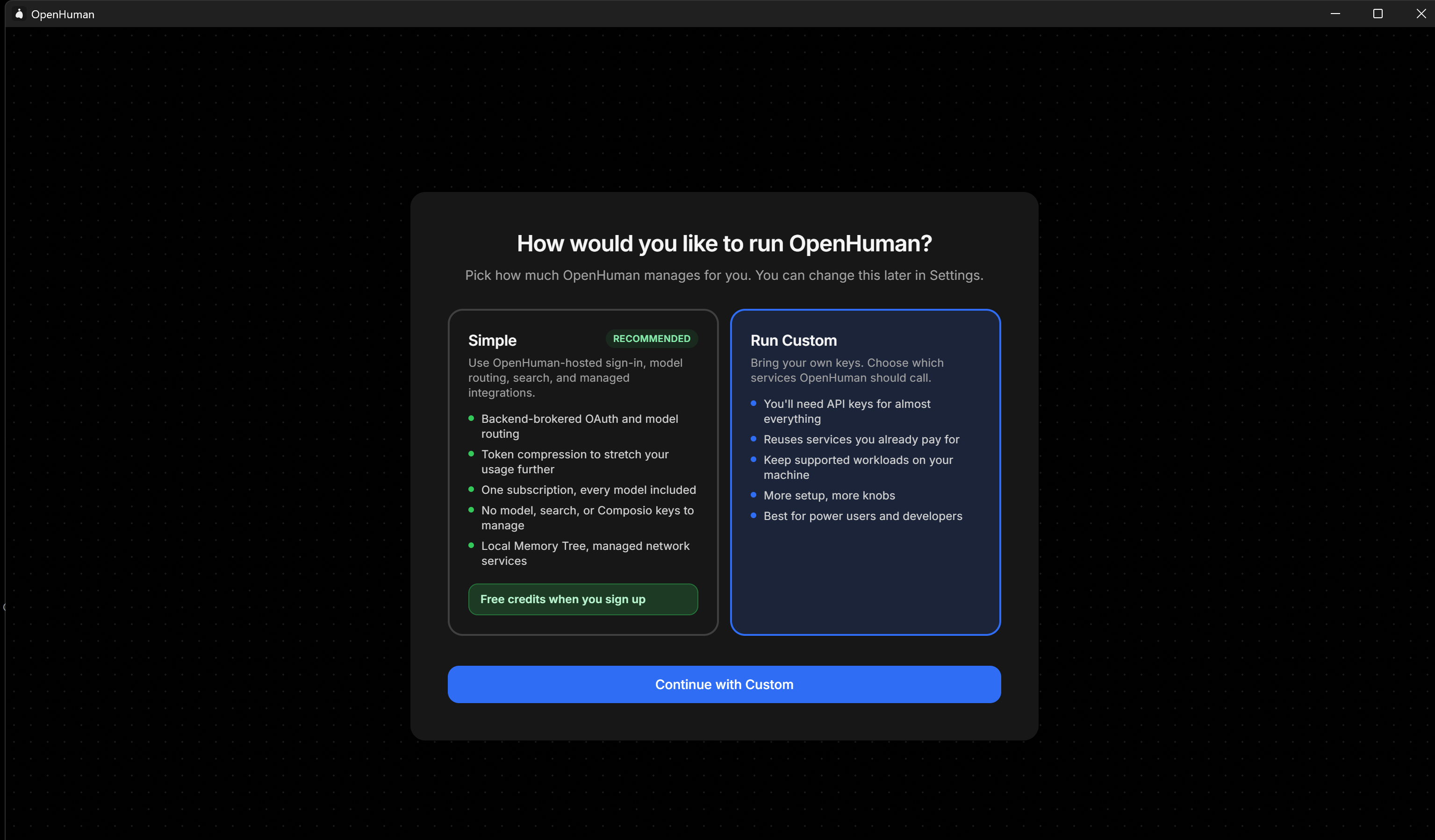
The onboarding process will then guide you through the following configuration steps:
- Inference
- Voice
- OAuth
- Search
- Embeddings
- Activity
- Vault
In the “Inference” step, select “Configure” to set your own AI provider API key. In this case, toggle “OpenAI”, paste your OpenAI API key, and click “Save”:
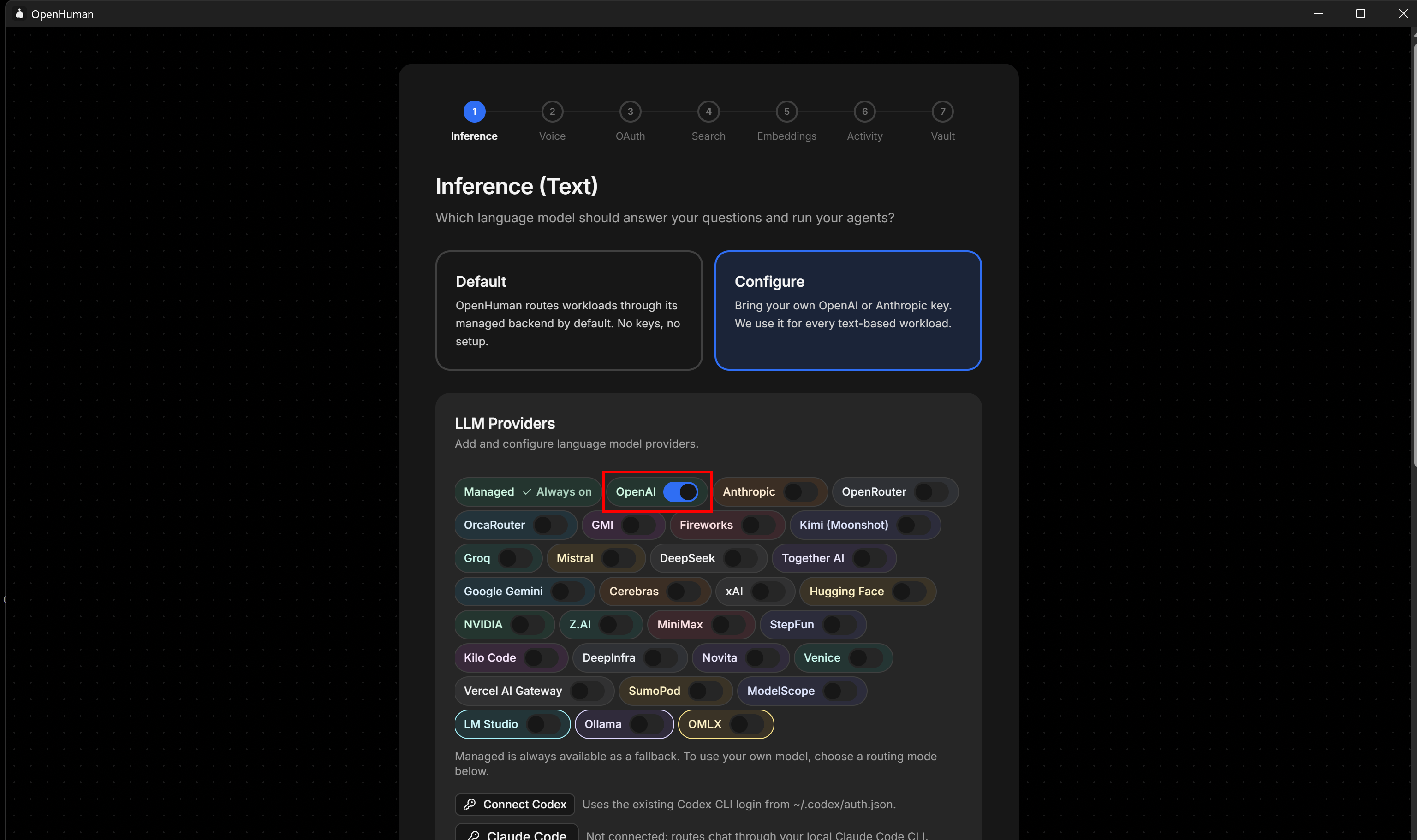
Next, scroll down and consider enabling the “Set Your Own Models” option for more control over the LLMs used. Select “OpenAI” as the provider and choose a model, such as gpt-4o-mini.
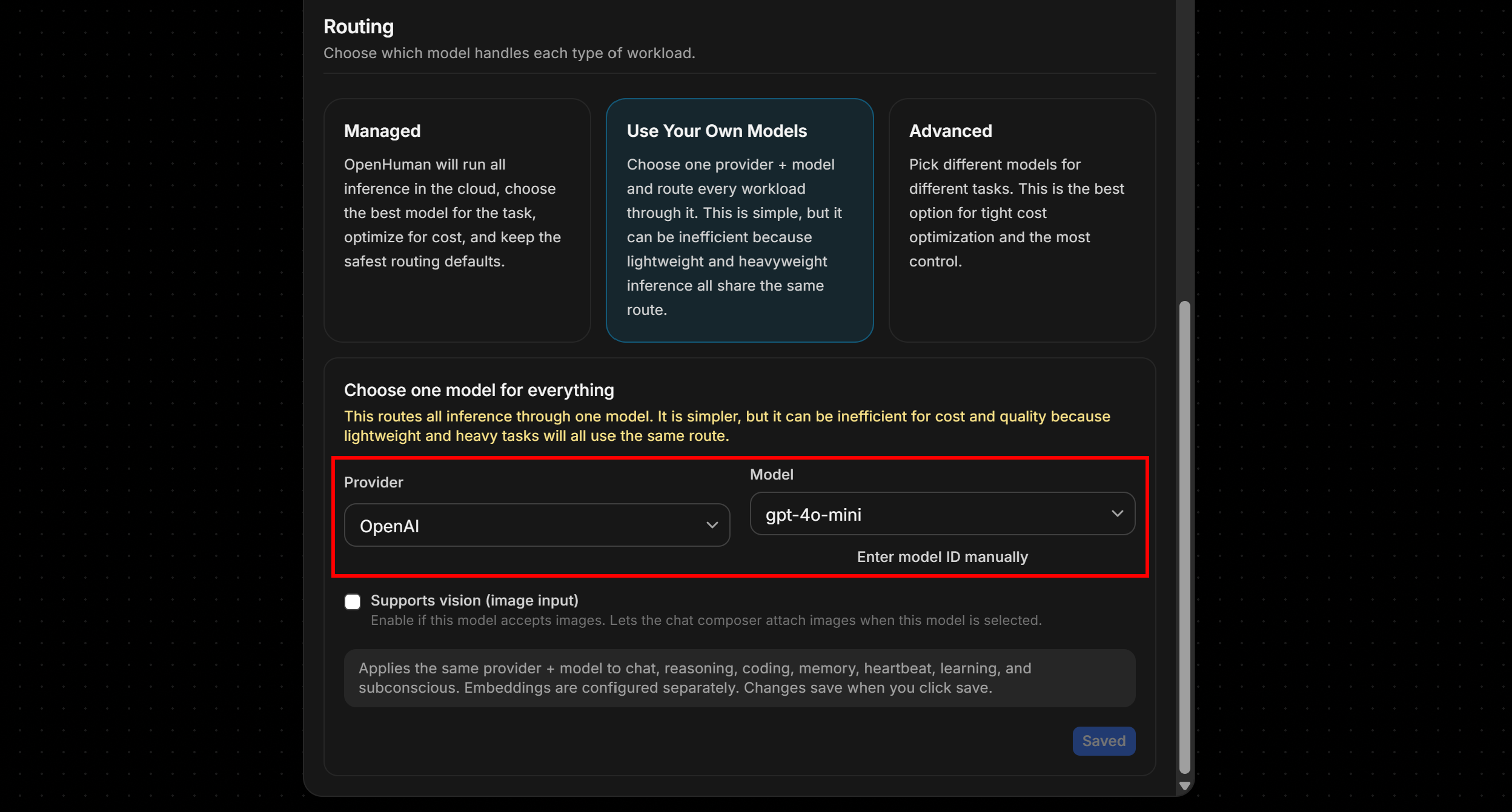
Note: At the time of writing, OpenHuman does not support models from the GPT-5 family. You can configure them, but you will not be able to chat with them.
For the remaining onboarding steps, you can keep the default options (or configure them according to your needs).
In the “Search” step, select “Configure” and then select the “Disabled” option:
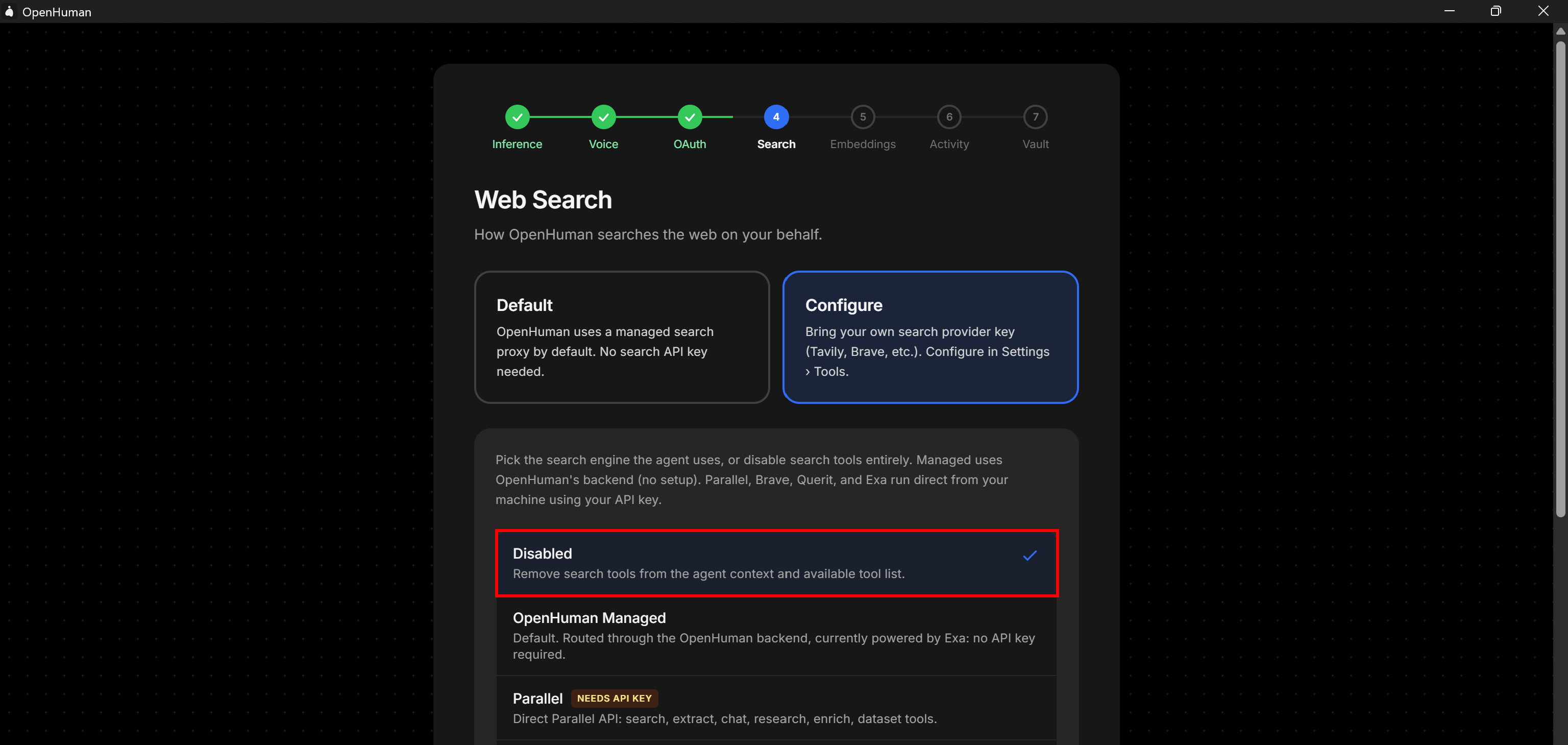
This is recommended because the Bright Data CLI will power web search instead. Bright Data provides enterprise-grade, production-ready web access, giving OpenHuman more consistent search capabilities.
Continue through the remaining onboarding steps. The default options should be fine.
Once you complete the setup, you will reach the OpenHuman “Chat” interface:
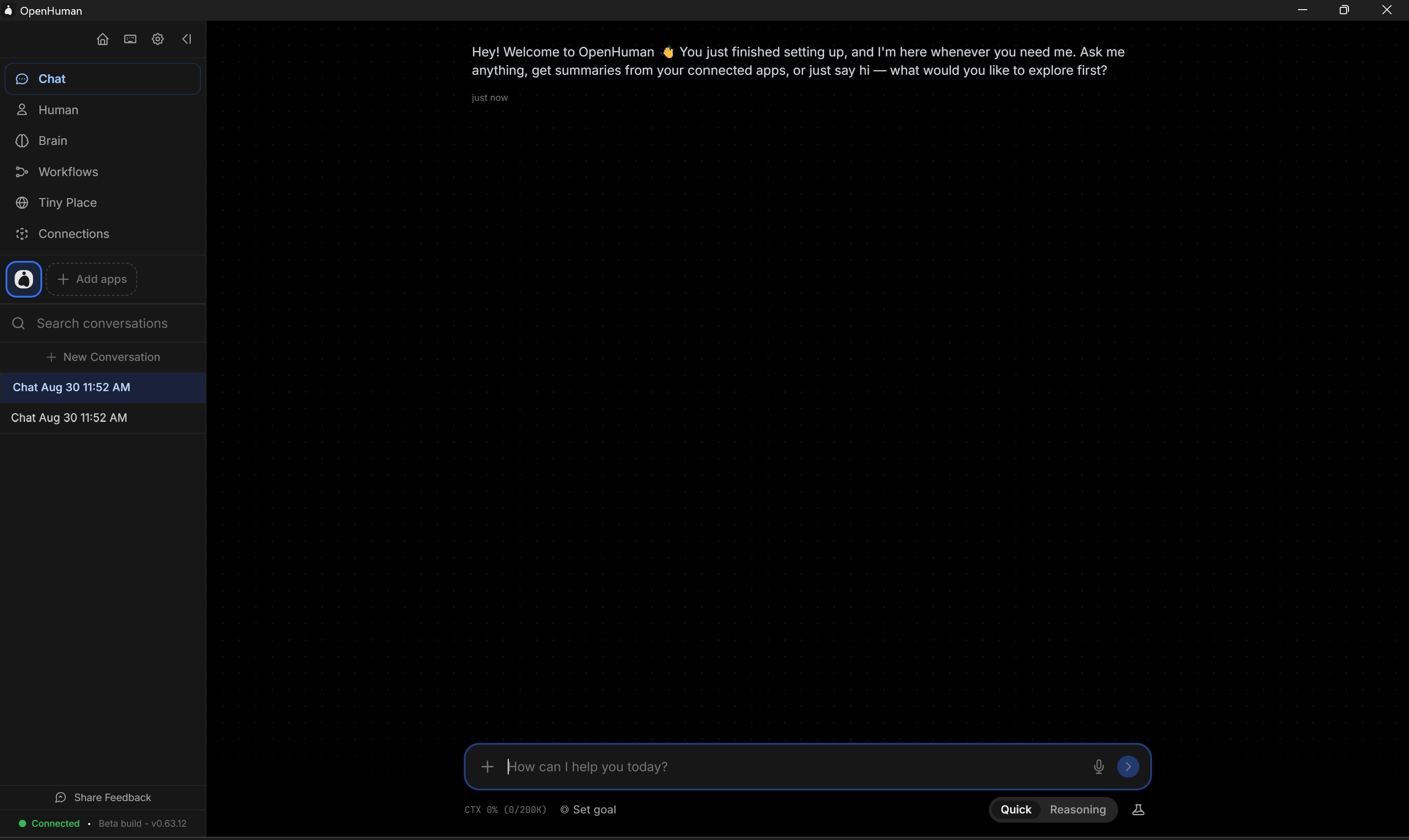
You will be redirected to the “Chat” page, where you can start chatting with OpenHuman agents. Great!
Step #3: Get Started with the Bright Data CLI
For a guided setup workflow, refer to the official documentation on installing and configuring the Bright Data CLI. You can also read our blog post, “Meet the Bright Data CLI: Extract Data and Interact with the Web from Your Terminal,” for a more detailed introduction.
Alternatively, follow the steps below.
Begin by installing Bright Data CLI globally using the @brightdata/cli npm package:
npm install -g @brightdata/cliThis adds the brightdata command (and the bdata alias) to your system.
Verify that the CLI was installed successfully by checking its version:
bdata --versionAs of this writing, the latest version is 0.3.5:

Next, run the following command to connect Bright Data CLI to your Bright Data account:
bdata loginThis opens your browser and starts a secure OAuth authentication flow. The CLI then configures the required APIs and sets the necessary defaults.
Great! Time to instruct OpenHuman to use the Bright Data CLI through the brightdata-cli skill.
Step #4: Install the Bright Data CLI Skill in OpenHuman
To install the brightdata-cli skill, start by clicking “Skills” in the left-hand menu in OpenHuman. On the “Skills” page, press “Install from URL”:
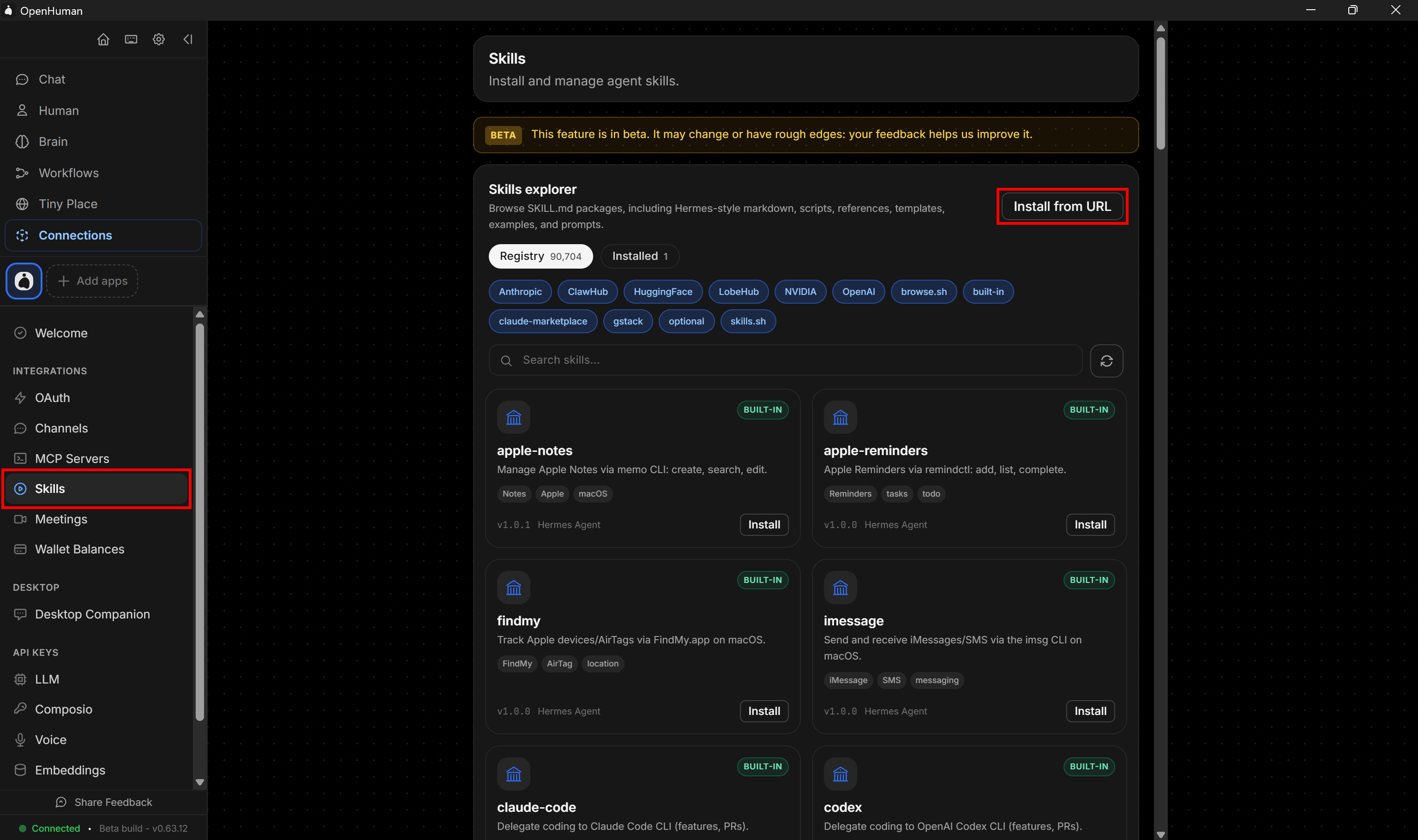
A dialog will open, asking you to enter the raw.githubusercontent.com URL pointing to the SKILL.md file.
The Bright Data skills are hosted on GitHub. To find the brightdata-cli skill, visit the brightdata/skills repository and navigate to the /skills directory. Then, open the /brightdata-cli folder and select the SKILL.md file.
On the brightdata/skills/skills/brightdata-cli/SKILL.md file page, click “Raw” to see its raw GitHub content:
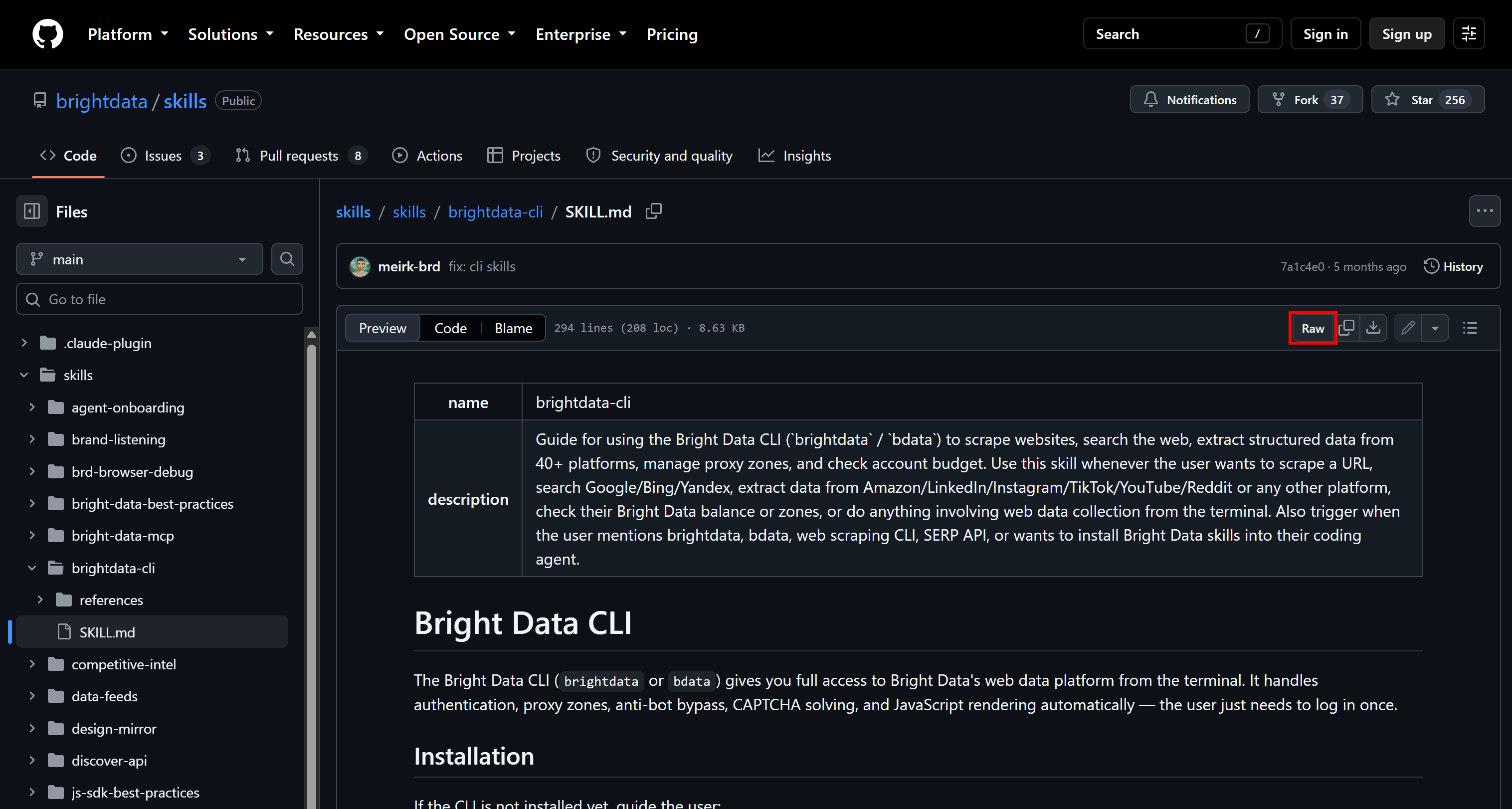
The URL of the new page will be:
https://raw.githubusercontent.com/brightdata/skills/refs/heads/main/skills/brightdata-cli/SKILL.mdPaste that URL into the “Skill URL” field and click “Install skill”:
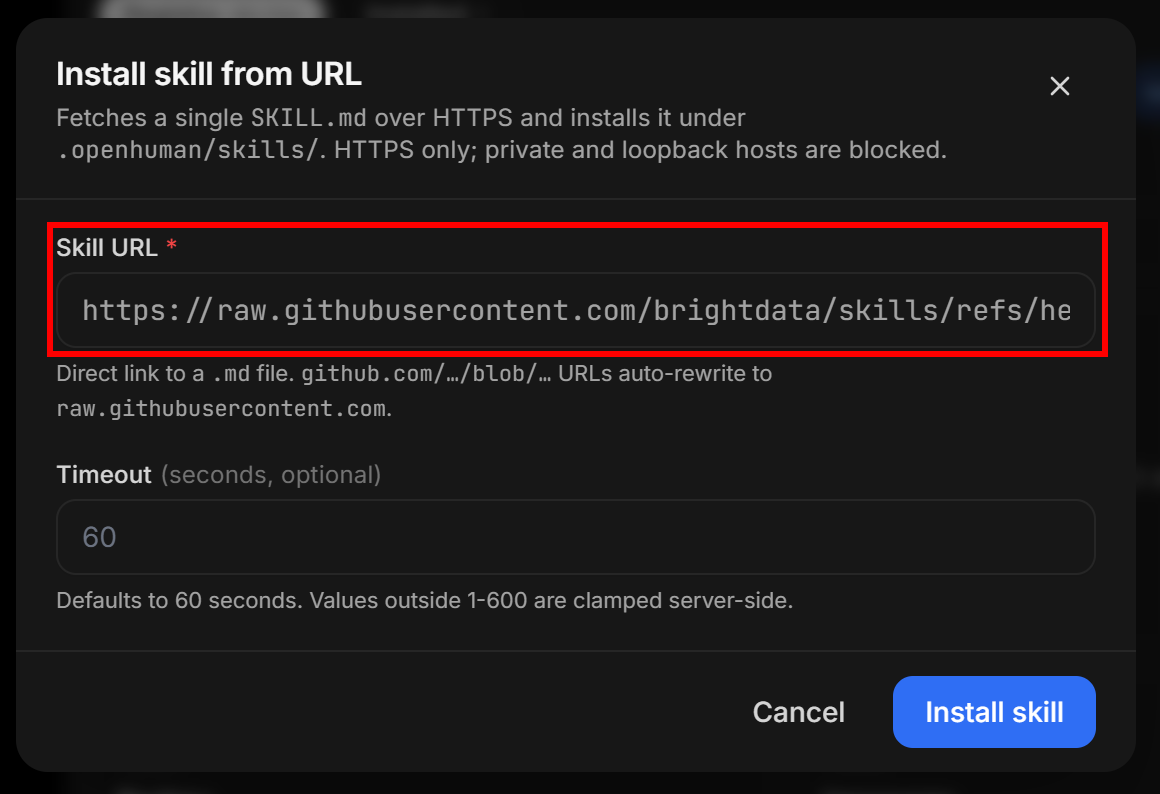
Note: Through the same procedure, you can install any other Bright Data skill.
Fantastic! The brightdata-cli skill is now installed, giving OpenHuman the knowledge it requires to employ the Bright Data CLI.
Step #5: Verify the Skill Installation
After clicking “Install skill”, you should see an “Install complete” success callout UI element:
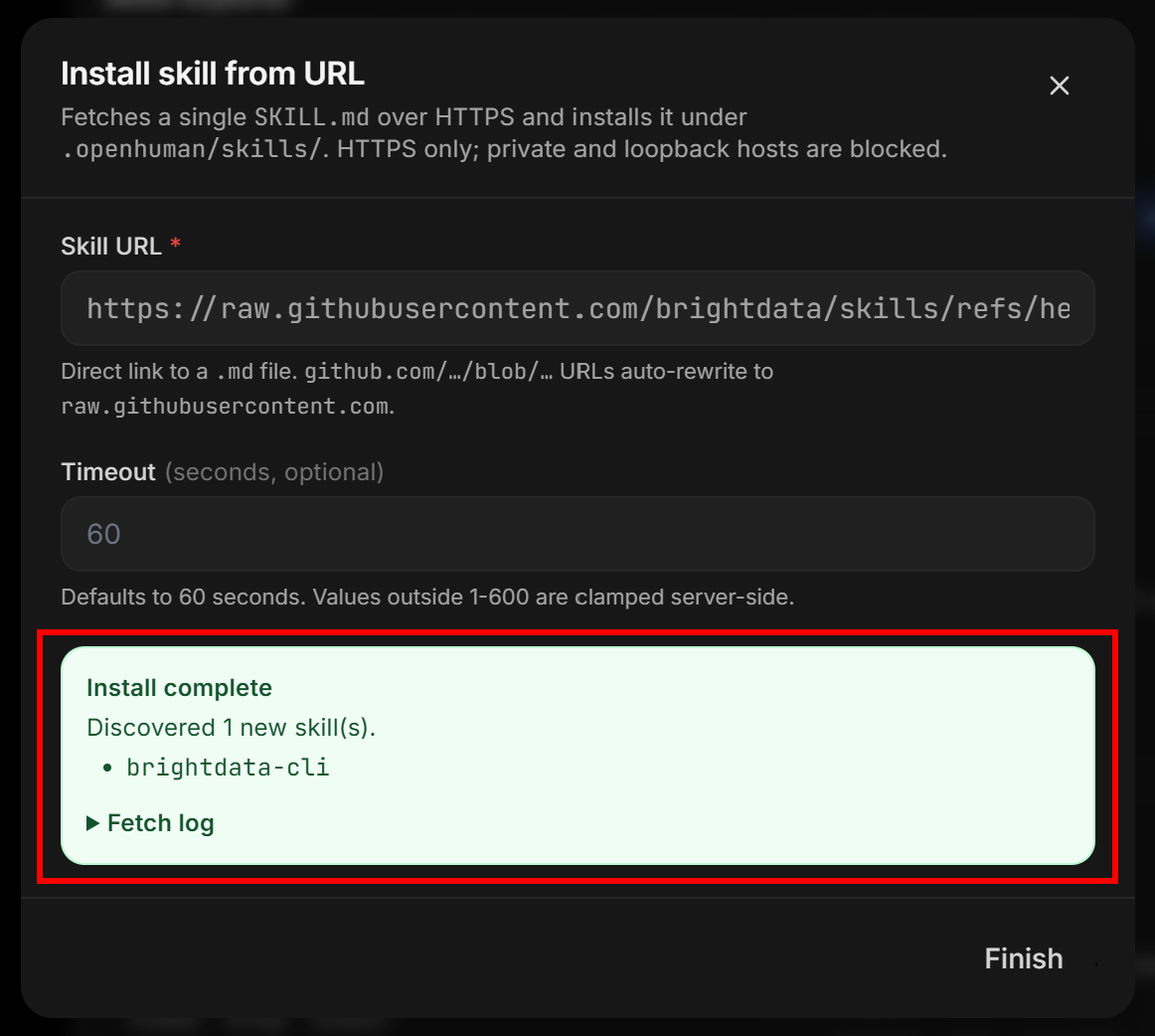
Click “Finish”. The “Installed” section of the “Skills” page should now list the brightdata-cli skill:
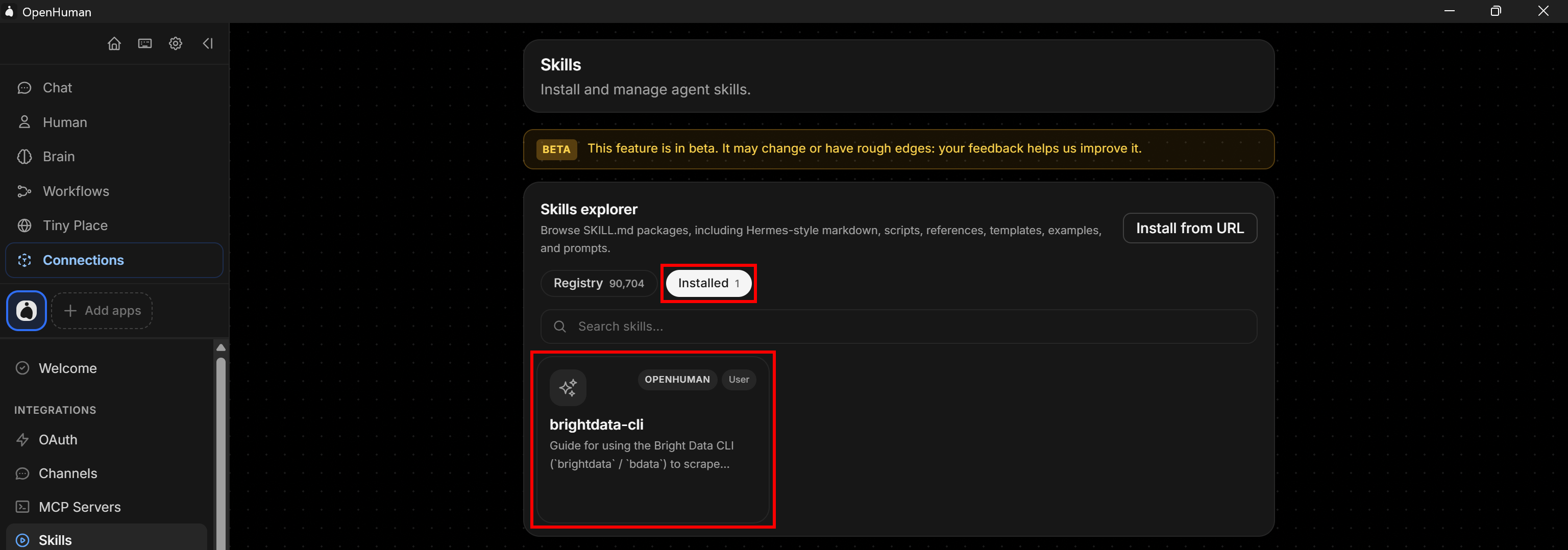
There is no need to activate the skill or assign it to specific agents. OpenHuman can automatically discover and use installed skills when needed.
Mission complete! All that remains is to put everything together and test the OpenHuman + Bright Data setup.
Step #6: Test the Integration
To verify that OpenHuman can call the Bright Data CLI through the brightdata-cli skill, give it a task that involves web tasks.
For example, write the following prompt:
Using the installed brightdata-cli skill, learn how to use the Bright Data CLI. Then, use the CLI to search for the latest NVIDIA news. Select the three most relevant articles and produce a simple report with all the main information.This should be enough to verify that OpenHuman can:
- Load the
brightdata-cliskill. - Learn how to use Bright Data CLI from the skill.
- Use the CLI’s
searchcommand to search for the latest NVIDIA news. - Parse the structured JSON results returned by the search command.
- Select the three most interesting news articles.
- Scrape the selected pages using the CLI’s
scrapecommand to retrieve their Markdown content. - Analyze the scraped content and produce a final report containing the main information about the selected NVIDIA news.
Go to the “Chat” tab, paste the prompt, and run it. You should see something like this:
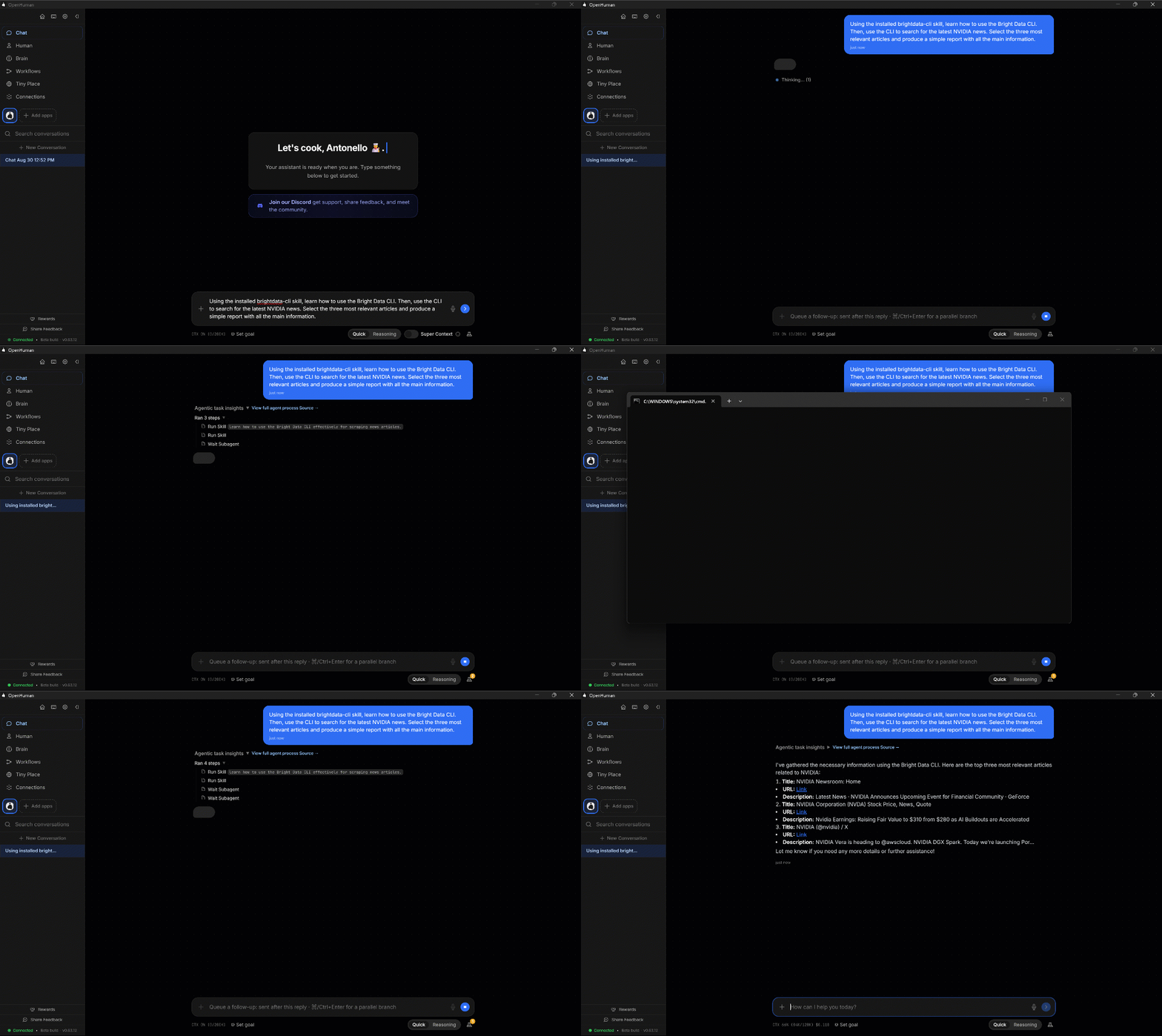
Notice how OpenHuman performs all the steps automatically. In particular, during the run, you may see terminal windows opening. These are the Bright Data CLI commands executed by the underlying agents to complete the task.
The final result should contain the three selected NVIDIA news articles, along with a short summary and a link to each article.
Et voilà! This very simple example shows how OpenHuman can now reliably access the web without blocks or limitations. This is made possible by integrating Bright Data solutions through the Bright Data CLI via the dedicated brightdata-cli Agent Skill.
Next Steps
What you have seen so far is just a simple example of what is possible with OpenHuman and Bright Data. The integration can support much more complex use cases. Below are some valid scenarios to explore:
- Automated research: Ask OpenHuman to research a topic, gather information from multiple online sources, and turn the findings into a structured report with sources.
- Competitive intelligence: Create a workflow that continuously researches competitors, monitors their websites and public information, and keeps your local knowledge base updated with the latest developments.
- E-commerce monitoring: Combine web data access with OpenHuman’s persistent memory to track products, prices, availability, reviews, and other changes across online marketplaces over time.
- News briefings: Set up a recurring workflow that monitors topics you care about, researches new developments, summarizes the most important findings, and delivers the briefing through Telegram, WhatsApp, Slack, or another supported channel.
- Lead research: Have OpenHuman research companies or prospects, collect relevant public information, organize the findings, and save the results to its persistent memory for future tasks.
- Visual workflows: Build trigger-driven workflows where OpenHuman can automatically start research, process web data, and take follow-up actions based on predefined conditions.
Conclusion
In this blog post, you learned what OpenHuman is and how it can become your personal AI superintelligence assistant. You also saw how to connect it to Bright Data’s suite of web data products through the brightdata-cli skill, for integration via the Bright Data CLI.
Bright Data can extend and replace OpenHuman’s built-in web search tools with production-grade, scalable, and reliable tools. These allow OpenHuman agents to search for information, discover new sources, scrape web content, and interact with web pages as a human would.
Create a Bright Data account for free today and explore our AI-ready web data products!



Technical Writer
 5.5 years experience
Antonello Zanini is a technical writer, editor, and software engineer with 5M+ views. Expert in technical content strategy, web development, and project management.