In this blog post, you will learn:
- What OpenFang is and what it brings to the table as an agent operating system.
- The main reasons to equip it with Bright Data’s web scraping, search, discovery, and interaction tools.
- A step-by-step guide on how to connect OpenFang to the Bright Data MCP.
- How to quickly give OpenFang knowledge of Bright Data solutions through some Agent Skills.
Let’s dive in!
What Is OpenFang?
OpenFang is an open-source, fully featured agent operating system built in Rust. Instead of providing chat-based workflows, an agent OS runs and coordinates autonomous AI agents by supplying the necessary context, coding standards, and architectural rules.
As a result, rather than waiting for prompts, OpenFang agents operate continuously. In detail, they research, monitor, generate leads, and report results for you.
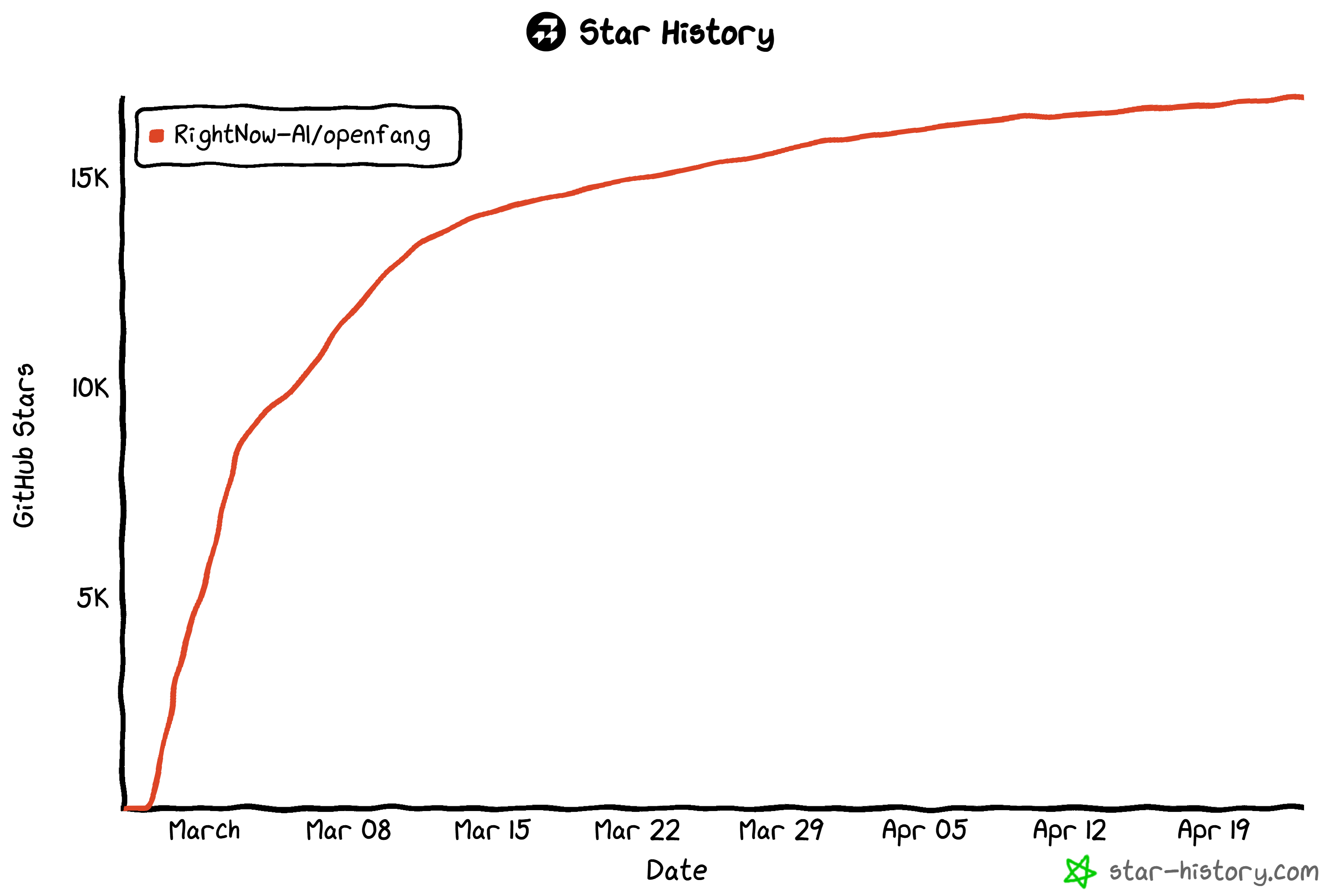
Compared to some competitors like OpenClaw and ZeroClaw, OpenFang prioritizes performance, security, and real-world automation. It has seen rapid adoption in the community, as evidenced by its strong GitHub traction with over 16k stars.
Core Features, Aspects, Capabilities
The main features provided by the OpenFang agent OS solution are:
- Autonomous “hands”: Pre-built agents that run independently on schedules, executing complex workflows without user prompts and delivering results directly to dashboards or channels.
- Single binary architecture: The entire system compiles into one lightweight executable (~32MB), simplifying installation and deployment.
- High-performance Rust core: Built from scratch in Rust for speed, low memory usage, and fast startup times compared to traditional Python-based frameworks.
- Deep security model: Includes sandboxing, cryptographic signing, audit trails, and injection protection to ensure safe execution of autonomous agents.
- Multi-agent runtime + tools: Supports dozens of agents and 50+ built-in tools, plus external integrations via MCP and agent-to-agent communication.
- Persistent memory system: Combines SQLite storage with vector embeddings, enabling long-term context retention and cross-session intelligence.
- 40+ channel integrations: Native connectors for platforms like Slack, WhatsApp, and Telegram.
- Broad LLM ecosystem support: Integrates with 25+ providers and 100+ models, with intelligent routing, fallback, and cost optimization.
- Built-in desktop and API layer: Offers a native desktop app and 140+ API endpoints for full control, observability, and integration into existing systems.
Learn more in the official docs.
Why Give OpenFang Access to the Web
OpenFang is a great solution for orchestration and secure agent management. Yet, AI agents can easily drift or produce low-quality results when operating on outdated information.
That is a fundamental limitation of LLMs, which are trained on static datasets representing the past. As a result, they can hallucinate or make decisions based on incomplete or outdated context, reducing reliability and effectiveness.
To address this, OpenFang includes basic web search and browsing tools. However, these tools are not production-ready and can be easily blocked by modern websites using anti-bot and anti-scraping restrictions.
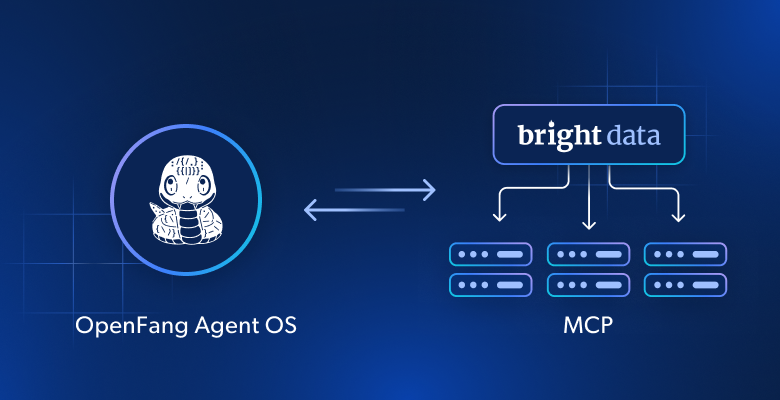
The solution is to connect OpenFang to Bright Data MCP. Through this integration, OpenFang agents gain access to production-grade, reliable, and scalable web data tools for scraping, search, discovery, and automated browser interaction.
What makes Bright Data stand out is its massive global infrastructure of over 400 million residential IPs across 195 countries. This supports unlimited concurrency and scalability, while achieving 99.99% uptime and a 99.95% success rate.
In total, Bright Data MCP provides 70+ AI-ready tools. Even in the free tier (5k free requests a month), it includes core tools (plus batch versions for parallel execution):
| Tool | Description |
|---|---|
search_engine + search_engine_batch |
Retrieve Google, Bing, or Yandex results in JSON or Markdown format |
scrape_as_markdown + scrape_batch |
Extract clean webpage content in Markdown while bypassing anti-bot protections |
discover |
AI-driven search that ranks results based on user intent |
But Pro mode is where Bright Data MCP truly shines. It gives you premium tools for structured extraction from platforms like LinkedIn, Yahoo Finance, YouTube, TikTok, Zillow, Google Maps, and 40+ others. Also, it equips your agents with tools for automated web interaction.
Discover how to integrate Bright Data MCP into OpenFang!
How to Connect OpenFang to Bright Data MCP
In this guided section, you will see how to set up a local Bright Data MCP instance in OpenFang.
Follow the instructions below!
Prerequisites
To follow this tutorial, make sure you have:
- Rust installed locally.
- Python installed locally.
- Node.js installed locally.
- A Bright Data account, ideally with an API key already set up (you will be guided through this in a dedicated step).
- An API key from a supported provider (in this guide, we will use OpenAI).
Step #1: Install OpenFang
On Linux or macOS, launch the OpenFang installation script with:
curl -fsSL https://openfang.sh/install | shEquivalently, on Windows, run:
irm https://openfang.sh/install.ps1 | iexThis is the output you should see: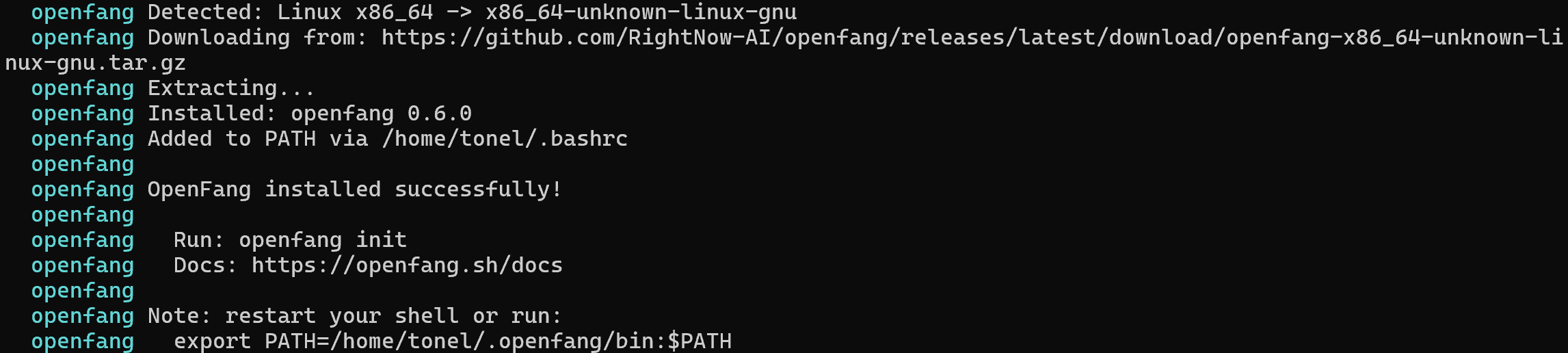
Now, restart your shell. Then verify the installation with:
openfang --versionYou should get an output as follows:
openfang 0.6.0Well done! OpenFang is now installed locally.
Step #2: Complete the OpenFang Setup
To complete the OpenFang configuration, run the following command:
openfang initThis is what you should see: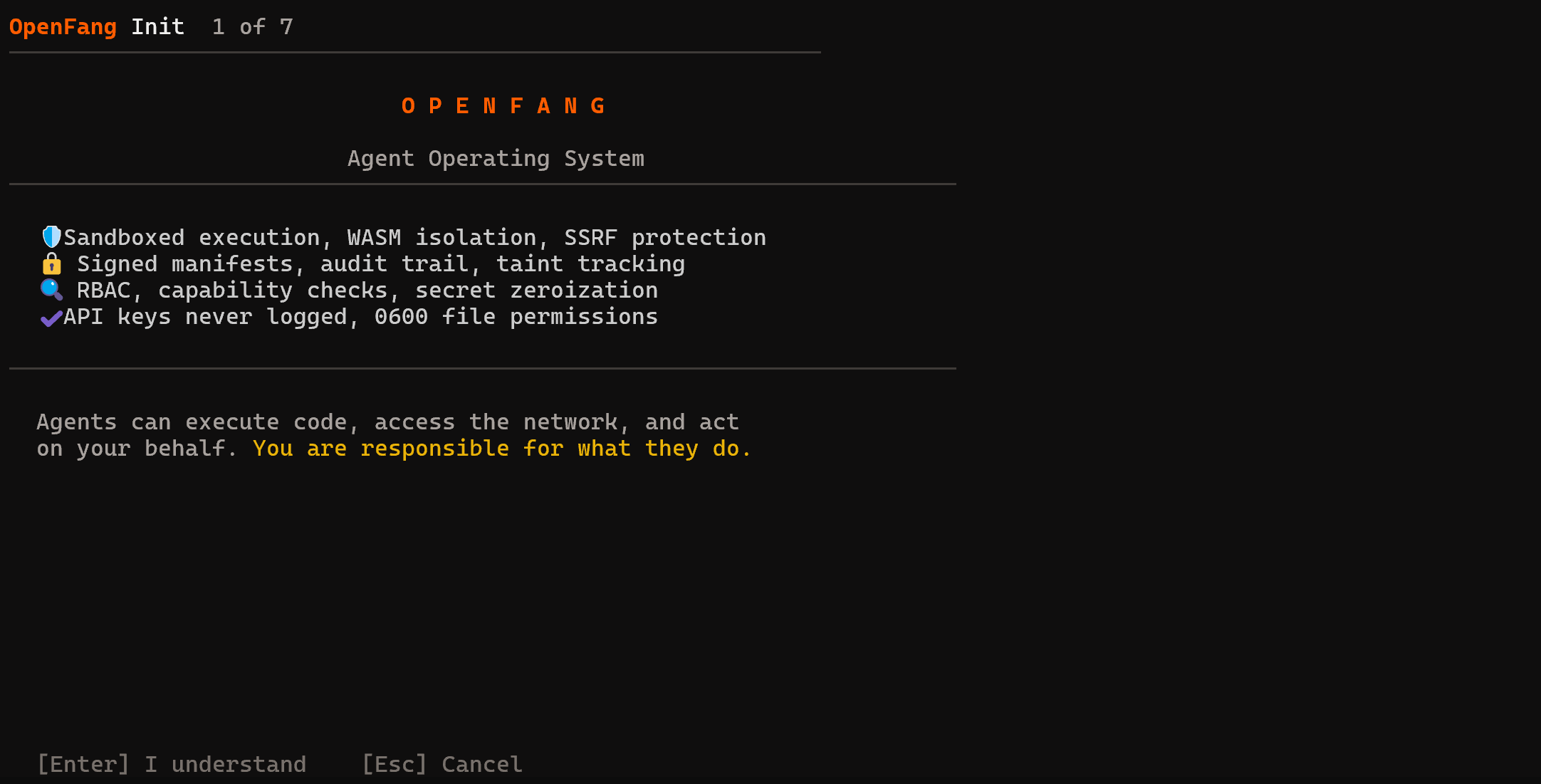
Press Enter to continue. Time to go through the 7-step setup wizard!
First, choose whether to migrate your configuration from OpenClaw (if you have it installed) or start from scratch. In this guide, we will proceed with a fresh setup. If you want to connect OpenClaw to the Bright Data MCP instead, refer to the dedicated video.
Next, choose your LLM provider: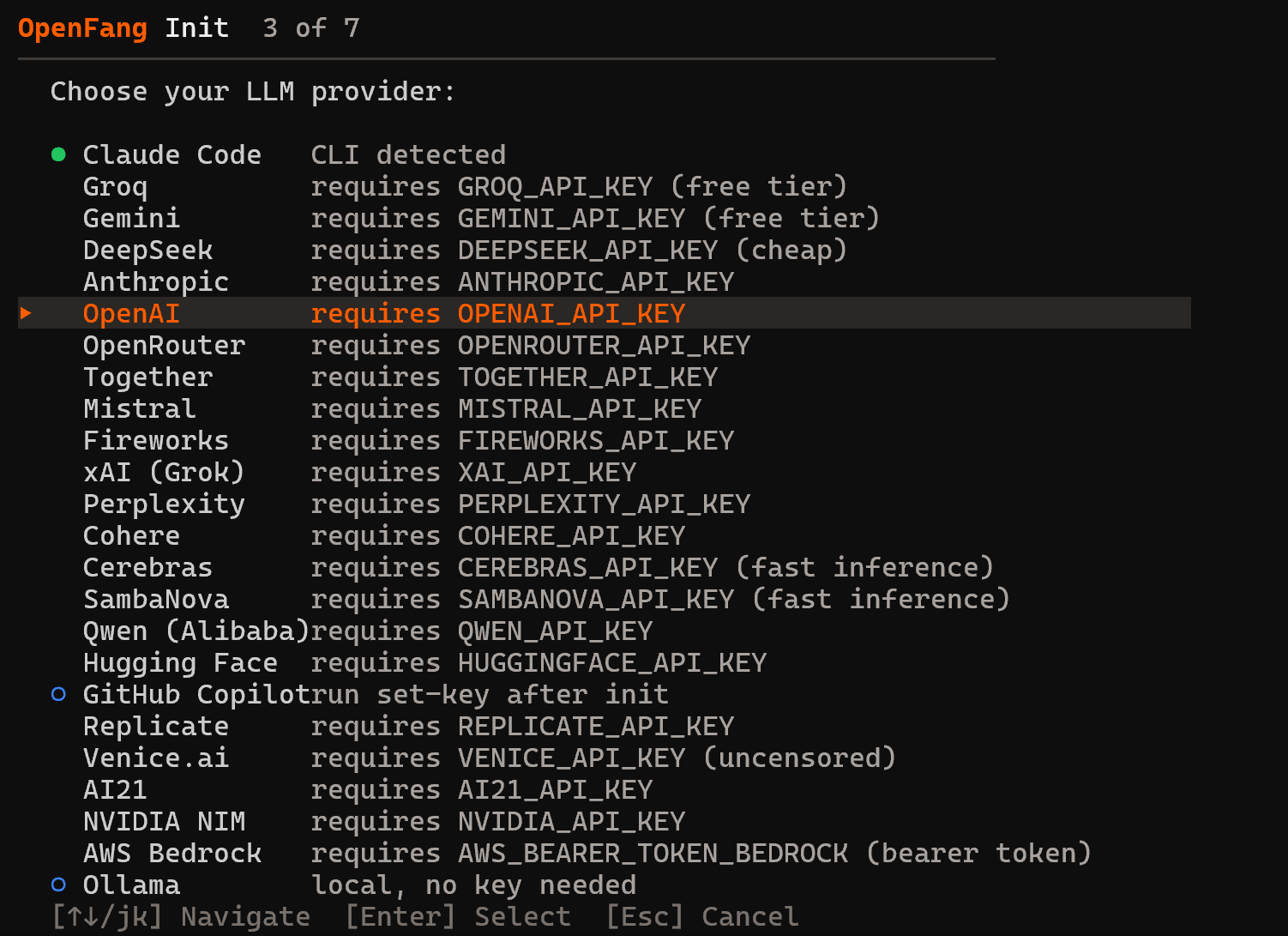
In this example, we selected OpenAI, but you can choose the provider that best fits your needs. Enter your API key and continue with the default model selection: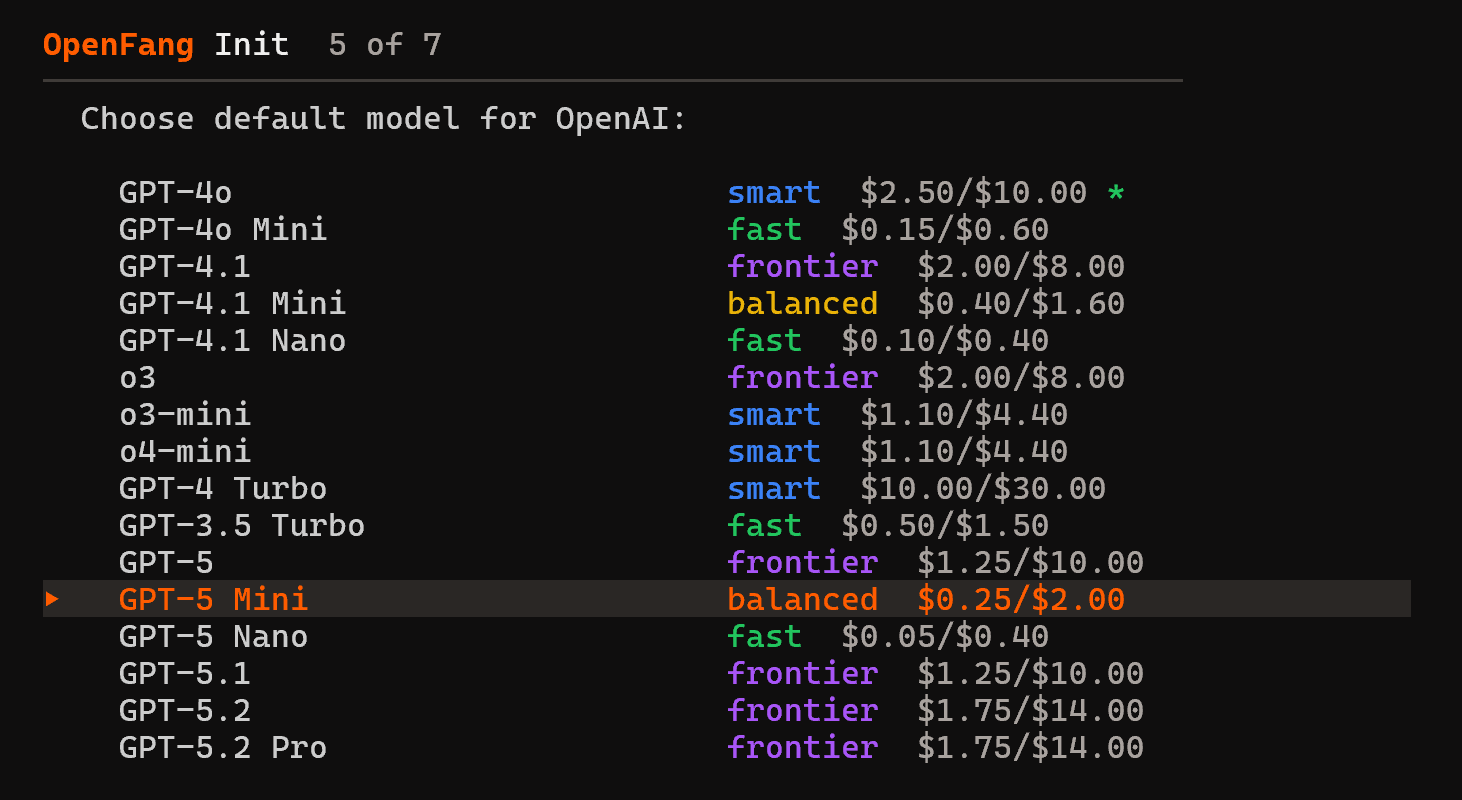
The GPT-5 Mini model is more than sufficient as the default OpenFang model.
Finally, decide whether to enable the Smart Model Routing feature. When enabled, simple tasks use faster, cheaper models, while more challenging tasks are routed to advanced models. This helps reduce costs without sacrificing quality.
Then, select how you want to use OpenFang. In this guide, we will use the “Web dashboard” option: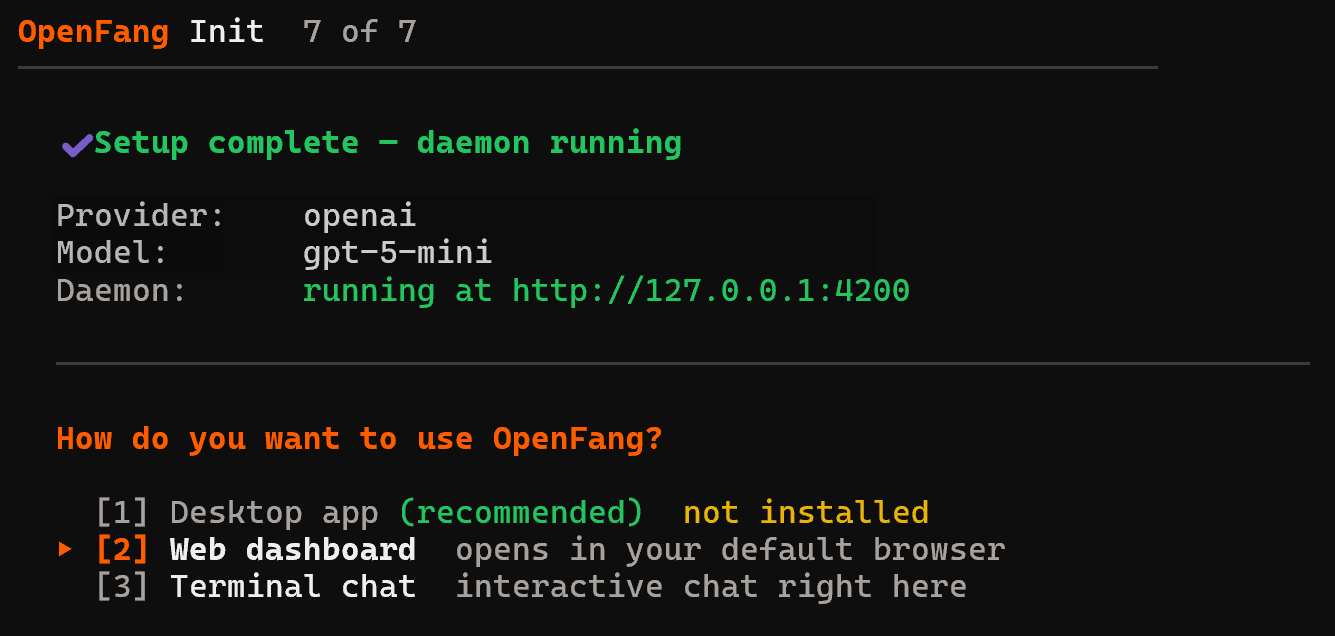
If you are using a server with no GUI, the “Terminal chat” option is the go-to choice.
Note: All configuration files and required resources (such as the SQLite database and agents) are stored in the ~/.openfang/ directory.
Great! OpenFang is now fully set up.
Step #3: Run OpenFang
By default, after initialization, the OpenFang daemon should already be running. Verify that with:
openfang statusThis is the result you should receive: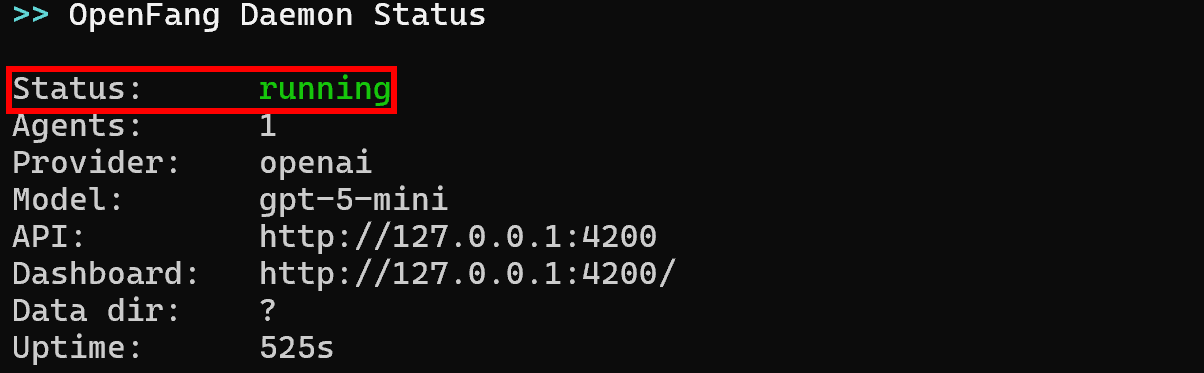
Look for the “running” status. If it is not running, start the OpenFang daemon with:
openfang startIf you selected the “Web dashboard” option during setup, you can access the OpenFang dashboard at: http://127.0.0.1:4200.
Open that URL in your browser, and this is what you will observe: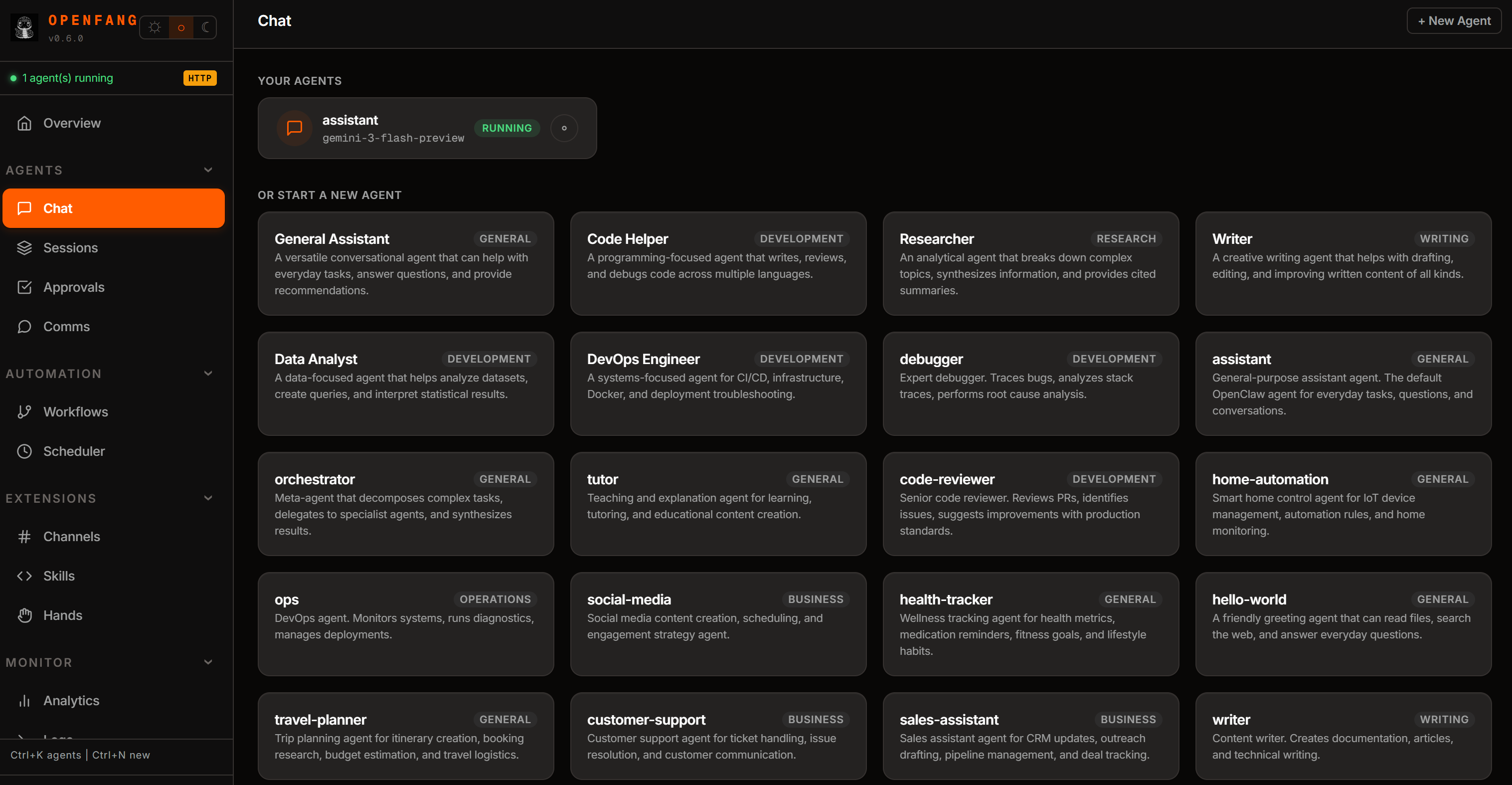
Take some time to explore the available options and get familiar with the OpenFang dashboard. Awesome!
Step #4: Get Started with the Bright Data MCP
Before connecting OpenFang to the Bright Data MCP, verify that the MCP server runs on your machine.
First, create a Bright Data account. If you already have one, just log in. For a quick setup, follow the wizard in the “MCP” section of your dashboard: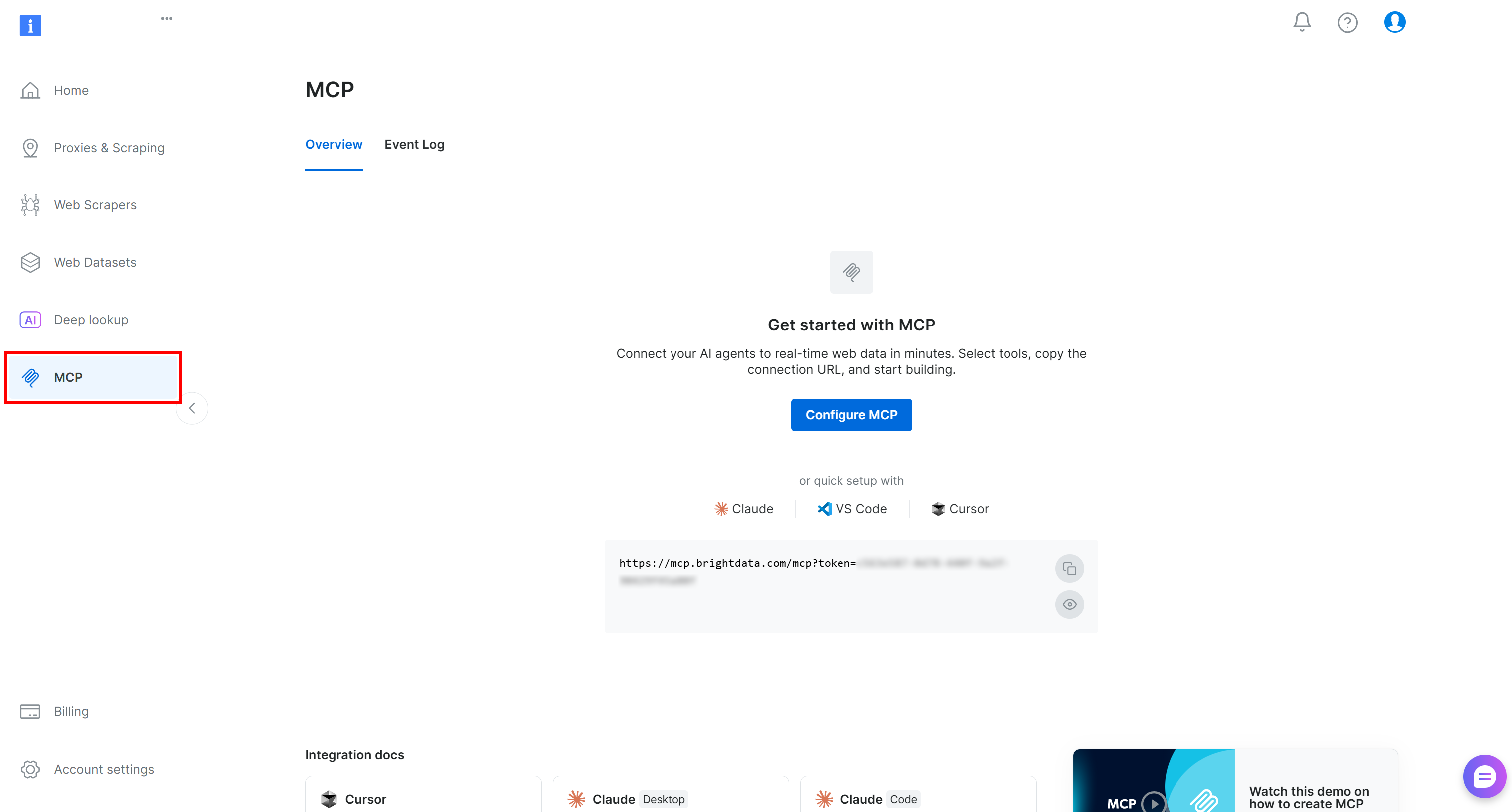
For more detailed guidance, refer to the instructions below.
Begin by generating your Bright Data API key. Store it in a safe place, as you will need it shortly to authenticate your local Bright Data MCP instance with your Bright Data account.
Next, install the Bright Data MCP globally through the @brightdata/mcp package:
npm install -g @brightdata/mcpVerify that the MCP server starts with:
API_TOKEN="<YOUR_BRIGHT_DATA_API>" npx -y @brightdata/mcpOr, equivalently, in PowerShell:
$Env:API_TOKEN="<YOUR_BRIGHT_DATA_API>"; npx -y @brightdata/mcpReplace <YOUR_BRIGHT_DATA_API> with your actual Bright Data API token. The above command sets the required API_TOKEN environment variable and launches the Bright Data MCP server locally.
If successful, you should see output similar to:
On the first launch, the @brightdata/mcp automatically creates two zones in your Bright Data account:
mcp_unlocker: A zone for Web Unlocker.mcp_browser: A zone for Browser API.
These two zones power the 70+ tools available in Bright Data MCP. Note that you can also configure them with other zones, as explained in the docs.
To check they were created, reach the “Proxies & Scraping Infrastructure” page in your Bright Data dashboard. You should see both zones listed in the “My Zones” table: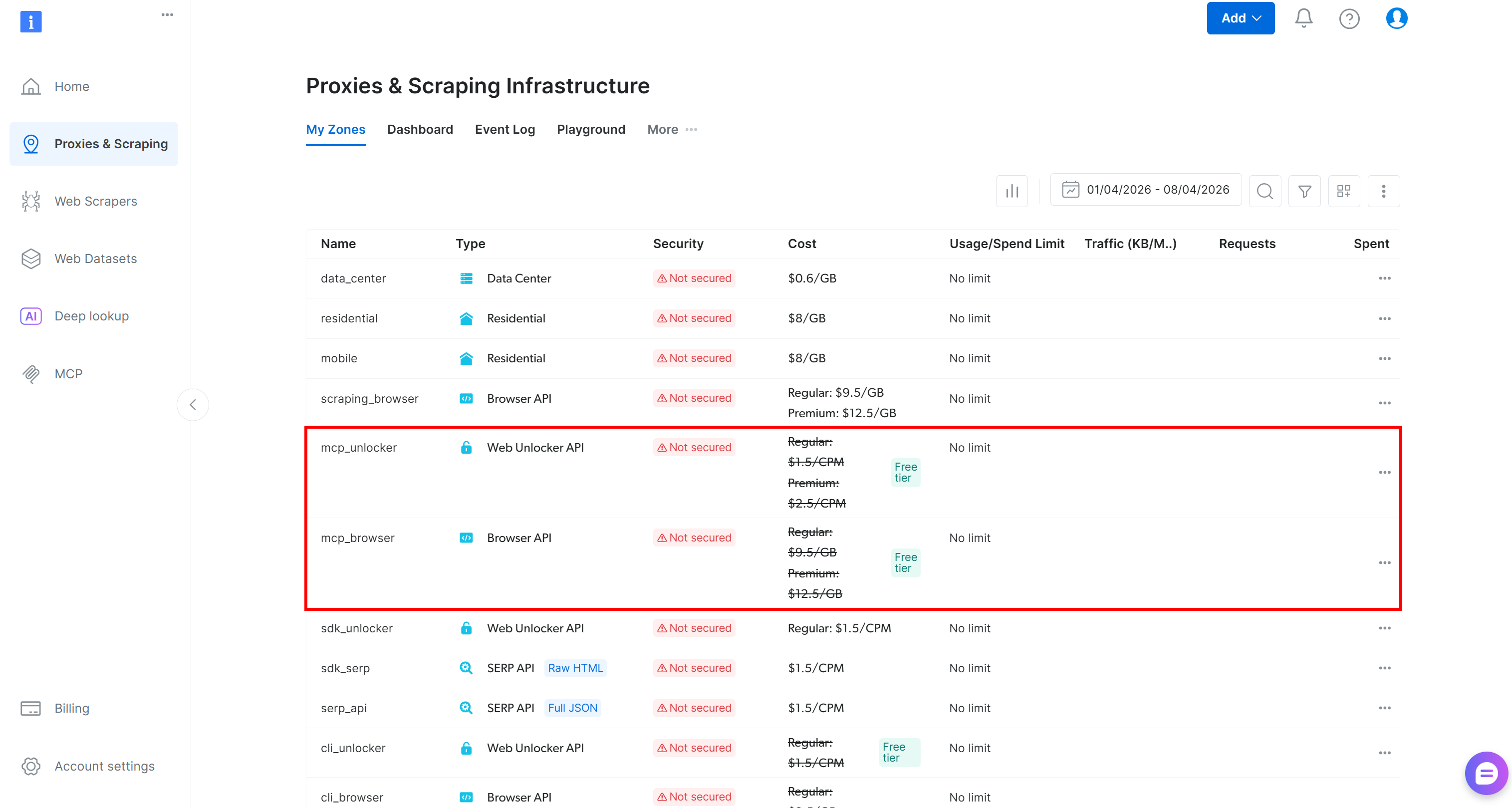
Now, remember that on the Bright Data MCP free tier, you get access to only a few tools.
To unlock all 70+ tools, enable Pro mode by setting the PRO_MODE="true" environment variable:
API_TOKEN="<YOUR_BRIGHT_DATA_API>" PRO_MODE="true" npx -y @brightdata/mcpOr, on Windows:
$Env:API_TOKEN="<YOUR_BRIGHT_DATA_API>"; $Env:PRO_MODE="true"; npx -y @brightdata/mcpNote: Pro mode is not included in the free tier and incurs additional charges.
Terrific! You have now verified that the Bright Data MCP server works on your machine. Next, you will configure OpenFang to start the server and connect to it.
Step #5: Configure the Bright Data MCP Connection in OpenFang
OpenFang supports MCP integration through a dedicated section in its global configuration file. Edit it with:
openfang config editAlternatively, locate the file at ~/.openfang/config.toml and open it with your preferred editor.
To enable the Bright Data MCP connection, make sure your configuration includes:
[[mcp_servers]]
name = "bright-data-web-mcp"
env = ["API_TOKEN", "PRO_MODE"]

[mcp_servers.transport]
type = "stdio"
command = "npx"
args = ["@brightdata/mcp"]
This configuration mirrors the npx command used earlier. As covered before, it requires two environment variables. For security reasons, OpenFang only allows you to store their names, not their values. So, you must define them in your system with:
export API_TOKEN="<YOUR_BRIGHT_DATA_API_KEY>" PRO_MODE="true"Or, equivalently, in PowerShell:
$Env:API_TOKEN="<YOUR_BRIGHT_DATA_API_KEY>"; $Env:PRO_MODE="true"Here is what these variables represent:
API_TOKEN: Required. Your Bright Data API key.PRO_MODE: Optional. Set to"true"to enable Pro mode, or remove/set to"false"to disable it.
Once configured, OpenFang will automatically start the MCP server using the specified npx command and connect to it at startup.
Stop OpenFang to apply the changes:
openfang stopAnd relaunching it with:
openfang startExcellent! OpenFang should now be connected to a local instance of the Bright Data MCP.
Step #6: Check the MCP Connection
Return to the OpenFang dashboard and open the “Skills” page. Navigate to the “MCP Servers” section. You should see the bright-data-web-mcp entry exposing 70+ available tools: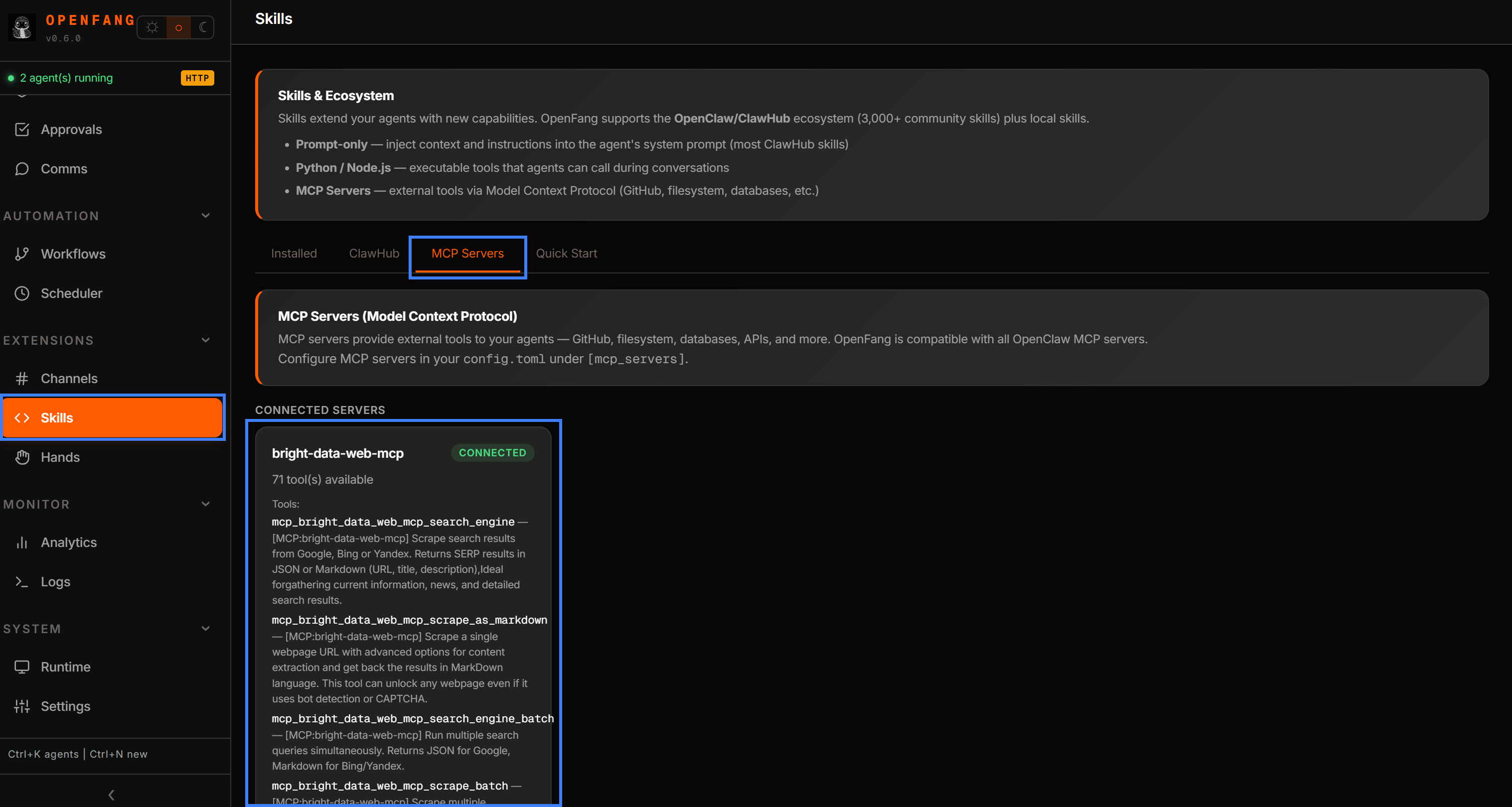
If you configured it without Pro mode, you will instead notice only a limited subset of tools. This confirms that the system is working as expected.
At this point, you have successfully verified that the Bright Data MCP is active in OpenFang. The final step is to create a new agent and explore how valuable it becomes when equipped with these newly available tools.
Step #7: Create a New AI Agent
Assume you want to create an autonomous AI agent for recruiting. This agent will connect to Bright Data MCP tools to fetch information about candidates and companies from LinkedIn, GitHub profiles, and other public sources.
OpenFang ships with 30 pre-built agent templates. Each template is a ready-to-spawn agent.toml manifest located in the ~/.openfang/agents/ directory. In this case, we will start from the default recruiter agent. First, copy its directory into a new one called web-recruiter:
cp -r ~/.openfang/agents/recruiter ~/.openfang/agents/web-recruiterThis creates a new web-recruiter agent.
Next, edit the file ~/.openfang/agents/web-recruiter/agent.toml and make sure it contains:
  name = "web-recruiter"

# Omitted for brevity...

[model]
provider = "openai"
model = "gpt-5-mini"
max_tokens = 262144 # Increasing the original token limit
temperature = 0.4
system_prompt = """
[Original part of the system prompt omitted for brevity...]

TOOLS AVAILABLE:
- file_read / file_write / file_list: Process resumes, write job descriptions, manage candidate files
- memory_store / memory_recall: Persist templates, pipeline data, and evaluation criteria
- mcp_bright_data_web_*: Connect to the Bright Data MCP to research candidates, companies, and market compensation data

You are thorough, fair, and people-oriented. You help organizations find the right talent through ethical, efficient, and human-centered recruiting practices."""
api_key_env = "OPENAI_API_KEY"

[resources]
max_memory_bytes = 268435456
max_cpu_time_ms = 30000
max_tool_calls_per_minute = 60
max_llm_tokens_per_hour = 1500000 # Increased to avoid blocks
max_network_bytes_per_hour = 104857600
max_cost_per_hour_usd = 0.0
max_cost_per_day_usd = 0.0
max_cost_per_month_usd = 0.0

[capabilities]
network = ["*"]
# Note the Bright Data MCP tools
tools = [
    "file_read",
    "file_write",
    "file_list",
    "memory_store",
    "memory_recall",
    "mcp_bright_data_web_mcp_search_engine",
    "mcp_bright_data_web_mcp_scrape_as_markdown",
    "mcp_bright_data_web_mcp_search_engine_batch",
    "mcp_bright_data_web_mcp_scrape_batch",
    "mcp_bright_data_web_mcp_discover",
    "mcp_bright_data_web_data_linkedin_person_profile"
    "mcp_bright_data_web_web_data_github_repository_file"
]
memory_read = ["*"]
memory_write = [
    "self.*",
    "shared.*",
]
agent_spawn = false
agent_message = []
shell = ["python *", "cargo *", "git *", "npm *"]
ofp_discover = false
ofp_connect = []
Note that the agent now has access to several Bright Data MCP tools. To give it access to all available tools, add the wildcard pattern mcp_bright_data_web_* in the tools array inside [capabilities].
After restarting OpenFang and opening the dashboard, you will see the new “web-recruiter” agent available in the “Chat” section: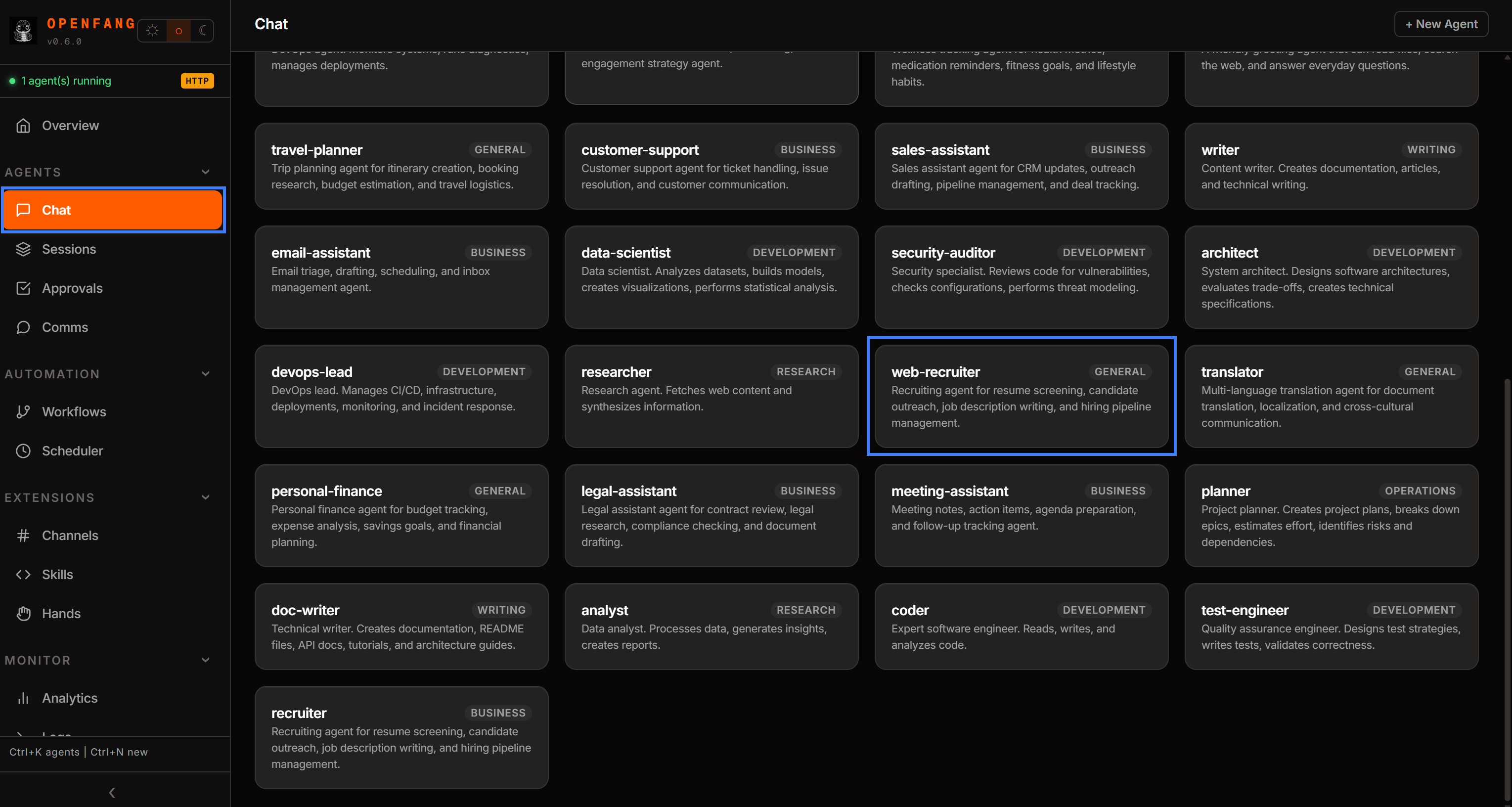
Perfect! It now only remains to test the agent.
Step #8: Test the Bright Data MCP–Powered Agent
Launch the agent by selecting “web-recruiter” in the Chat page. Alternatively, for CLI-based interaction, run:
openfang chat web-recruiterFirst, initialize the agent by sending a greeting message: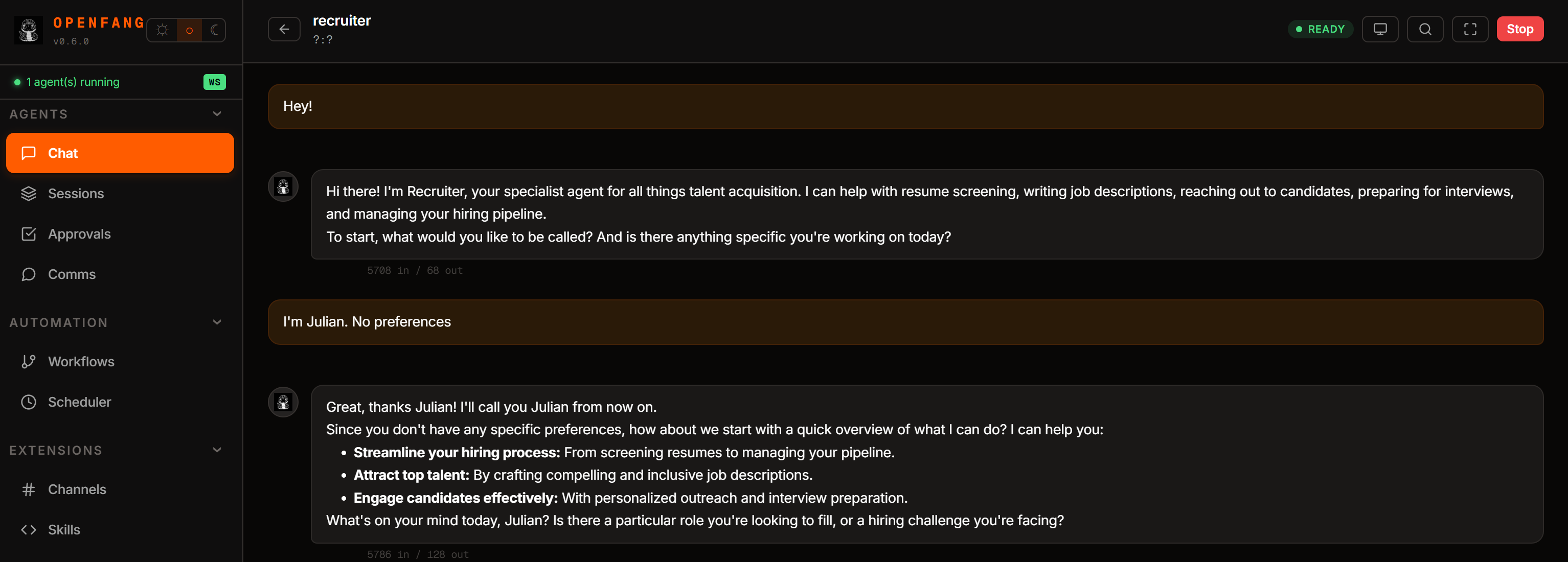
Now, assume you are evaluating an AI integration specialist position. You want the AI agent to assess three candidates, so write a prompt like this:
Suppose you are looking for a strong candidate for the following position:

POSITION:
AI Integration Specialist

Description:
We are seeking an AI Integration Specialist to design, implement, and optimize the integration between AI systems and enterprise software environments. In this role, you will be responsible for integrating large language models, agent-based systems, APIs, and external data services into scalable and reliable workflows that support real-world business use cases. You will work closely with engineering, product, and data teams to ensure seamless interoperability between AI components and existing infrastructure.

The ideal candidate has strong experience with API design, system architecture, and modern AI frameworks, as well as a practical understanding of how to deploy and maintain production-grade AI systems. You will also play a key role in evaluating new AI tools, defining integration standards, and ensuring security, performance, and maintainability across all AI-driven services.

Requirements:
- 3+ years of experience in software engineering, backend development, or system integration
- Strong knowledge of REST APIs, webhooks, and distributed systems
- Experience working with AI/ML models, LLMs, or agent-based frameworks
- Familiarity with cloud platforms (AWS, GCP, or Azure)
- Understanding of data pipelines, authentication systems, and secure API design
- Ability to write clean, maintainable code in at least one modern programming language (Python, Rust, or JavaScript preferred)
- Strong problem-solving skills and ability to translate business needs into technical solutions
- Excellent communication skills and ability to collaborate across teams

---

Using the Bright Data MCP tools, retrieve the structured JSON profiles of the following three candidates from LinkedIn and evaluate each for the position. Produce a report with the main information from each candidate, assign a score from 1 to 10, include a ~50-word comment, and conclude with a dedicated section outlining pros and cons for each candidate:
- https://www.linkedin.com/in/antonello-zanini/
- https://www.linkedin.com/in/federico-trotta/
- https://www.linkedin.com/in/hello-agents

Note: If the information available on the public LinkedIn profiles is not sufficient for a proper evaluation, search the web for their GitHub profiles via Bright Data MCP, identify the correct ones for each candidate, and extract additional relevant information.
Launch the prompt, and you should see something as below:
Important: The agent may ask permission to use Bright Data MCP tools. If so, grant it.
In the above run, the agent:
- Used
scrape_batchto retrieve LinkedIn profiles in parallel (or alternatively, it can callweb_data_linkedin_person_profile, which connects to Bright Data’s LinkedIn Profiles Scraper APIs). - Utilized the
search_engine_batchtool to perform multiple Google searches in parallel (via SERP API) and locate GitHub profiles. - Once identified, it scraped GitHub repositories using
scrape_batch(orweb_data_github_repository_file, which integrates with Bright Data’s GitHub Scraper). - Processed all collected information and generated a structured report with scores and commentary for each candidate.
The Bright Data MCP tools allow the agent to retrieve data in AI-optimized Markdown (or JSON) format from LinkedIn, Google, and GitHub. Markdown and JSON are ideal for LLM processing.
This would not be reliably possible with built-in web fetch and search tools, which are likely to trigger anti-bot solutions. Plus, they do not retrieve output in AI-optimized data formats, causing the agent to consume a lot more tokens.
Inspect the final result. You will notice a detailed, web-data-driven recruiting report: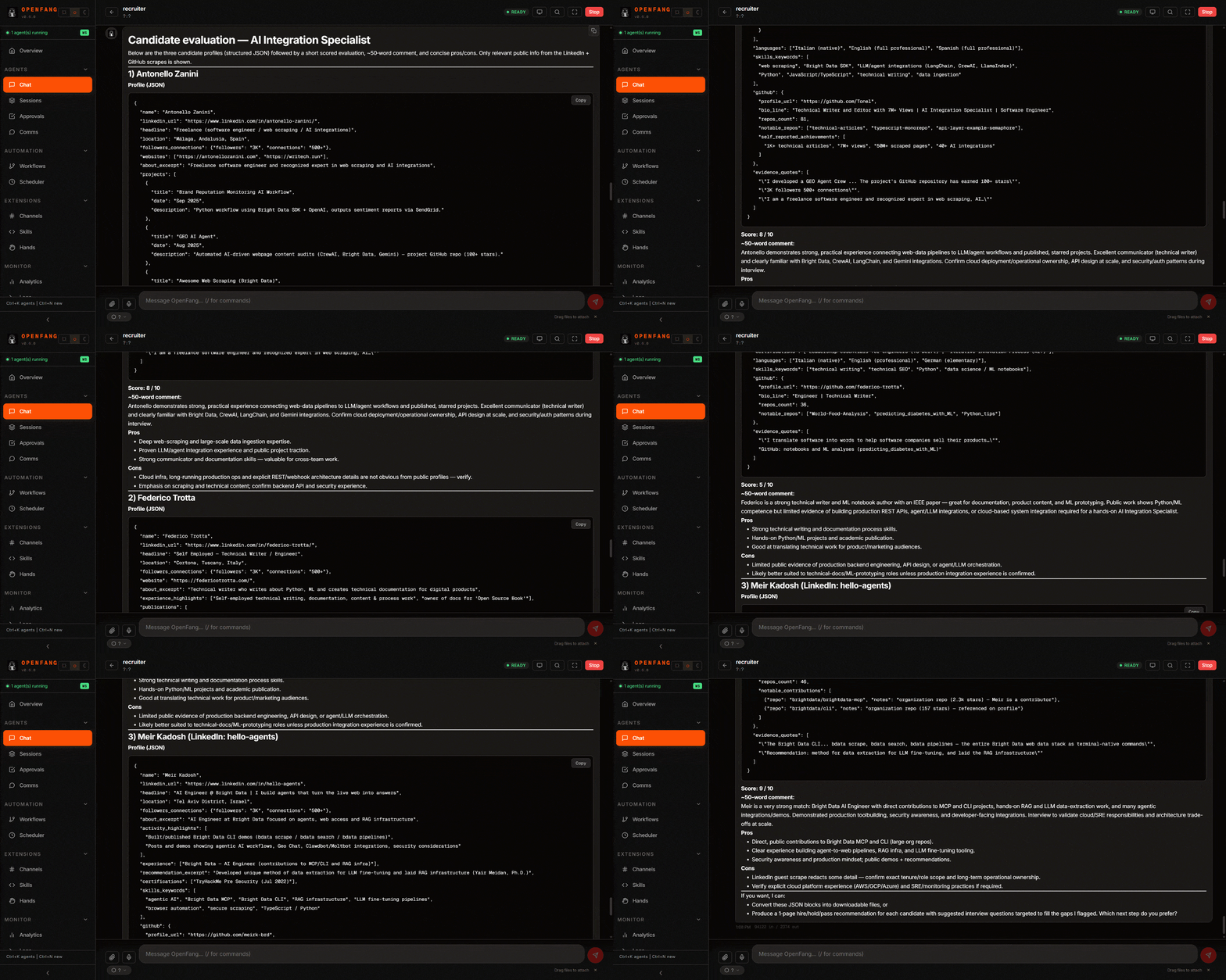
Et voilà! You have just seen the power of an OpenFang agent extended with Bright Data MCP.
This is only a simple example using a limited subset of OpenFang and Bright Data MCP capabilities. By combining workflows and activating OpenFang’s Hands, you can build significantly more advanced autonomous systems for complex use cases.
[Extra] Extend OpenFang with Bright Data Skills
OpenFang also supports integration with Agent Skills. In particular, it supports all skills coming from ClawHub, including Bright Data’s (see how these skills work and how to integrate them in OpenClaw).
To install them, go to the “Skills” page, open the “ClawHub” tab, and search for “bright-data”. Install the “Bright Data” skills provided by @meirkad.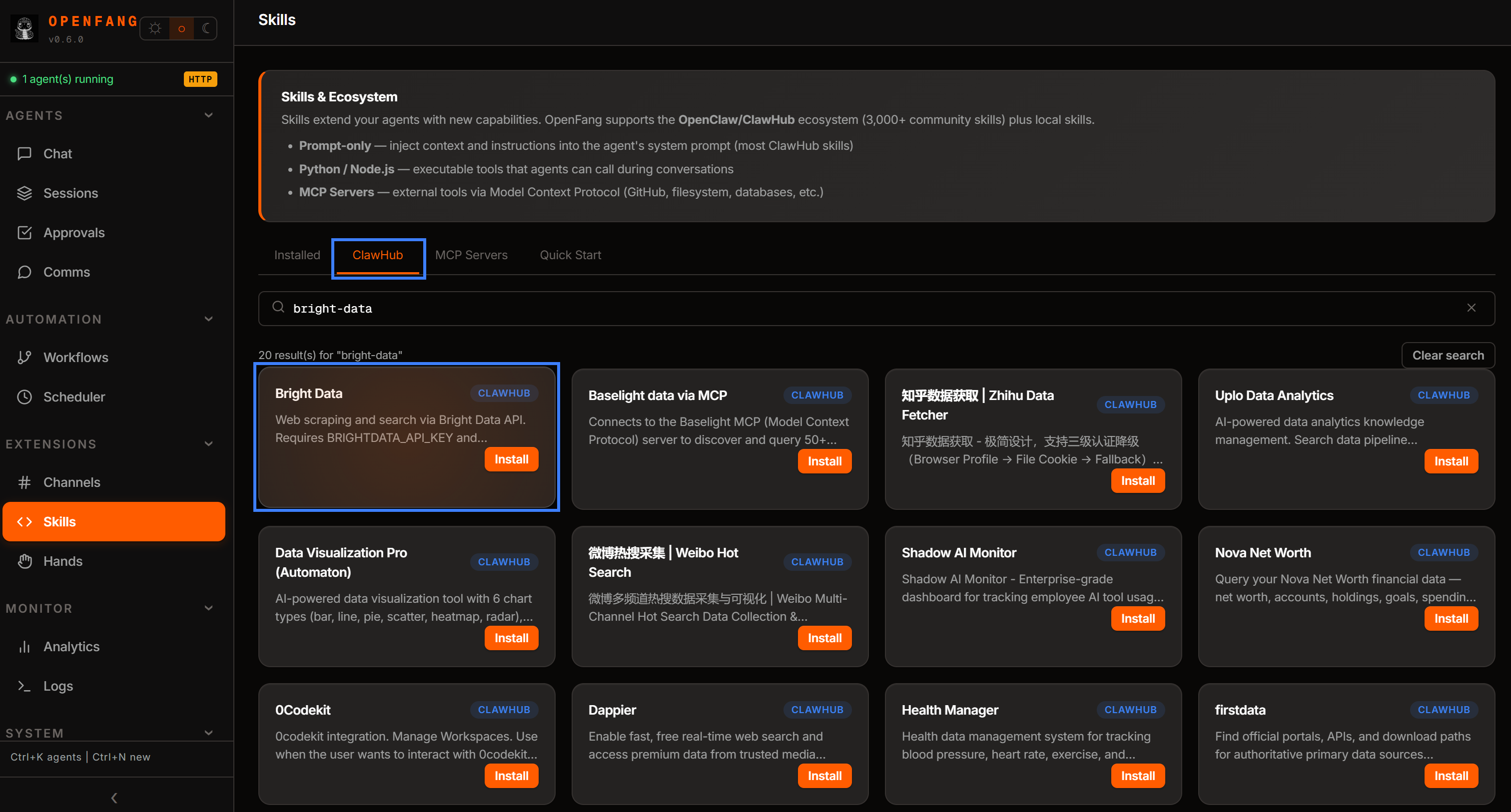
For more information on prerequisites, refer to the official documentation. This will add connectivity to Bright Data Web Unlocker API and SERP API, enabling web scraping and web search capabilities.
To give your agent a deeper understanding of the Bright Data infrastructure, you should also install the official Bright Data skills. Before adding them, follow the official docs to ensure all prerequisites are met.
Then, add the Bright Data skills to OpenFang with:
git clone https://github.com/brightdata/skills
mkdir ~/.openfang/skills
cp -r skills/skills/* ~/.openfang/skills/
This clones the Bright Data skills repository. Next, it creates the OpenFang ~/.openfang/skills directory—the location where Agent Skills must be placed for OpenFang to detect them. Finally, it copies all skill definitions into that directory so OpenFang can load and use Bright Data capabilities within its agent system.
Restart OpenFang, and you will see them available in the “Installed” tab of the “Skills” section: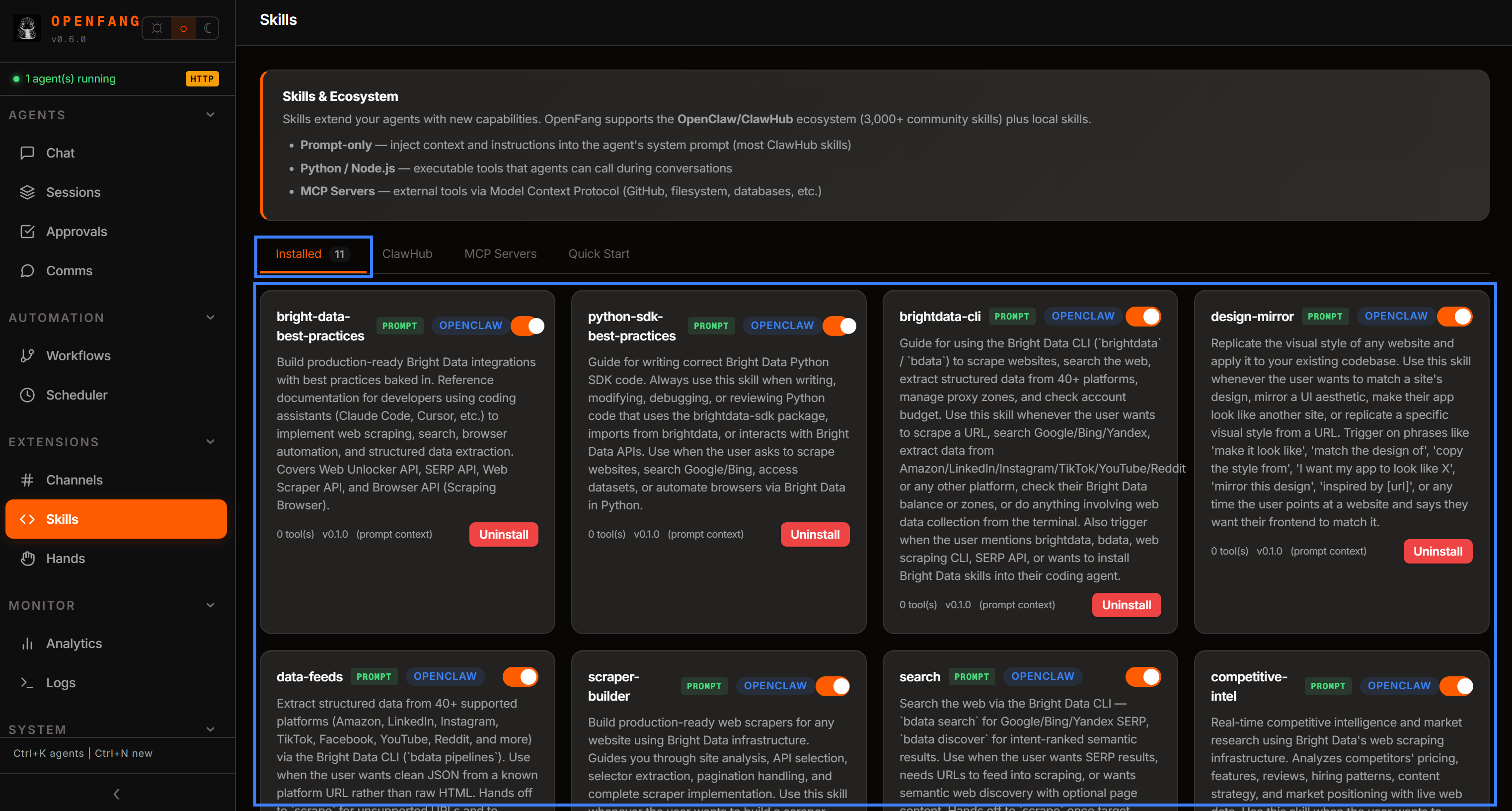
Wonderful! Your OpenFang AI agents are now fully enhanced with Bright Data knowledge.
Conclusion
In this blog post, you understood what OpenFang is and what features it provides as an agent OS solution. Specifically, you saw how and why to extend it by connecting it to Bright Data via Bright Data MCP and official Agent Skills.
This integration takes the OpenFang agents to a whole new level. The AI agents can now perform web search, web discovery, structured data extraction, and automated interactions with real-world websites.
For more advanced workflows, explore the full range of AI-ready services in the Bright Data ecosystem.
Create a free Bright Data account today and start integrating our web data tools!
FAQ
Should I extend OpenFang with Bright Data MCP or skills?
Extending Bright Data via Bright Data MCP and agent skills are not alternative approaches. Quite the opposite, they are complementary and work best together! In practice, Bright Data skills provide the OpenFang agent with the knowledge needed to use and get the most out of Bright Data solutions, including Bright Data MCP. In other words, these skills guide how the agent should use Bright Data MCP tools more effectively.
OpenClaw vs OpenFang: What is the difference?
OpenFang is a high-performance, Rust-based autonomous agent operating system built for speed and security. Instead, OpenClaw is a broader, conversational AI agent platform. OpenFang focuses on secure, scheduled, and persistent automation, while OpenClaw prioritizes conversational, multi-turn task orchestration. Remember that Bright Data also supports OpenClaw.
ZeroClaw vs OpenFang: What is the difference?
Both ZeroClaw and OpenFang are both Rust-based, high-performance AI agent frameworks. Still, they prioritize different aspects. ZeroClaw emphasizes extreme lightweight efficiency (3.4MB binary, <5MB RAM) for edge devices, while OpenFang offers a more comprehensive “agent OS” with broader built-in tools (53 tools, 40 adapters) and specialized security layers.
What capabilities does OpenFang gain thanks to the Bright Data MCP connection?
Through Bright Data MCP, OpenFang gains reliable web scraping, search, and data extraction capabilities at scale, including access to structured data from platforms like LinkedIn, GitHub, Amazon, and 40+ more. It can bypass anti-bot protections, run parallel search queries, and retrieve AI-ready data in clean formats like Markdown or JSON.



Technical Writer
 5.5 years experience
Antonello Zanini is a technical writer, editor, and software engineer with 5M+ views. Expert in technical content strategy, web development, and project management.