In this tutorial, you will learn:
- What Mastra is as a solution for building AI agents and what it brings to the table.
- Why Mastra AI agents become much more powerful when they can explore the web.
- How to build a Mastra AI agent with web access thanks to integration with Bright Data tools.
- (Optional) How to connect Mastra to the Bright Data MCP.
Let’s dive in!
What Is Mastra?
Mastra is a modern TypeScript framework for building AI-powered agents and applications. It provides an API for building and managing agents, workflows, RAG, memory, MCP, and observability in a unified system.
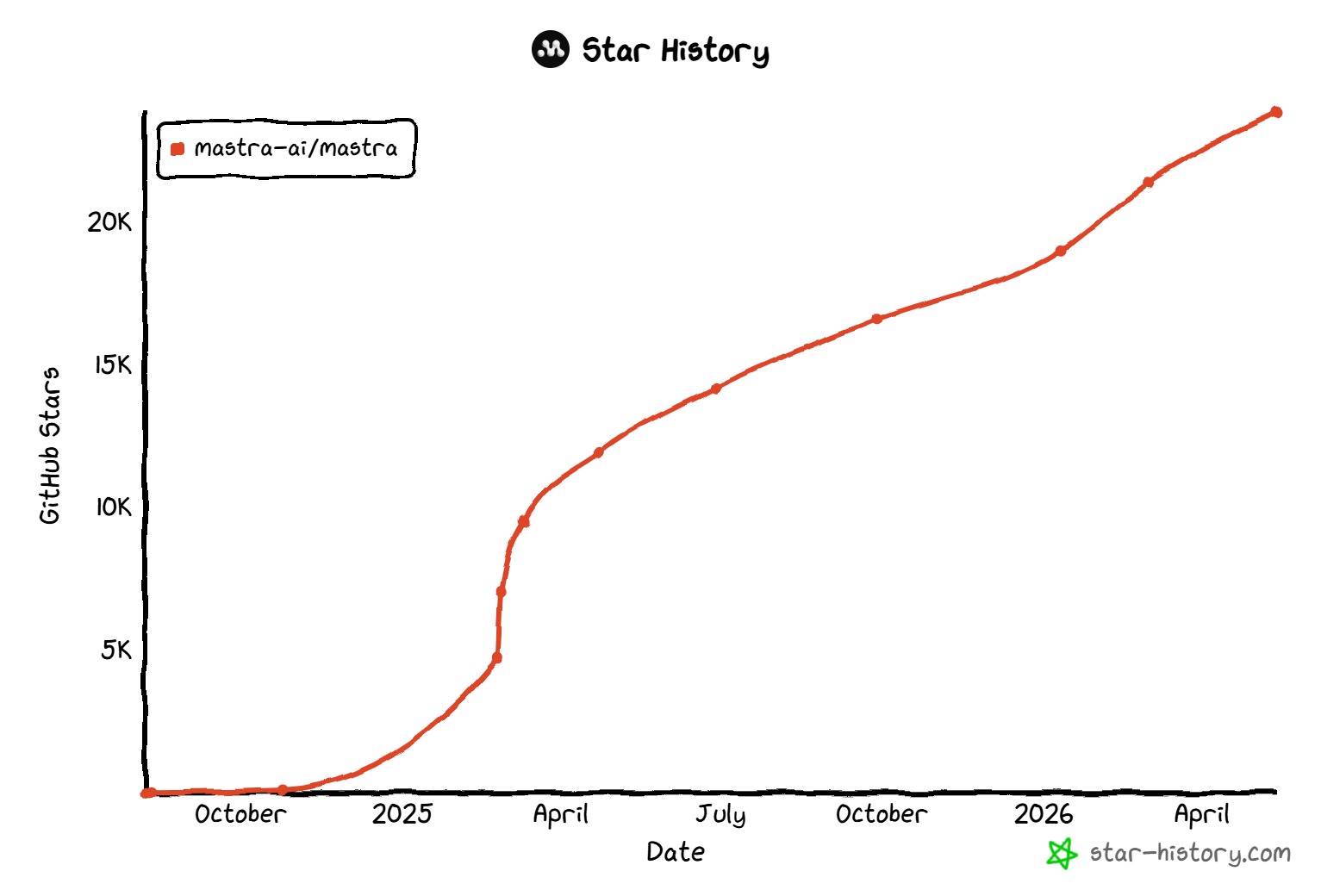
Mastra is open source and widely adopted, with over 23.8k GitHub stars. This reflects strong community trust and rapid ecosystem growth.
The main features provided by the solution are:
- Agents: Build autonomous AI agents that reason, use tools, and iterate to complete complex user-defined tasks.
- Workflows: Orchestrate multi-step processes using structured graph-based execution with branching, parallel steps, and controlled deterministic logic.
- RAG: Connect agents to external knowledge sources for grounded, context-aware responses using retrieval-augmented generation pipelines.
- Memory: Maintain short-term and long-term context so agents can remember conversations and improve continuity across interactions.
- Tools: Extend agent capabilities with external APIs, functions, and integrations, enabling real-world actions and dynamic data access.
- MCP: Integrate Model Context Protocol servers to expose and consume tools, agents, and structured resources across systems.
- Observability: Track, evaluate, and debug agent behavior using logs, traces, metrics, and performance evaluation tooling.
Find out more in the official docs.
Why Extend Mastra AI Agents With Web Search and Scraping Tools
Mastra is a rich framework for building AI-driven applications and agents. However, even well-designed AI systems can drift or produce low-quality outputs when relying on outdated or incomplete information.
This is a core limitation of LLMs, which are trained on static datasets and therefore lack real-time awareness. As a result, they may hallucinate or make decisions based on stale context, reducing accuracy and reliability.
To solve this, AI applications need access to a real-time web data infrastructure. This is exactly where Bright Data comes in!
The Solution: Bright Data Tools for Mastra
Bright Data supports Mastra through the following official tools:
webSearch: Performs web searches across engines like Google, Bing, Yandex, and others. It returns structured SERP results in JSON format, ready for AI agents. Powered by Bright Data’s SERP API.webFetch: Retrieves content from any web page using Bright Data’s Web Unlocker API. It bypasses bot protection and CAPTCHA systems to access live web data from any domain.
With this open-source integration, Mastra applications gain access to a production-grade web data infrastructure. This allows agents to discover fresh sources, retrieve real-time information, and close the gap between training data and current reality.
What makes Bright Data stand out is its extensive global infrastructure of over 400 million residential IPs spanning 195 countries. It enables unlimited concurrency while maintaining 99.99% uptime and a 99.95% success rate.
How to Build a Mastra AI Agent Connected to Bright Data for Web Data Access
This step-by-step section will guide you through the process of setting up a new Mastra AI agent integrated with Bright Data tools.
Follow the instructions below!
Prerequisites
To go through with this tutorial, make sure you have:
- Git installed locally.
- Node.js v22.13.0 or later installed (the latest LTS version is recommended).
- An API key from an AI model provider supported by Mastra (in this case, we will rely on an OpenAI API key).
- A Bright Data account with an API key set up. To create a Bright Data account and configure an API key, follow the official documentation guide.
Step #1: Initialize a New Mastra Project
Note: If you already have a Mastra project in place, you can skip this step.
Start by creating a new Mastra project called mastra-bright-data-web-access-agent using the create-mastra utility:
npx create-mastra@latest mastra-bright-data-web-access-agentWhen prompted, select your AI provider.
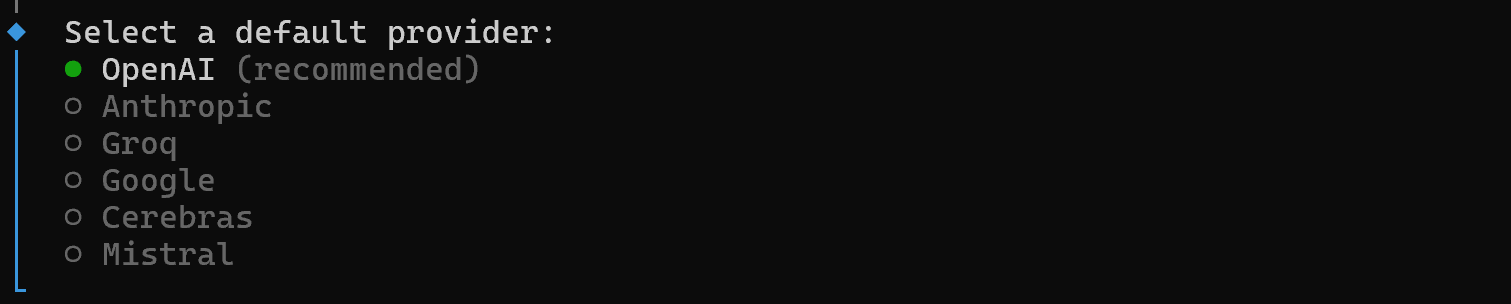
In this case, choose “OpenAI”, then select the option to enter an API key manually. Paste your OpenAI API key when prompted:

Next, you will be asked whether to enable Mastra observability. Choose based on your preference, then continue through the remaining setup prompts.
Once the setup is complete, navigate into your project directory:
cd mastra-bright-data-web-access-agentYou should now see a project structure similar to this:
mastra-bright-data-web-access-agent/
├── .agents/           # Internal Mastra directory for agent skills, etc.
├── node_modules/
└── src/
│    └── mastra/
│        ├── index.ts              # Entry point that initializes the Mastra setup
│        ├── agents/
│        │   └── weather-agent.ts  # Defines the default Weather AI agent
│        ├── scorers/
│        │   └── weather-scorer.ts  # Scoring logic to evaluate or rank agent outputs
│        ├── tools/
│        │   └── weather-tool.ts    # External tool integrations used by the agent
│        └── workflows/
│            └── weather-workflow.ts  # Logic combining tools and agents
├── .env               # Environment variables (API keys, secrets, etc.)
├── .gitignore
├── AGENTS.md          # Docs describing available agents and their behavior
├── package-lock.json
├── package.json
├── README.md          # Main project documentation
└── skills-lock.json
The folder contains the default Mastra weather AI agent project. This is a minimal template designed to demonstrate how to build agents, tools, scorers, and workflows in Mastra.
Explore the files and get familiar with them. For example, open the .env file. You should see your OpenAI API key configured during setup. Consider also running the agent with:
npm run devWell done! Your Mastra project is now set up and ready to be extended with Bright Data tools.
Step #2: Install and Configure the Bright Data Tools
Start by installing the Mastra Bright Data tools along with the required zod dependency:
npm install @mastra/brightdata zodThe @mastra/brightdata package wraps the Bright Data JavaScript SDK and exposes its methods for scraping and web search as Mastra-compatible tools.
The Bright Data JavaScript SDK requires the BRIGHTDATA_API_TOKEN environment variable to work. Add it to your .env file:
BRIGHTDATA_API_TOKEN="<YOUR_BRIGHT_DATA_API_KEY>"Replace the <YOUR_BRIGHT_DATA_API_KEY> placeholder with your actual Bright Data API key. The API key is used by the SDK to authenticate requests to the Bright Data APIs.
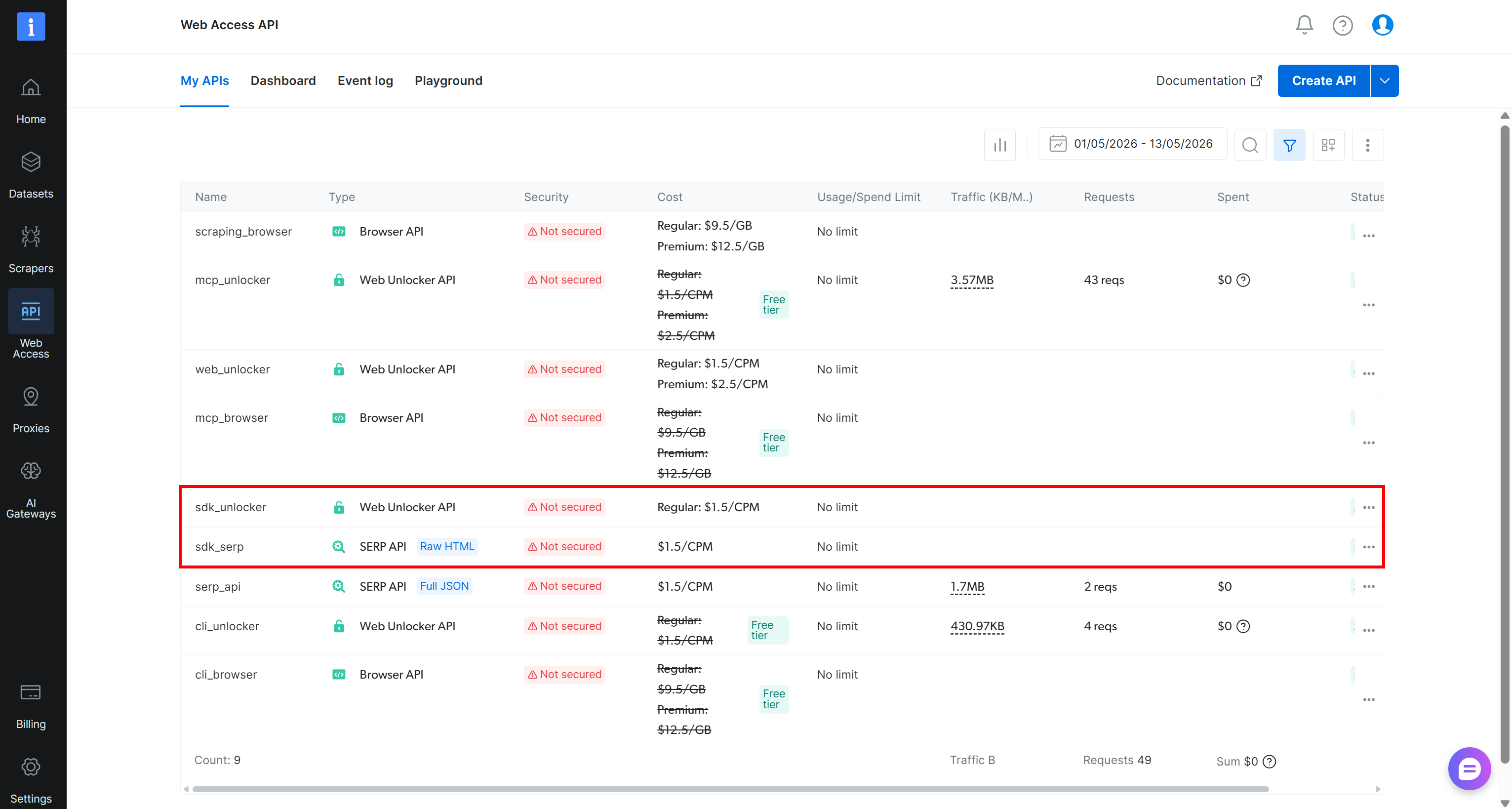
Once configured, the @mastra/brightdata tools will be able to connect to your Bright Data account. On first use, the Bright Data SDK will automatically provision the required APIs in your Bright Data dashboard, including the required Web Unlocker API and SERP API zones:
Step #3: Add the Bright Data Tools
At this point, you have installed the Bright Data Mastra tools. Now, you need to configure and expose them to your AI agent.
To do that, create a new web-access.ts file inside src/mastra/tools/:
// src/mastra/tools/web-access.ts

import { createBrightDataTools } from '@mastra/brightdata'

// create the web search and web fetch tools using the BrightData client options
export const { webSearch, webFetch } = createBrightDataTools({
  verbose: true, // enable verbose logging for debugging purposes
})
This code calls createBrightDataTools() from the @mastra/brightdata package with a custom configuration. Note that required Bright Data API key is automatically read from the BRIGHTDATA_API_TOKEN environment variable. Similarly, the zone names are automatically inferred or created by default. If needed, you can explicitly configure both the API key and zones through additional options in createBrightDataTools().
The createBrightDataTools() function generates two Mastra-compatible tools:
webSearch: Uses Bright Data’s SERP API to enable web search capabilities for your AI agent.webFetch: Calls Bright Data’s Web Unlocker API to fetch and scrape content from any website.
Note: Alternatively, you can also create and configure these tools individually with createBrightDataSearchTool() and createBrightDataFetchTool(). This is the recommended approach if you prefer more granular control.
Exporting these tools allows you to import them later into your agent definition to enable web access. Great! The Bright Data tools are now ready for use in a Mastra AI agent.
Step #4: Create the Web Access AI Agent
Now, it is time to create a Mastra agent connected to the Bright Data tools. To do so, add a web-access-agent.ts file under the src/mastra/agents/ path and populate it as below:
// src/mastra/agents/web-access-agent.ts

import { Agent } from '@mastra/core/agent'
import { Memory } from '@mastra/memory'
import { webFetch, webSearch } from '../tools/web-access'

export const webAccessAgent = new Agent({
  id: 'web-access-agent',
  name: 'Web Access Agent',
  instructions: `
    You are a helpful, general-purpose assistant with Bright Data web access capabilities.

    Goals:
    - Answer user questions by combining reasoning with fresh, tool-based information.
    - Prefer tools when information may be outdated or when factual accuracy is required.
    - Clearly reference tool outputs so users can trace where information comes from.

    Tool usage guidelines:
    - Start with the webSearch tool to gather relevant sources and context.
    - Use the webFetch tool to retrieve and analyze detailed content from specific pages.
`,
  model: 'openai/gpt-5-mini',
  tools: {
    webFetch,
    webSearch,
  },
  memory: new Memory(),
})
This snippet defines a Mastra AI agent with web search and scraping capabilities backed by Bright Data. It empowers the agent to retrieve fresh online information and scrape web pages. Note that it also includes memory support, so that agent can maintain context across interactions.
Fantastic! The Bright Data-powered Mastra AI agent is ready.
Step #5: Add the Agent to the Index
The last step to complete the Mastra application is to register the webAccessAgent in the src/mastra/index.ts file:
// src/mastra/index.ts

import { Mastra } from '@mastra/core/mastra'
import { PinoLogger } from '@mastra/loggers'
import { LibSQLStore } from '@mastra/libsql'
import { DuckDBStore } from '@mastra/duckdb'
import { MastraCompositeStore } from '@mastra/core/storage'
import { Observability, MastraStorageExporter, MastraPlatformExporter, SensitiveDataFilter } from '@mastra/observability'
import { webAccessAgent } from './agents/web-access-agent'

export const mastra = new Mastra({
  agents: { webAccessAgent },
  storage: new MastraCompositeStore({
    id: 'composite-storage',
    default: new LibSQLStore({
      id: 'mastra-storage',
      url: 'file:./mastra.db',
    }),
    domains: {
      observability: await new DuckDBStore().getStore('observability'),
    }
  }),
  logger: new PinoLogger({
    name: 'Mastra',
    level: 'info',
  }),
  observability: new Observability({
    configs: {
      default: {
        serviceName: 'mastra',
        exporters: [
          new MastraStorageExporter(),
          new MastraPlatformExporter(),
        ],
        spanOutputProcessors: [
          new SensitiveDataFilter(),
        ],
      },
    },
  }),
})
The above snippet initializes a Mastra application by registering the previously defined Web Access AI agent. It then configures composite storage so that the agent’s memory is persisted to a local mastra.db file using a LibSQL store. It also enables structured logging via Pino and sets up observability with exporters and sensitive data filtering for monitoring and traceability.
Note: To keep your Mastra application lean, consider removing the initial weather-related tools, workflows, and scorers.
Step #6: Test the Web Access Agent
Run your Mastra application with:
npm run devYou should see output similar to this:
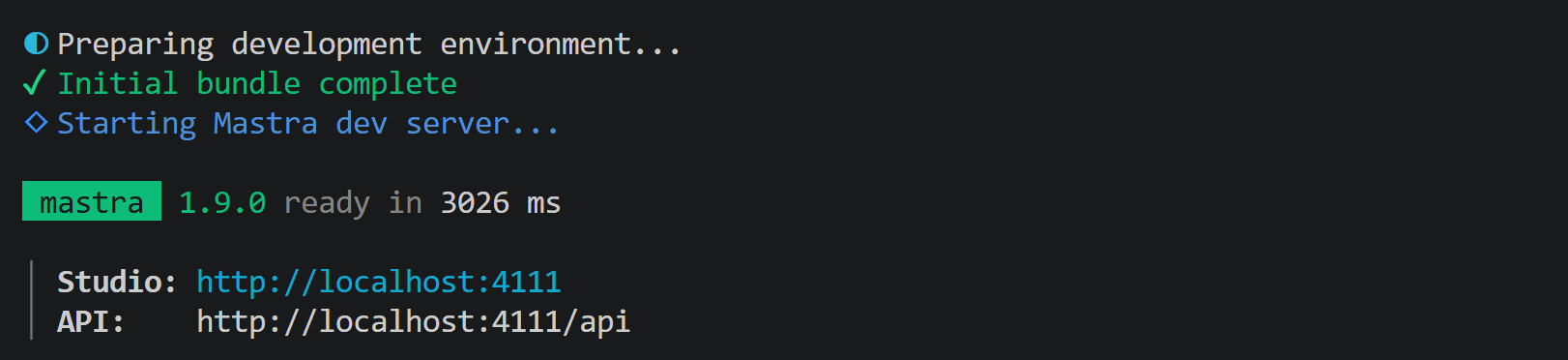
This indicates that the Mastra local server is running at http://localhost:4111. Open that URL in your browser, and you should see the Mastra dashboard:
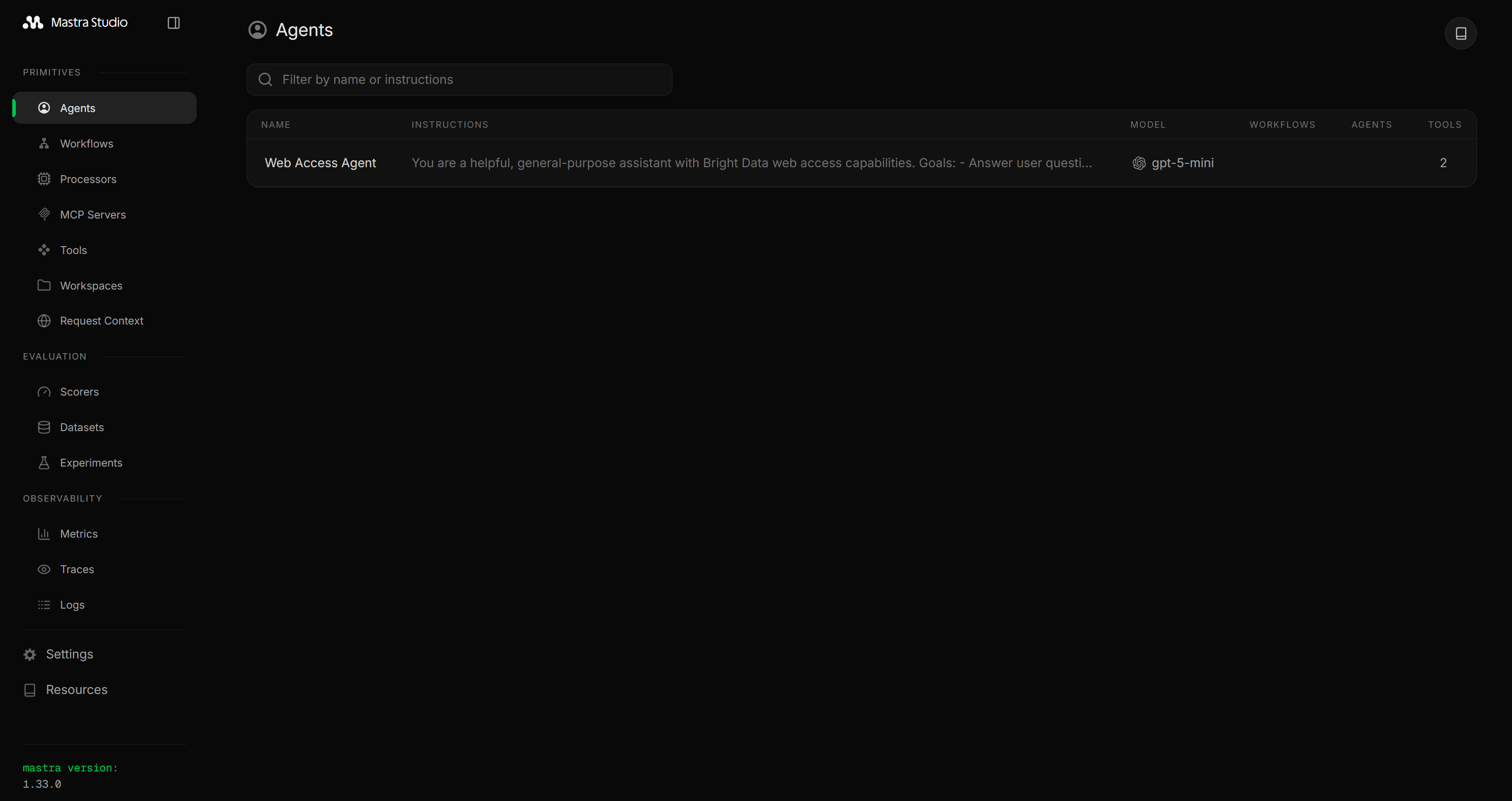
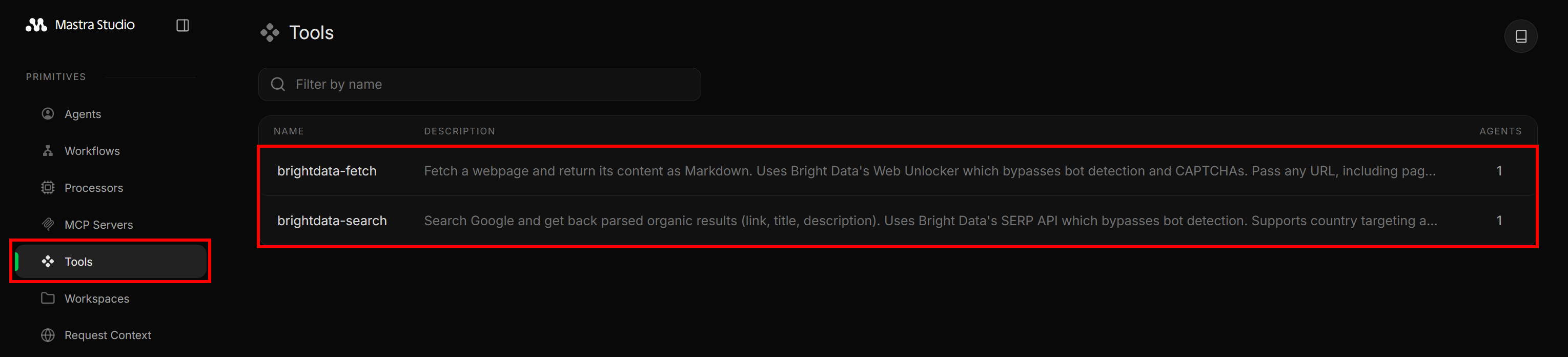
Navigate to the “Tools” section, and you will view the two Bright Data tools exposed from src/mastra/tools/web-access.ts:
Then, go to the Agents page and click on the “Web Access Agent” entry:

This will open the agent’s prompting UI, where you can chat with it. To verify the agent’s web exploration capabilities, launch a prompt like:
Search for the latest stock market news on Google. Select the most relevant articles, extract and analyze their content, and return a structured Markdown report summarizing the key information, including links to learn more.Run it, and you should see an output like this:
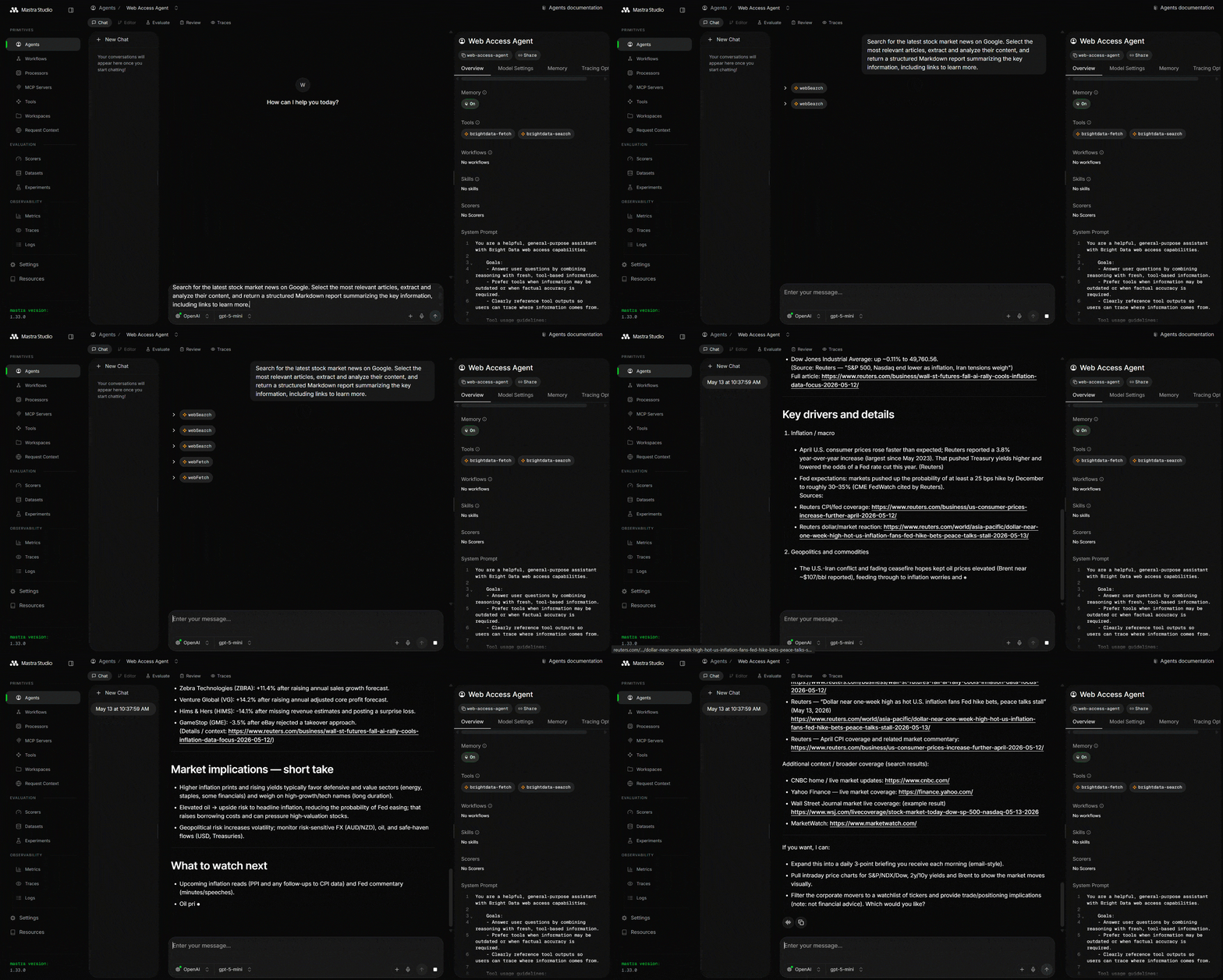
Note that Mastra called the web search tools three times to perform relevant Google search queries. These return SERP results structured in JSON, scraped from Google:
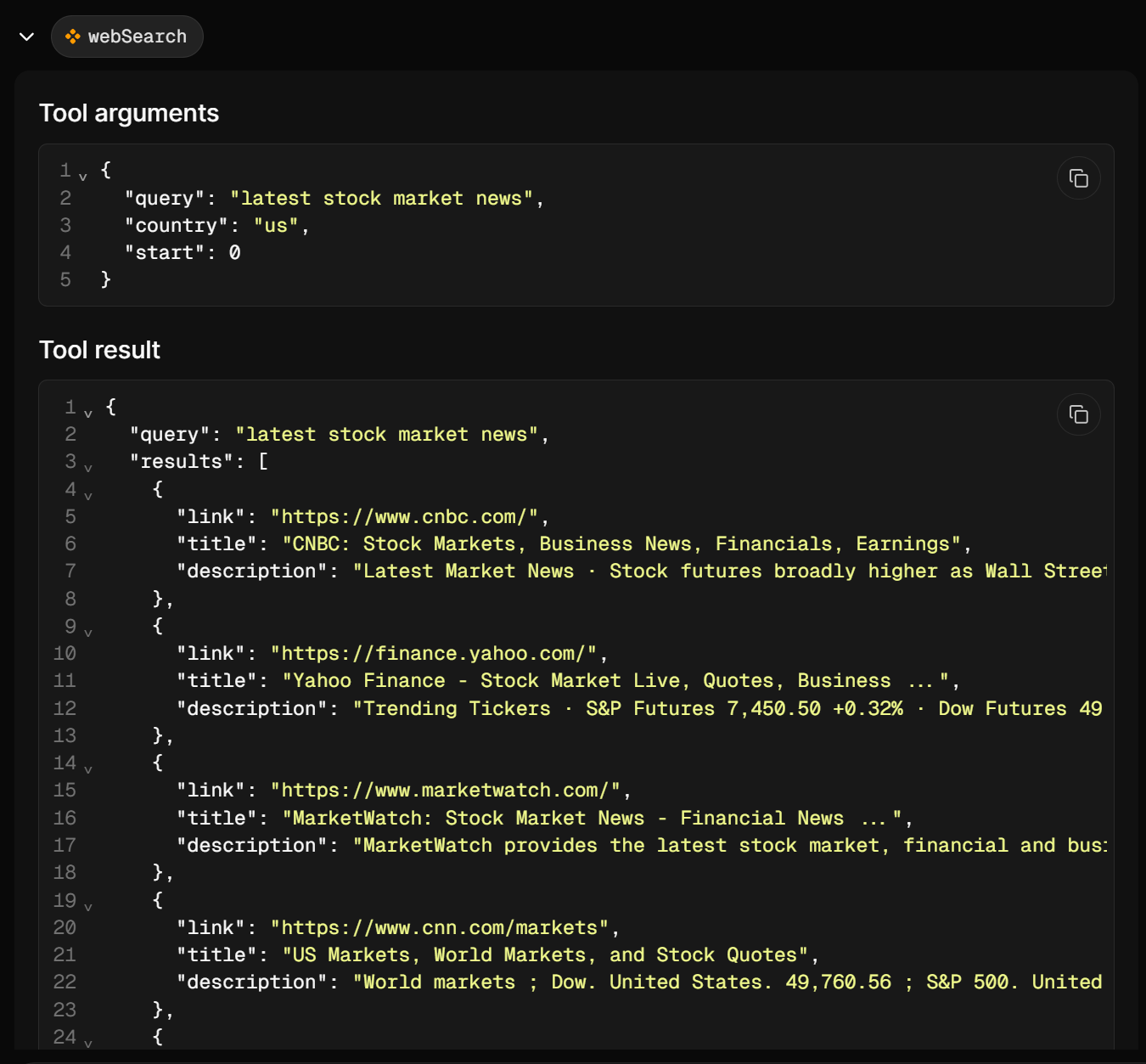
From these results, the agent selects the most relevant links and uses webFetch to scrape their content. Finally, it aggregates everything into a structured Markdown report summarizing today’s stock market news.
Et voilà! Thanks to Bright Data integration, your Mastra AI agent now has enterprise-grade web search and scraping capabilities, enabling more grounded responses. Try different prompts and test all supported scenarios and use cases!
[Extra] Connect a Mastra AI Agent to the Bright Data MCP
Remember that Mastra also supports MCP integration. So, you can connect your Mastra AI agent to the Bright Data MCP.
The Bright Data MCP server provides access to 70+ tools for web search, scraping, data extraction, data feed retrieval, and browser automation. Remember that it comes with a free plan (5k requests/month).
To use MCP in Mastra, first install the required dependency:
npm install @mastra/mcp@latestThen, add a src/mastra/mcp/bright-data-mcp-client.ts file containing:
// src/mastra/mcp/bright-data-mcp-client.ts

import { MCPClient } from '@mastra/mcp'

export const brightDataMcpClient = new MCPClient({
  id: 'bright-data-mcp-client',
  servers: {
    'bright-data': {
      command: 'npx',
      args: ['-y', '@brightdata/mcp'],
      env: {
       'API_TOKEN': process.env.BRIGHTDATA_API_TOKEN || '',
       'PRO_MODE': 'true' // remove to enable free mode
      },
    },
  },
})
This launches the Bright Data MCP via the @brightdata/mcp package. The server authenticates the connection to your account using the API_TOKEN environment variable, which should be set to your Bright Data API key via BRIGHTDATA_API_TOKEN in the .env file.
Note that the 'PRO_MODE': 'true' setting is optional. When enabled, it provides access to the full set of 70+ tools, but it may also incur usage-based charges.
In your Mastra agent file, use tools from an MCP server by importing the MCPClient and calling .listTools() in the tools parameter:
// src/mastra/agents/web-access-agent.ts

import { Agent } from '@mastra/core/agent'
import { Memory } from '@mastra/memory'
import { brightDataMcpClient } from '../mcp/bright-data-mcp-client'

export const webAccessAgent = new Agent({
  id: 'web-access-agent',
  name: 'Web Access Agent',
  // omitted for brevity...
  tools: {
    ...await brightDataMcpClient.listTools(),
  },
  memory: new Memory(),
})
If you now run the Mastra application, you will see the Bright Data MCP tools:
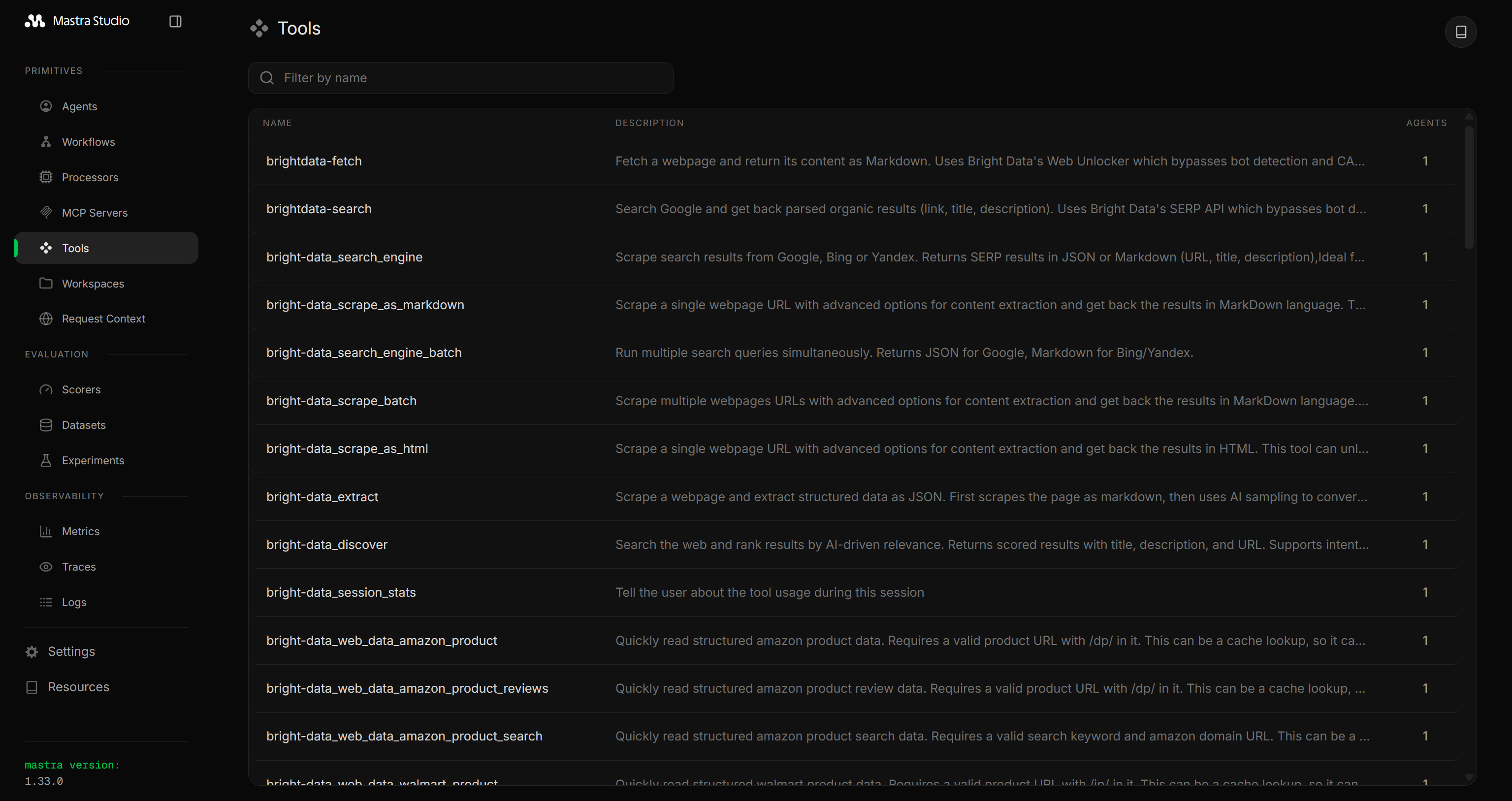
Bright Data MCP exposes 70+ tools when configured in Pro mode, or the 5 tools available in Rapid (free tier) mode.
Mission complete! Your Mastra AI agent is now connected to the Bright Data infrastructure via MCP.
Conclusion
In this blog post, you understood what Mastra is and the key features it provides. In particular, you saw how and why to extend it using the official Bright Data tools or via Bright Data MCP.
This integration takes Mastra agents to a whole new level. AI agents can now perform web search, discover and extract structured data, and interact with real-world websites.
Create a free Bright Data account today and start integrating our AI-ready web data tools!



Technical Writer
 5.5 years experience
Antonello Zanini is a technical writer, editor, and software engineer with 5M+ views. Expert in technical content strategy, web development, and project management.