
In this tutorial, you will see:
- What Composio is and its unique capabilities for AI agent building.
- Why connect AI agents to Bright Data via Composio.
- The list of tools from Bright Data available in Composio.
- How to power an AI agent with Bright Data using Composio and OpenAI Agents.
Let’s dive in!
What Is Composio?
Composio is an all-in-one platform that enables AI agents and LLMs to interact with real-world tools. In detail, it provides plug-and-play integrations with over 870 toolkits, handling authentication, triggers, and API mapping for you.
Composio is powered by a cloud infrastructure. It is also supported by open-source Python and TypeScript SDKs, available on a GitHub repository with 26.4k stars. This demonstrates the popularity and adoption of this fresh approach to AI agent building within the developer community.
Compatible with agents across multiple frameworks, Composio ensures accurate tool calls and real-time observability. Relevant features include multi-agent support, evolving skills that improve as agents use them, a managed MCP gateway for scaling, and SOC 2-compliant security.
Why Connect an AI Agent to Bright Data via Composio
The point of a solution like Composio is simple: LLMs are inherently limited. After all, they cannot directly interact with the outside world unless specific tools are provided. This is where Composio comes in!
Composio greatly simplifies the discovery, adoption, and utilization of tools from hundreds of providers for AI agents. Now, the biggest drawbacks of LLMs are:
- They can only operate based on their training data, which quickly becomes outdated once the model is published.
- They cannot interact with the web directly, which is where most information and value are generated today.
Those two issues can be addressed by powering an AI agent with Bright Data, one of the toolkits officially available in Composio.
Bright Data solutions give AI agents the ability to search the web, retrieve up-to-date information, and interact with it. This is made possible thanks to solutions like:
- SERP API: Retrieve web search results from Google, Bing, Yandex, and other search engines, at scale and without getting blocked.
- Web Unlocker API: Access any website and receive clean HTML or Markdown, with automatic handling of proxies, IP rotation, fingerprints, and CAPTCHAs.
- Web Scraping APIs: Fetch structured data from popular platforms like Amazon, LinkedIn, Yahoo Finance, Instagram, and 100+ more.
- And other solutions…
These services are wrapped as Composio-specific tools, which you can easily connect to your AI agent using any supported AI agent technology.
Composio–Bright Data Connection: Tool List
The available Bright Data tools in Composio are:
| Tool | Identifier | Description |
|---|---|---|
| Trigger Site Crawl | BRIGHTDATA_CRAWL_API |
Tool to trigger a site crawl job to extract content across multiple pages or entire domains. Use when you need to start a crawl for a given dataset and list of URLs. |
| Browse Available Scrapers | BRIGHTDATA_DATASET_LIST |
Tool to list all available pre-made scrapers (datasets) from Bright Data’s marketplace. Use when you need to browse available data sources for structured scraping. |
| Filter Dataset | BRIGHTDATA_FILTER_DATASET |
Tool to apply custom filter criteria to a marketplace dataset (BETA). Use after selecting a dataset to generate a filtered snapshot. |
| Get Available Cities | BRIGHTDATA_GET_LIST_OF_AVAILABLE_CITIES |
Tool to get available static network cities for a given country. Use when you need to configure static proxy endpoints after selecting a country. |
| Get Available Countries | BRIGHTDATA_GET_LIST_OF_AVAILABLE_COUNTRIES |
Tool to list available countries and their ISO 3166-1 alpha-2 codes. Use when you need to configure zones with valid country codes before provisioning proxies. |
| Download Scraped Data | BRIGHTDATA_GET_SNAPSHOT_RESULTS |
Tool to retrieve the scraped data from a completed crawl job by snapshot ID. Use after triggering a crawl or filtering a dataset to download the collected data. |
| Check Crawl Status | BRIGHTDATA_GET_SNAPSHOT_STATUS |
Tool to check the processing status of a crawl job using snapshot ID. Call before attempting to download results to ensure data collection is complete. |
| List Unlocker Zones | BRIGHTDATA_LIST_WEB_UNLOCKER_ZONES |
Tool to list your configured Web Unlocker zones and proxy endpoints. Use to view available zones for web scraping and bot protection bypass. |
| SERP Search | BRIGHTDATA_SERP_SEARCH |
Tool to perform SERP (Search Engine Results Page) searches across different search engines using Bright Data’s SERP Scrape API. Use when you need to retrieve search results, trending topics, or competitive analysis data. This action submits an asynchronous request and returns a response ID for tracking. |
| Web Unlocker | BRIGHTDATA_WEB_UNLOCKER |
Tool to bypass bot detection, captcha, and other anti-scraping measures to extract content from websites. Use when you need to scrape websites that block automated access or require JavaScript rendering. |
How to Build a Bright Data–Powered AI Agent in Composio
In this step-by-step section, you will learn how to integrate Bright Data into an AI agent using Composio. Specifically, you will understand how to power an AI agent in Python with OpenAI Agents and connect it to Bright Data through the Composio SDK.
Follow the instructions below!
Prerequisites
To follow this tutorial, make sure you have the following:
- Python 3.9 installed locally.
- A Composio account.
- An OpenAI API key.
- A Bright Data account with an API key set up.
For more guidance on setting up a Bright Data account and generating an API key, refer to the official Bright Data documentation.
Step #1: Get Started with Composio Using OpenAI Agents
Sign up for Composio if you do not have an account yet, or simply log in. You will land on the “Overview” page: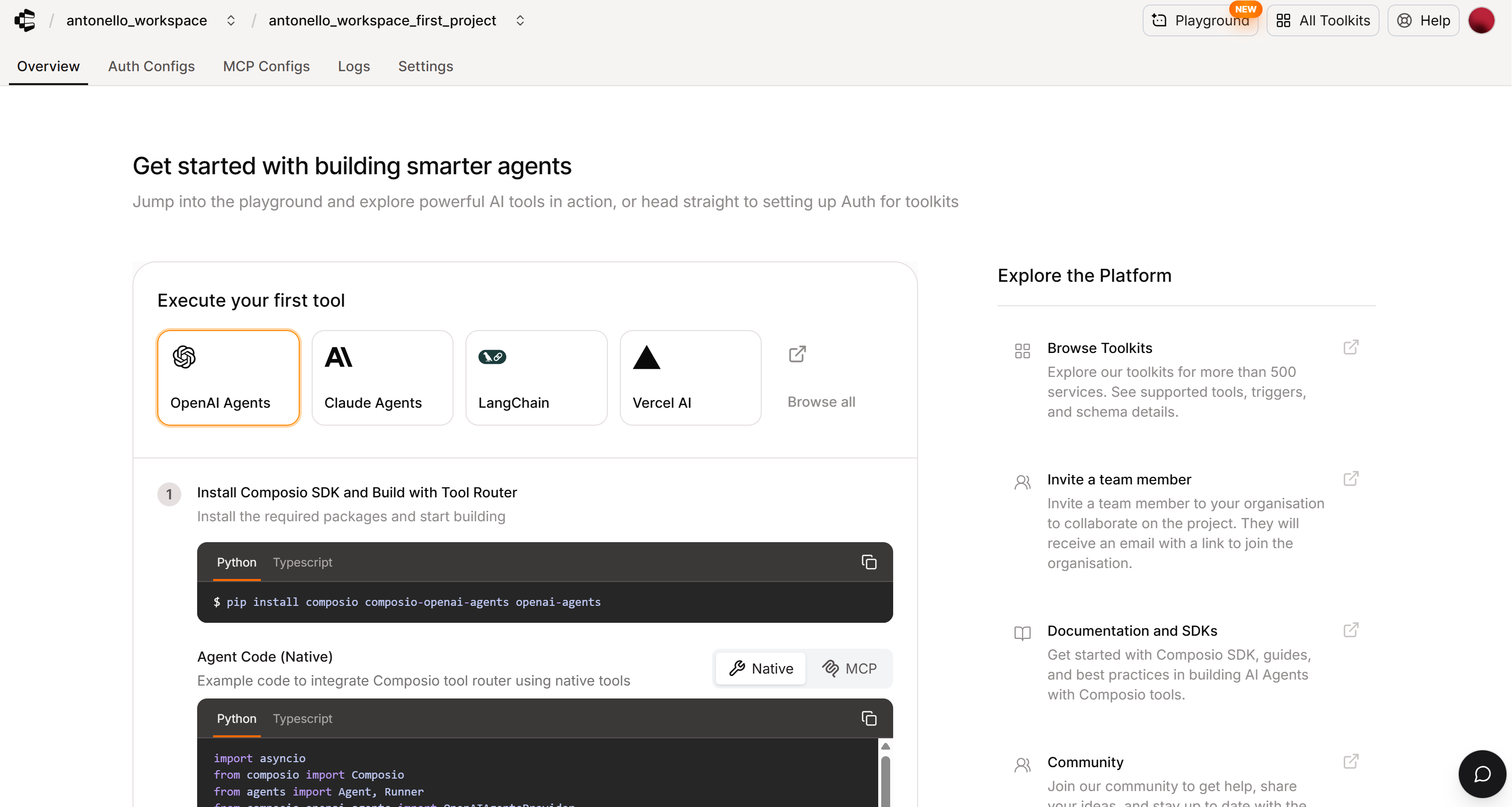
This page contains instructions for setting up a simple AI agent integrated with Composio using OpenAI Agents. The web dashboard also provides examples using Claude Agents, LangChain, Vercel AI, and several other frameworks.
In this guide, we will build an AI agent connected to Bright Data through Composio in the OpenAI Agents SDK. That said, you can easily adapt the example below to any other supported AI agent framework.
Note: Consider also checking how to integrate Bright Data directly into the OpenAI Agents SDK.
Start by creating a folder for your project and entering it:
mkdir composio-bright-data-ai-agent
cd composio-bright-data-ai-agent
Next, initialize a virtual environment:
python -m venv .venvAdd a new file called agent.py in the project root. Your directory structure should now look like this:
composio-bright-data-ai-agent/
├── .venv/
└── agent.py
The agent.py file will contain the AI agent definition logic.
Load the project folder in your favorite Python IDE, such as PyCharm Community Edition or Visual Studio Code with the Python extension.
Now, activate the virtual environment you just created. On Linux or macOS, run:
source .venv/bin/activateEquivalently, on Windows, execute:
.venv/Scripts/activateWith the virtual environment activated, install the required PyPI packages listed on the “Overview” page:
pip install composio composio-openai-agents openai-agentsThe dependencies for this application are:
composio: Python SDK for interacting with the Composio platform, enabling tool execution, authentication handling, and AI framework integrations.composio-openai-agents: Integration layer connecting Composio tools with the OpenAI Agents framework for seamless agent-based workflows.openai-agents: Lightweight, provider-agnostic framework for building multi-agent workflows across OpenAI APIs and 100+ LLM providers.
Well done! You now have a Composio OpenAI Agents project in place.
Step #2: Configure API Key Loading with Environment Variables
Your AI agent will connect to third-party services, including Composio and OpenAI. To avoid hardcoding credentials directly in your script, you will configure the agent to read API keys from a .env file.
Start by installing python-dotenv inside your activated virtual environment:
pip install python-dotenvIn agent.py, add the following import at the top of the file:
from dotenv import load_dotenvNext, create a .env file in your project root:
composio-bright-data-ai-agent/
├─── .venv/
├─── agent.py
└─── .env    # <-----
Populate the .env file with your Composio and OpenAI API keys:
COMPOSIO_API_KEY="<YOUR_COMPOSIO_API_KEY>"
OPENAI_API_KEY="<YOUR_OPENAI_API_KEY>"
Replace the placeholders with your actual API keys. If you are not sure where to find your Composio API key, locate it in the “Settings” section of your account: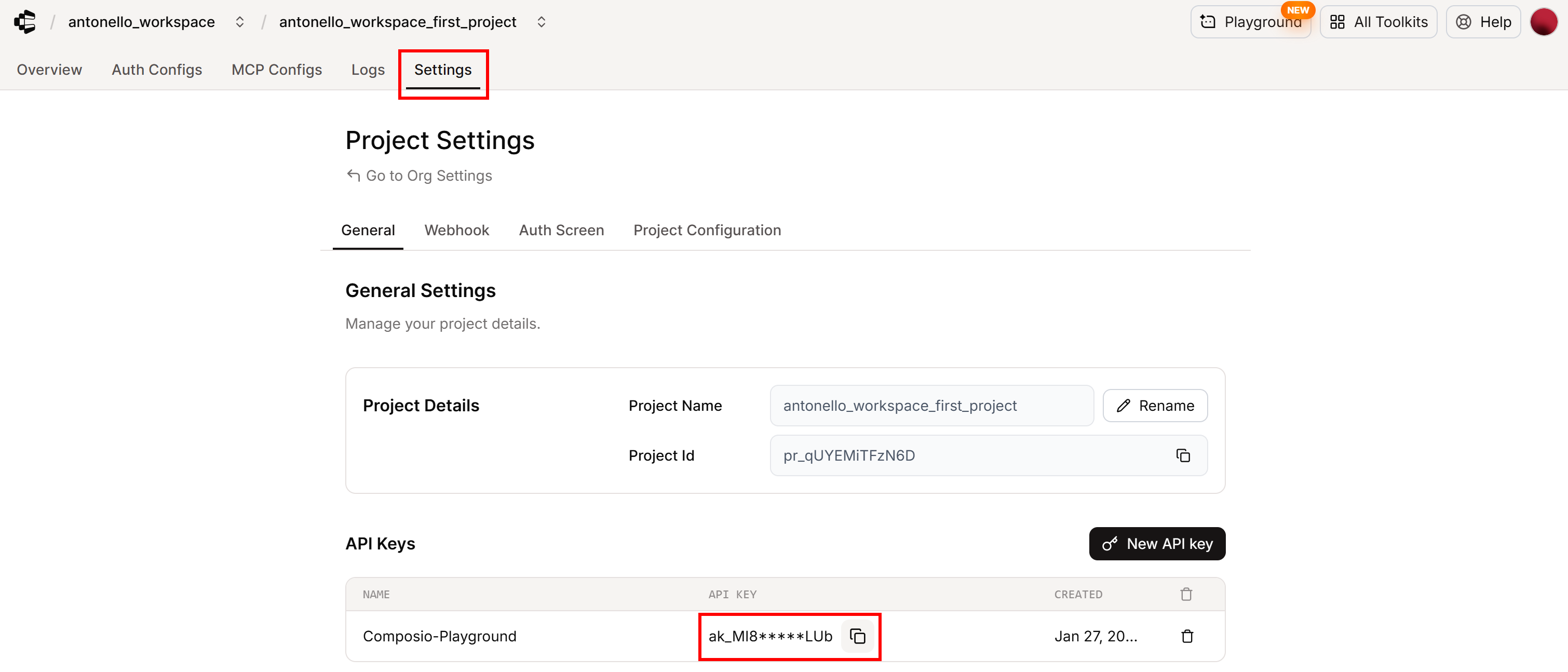
Finally, load the environment variables in agent.py by calling:
load_dotenv()This is it! Your script can now securely read the required secrets from the .env file without exposing them in code.
Step #3: Configure Bright Data’s Toolkit in Composio
To configure the Bright Data toolkit in Composio, you need to complete a few steps in the Composio dashboard.
Start by clicking the “Browser Toolkits” section in the “Overview” tab: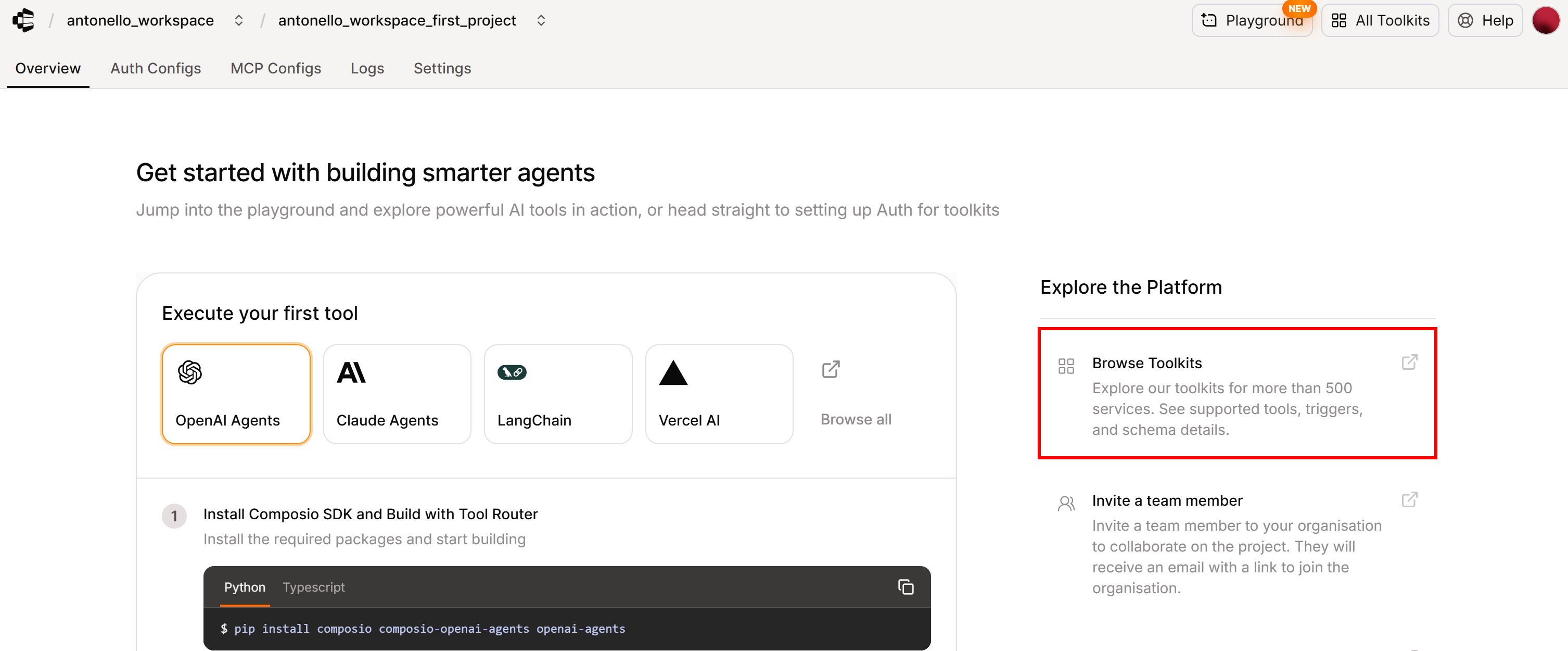
You will be redirected to the Composio toolkits page: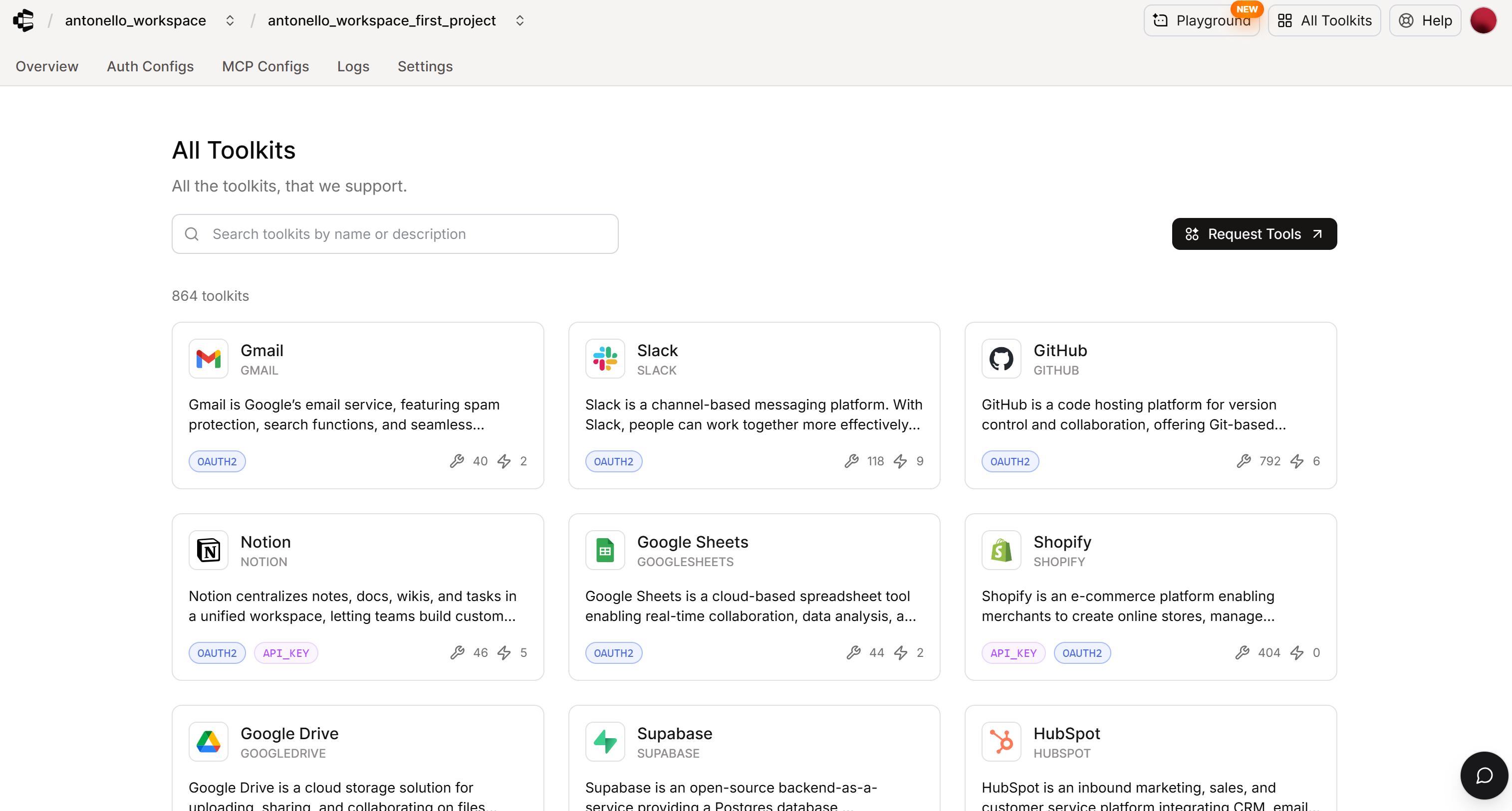
Here, you can browse all integrations supported by Composio. Use the search bar to look for “bright data,” then click the corresponding card: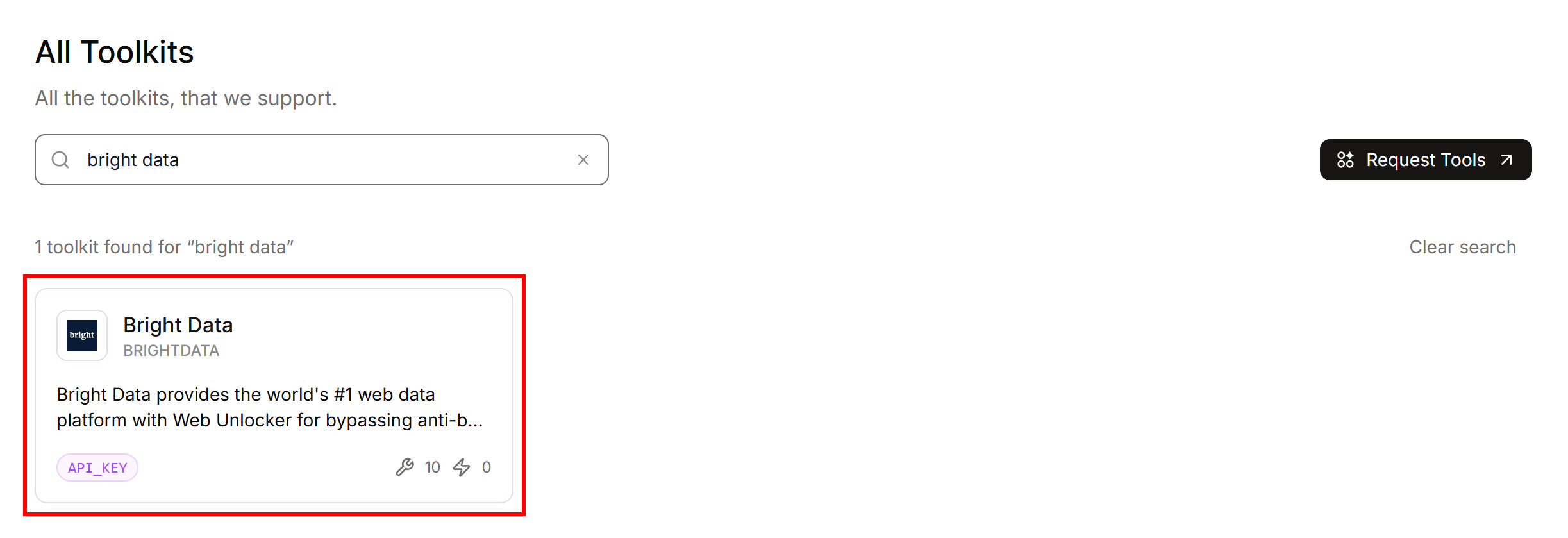
You will be taken to the Composio Bright Data toolkit page: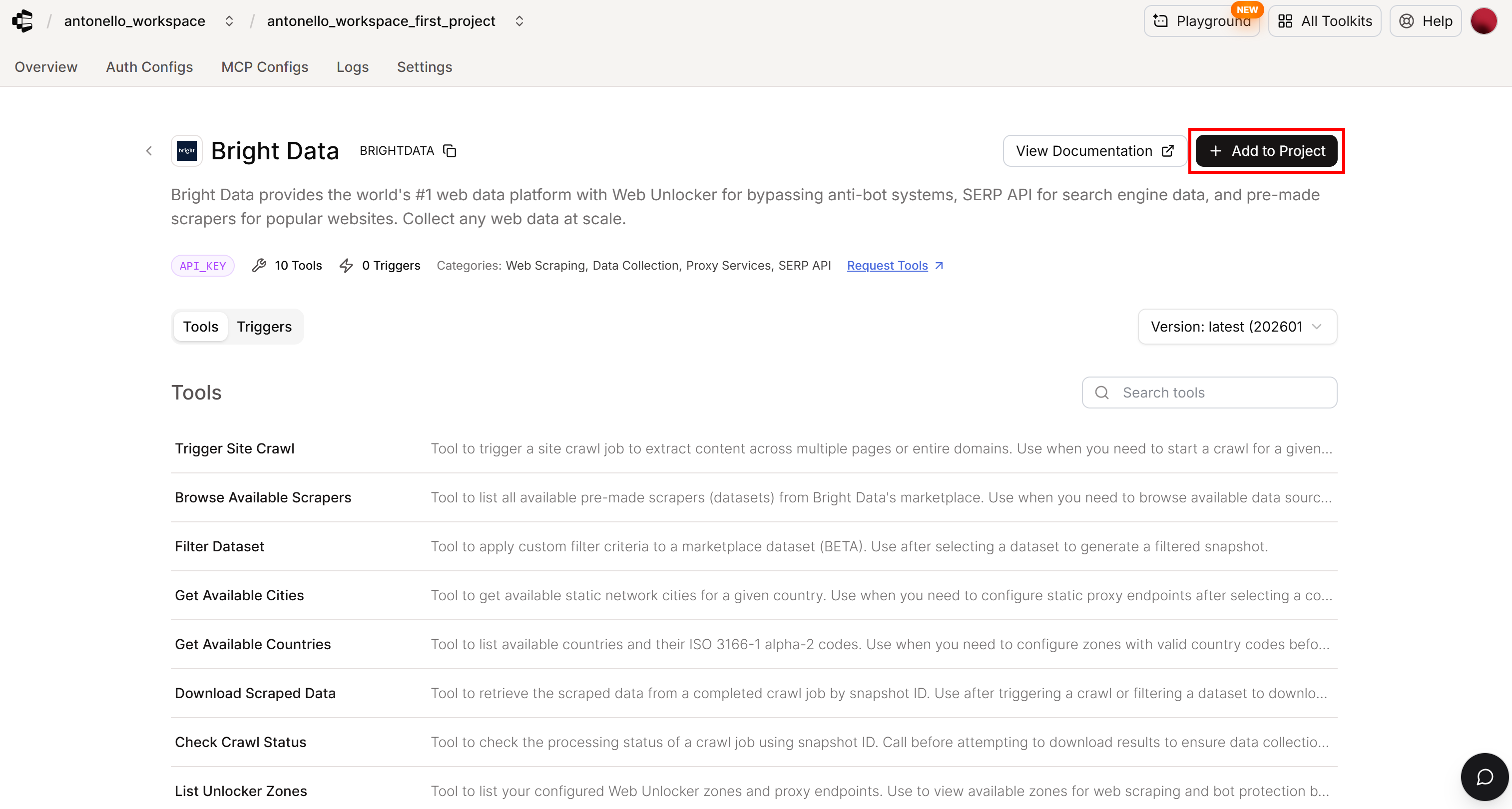
On this page, you can explore the available tools, review the documentation, and see usage details. To continue, click the “Add to Project” button.
When prompted to configure the authentication details:
- Set an Auth Config Name (you can keep the default autogenerated name).
- Select the authentication method: API KEY (the only main authentication option for Bright Data).
Once ready, click “Create Bright Data Auth Config” to proceed: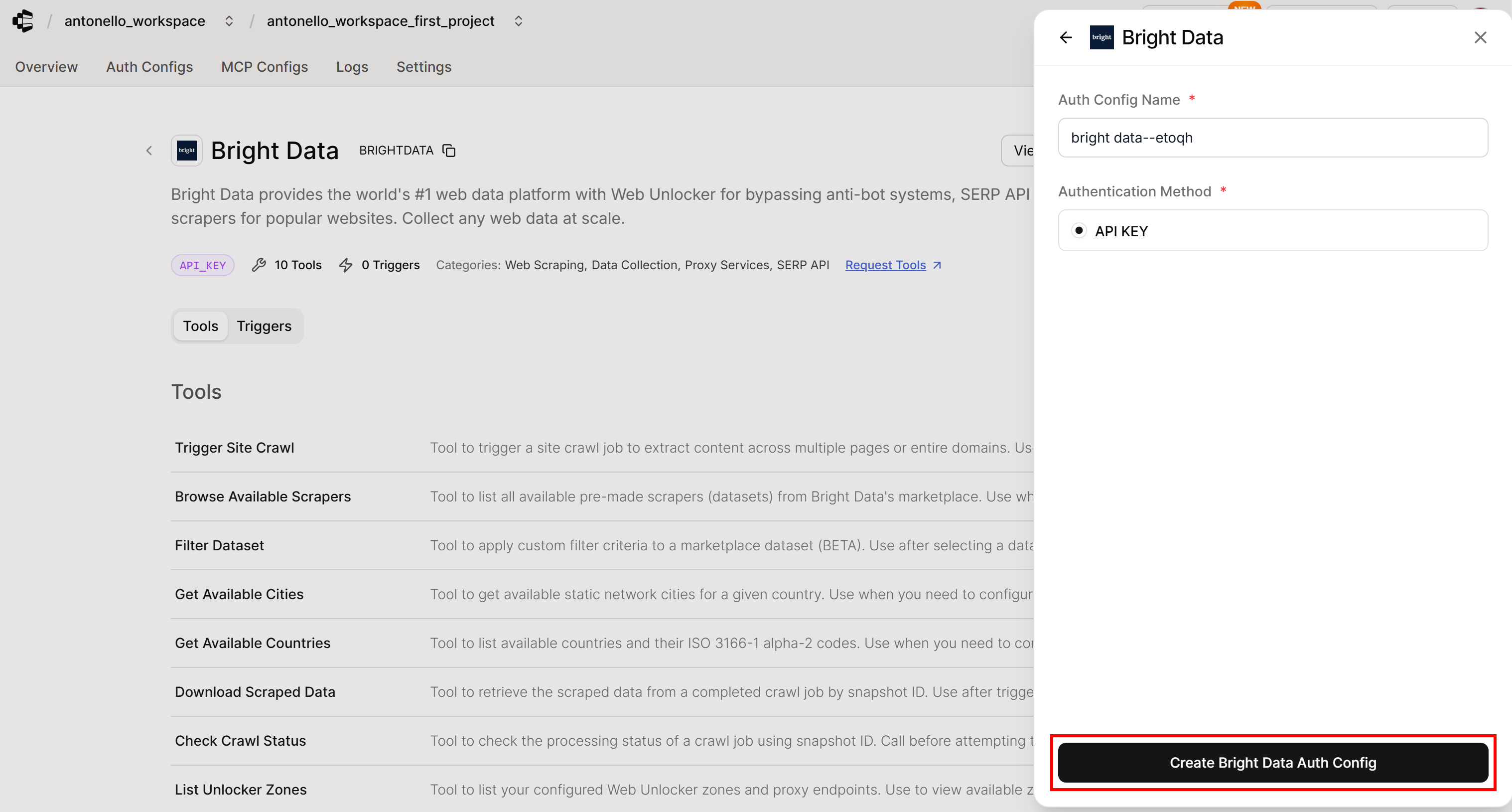
Note: A Composio Auth Config is a reusable configuration that securely stores credentials, authentication methods, and permissions for external services. Your AI agent will use this Auth Config via the Composio SDK to connect to Bright Data tools programmatically.
Great! Time to authenticate the Bright Data integration in Composio.
Step #4: Authenticate the Bright Data Integration
After adding the Bright Data toolkit in Composio, you need to connect your Bright Data account so the integration can function properly. This allows Composio to access Bright Data’s web scraping and data services and expose them to your AI agents via the Composio SDK.
To connect your Bright Data account, click the “Connect Account” button on the relevant “Auth Configs” page: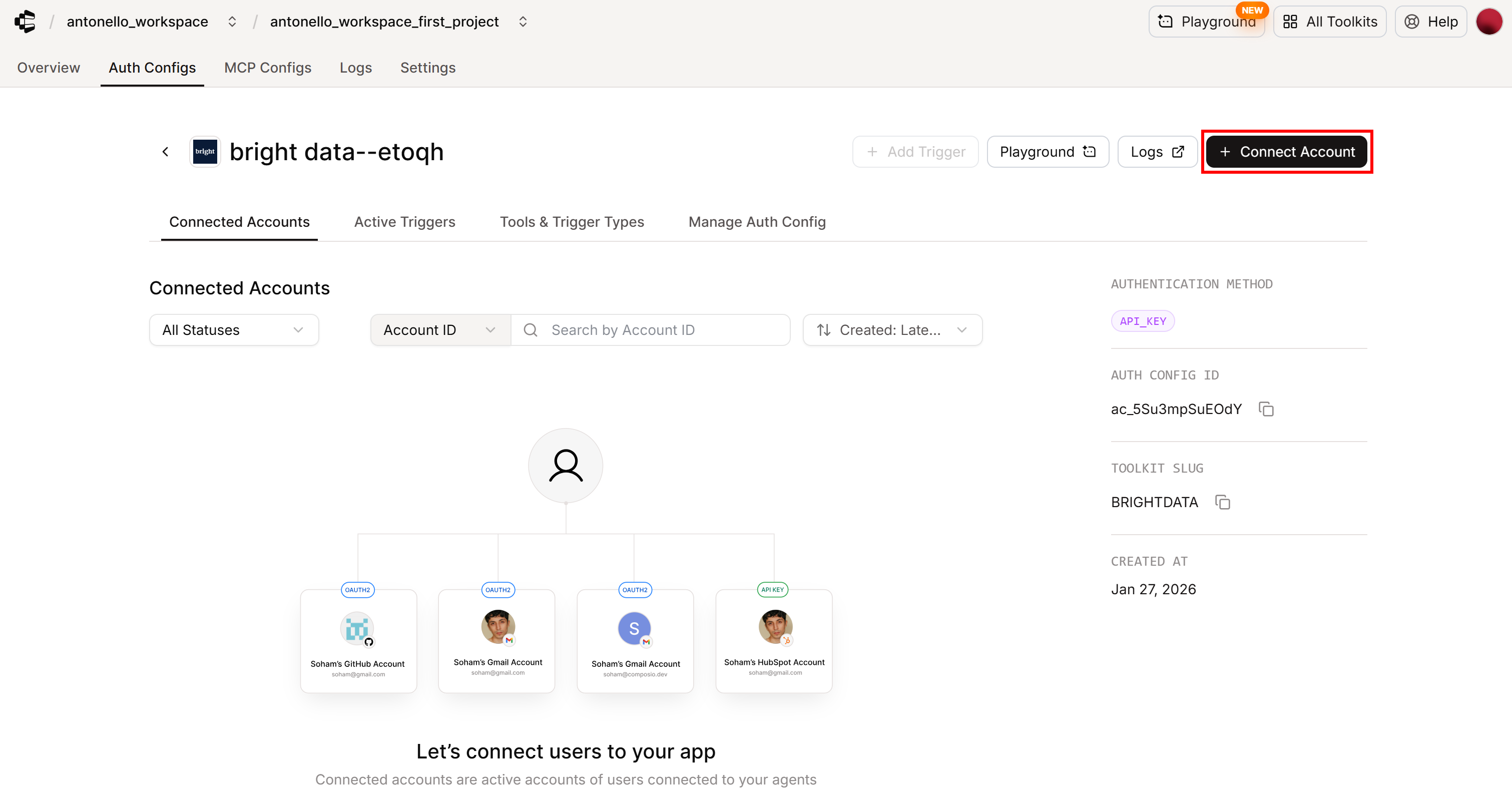
You will be shown an External User ID: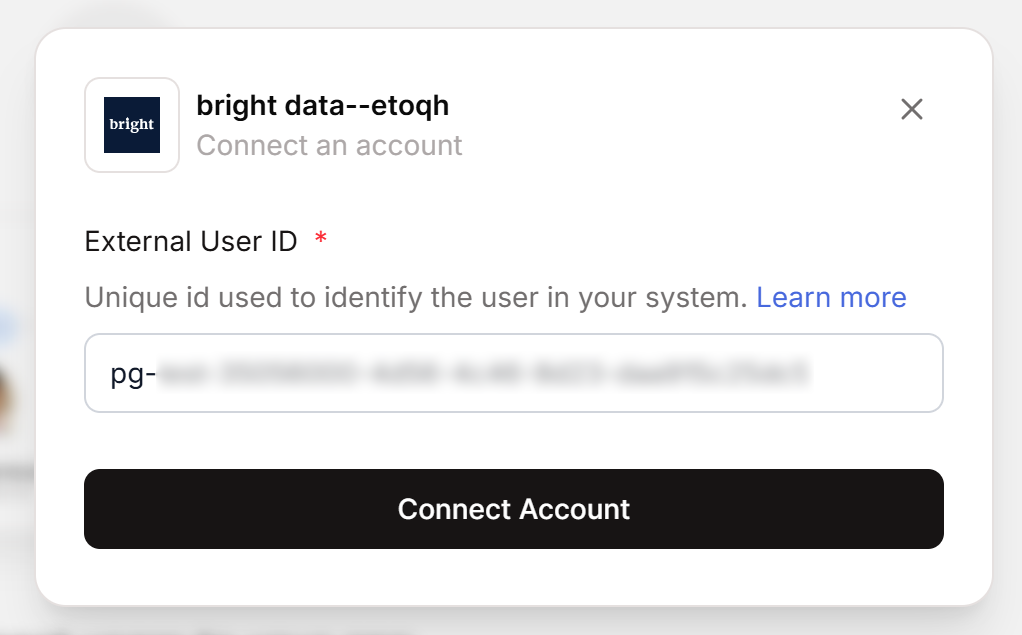
Copy that value and paste it into your agent.py file as a Python variable:
COMPOSIO_EXTERNAL_USER_ID = "<YOUR_COMPOSIO_EXTERNAL_USER_ID>"In Composio, a User ID determines which connected accounts and data are accessed. Every tool execution, authorization request, and account operation requires a userId to identify the correct context. Basically, User IDs act as containers that group connected accounts across toolkits. They can represent an individual user, a team, or even an entire organization.
Next, click “Connect Account” to continue. You will be prompted to enter your Bright Data API key: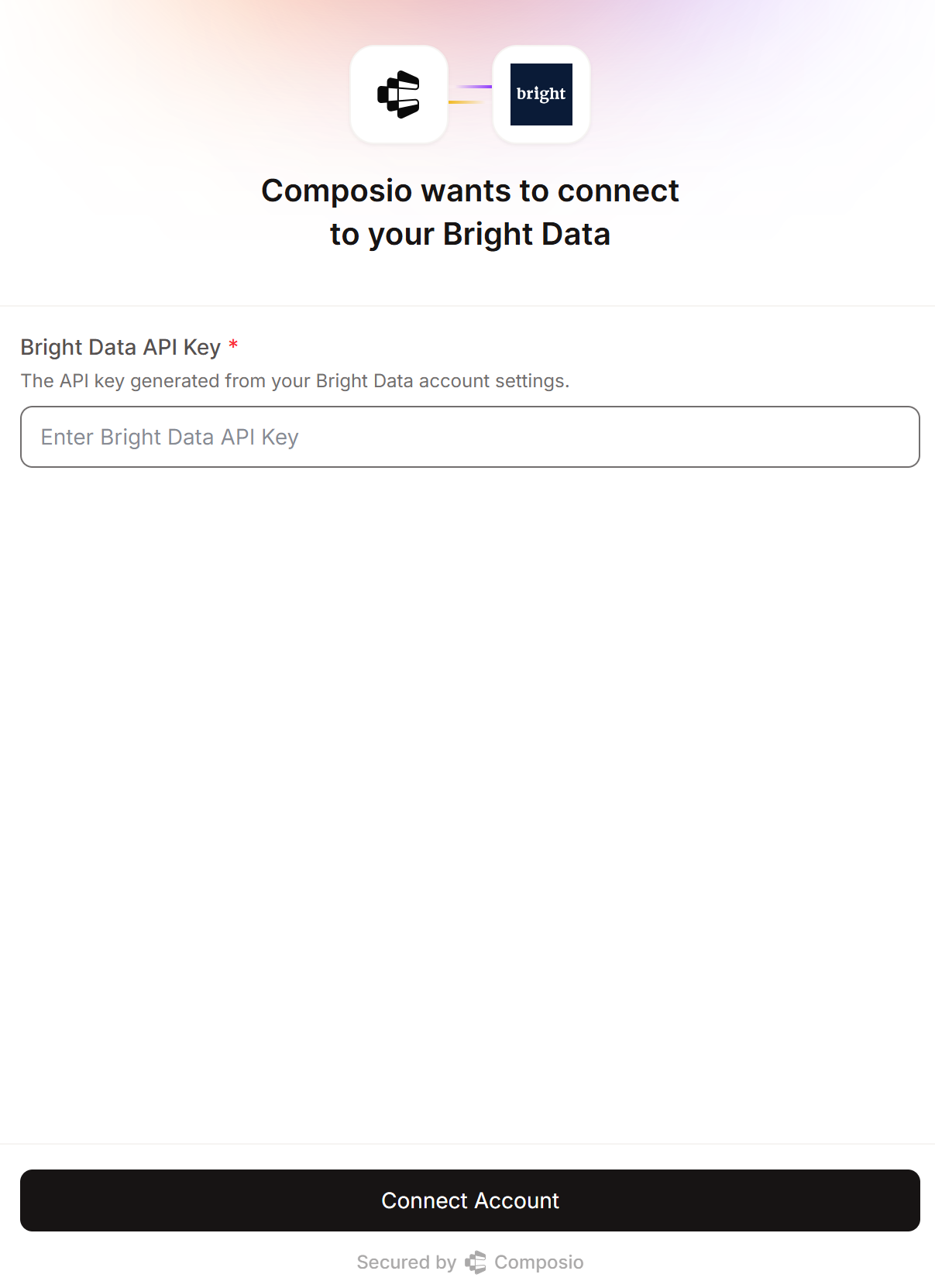
Paste your Bright Data API key and finalize the connection by clicking the “Connect Account” button. Once completed, you should see the connected account with status “ACTIVE” in the “Connected Accounts” tab: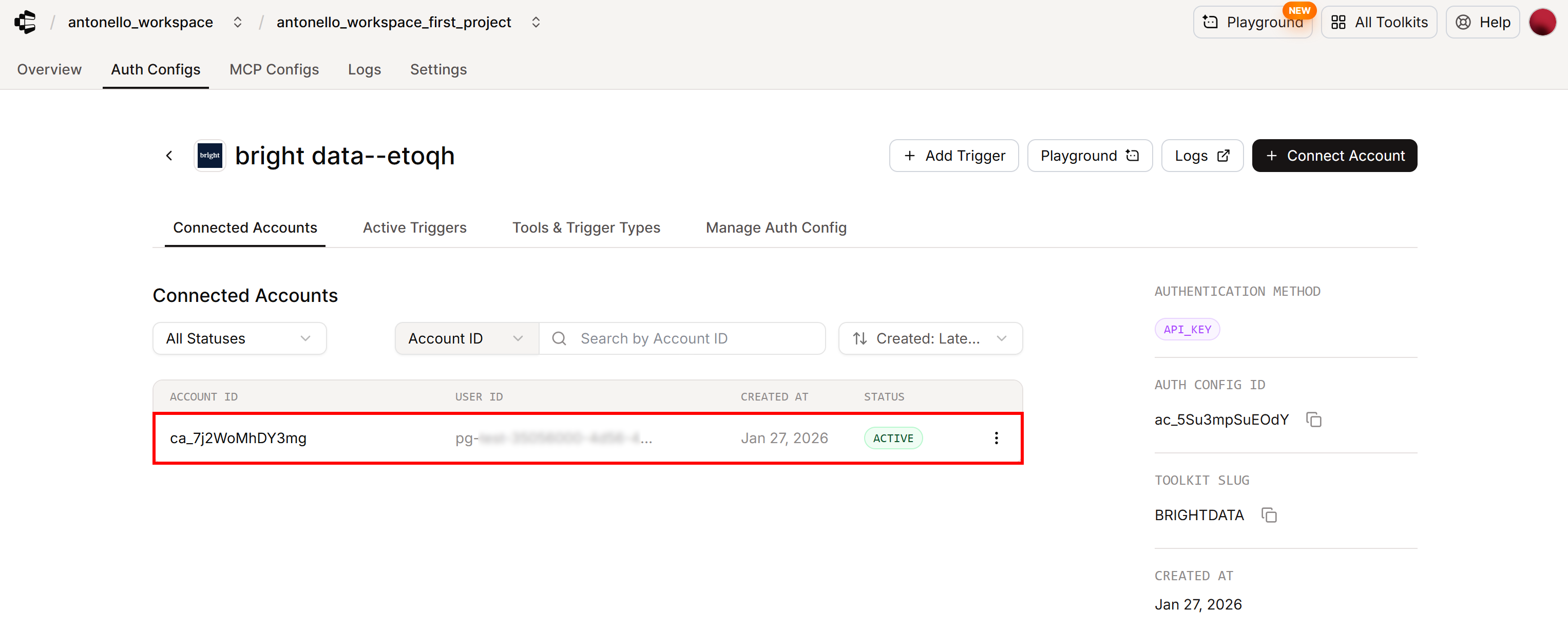
This confirms that Composio has successfully authenticated through your Bright Data API key. The Bright Data toolkit is now available for use in your AI agent!
You can even test the integration directly in the Composio web application via the “Playground” feature: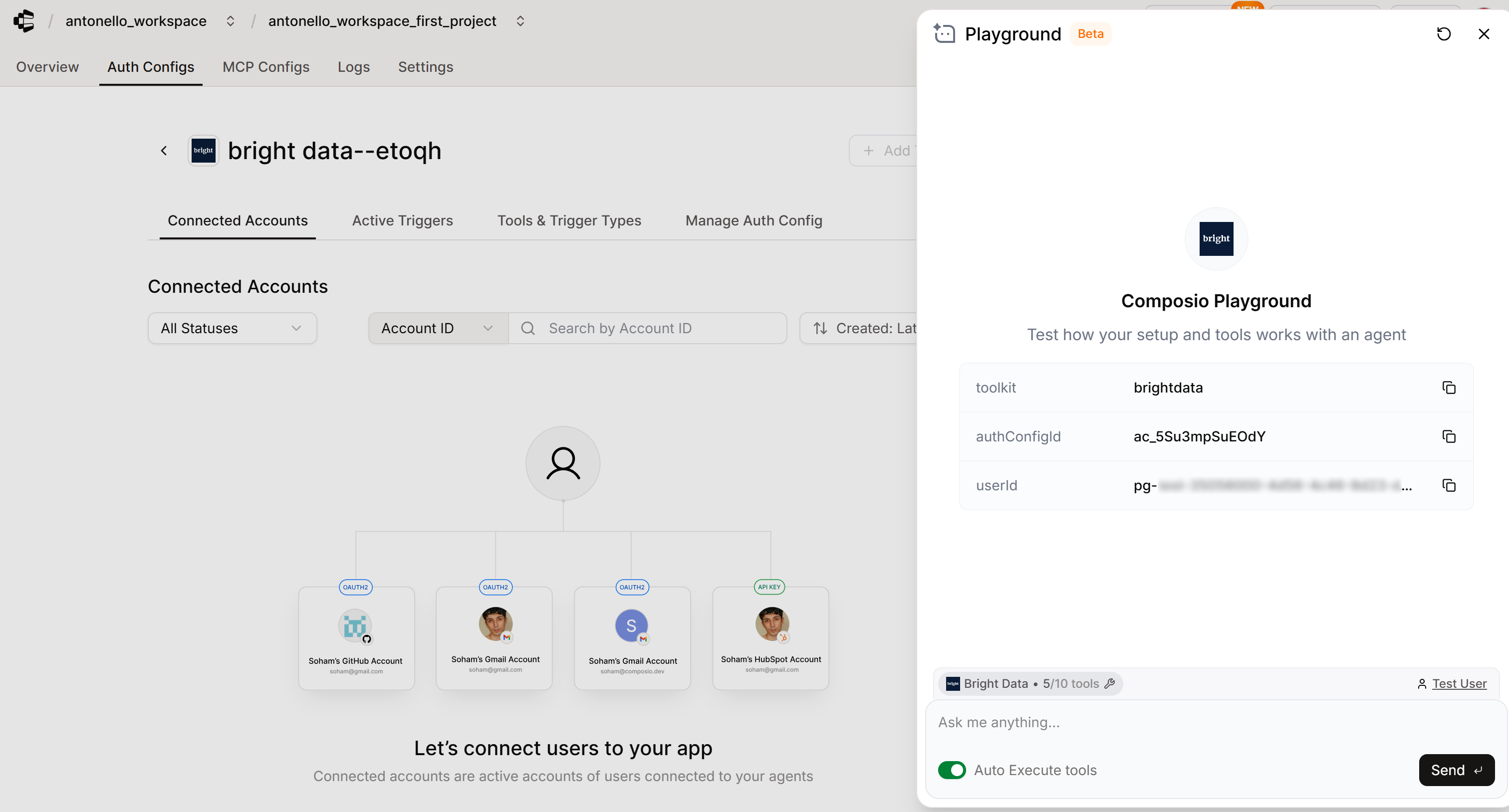
Amazing! Bright Data is now fully authenticated and integrated in Composio.
Step #5: Initialize a Composio Session
You now have everything in place to connect your OpenAI Agents–based AI agent to Bright Data via the Composio SDK.
Start by initializing Composio with the OpenAI Agents provider:
from composio import Composio
from composio_openai_agents import OpenAIAgentsProvider

# Initialize Composio with the OpenAI Agents provider
composio = Composio(provider=OpenAIAgentsProvider())Note: The Composio constructor automatically looks for the COMPOSIO_API_KEY environment variable (you have already set) and uses it for authentication. Alternatively, you can pass the API key explicitly via the api_key argument.
Next, create a Tool Router session limited to the Bright Data integration:
# Create a Tool Router session
session = composio.create(
    user_id=COMPOSIO_EXTERNAL_USER_ID,
    toolkits=["brightdata"],
    auth_configs={"brightdata": "ac_XXXXXXXXX"}, # Replace with your Auth Config ID for the Bright Data toolkit
)
Tool Router is Composio’s newest, and now default, way to power tools inside AI agents. It is a unified interface that allows an agent to discover available tools, plan which tools to use, handle authentication, and execute actions across thousands of Composio integrations. It exposes a set of meta-tools that manage those tasks behind the scenes, without overwhelming the agent’s context.
The composio.create() method initializes a Tool Router session, which defines the context in which the agent operates. By default, an agent has access to all Composio toolkits and is prompted at runtime to authenticate the tools it wants to use.
In this case, however, you have already configured Bright Data in the Composio dashboard, so you want to explicitly connect to it in code. You do that by:
- Specifying
"brightdata"in thetoolkitsargument (that is the official slug for the Composio Bright Data toolkit). - Mapping
"brightdata"to its Auth Config ID inauth_configs.
If you are wondering where to find that info (slug + Auth Config ID), you can locate it on the “Auth Configs” page for the Bright Data toolkit in the Composio dashboard: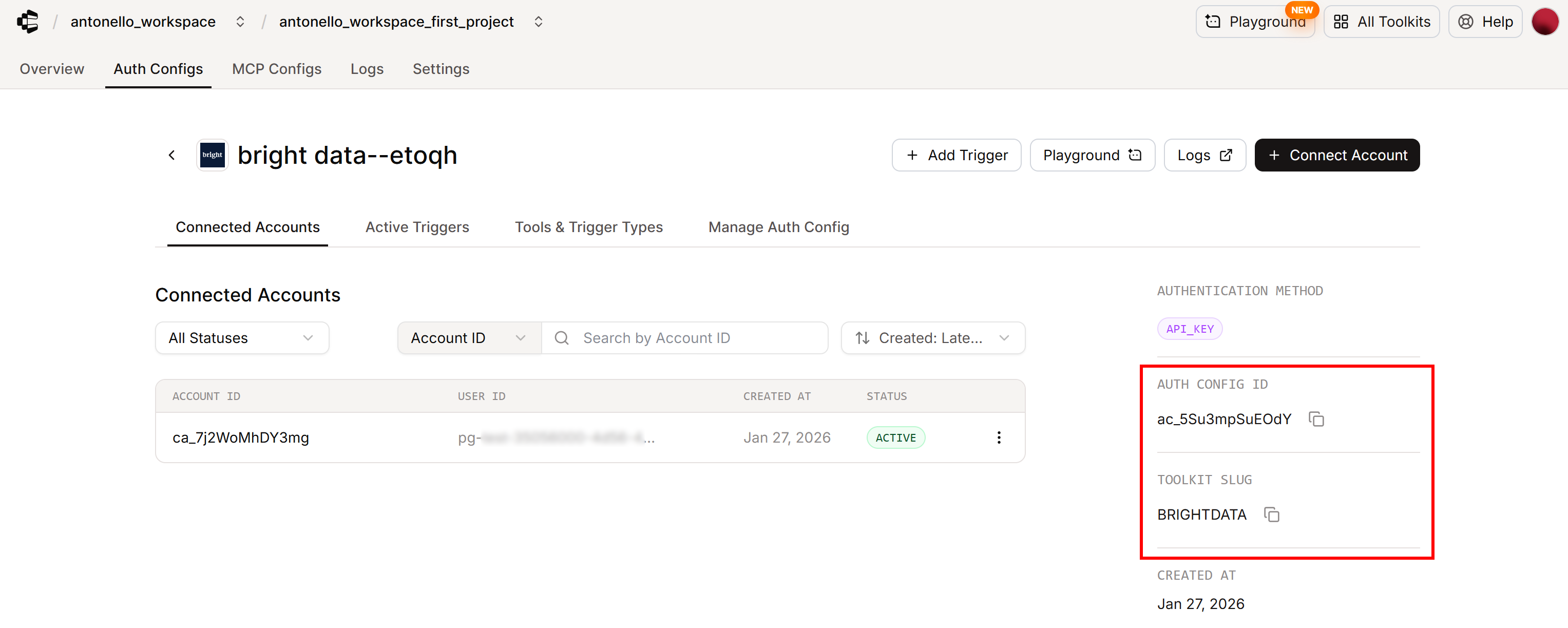
Note: In Composio, Auth Config IDs start with the “ac” prefix. Also, remember that Toolkit slugs are case-insensitive, so "BRIGHTDATA" is equivalent to "brightdata".
Now, you can check that Bright Data is correctly connected with:
toolkits = session.toolkits()
for toolkit in toolkits.items:
    print(toolkit.name)
    print(toolkit.connection)
The result should be:
Bright Data
ToolkitConnection(is_active=True, auth_config=ToolkitConnectionAuthConfig(id='ac_XXXXXXXXX', mode='API_KEY', is_composio_managed=False), connected_account=ToolkitConnectedAccount(id='ca_YYYYYYYY', status='ACTIVE'))
This confirms that:
- The toolkit connection is active.
- The connected account status is
ACTIVE.
That means the Composio SDK has successfully connected to your Bright Data integration, and the toolkit is ready to be used by your AI agent. Terrific!
Step #6: Define the AI Agent
Given the Composio Tool Router session, get the available tools with:
tools = session.tools()Pass these tools to an OpenAI Agents AI agent as below:
from agents import Agent

agent = Agent(
    name="Web Data Assistant",
    instructions=(
        "You are a helpful assistant with access to Bright Data’s toolkit "
        "for web scraping, data access, and web unlocking."
    ),
    model="gpt-5-mini",
    tools=tools,
)
This creates a web data assistant powered by the GPT-5 mini model, fully aware of its integration with Bright Data tools.
Note: Authentication to your OpenAI account happens automatically, as the OpenAI Agents SDK looks for the OPENAI_API_KEY environment variable (which you set earlier).
Mission complete! You now have an OpenAI-powered AI agent that integrates with Bright Data in a simplified way via Composio. It only remains to test it against a real-world scenario.
Step #7: Run the Agent
To verify that the AI agent works, you need to give it a task that requires web data access. For example, you could ask it to handle a common marketing scenario, such as performing sentiment analysis on a given product via its reviews.
In this case, let’s focus on G2 reviews for the Composio product itself. Specify the task as below:
task = """"
1. Retrieve the reviews from the following G2 URL using the most appropriate scraper/dataset:
'https://www.g2.com/products/composio/reviews'
2. Wait and poll until the snapshot becomes ready.
3. Retrieve the snapshot containing all collected data.
4. Analyze the reviews and the retrieved information.
5. Provide a structured Markdown report that includes:
   - A sentiment analysis section with direct quotes from the reviews
   - Actionable insights and recommendations for improvement
"""
This is something a vanilla LLM cannot do, as it does not have access to live G2 reviews. Plus, G2 is notoriously difficult to scrape due to its aggressive anti-bot measures.
Instead, the expected behavior is for the AI agent to:
- Call Bright Data’s tools to select the most appropriate scraper for this scenario (e.g., the Bright Data G2 Scraper).
- Execute the scraper on the target G2 URL.
- Use the dedicated tool to wait and poll for the resulting snapshot containing the scraped reviews.
- Analyze the snapshot and produce the final structured report.
Execute the agent with:
import asyncio
from agents import Runner

# Run the AI agent
async def main():
    result = Runner.run_streamed(
        starting_agent=agent,
        input=task,
        max_turns=50 # To avoid blocks, as the snapshot checks more than 10 (default max_turns) tool calls
    )

    # Stream the agent result in the terminal
    async for event in result.stream_events():
        # Print model output text as it streams
        if event.type == "raw_response_event":
            # Check if the event has output text data (response.output_text.delta)
            if event.data.type == "response.output_text.delta":
                print(event.data.delta, end="", flush=True)

asyncio.run(main())
Perfect! Your Composio + Bright Data AI agent is now complete.
Step #8: Put It All Together
Your agent.py file should now contain:
import asyncio
from composio import Composio
from composio_openai_agents import OpenAIAgentsProvider
from agents import Agent, Runner
from dotenv import load_dotenv

# Load environment variables from the .env file
load_dotenv()

# The Composio external user ID
COMPOSIO_EXTERNAL_USER_ID = "pg-YYYYYYYYYYYYYYYYYYYYYYYYYYYYY" # Replace with your Composio User ID

# Initialize Composio with the OpenAI Agents provider
composio = Composio(provider=OpenAIAgentsProvider())

# Create a Tool Router session
session = composio.create(
    user_id=COMPOSIO_EXTERNAL_USER_ID,
    toolkits=["brightdata"],
    auth_configs={"brightdata": "ac_XXXXXXXXX"}, # Replace with your Auth Config ID for the Bright Data toolkit
)

# Access the Composio tools
tools = session.tools()

# Create an AI agent with tools using the OpenAI Agents SDK
agent = Agent(
    name="Web Data Assistant",
    instructions=(
        "You are a helpful assistant with access to Bright Data’s toolkit "
        "for web scraping, data access, and web unlocking."
    ),
    model="gpt-5-mini",
    tools=tools,
)

# Describe the sentiment analysis task involving fresh web data from G2
task = """"
1. Retrieve the reviews from the following G2 URL using the most appropriate scraper/dataset:
'https://www.g2.com/products/composio/reviews'
2. Wait and poll until the snapshot becomes ready.
3. Retrieve the snapshot containing all collected data.
4. Analyze the reviews and the retrieved information.
5. Provide a structured Markdown report that includes:
   - A sentiment analysis section with direct quotes from the reviews
   - Actionable insights and recommendations for improvement
"""

# Run the AI agent
async def main():
    result = Runner.run_streamed(
        starting_agent=agent,
        input=task,
        max_turns=50 # To avoid blocks, as the snapshot checks more than 10 (default max_turns) tool calls
    )

    # Stream the agent result in the terminal
    async for event in result.stream_events():
        # Print model output text as it streams
        if event.type == "raw_response_event":
            # Check if the event has output text data (response.output_text.delta)
            if event.data.type == "response.output_text.delta":
                print(event.data.delta, end="", flush=True)

asyncio.run(main())
In your activated virtual environment, launch it with:
python agent.py The agent will take some time to autonomously retrieve the required data via Bright Data services. Once complete, it will stream a Markdown report directly in the terminal: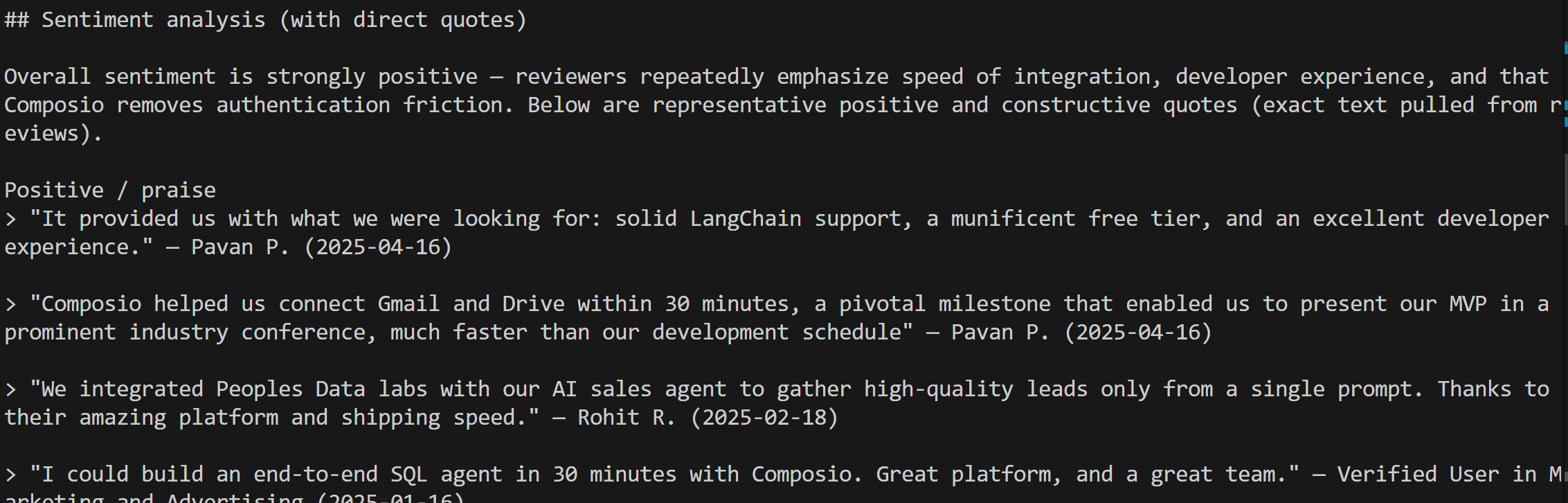
Copy and paste this output into a Markdown viewer, and you should see something like this: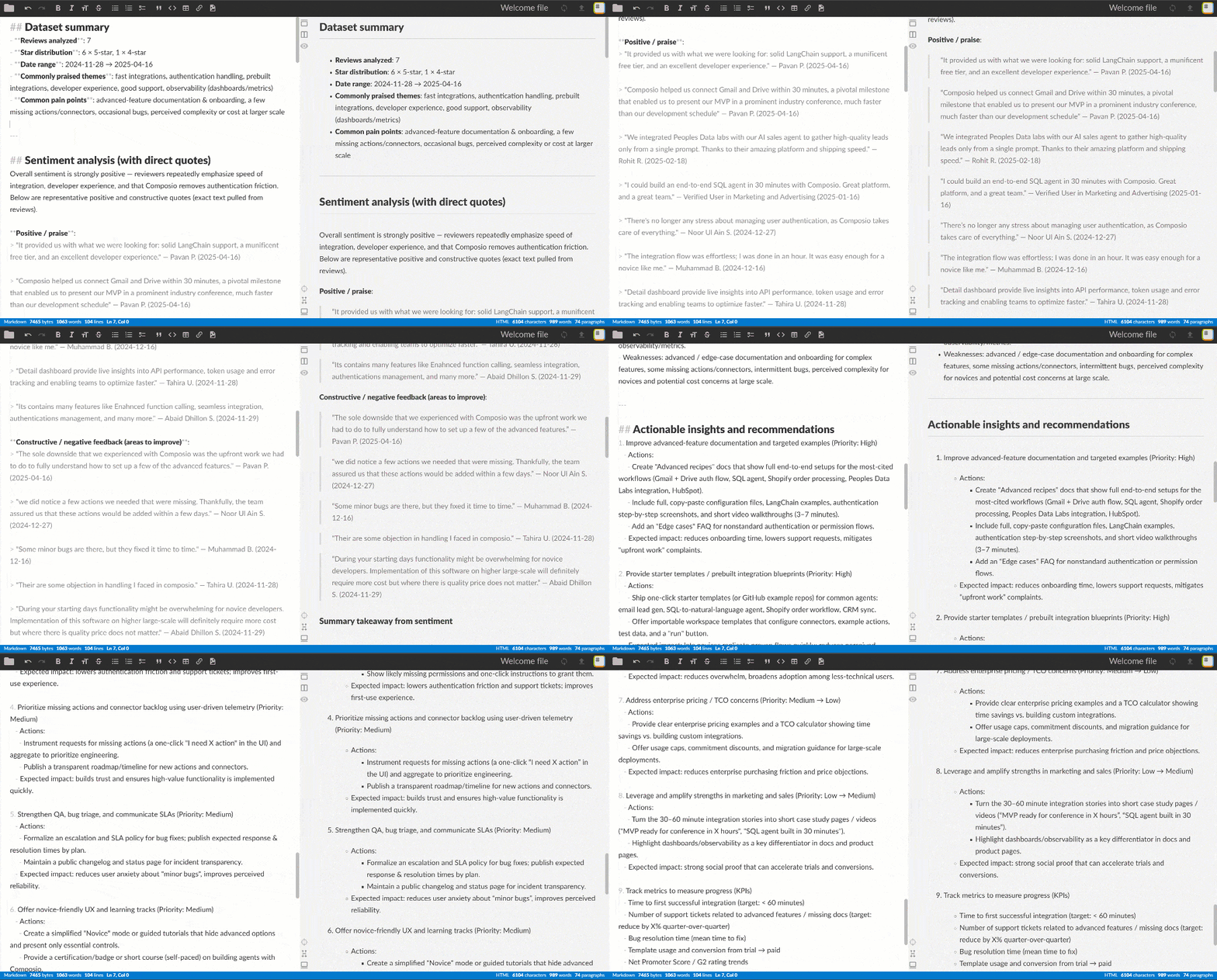
Note that the report is long, accurate, and backed by quotes from real G2 reviews: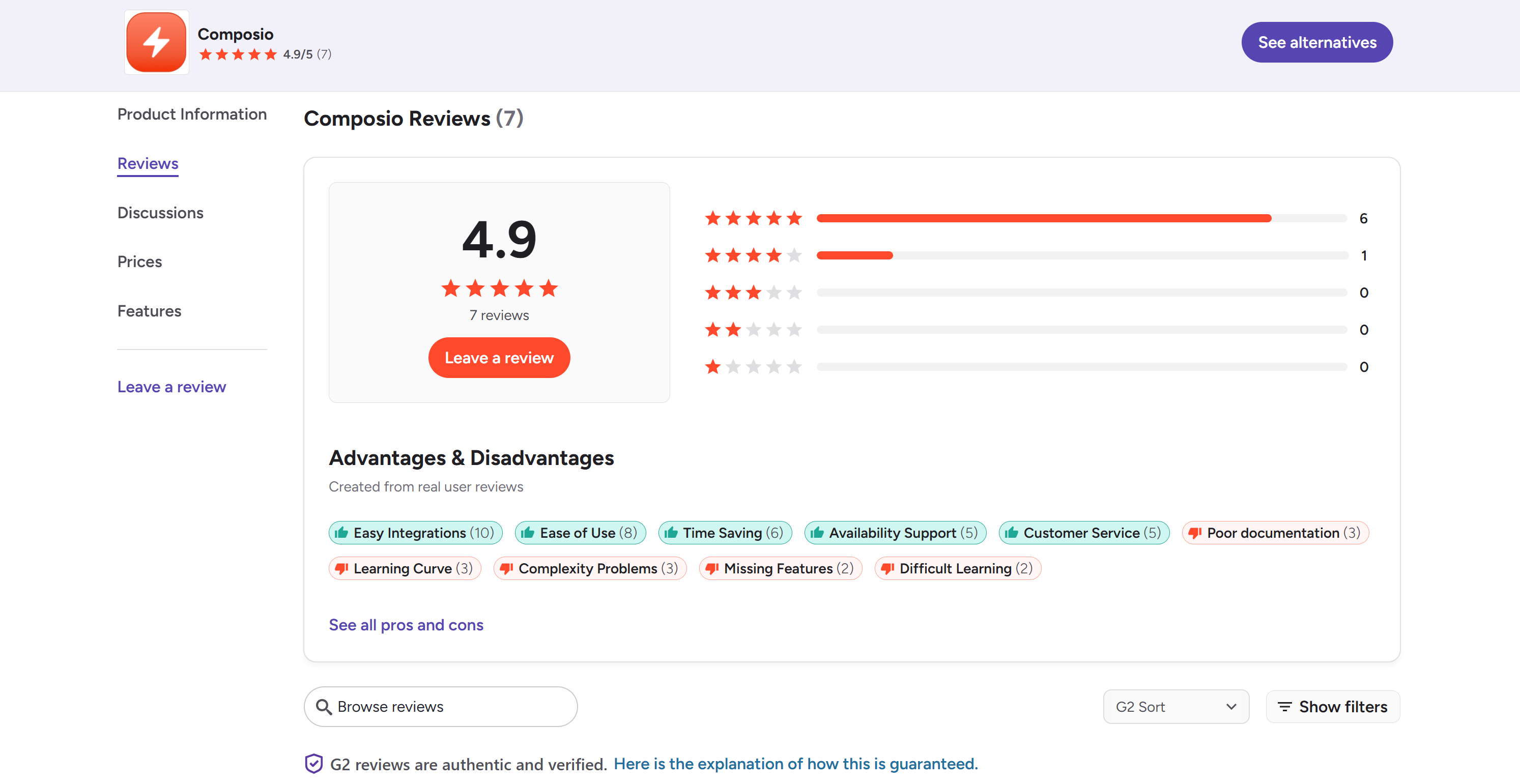
To better understand what happened behind the scenes, check the “Logs” tab in your Composio account: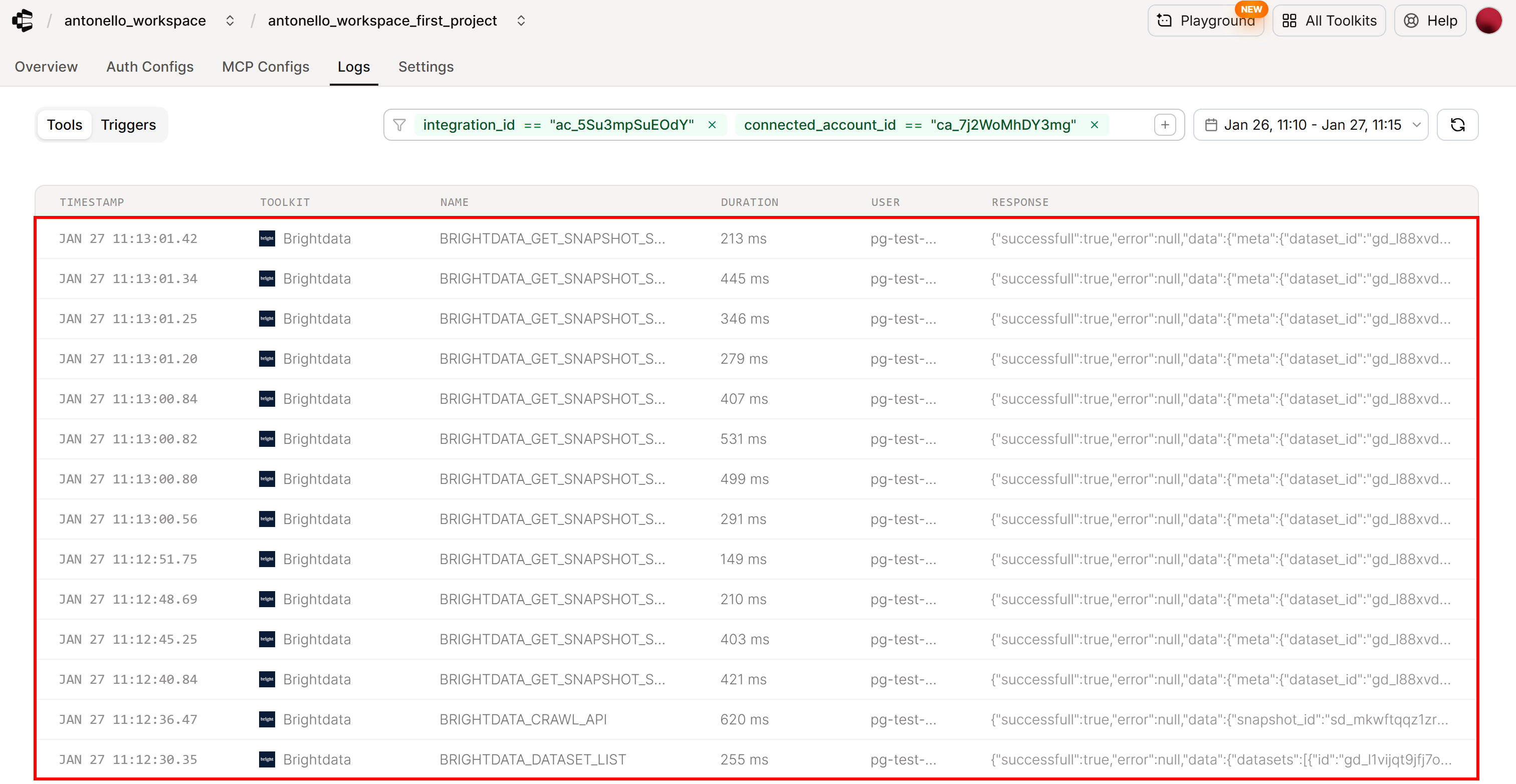
You will see that the agent called:
- The Composio Bright Data “Browse Available Scrapers” tool (
BRIGHTDATA_DATASET_LIST) to retrieve a list of all available scraping APIs and datasets. - The Composio Bright Data “Trigger Site Crawl” (
BRIGHTDATA_CRAWL_API) to trigger the G2 scraper on the specified URL, starting an asynchronous web scraping task in the Bright Data cloud. - The Composio Bright Data “Download Scraped Data” tool (
BRIGHTDATA_GET_SNAPSHOT_RESULTS), polling until the snapshot containing the collected data was ready.
This is exactly the expected behavior, confirming that the AI agent successfully integrated with Bright Data.
Et voilà! In just about 65 lines of code, you just built an AI agent that fully integrates with all Bright Data solutions available in Composio.
Sentiment analysis on G2 reviews is just one of many use cases supported by Bright Data’s web data tools. Tweak your prompts to test other scenarios and explore the Composio documentation to discover more advanced features, making your agent production-ready!
Conclusion
In this blog post, you saw how to enable Bright Data capabilities in an AI agent built with the OpenAI Agents SDK, simplified thanks to Composio.
With this integration, the AI agent was able to:
- Automatically discover the right web scraper among the many offered by Bright Data.
- Execute the tool for web data retrieval.
- Get structured data from the web
- Process it to produce a context-rich report backed by real, up-to-date information.
Now, this was just an example. Thanks to the full suite of Bright Data services for AI, you can empower AI agents to automate complex web interactions!
Create a Bright Data account for free today and start building with our AI-ready web data tools!



Technical Writer
 5.5 years experience
Antonello Zanini is a technical writer, editor, and software engineer with 5M+ views. Expert in technical content strategy, web development, and project management.