In this guide, you will learn:
- What AWS Step Functions is and why it matters for workflow automation.
- Why web scraping workflows are well-suited for this AWS service.
- How Bright Data helps overcome the inherent challenges of web scraping.
- How to integrate Bright Data into AWS Step Functions, either via direct API calls or through a dedicated Lambda function.
Let’s dive in!
An Introduction to AWS Step Functions
Before showing how to use AWS Step Functions to orchestrate a web scraping workflow, get more context on this solution.
What Is AWS Step Functions?
AWS Step Functions is a fully managed service that lets you coordinate and automate complex workflows across AWS services. It is a visual orchestration service used to build distributed applications and automate processes by connecting multiple AWS services into serverless workflows.
At its core, Step Functions rely on state machines, which are workflows made up of a series of steps, called states. Each state performs a task such as invoking an AWS service or running custom code.
This approach simplifies orchestration, error handling, and monitoring, allowing you to focus on application logic rather than infrastructure. In detail, the main benefits they bring to the table are:
- Simplified orchestration: Manage multi-step processes and dependencies without writing complex code.
- Built-in error handling: Retries and catch blocks help workflows recover from failures automatically.
- Parallel and dynamic execution: Run tasks concurrently or iterate over datasets for faster processing.
- Human-in-the-loop support: Include approval steps or callbacks within workflows.
- Service integration: Connect seamlessly with AWS Lambda, Glue, SQS, SNS, SageMaker, and more.
Find out more in the official docs.
Understanding How AWS Step Functions Works
To truly grasp AWS Step Functions, it helps to focus on its core concepts, which form the foundation of any workflow:
- State machine: The backbone of Step Functions. A state machine represents your workflow, storing and updating its state as tasks progress. You define it using JSON and the Amazon States Language. You can choose Standard workflows for long-running or human-intervention processes, or Express workflows for short, high-volume tasks.
- States: Each step in a workflow. States can perform work (Task), make decisions (Choice), pause execution (Wait), handle failure or success (Fail/Succeed), branch execution (Parallel), or repeat over inputs (Map). The combination of states defines your workflow logic.
- Task states: Units of work within a workflow. Service tasks automate interactions with AWS services like Lambda or Glue. Instead, activity tasks connect to external code or humans, useful for asynchronous steps or approvals.
- Execution and monitoring: Step Functions logs every step’s input, output, retries, and errors, letting you trace issues and verify workflow behavior.
Serverless Web Scraping Workflow Orchestration
AWS Step Functions provides an effective way to orchestrate serverless web scraping workflows in a scalable and reliable manner. Instead of building a monolithic scraping script, you can break the process into smaller, event-driven steps and coordinate them through a state machine.
For example, a workflow might start by triggering a data collection task, continue with data parsing and validation, and then store the results in services such as Amazon S3 or a database. Step Functions can coordinate these steps while integrating with other AWS services like AWS Lambda, AWS Glue, or Amazon SQS.
This approach brings several benefits: improved scalability, built‑in retry and error handling, parallel processing of scraping tasks, and clear monitoring of each workflow execution.
However, large-scale web scraping also presents challenges. The reason is that many websites implement anti-bot protections and anti-scraping mechanisms that can block automated requests. Examples include rate limiters, fingerprints, CAPTCHAs, JavaScript challenges, and more.
Flawless Web Data Retrieval in AWS Step Functions
For teams orchestrating web scraping workflows with AWS Step Functions, Bright Data offers a comprehensive solution to support successful, large-scale web data retrieval.
Bright Data comes with several specialized scraping services that integrate seamlessly with Step Functions:
- SERP API: Gather search engine results at scale for SEO insights or market analysis.
- Web Unlocker: Access any web page while circumventing anti-bot defenses such as CAPTCHAs, JavaScript hurdles, and IP restrictions.
- Web Scraping APIs: Retrieve structured information from e-commerce platforms, social networks, and other web sources with minimal configuration.
- Crawl API: Automate full‑website content extraction from any domain into Markdown, plain text, HTML, or JSON.
These solutions leverage a proxy network exceeding 150 million IPs across 195+ countries, delivering unlimited concurrency for production-ready use cases. Additionally, all services incorporate Bright Data’s anti-bot toolkit for avoiding CAPTCHAs and other access restrictions.
Integrating Step Functions’ orchestration with Bright Data’s web data tools enables fully automated pipelines that manage extraction, transformation, and storage. That means continuous operation even in complex, large-scale, enterprise-ready scenarios.
How to Integrate Bright Data Web Scraping Solutions into AWS Step Functions
To integrate Bright Data into AWS Step Functions for automated web data retrieval, there are two possible approaches:
- Use the “HTTP Endpoint – Call HTTPS APIs” node: Connect directly to Bright Data’s APIs (Web Unlocker API, Web Scraping APIs, SERP API, Crawl API, etc.).
- Rely on the “AWS Lambda – Invoke” node: Create custom code in a Lambda function (in Python or another supported language) to integrate with Bright Data products, retrieve data, and optionally apply specific logic (e.g., accessing only specific fields, returning data in a specific structure, or applying custom parsing logic).
In the sections below, we will guide you through both approaches. But first, let’s explore the pros and cons of two methods.
HTTP Endpoint – Call HTTPS APIs Node: Pros and Cons
👍 Pros:
- Quick to set up.
- Easier to manage and maintain.
- Works well for scraping data from single web pages.
👎 Cons:
- Limited flexibility for custom data processing.
- Harder to handle complex workflows that require multiple, different Bright Data scraping API calls.
AWS Lambda – Invoke Node: Pros and Cons
👍 Pros:
- Full control over web data processing and transformation.
- Allows you to implement custom logic (e.g., retries, conditional flows, etc).
- Possibility to integrate with multiple Bright Data services in a single function.
👎 Cons:
- Requires coding in Python, Node.js, or another supported language.
- Adds an extra service to monitor and maintain.
Prerequisites
To follow along with the following guided sections, you need:
- An active AWS account (even a free trial works).
- A Bright Data account with an API key ready.
- Basic knowledge of RESTful HTTP calls, or basic Python programming skills for the Lambda integration.
Configure Your Bright Data Account
If you do not already have a Bright Data account, create one first. Otherwise, log in and follow the instructions to set up an API key. You will need this key to authenticate your HTTP calls (whether you are calling Bright Data directly from HTTP calls or in a Lambda function).
Make sure you have a Bright Data Web Unlocker API set up (and a SERP API if you plan to follow the Lambda tutorial section):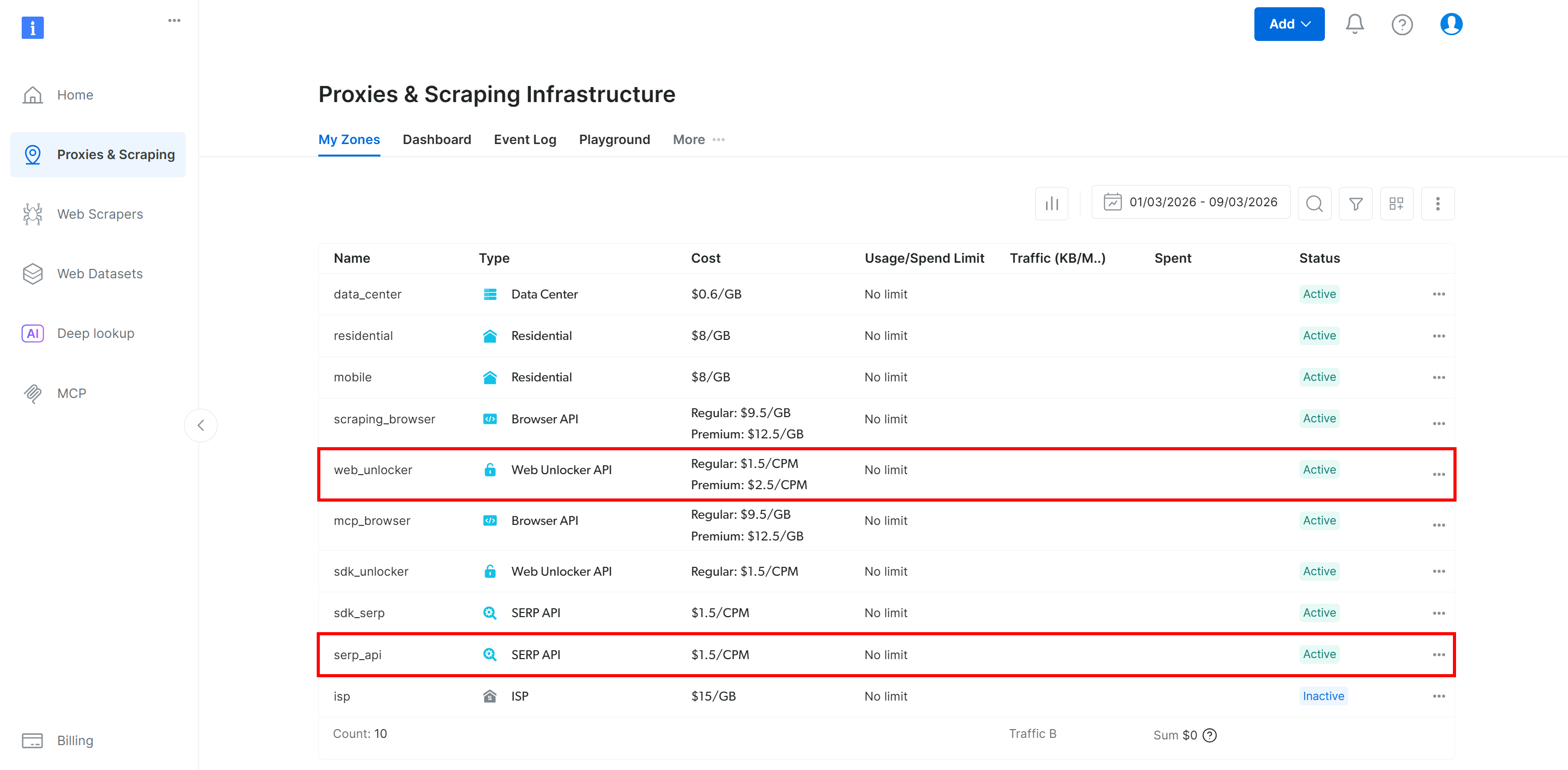
For more information, refer to the following documentation pages:
Set Up Your AWS Step Functions Workflow
Start by logging in to your AWS Console and searching for the “Step Functions” service. Open the service page: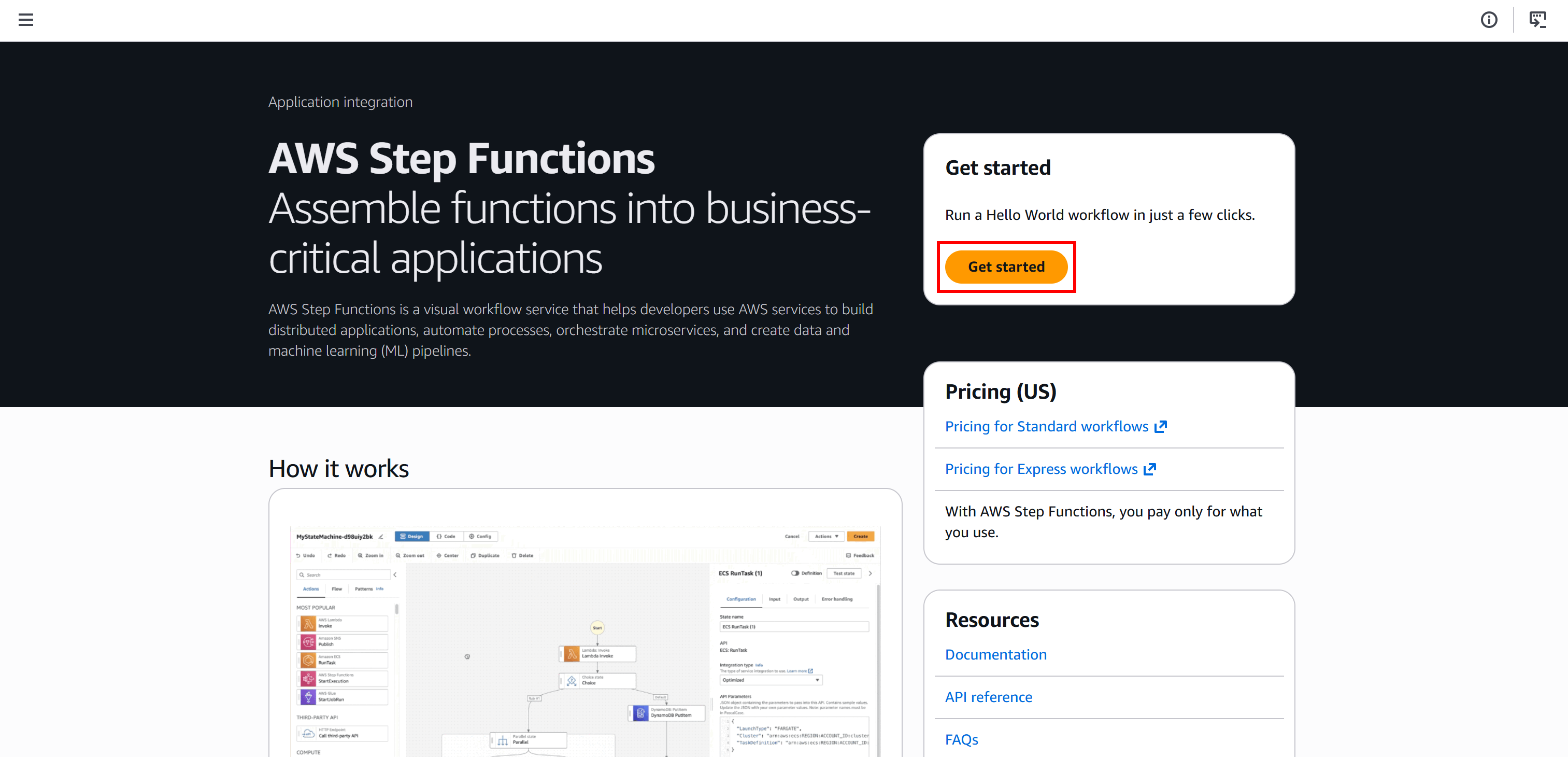
Here, click the “Get Started” button and then select “Create your own” to begin building a serverless workflow from scratch: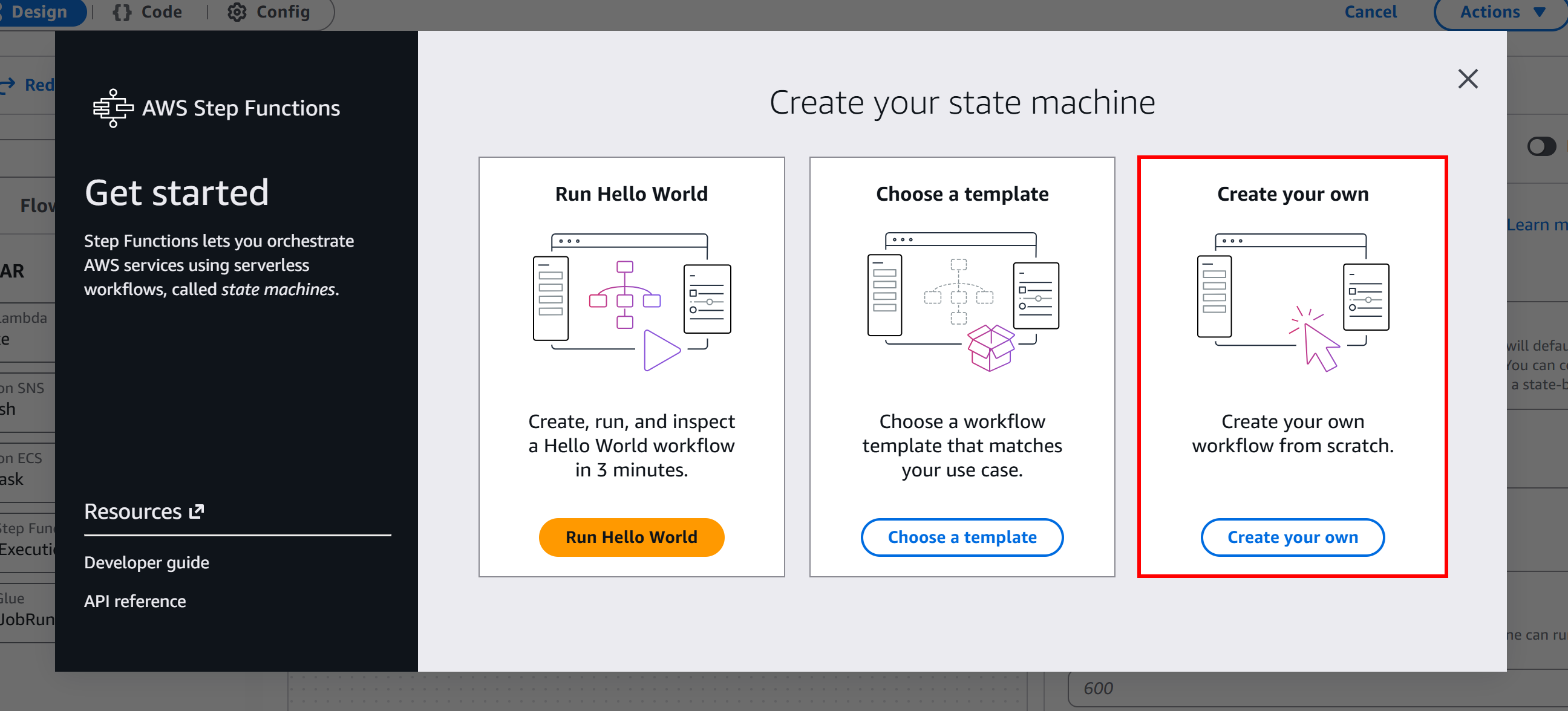
Give your state machine a name (e.g., "BrightDataWebScrapingMachine") and choose the type of state machine you want to create. In this tutorial, we will use a “Standard” machine: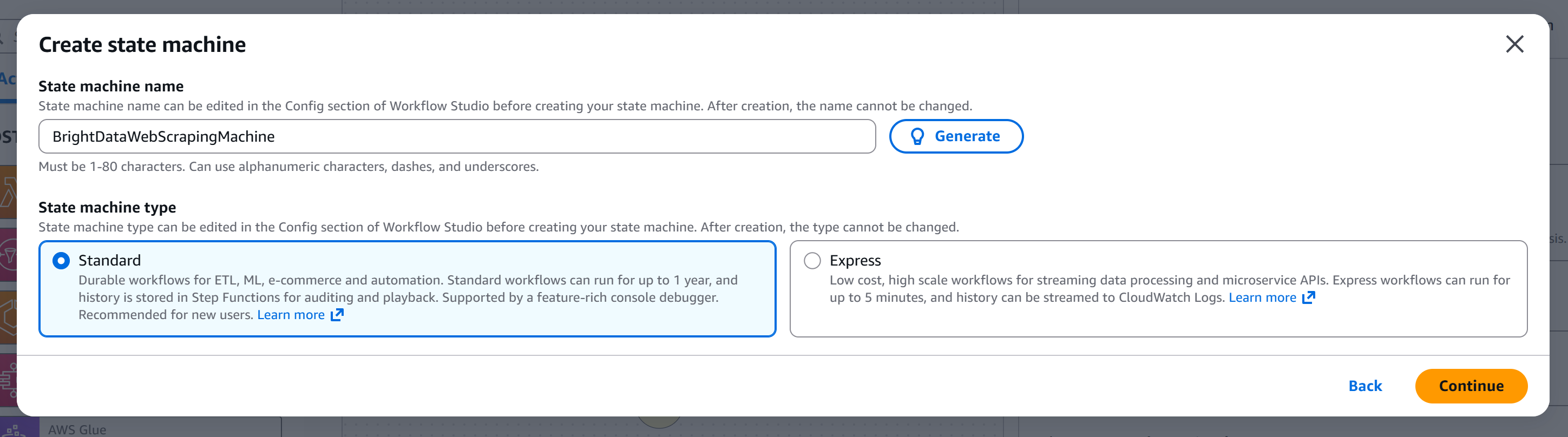
Click “Continue” to reach the workflow editor page: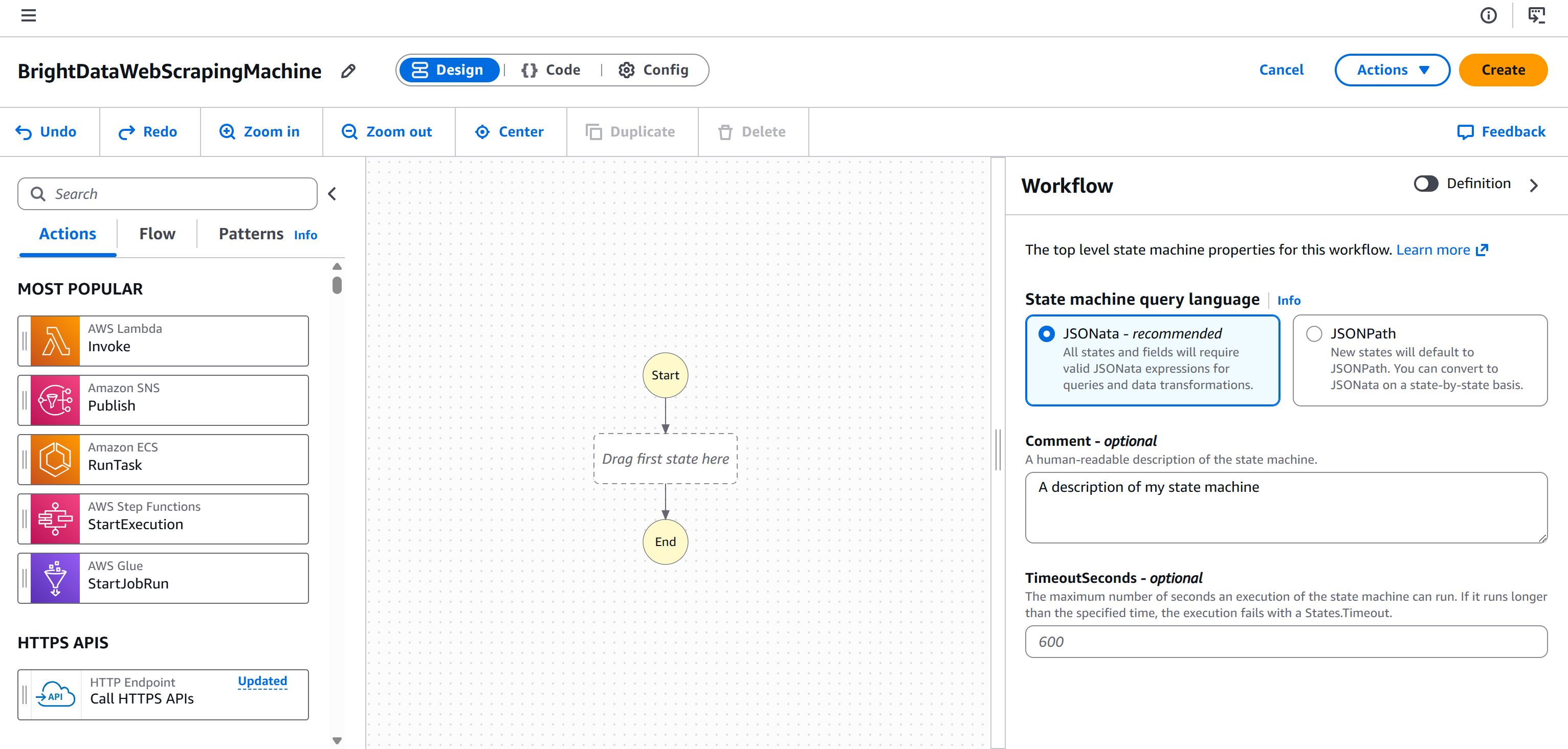
You are now fully set up and ready to add a Bright Data web scraping node to your AWS Step Functions workflow.
Approach #1: Use the “Call HTTPS APIs” Node
Here, you will learn how to define a node that connects directly to Bright Data Web Unlocker APIs via an HTTP call. This node allows you to programmatically scrape data from any web page. In particular, we will configure it to retrieve data in Markdown format, which is ideal for LLM ingestion.
Note: A very similar procedure can be applied to connect to any other API-based Bright Data product.
Step #1: Add an “HTTP Endpoint – Call HTTPS APIs” Node
Start by selecting the “HTTP Endpoint – Call HTTPS APIs” node on the left panel and dragging it to the “Drag first state here” section: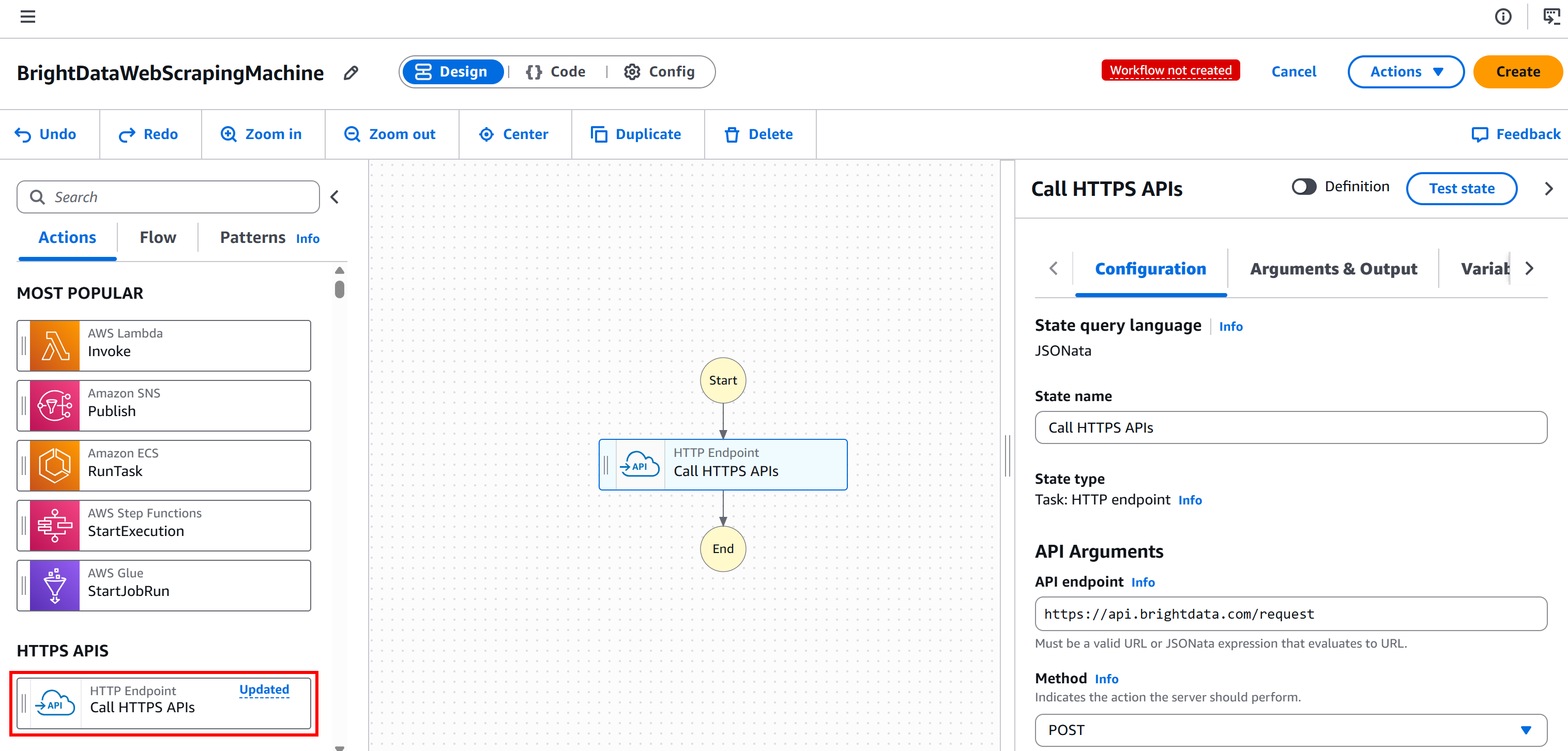
Select the node, and in the “Configuration” tab on the right:
- Give your state a name.
- Set the “API endpoint” to
https://api.brightdata.com/request. - Set the “Method” to
POST.
This configures the node to connect to the POST https://api.brightdata.com/request endpoint, which is the base Bright Data API for Web Unlocker and SERP API services: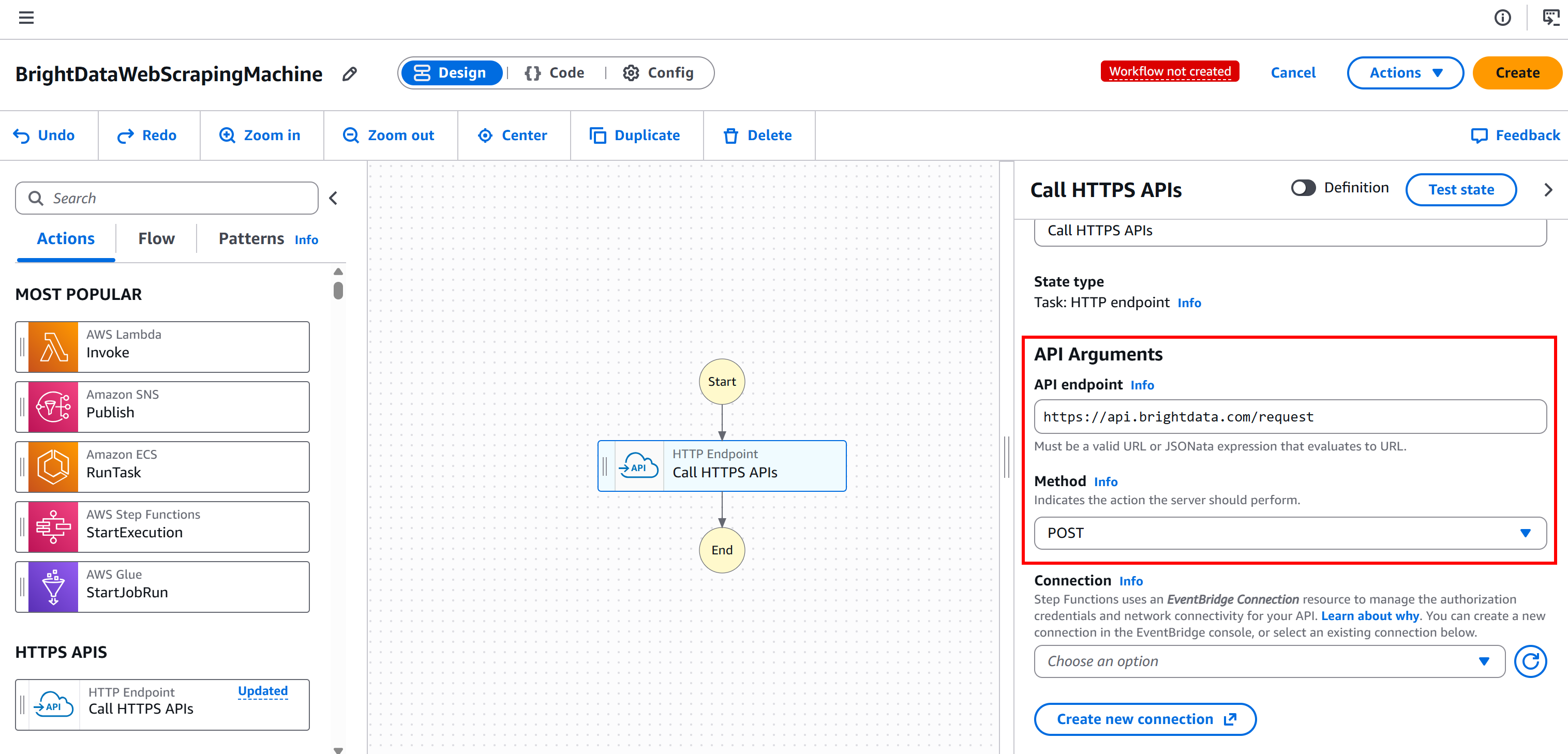
Step #2: Configure the API Authentication
Bright Data APIs are authenticated using your Bright Data API key. Specifically, you must include it in the Authorization header in the following format:
Bearer <BRIGHT_DATA_API_KEY>To avoid hardcoding your API key in the node, you need to create a new connection via Amazon EventBridge. To do so, press the “Create new connection” button in the “Connection” section under the “Configuration” tab: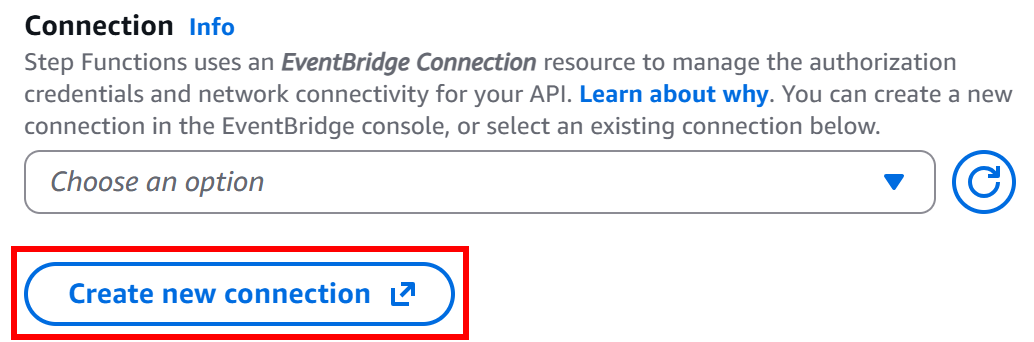
Give your connection a name (e.g., brightdata-api) and set it as “Public” (as Bright Data API keys are publicly exposed).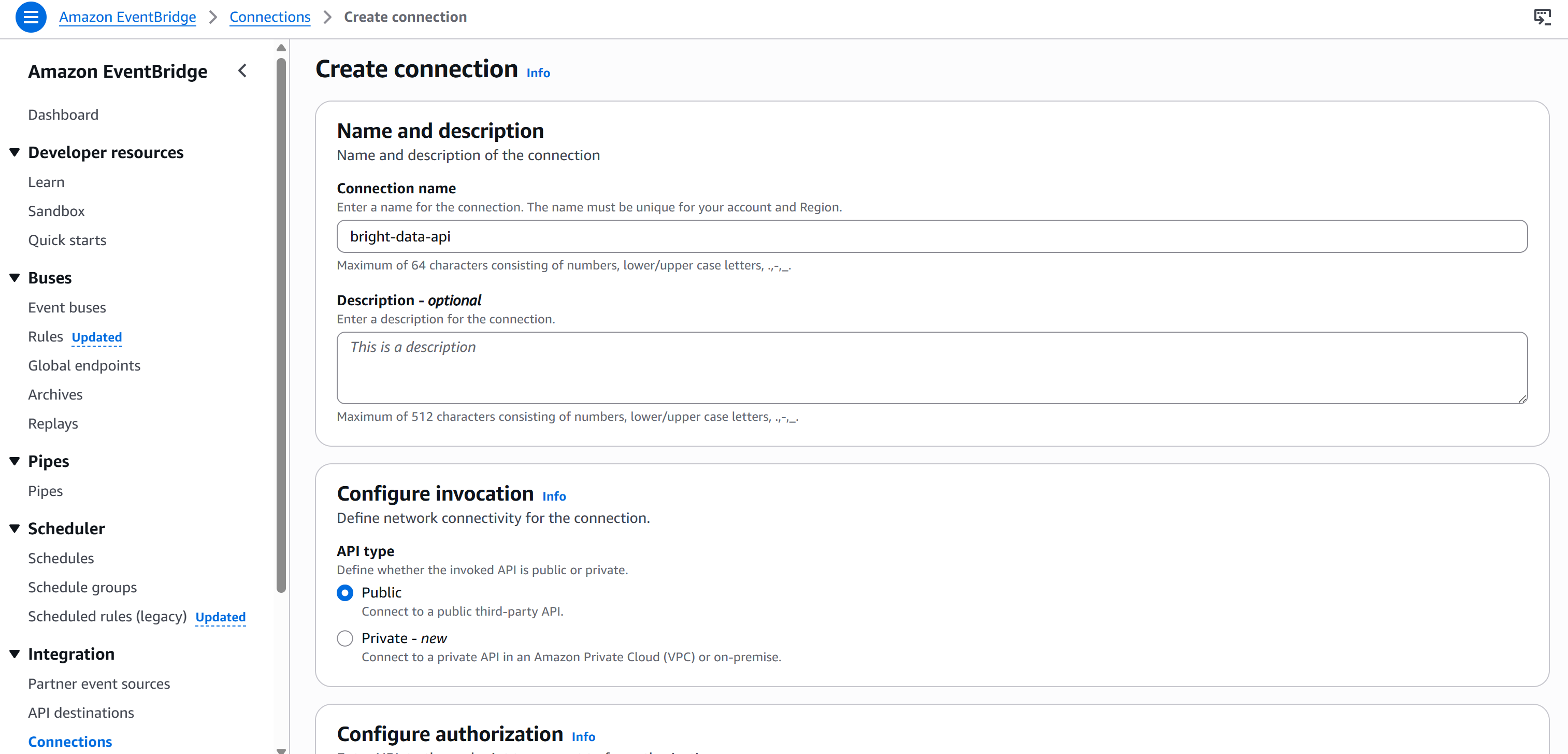
Then, select the “API Key” authentication type and configure it like this:
- API key name:
Authorization(this must match the name of the HTTP header used for authentication). - Value:
Bearer <BRIGHT_DATA_API_KEY>(replace the<BRIGHT_DATA_API_KEY>placeholder with your actual API key).
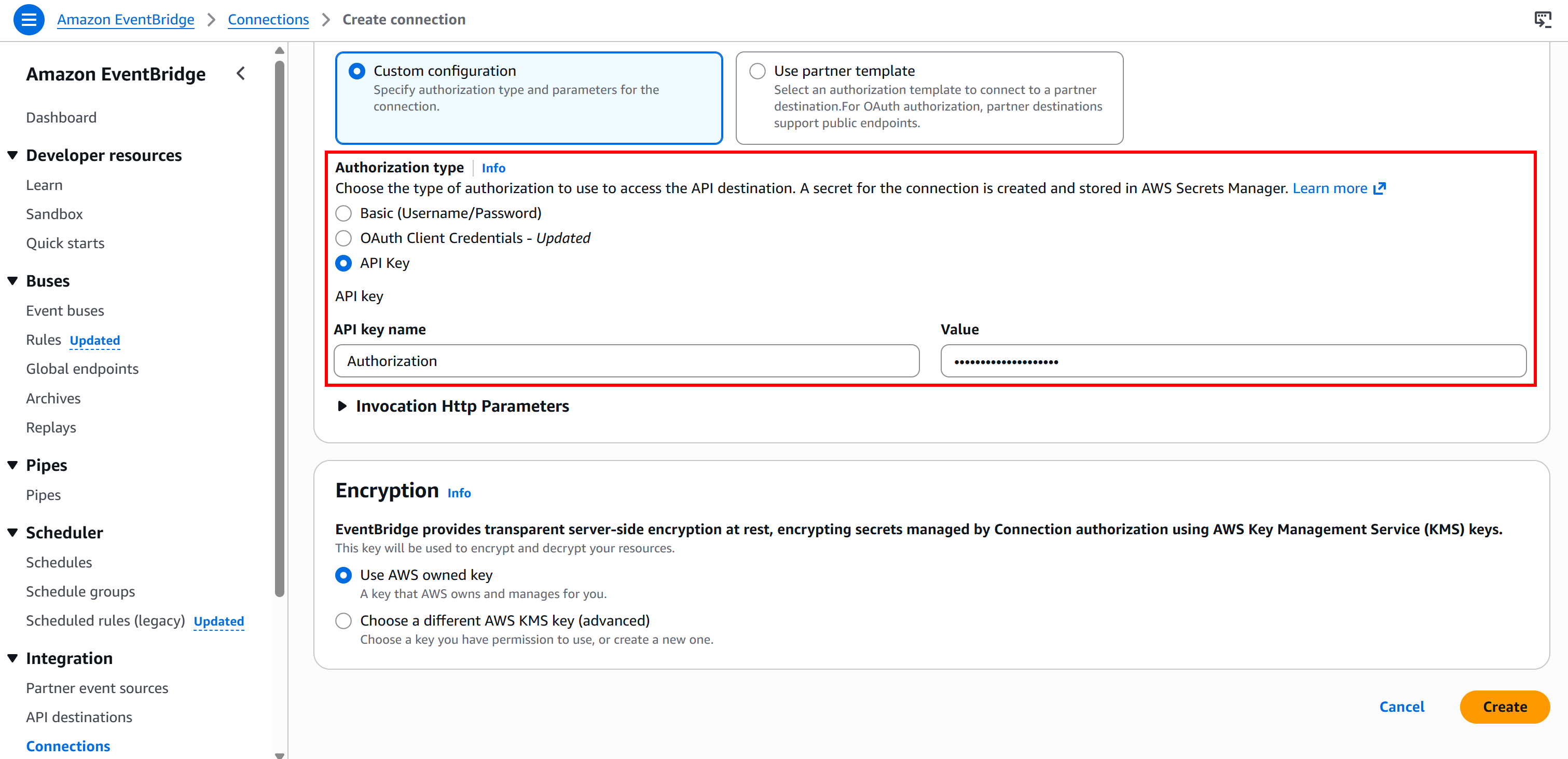
Finally, press “Create” to set up the EventBridge connection. After creation, you should see: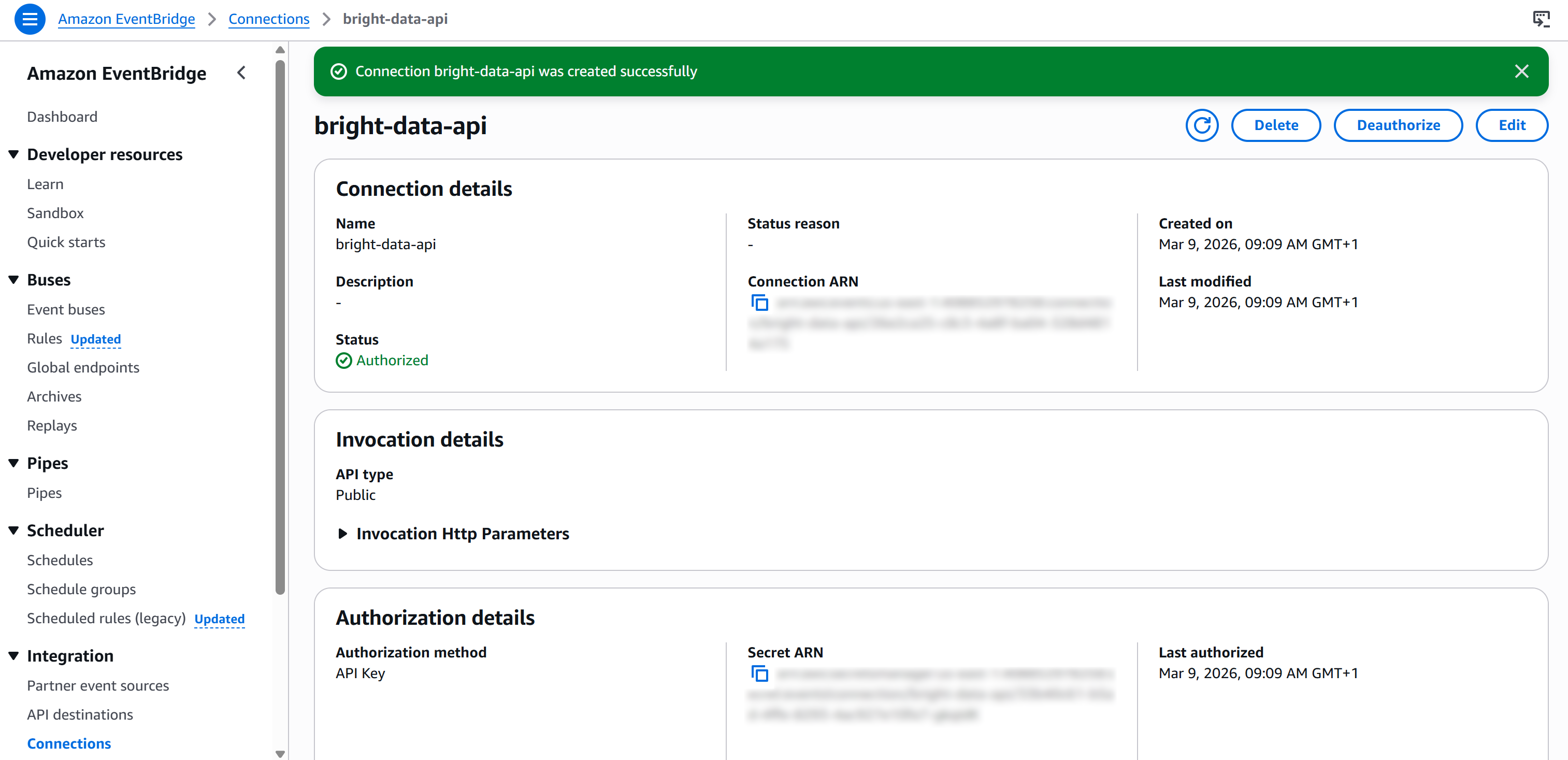
Step #3: Complete the API Configuration
Back on the workflow editor page, select your “HTTP Endpoint – Call HTTPS APIs” node and go to the “Configuration” tab. Then, select the connection you just created (bright-data-api):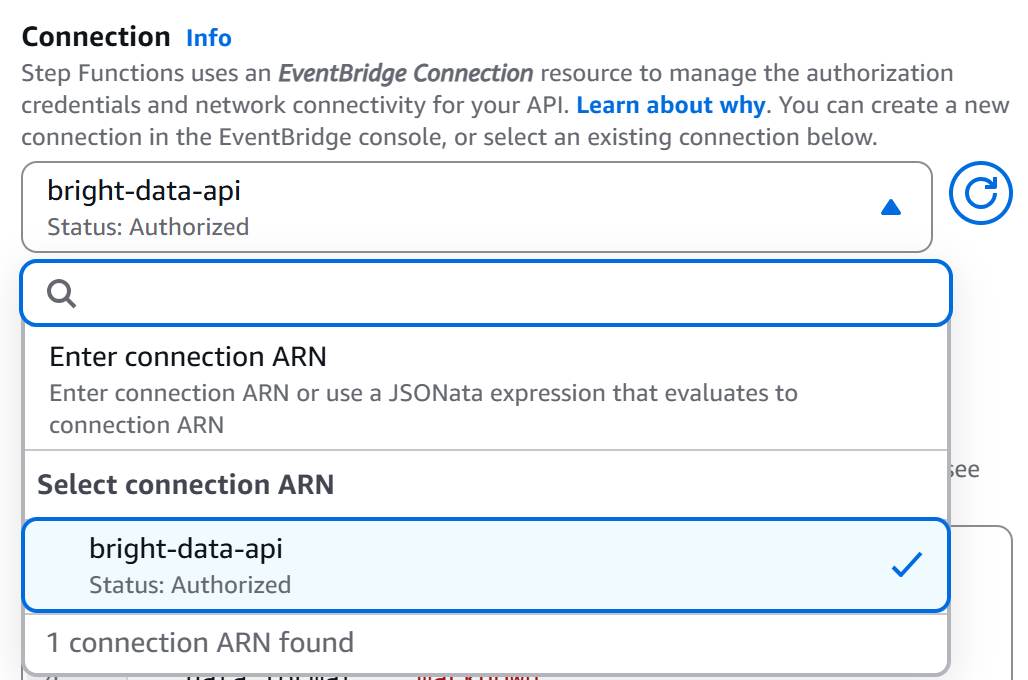
That way, the Bright Data API key will be added to the Authorization header for authentication (in the required format).
Next, define the HTTP body as follows:
{
  "zone": "<YOUR_BRIGHT_DATA_WEB_UNLOCKER_ZONE_NAME>",
  "url": "{% $states.input.url %}",
  "format": "raw",
  "data_format": "markdown"
}
Replace the <YOUR_BRIGHT_DATA_WEB_UNLOCKER_ZONE_NAME> placeholder with the name of your Web Unlocker zone from your Bright Data account. The url field will dynamically read from the workflow input (thanks to the {% $states.input.url %} syntax), allowing you to scrape different pages without hardcoding the URL. Instead, data_format: "markdown" guarantees that the API response is returned in AI-ready Markdown format.
In our example, the Web Unlocker zone is named "``web_unlocker``", so the body becomes: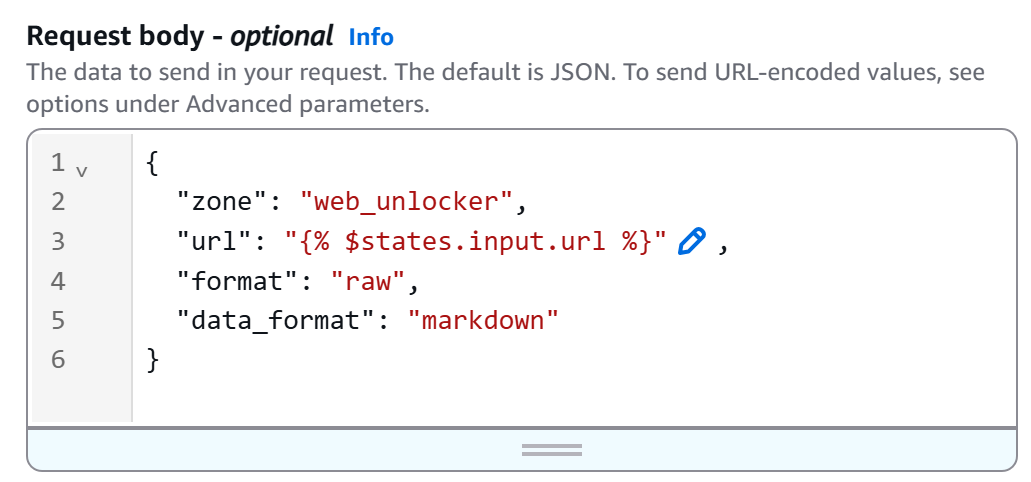
This is how your workflow will now look: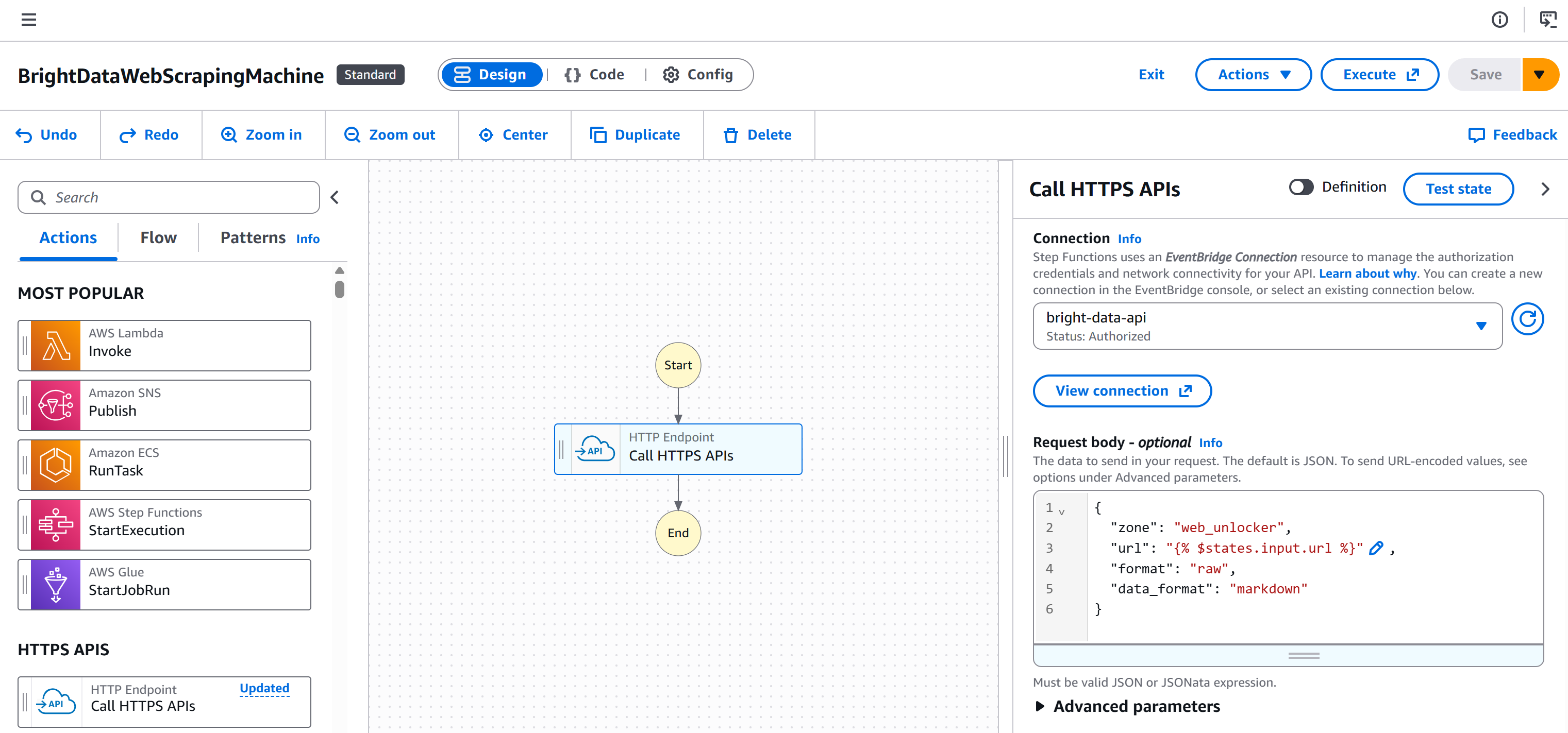
Fantastic! The setup is complete. All that remains is to test the Bright Data integration within your AWS Step Functions workflow.
Step #4: Test the Bright Data-Powered Web Scraping Node
Start by pressing the “Create” button to generate the required IAM role and all other necessary elements in your AWS Console for testing:
Then, press the “Test state” button on your node: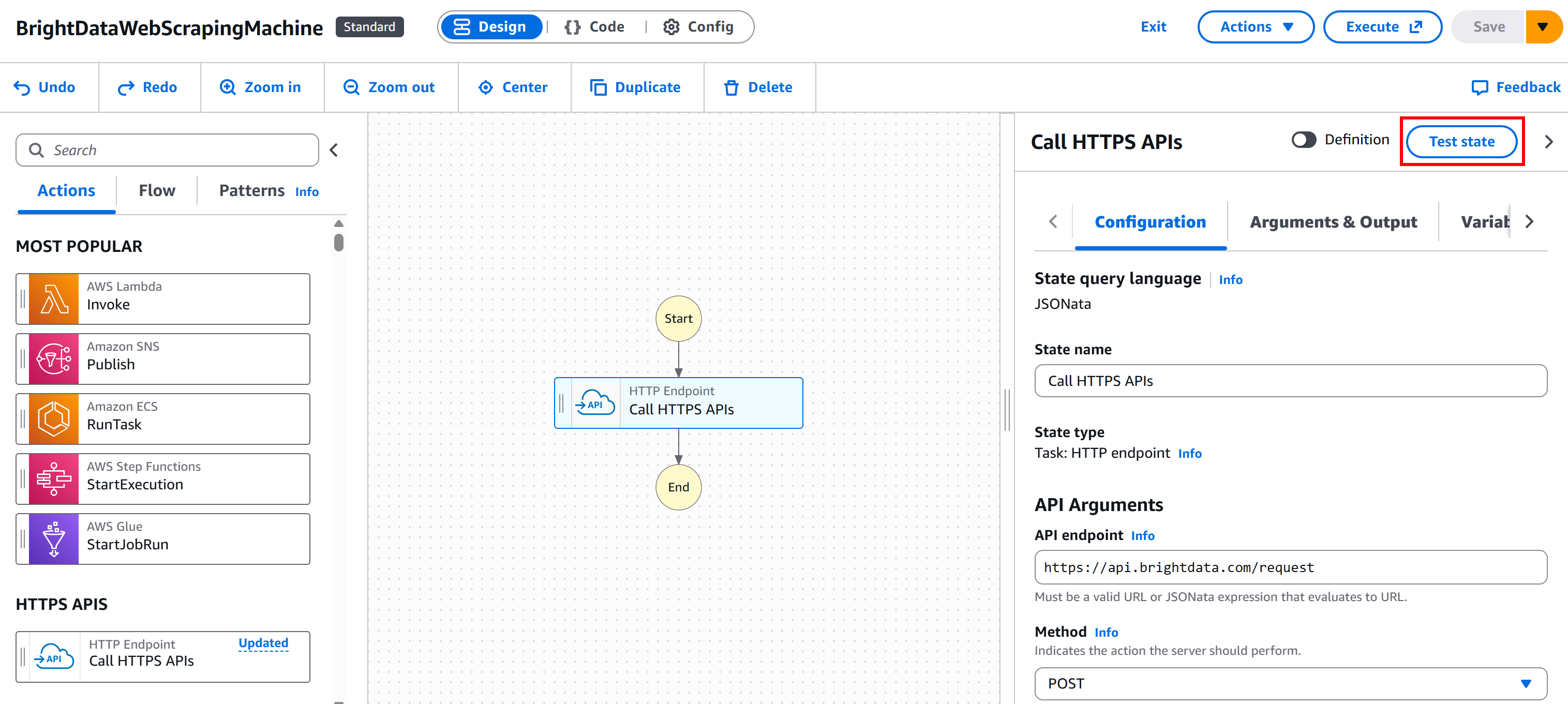
You will reach the “Test state” modal: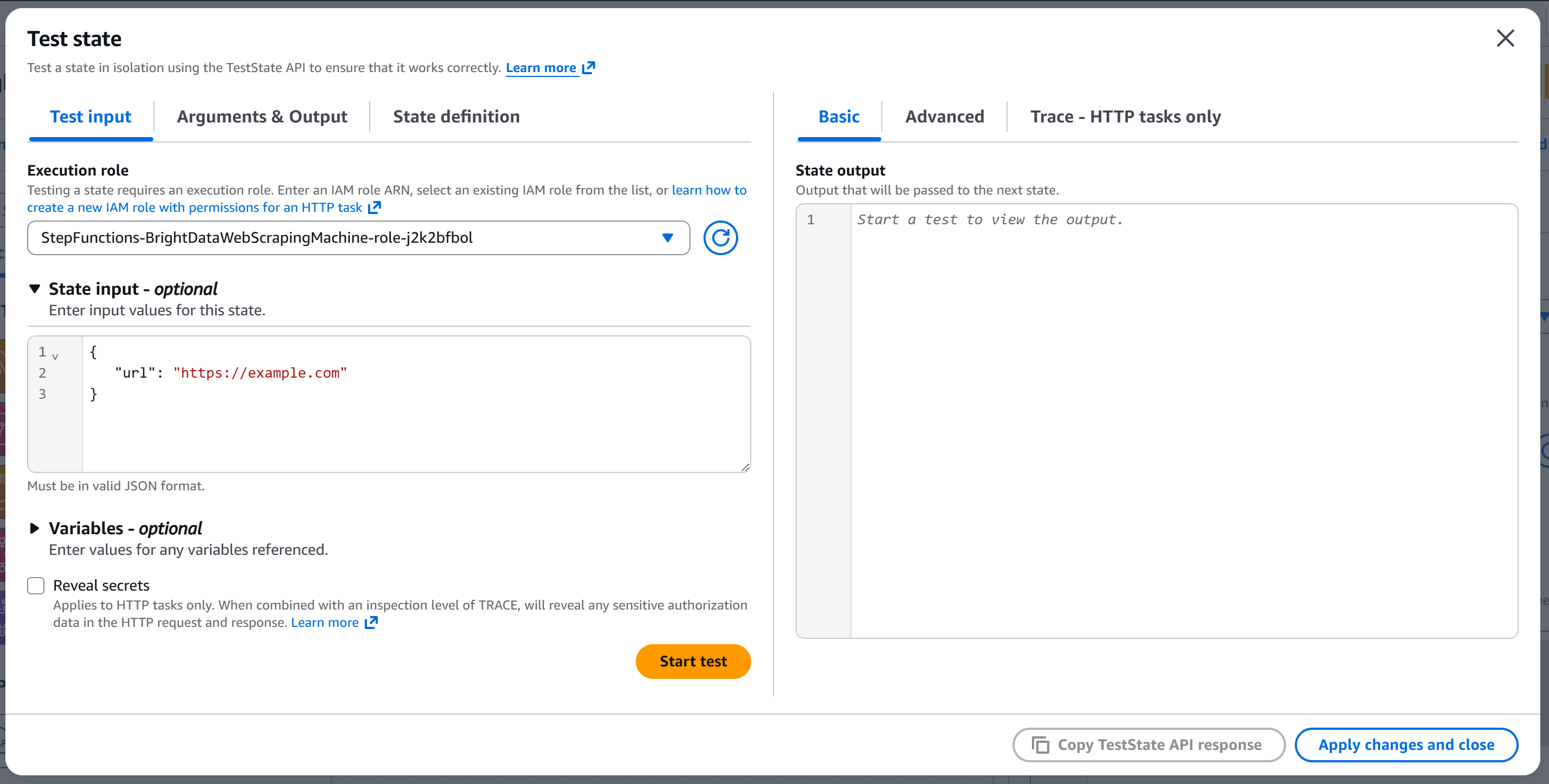
Configure the state input with something like:
{
   "url": "https://example.com"
}
The url field will be passed to the API body (because the node was configured to read the url body field from the input).
Press “Start test” to run the node. You should see output similar to this: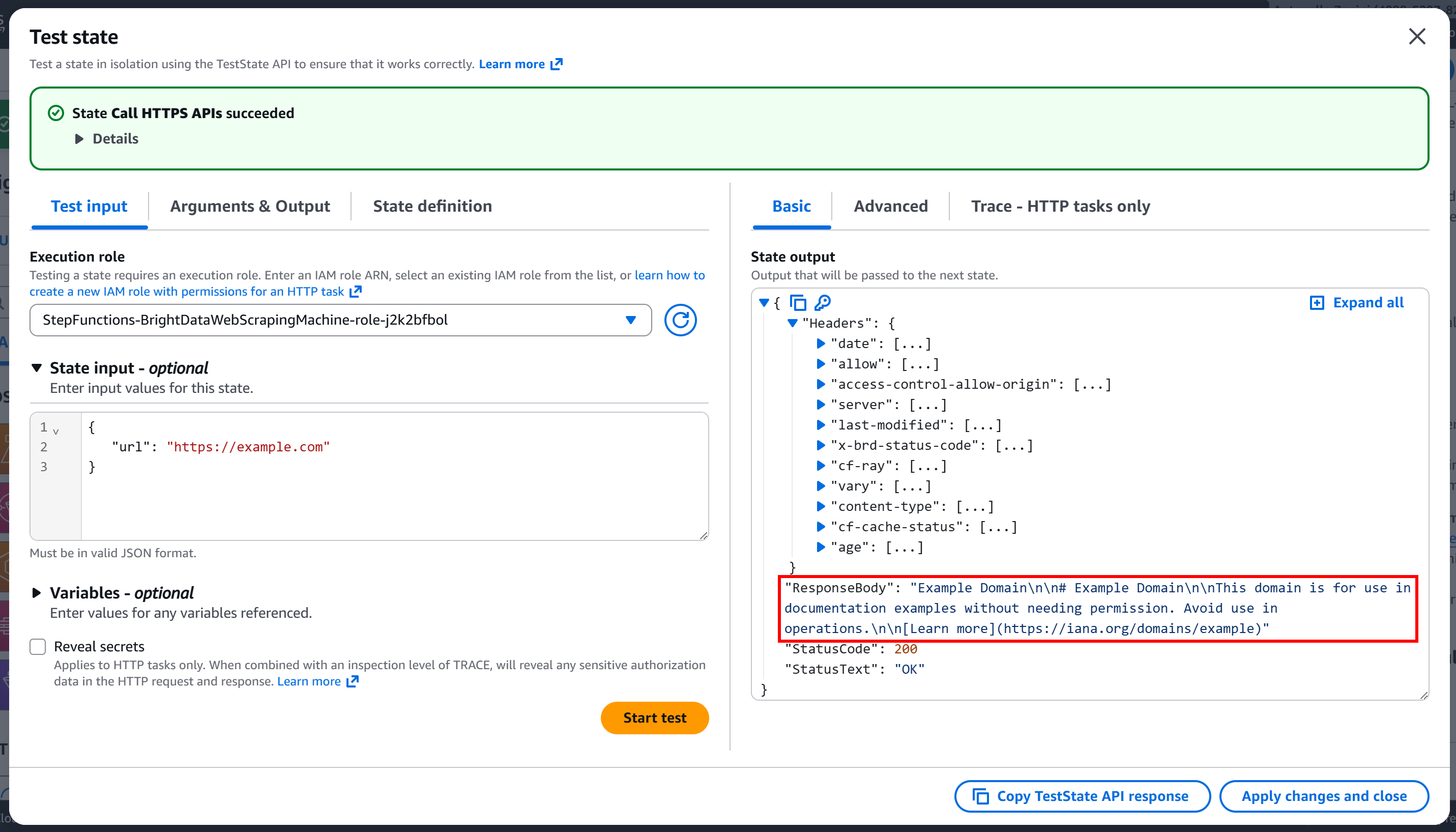
As you can tell, the request was successful, and the response body contains the Markdown version of the target page: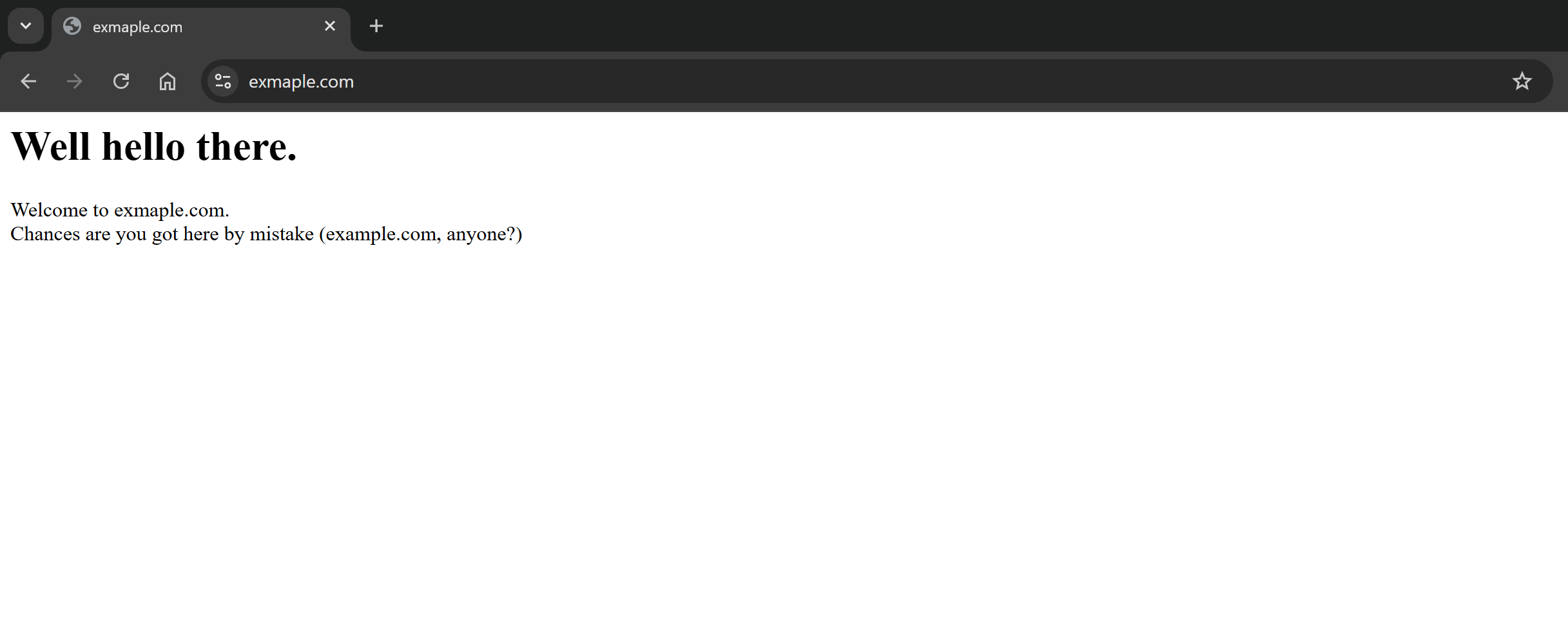
Et voilà! Your Bright Data integration in AWS Step Functions is now fully working and ready for production use.
Approach #2: Use a Lambda Function
In this section, you will understand how to connect to Bright Data services via a custom AWS Lambda function.
To simplify the integration and speed up the process, you can follow Steps #5, #6, and #7 from the article “Give AWS Bedrock Agents the Ability to Search the Web via Bright Data SERP API”. Those steps guide you through creating a Lambda function in Python that connects to the Bright Data SERP API.
Below, you will see how to integrate that Lambda function into your web scraping workflow via AWS Step Functions!
Step #1: Add an “AWS Lambda – Invoke” Node
Begin by selecting the “AWS Lambda – Invoke” node from the left panel. Then, drag it into the “Drag first state here” section of your workflow.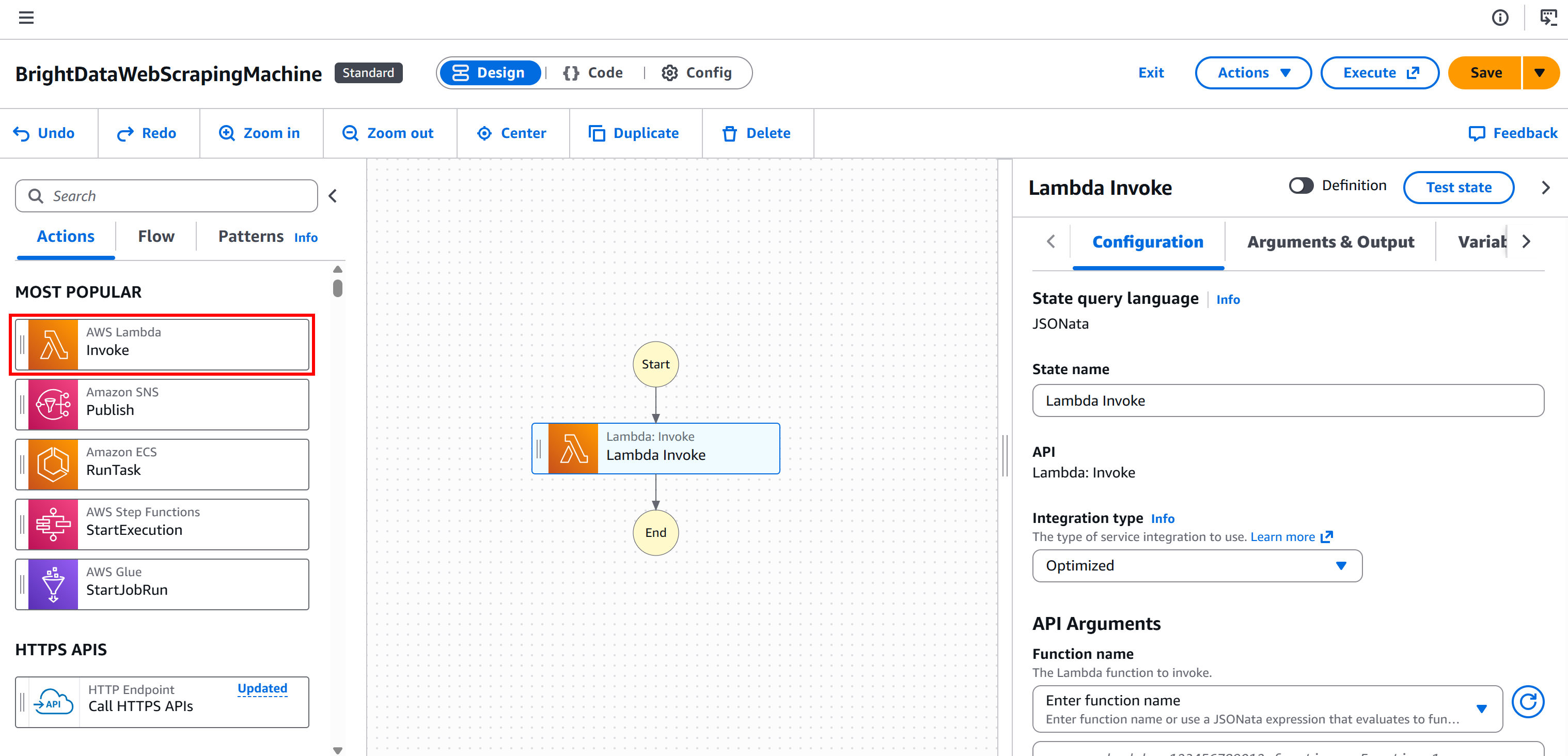
Step #2: Configure the Lambda Function
In the “Configuration” section of the “AWS Lambda – Invoke” node, under the “API Arguments – Function Name” block, select the Lambda function you want to invoke: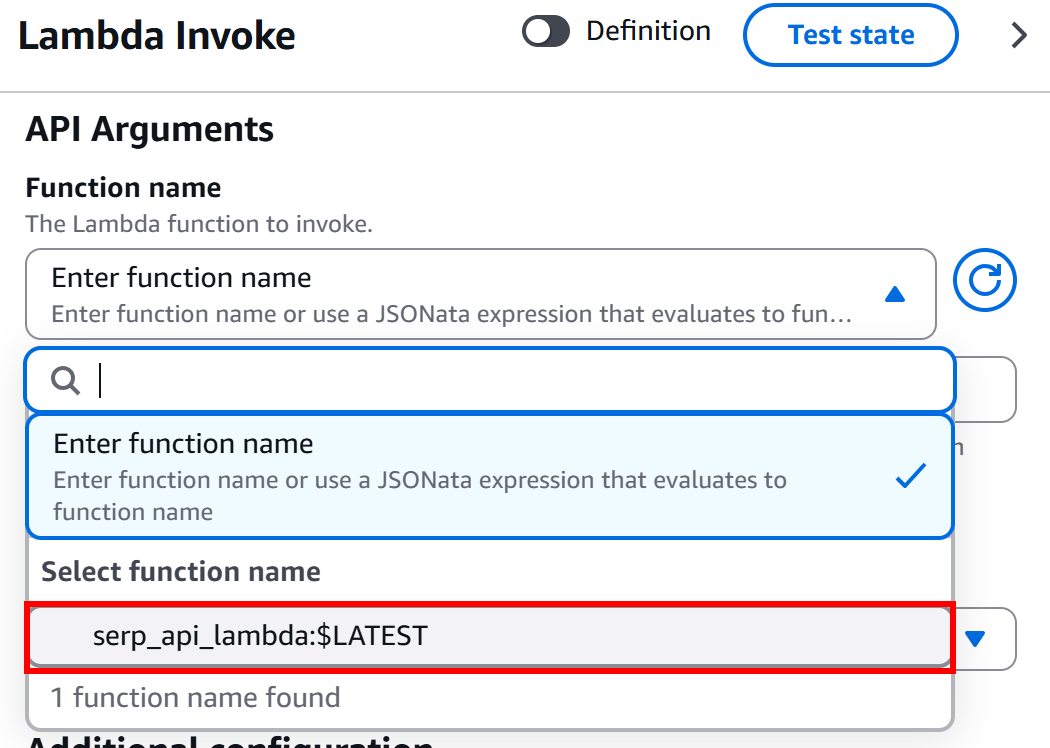
In this example, the function is serp_api_lambda, which was created as explained earlier in the introduction to this chapter. That function integrates with Bright Data’s SERP API.
Amazing! You now have a Bright Data-powered Lambda function for SERP scraping integrated into your AWS Step Functions workflow.
Conclusion
In this guide, you learned what AWS Step Functions is and why it is ideal for orchestrating automated web scraping workflows.
You saw how Step Functions simplifies workflow management with state machines, parallel execution, retries, and human-in-the-loop support. You explored how Bright Data enhances this process through Web Unlocker and SERP API integrations, overcoming anti-bot measures and ensuring uninterrupted, enterprise-level web data retrieval.
By integrating Bright Data into Step Functions, you can build end-to-end pipelines that handle data collection, validation, and storage in S3 or other AWS services, all while maintaining scalability, resilience, and monitoring.
Sign up for a Bright Data account today and test our web data solutions for free!



Technical Writer
 5.5 years experience
Antonello Zanini is a technical writer, editor, and software engineer with 5M+ views. Expert in technical content strategy, web development, and project management.