In this blog post, you will discover:
- What Cartesia is and what it offers for AI voice agent development.
- Why voice agents (like any other agents) need access to the web to be effective and truly trustworthy.
- How to give a Cartesia AI voice agent the ability to search and extract information from the web using Bright Data integration.
Let’s dive in!
What Is Cartesia?
Cartesia is a developer-first platform for building real-time AI voice agents. It combines low-latency speech models with a full agent development stack, providing everything you need to go from idea to a production-ready voice agent.
The platform is designed for fast iteration, allowing developers to prototype, deploy, and refine conversational agents with minimal friction. It handles speech, reasoning, deployment, and testing within a single, unified ecosystem.
Cartesia’s voice stack is powered by two key in-house models:
- Sonic: A streaming text-to-speech (TTS) model optimized for ultra-low latency and highly expressive output. It can laugh, emote, and deliver natural, human-like speech across 40+ languages.
- Ink: A fast and accurate speech-to-text (STT) model designed for real-world conversations, handling noise, accents, and disfluencies while maintaining near real-time transcription speed.
To build agents, Cartesia offers both a built-in web Agent Builder and Line, its open-source SDK. The Cartesia SDK supports templates, tool integration, multi-agent orchestration, and more. That gives you everything you require to craft intelligent, production-grade voice agents.
Why Voice Agents Need Web Access
Cartesia is undoubtedly a feature-rich solution for building AI voice agents, with support for over 100 LLMs via LiteLLM. However, even with this wide selection, all LLMs share the same inherent limitation: their knowledge is frozen at a specific point in time. This can lead to outdated responses, hallucinations, or gaps when agents need to handle real-world, up-to-date tasks.
Moreover, LLMs cannot natively access the web or interact with external systems. As a result, standard agent workflows remain constrained by the models’ limitations. To overcome this, integration with external services via custom tools is essential.
This is where Bright Data comes in. By connecting Cartesia to Bright Data, your agents can access real-time information, search results, and structured data from any website.
Bright Data’s enterprise-grade infrastructure features one of the largest proxy networks in the world, with over 400 million IPs across 195 countries, enabling secure, reliable, and scalable access to live web content.
The main Bright Data products you can equip Cartesia voice agents include:
- SERP API: Collect search engine results from Google, Bing, and more to fuel informed responses.
- Web Unlocker API: Access content from any site in raw HTML or Markdown, bypassing CAPTCHAs and anti-bot protections.
- Web Scraper APIs: Extract structured data from platforms like Amazon, LinkedIn, and Instagram.
- Crawl API: Turn entire websites into structured datasets for downstream AI workflows.
With Bright Data, Cartesia agents are no longer limited to pre-trained knowledge. They can explore, retrieve, and reason with live, authoritative web data. This allows them to deliver more accurate, context-aware, and actionable responses.
How to Build a Cartesia AI Voice Agent Powered by Bright Data’s Web Data Retrieval
In this step-by-step section, you will learn how to build an AI voice agent with Cartesia. The agent will be enhanced with web search and web scraping capabilities using Bright Data.
In particular, the AI voice agent will simulate the generation of a short, news-style report that you can listen to on a given topic. You will also be able to chat with the agent to ask follow-up questions and explore the topic further.
Note: This is just a possible AI voice agent implementation. Bright Data’s integration supports many other use cases.
Specifically, you will integrate two of Bright Data’s AI-ready products:
- Web Unlocker API to give the agent the ability to extract data from any URL.
- SERP API to enable the agent to search the web.
Together, these tools give teh AI agent the ability to apply the search-and-extract pattern. That is ideal for data grounding and web discovery.
For more programmatic control when building the agent, we will rely on Line (i.e., the Cartesia SDK). That is because the Agent Builder is great for prototyping but somewhat limited.
Follow the instructions below!
Prerequisites
To follow along with this tutorial, make sure you have the following:
- A Unix-based operating system (Linux, macOS, or WSL on Windows).
- Python 3.9+ installed locally.
uvinstalled locally.- An API key from one of the LLM providers supported by Cartesia (here, we will use a Gemini API key).
- A Bright Data account with a Web Unlocker API and SERP API set up, along with an API key.
- A Cartesia account with an API key configured.
Do not worry about setting up Bright Data and Cartesia accounts just yet, as you will be guided through in the dedicated subchapters.
Step #1: Initialize a Cartesia Project
Start by creating a folder for your project using uv (this is the recommended approach in the Cartesia quickstart guide):
uv init cartesia-bright-data-voice-agentEnter the project folder:
cd cartesia-bright-data-voice-agentYou should see a folder structure like this:
cartesia-bright-data-voice-agent/
├── .git/
├── .gitignore
├── .python-version
├── README.md
├── main.py
└── pyproject.toml
This is the result of the uv init command.
Focus on the main.py file. That is where you will add your Cartesia logic to design an AI voice agent extended with web data retrieval and search capabilities using Bright Data.
Next, install the project dependencies with:
uv add cartesia-line requestsThe two required libraries are:
cartesia-line: The Cartesia Line SDK for building intelligent, low-latency voice agents.requests: The popular Python HTTP client, which will be used to call Bright Data’s APIs in custom Cartesia tools.
These libraries will be automatically installed in a .venv virtual environment by uv. Now you can open the project directly in your favorite Python IDE.
Well done! Your blank Cartesia project is ready to go.
Step #2: Get Started with the Cartesia CLI
To test a Cartesia agent locally, you need to install and log in to the Cartesia CLI. For authentication, you require a Cartesia API key, so let’s get that ready first!
If you do not have an account yet, create a new Cartesia account. Otherwise, log in. Once logged in, you will reach the dashboard: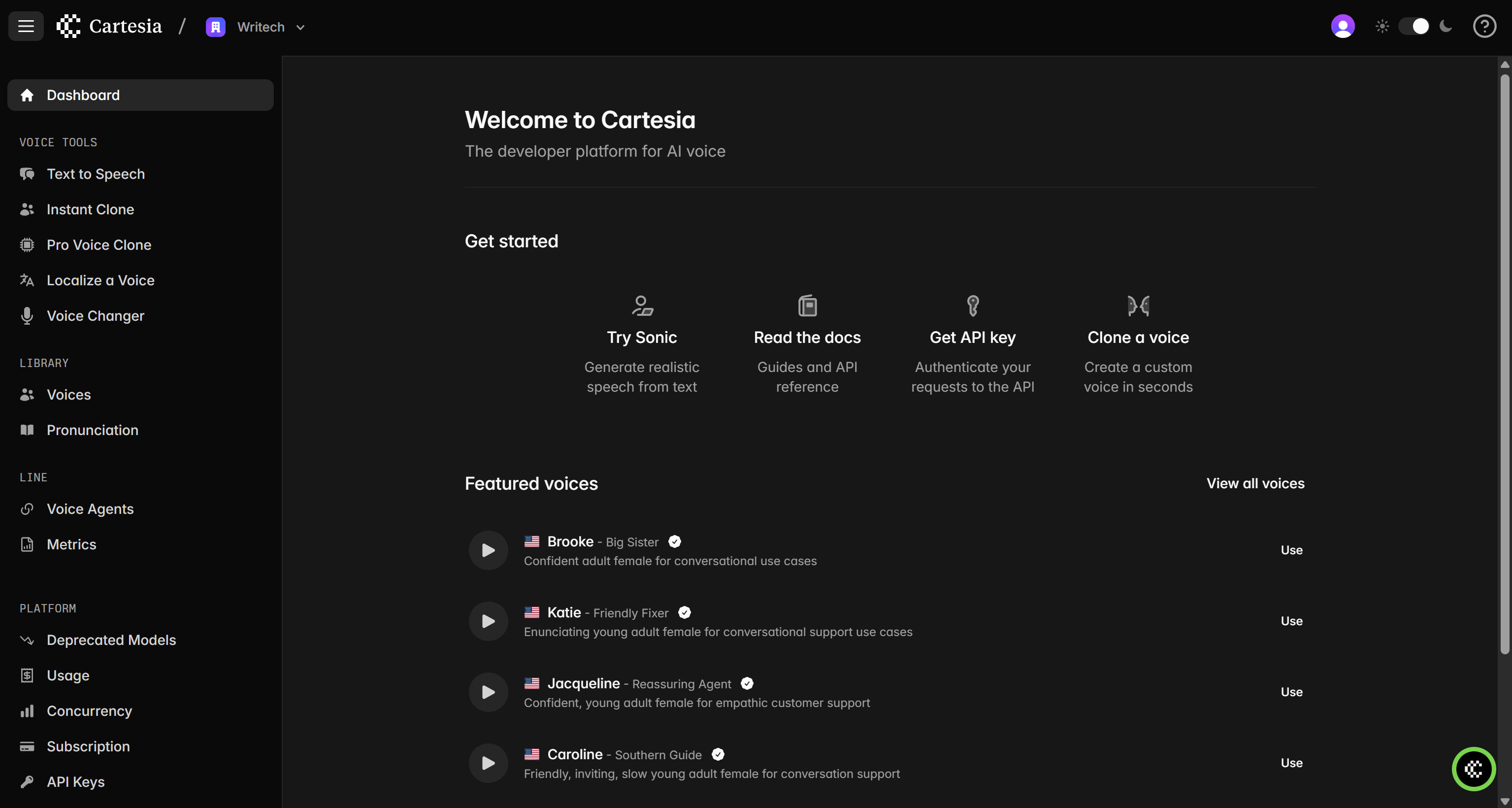
Now, move to the “API Keys” page and click the “New” button: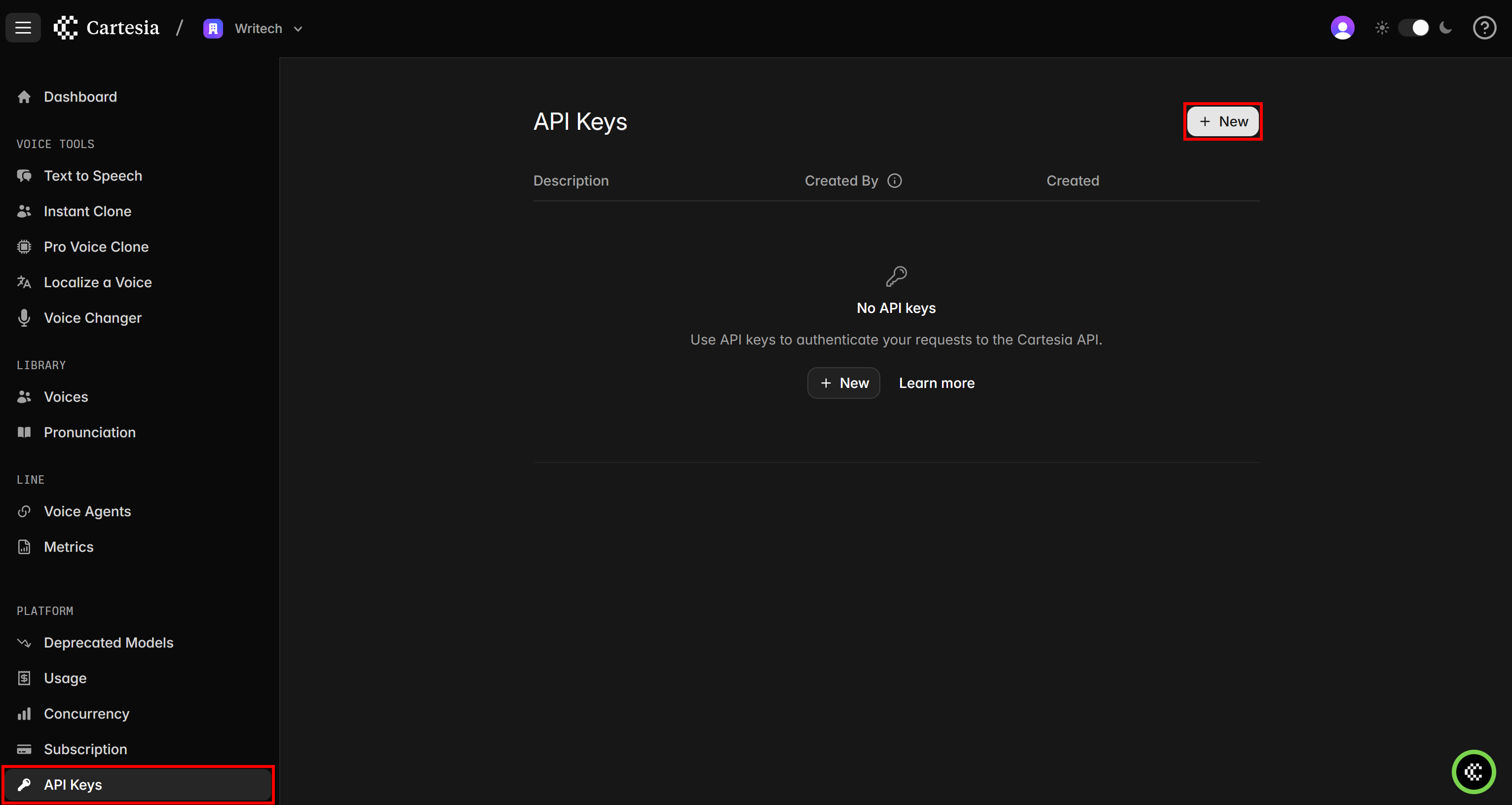
Give your API key a name (e.g., “Bright Data-Powered Voice Agent”), click “Create”, and you will see the API key in a modal.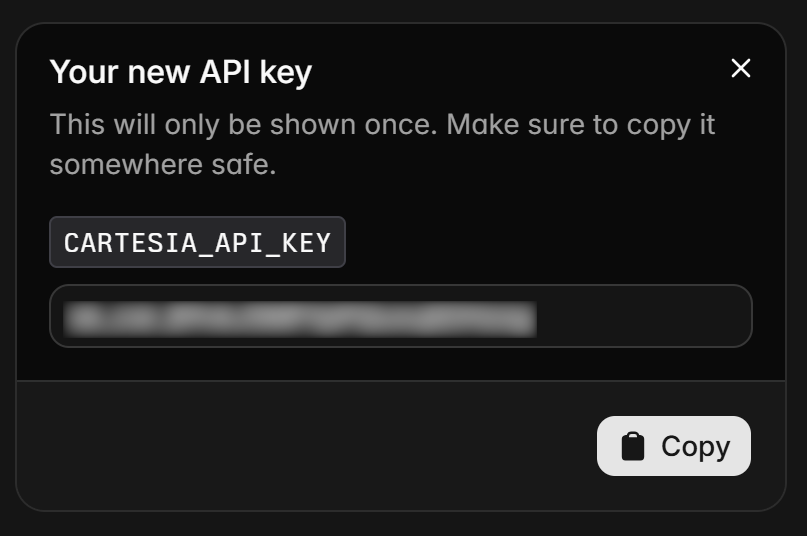
Copy the API token and store it safely, as you will need it soon.
In your Unix-based terminal, install the Cartesia CLI with:
curl -fsSL https://cartesia.sh | shAfter installation, restart your shell so you can use the cartesia command from anywhere.
To authenticate in the CLI, run:
cartesia auth loginYou will be prompted to enter your Cartesia API key. Paste it and press Enter. If successful, you should see a message like this:
Note: In this example, “Writech” is the name of the Cartesia organization. In your case, you will see a message customized for your organization.
Perfect! Time to set up your Bright Data account to complete the initial prerequisites.
Step #3: Set Up a Bright Data Account
To connect the SERP API and Web Unlocker in Cartesia, you first need a Bright Data account with both a SERP API zone and a Web Unlocker API zone set up, along with an API key.
If you do not have a Bright Data account, create a new one. If you already have an account, log in. Go to your control panel, navigate to the “Proxies & Scraping” page and check the “My Zones” table: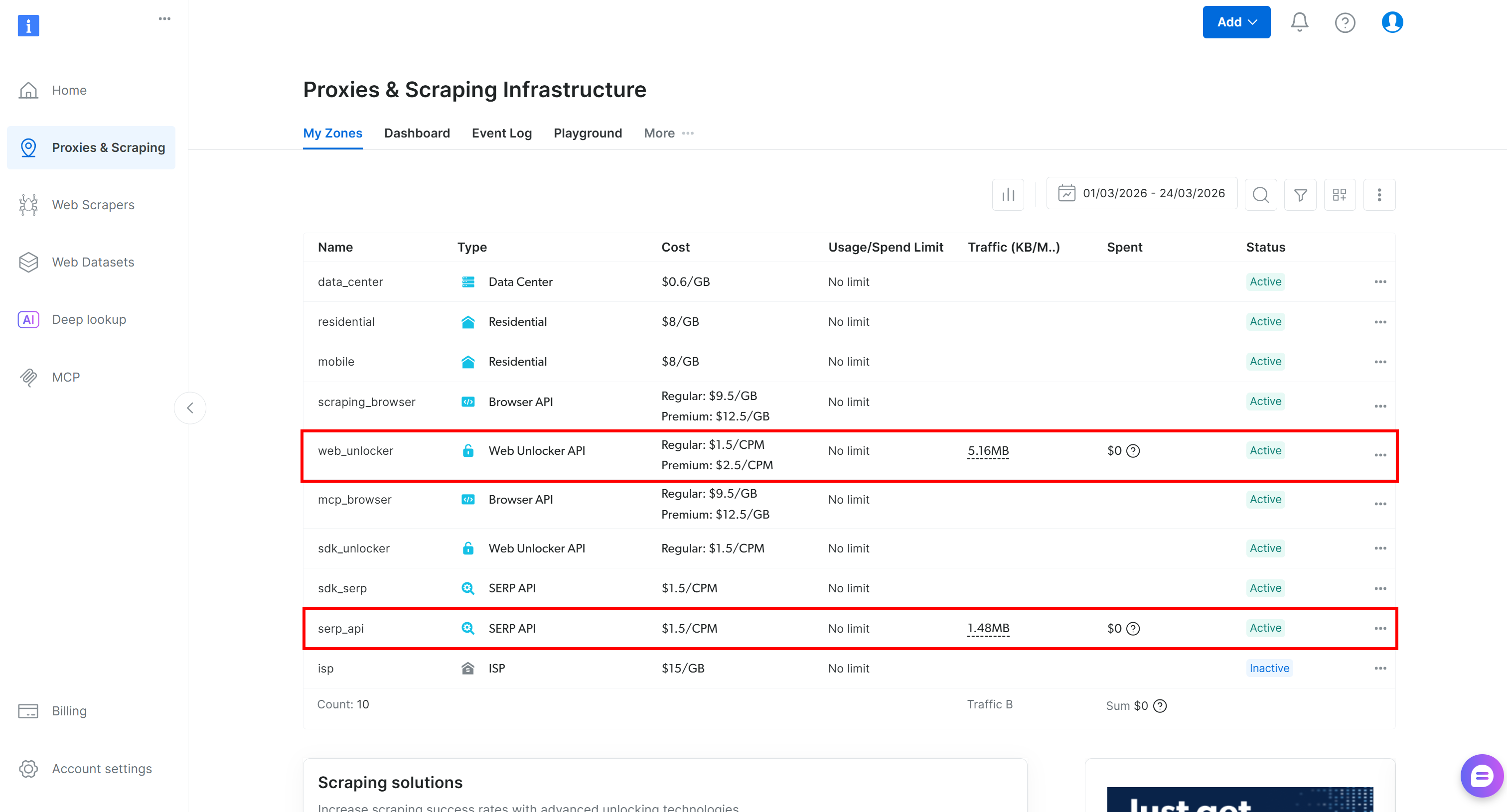
If the table already lists a Web Unlocker API zone (e.g., web_unlocker) and a SERP API zone (e.g., serp_api), you are all set. These two zones will be used to call the Web Unlocker and SERP API services via custom tools.
If either zone is missing, create it. Scroll to the “Unblocker API” and “SERP API” cards, then click “Create zone”. Follow the wizard to add both zones: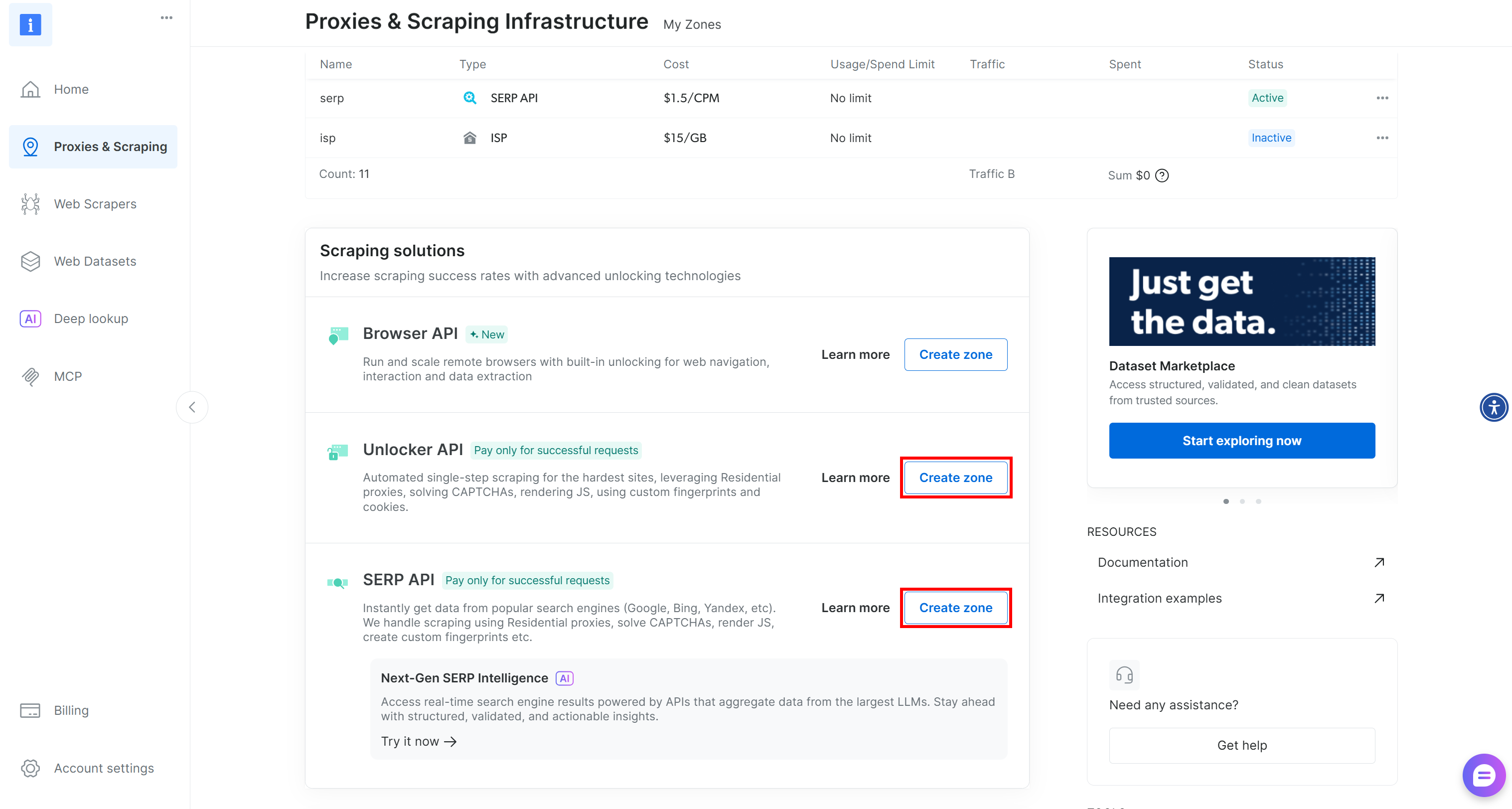
For detailed guidance, check these documentation pages:
Remember the names you assign to both zones, as you will need them in the next step. Finally, generate your Bright Data API key and store it safely.
Wonderful! Bright Data is now ready to be integrated into Cartesia.
Step #4: Configure Environment Variable Reading
This AI voice agent workflow depends on a few secrets: an LLM provider (Gemini, in this case) and Bright Data (API key + zone names). Hardcoding these secrets in your code is a security risk, so it is better to store them in environment variables.
The Cartesia CLI automatically reads a .env file behind the scenes using python-dotenv, so you can store all your secrets there. Begin by adding a .env file to your project directory:
cartesia-bright-data-voice-agent/
├── .git/
├── .env # <-----------
├── .gitignore
├── .python-version
├── README.md
├── main.py
└── pyproject.toml
Then, populate it with your secrets:
GEMINI_API_KEY="<YOUR_GEMINI_API_KEY>"
BRIGHT_DATA_API_KEY="<YOUR_BRIGHT_DATA_API_KEY>"
BRIGHT_DATA_WEB_UNLOCKER_ZONE="<YOUR_BRIGHT_DATA_WEB_UNLOCKER_ZONE>" # e.g., "web_unlocker"
BRIGHT_DATA_SERP_API_ZONE="<YOUR_BRIGHT_DATA_SERP_API_ZONE>" # e.g., "serp_api"
Replace all placeholders with your actual values. Since the workflow should not start unless all these secrets are set, add the following logic to main.py:
import os

GEMINI_API_KEY = os.getenv("GEMINI_API_KEY")
if not GEMINI_API_KEY:
    raise EnvironmentError("Missing environment variable: GEMINI_API_KEY")

BRIGHT_DATA_API_KEY = os.getenv("BRIGHT_DATA_API_KEY")
if not BRIGHT_DATA_API_KEY:
    raise EnvironmentError("Missing environment variable: BRIGHT_DATA_API_KEY")

BRIGHT_DATA_SERP_API_ZONE = os.getenv("BRIGHT_DATA_SERP_API_ZONE")
if not BRIGHT_DATA_SERP_API_ZONE:
    raise EnvironmentError("Missing environment variable: BRIGHT_DATA_SERP_API_ZONE")

BRIGHT_DATA_WEB_UNLOCKER_ZONE = os.getenv("BRIGHT_DATA_WEB_UNLOCKER_ZONE")
if not BRIGHT_DATA_WEB_UNLOCKER_ZONE:
    raise EnvironmentError("Missing environment variable: BRIGHT_DATA_WEB_UNLOCKER_ZONE")
Keep in mind that using a .env file is not required. You can also set the environment variables directly in your terminal with:
export GEMINI_API_KEY="<YOUR_GEMINI_API_KEY>" BRIGHT_DATA_API_KEY="<YOUR_BRIGHT_DATA_API_KEY>" BRIGHT_DATA_WEB_UNLOCKER_ZONE="<YOUR_BRIGHT_DATA_WEB_UNLOCKER_ZONE>" BRIGHT_DATA_SERP_API_ZONE="<YOUR_BRIGHT_DATA_SERP_API_ZONE>"Excellent! Your environment variables are now securely set. Next up: implementing the Bright Data tools for web scraping and search.
Step #5: Define the Web Unlocker Tool for Web Scraping
By default, a Cartesia AI voice agent cannot access the external web. To enable that, you must equip it with custom tools that the agent can call. Here, you will define a tool to connect to Bright Data’s Web Unlocker API for web scraping.
In Cartesia, a tool is nothing more than a function annotated with one of the available tool decorators. Below is how to build a Cartesia web scraping tool connecting to the Web Unlocker API:
@loopback_tool
def bright_data_web_unlocker(
    ctx,
    page_url: Annotated[str, "The URL of the page to scrape"]
) -> str:
    """
    Retrieve web page content using the Bright Data Web Unlocker API
    """

    url = "https://api.brightdata.com/request"
    data = {
        "zone": BRIGHT_DATA_WEB_UNLOCKER_ZONE,
        "url": page_url,
        "format": "raw",
        "data_format": "markdown"
    }
    headers = {
        "Authorization": f"Bearer {BRIGHT_DATA_API_KEY}",
        "Content-Type": "application/json"
    }
    # Make a request to the Bright Data Web Unlocker API
    response = requests.post(url, json=data, headers=headers)
    response.raise_for_status()

    return response.text
Note that the Cartesia SDK uses the function’s docstring as the tool description and the type annotations for its parameters. Also, the first parameter of every tool must be ctx, which represents the tool context. This provides access to the conversation state and ensures forward compatibility.
The bright_data_web_unlocker() function relies on the Requests HTTP client to make a POST request to your Bright Data Web Unlocker API zone. This returns the Markdown version of the web page specified in the page_url argument. For more details on available parameters and options, refer to the Bright Data documentation.
Note that the data_format argument is set to "markdown". That enables the “Scrape as Markdown” feature to get the scraped content in an AI-optimized Markdown format—ideal for LLM ingestion. The format argument is set to "raw" so that the API responds with the plain scraped Markdown content, rather than wrapping it in JSON.
Terrific! Your Cartesia AI application now includes a tool for successful web scraping of any website using Bright Data.
Step #6: Define the SERP API Tool for Web Search
Similarly, define a custom function tool to call the SERP API:
@loopback_tool
def bright_data_serp_api(
    ctx,
    query: Annotated[str, "The Google search query"]
) -> str:
    """
    Query the web for a specific term using Bright Data’s SERP API.
    """

    url = "https://api.brightdata.com/request"
    data = {
        "zone": BRIGHT_DATA_SERP_API_ZONE,
        "url": f"https://www.google.com/search?q={urllib.parse.quote_plus(query)}&brd_json=1",
        "format": "raw"
    }
    headers = {
        "Authorization": f"Bearer {BRIGHT_DATA_API_KEY}",
        "Content-Type": "application/json"
    }

    # Make a request to the Bright Data SERP API
    response = requests.post(url, json=data, headers=headers)
    response.raise_for_status()

    return response.text
This function makes a POST request to your SERP API zone. It sends a query to Google and retrieves the parsed search results via Bright Data. For more details, see the Bright Data SERP API documentation.
Great! Your Cartesia application now includes the required Bright Data–powered tools.
Step #7: Define the Cartesia Voice Agent
At this point, you have all the building blocks needed to define your Cartesia agent. The recommended approach is to use the built-in LlmAgent class, which supports 100+ LLM providers via LiteLLM.
To define the voice agent, provide the class with:
- The LLM model and API key.
- The tools it can use.
- A system prompt describing what the agent should do.
- An initial message.
Here is how to put everything together:
from line.llm_agent import LlmAgent, LlmConfig, end_call
from line.voice_agent_app import VoiceAgentApp

async def get_agent(env, call_request):
    # Define the AI voice agent
    SYSTEM_PROMPT = """
    You are a helpful assistant capable of searching the web to retrieve up-to-date context.
    Respond in a clear, news-style, informative tone.
    """

    return LlmAgent(
        model="gemini/gemini-3-flash-preview",
        api_key=GEMINI_API_KEY,
        tools=[
            end_call,
            bright_data_web_unlocker,
            bright_data_serp_api
        ],
        config=LlmConfig(
            system_prompt=SYSTEM_PROMPT,
            introduction="Hello! How can I help you today?",
        ),
    )
A few things to note:
- The
toolsarray includes the two custom Bright Data tools defined earlier (bright_data_web_unlockerandbright_data_serp_api). - The built-in
end_calltool is required so the agent can gracefully end a conversation. - The configured LLM model is Gemini 3 Flash, but any other Gemini model will do.
Finally, register the agent in the VoiceAgentApp class and run it:
app = VoiceAgentApp(get_agent=get_agent)

if __name__ == "__main__":
    app.run()
Mission complete! You have built an AI voice agent for news-style responses. This agent is capable of searching and retrieving real-time information from the web for more accurate and up-to-date answers.
Step #8: Final Code
This is what the main.py file should now contain:
# uv add cartesia-line requests

import os
from line.llm_agent import loopback_tool
from typing import Annotated
import requests
import urllib
from line.llm_agent import LlmAgent, LlmConfig, end_call
from line.voice_agent_app import VoiceAgentApp

# Read the required secrets from the env
GEMINI_API_KEY = os.getenv("GEMINI_API_KEY")
if not GEMINI_API_KEY:
    raise EnvironmentError("Missing environment variable: GEMINI_API_KEY")

BRIGHT_DATA_API_KEY = os.getenv("BRIGHT_DATA_API_KEY")
if not BRIGHT_DATA_API_KEY:
    raise EnvironmentError("Missing environment variable: BRIGHT_DATA_API_KEY")

BRIGHT_DATA_SERP_API_ZONE = os.getenv("BRIGHT_DATA_SERP_API_ZONE")
if not BRIGHT_DATA_SERP_API_ZONE:
    raise EnvironmentError("Missing environment variable: BRIGHT_DATA_SERP_API_ZONE")

BRIGHT_DATA_WEB_UNLOCKER_ZONE = os.getenv("BRIGHT_DATA_WEB_UNLOCKER_ZONE")
if not BRIGHT_DATA_WEB_UNLOCKER_ZONE:
    raise EnvironmentError("Missing environment variable: BRIGHT_DATA_WEB_UNLOCKER_ZONE")

@loopback_tool
def bright_data_web_unlocker(
    ctx,
    page_url: Annotated[str, "The URL of the page to scrape"]
) -> str:
    """
    Retrieve web page content using the Bright Data Web Unlocker API
    """

    url = "https://api.brightdata.com/request"
    data = {
        "zone": BRIGHT_DATA_WEB_UNLOCKER_ZONE,
        "url": page_url,
        "format": "raw",
        "data_format": "markdown"
    }
    headers = {
        "Authorization": f"Bearer {BRIGHT_DATA_API_KEY}",
        "Content-Type": "application/json"
    }

    # Make a request to the Bright Data Web Unlocker API
    response = requests.post(url, json=data, headers=headers)
    response.raise_for_status()

    return response.text

@loopback_tool
def bright_data_serp_api(
    ctx,
    query: Annotated[str, "The Google search query"]
) -> str:
    """
    Query the web for a specific term using Bright Data’s SERP API.
    """

    url = "https://api.brightdata.com/request"
    data = {
        "zone": BRIGHT_DATA_SERP_API_ZONE,
        "url": f"https://www.google.com/search?q={urllib.parse.quote_plus(query)}&brd_json=1",
        "format": "raw"
    }
    headers = {
        "Authorization": f"Bearer {BRIGHT_DATA_API_KEY}",
        "Content-Type": "application/json"
    }

    # Make a request to the Bright Data SERP API
    response = requests.post(url, json=data, headers=headers)
    response.raise_for_status()

    return response.text

async def get_agent(env, call_request):
    # Define the AI voice agent
    SYSTEM_PROMPT = """
    You are a helpful assistant capable of searching the web to retrieve up-to-date context.
    Respond in a clear, news-style, informative tone.
    """

    return LlmAgent(
        model="gemini/gemini-2.5-flash",
        api_key=GEMINI_API_KEY,
        tools=[
            end_call,
            bright_data_web_unlocker,
            bright_data_serp_api
        ],
        config=LlmConfig(
            system_prompt=SYSTEM_PROMPT,
            introduction="Hello! How can I help you today?",
        ),
    )

app = VoiceAgentApp(get_agent=get_agent)

if __name__ == "__main__":
    app.run()
Cool! In around 100 lines of Python code, you were able to build a powerful voice AI agent with web data discovery capabilities.
Step #9: Test the Voice Agent
Make sure you have defined all the required environment variables (either in a .env file or via an export command). Then launch the agent with:
PORT=8000 uv run python main.pyThis starts the Cartesia app locally on http://localhost:8000, as shown in the logs:
In a separate terminal, interact with your agent by running:
cartesia chat 8000The Cartesia Chat experience will launch directly in your terminal: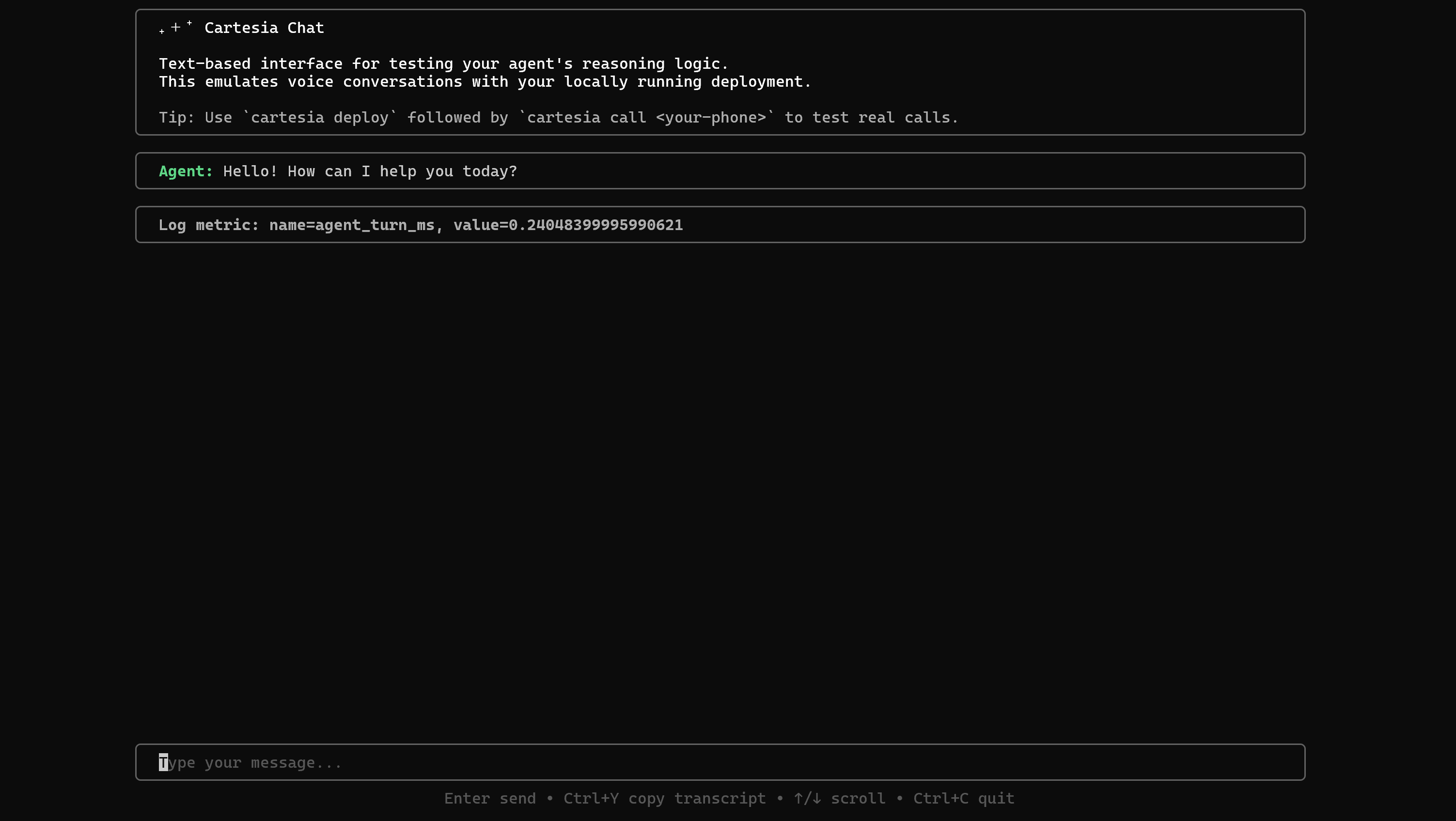
This setup lets you simulate conversations via chat instead of voice, making testing much simpler.
Try a prompt like this:
Search for the "US inflation news" query on the web, select specific 3/5 articles (not news hub pages), scrape their content, and use that information to produce a ~3-minute podcast summarizing key insights, citing the sources.Below is what should happen:
Note how the agent first calls the bright_data_serp_api tool with the query “US inflation news”. In the other terminal, you will see logs with the JSON results returned by the Bright Data SERP API. From those results, the agent selects 3 relevant article URLs: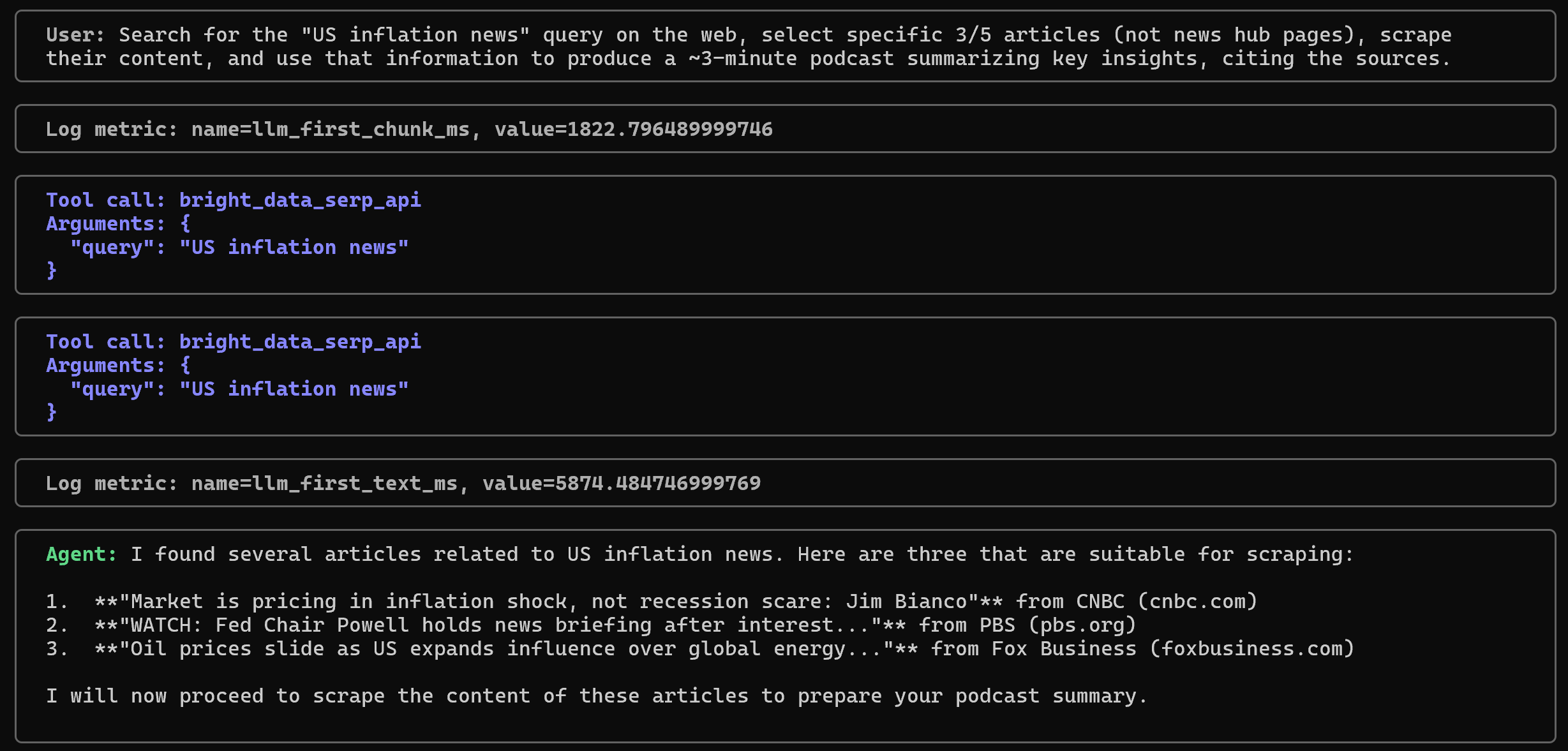
Next, it scrapes each page using the bright_data_web_unlocker tool and produces a source-backed summary: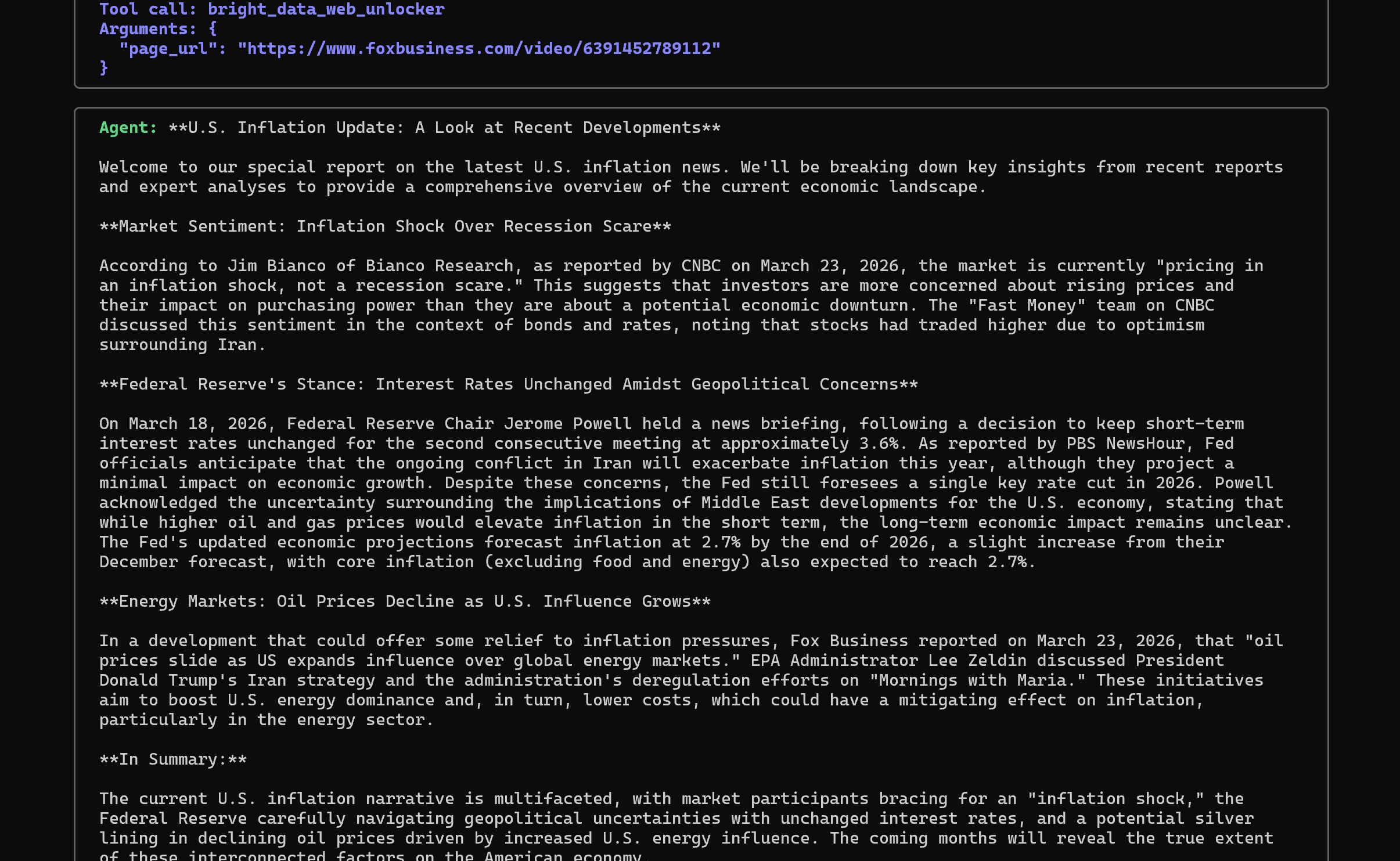
Notice how the tone of the response resembles that of a journalist, matching the system prompt you defined earlier.
Et voilà! You successfully built a voice agent that can actively search and retrieve information from the web, resulting in more context-aware and accurate responses. That would not be possible without integrating Bright Data’s search and scraping tools.
Next Steps
Now that you have a working AI voice agent, the next step is to deploy it to Cartesia and call it from your phone. To further refine and customize your agent based on your needs, explore the documentation.
Finally, keep in mind that—just like we have shown in this tutorial—you can integrate other API-based Bright Data products. That will extend your agent with additional capabilities.
Remember that Cartesia supports many integrations, including LiveKit (another technology for building AI voice agents). For more information, see how to integrate Bright Data with LiveKit.
Conclusion
In this blog post, you learned what Cartesia is and what it brings to the table for AI voice agent development. You also saw where it falls short and how to address those limitations using Bright Data integrations.
By adding two specialized tools to your voice agents, you gave them the ability to search the web and scrape data from web pages. This was made possible by connecting your agents to custom tools powered by Bright Data’s SERP API and Web Unlocker API.
To extend functionality even further—such as accessing live web feeds or automating web interactions—integrate Cartesia voice agents with the full suite of Bright Data services for AI.
Sign up for a Bright Data account for free today and start integrating AI-ready web data solutions into your agents!



Technical Writer
 5.5 years experience
Antonello Zanini is a technical writer, editor, and software engineer with 5M+ views. Expert in technical content strategy, web development, and project management.