In this tutorial, we will learn how to scrape JOBKOREA job listings, a modern job portal.
We will cover:
- Manual Python scraping by extracting embedded Next.js data
- Scraping with Bright Data MCP for a more stable and scalable solution
- No-code scraping using Bright Data’s AI Scraper Studio
Each technique is implemented using the project code provided in this repository, progressing from low-level scraping to fully agentic, AI-powered extraction.
Prerequisites
Before starting this tutorial, make sure you have the following:
- Python 3.9+
- Basic familiarity with Python and JSON
- A Bright Data account with access to MCP
- Claude Desktop installed (used as the AI agent for the no-code approach)
Project Setup
Clone the project repository and install dependencies:
python -m venv venv
source venv/bin/activate      # macOS / Linux
venv\Scripts\activate         # Windows

pip install -r requirements.txt
Project Structure
The repository is organized so that each scraping technique is easy to follow:
jobkorea_scraper/
│
├── manual_scraper.py        # Manual Python scraping
├── mcp_scraper.py           # Bright Data MCP scraping
├── parsers/
│   └── jobkorea.py          # Shared parsing logic
├── schemas.py               # Job data schema
├── requirements.txt
├── README.md
Each script can be run independently, depending on the method you want to explore.
Technique 1: Manual Python Scraping
We’ll start with the most basic approach: scraping JOBKOREA using plain Python, without a browser, MCP, or AI agent.
This technique is useful for understanding how JOBKOREA delivers its data and for quickly prototyping a scraper before moving on to more robust solutions.
Fetching the Page
Open manual_scraper.py.
The scraper begins by sending a standard HTTP request using requests. To avoid being blocked immediately, we include browser-like headers.
headers = {
    "User-Agent": "Mozilla/5.0 (...)",
    "Accept": "text/html,application/xhtml+xml,*/*",
    "Accept-Language": "en-US,en;q=0.9,ko;q=0.8",
    "Referer": "https://www.jobkorea.co.kr/"
}
The goal is simply to make the request look like normal web traffic. We then fetch the page and force UTF-8 encoding to avoid issues with Korean text:
response = requests.get(url, headers=headers, timeout=20)
response.raise_for_status()
response.encoding = "utf-8"
html = response.text
For debugging, the raw HTML is saved locally:
with open("debug.html", "w", encoding="utf-8") as f:
    f.write(html)
This file is extremely helpful when the site changes and parsing suddenly stops working.
Parsing the Response
Once the HTML is downloaded, it’s passed to a shared parsing function:
jobs = parse_job_list(html)This function lives in parsers/jobkorea.py and contains all JOBKOREA-specific logic.
Attempting Traditional HTML Parsing
Inside parse_job_list, we first try to extract job listings using BeautifulSoup, as if JOBKOREA were a traditional server-rendered site.
soup = BeautifulSoup(html, "html.parser")
job_lists = soup.find_all("div", class_="list-default")
If no listings are found, a secondary selector is tried:
job_lists = soup.find_all("ul", class_="clear")When this works, the scraper extracts fields such as:
- Job title
- Company name
- Location
- Posting date
- Job link
However, this approach only works when JOBKOREA exposes meaningful HTML elements, which isn’t always the case.
Fallback: Extracting Next.js Hydration Data
If no jobs are found via HTML parsing, the scraper switches to a fallback strategy that targets embedded Next.js hydration data.
nextjs_jobs = parse_nextjs_data(html)This function scans the page for JSON strings injected during client-side rendering. A simplified version of the matching logic looks like this:
pattern = r'\\"id\\":\\"(?P<id>\d+)\\",\\"title\\":\\"(?P<title>.*?)\\",\\"postingCompanyName\\":\\"(?P<company>.*?)\\"'From this data, we reconstruct the job posting URLs:
link = f"https://www.jobkorea.co.kr/Recruit/GI_Read/{job_id}"This fallback allows the scraper to work without running a browser.
Saving the Results
Each job is validated using a shared schema and written to disk:
with open("jobs.json", "w", encoding="utf-8") as f:
    json.dump(
        [job.model_dump() for job in jobs],
        f,
        ensure_ascii=False,
        indent=2
    )
Run the scraper like this:
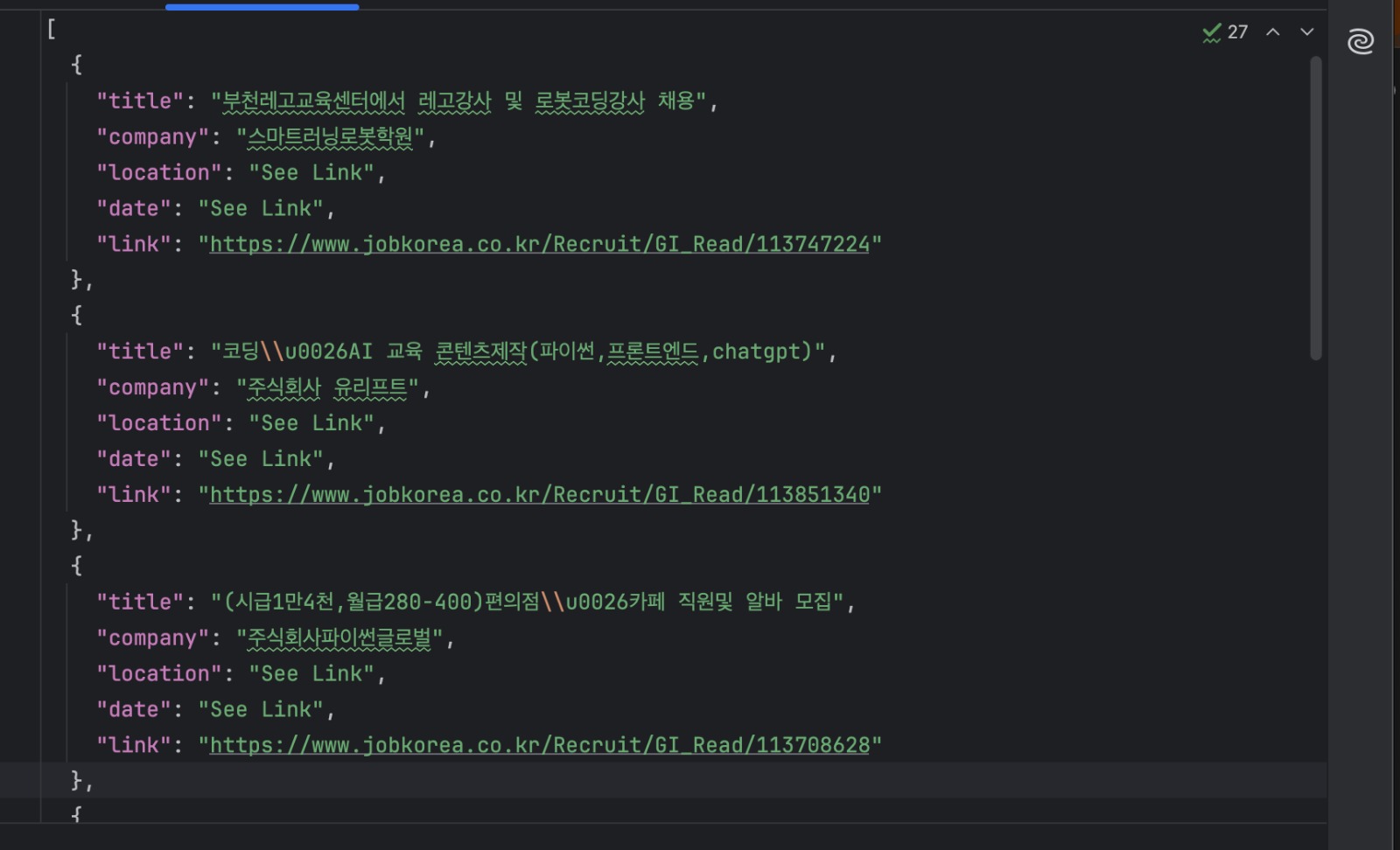
python manual_scraper.py "https://www.jobkorea.co.kr/Search/?stext=python"You should now have a jobs.json file containing the extracted listings.
When This Approach is Ideal
Manual scraping is useful when you’re exploring how a site works or building a quick prototype. It’s fast, simple, and doesn’t rely on external services.
However, this approach is closely tied to JOBKOREA’s current page structure. Because it depends on specific HTML layouts and embedded hydration patterns, it can break when the site changes.
For more stable, long-term scraping, it’s better to rely on tools that handle rendering and site changes for you, which is precisely what we’ll do next using Bright Data MCP.
Technique 2: Scraping with Bright Data MCP
In the previous section, we scraped JOBKOREA by manually downloading HTML and extracting embedded data. While that approach works, it is tightly coupled to the site’s current structure.
In this technique, we use Bright Data MCP to handle page fetching and rendering. We then focus only on turning the returned content into structured job data.
This approach is implemented in mcp_scraper.py.
Getting Your Bright Data API Key/Token
- Log in to the Bright Data dashboard

- Open Settings from the left sidebar
- Go to Users and API Keys
- Copy your API Key
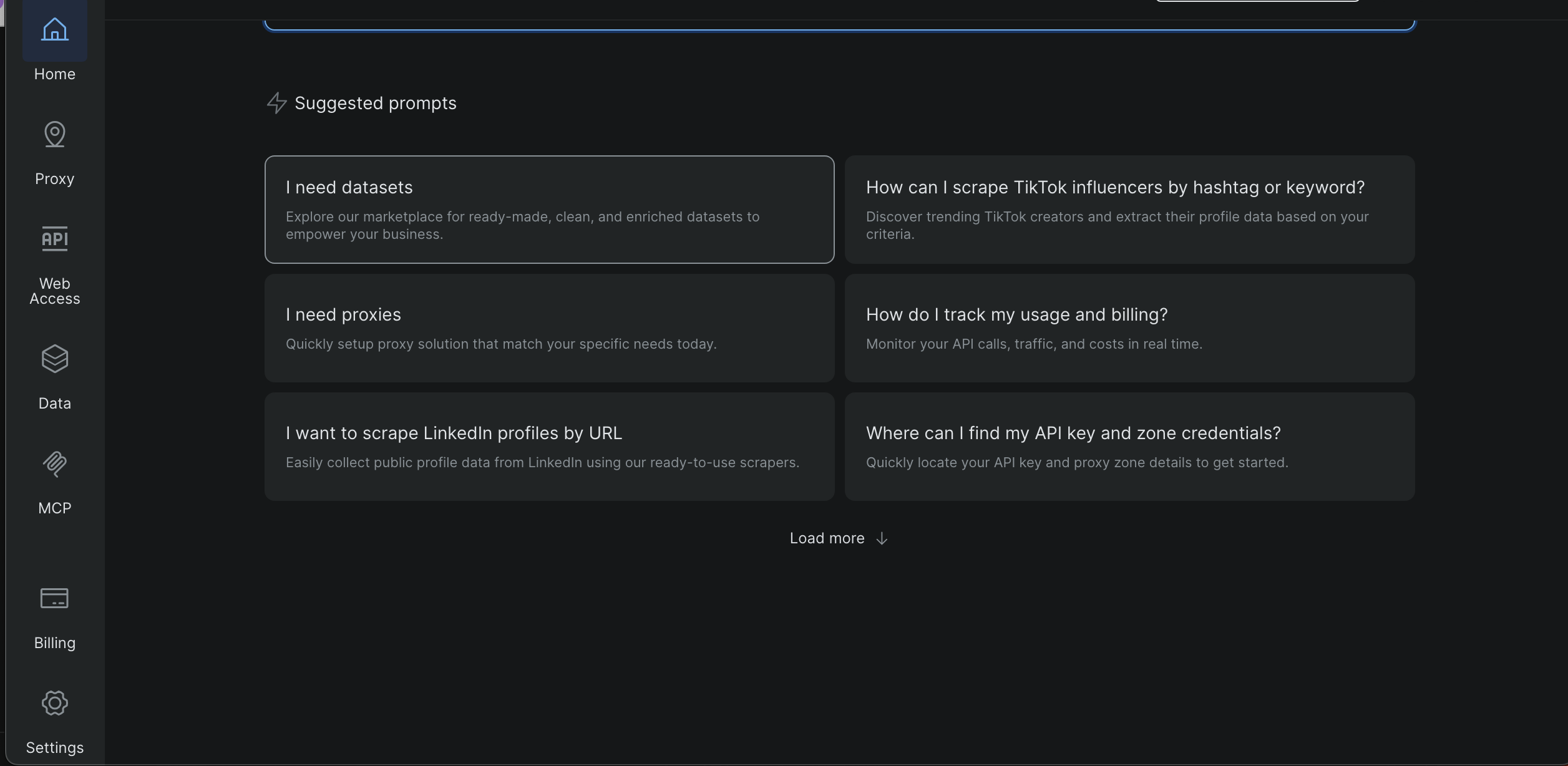
Later in this tutorial, screenshots will show exactly where this page is located and where the token appears.
Create a .env file in the project root and add:
BRIGHT_DATA_API_TOKEN=your_token_hereThe script loads the token at runtime and stops early if it is missing.
Requirements for MCP
Bright Data MCP is launched locally using npx, so make sure you have:
- Node.js installed
- npx available in your PATH
The MCP server is started from Python using:
server_params = StdioServerParameters( command="npx", args=["-y", "@brightdata/mcp"], env={"API_TOKEN": BRIGHT_DATA_API_TOKEN, **os.environ} )Running the MCP Scraper
Run the script with a JOBKOREA search URL:
python mcp_scraper.py "https://www.jobkorea.co.kr/Search/?stext=python"The script opens an MCP session and initializes the connection:
async with stdio_client(server_params) as (read, write):
    async with ClientSession(read, write) as session:
        await session.initialize()
Once connected, the scraper is ready to fetch content.
Fetching the Page with MCP
In this project, the scraper uses the MCP tool scrape_as_markdown:
result = await session.call_tool(
    "scrape_as_markdown",
    arguments={"url": url}
)
The returned content is collected and saved locally:
with open("scraped_data.md", "w", encoding="utf-8") as f:
    f.write(content_text)
This gives you a readable snapshot of what MCP returned, which is useful for debugging and parsing.
Parsing Jobs from Markdown
The markdown returned by MCP is then converted into structured job data.
The parsing logic searches for markdown links:
link_pattern = re.compile(r"\[(.*?)\]\((.*?)\)")Job postings are identified by URLs containing:
if "Recruit/GI_Read" in url:Once a job link is found, the surrounding lines are used to extract the company name, location, and posting date.
Finally, the results are written to disk:
with open("jobs_mcp.json", "w", encoding="utf-8") as f:
    json.dump(
        [job.model_dump() for job in jobs],
        f,
        ensure_ascii=False,
        indent=2
    )
Output Files
After the script finishes, you should have:
scraped_data.md
The raw markdown returned by Bright Data MCP
jobs_mcp.json
The parsed job listings in structured JSON format
When This Approach is Ideal
Using Bright Data MCP directly from Python is a good fit when you want a scraper that is both reliable and repeatable.
Because MCP handles rendering, networking, and basic site defenses, this approach is far less sensitive to layout changes than manual scraping. At the same time, keeping the logic in Python makes it easy to automate, schedule, and integrate into larger data pipelines.
This technique works well when you need consistent results over time or when scraping multiple search pages or keywords. It also provides a clear upgrade path from manual scraping without requiring a complete switch to an AI-driven workflow.
Next, we will move on to the third technique, in which we use Claude Desktop as an AI agent connected to Bright Data MCP to scrape JOBKOREA without writing any scraping code.
Technique 3: AI-Generated Scraping Code Using Bright Data IDE
In this final technique, we generate scraping code using Bright Data’s AI-assisted scraper inside the Web Scraping IDE.
You do not manually write scraping logic from scratch. Rather, you describe what you want, and the IDE helps generate and refine the scraper.
Opening the Scraper IDE
From the Bright Data dashboard:
Open Data from the left sidebar
- Click My Scrapers
- Select New in the top-right corner
- Select Develop your own web scraper


This opens the JavaScript integrated development environment (IDE)
Enter your target URL “https://www.jobkorea.co.kr/Search/” and click “Generate Code”
The IDE will process your request and generate a ready-to-use code tamplate. You’ll get an email notification once it’s ready. You can then edit or run the code as needed.
Comparing the Three Scraping Techniques
Each technique in this project solves the same problem but is suited to a different workflow. The table below highlights the practical differences.
| Technique | Setup Effort | Reliability | Automation | Where It Runs | Best Use Case |
|---|---|---|---|---|---|
| Manual Python Scraping | Low | Low to Medium | Limited | Local machine | Learning, quick experiments |
| Bright Data MCP (Python) | Medium | High | High | Local + Bright Data | Production scraping, scheduled jobs |
| AI-Generated Scraper (Bright Data IDE) | Low | High | High | Bright Data platform | Fast setup, reusable managed scrapers |
Wrapping Up
In this tutorial, we treated three different ways to scrape JOBKOREA: manual Python scraping, a more stable Bright Data MCP-based workflow, and using Bright Data’s AI Scraper Studio for a no-code approach.
Each technique builds on the previous one. Manual scraping helps understand how the site works, MCP-based scraping provides reliability and automation, and the AI agent approach offers the fastest path to structured data with minimal setup.
If you are scraping modern, client-rendered websites like JOBKOREA and need a more reliable alternative to brittle selectors and browser automation, Bright Data MCP provides a strong foundation that works with both traditional scripts and AI-driven workflows.



Technical Writer
Amitesh Anand is a developer advocate and technical writer sharing content on AI, software, and devtools, with 10k followers and 400k+ views.