









In this blog post, you will learn:
- What the Bright Data CLI and Python SDK bring to the table.
- What the Bright Data CLI is, how it works, and what it provides.
- What the Bright Data Python SDK does, how it works, and what it offers.
- How CLI commands and SDK methods map to each other.
- How both tools handle common web scraping scenarios.
- How to choose the right tool for your workflow.
Let’s dive in!
An Overview of the Bright Data CLI and Python SDK
The Bright Data CLI and Python SDK provide interfaces to interact with the Bright Data platform. Both connect to the same underlying infrastructure, which includes 400+ million residential IPs across 195+ countries, with 99.99% uptime and a 99.95% success rate.
Both tools offer the same core capabilities: scraping individual web pages, running search engine queries, retrieving structured data from popular platforms, controlling anti-detect cloud browsers, and accessing account information such as usage statistics.
The main difference is how you interact with those features. The CLI is designed for users who prefer working in the terminal, while the SDK is built for developers who want to develop Python scripts.
The following sections explain how each solution works, compare their commands and methods side by side, and explore practical use cases to help you choose the best fit for your workflow.
TL;DR: Bright Data CLI vs Bright Data Python SDK Summary Comparison Table
| Bright Data CLI | Bright Data Python SDK | |
|---|---|---|
| Interface | Terminal commands (brightdata or bdata) |
Python methods |
| Best for | Shell workflows, quick tasks, and AI coding agents | Python applications, data pipelines, and backend integrations |
| Requirements | Node.js 20+ and a Bright Data account | Python 3.9+ and a Bright Data account |
| Authentication | OAuth via brightdata login or API key configuration |
API key via an environment variable or existing CLI credentials |
| Scrape web pages | ✅ | ✅ |
| Search engines | ✅ | ✅ |
| Structured data extraction | ✅ | ✅ |
| Browser automation | Persistent remote browser controlled through CLI commands | CDP endpoint for Playwright or Puppeteer automation |
| Custom scrapers | Create, run, and manage Scraper Studio scrapers | Run existing Scraper Studio collectors and retrieve results |
| Batch scraping | Requires shell scripting for concurrency | Supported natively |
| Output handling | Markdown, JSON, HTML, and other supported formats via stdout or files | Structured Python objects with fields such as data, success, and cost |
| AI agent integration | Via direct command execution | Not directly |
| Main advantage | Fast terminal workflows with little or no code | Flexible programmatic workflows and direct data processing |
| Main limitation | Complex workflows may require additional shell scripting | Requires Python code and application setup |
| Pricing | Free tier with 5,000 shared credits per month | Free tier with 5,000 shared credits per month |
An Introduction to the Bright Data CLI
Now that you have the big picture, it is time to understand the Bright Data CLI as a terminal tool.
What Is the Bright Data CLI?
The Bright Data CLI is Bright Data’s official command-line tool. It is available through the brightdata command or its shorter alias, bdata.
It provides a simple command-line interface to Bright Data’s APIs, allowing you to scrape web pages, run searches, and extract data directly from the terminal without manually managing API requests or proxy settings.
Further reading:
- Bright Data CLI’s documentation
- Meet the Bright Data CLI: Extract Data and Interact with the Web from Your Terminal
- Bright Data’s CLI repository
How It Works
To get started, you need Node.js 20+ installed locally and a Bright Data account.
On macOS, Linux, and WSL, install the CLI with the following command:
curl -fsSL https://cli.brightdata.com/install.sh | shAlternatively, install it globally via npm:
npm install -g @brightdata/cliThe brightdata command and its shorter alias, bdata, will now be available in your terminal. For more information, refer to the Bright Data CLI installation guide.
Then, run the following command to start the login wizard:
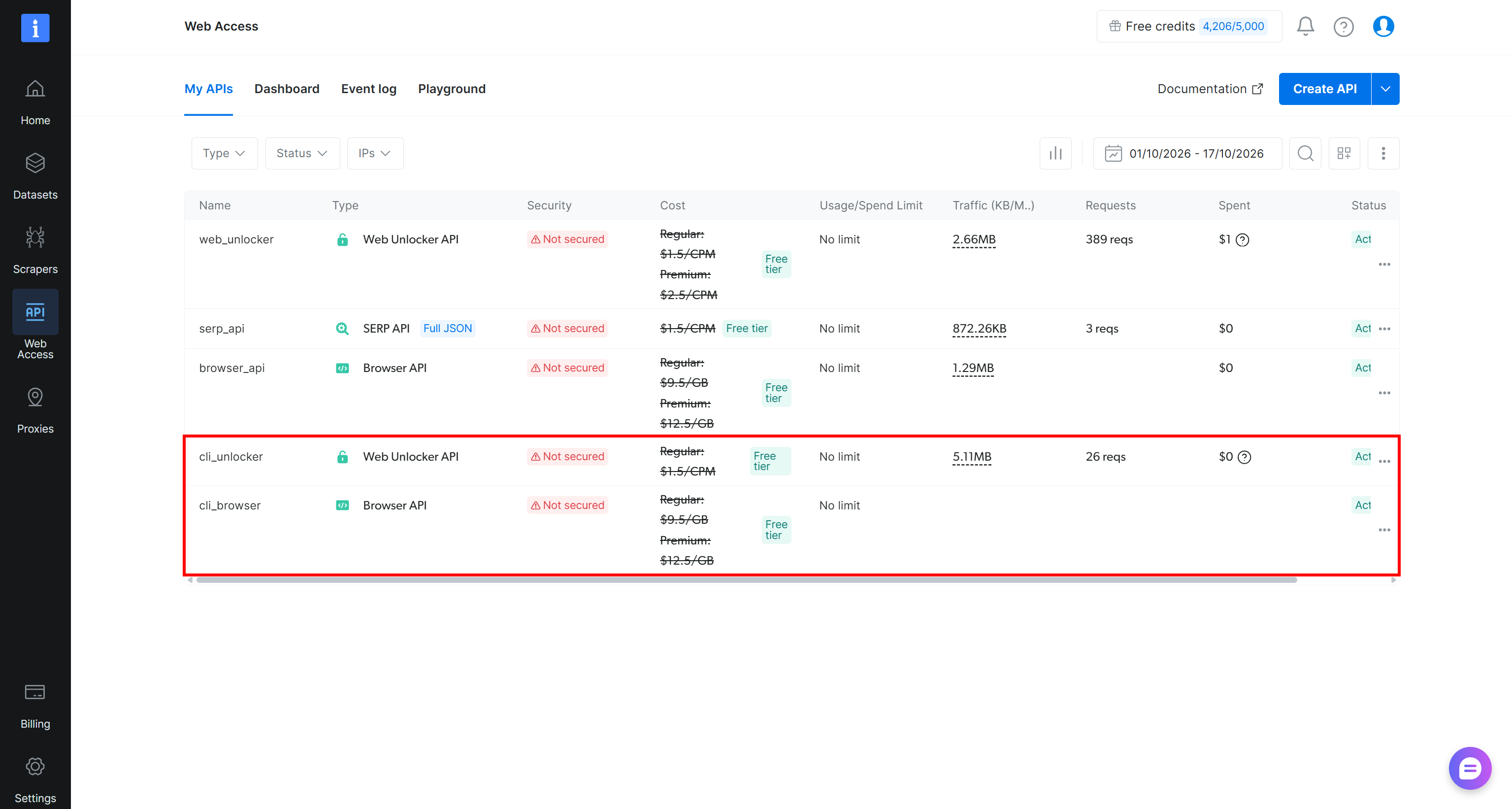
brightdata loginThe CLI guides you through an OAuth flow to authenticate your Bright Data account. It then stores your credentials locally and creates the required cli_unlocker and cli_browser APIs:
Note: The Bright Data CLI is available on Bright Data’s free tier, which gives you 5,000 credits per month. These credits are shared across the underlying Unlocker API, SERP API, Web Scraping APIs, Scraper Studio, and Browser API products.
CLI Commands at a Glance
The CLI is organized around a few commands, which include:
| Command | Description |
|---|---|
scrape <url> |
Scrapes any website while handling CAPTCHAs, JavaScript rendering, and other anti-scraping protections. |
search <query> |
Runs structured searches on Google, Bing, or Yandex, returning organized JSON results. |
pipelines run <dataset_id> <method> [urls...] |
Extracts structured data from over 40 platforms, including Amazon, LinkedIn, and TikTok. |
browser |
Controls a remote browser session to navigate, click, type, and take screenshots. |
scraper <action> [params...] |
Create, launch, and update Bright Data Scraper Studio scrapers |
add mcp |
Connects the Bright Data MCP server to Claude Code, Cursor, Codex, and others. |
skill |
Installs prebuilt Bright Data Agent Skills into coding assistants. |
zones |
Lists your Bright Data proxy zones and inspects their current configurations. |
budget |
Shows account balance, per-zone costs, and bandwidth usage at a glance. |
See how it enables not only interaction with Bright Data products but also account management and usage monitoring.
In particular, the scrape command returns Markdown by default and also supports HTML, JSON, and screenshot formats. The search command returns a formatted table or JSON. The pipelines command returns JSON by default, with CSV, NDJSON, and JSONL as alternatives.
Where the CLI Shines
These are some of the scenarios where the Bright Data CLI stands out:
- Shell pipelines: Chain search, parsing, and scraping steps with pipes and utilities such as
jqandxargs, without writing any code. - AI coding agents: Claude Code, Codex CLI, and similar agents can run CLI commands and read the Markdown or JSON output directly from the terminal. See how to use the Bright Data CLI with local AI agents.
- One-off data pulls: Quickly retrieve a single web page or run a search query and save the results to a local file.
- Cron jobs and scripts: Define a shell script that uses the CLI, then schedule it with cron for recurring scraping or monitoring tasks.
- Account monitoring: Check your account balance and per-API usage without opening a browser, logging in, or navigating the control panel.
An Introduction to the Python SDK
The natural next step in this Bright Data CLI vs Bright Data Python SDK article is to present the Python SDK.
What Is the Bright Data Python SDK?
The Bright Data Python SDK is the official Python package for interacting with Bright Data APIs. Instead of manually building HTTP requests, managing endpoints, and parsing responses, you can call the SDK’s typed methods in your Python scripts.
Further reading:
How It Works
The Bright Data Python SDK requires Python 3.9+ and a Bright Data API key. It is available on PyPI as brightdata-sdk, so install the SDK with:
pip install brightdata-sdkNext, set your Bright Data API key as an environment variable. On macOS and Linux, run:
export BRIGHTDATA_API_KEY="<YOUR_BRIGHT_DATA_API_KEY>"On Windows, use this PowerShell command:
$env:BRIGHTDATA_API_KEY="<YOUR_BRIGHT_DATA_API_KEY>"Replace <YOUR_BRIGHT_DATA_API_KEY> with your actual Bright Data API key. Alternatively, if you are already logged in to the Bright Data CLI, the Python SDK reads your existing credentials and authenticates automatically.
By default, the SDK creates the APIs it needs (sdk_unlocker and sdk_serp) in your Bright Data account:
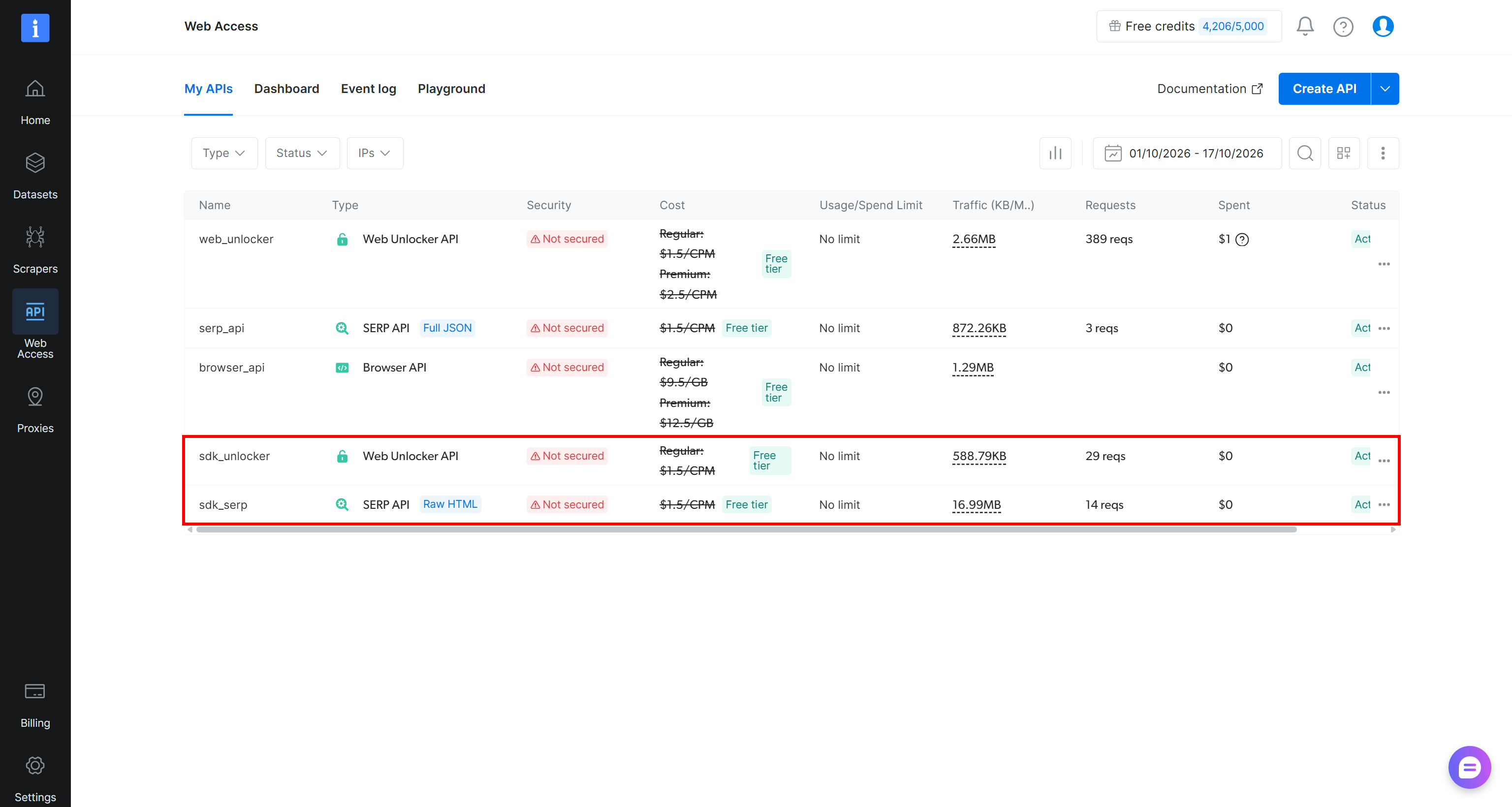
This simplifies the initial setup, enabling you to start using the SDK without manually configuring each API. You can also disable automatic API creation and configure the SDK to use your own custom API names if needed.
The Bright Data Python SDK provides both synchronous and asynchronous clients, which share the same method names. This tutorial uses the asynchronous BrightDataClient in all code examples. For synchronous examples, refer to the official SDK documentation.
The SDK is also well suited to concurrent workloads. For instance, passing a list of URLs to a single method allows the SDK to process multiple requests in parallel, making it easier to collect data from many pages efficiently.
Important: The Bright Data free tier with 5,000 credits per month also applies to Python SDK usage.
Main Methods
The SDK exposes a few useful methods, including:
| Method | Description |
|---|---|
client.scrape_url(url) |
Fetches one or more URLs through the Unlocker API and returns raw HTML by default. |
client.search.google(query=...) |
Returns parsed organic results from Google. |
client.search.bing(query=...) |
Returns parsed organic results from Bing. |
client.search.yandex(query=...) |
Returns raw HTML from Yandex. |
client.scrape.<platform>.<method>(url=...) |
Extracts structured records, such as client.scrape.amazon.products. |
client.datasets.<name>(filter=...) |
Requests a filtered snapshot from a pre-collected dataset. |
client.scraper_studio.run(collector=..., input=...) |
Runs a custom Scraper Studio collector and returns its records. |
client.browser.get_connect_url() |
Builds a CDP endpoint for Playwright or Puppeteer. |
client.list_zones() |
Lists the APIs in your Bright Data account. |
Where the SDK Fits Best
The SDK earns its place in several scenarios, such as:
- Custom data pipelines: Send scraped data directly to pandas, BeautifulSoup, or your own Python-based data analysis workflows.
- Concurrent batch jobs: Process multiple requests in parallel by passing a list of URLs to supported SDK methods.
- Long-running jobs: Trigger data collection jobs, poll their status, and retrieve results while potentially integrating your own retry, waiting, and logging logic.
- Production pipelines: Typed methods help you catch input errors before making calls, and typed responses help you access returned data through clearly defined fields.
- Backend integrations: Build web data collection services by wrapping SDK methods in your own APIs and storing the retrieved data directly in your databases.
Bright Data CLI vs Bright Data Python SDK: Head-to-Head Command and Method Mapping
The Bright Data CLI and Python SDK tools map onto each other closely, as you can see in the table below:
| Task | Bright Data product | Bright Data CLI | Bright Data Python SDK |
|---|---|---|---|
| Scrape a page | Unlocker API | brightdata scrape <url> |
await client.scrape_url(url) |
| Search Google | SERP API | brightdata search "<query>" --json |
await client.search.google(query=...) |
| Structured platform data | Web Scraping API | brightdata pipelines run <dataset_id> <method> [urls...] |
await client.scrape.<scraper>.<method>(url=...) |
| Remote browser | Browser API | brightdata browser open <url> |
client.browser.get_connect_url() + Playwright/Puppeteer automation |
| Custom collector | Scraper Studio | brightdata scraper run <collector_id> [url] |
await client.scraper_studio.run(...) |
| List APIs | Not applicable | brightdata zones |
await client.list_zones() |
| Account budget | Not applicable | brightdata budget |
Not available |
| Batch scraping | Not applicable | Not available | await client.scrape_url([url_1, url_2, ...]) |
There are also a few important differences to keep in mind:
- The CLI maintains a persistent browser session that you can control one command at a time. By contrast, the Python SDK just provides a CDP (Chrome DevTools Protocol) endpoint that you can connect to using Playwright/Puppeteer to automate the browser.
- The CLI lets you create, run, and manage custom scrapers using Scraper Studio. The Python SDK only focuses on running existing scrapers and retrieving their results.
- The CLI prints results to standard output (
stdout), making them easy to save to files or pipe into other commands. The Python SDK returns structured result objects with attributes such asdata,success, andcost, allowing you to inspect and process results programmatically.
Bright Data CLI vs Bright Data Python SDK in Action: Common Scenarios
The clearest way to understand the Bright Data CLI vs Bright Data Python SDK differences is to look at how each tool handles the same task.
Store a Scraped Web Page in a File
The Bright Data CLI lets you scrape a single web page and save the result to a file with one command. The -o flag specifies the output file, and the default output format is Markdown:
brightdata scrape 'https://www.espn.com/college-football/story/_/id/50189757/connelly-week-7-notre-dame-ohio-state-indiana' -o 'espn_article.md'The result will be:
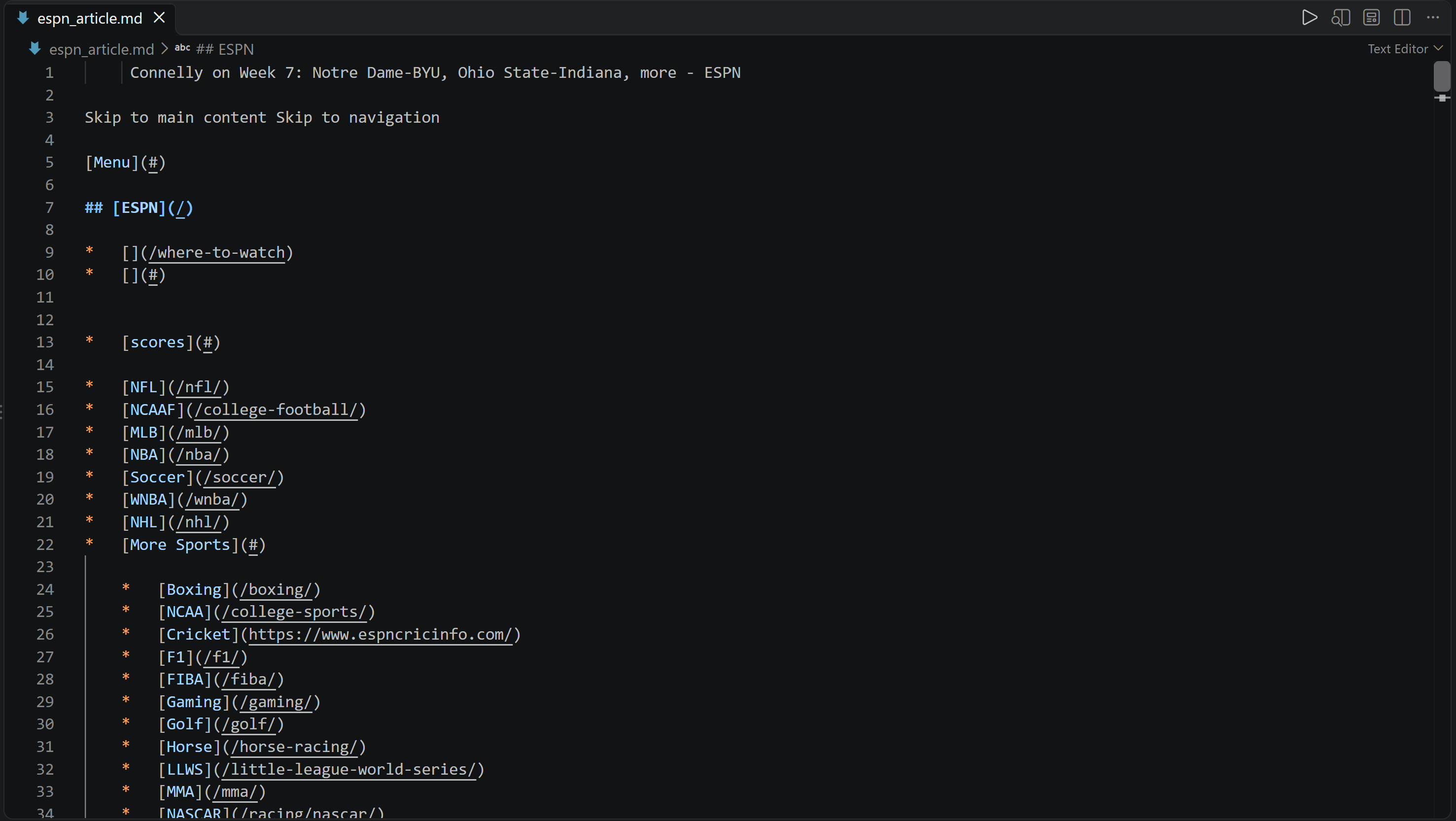
That corresponds to the Markdown version of the target page:

Note: Use the -f flag to choose a different output format. For example, -f html saves the page as raw HTML, while -f screenshot captures it as an image.
With the Bright Data Python SDK, you can achieve something similar through the scrape_url() method. Instead of saving the response automatically, the SDK lets you handle the returned data in Python and write it to a file yourself:
# pip install brightdata-sdk
# Set the BRIGHTDATA_API_KEY env

import asyncio
from brightdata import BrightDataClient

async def main():
    async with BrightDataClient() as client:
        # Scrape the target page
        result = await client.scrape_url(
            "https://www.espn.com/college-football/story/_/id/50189757/connelly-week-7-notre-dame-ohio-state-indiana"
        )

        # Export the scraped content to an HTML file
        with open("espn_article.html", "w", encoding="utf-8") as f:
            f.write(result.data)

asyncio.run(main())
The result will be the same page as before but in HTML:
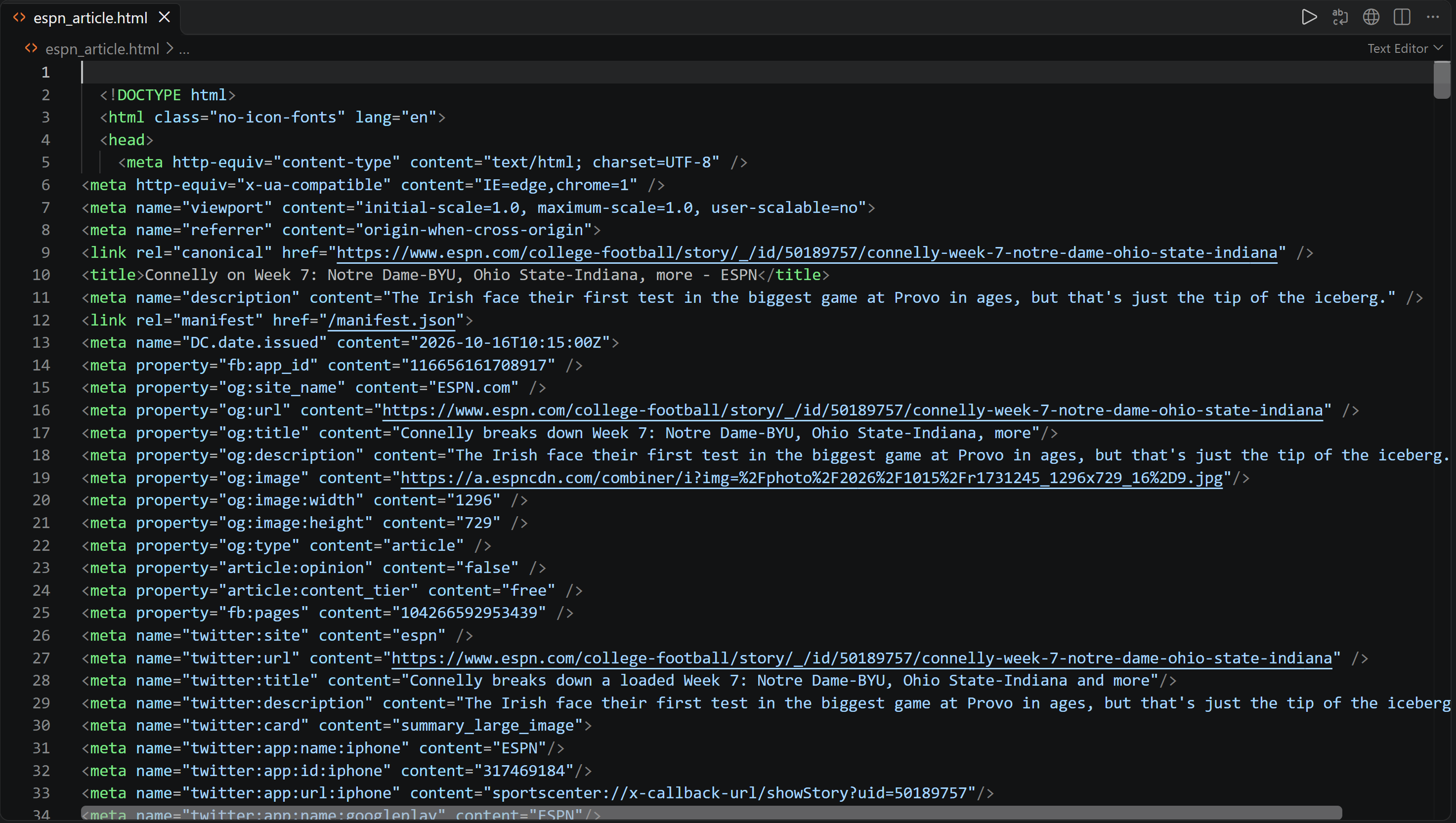
The CLI is the simpler choice for quick, one-off scraping tasks. The Python SDK is more useful when you need to process the scraped content further (e.g., parsing HTML for extracting specific data or feeding the results into a larger data pipeline).
Search and Scrape the Top Result on Google
Suppose you want to search Google for a query and scrape the page returned by the first organic search result. With the Bright Data CLI, you can achieve that by building a simple shell pipeline:
brightdata searchruns the search.jqextracts the first result’s URL from the JSON response.tr -d '\r'removes carriage-return characters.xargspasses that URL tobrightdata scrape, which saves the page content to a Markdown file.
Put it all together:
brightdata search "best ai models" --json \
  | jq -r '.organic[0].link' \
  | tr -d '\r' \
| xargs -I {} brightdata scrape "{}" -o page.mdNote: This command requires a Unix-like shell, such as macOS or Linux (on Windows, you can run it using Git Bash), and jq installed on your machine.
The output will be:

The result is a Markdown file named page.md:
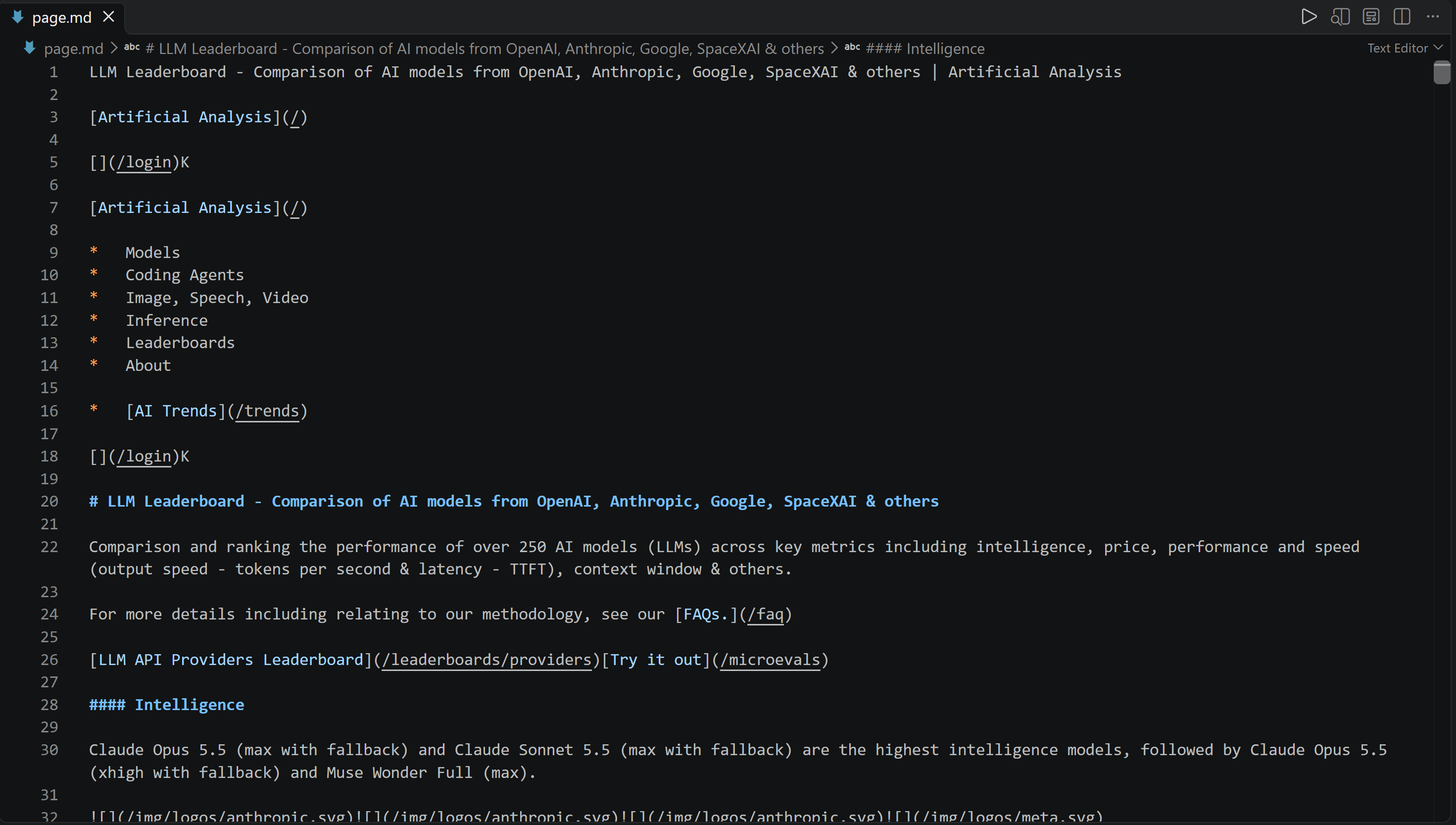
This contains the scraped content of the first organic search result for “best AI models”:
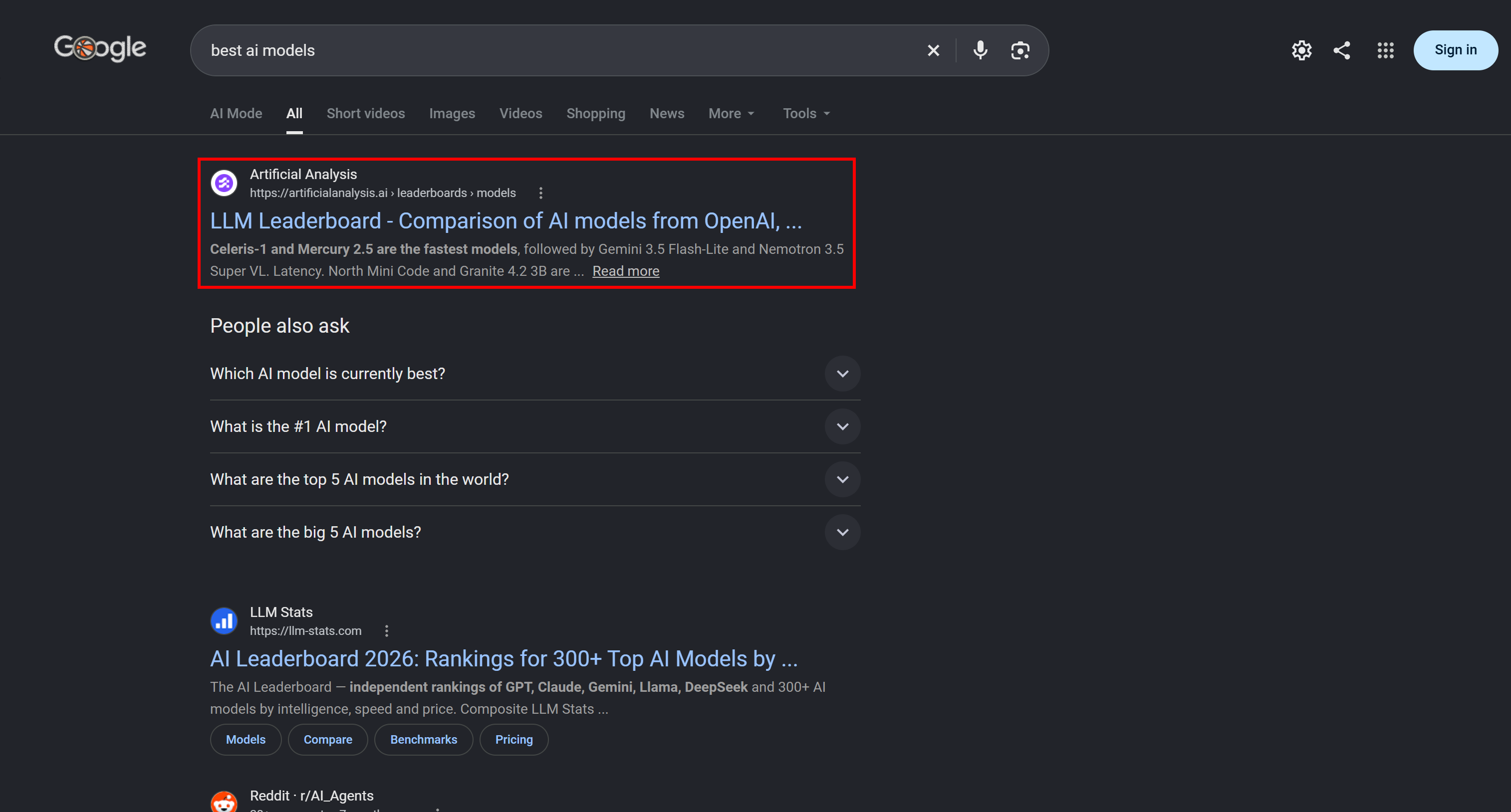
With the Bright Data Python SDK, you can implement a similar workflow while retaining more control over what happens between the search and scrape steps. Use the search.google() method to retrieve Google results, pass the first result’s URL to scrape_url(), and then process the returned content in Python:
# pip install brightdata-sdk
# Set the BRIGHTDATA_API_KEY env

import asyncio
from brightdata import BrightDataClient

async def main():
    async with BrightDataClient() as client:
        # Get the parsed SERP from Google
        search = await client.search.google(query="best ai models")
        # Scrape the first search result
        page = await client.scrape_url(search.data[0]["url"])

        print(page.data[:5000])
        # Process the returned data...

asyncio.run(main())
The output will be:
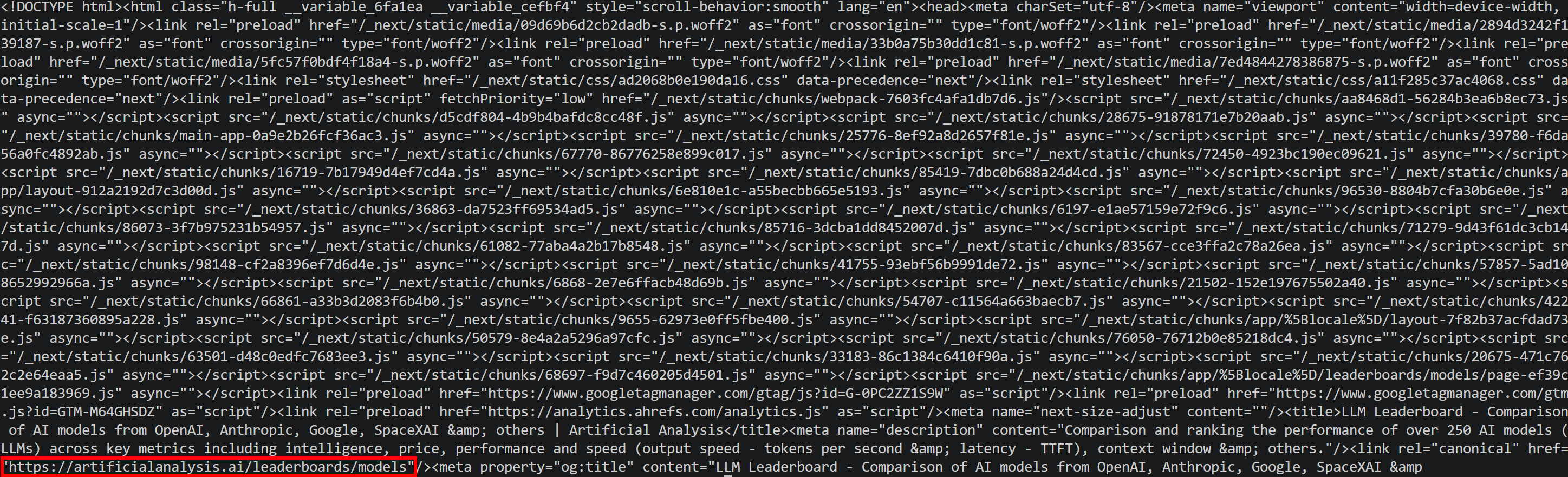
Note that this is the same page scraped before (but this time the output is in HTML format).
The CLI pipeline is ideal for concise shell automation when you want to connect existing commands. The Python SDK is a better fit when you need custom logic, such as checking the search results before choosing a URL or handling missing results.
Pull Amazon Product Data
The Bright Data Python SDK lets you retrieve Amazon product details and reviews with two simple method calls:
# pip install brightdata-sdk
# Set the BRIGHTDATA_API_KEY env

import asyncio
from brightdata import BrightDataClient

PRODUCT_URL = "https://www.amazon.com/Owala-FreeSip-Insulated-Stainless-BPA-Free/dp/B0BZYCJK89/"

async def main():
    async with BrightDataClient() as client:
        # Scrape the Amazon product data
        scraped_product = await client.scrape.amazon.products(url=PRODUCT_URL)
        # Scrape the Amazon product reviews
        scraped_reviews = await client.scrape.amazon.reviews(url=PRODUCT_URL)

        # Merge the scraped data
        product = {
            "data": scraped_product.data,
            "reviews": scraped_reviews.data
        }

        print(product)
        # Process the merged Amazon product data object...

asyncio.run(main())
The output will contain the scraped product details and reviews in a single Python object.
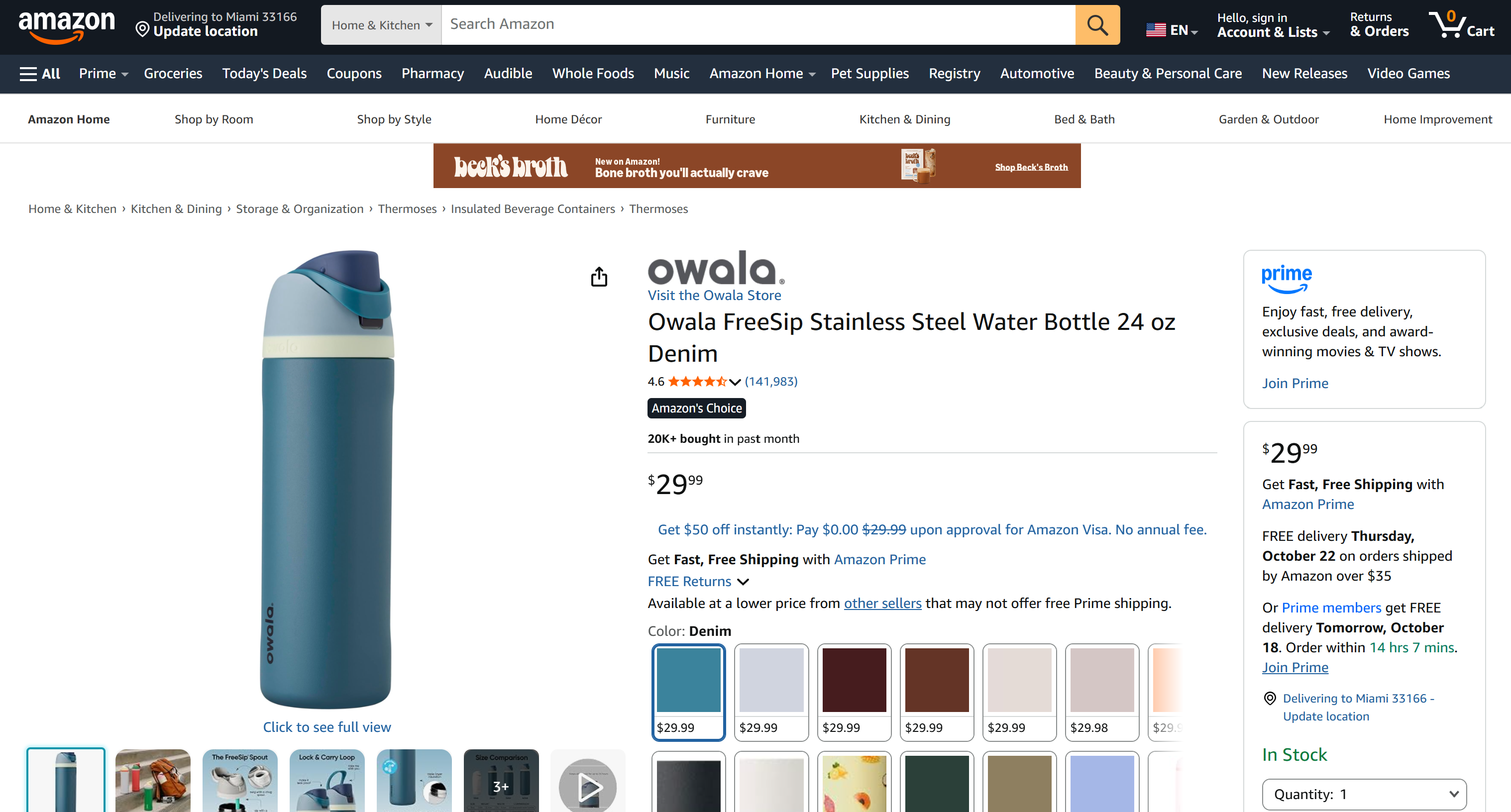
The Bright Data CLI can retrieve Amazon product data with one command:
brightdata pipelines run 'gd_l7q7dkf244hwjntr0' collect_by_url 'https://www.amazon.com/Owala-FreeSip-Insulated-Stainless-BPA-Free/dp/B0BZYCJK89/' --prettyThe output is structured Amazon product data:
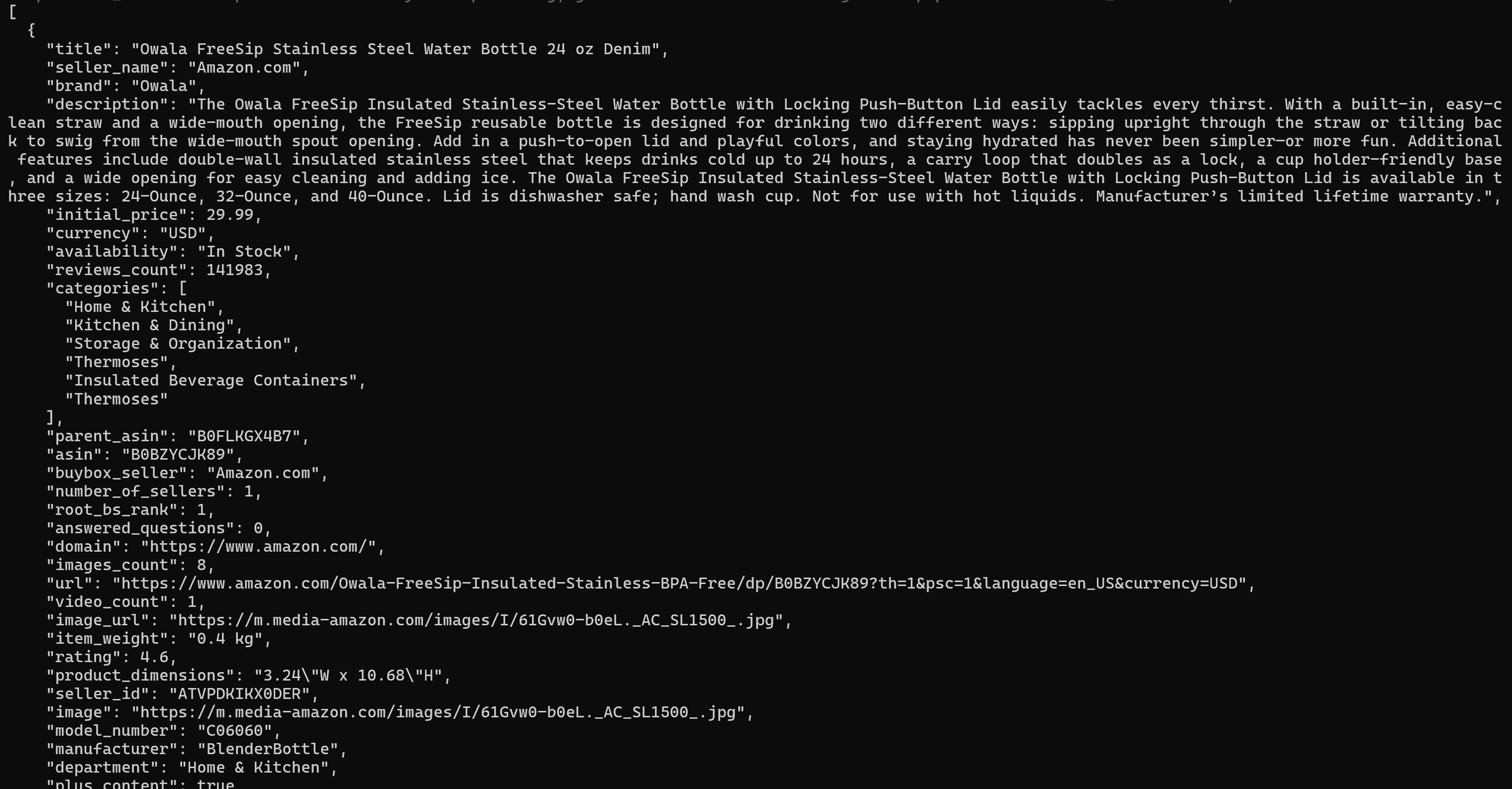
This has been scraped from the target Amazon product page:
Next, to get the product’s Amazon reviews, you need to run a second command:
brightdata pipelines run 'gd_le8e811kzy4ggddlq' collect_by_url 'https://www.amazon.com/Owala-FreeSip-Insulated-Stainless-BPA-Free/dp/B0BZYCJK89/' --prettyThis returns the product’s public reviews in structured JSON format:
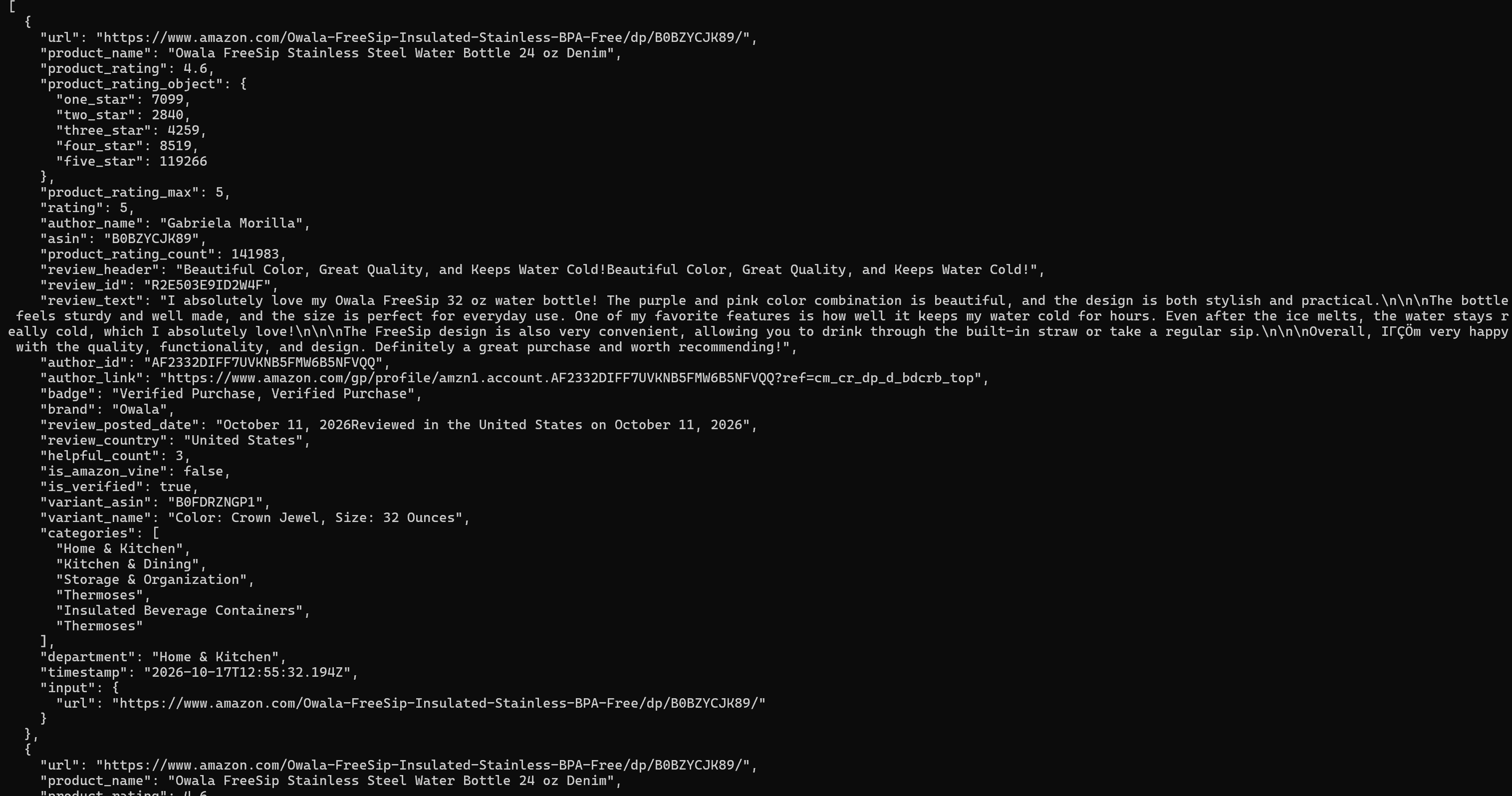
Note: gd_l7q7dkf244hwjntr0 and gd_le8e811kzy4ggddlq are the IDs of the Bright Data Amazon Scraper API and the Amazon Reviews Scraper API, respectively.
The CLI returns each pipeline’s output separately, so combining product details and reviews requires an extra step. It also requires you to know the relevant scraper API collection IDs, which you can find using the brightdata pipelines search command.
Instead, the Python SDK calls the scrapers directly through dedicated methods and keeps both results available as Python objects. This makes it straightforward to combine the product details and reviews, then process them together in your application.
Batch URLs Concurrently
The SDK fetches a list of URLs concurrently in one call. Each result is a separate object, so the script can check each one:
# pip install brightdata-sdk beautifulsoup4
# Set the BRIGHTDATA_API_KEY env

import asyncio
from brightdata import BrightDataClient
from bs4 import BeautifulSoup

# Target pages to scrape
urls = [
    "https://www.nintendo.com/us/store/products/nintendo-switch-sports-resort-switch-2/",
    "https://www.nintendo.com/us/store/products/super-mario-galaxy-plus-super-mario-galaxy-2-switch/",
    "https://www.nintendo.com/us/store/products/mario-kart-world-switch-2/",
]

async def main():
    async with BrightDataClient() as client:
        # Scrape all the pages concurrently
        results = await client.scrape_url(urls)

        for url, r in zip(urls, results):
            if r.success:
                # Print the page <title>
                title = BeautifulSoup(r.data, "html.parser").title
                print(f"{url}: {title.get_text(strip=True)}")

asyncio.run(main())
The result will be:

To achieve the same result with the CLI, you need a shell loop with custom logic to scrape each of the target URLs. Each scrape runs in the background using &, and wait blocks until all jobs finish:
i=0
while read -r url; do
  brightdata scrape "$url" -o "page_$i.md" &
  i=$((i + 1))
done <<'EOF'
https://www.nintendo.com/us/store/products/nintendo-switch-sports-resort-switch-2/
https://www.nintendo.com/us/store/products/super-mario-galaxy-plus-super-mario-galaxy-2-switch/
https://www.nintendo.com/us/store/products/mario-kart-world-switch-2/
EOF
wait
The CLI can scrape multiple pages this way, but you must handle concurrency, retries, and error collection. This loop launches all jobs at once, with no concurrency limit, so larger batches may need throttling.
Bright Data CLI vs Bright Data Python SDK: Which to Choose?
Choose the Bright Data CLI when:
- You want to get started without writing code.
- Your workflow is terminal-first.
- You use AI coding agents that run commands and read Markdown or JSON output from the terminal.
- You want to check your usage and budget quickly without opening the Bright Data control panel.
Choose the Bright Data Python SDK when:
- You are comfortable with Python syntax and want to handle scraped data directly in your code.
- You are building Python applications that integrate web data collection into RESTful services, notebooks, or data pipelines.
- Your workload requires concurrency, asynchronous tasks, or custom logic.
- Your workflow branches based on results, making Python conditions and loops easier to manage than shell logic.
Conclusion
In this Bright Data CLI vs Bright Data Python SDK comparison, you learned how both tools provide access to many of the same capabilities through different interfaces. Ultimately, the choice comes down to where your work happens.
The Bright Data CLI is ideal for shell pipelines and AI agents. The Bright Data Python SDK is a better fit when web data collection is part of a larger Python process. They can also be used together: the CLI for quick tasks and usage tracking, and the SDK for building complex scripts.
Create a Bright Data account and get started for free with the Bright Data CLI and Python SDK!
FAQ
Do I need a Bright Data account to use the CLI or the Python SDK?
Yes, both tools require a Bright Data account for authentication. The CLI supports an OAuth login flow or direct API key configuration. The Python SDK can read your API key from an environment variable or reuse credentials configured through the Bright Data CLI.
Can I use the Bright Data CLI and Python SDK for free?
Yes! Bright Data accounts receive 5,000 free credits per month, shared across the Unlocker API, SERP API, Web Scraping API, Scraper Studio, and Browser API. Proxy products are not included in this free-credit allowance.
Which tool should I use as a beginner?
If you are comfortable with basic terminal commands, start with the CLI. You can retrieve results with a single command without writing any code. If you are already familiar with Python, the SDK is a good choice. Either way, you can get your first scrape running in just a few minutes.
Does the Bright Data CLI run on Windows?
Yes! You can install the CLI on Windows using npm:
npm install -g @brightdata/cliThen authenticate by executing:
brightdata loginWhere does the CLI store my credentials?
The CLI stores your credentials locally in a file accessible to your user account. On Linux, the default location is ~/.config/brightdata-cli/credentials.json. Run brightdata logout to clear your saved credentials.
Should I use the synchronous or asynchronous Python SDK client?
The synchronous client (SyncBrightDataClient) is a good fit for simple, one-off scripts because each call blocks until the operation completes. The asynchronous client (BrightDataClient) is better suited to concurrent requests, batch jobs, and background processing, especially when you need to handle multiple operations efficiently.
Can I use the Bright Data CLI and Python SDK together?
Yes! For example, use the CLI for quick scraping tasks, usage monitoring, and shell pipelines, then rely on the Python SDK for applications that require concurrency or custom processing logic.
Which tool is best for AI agents?
AI agents can invoke CLI commands directly to run scraping jobs, perform searches, and retrieve data. The Python SDK is a better fit when you want an agent to build production-ready scrapers. In either case, agents can use Bright Data’s documentation MCP server or the Bright Data Agent Skills to learn how to use these tools effectively.



Technical Writer
 5.5 years experience
Antonello Zanini is a technical writer, editor, and software engineer with 5M+ views. Expert in technical content strategy, web development, and project management.