








In this article, you will learn:
- What ToolJet is and what it brings to the table as a low-code, full-stack application development platform.
- Why connecting it with Bright Data is ideal for enterprise-grade web app development.
- How to build a real-world web application for live monitoring using ToolJet and Bright Data.
- Other use cases supported by the ToolJet + Bright Data integration.
Let’s dive in!
What Is ToolJet?
ToolJet is an AI-powered low-code platform to build full-stack internal applications, dashboards, workflows, and AI agents.
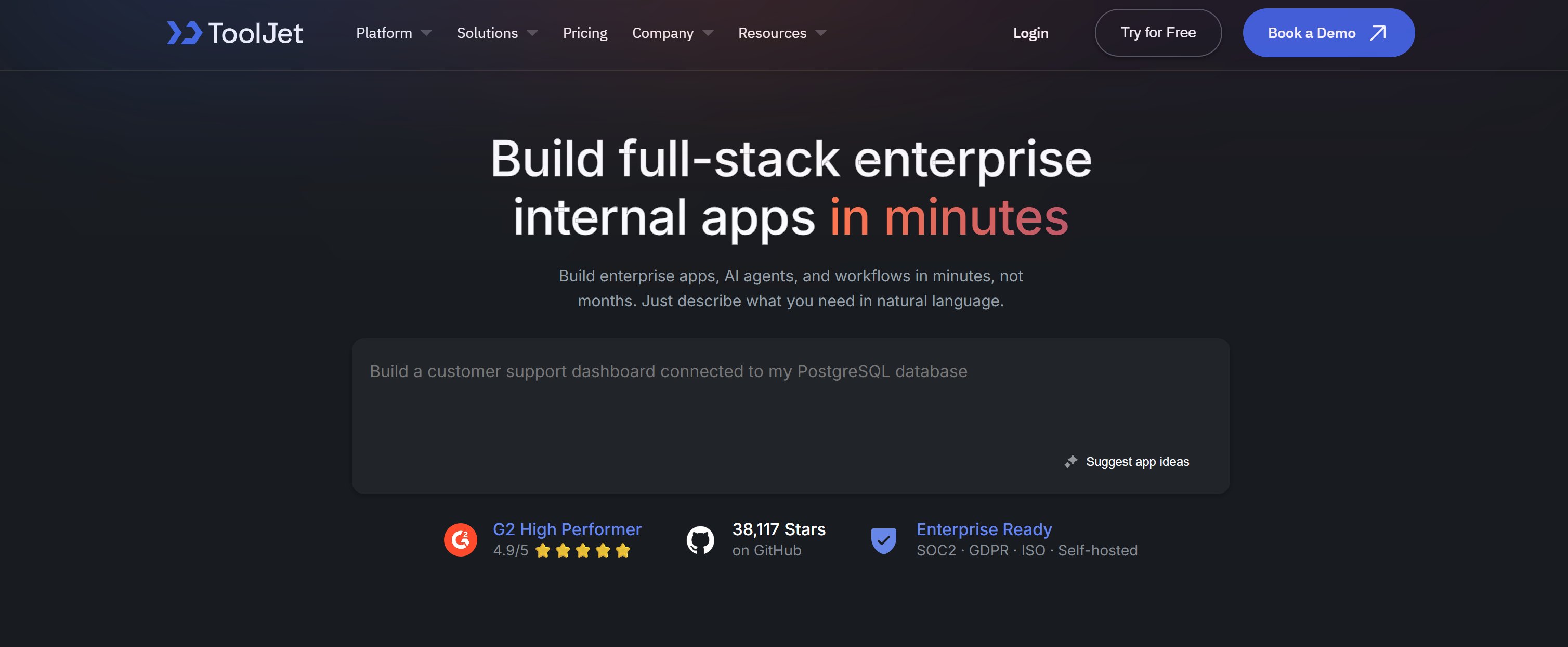
It helps you rapidly ship tools like admin panels, CRMs, and data dashboards without heavy frontend/backend development. It is especially useful for enterprises that want to connect databases, APIs, and SaaS tools into secure internal apps while maintaining full control over infrastructure and data.
ToolJet has an open-source nature, boasting over 38,000 GitHub stars. Besides cloud deployment for enterprise-grade flexibility, it also supports self-hosting.
Key Features
The main capabilities provided by ToolJet are:
- AI App Builder: Create full-stack applications from natural language prompts, including UI, database schemas, and logic.
- Workflow automation: Build multi-step workflows using visual logic, triggers, conditions, and scheduled events.
- 80+ integrations: Connect to databases, APIs, cloud storage, and SaaS platforms out of the box.
- ToolJet database: Built-in PostgreSQL-backed database for fast CRUD operations without external setup.
- AI agents: Create intelligent agents that automate complex multi-system workflows.
- Code extensibility: Add custom JavaScript or Python for advanced logic and transformations.
- Enterprise security: Supports SSO (SAML, OIDC, LDAP), RBAC, audit logs, encryption, and compliance standards.
- Flexible deployment: Run on ToolJet Cloud or self-host on AWS, GCP, Azure, Kubernetes, or Docker.
- Git-based versioning: Supports GitSync and CI/CD workflows for professional development lifecycle management.
Why Connecting Bright Data APIs in ToolJet
There is no doubt that enterprise internal applications, dashboards, and workflows need data. Still, relying only on internal databases is no longer enough to generate high-quality business insights.
Internal systems can tell you what is happening inside your company. However, they cannot explain what is happening in the market, across competitors, or in the broader digital ecosystem.
The real challenge is that external web data is difficult to collect and use at scale. Websites are constantly changing their structure, many of them use anti-bot protections, and the data is often unstructured, inconsistent, or incomplete.
Even when scraping is possible, maintaining reliability across thousands of sources becomes a continuous engineering problem. As a result, enterprises struggle to integrate external data into their internal applications.
The solution is to combine internal app-building tools like ToolJet with a dedicated web data infrastructure layer. This is where Bright Data comes in!
Bright Data APIs as the Solution
By connecting ToolJet applications to Bright Data, internal dashboards and workflows gain access to real-time, structured, and reliable data from virtually any website. The integration in ToolJet is made possible via Bright Data APIs, which give you access to Bright Data products:
- SERP API: Collect search engine results from Google, Bing, and other providers to power market research, SEO tracking, and competitive analysis.
- Web Unlocker API: Access content from virtually any website by bypassing CAPTCHAs and anti-bot systems, returning clean HTML or Markdown.
- Web Scraper APIs: Extract structured data from major platforms such as Amazon, LinkedIn, and Instagram without building custom scrapers.
- Crawl API: Turn entire domains into structured datasets, enabling comprehensive data pipelines and AI-ready workflows.
What makes Bright Data stand out is its enterprise-grade infrastructure built specifically for large-scale data collection. Its network includes over 400 million IP addresses across 195 countries, achieving 99.99% uptime and a 99.95% success rate.
How to Create a Real-Time Data Monitoring App in ToolJet Using Bright Data Scraping APIs
In this section, you will learn how to build an application for monitoring app review data from the Apple App Store. This can be used to track changes in your app’s rating continuously or to monitor competitor apps.
ToolJet will be used to build the full web application, while the data will be sourced from Bright Data. Note that many other scenarios and use cases can be built using the same approach.
Follow the instructions below!
Prerequisites
To follow along with this tutorial, make sure you have:
- A ToolJet account (the free plan is enough).
- A Bright Data account with an API key. Follow the official guide to generate your Bright Data API key.
Familiarity with how the Bright Data Scraper APIs work will also be helpful.
Step #1: Get Familiar with Apple App Store Scraper API
The ToolJet full-stack application you are about to build will rely on data retrieved from the Apple App Store via Bright Data. Thus, it makes sense to get familiar with Bright Data’s Apple App Store Scraper APIs.
Start by logging into your Bright Data account. In the Bright Data control panel, go to “Scrapers > Scrapers Library” from the left-hand menu. This will take you to the “Scrapers Library” page, where you can explore all available Bright Data Scraper APIs.
Search for “apps.apple.com” and click the equivalent scraper card:
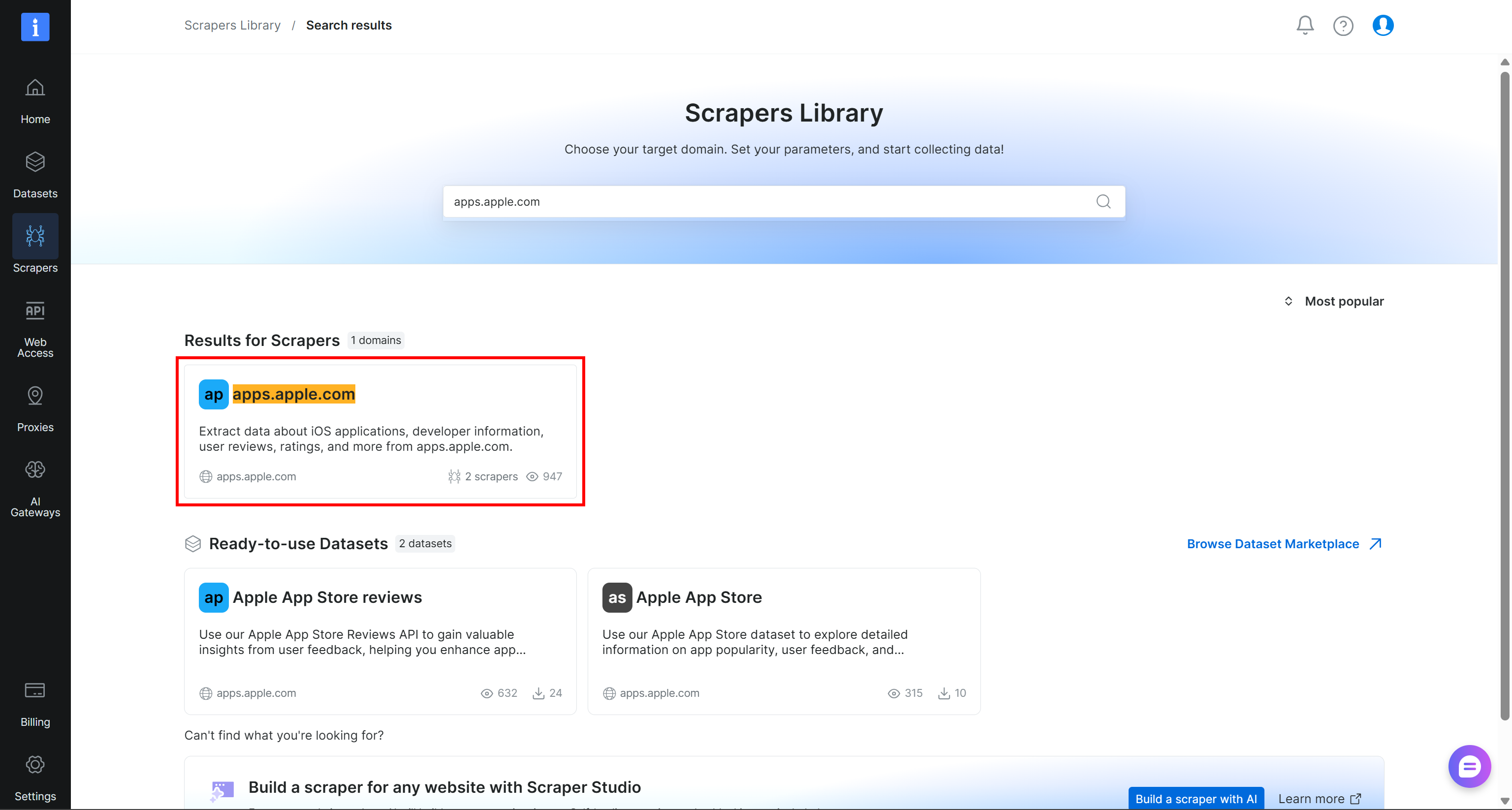
On the Apple App Store scraping API page, select the “Apple App Store > Collect by URL” endpoint. That scrapes the Apple App Store information we are interested in.
From the Bright Data control panel, you can configure and test the API to understand its input and output structure. For example, assume you want to monitor Apple App Store information and review scores for these competitor apps in the fitness industry:
https://apps.apple.com/us/app/planet-fitness/id399857015https://apps.apple.com/us/app/myfitnesspal-calorie-counter/id341232718https://apps.apple.com/us/app/crunch-fitness/id398210959
Add them to the “Inputs > url” field and press “Run manually” to test the API call:
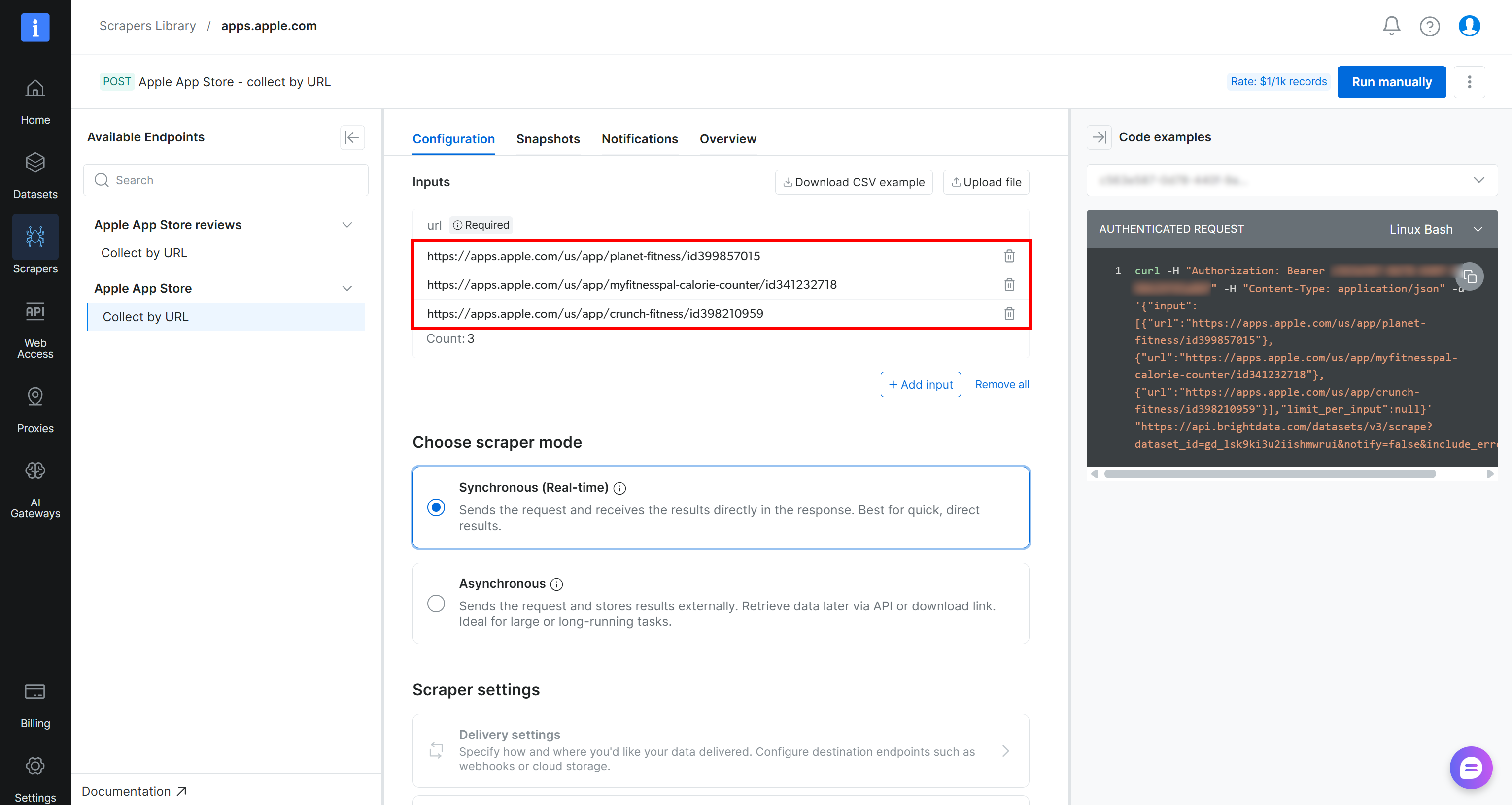
Note that the Apple App Store API endpoint can be called by sending a POST request to the following URL:
https://api.brightdata.com/datasets/v3/scrape?dataset_id=gd_lsk9ki3u2iishmwruiThe body of this HTTP request contains the list of Apple app URLs to scrape.
In the “Snapshots” tab, you will be able to download the generated results. If downloaded as JSON, you will see something like this:
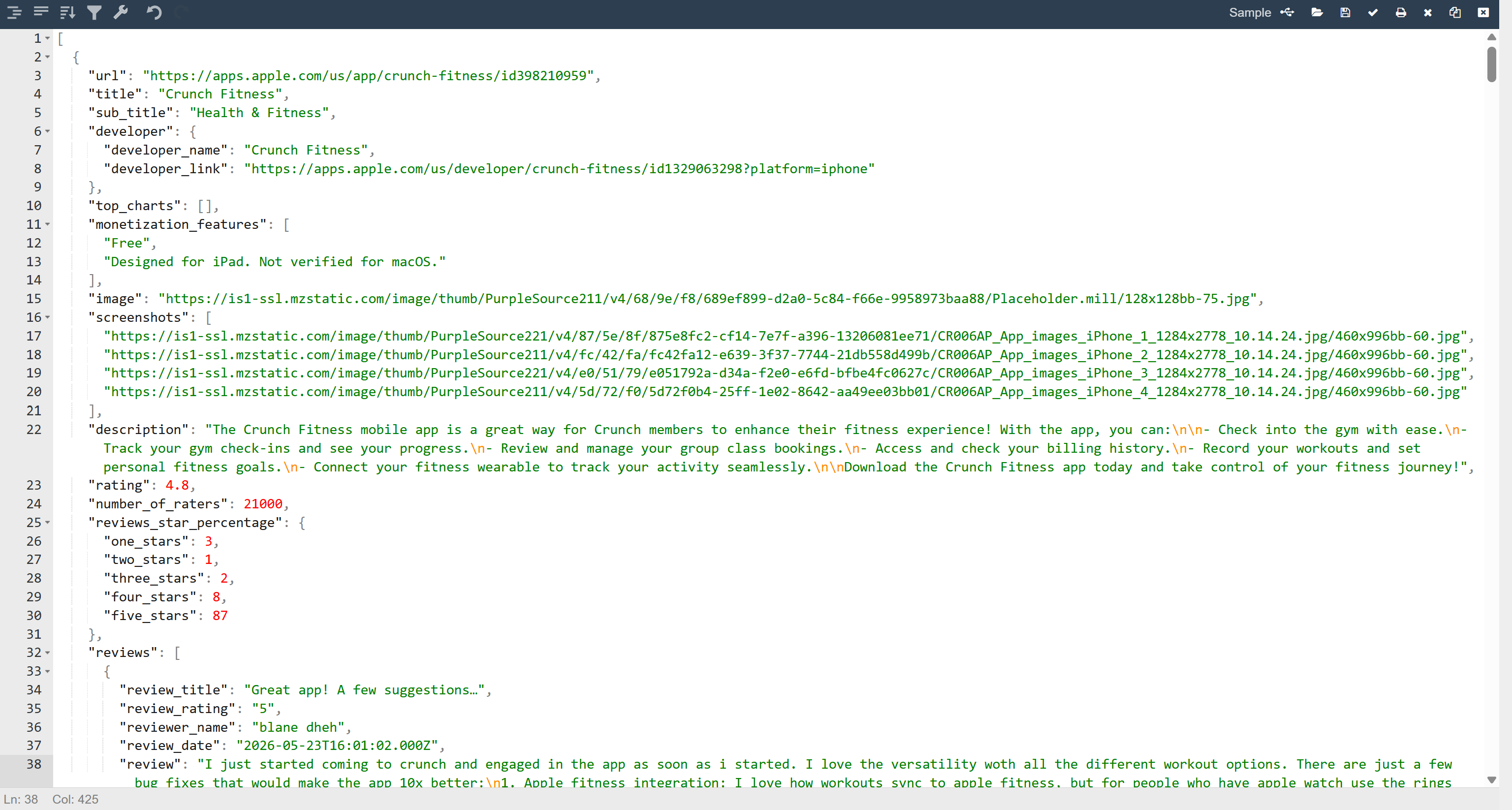
The output contains App Store information, including ratings, the number of raters, and recent reviews. This means the Bright Data API was able to bypass Apple App Store anti-bot protections and retrieve the data of interest.
That is exactly the kind of fresh web data you need for competitor app monitoring. Well done!
Step #2: Create a New ToolJet Project
Now that you know how to get the source data for your full-stack application, the next step is to build one. Begin by logging into ToolJet, and on the “Home > Home” page, click the “Create a blank app” button:
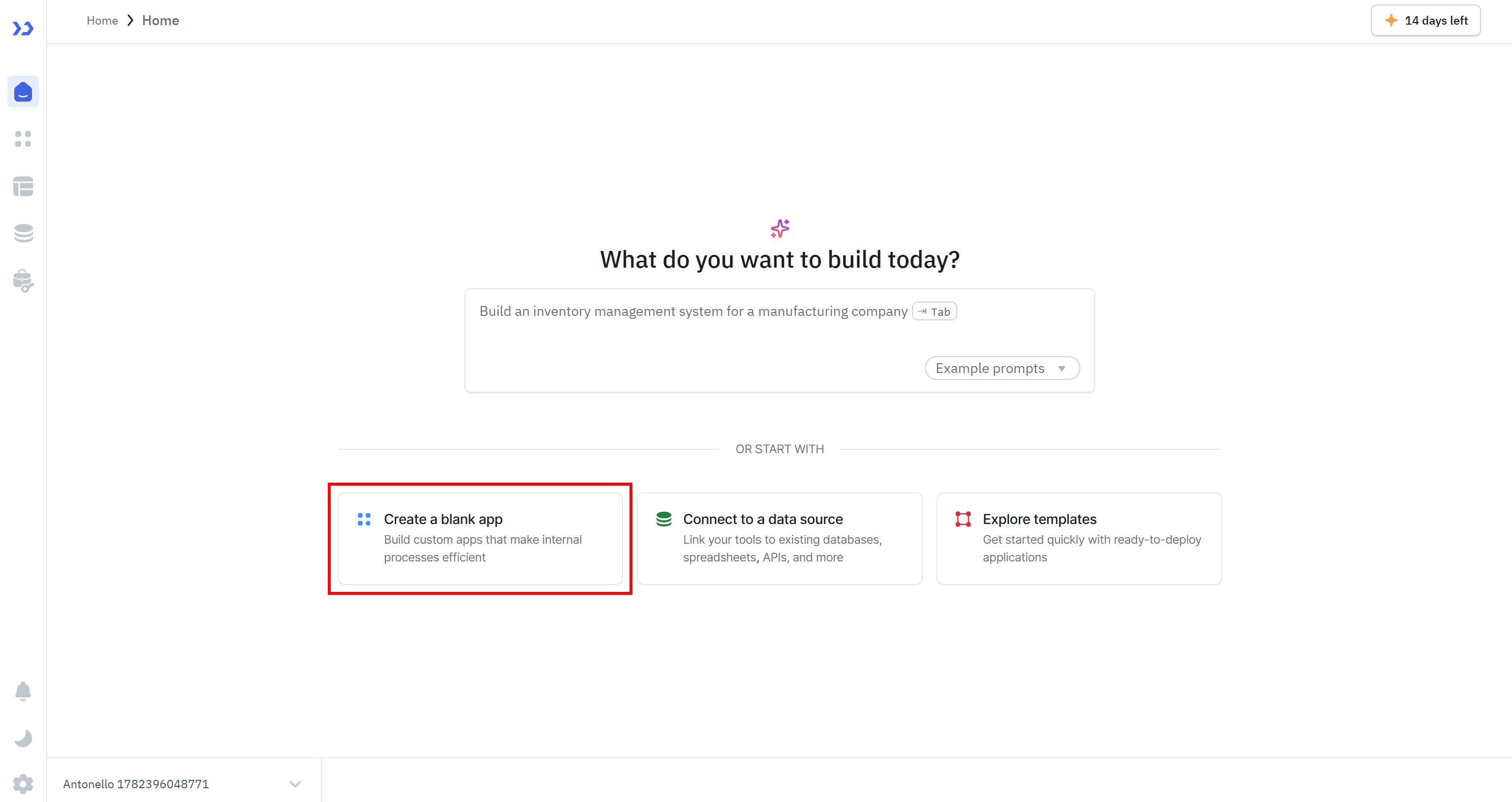
This will take you to ToolJet’s App Builder, where you can define your application through a no-code/low-code experience.
Give your new blank ToolJet application a name (e.g., “Apple App Store App Monitoring”) and get familiar with the UI:
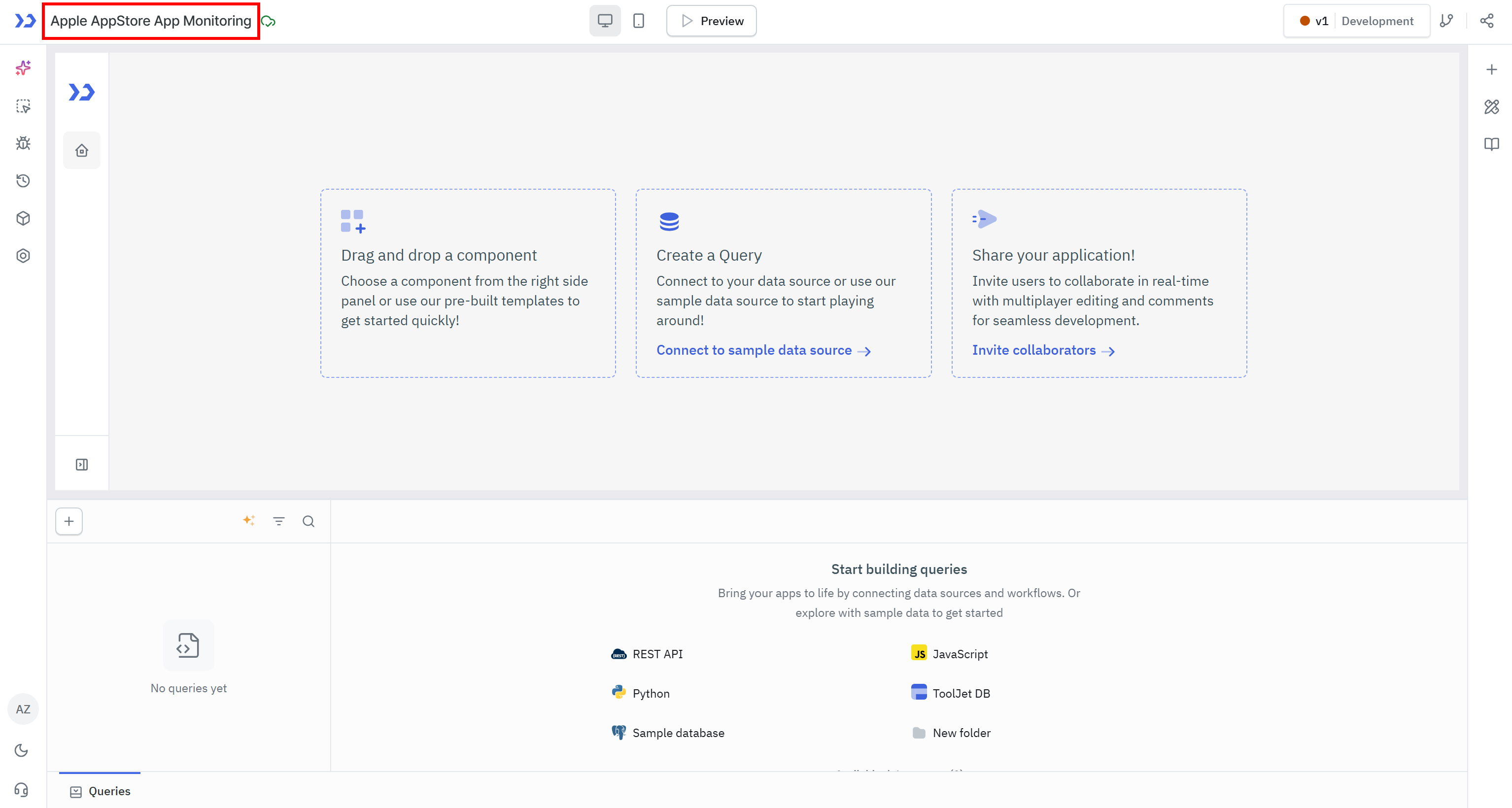
Great! It is time to connect your data source via the Bright Data API integration and add components to build the web app.
Step #3: Configure the Bright Data-Powered REST API Query
The source data for the Apple App Store monitoring web app will be collected using the Bright Data Scraper API. For that reason, click the “REST API” button to configure the data source:

Give your API a name (e.g., “AppleAppStoreScrapingAPI”) and fill out the “Setup” tab as follows:
- Method:
POST - URL:
https://api.brightdata.com/datasets/v3/scrape(This is the main endpoint used for Bright Data Scraper APIs in async mode.) - Headers:
– Authorization: Bearer <YOUR_BRIGHT_DATA_API_KEY> (Required for authentication with Scraper APIs to your Bright Data account. Replace <YOUR_BRIGHT_DATA_API_KEY> with your actual Bright Data API key.)
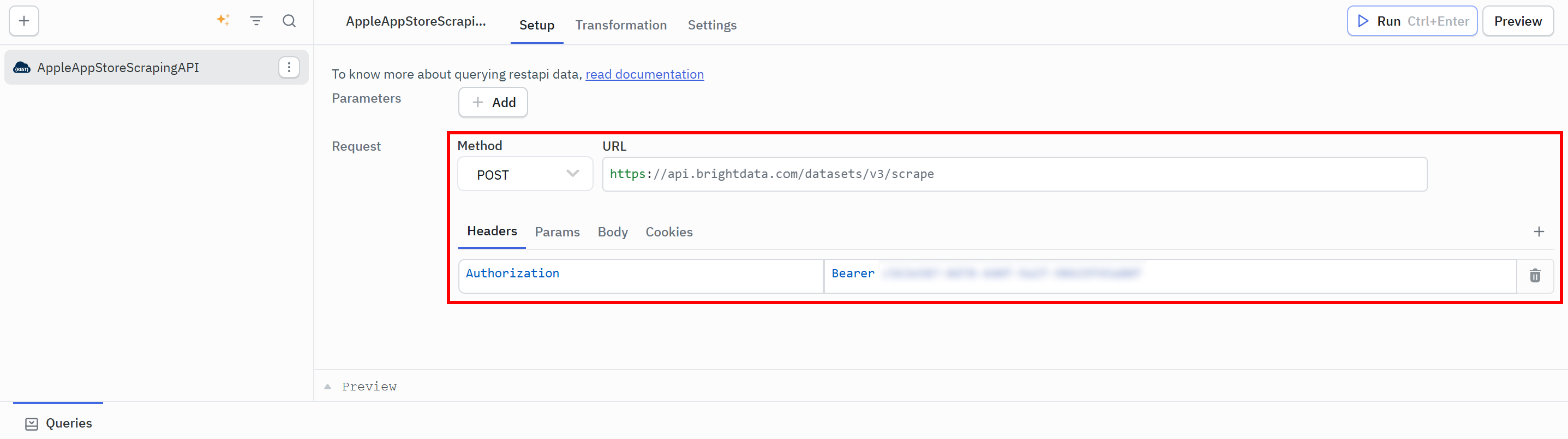
This configuration tells ToolJet which API endpoint to call and how to authenticate it.
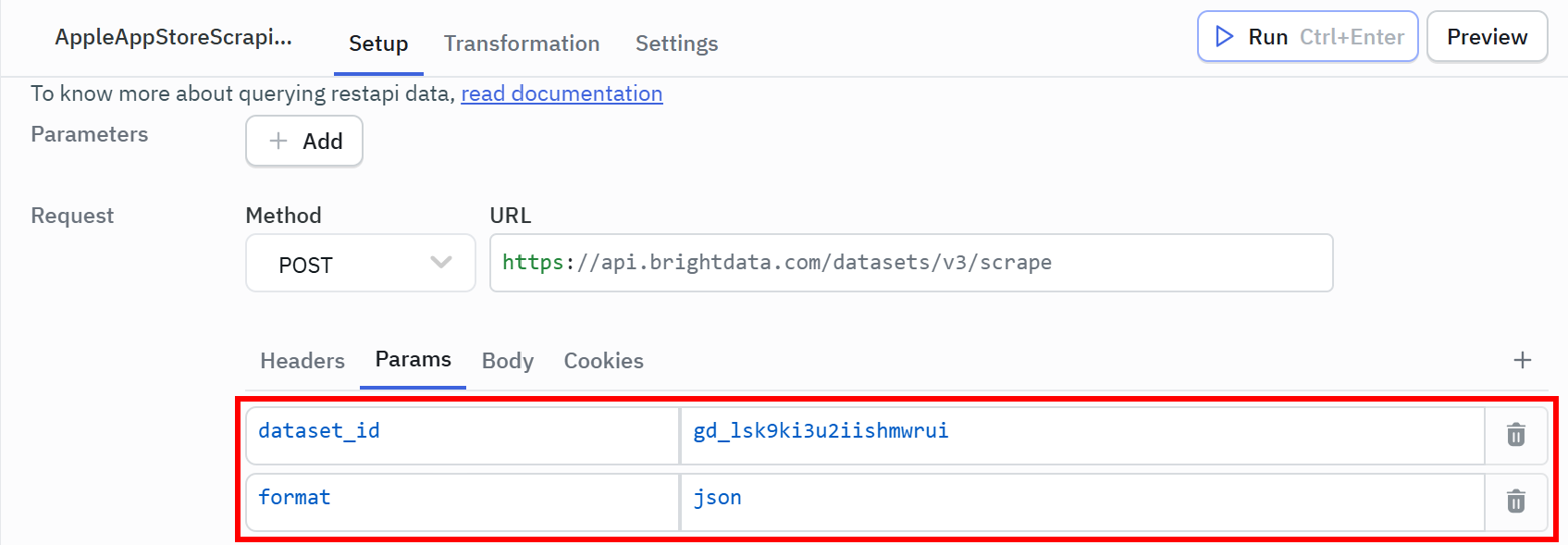
Next, scroll down and go to the “Params” tab. Add the following query parameters:
dataset_id:gd_lsk9ki3u2iishmwrui(This corresponds to the ID of the “Apple App Store , Collect by URL” scraper endpoint.)format:json(Ensure that the API returns structured JSON data.)
Now go to the “Body” section, enable “Raw” mode, and paste the request body generated earlier in the Bright Data control panel (Step #1):
{"input":[{"url":"https://apps.apple.com/us/app/planet-fitness/id399857015"},{"url":"https://apps.apple.com/us/app/myfitnesspal-calorie-counter/id341232718"},{"url":"https://apps.apple.com/us/app/crunch-fitness/id398210959"}]}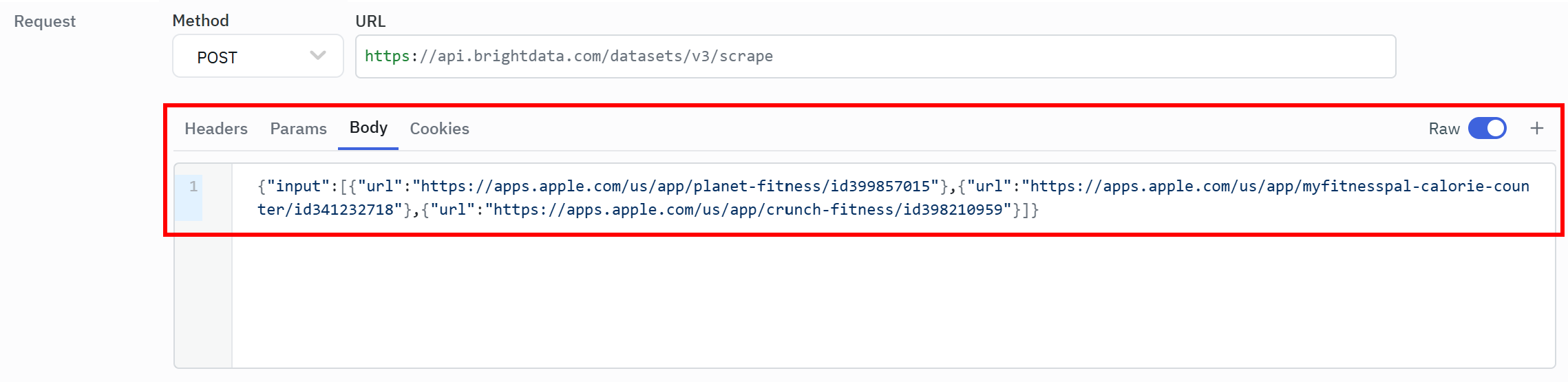
This way, the Scraper API will scrape the right Apple App Store apps.
Press “Run” in the top-right corner to verify that the API works. If everything is configured correctly, you should see the same results in the “Preview” section as what we got at the end of Step #1:
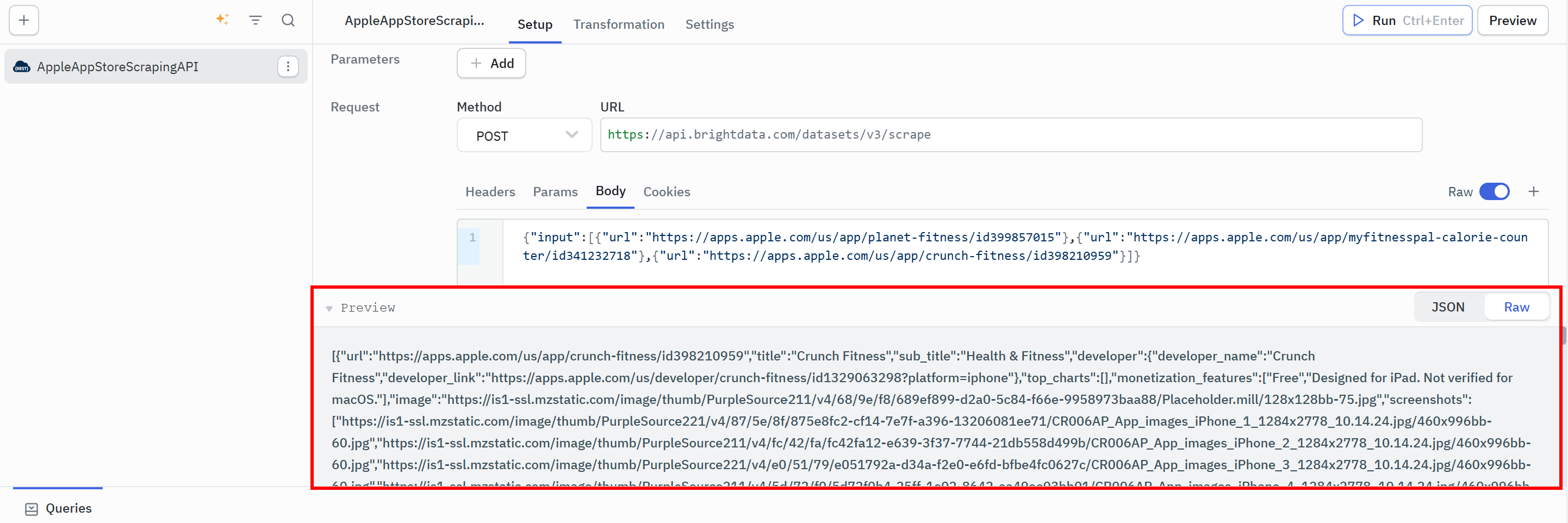
This confirms that your ToolJet application can now dynamically retrieve structured Apple App Store data on demand via a Bright Data Scraper API. Cool!
Step #4: Add a Table to View the Retrieved Data
Now that you have the data source configured, you need to build the frontend part of the web app. Start by adding a table to display the scraped data.
On the right section of the App Builder UI, click the “+” (Components) button, select “Table”, and drag it onto the application canvas:
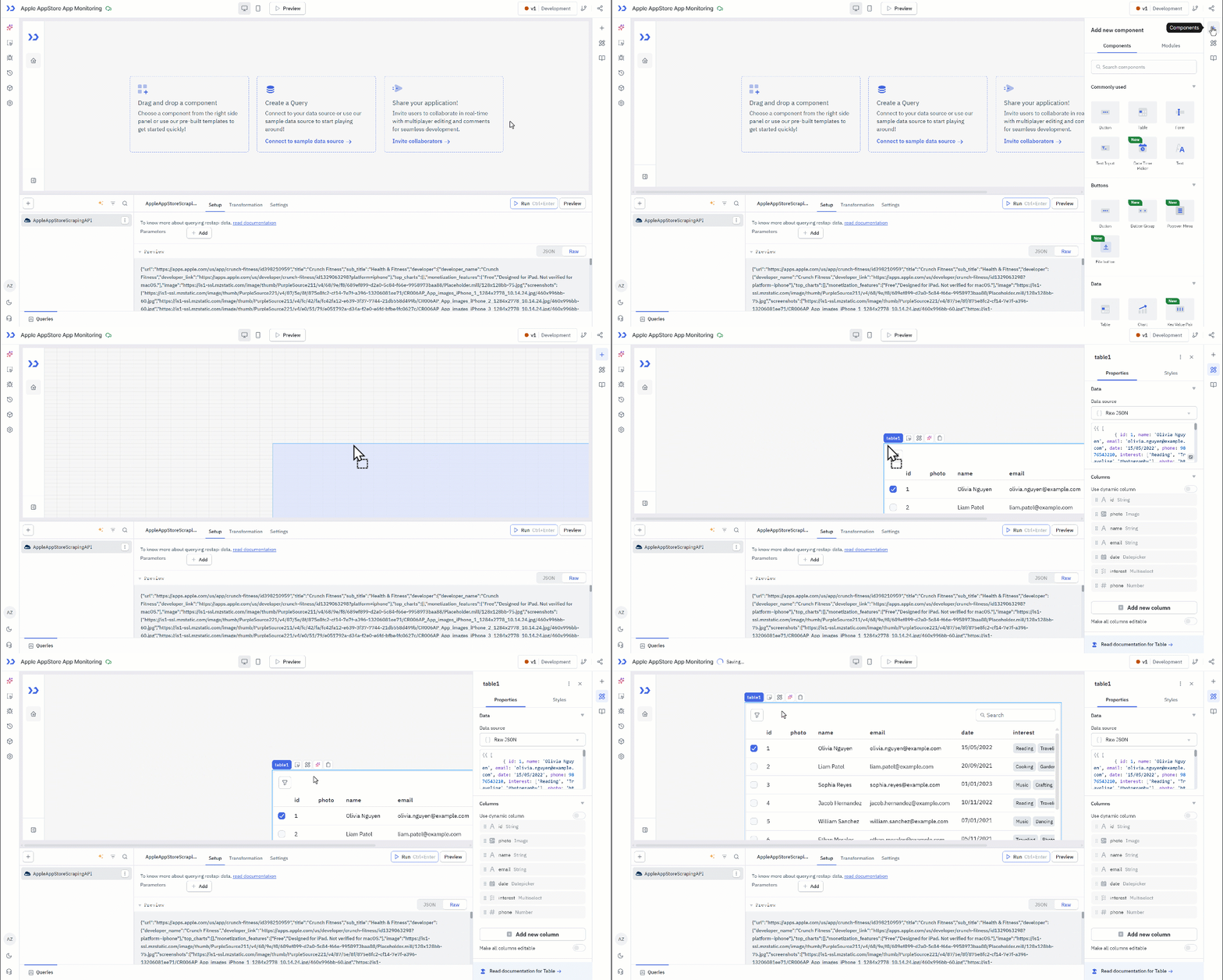
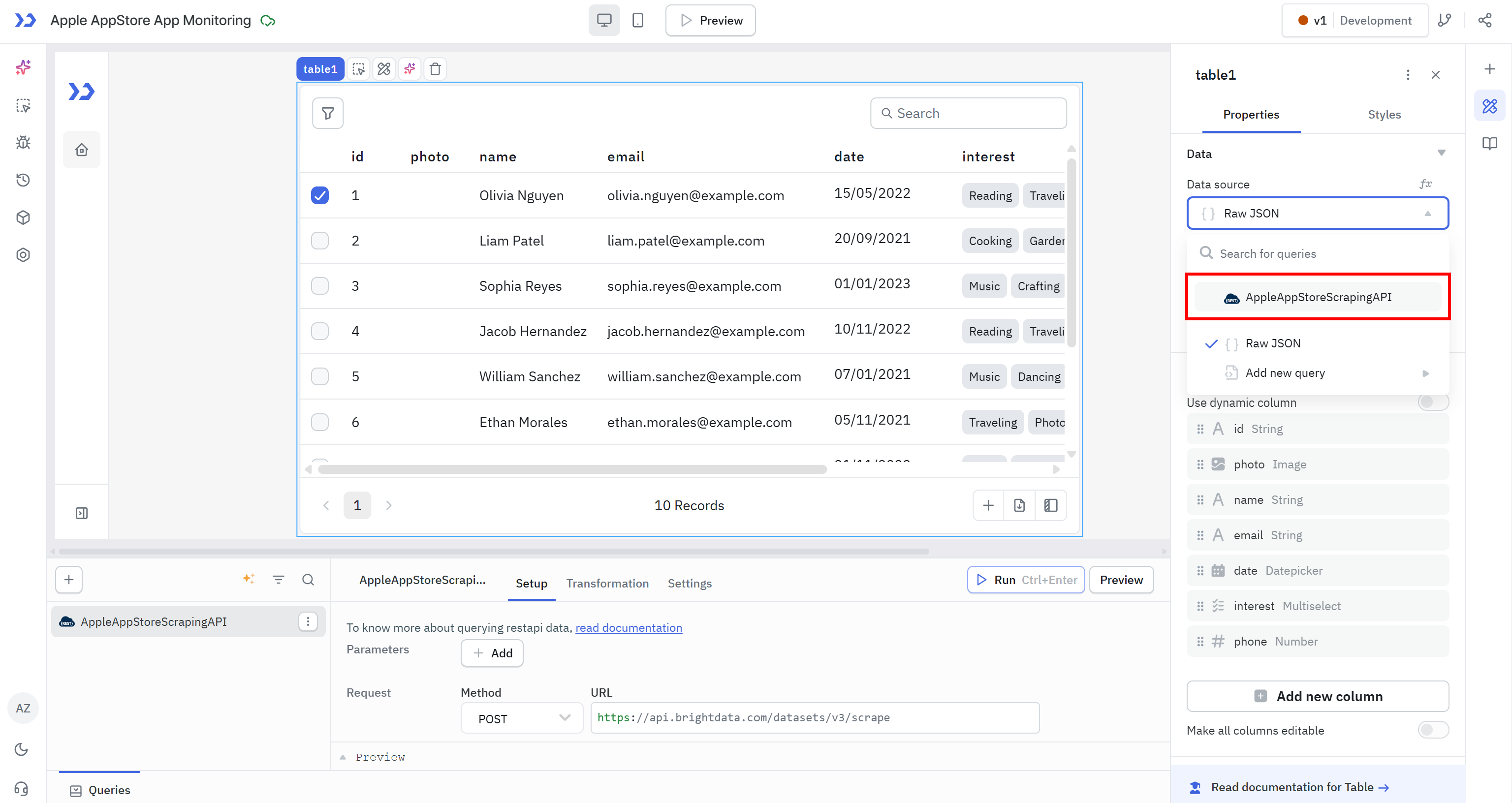
Click on the table component and, in the right panel, open the “Properties” tab. Set the table’s input data to the output of the previously configured REST API by selecting “Data source > AppAppStoreScrapingAPI”:
Next, specify the columns so that the table can represent the input data correctly. In the “Columns” section, toggle the “Use dynamic columns” option:
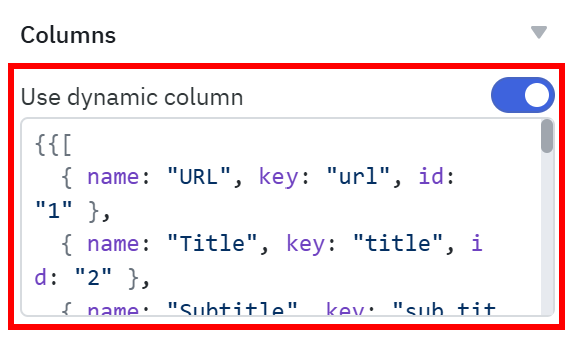
Then, paste the configuration below:
{{[
  { name: "URL", key: "url", id: "1" },
  { name: "Title", key: "title", id: "2" },
  { name: "Subtitle", key: "sub_title", id: "3" },
  { name: "Developer Name", key: "developer.developer_name", id: "4" },
  { name: "Developer Link", key: "developer.developer_link", id: "5" },
  { name: "Top Charts", key: "top_charts", id: "6" },
  { name: "Monetization Features", key: "monetization_features", id: "7" },
  { name: "Image", key: "image", id: "8" },
  { name: "Screenshots", key: "screenshots", id: "9" },
  { name: "Description", key: "description", id: "10" },
  { name: "Rating", key: "rating", id: "11" },
  { name: "Number of Raters", key: "number_of_raters", id: "12" },
  { name: "1-Star %", key: "reviews_star_percentage.one_stars", id: "13" },
  { name: "2-Star %", key: "reviews_star_percentage.two_stars", id: "14" },
  { name: "3-Star %", key: "reviews_star_percentage.three_stars", id: "15" },
  { name: "4-Star %", key: "reviews_star_percentage.four_stars", id: "16" },
  { name: "5-Star %", key: "reviews_star_percentage.five_stars", id: "17" },
  { name: "Reviews", key: "reviews", id: "18" },
  { name: "Events", key: "events", id: "19" },
  { name: "Data Linked To You", key: "data_linked_to_you", id: "20" },
  { name: "Seller", key: "seller", id: "21" },
  { name: "Category", key: "category", id: "22" },
  { name: "Languages", key: "languages", id: "23" },
  { name: "Copyright", key: "copyright", id: "24" },
  { name: "Size (MB)", key: "size", id: "25" },
  { name: "Compatibility", key: "compatibility", id: "26" },
  { name: "Age Rating", key: "age_rating", id: "27" },
  { name: "Price", key: "price", id: "28" },
  { name: "In-App Purchases", key: "In_app_purchases", id: "29" },
  { name: "Support", key: "support", id: "30" },
  { name: "More By This Developer", key: "more_by_this_developer", id: "31" },
  { name: "You Might Also Like", key: "you_might_also_like", id: "32" },
  { name: "Privacy Policy", key: "privacy_policy", id: "33" },
  { name: "Developer Website", key: "developer_website", id: "34" },
  { name: "Featured In", key: "featured_in", id: "35" },
  { name: "Country", key: "country", id: "36" },
  { name: "Latest App Version", key: "latest_app_version", id: "37" },
  { name: "App ID", key: "app_id", id: "38" },
  { name: "Provider", key: "provider", id: "39" },
  { name: "Timestamp", key: "timestamp", id: "40" },
  { name: "Input URL", key: "input.url", id: "41" }
]}}
This JSON representation matches the output data schema you can see in Bright Data’s control panel (in the “Overview > Dictionary” section of any Scraper API page).
Note: Do not forget to wrap the JSON expression with {{ }} so ToolJet correctly interprets the string as an object.
The table should start displaying the data retrieved from the Bright Data Apple App Store Scraper API:
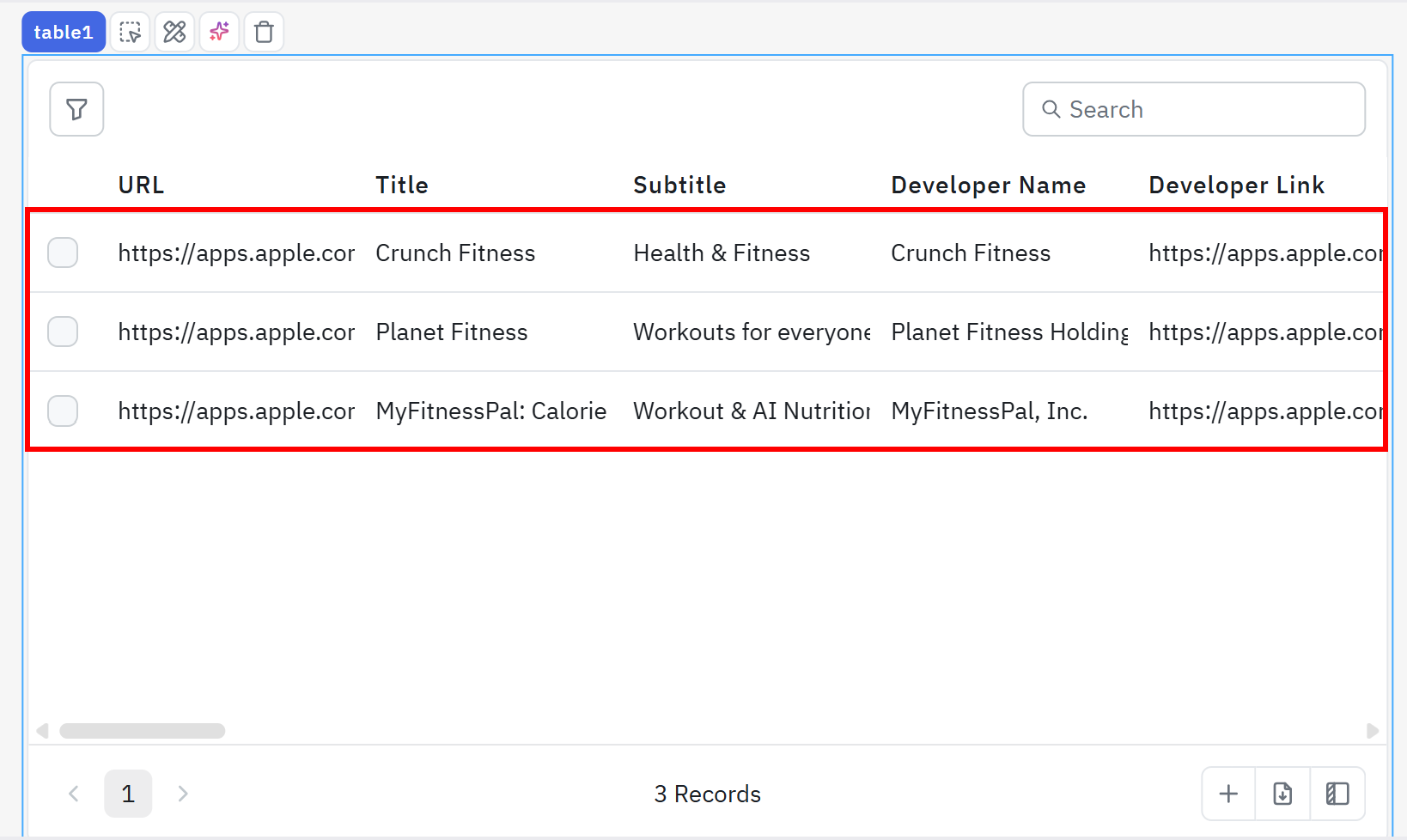
Terrific! Your Bright Data,powered full-stack web app for live monitoring is starting to take shape.
Step #5: Add a Button for Dynamic Data Retrieval
Now that you have a table containing the scraped data, add the option to refresh it on demand.
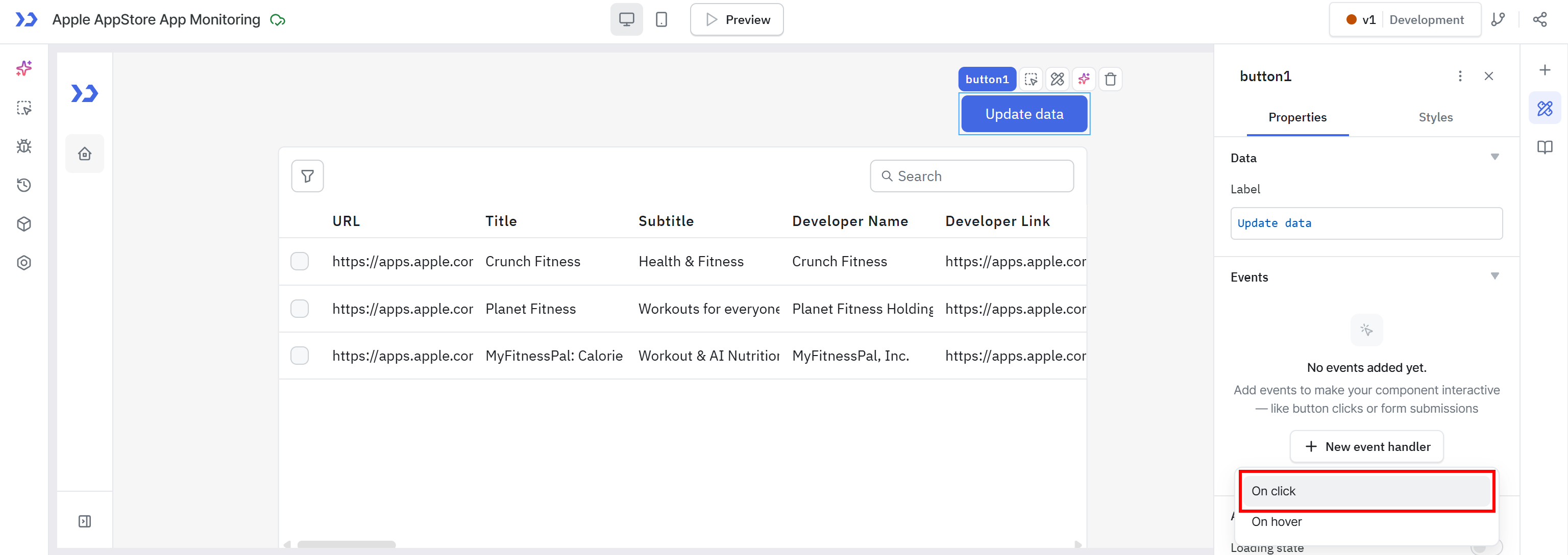
Start by adding a Button component and label it “Update data”. Then click “New event handler” and choose the “On click” event:
For the action, select “Run query” and choose “AppleAppStoreScrapingAPI” as the query to execute:
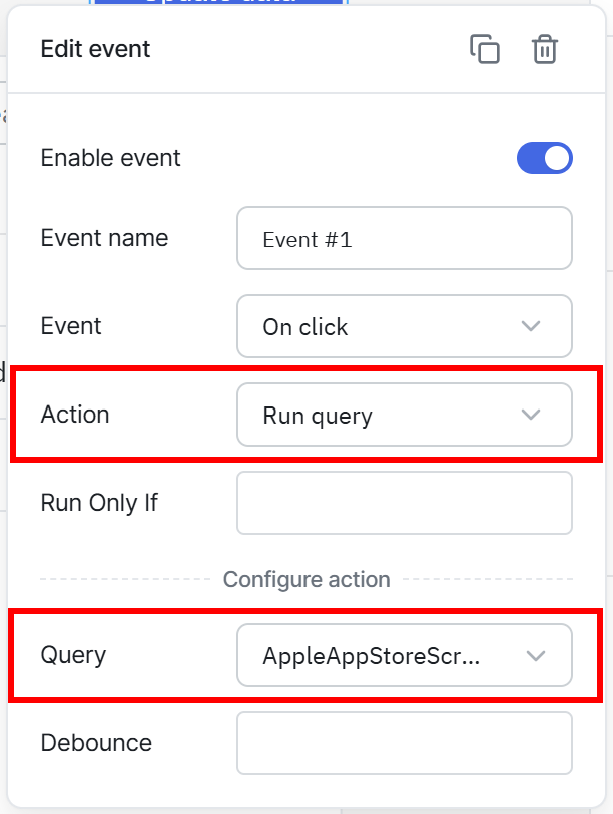
This configuration tells ToolJet to execute the configured Bright Data Scraper API every time the user clicks the button. The API retrieves the latest Apple App Store data in real time. Since the table is already bound to the query (which corresponds to the API response), it will automatically display the updated data as soon as the query completes.
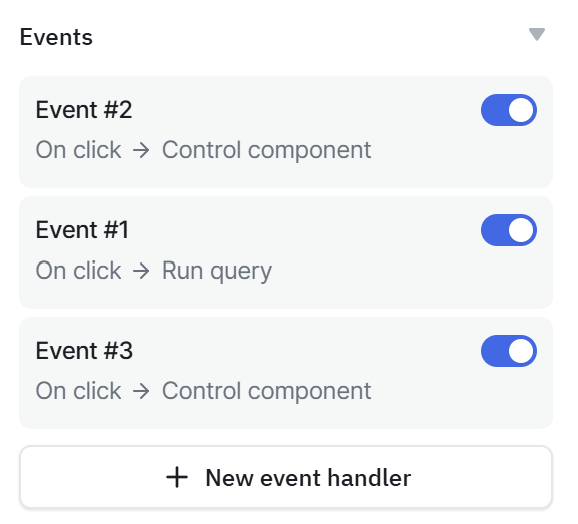
To improve the user experience, you can also add two additional click events: one to enable the table’s loading state before the API call starts, and another to disable it after the new data has been loaded.
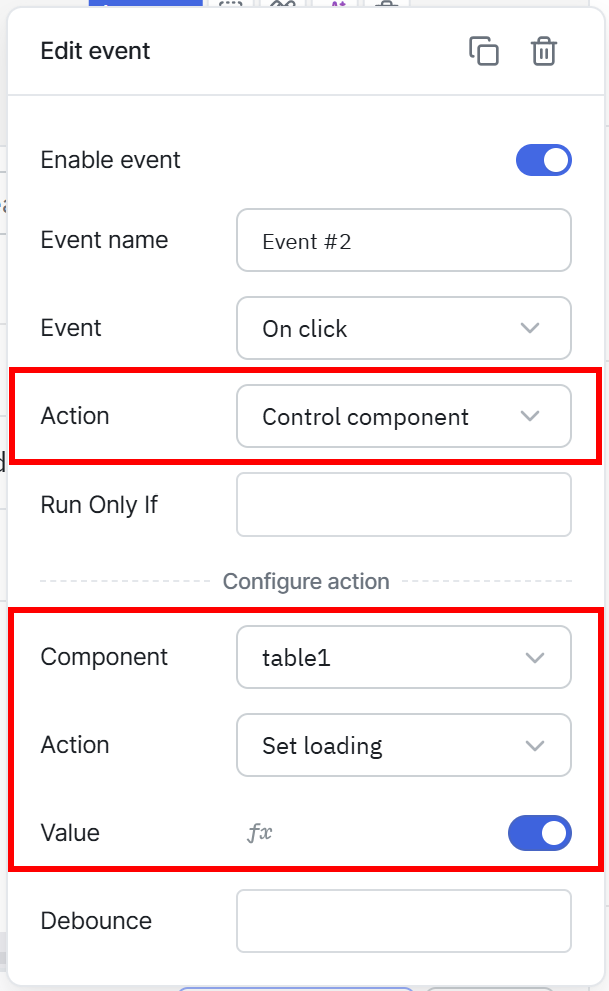
The “Events” section of your “Update data” button should look like this:
Awesome! The frontend of your Bright Data-powered ToolJet application is now complete. All that is left is to test the workflow.
Step #6: Test the Full-Stack Web App for Apple App Store Monitoring
To verify that the application works, click the “Preview” button:
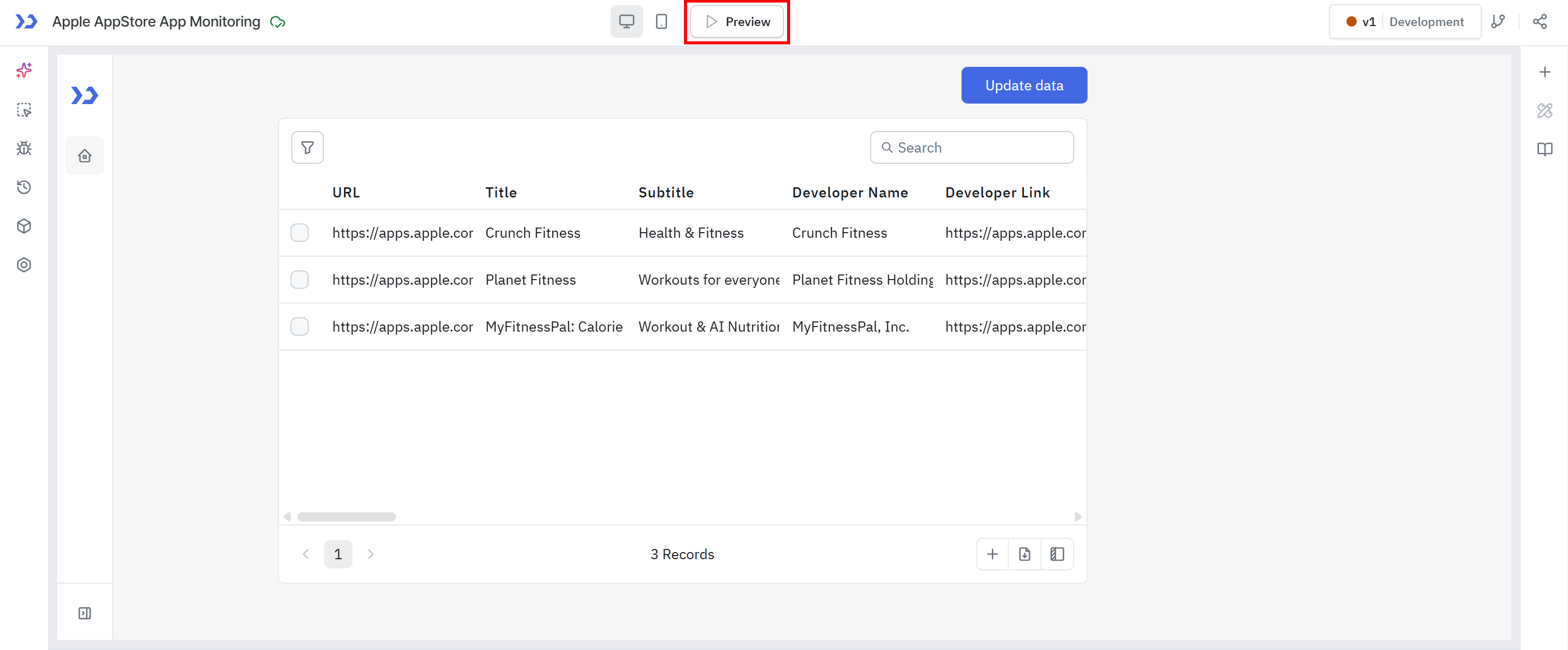
You will now be able to interact with your full-stack application in a dedicated preview page. Initially, the table will show no data.
To test the workflow, click “Update data”. After that:
- The table enters a loading state as expected.
- The “AppleAppStoreScrapingAPI” query is triggered, calling the Bright Data Apple App Store API to dynamically scrape the latest data.
- The table exits the loading state once the request is complete.
- The retrieved data is displayed in the table.
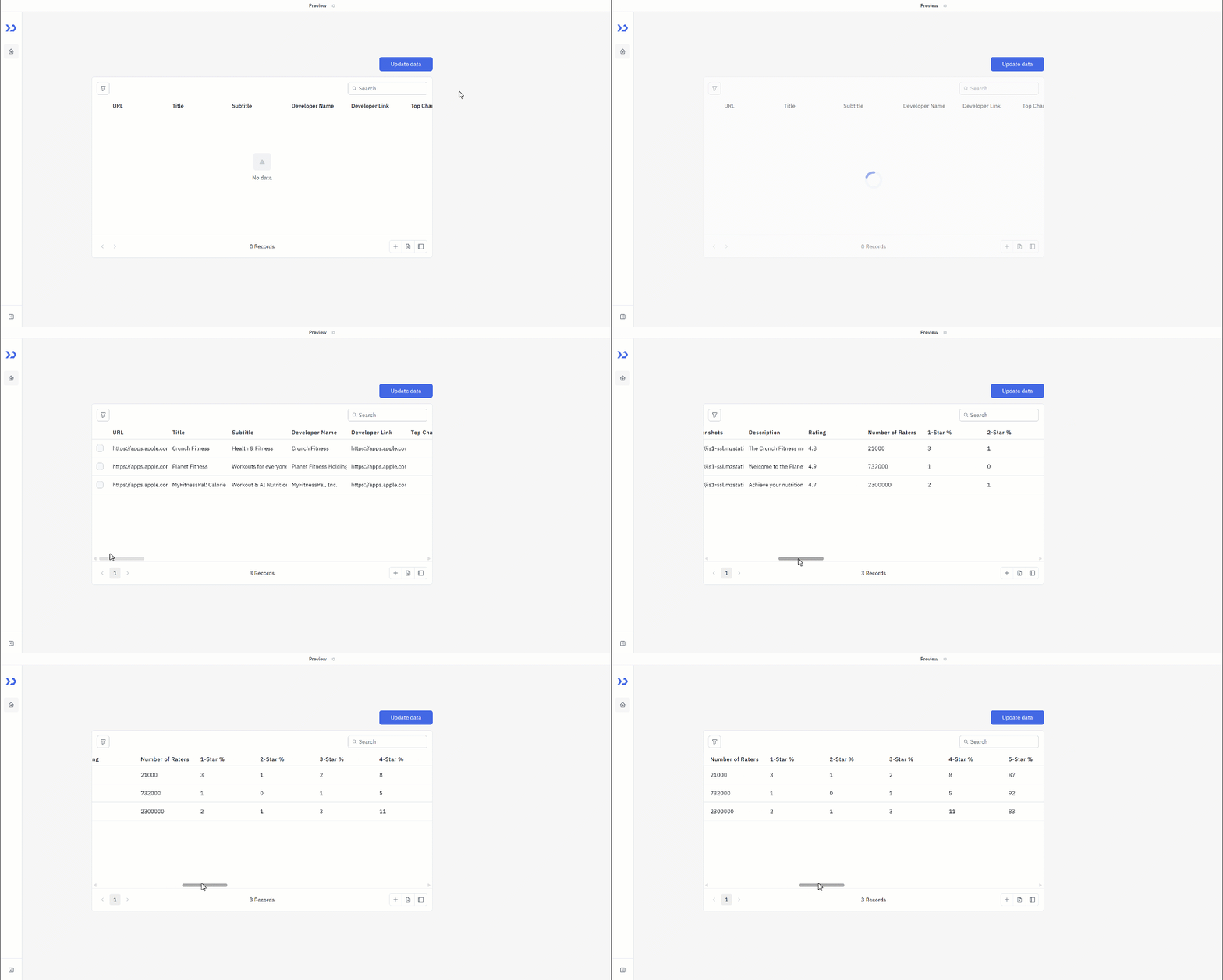
As you can see, the table now contains data such as review ratings, number of raters, and percentage distribution of star ratings. The result is a full-stack App Store monitoring tool that anyone can use, regardless of technical skill.
Et voilà! This demonstrates the power of ToolJet + Bright Data APIs for web scraping and real-time data applications.
Additional ToolJet + Bright Data Use Cases
The example shown in the previous chapter is just one of many use cases supported by the ToolJet + Bright Data combination. Let’s explore some others!
Market and Trend Monitoring Dashboards
The idea is to build dashboards that track emerging market trends across websites, forums, and digital platforms in real time. Bright Data collects and structures live web data, while ToolJet transforms it into visual insights like charts, tables, and KPIs. This allows enterprise teams to quickly identify shifts in demand, new product categories, and evolving user behavior without manual research, enabling faster strategic decision-making.
E-commerce Price and Stock Monitoring Systems
Enterprises can combine Bright Data APIs with ToolJet dashboards to monitor product prices, availability, and variations across multiple e-commerce platforms. The data is automatically collected and normalized, then displayed in ToolJet apps for procurement, pricing strategy, or marketplace optimization teams. This enables dynamic pricing decisions and faster reaction to stock shortages or competitor discounts.
Brand Reputation Platforms
Using Bright Data to collect reviews, ratings, and user feedback from platforms like app stores or marketplaces, ToolJet can transform this into a live sentiment and reputation monitoring system. Businesses can track rating trends, detect negative spikes, and analyze customer feedback in real time. This helps marketing and product teams respond faster to user sentiment shifts.
Lead Generation and Market Mapping Tools
Bright Data can gather structured business and contact data from directories, search engines, and public sources, while ToolJet turns it into internal lead management tools. Teams can filter, segment, and prioritize leads visually, build automated enrichment workflows, and track outreach performance. This creates scalable, data-driven prospecting systems for B2B sales and growth teams.
Conclusion
In this blog post, you learned what ToolJet is. You also realized why integrating it with Bright Data helps enterprises complement internal data with live, fresh, high-quality web data.
As shown, the integration only takes a few clicks thanks to the Bright Data APIs. These support web scraping, search, large-scale crawling, and much more. The result is a set of enterprise-grade web apps for a wide range of use cases, from market monitoring to brand reputation analysis.
If you need help with the Bright Data integration in ToolJet, feel free to contact our 24/7 support team.
Create a Bright Data account today and start exploring our AI-ready web data solutions!



Technical Writer
 5.5 years experience
Antonello Zanini is a technical writer, editor, and software engineer with 5M+ views. Expert in technical content strategy, web development, and project management.