In this article, you will learn:
- What the Oracle Generative AI Agents Service is and what it brings to the table.
- Why enterprise AI agents need access to live web data for contextual market insights, and how Bright Data makes that possible.
- How to build an Oracle Generative AI Agent with web access using custom Bright Data,powered tools.
Let’s dive in!
What Is the Oracle Generative AI Agents Service?
Oracle Generative AI Agents is a fully managed OCI (Oracle Cloud Infrastructure) service for building and deploying AI agents. These agents can understand natural language, retain conversation context, orchestrate tools, access enterprise data, and automate complex workflows.
Common use cases include customer support, technical troubleshooting, legal and financial research, content creation, educational tutoring, supply chain analysis, real estate insights, and travel assistance.
Main Features
The core capabilities offered by Oracle Generative AI Agents are:
- Simple agent setup: Create and deploy AI agents through a guided, fully managed setup process without managing infrastructure.
- Multi-turn conversations: Support natural, human-like conversations with context-aware interactions across multiple messages.
- Context retention: Remember previous conversation turns to provide personalized, consistent, and relevant responses.
- Custom instructions: Define agent behavior, tone, goals, and routing logic through configurable instructions.
- Built-in guardrails: Help protect against prompt injection attacks, moderate content, and detect sensitive PII data.
- Human-in-the-loop support: Enable human review and intervention for sensitive actions and business-critical operations.
- Enterprise scalability and security: Run on OCI’s secure, scalable infrastructure with enterprise-grade reliability and governance.
- Built-in and custom tools: Extend agents with SQL, RAG, agent-to-agent orchestration, function calling, and custom API integrations.
Find out more in the official docs.
Why Enterprise Oracle AI Agents Need Web Access
To make business-ready decisions, enterprise AI agents need access to external market data. This includes current trends, competitor activity, customer sentiment, breaking news, and regulatory updates.
The challenge is that LLMs are not connected to the live web by default. As a result, they face two key limitations:
- No access to real-time information: LLMs cannot natively retrieve up-to-date web content.
- Limited access to websites: Many websites employ anti-bot technologies that prevent automated systems from collecting data.
Those constraints can be overcome by extending AI agents with external tools and integrations.
This is precisely why Oracle Generative AI Agents supports multiple tool options. In particular, the API endpoint calling tool allows them to securely connect to external API-based services, such as Bright Data.
Bright Data as the Solution
Bright Data is the leading enterprise-grade, AI-ready web data platform. It enables you to ethically collect, structure, and analyze public web data at scale thanks to a comprehensive suite of products.
Those include:
- Unlocker API: Bypasses CAPTCHAs, anti-bot systems, and website blocks to retrieve data from any web page.
- SERP API: Delivers structured, real-time search engine results from Google, Bing, Yandex, and other major search engines.
- Crawl API: Supports large-scale website crawling and automated data extraction.
- Scraper APIs: Provide structured data extraction from more than 120 popular websites and platforms.
What makes Bright Data stand out is its network of over 400 million residential IPs spanning 195 countries. This infrastructure enables highly scalable, geographically distributed web data collection while achieving a 98.50% success rate and an SLA-backed 99.99% uptime. It is also compliant with all major privacy and security frameworks, including GDPR and CCPA.
By integrating Bright Data through API endpoint calling tools, Oracle Generative AI Agents can search the web, access fresh online information, retrieve data from websites, and incorporate real-world context into their responses. This leads to more accurate, up-to-date, and actionable results.
Integrating Bright Data with an Oracle Generative AI Agent
In this step-by-step section, you will learn how to build an Oracle Generative AI Agent integrated with Bright Data. In detail, you will see how to define two custom API endpoint calling tools to connect to Bright Data’s Web Unlocker API and SERP API.
The SERP API enables the agent to discover new sources, while the Web Unlocker API allows it to access content from them. Together, they enable the powerful search-and-extract pattern. This helps agents autonomously ground their responses in real-time, verifiable, contextual web data and produce more factual, enterprise-grade results.
Follow the instructions below!
Prerequisites
To follow along with this section, make sure you have:
- An Oracle Cloud account (a free-tier account is sufficient).
- A Bright Data account with an API key configured. Follow the official guide to set up your Bright Data API key.
Step #1: Set Up a VCN
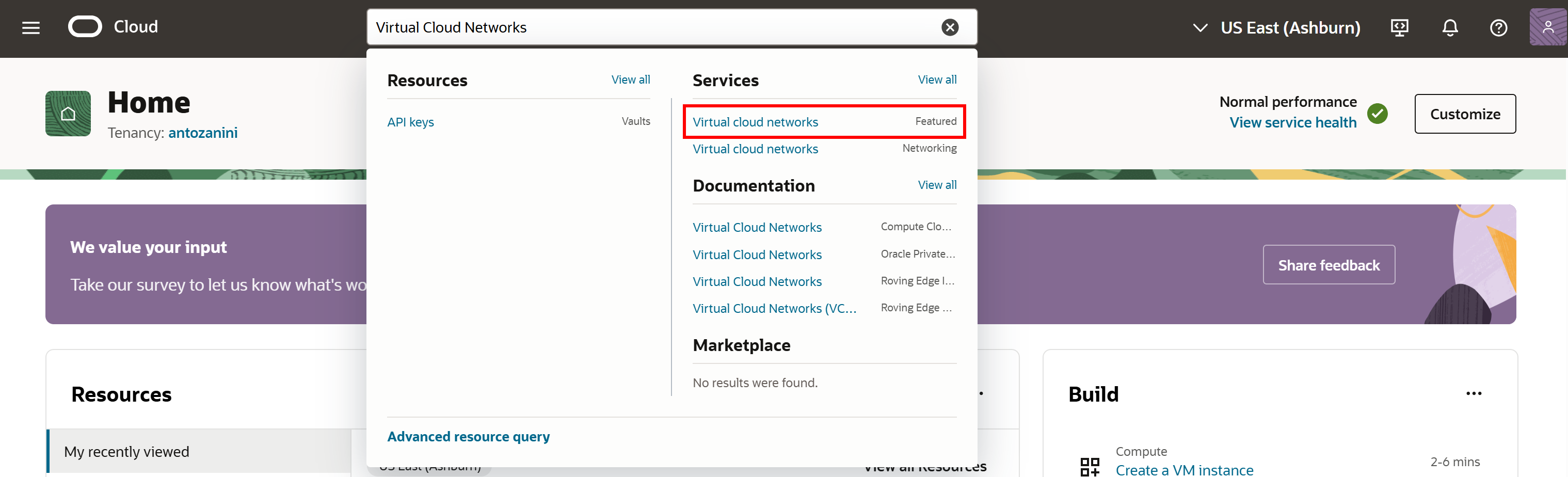
Log in to your Oracle account, search for “Virtual Cloud Networks”, and select the corresponding service:
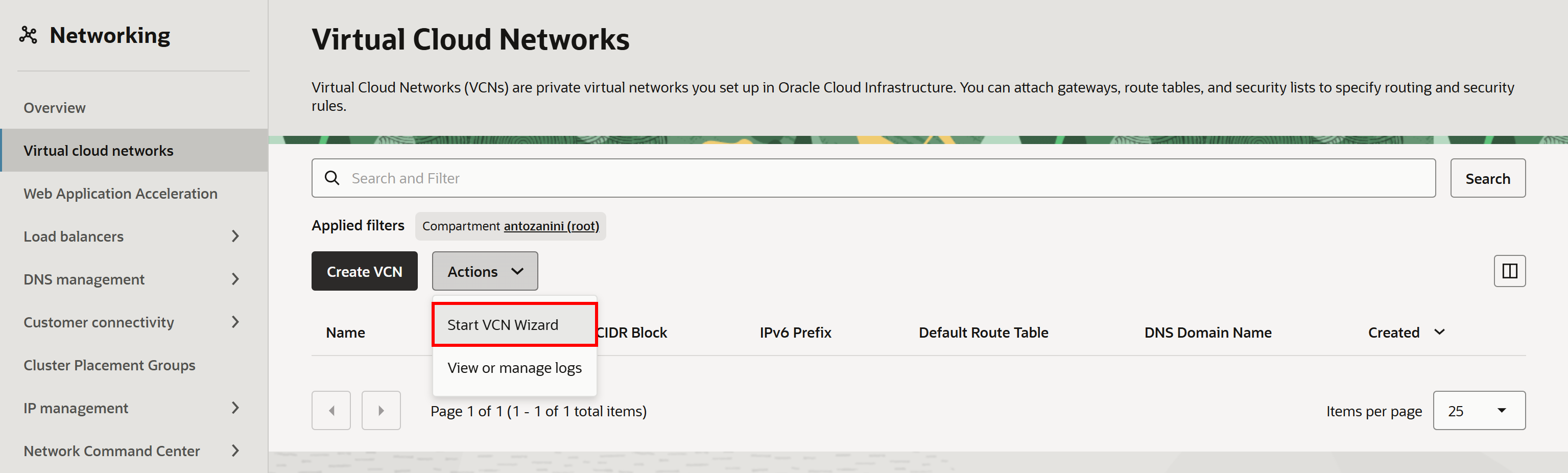
On the “Virtual Cloud Networks” page, open the “Actions” dropdown and select “Start VCN Wizard”:
Next, choose the “Create VCN with Internet Connectivity” option and follow the setup wizard:
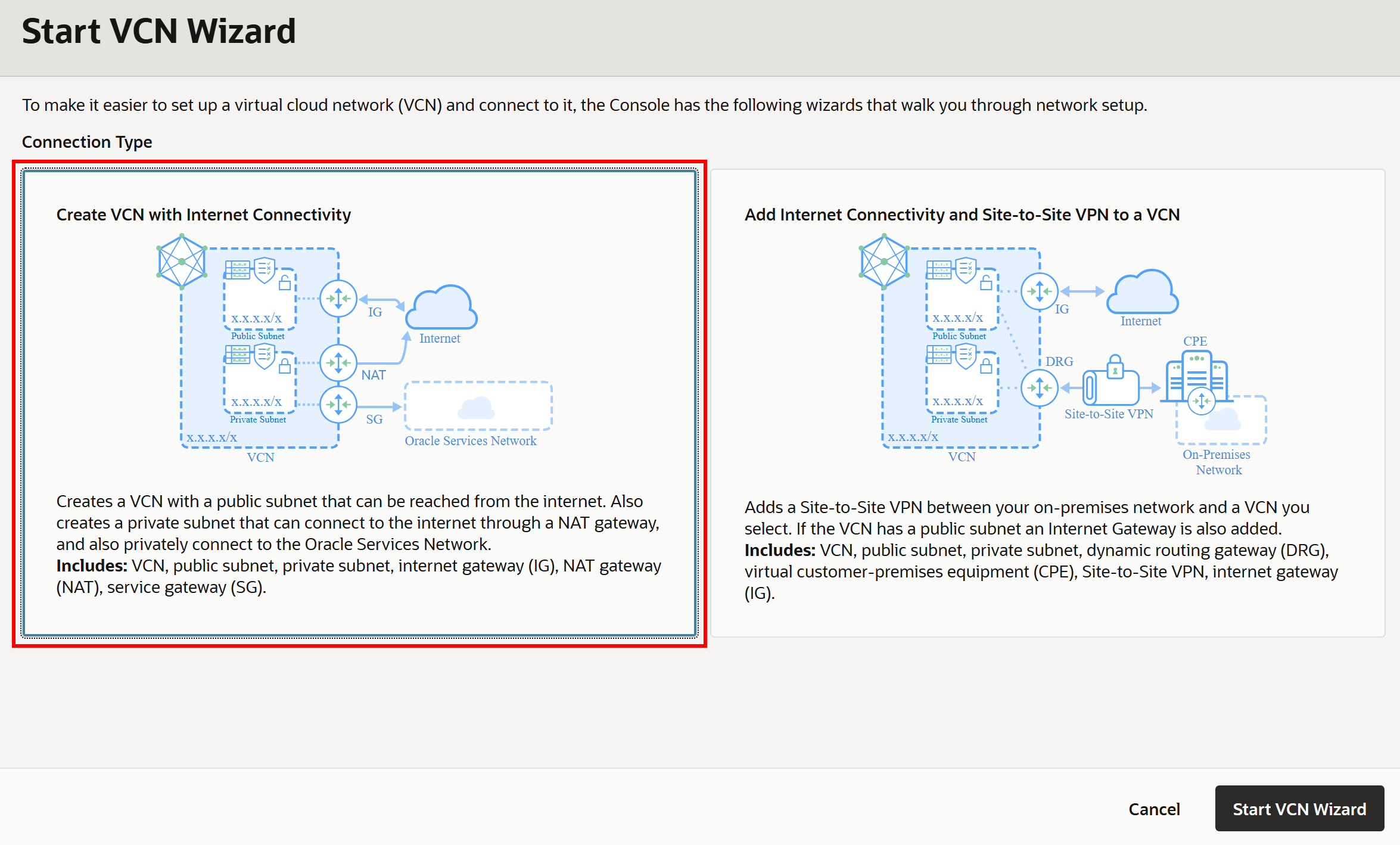
Give your VCN a name (e.g., “ai”) and continue through the wizard. The default settings work fine for this setup.
Note: The “DNS Resolution” feature must be enabled for the subnet. Otherwise, custom tools will not be able to call external endpoints. However, that feature is enabled by default when using the OCI networking wizard, so there is nothing to worry about.
Once the VCN is created, you should see something like this:
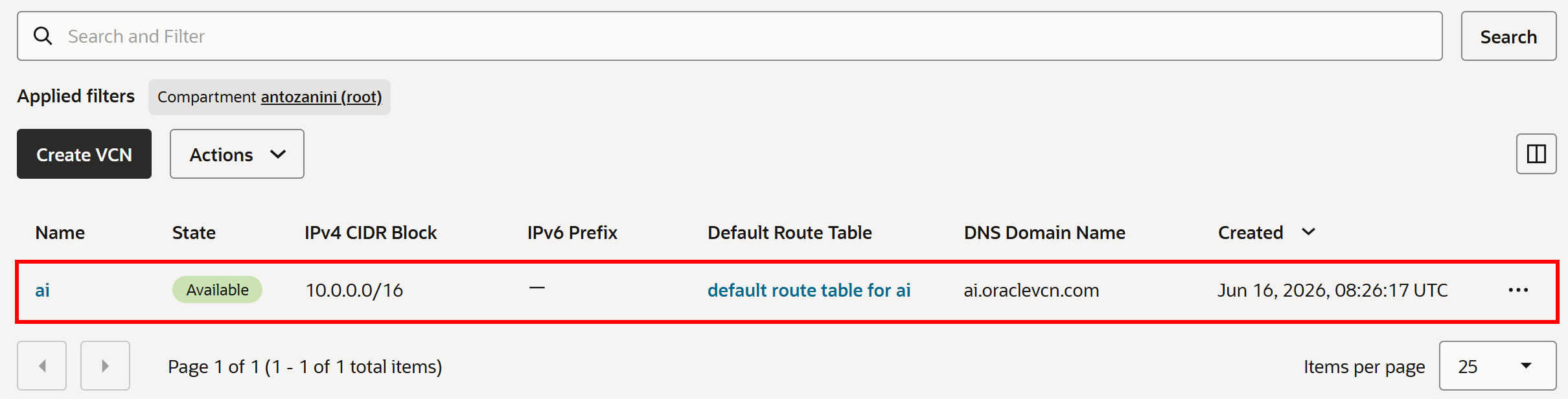
Great! You now have an OCI Virtual Cloud Network (VCN) with a subnet that the Bright Data tools can use to route their HTTP traffic.
Step #2: Store Your Bright Data API Key in an Oracle Vault
Start by following the official Oracle guide to set up an Oracle Vault (with an encryption key). Next, search for “Secret Management” in your Oracle account and open the service. Click the “Create secret” button:

In the “Create secret” form, give your secret a name (e.g., “bright-data-api-key-bearer”), select your Oracle Vault and encryption key, and then choose the “Manual secret generation” option. Populate the secret value using this format:
Bearer <BRIGHT_DATA_API_KEY>Replace the <BRIGHT_DATA_API_KEY> placeholder with your actual Bright Data API key.
Note: The “Bearer” prefix before the API key is required. That is the standard token-based format to be set in the Authorization header for Bright Data APIs authentication.
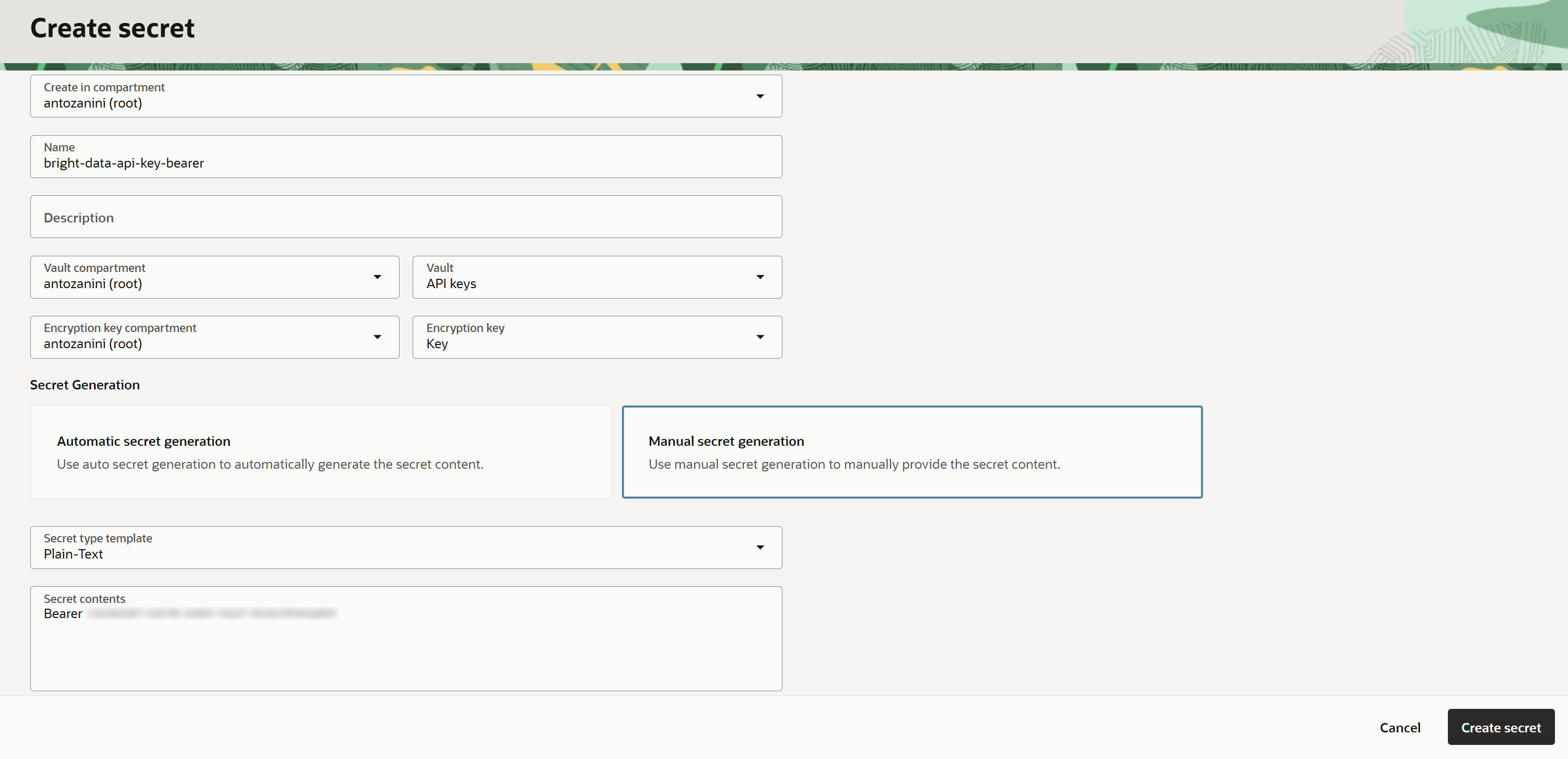
Press “Create secret” to finalize the secret creation. You should now see your secret listed on the “Secrets” page:
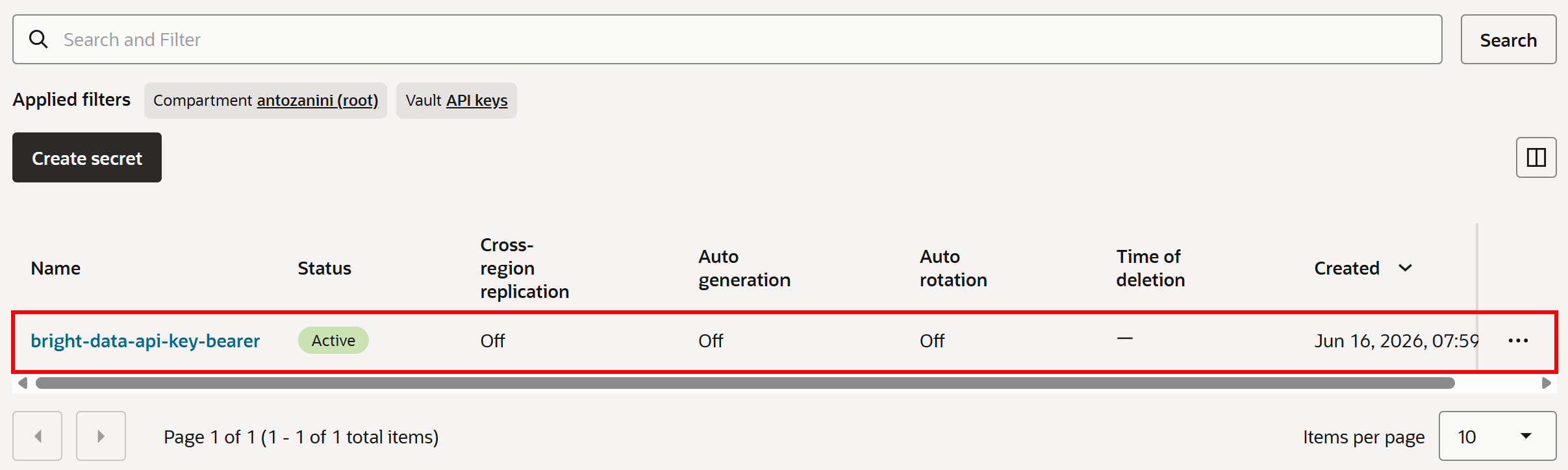
Cool! This secret will be used to authenticate requests made by the custom agent tools to the Bright Data APIs.
Step #3: Add the Required IAM Policies
By default, the Oracle Generative AI service does not have access to secrets stored in your Vault. To enable that, you must add the correct IAM policy.
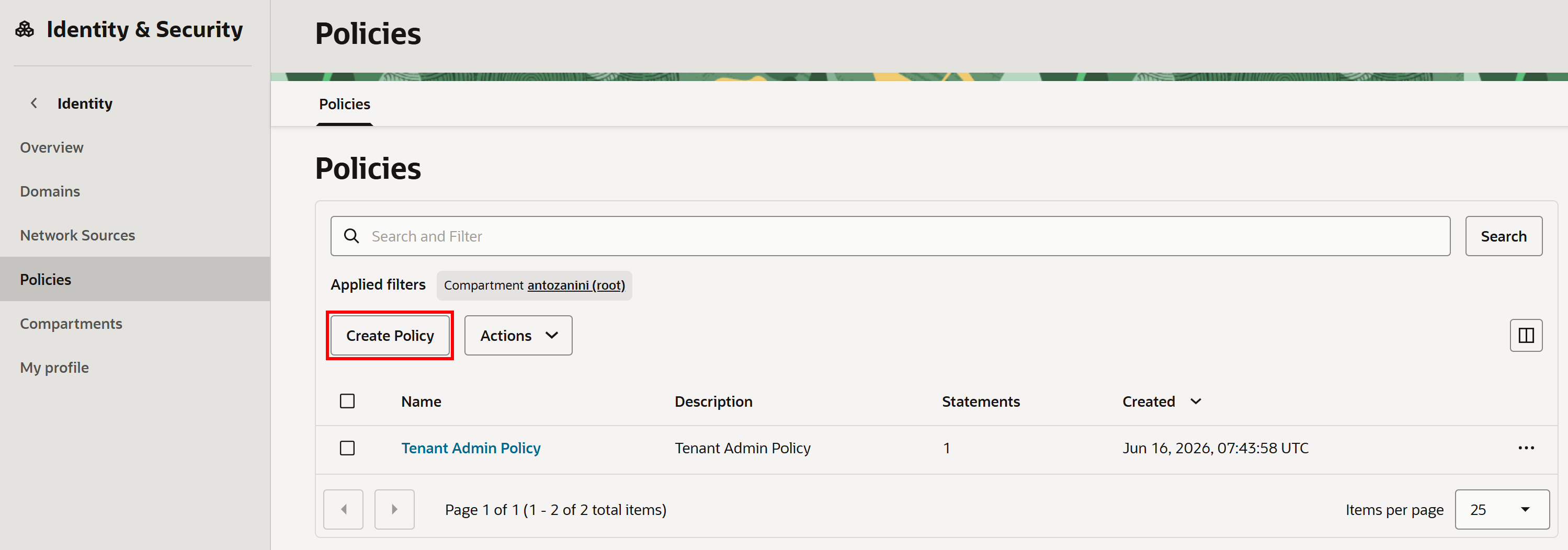
Search for “Policies” in the OCI Console and open the corresponding page. Then click “Create Policy”:
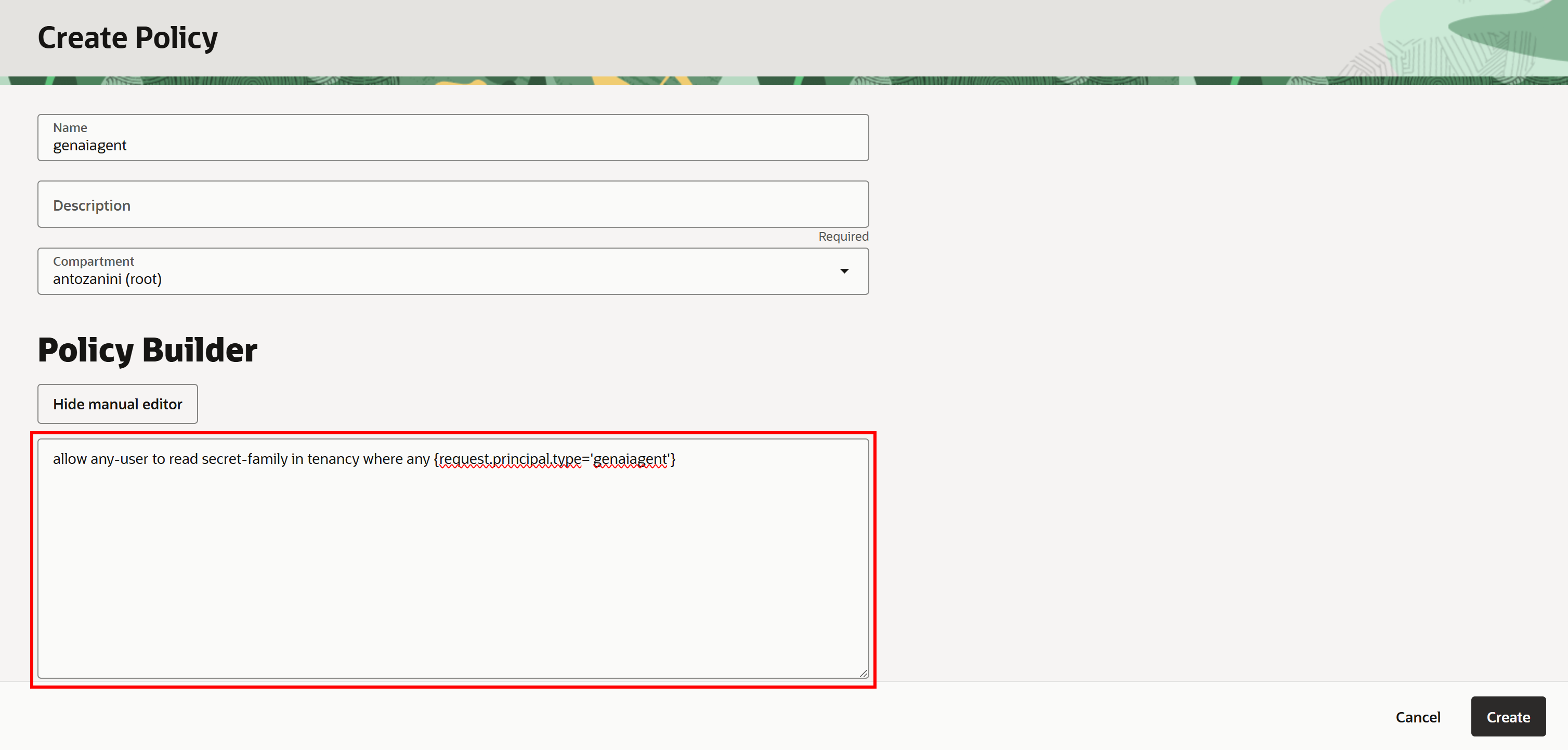
In the “Create Policy” form, give your policy a name (e.g., “genaiagent”). Then click “Show manual editor” and paste the following IAM policy:
allow any-user to read secret-family in tenancy where any {request.principal.type='genaiagent'}This policy allows any Generative AI Agent to read secrets stored in OCI Vault instances across the tenancy, including the “bright-data-api-key-bearer” secret created earlier.
Click “Create” to confirm the policy creation:
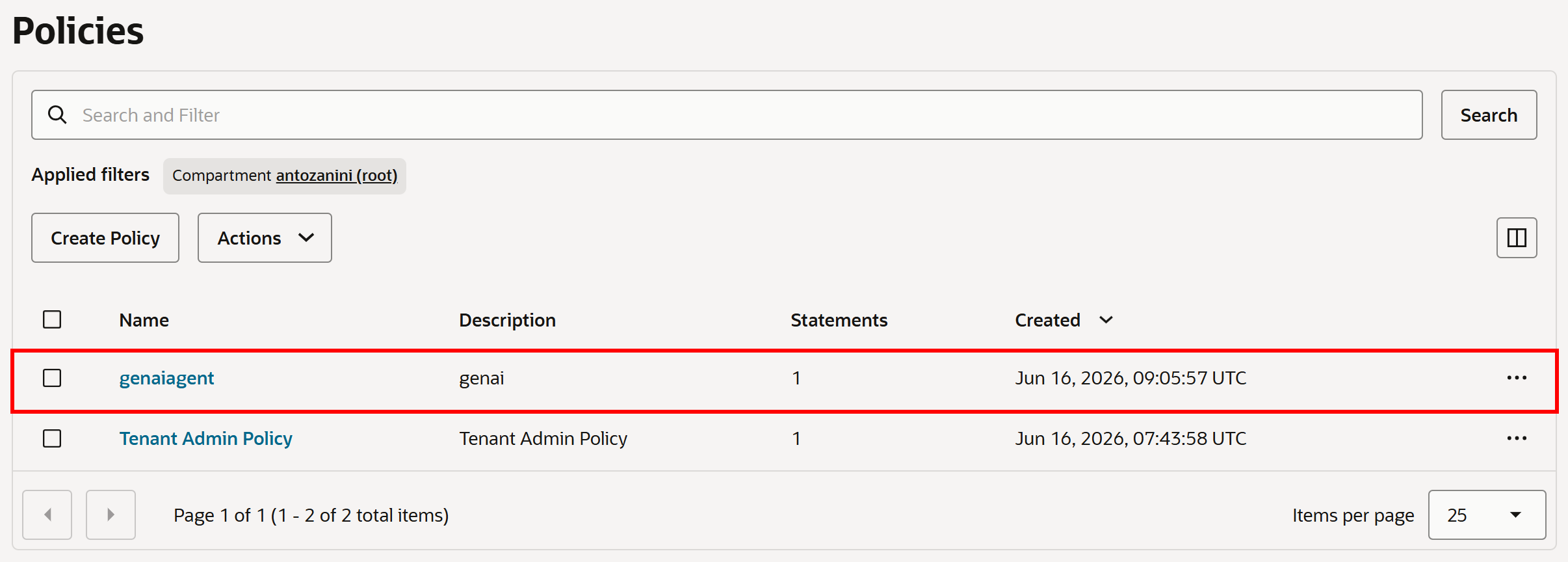
After creation, the policy will appear in the “Policies” page:
Alternatively, you can follow the official guide to set up a dynamic group to achieve the same goal.
Well done! You now have all the building blocks needed to build Oracle Generative AI Agents that can connect to Bright Data via custom tools.
Step #4: Initialize Your Web Access Agent
Search for “Agents” and open the corresponding page in the “Generative AI Agents” service:

Continue by pressing the “Create agent” button:

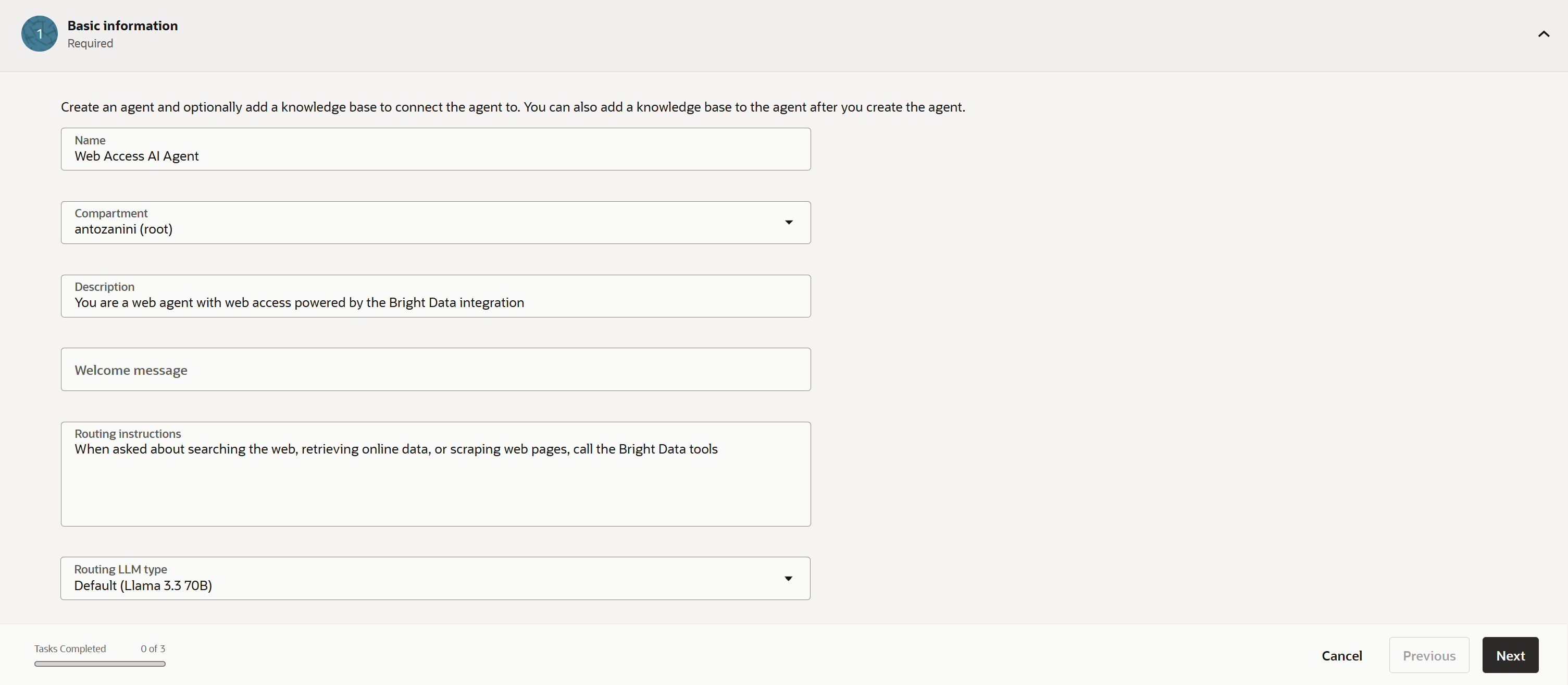
This will launch the agent creation wizard. Fill out the form as follows:
- Name:
Web Access AI Agent - Description:
You are a web agent with web access powered by the Bright Data integration - Routing instructions:
When asked to search the web, retrieve online data, or scrape web pages, use the Bright Data tools
Then select your preferred LLM as the agent’s brain. In this case, the default Llama 3.3 70B model is sufficient.
Perfect! Click “Next” to proceed to the “Tools” section of the wizard. Before defining the Bright Data integration tools, let’s kick things off.
Step #5: Get Started with Bright Data’s Unlocker API and SERP API
It is time to create the Unlocker API and SERP API in your Bright Data account. For a quick setup, refer to the official documentation pages:
Otherwise, follow the instructions below.
If you have not already, create a Bright Data account. If you already have one, log in and open the control panel:
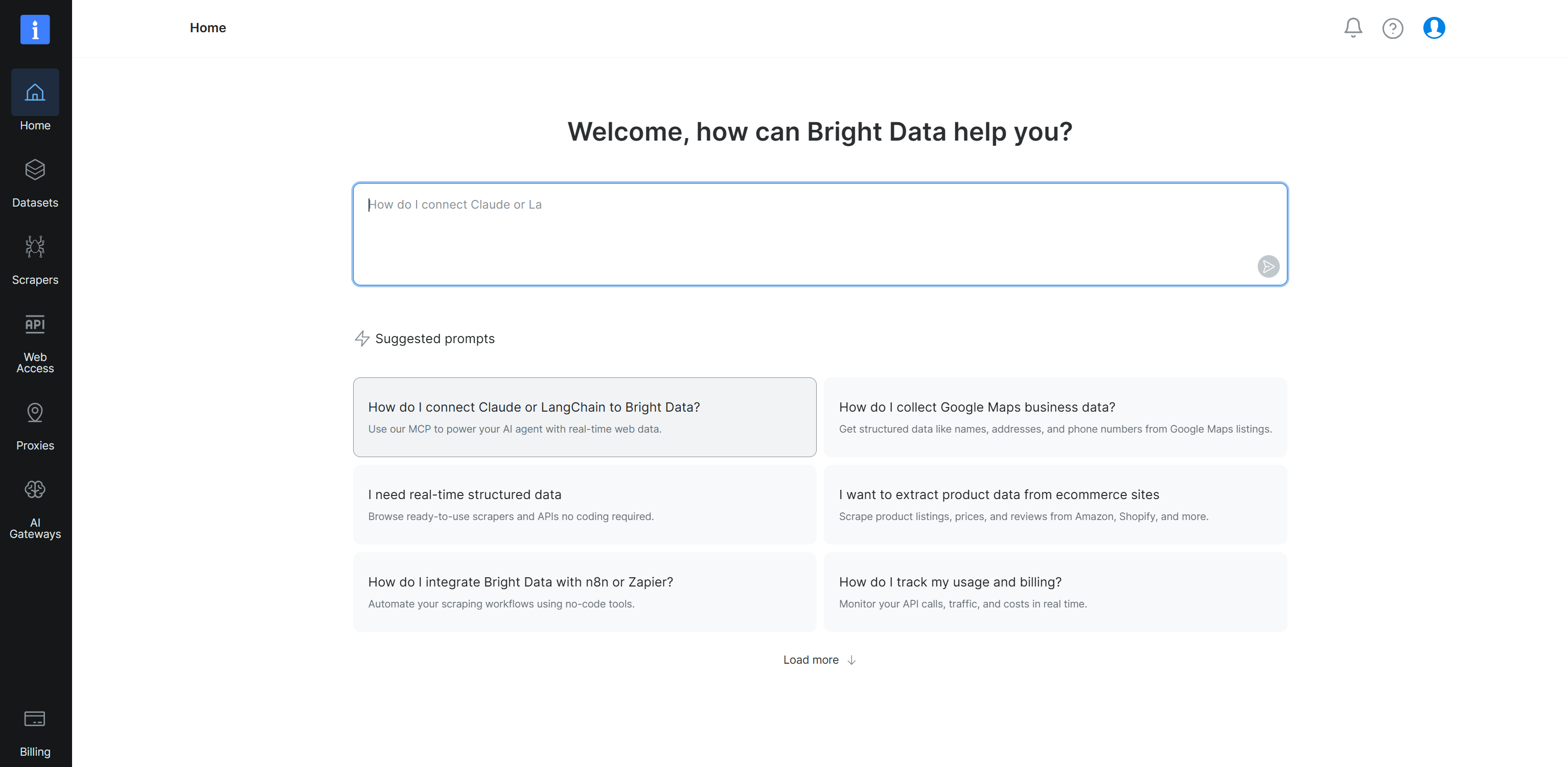
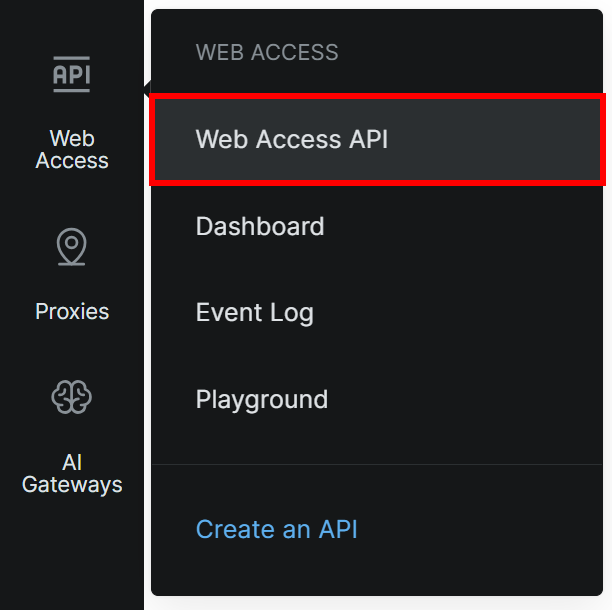
Next, navigate to “Web Access > Web Access API” from the left-hand menu:
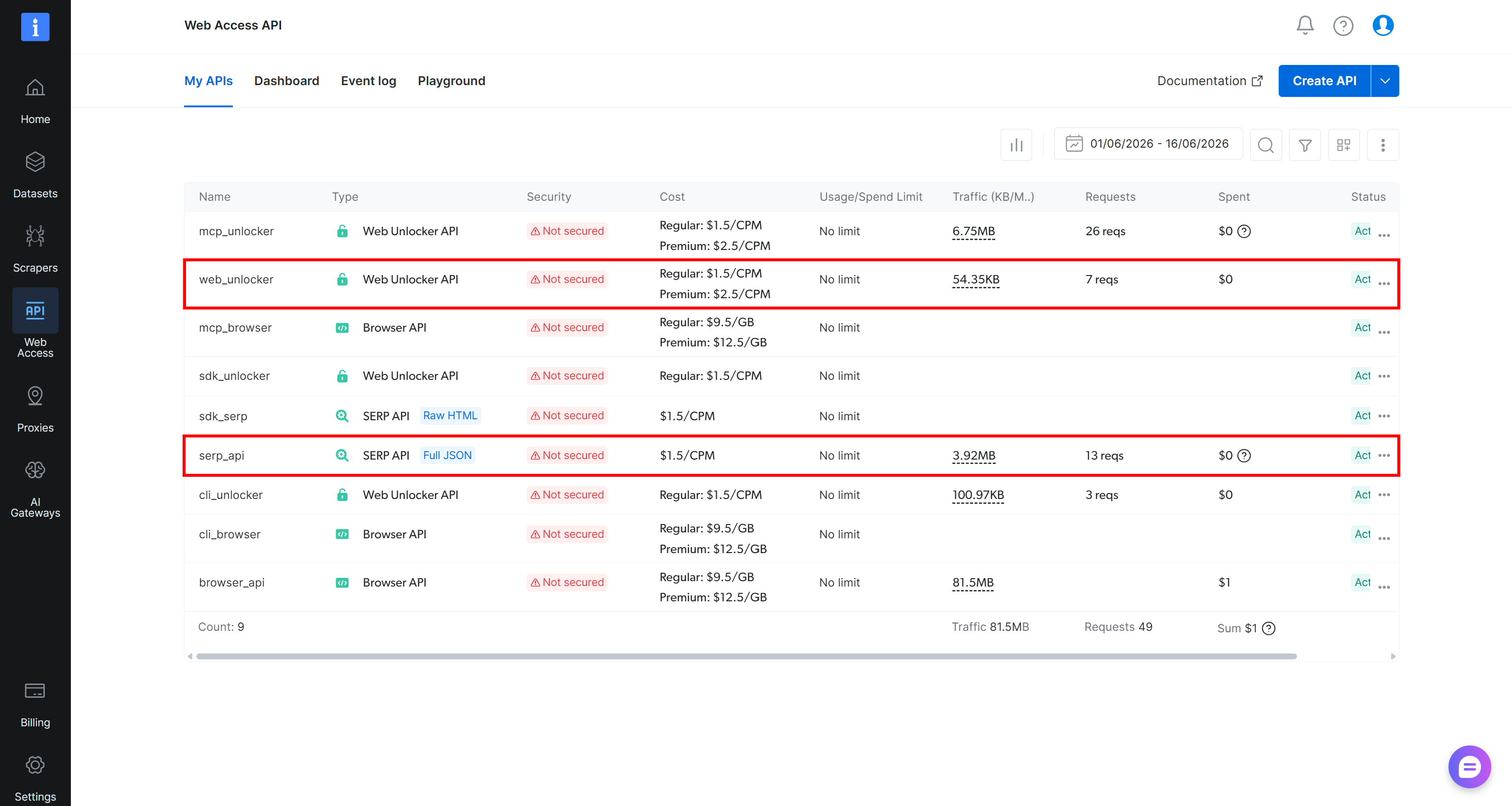
If you already see “Web Unlocker API” and “SERP API” entries in the “My APIs” table, you are good to go:
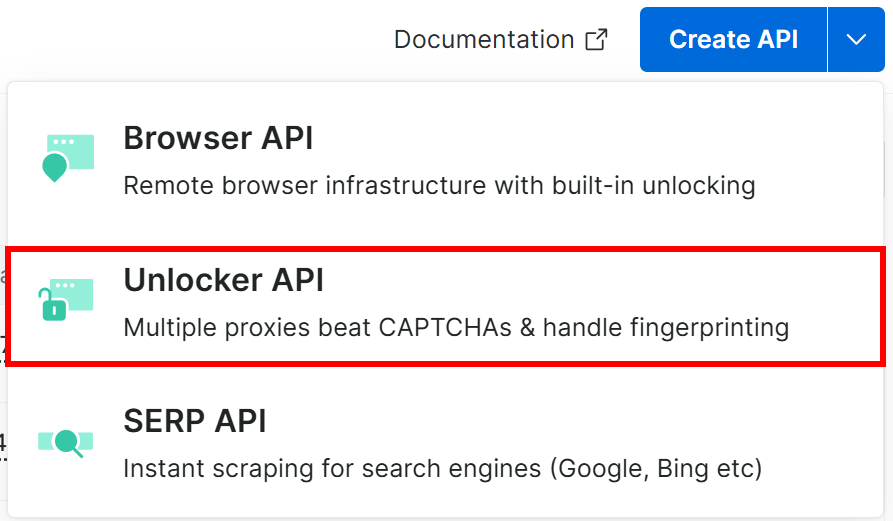
If not, click the dropdown on the Create API button and select “Unlocker API” (or “SERP API” if you want to create that instead):
This will launch the Unloker/SERP API API setup wizard. Give your API a name (e.g., unlocker_api/serp_api) and configure the API according to your needs:
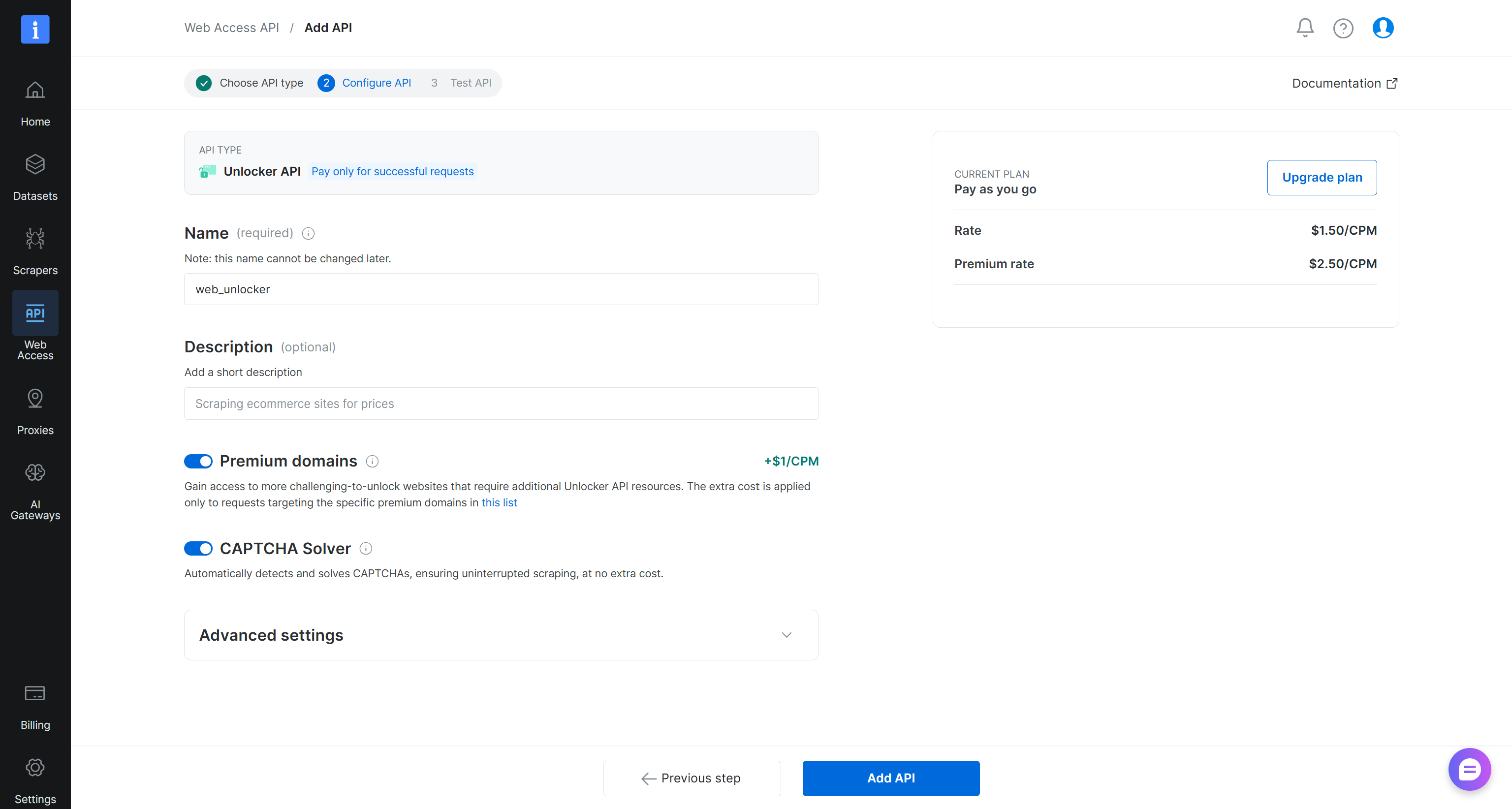
When you are done, click “Add API”. From now on, we will assume you set the following API names:
unlocker_apifor the Bright Data Unlocker API.serp_apifor the Bright Data SERP API.
You are now ready to define custom API endpoint calling tools that connect to these APIs. Excellent!
Step #6: Create a Custom Tool for Web Unlocker API Integration
Go back to the Generative AI Agent creation wizard. In the Tools section, click “Add tool”.
To create a tool for Unlocker API integration, select the “Custom tool” option. Then fill in the form like this:
- Name:
Web Unlocker API - Description:
An automated web scraping tool that extracts content from web pages and bypasses anti-bot protections
In the “Tool configuration” section, select the “API endpoint calling (agent execution)” option:
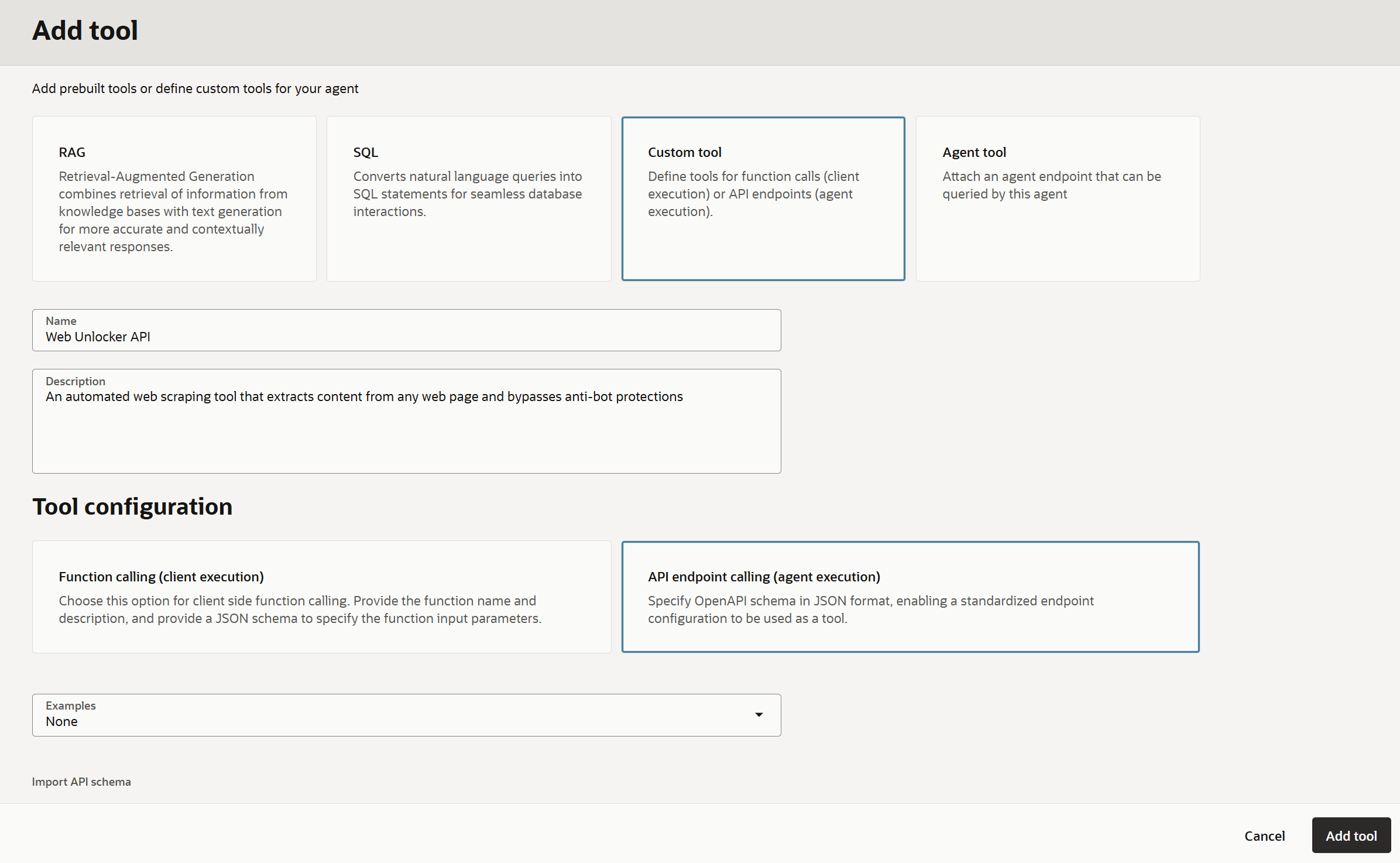
In the “Examples” section, choose “None” to start with a blank canvas, then paste the following OpenAPI specification:
{
  "openapi": "3.0.4",
  "info": {
    "title": "Bright Data Web Unlocker API",
    "version": "1.0.0",
    "description": "Bright Data Unlocker API enables you to bypass anti-bot measures. It manages proxies and solves CAPTCHAs automatically for easier web data collection.\n\n\[Web Unlocker API documentation\](https://docs.brightdata.com/scraping-automation/web-unlocker/introduction)\n"
  },
  "servers": [
    {
      "url": "https://api.brightdata.com"
    }
  ],
  "paths": {
    "/request": {
      "post": {
        "operationId": "sendWebUnlockerRequest",
        "summary": "Send a Web Unlocker API request",
        "description": "Submit a Web Unlocker API request using your Bright Data Web Unlocker API zone.\n\n\[Web Unlocker API `/request` documentation\](https://docs.brightdata.com/api-reference/rest-api/unlocker/unlock-website)\n",
        "requestBody": {
          "required": true,
          "content": {
            "application/json": {
              "schema": {
                "type": "object",
                "required": ["zone", "url", "format"],
                "properties": {
                  "zone": {
                    "type": "string",
                    "description": "Your Web Unlocker zone name.",
                    "default": "unlocker_api"
                  },
                  "url": {
                    "type": "string",
                    "description": "The target website URL to unlock and fetch.",
                    "example": "https://example.com/products"
                  },
                  "format": {
                    "type": "string",
                    "description": "Response format.\nAllowed values:\n- raw: Returns the response immediately in the body.\n- json: Returns the response as a structured JSON object.",
                    "default": "raw"
                  },
                  "method": {
                    "type": "string",
                    "description": "HTTP method used when fetching the target URL.",
                    "example": "GET"
                  },
                  "country": {
                    "type": "string",
                    "description": "Country code for proxy location (ISO 3166-1 alpha-2 format).",
                    "example": "us"
                  }
                }
              }
            }
          }
        },
                "responses": {
          "200": {
            "description": "Successful response containing search results."
          },
          "400": {
            "description": "Invalid request (missing required fields or invalid parameters)."
          },
          "401": {
            "description": "Unauthorized (invalid or missing Bright Data API key)."
          }
        }
      }
    }
  }
}
This corresponds to the Bright Data Web Unlocker OpenAPI spec. For more reference, read the “OpenAPI Specs: AI Integration with SERP & Unlocker APIs” guide.
Important: Note the "default": "unlocker_api" field under the zone property. This is essential because it instructs the AI agent on how it should call your Bright Data Unlocker API. Replace "unlocker_api" with the actual name of your Unlocker API.
To configure the authentication method, fill out the form as follows:
- Authentication type:
API key - Key location:
Header - Key name:
Authorization - Secret value:
bright-data-api-key-bearer(or the name of your stored Bright Data API key secret) - VCN:
ai(or the name of your Oracle VCN) - Subnet:
private-subnet-ai(Critical: Select a private subnet, or all your tool calls will fail with500errors)
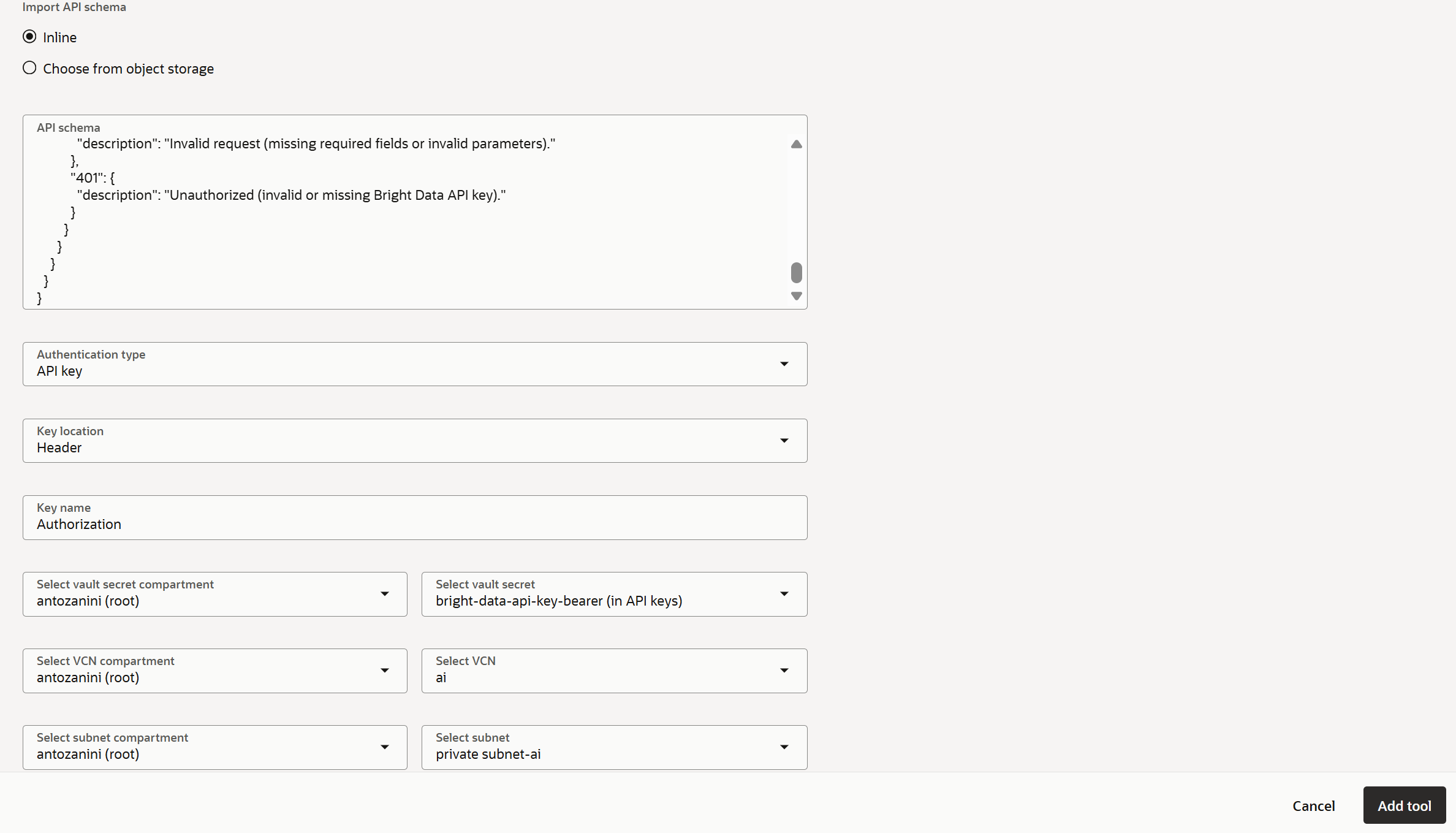
This configures the custom tool with the required authentication method by Bright Data. Also, it ensures that API calls to the Unlocker API are executed through the OCI VCN private subnet.
Finally, click “Add tool” to complete the setup. The Bright Data-powered web scraping tool will now be available to your agent. Terrific!
Step #7: Create the SERP API Tool
An agent with scraping capabilities alone is limited without the ability to autonomously discover web content. This is where the Bright Data SERP API comes in!
Click “Add tool” again and repeat the process as you did before. This time, fill out the form with:
- Name:
SERP API - Description:
An endpoint that provides real users'search results at high volume across major search engines, including Google
Next, paste the following spec:
{
  "openapi": "3.0.4",
  "info": {
    "title": "Bright Data SERP API",
    "version": "1.0.0",
    "description": "Extract search engine results using Bright Data SERP API. Extract structured data from major search engines, including Google, Bing, Yandex, DuckDuckGo, and more.  \nGet organic results, paid ads, local listings, shopping results, and other SERP features.\n\[SERP API documentation\](https://docs.brightdata.com/scraping-automation/serp-api/introduction)\n"
  },
  "servers": [
    {
      "url": "https://api.brightdata.com"
    }
  ],
  "paths": {
    "/request": {
      "post": {
        "operationId": "sendSerpRequest",
        "summary": "Send a SERP API request",
        "description": "Submit a SERP API request using your Bright Data SERP API zone.  \n\n\[SERP API `/request` documentation\](https://docs.brightdata.com/api-reference/rest-api/serp/scrape-serp)\n",
        "requestBody": {
          "required": true,
          "content": {
            "application/json": {
              "schema": {
                "type": "object",
                "required": [
                  "zone",
                  "url",
                  "format"
                ],
                "properties": {
                  "zone": {
                    "type": "string",
                    "description": "The name of your SERP API zone.",
                    "default": "serp_api"
                  },
                  "url": {
                    "type": "string",
                    "description": "The search engine URL to query (e.g., `https://www.google.com/search?q=<search_query>`).",
                    "example": "https://www.google.com/search?q=pizza&hl=en&gl=us"
                  },
                  "format": {
                    "type": "string",
                    "description": "Response format.  \nAllowed values:  \n- `raw`: Returns the response immediately in the body.  \n- `json`: Returns the response as a structured JSON object.  \n",
                    "default": "raw",
                    "enum": [
                      "raw",
                      "json"
                    ]
                  },
                  "country": {
                    "type": "string",
                    "description": "Country code for proxy location (ISO 3166-1 alpha-2 format). \n",
                    "example": "us"
                  }
                }
              }
            }
          }
        },
        "responses": {
          "200": {
            "description": "Successful response containing search results."
          },
          "400": {
            "description": "Invalid request (missing required fields or invalid parameters)."
          },
          "401": {
            "description": "Unauthorized (invalid or missing Bright Data API key)."
          }
        }
      }
    }
  }
}Important: As stressed before, make sure the default field under the zone property matches your SERP API name.
After adding this tool, this is what you should see:
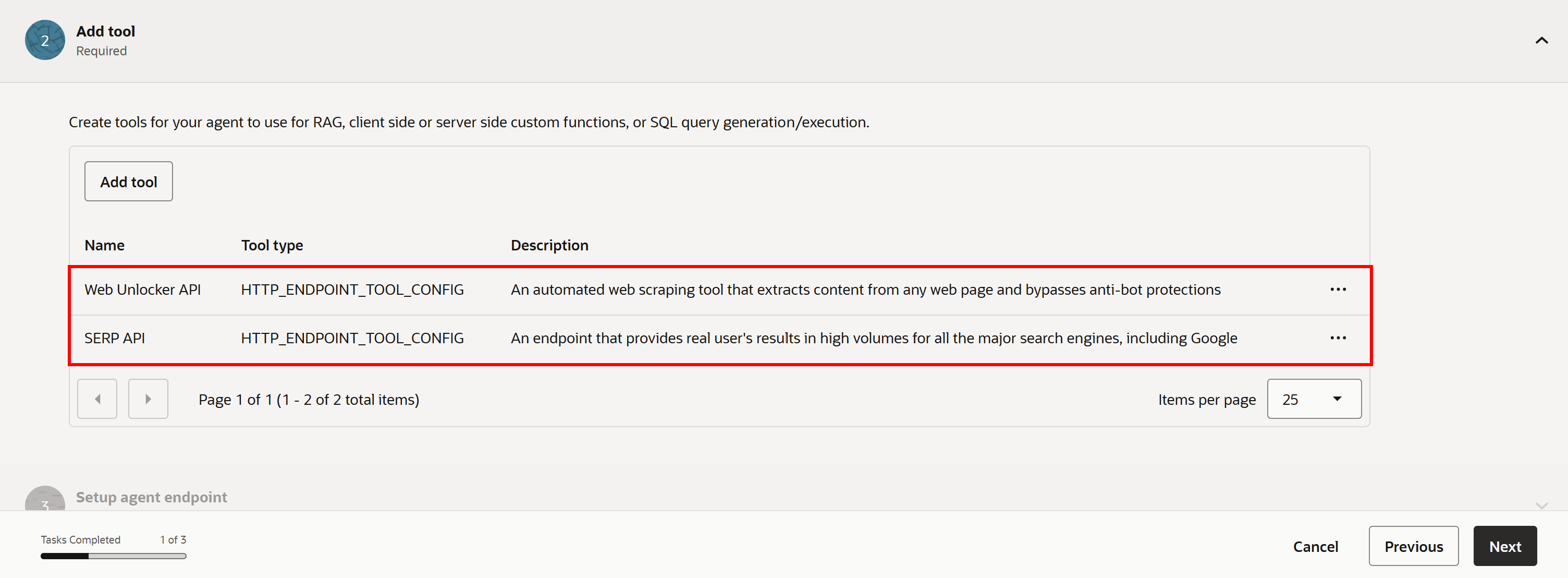
Note: In a similar way, you can connect all other API-based Bright Data solutions.
Sweet! It only remains to do the final touch-ups.
Step #8: Finalize the Agent Creation
Click “Next” to proceed to the agent endpoint setup. That is required to test the agent. Then, review all agent information, click “Create agent”, and accept the Llama 3 license agreement.
You will be redirected back to the “Agents” page, where you will see a “Web Access AI Agent” entry with the status “Creating”. The provisioning process may take a few minutes, so be patient.
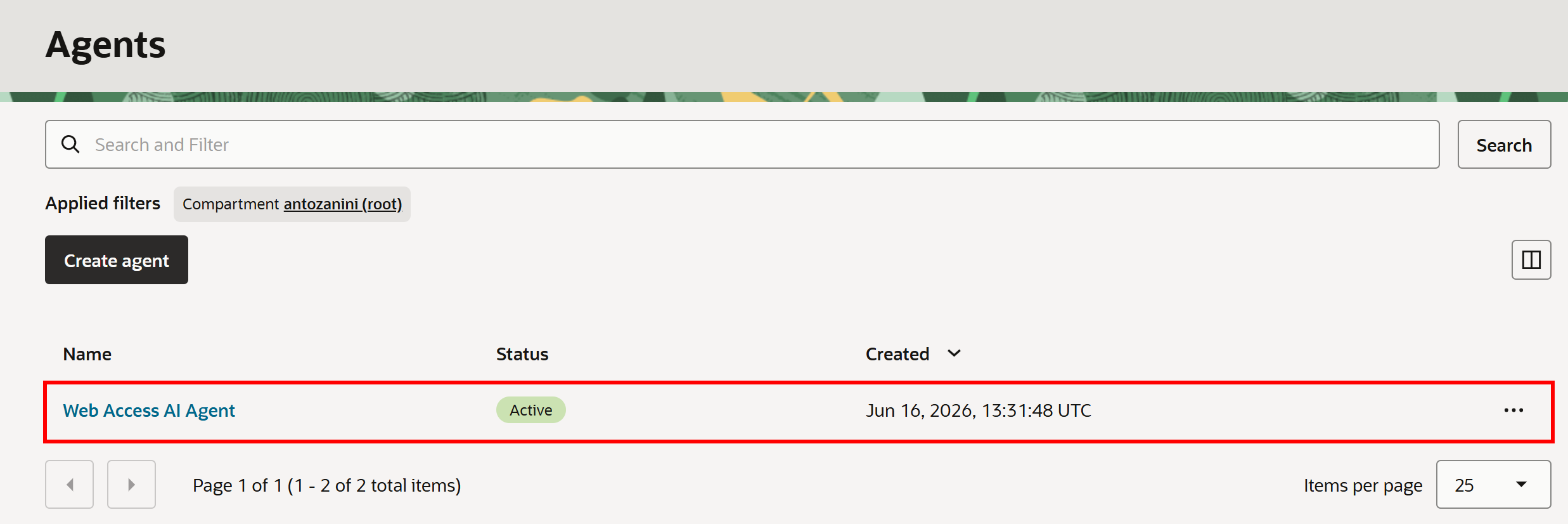
After a short while, the status will change to “Active”, which means your Oracle Generative AI Agent with Bright Data integration is ready!
Step #8: Test the Agent
Click on the agent name, and you will be redirected to the following page:
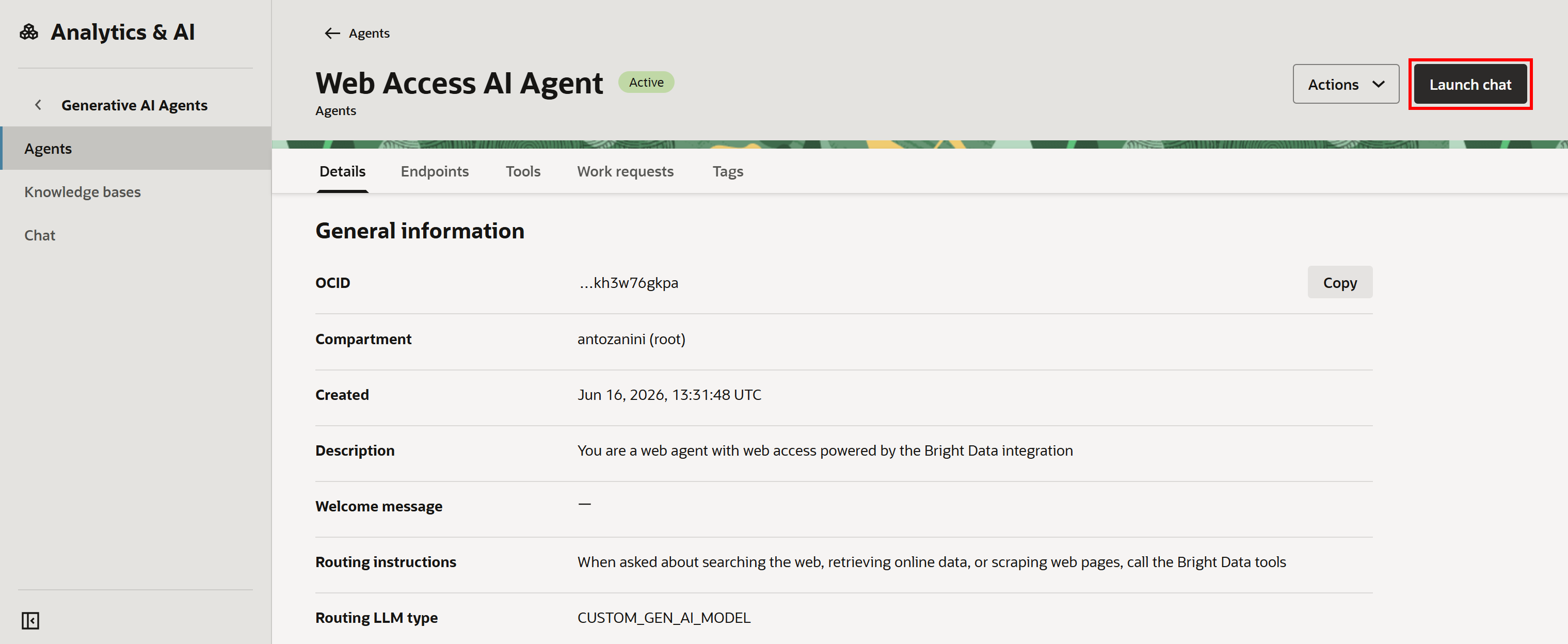
Here, you can test the agent by pressing “Launch chat”.
Make sure your AI agent and the relevant endpoint are selected, then paste a prompt like this:
Search Google for the latest news about SpaceX stock, review the content from the 2,3 most relevant sources, and provide a report summarizing the most important informationThis is an ideal test because it verifies that the Bright Data integration can handle both web search and scraping tasks.
In the “Chat” page, execute the prompt. You should see something like this:
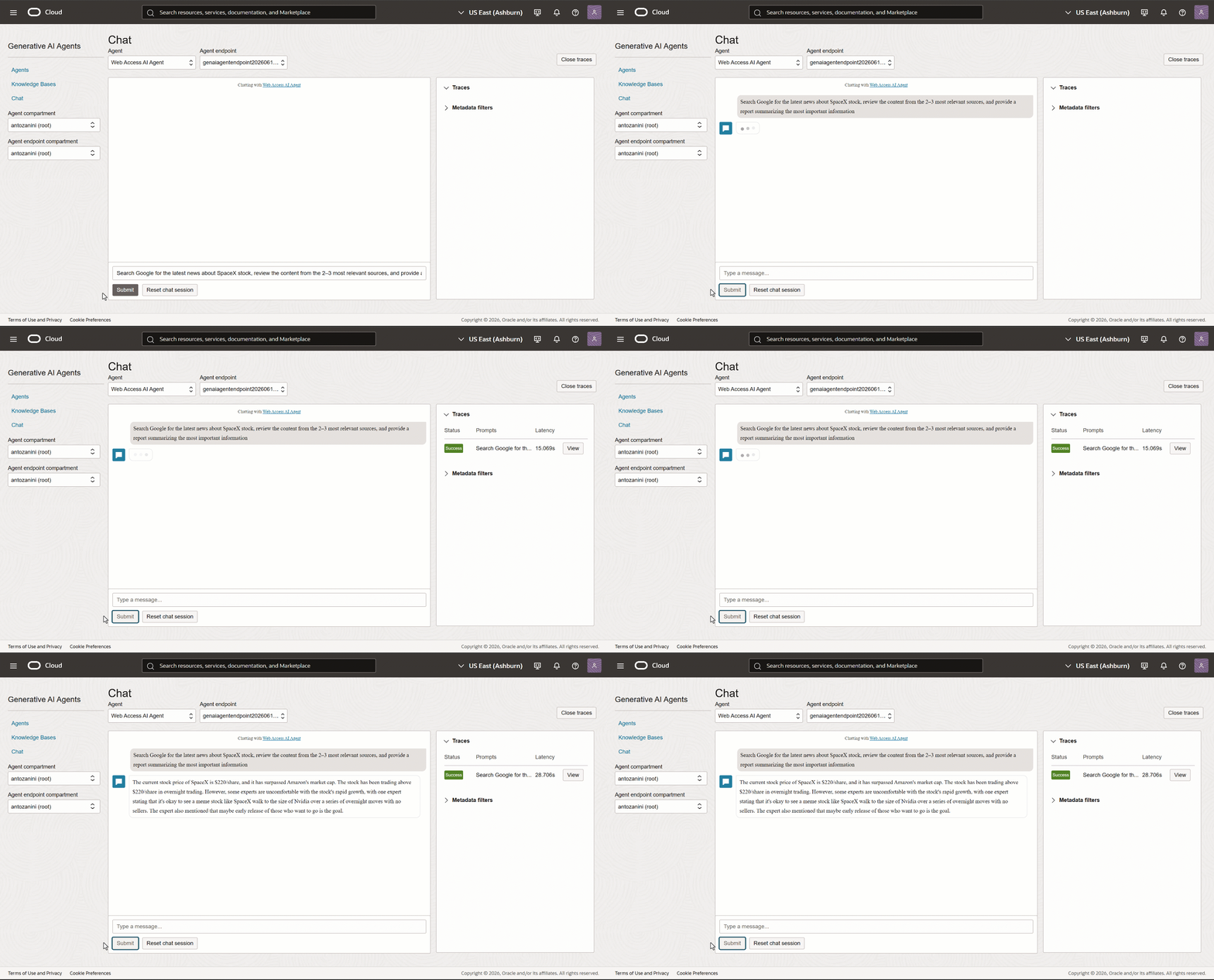
As you can tell, the AI agent returned contextual information about SpaceX stock. Since SpaceX went public just a few hours ago (at the time of writing), this is very recent information.
A standard LLM would not be able to provide it, as it is trained on static datasets. To confirm that Bright Data tools were called (and the result is not a hallucination), expand the “Traces” dropdown and click the “View” button on the right.
Here, you can inspect the agent’s plan and execution steps. You will see that it invoked the SERP API tool for a Google search about SpaceX stock news:
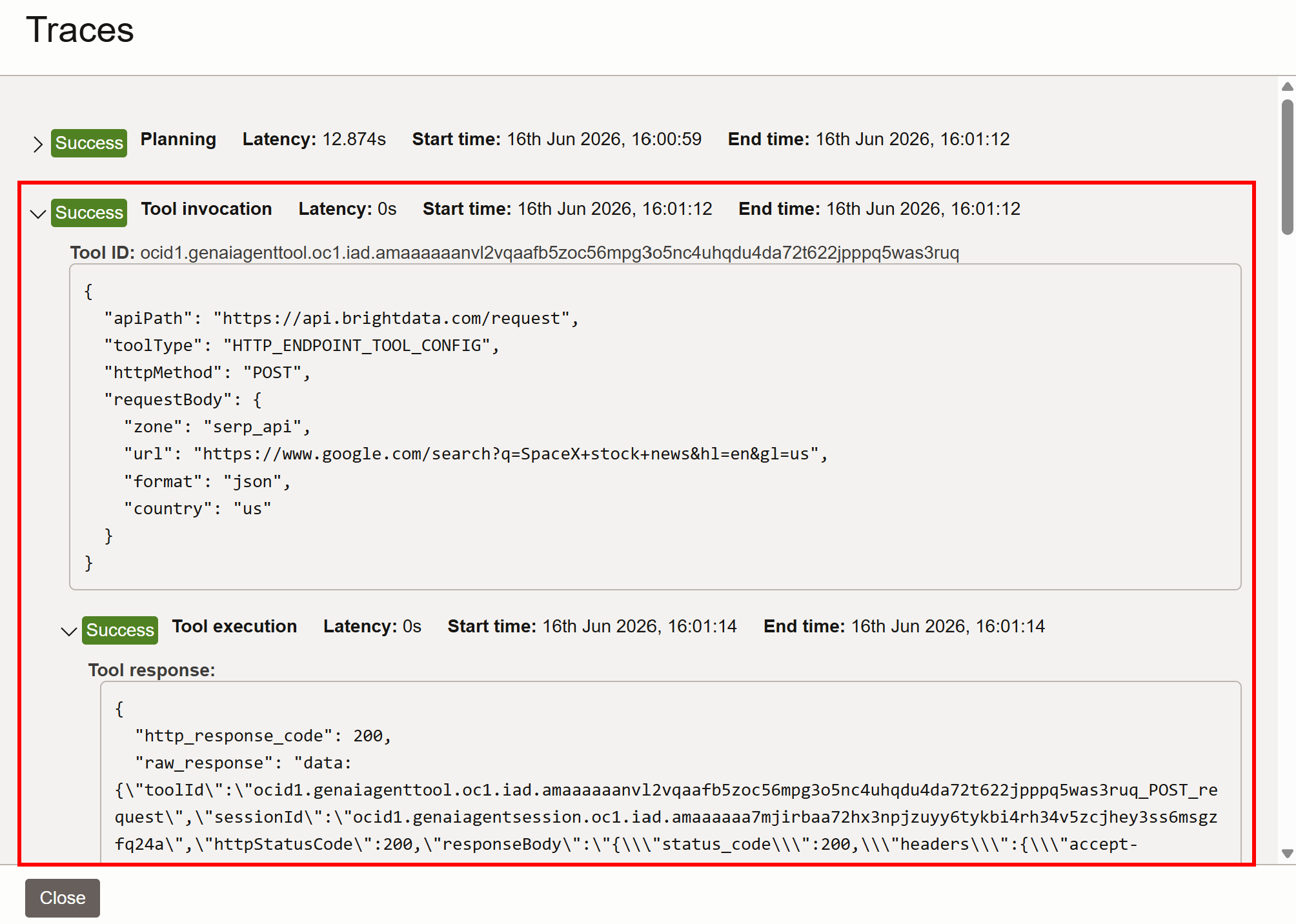
Under the hood, the agent tool calls the Bright Data SERP API, which returns a JSON version of this Google SERP:
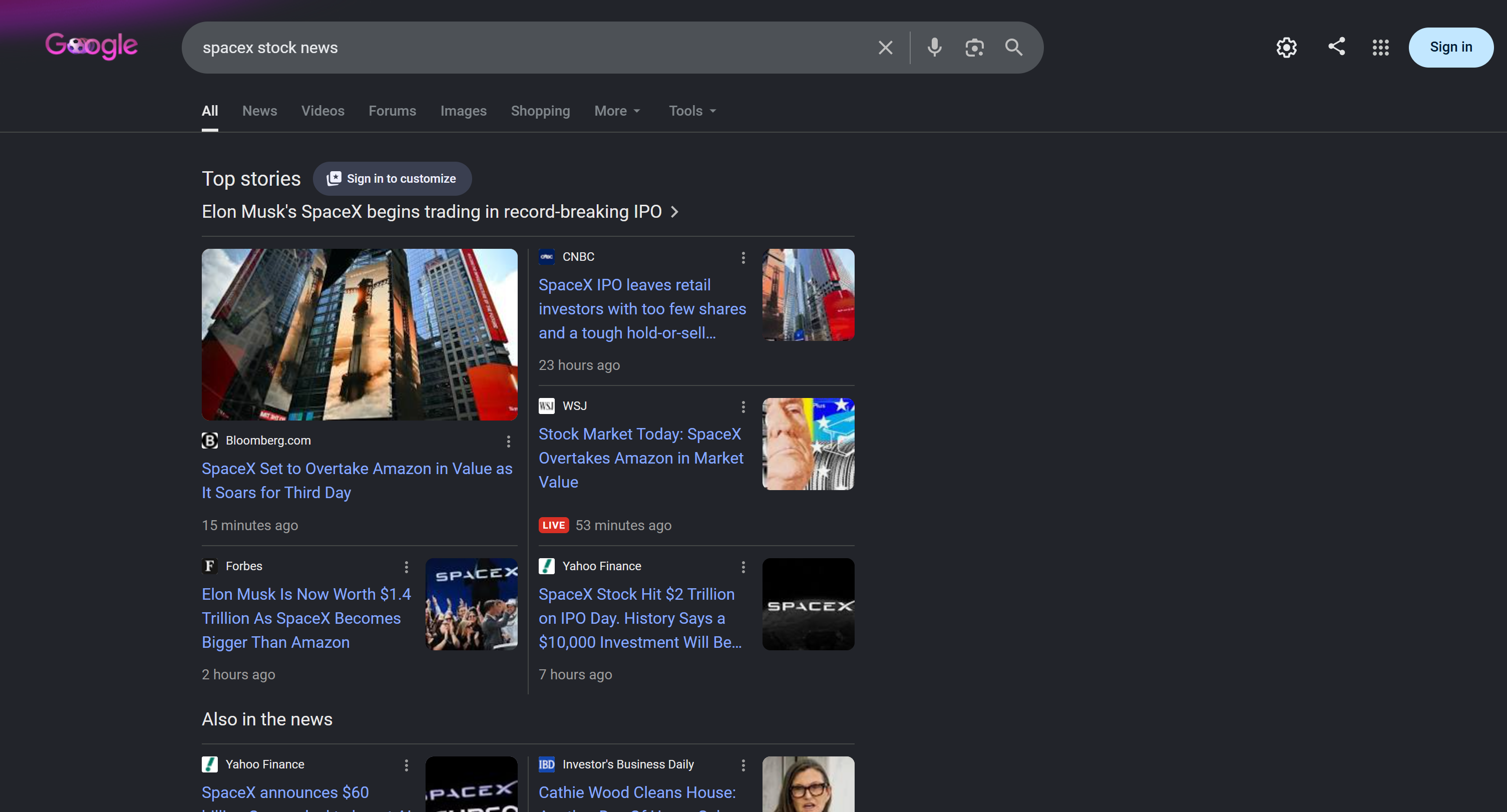
From the discovered URLs, the agent selects the most relevant sources, scrapes them, and aggregates all retrieved information into the final contextual result.
Et voilà! This simple example demonstrates how grounded and accurate your Oracle Generative AI agent is, thanks to the web search and scraping capabilities provided by Bright Data. Now, try different prompts to explore all other supported enterprise use cases.
Conclusion
In this tutorial, you learned what the Oracle Generative AI Agents service is and the features it provides. You also explored the limitations of AI agents and how to address them in enterprise scenarios via Bright Data APIs.
You were guided through teh definition of an Oracle Generative AI Agent with custom tools to call Bright Data endpoints. The result is an AI agent that can explore the web and retrieve information from it, much like a human would.
This is just one example of the many use cases enabled by Bright Data integrations. If you need help with implementation or want to explore other possible scenarios, contact our 24/7 support team.
Create a Bright Data account for free today and start exploring our web data solutions!



Technical Writer
 5.5 years experience
Antonello Zanini is a technical writer, editor, and software engineer with 5M+ views. Expert in technical content strategy, web development, and project management.