In this article, you will see:
- What Nexla Express is and what it provides.
- Why connecting Bright Data MCP makes it more powerful.
- How to integrate Bright Data MCP into Express to build web data pipelines.
Let’s dive in!
What Is Nexla Express?
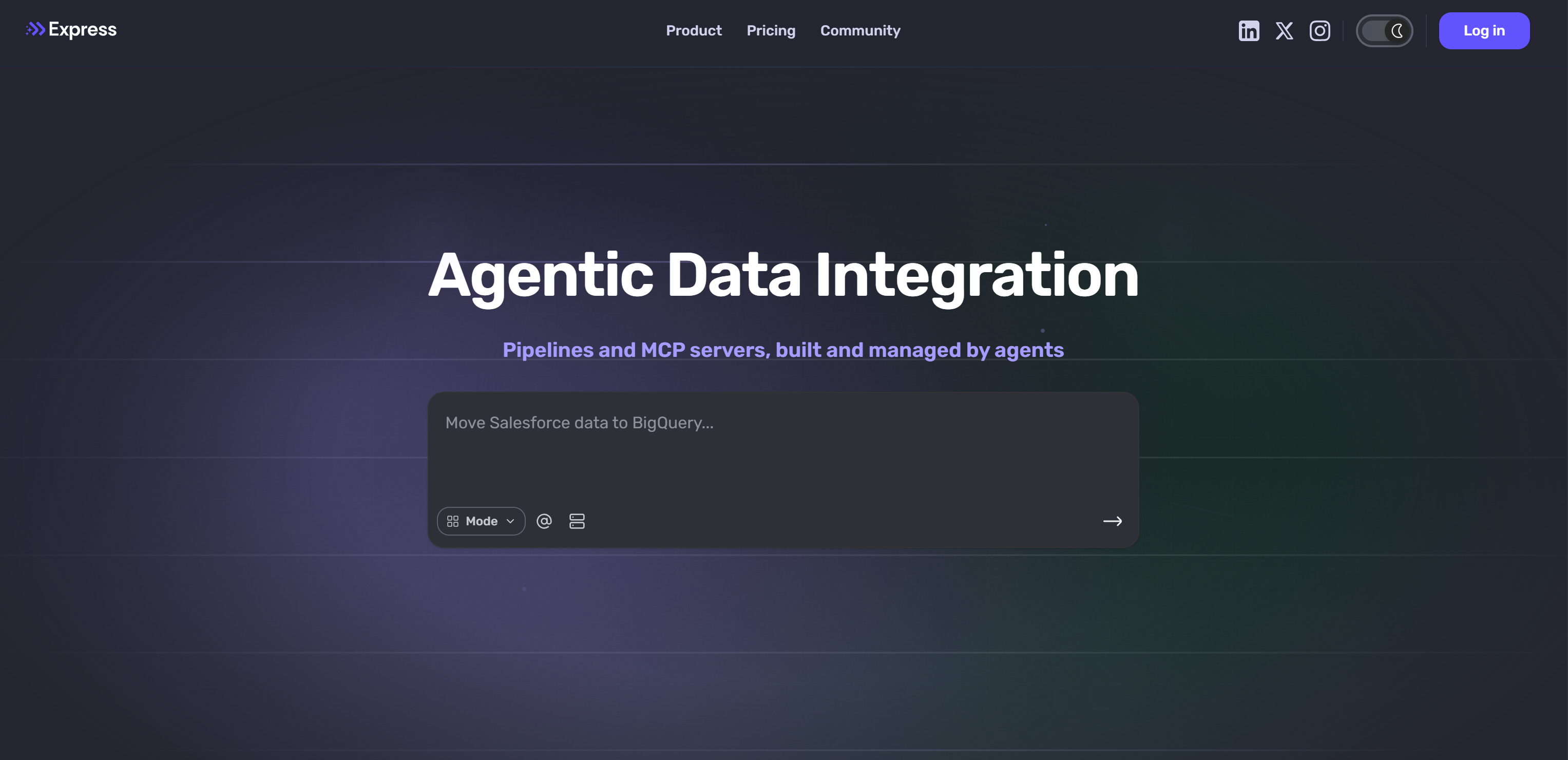
Nexla Express, or simply Express, is an enterprise agentic data integration platform. It lets you build data pipelines by describing them in plain English instead of writing code or managing infrastructure.
Express connects to APIs, databases, and files, then automatically handles ingestion, transformation, and deployment. It removes the need for ETL scripts, schema mapping, and infrastructure management.
Common use cases include building analytics pipelines, syncing data between systems, and preparing datasets for reporting. You can use it to ship faster, reduce engineering overhead, and focus on product development, insights, and business decisions rather than maintaining data plumbing.
Why Extend Express with Bright Data MCP Capabilities?
Many business processes depend on information that does not exist in internal databases or data warehouse systems. Examples include recent news, market signals, and competitor pricing data. This data comes from the public web and plays a key role in analytics and decision-making.
This creates two major challenges:
- Limited access to live external data: Traditional data pipelines mainly operate on internal sources and often lack direct access to fresh web information.
- Difficulty collecting web data at scale: Modern websites use anti-bot protections, dynamic content, and complex browser interactions that make reliable web data collection challenging.
These limitations can be overcome by extending Express with external capabilities. That is why the platform supports MCP integrations.
For example, by integrating Bright Data MCP, Express gains access to live web search, website discovery, web scraping, and browser automation capabilities. This allows pipelines to combine enterprise data with real-time information from the web.
Bright Data MCP exposes more than 70 tools for web data collection, discovery, and automation. Once connected to Nexla Express, these tools become available within conversations and can be incorporated into generated pipelines.
All of these tools run on top of Bright Data’s global network of over 400 million residential IPs, with coverage across 195 countries. This infrastructure is designed to handle enterprise-scale workloads while achieving a 99.95% success rate, 99.99% uptime, and unlimited scalability.
How to Connect Bright Data MCP to Express for Web Data Pipelines
In this section, you will see how Bright Data MCP gives Express the ability to build enterprise-ready, scalable web data pipelines.
Follow the instructions below!
Prerequisites
Before moving to the next steps, make sure you have:
- A Nexla Express account (the free plan is enough).
- A Bright Data account with an API key configured. Follow the official guide to generate your Bright Data API key.
While not strictly required, we will also connect a Snowflake database to make the example more realistic. Note that you can use any other Express-supported data source.
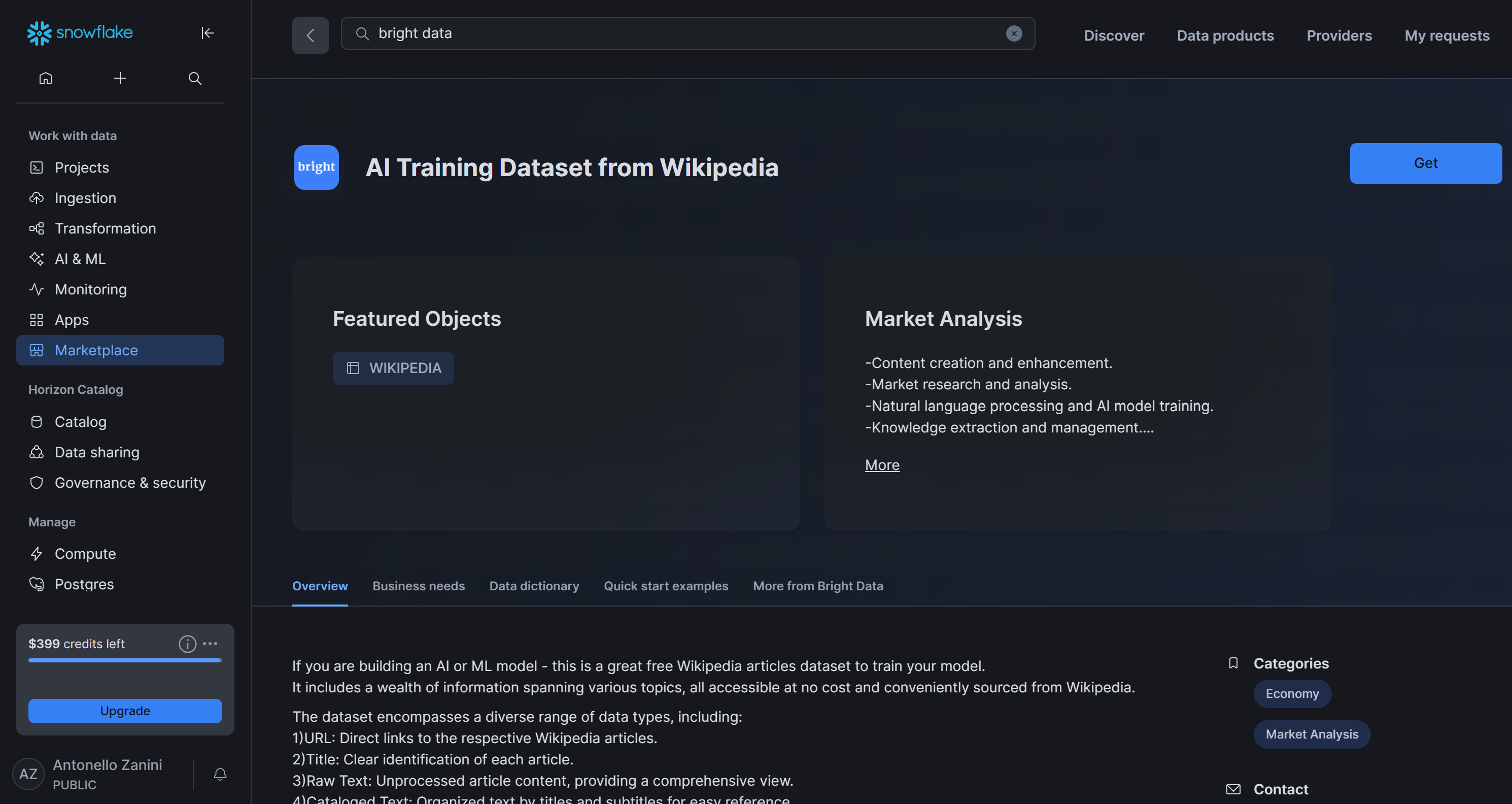
In detail, we will use the “AI Training Dataset from Wikipedia” dataset, provided for free by Bright Data on Snowflake. We will treat it as an internal knowledge base that will serve as the primary source in the web data pipeline.
It also helps to be familiar with how MCP works and the tools exposed by the Bright Data MCP server.
Step #1: Get Started with Bright Data MCP
Before creating your Airia agent, get the connection URL that Airia will use to access the remote Bright Data MCP server.
Note: The Bright Data MCP remote server is engineered for enterprise scenarios. It supports unlimited scalability and concurrent connections, just like all other Bright Data services.
First, familiarize yourself with the standard Bright Data MCP remote connection URL format:
https://mcp.brightdata.com/mcp?token=<YOUR_BRIGHT_DATA_API_KEY>&pro=1Replace <YOUR_BRIGHT_DATA_API_KEY> with your actual Bright Data API key. The token parameter authenticates requests and links them to your Bright Data account. The &pro=1 parameter in the URL is optional:
- Without
&pro=1: You gain access only to the free tools in Rapid mode (up to 5,000 requests per month). - With
&pro=1: You get access to the full catalog of 70+ tools and advanced capabilities. Standard Bright Data usage fees apply.
Suppose you want more control, such as enabling only specific tools or tool groups. In that case, generate a custom MCP connection URL directly from the Bright Data dashboard.
Log in to your Bright Data account and reach the “AI Gateways > MCP” page. Follow the setup wizard to configure your MCP server and generate a custom Bright Data MCP connection URL:
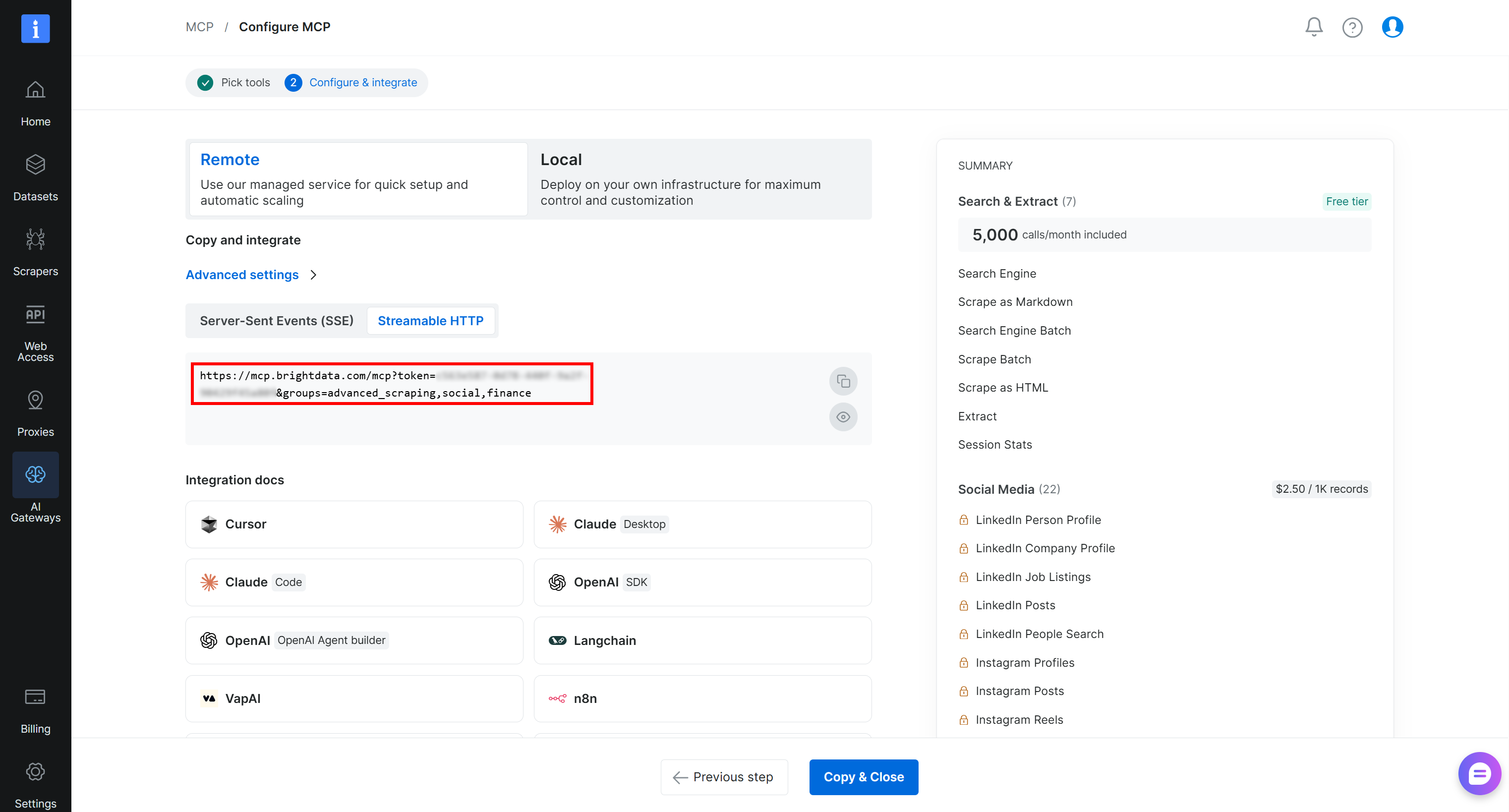
Copy the resulting “Streamable HTTP” connection URL, or build it using the format described above. You will use it in the next step to connect Bright Data MCP to your Express pipeline. Well done!
Step #2: Add the Bright Data MCP Connection in Nexla Express
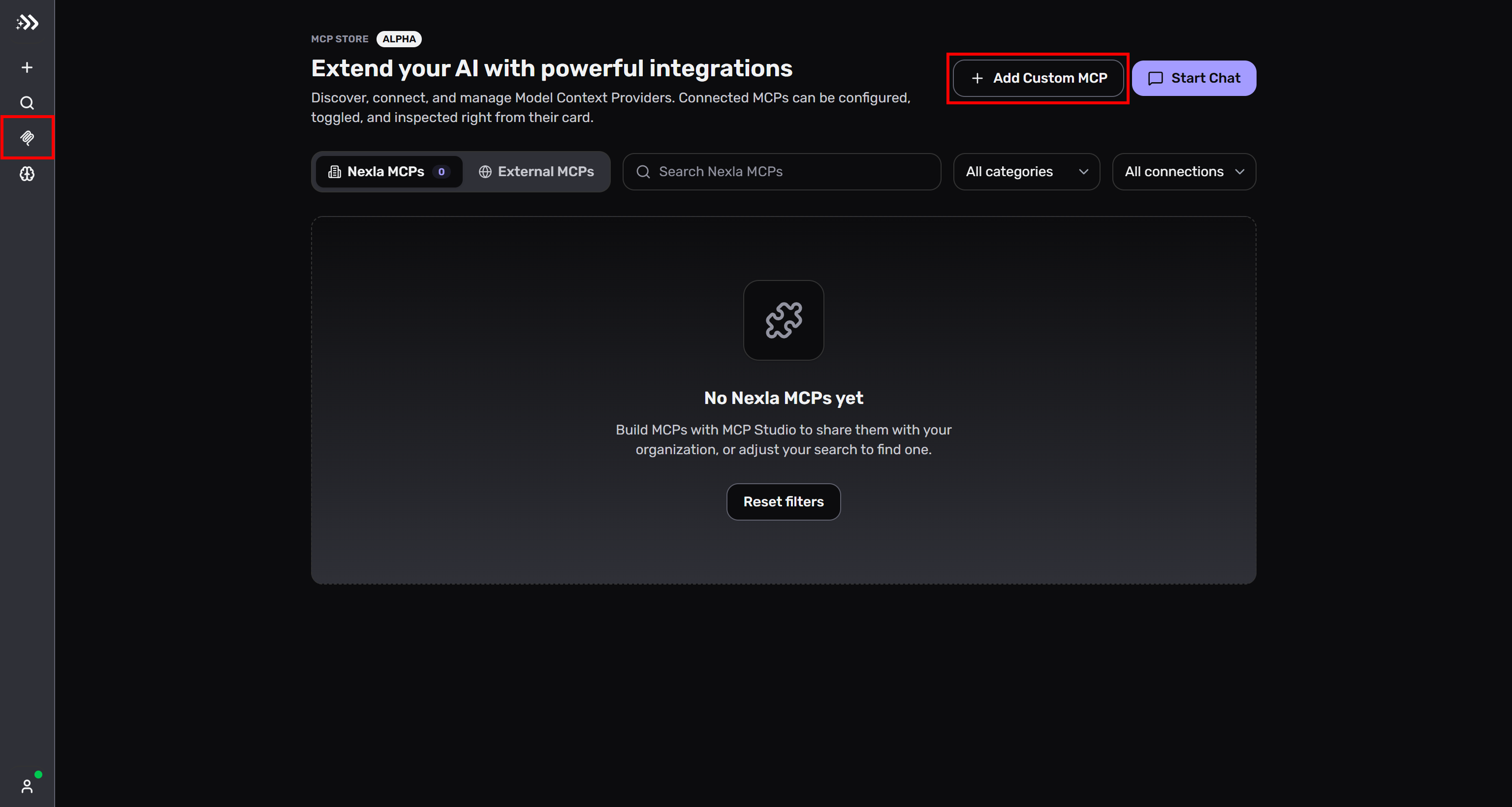
Log in to Express and select “Explore MCPs” from the left-hand menu. On the “MCP STORE” page, click the “Add Custom MCP” button:
Next, fill out the “Add MCP Server” form by pasting your Bright Data MCP connection URL into the “SERVER URL” field:
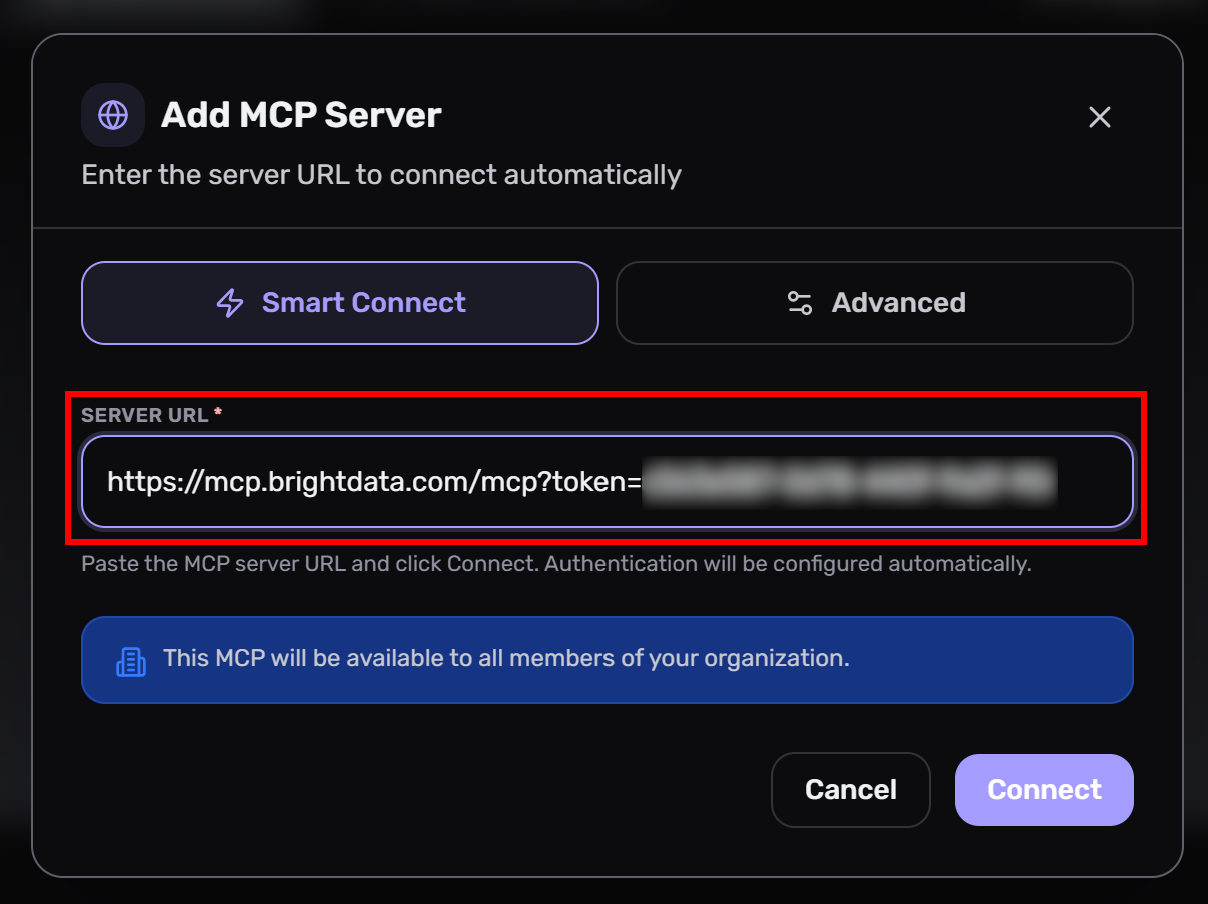
Click “Connect”, and Express will establish a connection to the Bright Data MCP server. Great!
Step #3: Verify That the Integration Works
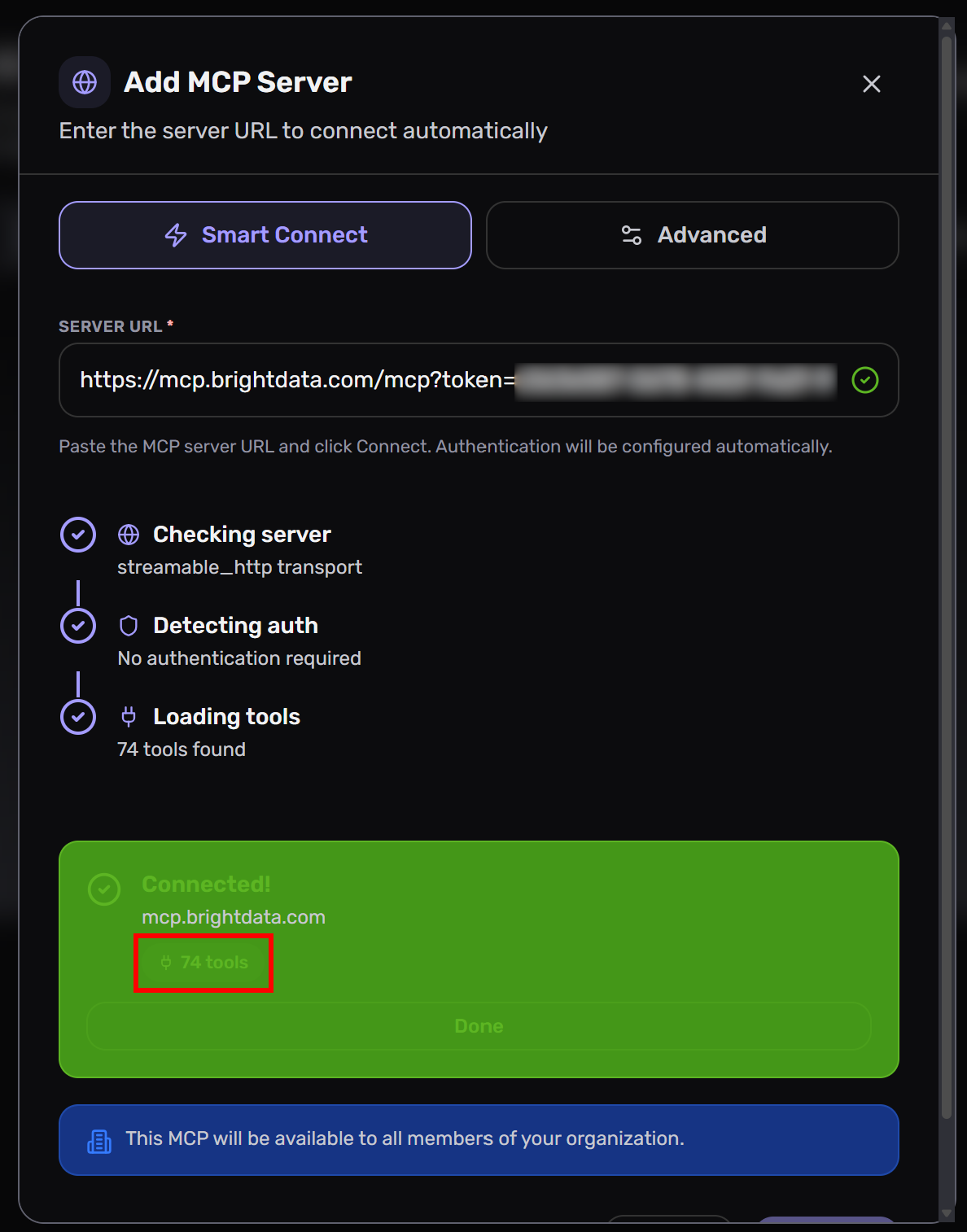
You should now see Nexla Express connecting to the Bright Data MCP server and gaining access to 70+ tools (or a limited subset in Rapid mode if you omitted the pro=1 parameter):
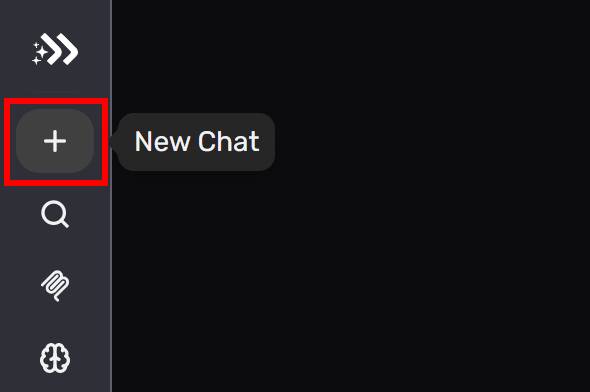
To ensure the tools are actually available to the Nexla Express conversational agent, click the “New Chat” entry from the left menu:
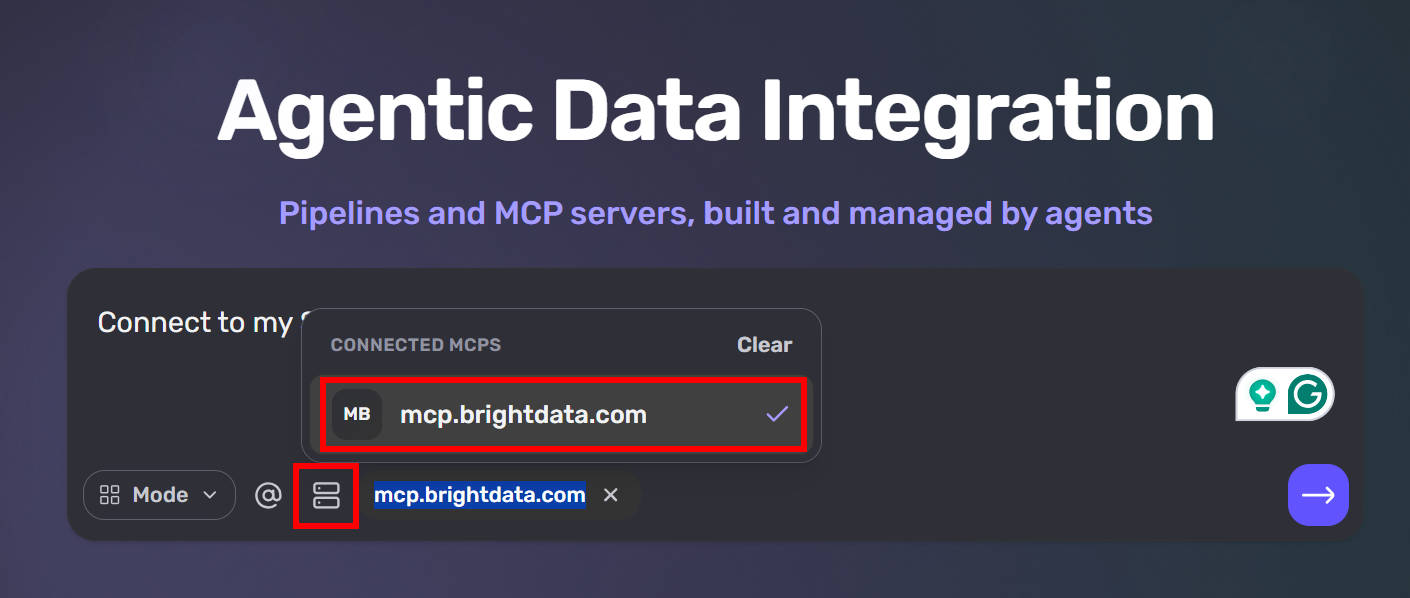
Then, connect the MCP by clicking the “Add MCP” icon and selecting the “mcp.brightdata.com” option:
Next, run a prompt such as:
Which Bright Data MCP tools do you have access to?The response will list all available tools, along with a description of what each of them does:
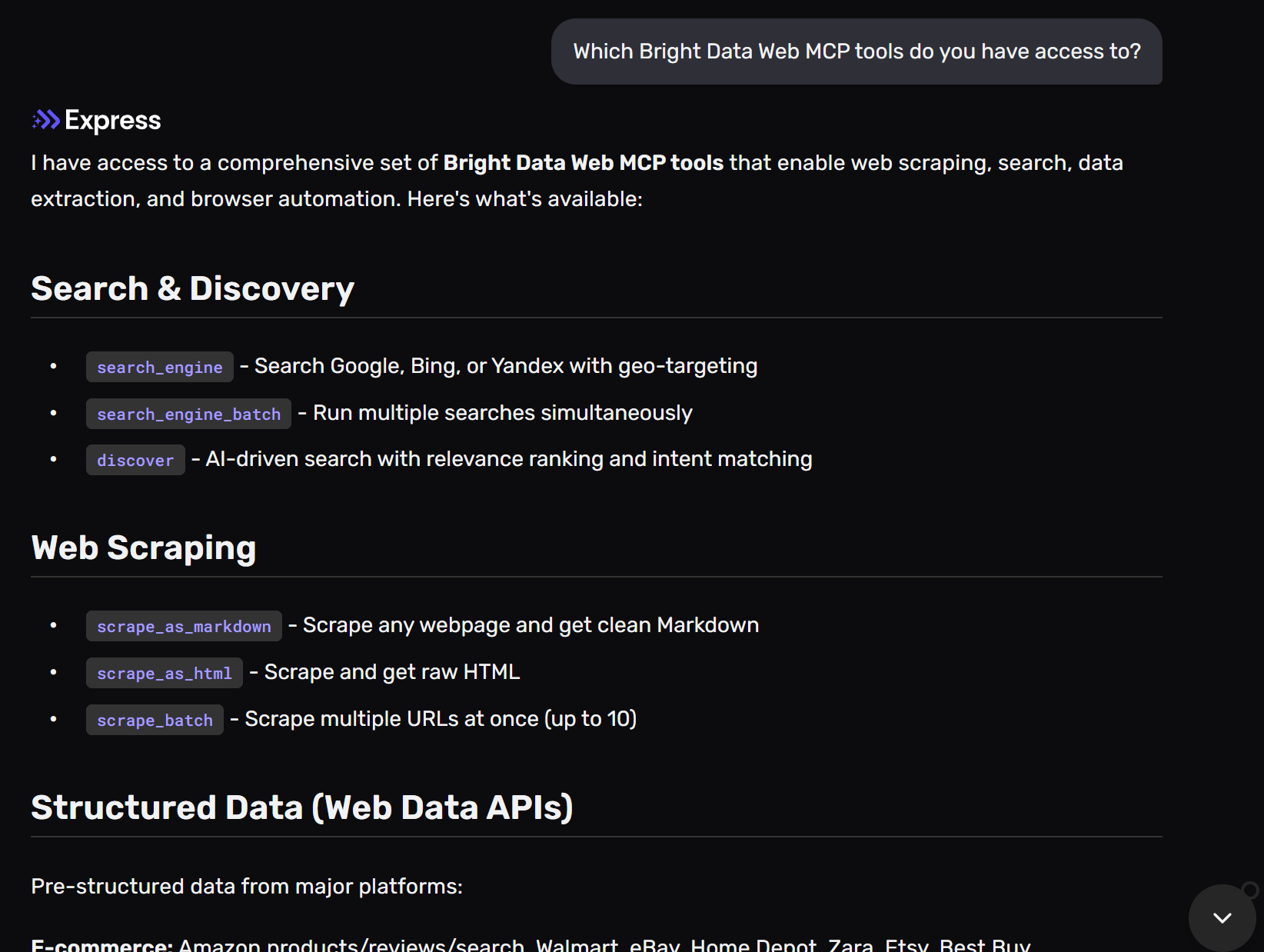
This confirms that Express can successfully access the Bright Data MCP tools exposed by the remote MCP server. Fantastic!
Step #4: Build a Web Data Pipeline
In the Express chat connected to the Bright Data MCP, write a prompt as follows:
Connect to my Snowflake instance and retrieve the full record from the Wikipedia table in the AI_TRAINING_DATASET_FROM_WIKIPEDIA database where the "Title" field equals "FIFA World Cup".
Given the retrieved record, scrape the Wikipedia article URL to fetch the latest version of the article in Markdown format.
Then, compare the freshly retrieved content with the version stored in Snowflake and generate a report that:
- Summarizes the key differences between the stored and current versions.
- Highlights any added, removed, or significantly modified sections.
- Identifies major content updates, factual changes, or structural changes.
Present the results in a clear, structured report.
This is a great example because it combines data retrieval from an enterprise data warehouse/database with live web scraping. In a real-world scenario, adapt the prompt to your specific business goals.
The expected behavior is an end-to-end pipeline that extracts, enriches, and diff-checks Wikipedia content. It connects to Snowflake for static data retrieval and uses Bright Data MCP tools for scraping fresh Wikipedia data.
Run the prompt, and Nexla Express will generate a form where you can enter the required Snowflake connection details. Fill out the form and click “Connect”:
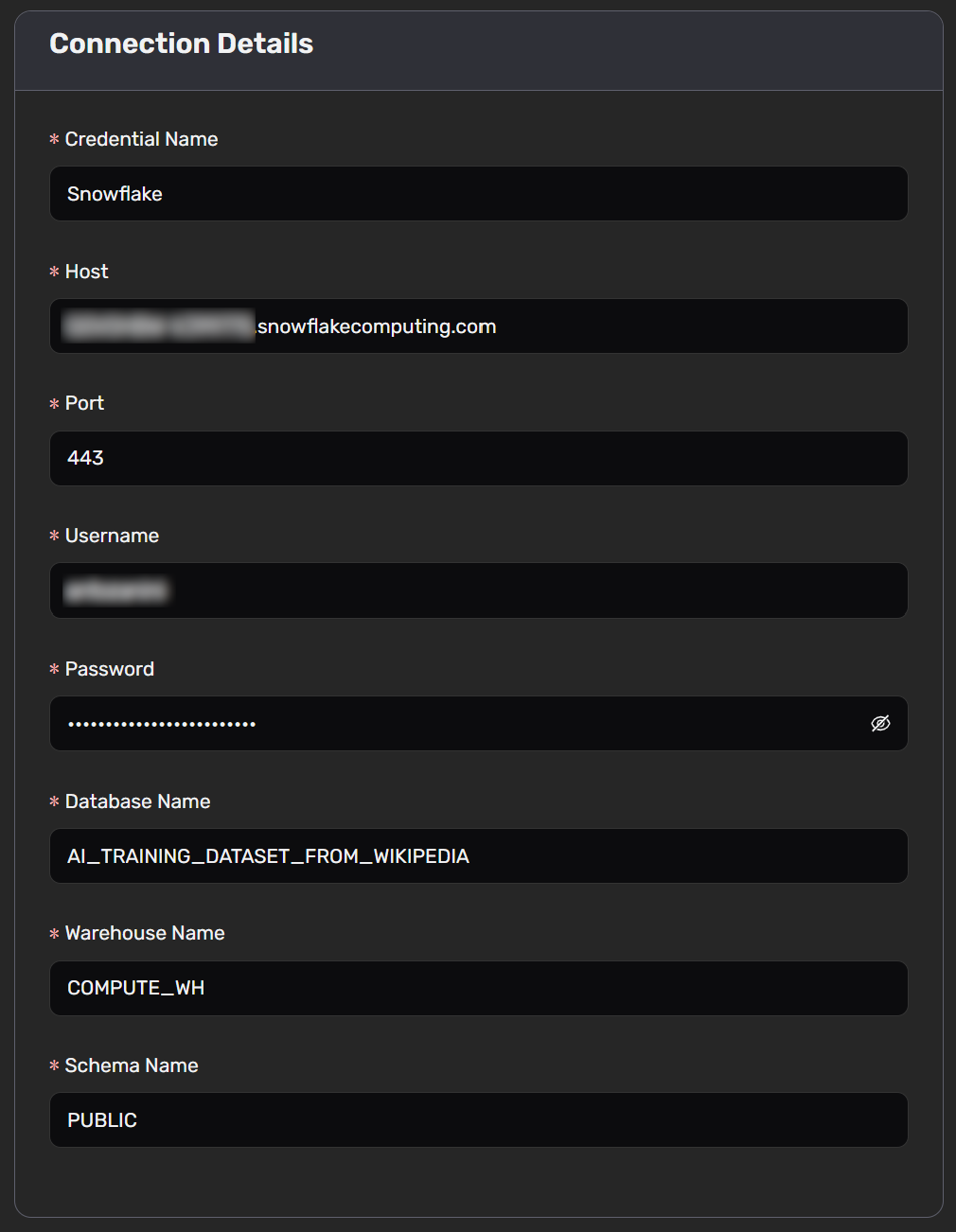
Nexla Express will then set up an active data source, allowing it to access your Snowflake data.
It will fetch the requested record from the database, including all its columns:
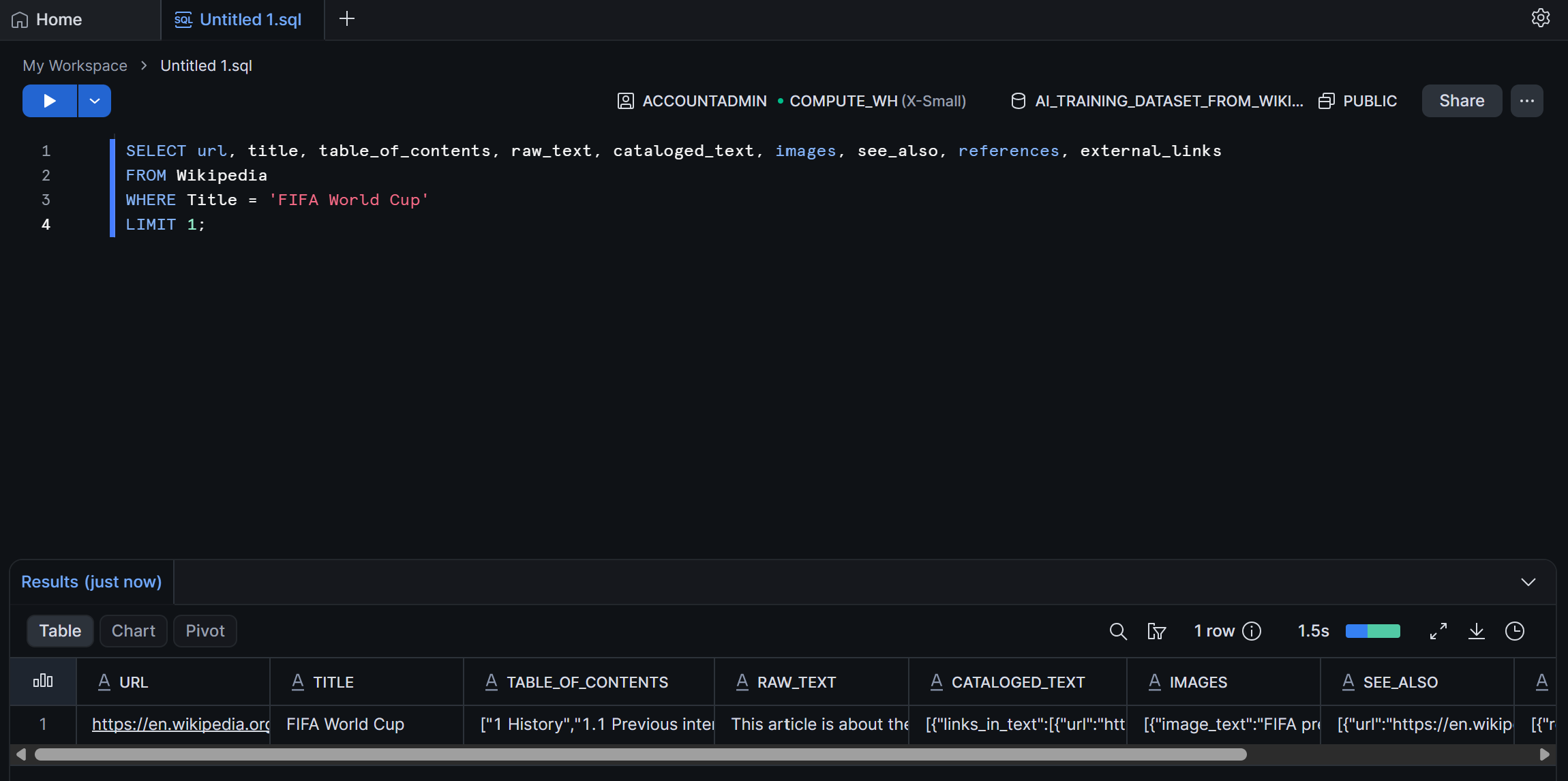
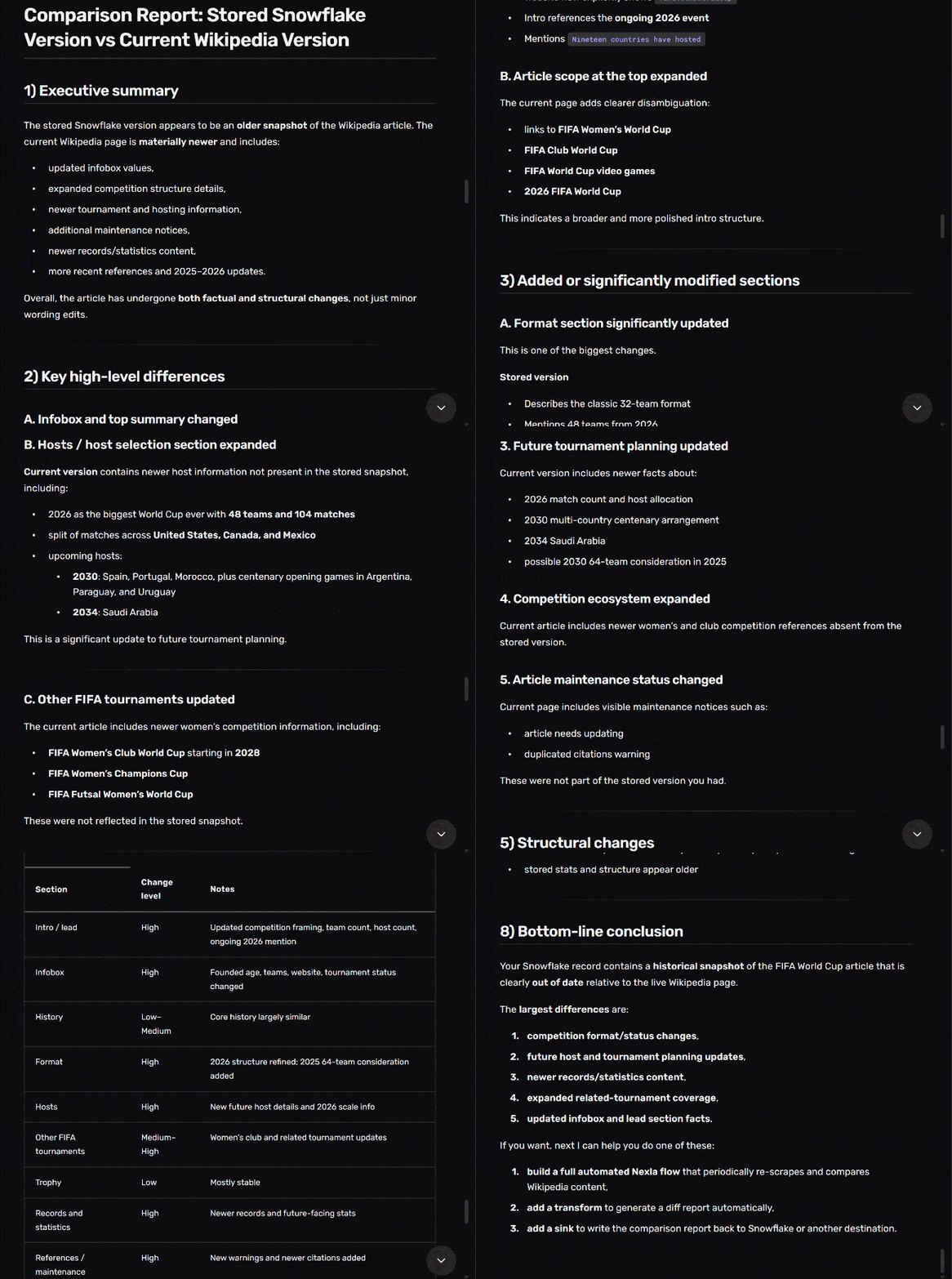
Next, it will read the page URL (from the url column) and scrape it using the Bright Data scrape_as_markdown tool (which relies on Bright Data’s Web Unlocker API). After analyzing the page content, it will compare it with the data stored in Snowflake and produce a rich comparison report:
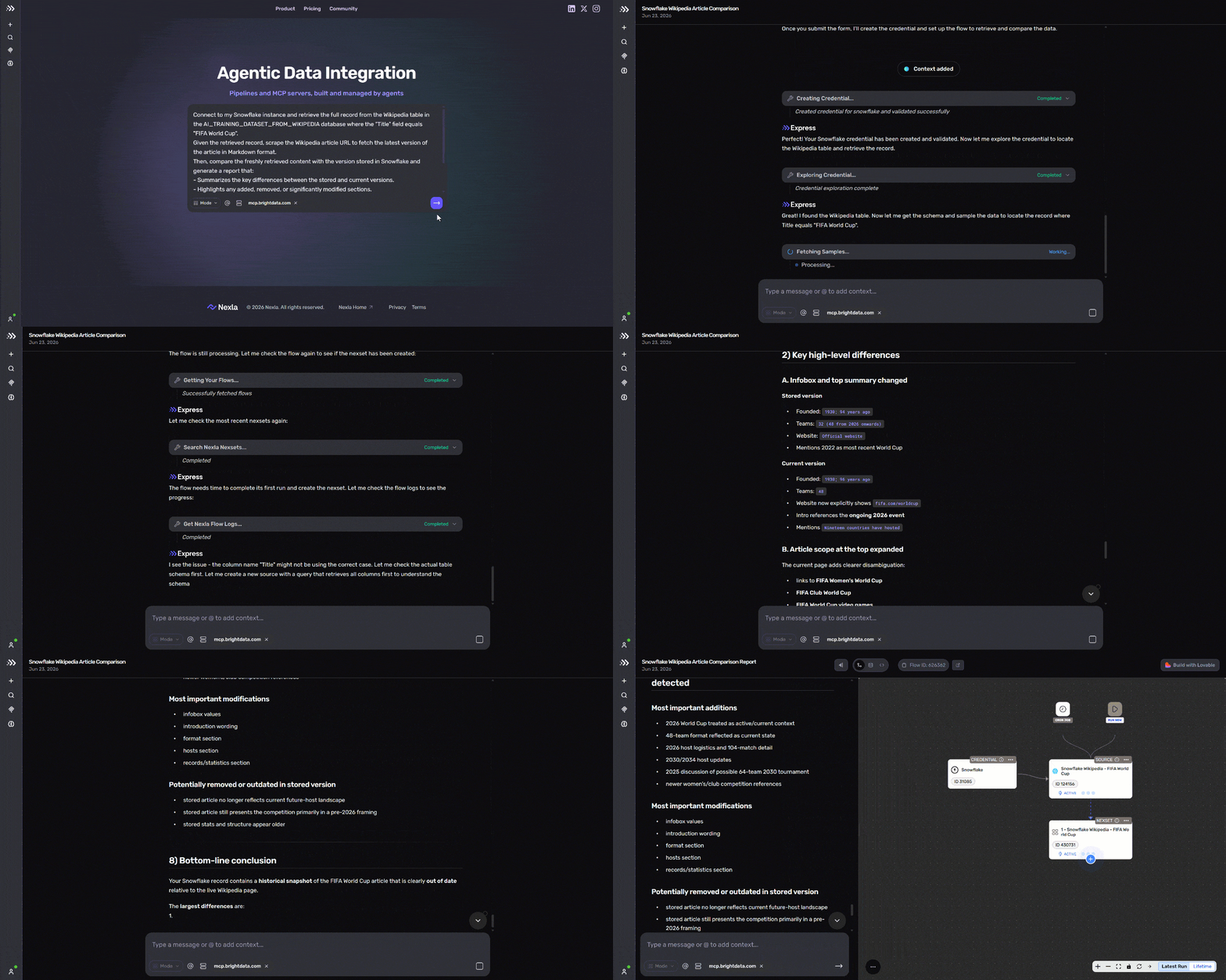
This is just an example, but the same workflow can be used to continuously update data stored in your database using structured live scraping capabilities provided by Bright Data MCP, or to enrich it with fresh web data.
Without access to Bright Data MCP tools, a regular LLM would not be able to achieve this task. Mission complete!
Step #5: Explore the Output
The final result will be a visual web data pipeline representing the described process. Note that you can schedule the pipeline or manually run it to generate the report:
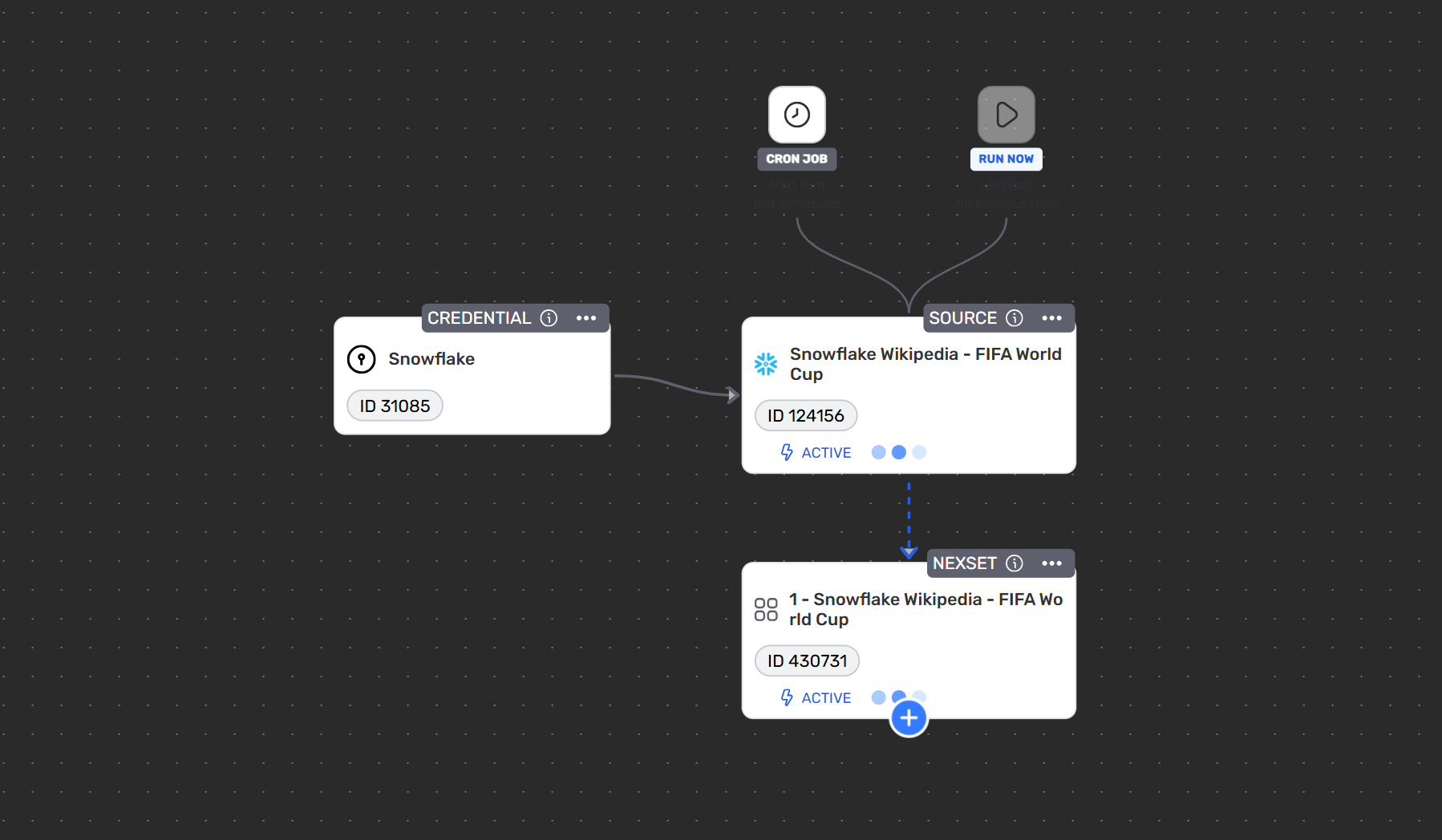
Express turns your conversational chat into a repeatable web data pipeline powered by Bright Data.
The output of this pipeline is a detailed report comparing static data in your data warehouse with fresh web data:
The next step could be to continue the conversation and ask Nexla Express to write the refreshed data back to Snowflake. You could also use it for snapshotting or enrichment workflows. The result of this new prompt will also update the generated pipeline.
Et voilà! This demonstrates the web access, scraping, and discovery capabilities provided by Bright Data MCP in Nexla Express. This example is simple, but Nexla Express + Bright Data MCP enables many other enterprise use cases.
Conclusion
In this blog post, you learned what Express is and what it brings to the table as a conversational AI pipeline builder. In particular, you saw how to connect it to Bright Data MCP to build data workflows with direct access to the web.
Bright Data MCP tools allow Express pipelines to reliably search, discover, and scrape web data at scale across many websites. They also enable automatic interaction with web pages, making it possible to build full browser automation workflows.
If you have any issues with Bright Data MCP integration in Express, want to learn more, or need support, reach out to Bright Data’s 24/7 support team.
Create a Bright Data account for free today and start integrating AI-ready web data solutions!



Technical Writer
 5.5 years experience
Antonello Zanini is a technical writer, editor, and software engineer with 5M+ views. Expert in technical content strategy, web development, and project management.