







In this article, you will learn:
- What Chrome DevTools for Agents (
chrome-devtools-mcp) brings to AI-controlled browser automation. - What its limitations are and how Bright Data’s Browser API addresses them.
- How to connect your preferred AI agent (e.g., Gemini CLI, Claude Code, etc.) to
chrome-devtools-mcpand control a remote browser through Browser API.
Let’s dive in!
What Is Chrome DevTools for Agents?
chrome-devtools-mcp, also known as “Chrome DevTools for agents,” is an open-source MCP server that gives AI coding agents control over a Chromium-based browser through the CDP (Chrome DevTools Protocol).
In detail, it allows AI agents to navigate pages, interact with web elements, inspect network requests, execute JavaScript, capture screenshots, debug browser issues, and analyze performance. Under the hood, it exposes Chrome DevTools capabilities as MCP tools that AI coding agents can use to automate and inspect browser sessions.
The project is available on GitHub under the Apache 2.0 license and has gained more than 52k GitHub stars.
Current Limitations of chrome-devtools-mcp and How to Address Them
chrome-devtools-mcp is a powerful tool for controlling browser sessions, particularly for debugging and performance analysis. At the same time, it is still subject to some of the common challenges associated with browser automation:
- Blocks: Websites can detect automated browser sessions and respond with CAPTCHAs, errors, or other restrictions, interrupting your workflow. This is due to the fact that the technology launches a fresh Chrome session in headless mode. Such sessions have limited browser history and user context, which can make them easier for websites to identify as automated. Plus, regular users use browsers with the GUI enabled, not in headless mode.
- Resource consumption: Running multiple tabs or browser instances locally can consume significant system resources. A single Chrome tab can use hundreds of megabytes of RAM, making large-scale concurrent automation demanding on local infrastructure.
These constraints affect both the reliability and scalability of browser automation, especially for enterprise workloads. An ideal setup would be to enable chrome-devtools-mcp to control cloud browsers that are designed for large-scale automation and equipped with anti-bot capabilities. This is precisely what Bright Data’s Browser API brings to the table.
Bright Data Browser API as the Solution
Bright Data’s Browser API addresses chrome-devtools-mcp‘s limitations by moving browser execution from your local machine to fully managed, cloud-based infrastructure built for scale.
Instead of running and maintaining browsers locally, you can connect Chrome DevTools for agents to Browser API through a CDP endpoint. Browser API provides pre-configured cloud browser sessions with features such as proxy rotation, CAPTCHA solving, and advanced fingerprinting capabilities.
Important: Browser API is available on Bright Data’s free tier, which includes 5,000 free credits per month.
Behind the service is Bright Data’s proxy infrastructure, with a residential network of more than 400 million IPs. This supports global geo-targeting and unlimited concurrent browser sessions, while providing 99.99% uptime and a 99.95% success rate.
How to Integrate Chrome DevTools for Agents with Bright Data’s Browser API
In this chapter, you will see how to configure chrome-devtools-mcp in your AI agent. You will configure it to connect to stealth and infinitely scalable cloud browser sessions via Bright Data’s Browser API.
Note: This section focuses on Gemini CLI. You can adapt the same steps to other AI agent harnesses, such as Claude Code, OpenAI Codex, OpenCode, and others.
Follow the instructions below!
Prerequisites
Before getting started, make sure you have:
Some basic knowledge of how MCP works and the tools exposed by Chrome DevTools for agents will be helpful.
Step #1: Set Up a Bright Data Browser API
First, retrieve the CDP-based remote connection URL for the Bright Data Browser API.
If you have not already, create a Bright Data account. If you already have an account, log in to access the control panel.
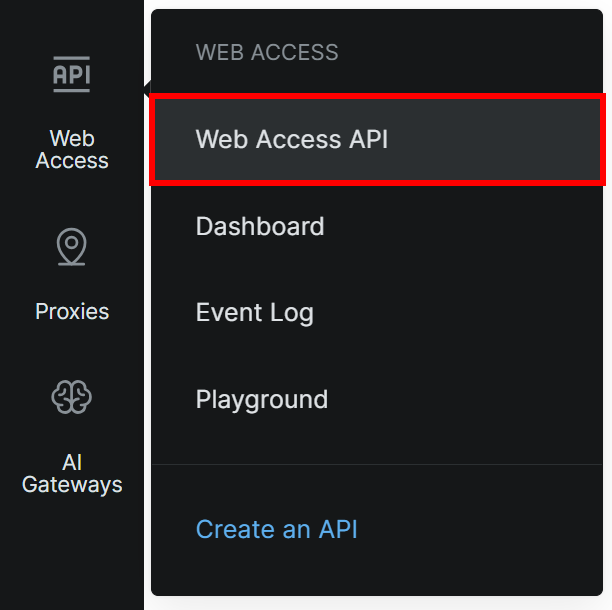
Next, select the “Web Access > Web Access API” option from the left-hand menu:
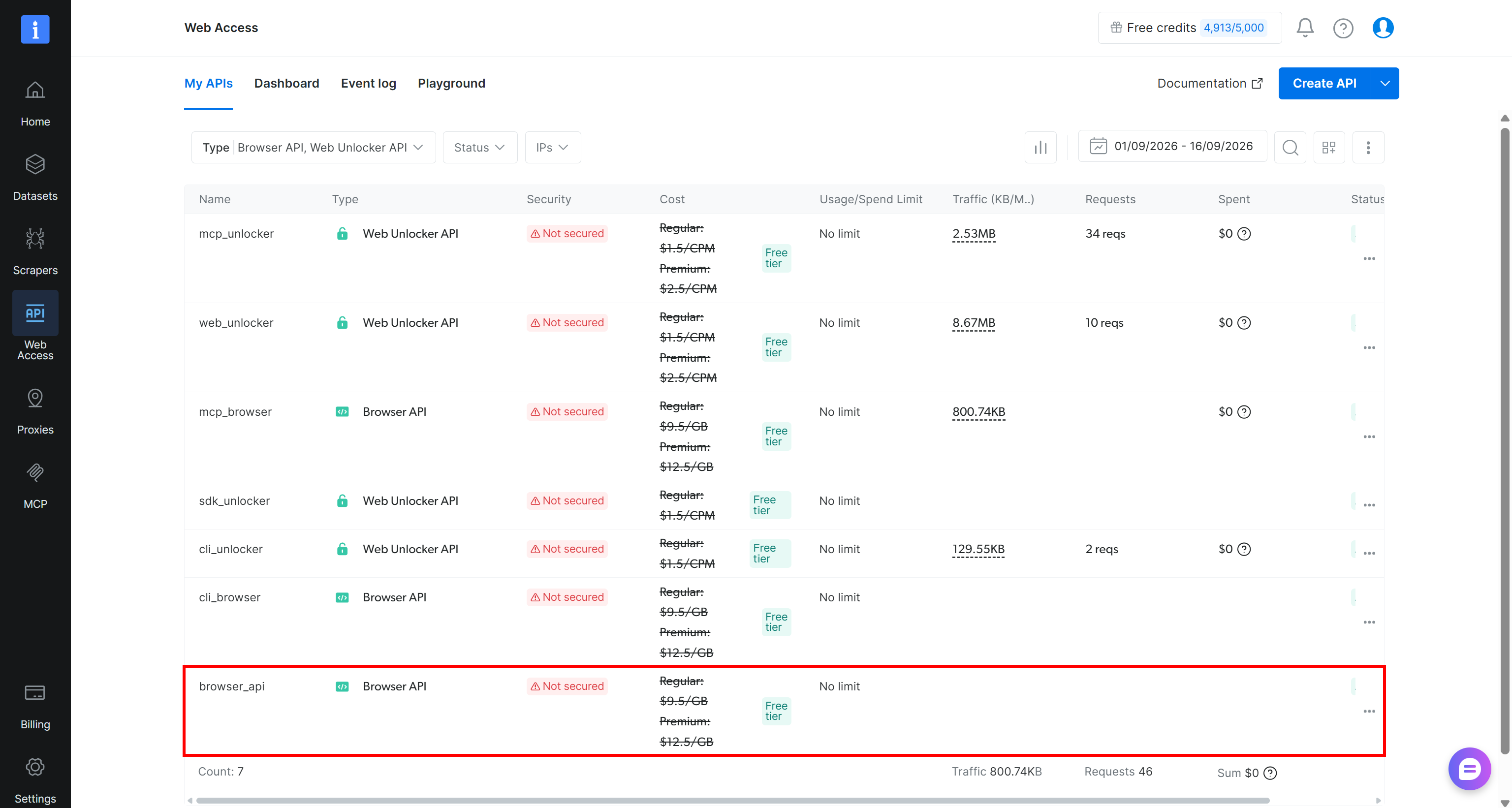
If you already have a Browser API entry in the My APIs table (the “browser_api” entry, as shown below), access the API page:
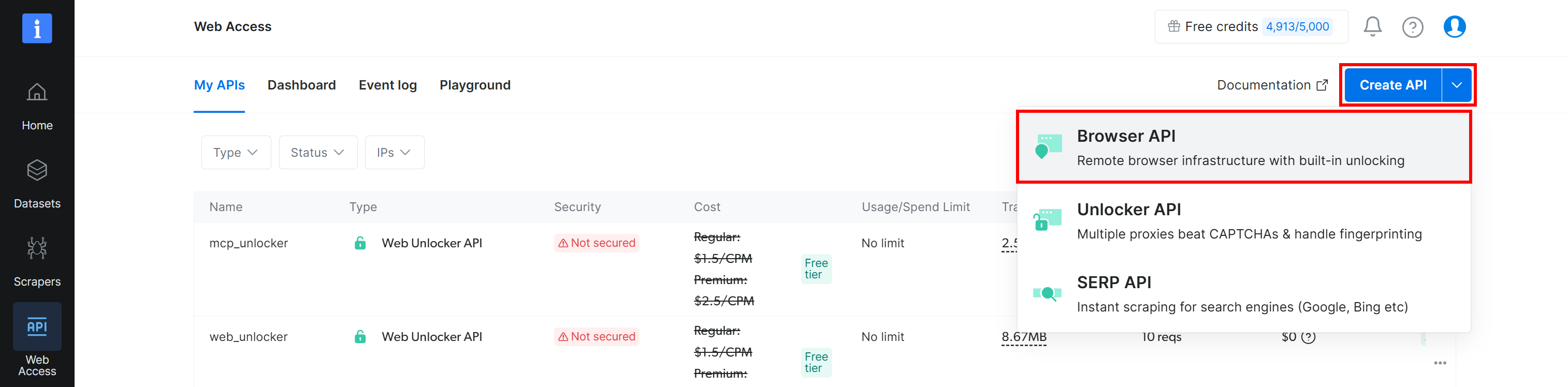
Otherwise, click the dropdown on the “Create API” button and select “Browser API”:
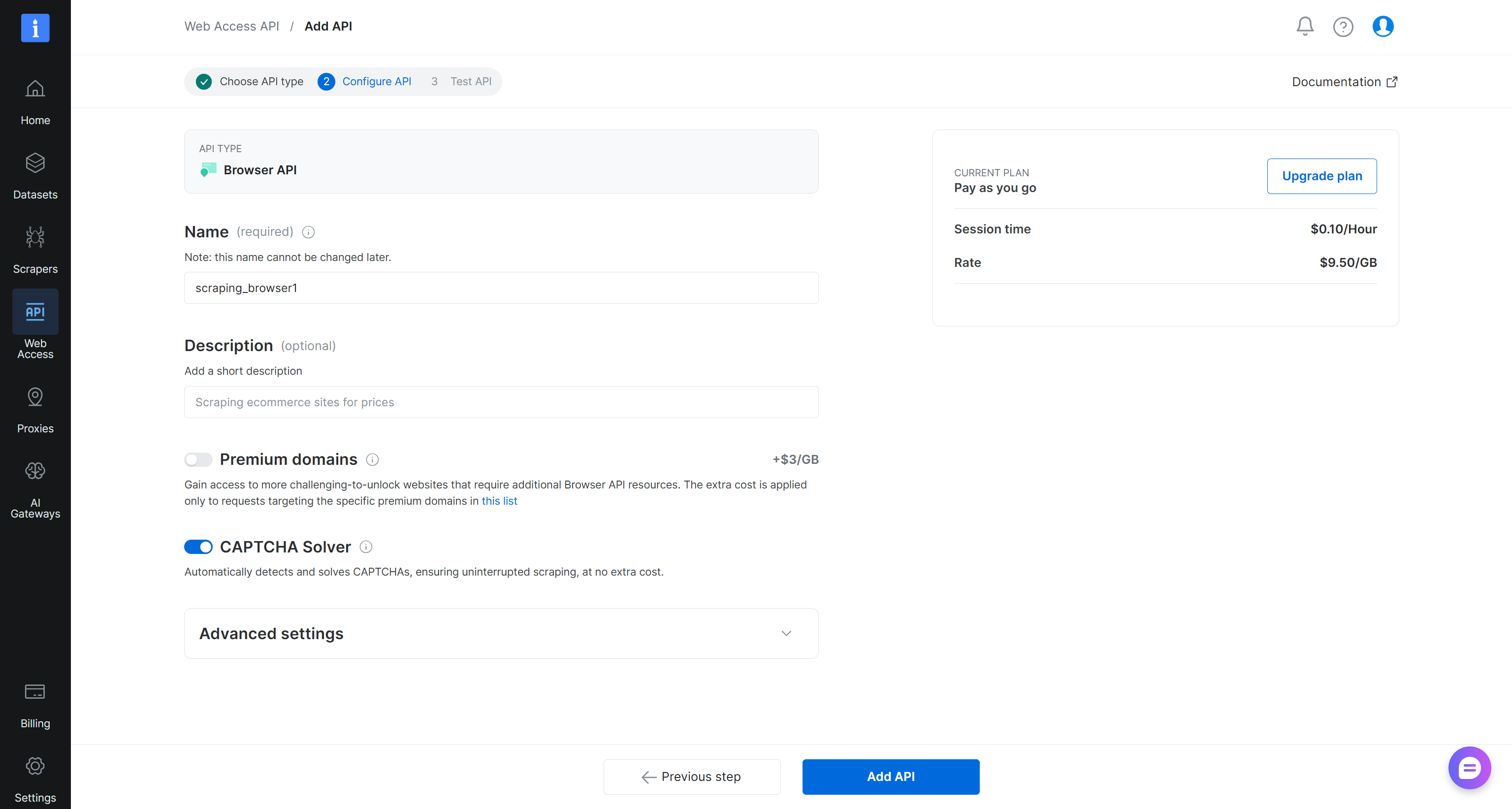
This opens the Browser API setup wizard. Give your Browser API a name and configure it according to your needs:
Once you are done, click “Add API” to create a Browser API. Then, open its details page:
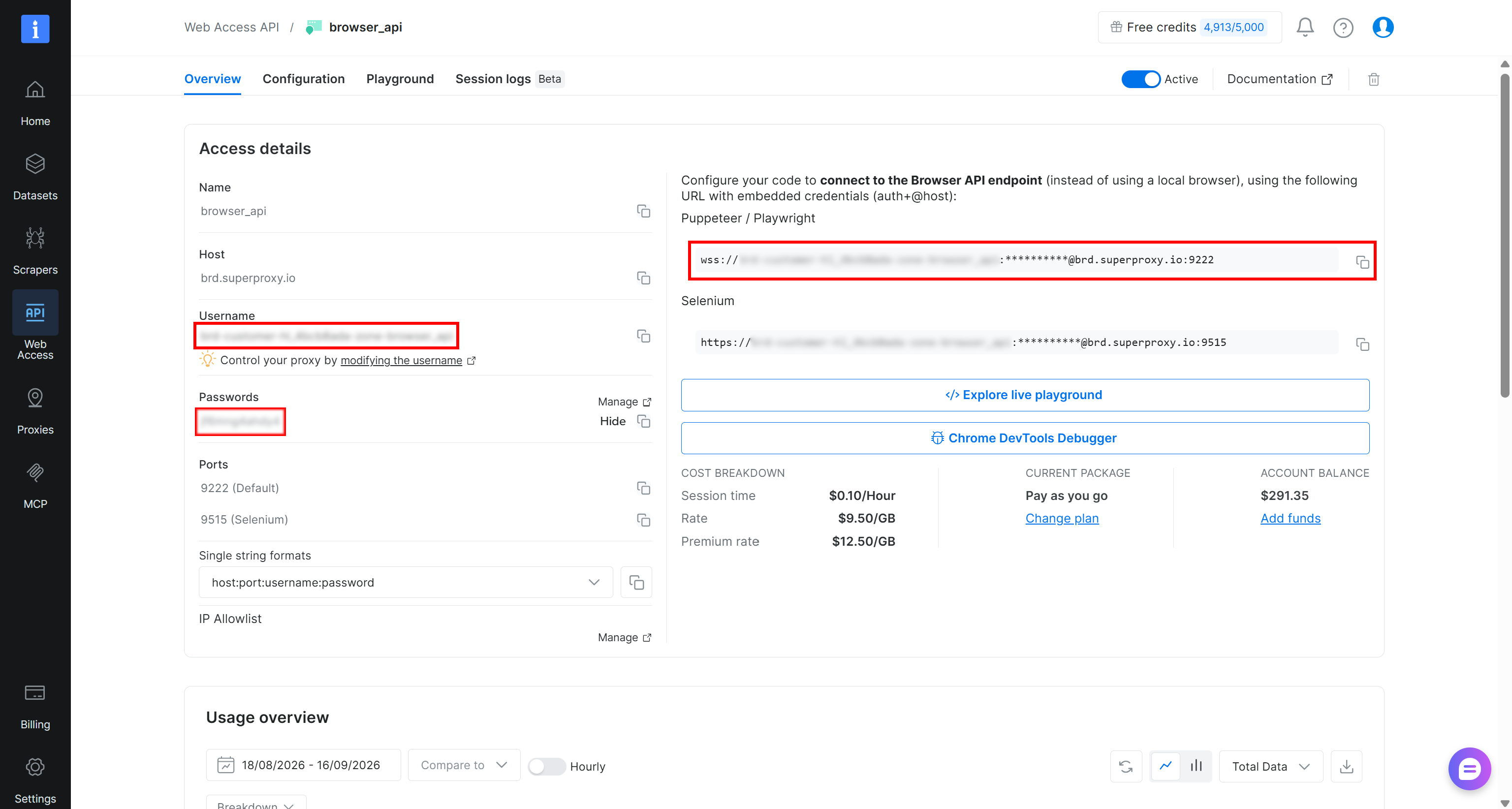
On this page, you will find the connection details for CDP-based integrations under “Puppeteer / Playwright”. The Browser API WebSocket CDP URL follows this format:
wss://<BROWSER_API_USERNAME>:<BROWSER_API_PASSWORD>@brd.superproxy.io:9222To reveal the Browser API password, click “Show” next to the password. Enter the multi-factor authentication code received by email.
You now have the CDP connection URL you need to configure chrome-devtools-mcp for remote browser control. Excellent!
Step #2: Configure Browser API in Gemini CLI via chrome-devtools-mcp
Integrate chrome-devtools-mcp into your AI agent, while instructing it to control remote anti-detect browser sessions through Bright Data’s Browser API. In Gemini CLI, achieve that with the following command:
gemini mcp add --scope project chrome-devtools npx chrome-devtools-mcp@latest -- --wsEndpoint='wss://<BROWSER_API_USERNAME>:<BROWSER_API_PASSWORD>@brd.superproxy.io:9222'Note: Make sure to replace the placeholders with your actual Browser API CDP connection URL in the wsEndpoint argument.
In the terminal, you will see a message mentioning that the chrome-devtools MCP server has been added:

Note the following:
--scope projectconfigures the MCP server locally, within your project. Remove this option if you want to configure the MCP server globally.--wsEndpoint='wss://<BROWSER_API_USERNAME>:<BROWSER_API_PASSWORD>@brd.superproxy.io:9222'instructschrome-devtools-mcpto connect to the Bright Data Browser API endpoint.
Note: Using the wsEndpoint argument is important here. The chrome-devtools-mcp documentation mentions that wsEndpoint is an alternative to browserUrl. However, if you provide the Browser API CDP URL through browserUrl, the integration will fail with the following error: “Request cannot be constructed from a URL that includes credentials”.
The command generates a .gemini/settings.json file in your project’s folder containing this configuration:
{
  "mcpServers": {
    "chrome-devtools": {
      "command": "npx",
      "args": [
        "-y",
        "chrome-devtools-mcp@latest",
        "--wsEndpoint=wss://<BROWSER_API_USERNAME>:<BROWSER_API_PASSWORD>@brd.superproxy.io:9222"
      ]
    }
  }
}
Alternatively, you can create this file manually.
Extra: You can also configure chrome-devtools-mcp in your preferred AI agent. For example, in Claude Code, run:
claude mcp add chrome-devtools --scope project -- npx -- -y chrome-devtools-mcp@latest --wsEndpoint='wss://<BROWSER_API_USERNAME>:<BROWSER_API_PASSWORD>@brd.superproxy.io:9222'Amazing! Your AI agent should now have access to the Chrome DevTools tools for agents through MCP, configured to connect to remote browser sessions provided by Browser API.
Step #3: Check That the Integration Works
Start Gemini CLI (or your favorite AI agent) in your project folder:
geminiThen, run the /mcp command to view the available MCP servers:
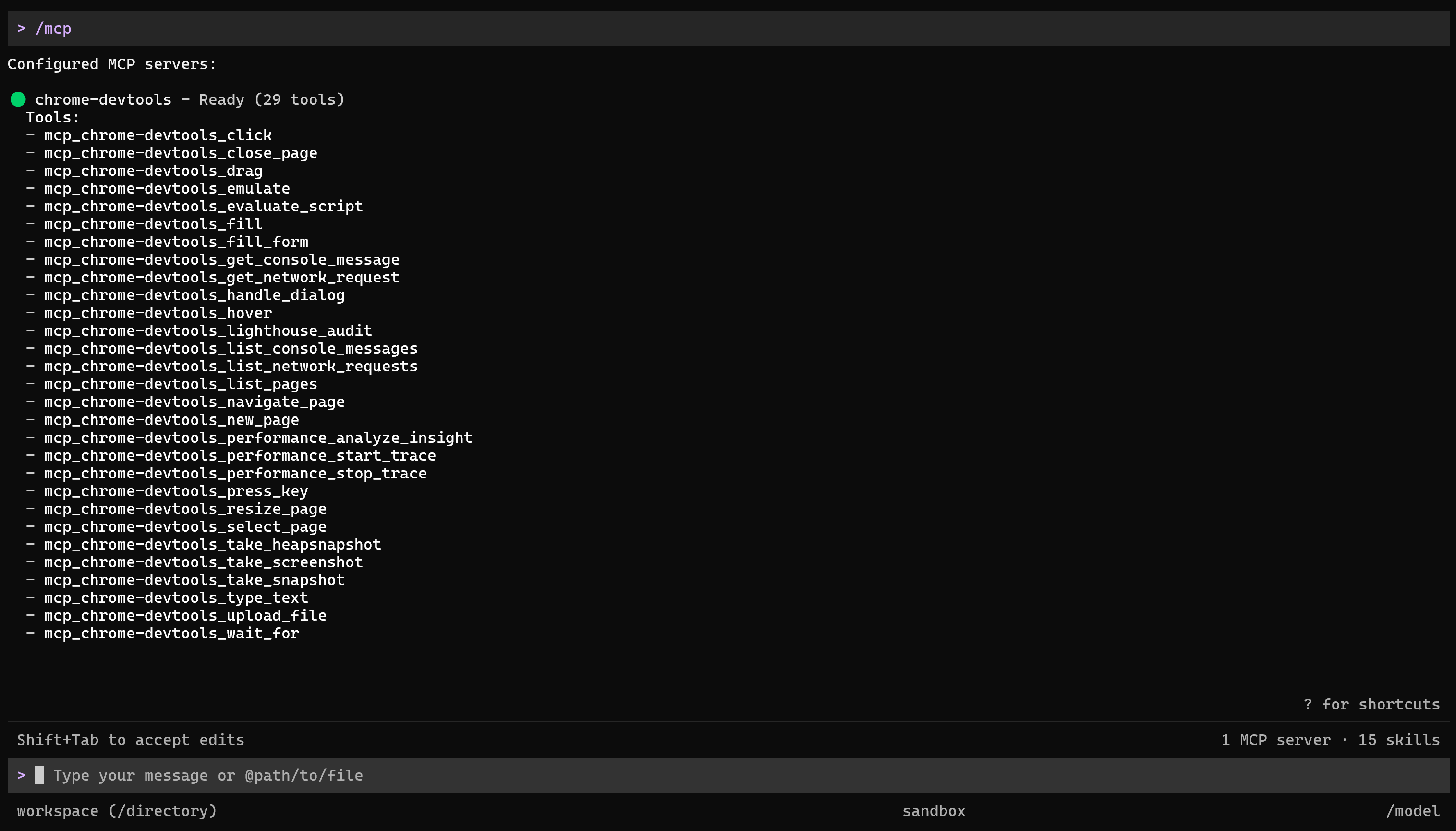
You should see the chrome-devtools MCP server with its 29 available tools, including:
| Tool | Description |
|---|---|
navigate_page |
Navigates to URLs, reloads pages, or moves backward and forward through browser history. |
click |
Clicks an element identified through the page snapshot, with optional support for double-clicking. |
fill |
Enters text into inputs, text areas, or selects options from dropdown menus. |
fill_form |
Fills multiple form fields, checkboxes, radios, and selects in a single operation. |
press_key |
Presses keyboard keys or combinations for shortcuts, navigation, and interactions unavailable through other input tools. |
type_text |
Types text into a previously focused input using keyboard simulation. |
hover |
Moves the pointer over a page element, useful for triggering hover-based menus or interactions. |
wait_for |
Waits until specified text appears on the page before continuing with subsequent actions. |
list_pages |
Lists all currently open browser pages and their identifiers for subsequent interactions. |
new_page |
Opens a new browser tab and navigates it to a specified URL. |
take_snapshot |
Captures the page’s accessibility tree, exposing elements and unique identifiers for subsequent interactions. |
evaluate_script |
Executes JavaScript inside the page and returns JSON-serializable results from the browser context. |
list_network_requests |
Lists recent network requests made by the page, optionally filtered by resource type. |
get_network_request |
Inspects a specific network request, including its headers, request body, and response data. |
take_screenshot |
Captures a screenshot of the current page, viewport, full page, or specific element. |
Fantastic! This confirms that chrome-devtools-mcp is correctly configured and that its browser automation tools are available to your AI agent.
The final step is to verify that it can use those tools to interact with a remote browser session through the Bright Data Browser API.
Step #4: Test Chrome DevTools for Agents + Browser API
To check that Chrome DevTools for agents can control the configured Browser API session, test it against a complex website protected by anti-bot measures, such as Booking.com.
Try the integration with a real-world task like this:
Open the Booking.com page in a browser and search for hotels in Barcelona for two people from September 23 to 24. Apply the "4-star" filter and sort the results by lowest price. Extract the first 10 results with the hotel name, nightly price, rating, and review count.Execute the prompt, and here is what you should see:
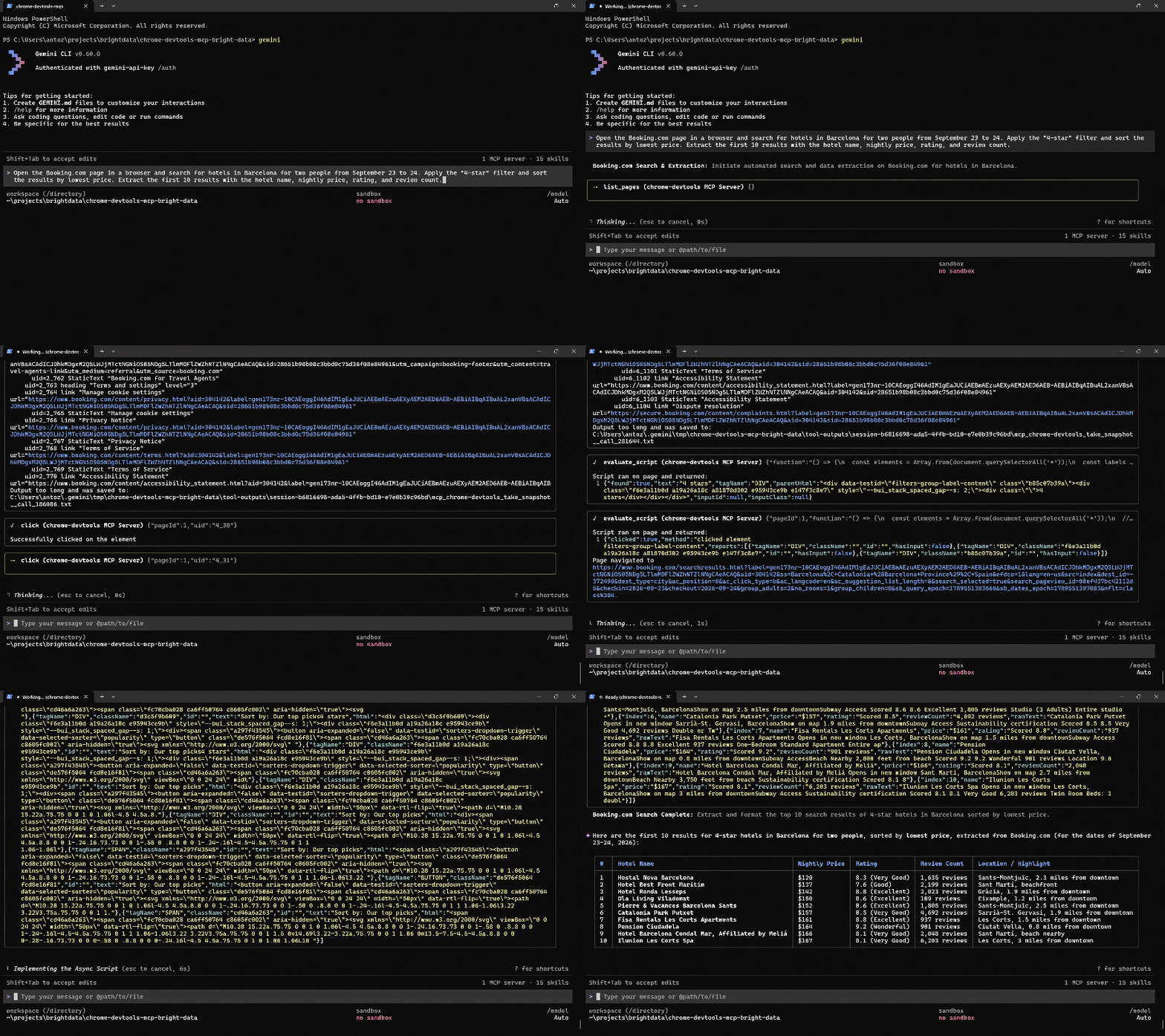
In particular, the Gemini CLI agent handled the task as follows:
- Called
navigate_pageto reach Booking.com. - Used
list_pagestool to identify the available browser page. - Used a combination of the
clickandtake_snapshottools to find the relevant elements and select the requested dates. - Utilized
evaluate_scriptto perform additional required interactions and reach the target results page. - Employed
take_snapshotagain to inspect the structure of the results page. - Used
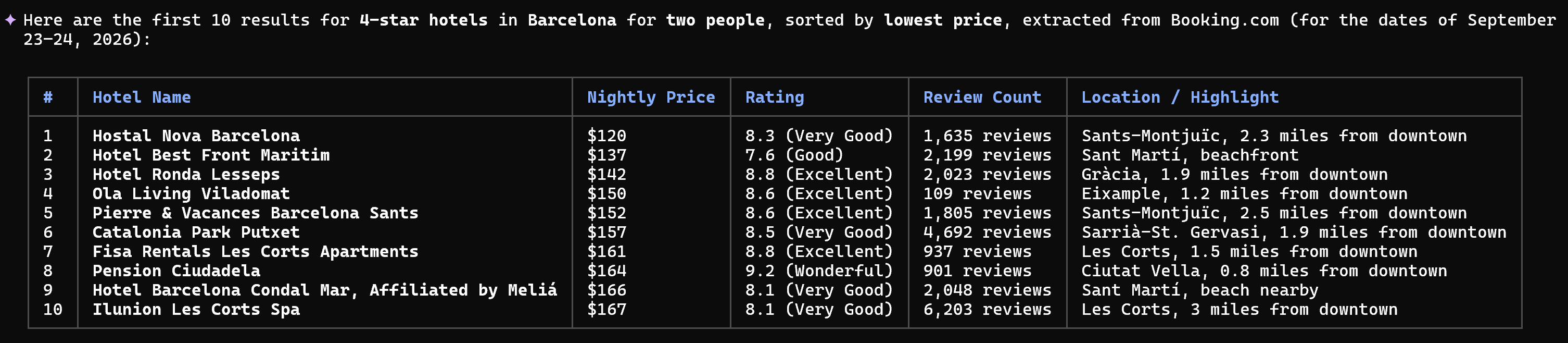
evaluate_scriptto extract the required data with a custom JavaScript script. - Returned the extracted data in a table.
Below is the output produced by the agent:
Notice how the retrieved data closely matches the results displayed directly on Booking.com:
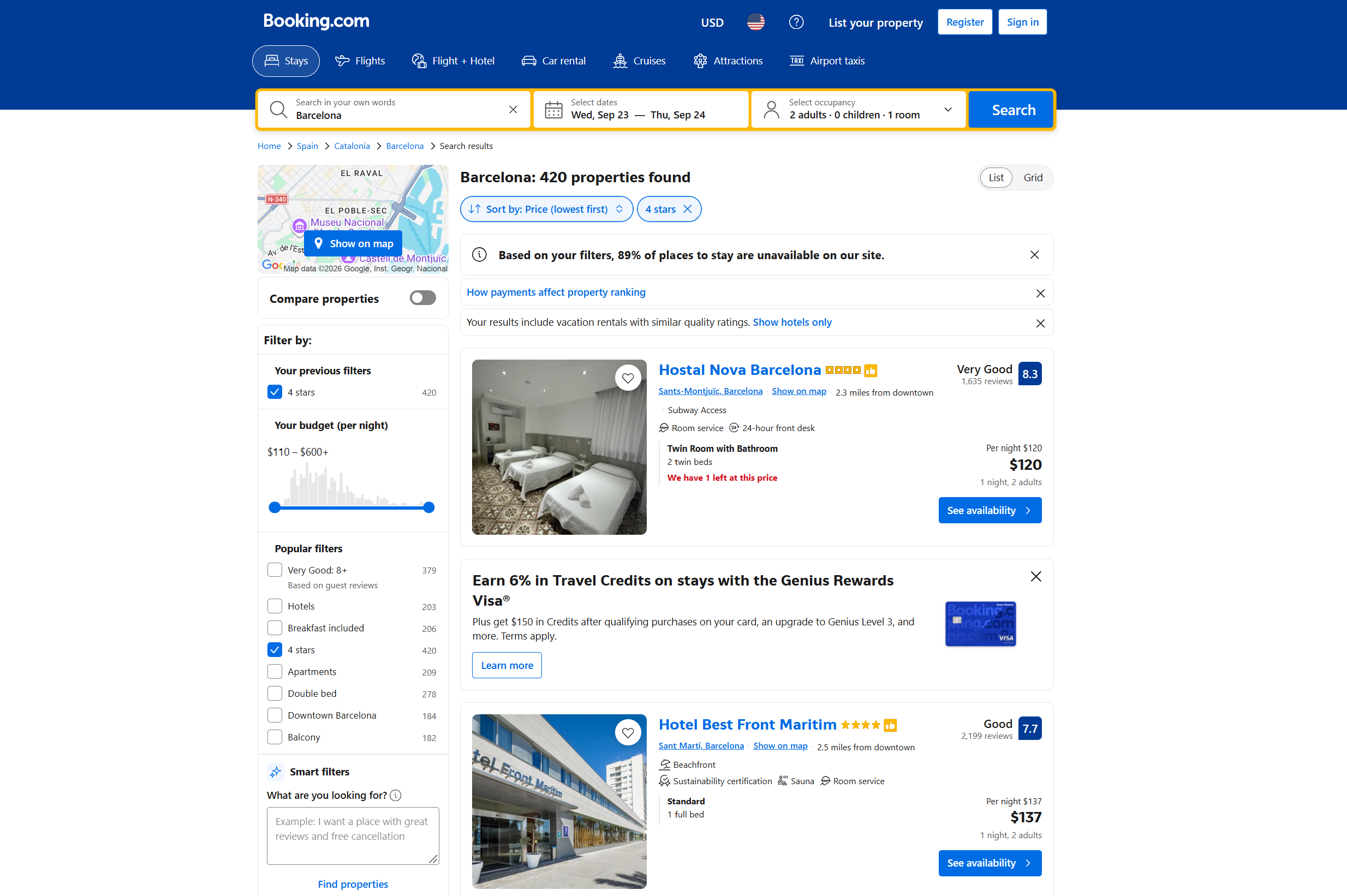
This simple example demonstrated that Chrome DevTools for agents, connected through MCP to Gemini CLI, can interact with Booking.com through a remote Browser API session.
Booking.com is a useful test case because its anti-bot protections make browser automation challenging. In this setup, Browser API handles the browser session and the infrastructure required to access the site, while chrome-devtools-mcp gives the AI agent the tools it needs to interact with the browser.
The result is an AI agent that can perform complex browser interactions without requiring you to run and manage the browser locally. Mission complete!
Other Possible Examples
The chrome-devtools-mcp + Bright Data Browser API combination can support many other browser automation, debugging, and data extraction use cases.
Here are some prompts you can try for different scenarios:
- Extract data from network requests after interaction:
Open a website, search for "web scraping," inspect the network requests generated when the results load, identify the request returning the search results, and extract the first 20 results from its response. - Inspect API responses:
Open a product page, identify the network request returning its product data, inspect the request and response, and extract the product name, price, availability, and rating. - Analyze page performance:
Open a website and analyze its performance. Report the page load time, largest contentful paint, cumulative layout shift, and other relevant performance metrics, then identify potential bottlenecks. - Debug JavaScript errors:
Open a website, inspect the console for JavaScript errors and warnings, identify the affected scripts or pages, and explain the most likely causes based on the available debugging information.
Through chrome-devtools-mcp, your agent is not limited to clicking links and reading page content. Instead, it can perform console inspection, performance analysis, network monitoring, and more. Compared to solutions like Playwright MCP, this makes it more suited to use cases that require deeper browser inspection and debugging.
Conclusion
In this article, you learned what Chrome DevTools for agents is and how it supports browser automation through CDP. Specifically, you saw how to pair it with Bright Data’s Browser API to let your AI agent run scalable, cloud-based browser sessions with built-in anti-bot capabilities.
The result is an AI-controlled browser automation setup that can scale to enterprise-level workloads. With the same integration, you can also build agentic browser workflows backed by cloud browser infrastructure.
Sign up for a Bright Data account and explore our AI-ready web data scraping and browser automation solutions!



Technical Writer
 5.5 years experience
Antonello Zanini is a technical writer, editor, and software engineer with 5M+ views. Expert in technical content strategy, web development, and project management.