








In this blog post, you will learn:
- What Workato is and what it offers as a low-code automation platform.
- Why automated workflows benefit from access to high-quality, structured web data.
- How to build a Workato recipe that processes web data programmatically retrieved through Bright Data APIs.
Let’s dive in!
What Is Workato?
Workato is a cloud-based automation and integration low-code platform. It connects applications, synchronizes data, and orchestrates business workflows with low-code tools. It helps you automate processes and integrate AI agents across thousands of applications and systems.
The main features supported by Workato are:
- Recipes: Visual workflows that define automated processes through triggers and actions. They connect applications, transform data, and execute business logic without requiring extensive custom development.
- Connectors: Pre-built integrations that connect Workato with popular SaaS applications, enterprise systems, databases, APIs, and other business tools to simplify data exchange.
- Low-code/no-code automation: A drag-and-drop interface that enables teams to build and modify workflows without writing traditional code, reducing development time and dependency on engineering resources.
- AI agent orchestration: Tools for designing, deploying, and governing AI agents that can interact with enterprise systems, follow business rules, and execute automated processes.
- Enterprise governance and security: Provides controls such as access management, audit logs, data protection, monitoring, and policy enforcement to ensure reliable automation at scale.
Why Integrate Web Data in Workato Recipes
Workato supports integrations with third-party SaaS applications and services across your enterprise technology stack. However, internal data alone is generally not enough to generate complete, accurate insights.
Web data provides external context about what is happening in the market right now. This contextual, real-time information is essential for improving decision-making, especially in business scenarios.
Online data becomes even more important when building AI-powered automations. LLMs are trained on static datasets and do not have access to the latest events, updates, or business signals. Without live data, their outputs can involve outdated knowledge and may lead to inaccurate insights.
The problem is that collecting web data at scale is challenging due to rate limits, anti-bot systems, CAPTCHAs, and fingerprint analysis. This is where Bright Data comes in!
Bright Data APIs as the Solution
Bright Data is a leading web data provider that exposes APIs for collecting, extracting, and processing public web data at scale. All of these APIs can be integrated into Workato recipes to power automated workflows with structured, verifiable, up-to-date web data.
The main Bright Data APIs include:
- Web Scraper APIs: Extract structured datasets from popular websites, including Amazon, LinkedIn, and 40+ supported domains.
- Web Unlocker API: Retrieve web page content in HTML or Markdown while automatically handling anti-bot systems and access challenges.
- SERP API: Collect structured search engine results from Google, Bing, Yandex, and other search platforms for research and automation workflows.
- Browser API: Run automated browser sessions to interact with dynamic websites and JavaScript-based applications.
Note: Every new Bright Data account includes 5,000 free requests per month across Web Unlocker API, SERP API, and Web Scraper APIs.
What sets Bright Data apart is its enterprise-grade infrastructure, powered by a proxy network of 400+ million IPs across 195 countries. It supports unlimited scalability and concurrency while achieving 99.99% uptime and a 99.95% success rate.
Combined with Workato, Bright Data enables enterprises to build solid workflows. Discover how!
How to Use Bright Data Scraper APIs in a Workato Recipe
In this step-by-step chapter, you will learn how to set up a real-world AI-powered Workato recipe. Specifically, the workflow will automatically:
- Retrieve recent Glassdoor reviews using Bright Data.
- Analyze them with OpenAI.
- Deliver a structured HTML report directly to your inbox.
This recipe is useful for competitor monitoring, market research, and employee feedback analysis.
Note: This is only one example of what you can build. Bright Data APIs support many other use cases, allowing you to create workflows for web search, lead generation, review monitoring, data enrichment, and more.
Follow the instructions below!
Prerequisites
Make sure you have:
- A Workato account (a free trial is fine).
- A Bright Data account with an API key configured. Refer to the official guide on setting up a Bright Data API key.
- An OpenAI API key.
While not strictly required, a basic understanding of how the Bright Data Scraper API works will also be helpful.
Step #1: Initialize a Workato Recipe
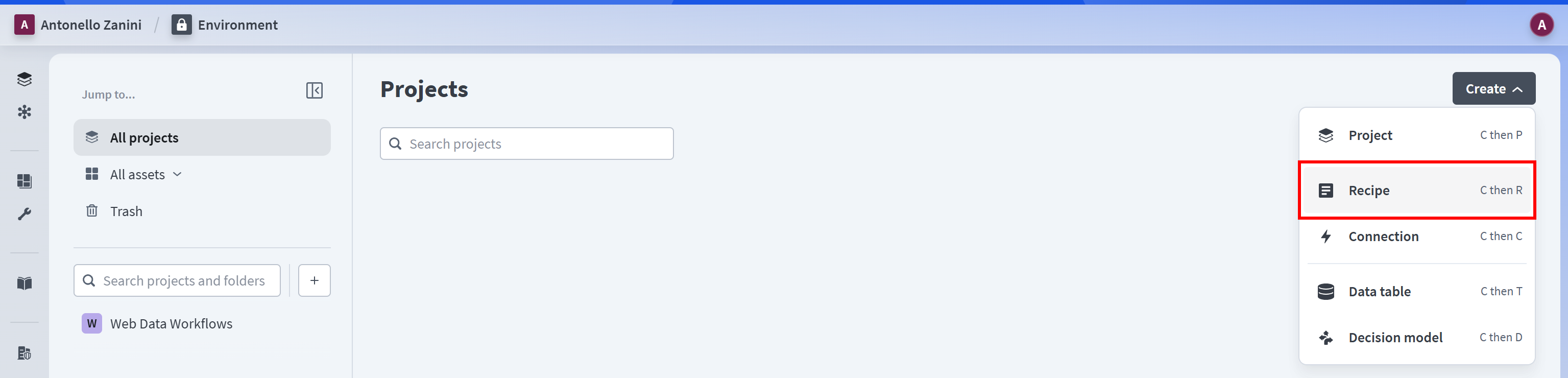
Log in to your Workato account and create a new project (e.g., “Web Data Workflows”). Open the project, then select “Create > Recipe” to create a new Workato recipe:
If you are new to Workato, a recipe is an automated workflow that connects different applications through a trigger and a series of actions. The trigger determines when the workflow starts, while the actions define the tasks performed afterward.
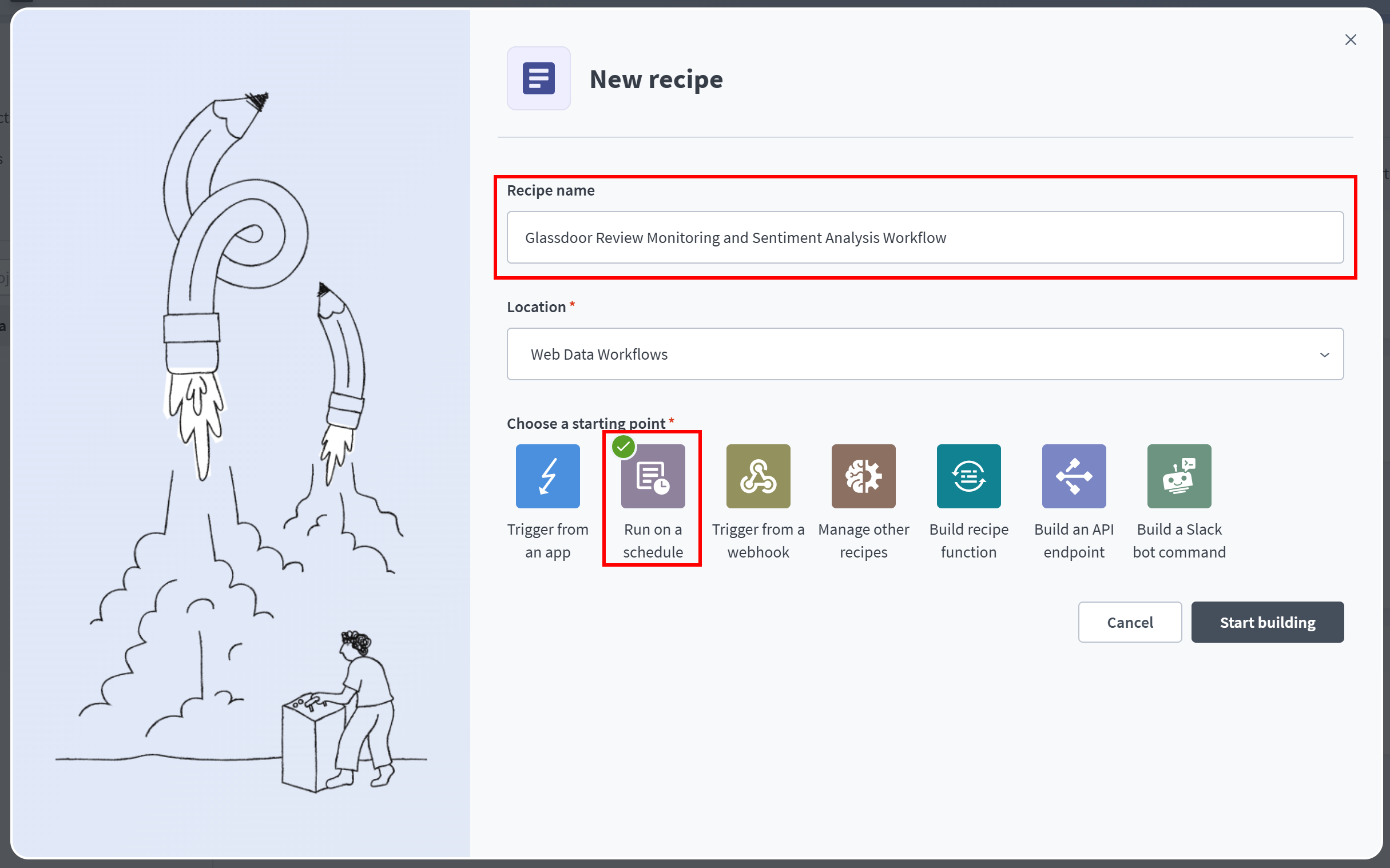
Give your recipe a name (e.g., “Glassdoor Review Monitoring and Sentiment Analysis Workflow”), then select “Run on a schedule” as the starting point:
You will be redirected to the visual recipe editor:
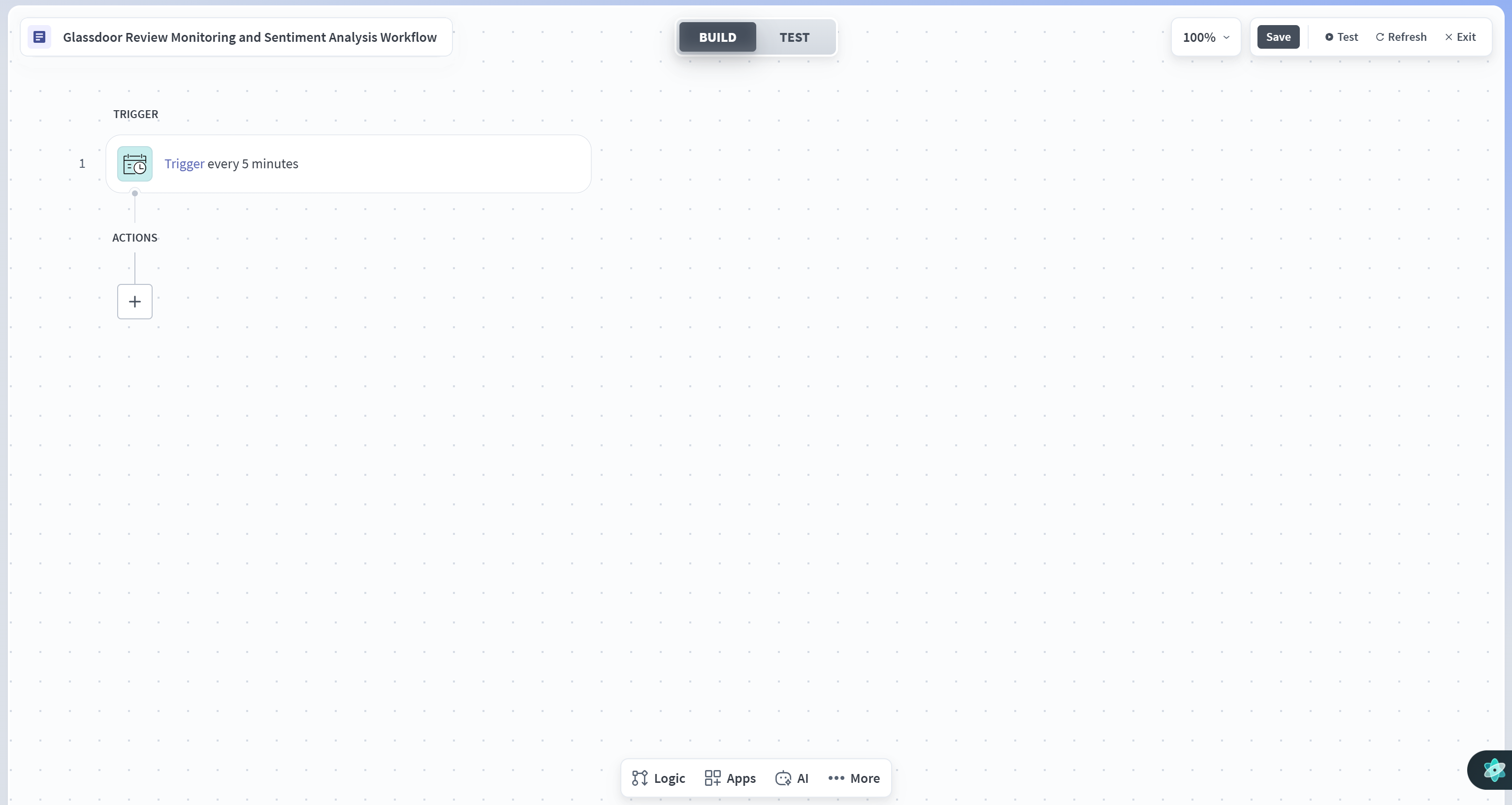
Notice that the recipe already includes a scheduled trigger. This means the workflow will run periodically at regular intervals without manual intervention.
To configure when the workflow will be triggered, click the “Trigger” step and adjust the schedule settings. For example, you can set it to run every 10 days at 9:00 AM:
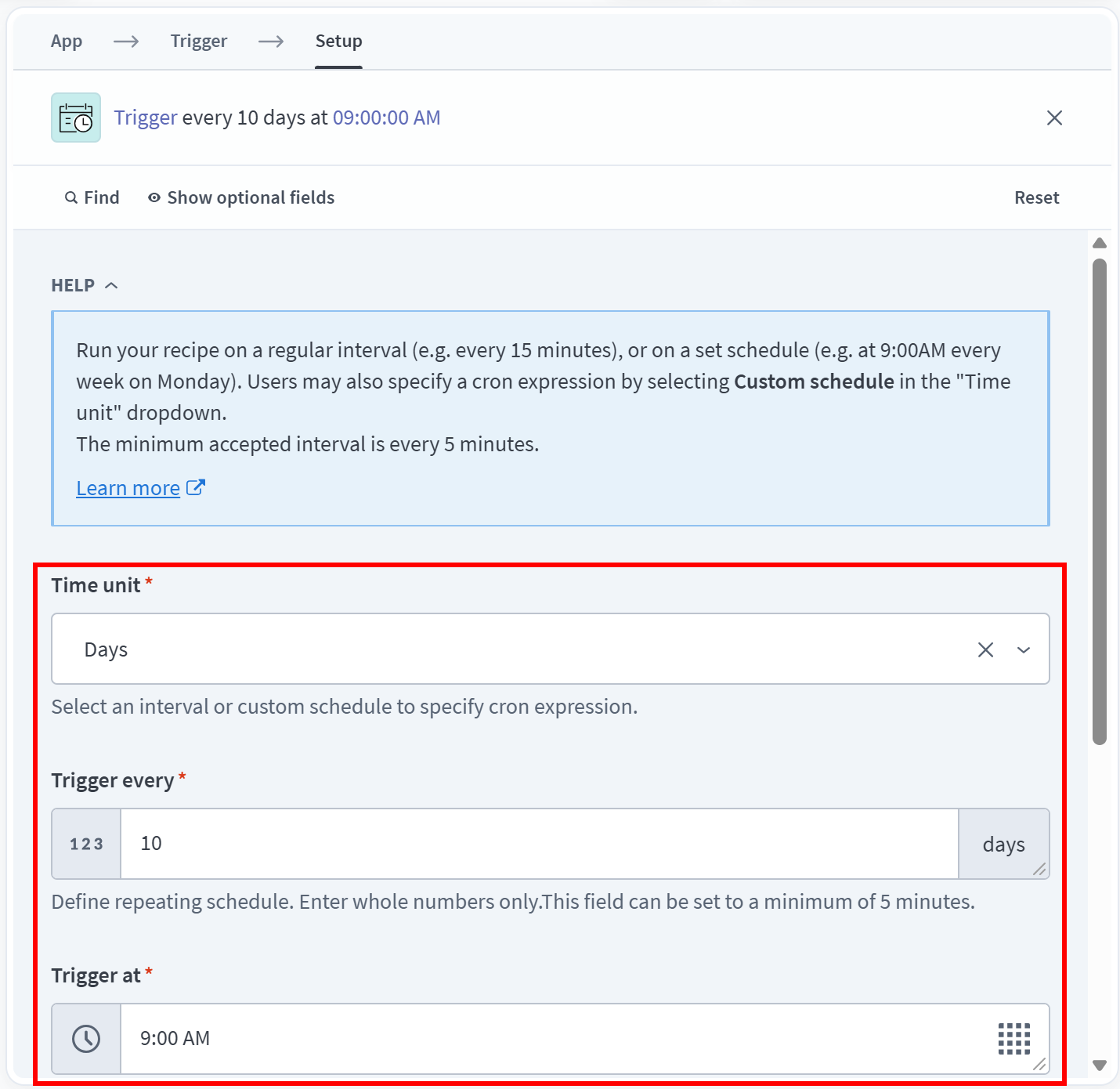
Well done! Your new Workato recipe has been initialized.
Step #2: Get Familiar with the Bright Data Glassdoor Reviews Scraper API
The Bright Data Glassdoor Reviews Scraper is the perfect Web Scraper API endpoint to retrieve Glassdoor review data. Before integrating it into your Workato recipe, it is worth understanding how the API works, including its endpoint, input, and output.
Log in to your Bright Data account and reach the control panel. Navigate to “Scrapers > Scrapers Library”, search for “glassdoor”, and select the “glassdoor.com” card:
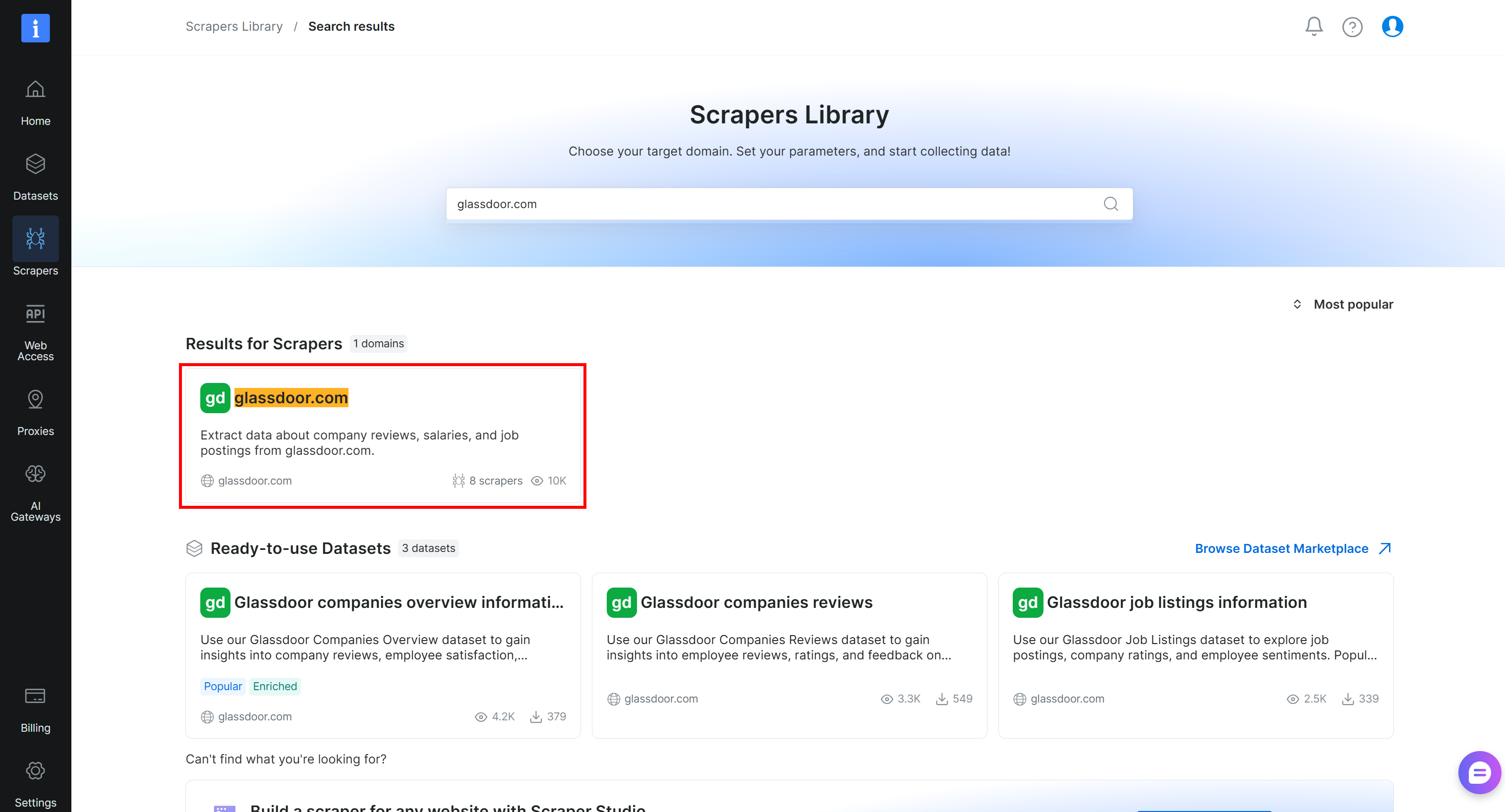
You will be redirected to the Glassdoor scraper page. There, select the “Glassdoor companies reviews > Collect by URL” option from the left-hand menu. This is the endpoint used to scrape Glassdoor reviews:
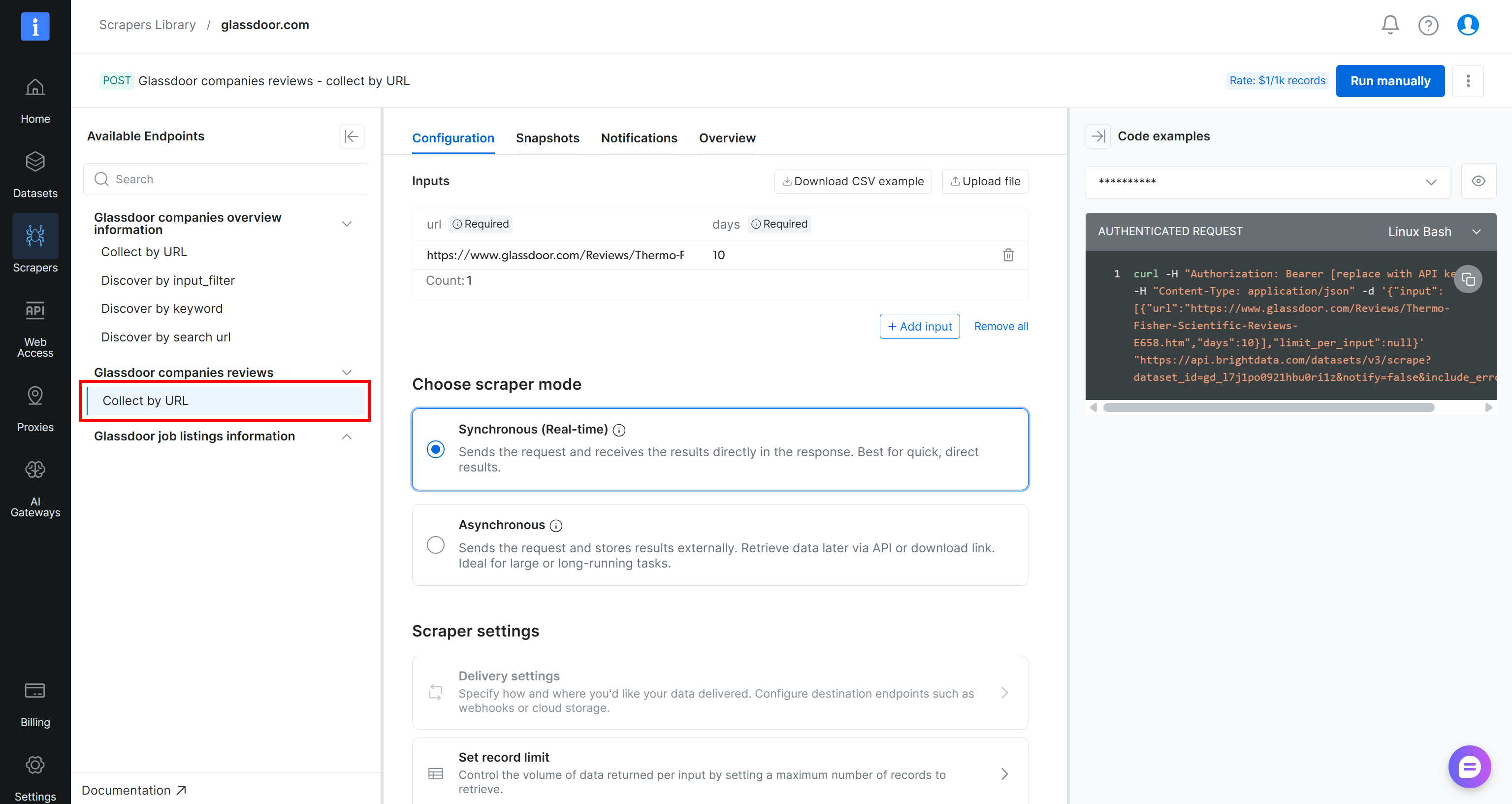
The code sample on the right shows that synchronous scraping requests are sent to the following endpoint:
https://api.brightdata.com/datasets/v3/scrape?dataset_id=gd_l7j1po0921hbu0ri1zHere, gd_l7j1po0921hbu0ri1z is the dataset ID for the Glassdoor Reviews Scraper API. The request is sent to the datasets/v3/scrape endpoint, which performs the scraping job and waits for it to finish before returning the extracted data in the response.
As you can see, the request body has the following structure:
{
  "input": [
    {
      "url": "<GLASSDOOR_REVIEW_PAGE_URL>",
      "days": <NUM_DAYS>
    },
    // other URL objects...
  ],
  "limit_per_input": null
}
The url field specifies the Glassdoor company review page to scrape, while days limits the results to reviews published within the specified number of days.
You can also test the endpoint directly from the Bright Data control panel by clicking “Run manually” in the upper-right corner. If you analyze the JSON output of an API call, you will see:
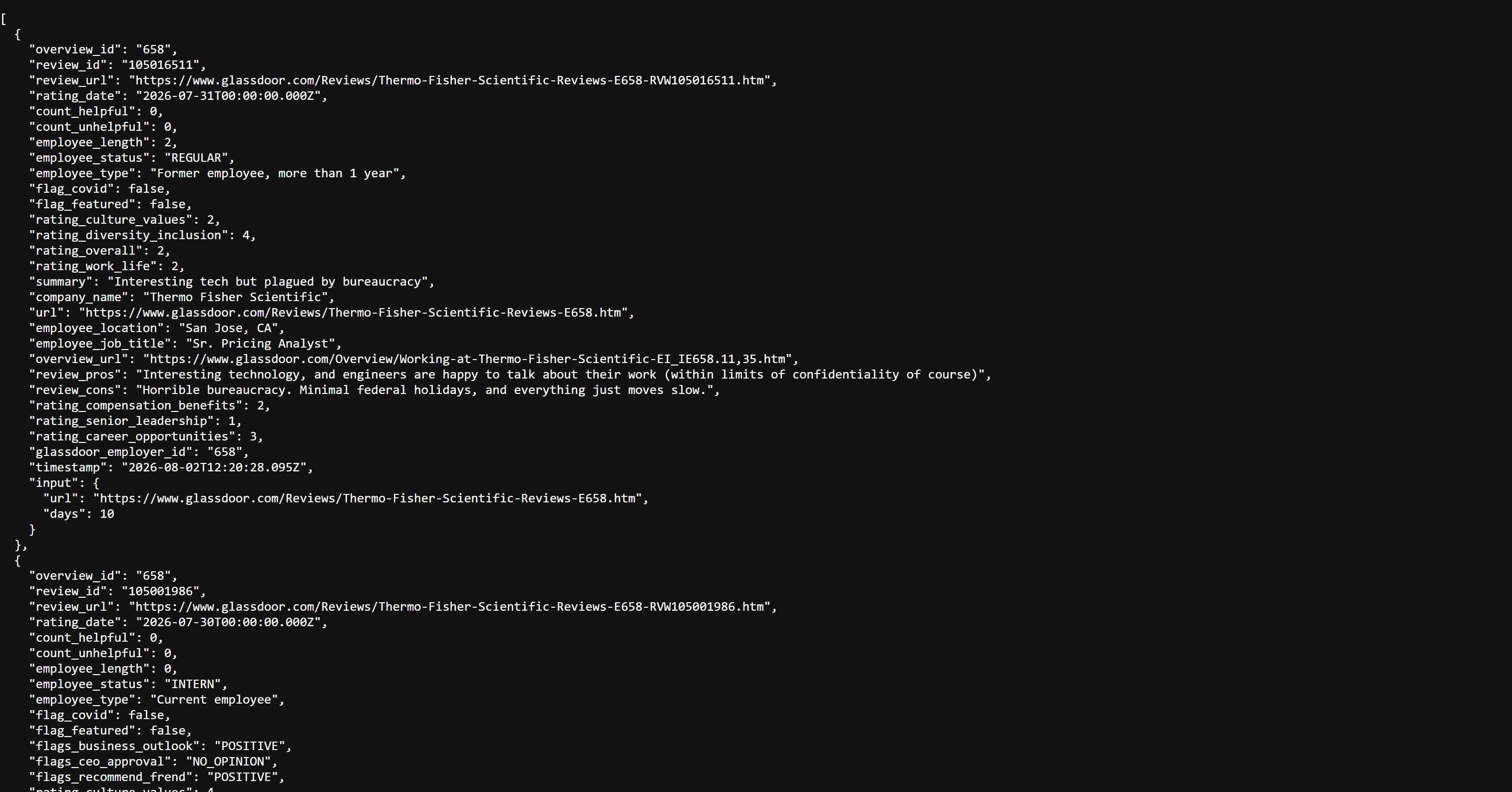
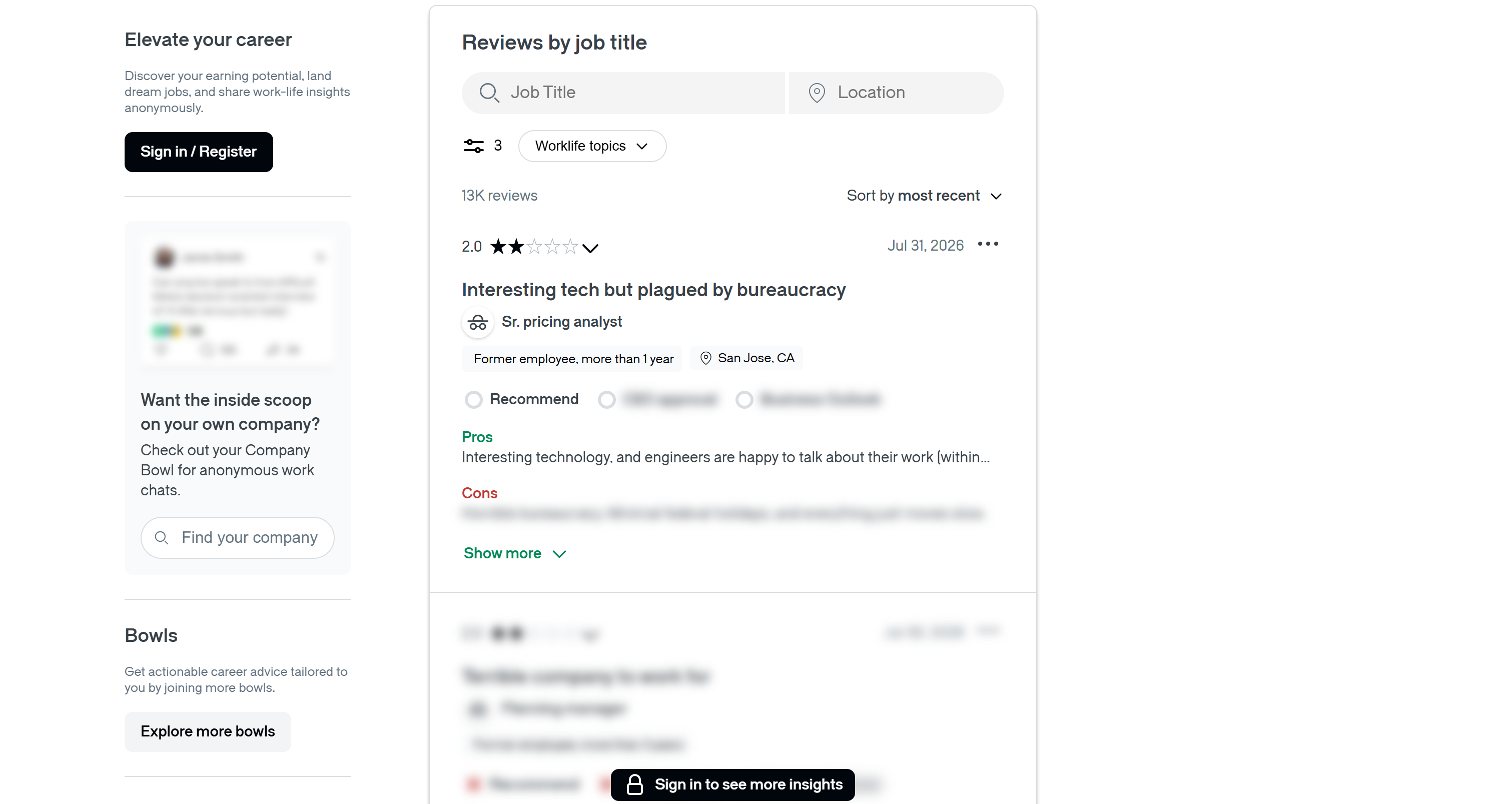
Notice how each review includes the same information available on the original Glassdoor page. That includes review title, rating, pros, cons, recommendations, and review date:
Terrific! Time to integrate the Bright Data Scraper API call into your Workato recipe.
Step #3: Set Up the HTTP Step to Call the Scraper API
Return to the Workato recipe editor page. Click the “+” button and select “Action in app” to add a new step. In the panel on the right, search for “http” and select the “HTTP” app:
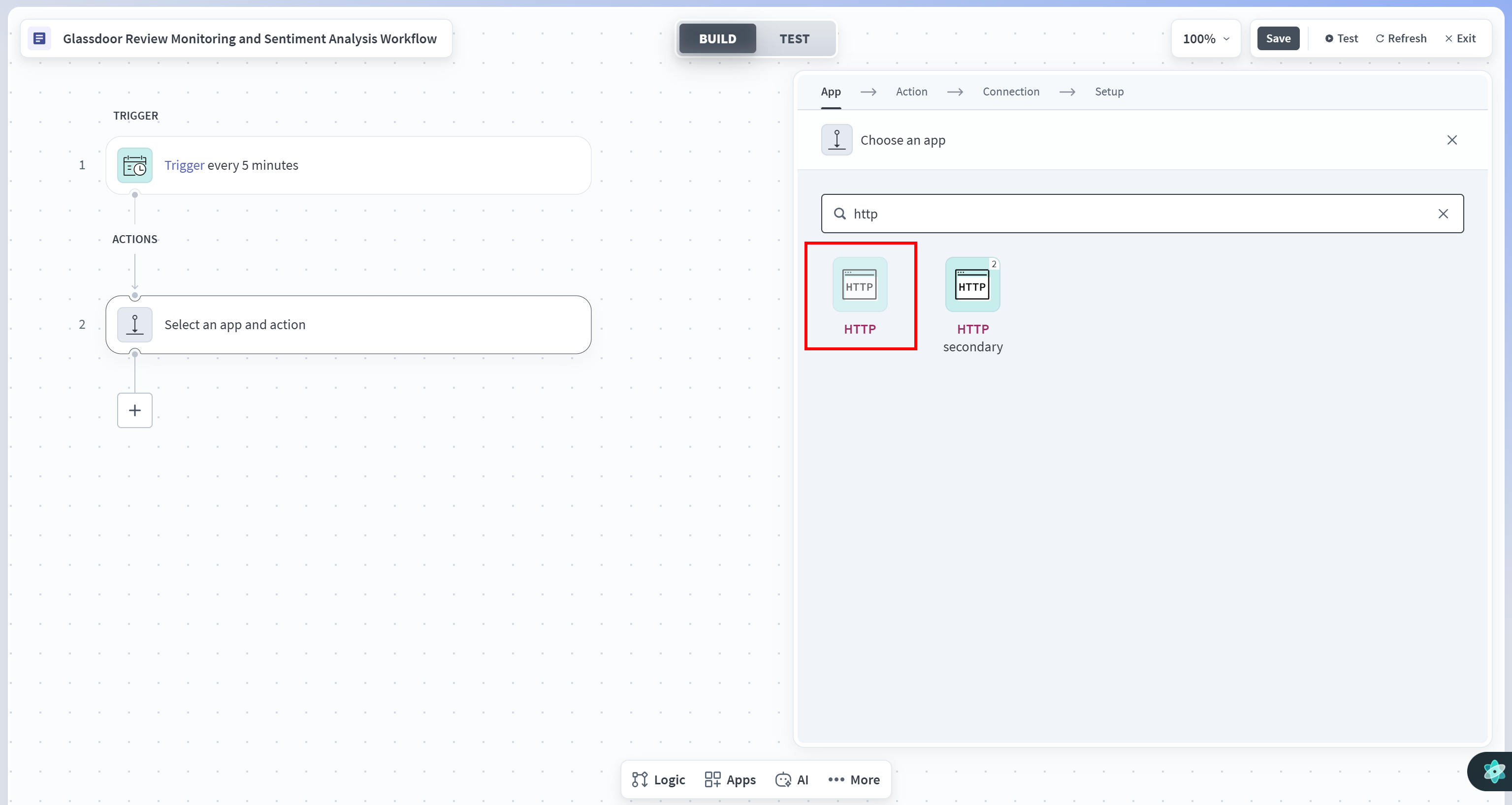
The Workato “HTTP” app lets you send HTTP requests to external services, making it the ideal choice for calling the Bright Data Scraper APIs.
Configure the connection with the following settings:
- Connection name:
Bright Data Scraper API - Location:
Your Workato project - Connection type:
Cloud - Authentication type:
Header auth(as Bright Data Scraper APIs are authenticated via theAuthorizationheader)
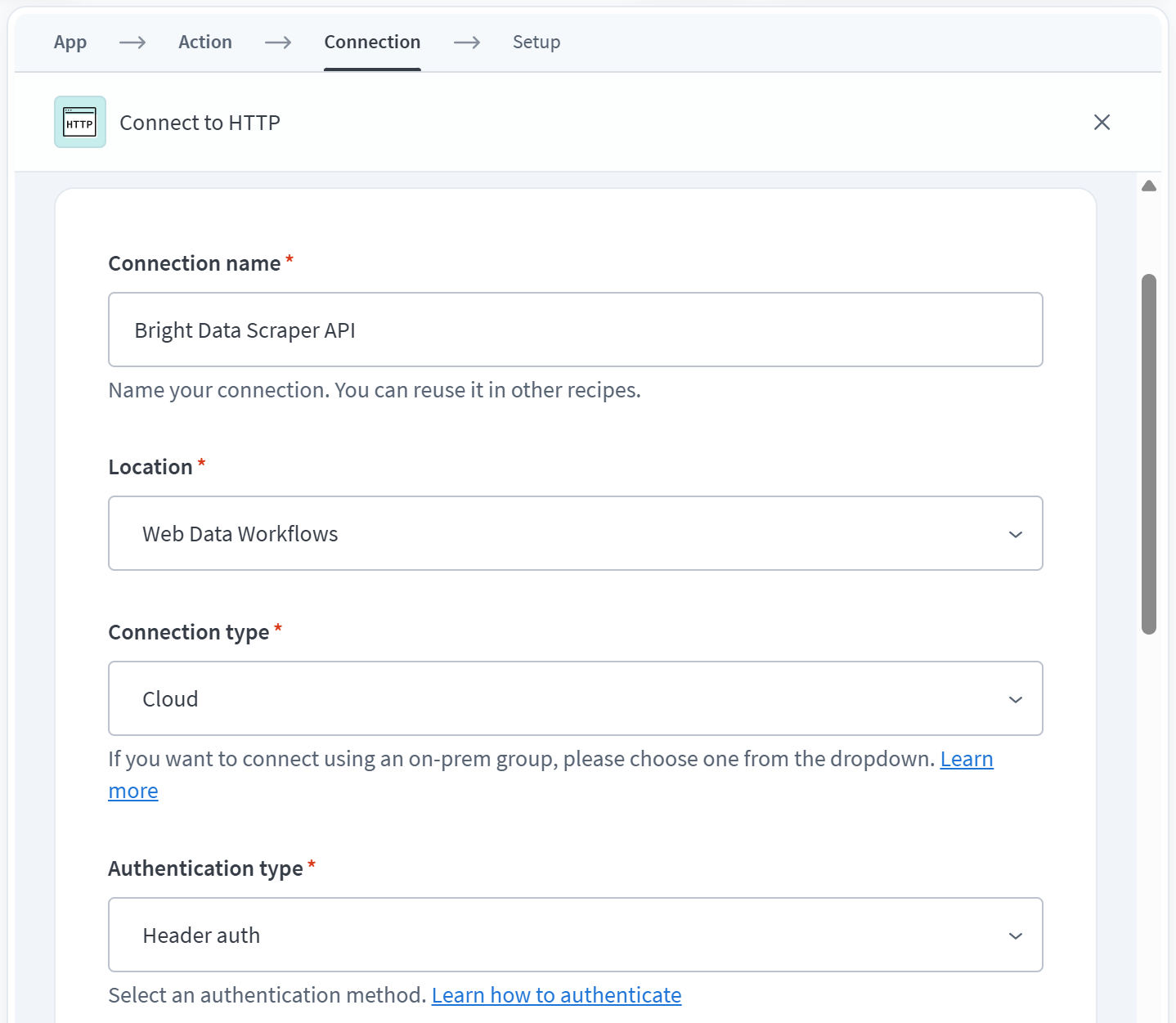
Then, as “Base URL”, paste the Bright Data Scraper API base URL:
https://api.brightdata.com/datasets/v3/scrape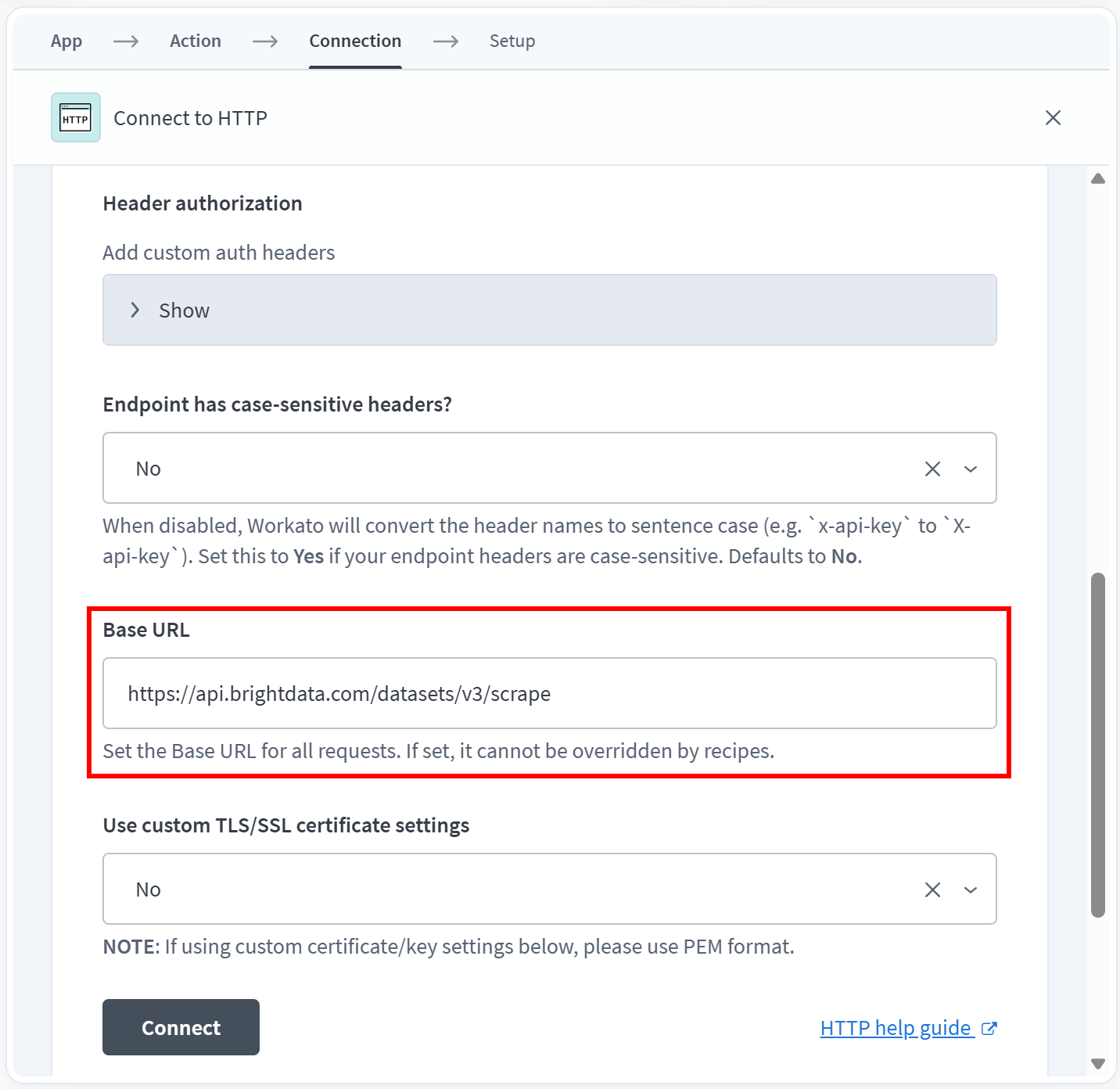
Leave the remaining options unchanged and click “Connect”. Next, under the step configuration, click the “Start guided setup” button:
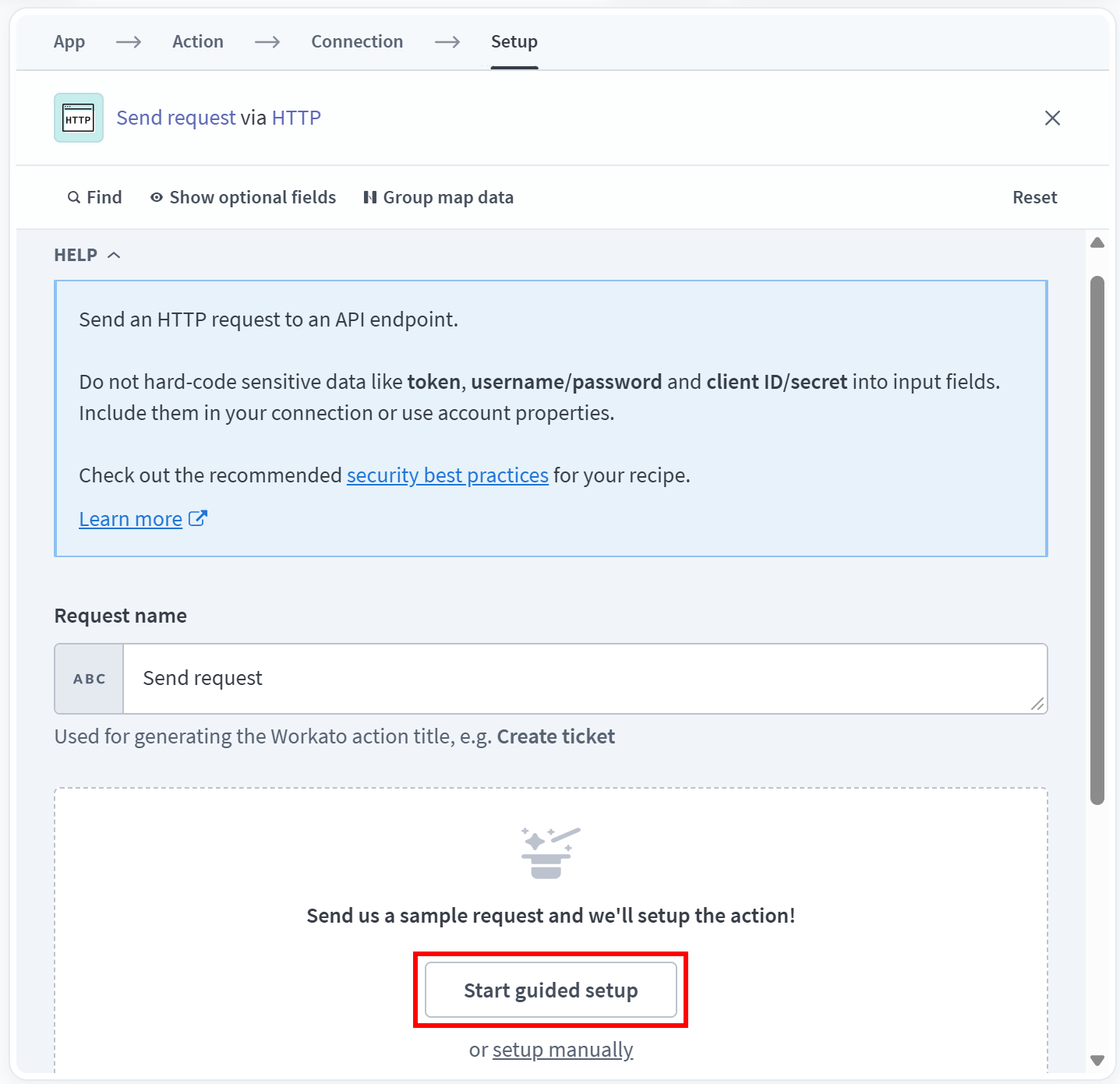
This will open a wizard model to guide you through the configuration of the HTTP request.
Select “POST” as the HTTP method and use the following request URL for the Glassdoor Scraper API endpoint:
https://api.brightdata.com/datasets/v3/scrape?dataset_id=gd_l7j1po0921hbu0ri1z&format=jsonThe format=json query parameter instructs the API to return the results as JSON. Other formats, such as CSV and JSONL, are also supported.
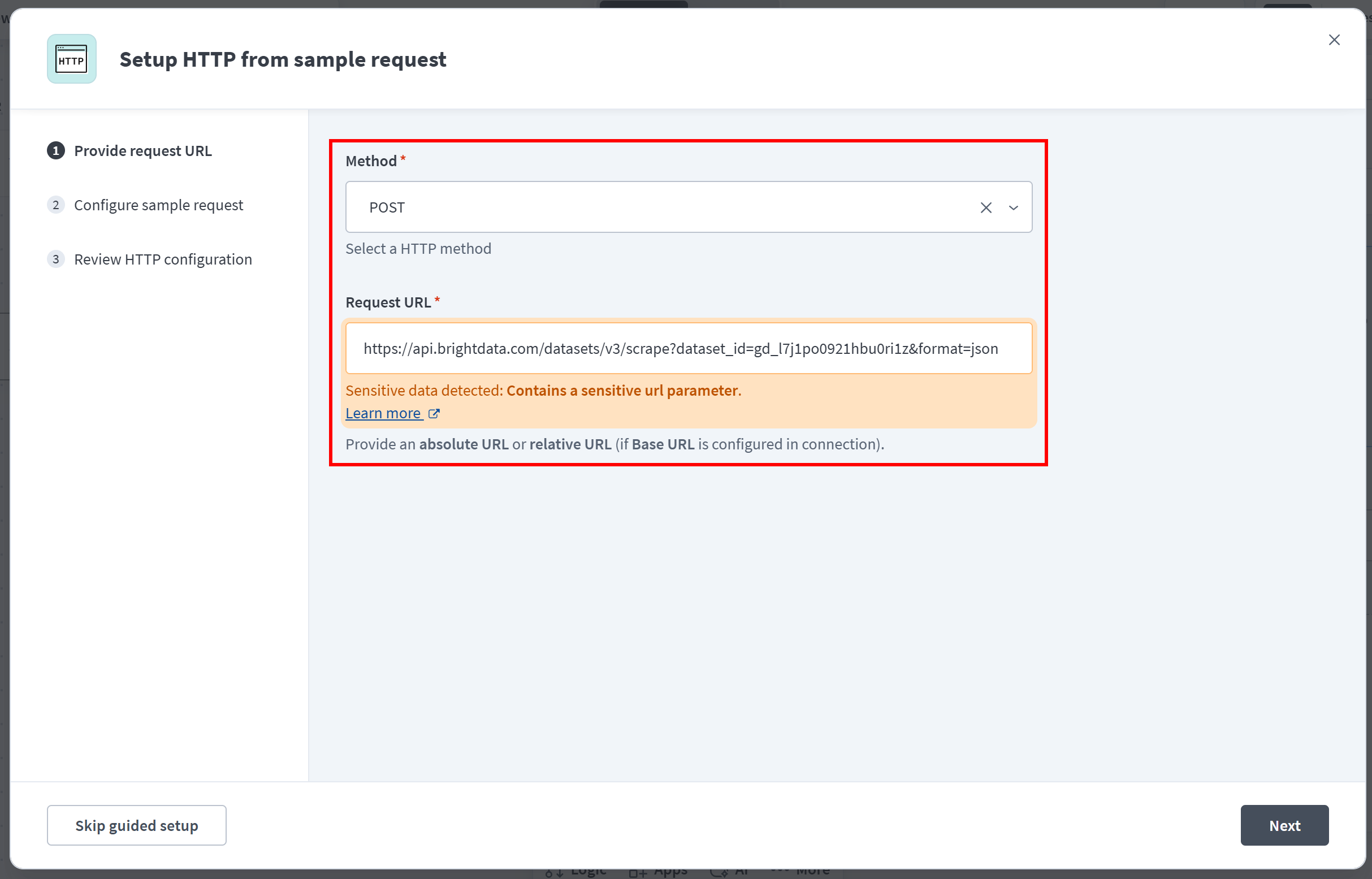
Now, suppose you want to monitor Glassdoor reviews for Nike. Add this request body:
{"input":[{"url":"https://www.glassdoor.com/Reviews/NIKE-Reviews-E1699.htm","days":10}],"limit_per_input":null}Note that days is set to 10 because the Workato recipe is configured to run every 10 days. This ensures that each execution retrieves all new reviews published since the previous run.
To authenticate the request through your Bright Data account, set up an Authorization header containing:
Bearer <YOUR_BRIGHT_DATA_API_KEY>Replace <YOUR_BRIGHT_DATA_API_KEY> with your own Bright Data API key. This is the required pattern used by the Bright Data APIs for authentication.
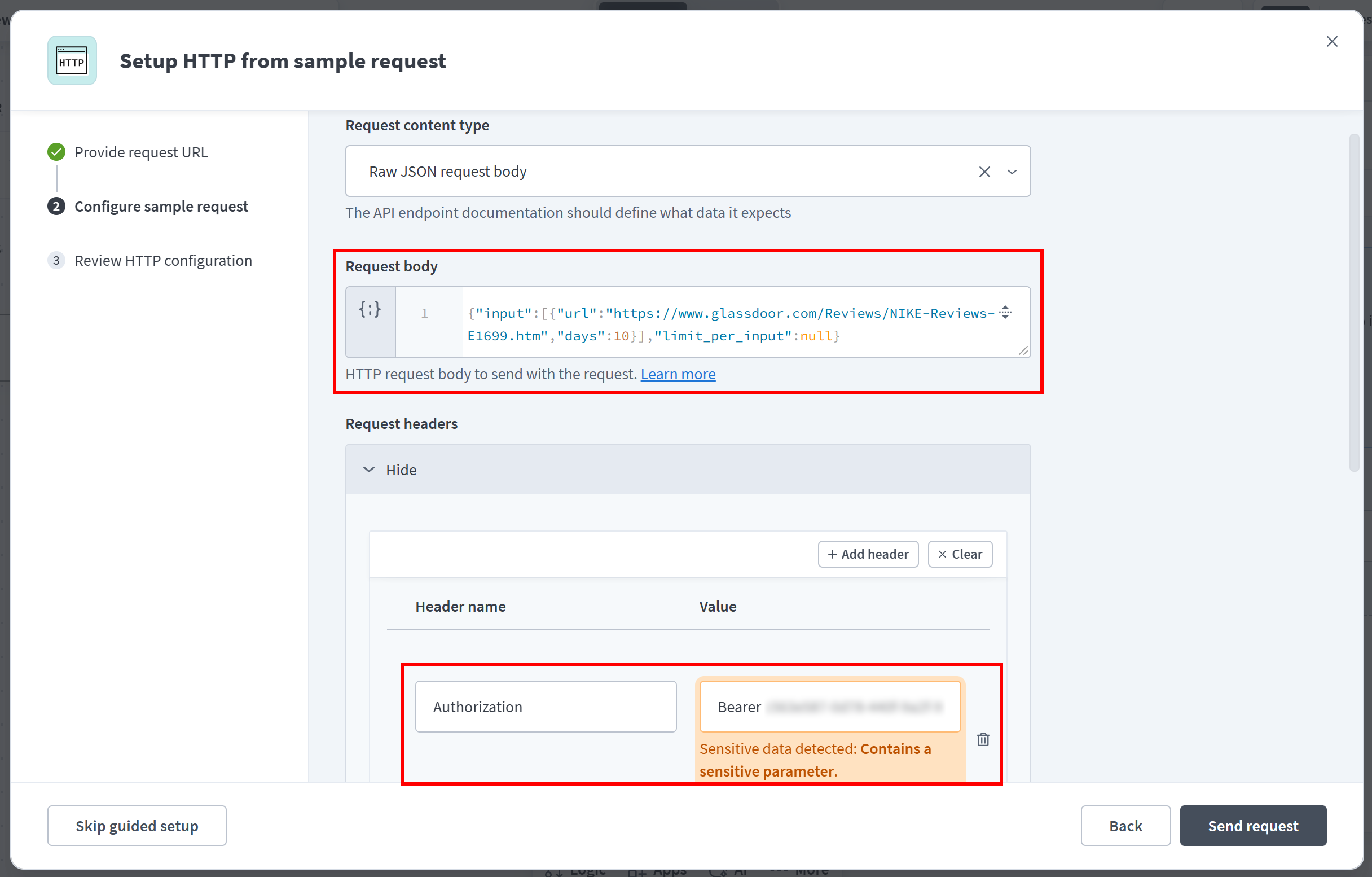
Click “Send request” to test the configuration. If everything is configured correctly, Workato will return a 200 OK response containing the scraped Glassdoor reviews in JSON format:
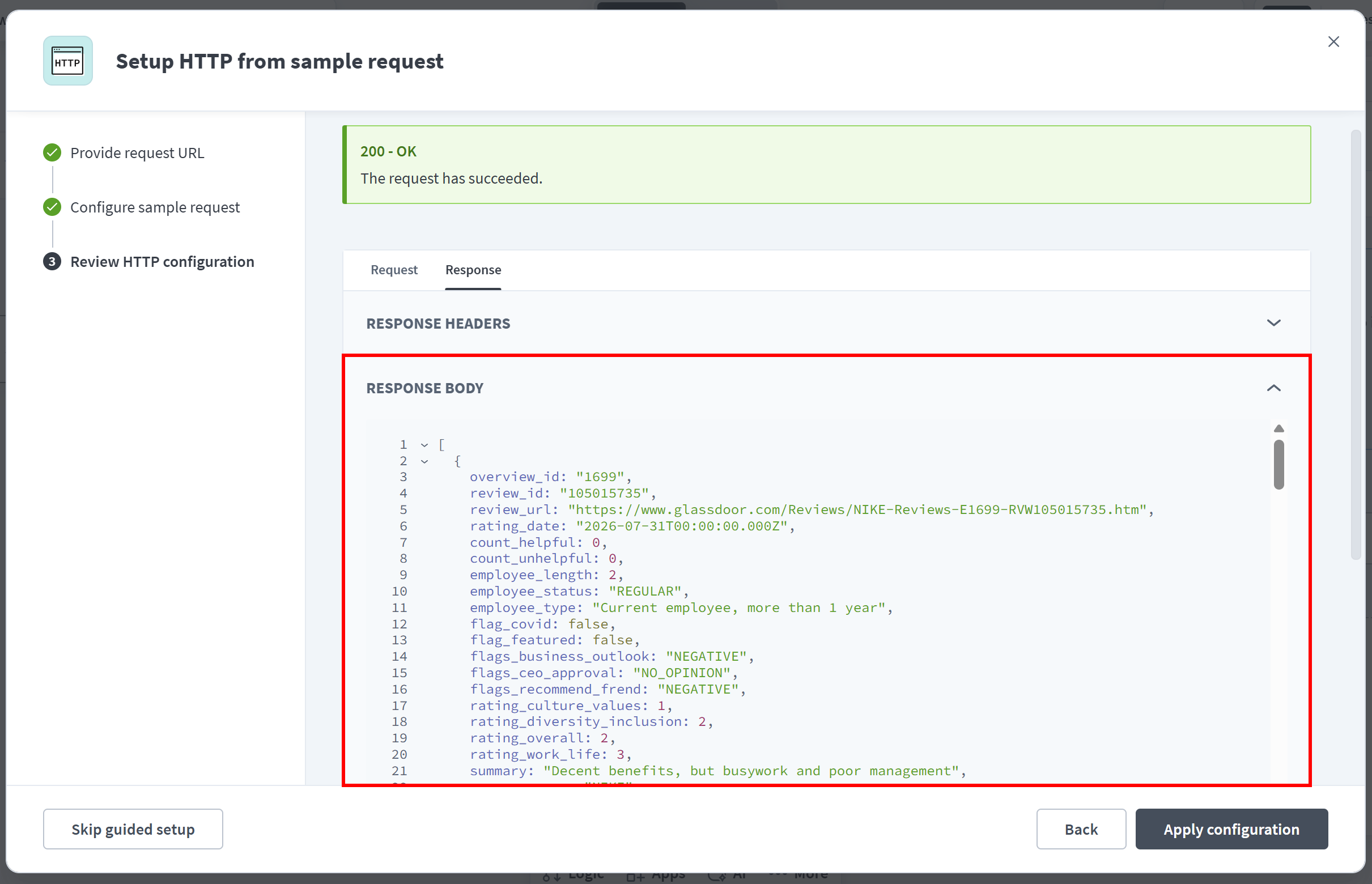
Click “Apply configuration” to finish the guided setup.
Back in the “HTTP” step configuration, you will be able to explore the response schema automatically generated after the API call test. In the “Setup” options, make sure to set the “Wait for response” option to “Yes”:
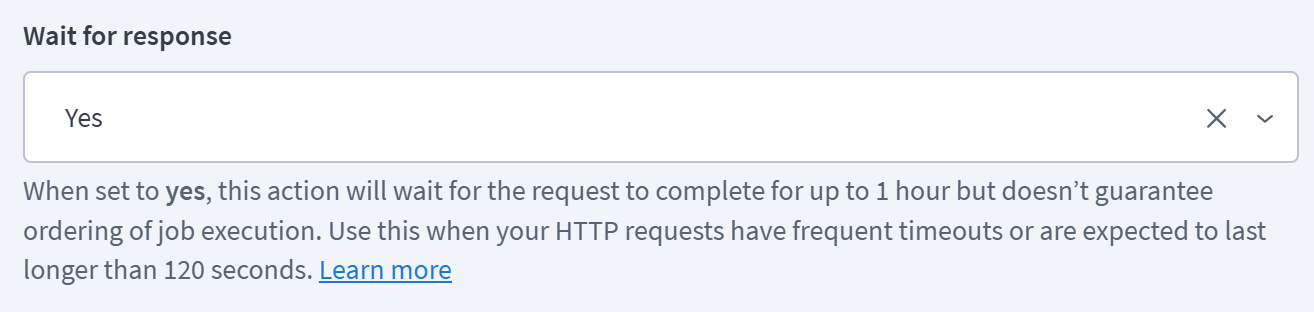
This way, Workato will wait for the Bright Data API to return the scraped data before executing the next step in the recipe.
Finally, remember that this “HTTP” step contains your Bright Data API key. To avoid exposing it in recipe logs or job reports, either store it as a secret or click the “…” menu on the HTTP step and toggle “Mask data”:
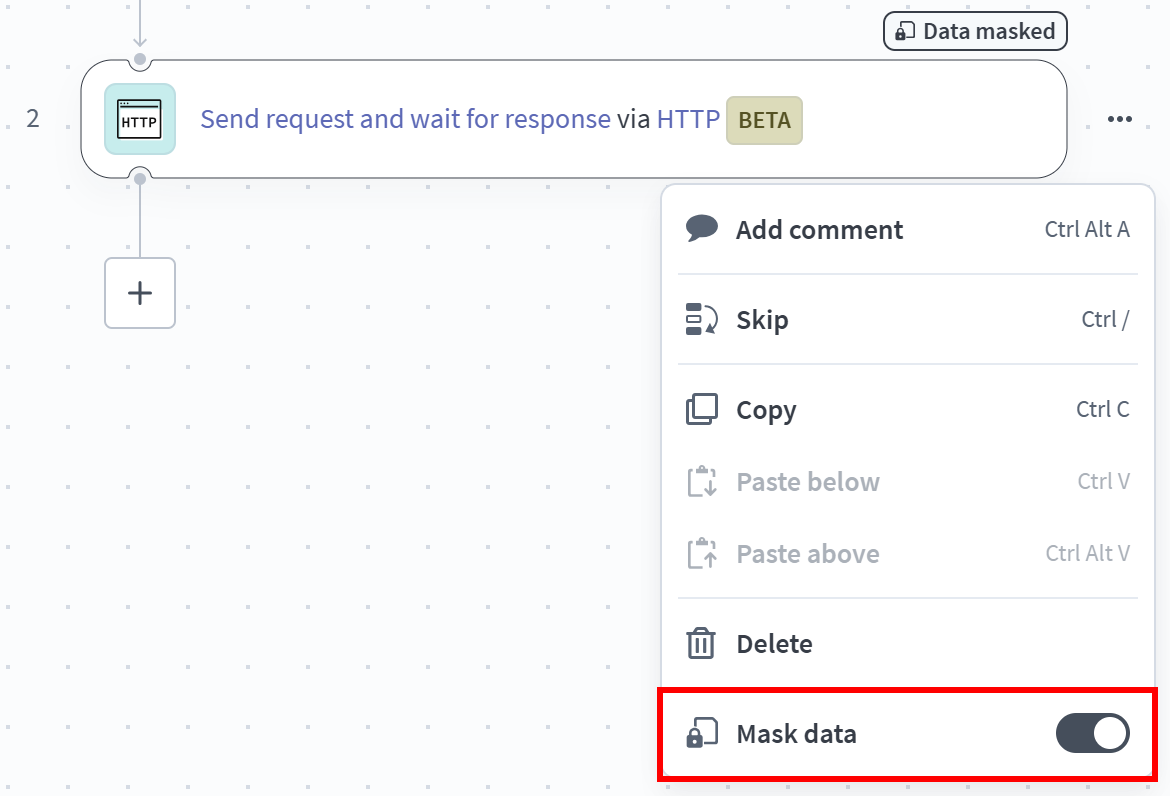
Excellent! Your Workato recipe is now successfully connected to the Bright Data Glassdoor Reviews Scraper API.
Step #4: Configure the OpenAI Step
The Workato recipe can retrieve scraped web data through the Bright Data APIs. You are ready to send that data to an OpenAI model for analysis.
Click “+” again, add a new app, search for “openai”, and select the “OpenAI” app:
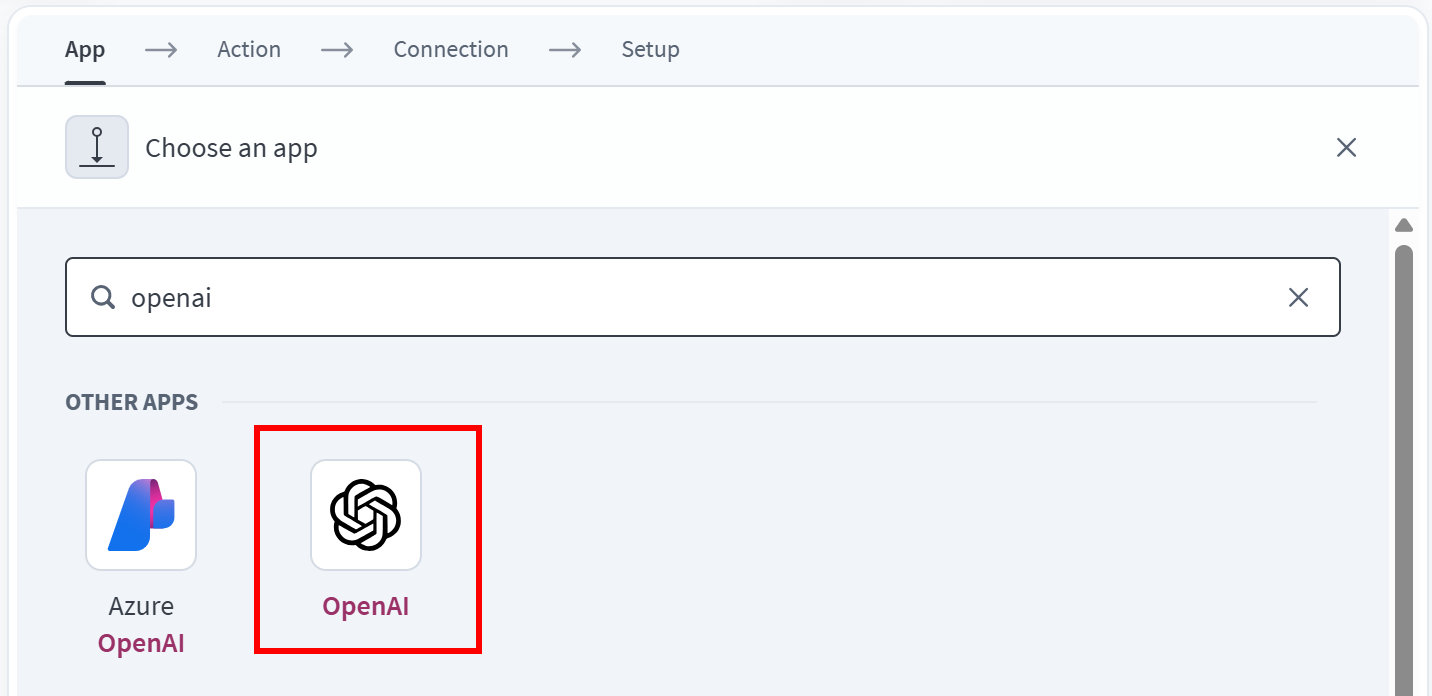
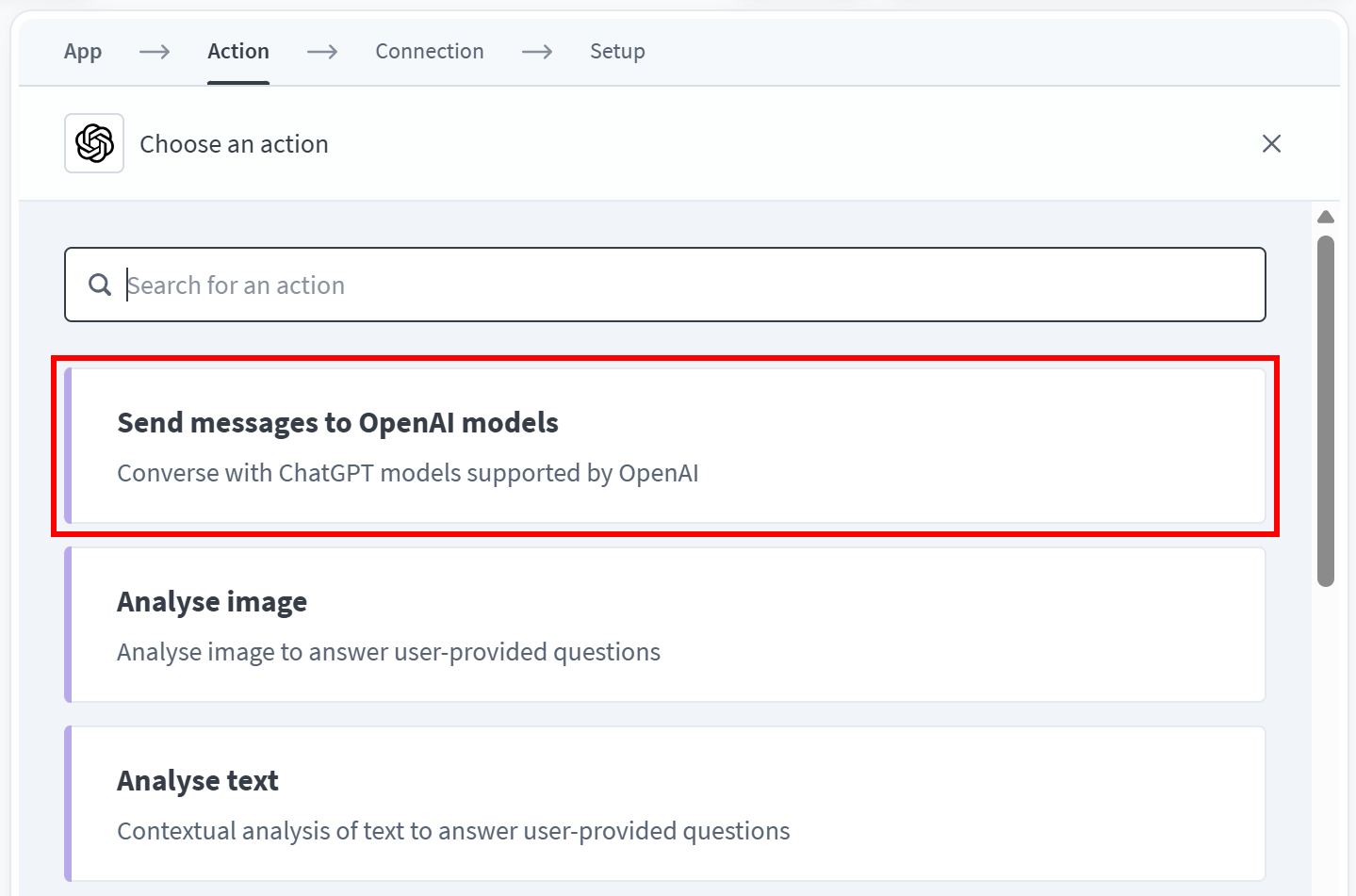
Choose the “Send messages to OpenAI models” action, which lets your recipe send prompts to an OpenAI model and receive the response:
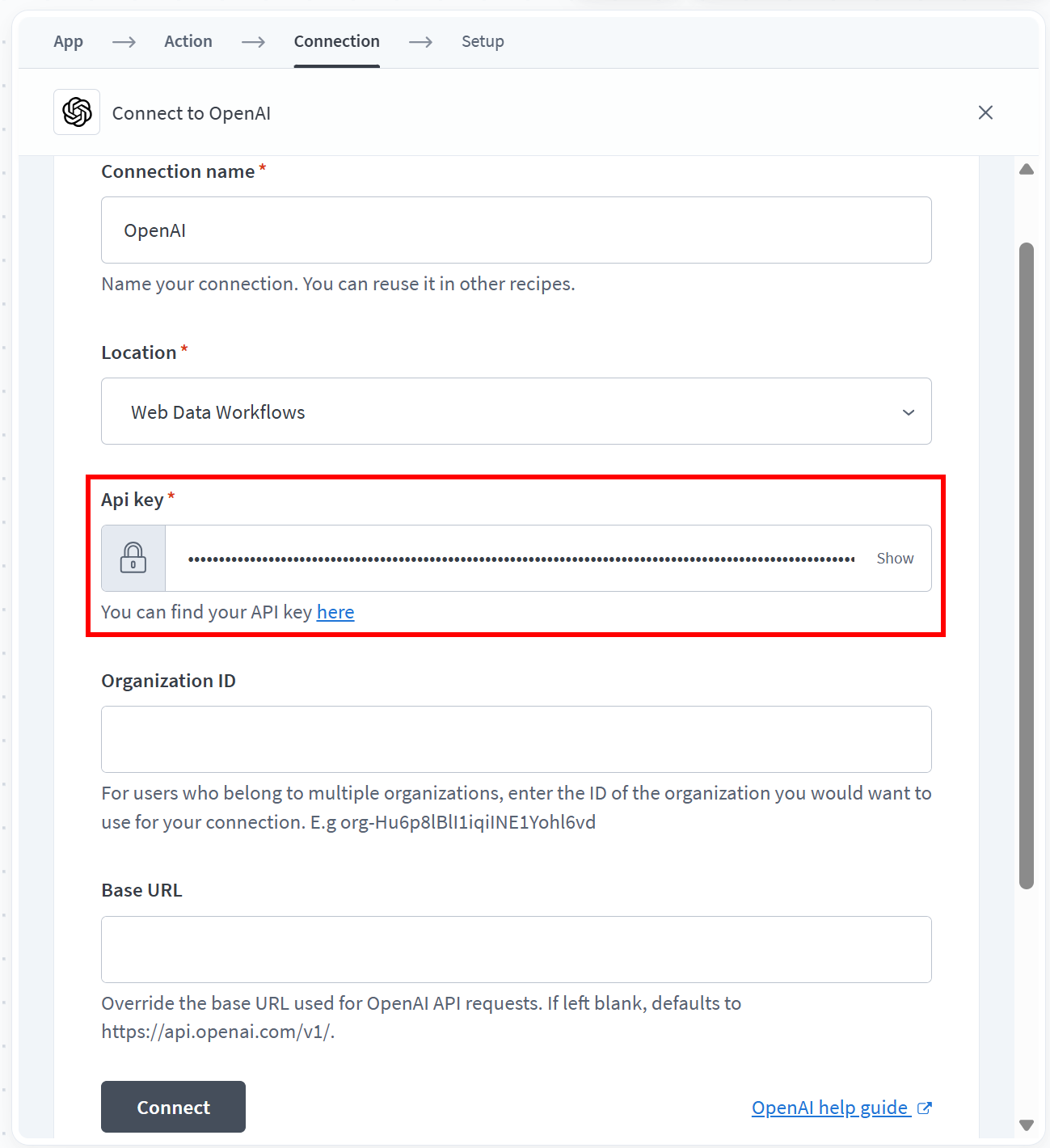
When creating the connection, paste your OpenAI API key into the appropriate field and click “Connect”:
Next, select the “Single message” mode (since you want to send a single prompt to the LLM). In “Text to send”, switch to “Formula” mode, and paste the prompt that follows:
"Given the following Glassdoor reviews, generate a concise yet comprehensive HTML email report summarizing recent user reviews, highlighting key trends, recurring themes, sentiment, and notable feedback.

GLASSDOOR REVIEWS:" + <response_array_text_data>
Replace the <response_array_text_data> placeholder with the “Send request > Response > Array” output from the previous “HTTP” step so the model receives the scraped review data. Since the response is an array, call the join(";") method to concatenate all review objects into a single string before sending it to the LLM.
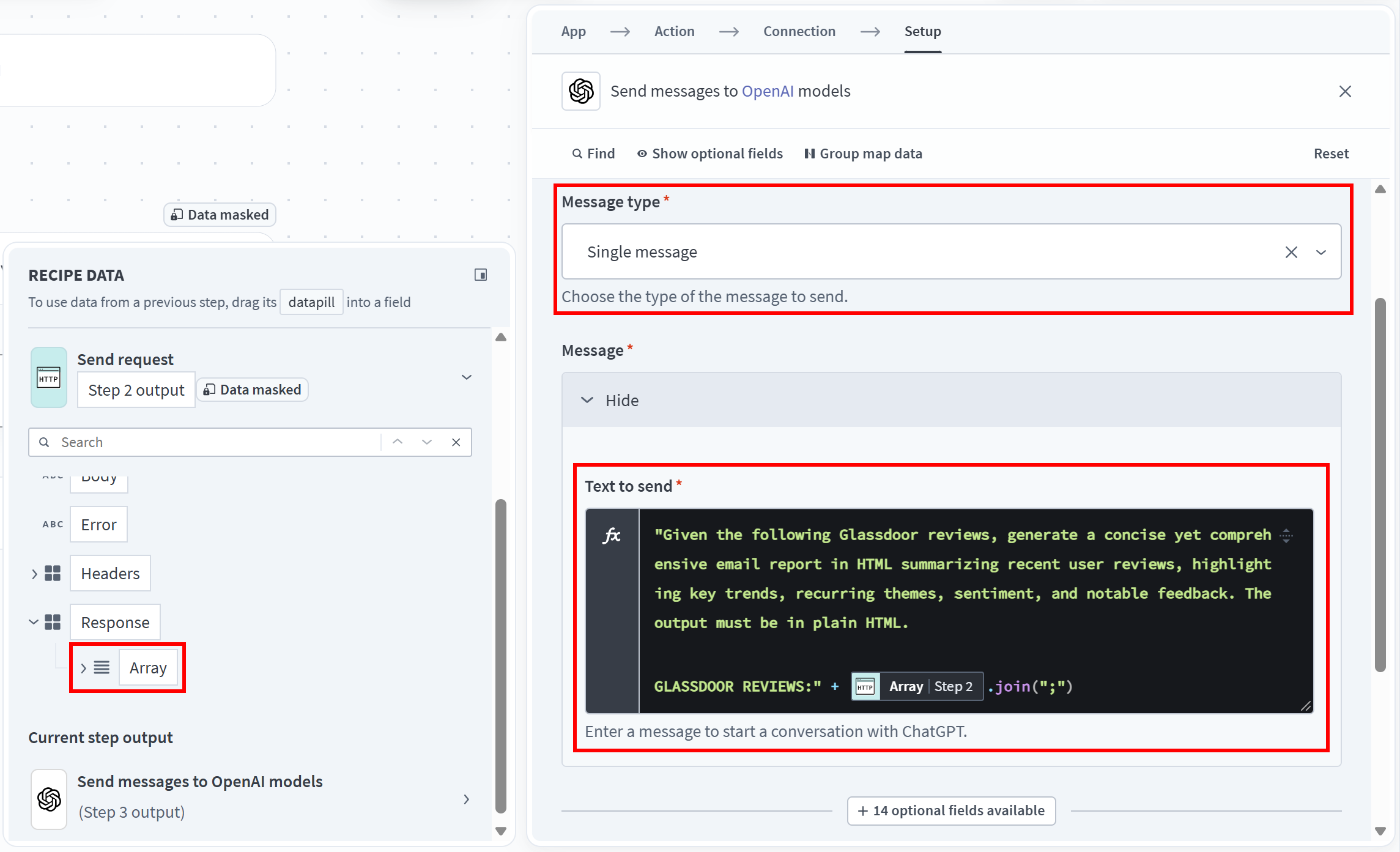
See how the prompt explicitly requests an HTML response. This is intentional because the generated content will be sent later through email, whose protocol supports HTML-formatted content.
Note: At the time of writing, the Workato “OpenAI” step uses GPT-4o by default.
Cool! Your Workato recipe can now process up-to-date web data through OpenAI models and generate AI-powered HTML reports.
Step #5: Add the Gmail Integration
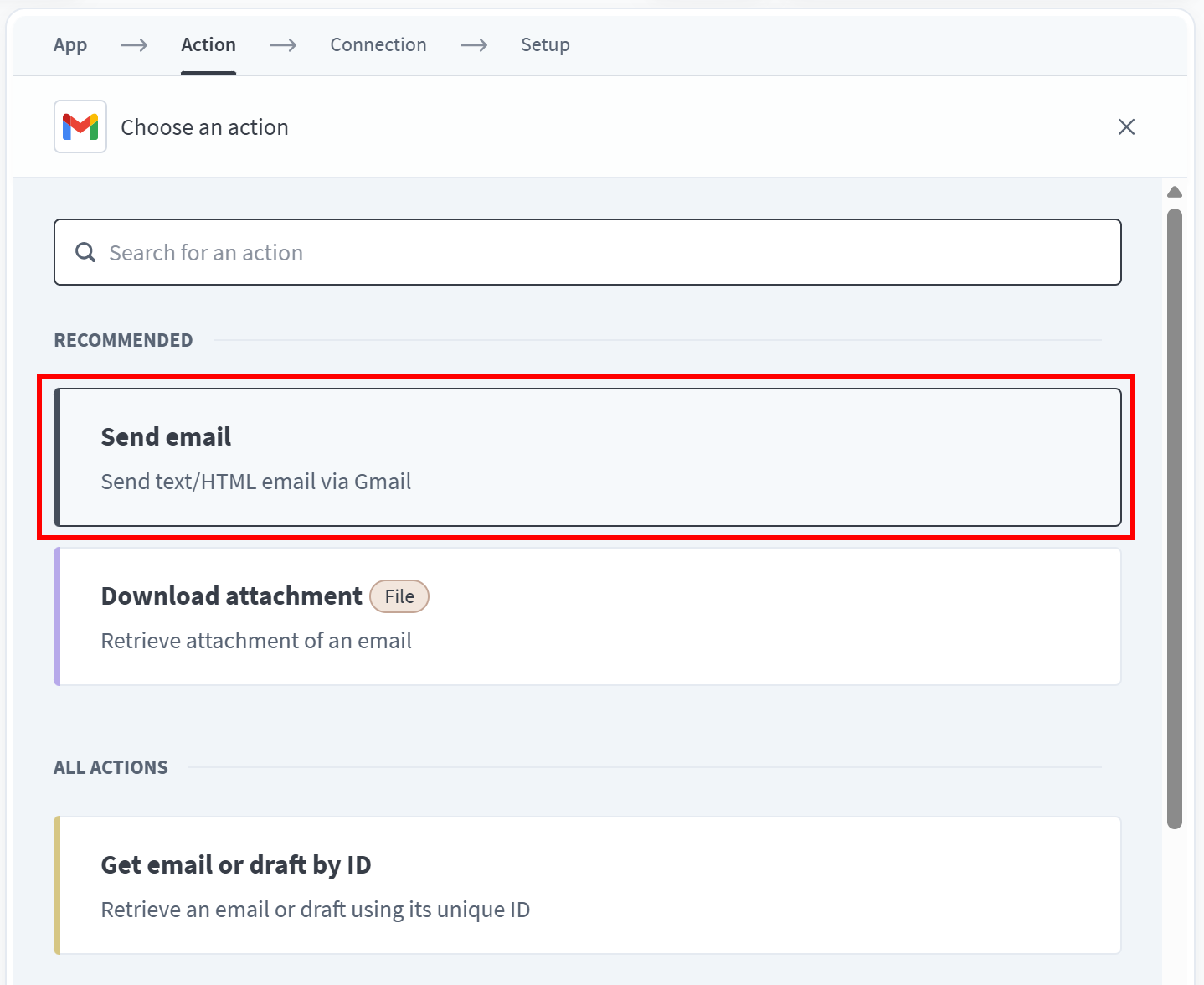
The final step is to send the AI-generated report by email. Click “+”, add the “Gmail” app, and select the “Send email action”:
Click “Log in to Google” to connect your Google account to Workato. Grant the requested permissions to authorize the integration.
Then, configure the “Send email via Gmail” step as follows:
- To: The recipient email address(es)
- Subject:
Glassdoor review analysis report(or a similar title) - Email type:
HTML - Message: Select the “Best choice” recipe data output from the “Send messages to OpenAI models” step.
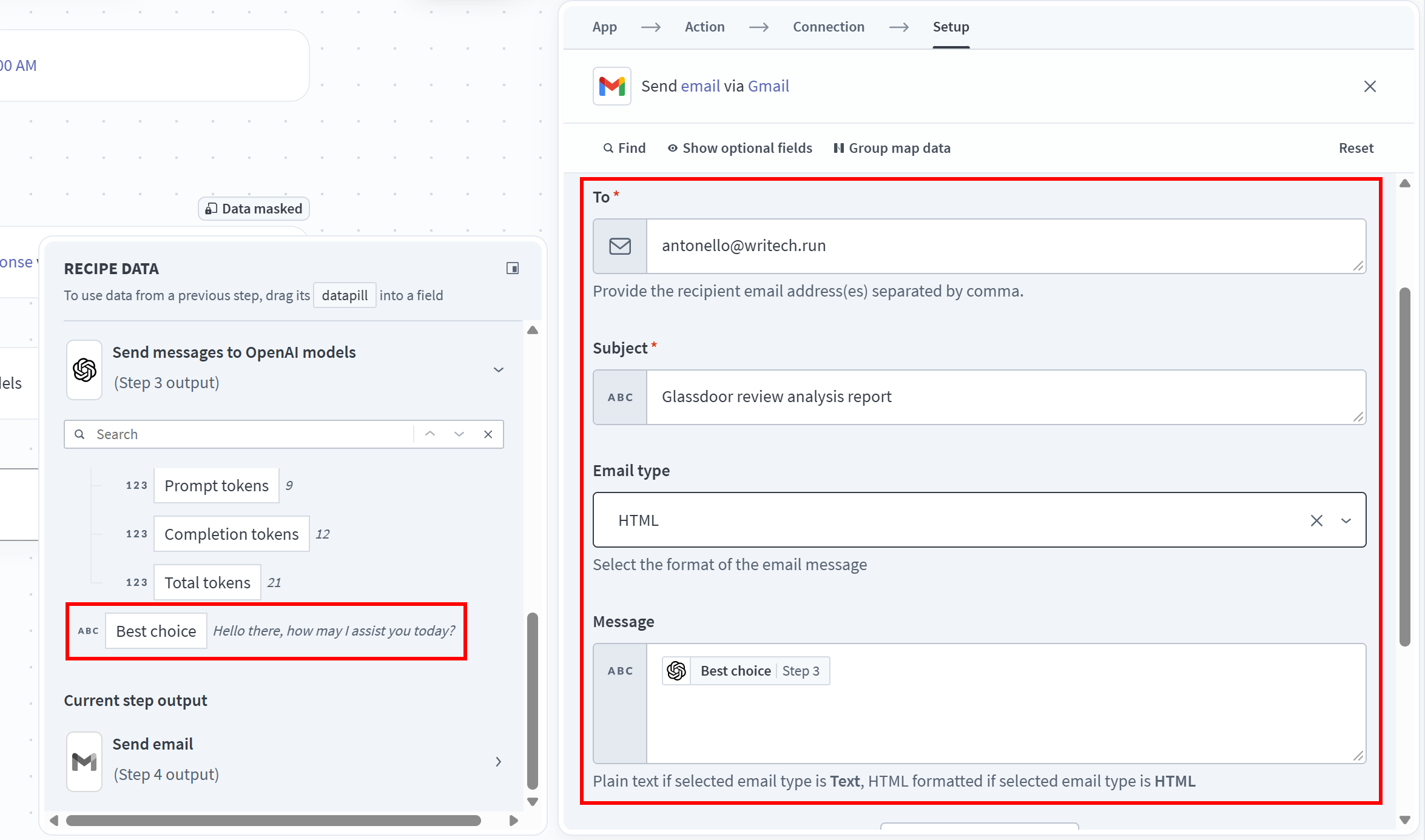
Note: The “Best choice” recipe data contains the HTML report generated by the OpenAI model from the previous step.
Great! The Workato recipe is complete.
Step #6: Run the Recipe
Your final Workato recipe should look similar to this:
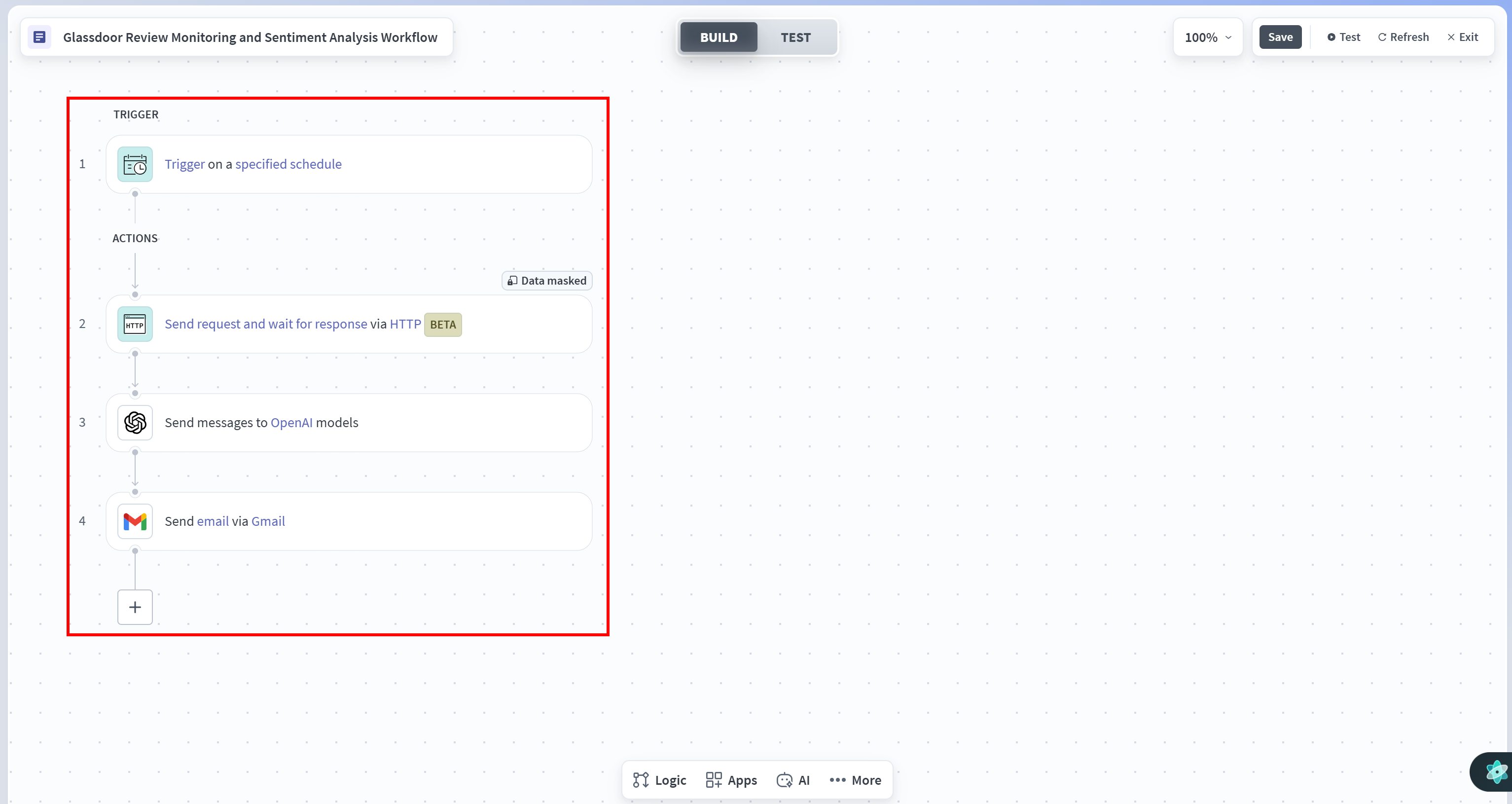
Open the “TEST” tab and click “Test recipe” to execute the workflow. This is what you will get:
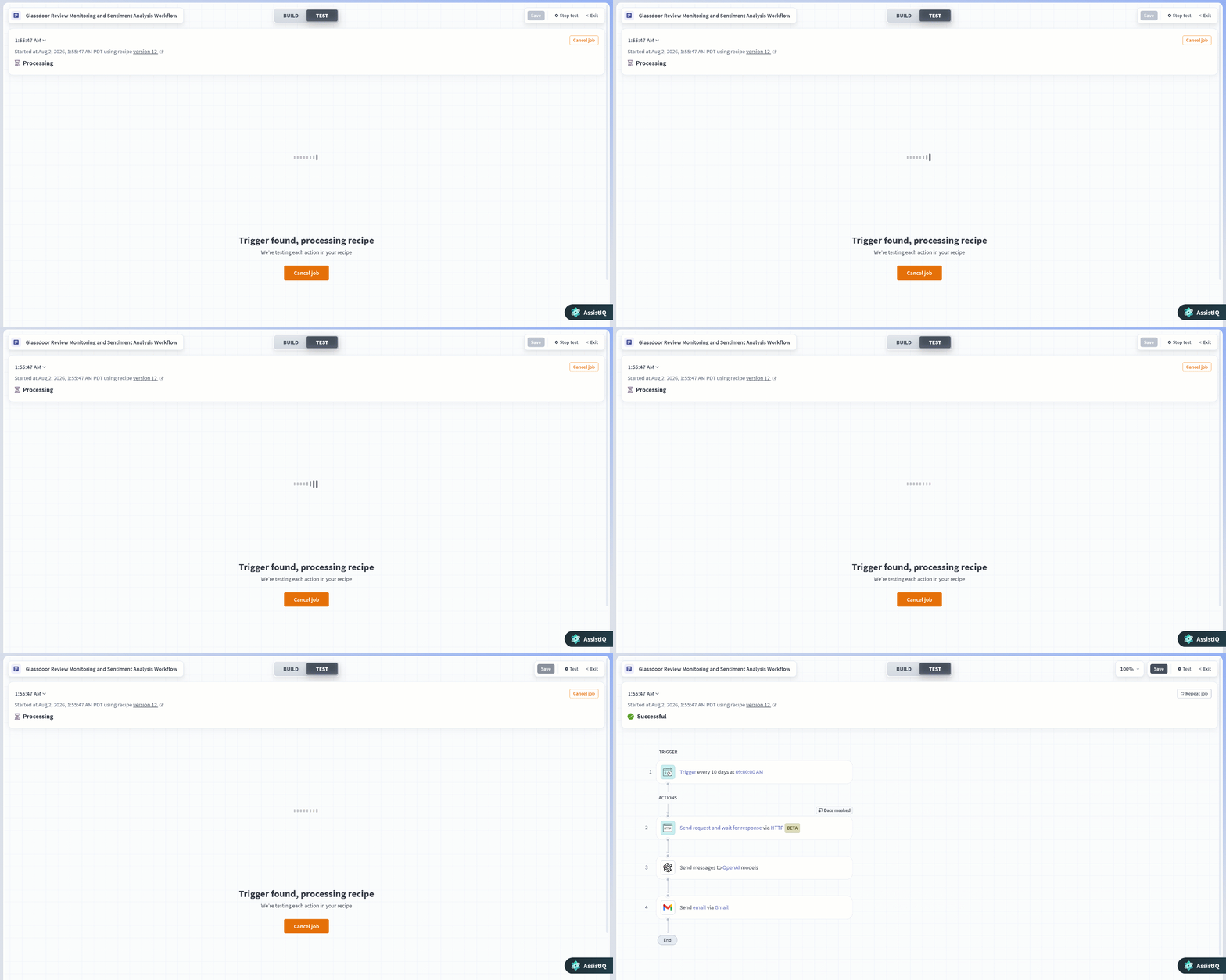
During execution, Workato will:
- Trigger the scheduled workflow.
- Call the Bright Data Glassdoor Reviews Scraper API.
- Pass the retrieved reviews to OpenAI to analyze them and generate an HTML report.
- Send the report via Gmail.
To verify that the workflow is using reviews data from Glassdoor, inspect the “Input” of the “OpenAI” step:
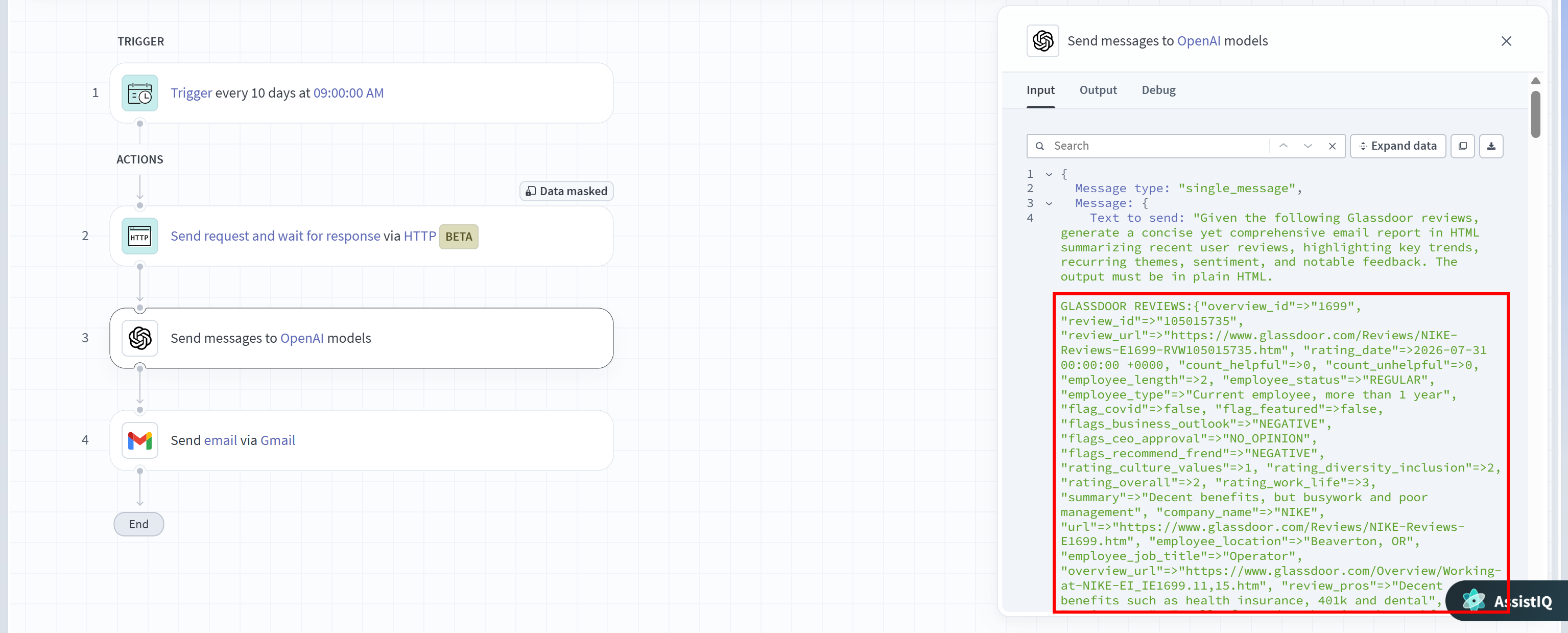
Notice how the prompt contains the Glassdoor reviews retrieved by the Bright Data Scraper API on demand. This grounds the LLM with contextual web data instead of relying on stale knowledge coming from the training data.
Note: You can follow a similar approach to integrate any other Bright Data API. For example, you can add web search, crawling, or generic web scraping capabilities to your Workato recipes.
Mission accomplished! You have successfully integrated Bright Data with Workato. By combining Workato’s API support with Bright Data’s web data infrastructure, you can build powerful automation workflows that collect, analyze, and act on fresh web data from virtually any website.
Explore the many use cases supported by Bright Data APIs to build even more AI-powered automation workflows.
Step #7: Explore the Generated Output
Finally, check your inbox:
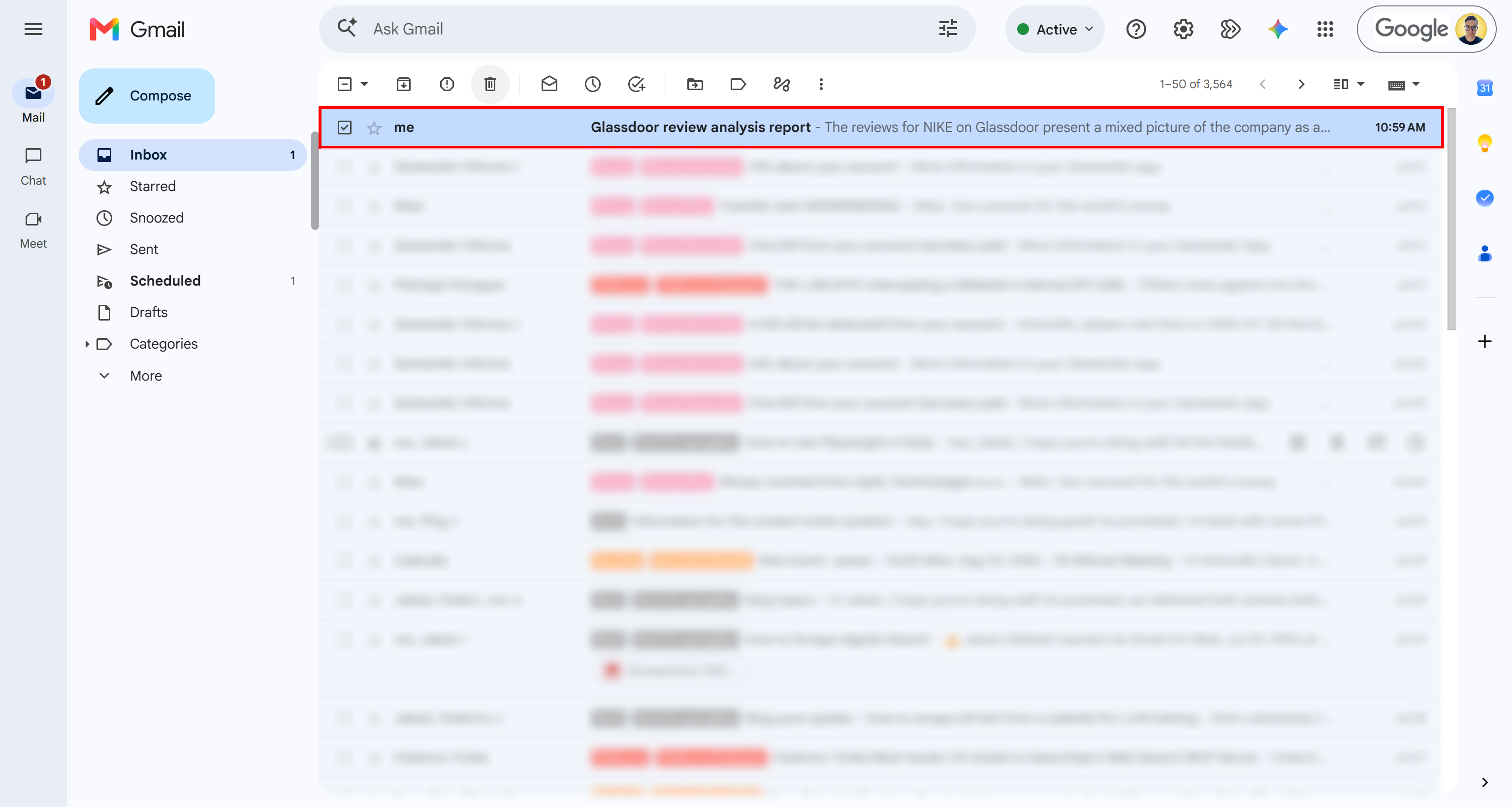
You should spot a new “Glassdoor review analysis report” email. Open it to view a structured HTML report summarizing the reviews published during the last 10 days. The report highlights recurring positive and negative themes.
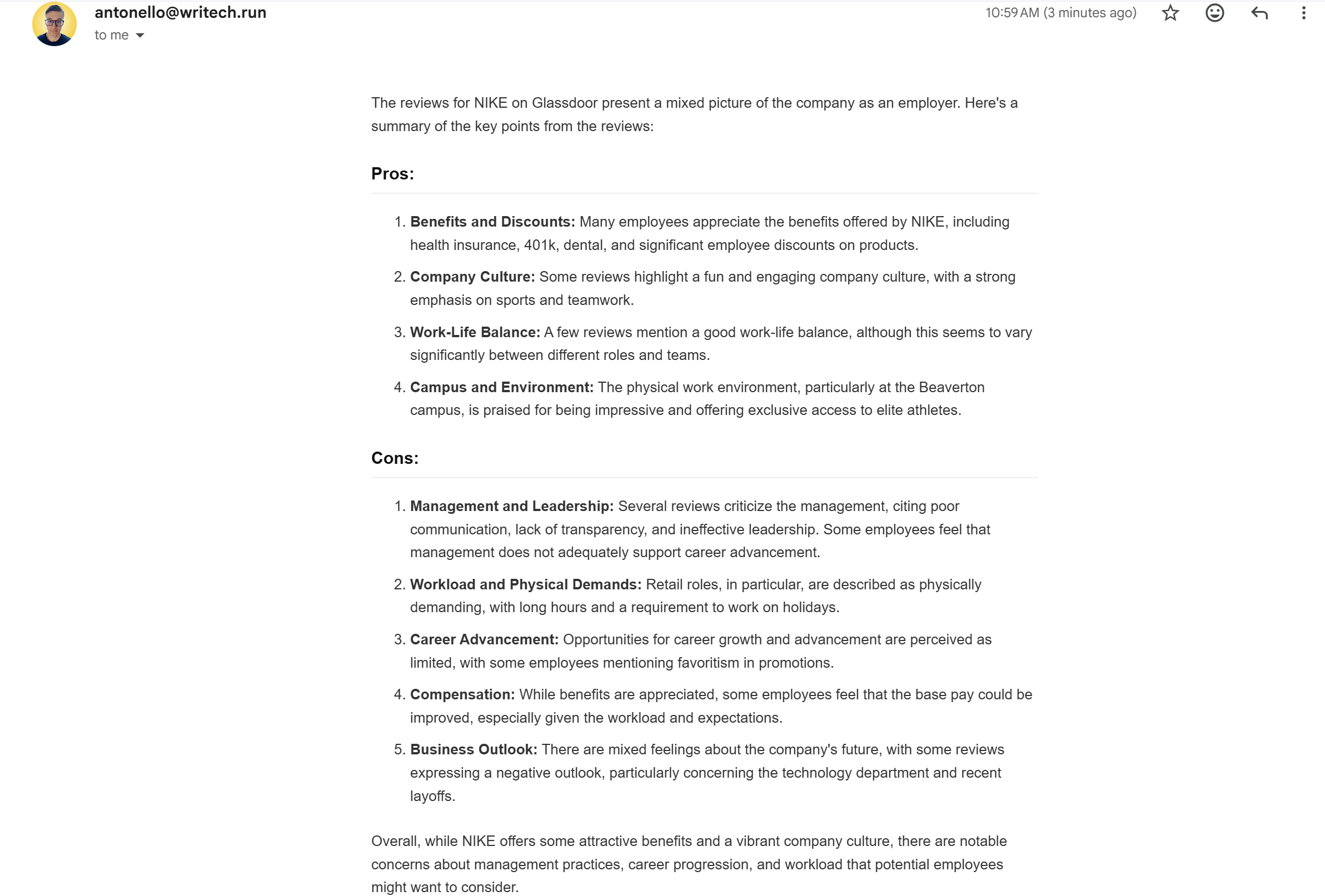
Et voilà! The Workato recipe works like a charm.
Conclusion
In this article, you learned how to use Bright Data’s Scraper API to fetch live, structured data from websites and process it with OpenAI in an automated Workato recipe.
The AI workflow demonstrated here can be easily extended to other Bright Data APIs to enable programmatic web scraping, search, data feed retrieval, and more. To build more advanced pipelines, explore Bright Data’s full suite of AI-ready APIs.
Create a Bright Data account today for free and start integrating enterprise-ready web data APIs into your AI workflows!



Technical Writer
 5.5 years experience
Antonello Zanini is a technical writer, editor, and software engineer with 5M+ views. Expert in technical content strategy, web development, and project management.