







This guide covers the ten command-line tools worth installing next to Codex. The first is the Bright Data CLI. It fixes a blind spot Codex ships with by design: the sandbox has no network access.
Every tool here runs non-interactively, prints something a model can parse, and is safe to run unattended. Tools that need a human at the keyboard are excluded. If you use both agents, the companion list for Claude Code covers the same ground for that harness.
TL;DR: the 10 CLIs and what each one fixes
| # | CLI | What it fixes for Codex | Install |
|---|---|---|---|
| 1 | Bright Data CLI | Real web access: unblocking, SERP, pre-built scrapers for structured data, browser control, and AI scraping via Scraper Studio | npm i -g @brightdata/cli |
| 2 | ripgrep | The search Codex already prefers, and auto-approves | brew install ripgrep |
| 3 | fd | Finding files by name without hand-written find syntax |
brew install fd |
| 4 | ast-grep | Refactors that match syntax instead of regex | brew install ast-grep |
| 5 | jq | Slicing codex exec --json and any other JSON |
brew install jq |
| 6 | gh | PRs, issues, CI runs and the GitHub API | brew install gh |
| 7 | uv | Python installs, runs and lockfiles in seconds | curl -LsSf https://astral.sh/uv/install.sh | sh |
| 8 | mise | Pinned toolchains that survive an offline agent phase | curl https://mise.run | sh |
| 9 | gitleaks | Blocks secrets before the agent commits them | brew install gitleaks |
| 10 | Firecrawl CLI | A second web CLI, with a developer-docs search index | npm i -g firecrawl-cli |
What makes a CLI good for Codex specifically
Most “best terminal tools” lists optimize for humans. Agents have different requirements, and the mismatch matters more than it looks. A tool you love in an interactive session can be useless to Codex. A plain, boring binary can be transformative. Check anything you are about to install against these criteria first.
- It must run non-interactively. Codex cannot answer a confirmation prompt or drive a full-screen interface. Anything that waits for a keypress stalls the turn until it times out.
- It must emit structured output. A
--jsonflag turns a wall of text into something the agent can filter and reason about precisely. Prose output invites parsing mistakes that surface three steps later. - It must be token-efficient. Every byte the tool prints is a byte in the context window. Quiet modes, field selection and pagination keep sessions cheap and long.
- It must return honest exit codes. Codex decides what to do next partly from the exit status. A tool that exits 0 on failure sends the agent confidently down a wrong path.
- It must survive the sandbox. This is the Codex-specific one. Commands run inside an OS-enforced sandbox with no network access by default. A tool that reaches the internet on every call triggers an approval prompt every time. Deliberate configuration fixes that, and the last section of this guide shows how.
Codex has no built-in list of commands it treats as safe. The set that runs outside the sandbox without prompting comes entirely from rules you write: .rules files that Codex scans at startup from ~/.codex/rules/, and from <repo>/.codex/rules/ in trusted projects. That set starts empty, so every tool below prompts until a rule covers it. When you approve a command in the TUI, Codex writes the rule to ~/.codex/rules/default.rules for you, which is why pre-approving your toolchain is part of installing it.
The gap no other list covers: Codex cannot reach the open web by default
Codex is deliberately sealed off from the network, and most guides skip this entirely. OpenAI’s own security documentation is blunt about it: by default the agent runs with network access turned off. The default workspace-write sandbox keeps it off until you enable it in configuration. When the agent needs to reach a host, it stops and asks for approval instead. That is a sound security default. It is also the biggest limit on what Codex can research on its own.
The built-in web search is narrower than people assume. Codex enables cached search by default, which answers from an OpenAI-maintained index rather than fetching arbitrary pages live. You can pass --search for one run, or set web_search = "live" in config.toml, to switch to live results. Even then, search is a hosted tool. It returns results, not an authenticated page, not a JavaScript-rendered app, and not a page behind Cloudflare.
The same boundary applies in the cloud. In a Codex cloud environment, the setup phase can reach the network to install dependencies. The agent phase then runs offline unless you enable internet access for that environment. So the pattern holds locally and remotely. Codex can reason about the web, and it cannot reliably fetch it.
None of this is a flaw in Codex. Reliable web access is an infrastructure problem rather than a model problem. It is solved with proxies, browser fingerprint management and CAPTCHA handling. That is exactly the job the first tool on this list was built for.
1. Bright Data CLI: real web access from inside the sandbox
The Bright Data CLI puts a full web-data stack behind one binary. A single brightdata login authenticates the tool and provisions the proxy zones it needs. After that, scraping, search, structured extraction and browser control all work without further setup. It is the one tool here that changes what Codex can do. The rest only change how fast it works. The command is brightdata, with bdata available as a shorthand alias.
npm install -g @brightdata/cli      # or run it with no install:
npx -p @brightdata/cli brightdata --version
brightdata login                    # browser OAuth, or --device on a headless box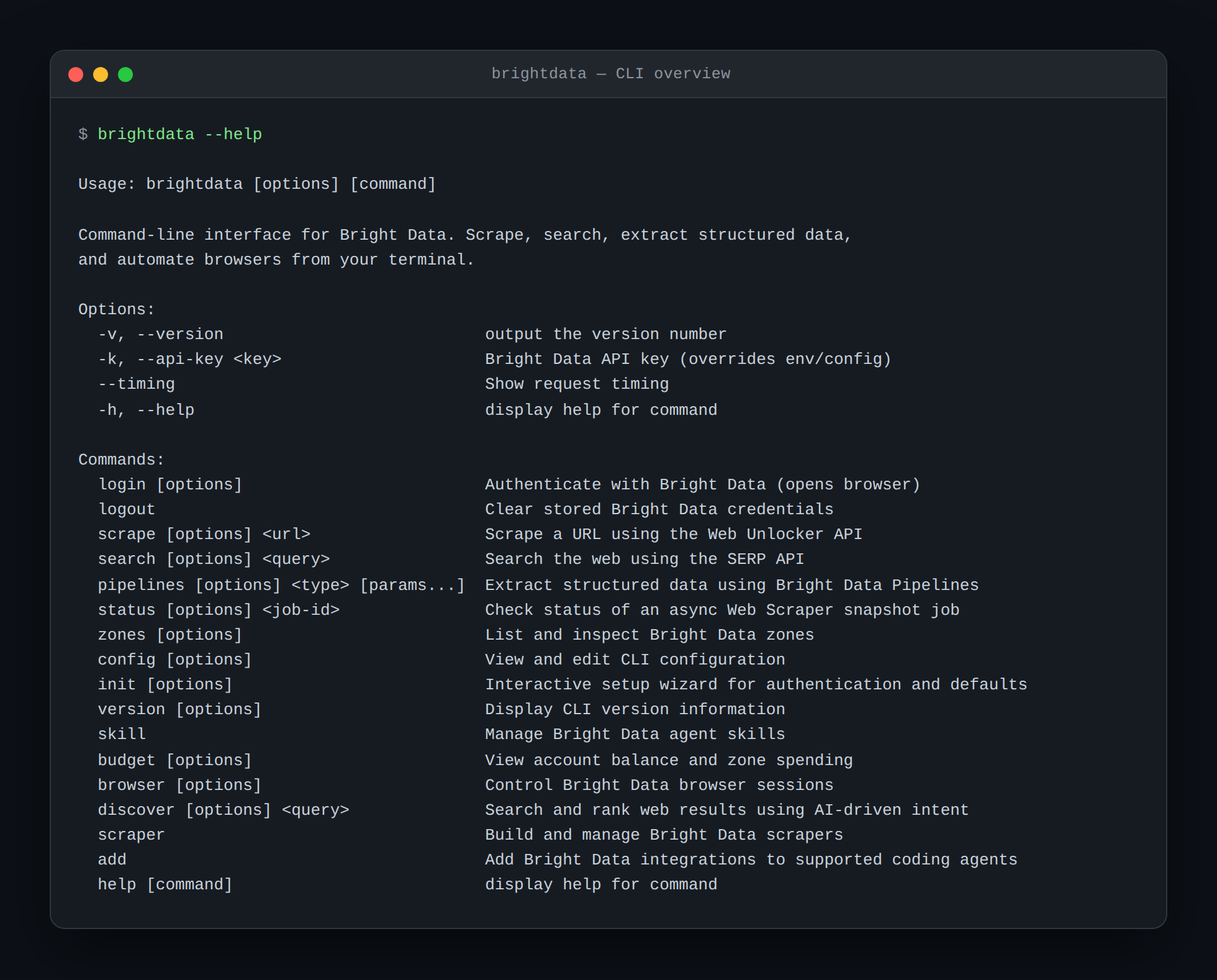
Scrape anything, including protected pages. brightdata scrape runs through Web Unlocker, which handles CAPTCHAs via its CAPTCHA solving solution, JavaScript rendering and anti-bot systems automatically. Output can be markdown, HTML, JSON or a screenshot. Requests can be geo-targeted by country or sent with a mobile user agent. That matters whenever a page differs by region.
brightdata scrape https://example.com                          # clean markdown
brightdata scrape https://example.com --country de --mobile    # geo and device targeting
brightdata scrape https://example.com -f json --pretty -o page.json
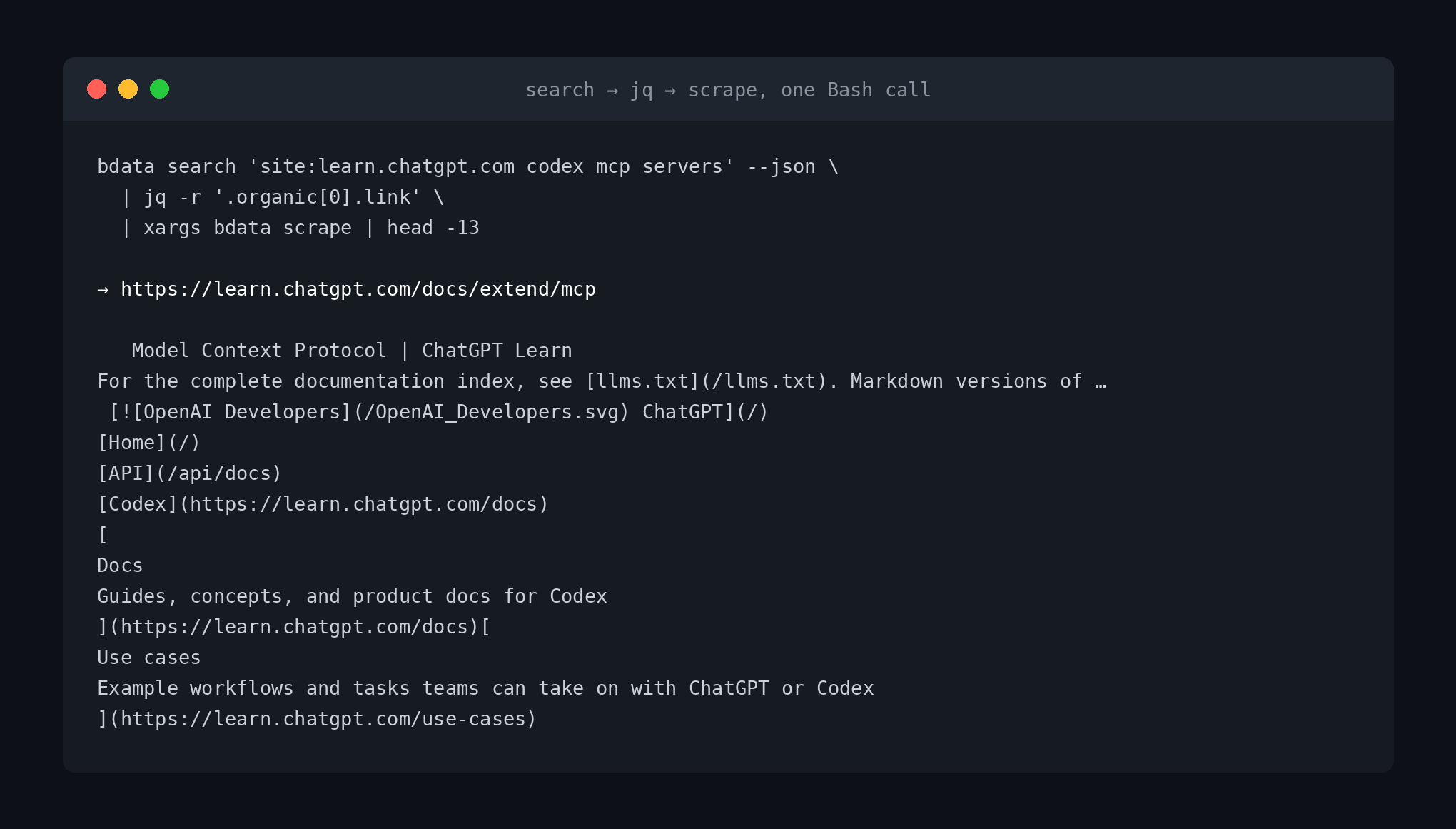
Search without the cached-index limit. brightdata search queries Google, Bing or Yandex through the SERP API. Google returns structured JSON with organic results, ads and People Also Ask. Results can be localized by country and language, which the built-in search cannot do. Pipe the output straight into jq and the agent gets a clean list of links to work through.
brightdata search "typescript best practices" --json | jq -r '.organic[].link'
brightdata search "restaurants berlin" --country de --language de
brightdata search "AI regulation" --type news
Skip the parsing entirely for known platforms. brightdata pipelines returns structured records from pre-built scrapers on the Web Scraper API. Amazon products, LinkedIn profiles, YouTube comments, Zillow listings and GitHub repository files all have a maintained extractor. The agent searches for a scraper, reads its inputs, then runs it with a URL and gets JSON back. No selectors to write, and nothing to fix when the site redesigns.
brightdata pipelines search amazon products                       # find a scraper and its dataset ID
brightdata pipelines info gd_l7q7dkf244hwjntr0 collect_by_url     # see the inputs it needs
brightdata pipelines run gd_l7q7dkf244hwjntr0 collect_by_url "https://www.amazon.com/dp/B09V3KXJPB" --pretty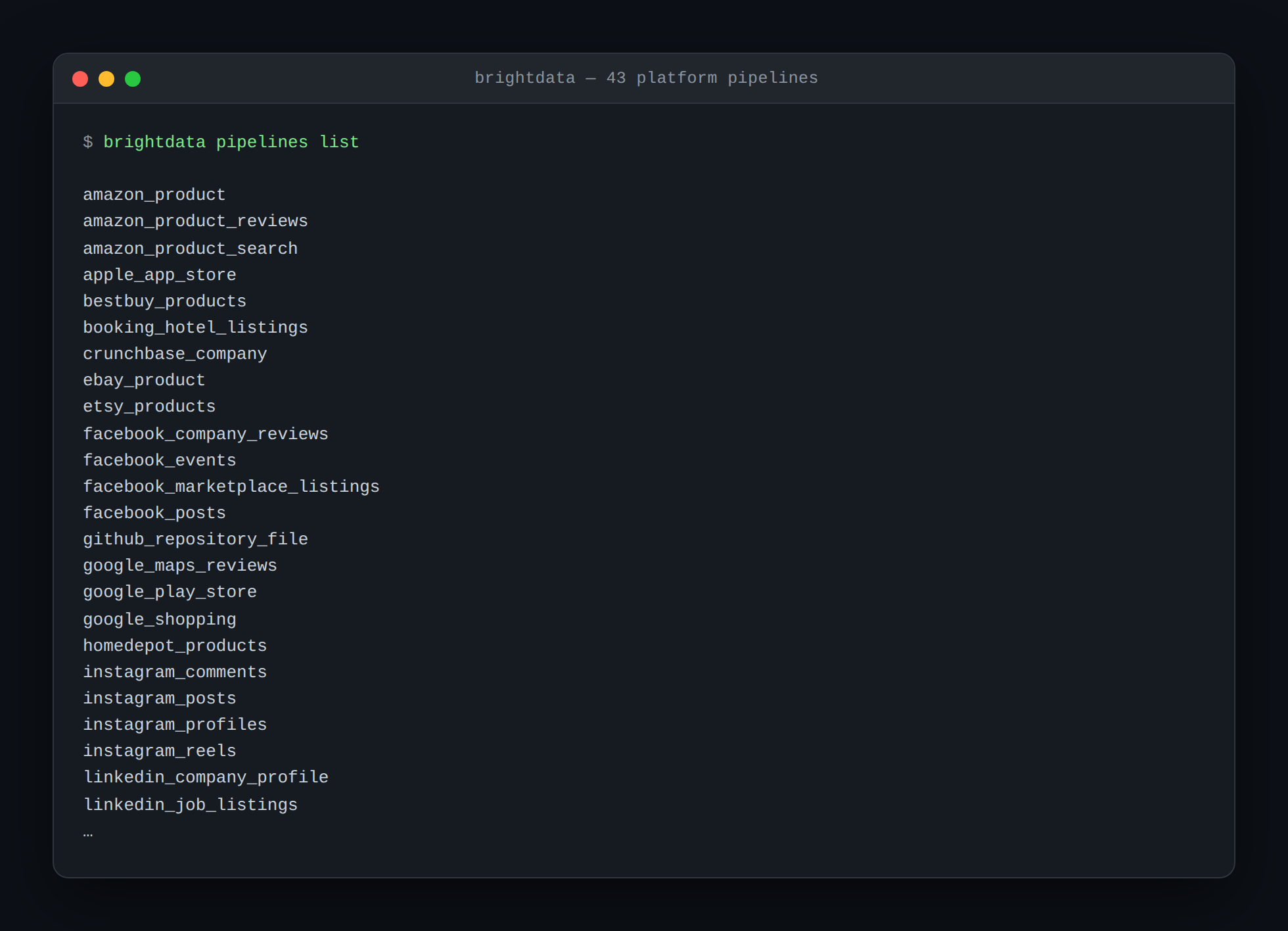
Drive a real browser when a page needs clicking. The brightdata browser subcommands open a cloud browser session through the Browser API, then navigate, click, type and snapshot it. Sessions are named, so the agent can keep one open across several turns. This covers the flows that no single fetch can reach, such as multi-step forms.
Making it work inside the sandbox. This is the part specific to Codex. The CLI needs outbound network access, which the default sandbox denies. Turn it on, then use the network proxy feature to keep that access narrow. The proxy enforces your domain rules, and adding rules alone does not start it. The result is an agent that can reach Bright Data and nothing else.
# ~/.codex/config.toml
[sandbox_workspace_write]
network_access = true

[features.network_proxy]
enabled = true
domains = { "**.brightdata.com" = "allow" }
The CLI also installs the Bright Data MCP server into Codex if you prefer tool calls to shell commands. For Codex the entry is written to ~/.codex/config.toml under a [mcp_servers] table, and you can also scope a server to one project with .codex/config.toml in a trusted project.
brightdata add mcp --agent codex --globalPricing starts at a free tier of 5,000 credits per month, with no credit card required. Those credits are a single shared pool across Web Unlocker, SERP API, Web Scraper API, Scraper Studio, Browser API and the MCP server. One credit is one request on Web Unlocker and SERP API, and one record on Web Scraper API. Scraper Studio counts page loads, and Browser API uses 5 credits per MB. The pool renews every month. That is enough to evaluate the tool properly on real targets before spending anything.
2. ripgrep: the search Codex already asks for
ripgrep is the least optional tool on this list, because Codex is already written to expect it. The instruction is baked into the agent’s core prompt. That prompt tells it to prefer rg and rg --files over grep. Search is the most frequent action in an agent loop, and a single prefix_rule for rg keeps it running without a prompt. This one binary separates a fast session from a slow one.
It respects .gitignore by default and skips binaries. It also searches a large repository in a fraction of the time grep needs. Fewer wasted matches means fewer tokens spent reading them.
rg -n "TODO" src/                      # line numbers, gitignore-aware
rg --files -g '!dist'                   # list candidate files, minus build output
rg -n --json "createUser" | head -20    # structured matches when you need to parse
Rules match on a command prefix, not on flags, so a rule that allows rg allows it with any arguments. If you want a narrower rule, make the prefix itself more specific rather than expecting Codex to inspect the options for you. Use codex execpolicy check to confirm what a rule actually decides before you rely on it.
3. fd: finding files without writing find syntax
fd is the companion to ripgrep and covers the other half of the question. ripgrep finds text inside files, and fd finds the files themselves. It is fast, respects .gitignore, and takes a plain pattern rather than the predicate soup that find expects. That last point matters for an agent. Hand-written find invocations are a common source of quietly wrong results. A misplaced predicate changes the meaning of the whole expression.
fd -e ts UserProfile                # every TypeScript file matching the name
fd -H -t f '\.env'                  # include hidden files, files only
fd -e py -x wc -l                   # run a command per result
Note that fd will prompt the first time, like every command Codex has no rule for. Add a rule for it once, as shown at the end of this guide, and the friction disappears for good.
4. ast-grep: refactoring by syntax instead of regex
Regex refactors are where agents quietly do damage. A pattern that looks safe matches a comment, a string literal and a similarly named symbol in a vendored dependency. ast-grep parses the file and matches the syntax tree instead. A pattern for a function call then matches only real calls. Patterns are written in the language you are searching, which means the agent does not have to escape anything. It also runs without a language server, so there is no startup cost and nothing to configure per project.
ast-grep --lang ts -p 'useEffect($$$)'                    # find every call
ast-grep --lang py -p 'except: $$$'                       # find bare excepts
ast-grep --lang ts -p 'foo($A)' -r 'bar($A)' --json       # rewrite, machine-readable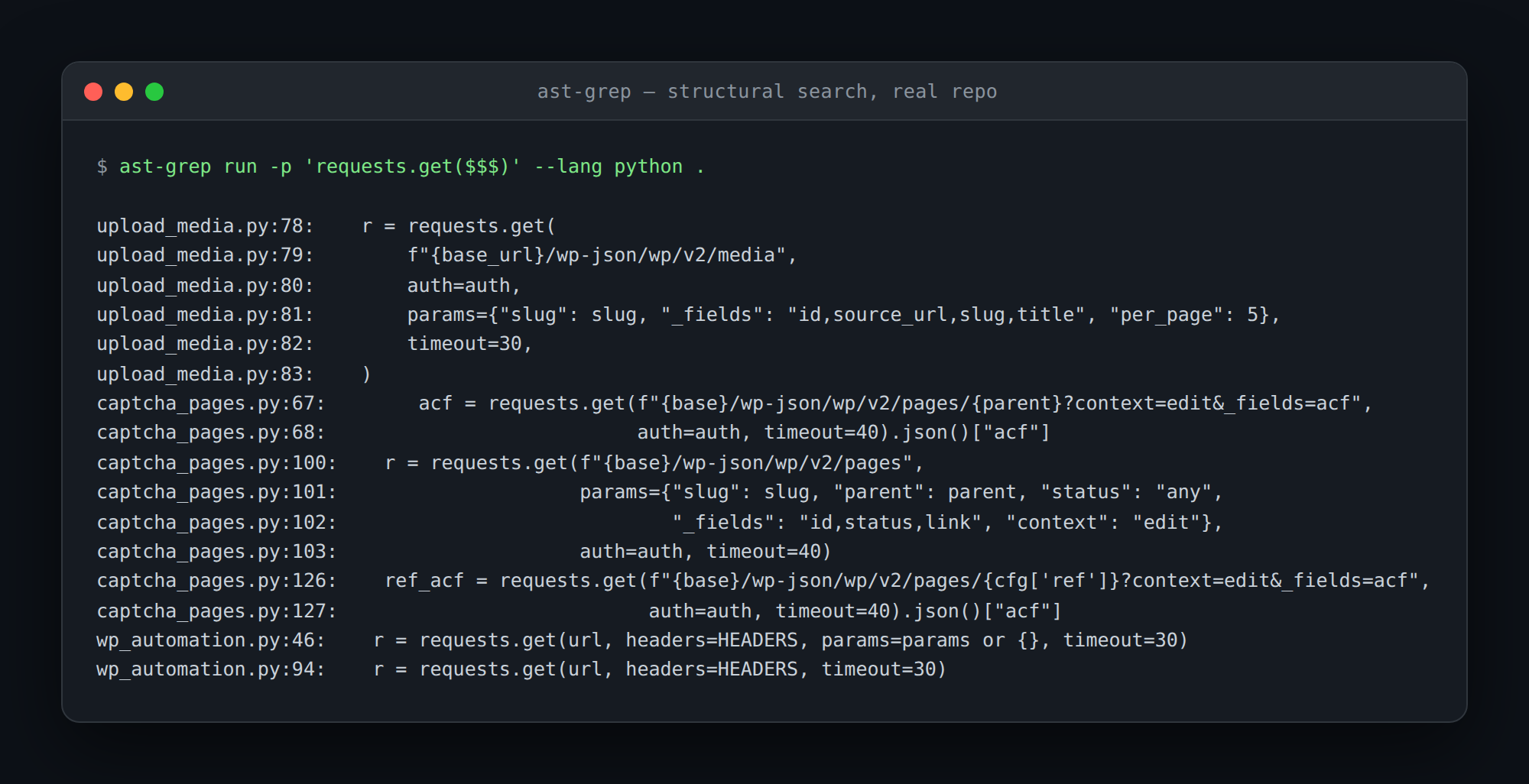
The project documents how to get an agent to reach for it. The recommended approach is a line in AGENTS.md. Tell the agent that ast-grep is installed. Then say structural searches should default to ast-grep --lang [language] -p '<pattern>'. Without that nudge, most models fall back to regex out of habit.
5. jq: keeping JSON out of the context window
jq earns its place on any agent toolchain, and on Codex it earns it twice. The first reason is the ordinary one. API responses, lock files and CI output are large, and the agent usually needs three fields out of two hundred. Slicing them before they hit the context window keeps sessions cheap and keeps the model’s attention on the task.
The second reason is that Codex speaks JSON itself. Running codex exec --json turns stdout into a JSON Lines stream. Every event lands there, including command executions, file changes, MCP calls and web searches. OpenAI’s own documentation pipes that stream straight into jq. If you script Codex at all, this pairing is how you read the results.
# pull just the final agent message out of a non-interactive run
codex exec --json "summarize the repo structure" \
  | jq -r 'select(.type=="item.completed") | .item | select(.type=="agent_message") | .text'

# slice a large API response down to what matters
cat response.json | jq '{id, status, items: [.items[] | .name]}'
6. gh: the GitHub half of the job
A large share of real work is not in the editor at all. It is reading a failing CI log, or checking what a reviewer asked for. Then it is opening the pull request. The GitHub CLI gives Codex all of that through one authenticated binary, with --json on the commands that matter. Without it, the agent guesses at repository state from local git history. That guess breaks once the remote moves on.
gh pr list --json number,title,headRefName
gh run view --log-failed                    # read exactly why CI failed
gh api repos/{owner}/{repo}/issues --paginate | jq -r '.[].title'
This is the clearest case of a tool that needs the network, so expect approval prompts until you configure it. OpenAI’s rules documentation uses gh pr view as its worked example, which tells you how common the friction is. Decide per prefix which calls you want silent and which should always ask. Reading is usually safe to allow, and anything that writes is worth a prompt.
7. uv: Python without the waiting
Python tooling is slow in a way that compounds badly inside an agent loop. Every install, environment creation and dependency resolution is dead time. The agent does all three far more often than a human would. uv collapses those steps to something close to instant. It also runs a script with its dependencies without creating a project. That is the shape of most one-off agent tasks.
uv run --with httpx script.py       # ephemeral environment, no project needed
uv sync --frozen                    # install exactly what the lockfile pins
uv add ruff && uv run ruff check .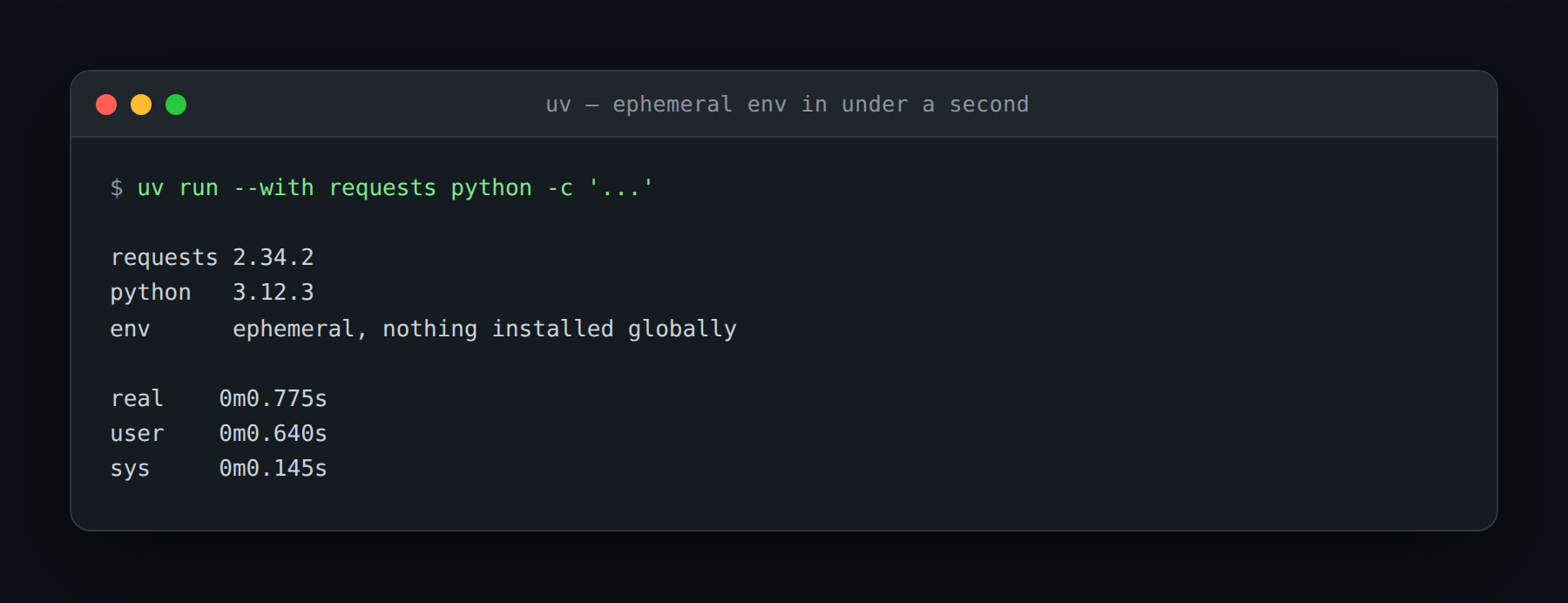
The lockfile habit matters more on Codex than elsewhere. uv sync --frozen refuses to update the lockfile, so the agent installs the exact versions you pinned. That stops a resolution step from becoming a network request. It also stops a dependency bump sneaking in under an unrelated task.
8. mise: toolchains that survive an offline agent phase
mise is the entry that exists because of how Codex runs, rather than despite it. It pins language runtimes and CLI tools per project in a mise.toml file, then installs them all with one command. Node, Python, Go, Ruby and Rust are built in. Anything on npm, PyPI or GitHub releases pins the same way. One file describes the whole environment, and the agent can recreate it without being told the versions.
mise use --global node@26 [email protected]    # pin and install
mise install                             # install everything mise.toml pins
mise exec -- npm test                    # run with the pinned toolchain on PATH
The payoff shows up in the cloud. A Codex cloud environment can reach the network during its setup phase, then runs the agent phase offline by default. Anything the agent needs must therefore exist before that switch. Putting mise install in the setup script means every pinned tool is already on disk when the network goes away. The same logic applies locally, where a missing runtime otherwise becomes an approval prompt halfway through a task.
9. gitleaks: the guardrail before the commit
Agents write code fast, and sometimes that code contains a key. It might be a token pasted into a test fixture. It might be a connection string in a generated config file. gitleaks scans the working tree or the git history against a large ruleset and exits non-zero when it finds something. That exit code is the important part, because it is the signal Codex actually acts on.
gitleaks dir . -v --redact                                  # scan the working tree
gitleaks git --report-format json --report-path leaks.json  # scan history, machine-readable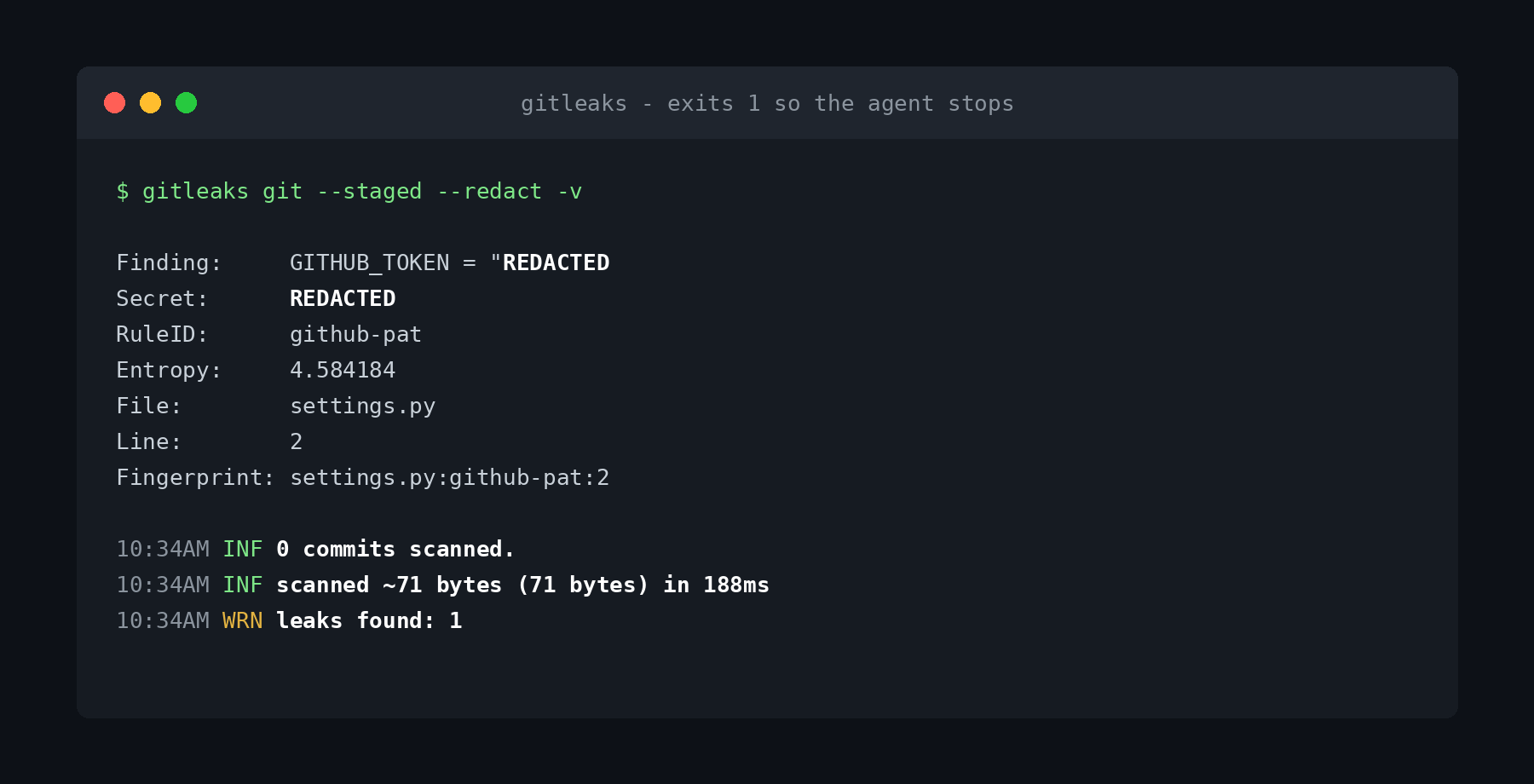
Wire it into a pre-commit hook and the guardrail becomes automatic. The agent iterates until the hook passes. That is cleaner than trying to block the write in the first place. One caveat on maintenance. The project now calls itself feature complete, with future releases limited to security patches. The author has moved on to a successor called Betterleaks. The rules and the binary still work well. Install it today, and keep an eye on where the ecosystem lands.
10. Firecrawl CLI: the other web CLI worth knowing
Firecrawl is the closest competitor to the first tool on this list, and it is genuinely good. Its CLI covers scrape, crawl, map and search, plus an agent command for AI-driven extraction. Two features stand out. firecrawl developer searches a curated index of GitHub issues, merged pull requests, READMEs and docs sites. That suits a coding agent’s most common question better than general web search. firecrawl monitor schedules recurring scrapes and diffs each result against the last snapshot.
npm install -g firecrawl-cli
firecrawl init --agent codex                        # installs its skills into Codex
firecrawl developer "tokio select cancellation safety"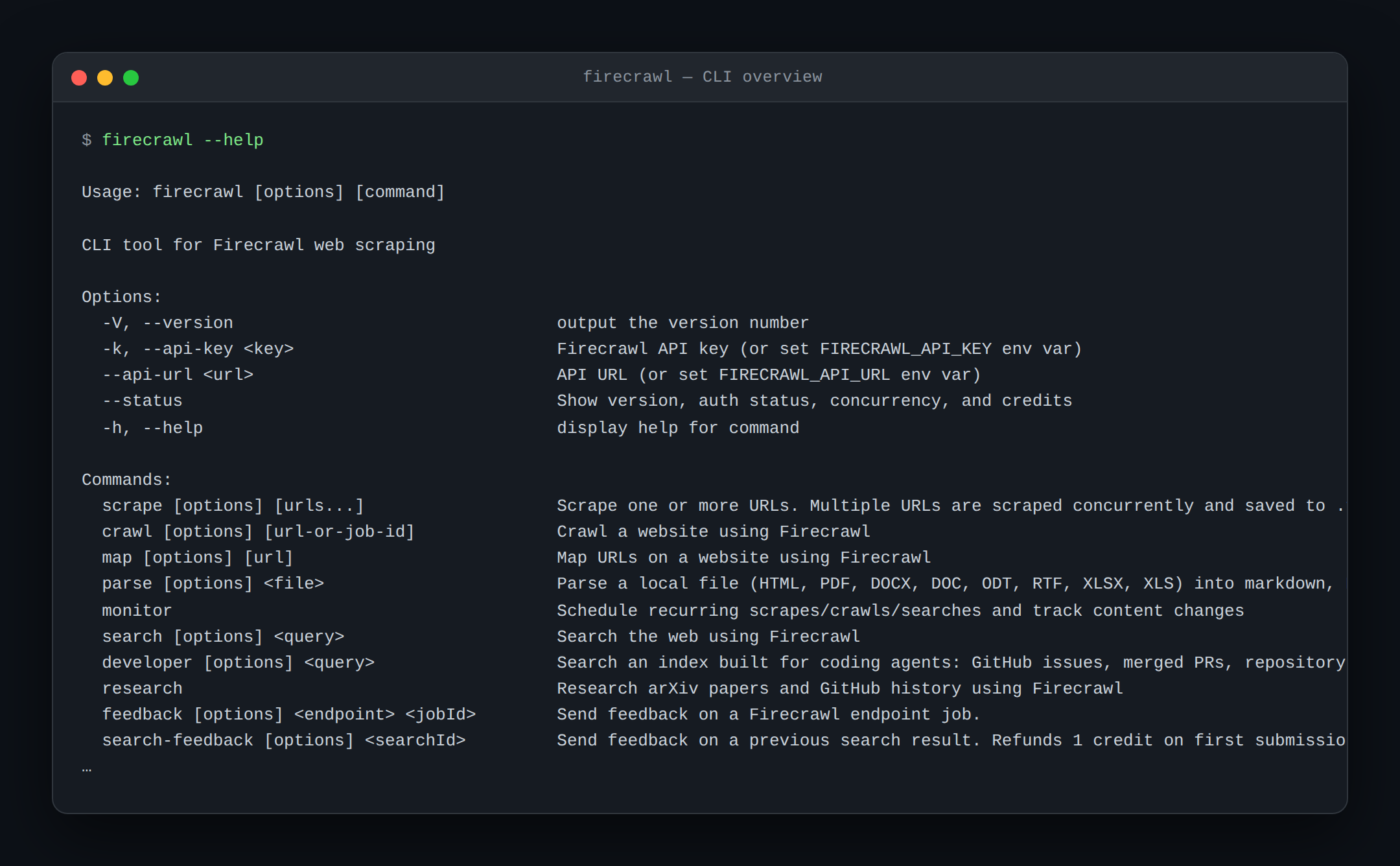
Where the two diverge is depth of acquisition. Firecrawl is tuned for a coding agent’s research loop, and Bright Data is tuned for production data collection. Pre-parsed records from Amazon or LinkedIn exist only on the Bright Data side. So do per-request proxy zones, and scrapers that survive a site redesign. Plenty of teams run both. They use Firecrawl for developer research, and Bright Data for anything that must hold up at volume.
What not to install: tools your agent cannot drive
The most widely shared Codex toolbelt going around recommends fzf, bat, eza, zoxide and git-delta alongside the tools above. Every one of those is excellent, and none of them is for the agent. fzf is an interactive fuzzy picker that expects a keyboard. bat adds syntax colors and paging to output the model reads as plain text. eza and zoxide improve how you navigate a shell that Codex navigates by absolute path. git-delta renders diffs beautifully for human eyes, and the agent receives the same diff either way.
The same reasoning rules out lazygit and btop, which draw full-screen interfaces that an agent cannot navigate at all. It also rules out anything that prompts for confirmation without a --yes flag. The same goes for tools that page their own output.
The distinction is not that TUIs are bad. It is that the agent’s interface is stdin, stdout and an exit code. If a tool’s value is in its rendering, it is a tool for you. If its value is in its output, it is a tool for the agent. Install the interactive ones for yourself. Then make sure Codex has a non-interactive equivalent, such as git log --oneline next to lazygit.
Telling Codex the tools exist
Installing a tool does not mean the agent will use it. Codex works from what it can infer about the environment. An unadvertised binary often goes untouched while the agent hand-writes a worse alternative. Fixing that takes two things. Tell it the tools are there, then make sure using them does not prompt every time.
The first is a short section in AGENTS.md at the repository root. Keep it factual and brief, because it loads into every session. Say which tool to prefer for which job, not how each one works.
## Available CLI tools
- `brightdata`: web access. Use for any URL that web search cannot fetch, and for SERP.
- `rg` / `fd`: search text and find files. Prefer over grep and find.
- `ast-grep`: structural search and refactor. Prefer over regex for code edits.
- `uv`: Python. Use `uv run` and `uv sync --frozen`, never bare pip.
The second is a rules file, which is how Codex decides what may run outside the sandbox without asking. Rules live in a .rules file under a rules/ folder next to an active config layer, usually ~/.codex/rules/default.rules. Each prefix_rule() matches a command prefix and returns allow, prompt or forbidden. The strictest matching rule wins, and Codex validates the inline examples when it loads the file.
# ~/.codex/rules/default.rules
prefix_rule(
    pattern = ["brightdata", ["scrape", "search", "pipelines"]],
    decision = "allow",
    justification = "Read-only web access through Bright Data",
    match = ["brightdata scrape https://example.com", "brightdata search 'rust async'"],
)

prefix_rule(
    pattern = ["gh", "pr", ["view", "list"]],
    decision = "allow",
    justification = "Reading pull requests is safe; writes still prompt",
)
Restart Codex after editing the file, then check your work before trusting it. codex execpolicy check reports the strictest decision for a given command and names the rules that matched. Run it once per rule you add. A prefix broader than you intended is easy to write and hard to notice.
codex execpolicy check --pretty \
  --rules ~/.codex/rules/default.rules \
  -- brightdata scrape https://example.com
Frequently asked questions
Do I need MCP servers if I have these CLI tools for Codex?
Often not. An MCP server’s tool schemas sit in the context window all session. A CLI invoked through the shell costs nothing until it runs. For a tool with a large command surface, a CLI plus a line in AGENTS.md is usually the cheaper option. MCP still wins when you want typed tool calls or when the service has no CLI at all.
Why does the Bright Data CLI rank first among CLI tools for Codex?
It is the only entry that adds a capability Codex does not have. Everything else makes an existing capability faster. The sandbox turns network access off by default. The built-in search answers from a cached index rather than fetching pages live. Reaching bot-protected sites needs proxy infrastructure, and the Bright Data CLI brings it to the shell. The free tier is 5,000 credits per month with no card required.
Will installing these CLI tools make Codex slower?
No. Nothing here loads at startup. Each tool is invoked only when the agent runs it. Most exist specifically to reduce the number of turns a task needs.
What is the minimum useful set of CLI tools for Codex?
ripgrep, gh and jq if you only want three. ripgrep is already assumed by the agent’s own prompt, and jq is how you read codex exec --json. Add the Bright Data CLI the first time a task stalls because Codex cannot fetch a page.
How do I stop Codex asking for approval every time it runs a new tool?
Add a prefix_rule() entry to a .rules file under ~/.codex/rules/. Set the decision to allow for the command prefixes you trust. Verify it with codex execpolicy check before relying on it. For tools that need the network, also set network_access under sandbox_workspace_write, and scope the traffic with a domain allowlist.
Do these CLI tools work with Claude Code, Cursor and Gemini CLI?
Yes. Every tool listed is a standard command-line binary with no Codex-specific dependency. The Bright Data and Firecrawl installers both detect several coding agents, so the same setup carries across harnesses.



Web Data & AI Expert
 6 years experience
Daniel Shashko is a Senior SEO/GEO at Bright Data, specializing in B2B marketing, international SEO, and building AI-powered agents, apps, and web tools.