


In this article, you will learn:
- The screen scraping definition.
- The main types of screen scraping data you can extract.
- The best tools for scraping data from screens, organized by source type.
- How to choose the right screen scraping tools for different data sources and use cases.
- Practical examples of web, image, and terminal scraping.
- How to prevent screen scraping.
- How Bright Data supports web screen scraping without getting blocked.
Let’s dive in!
What is Screen Scraping?
Screen scraping is a data extraction technique used to capture information displayed on a user interface and convert it into a machine-readable format, such as JSON, CSV, YAML, XML, or JSONL.
It covers gathering data from rendered web pages, GUIs (Graphical User Interfaces), images, documents, screenshots, and more. Generally, it is applied when structured data access through an API is unavailable.
Note: “Screen scraping” also refers to a banking practice where third-party apps log into a customer’s account using their credentials to retrieve financial data. This is distinct from what will be presented here.
Main Types of Screen Scraping Data
The information displayed on your screen can come from web pages, applications with a GUI, digital documents, images, terminal output, or more. Each source requires different extraction techniques and can provide different types of data.
The following table summarizes the main types of screen scraping data processes:
| Type | Description | Possible data |
|---|---|---|
| Web screen scraping (aka web scraping) | Retrieves information from web pages by parsing HTML or getting content rendered in a browser. | Product names, prices, descriptions, reviews, availability, hyperlinks, and much more. |
| GUI screen scraping | Collects information from graphical interfaces by automating interactions or capturing screenshots or important views. | Application records, account details, dashboard metrics, status indicators, and reports. |
| Document scraping | Extracts information from digital documents, such as PDFs and exported reports, by parsing their contents as it appears on your screen. | Tables, dates, amounts, invoice details, names, chart labels, plotted values, legends, graph annotations, and visualized metrics. |
| Image and screenshot scraping | Retrieves information embedded in images or screenshots, often using OCR (Optical Character Recognition) or AI vision models. | Visible text, labels, figures, chart annotations, and text embedded in scanned images. |
| Terminal screen scraping | Captures and parses text or structured output generated by command-line programs and terminal-based applications. | System logs, file listings, diagnostic messages, and general command results. |
How Does Scraping Data From Screens Work?
The exact implementation depends on the source and how the information is shown on the screen. Despite these differences, most approaches follow a similar sequence of steps. Time to dig into them!
Step #1: Study the Source
Start by examining the target source to understand where the relevant information is located and how it is presented. Determine whether the content is available in structured formats, such as tables, or appears as unstructured text, images, or other visual elements. This assessment helps you choose the right screen scraping tools and techniques for the task.
Step #2: Get the Source
Next, make the required content available on your screen. The approach depends on the target:
- For web pages, you need to retrieve the HTML of the pages of interest.
- For GUIs, it requires navigating application controls and capturing screenshots.
- Document-based extraction involves downloading PDFs, exporting reports, or collecting relevant images.
- Terminal scraping starts by executing commands and getting their command-line output.
Step #3: Extract the Meaningful Data
Once you have access to the raw screen content, collect the information you want from it. The appropriate method depends on how the content appears.
HTML parsers can gather information from web pages, while OCR can recognize text in images and scanned documents. For complex layouts, reports, or screenshots, AI-powered extraction tools can help convert raw information into structured data.
Note: Regardless of the scenario, you can always capture a screenshot (or take a photo of the screen) and use AI-powered tools to get structured data from it. This provides a fallback approach when conventional data parsing methods are unavailable or unsuitable. Get more details about using AI for visual data scraping:
- Visual Web Scraping with GPT Vision: Complete Tutorial 2026
- Web Scraping with GLM: Text and Visual Data Extraction
Step #4: Validate and Process the Data
Screen scraping data may contain missing fields, formatting inconsistencies, duplicate records, or recognition errors. Implement data validation checks to verify that the results meet your requirements, including expected fields, data types, and formatting rules.
Where necessary, clean and normalize the output before storing it in a database or forwarding it to a downstream analytics pipeline. Additional verification may also be required. Learn more about data validation vs data verification.
Best Screen Scraping Tools
The simplest form of screen scraping involves manually copying and pasting information displayed on a screen. This method is clearly not scalable, which is why automated tools exist.
Extracting text from a web page, reading a scanned document, automating a desktop application, and capturing information from a terminal clearly require different tools and techniques. However, several general-purpose screen scraping tools can support multiple scenarios. These include:
| Tool category | Scope | Examples |
|---|---|---|
| Screenshot and image capture | Captures the visible content of a screen, application, or browser window. | Browser screenshot APIs, operating system capture utilities |
| OCR (Optical Character Recognition) | Recognizes text in screenshots, scanned documents, photographs, and other images, converting it into machine-readable text. | Tesseract, EasyOCR, PaddleOCR |
| AI vision models | Interprets visual content, identifies relevant information, and return structured data. | OpenAI vision models, Gemini vision models, Anthropic vision models, GLM vision models |
| Image processing | Preprocesses images by cropping, resizing, enhancing contrast, or correcting orientation to improve extraction quality. | OpenCV, Pillow |
| Data parsing and validation | Converts scraped content into structured fields, normalizes values, and checks whether results meet expected requirements. | Python, regular expressions, JSON parsers, pandas |
Let’s now explore the best screen scraping tools, categorized by source type.
Web Screen Scraping
Web screen scraping, more commonly known as web scraping, extracts data from web pages. The right tools depend on whether the data is embedded in the returned HTML or needs JavaScript execution. For more guidance, see our guide to static vs dynamic content in web scraping.
| Tool category | Scope | Examples |
|---|---|---|
| HTTP clients | Retrieve HTML and other HTTP responses from websites. | Requests, Axios, cURL |
| HTML parsers | Locate elements with CSS or XPath locators and collect text, links, attributes, and structured page content. | Beautiful Soup, Cheerio, jsoup |
| Browser automation | Render JavaScript-driven pages, interact with page elements, and access dynamically loaded content. | Playwright, Selenium, Puppeteer |
To learn how to use these tools to build an effective web scraper, check out our web scraping tutorial roadmap. Also, see the list of the best web screen scraping tools.
GUI Screen Scraping
GUI scraping targets applications that display information through graphical user interfaces, including desktop, mobile, and smartwatch applications.
Although screenshots can be used, accessing interface elements directly is often preferable because it provides more precise data without requiring visual recognition.
| Tool category | Scope | Examples |
|---|---|---|
| UI automation frameworks | Locate interface controls and access supported properties, labels, and values. | Microsoft UI Automation, pywinauto |
| Desktop automation | Simulate mouse and keyboard interactions to navigate applications. | AutoHotkey, PyAutoGUI |
| Enterprise RPA (Robotic Process Automation) | Automate multi-step workflows across remote and local applications. | UiPath, Microsoft Power Automate |
Document Scraping
Document scraping returns information from files such as PDFs, Word documents, and digital reports you can inspect through your screen.
Specialized document parsers can retrieve text, tables, metadata, and other supported content without requiring each page to be converted into an image first.
| Tool category | Scope | Examples |
|---|---|---|
| PDF parsing | Gather text, metadata, and page content from PDF files. | PyMuPDF, pypdf |
| PDF table extraction | Recover tabular data from supported PDF layouts. | Camelot, Tabula |
| Word document parsing | Parses paragraphs, tables, and document structure. | python-docx |
Image and Screenshot Scraping
When information is available only as an image, tools such as OpenCV can help prepare the content for extraction. You can then use OCR to recognize text or AI vision models to interpret more complex visual information, such as charts, tables, and interface elements.
For specific use cases, consider the following specialized screen scraping tools:
| Tool category | Scope | Examples |
|---|---|---|
| Chart data extraction | Recover approximate data values from charts and plotted visualizations. | WebPlotDigitizer, PlotDigitizer |
Terminal Screen Scraping
Terminal scraping captures output from command-line programs and processes it into a usable format.
| Tool category | Scope | Examples |
|---|---|---|
| Text filtering | Select relevant lines and transform command output and application logs. | grep, awk, sed |
| Structured output processing | Parse JSON output. | jq |
How to Choose the Right Screen Scraping Tools
Select tools that offer the best balance of accuracy, reliability, and maintenance effort:
- Web pages: Use HTTP clients and HTML parsers when the required data is available in the response. For JavaScript-rendered content or interactive workflows, opt for browser automation tools.
- Graphical applications: Prefer UI automation frameworks to retrieve interface elements and their values directly. This is generally more precise and reliable than sourcing data from screenshots.
- Documents: Use format-specific parsers to collect text, tables, and metadata from digital files. For scanned pages or image-based documents, apply OCR to convert visible text into machine-readable data.
- Images and screenshots: Apply image preprocessing to improve clarity, correct alignment, or isolate relevant regions. Then, use OCR for text recognition or AI vision models for getting text or data out of them.
- Terminal output: Capture command results directly rather than taking screenshots. When possible, use text-processing commands to collect the required fields from the STDOUT results.
Screen Scraping in Action: 4 Examples
Now that you understand what screen scraping is, how it works, and which tools it encompasses, you are ready to see some real-world examples.
Web Screen Scraping
Assume you want to collect visible information from a web page, such as the “Inspirational” tag page from Quotes to Scrape:
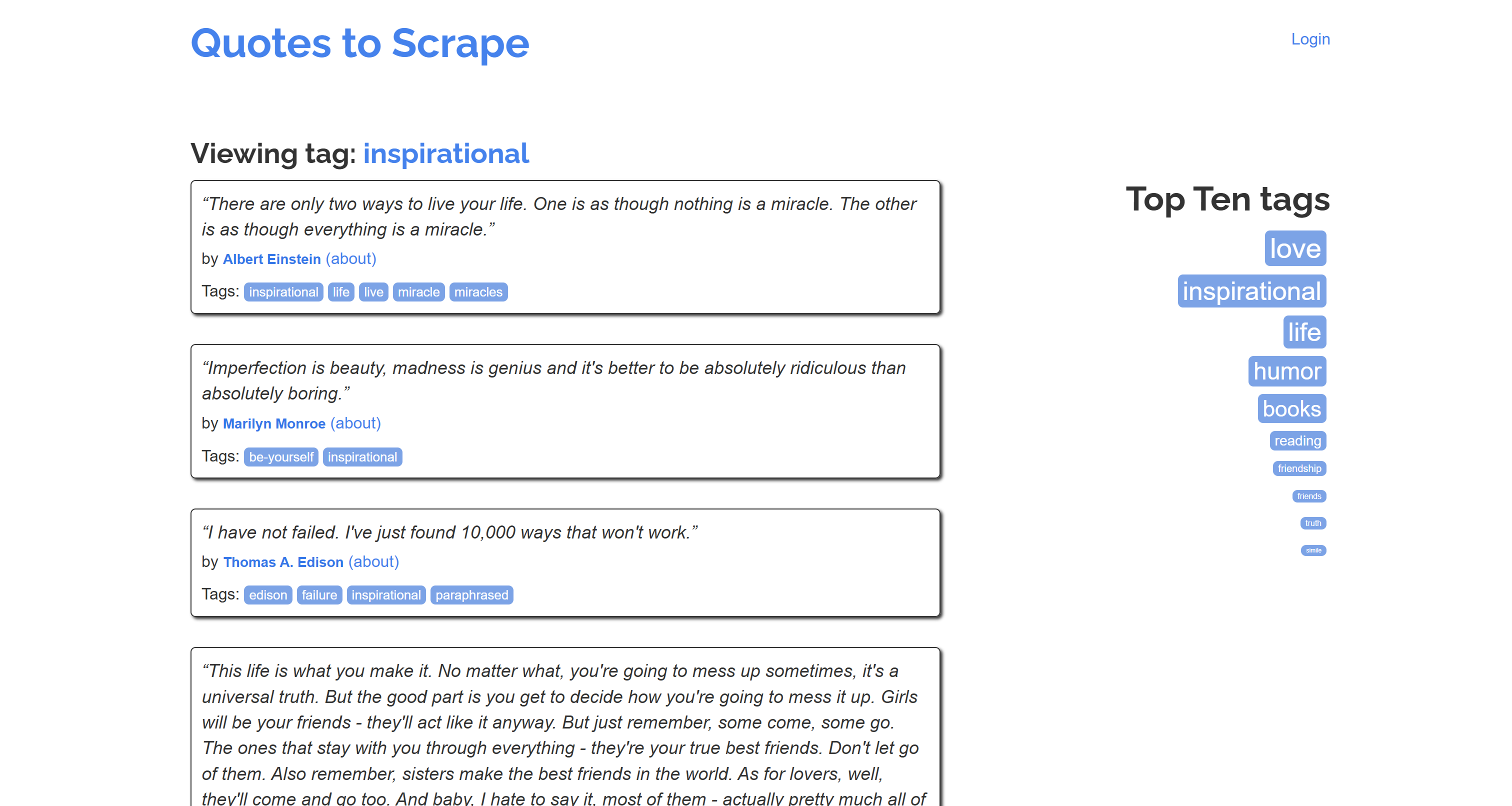
Its inspirational quotes page contains quotes and their authors in a consistent HTML structure, making it a good example for automated web data parsing.
The following script retrieves the page, extracts each quote and author, prints the results as JSON, and saves them to quotes.json:
# pip install requests beautifulsoup4

import json
import requests
from bs4 import BeautifulSoup

# URL of the inspirational quotes page
url = "https://quotes.toscrape.com/tag/inspirational/"

# Download the page HTML
response = requests.get(url)

# Parse the HTML so individual elements can be selected
soup = BeautifulSoup(response.text, "html.parser")

# Where to store the scraped data
quotes = []

# Extract the quote text and author from each quote container
for item in soup.select(".quote"):
    quote = item.select_one(".text").get_text(strip=True)
    author = item.select_one(".author").get_text(strip=True)

    # Collected the scraped data
    quotes.append({
        "quote": quote.strip("“”"),
        "author": author
    })

# Save the scraped data to a JSON file
with open("quotes.json", "w", encoding="utf-8") as file:
    json.dump(quotes, file, indent=2, ensure_ascii=False)
requests downloads the page, and Beautiful Soup selects each quote container. If you are not familiar with this process, read our tutorial on Beautiful Soup web scraping.
The script extracts the quote text and author, stores them in a list of dictionaries, and uses json.dump() to export the data to disk. The expected output is a quotes.json containing:
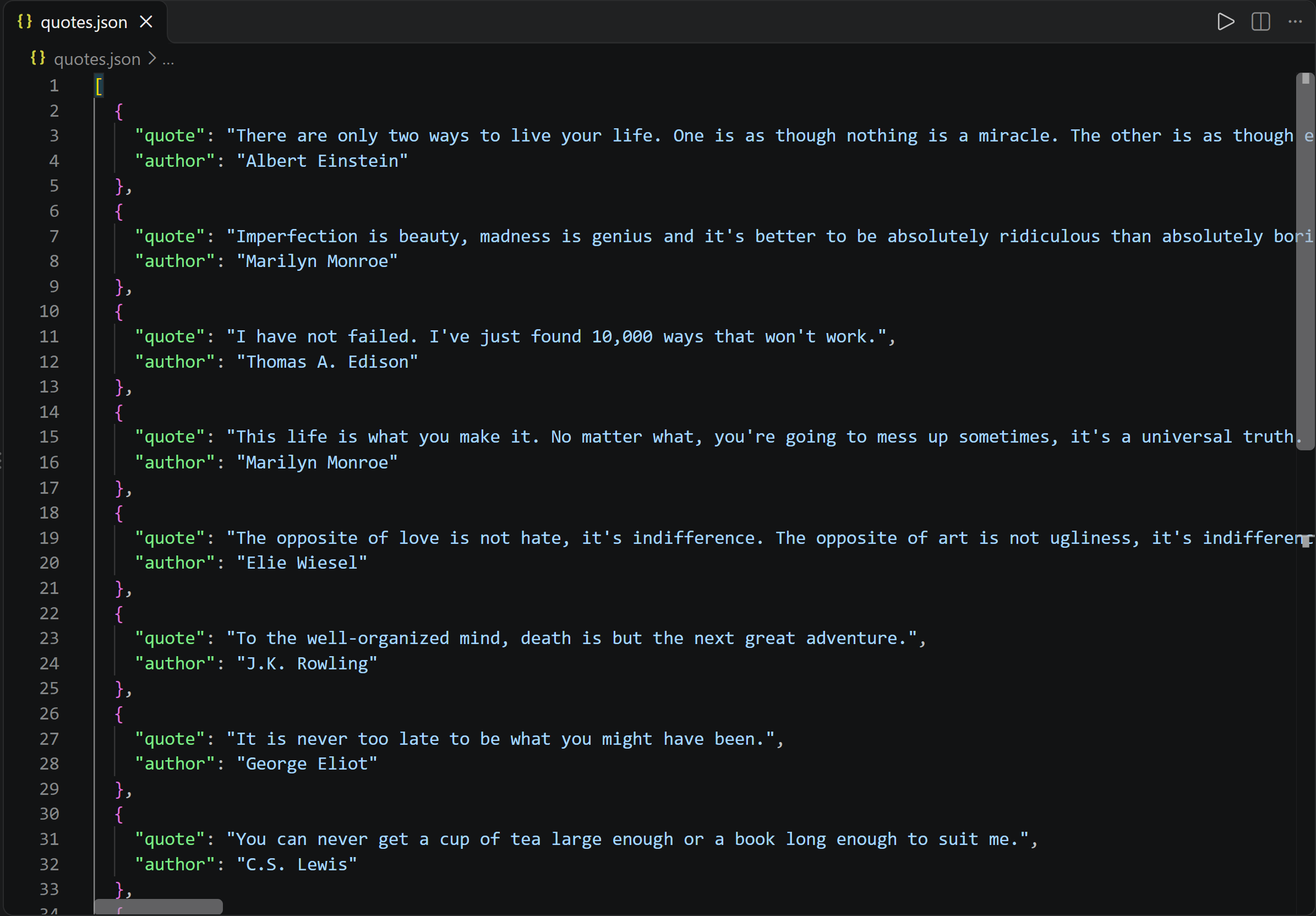
Great! These correspond to the quotes available on the target page, stored in a structured JSON file.
Screenshot Scraping
Sometimes, parsing HTML is inconvenient or difficult due to the lack of suitable selectors. In these cases, you can capture a screenshot and use a vision-capable AI model to extract the data.
This example uses the same “Inspirational” tag page from Quotes to Scrape. Playwright opens the page in Chromium and captures a full-page screenshot named quotes_screenshot.png. An OpenAI vision AI model then extracts the quotes and authors, returning structured data that the script saves to quotes_from_screenshot.json.
# pip install playwright openai pydantic
# playwright install
# TODO: Set the OPENAI_API_KEY environment variable before running

from playwright.sync_api import sync_playwright
import base64
from openai import OpenAI
from pydantic import BaseModel
import json

# Define the structure for the extracted quotes
class Quote(BaseModel):
    quote: str
    author: str

class Quotes(BaseModel):
    quotes: list[Quote]

# Open the page in a real browser and capture its full rendered page
with sync_playwright() as playwright:
    browser = playwright.chromium.launch()
    page = browser.new_page(viewport={"width": 1440, "height": 1000})
    page.goto("https://quotes.toscrape.com/tag/inspirational/")
    page.screenshot(path="quotes_screenshot.png", full_page=True)
    browser.close()

# Encode the screenshot so it can be sent to the vision model
with open("quotes_screenshot.png", "rb") as image_file:
    image_data = base64.b64encode(image_file.read()).decode("utf-8")

# Initialize the OpenAI API client
client = OpenAI()

# Ask the model to extract quotes and authors into a consistent JSON schema.
response = client.responses.parse(
    model="gpt-6-luna",
    input=[{
        "role": "user",
        "content": [
            {
                "type": "input_text",
                "text": (
                    "Extract all visible quotes and their authors. "
                    "Do not invent text."
                )
            },
            {
                "type": "input_image",
                "image_url": f"data:image/png;base64,{image_data}",
            }
        ]
    }],
    text_format=Quotes
)

# Parse the model response and save the extracted records.
quotes = response.output_parsed.quotes
quotes_data = [quote.model_dump() for quote in quotes]

with open("quotes_from_screenshot.json", "w", encoding="utf-8") as output_file:
    json.dump(quotes_data, output_file, indent=2, ensure_ascii=False)
The output will be a quotes_from_screenshot.json file with the same quote and author fields as in the HTML-based example:
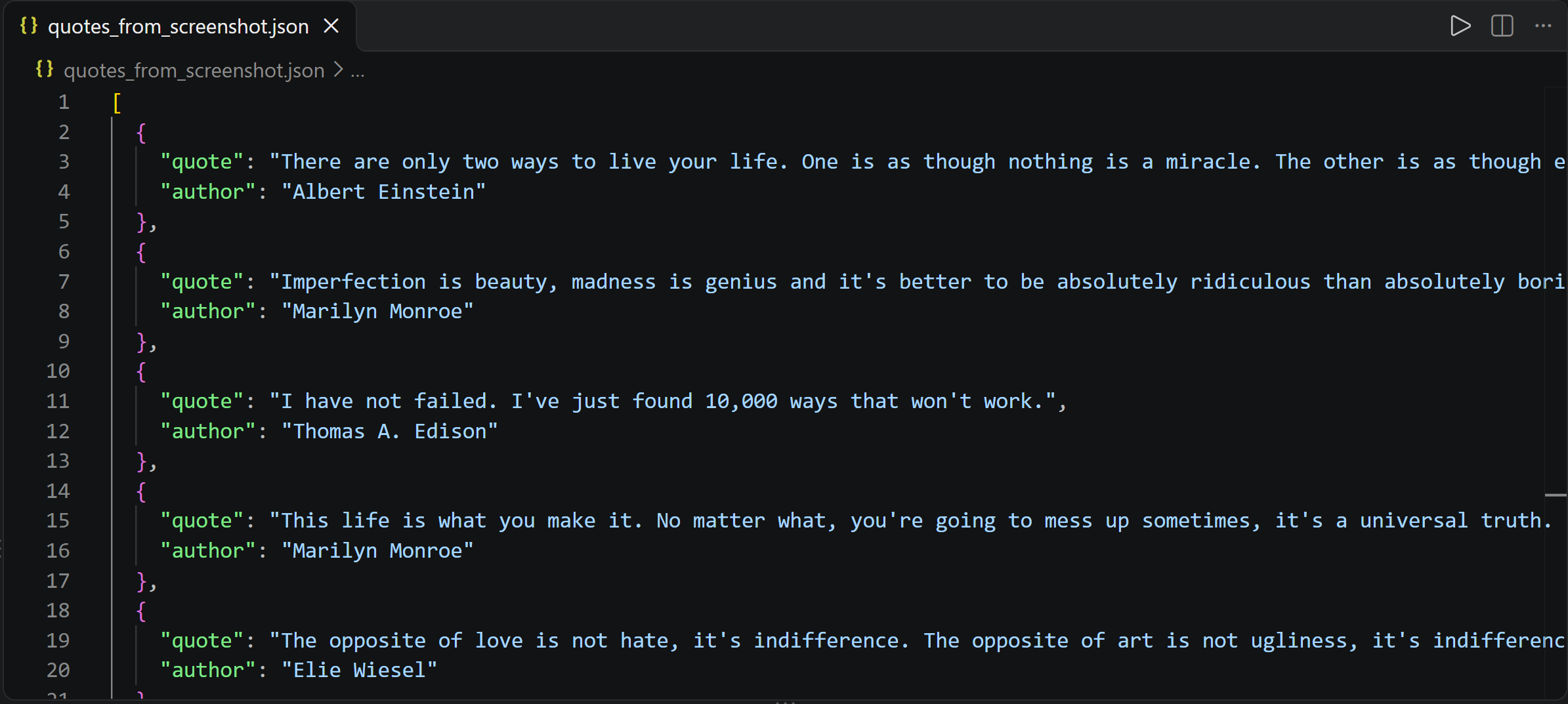
Note: Results may differ because AI-based visual extraction can miss text or misread some text. Very long pages may also need to be captured in sections to avoid context exhaustion.
Image Scraping
Images and scanned documents can contain text that is not directly accessible to a parser. For example, the following picture contains a page from Alice’s Adventures in Wonderland:
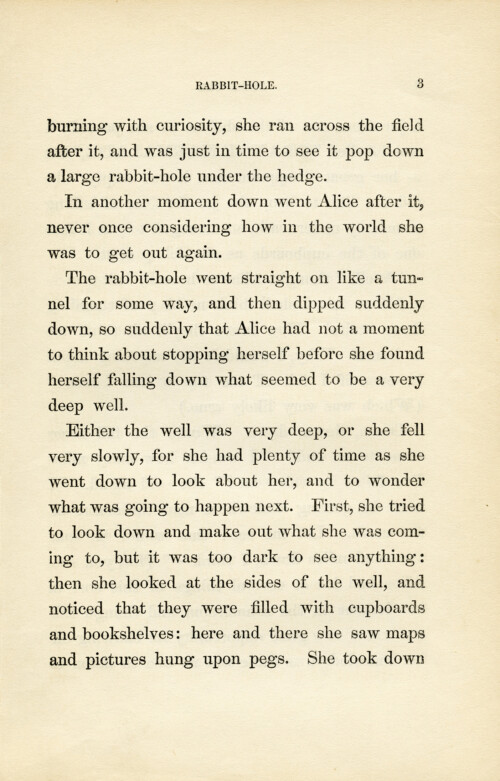
OpenCV can preprocess an image to improve text recognition, while Tesseract OCR extracts the printed text. Assuming the book page image is saved as book_page.jpg, you can employ this Python script to extract its text and save it to a plain-text file named transcript.txt:
 # pip install opencv-python pytesseract
 # TODO: Install the Tesseract OCR engine on your system

 import cv2
 import pytesseract

 # Load the book page image.
 image = cv2.imread("book_page.jpg")
 if image is None:
     raise FileNotFoundError("Could not open book_page.png")

 # Convert to grayscale and enlarge the text for OCR
 gray = cv2.cvtColor(image, cv2.COLOR_BGR2GRAY)
 gray = cv2.resize(
     gray, None, fx=2, fy=2,
     interpolation=cv2.INTER_CUBIC
 )

 # Apply automatic thresholding to separate text from the background
 processed = cv2.threshold(
     gray, 0, 255,
     cv2.THRESH_BINARY + cv2.THRESH_OTSU
 )[1]

 # Recognize the text in the processed image
 text = pytesseract.image_to_string(processed).strip()

 # Save the extracted text to a TXT file
 with open("transcript.txt", "w", encoding="utf-8") as file:
     file.write(text)
OpenCV converts the image to grayscale, enlarges it to make the characters easier to recognize, and applies thresholding to improve contrast. Tesseract then performs OCR to extract the text, which the script writes to transcript.txt:
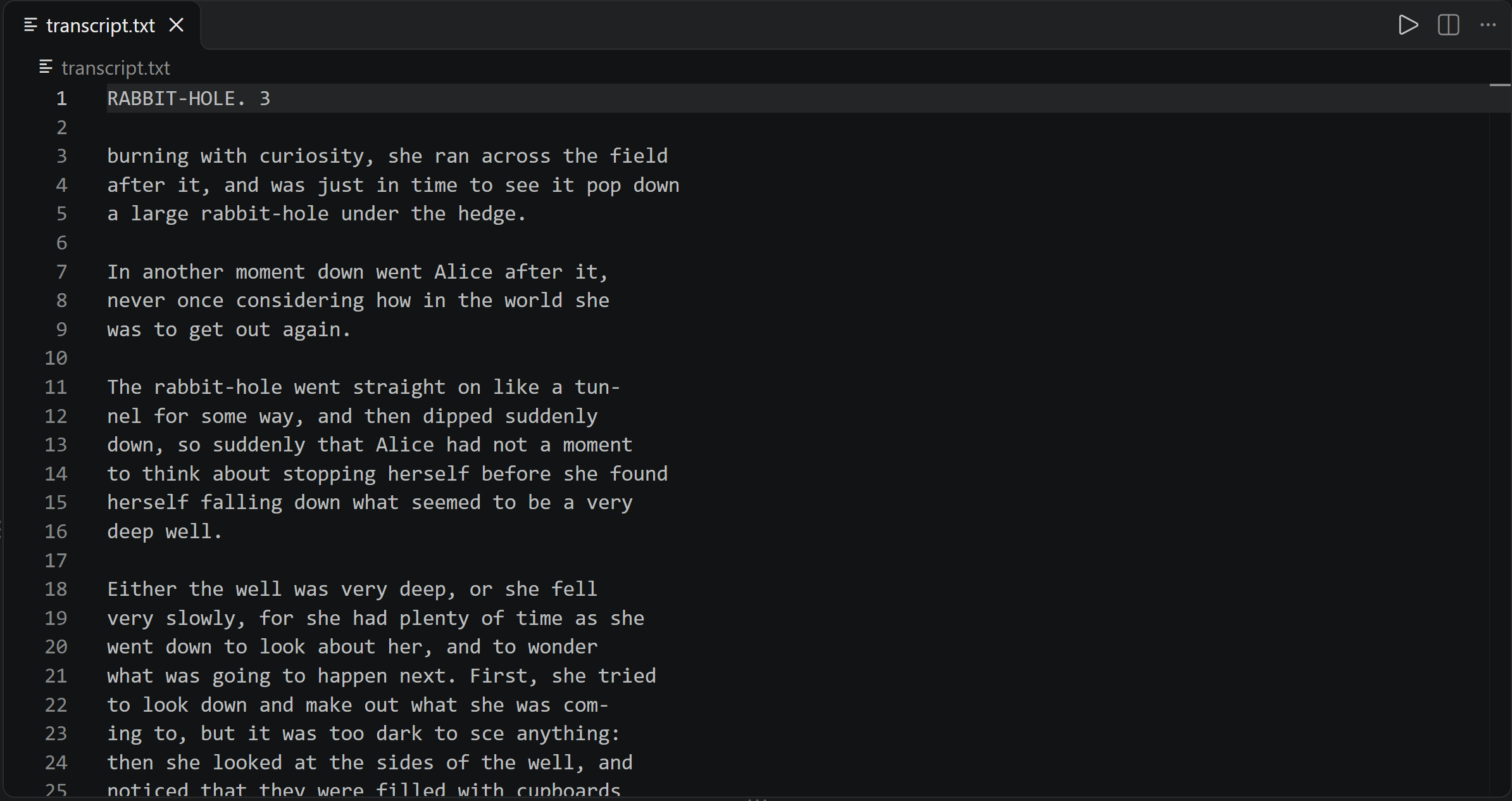
The resulting file contains the recognized text from the book page in plain-text format. Awesome!
Note: OCR accuracy depends on image quality, typography, and preprocessing.
Terminal Scraping
Terminal commands can produce table-like results like this:
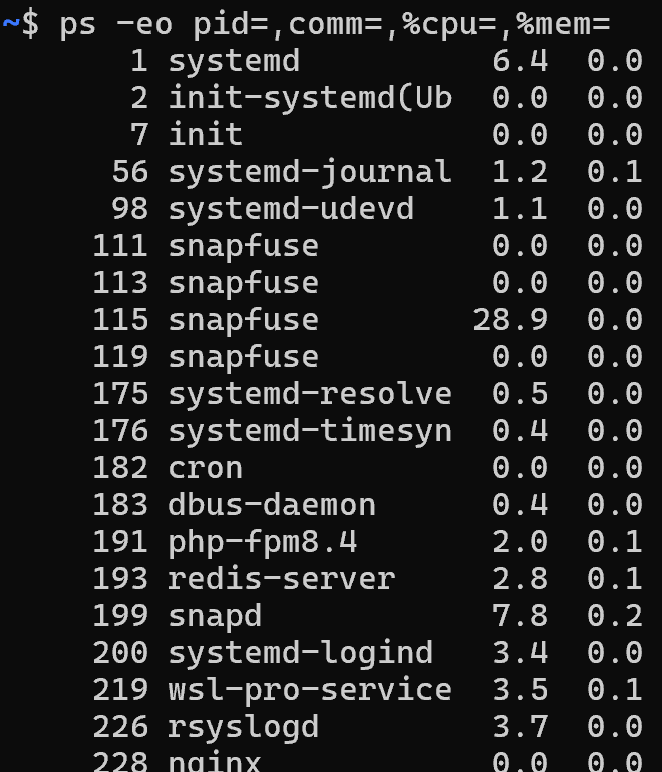
You can scrape that by retrieving the five processes with the highest CPU usage using awk:
ps -eo pid=,comm=,%cpu=,%mem= --sort=-%cpu |
head -n 5 |
awk '
BEGIN {
    print "["
}
{
    # Escape double quotes in the process name.
    gsub(/"/, "\\\"", $2)

    # Format each process as a JSON object.
    printf "%s  {\"pid\":%d,\"command\":\"%s\",\"cpu_percent\":%s,\"memory_percent\":%s}",
        (NR > 1 ? ",\n" : "\n"),
        $1, $2, $3, $4
}
END {
    print "\n]"
}
' | tee main_processes.json
ps lists running processes and their CPU and memory usage. head selects the first five entries, and awk formats each row as a JSON object. Lastly, tee both displays the result and writes it to disk.
The output will be this main_processes.json file like this:

Et voilà! You now know how to get different screen scraping data.
How to Prevent Screen Scraping?
Data is the new oil, and giving valuable data away for free is rarely a good business strategy. That is why techniques to prevent screen scraping exist in the first place.
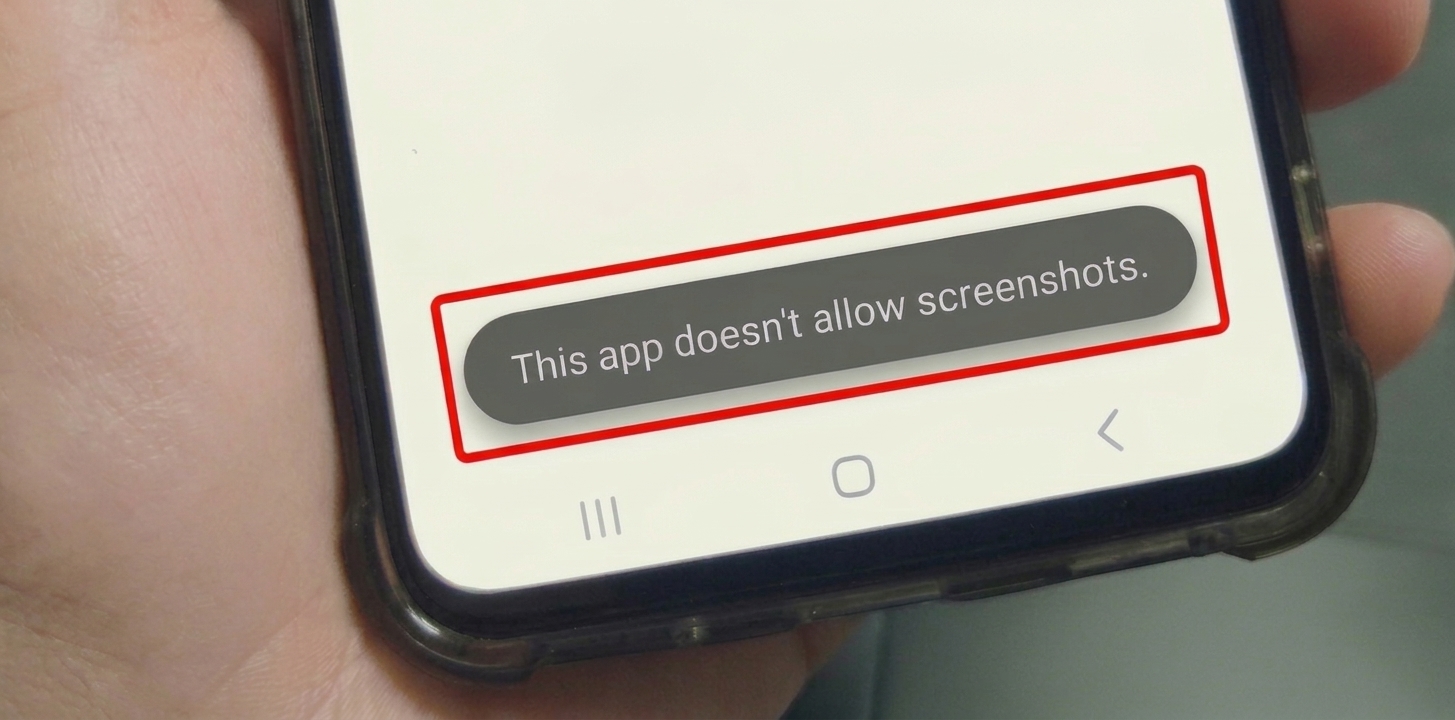
The right defense depends on the target. Websites can use CAPTCHAs, rate limiting, bot detection, and other anti-scraping measures to restrict automated collection. Desktop applications can limit access to interface elements based on licensing. Mobile apps can even block screenshots entirely.
The environment matters, too. On a local machine, capturing the screen can be relatively easy. Remote environments introduce additional considerations, as GUI-based systems can be monitored for automated interactions, while headless machines have no graphical screen to capture in the first place.
Still, no technical measure can guarantee complete prevention. If information is displayed on a user’s screen, it may still be captured externally using a smartphone camera, where permitted.
Web Screen Scraping at Scale With Bright Data
Web scraping is challenging due to CAPTCHAs, IP blocks, rate limits, and WAFs (Web Application Firewalls).
Bright Data offers all-in-one web data collection and access APIs that handle these obstacles for you. Its web scraping products are backed by a proxy network of over 400 million IPs, built-in anti-bot bypass systems, and production-grade infrastructure offering 99.99% uptime and achieving a 99.95% success rate.
Specifically, the Web Unlocker API includes a screenshot mode for capturing web pages. It also bypasses anti-bot defenses to return unblocked HTML, which you can then parse to extract data. This makes it an ideal web screen scraping API.
For interactive workflows that require JavaScript execution, clicking, screenshots, or other browser actions, Browser API provides a managed browser environment compatible with Playwright, Puppeteer, and Selenium.
Note: Both Web Unlocker API and Browser API are available through Bright Data’s free tier, which offers 5,000 free requests or credits, depending on the product. So, you can get started with both for free!
Conclusion
In this blog post, you learned what screen scraping is, how it works, and which tools to use for extracting data from web pages, graphical interfaces, documents, images, and terminal output. You also explored practical examples using Python, Playwright, OpenAI vision models, OpenCV, Tesseract OCR, and terminal commands.
With Bright Data, you can take web screen scraping further using the Web Unlocker API to access web data, or the Browser API to automate interactive browser workflows. These solutions help handle anti-bot protections, capture screenshots, and scale web data collection reliably.
Create a Bright Data account and start testing our web screen scraping API products for free!
FAQ
What is scraping?
Scraping is the automated process of gathering data from sources such as websites, graphical interfaces, documents, images, or terminal output and converting it into a machine-readable format.
What is the difference between screen scraping and web scraping?
Web scraping is the process of gathering data from web pages. In most cases, it is automated using HTTP requests, HTML parsers, or browser automation in dedicated scripts called “web scrapers.” Find out the best programming languages for web scraping.
How do you screen scrape a web page?
The method depends on how the data is presented. You can retrieve HTML and parse it directly with an HTML parser, or use browser automation to access JavaScript-rendered content. Learn more on scraping dynamic websites.
What are screen scrapers?
Screen scrapers are tools to collect information displayed on a screen. Depending on the source, they may rely on browser or desktop automation, data parsers, or AI vision models.
What is the best screen scraping software?
The best option depends on your use case, data source, and extraction requirements. Consider data accessibility, accuracy, reliability, maintenance effort, and whether you want UI automation and AI-powered capabilities.
What is the difference between screen scraping in banking and screen scraping for data extraction?
In banking, screen scraping traditionally refers to accessing financial account information by using a customer’s login credentials to retrieve data from a bank’s interface. More broadly, screen scraping fetches displayed information from websites, applications, or other interfaces.
How does Bright Data support web screen scraping?
Bright Data supports web screen scraping through its set of products, including the Web Unlocker API and Browser API. These solutions help bypass anti-bot defenses, access JavaScript-rendered pages, and capture screenshots, backed by a global proxy network and scalable infrastructure.



Technical Writer
 5.5 years experience
Antonello Zanini is a technical writer, editor, and software engineer with 5M+ views. Expert in technical content strategy, web development, and project management.


